Pabbly Connect Team•Updated Jul 25, 2026•2 min read
On this page
Pabbly Connect: Azure SQL Database Access Setup Pabbly Connect allows applications to securely access your Azure SQL Database by whitelisting specific client IPs and retrieving the required database connection details. Follow the steps below to configure access safely. Note: Ensure only trusted IPs are whitelisted. Incorrect configuration may block your application from connecting. PART 1: Whitelisting a Specific Client IP for Azure SQL Database Access PART 2: Obtaining Connection Details for Azure SQL Database Access
PART 1
Step-by-Step: Whitelisting a Specific Client IP for Azure SQL Database Access
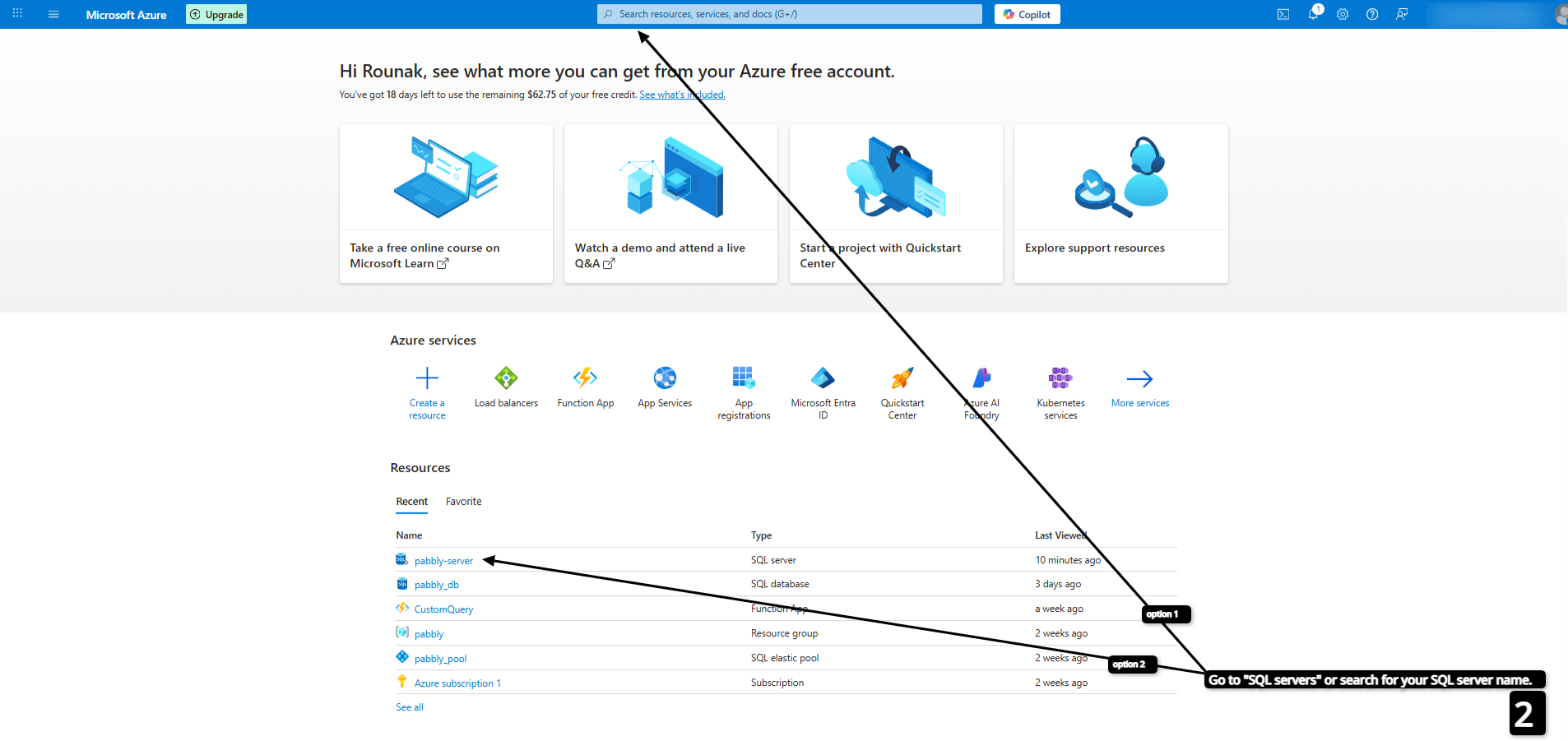
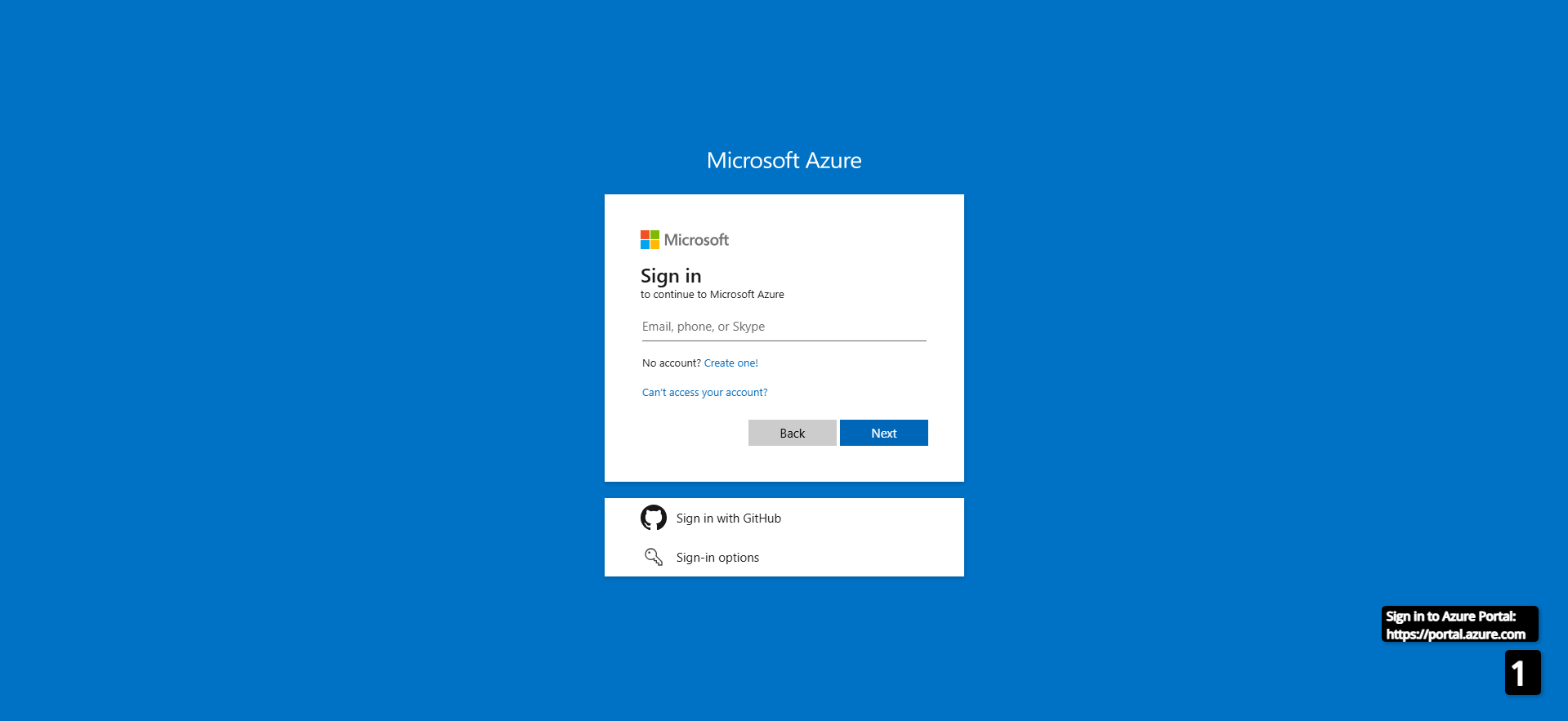
Follow these steps to whitelist the IP address 157.180.81.74 for the Azure SQL server by adding it to the firewall rule IP range in the Azure portal. This will allow the application to access the database
Go to "SQL servers" or search for your SQL server name.
3. Open your SQL server:
Click on the actual SQL server resource (not just the individual database).
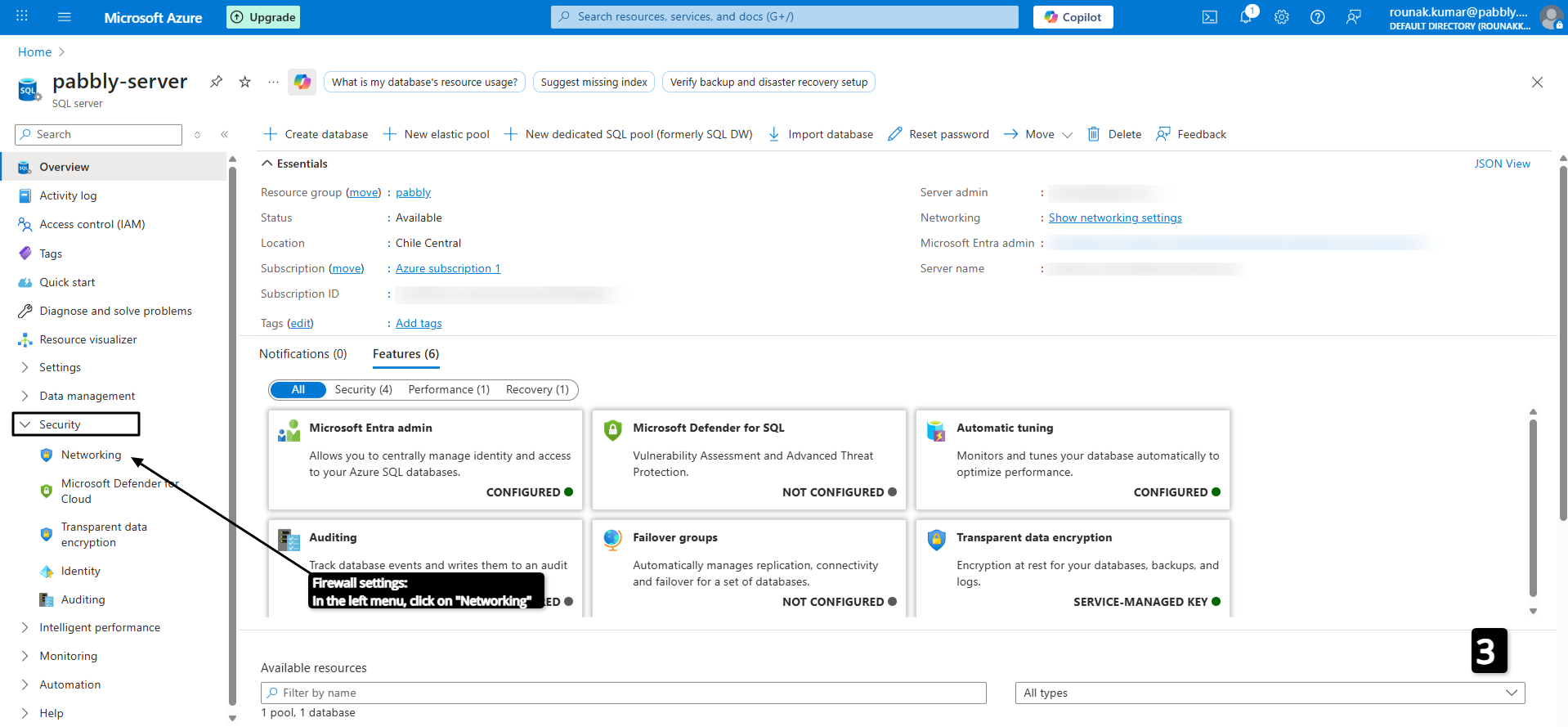
4. Firewall settings:
In the left menu, click on "Networking" or "Firewalls and virtual networks".
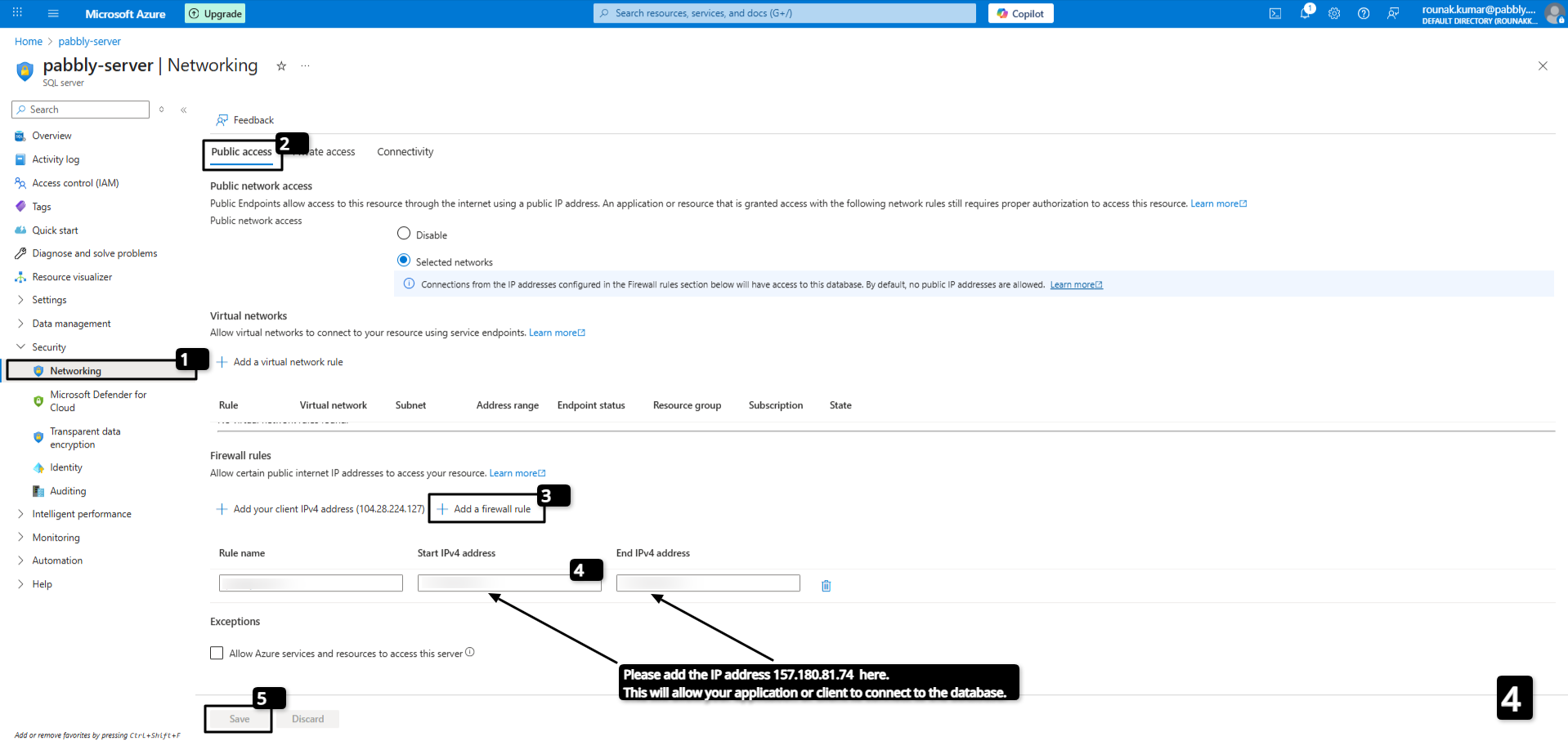
5. Add your client IP:
Under "Firewall rules", you’ll see an option like “Add client IP” or fields to specify “Start IP” and “End IP”.
Click “Add client IP” to automatically fill in your current public IP, or manually enter your IP/range.
6. Save your changes:
Click “Save” to apply the rule.
PART 2
Step-by-Step: Obtaining Connection Details for Azure SQL Database Access
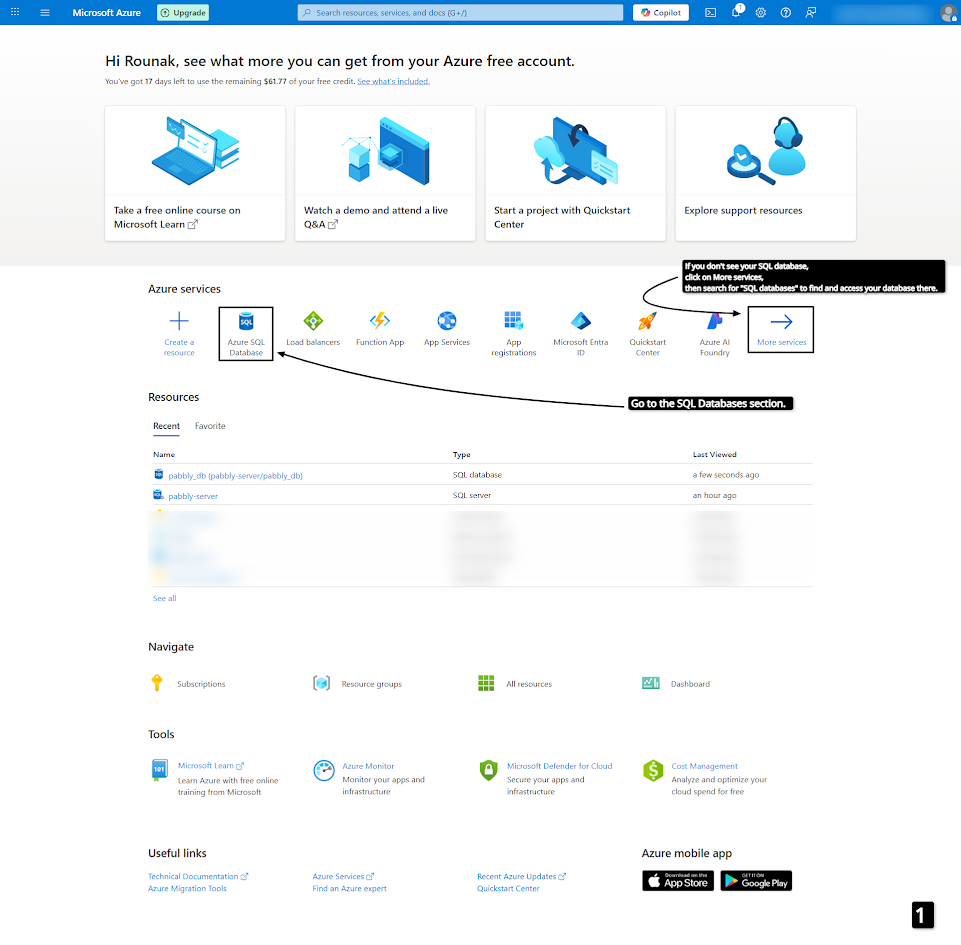
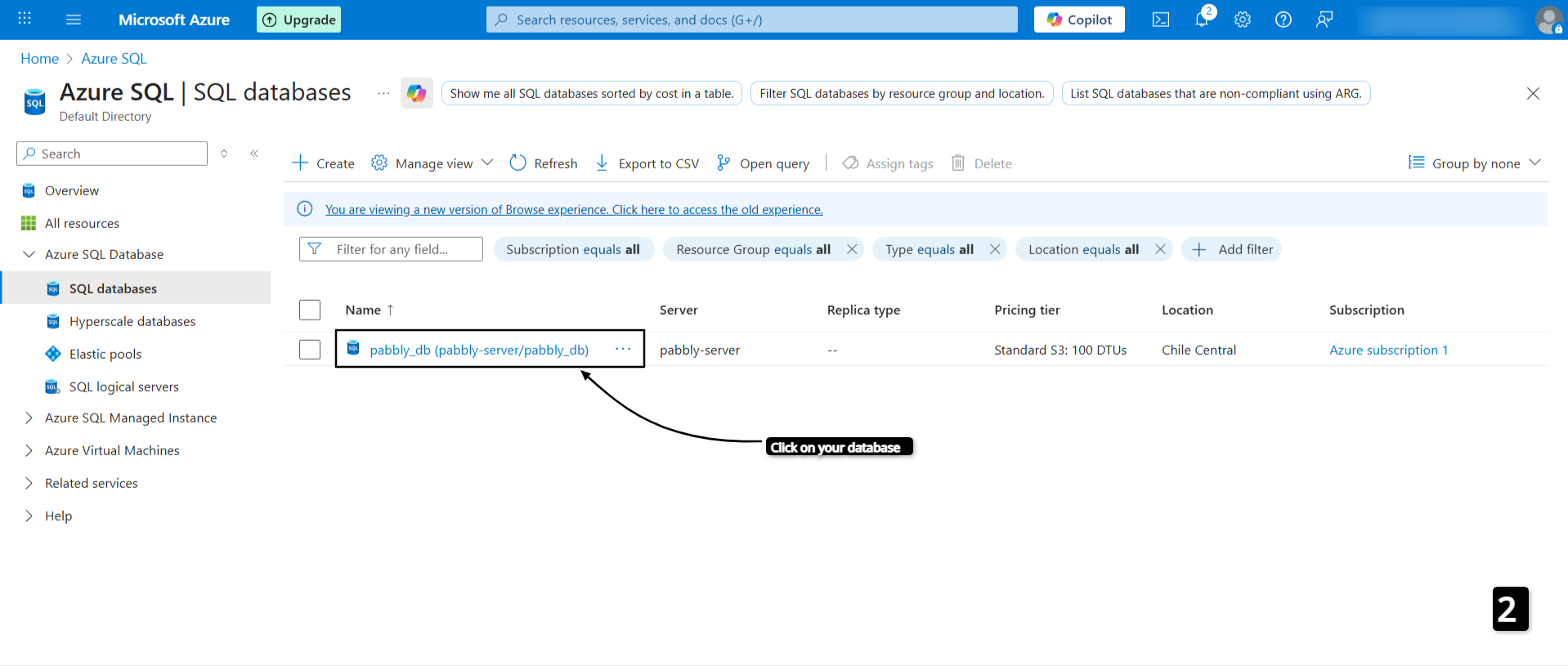
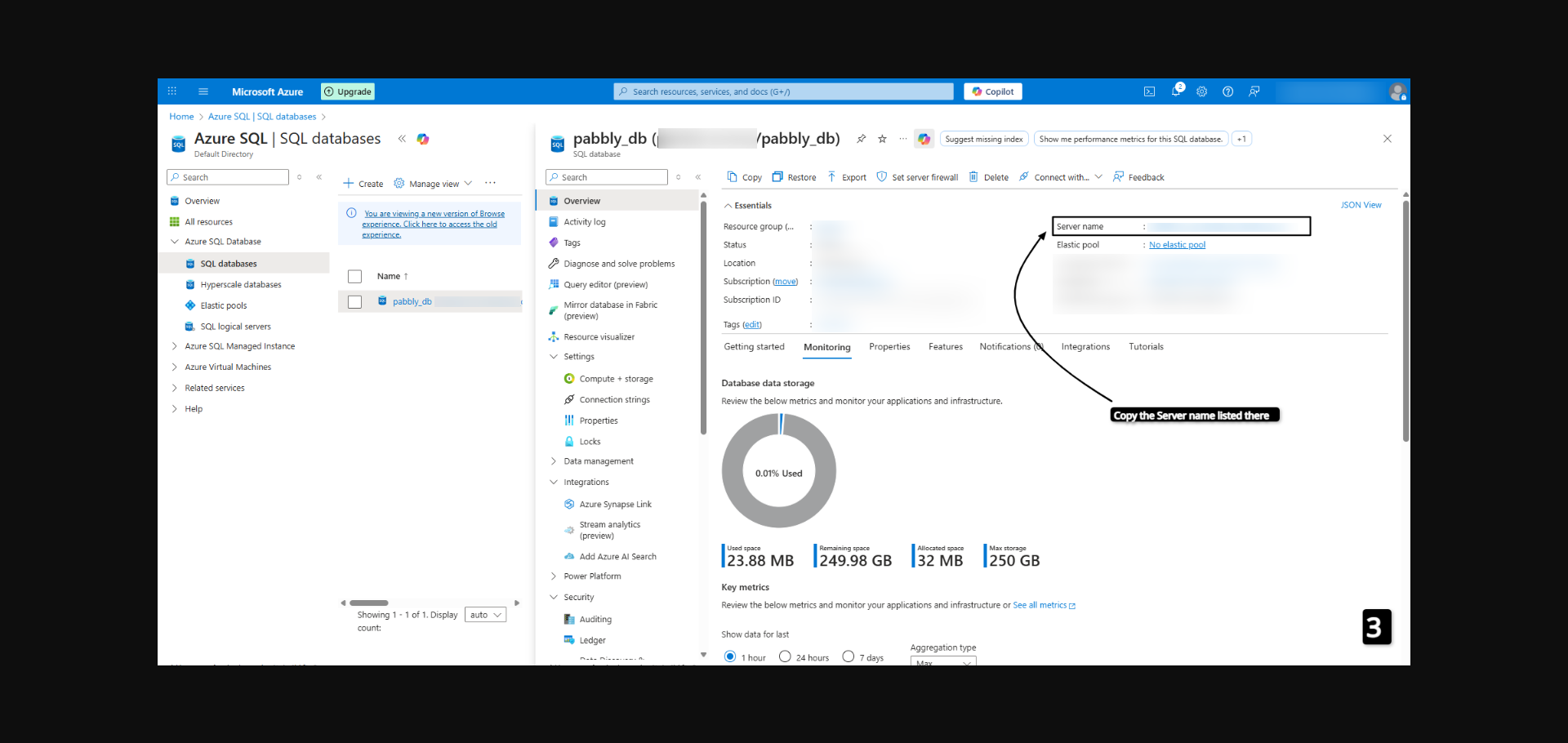
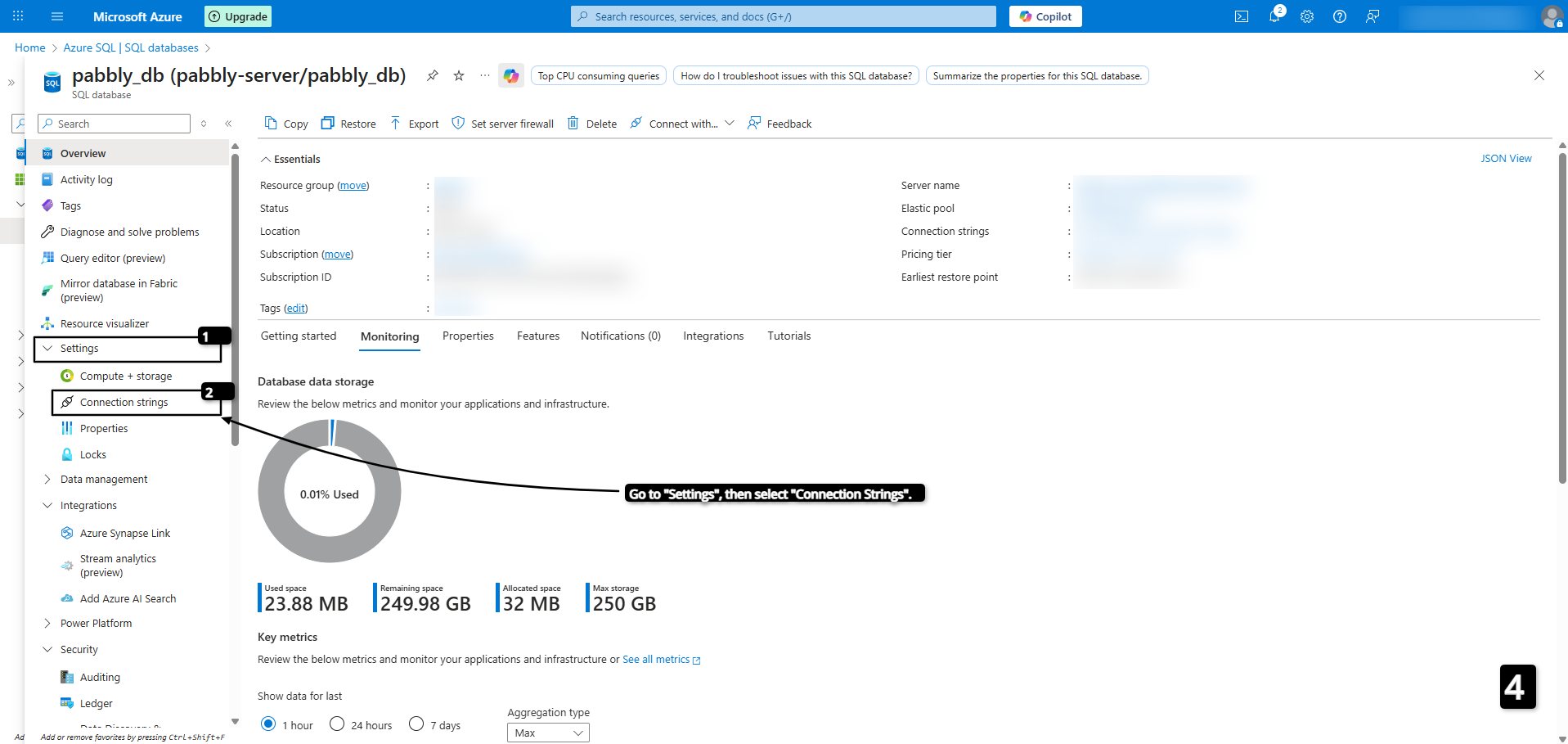
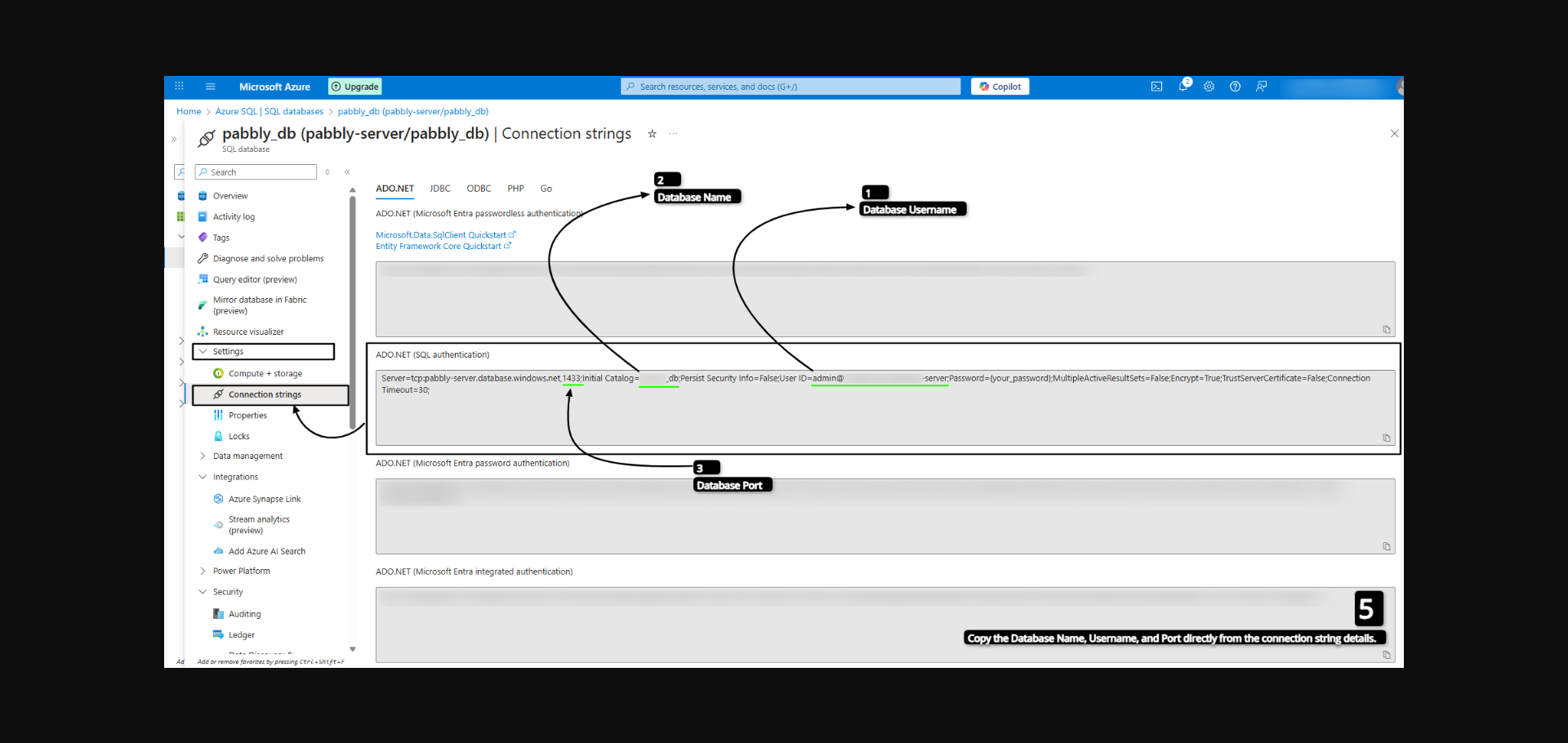
Follow these steps to obtain the details required for your application to connect to the Azure SQL database, including the server name, database name, username, and port.
 Pabbly Connect Team•Updated Jul 25, 2026•2 min read