Exploring and Customizing Templates in Chatflow
Enhance your communication by browsing and customizing a wide range of predefined templates. This section provides an overview of the available templates and the steps to use them efficiently.
Steps to Explore and Use Templates
Step 1: Log in to Your Chatflow Account
Access your Chatflow account with your credentials.
Step 2: Navigate to the Template Module
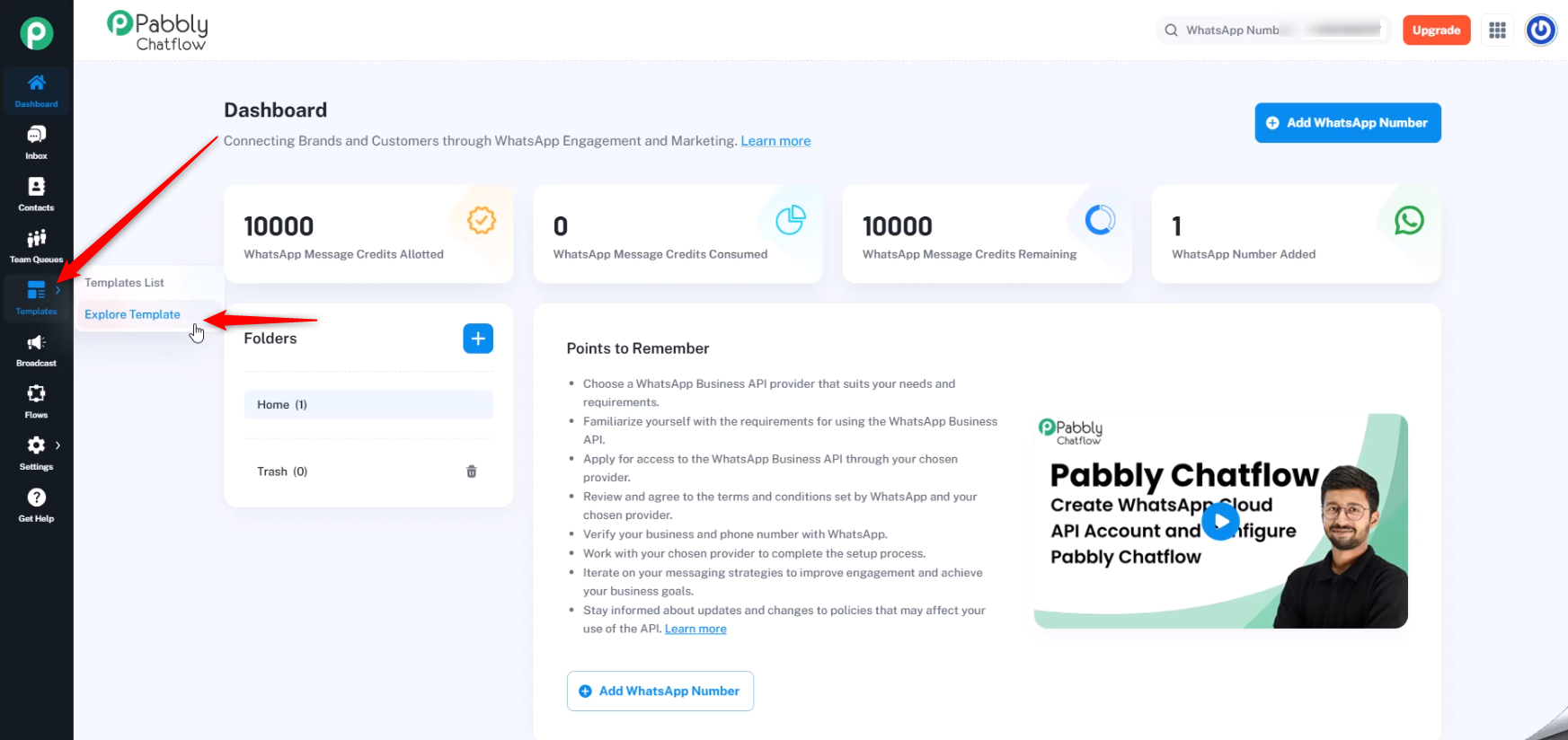
- Go to the Template Modules section.
- Select the Explore Template section to browse available templates.
Step 3: Browse Available Template Categories
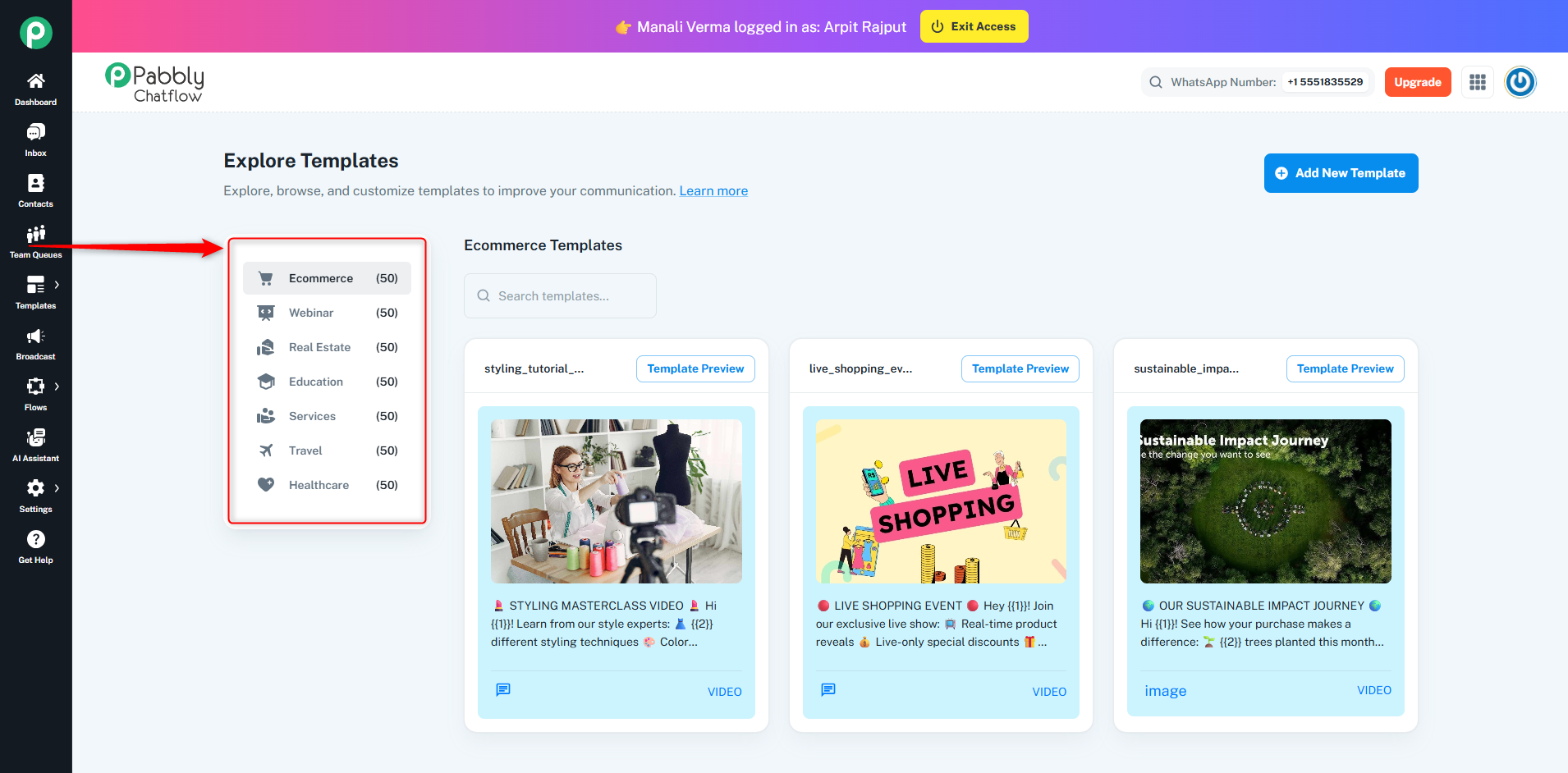
Pabbly Chatflow offers predefined templates across multiple business categories. Each category contains 50 ready-to-use templates:
- ? Ecommerce (50)
- ? Webinar (50)
- ? Real Estate (50)
- ? Education (50)
- ?️ Services (50)
- ✈️ Travel (50)
- ❤️ Healthcare (50)
You can select a category from the left panel to explore relevant templates.
- Ecommerce (50 templates) Templates tailored for e-commerce businesses, including promotional offers, product announcements, order updates, and customer support.
- Webinar (50 templates) Templates designed for webinars, including invitation messages, reminders, and follow-up content to engage participants.
- Real Estate (50 templates) Templates for real estate businesses, such as property listings, new property alerts, open house invitations, and client follow-ups.
- Education (50 templates) Templates for educational institutions, covering course promotions, registration reminders, class schedules, and exam updates.
- Services (50 templates) Templates for service-based businesses, including appointment bookings, service reminders, feedback requests, and promotions.
- Travel (50 templates) Templates for travel agencies, including flight bookings, itinerary confirmations, promotional offers, and travel tips.
- Healthcare (50 templates) Templates for healthcare providers, such as appointment reminders, health tips, patient follow-ups, and medical alerts.
Step 4: Select and Use a Template
-
Click on the desired template.
-
Press ‘Template Preview’ to view it.
-
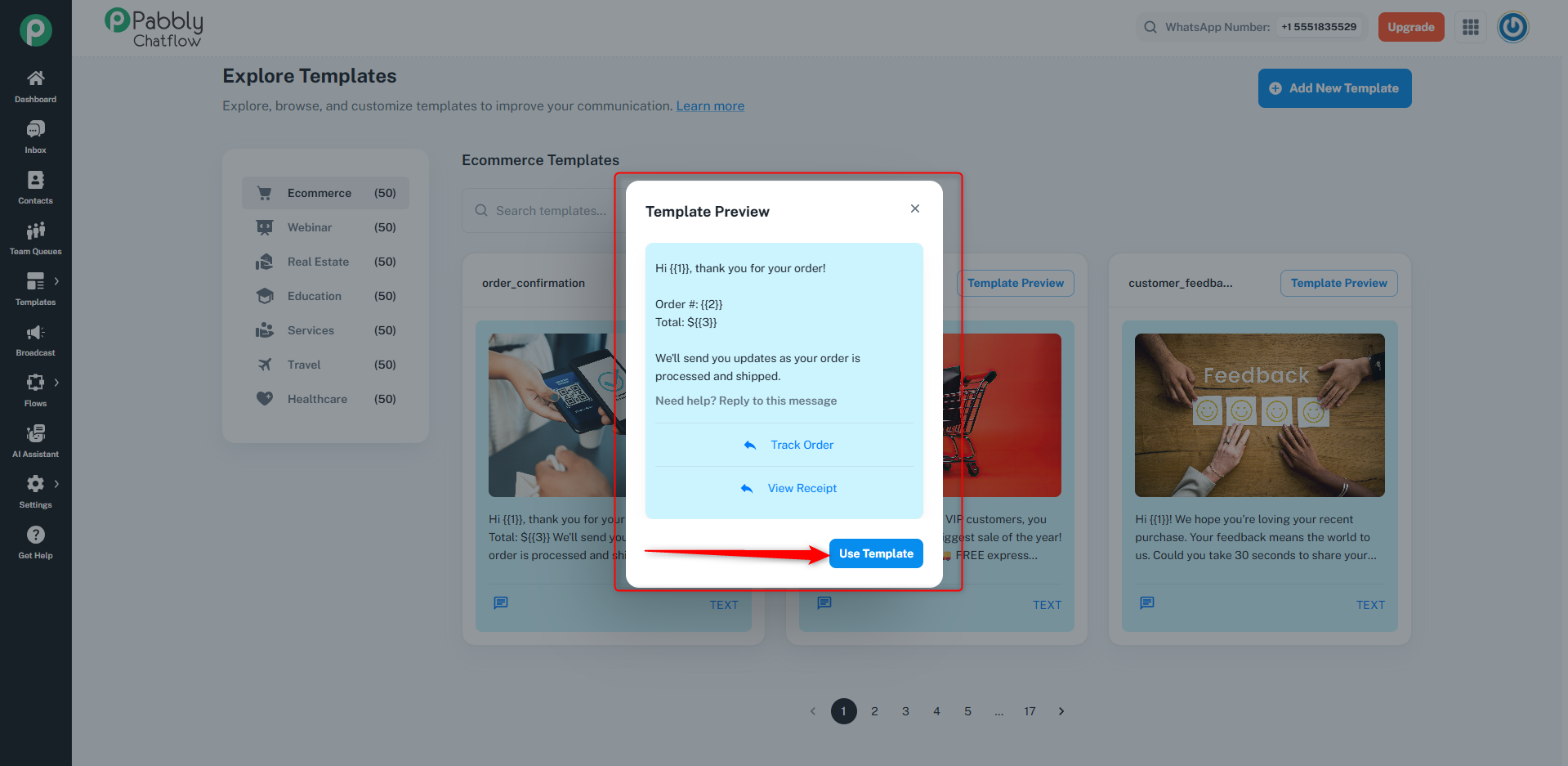
To use the template, click ‘Use Template’. 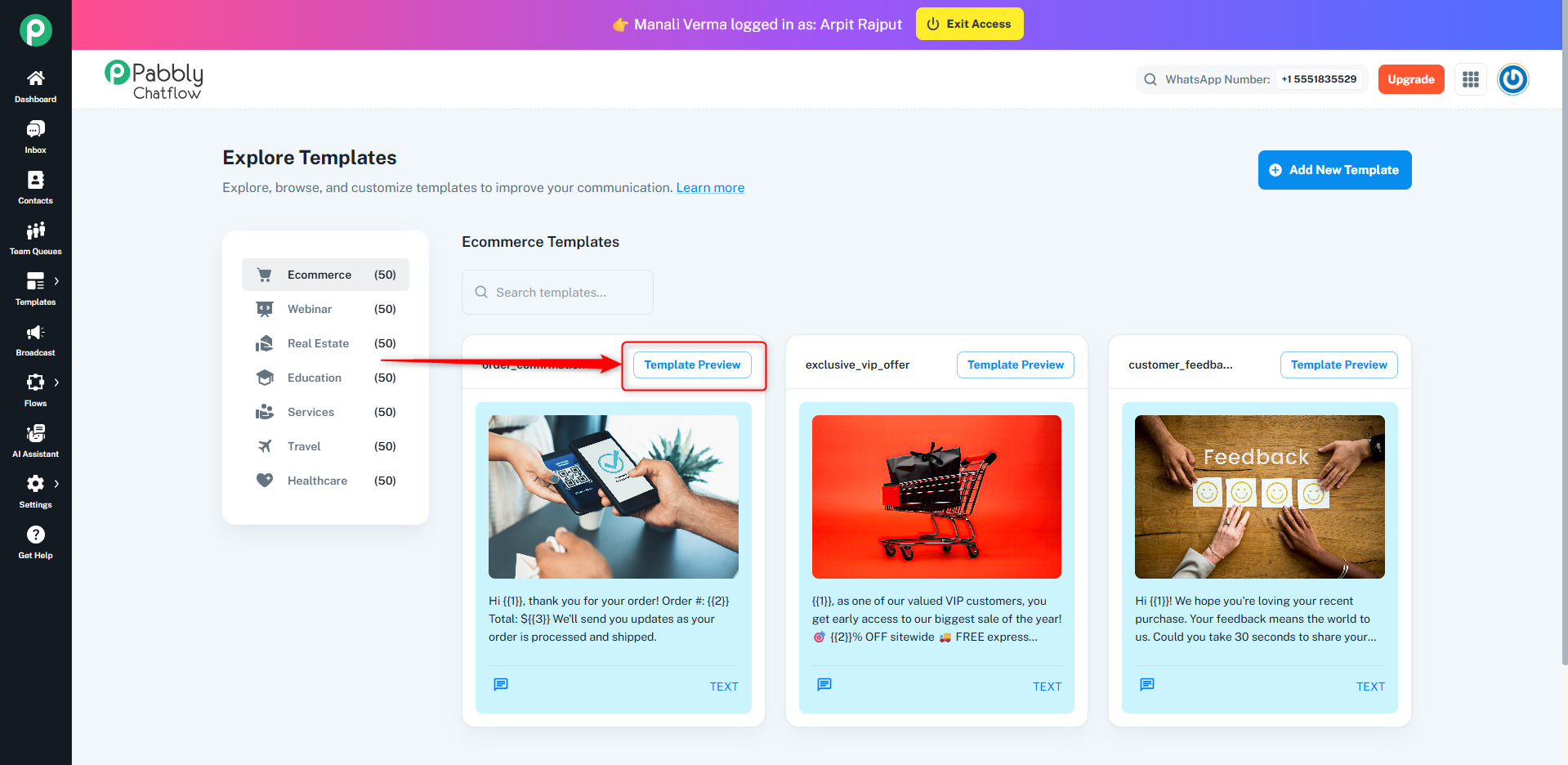
[IMG width="783px"]https://forum.pabbly.com/attachments/1750667016733-png.57862/?hash=486fa6e9a3442e60ee1864e94f6bb058[/IMG]
Step 5: Customize the Template
- In the Preview Section, click on the Use Template button.
- This action will redirect you to the Add Template section with pre-filled details.
- Customize the template as needed before submission.
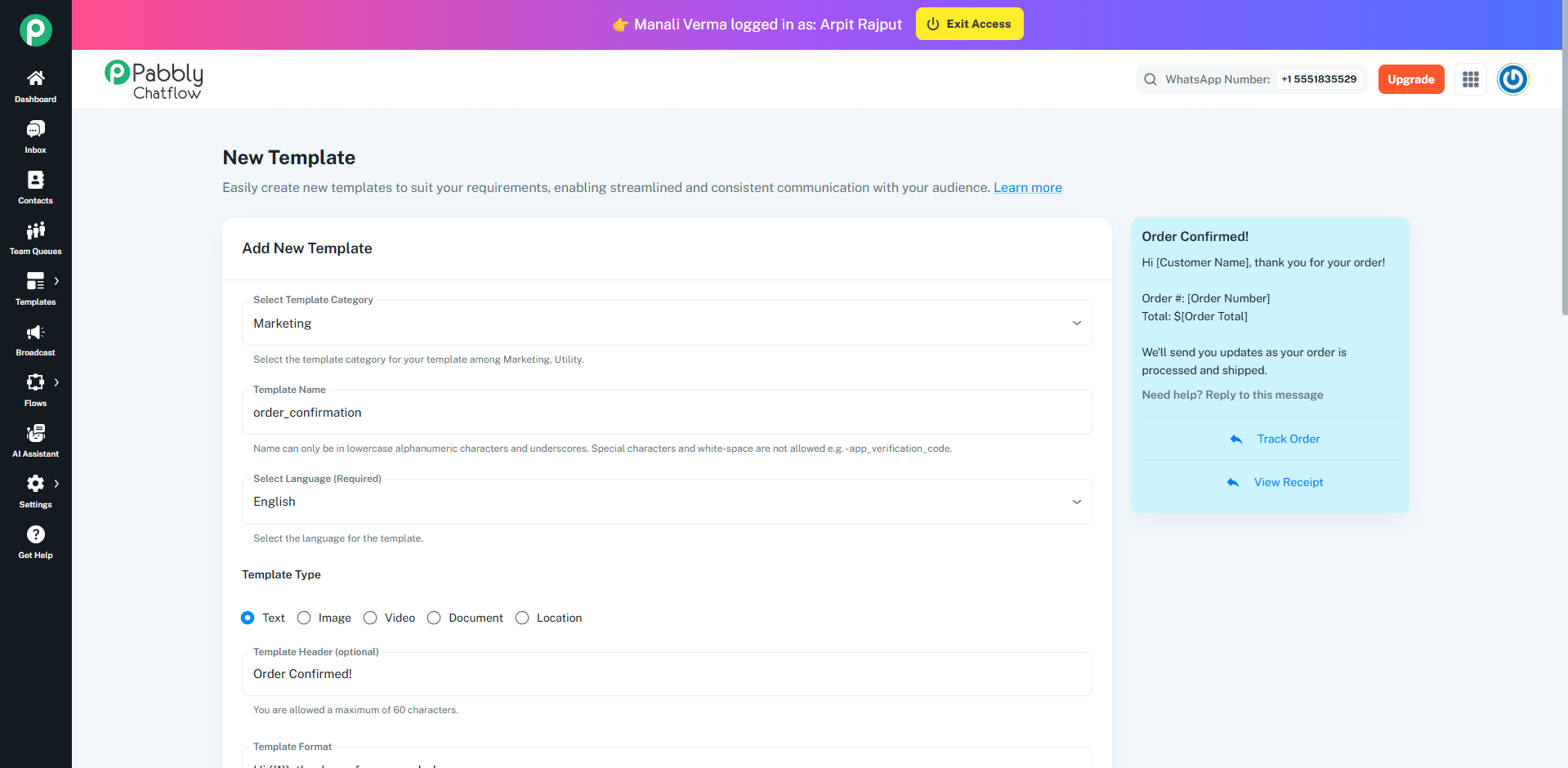
- Once customization is complete, submit the template for Meta's approval.
- Upon approval, you can start using the template immediately.
By following these steps, you can streamline your workflow and improve communication efficiency within your Chatflow account.
Originally posted by Neha Bhatia on 2025-02-25 (forum thread #27227).
 Pabbly Chatflow Team•Updated Jul 25, 2026•2 min read