This the complete step-by-step process to delete an existing WhatsApp Payment Configuration in Pabbly Chatflow.
Step 1: Navigate to the Payment Gateways Tab
- Log in to your Pabbly Chatflow account.
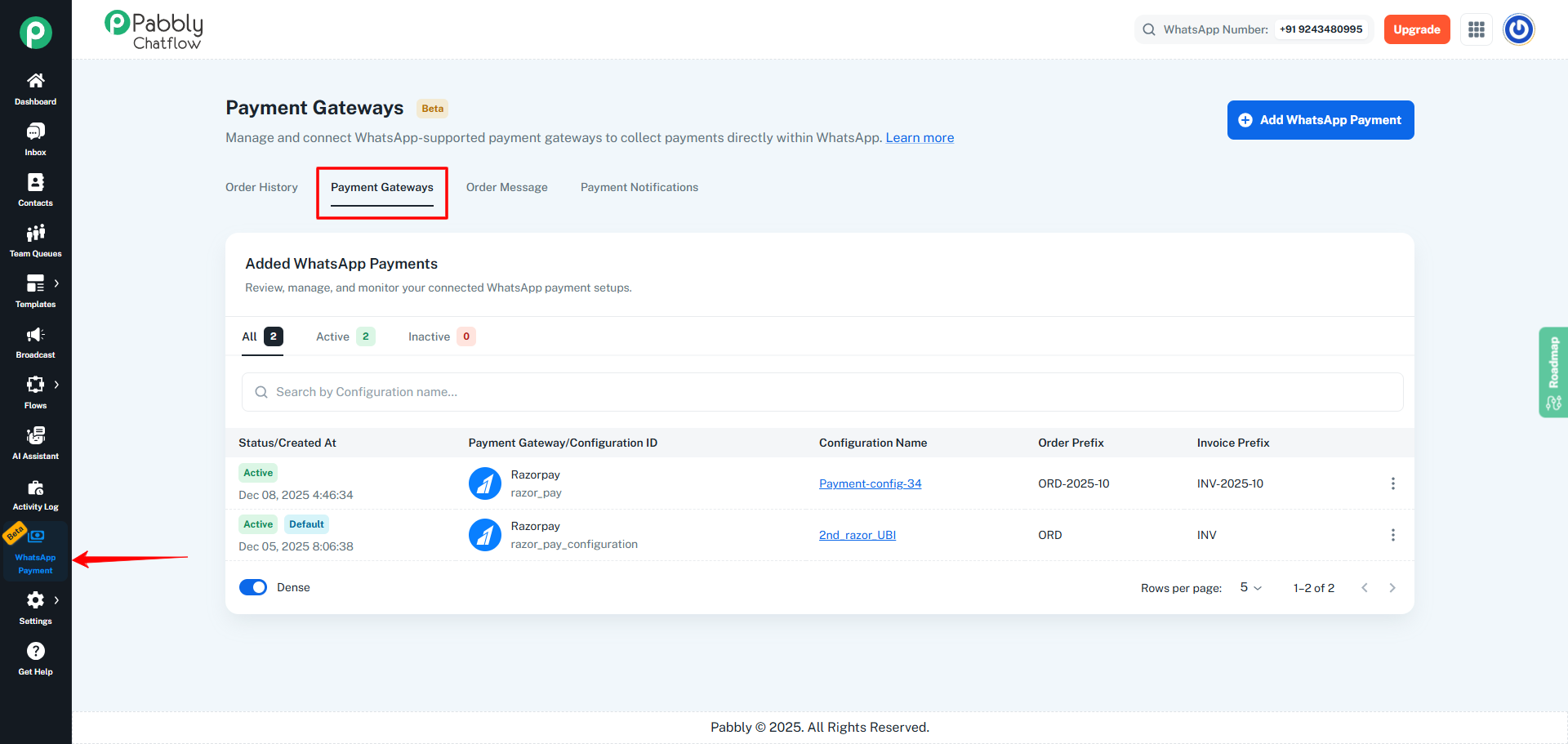
- From the left sidebar, click on WhatsApp Payment.
- On the top of the screen, click the Payment Gateways tab (2nd tab).
Step 2: Locate the Payment Configuration You Want to Delete
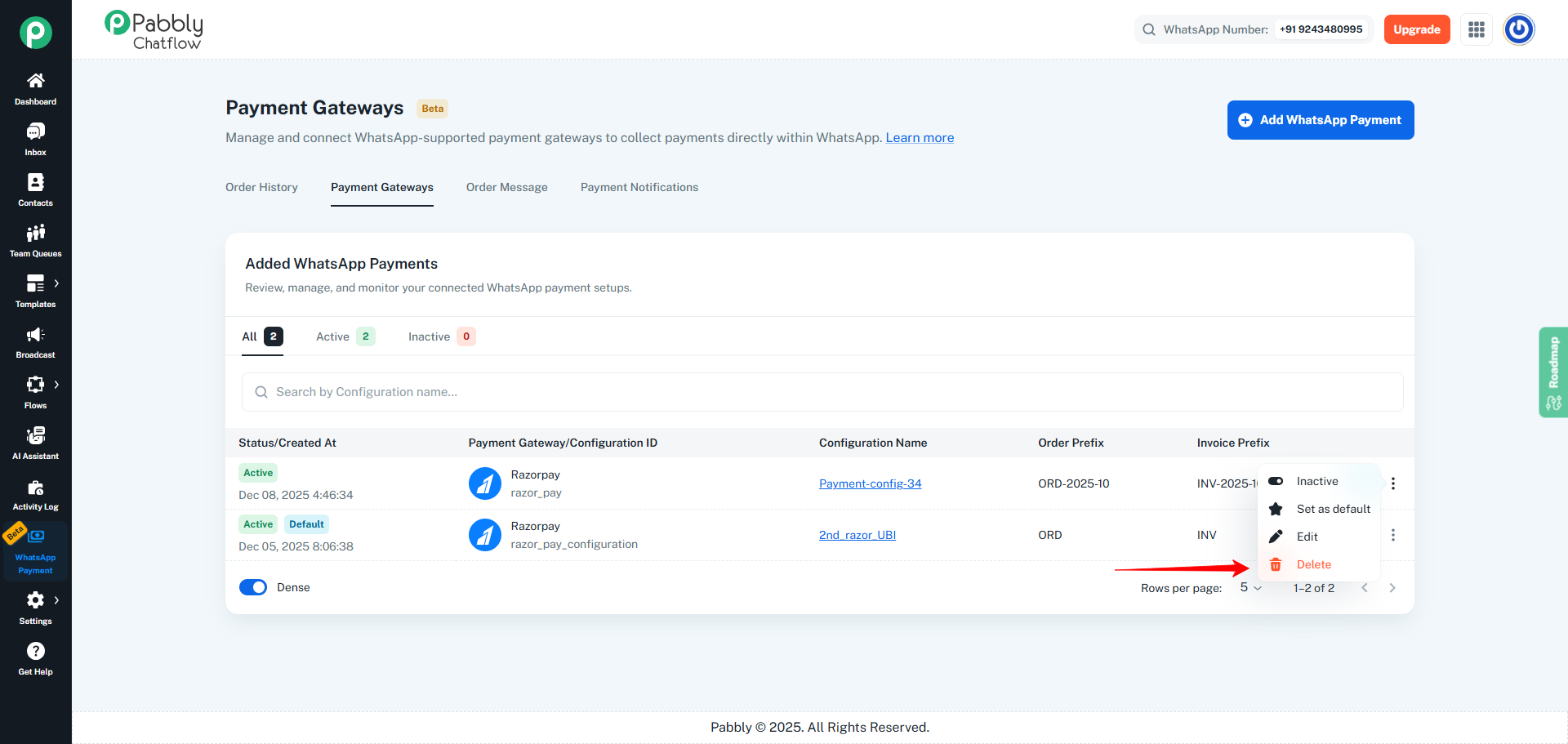
- In the Added WhatsApp Payments list, find the configuration you want to remove.
- You can use the search bar if you have many configurations.
- Once you locate it, go to the three-dot (⋮) menu at the right end of that row.
Step 3: Check if the Configuration Is Set as Default
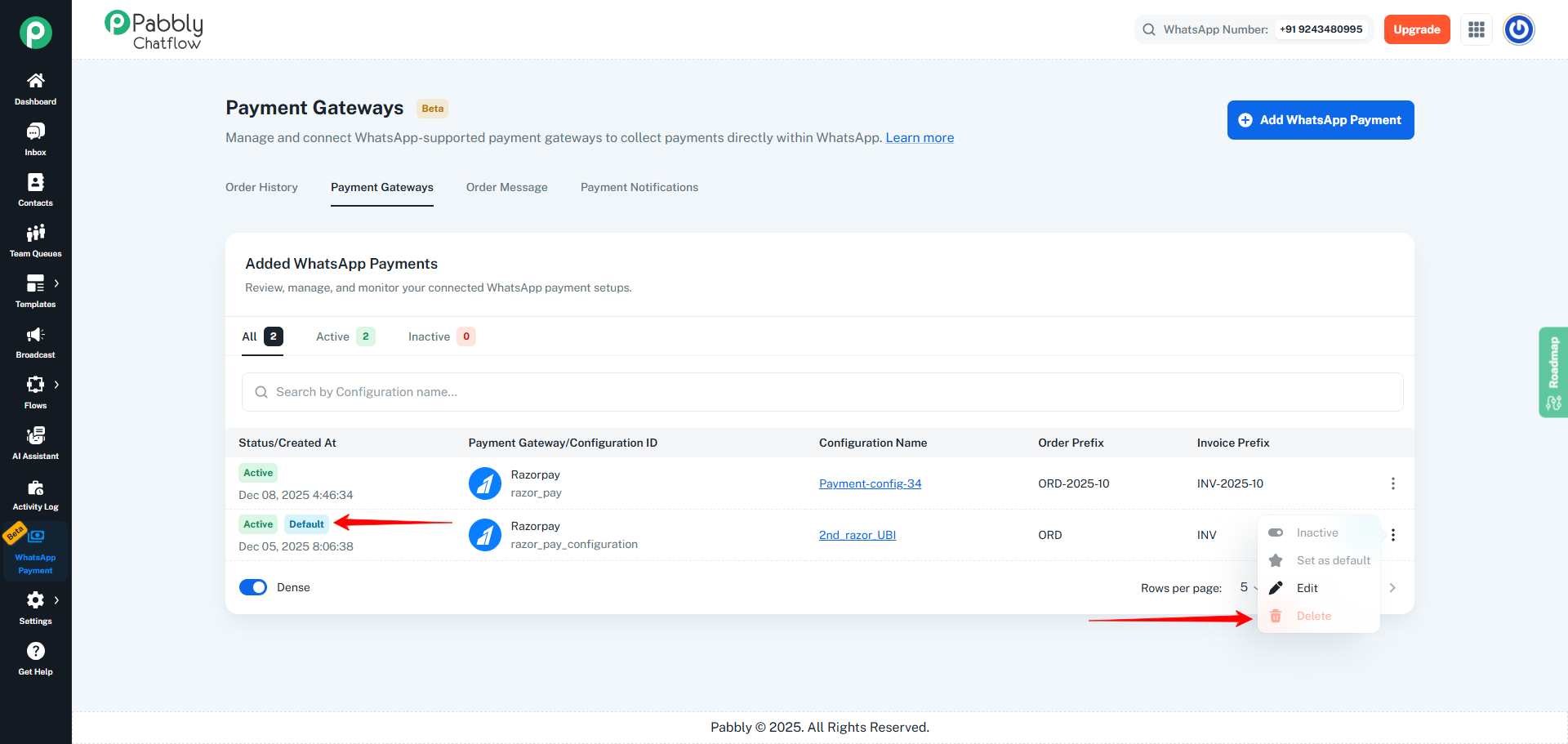
You cannot delete a configuration that is currently marked as Default.
- If the configuration you want to delete has the “Default” badge, the Delete option will be disabled in the three-dot menu.
Step 4: Change Default (If Needed)
If the configuration you want to delete is set as Default, first assign another configuration as Default:
- Choose another active payment configuration from the list.
- Click the three-dot (⋮) menu for that configuration.
- Click Set as default.
- The Default badge will move to this configuration, and the earlier one will no longer be default.
Now, return to the configuration you want to delete:
Step 5: Delete the Payment Configuration
- Click Delete from the three-dot (⋮) menu of the selected configuration.
- A confirmation popup will appear asking if you are sure you want to delete this WhatsApp payment configuration.
- Click the Delete button in the popup to confirm.
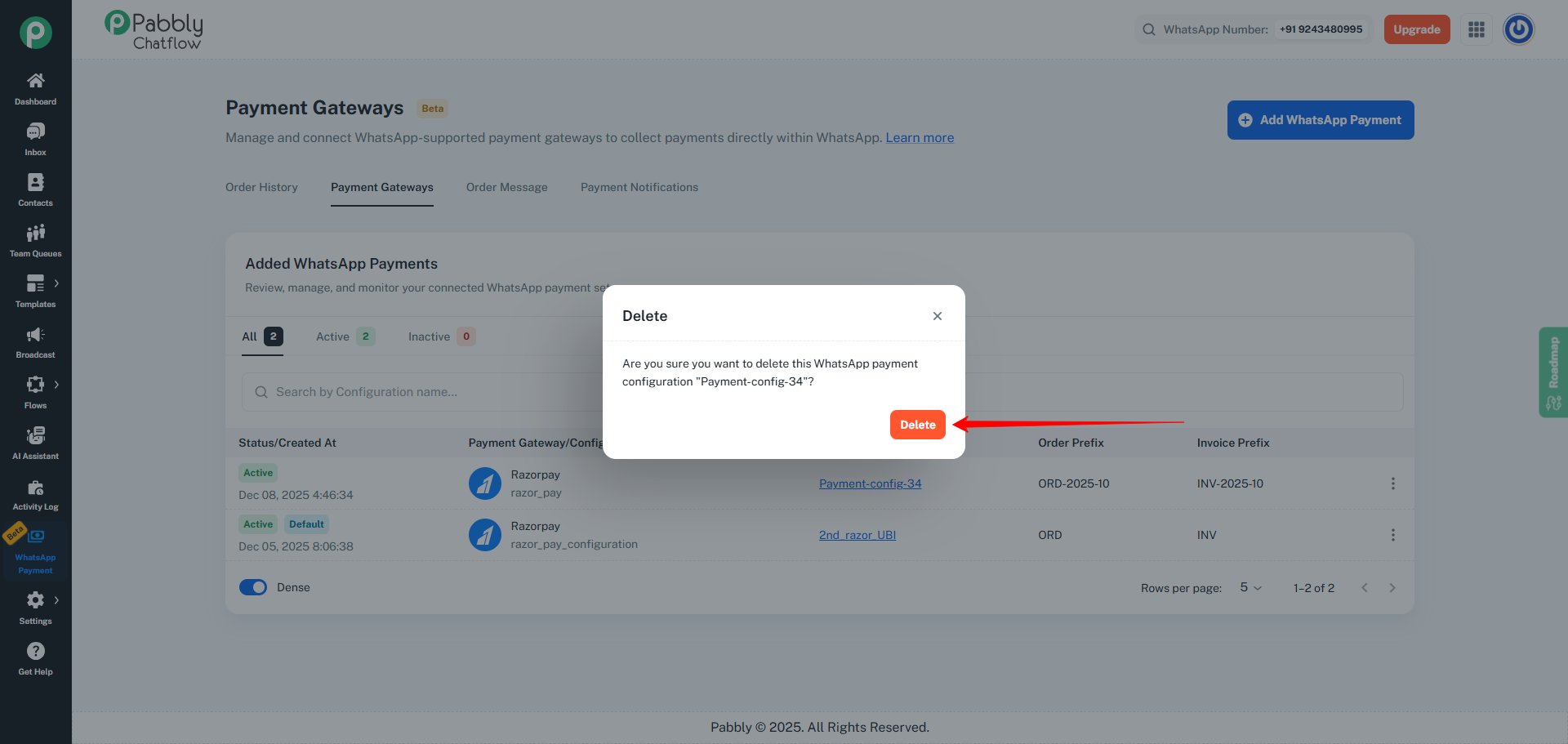
After confirmation, the payment configuration will be permanently removed from your Added WhatsApp Payments list.
Important Notes
- You must have at least one active default configuration if you are using WhatsApp Payments.
- A default configuration cannot be deleted directly. Always assign another configuration as default before attempting to delete it.
 Pabbly Chatflow Team•Updated Oct 24, 2026•2 min read