Features & Capabilities
 Pabbly Chatflow Team•Updated Oct 24, 2026•1 min read
Follow these steps to customize your email Interaction Preferences inside your Pabbly Chatflow account and stay informed based on your needs.
Access your Pabbly Chatflow dashboard by signing in with your credentials.
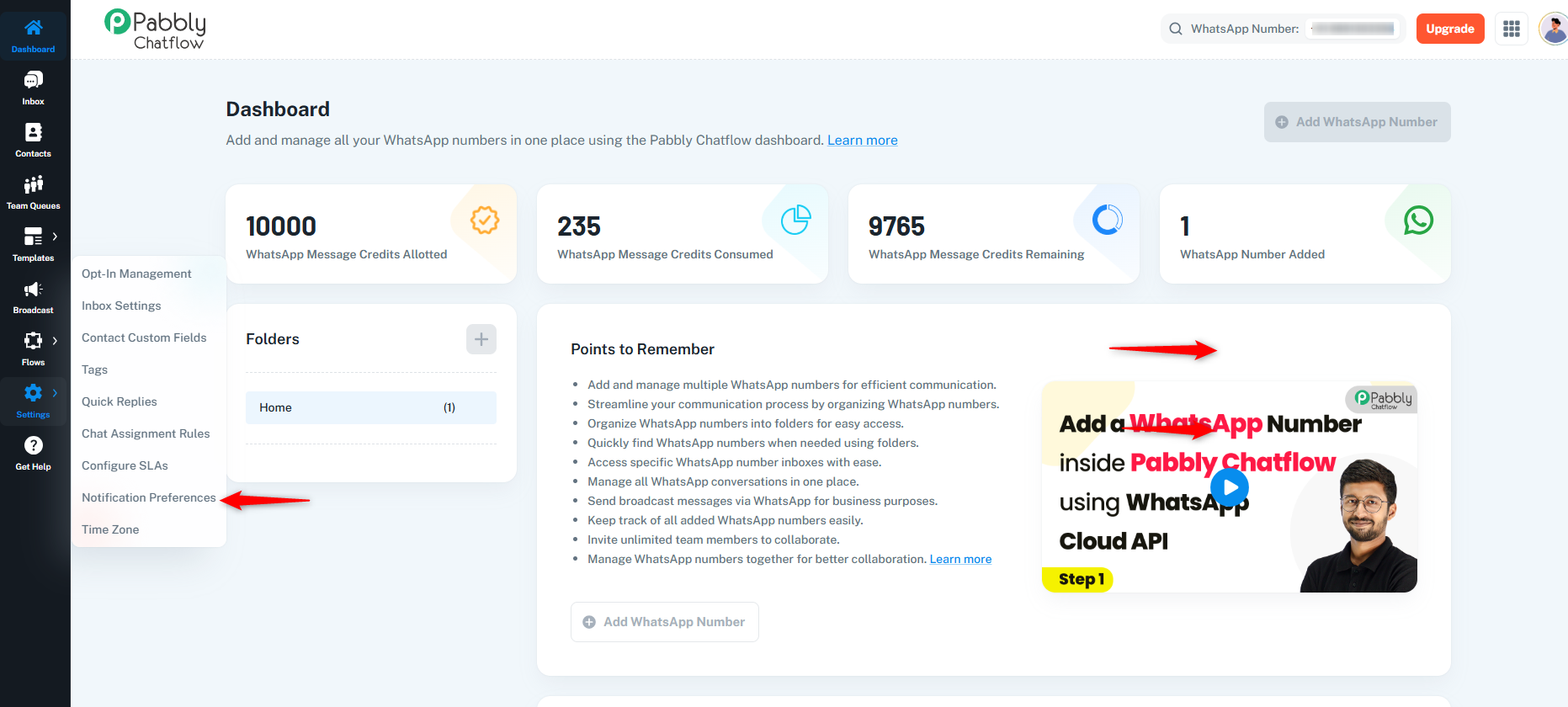
Go to the Settings module.
In the navigation panel, click on Interaction Preferences.
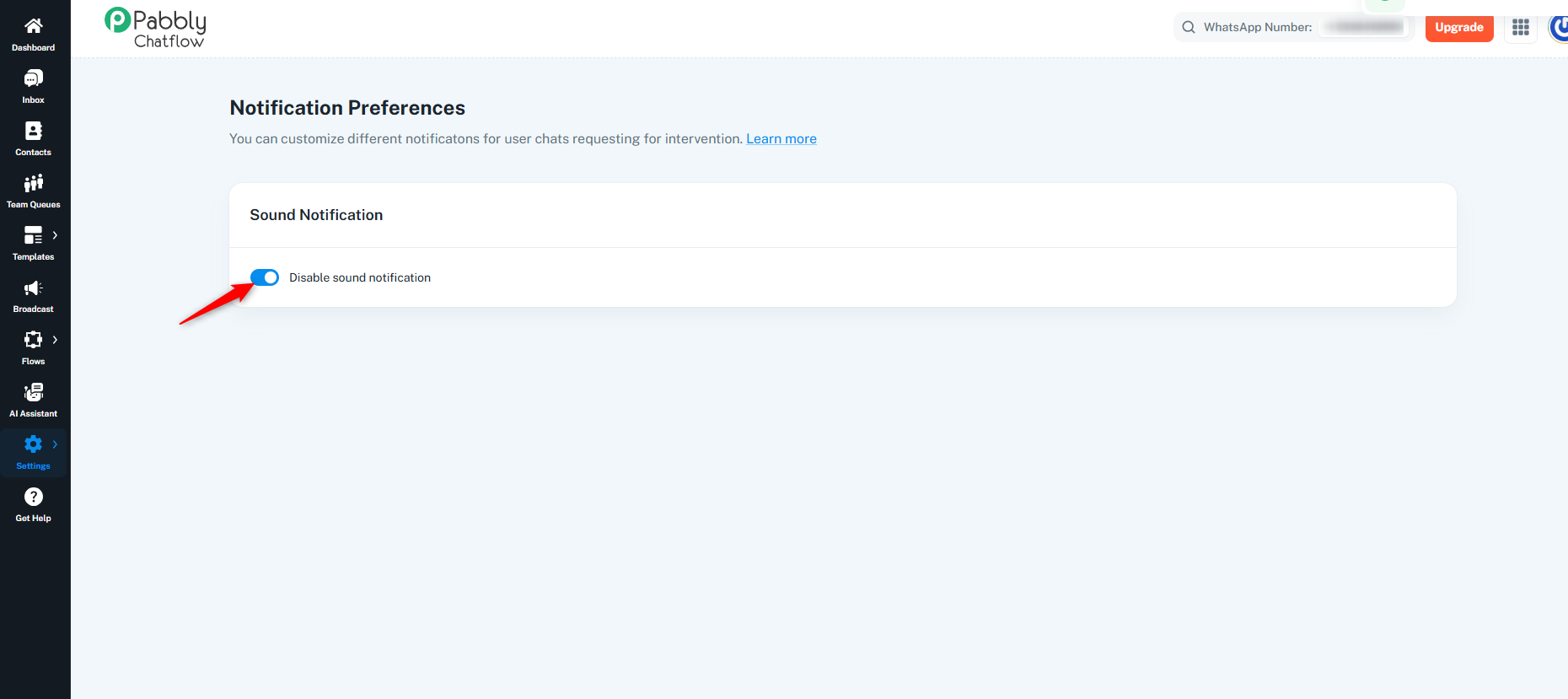
Enable or disable chat notifications.
These notifications help you stay informed about important user chats that may need manual attention.
The Global Chat Window allows you to access a floating chat window across the Pabbly Chatflow platform.
Under Global Chat Window, enable the toggle to display the floating chat window.
Once enabled, a floating chat button appears at the bottom-right corner of the screen.
Click the floating chat button to quickly access your chats without navigating to the Inbox module.
Disable the toggle if you do not want the floating chat window, chat button, notifications, or chat panel to appear across the platform.
Note: The Global Chat Window can be enabled or disabled at any time from Settings → Interaction Preferences.
