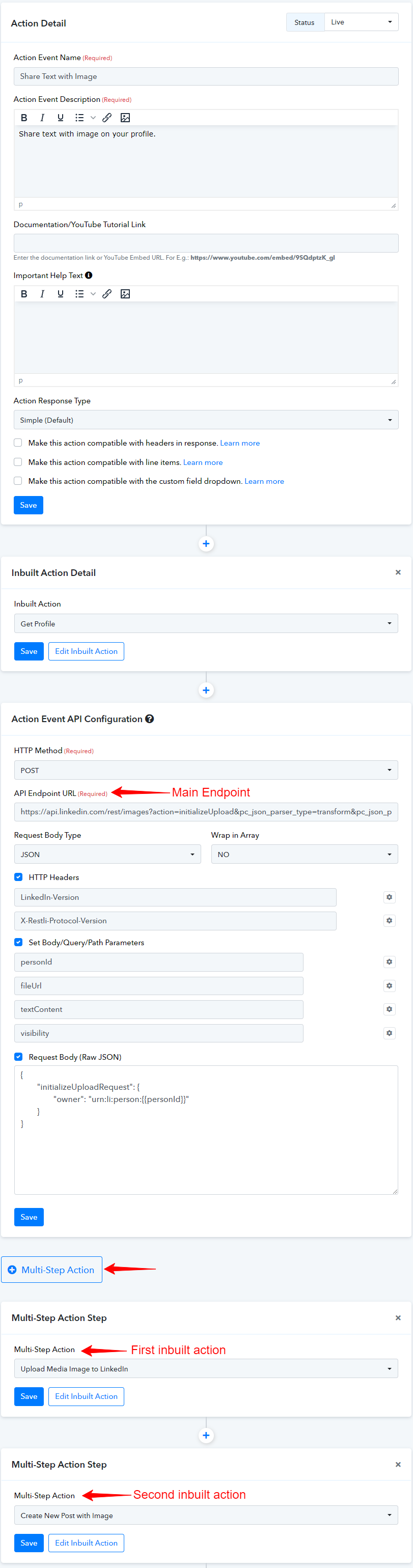
Steps to chain all these 3 API requests in a single action inside Pabbly Connect: (Example: LinkedIn)
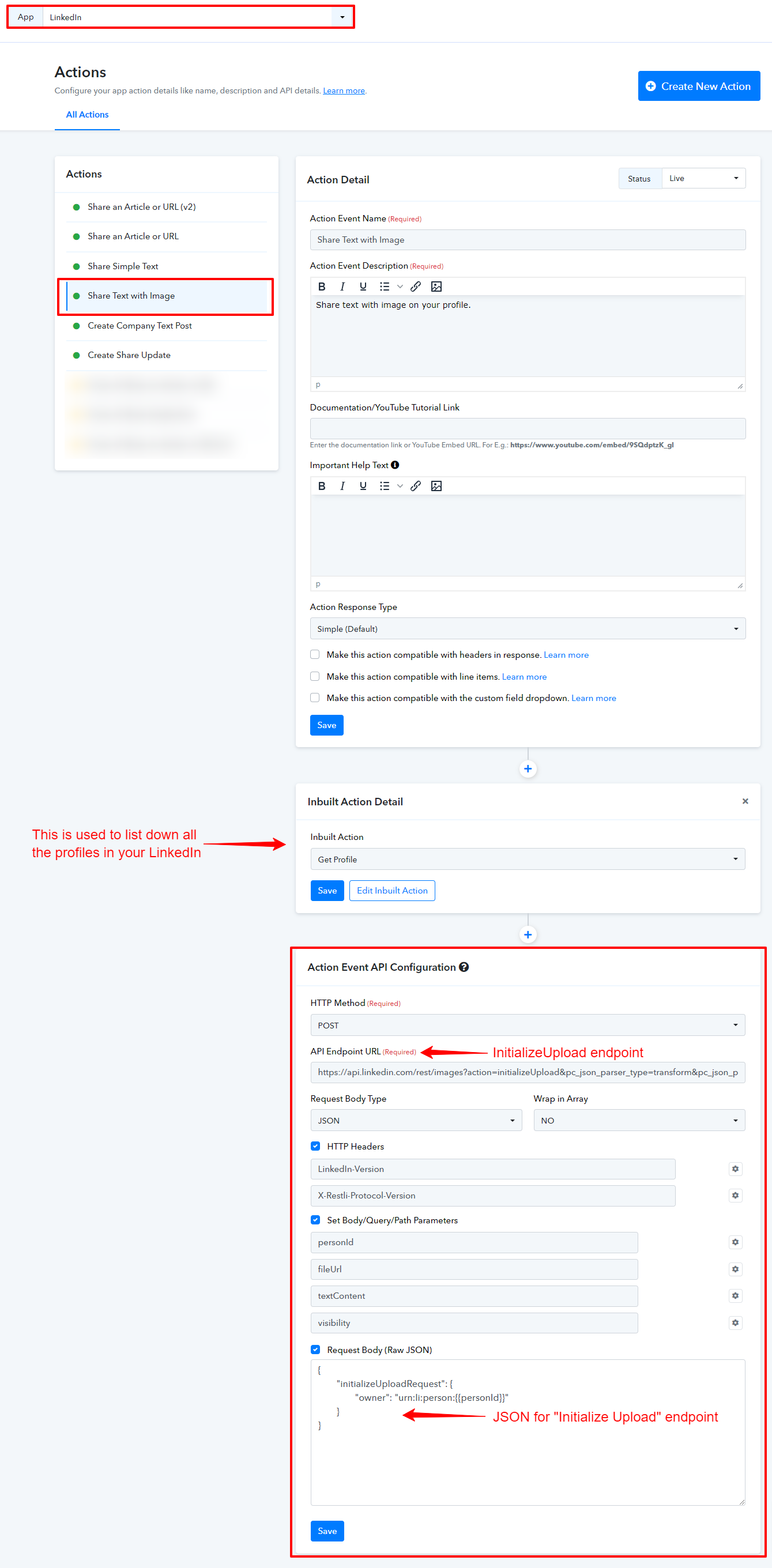
Step 1: Create a main action "Share Text with Image" and use the API 1. InitializeUpload (Initializes the upload and generates an upload URL for the image file to be uploaded) as shown in the screenshot.
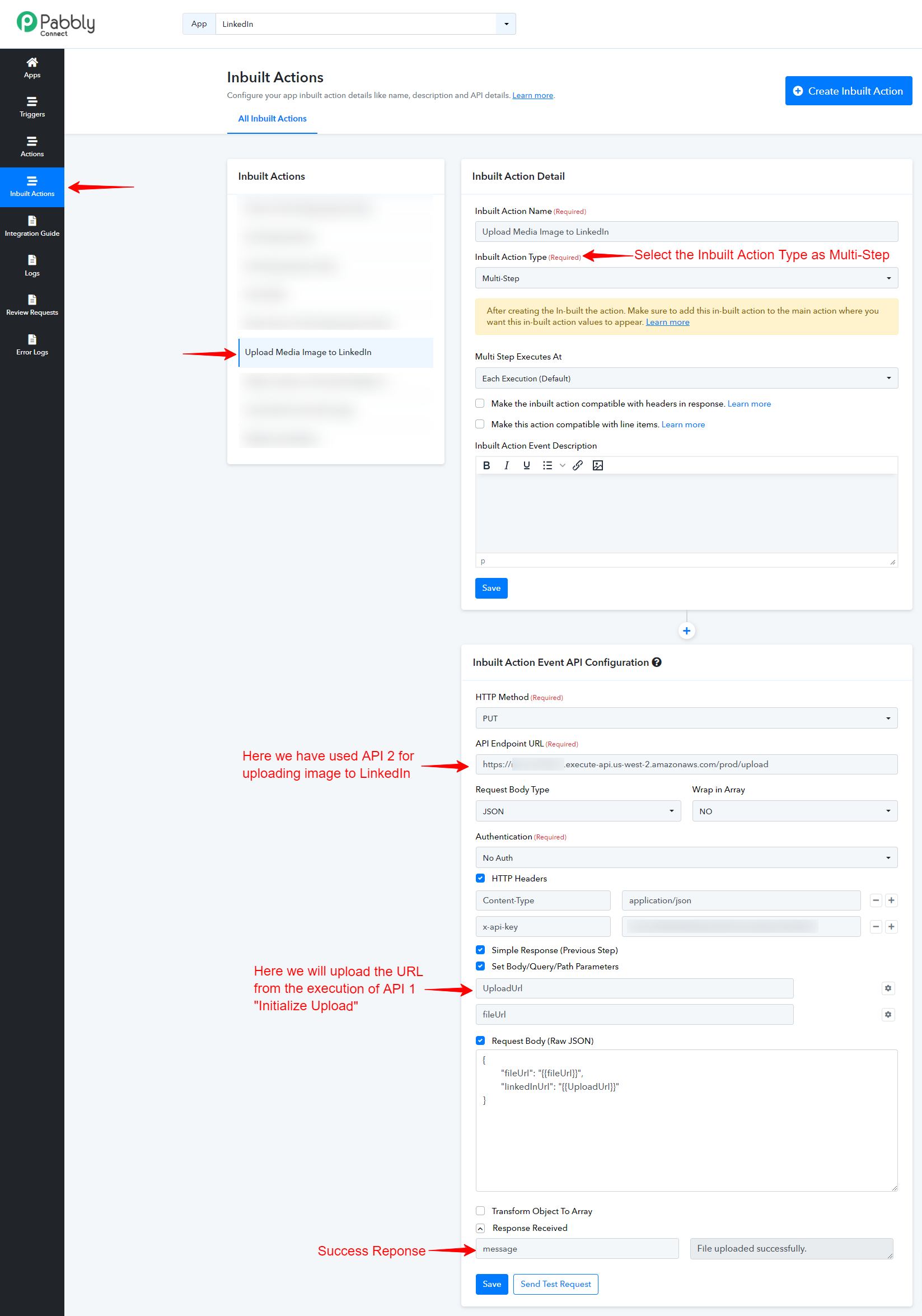
Step 2: Create an inbuilt action of API 2 Upload Image via AWS Lambda (This API is a custom API to upload the image file to LinkedIn) and use it below the main action with the help of Multi-Step Action.
- Click on the "Inbuilt Action" and create an inbuilt action here. In this case, we have created "Upload Media Image to LinkedIn".
- Select the Inbuilt action type as "Multi-Step" and choose Multi Step Executes At "Each Execution (Default)".
- We have used the API 2 "https://nwom3r2fmd.execute-api.us-west-2.amazonaws.com/prod/upload" and entered all the required Headers and Parameters. Click on "Save and Send Test Request" to check if this action is working fine.
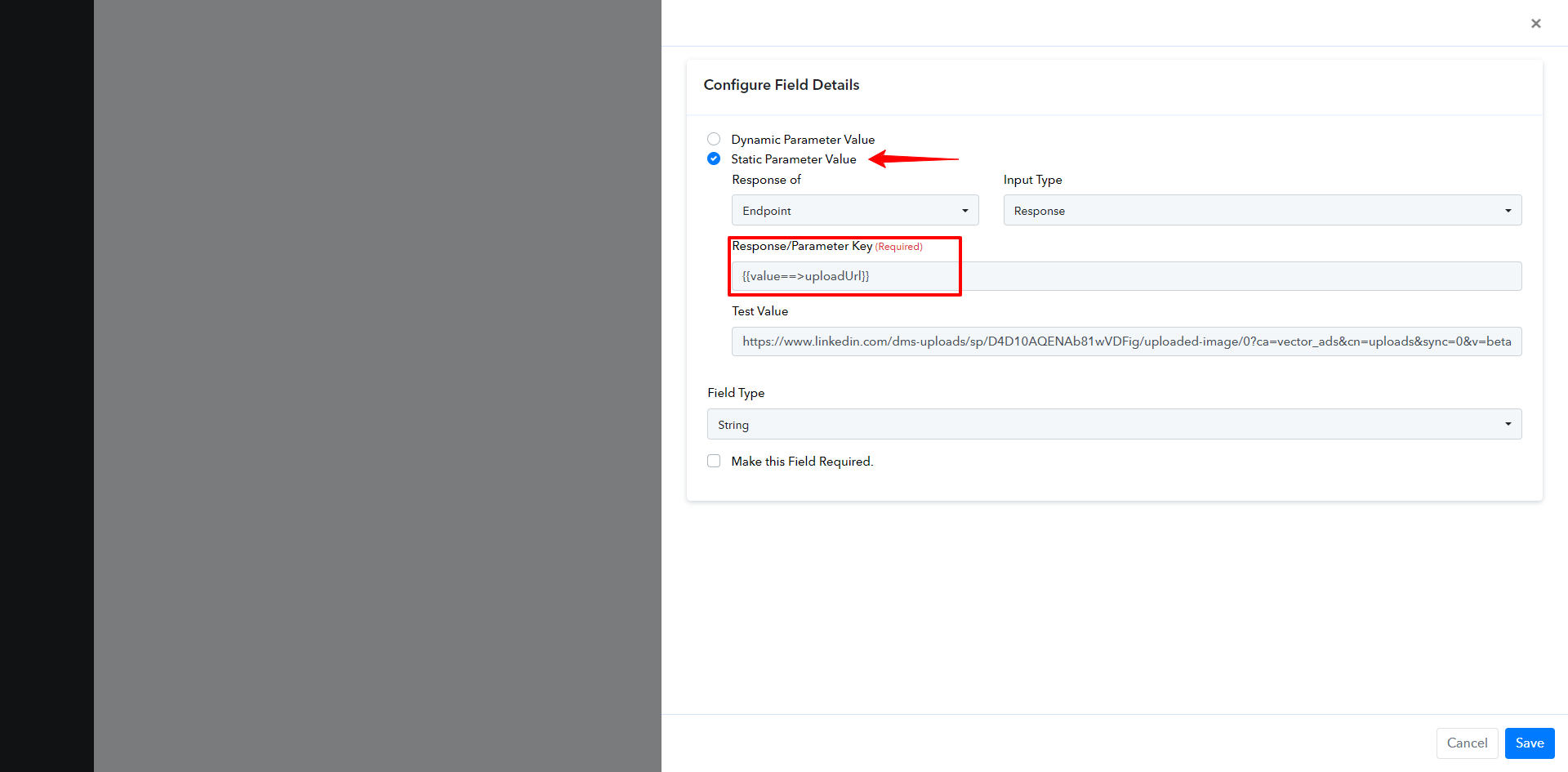
- Click on the "settings" icon of the "UploadUrl" parameter and select the "Endpoint" option in the "Response Of" and "Response" in the "Input Type". This depicts that we are taking value for this parameter from the response of the main endpoint. Please note that you have to enter the Response Key inside {{}} brackets and in the form of ==>. For Example. {{value==>uploadUrl}}.
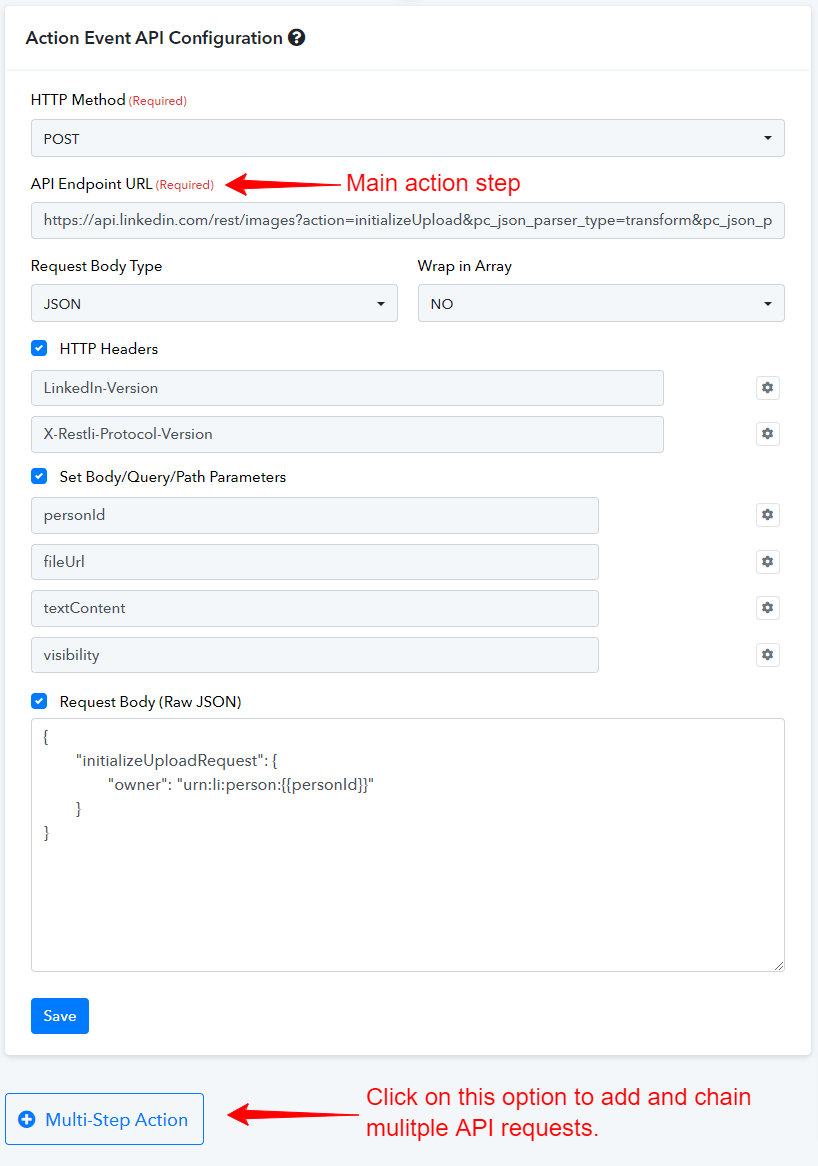
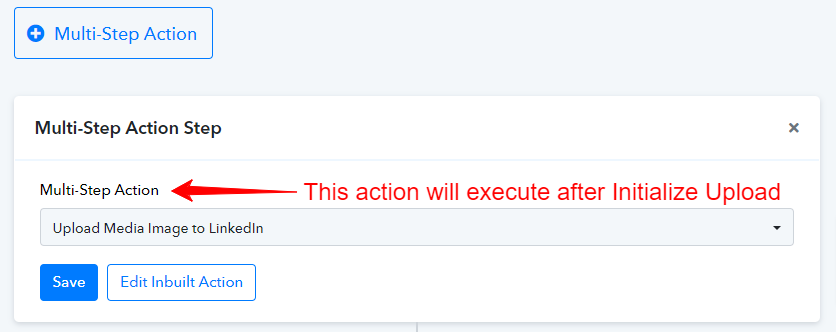
- Now go back to the main action step and click on the "Multi-Step Action", and choose the inbuilt action "Upload Media Image to LinkedIn".
Step 3: Create an inbuilt action of API 3 Post Text Content with Image (This API finally creates a post on LinkedIn with the image in it) and use it below the main action and previous inbuilt action with the help of Multi-Step Action.
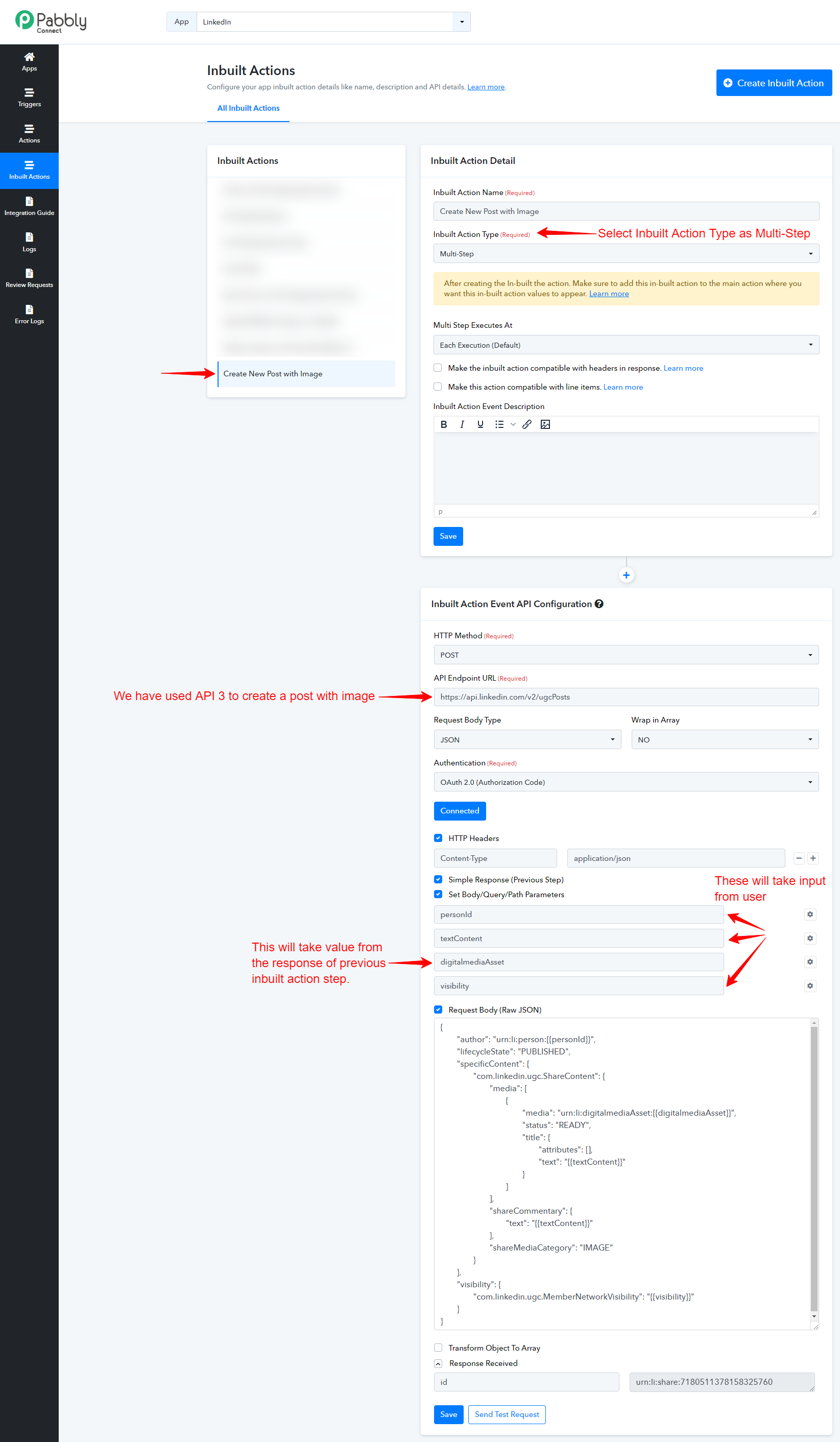
- Click on the "Inbuilt Action" and create an inbuilt action here. In this case, we have created "Create New Post with Image".
- Select the Inbuilt action type as "Multi-Step" and choose Multi Step Executes At "Each Execution (Default)".
- We have used API 3 "https://api.linkedin.com/v2/ugcPosts" and entered all the required Headers and Parameters. In this inbuilt action, there will be 3 parameters that will ask the user to input their values. (Refer to the below screenshots Click on "Save and Send Test Request" to check if this action is working fine.
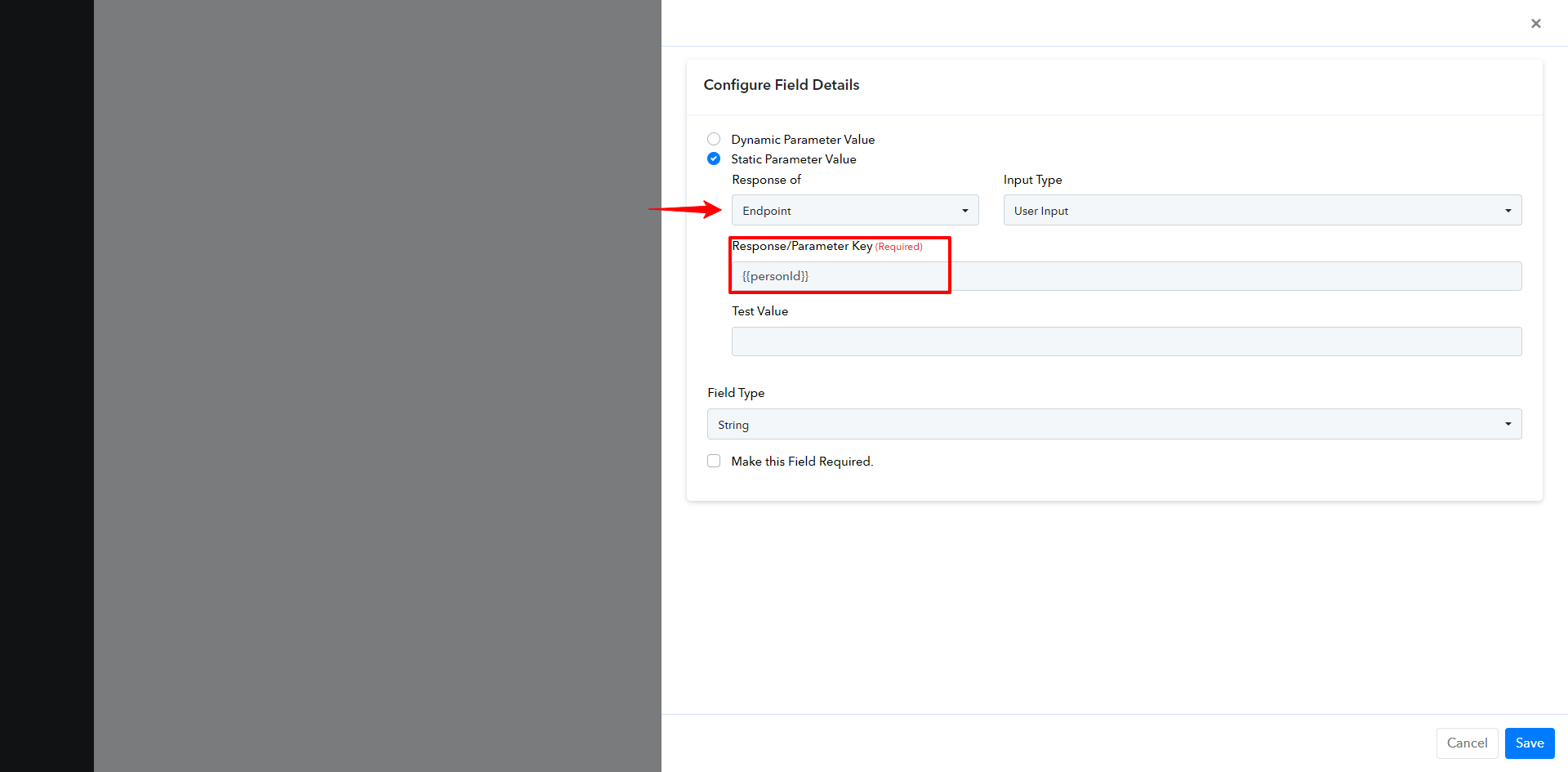
- We have set up these 3 parameters: "personid", "textContent" and "visibility". Please refer below screenshots to set up how to take these 3 inputs from users.
Click on the "Settings" icon and select "Static Parameter Value". Choose the "Endpoint" option in the "Response Of" and "User Input" in the "Input Type". This depicts that we are taking value for this parameter from the user through the main endpoint. Please note that you have to enter the Response Key inside {{}} brackets. For Example. {{personid}}.
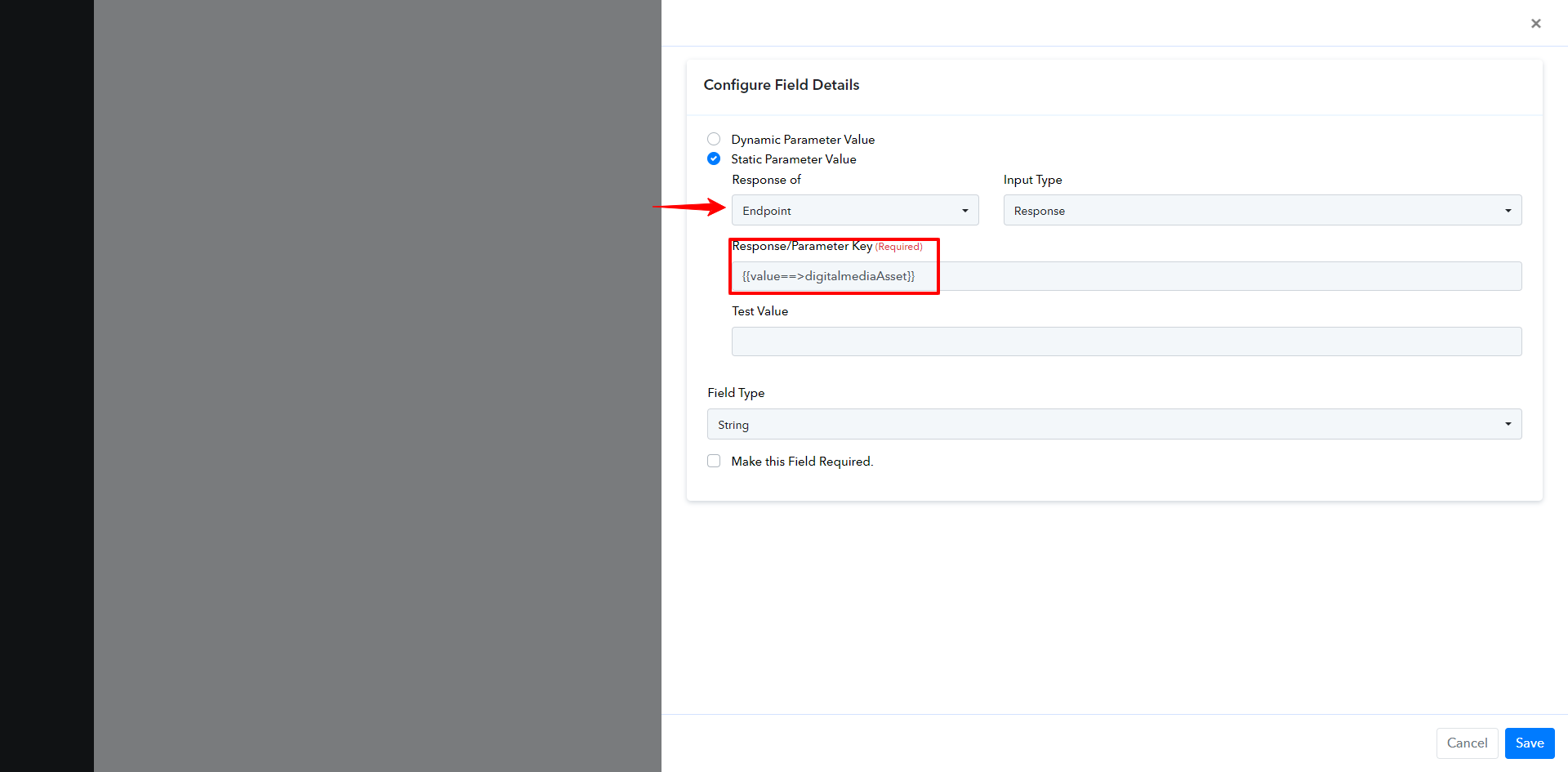
- For "digitalmediaAsset" parameter setup, we have followed the steps mentioned in "Step 2" to take its value from the response of the endpoint.
- Now go back to the main action step and click on the "Multi-Step Action", and choose the inbuilt action "Create New Post with Image" which will be set up below "Upload Media Image to LinkedIn".
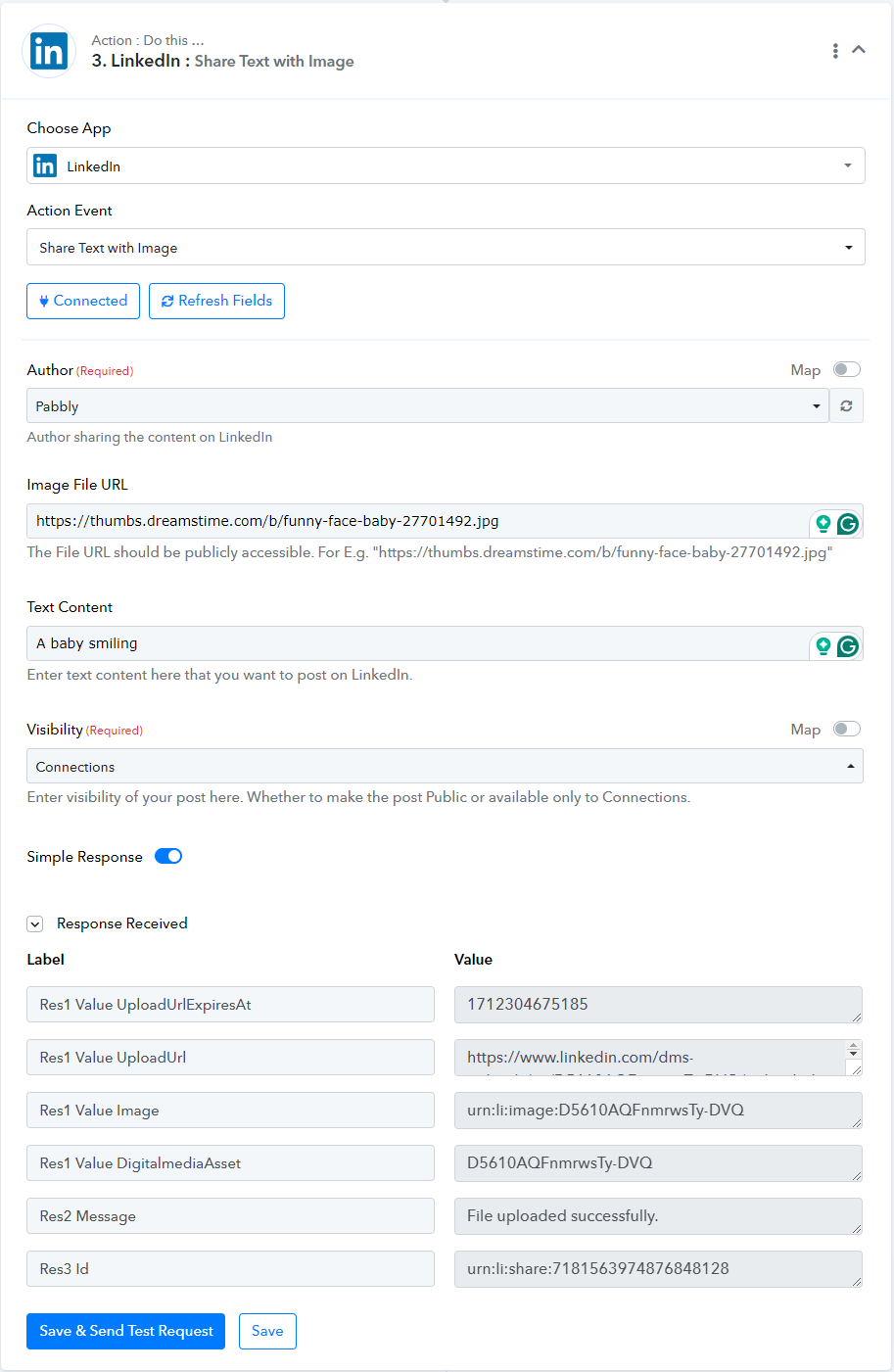
The action "Share Text with Image" is fully set up now and we will check this in our Pabbly Connect dashboard.
CONCLUSION:
The action is working fine and in this way, we can set up multiple endpoints in a single action for different use cases: For Example: In this case, a main endpoint API 1 "Initialize Upload" is executed where we get the upload URL and then an inbuilt action API 2 "Upload Image to LinkedIn" where the uploaded URL from the execution of API 1 will be used in the value of linkedInUrl in the API 2. Finally, the API 3 "Post Text Content with Image" is used to post the image with text on LinkedIn.
 Pabbly Connect Team•Updated Jul 25, 2026•3 min read