Core App
 Pabbly Connect Team•Updated Oct 24, 2026•15 min read
Human in the Loop (HITL) is a workflow step that pauses your automation and waits for a person to approve, reject, or pick from your own custom set of options before continuing.
Think of it as a manual checkpoint in an otherwise automatic process. When the workflow reaches an HITL step:
Your workflow stops at that step.
The person you chose (the "reviewer") receives the request — by email, or through any other channel you connect (Slack, WhatsApp, SMS, custom system).
They click their decision (Approve / Reject, or one of your custom buttons).
Based on their choice, the workflow either continues with the remaining steps or stops at this step.
You configure once, and every workflow run uses the same approval flow — but with fresh data from each trigger event.
Use HITL whenever a step in your workflow needs human judgment, sign-off, or a quality check before going further. Common cases:
Posting publicly (social media, public-facing email, press releases)
Sending money or making a purchase
Issuing a refund or discount
Hiring or HR communication
Anything that can't be cleanly undone
If the action is reversible and routine, you probably don't need HITL — let the automation run.
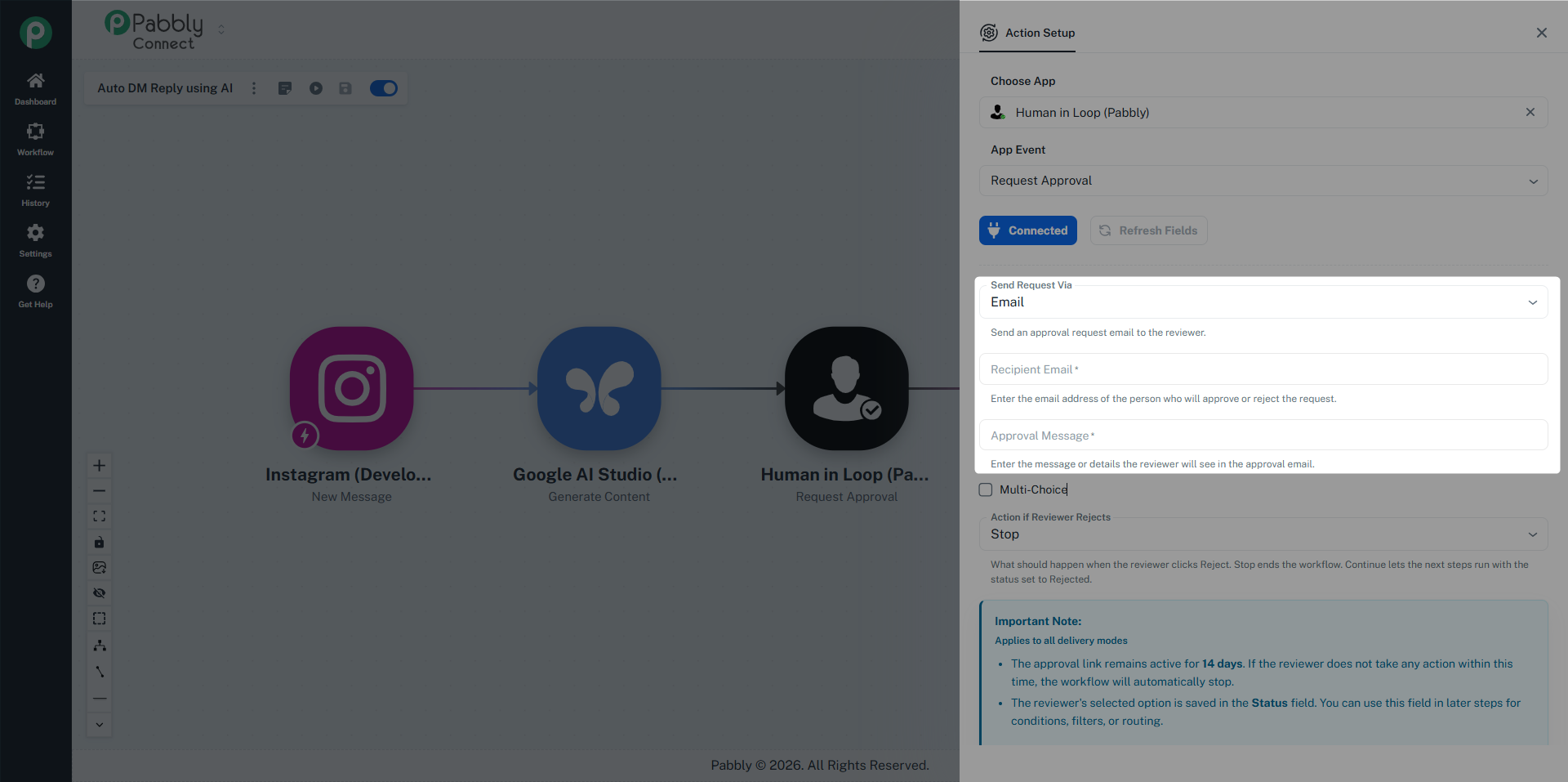
The Send Request Via dropdown picks how the request reaches the reviewer.
Pabbly Connect sends an HTML email directly to the address in Recipient Email. No setup needed beyond filling in the recipient and approval message.
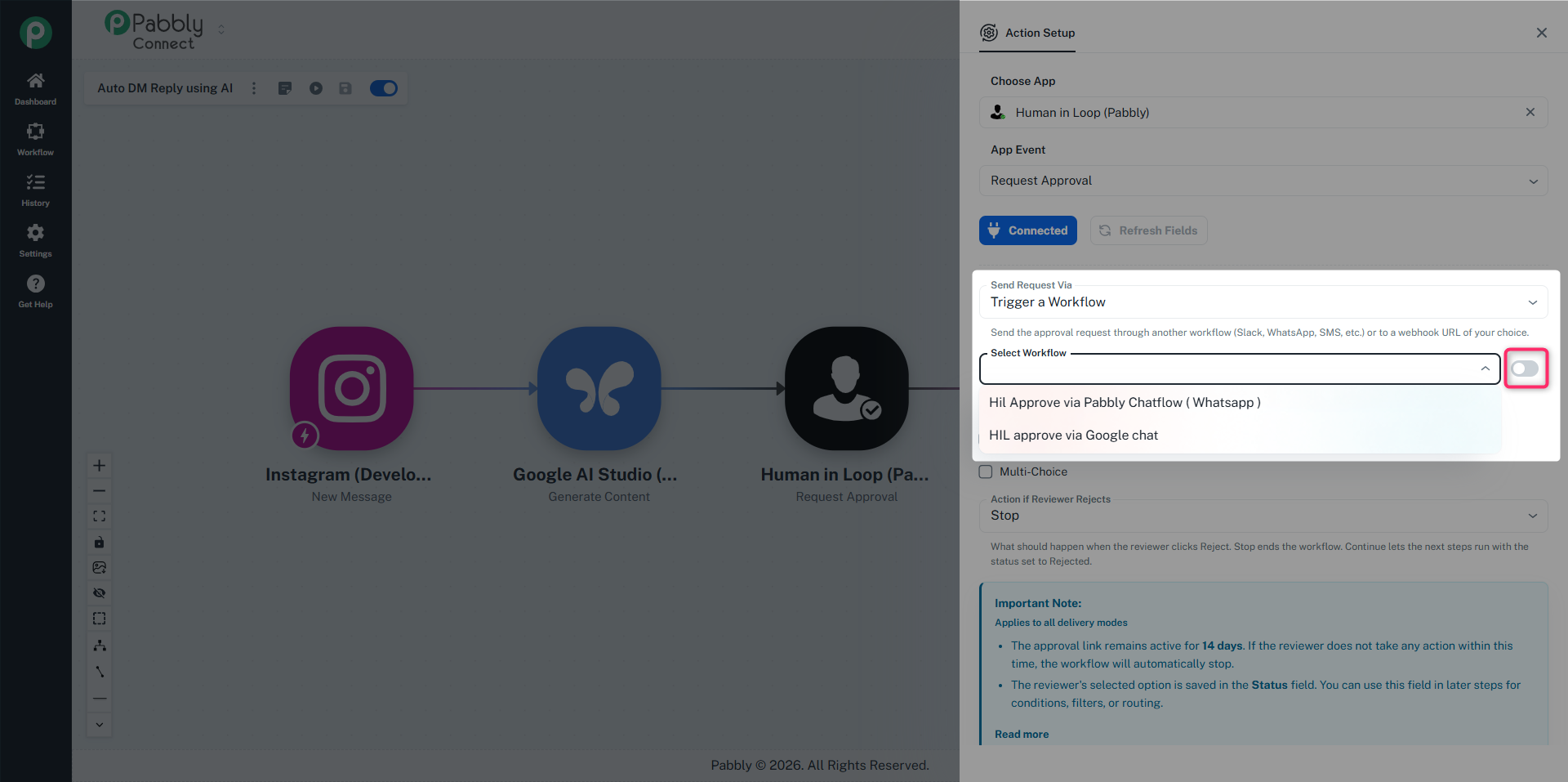
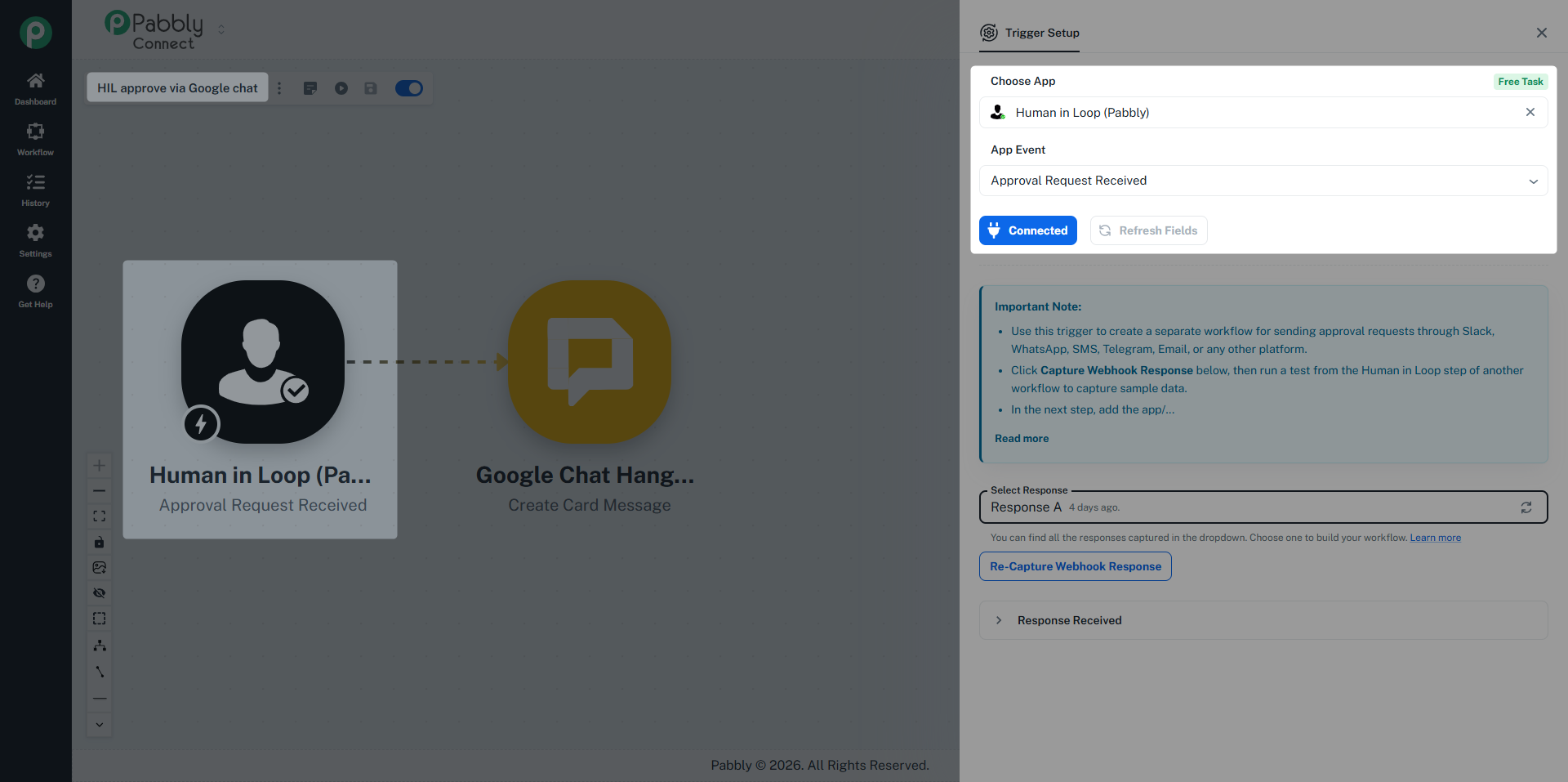
Choose one of your own workflows (it must start with the Human in Loop Trigger). When the main workflow reaches the HITL step, that delivery workflow runs and is responsible for sending the request through whatever channel you've built into it (Slack, WhatsApp, SMS, anything).
The delivery workflow automatically receives:
The decision links (one per button)
The workflow name
Any Payload Fields you've added (Order ID, Customer Name, etc. — mapped from earlier steps)
You can use these in the delivery workflow's message body so the reviewer can decide directly from Slack, a text message, or wherever.
Same as the delivery-workflow option, but instead of picking one of your workflows, you paste a webhook URL (any service that accepts a POST). Pabbly sends the same payload there. Useful for sending the request to a custom internal tool.
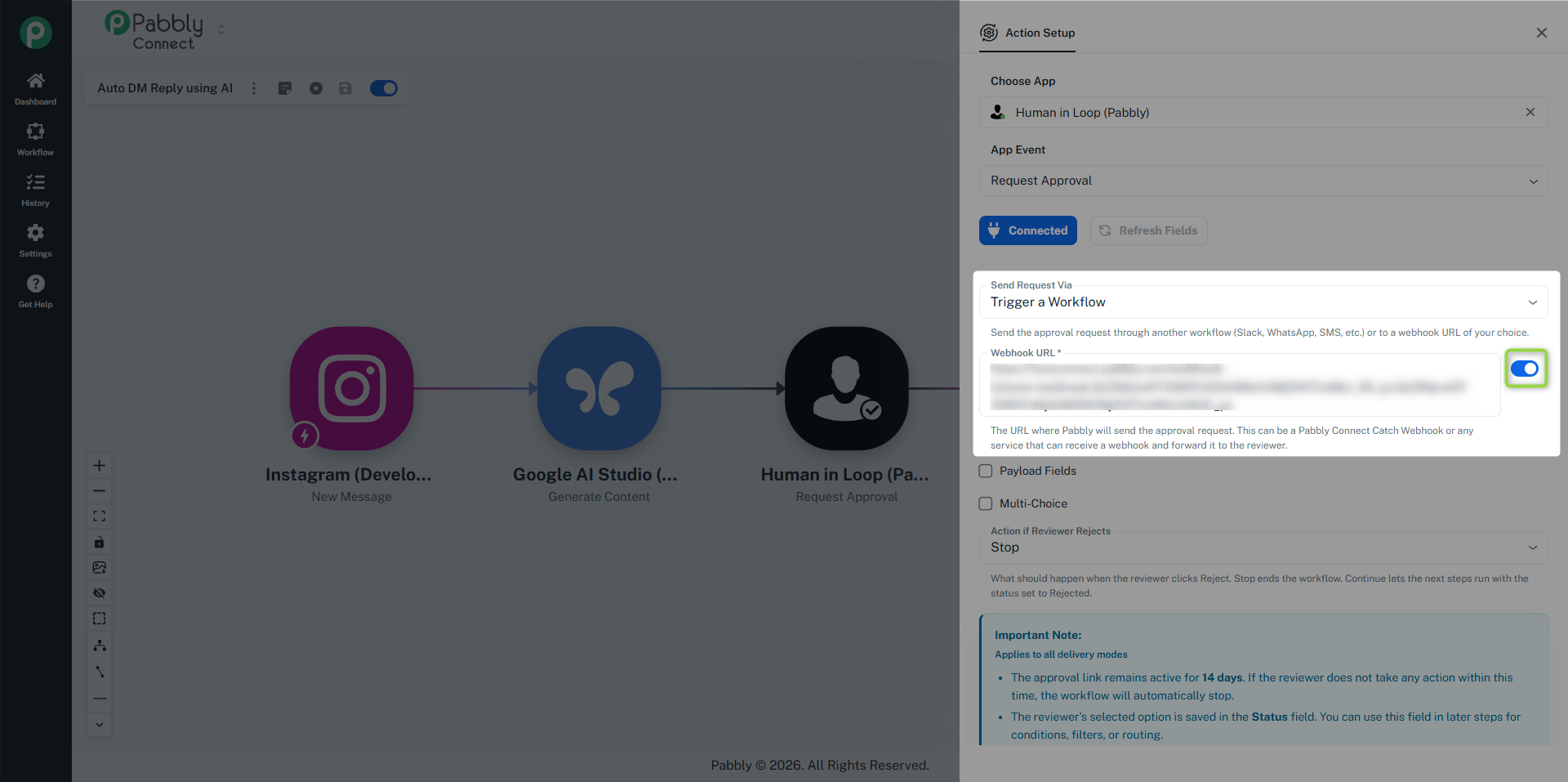
You can run an HITL step in one of two modes, picked by the Multi-Choice checkbox in the step settings:
The reviewer sees exactly two options: Approve and Reject.
Approve → workflow continues from the next step.
Reject → by default, workflow stops at the HITL step. You can change this with the Action if Reviewer Rejects dropdown:
Stop (default) — workflow ends at the HITL step.
Continue — the workflow still continues from the next step, but the Status field is set to Rejected so downstream filters or routers can branch on it.
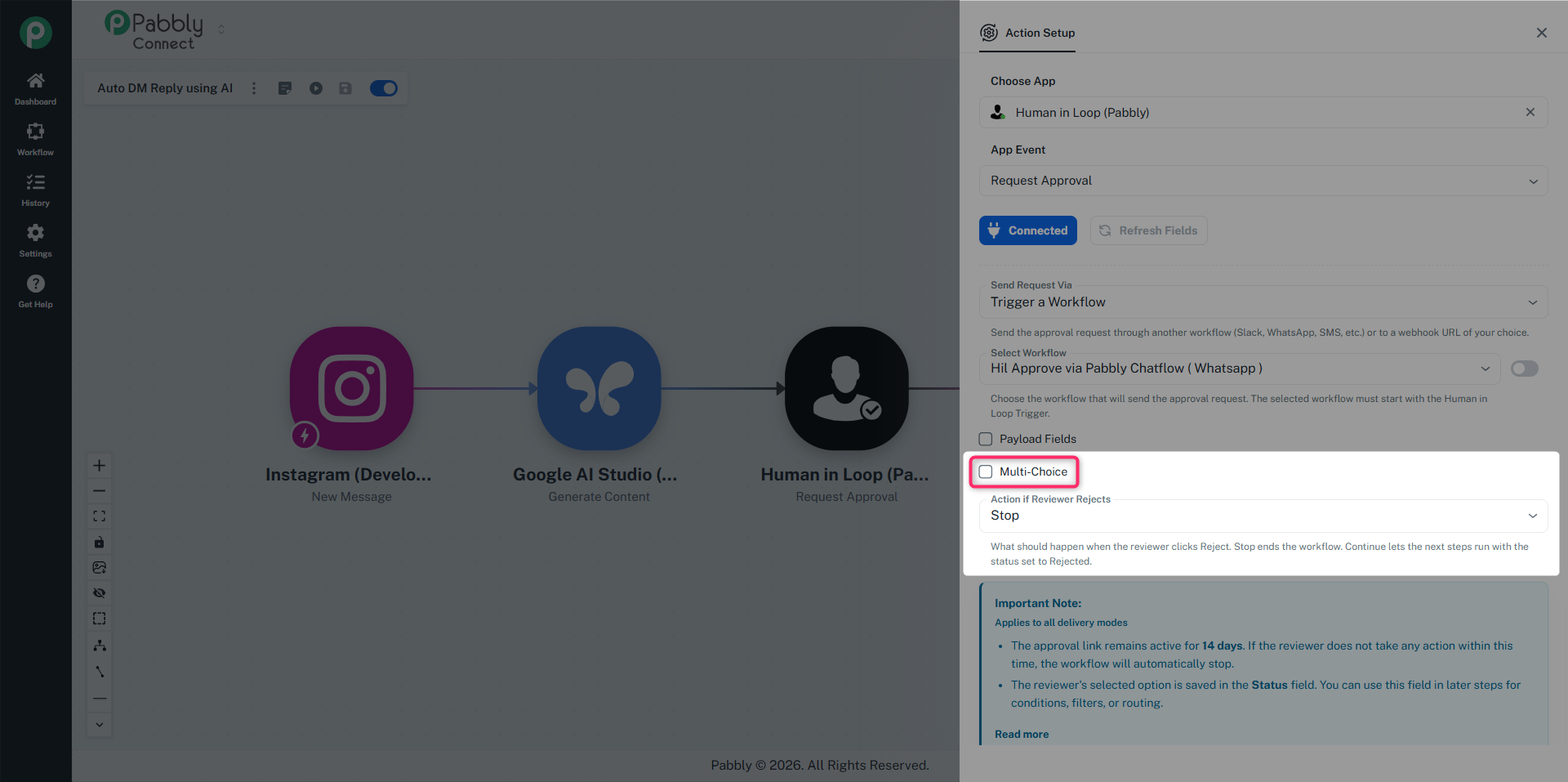
You define your own list of decision buttons (2 or more). For each button, set:
A Label (e.g. "Approve", "Send to Sales", "Cancel Order")
An On Select action: Continue Workflow or Stop Workflow
The reviewer sees all the buttons; whichever they click becomes the value of the Status field, and the workflow continues or stops based on that button's On Select setting.
This mode is useful when "yes / no" doesn't capture the real choice — e.g. routing a support ticket to one of three teams, or asking an editor "Publish now / Schedule for later / Send back for revision."
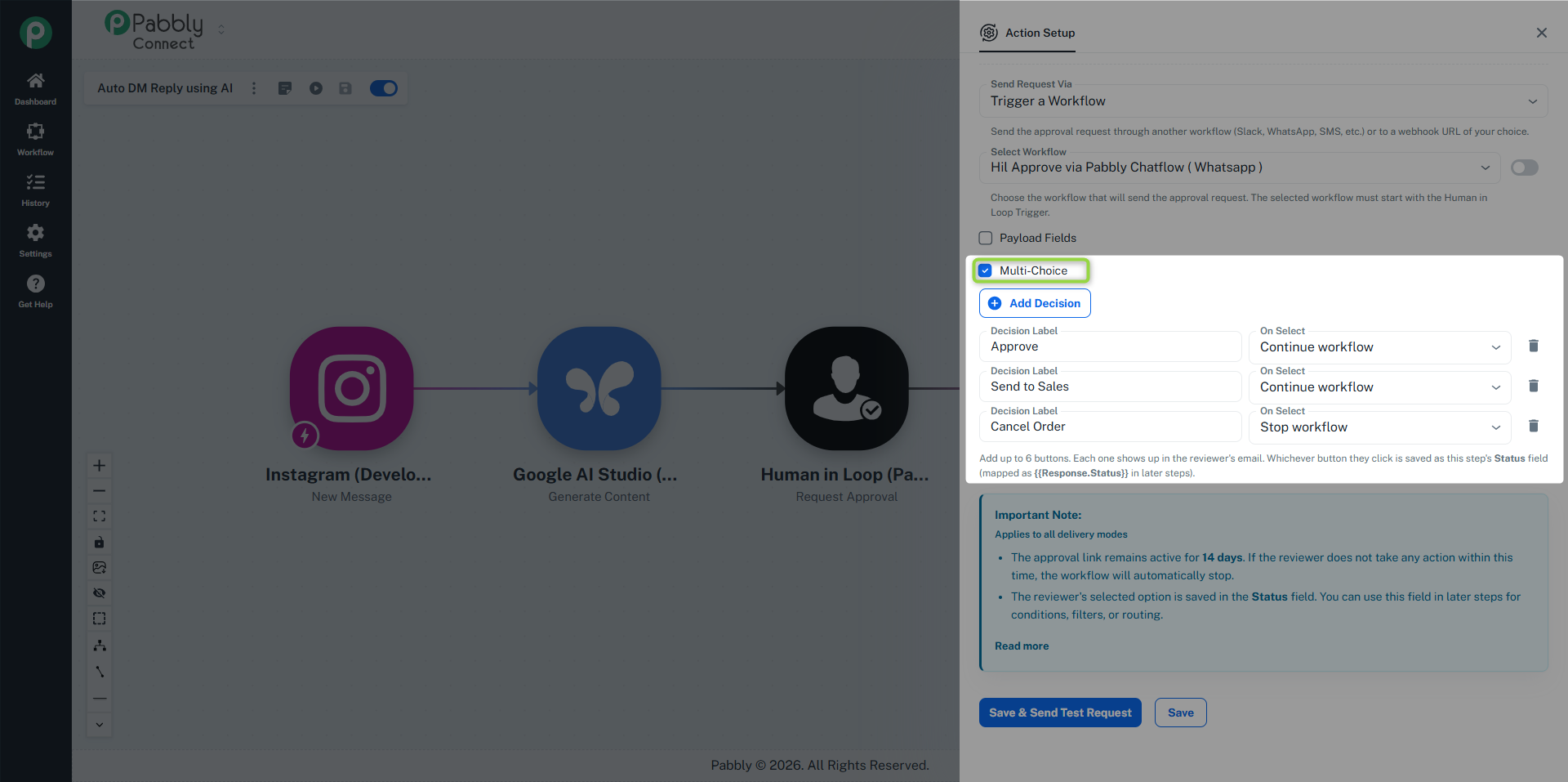
Open your workflow in the builder.
Click the + button between two steps where you want to insert the approval.
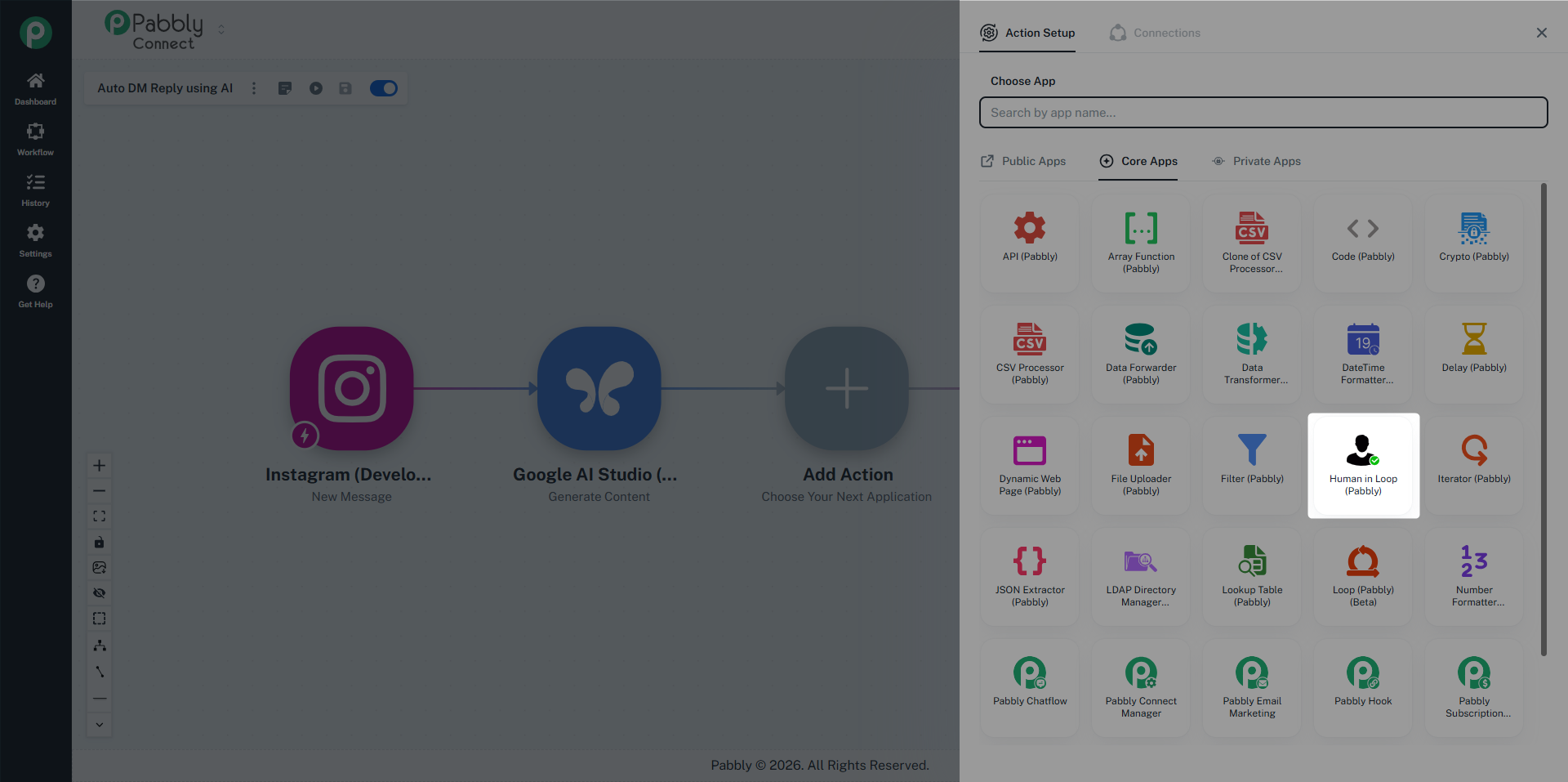
In the app picker, search for "Human in Loop (Pabbly)" and select it.
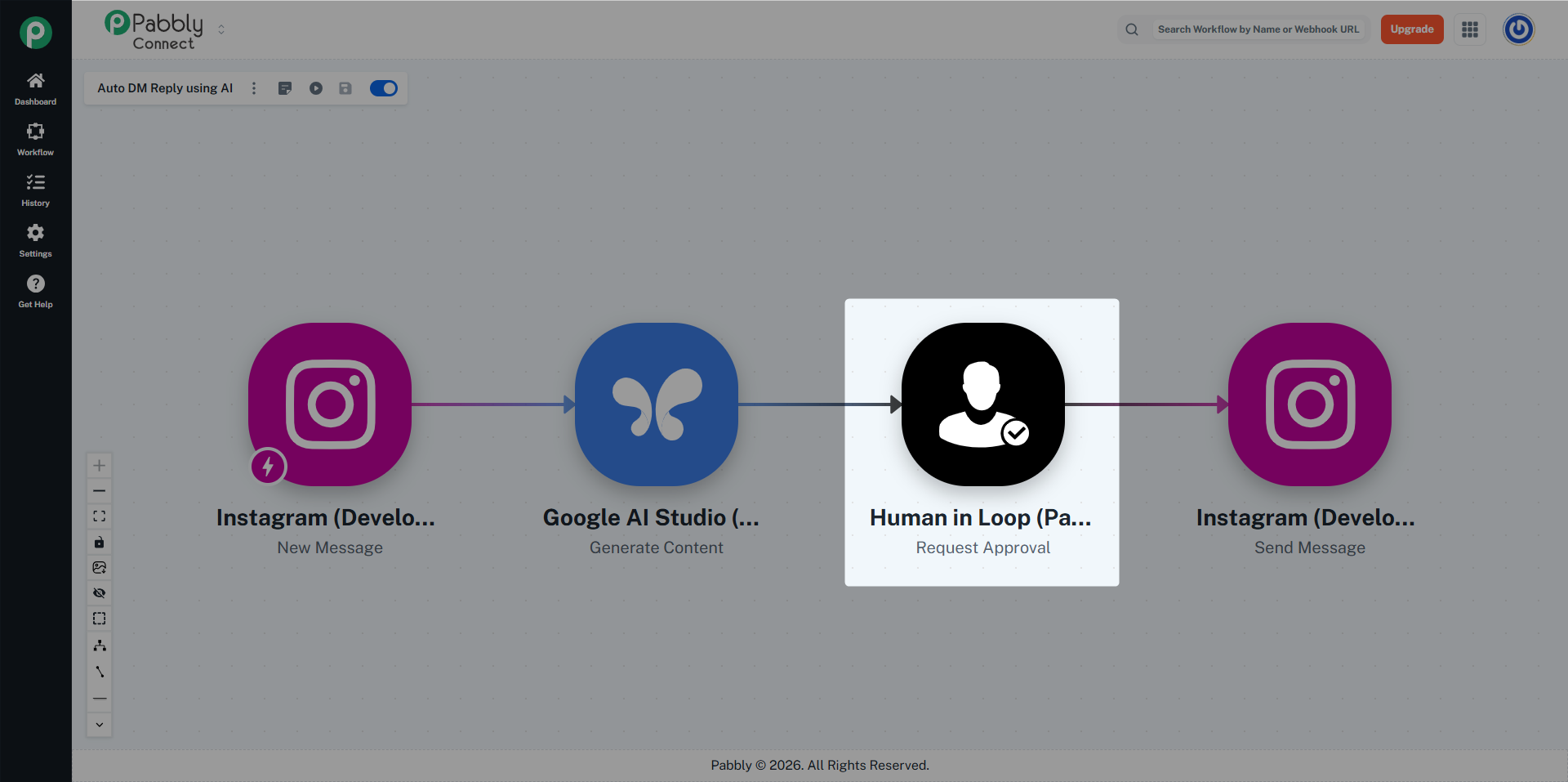
The step is added with the action "Send Approval Request".
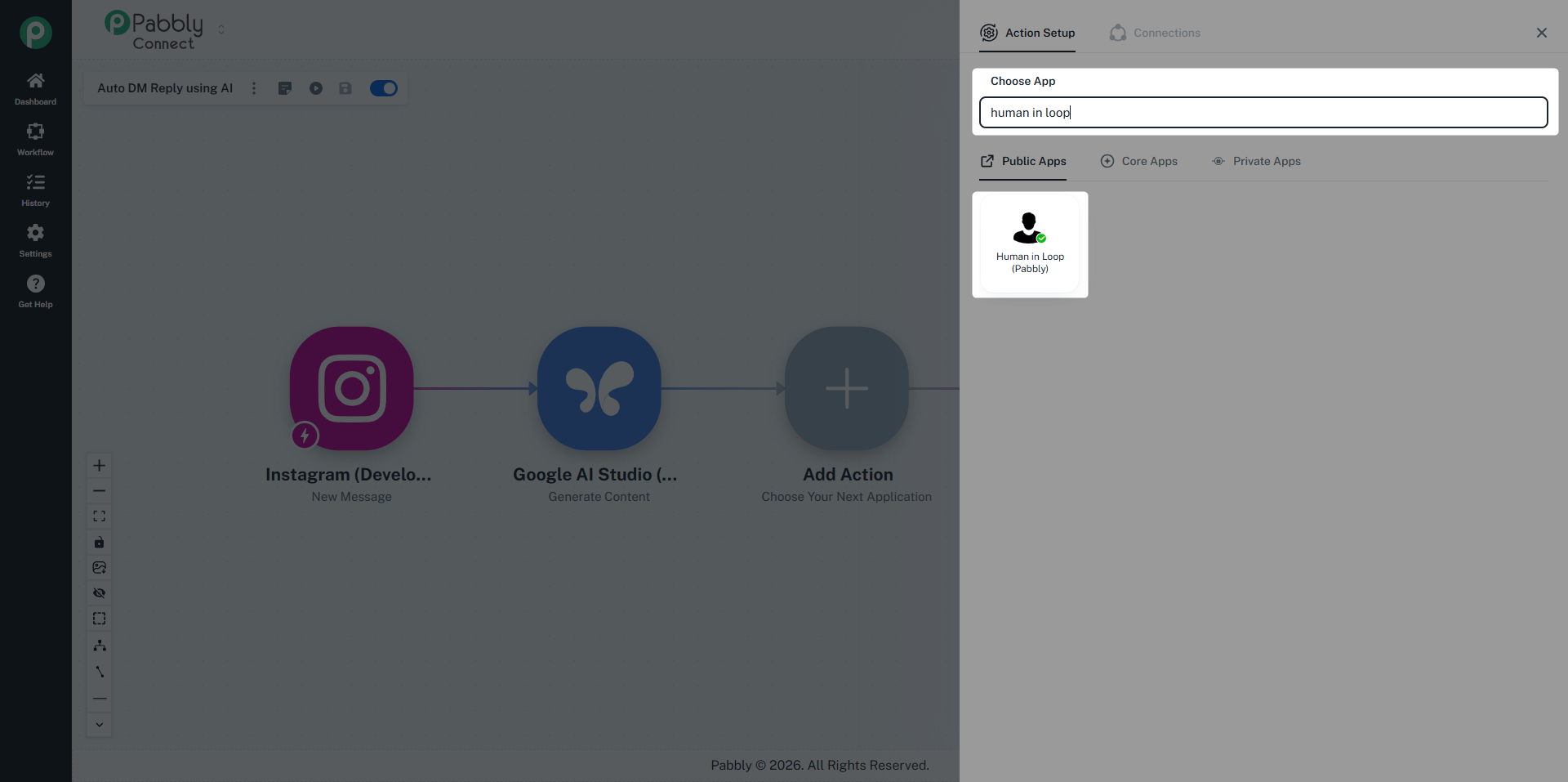
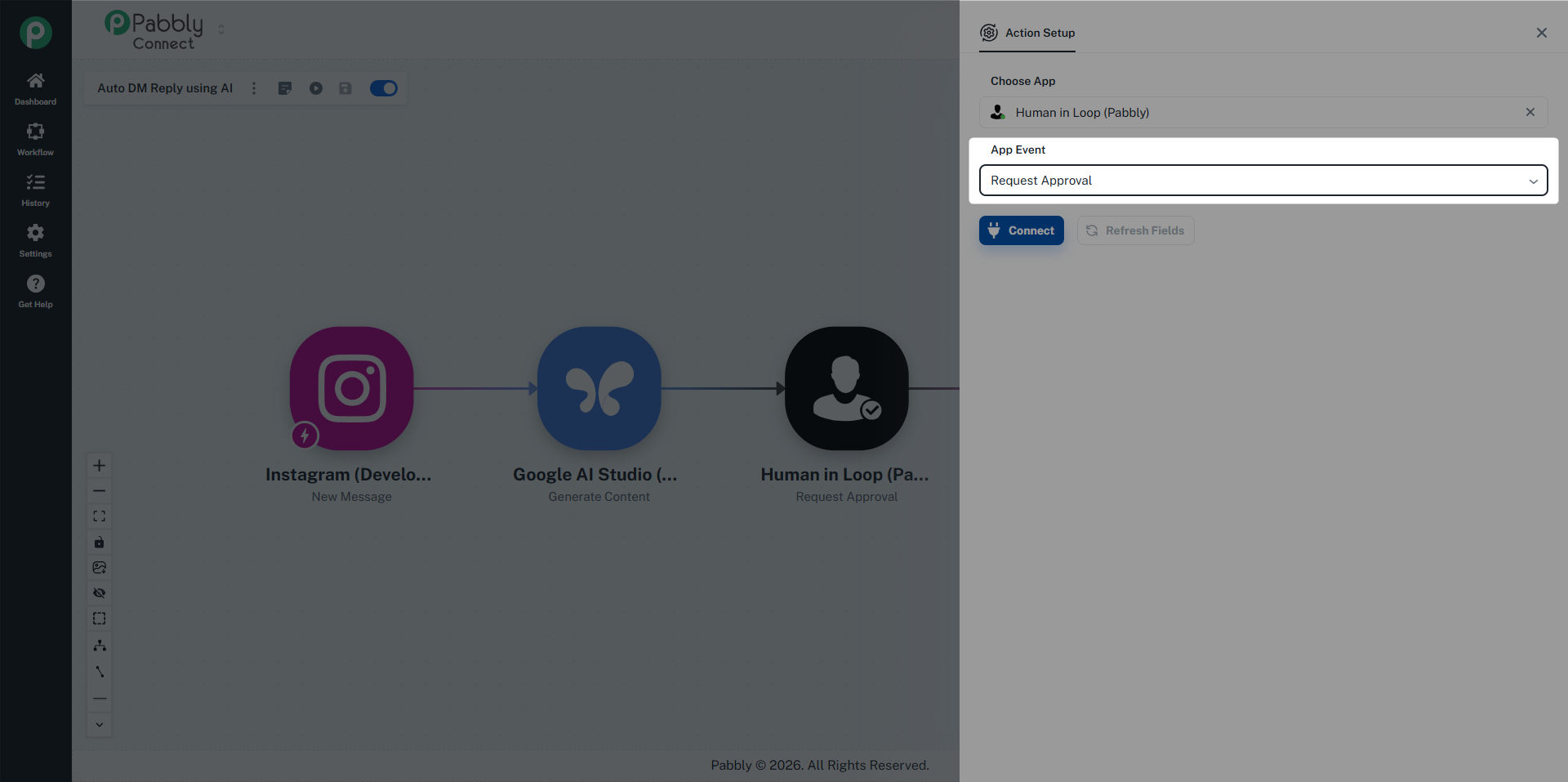
Fill in the form based on the delivery mode you picked:
Field | Used in | What to enter |
|---|---|---|
Send Request Via | All modes | Email or Trigger a Workflow. |
Recipient Email | The email address of the reviewer. Only one address per step. You can map this from a previous step (e.g. a manager's email pulled from your CRM). | |
Approval Message | What the reviewer sees in the email. Include enough context — order ID, customer name, dollar amount, summary of what will happen on Approve. You can map dynamic data from previous steps (e.g. | |
Select Workflow / Webhook URL | Trigger a Workflow | The delivery workflow or webhook to receive the request. |
Payload Fields | Trigger a Workflow | Optional extra fields (Order ID, Customer Name, Amount, etc.) that get sent alongside the auto-injected ones. |
Multi-Choice checkbox | All modes | Switch from Binary (Approve/Reject) to Multi-Choice (your own buttons). |
Decisions table | Multi-Choice | One row per button. Set Label and On Select (Continue/Stop). |
Action if Reviewer Rejects | Binary only | Stop (default) or Continue. |
Click Send Test Email (email mode) or Send Test Request (trigger-a-workflow mode) in the form.
A real email / real webhook payload goes to the recipient.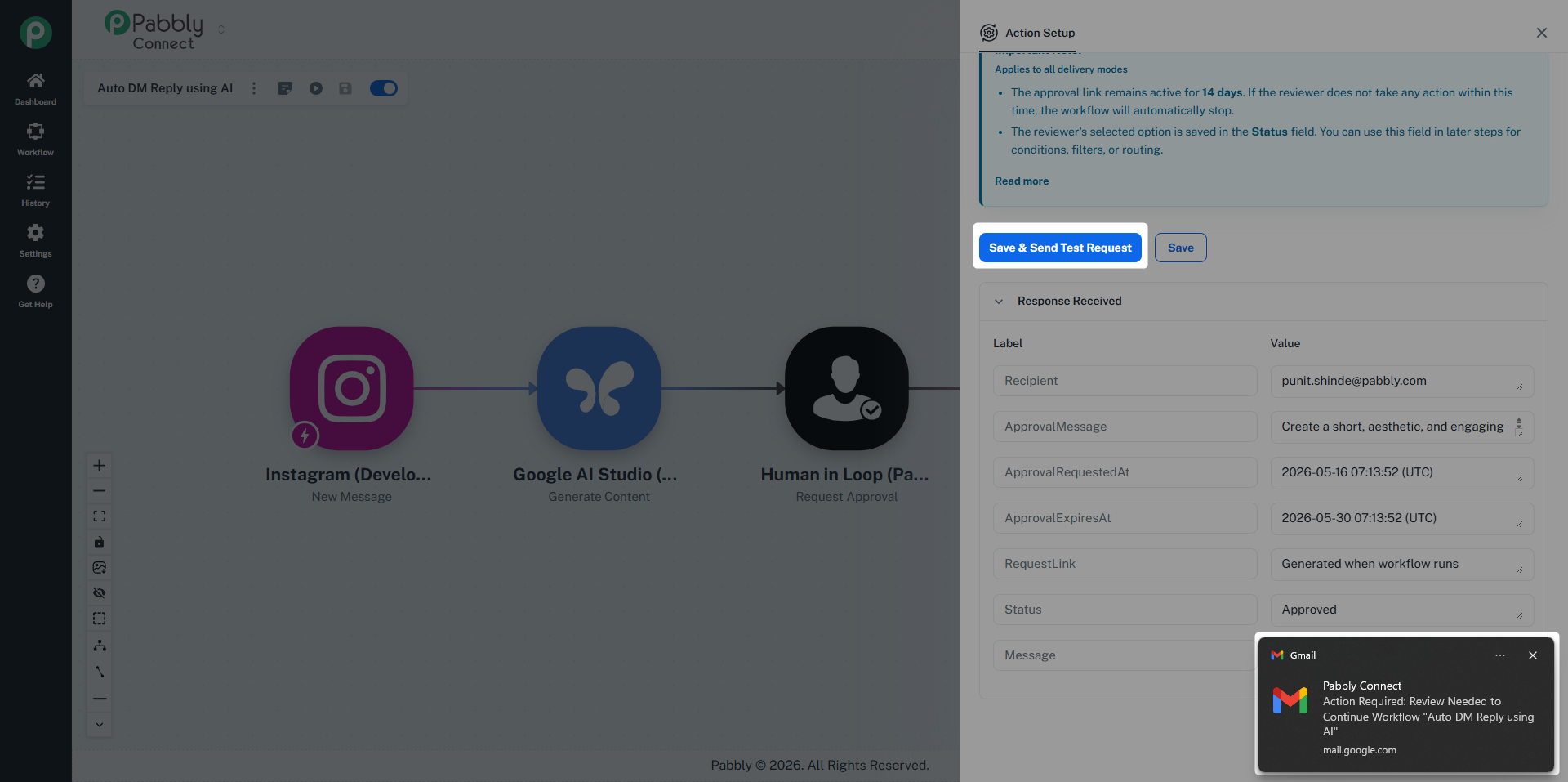 OR trigger a helper workflow
The buttons in test mode are non-functional — they only let you preview the layout.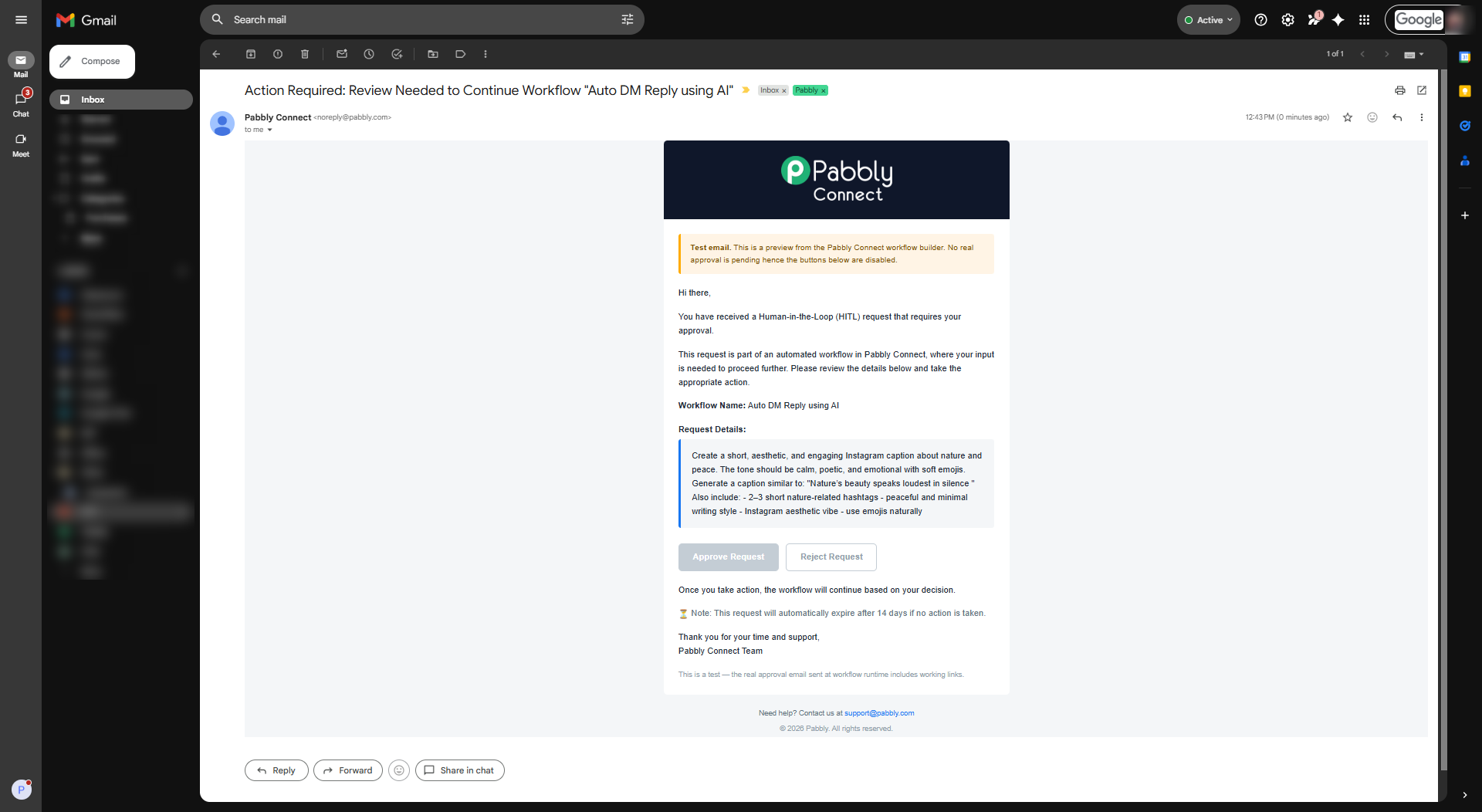
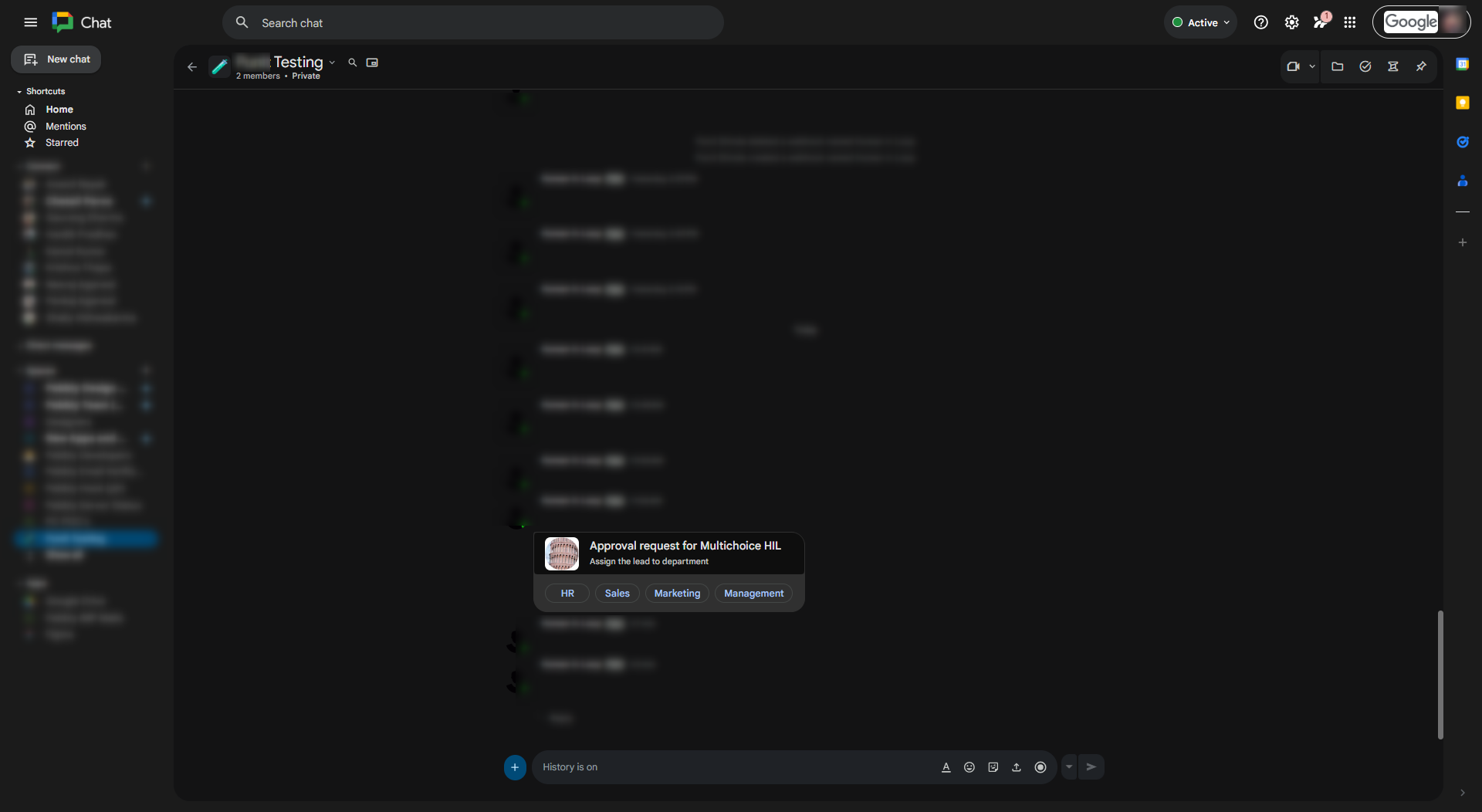
Adjust your message until it reads clearly, then Save.
The HITL step is live as soon as the workflow is saved and turned on. Every trigger event from that moment will pause at this step.
When your workflow run hits an HITL step:
The execution stops at the HITL step. No subsequent steps run yet.
The reviewer receives the request within seconds — by email, or through whatever delivery channel you set up.
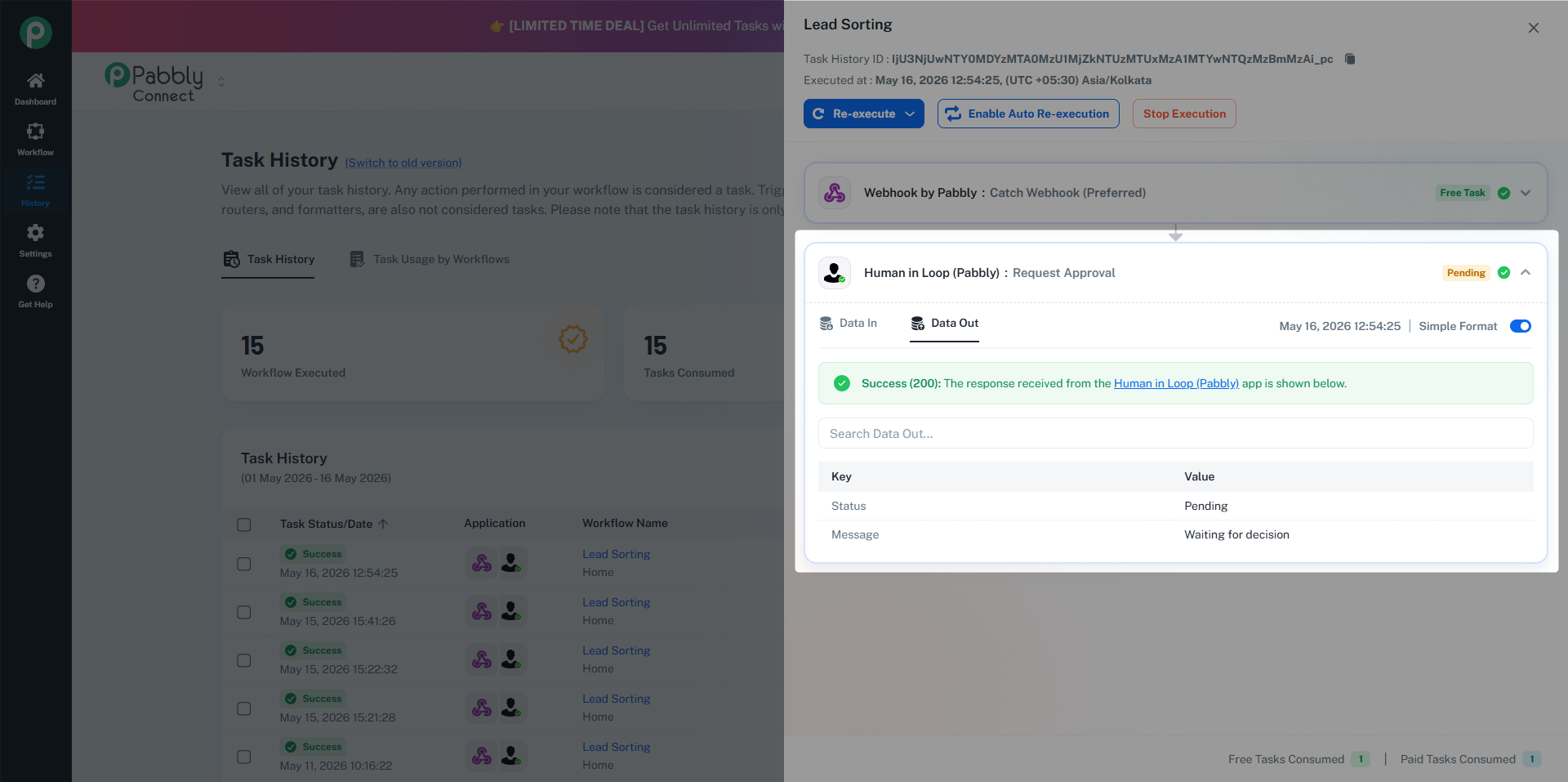
In your Task History, the run shows a Pending status badge on the HITL step.
The task counter does not advance until the workflow either resumes or terminates. (Pending HITL tasks consume one task slot until decided — same as a Delay step.)
The pause holds for up to 14 days. After that, the approval link expires — the next click on the link shows an "expired" page. The workflow itself stays in the Pending state until you stop it manually (see §7.2).
Open the email (or Slack / WhatsApp / SMS message).
Read the request and any dynamic context.
Click their decision — exactly once.
A confirmation page opens with the result.
Approve / "On Select: Continue" → green "Decision Recorded" page; workflow continues.
Reject (default) → red "Rejected" page; workflow stops.
Reject (when "Action if Reviewer Rejects" is Continue) → red "Rejected" page, but the subtitle reads "The workflow will continue from the next step." The decision is still recorded as a rejection.
Multi-choice with On Select: Stop → amber "Decision Recorded" page; workflow stops.
Multi-choice with On Select: Continue → green "Decision Recorded" page; workflow continues.
The reviewer does not need a Pabbly Connect account or login — the decision link is its own credential.
You can also stop a paused workflow from your side without waiting for the reviewer:
Go to Task History.
Find the run with a Pending badge on the HITL step.
Open the task drawer.
Click Stop Execution.
Confirm — the workflow is marked stopped, and the approval link in the email is invalidated.
This is the fastest way to handle "I sent the request to the wrong person" or "no longer needed." The Stop Execution button is also available for paused Delay steps; the same button covers both.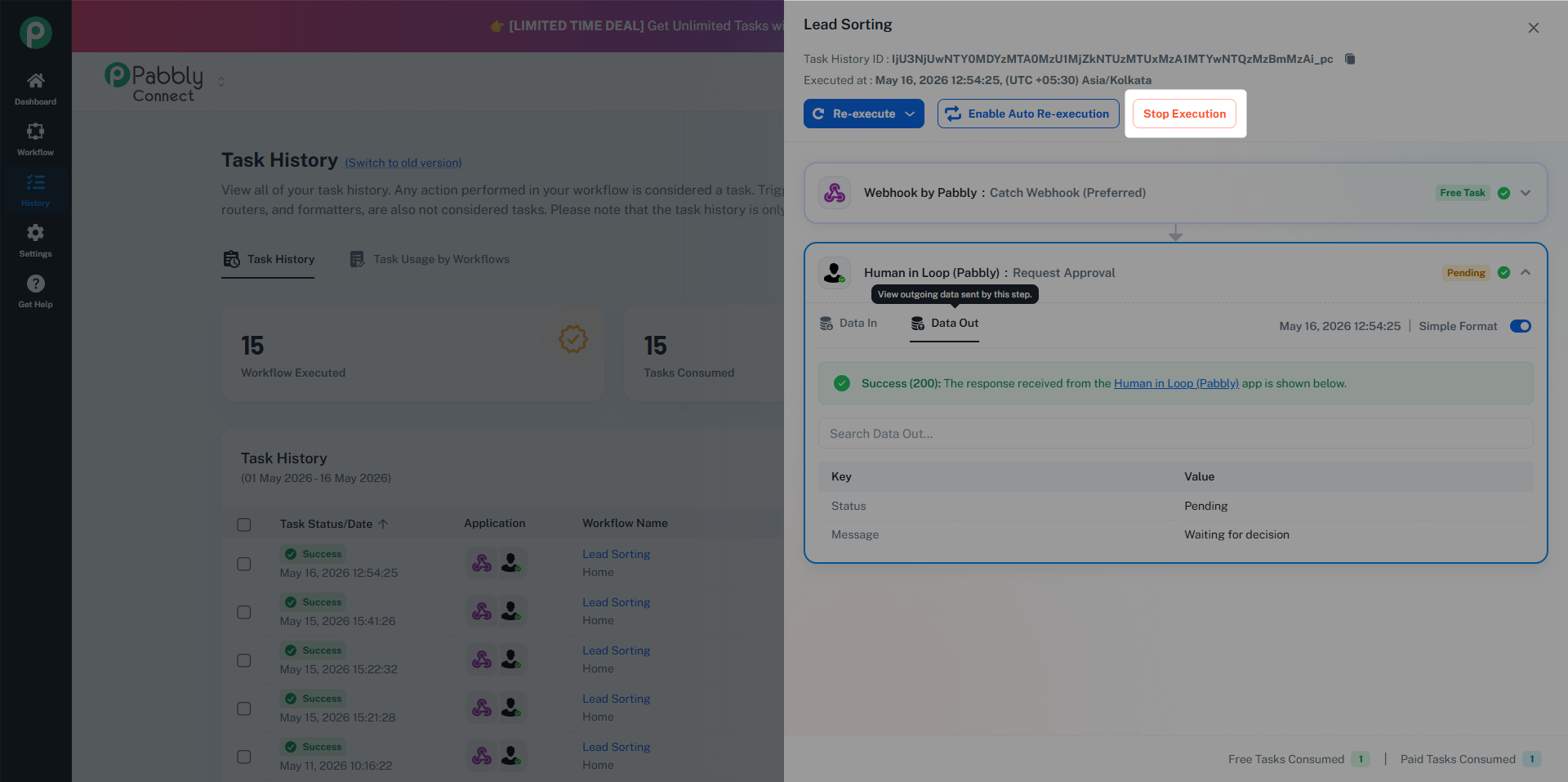
Once a decision is recorded, the HITL step in the drawer shows a one-word badge:
Badge | Meaning |
|---|---|
Pending (yellow) | Still waiting for the reviewer. |
Continued (green) | Workflow resumed (Approve, or any On-Select-Continue choice). |
Stopped (red) | Workflow ended (Reject with default Stop, or any On-Select-Stop choice, or you clicked Stop Execution). |
Hover the badge to see the original button label that was clicked, side by side with the outcome.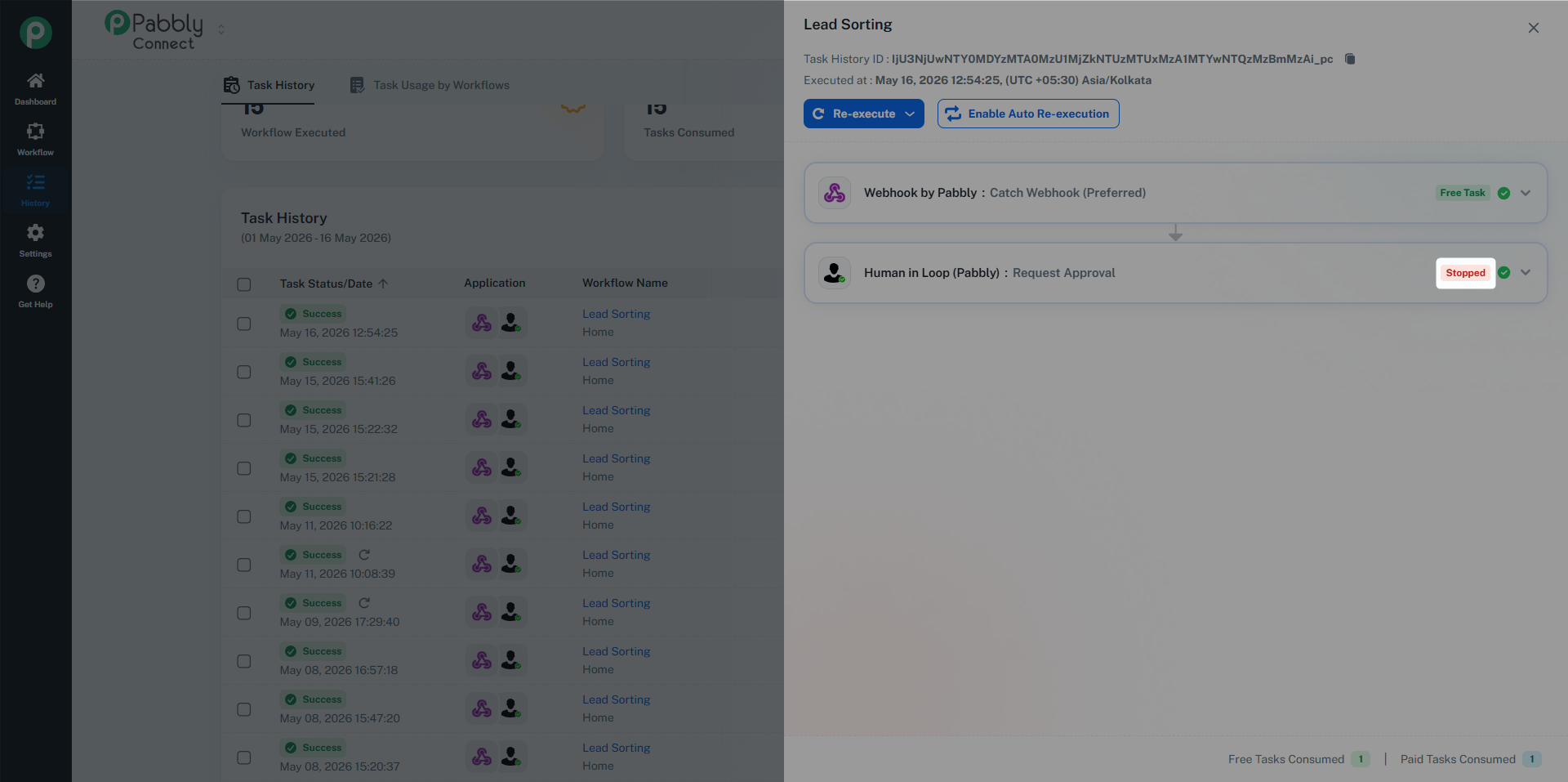
Trigger: New refund request submitted in your support tool. Steps: Filter by amount > $100 → HITL approval to your finance lead → Issue refund via payment gateway → Send confirmation email to customer. Why: Refunds above a threshold need a second pair of eyes; refunds below run automatically.
Trigger: AI generates a draft tweet from a news article. Steps: Generate draft → HITL with three buttons: "Post Now (Continue)", "Send Back for Edits (Stop)", "Discard (Stop)" → next steps branch on {{Response.Status}} to either post, archive, or notify the editor. Why: AI drafts are good but never go live without a human read — and "yes / no" doesn't cover what to do with rejected drafts.
Trigger: Candidate marked "offer accepted" in your ATS. Steps: Create draft offer in HR system → HITL with Send Request Via: Trigger a Workflow → the delivery workflow posts to a Slack channel where the hiring manager clicks Approve → main workflow provisions Slack/Google Workspace/Jira accounts → Send welcome email. Why: Account provisioning is irreversible-ish; final yes-go from the manager prevents premature welcome emails. Slack is faster than email for time-sensitive sign-offs.
Trigger: New e-commerce order over $5,000. Steps: Order received → HITL approval to fraud team with order details (and Action if Reviewer Rejects: Continue, so a rejection still routes the order to manual review) → Charge payment → Trigger fulfillment. Why: Manual fraud review on big-ticket orders, but rejections still need to enter the manual queue rather than vanish.
Trigger: Blog draft submitted by author. Steps: Run grammar check → HITL approval to editor with the draft body in the message → Publish to CMS → Cross-post to newsletter. Why: Editorial gate before public release.
In multi-choice mode, the reviewer's chosen button label is stored in the step's Status field. You can branch on it in later steps using a Router or Filter. Useful field references:
{{Response.Status}} — the label of the button the reviewer clicked.
{{Response.Decision1Label}}, {{Response.Decision2Label}}, ... — the labels you defined, in order. These keep working even if you rename the buttons later, so use them in conditions when you want stable references.
Example: a 3-button "Send to Sales / Send to Support / Cancel" HITL step followed by a Router that compares {{Response.Status}} to each Decision{N}Label and routes accordingly.
A: 14 days from the moment the email / message is sent. After that, the link shows an "expired" page.
A: Not currently — it's a fixed 14 days. Configurable expiry is on our roadmap.
A: Whichever they click first wins. The second click shows "This request has already been decided." There's no double-fire.
A: Not currently — exactly one recipient per HITL step (in email mode). If you forward the email to a second reviewer, whichever person clicks first decides.
A: Add two HITL steps in series — each with its own reviewer. The workflow won't continue past step 2 until both have approved.
A: Not in the current version. Decisions are buttons only. A "decision reason" field is being considered for a future release.
A: No. The decision link is the only credential needed.
A: Open Task History and look for runs where the HITL step has a Pending badge. The whole task row also stays at "Partial" or "In Progress" until the decision is made.
A: Yes — open the task in Task History and click Stop Execution. The decision link becomes inert immediately.
A: Not yet — manual resend is on the roadmap. Workaround: stop the current task and re-trigger the workflow (the new run sends a fresh email).
A: Yes. Each iteration triggers its own approval and pauses independently. The workflow continues to the next iteration only when each one's HITL step is decided. Be careful with high-volume iterators — you'll get one request per item.
A: Yes — HITL composes with all of them. You can put HITL inside a Router branch, after a Filter, before or after a Delay, etc.
A: Yes. Reaching the HITL step counts as one task. Resuming after the decision does not consume an additional task.
A: Workflows that are already paused keep their original recipient and message — the snapshot is taken at pause time. New runs use the updated config.
A: Yes. Each approval link is bound to a specific task and step, so there's no cross-contamination.
A: No — anyone with the link can approve or reject. Treat the email like a one-time password. If you've shared a link by accident and want to invalidate it, stop the task from Task History.
A: Approval emails come from Pabbly's verified sending domain. Whitelist @pabbly.com (or your configured custom sender, if you have white-label). If emails consistently land in spam, contact support.
A: Yes. The Task History drawer shows the decision (Continued / Stopped / button label / Pending / Expired), the timestamp, and the IP address that clicked.
A: Delay waits a fixed amount of time and then continues automatically. HITL waits for a human decision (up to 14 days) and continues based on what they choose.
A: By design — losing message context shouldn't dead-end the workflow. The reviewer will see {Invalid Data} where the missing data should have appeared, but the request still goes out so they can act on it. Only a deleted recipient email blocks the step entirely (since there's no one to send the request to).
Scenario | What happens |
|---|---|
Reviewer clicks Approve | Workflow resumes from the next step. Reviewer sees an "Approved" confirmation page. Step badge in Task History shows Continued. |
Reviewer clicks Reject (default Stop) | Workflow stops permanently at the HITL step. Subsequent steps don't run. Step badge shows Stopped. |
Reviewer clicks Reject with Action if Reviewer Rejects = Continue | Workflow continues from the next step with |
Reviewer picks a multi-choice button with On Select: Continue | Workflow resumes, |
Reviewer picks a multi-choice button with On Select: Stop | Workflow stops. Step badge shows Stopped, with the chosen label in the tooltip. |
Reviewer does nothing for 14 days | The approval link expires — clicking it returns an "expired" page. The workflow stays Pending in Task History until you Stop Execution manually. |
You click Stop Execution in Task History | Workflow stops immediately. Approval link is invalidated. Step badge shows Stopped. |
Reviewer clicks the email link twice | First click decides; second click shows "Already decided." |
Reviewer forwards the email to a colleague who clicks first | Colleague's decision wins. Treat email forwarding as an implicit delegation. |
Reviewer replies to the email with "Approved" instead of clicking | Nothing happens — replies aren't monitored. They must click the button. |
Workflow is turned off while a run is paused | The paused run is not affected — it keeps waiting. New triggers, however, won't start new runs. |
Workflow is deleted while a run is paused | Pending HITL runs are auto-stopped. Task History rows remain for audit. |
You map the recipient from a step that gets deleted later | The HITL step fails at runtime with a clear error: "Approver email source is deleted or unavailable." Re-map the field. The step is marked Error in Task History. |
You map the approval message from a deleted step | The HITL step still runs and sends the request — the reviewer sees |
You enter an invalid email | The HITL step fails at save-time validation. The form blocks submission until fixed. |
Stuck on configuration? Send a test email / test request from the builder to verify your message renders correctly before turning the workflow on.
Workflow not pausing? Check Task History — if the HITL step badge is Error, look at the error message in the step drawer (usually a deleted mapping source).
Reviewer isn't getting emails? Check spam folder, then ask the recipient to whitelist @pabbly.com.
Other questions? Reach out via the Pabbly Connect support channel.
