Adding a WhatsApp number in Pabbly Chatflow is straightforward and fast. Follow these steps for a smooth and efficient setup:
Step 1: Log in to Your Pabbly Chatflow Account
- Open your web browser and go to Pabbly Chatflow.
- Enter your login credentials and click Sign In.
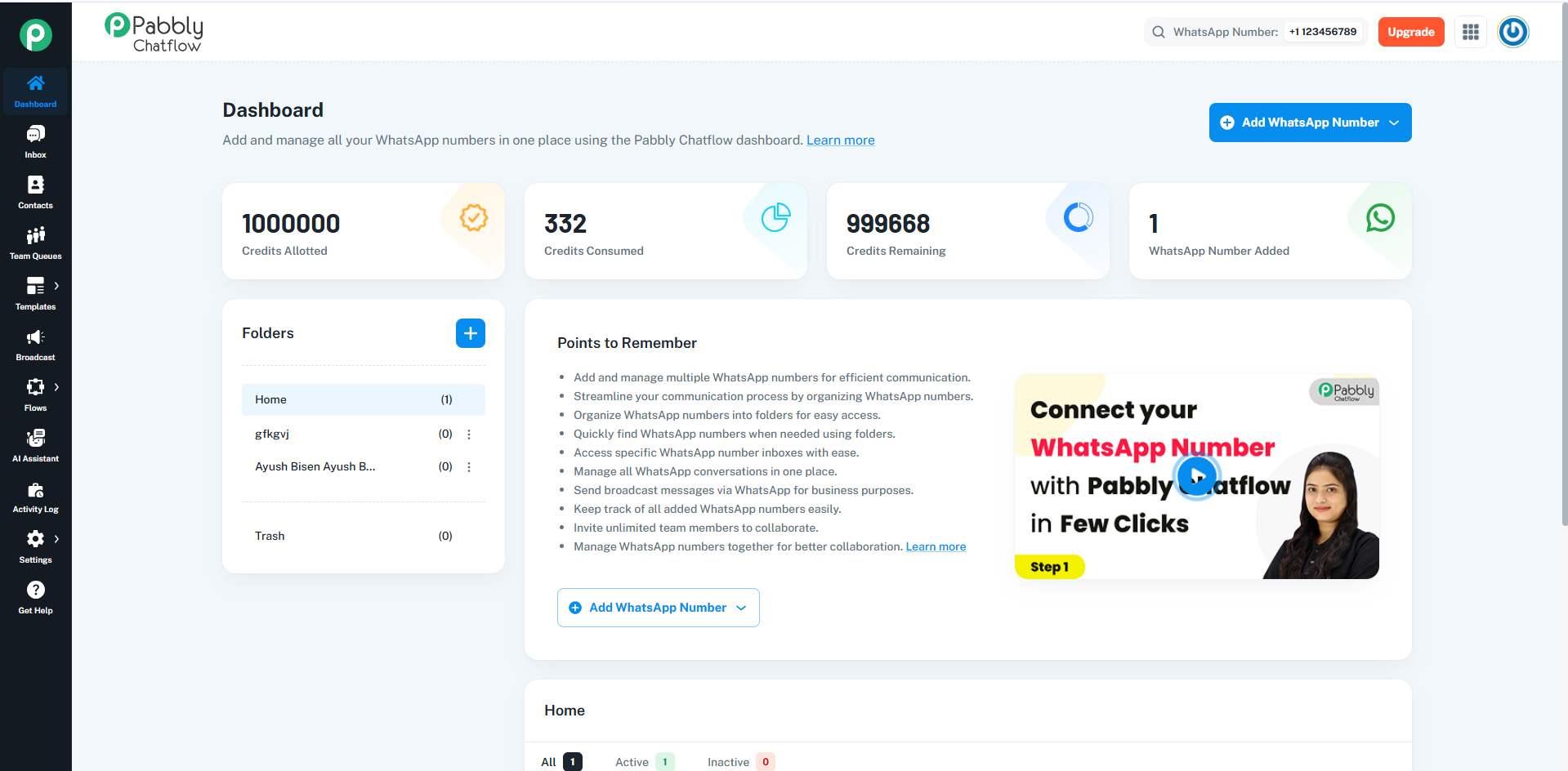
- Once logged in, you will be redirected to the Dashboard.
Refer to the image below for reference:
📌 (Attach Image: Dashboard View)
Step 2: Locate and Click "Add WhatsApp Number"
- On the Dashboard, you’ll see an overview of your WhatsApp Message Credits and key metrics.
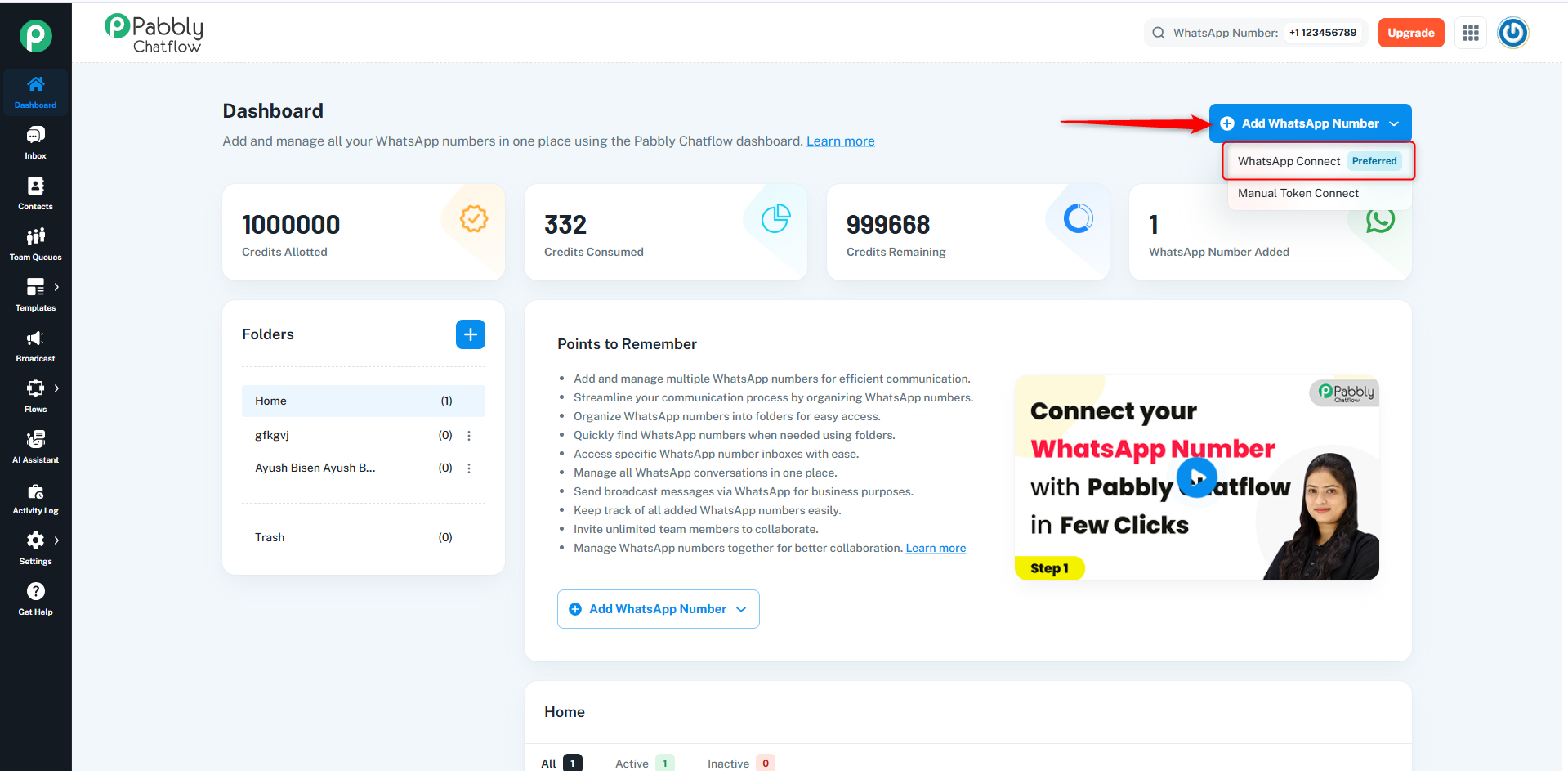
- On the dashboard, locate the Add WhatsApp Number button on the top-right corner.
- Click the dropdown arrow next to the button to open available options.
📌(Attach Image: Highlighted "Add WhatsApp Number" Button)
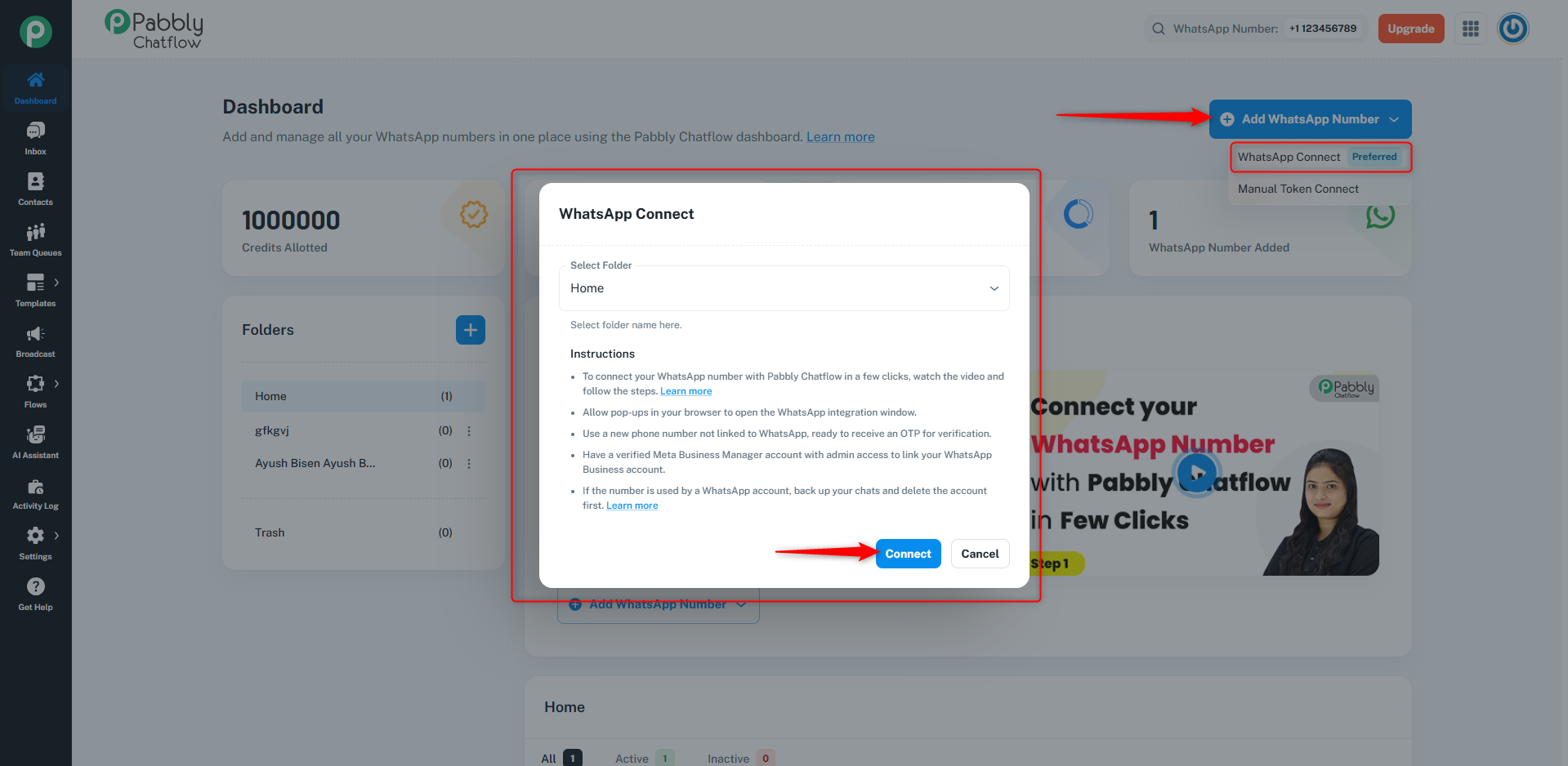
Step 3: Select WhatsApp Connect Method
- From the dropdown, click on WhatsApp Connect (Preferred) to start the connection process.
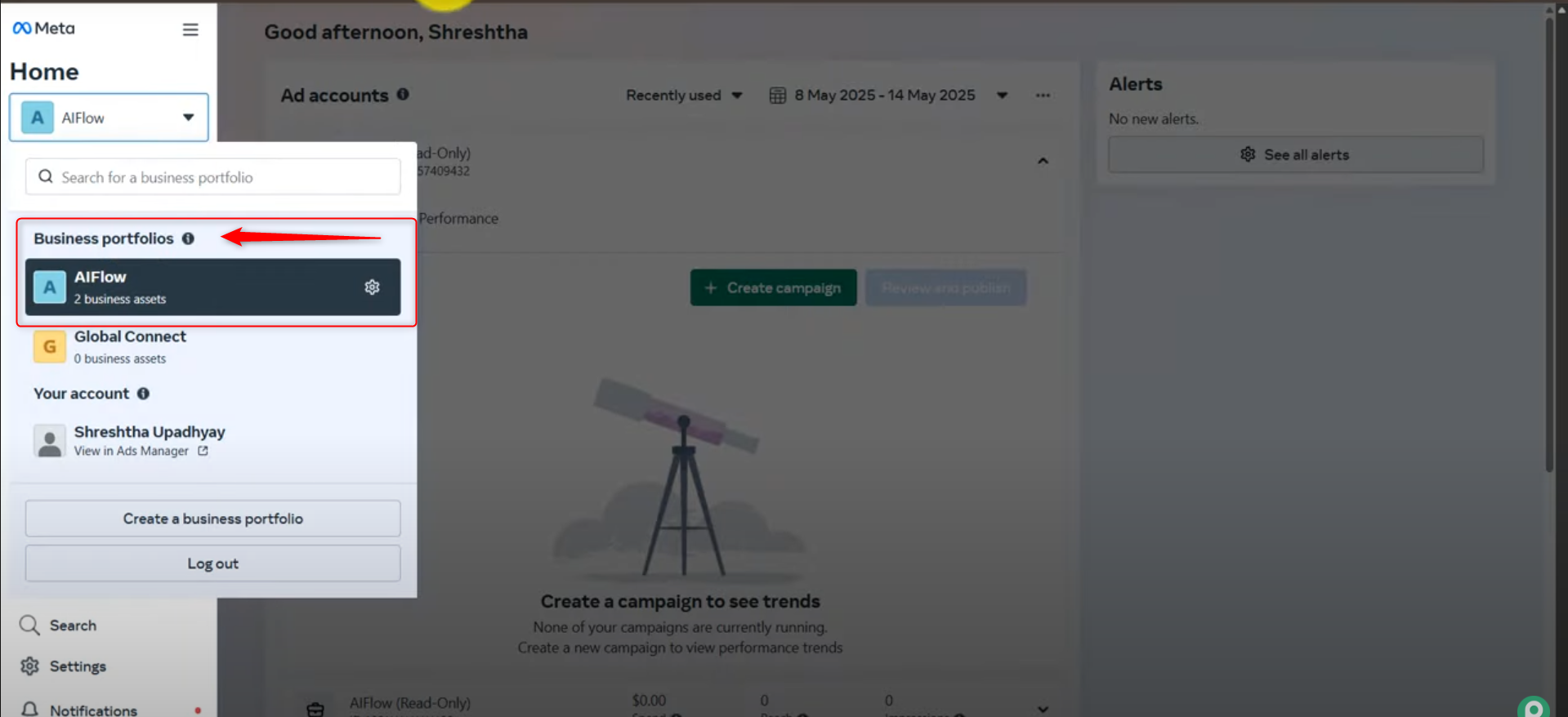
Step 4: Verify Facebook Login and Business Profile
- Before connecting your WhatsApp Business account, make sure:
Step 5: Click Connect and Continue with Facebook Account
- Click the Connect button.
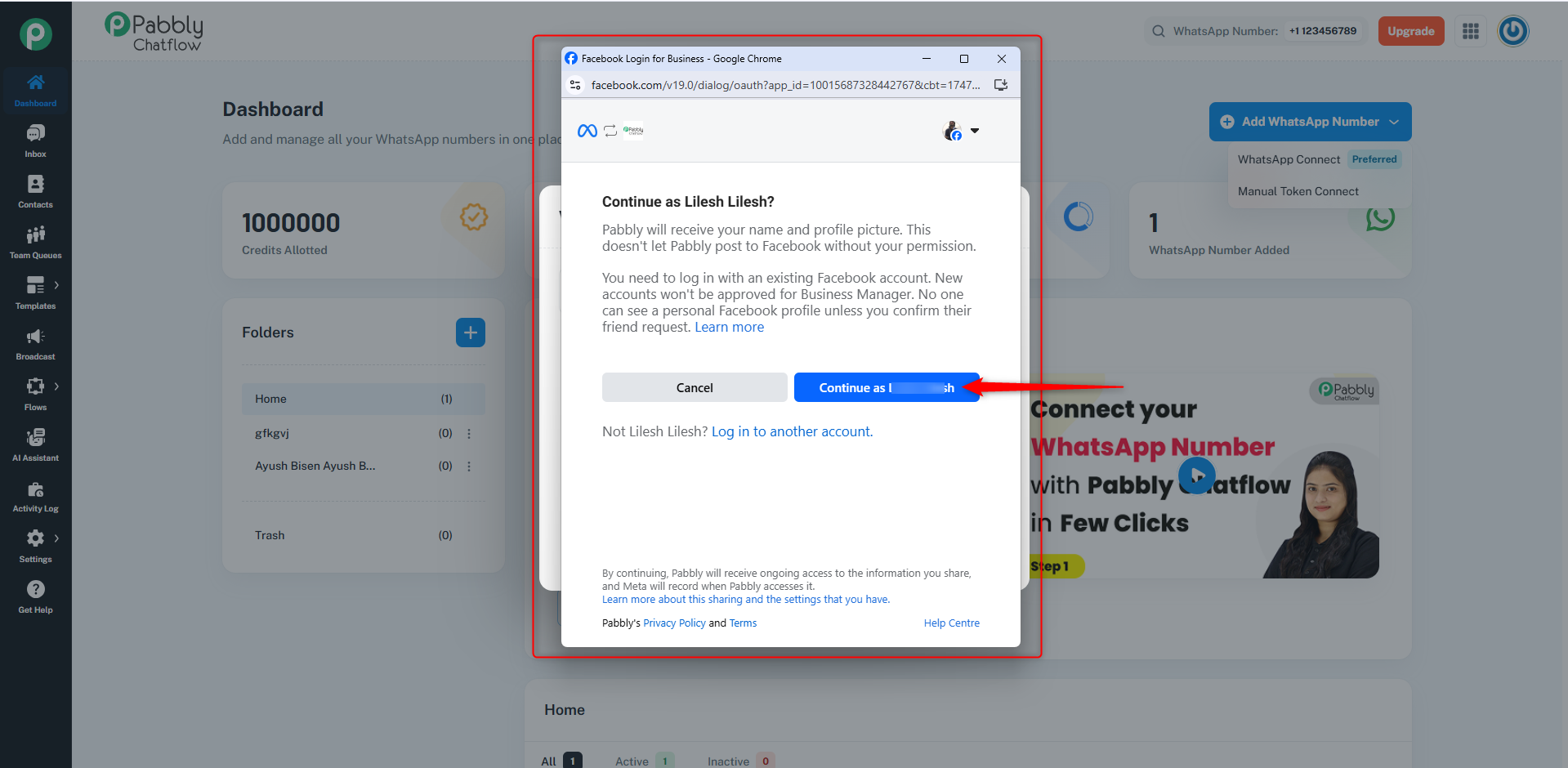
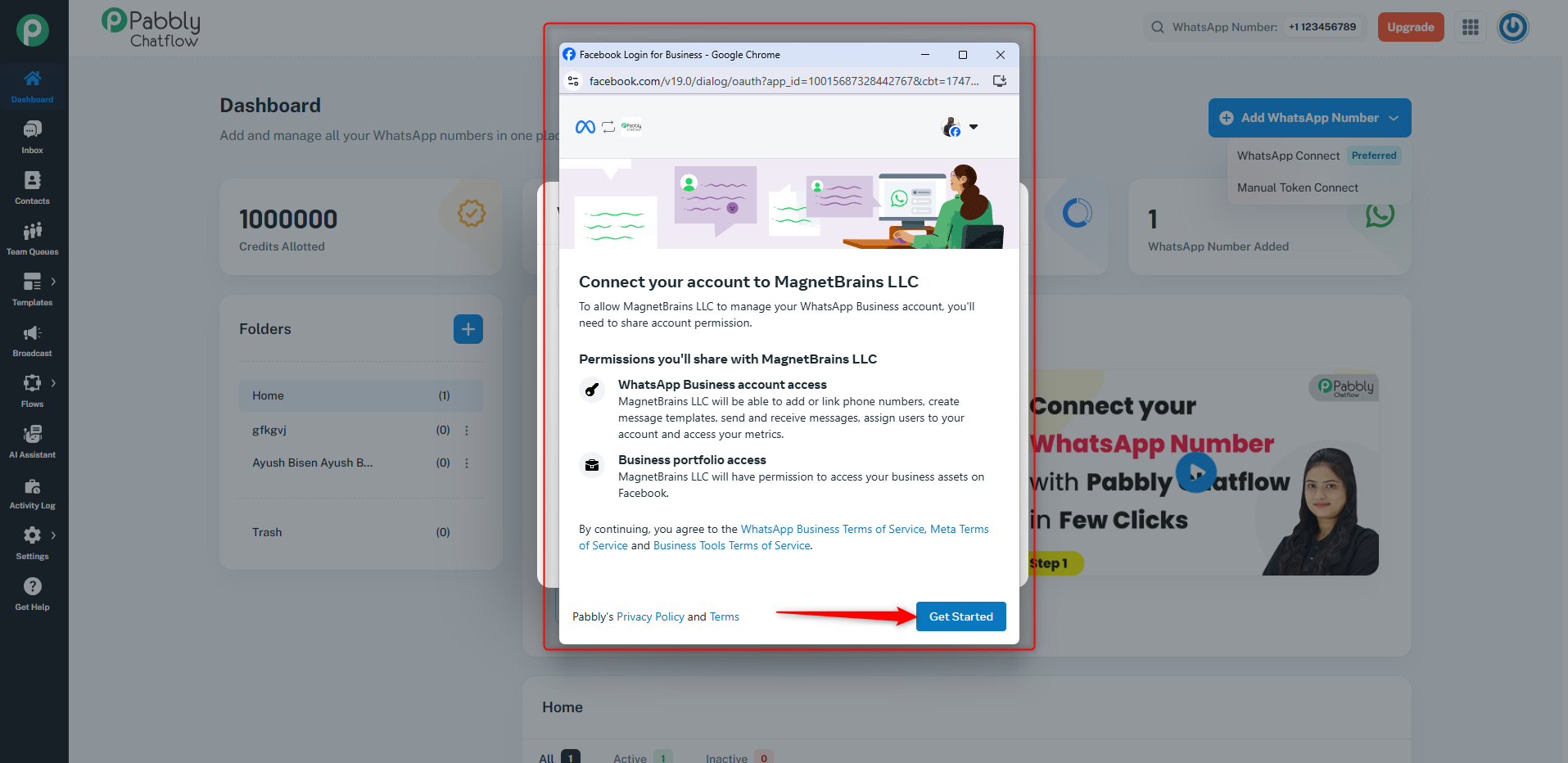
- Continue with your existing Facebook account by logging in if required.
- Click Get Started to connect your account to Meta Business.
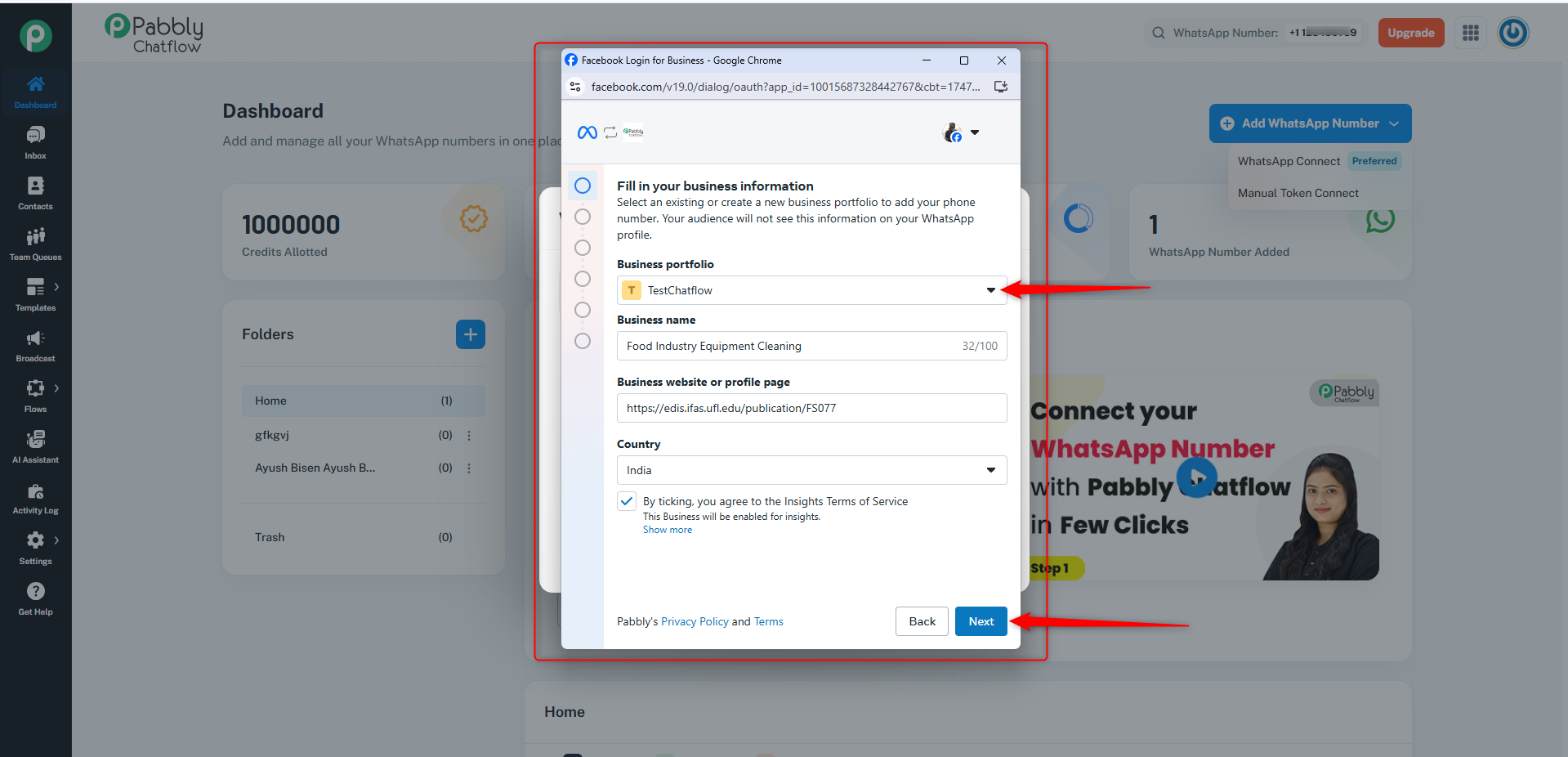
- Enter your business details.
- Select your Business Portfolio.
- Click Next.
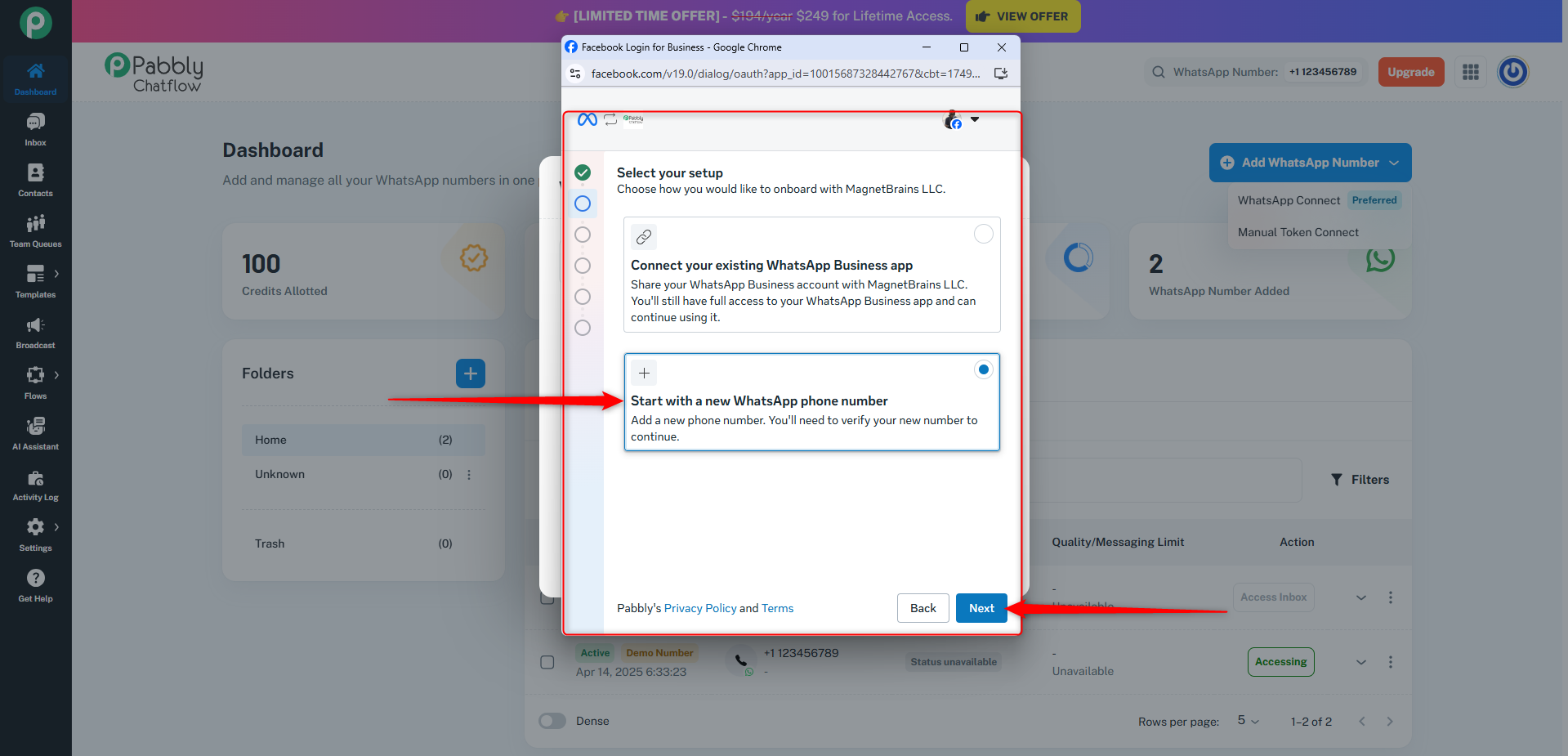
Step 8: Select Setup Option
- Choose Start with a new Whatsapp phone number.
- Click Next.
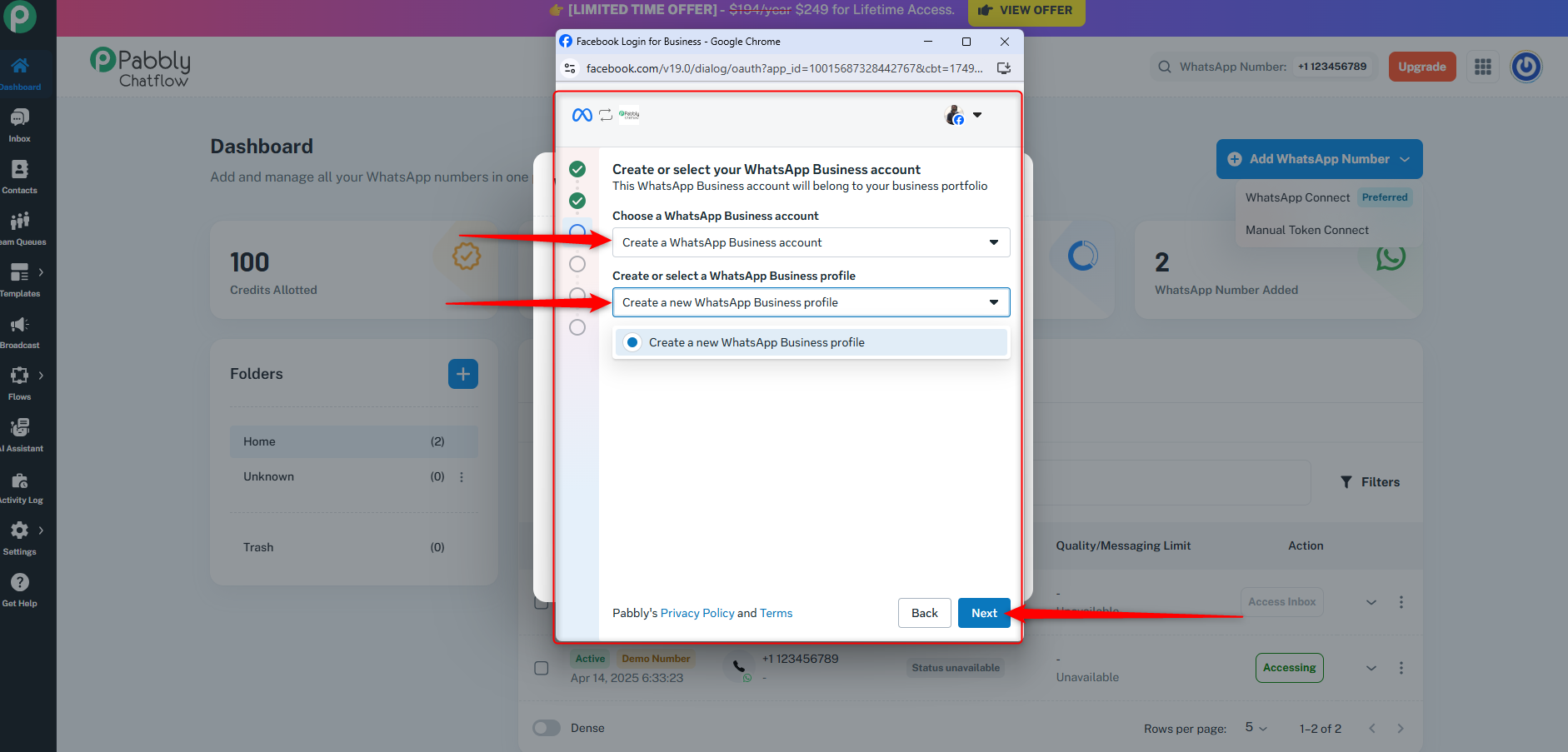
Step 9: Create or Select Your WhatsApp Business Account
Create or select your WhatsApp Business account, which will belong to your Business Portfolio.
-
First, choose your WhatsApp Business account. You can either:
- Select an existing WhatsApp Business account, or
- Create a new WhatsApp Business account.
-
Next, select your WhatsApp Business profile or create a new one.
-
Click Next.
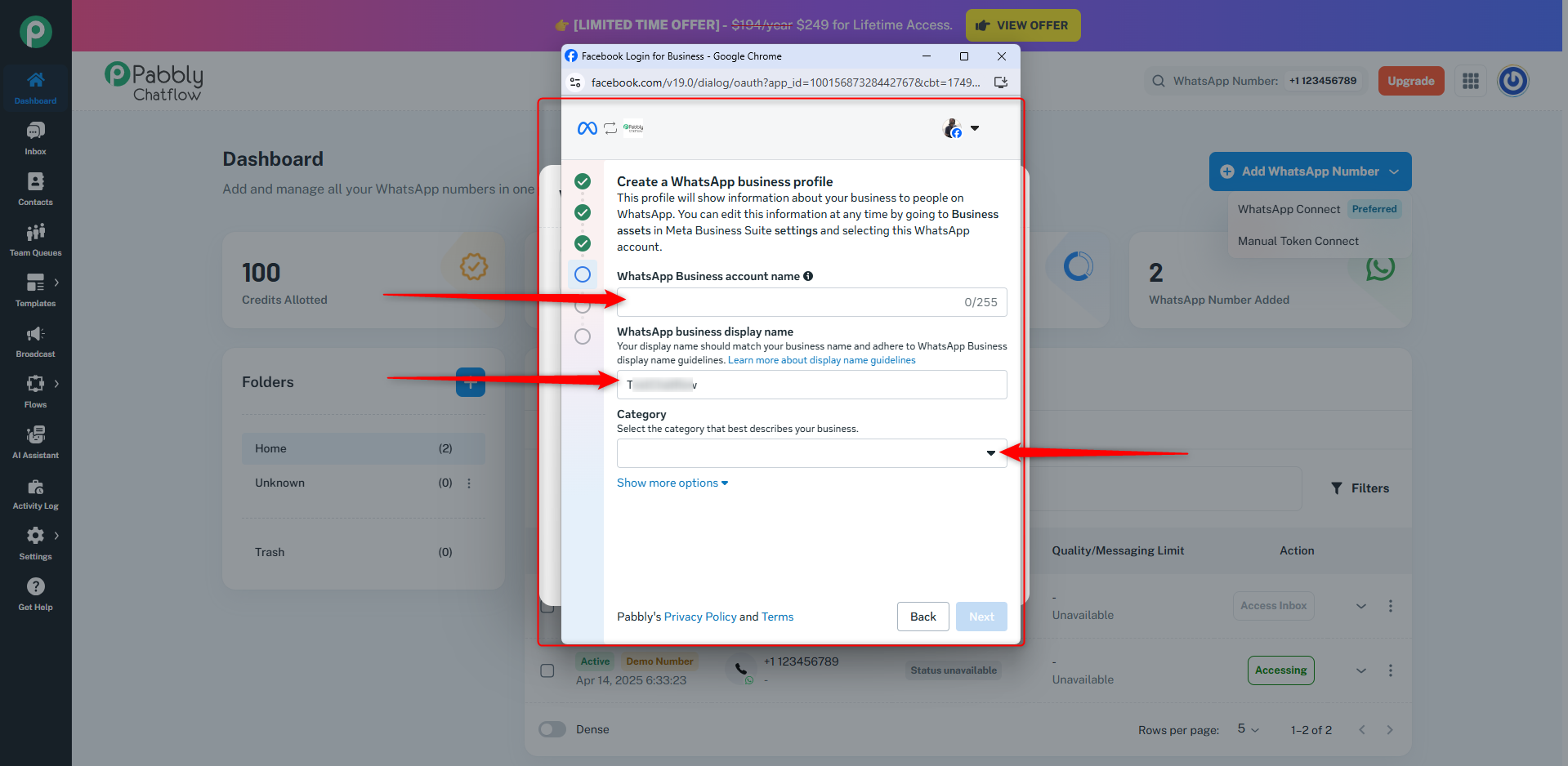
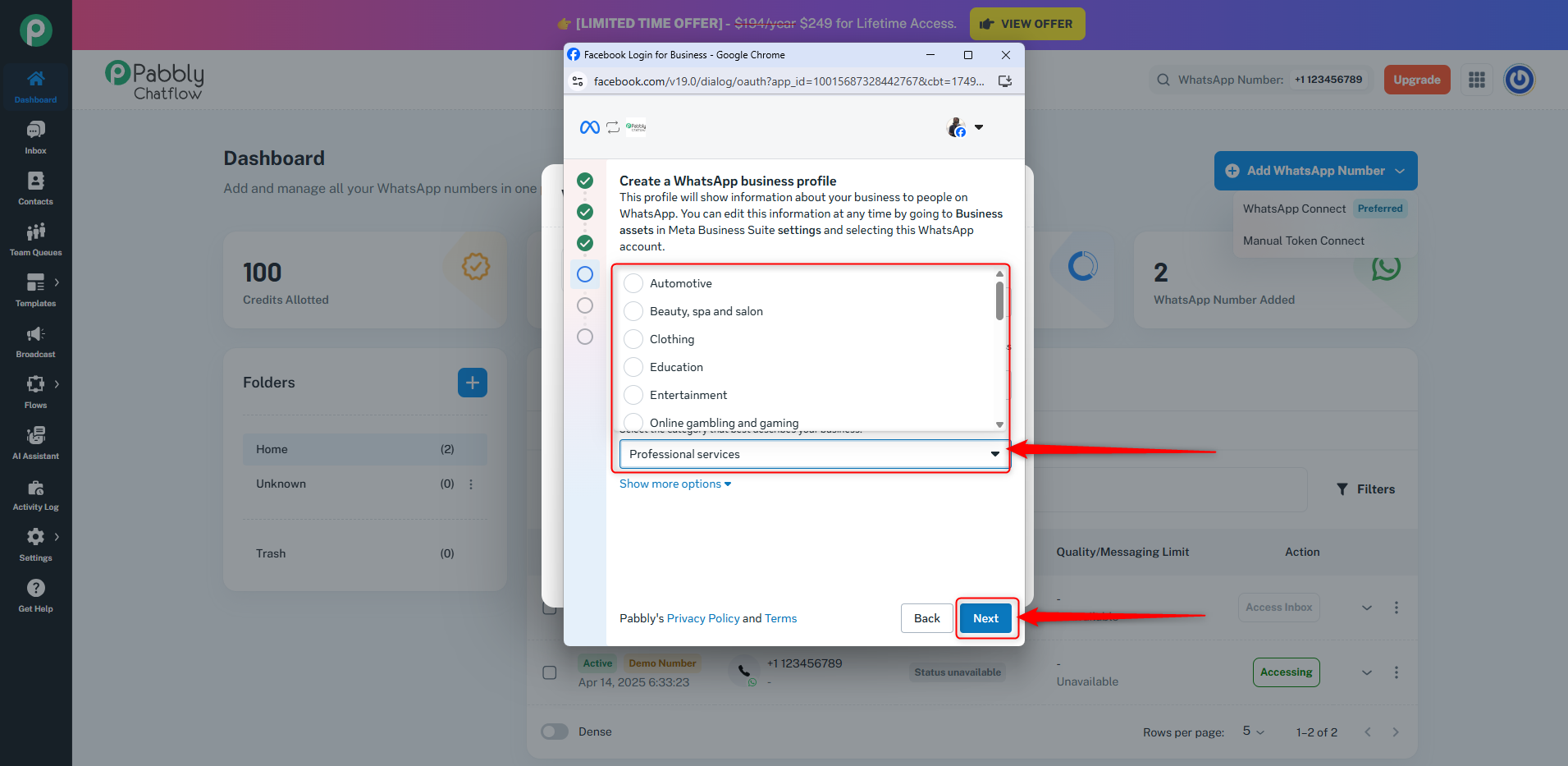
Step 10: Create a WhatsApp Business Profile
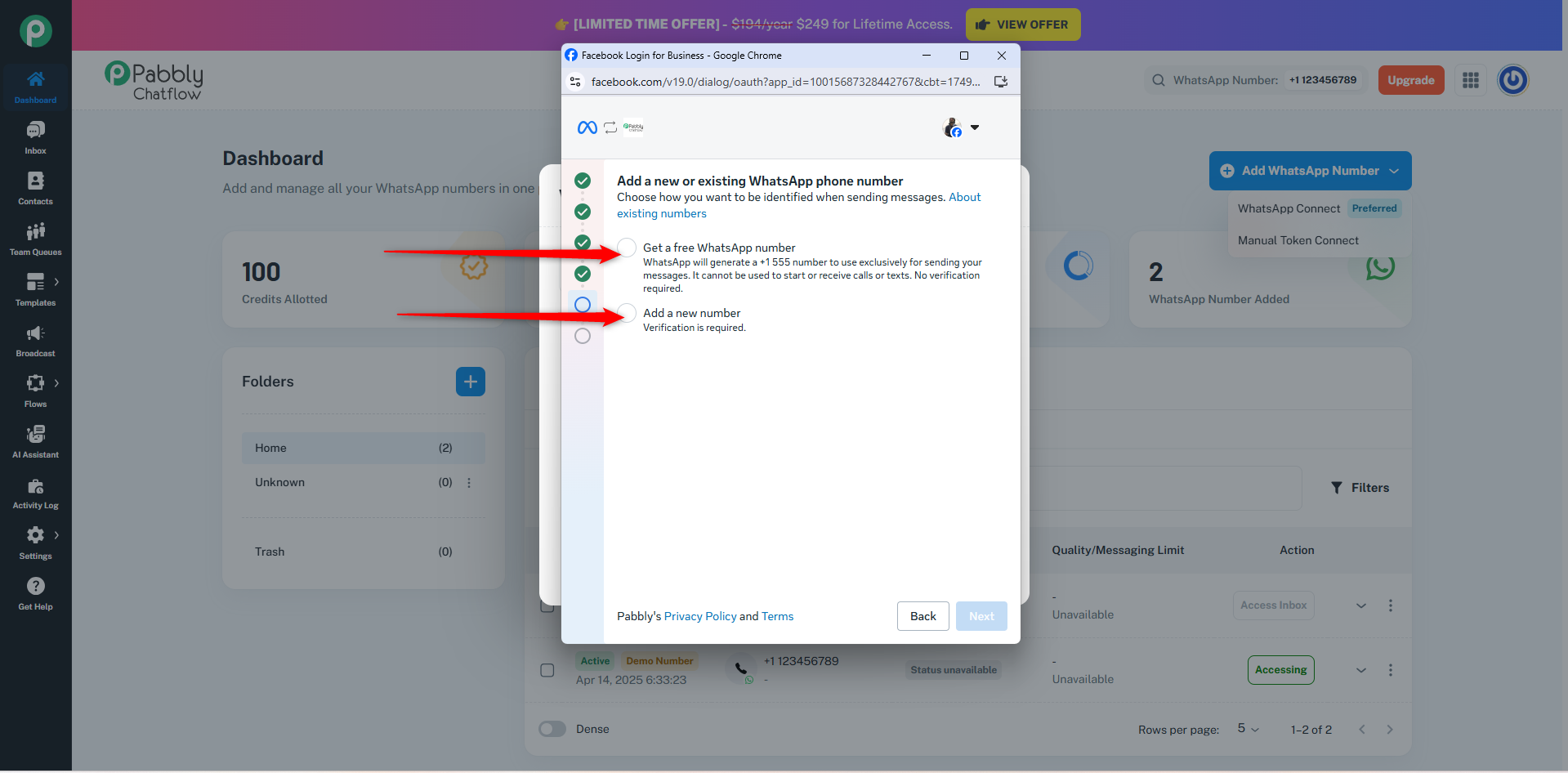
Step 11: Add a New or Existing WhatsApp Phone Number
- Choose how you want to be identified when sending messages:
- Get a free WhatsApp number
WhatsApp will generate a +1 555 number for sending messages only. This number cannot be used for calls or texts, and no verification is required.
- Add a new number
- Click Add New Number.
- Enter your phone number.
- You will receive a 6-digit verification code.
- You can select how you want to receive the verification code (via text message or phone call).
- Click Next.
- Note: The number should not be connected to your regular WhatsApp app.
Step 12: Review and Grant Pabbly Access Permissions
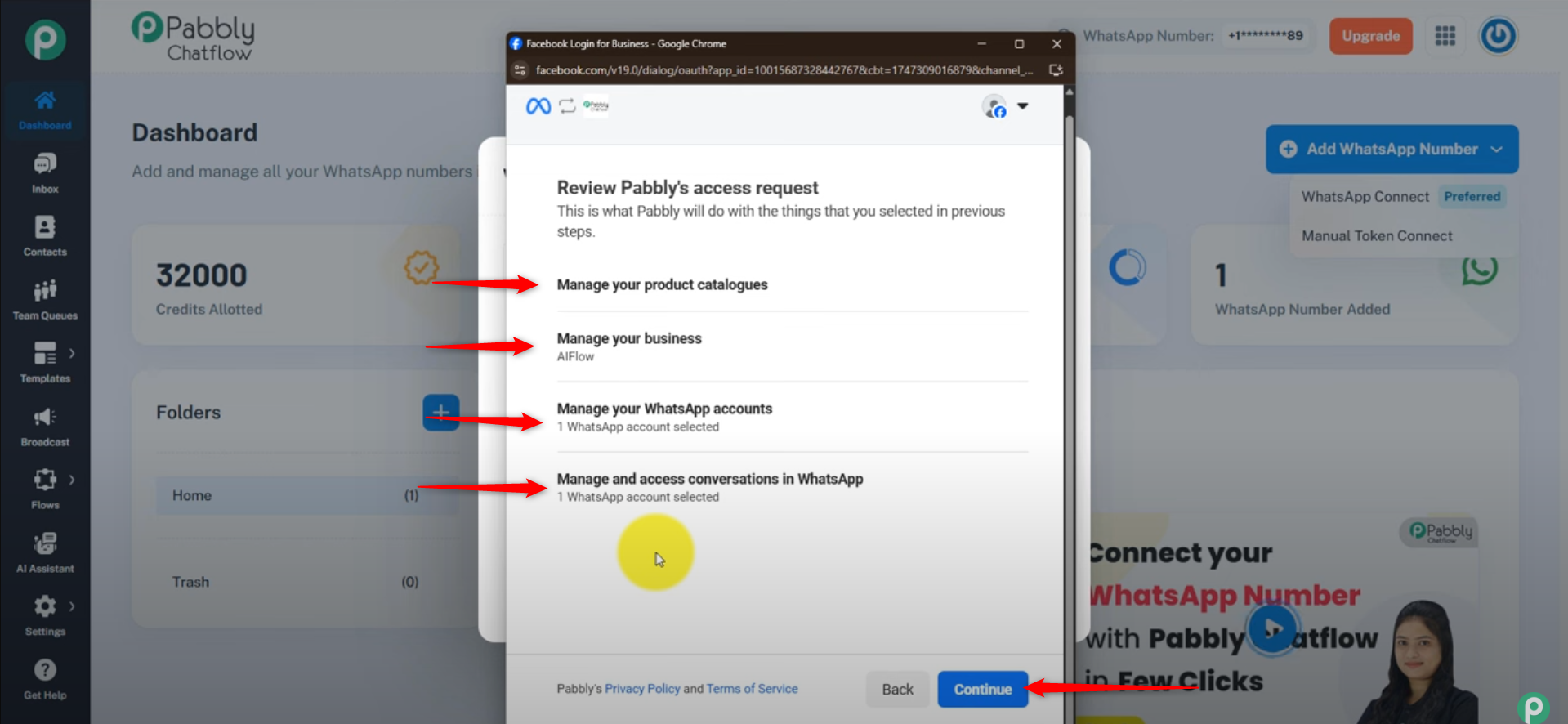
- Review the permissions Pabbly Chatflow requests, which you have previously granted, allowing Pabbly to:
- Access and manage your product catalog
- Access and manage your business
- Access and manage your WhatsApp Business account
- Access and manage conversations on WhatsApp
- Click Continue to confirm these permissions.
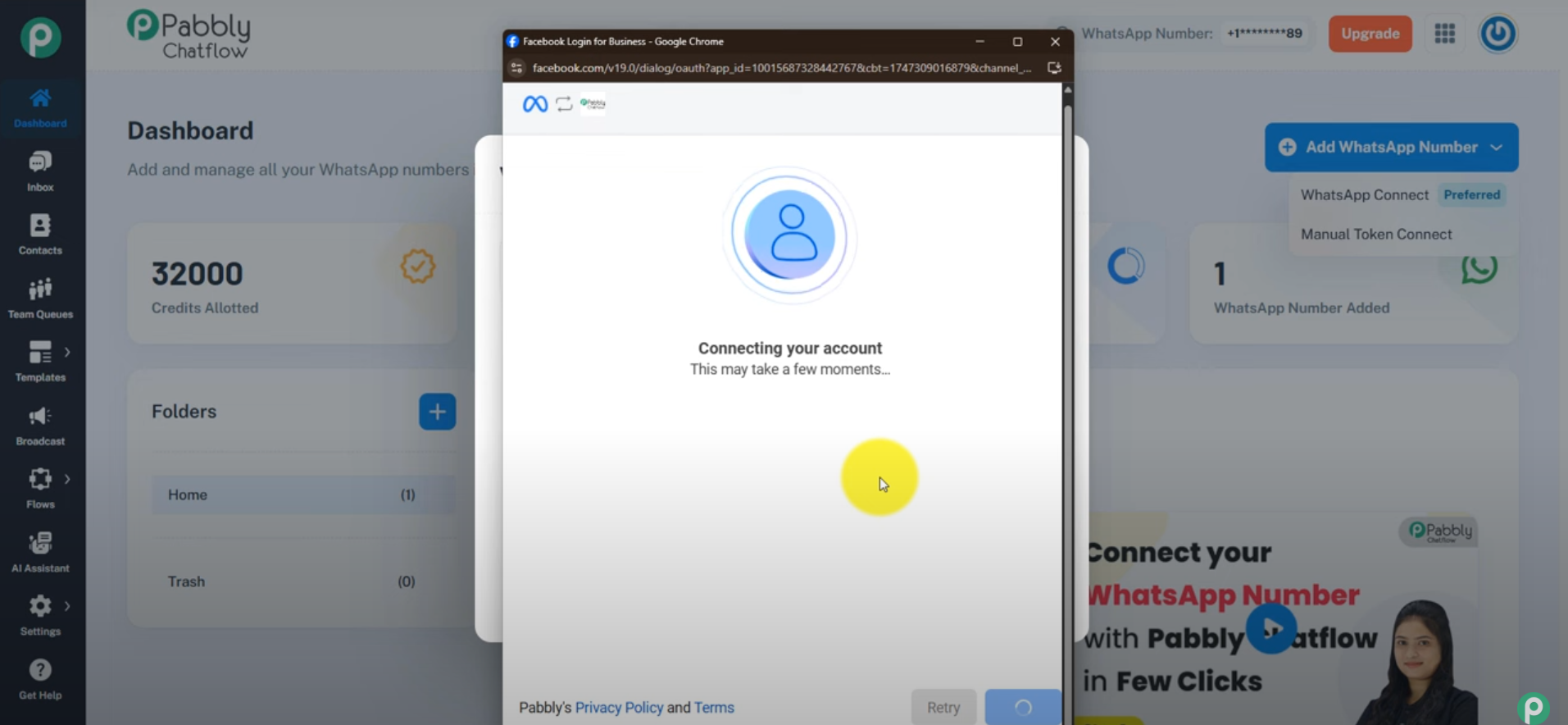
- The connection process may take a few moments.
Step 12: Finish Setup
- After granting permissions, you will see a confirmation screen showing that your account is connected.
- Click the Finish button to complete the setup process.
- Once finished, your WhatsApp Business number will be successfully connected and ready to use in Pabbly Chatflow.
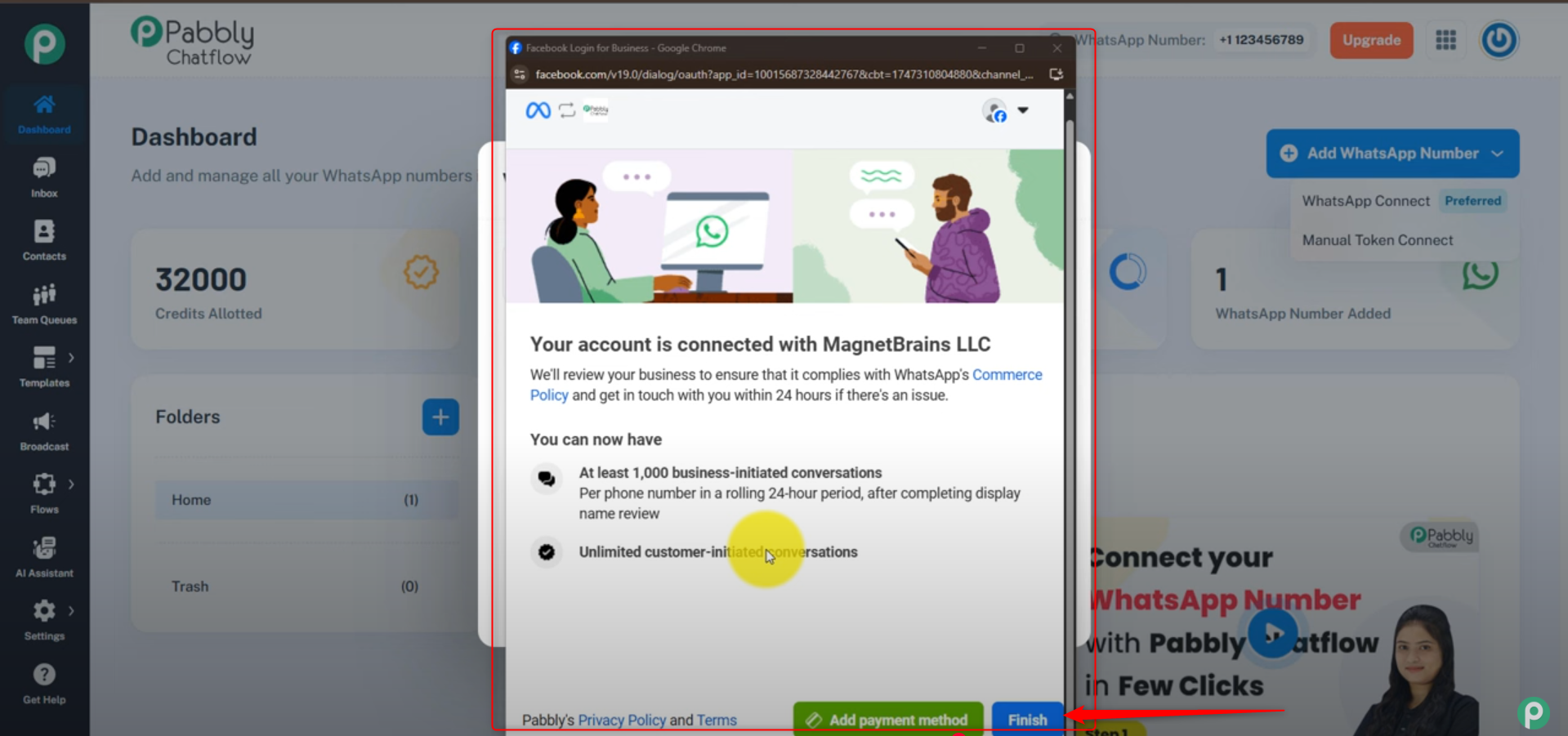
WhatsApp will review your business to ensure compliance with their Commerce Policy and may contact you within 24 hours if there are any issues.
After approval, you can send:
- At least 1,000 business-initiated conversations per phone number in a rolling 24-hour period.
- Unlimited customer-initiated conversations without restriction.
Step 13: Return to Dashboard
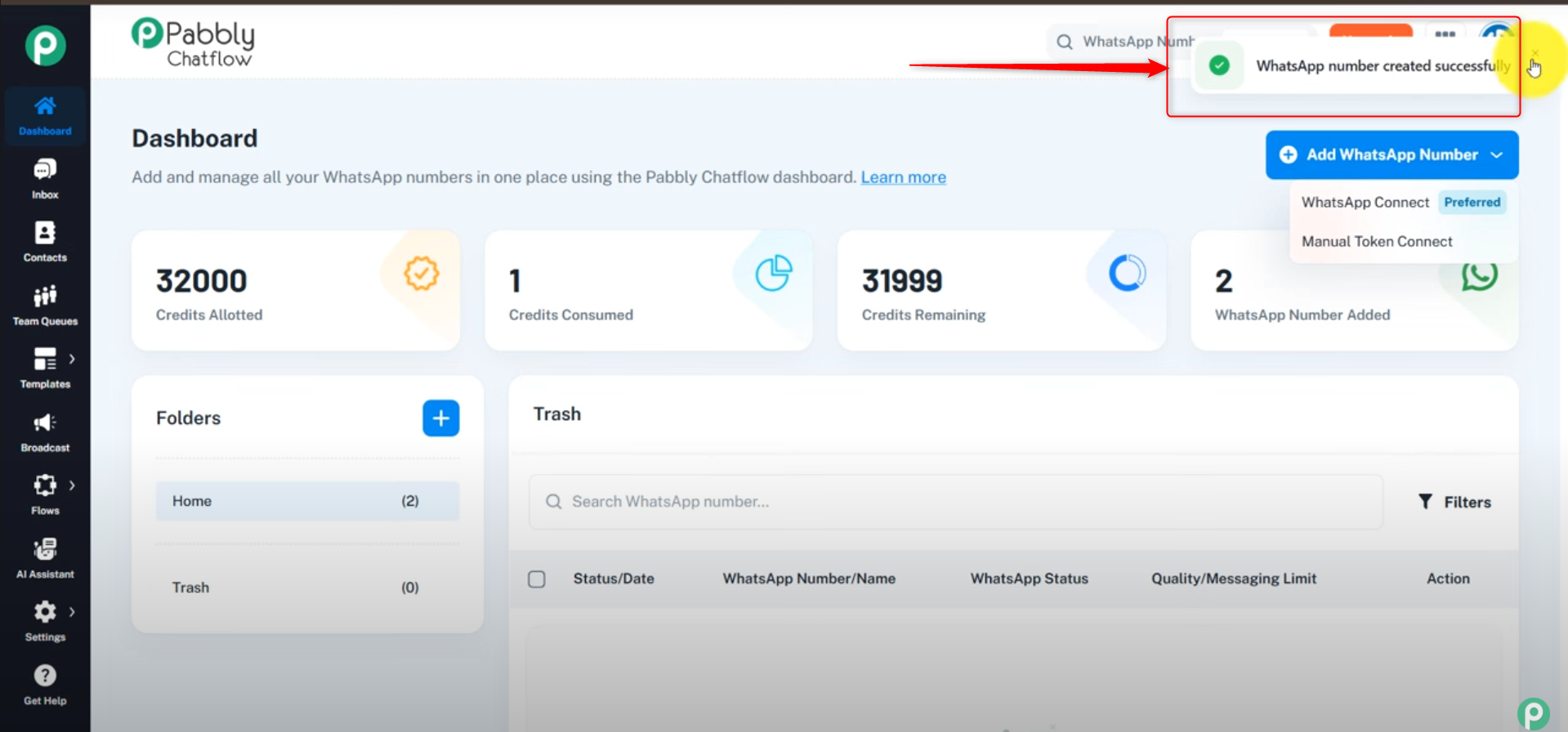
- After clicking Finish, you will be redirected back to the Pabbly Chatflow dashboard.
- Your WhatsApp Business number will now be listed and ready for use.
- You can start managing your WhatsApp messages and automations from the dashboard.
Step 14: Manage Your Connected WhatsApp Number
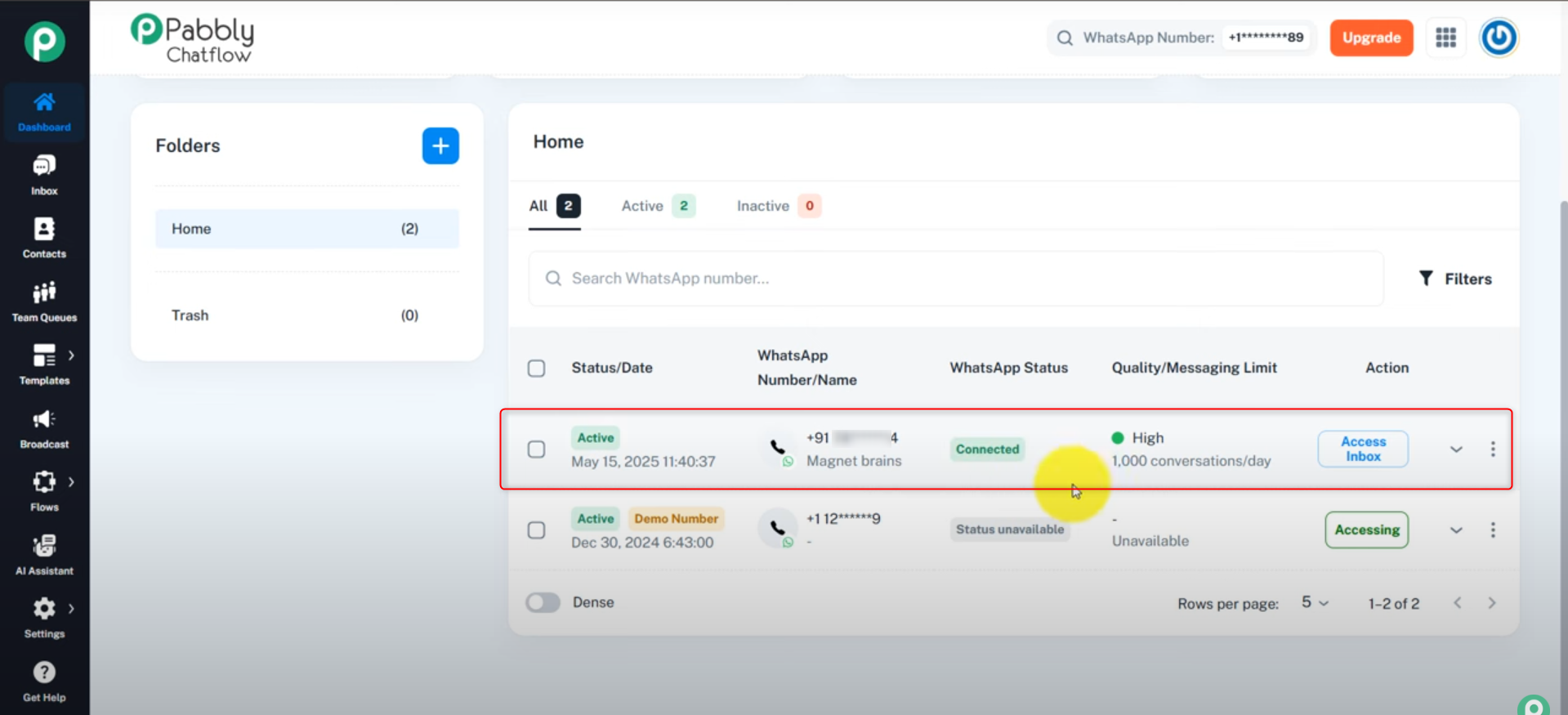
- On the Pabbly Chatflow dashboard, locate the table listing your connected WhatsApp Business numbers.
- Here, you can:
- See your connected WhatsApp Business number(s) clearly listed.
- Click Access Inbox to open and manage conversations for that specific number.
- Manage contacts and chats linked to your WhatsApp Business number directly from the dashboard
Step 15: Start Using Inbox and Messaging Features
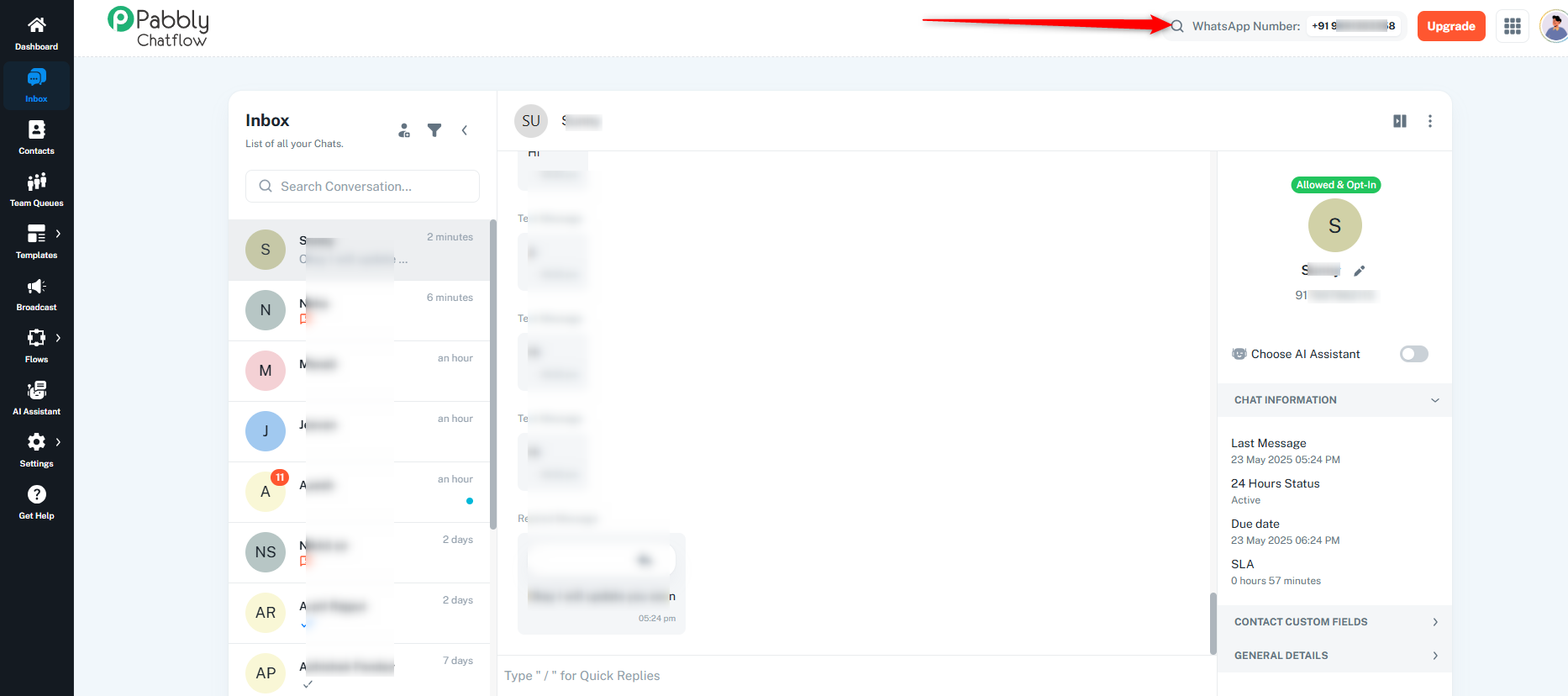
Now that your WhatsApp Business number is connected, you can use the Inbox to chat directly with your customers.
The Inbox supports:
- Regular messages, pre-approved templates, AI assistant, quick replies, etc.
- Automated replies and scheduled messages
- Managing multiple customer conversations efficiently
This empowers your business to engage customers professionally and efficiently through WhatsApp using Pabbly Chatflow.
⚠️ Webhook Auto-Unsubscription for Free Accounts
What Happens?
- Webhook subscriptions for free accounts that are more than 30 days old are automatically paused.
- Once paused, incoming message webhook events will no longer be delivered.
How to Restore Webhooks
- Webhook subscriptions are automatically restored when a paid Pabbly Chatflow plan is purchased.
- No manual reconfiguration is required after upgrading.
- If you would like to re-subscribe your webhook on a free account, please contact [email protected] for assistance.
 Pabbly Chatflow Team•Updated Oct 24, 2026•5 min read Video included