Features & Capabilities
 Pabbly Chatflow Team•Updated Sep 30, 2026•2 min read
You can now create and send WhatsApp broadcasts directly from the Contacts section in Pabbly Chatflow. Select the contacts you want to reach, choose your message, and either send the broadcast immediately or schedule it for later.
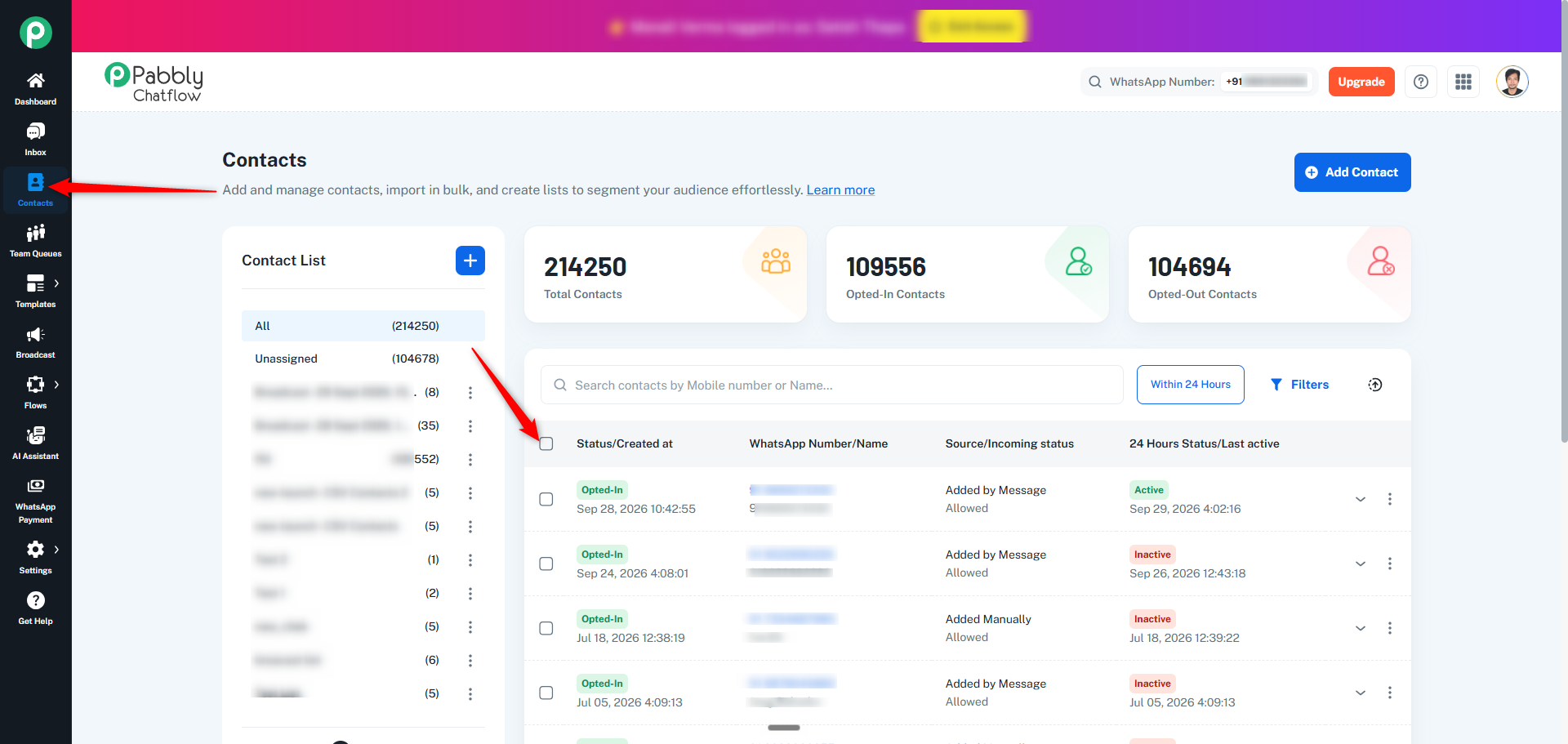
Go to Contacts in Pabbly Chatflow.
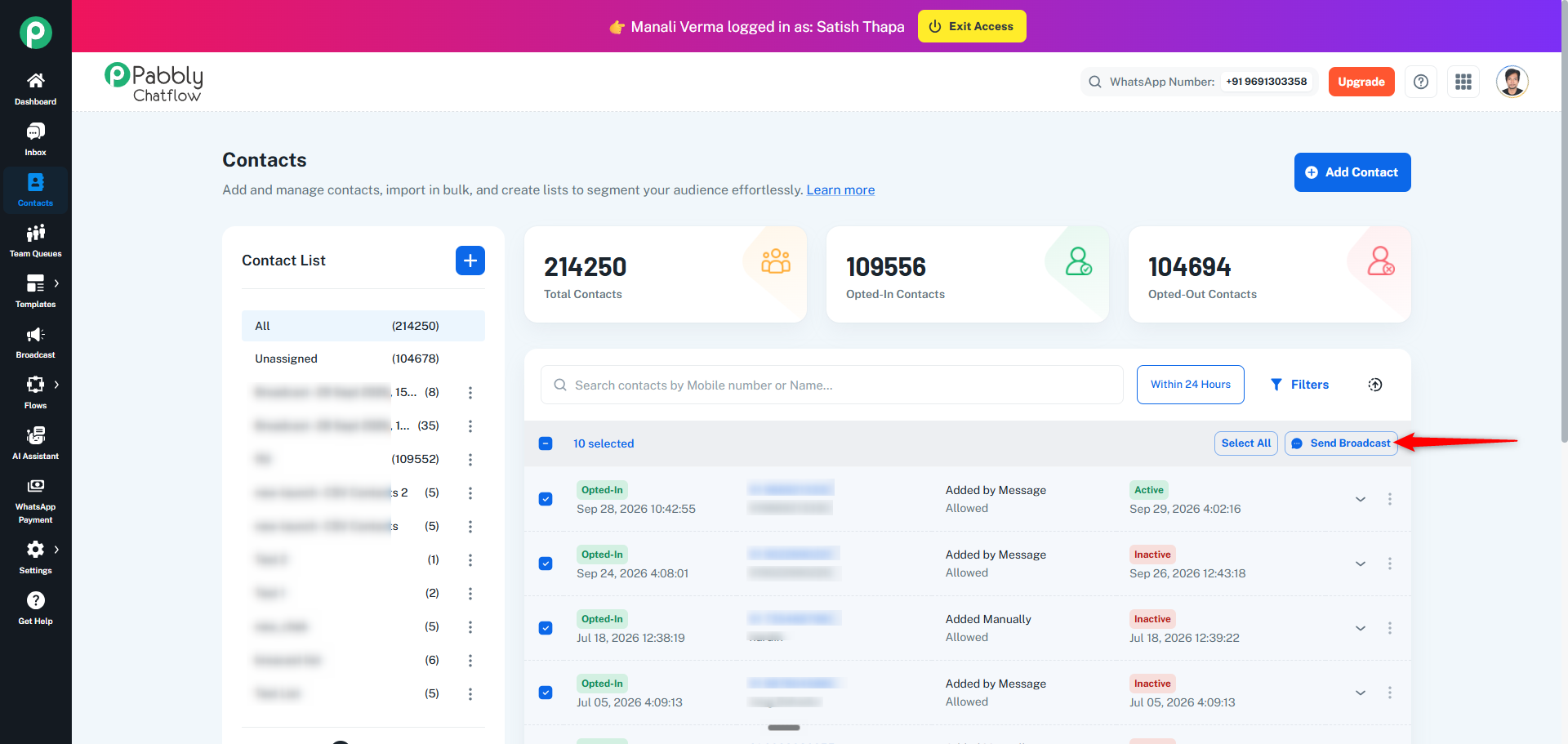
Select the contacts you want to include in your broadcast using the checkboxes next to each contact.
Once contacts are selected, click Send Broadcast.
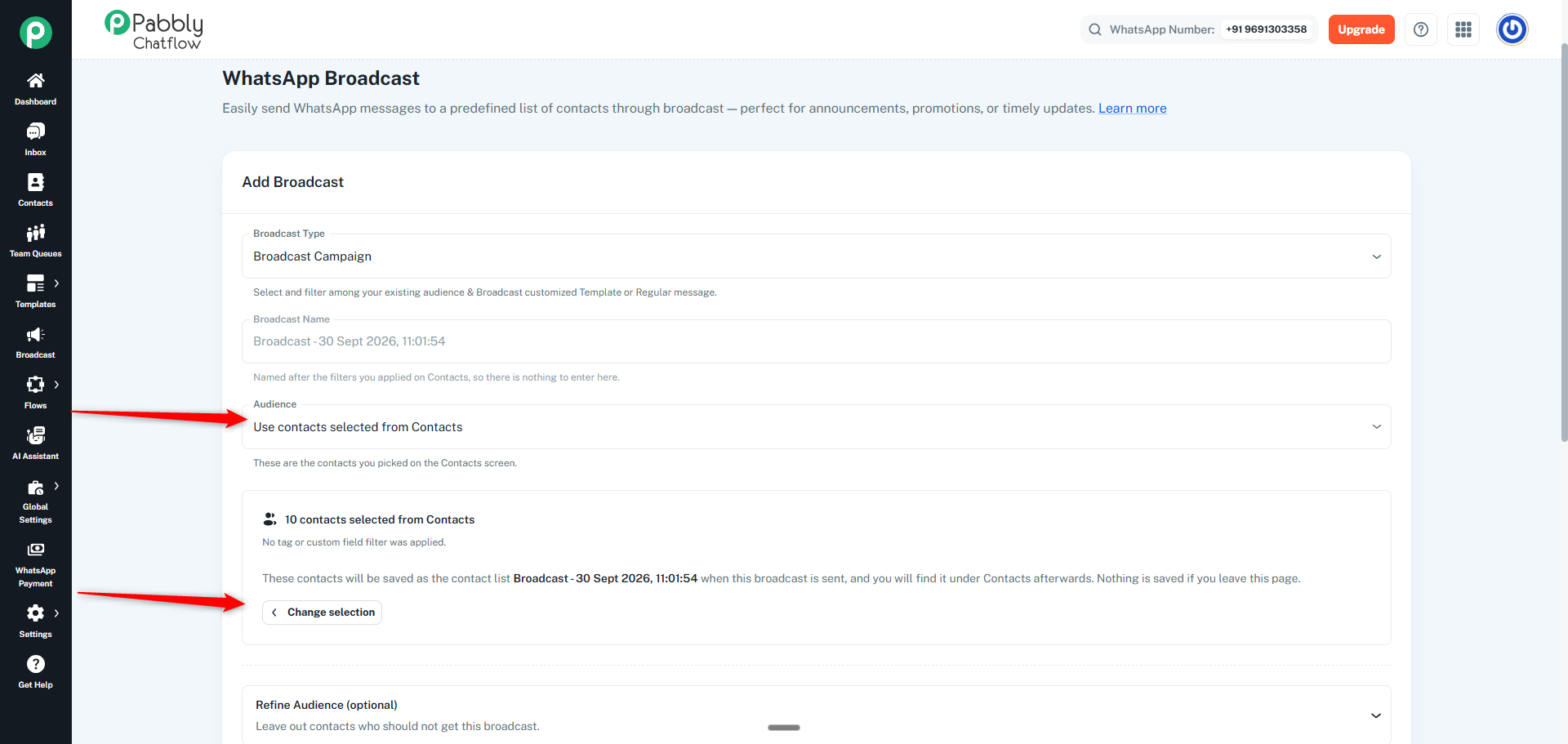
After clicking Send Broadcast, you will be redirected to the WhatsApp Broadcast page.
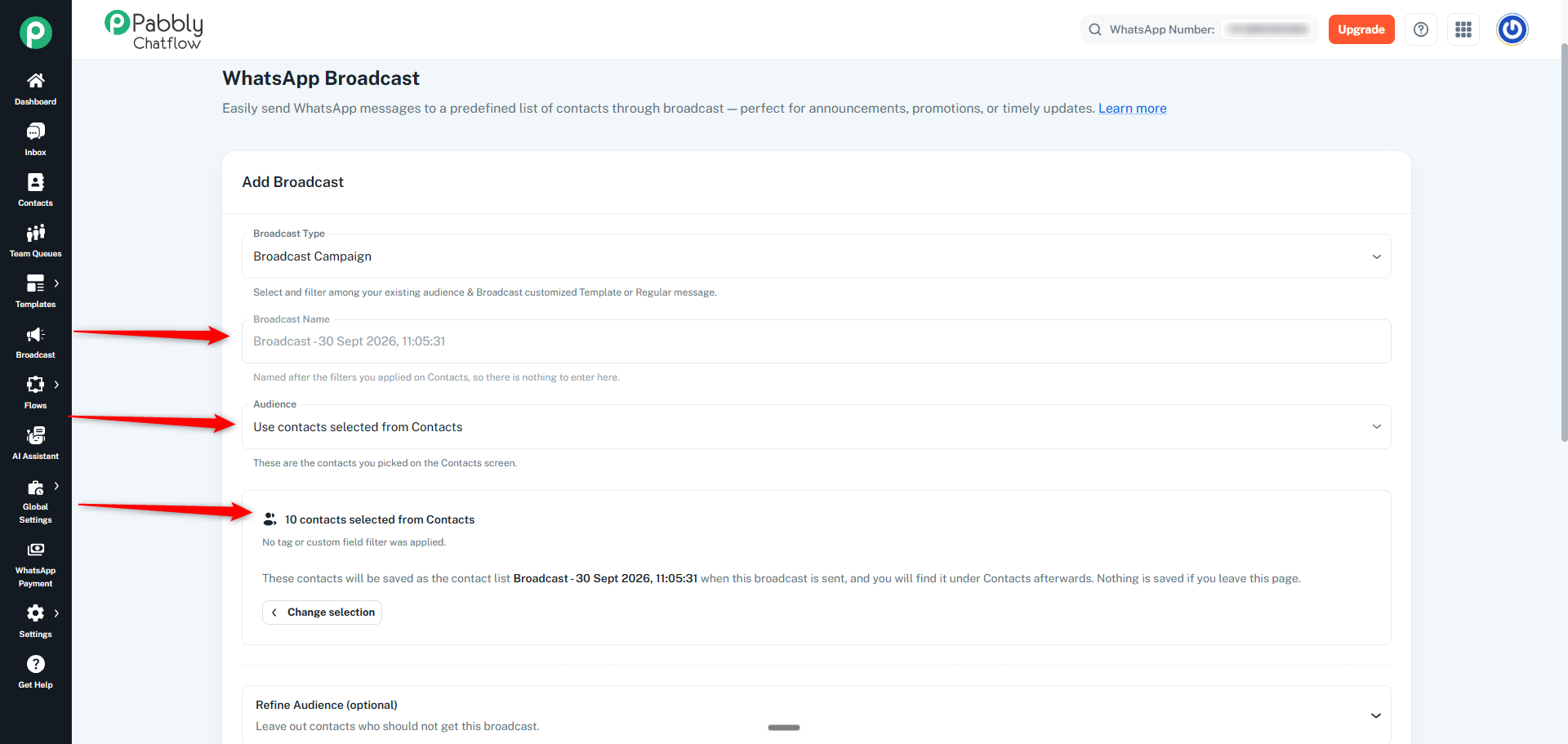
The Audience field will automatically be set to:
Use contacts selected from Contacts
The selected contacts will also be displayed in the audience section.
The Refine Audience option allows you to exclude contacts who should not receive the broadcast.
Click Refine Audience (optional) to configure additional audience filters.
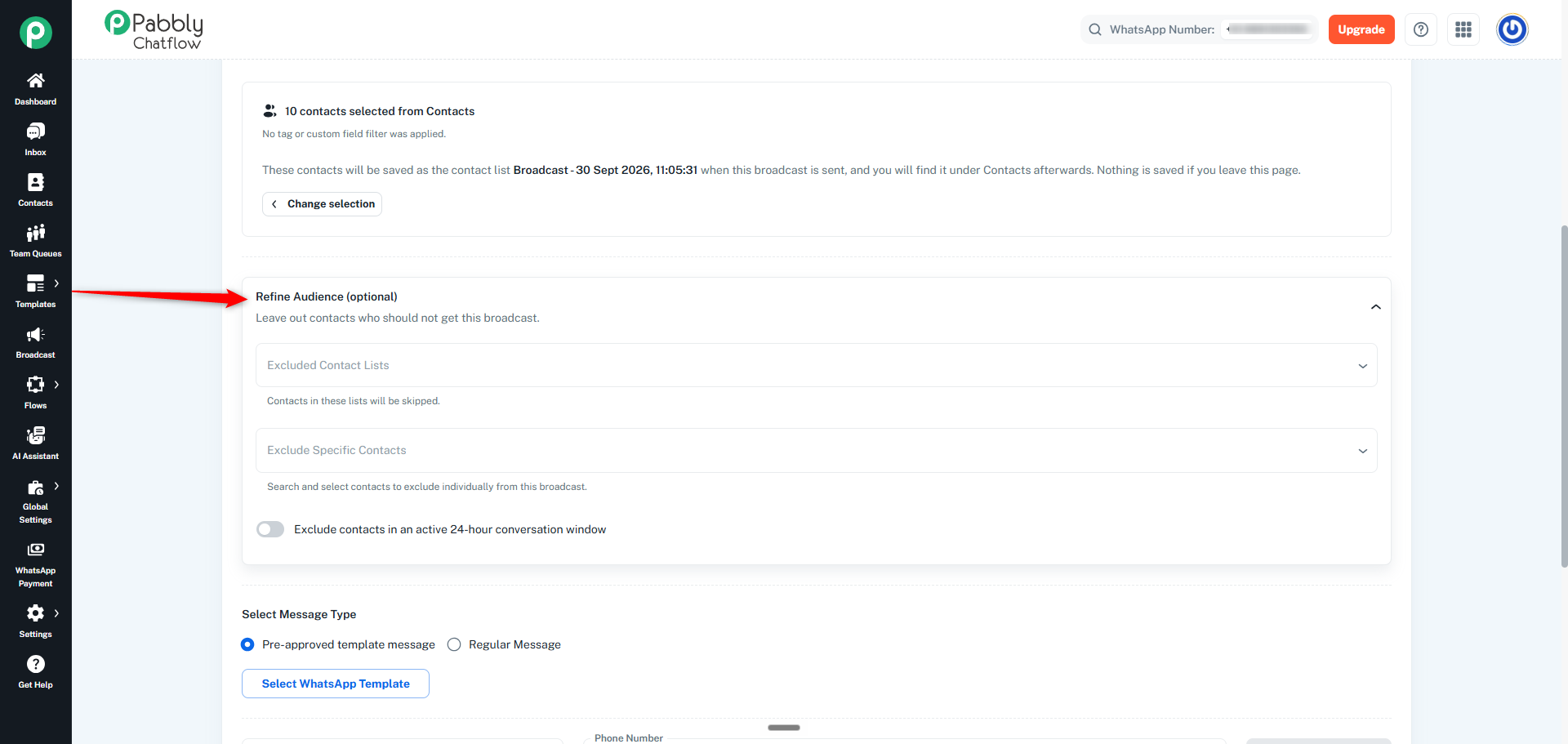
If no refinement is required, you can leave this section unchanged.
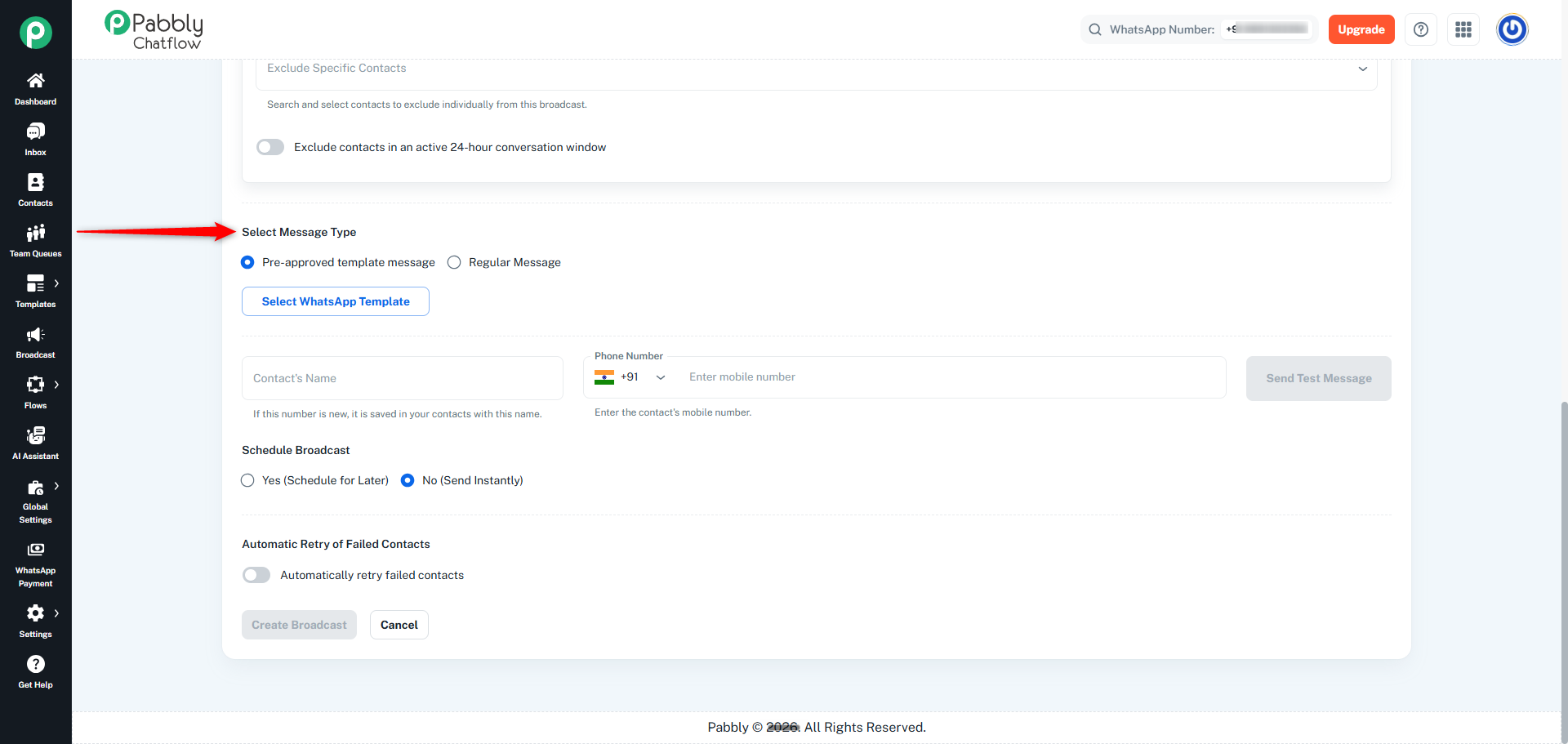
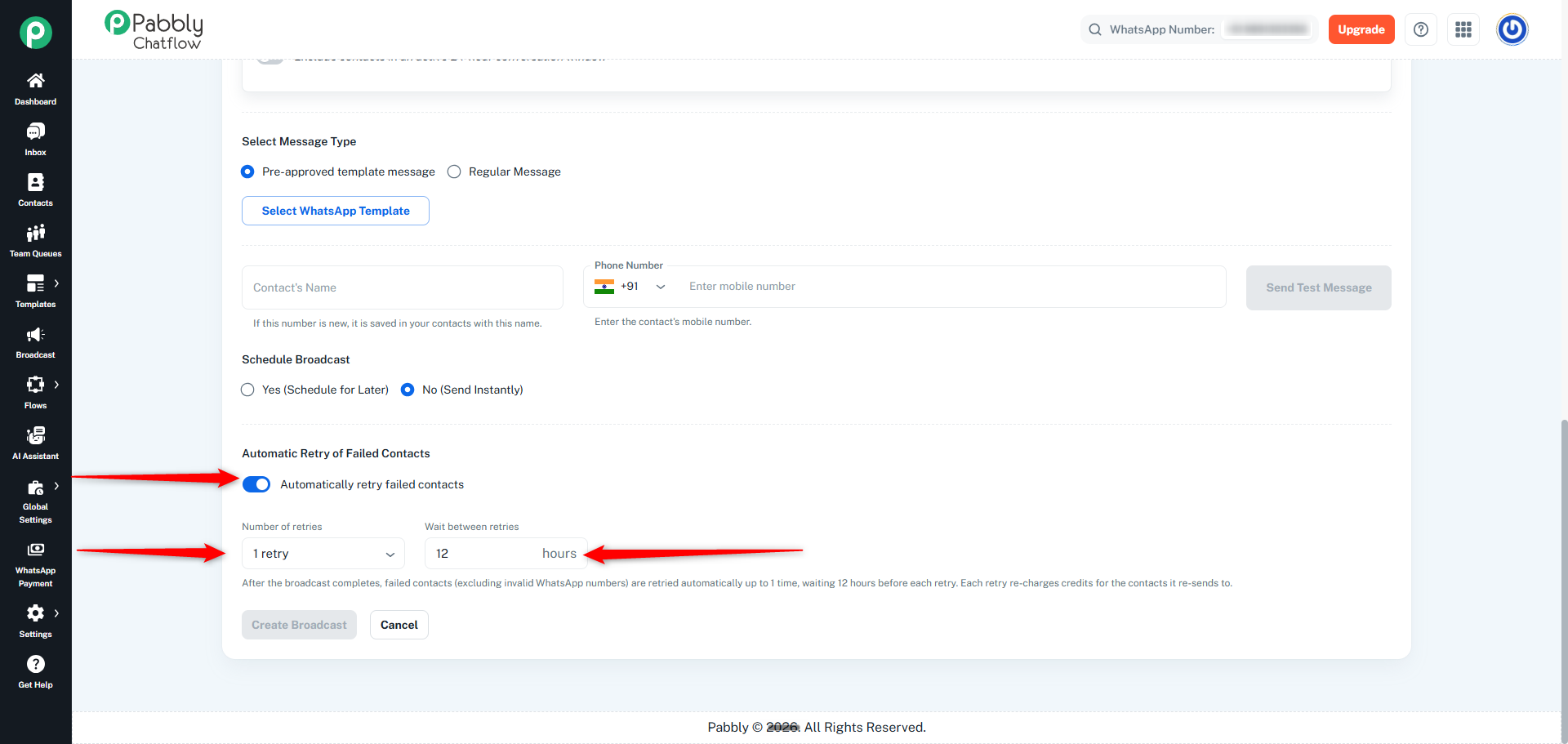
Under Select Message Type, choose how you want to send your broadcast.
You can choose between:
Pre-approved template message
Regular Message
For a pre-approved template message, click Select WhatsApp Template and choose the template you want to send.
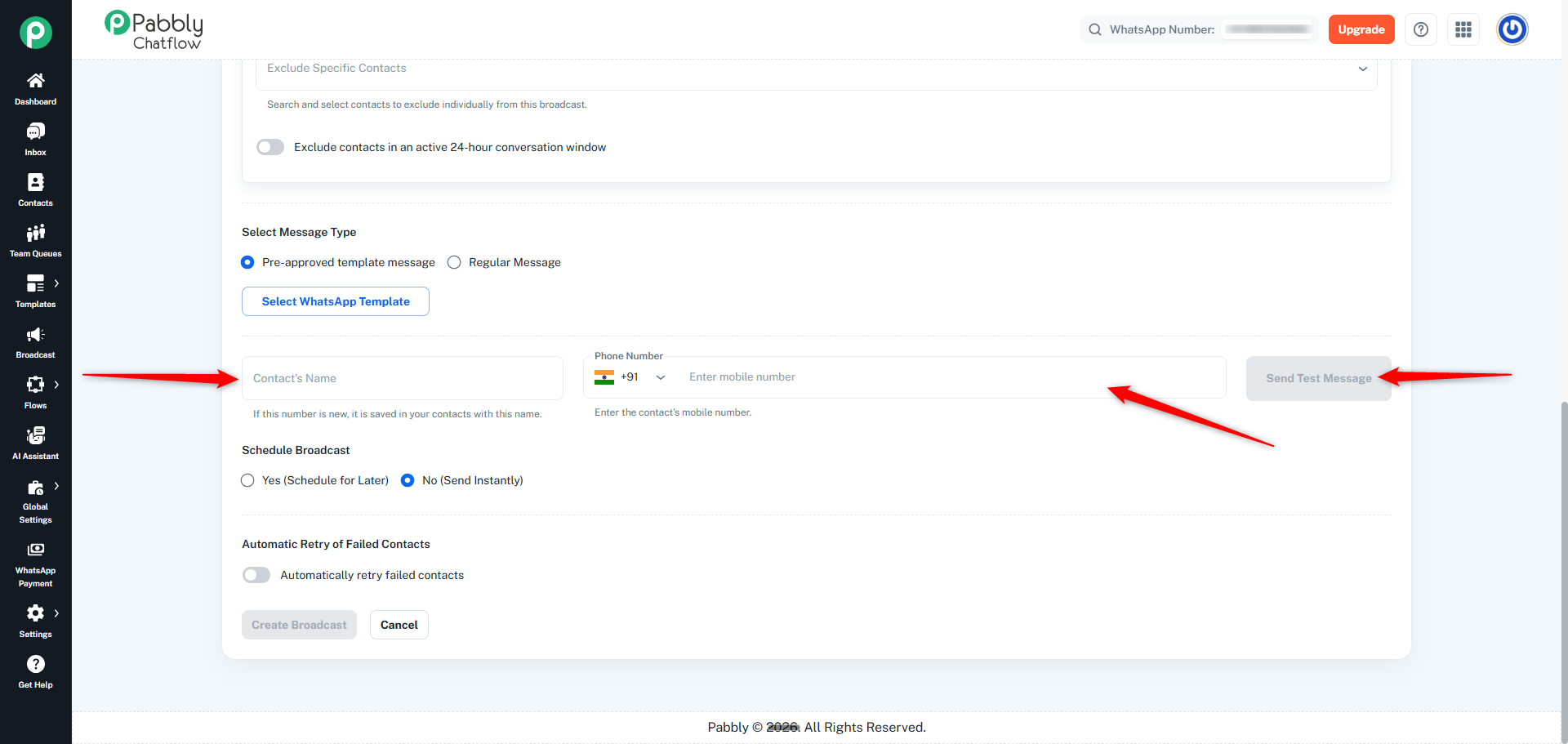
Before sending the broadcast, you can optionally test the message.
Enter:
Contact's Name
Phone Number
Then click Send Test Message.
If the number is new, it will be saved in your contacts with the provided name.
Under Schedule Broadcast, choose one of the following options:
Yes (Schedule for Later) - Schedule the broadcast for a later date and time.
No (Send Instantly) - Send the broadcast immediately.
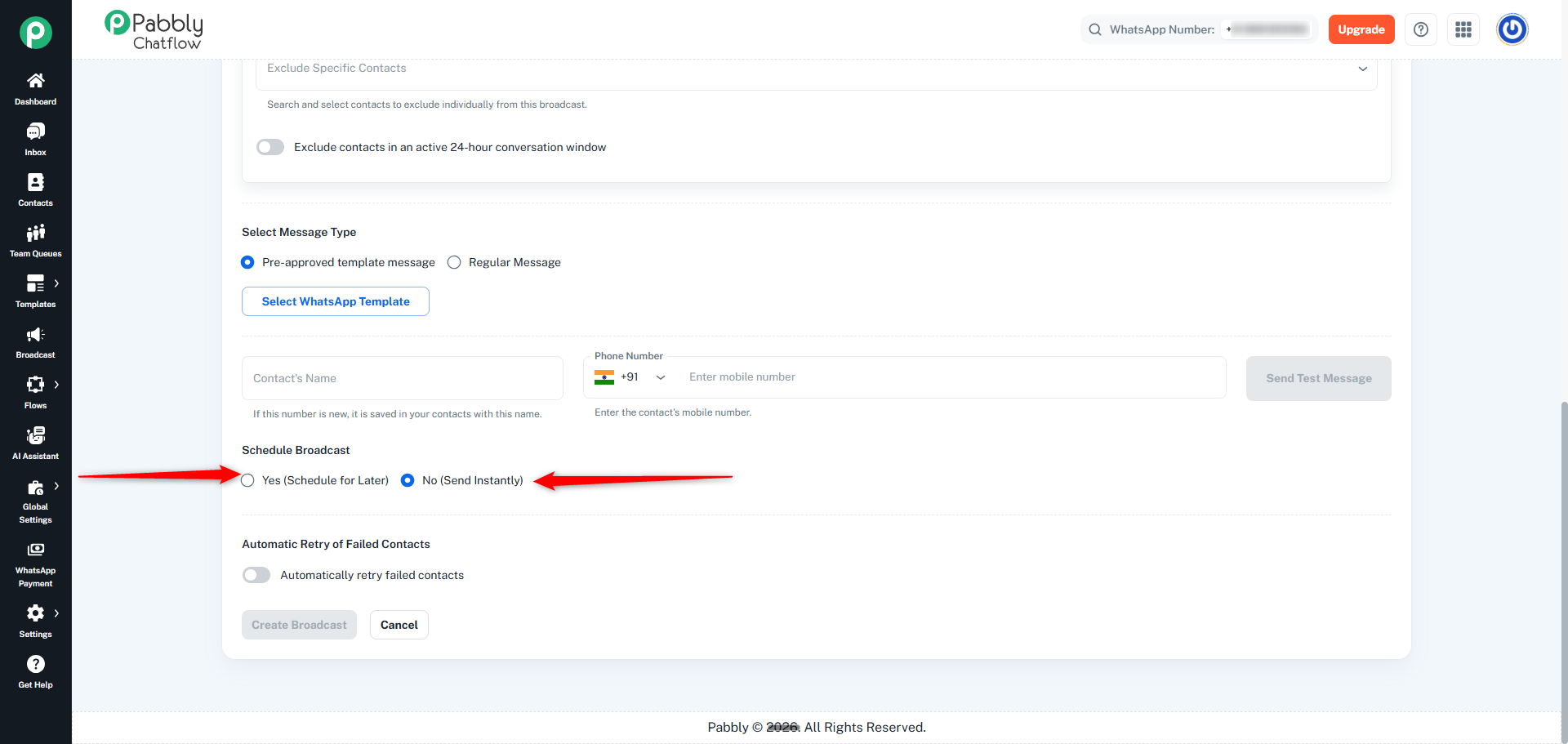
Select Yes (Schedule for Later) if you want to schedule the broadcast.
Select No (Send Instantly) to send it immediately.
You can enable Automatically retry failed contacts to automatically retry delivery to contacts where the initial broadcast failed.
Enable the toggle if you want to use automatic retries.
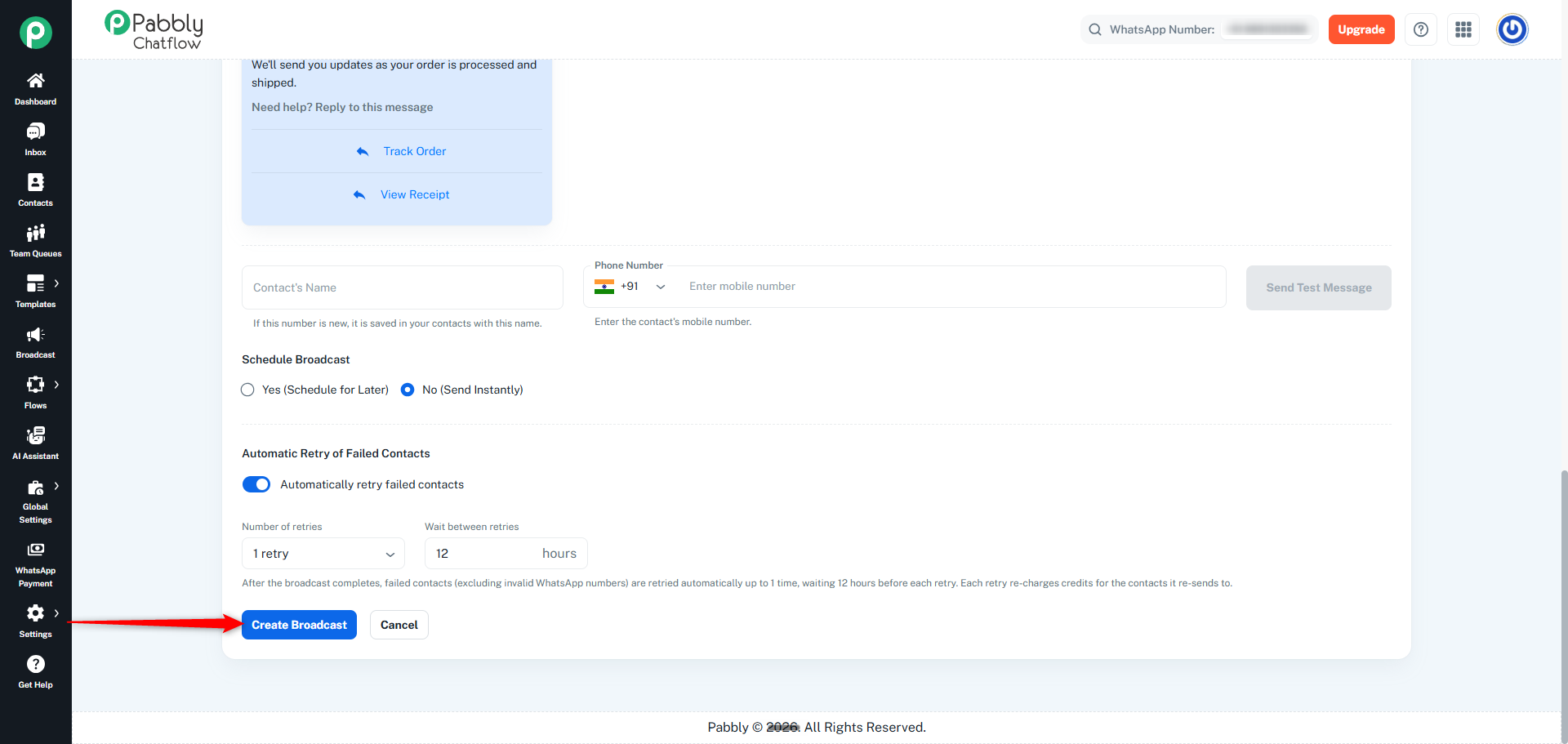
Once all required details have been configured, click Create Broadcast.
If you selected Send Instantly, the broadcast will be sent to the selected audience.
If you selected Schedule for Later, the broadcast will be scheduled according to the selected date and time.
The contacts selected from the Contacts section are used as the broadcast audience. Once the broadcast is sent, these contacts are saved as a contact list and can be found under Contacts afterward.
If you leave the broadcast creation page before sending it, the selected contacts are not saved as a contact list.
Contacts → Select Contacts → Send Broadcast → Configure Audience → Select Message → Send Instantly or Schedule → Create Broadcast
This makes it easier to turn an existing group of contacts into a WhatsApp broadcast without manually creating a separate contact list first.
