What is a WhatsApp Messaging Limit?
A messaging limit is the maximum number of unique users that a business phone number can start conversations with in a 24-hour rolling window.
Key points:
- Business-initiated conversations (you start with a template) → count toward the limit.
- User-initiated conversations (the customer messages you first) → do not count toward the limit. You can always reply to users within the 24-hour customer service window, even if you have reached your limit.
- Limits are applied per phone number, not per business account.
The limit applies per phone number, not per account. If you have multiple numbers, each number has its own limit.
Messaging Tier Structures
WhatsApp uses a tier-based system to decide how many unique users you can start conversations with in a 24-hour period.
| Tier |
Daily Conversations Allowed (Unique Users) |
Who Gets It |
| Tier 1 |
1,000 |
Default starting point for new/verified numbers |
| Tier 2 |
10,000 |
Businesses that have consistent usage and good quality |
| Tier 3 |
100,000 |
Large businesses sending at scale |
| Tier 4 |
Unlimited |
Enterprise-level accounts with high trust and excellent quality |
👉 Each new phone number starts at Tier 1 (1,000/day) once it’s properly set up.
👉 You move up step by step, one tier at a time, based on your usage and quality.
How Tier Upgrades Work
To move from one tier to the next, all conditions must be met:
- Usage Threshold
- You must initiate conversations with at least 50% of your current tier limit within a 7-day period.
- Examples:
- From Tier 1 (1,000/day) → you must start at least 500 conversations in 7 days.
- From Tier 2 (10,000/day) → you must start at least 5,000 conversations in 7 days.
- From Tier 3 (100,000/day) → you must start at least 50,000 conversations in 7 days.
- Quality Rating
- Your number’s quality rating must be Medium (Yellow) or High (Green).
- If quality is Low (Red), upgrades won’t happen.
- Upgrade Timing
- When both conditions are met, the upgrade is usually applied within 24–48 hours.
What Happens If Quality Drops?
WhatsApp assigns each phone number a quality rating (based on blocks, reports, and engagement):
- ✅ High (Green): Safe, trusted, and eligible for upgrades.
- ⚠️ Medium (Yellow): Acceptable but must be watched.
- ❌ Low (Red): Too many complaints/blocks.
If your quality rating drops to Low:
- Your number is flagged.
- Upgrades are paused until quality improves.
- If Low continues for 7+ days, your tier may be downgraded (e.g., from 10K/day back to 1K/day).
Daily Messaging Caps – How They Work
A daily messaging cap = the maximum number of unique users a business phone number can start conversations with in a 24-hour rolling window.
👉 Key things to know:
- Rolling 24 hours, not midnight reset
Example: If you hit your limit at 3:00 pm, you can start new conversations again after 3:00 pm the next day.
- Counts only business-initiated conversations
- When you send the first message using a template.
- Only one conversation per user counts, no matter how many messages you send to that user in the same 24 hours.
- Replies are free
- If the user messages you first (user-initiated conversation), you can always reply inside the 24-hour window.
- These don’t count against your cap.
- What happens if you hit the cap?
- You cannot start new conversations until the 24-hour limit resets.
- You can still reply to active customer messages.
Best practices to keep higher limits
✅ Do’s (What to follow)
- Send only to opted-in users
- Always take permission (via forms, opt-in links, website checkboxes).
- Prevents spam complaints.
- Use value-driven templates
- Keep messages short, clear, and useful (e.g., order updates, reminders, confirmations).
- Avoid generic or vague content like “Hello! How are you?”
- Segment your audience
- Send relevant messages (by purchase history, language, region).
- Increases engagement, reduces block rates.
- Scale gradually
- Don’t jump from 200/day to 10,000/day overnight.
- Increase volume step by step to build trust.
- Monitor quality rating regularly
- Treat Green (High) as safe, Yellow (Medium) as a warning, and Red (Low) as urgent.
- Pause campaigns if rating drops.
- Check weekly health dashboard (explained below).
❌ Don’ts (What to avoid)
- Don’t spam or send irrelevant offers.
- Don’t send too frequently in a short time (it leads to blocks).
- Don’t use purchased or random contact lists.
- Don’t ignore WhatsApp Manager alerts.
Where & How to Check Messaging Limits
Meta provides a live dashboard inside Meta Business Suite / WhatsApp Manager.
Steps:
- Go to 👉 business.facebook.com.
- In the left menu, select WhatsApp Manager.
- Choose Account Tools → Phone Numbers.
- For each number, you’ll see:
- Messaging Limit → e.g., 1K, 10K, 100K, Unlimited.
- Quality Rating → Green (High), Yellow (Medium), Red (Low).
- Status → Connected / Flagged / Restricted.
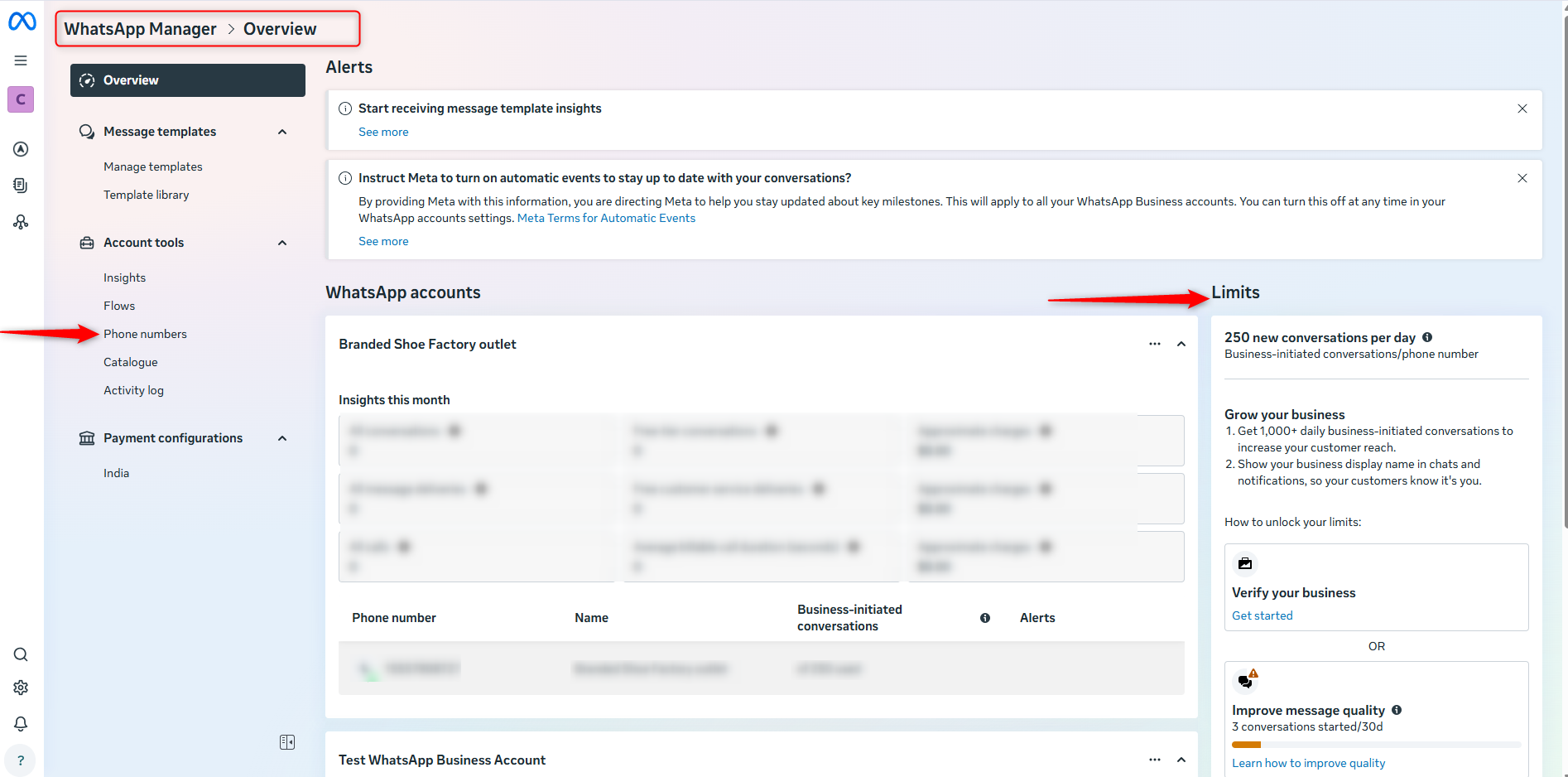
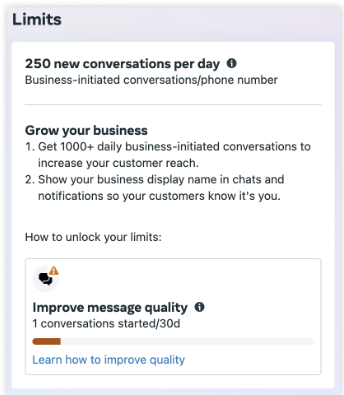
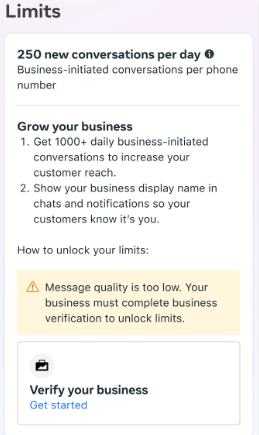
Checking Your Limit:
Before your messaging limit increases to 1K, the WhatsApp Manager > Overview > Limits panel shows helpful info on how to increase your limit.
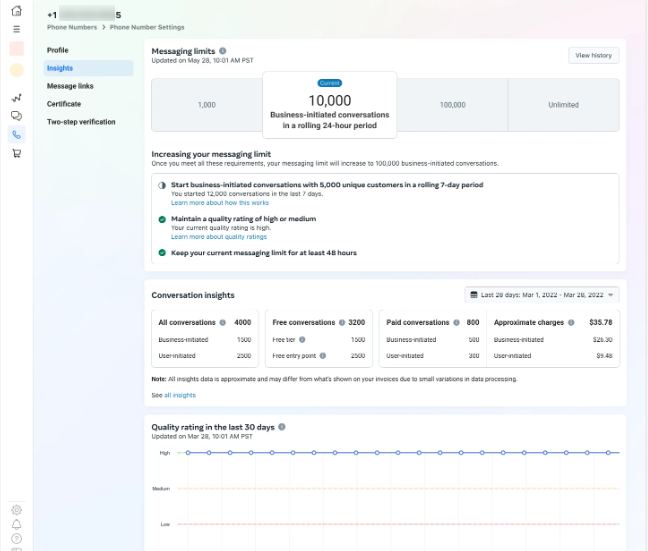
After your messaging limit increases, the WhatsApp Manager > Account Tools > Insights panel will show your new limit, including any limits increased through automatic scaling.
 Pabbly Chatflow Team•Updated Oct 24, 2026•4 min read