Overview
The Assign Credit Limit feature in Pabbly Chatflow allows you to allocate specific credit limits to individual WhatsApp numbers within your account. This helps you efficiently manage usage, ensure fair distribution of resources, and maintain control over messaging costs. It is particularly valuable when managing multiple WhatsApp numbers for different purposes — such as sales, support, marketing, or for separate businesses — ensuring that no single number can consume the entire available credit balance.
Step-by-Step Process
- Navigate to your Pabbly Chatflow Dashboard.
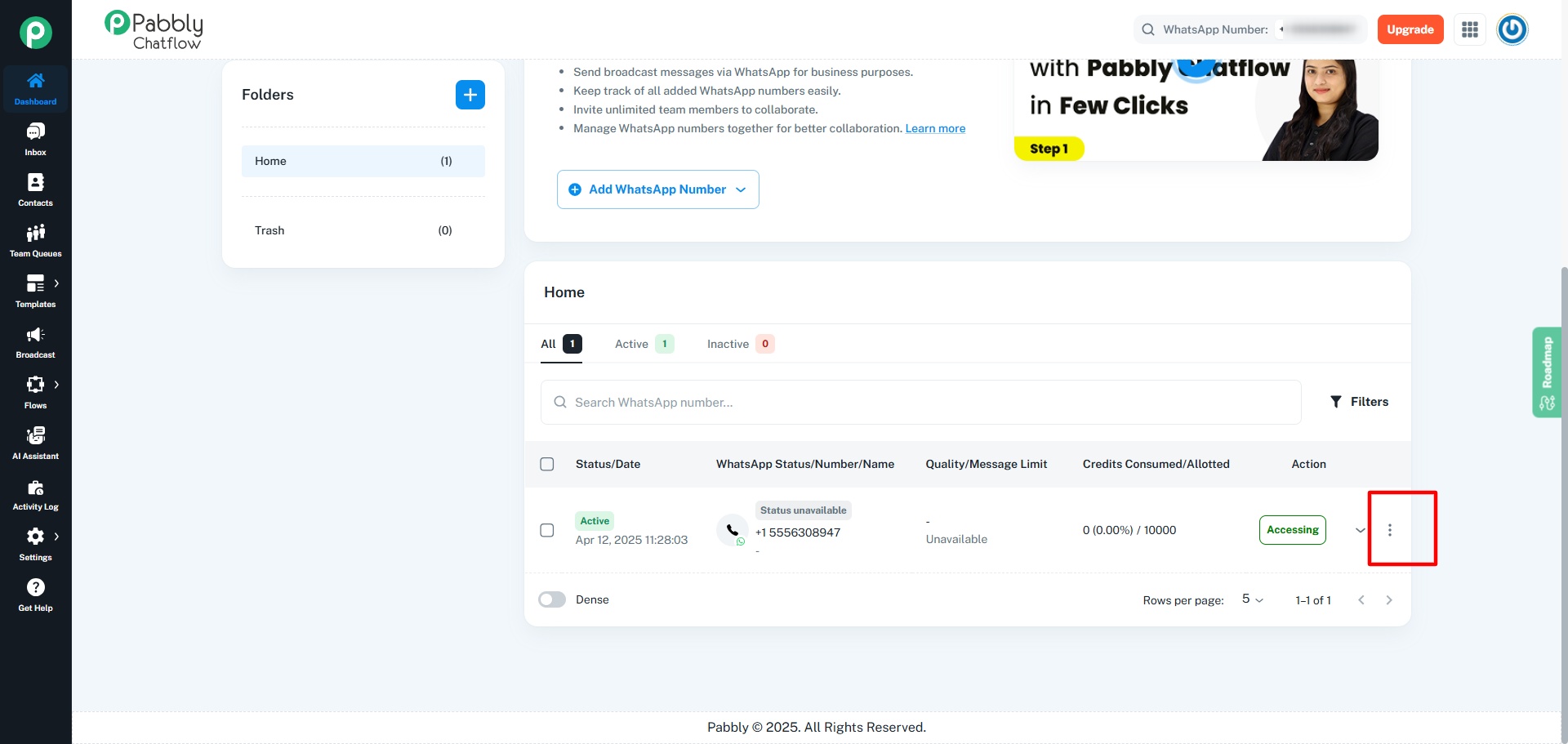
- Locate the WhatsApp number you wish to assign credits to.
- Click on the three-dot menu (⋮) next to the number.
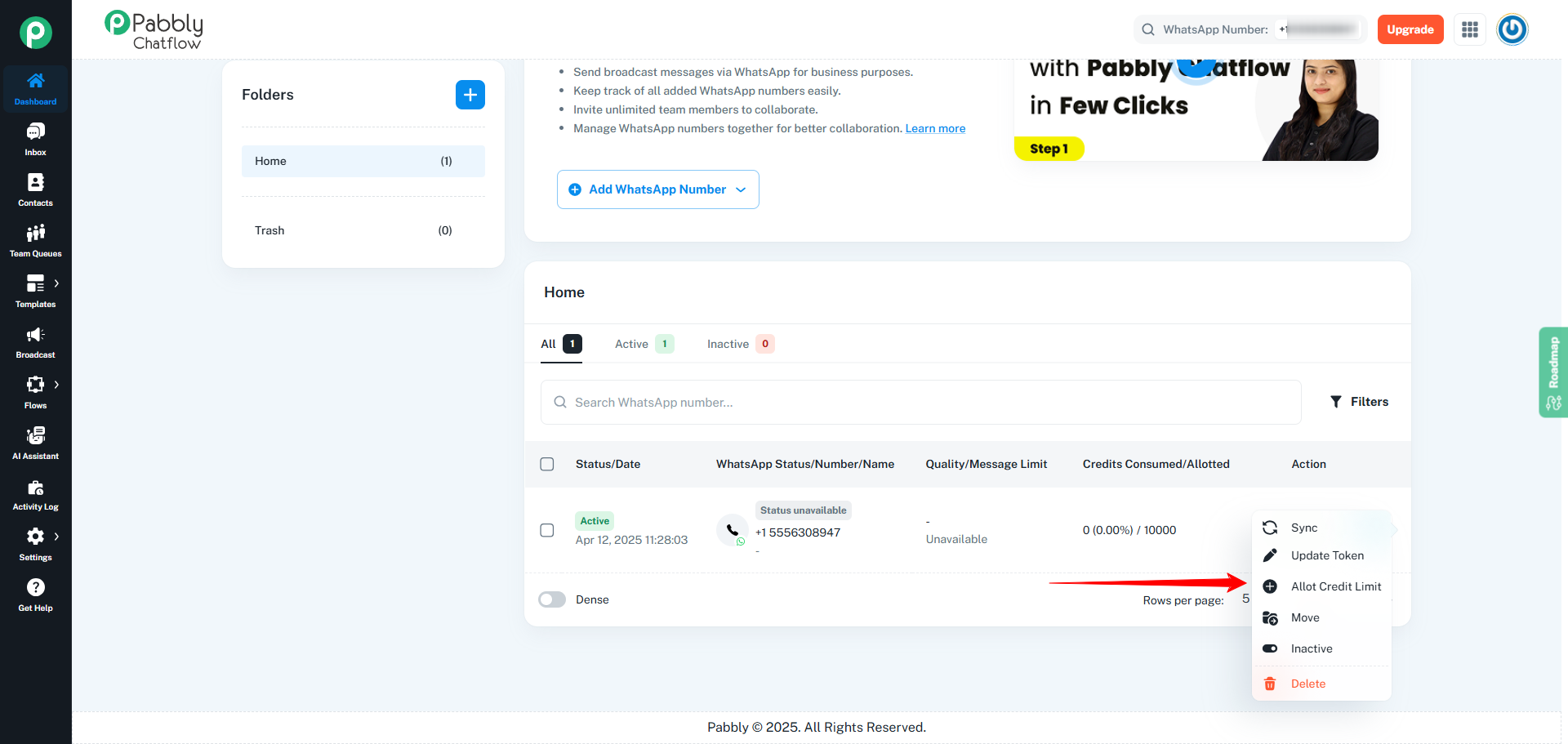
- From the dropdown, select “Allot Credit Limit”.
Step 2: Set the Credit Limit
-
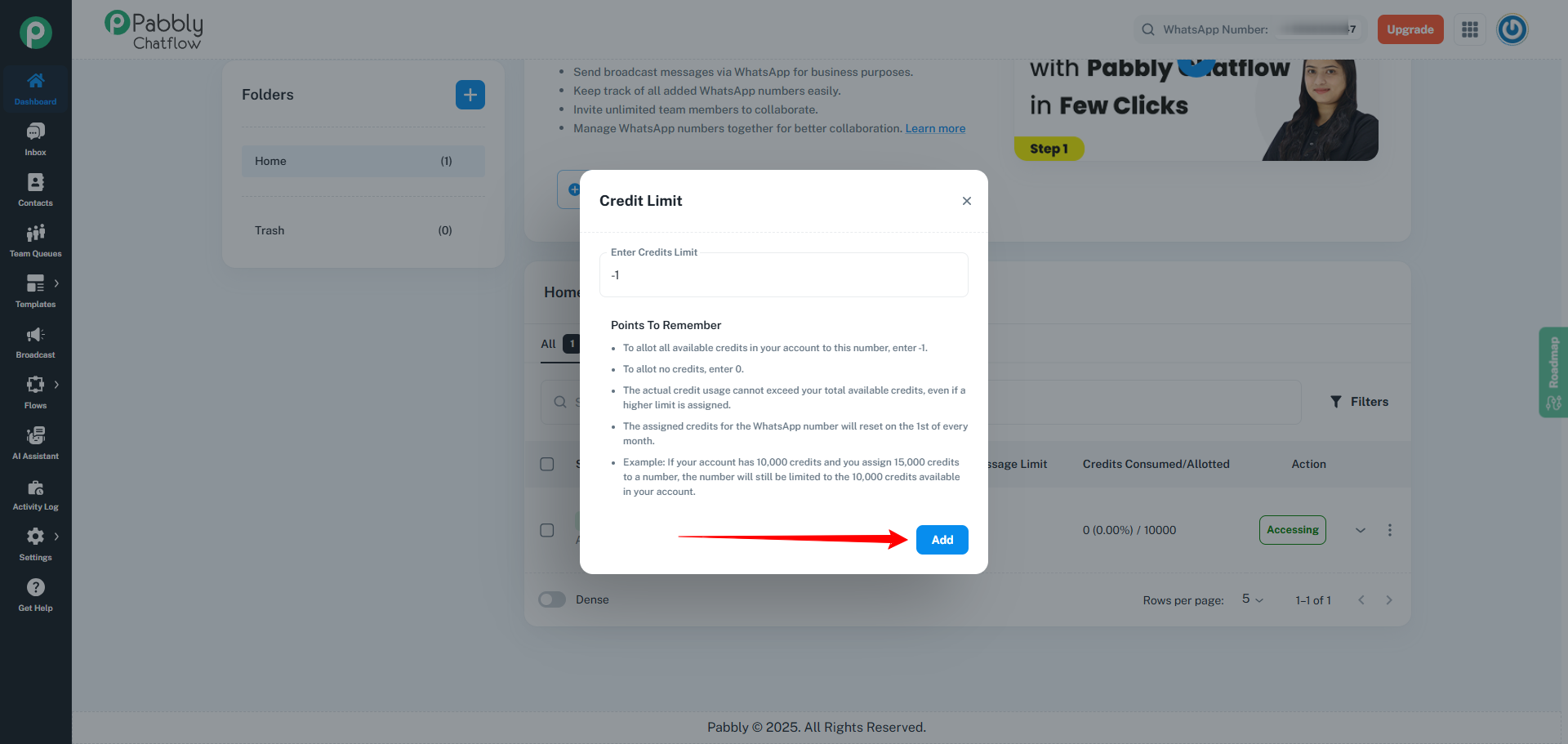
A Credit Limit dialog box will appear.
-
In the “Enter Credits Limit” field, enter the number of credits you want to assign to this WhatsApp number.
Example:
- If you want to allocate 5,000 credits to the number, enter 5000.
- To allocate no credits, enter 0.
- To allocate all available credits, enter -1.
Important Notes:
- Entering -1 assigns all available credits from the admin account to this number, but the total credits assigned to all numbers cannot exceed the total credits available.
- To allot no credits, enter 0.
- You can assign more credits than are currently available in the account, but the total usage across all numbers combined will never exceed the admin account’s available credits. The system will automatically cap the usage to what’s available.
Example:
-
Admin Account Credits Available: 15,000
-
Credits Assigned to a Number: 20,000
Even if you assign 20,000 credits, the total usage across all WhatsApp numbers will still be limited to 15,000 credits.
Step 3: Confirm the Assignment
- After entering the desired credit limit, click the "Add" button to apply the credit limit.
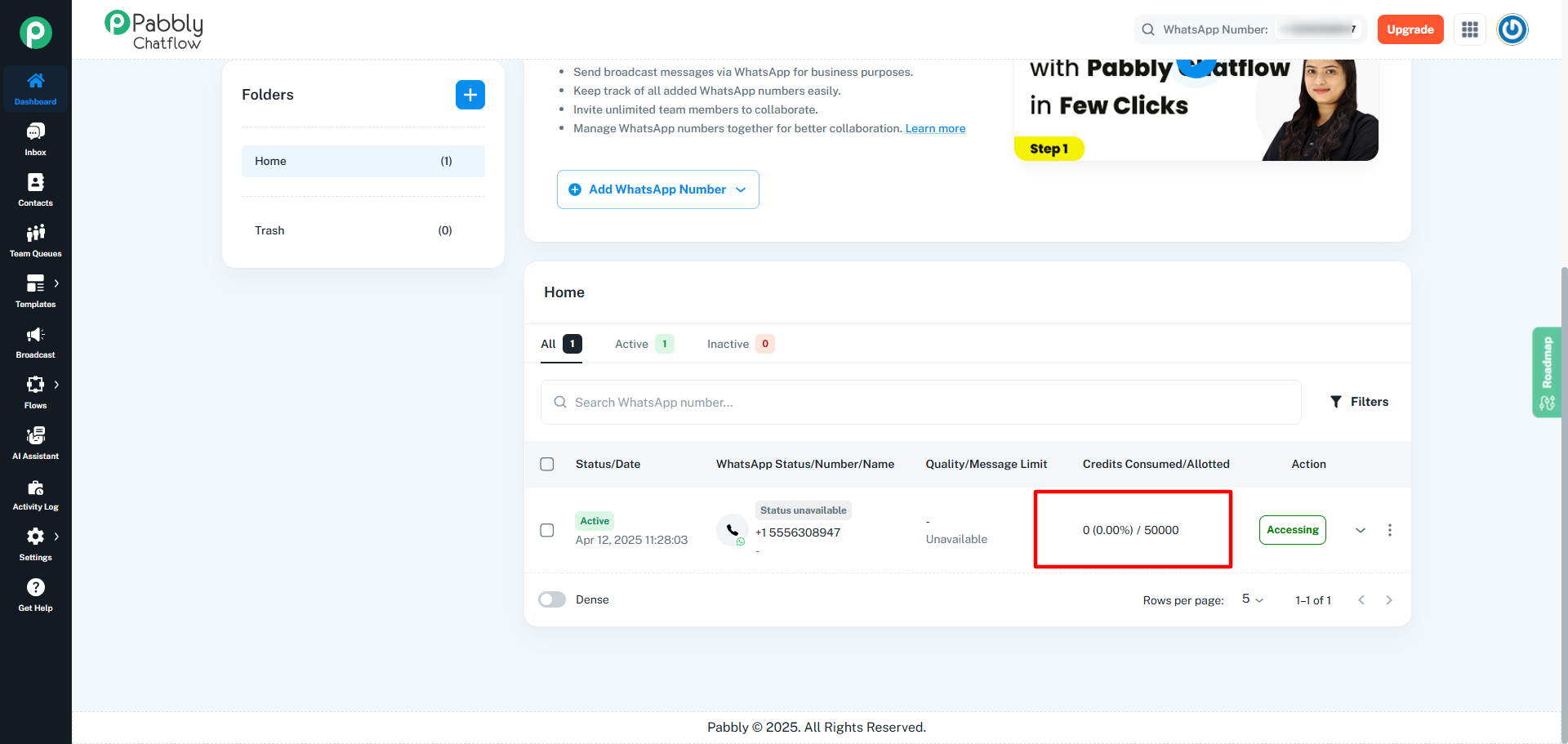
- The dialog will close, and you’ll return to the dashboard.
Step 4: Verify the Assignment
Once assigned, you can verify the credit limits and usage in the Credits Allotted/Consumed column.
- Allotted: Displays the number of credits assigned to the WhatsApp number.
- Consumed: Displays the number of credits consumed by that WhatsApp number, along with the percentage consumed relative to the total credits allotted.
Example:
If you allocated 500 credits to a WhatsApp number and it has used 250 credits, the credit consumed will show 250(50%)/500.
Note:
- If you don't assign any credits to a WhatsApp number, it can use all the credits allotted to the admin account with no limit.
- Assigning -1 means the number will have access to all available credits.
Important Notes
- Credit Allocation Limits: The total credits assigned to all WhatsApp numbers cannot exceed the available credits in the admin account. If the combined allocation surpasses the available balance, the system will automatically ensure that no number uses more than what’s available. Always ensure your total distribution stays within your account’s available credits.
- Flexible Management: You can modify credit limits for any WhatsApp number at any time by repeating the allotment process. This allows you to adjust resource allocation based on evolving business needs.
- Real-Time Usage Tracking: Monitor credit consumption in real time directly from the dashboard. This helps you manage usage proactively and avoid overconsumption.
Scenario: Allocating Credits to Two Businesses
Suppose the admin account has 15,000 credits available. You allocate:
Business A:
- You allocate 10,000 credits to this business.
Business B:
- You allocate 7,000 credits to this business.
This results in a total of 17,000 credits allocated, which exceeds the available balance. However, businesses share the same credit pool, meaning the actual usage will be capped at 15,000 credits.
How Usage is Handled
- Business A: You allocated 10,000 credits, so this business can use 10,000 credits, provided there are enough credits in the admin account.
- Business B: You allocated 7,000 credits, but this business can only use 5,000 credits, as that's all that is left after Business A uses its allocated 10,000 credits.
Key Takeaway:
- Shared Pool: All businesses draw credits from the same admin account balance.
- Flexible Allocation: Allocation sets limits per business but does not reserve credits exclusively.
- Usage Cap: Total usage across businesses cannot exceed the admin account balance.
Summary:
The admin account has a total of 15,000 credits available. You’ve allocated 10,000 credits to Business A and 7,000 credits to Business B, resulting in a total allocation of 17,000 credits. However, since the businesses share the same credit pool, the actual usage cannot exceed the admin account’s available balance. In a typical usage scenario, Business A may consume 10,000 credits, leaving 5,000 credits available for Business B. Therefore, even though the allocations exceed the available balance, the combined usage will always be capped at 15,000 credits, in line with the admin account’s total credit limit.
Important Clarification:
- Credit Allocation vs. Usage: You can assign more credits to businesses than the available balance, but the actual credit usage across all WhatsApp numbers will not exceed the total available credits in the admin account (in this case, 15,000 credits).
When All Available Credits Are Consumed
Once the total credits in your admin account are fully consumed:
- No additional credits can be used by any WhatsApp number.
- Even if you’ve allocated limits beyond the available balance, usage will be automatically restricted.
Conclusion
The Assign Credit Limits feature in Pabbly Chatflow provides precise control over credit distribution across multiple WhatsApp numbers. It enables efficient resource management, prevents overconsumption, and helps you stay within your allocated credits while offering flexibility for business-specific needs.
Follow this guide to manage credits effectively across multiple numbers in Pabbly Chatflow.
