Help and Guide
The Pabbly Chatflow Flow Builder enables you to create static chatbots effortlessly using an intuitive drag-and-drop interface. This guide will walk you through the process of building a chatbot in just 10 minutes.
NXIbDhxXKF0, list: PLgffPJ6GjbaJ8JPigEtxniz41rN5wqKAi
Text replies allow you to send simple messages to users. You can also incorporate buttons and additional message types by adding context.
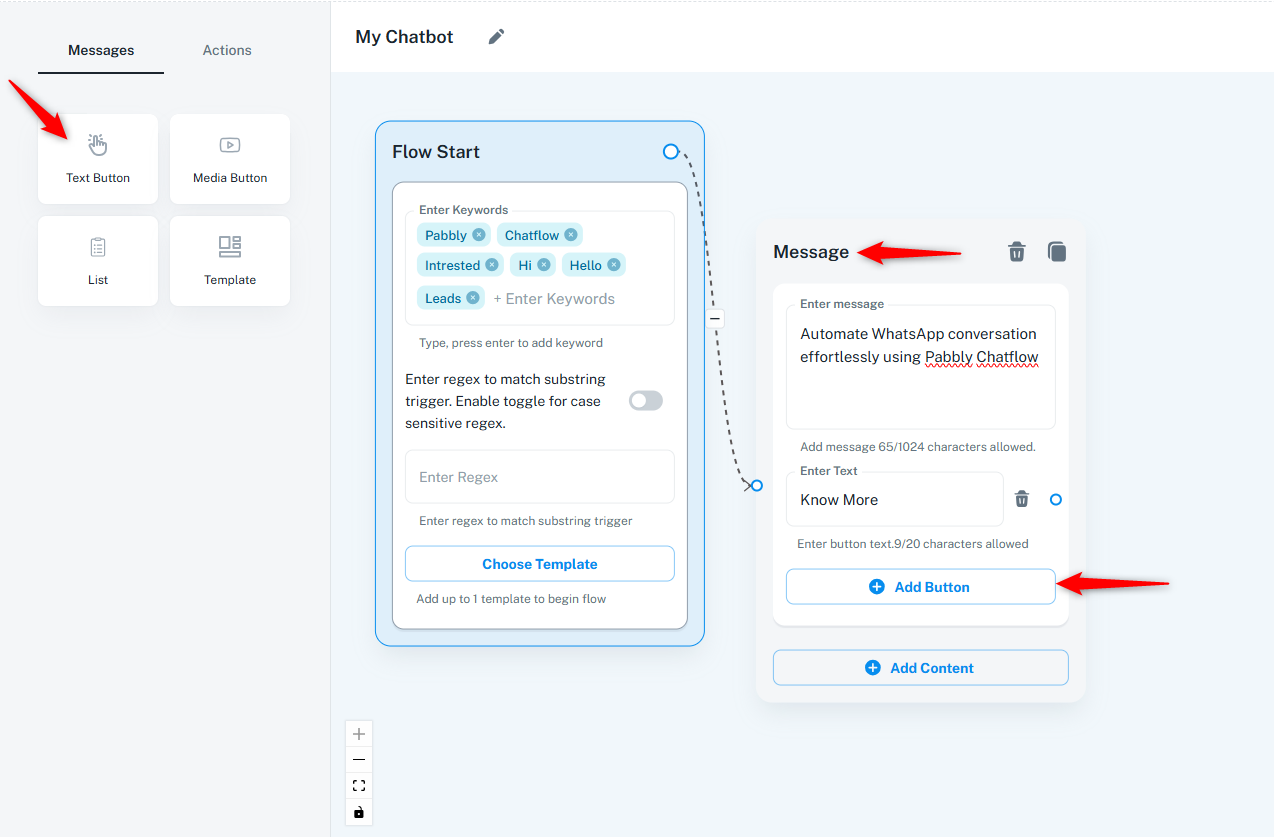
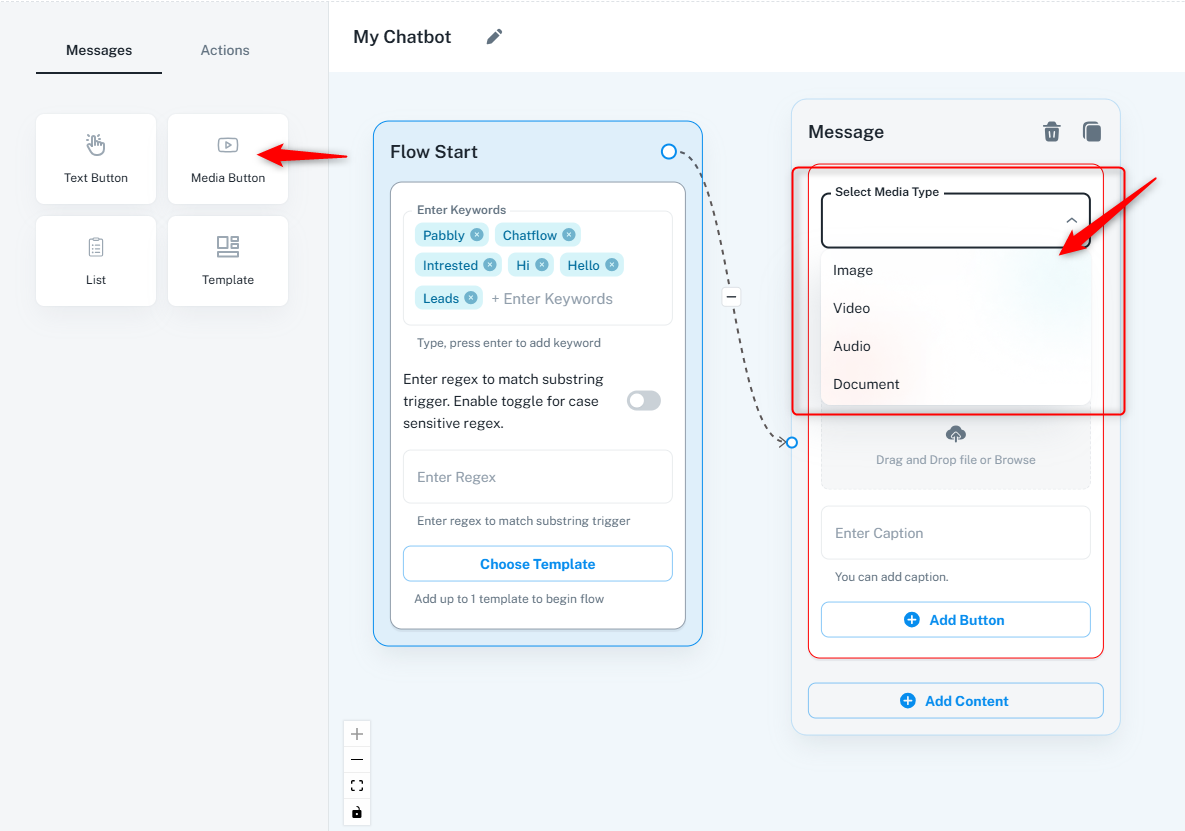
This node enables the inclusion of images, videos, audio, and documents. You can either upload files via drag-and-drop or provide a URL. Captions and buttons can also be added to enhance interactivity.
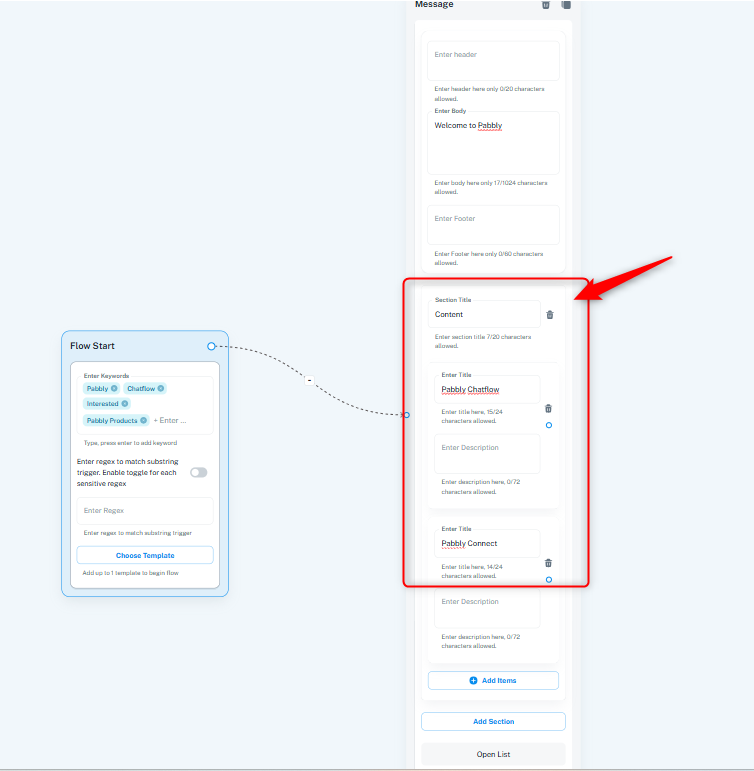
Use list messages to offer users multiple options to choose from. This feature is particularly effective for displaying a set of predefined choices.
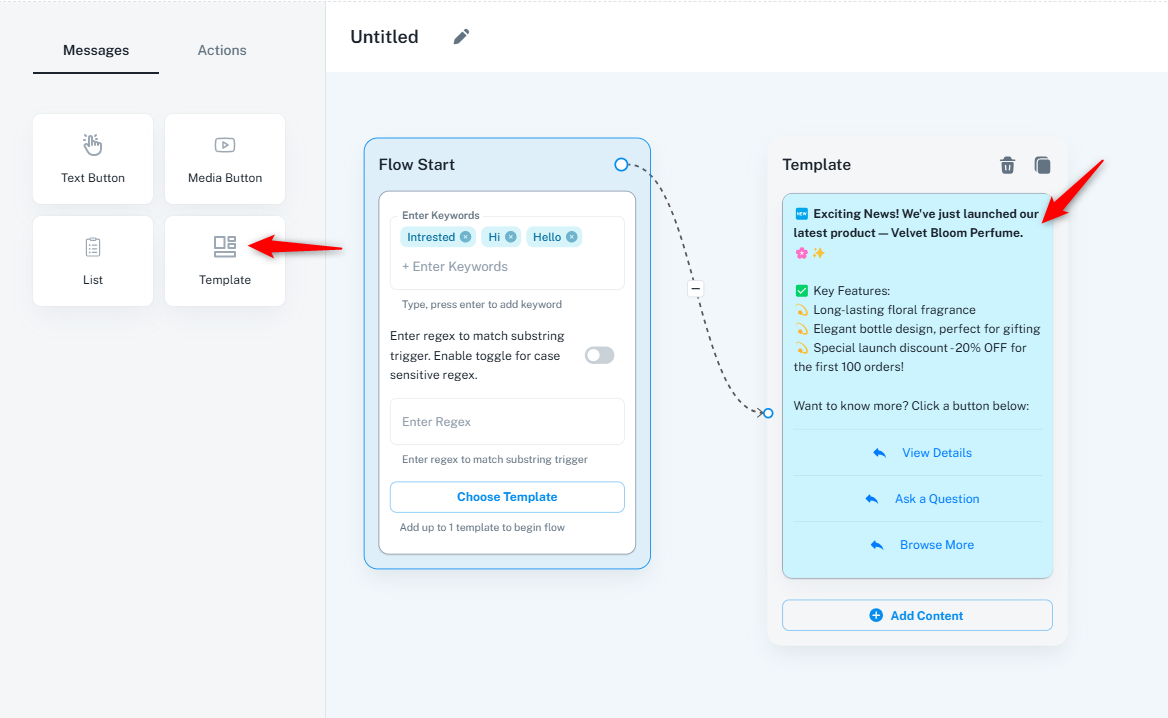
Chatbots can be programmed to trigger pre-approved template messages based on specific keywords sent by users. Note that templates must be created in the Template Module before being used in the flow.
This condition verifies if the user input matches a predefined value. If the value matches, a "True" response is sent; otherwise, a "False" response is delivered.
Example: If a user enters "Bhopal" as their city and the condition is set to "Bhopal," the chatbot will return a "True" response. Otherwise, it will return "False." 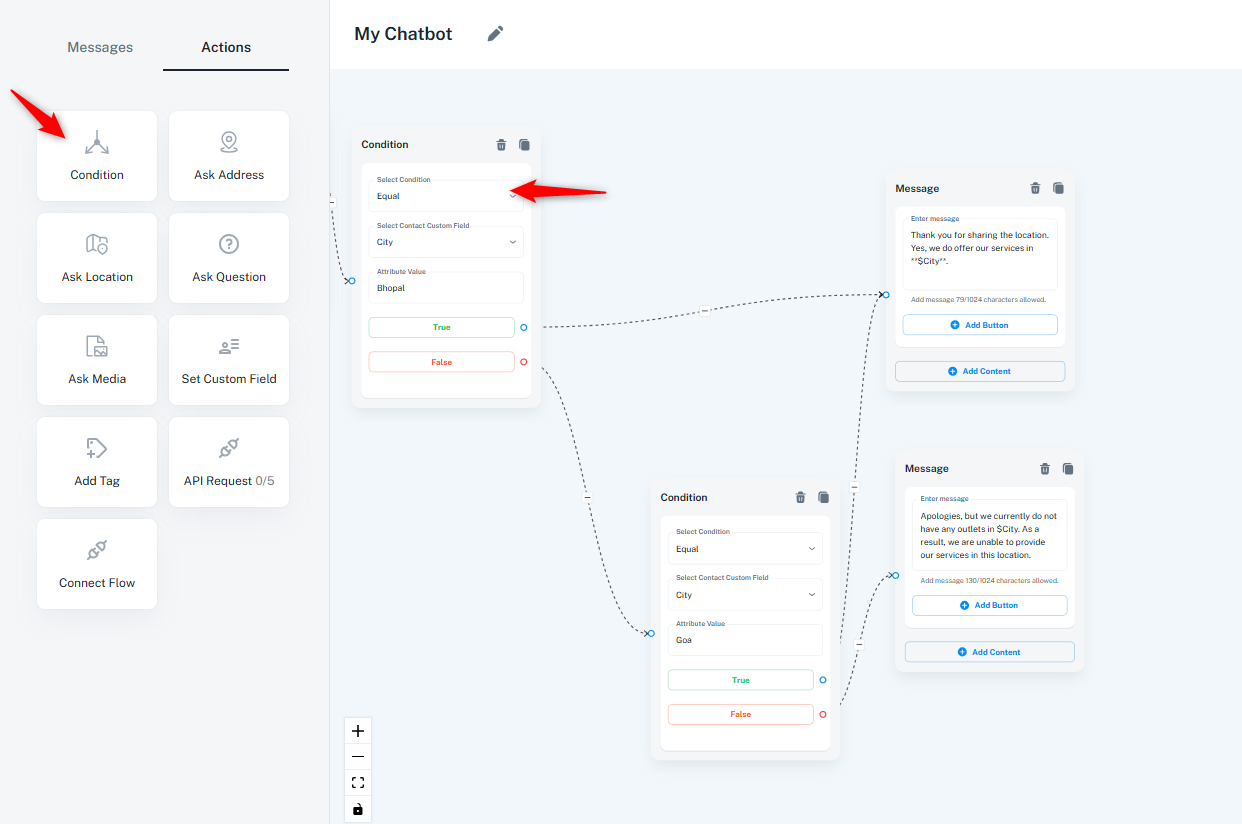
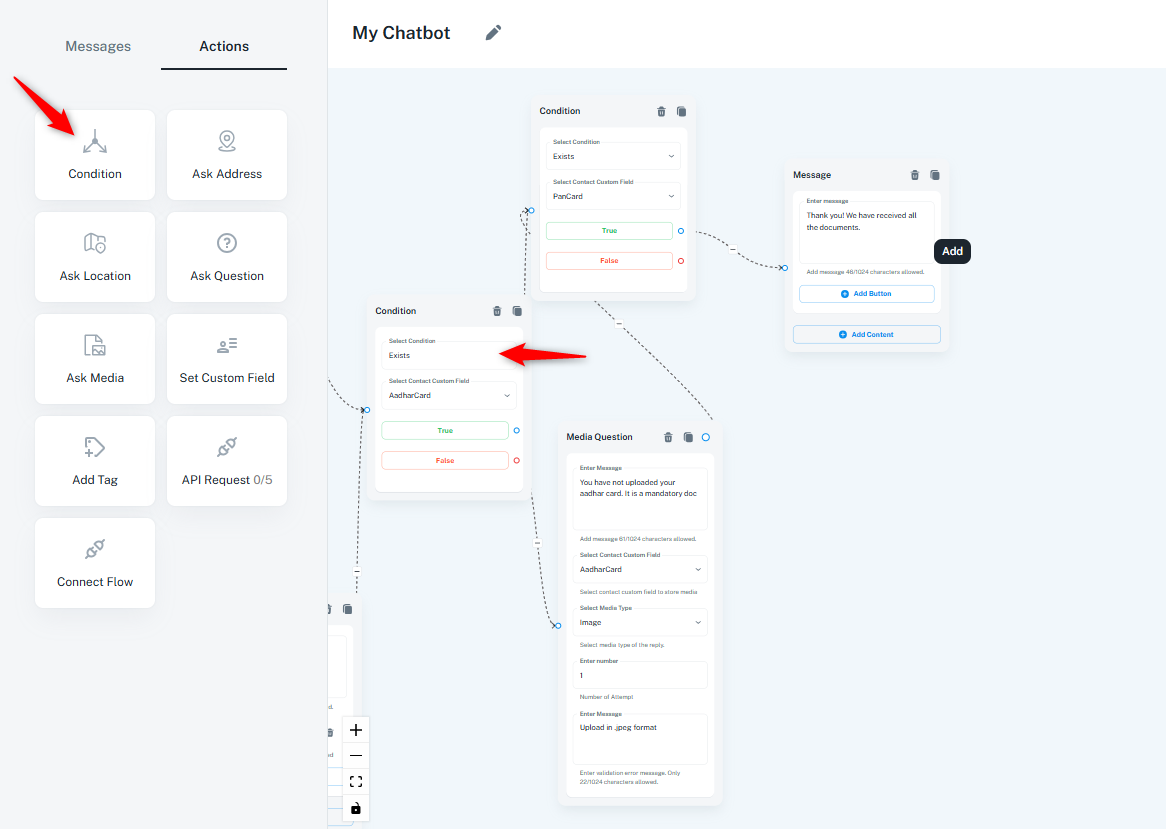
This condition checks whether a user has provided any input. If a value exists, a "True" message is sent; otherwise, a "False" message is returned.
Example: If a user submits their PAN card details, they receive a "True" response. If no details are provided, they receive a "False" response.
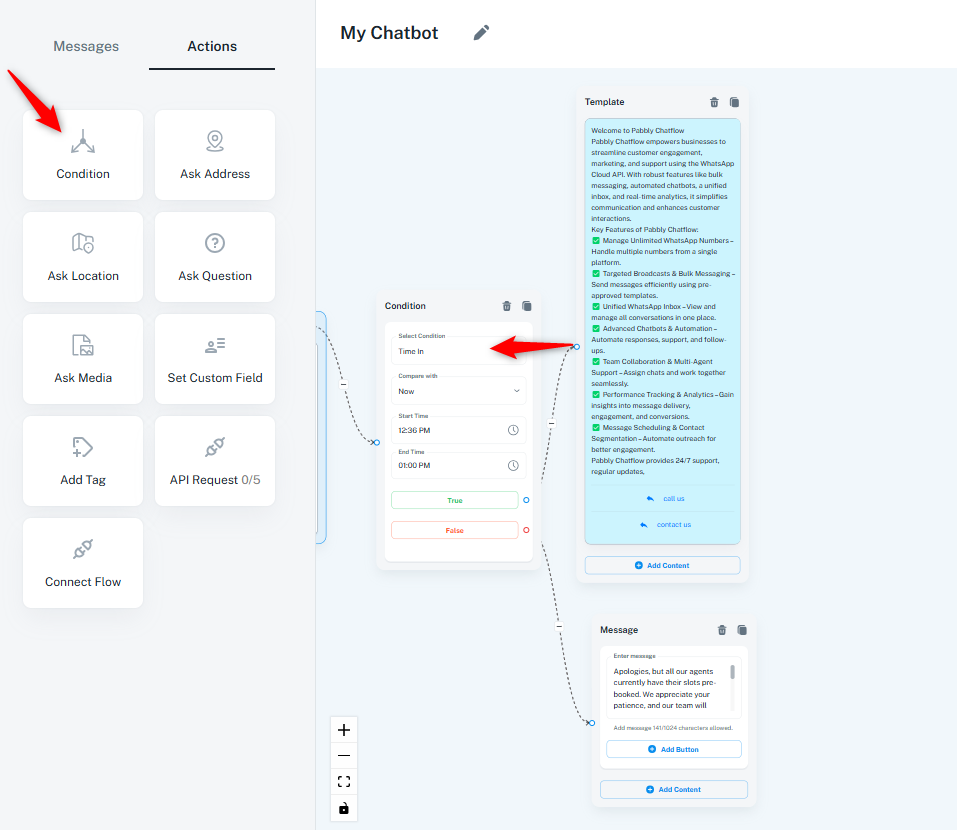
This feature allows chatbots to provide customized responses based on specific time ranges.
Example: A chatbot can be programmed to send a welcome message between 10 AM and 7 PM. Messages received outside these hours can trigger an off-hour response. Similarly, date-based conditioning can be used for holidays and vacations.
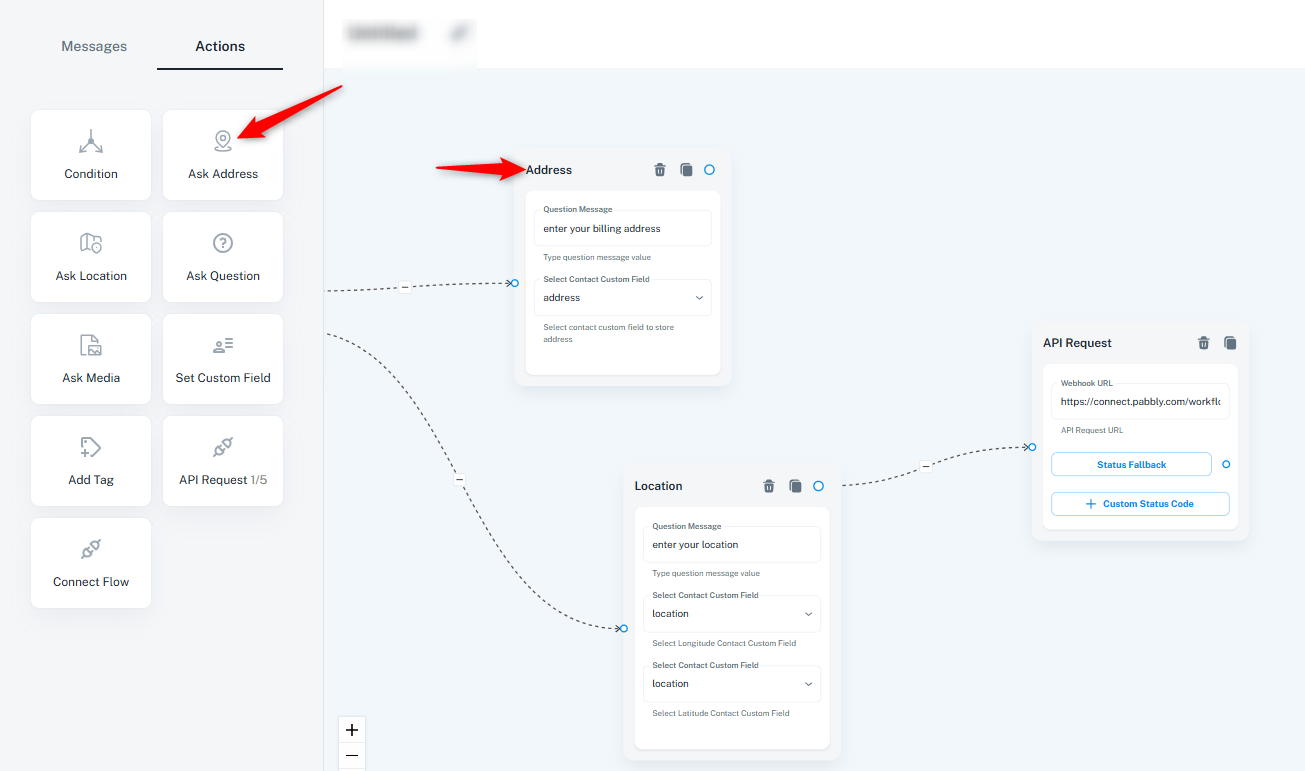
2. Ask Address This node enables the chatbot to collect the user’s address. The chatbot prompts the user to enter their complete address, which can then be stored for future interactions, deliveries, or support queries.
Example: If a business requires shipping details, the chatbot can request the address and store it for processing orders or deliveries.
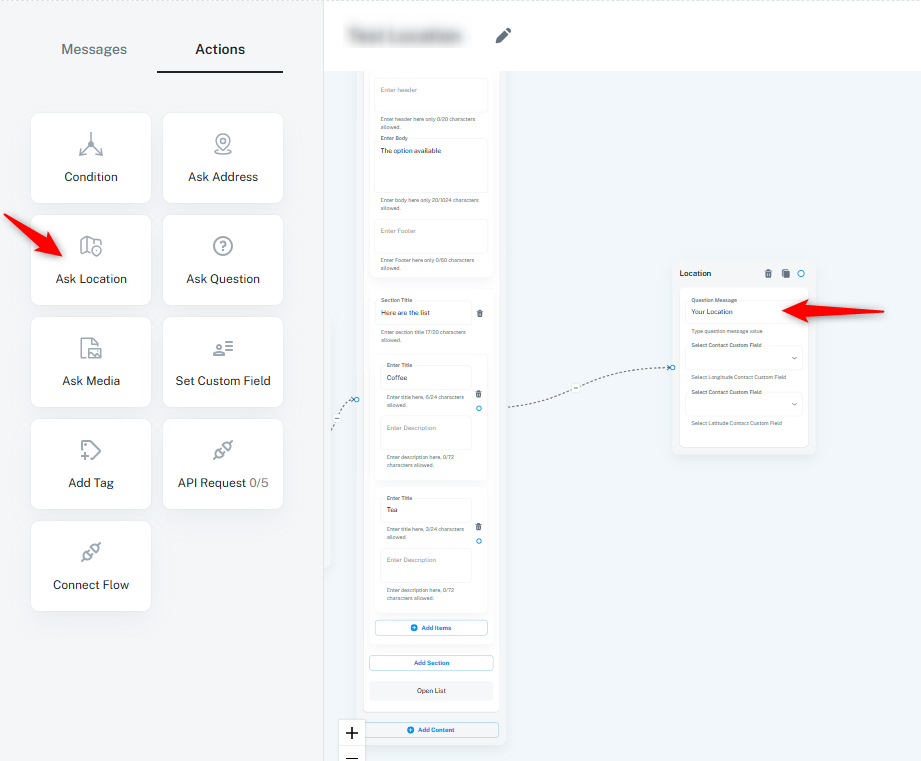
The chatbot can request the user’s live location to facilitate location-based services. The user will be prompted to share their current GPS location using WhatsApp’s built-in location-sharing feature.
Example: If a service provider wants to allocate a technician for a home service, the chatbot can collect the customer’s location to assign the nearest available technician.
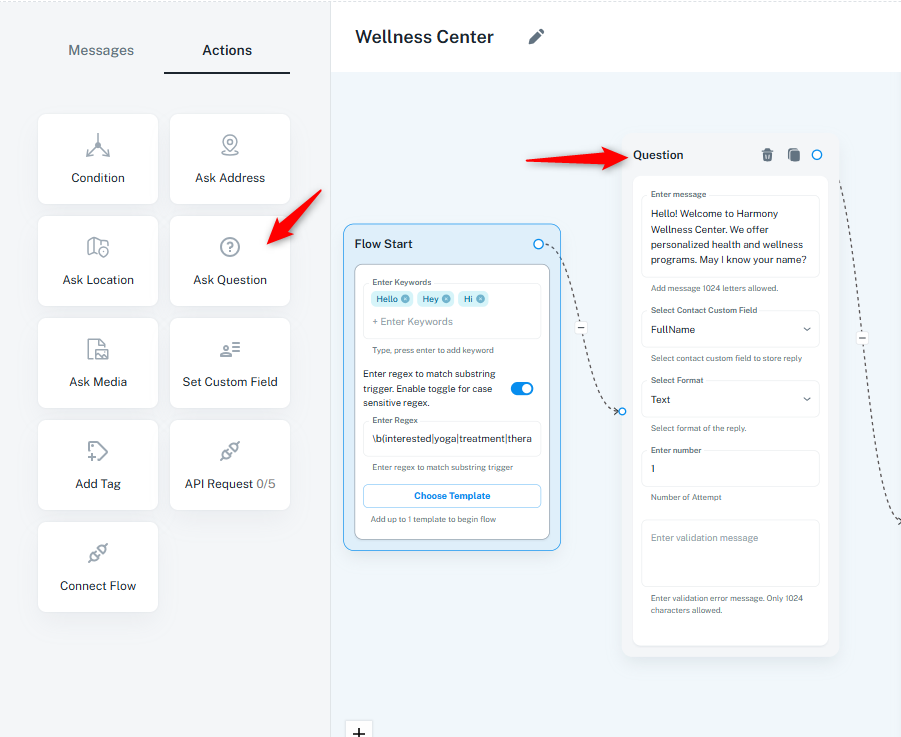
This feature allows the chatbot to collect structured information from users, such as their name, email, phone number, or any other relevant details. You can define specific input fields to ensure accurate data collection.
Example: A chatbot for an online event may ask users for their full name and email address to send them a confirmation link.
This node enables users to upload and share media files such as images, videos, documents, or audio clips. The chatbot can collect media for verification purposes, customer support, or documentation.
Example: A banking chatbot may ask users to upload a scanned copy of their identity proof for verification purposes.
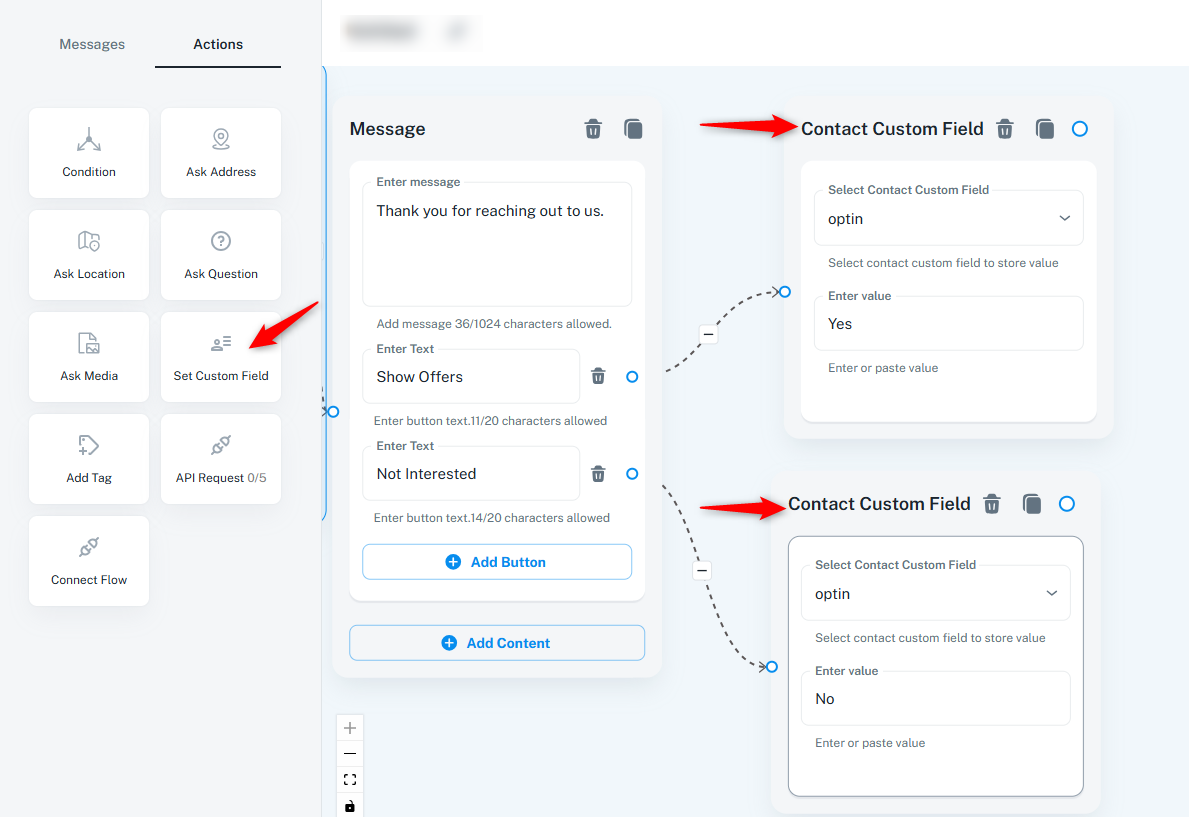
This feature captures user responses as attributes and assigns values accordingly. Users can also be categorized using tags.
Example:
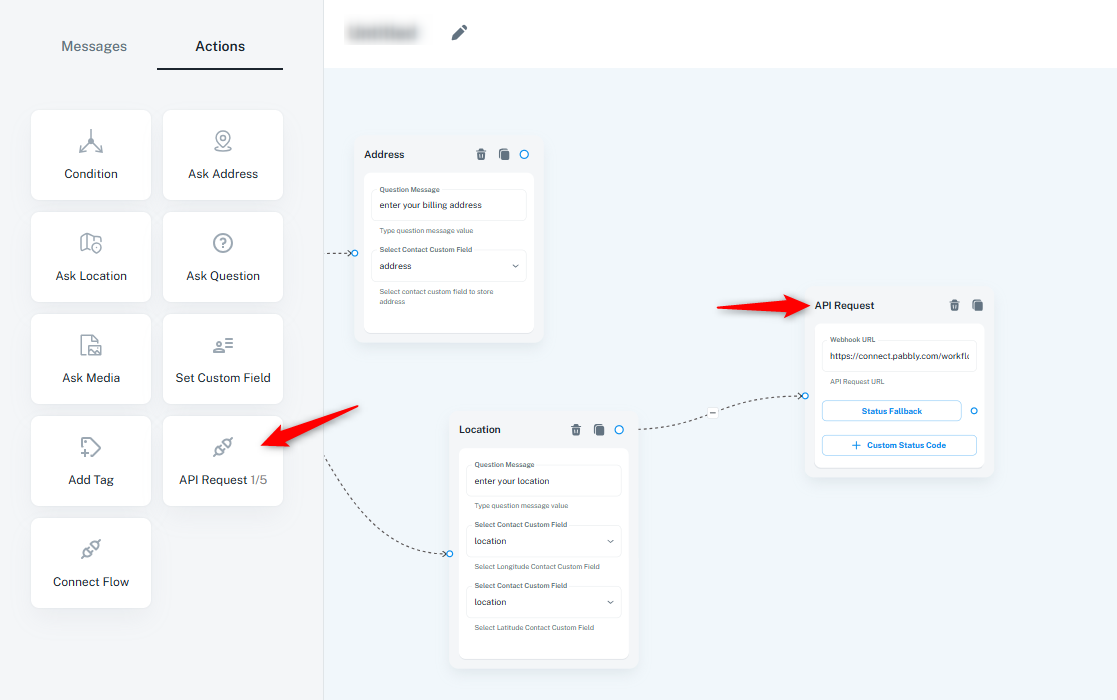
The chatbot can integrate with external systems via API calls to fetch and send data dynamically. This ensures a personalized and efficient user experience. For a detailed walkthrough, watch the tutorial: API Integration Tutorial
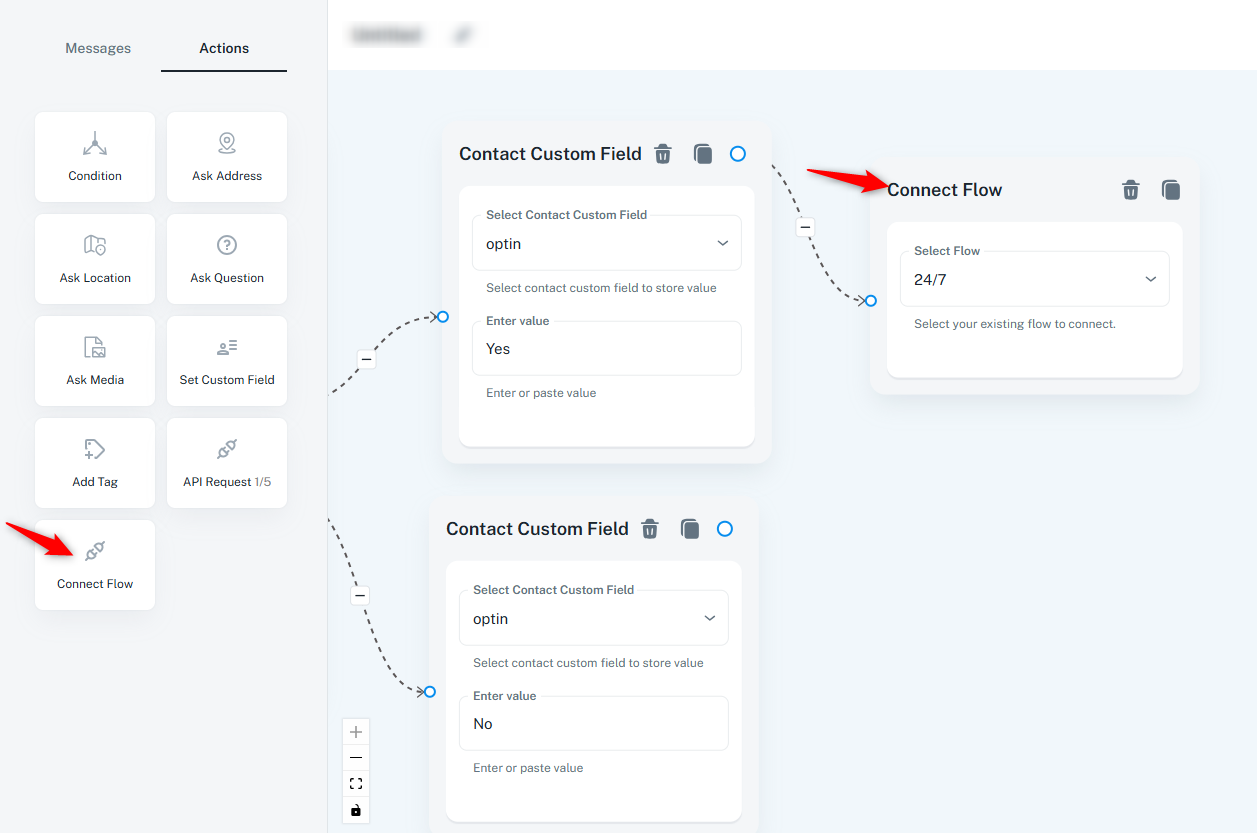
Pre-existing chatbot flows can be linked together to streamline development and save time. This feature enhances efficiency and ensures modular chatbot design.
9. Assign AI Assistant
The Assign AI Assistant node allows you to assign an AI assistant to a specific chat flow, enabling automated responses and task management.
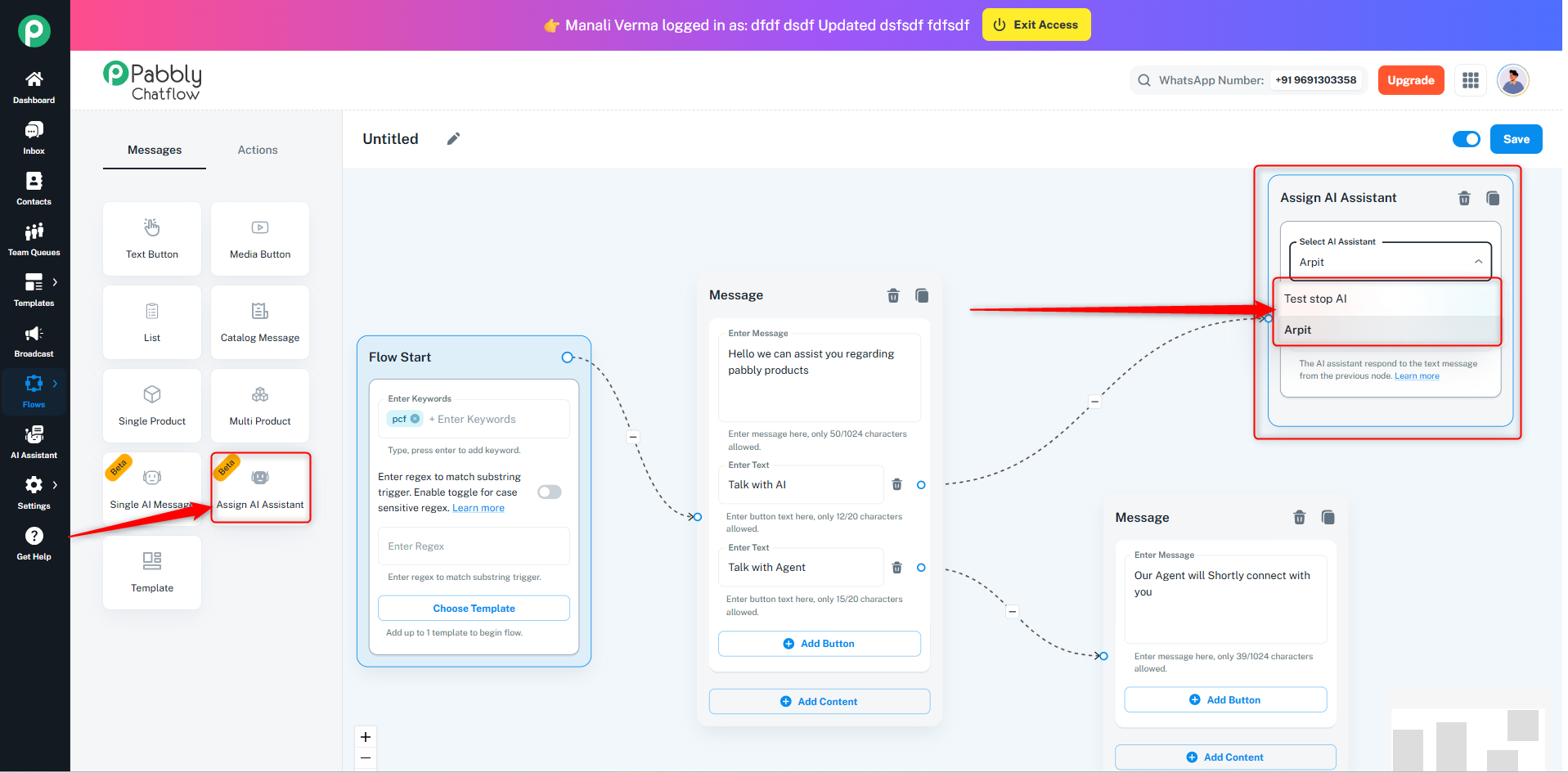
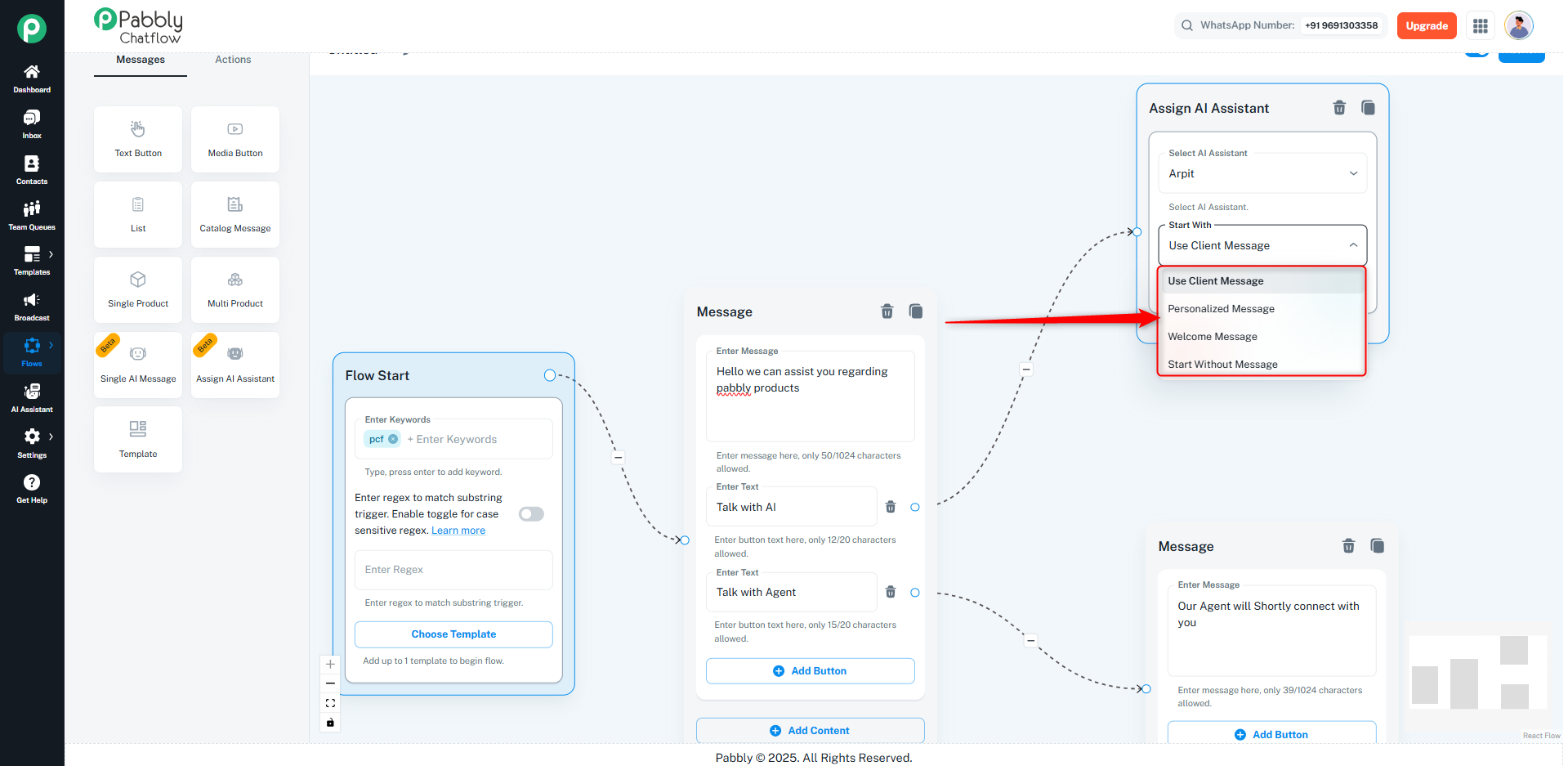
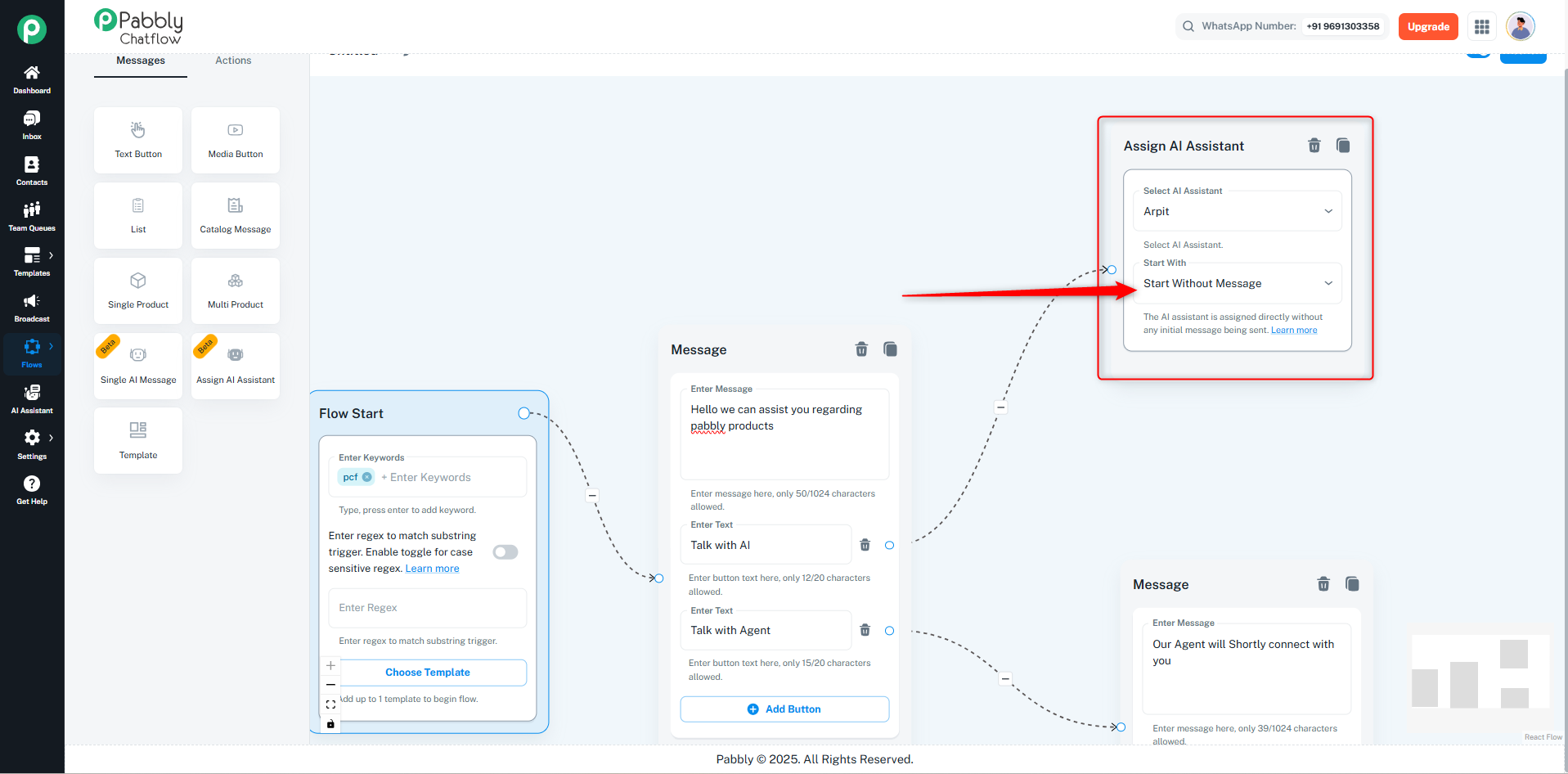
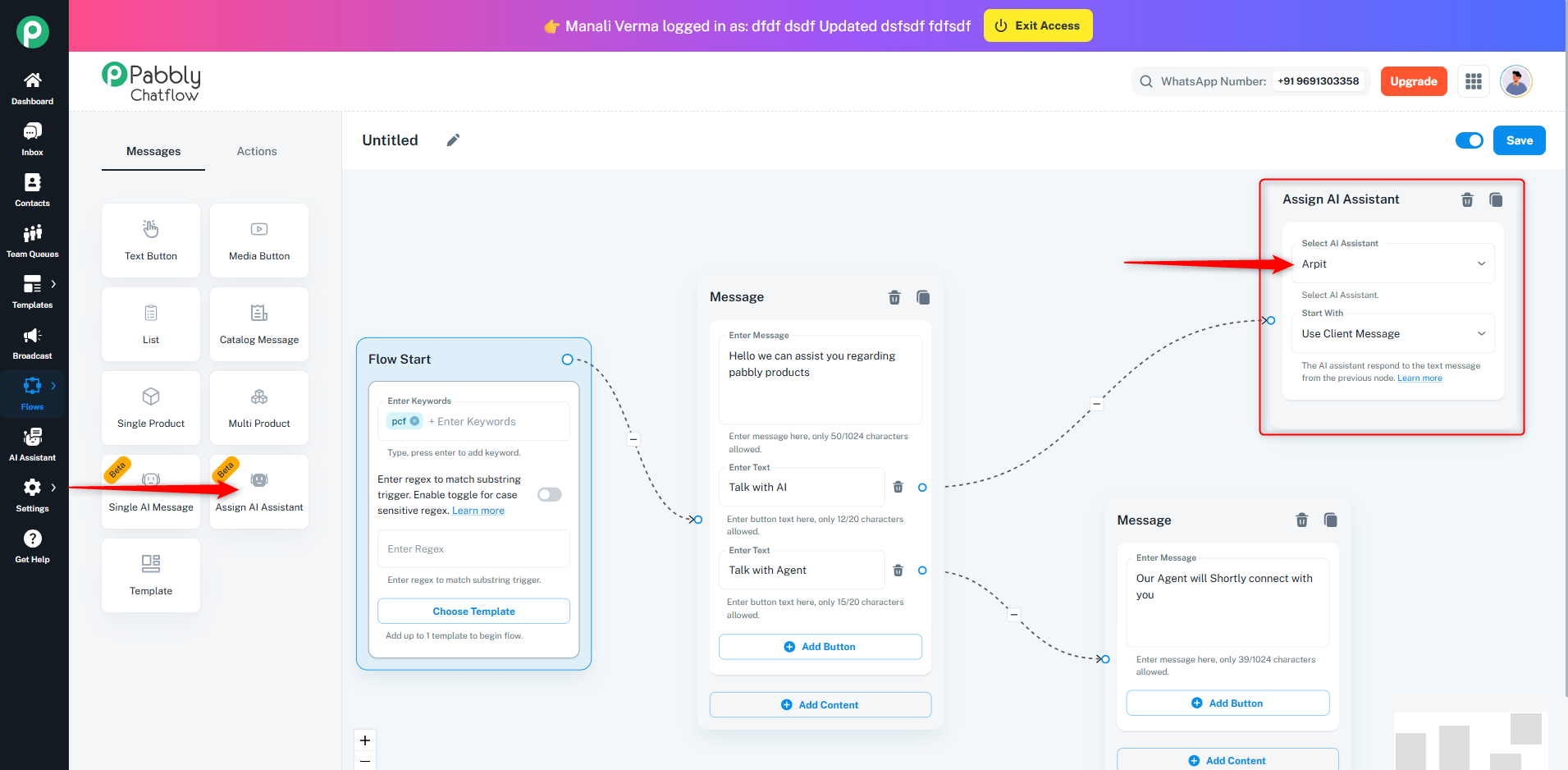
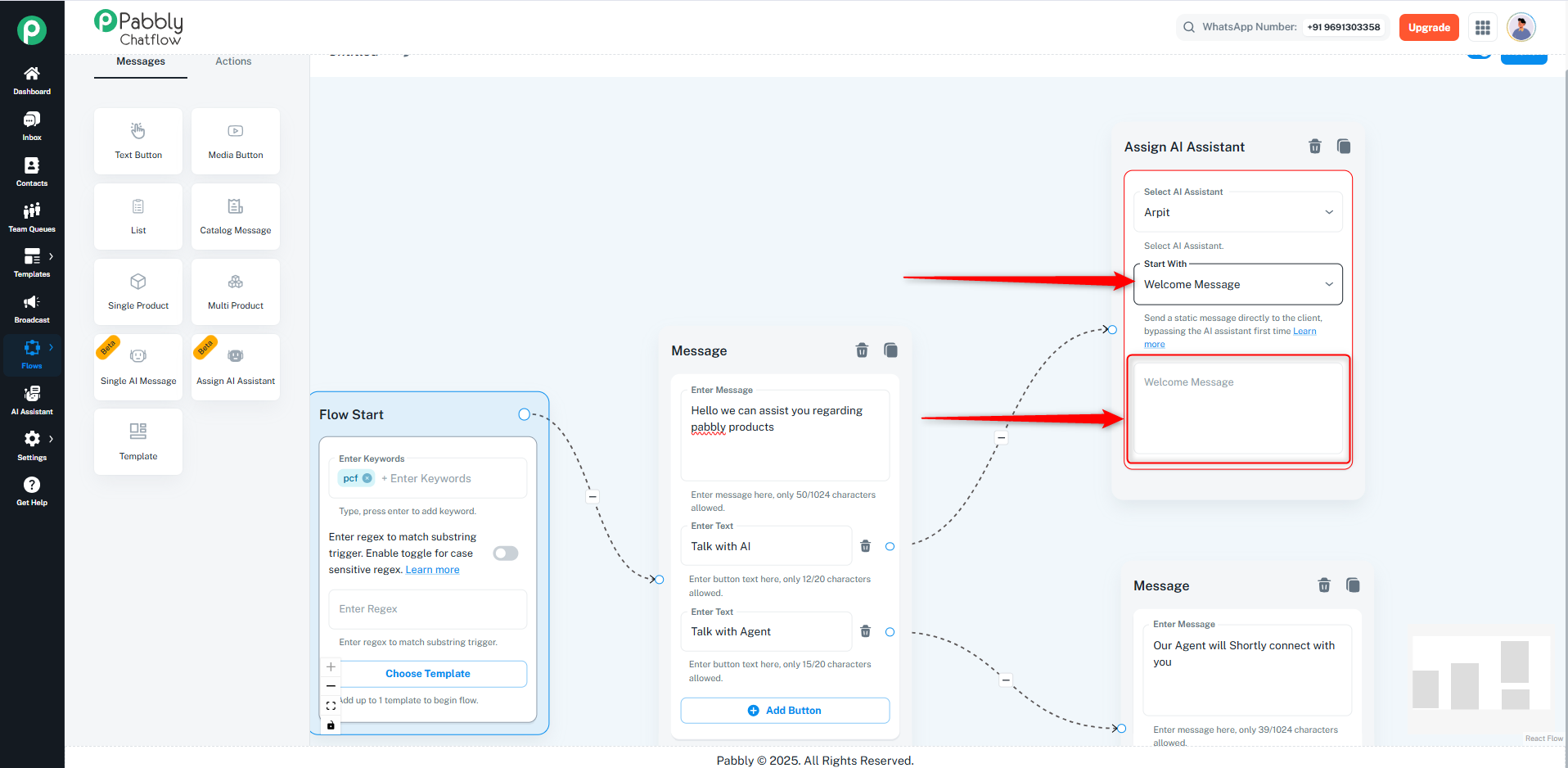
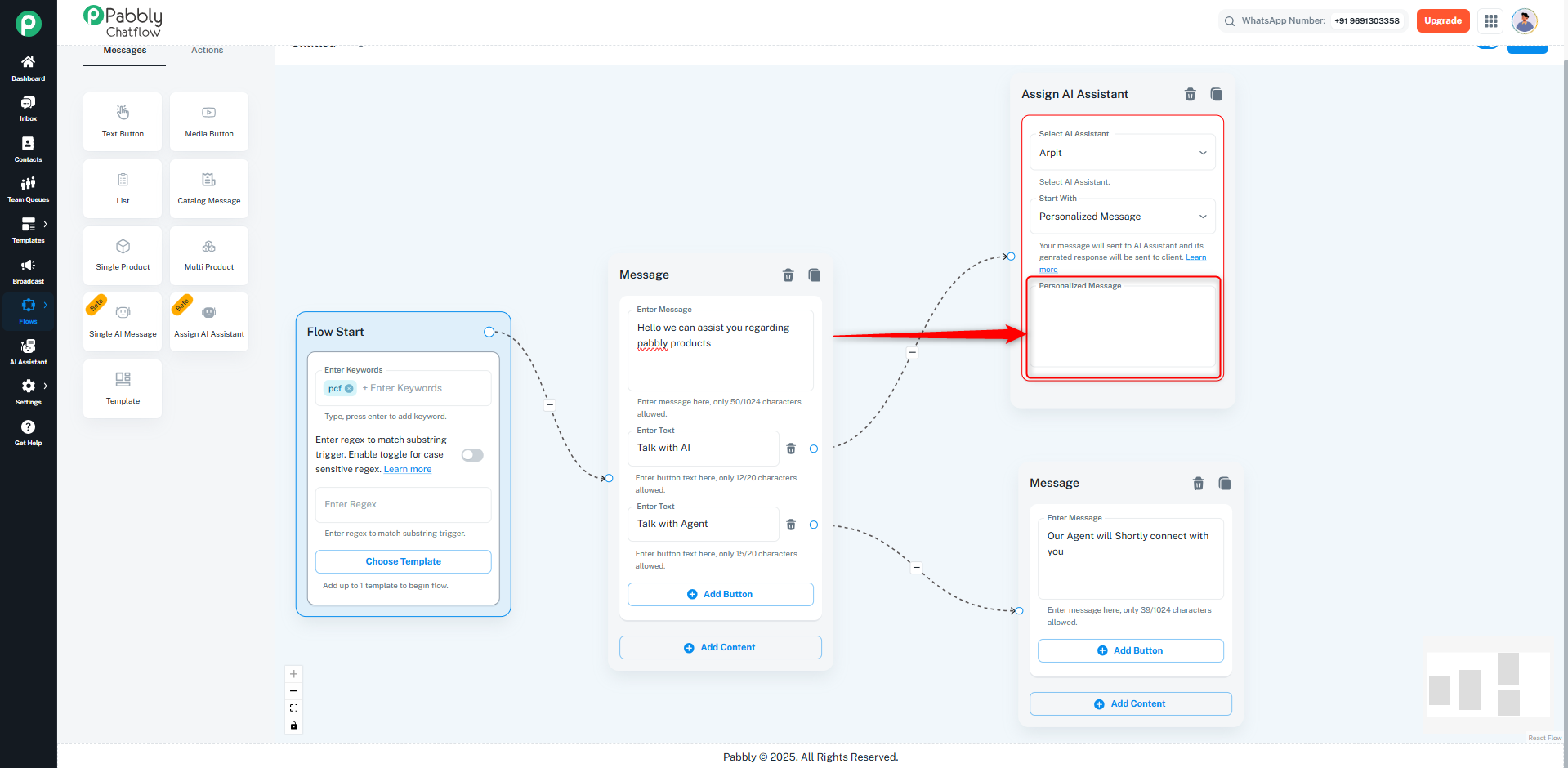
Once the AI assistant is assigned, it will automatically handle the conversation and provide relevant responses based on the flow.
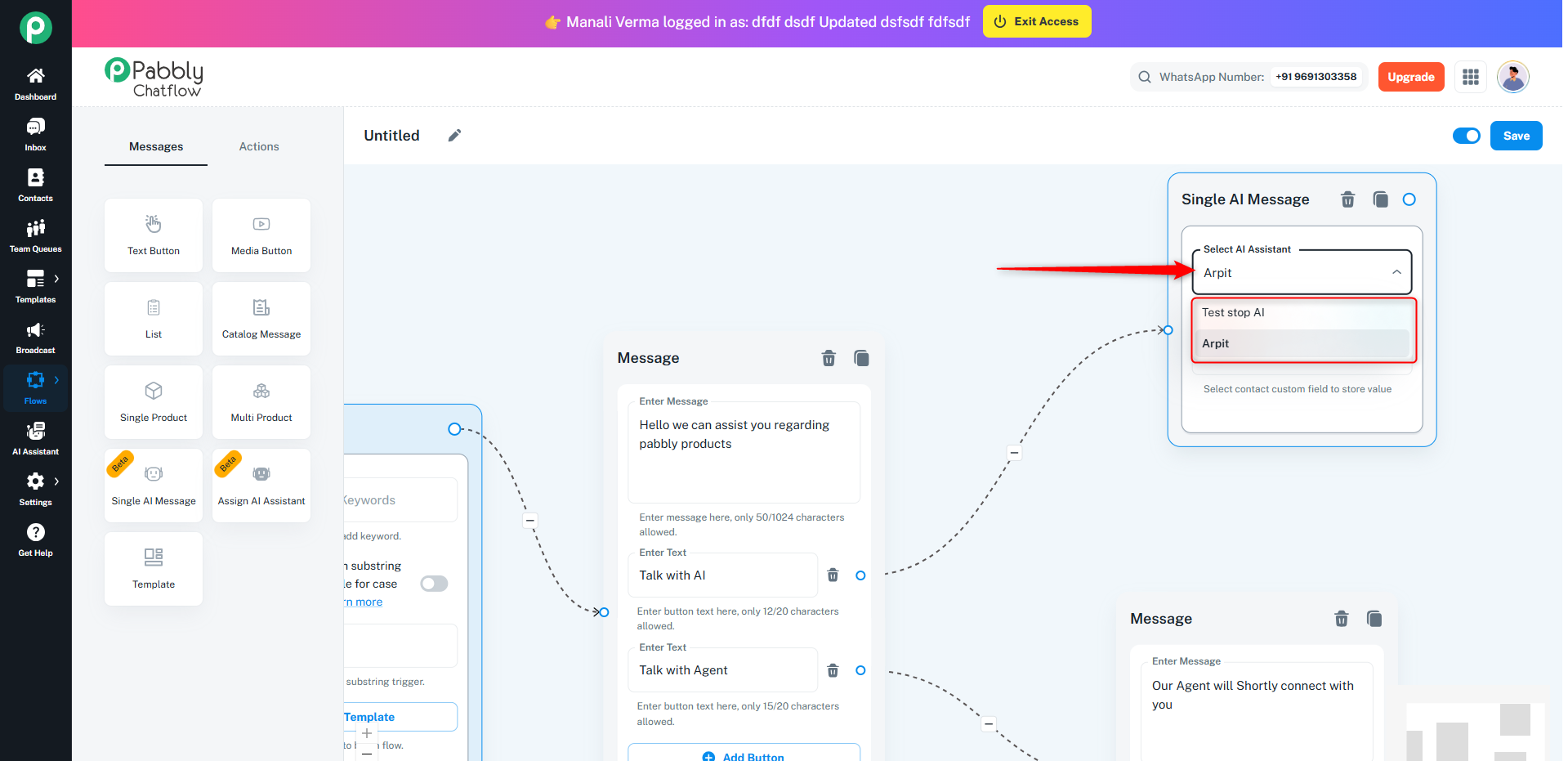
10. Single AI Message: The "Single AI Message" node in Pabbly Chatflow is designed to send a one-time message from an AI assistant during a chatbot flow. It allows you to provide a response based on the selected AI assistant. How to Use:
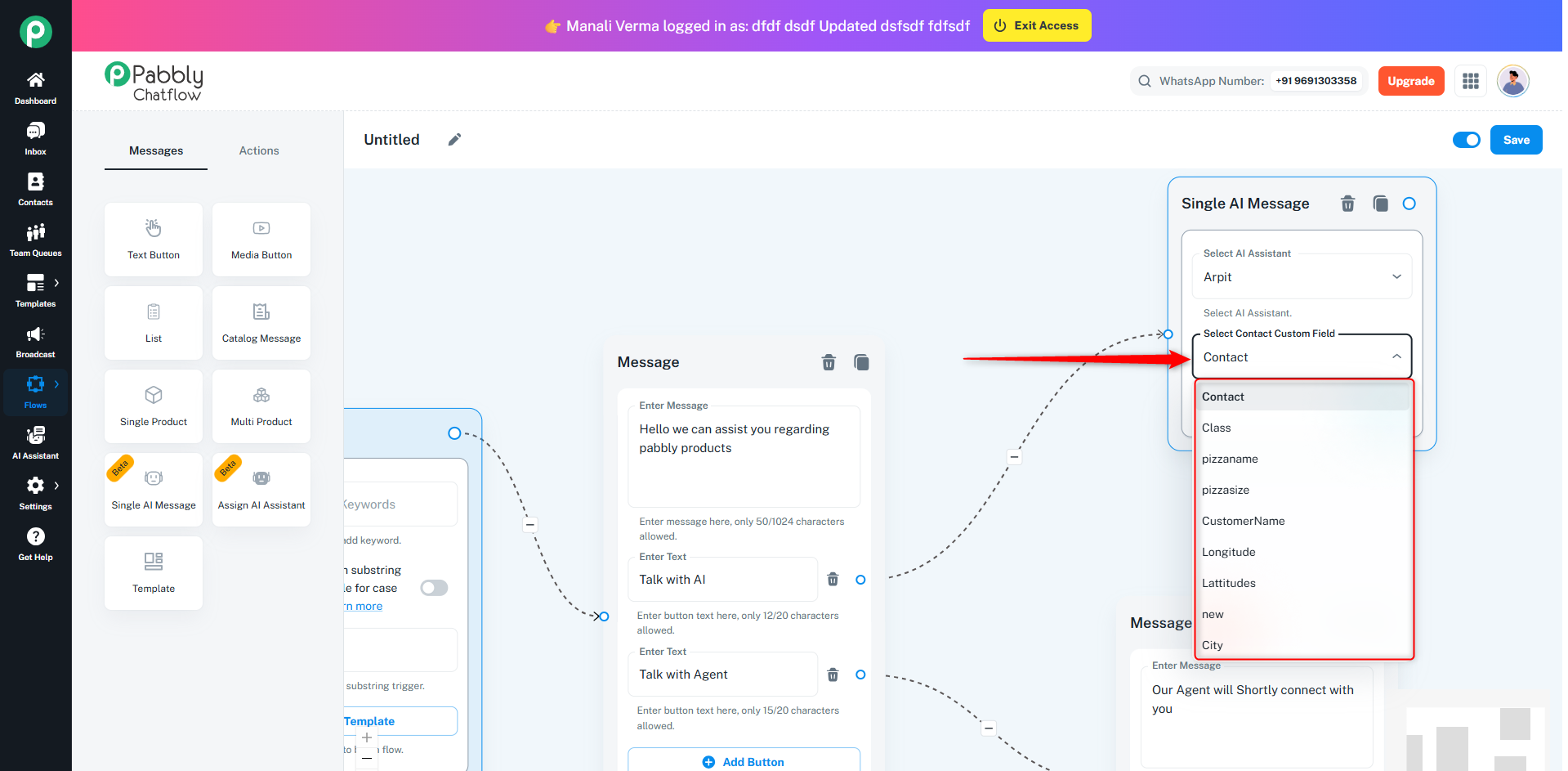
Creating a chatbot using Flow Builder is extremely easy. All you need to do is choose the necessary elements (like Lists or Media Buttons) and drag & drop them onto the builder.
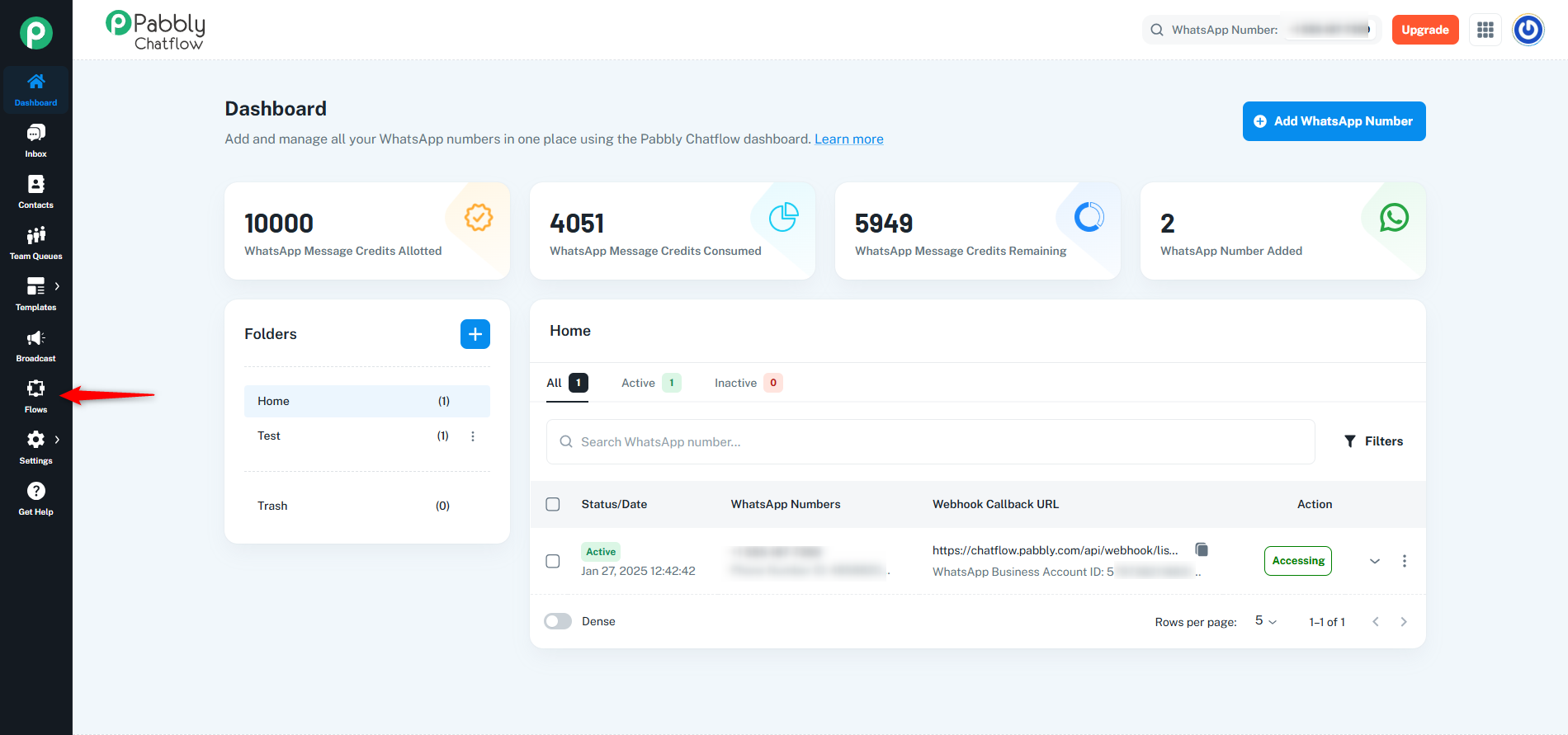
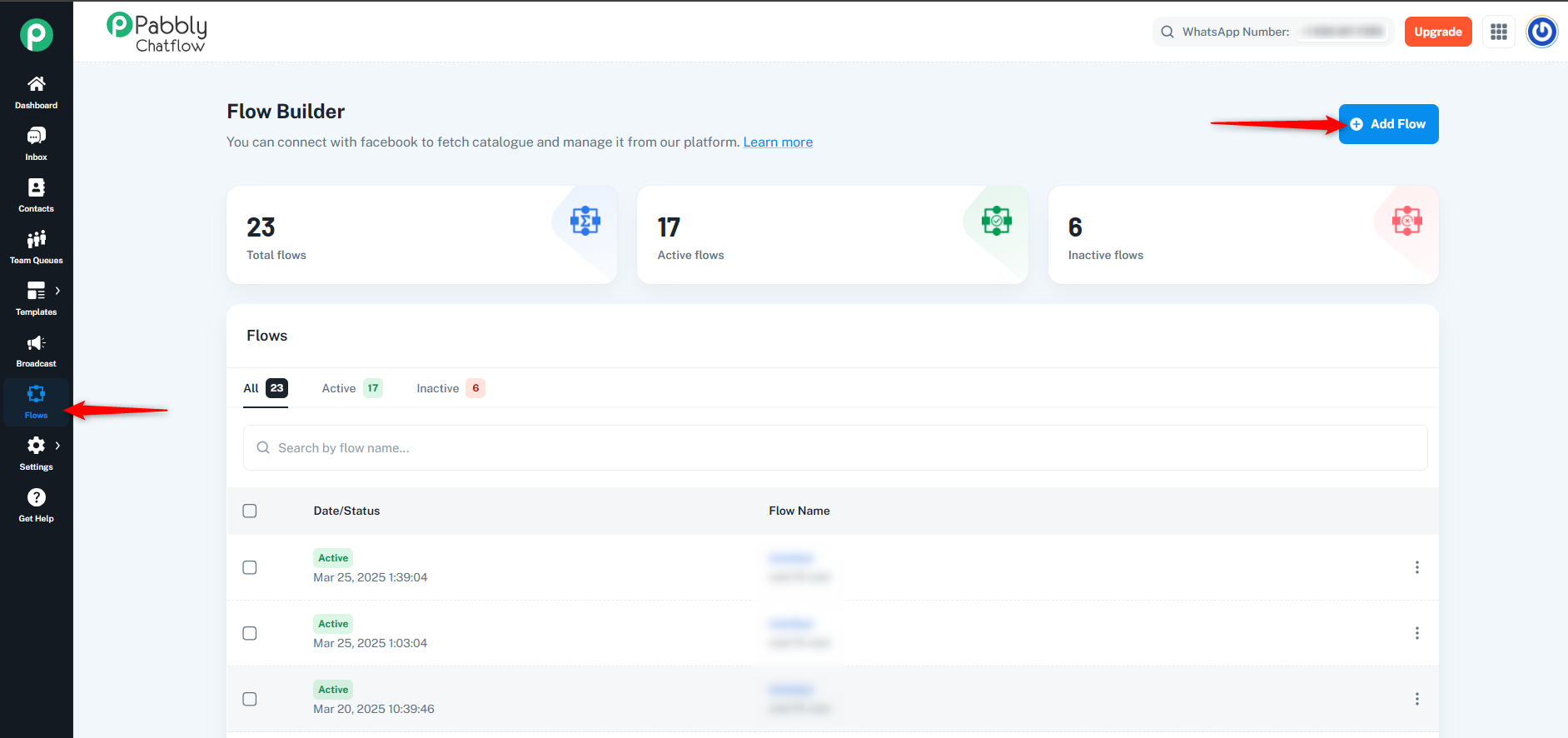
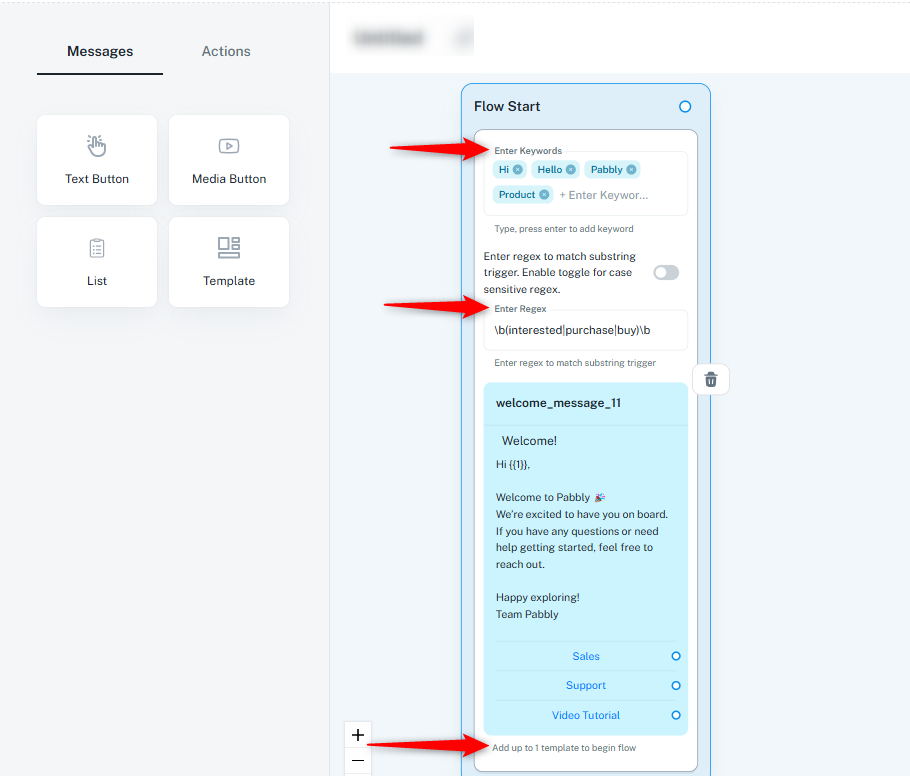
Once the flow is built according to your needs, follow these steps:
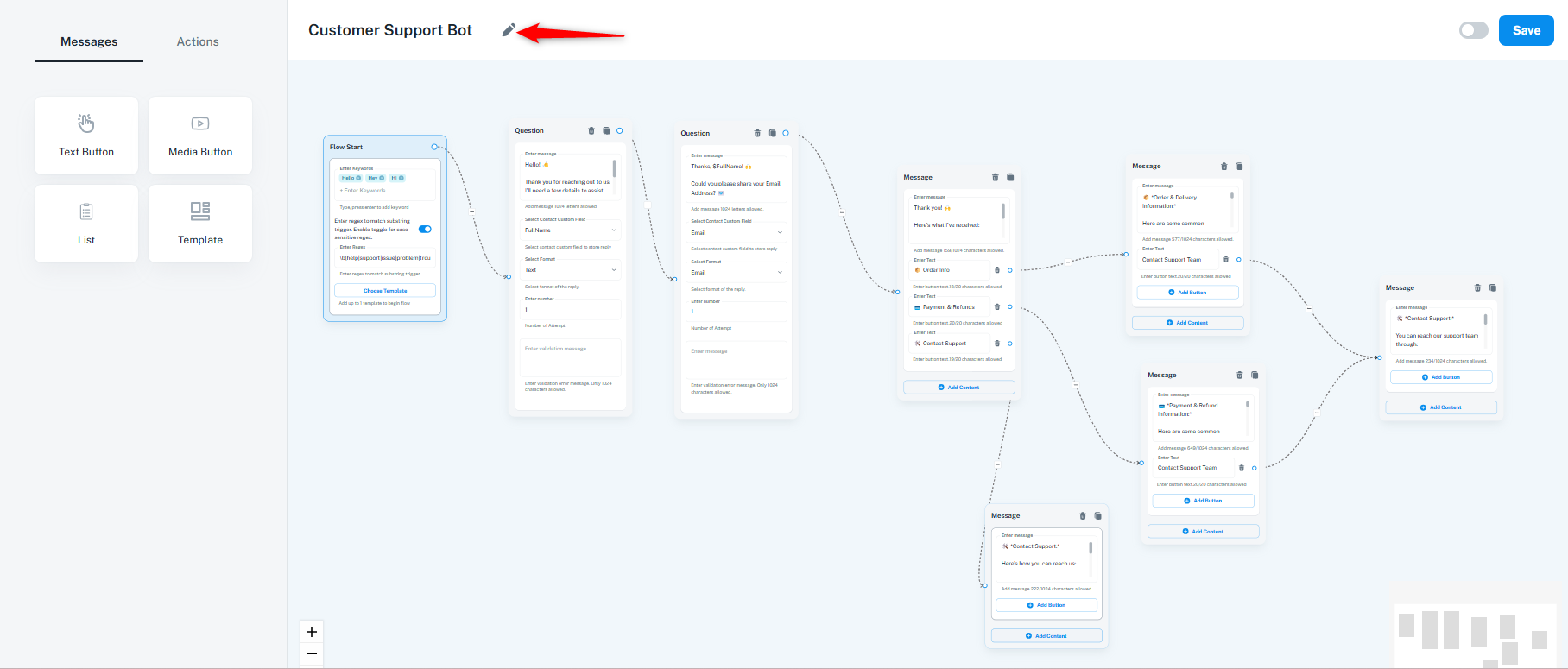
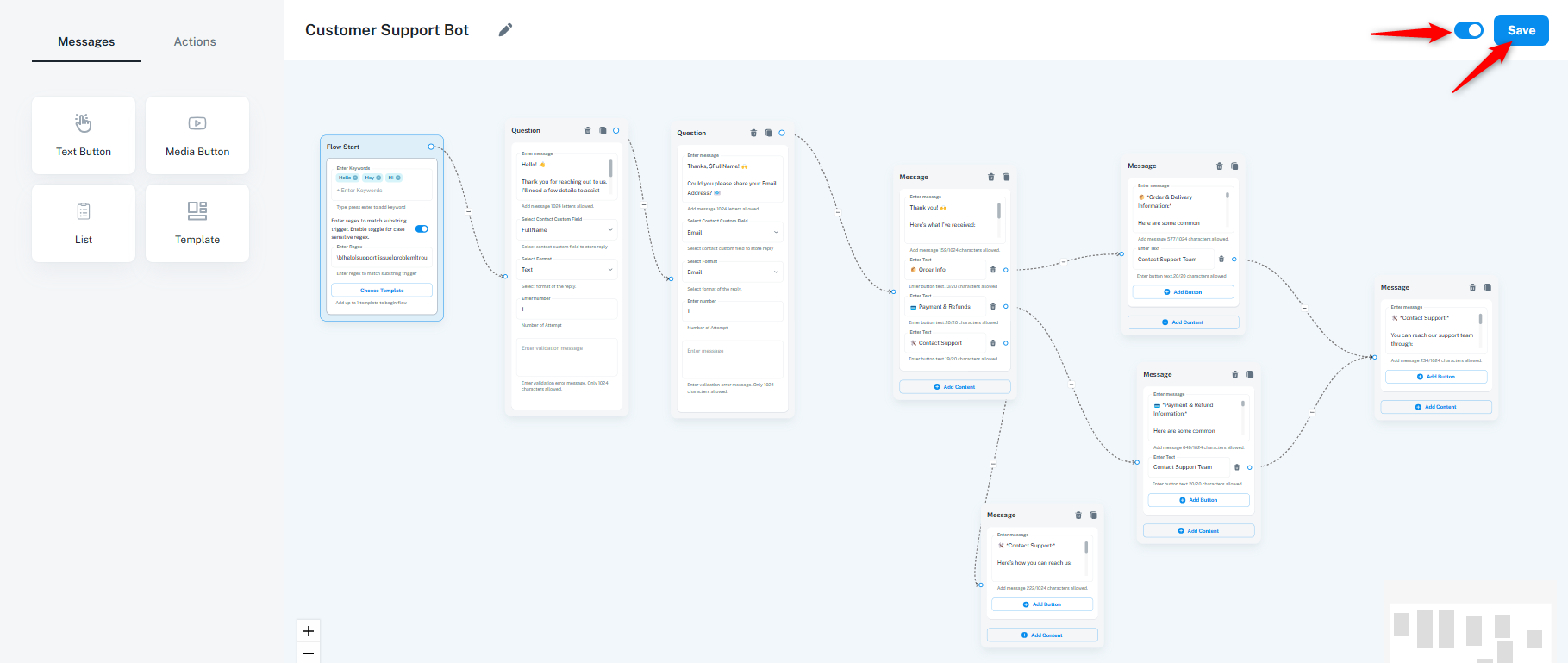
Now, once a user initiates a conversation, if any keyword or regex matches, the flow will trigger automatically. Similarly, if a conversation is initiated using templates and a quick reply button connected to a flow is clicked, the flow will get triggered seamlessly.
To know more, you can watch our video tutorial here: How to Create a Drag & Drop Chatbot
With Pabbly Chatflow's intuitive Drag & Drop Flow Builder, creating chatbots has never been easier. By leveraging powerful message nodes, action nodes, and seamless integrations, you can automate conversations, provide prompt customer support, and drive sales efficiently. Start building your chatbot today and enhance your business communication like never before!
Originally posted by Neha Bhatia on 2025-03-25 (forum thread #27832).
