Managing contacts efficiently is essential for effective communication and engagement. Pabbly Chatflow allows users to add multiple contacts at once using the bulk upload feature. This guide provides step-by-step instructions to help you upload and manage bulk contacts effortlessly.
Step 1. Login to Your Chatflow Account
- Access your Pabbly Chatflow account using your credentials.
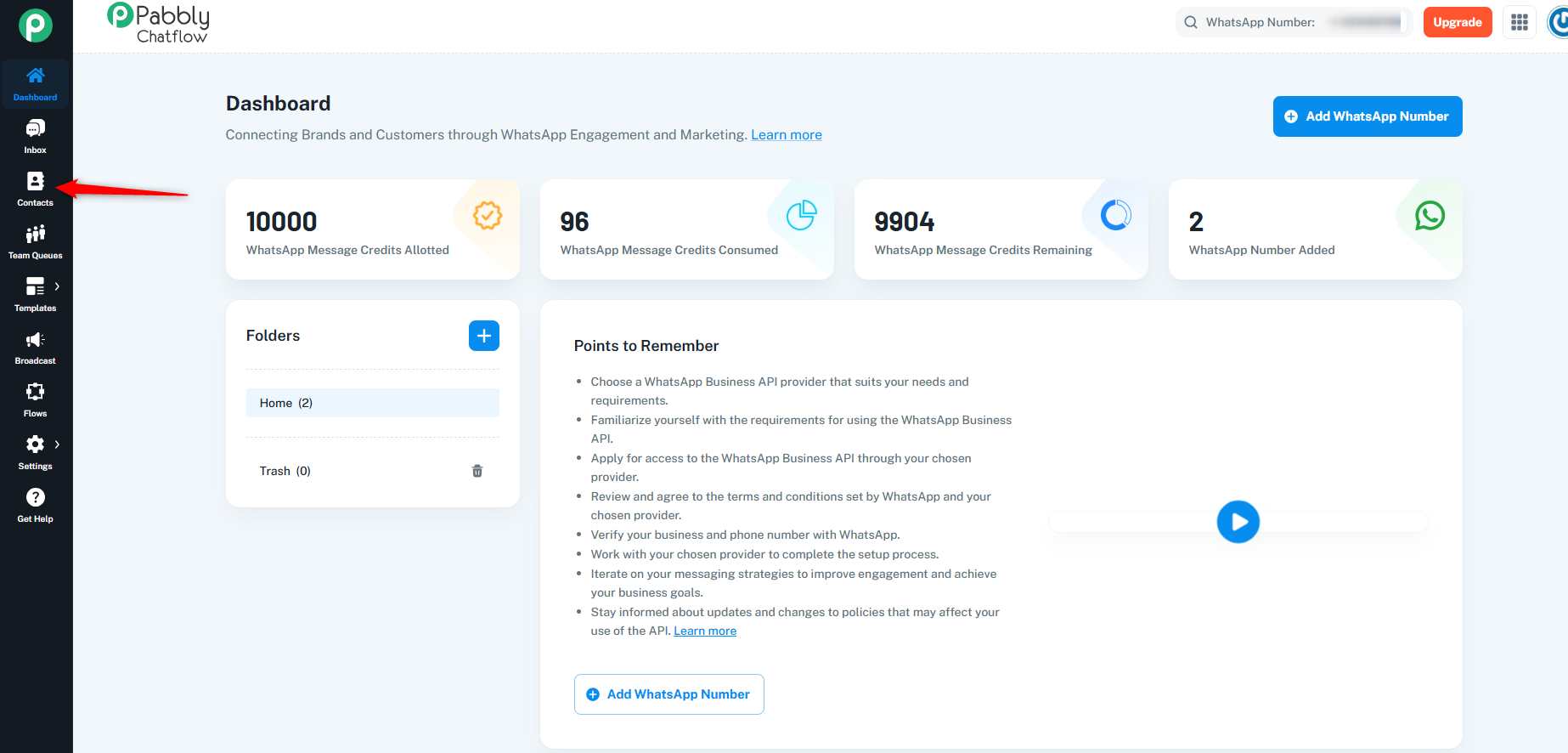
- On the left sidebar, locate and click on the Contacts module.
- Click on the Add Contact button to initiate the contact addition process.
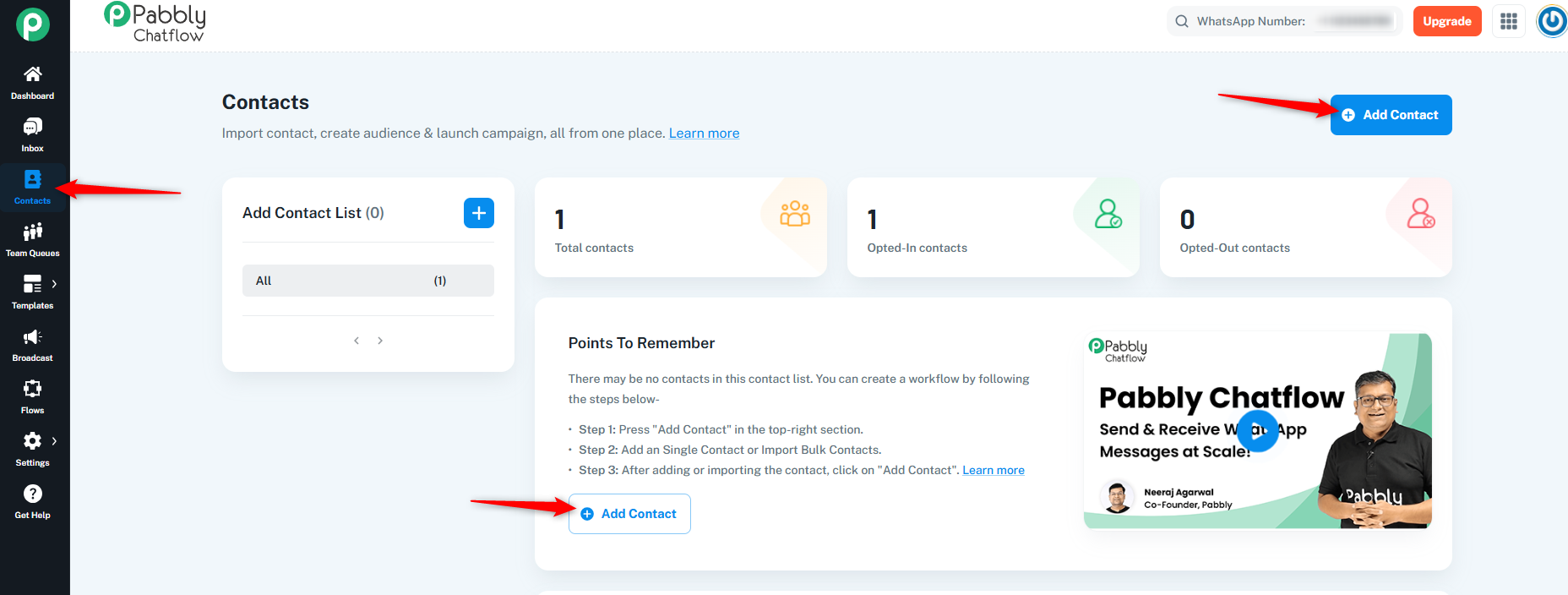
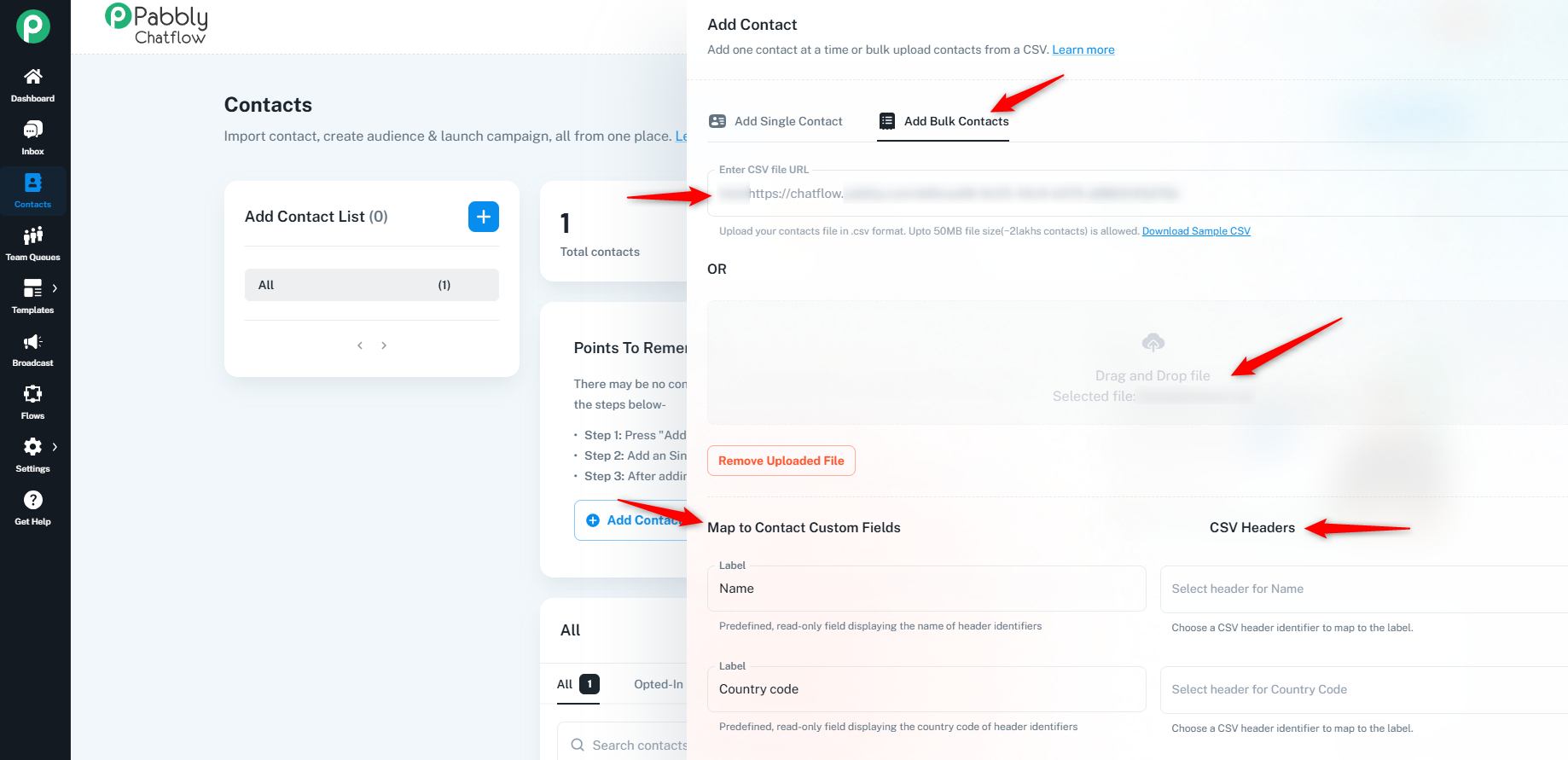
- Select Add Bulk Contacts.
- Upload a .CSV file containing contact details:
- File Limit: Up to 50MB (~200,000 contacts).
- Alternatively, you can drag and drop the file from your system.
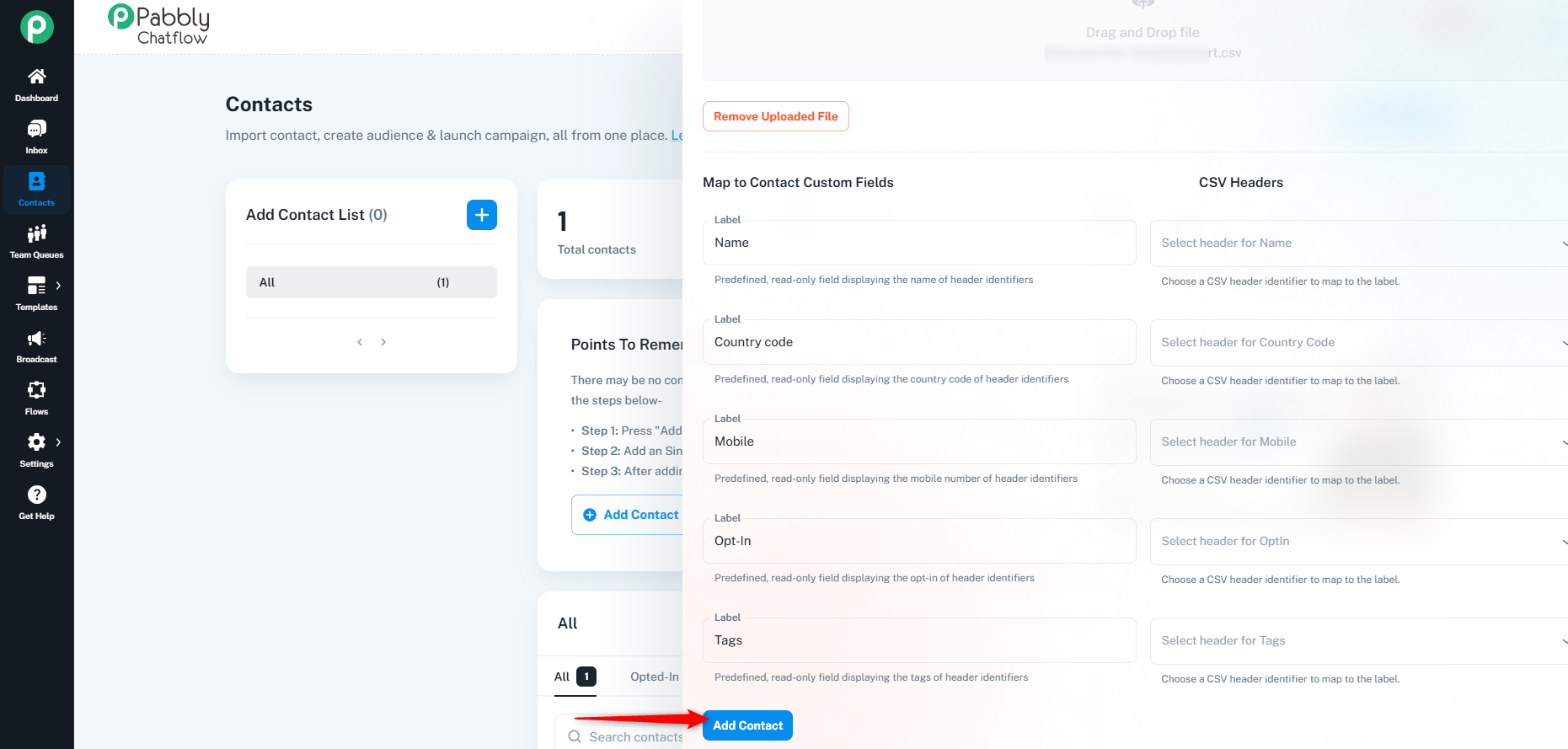
- Once you choose the file, you need to map the contact custom fields with your CSV headers.
- Click Add Contact to complete the bulk upload process.
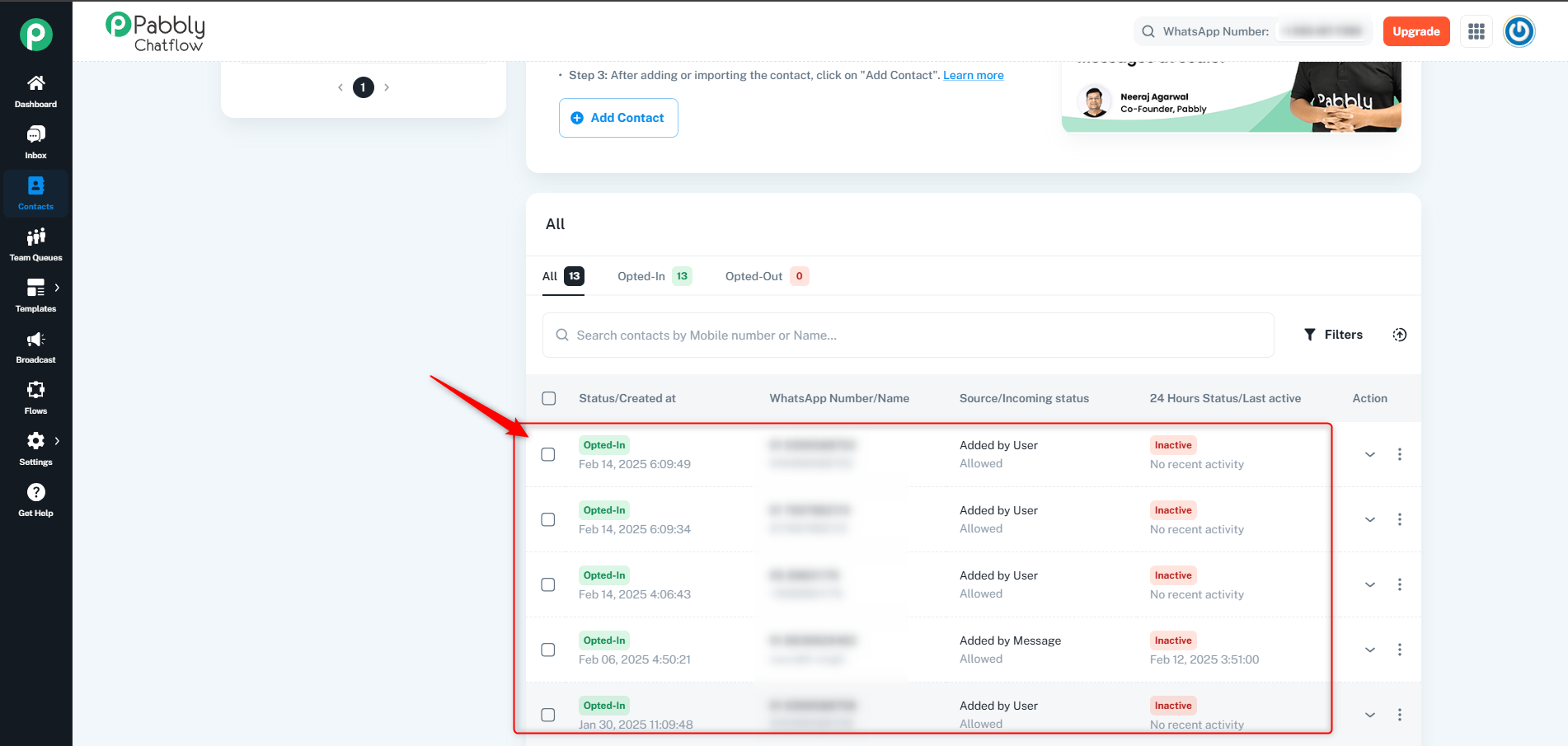
- Once the contacts are added, they will appear in the contact table.
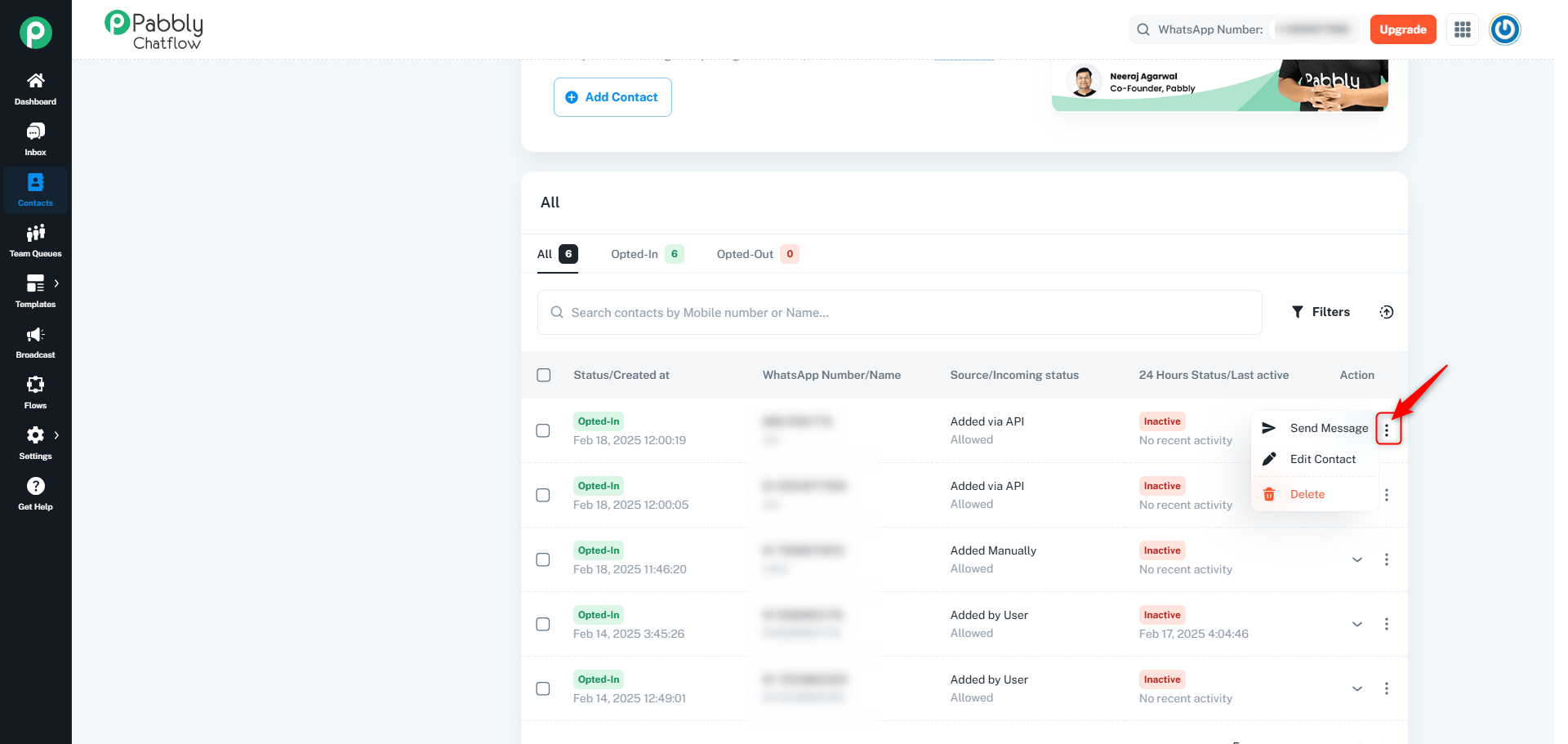
You can edit, delete, or send a message to a contact using the Send Message option available in the three-dot menu next to each contact.
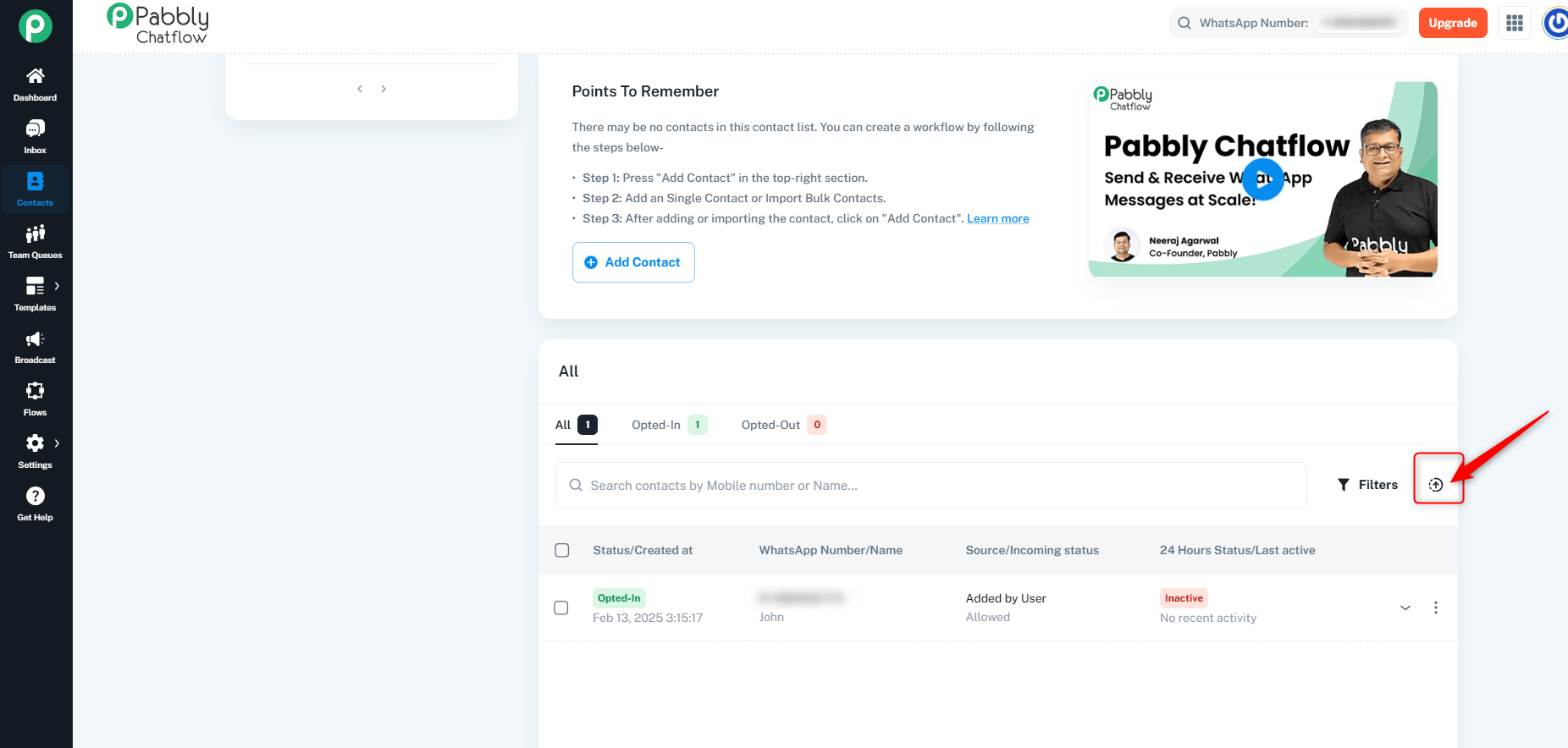
Step 6. Export the Contacts in .CSV
You can also export contacts using the CSV option.
Originally posted by Neha Bhatia on 2025-02-19 (forum thread #27098).
