How to Organize and Manage Contacts

Managing contacts efficiently is essential for effective communication and engagement. Pabbly Chatflow allows users to add multiple contacts at once using the bulk upload feature. This guide provides step-by-step instructions to help you upload and manage bulk contacts effortlessly.
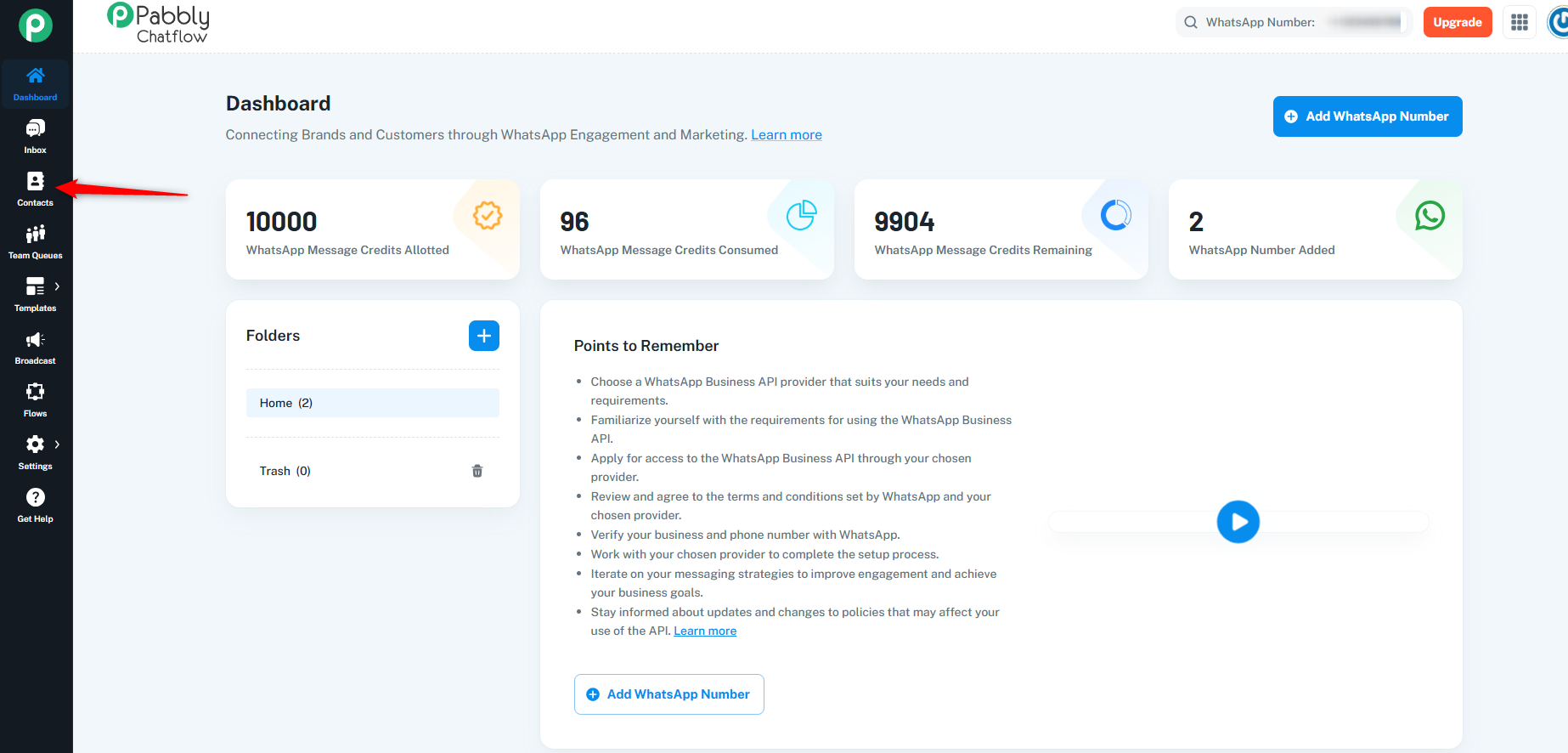
On the left sidebar, locate and click on the Contacts module.
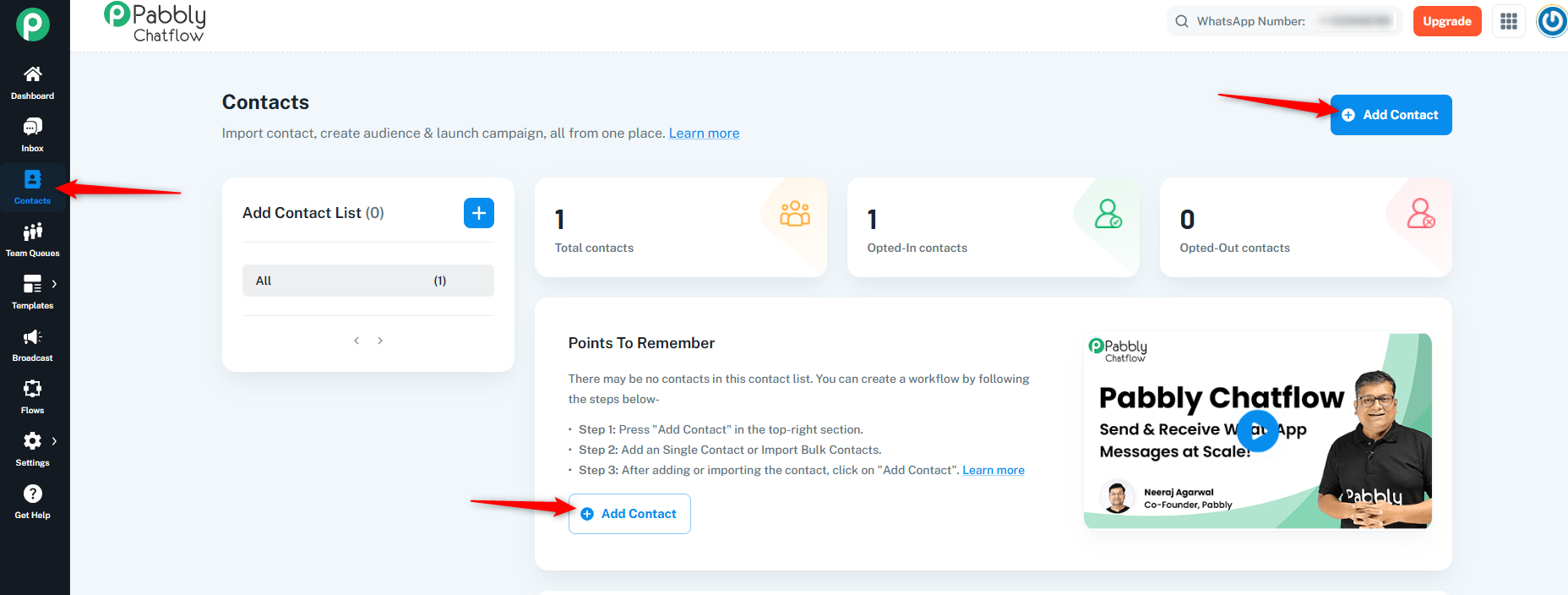
Click on the Add Contact button to initiate the contact addition process.
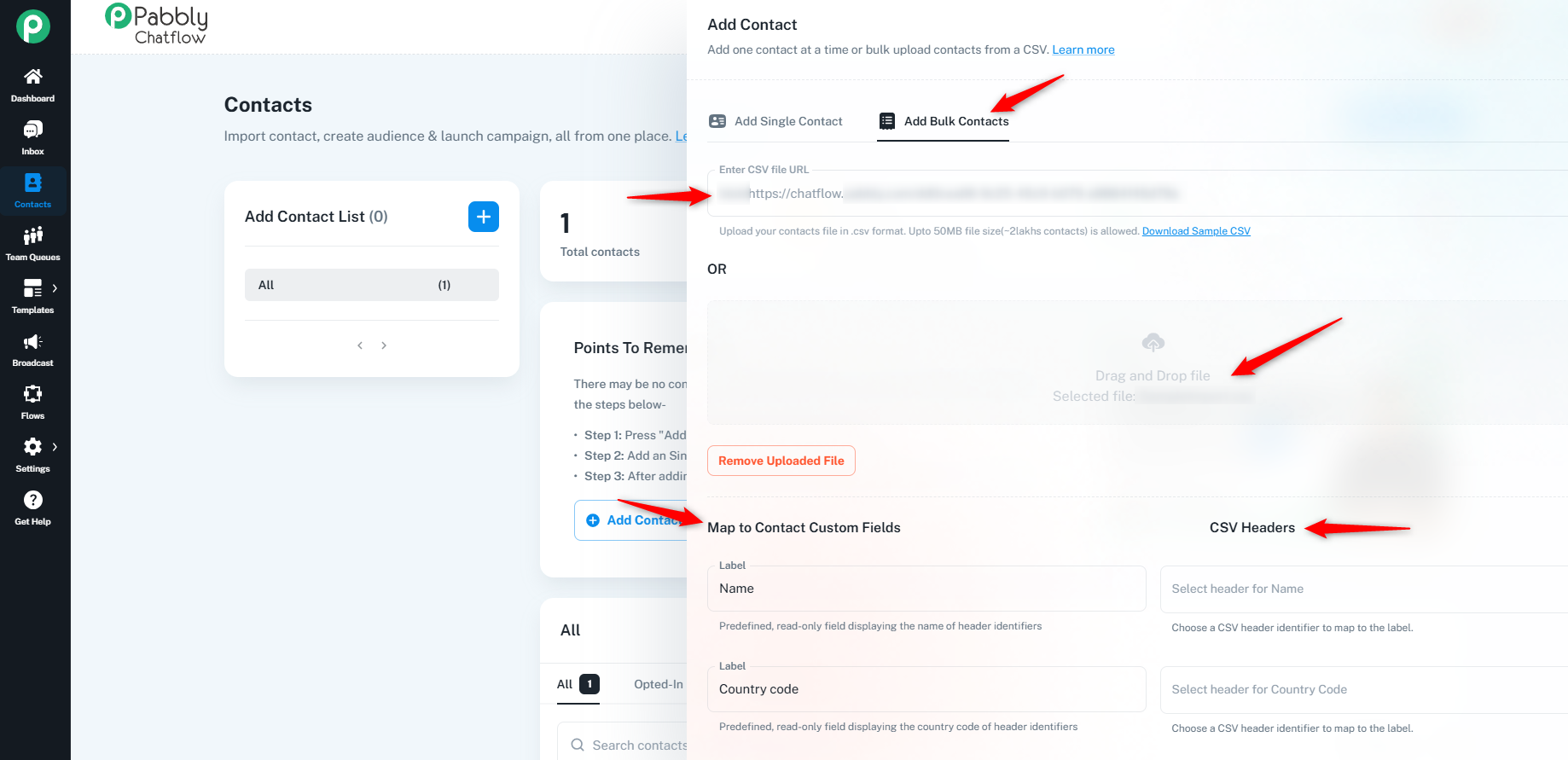
Select Add Bulk Contacts.
Upload a .CSV file containing contact details:
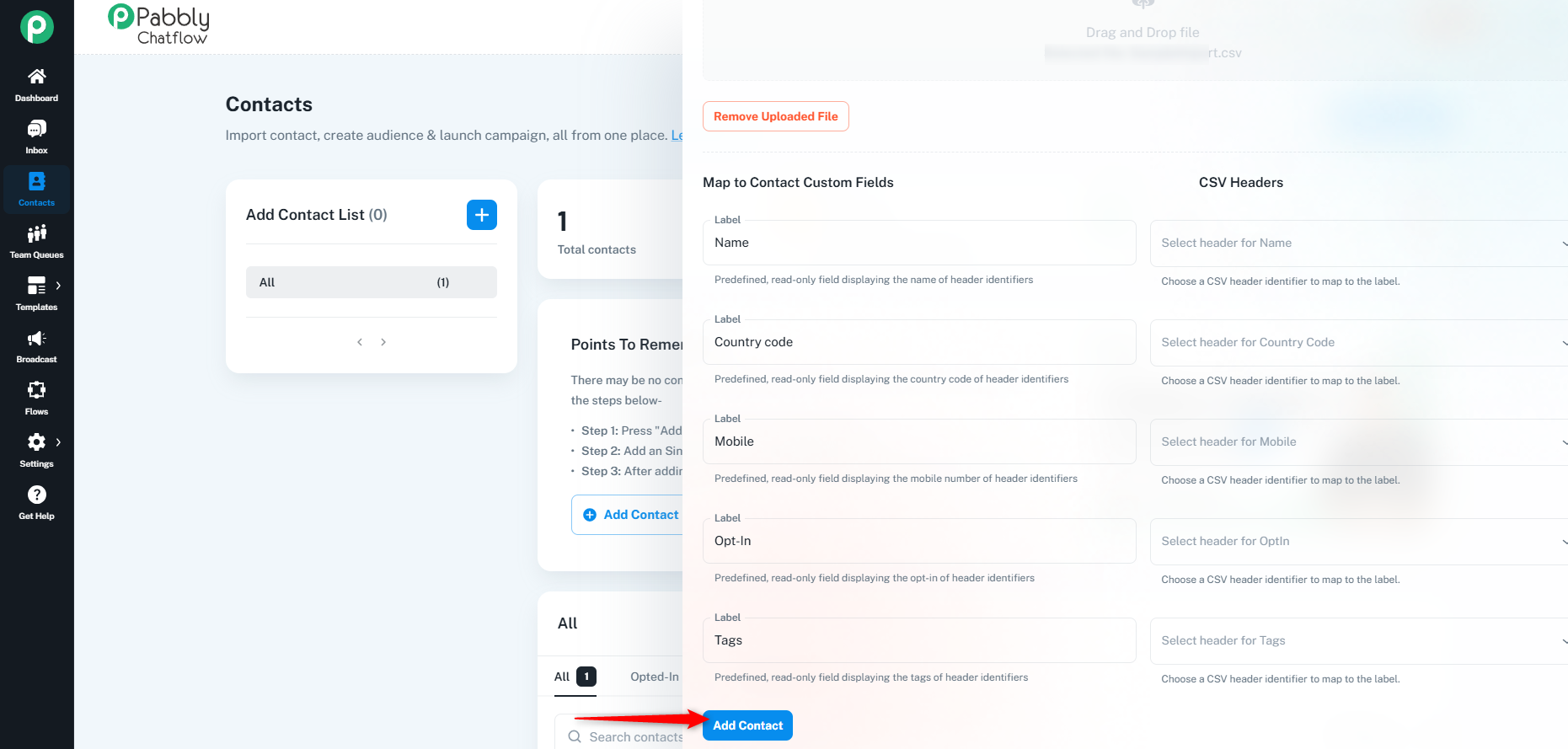
Once you choose the file, you need to map the contact custom fields with your CSV headers.
While uploading contacts, you can control how duplicate records are handled using the following options:
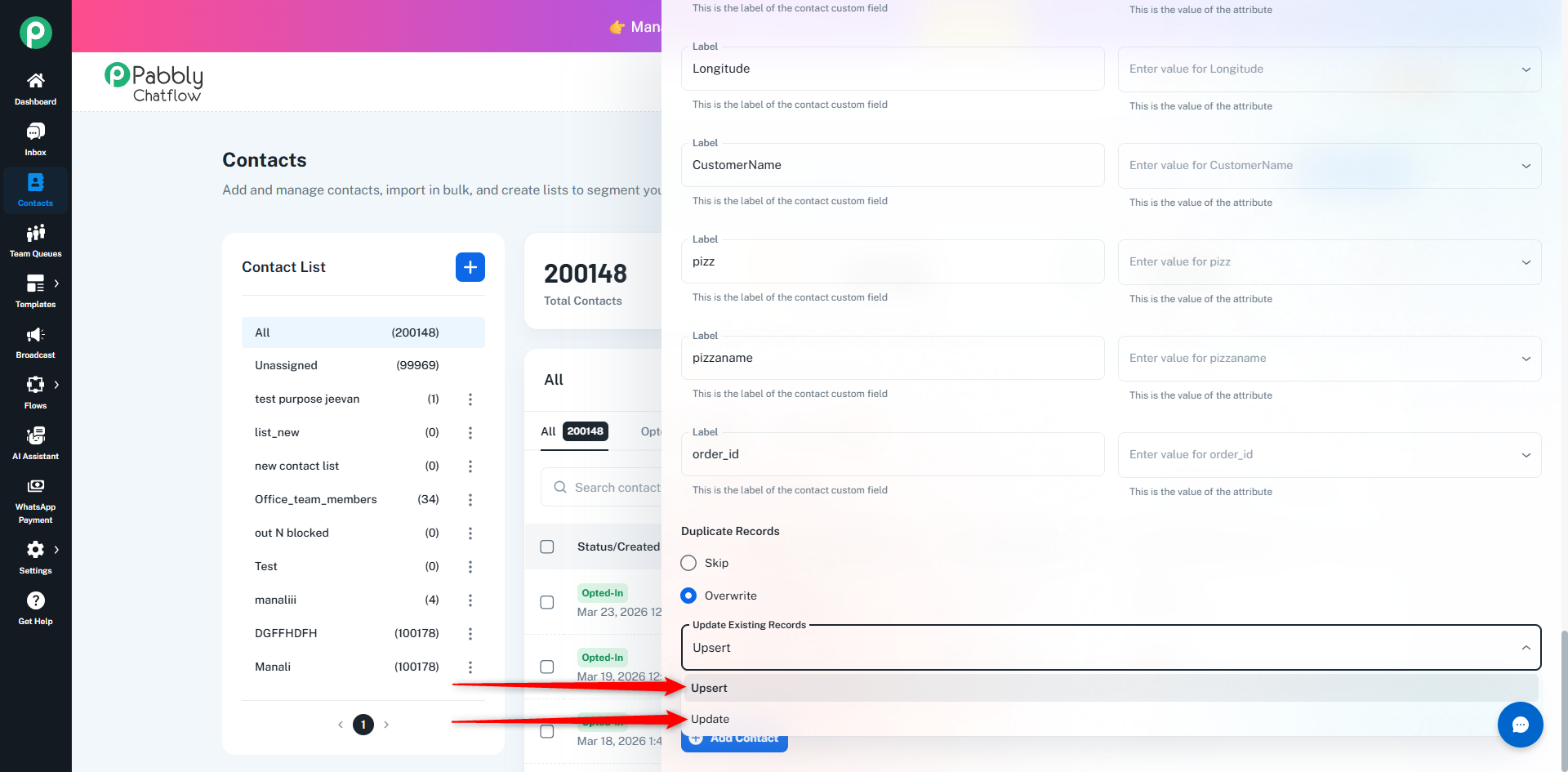
If duplicate contacts are found, you can choose how to update them:
'abc' as a custom field and you upload a contact with 'def' as a custom field, then the contact will have both 'abc' and 'def'.'abc' as a custom field and you upload a contact with 'def' as a custom field, then 'abc' will be replaced by 'def'.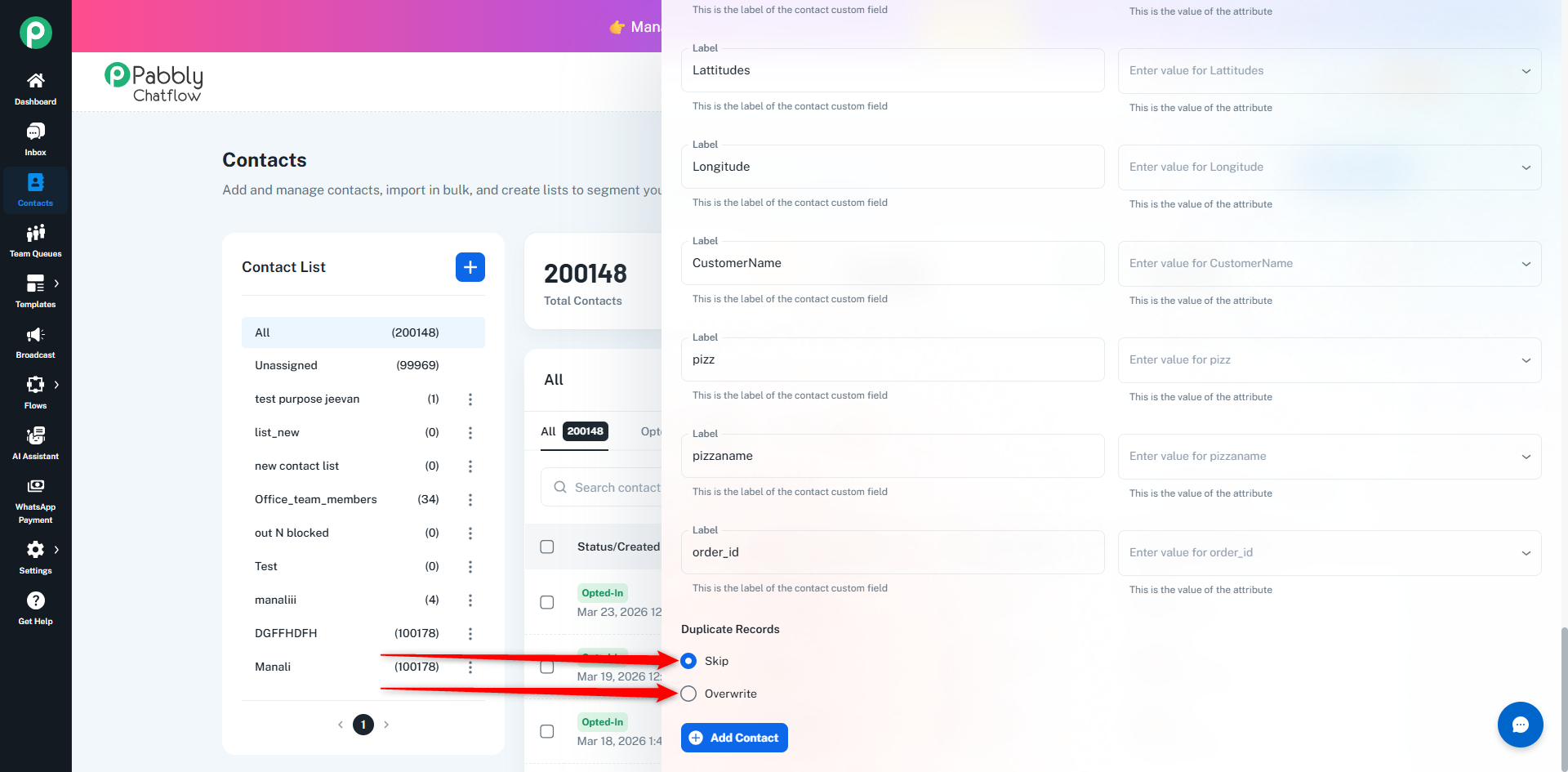
Click Add Contact to complete the bulk upload process.
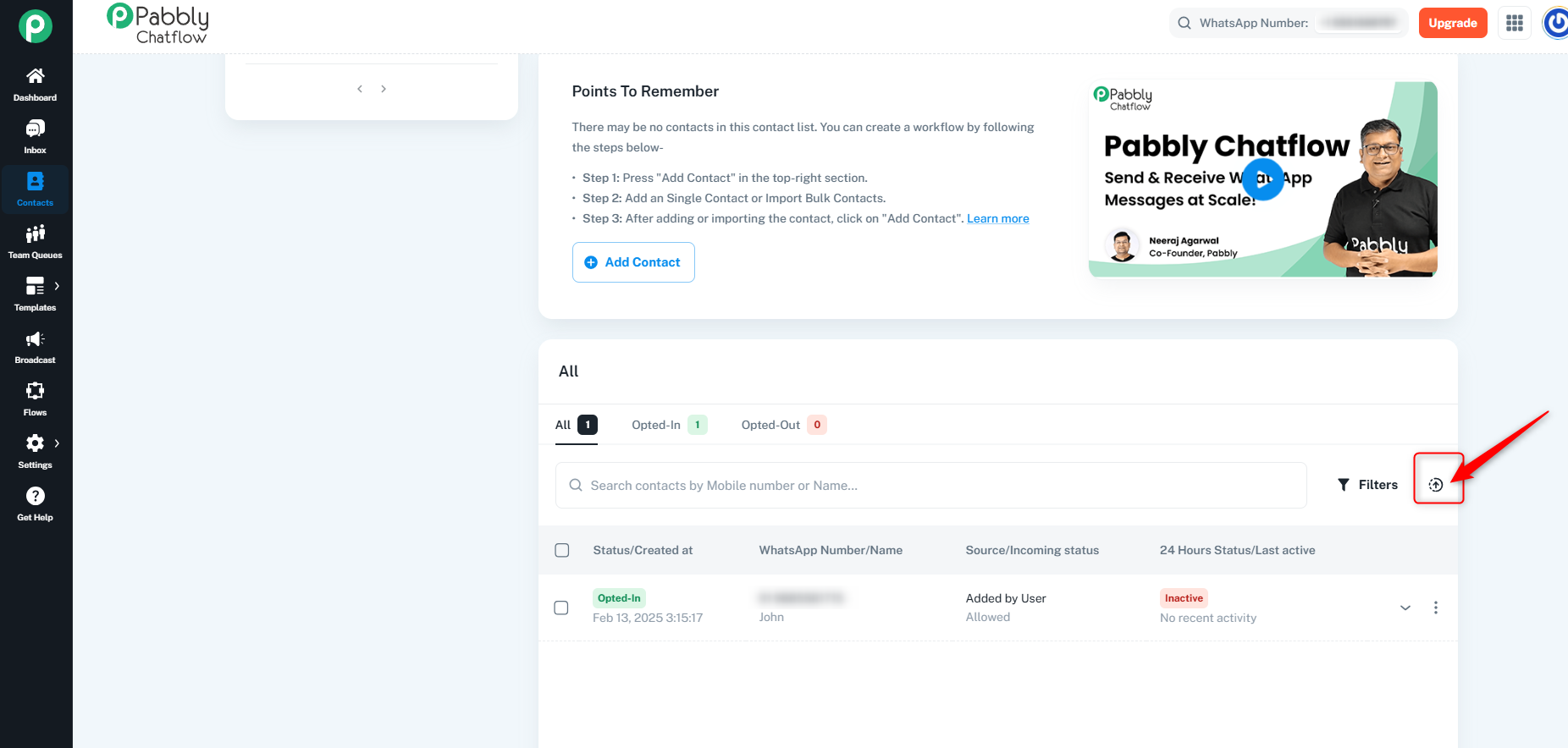
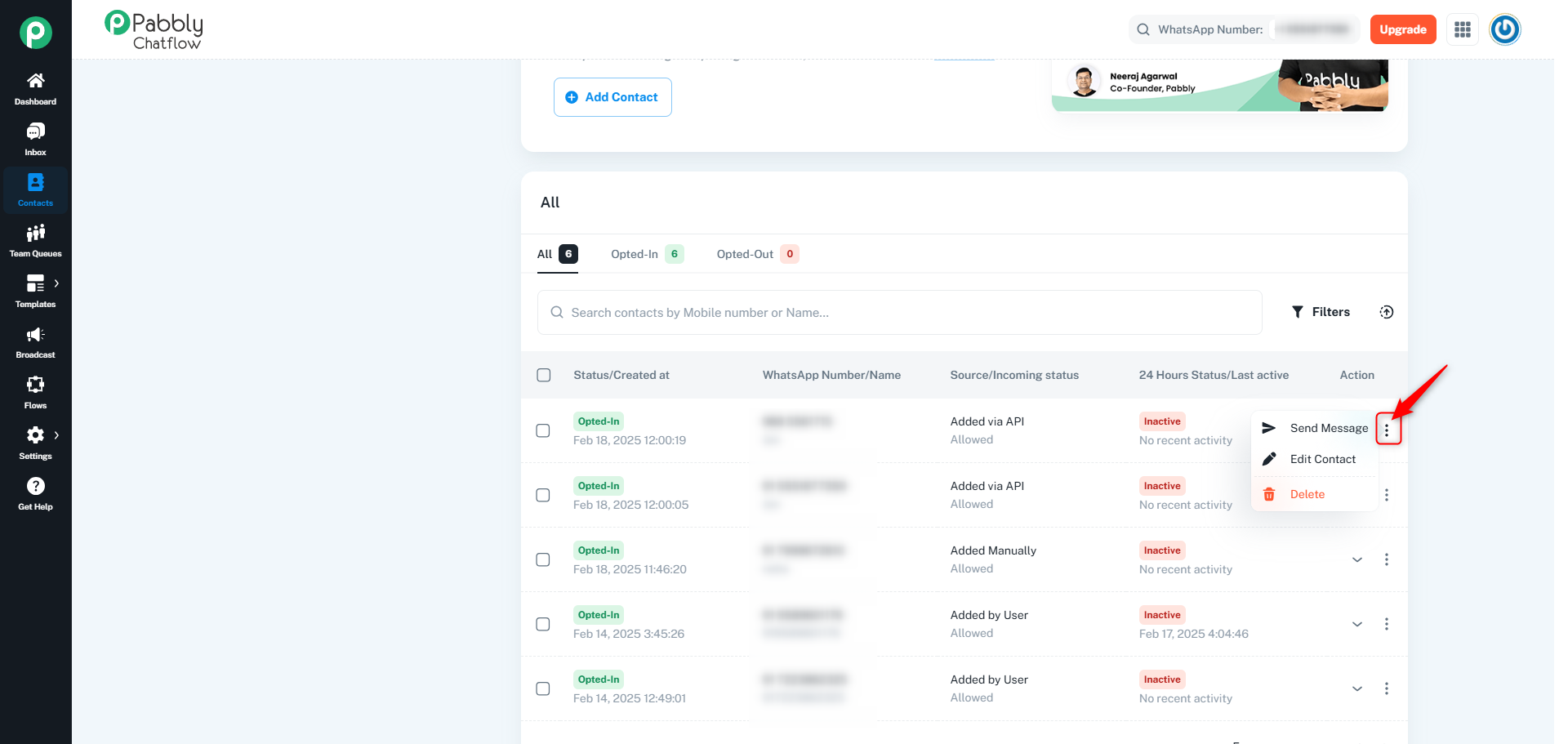
Once the contacts are added, they will appear in the contact table.
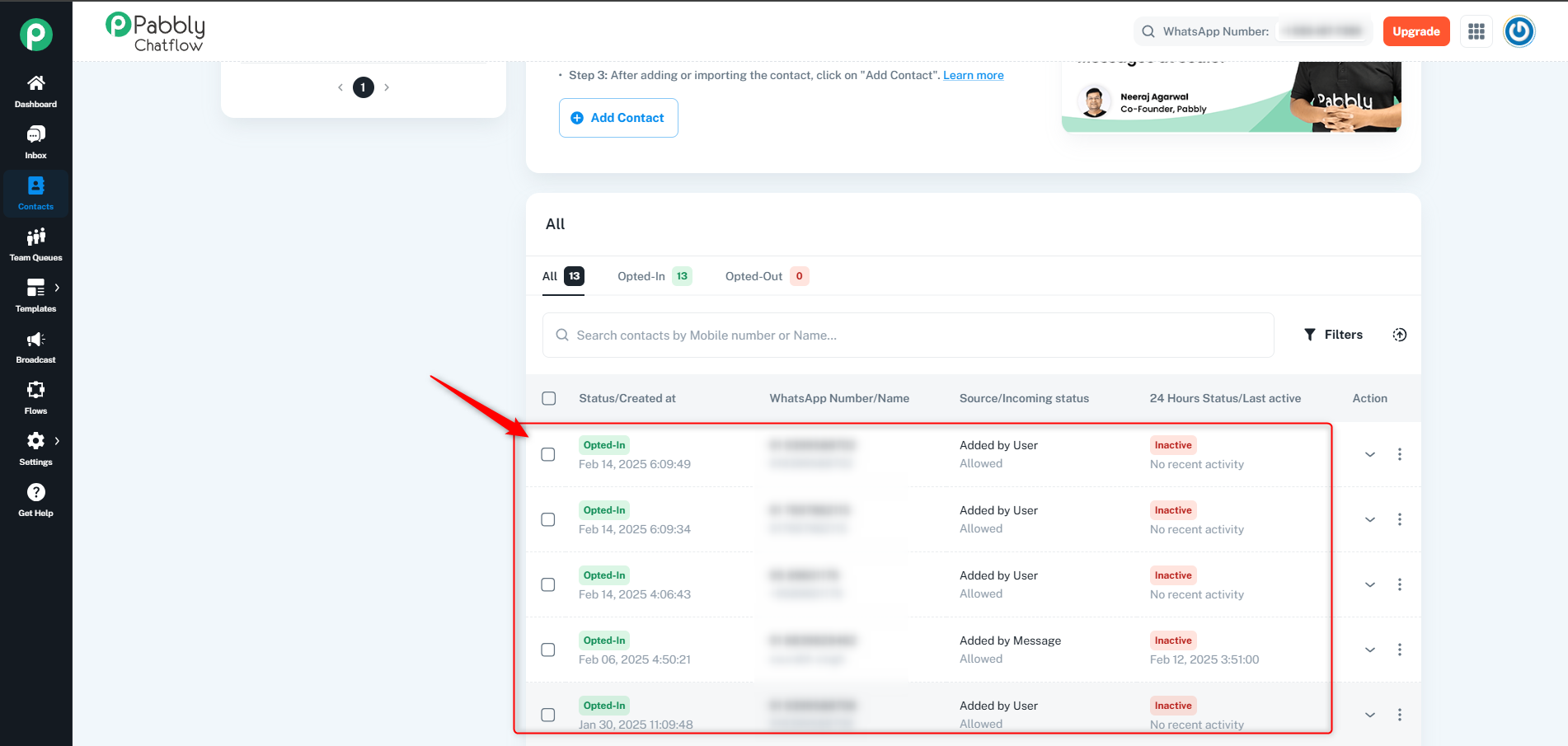
You can edit, delete, or send a message to a contact using the Send Message option available in the three-dot menu next to each contact.
You can also export contacts using the CSV option.