What is the Blue Tick?
The Blue Tick is a verification badge that shows your business is officially verified by Meta. It appears next to your business name and makes customers trust you more.
As of July 2024, WhatsApp has changed the Green Tick verification badge to the Blue Tick. The Blue Tick now signifies that your WhatsApp Business account is officially verified by Meta.
Two Ways to Get Verified
Option 1: Free Verification (For Big Businesses)
This is for well-known companies that are often mentioned in news articles.
Option 2: Paid Verification (For All Businesses)
This is a monthly subscription that any business can get. Currently available in India, Colombia, Brazil, and Indonesia.
Option 1: Free Verification:
- Ensure Eligibility
Before applying, confirm that your business meets the following criteria:
- Legal Entity: Your business must be a legally registered entity.
- Active Online Presence: Maintain an active website and social media profiles.
- Compliance: Follow WhatsApp's Business Messaging Policies.
- Messaging Activity: Engage with a significant number of unique users daily (preferably over 1,000) using business-initiated messages.
To initiate the verification process:
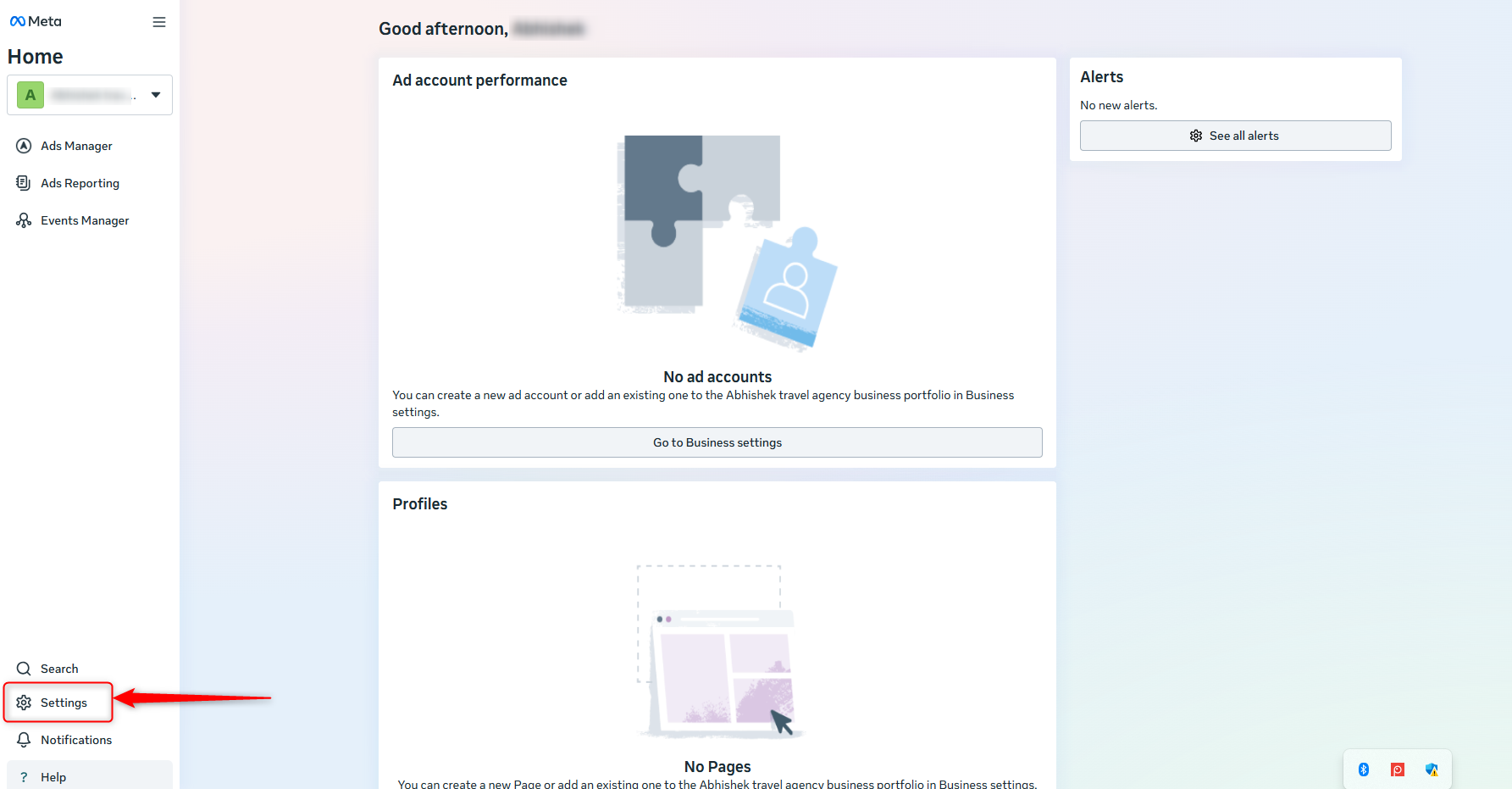
- Log in to Meta Business Manager.
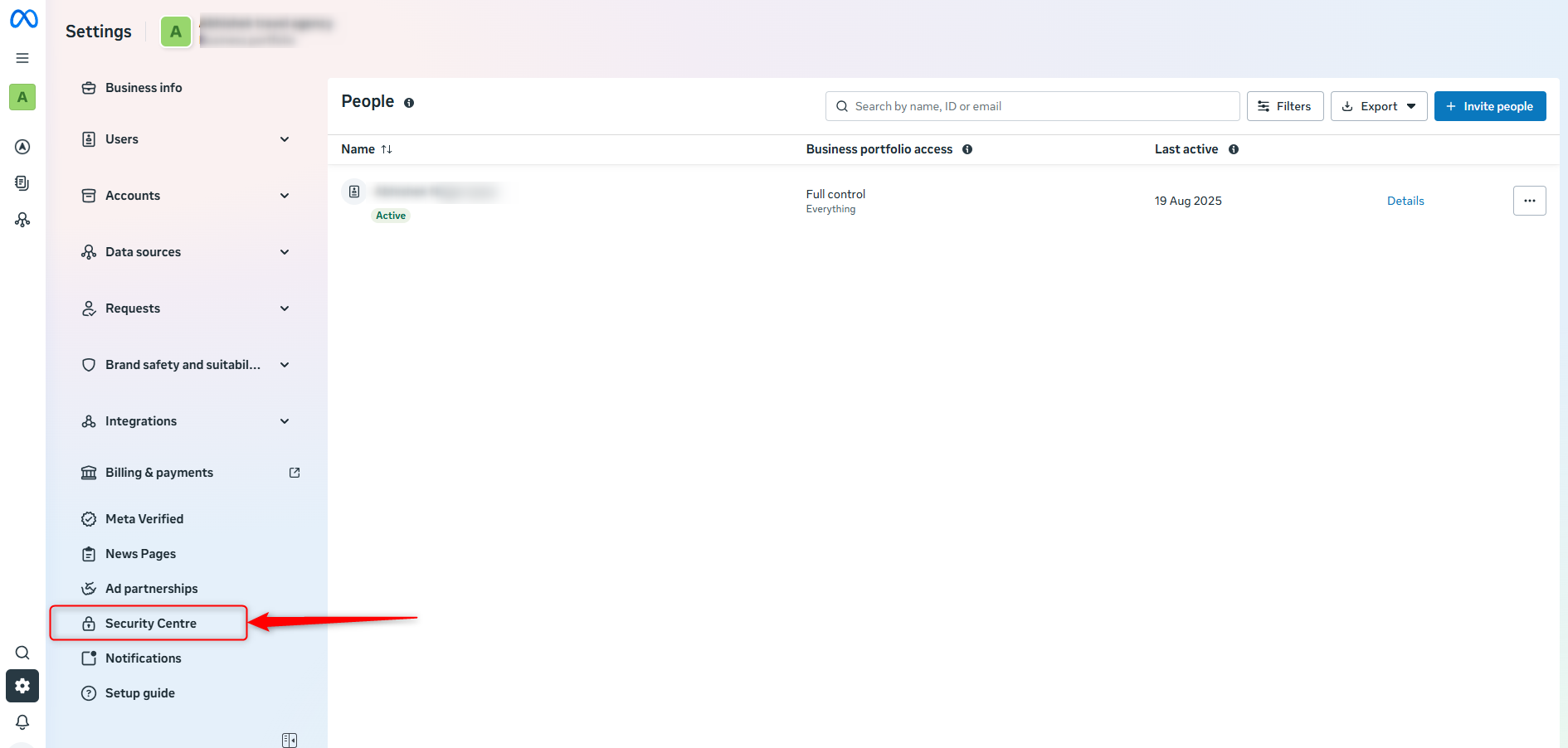
- Navigate to Settings > Security Center.
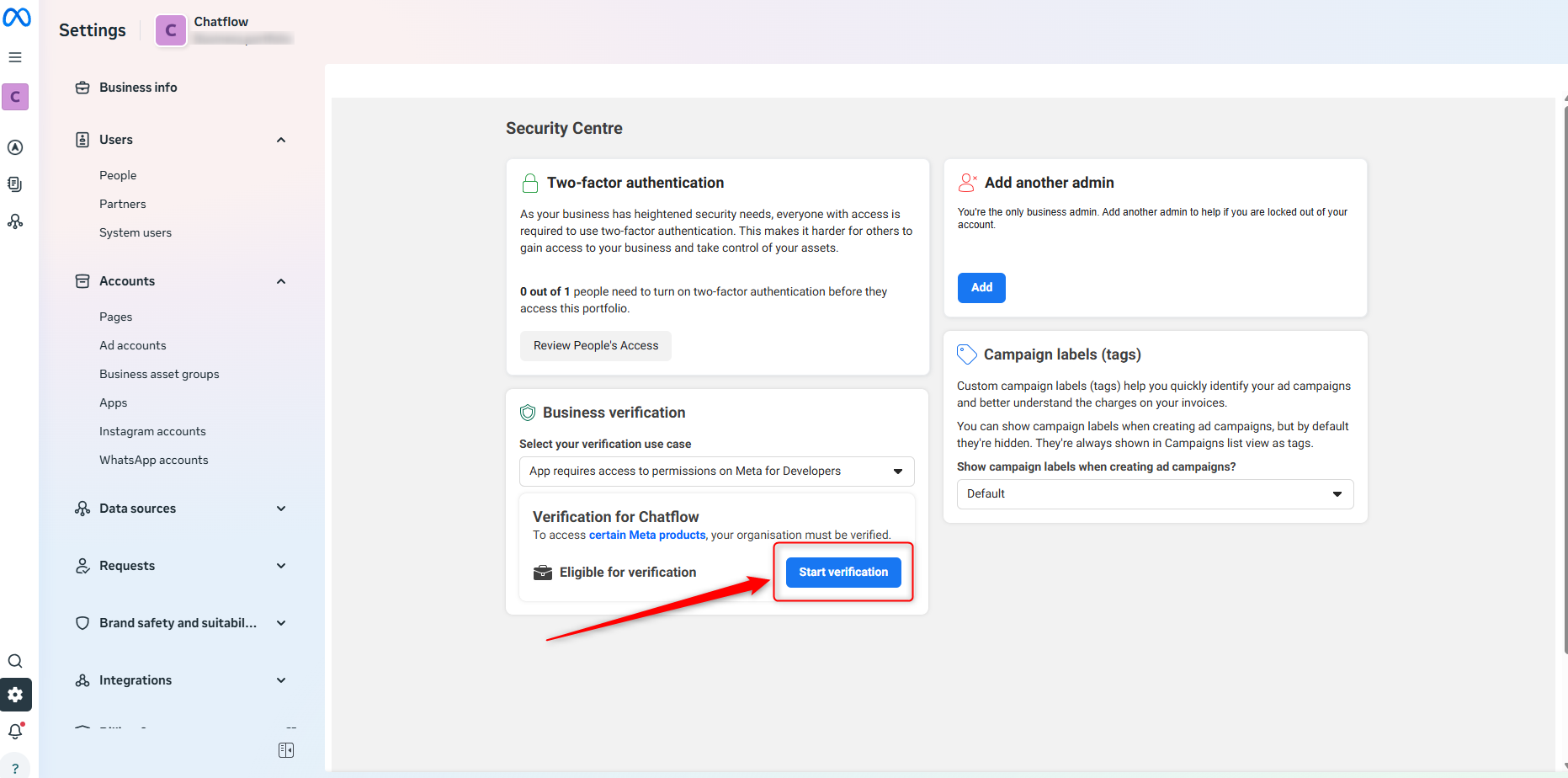
- Click on Start Verification.
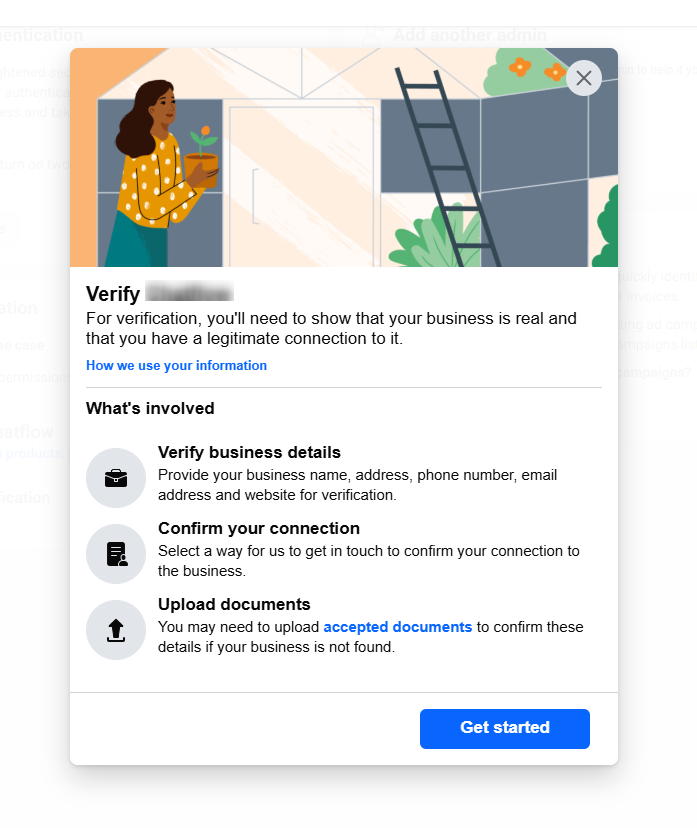
- Provide the required information:
- Legal Business Name
- Business Address
- Phone Number
- Website URL (must be HTTPS)
- Proof of Legal Existence (e.g., business license, incorporation certificate)
- Submit Verification Request
After filling in the necessary details, submit your verification request. Meta will review your business information to verify your eligibility.
Note: Ensure the business details you provide match the information in your official documents to avoid discrepancies.
3. Enable Two-Step Verification
Enhance the security of your account by enabling two-step verification:
- Go to your WhatsApp Business Account settings.
- Select Two-Step Verification.
- Set up a six-digit PIN and provide a recovery email address.
This step is mandatory for the verification process.
4. Submit Application for the Blue Tick
Once your business is verified and two-step verification is enabled, follow these steps:
- Access WhatsApp Accounts in Meta Business Manager:
- Go to Business Settings > WhatsApp Accounts in Meta Business Manager.
- Select the WhatsApp Account You Wish to Verify:
- From the list of WhatsApp Accounts, select the one you want to verify.
- Submit the Blue Tick Application:
- After selecting the account, click on Settings > Profile.
- Fill in the required business details (if not already filled) and click Submit Request.
- Provide Supporting Documents:
- During the application process, you will be prompted to provide 3–5 reputable media articles that mention your business. These articles should come from well-known publications (e.g., India Today, Reuters, Business Insider).
- Note: Meta does not accept paid or promotional content (e.g., sponsored posts or advertisements) as valid sources for review.
- Additionally, ensure that your business name and display name are consistent across all platforms (e.g., your website, social media profiles, and WhatsApp Business Account). This consistency helps to avoid discrepancies and strengthens your application.
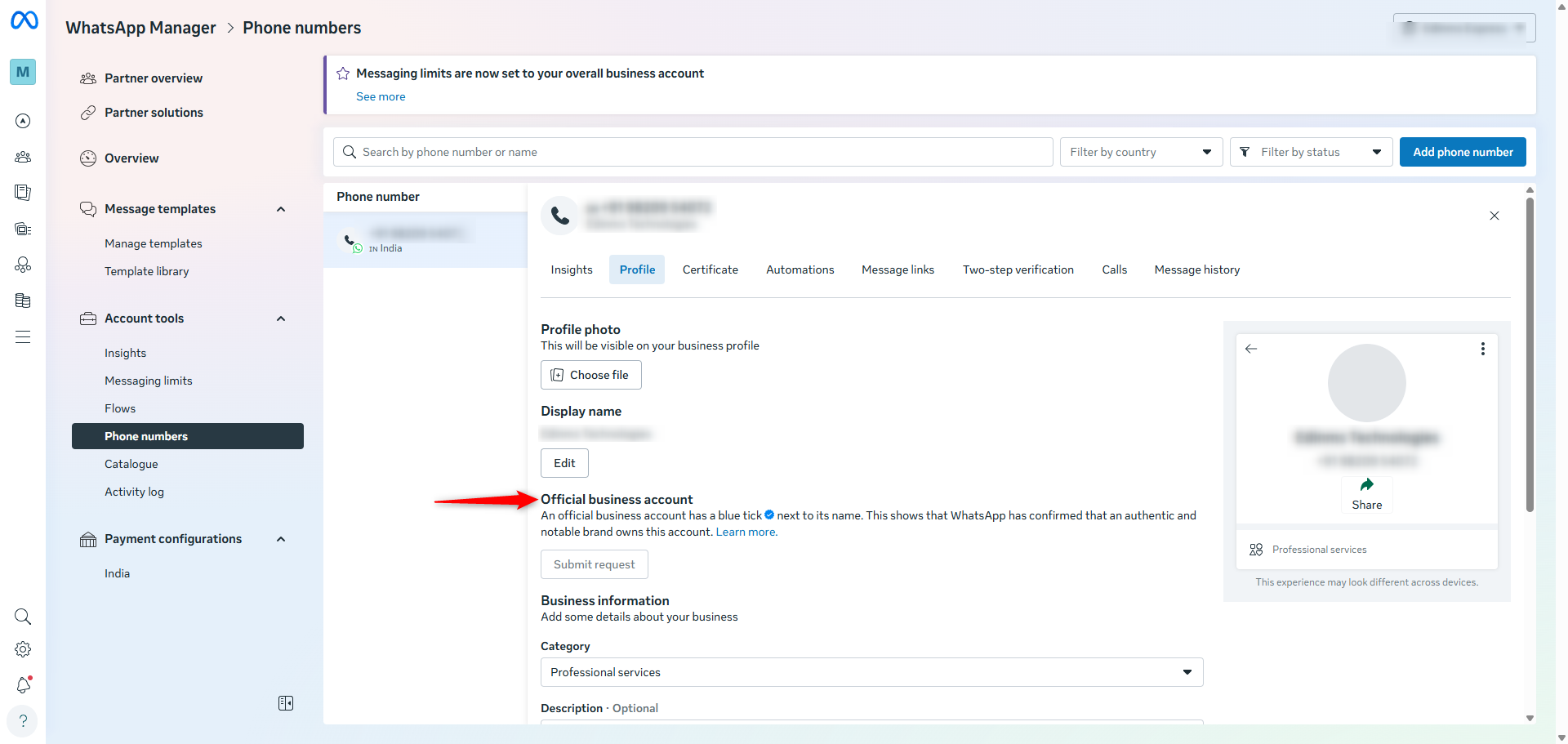
Meta will review your application, and the process can take several days.
An official business account has a blue tick next to its name. This shows that WhatsApp has confirmed that an authentic and notable brand owns this account. For more information, refer to Meta’s official documentation.
6. Await Approval
After submission:
- Monitor the status of your application in Meta Business Manager.
- If approved, the Blue Tick will appear next to your business name in WhatsApp.
If your application is denied, you can reapply after 30 days. During this period, focus on enhancing your online presence and messaging activity.
Eligibility Criteria
- Must be at least 18 years old
- Business profile must have a name and picture
- Located in supported countries (India, Colombia, Brazil, Indonesia)
- Active on WhatsApp Business for a specific number of days
- No active WhatsApp Business Premium subscription
- No existing Meta Verified subscription through Meta Business Suite
Subscription Plans (India Pricing)
Meta Verified subscription plans range from ₹639 to ₹21,000 per month:
Basic Plan: ₹639/month
- Verified badge
- Impersonation protection
- Customer support
- One verified channel
- Custom web page
- Four linked devices
Business Plan: ₹1,399/month
- All Basic features
- Three verified channels
- Up to six linked devices
Comprehensive Plan: ₹21,000/month
- All previous features
- Enhanced account support
- Additional discovery tools
- Case monitoring
- Enhanced visibility tools
Via WhatsApp Business App:
- Open your WhatsApp Business App
- Go to Settings > Tools
- Tap Meta Verified
- Choose your verification plan
- Select the WhatsApp account to verify
- Choose payment method and complete payment
- Follow verification prompts
- Submit required details
Review Time: Typically takes up to 3 business days, though it may take longer during high submission volumes
Why Get Verified?
✅ Customers trust you more
✅ Your business name shows in chats
✅ Higher message open rates
✅ Protection from fake accounts
✅ Stand out from competitors
Common Mistakes to Avoid
❌ Using paid/sponsored articles (Only organic news coverage counts)
❌ Different business names on different platforms
❌ Incomplete business verification
❌ Not following WhatsApp policies
❌ Fake or low-quality documents
If You Get Rejected
- Read the rejection reason carefully
- Fix the problems mentioned
- Get more news coverage (for free verification)
- Wait 30 days before applying again
- Make sure everything matches across platforms
Quick Tips for Success
💡 For Free Verification: Focus on getting real news coverage about your business
💡 Keep business name identical everywhere (website, social media, WhatsApp)
💡 Follow all WhatsApp business rules
💡 Use official business documents
💡 Be patient - good applications take time
Need Help?
For more detailed information, refer to the official Meta documentation: WhatsApp Business Accounts Overview.
