Adding a WhatsApp number in Pabbly Chatflow is straightforward and fast. Follow these steps for a smooth and efficient setup:
Step 1: Log in to Your Pabbly Chatflow Account
- Open your web browser and go to Pabbly Chatflow.
- Enter your login credentials and click Sign In.
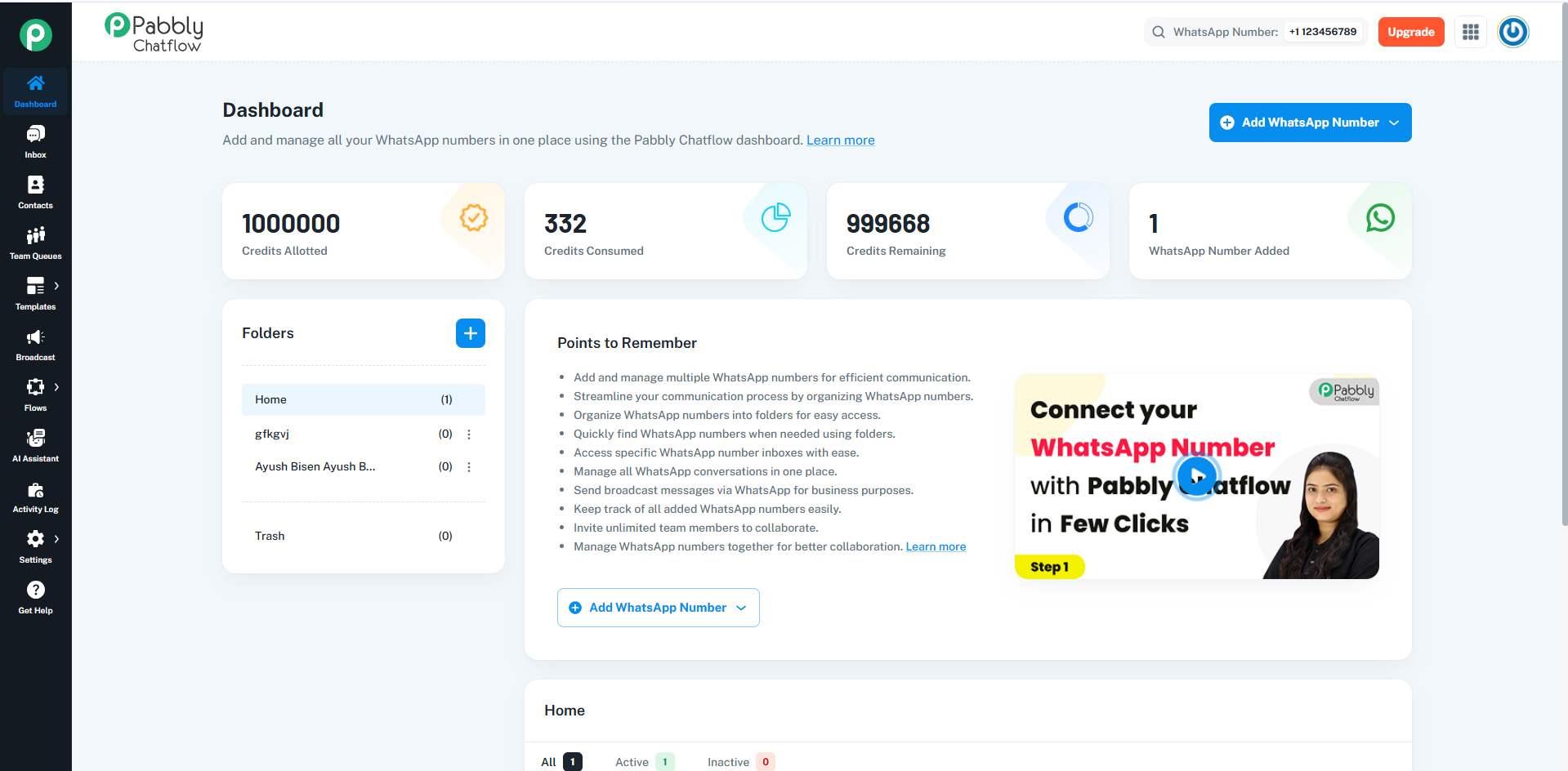
- Once logged in, you will be redirected to the Dashboard.
Refer to the image below for reference:
📌 (Attach Image: Dashboard View)
Step 2: Locate and Click "Add WhatsApp Number"
- On the Dashboard, you’ll see an overview of your WhatsApp Message Credits and key metrics.
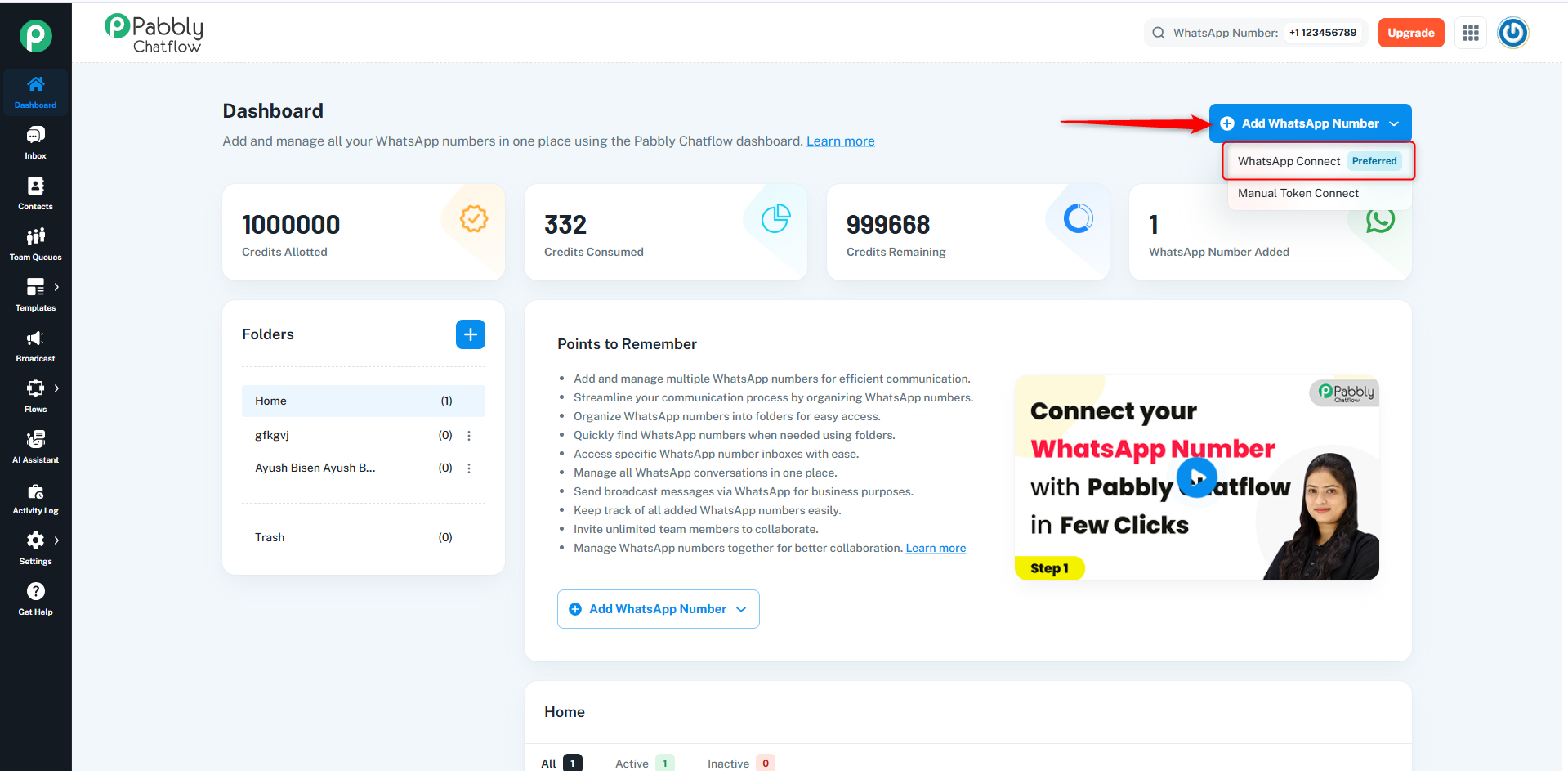
- On the dashboard, locate the Add WhatsApp Number button on the top-right corner.
- Click the dropdown arrow next to the button to open available options.
📌(Attach Image: Highlighted "Add WhatsApp Number" Button)
Step 3: Select WhatsApp Connect Method
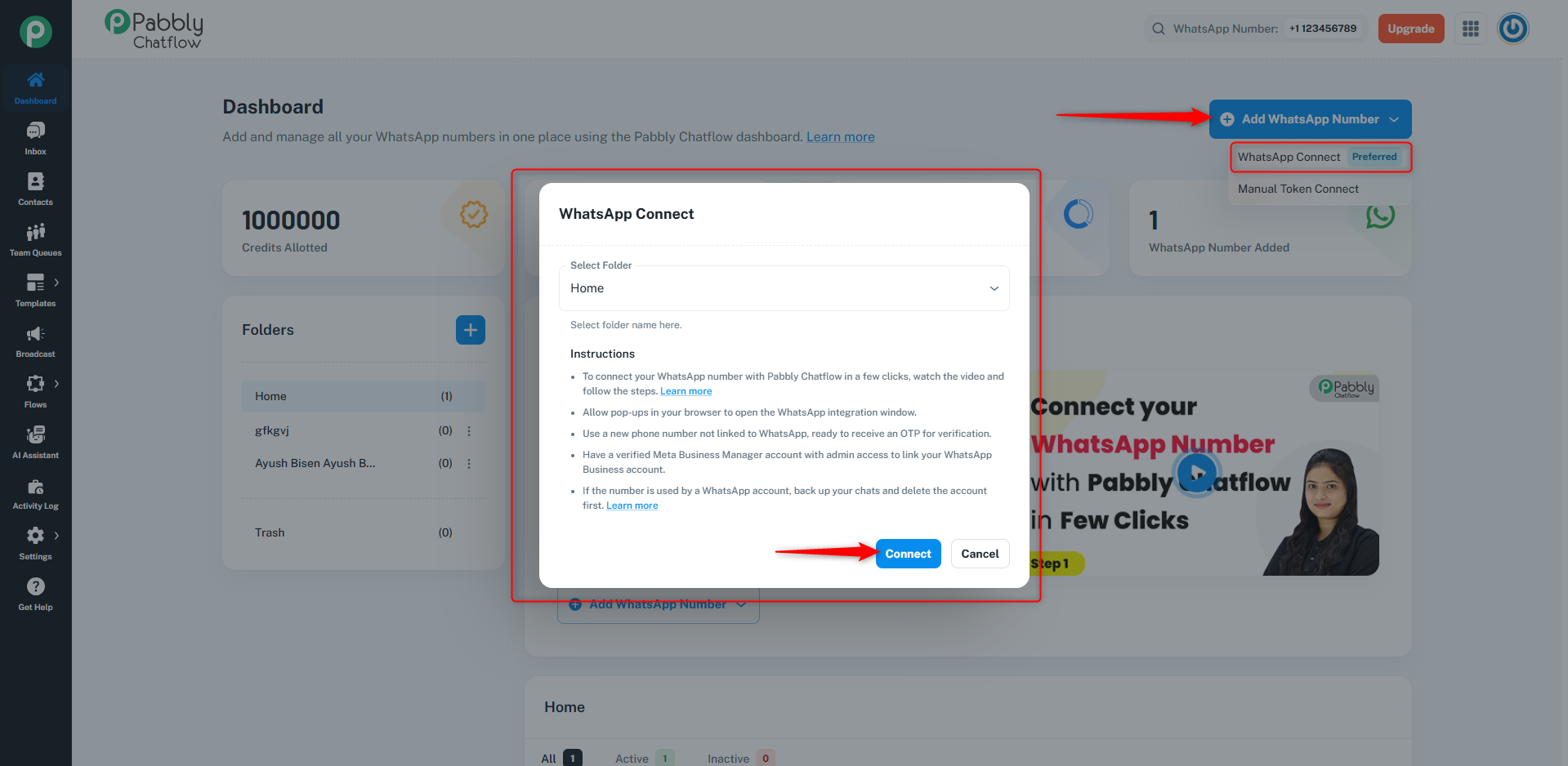
- From the dropdown, click on WhatsApp Connect (Preferred) to start the connection process.
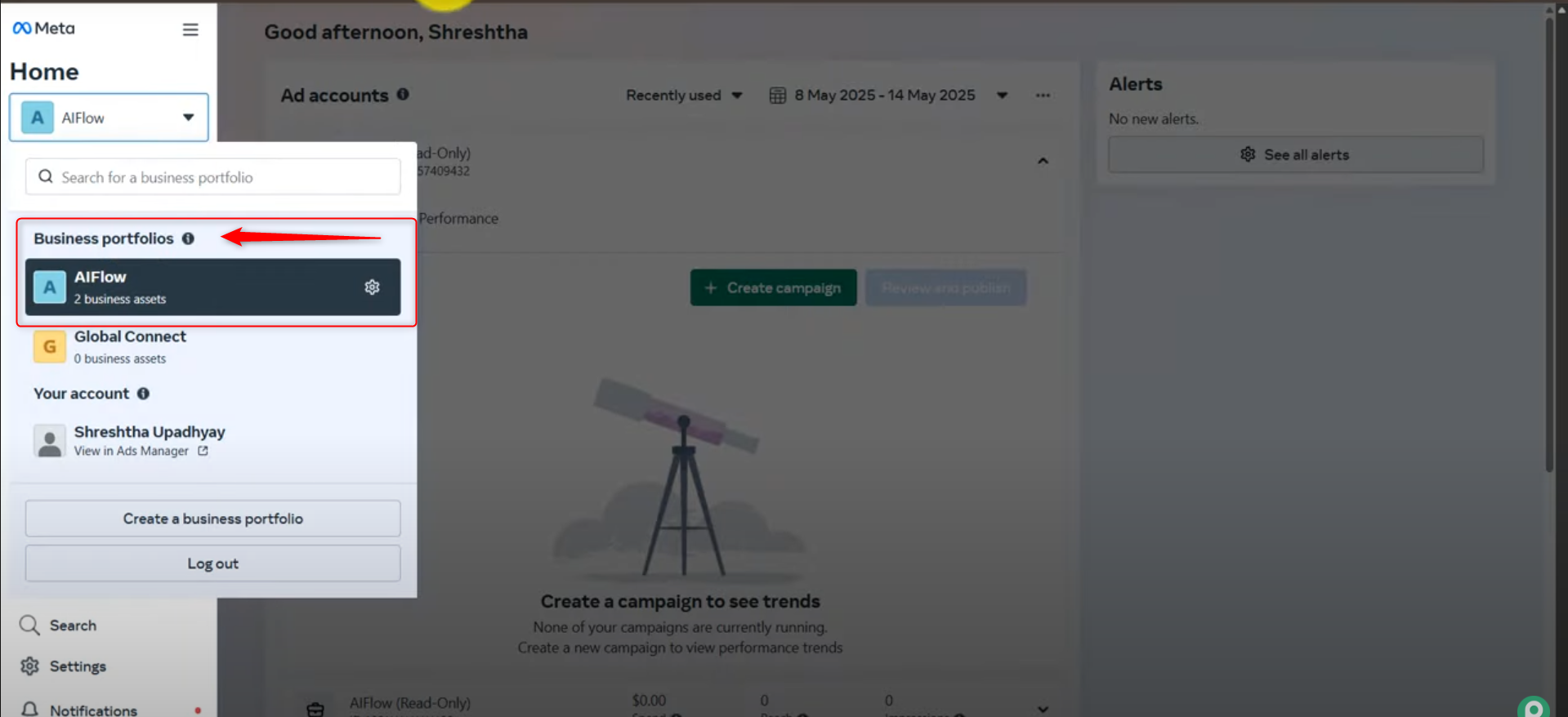
Step 4: Verify Facebook Login and Business Profile
- Before connecting your WhatsApp Business account, make sure:
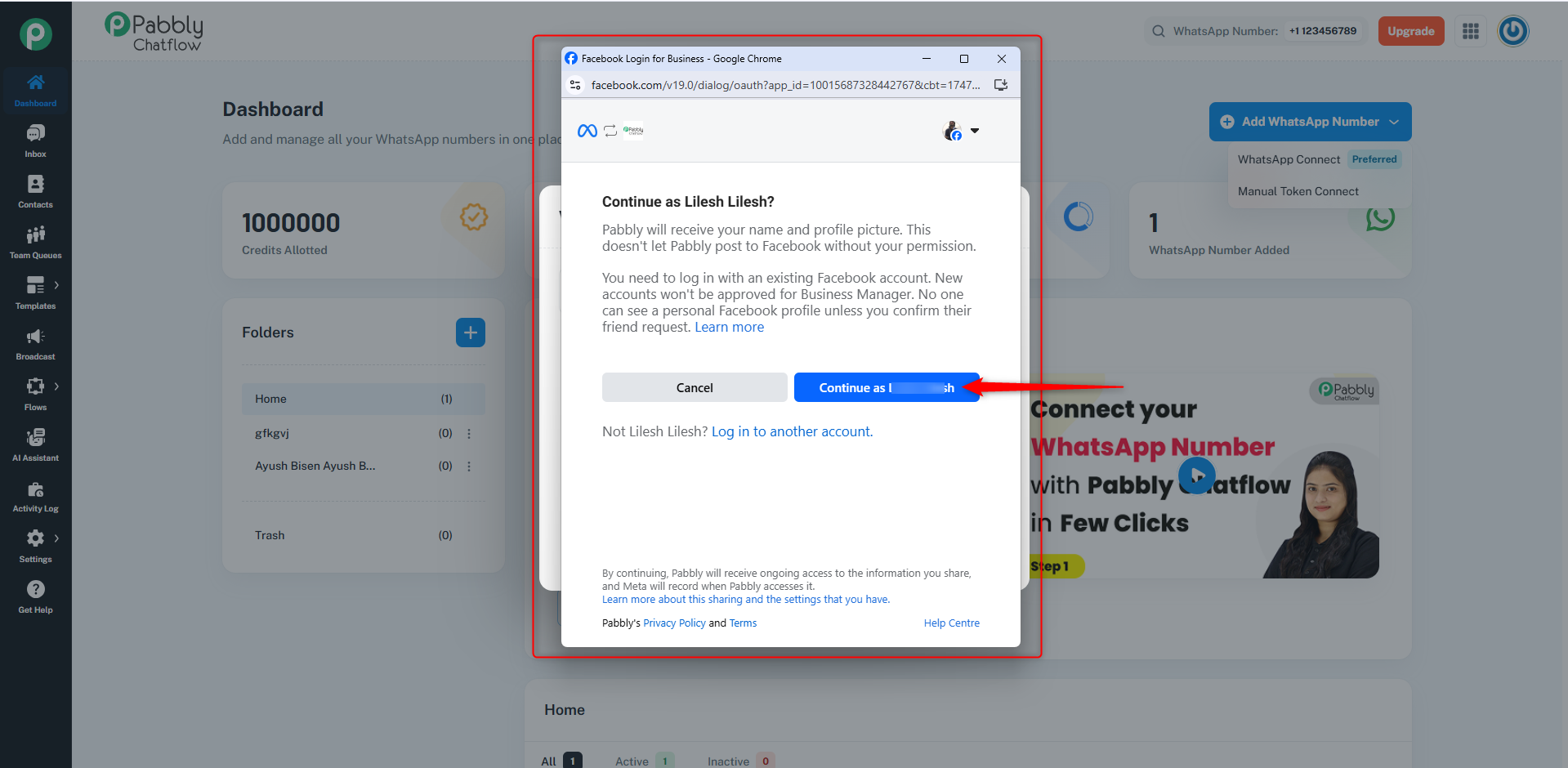
- You are logged into your Facebook account.
- Your Business Profile is created or added in the Meta Business Suite.
Step 5: Click Connect and Continue with Facebook Account
- Click the Connect button.
- Continue with your existing Facebook account by logging in if required.
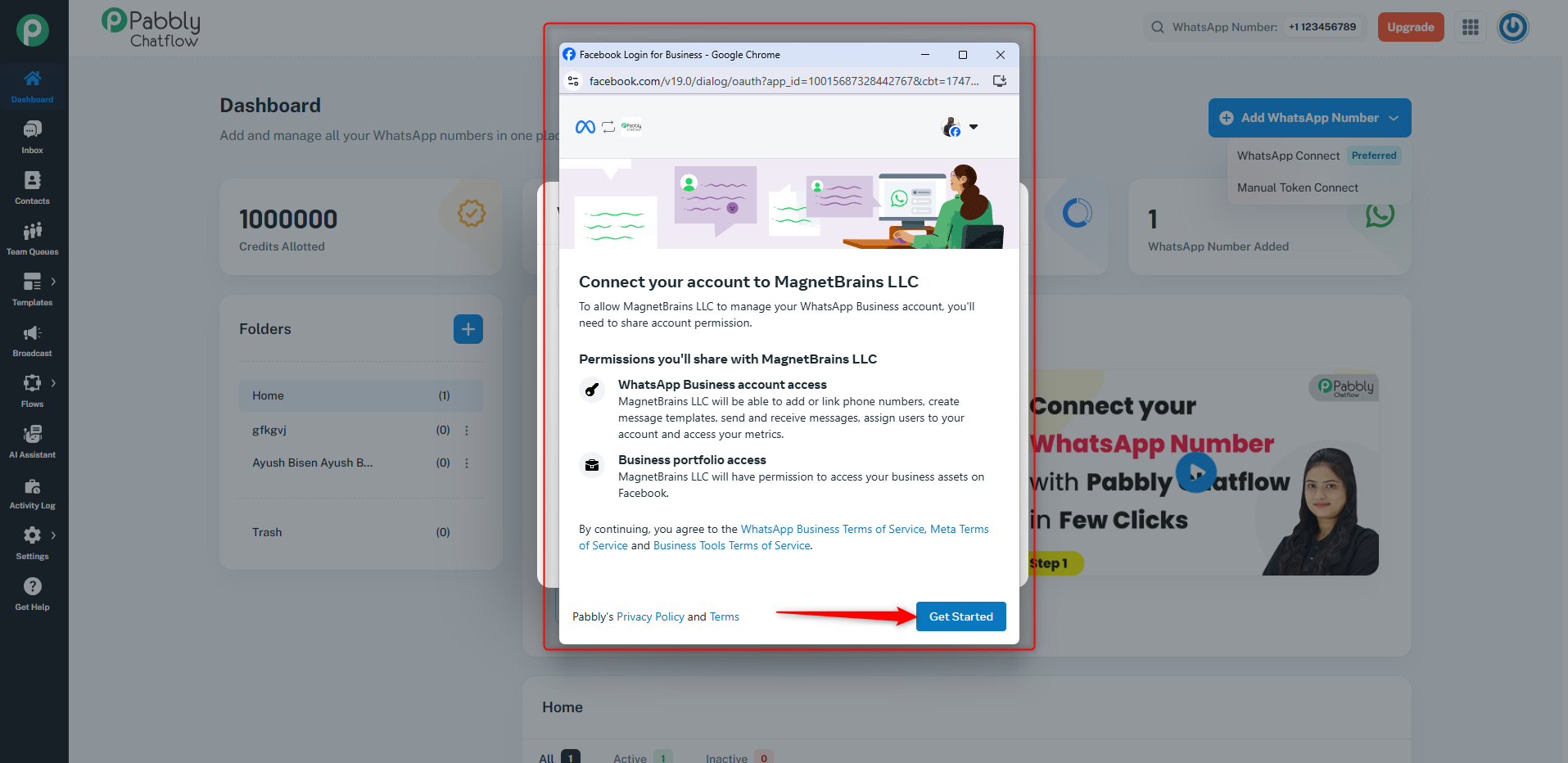
- Click Get Started to connect your account to Meta Business.
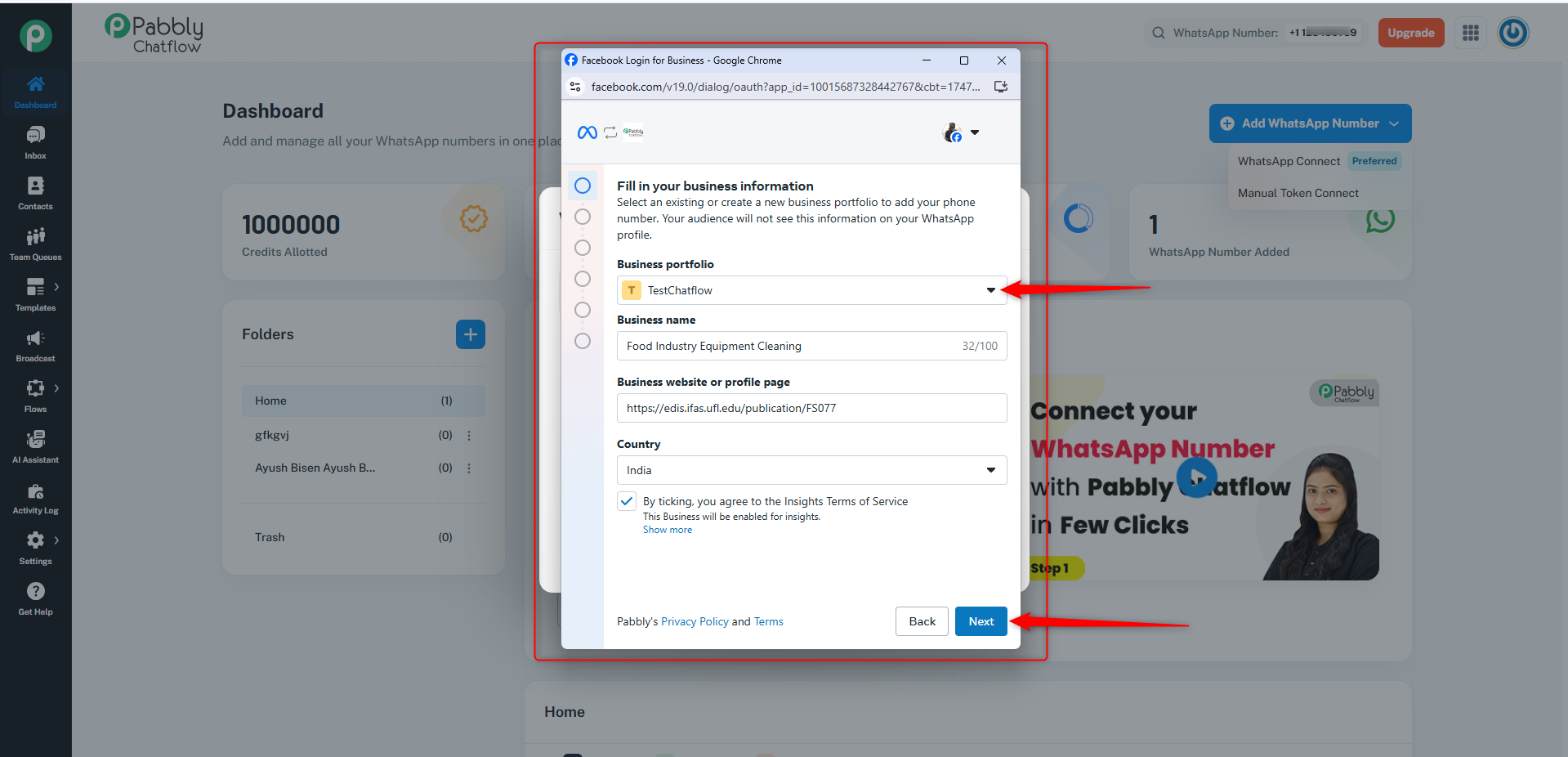
- Enter your business details.
- Select your Business Portfolio.
- Click Next.
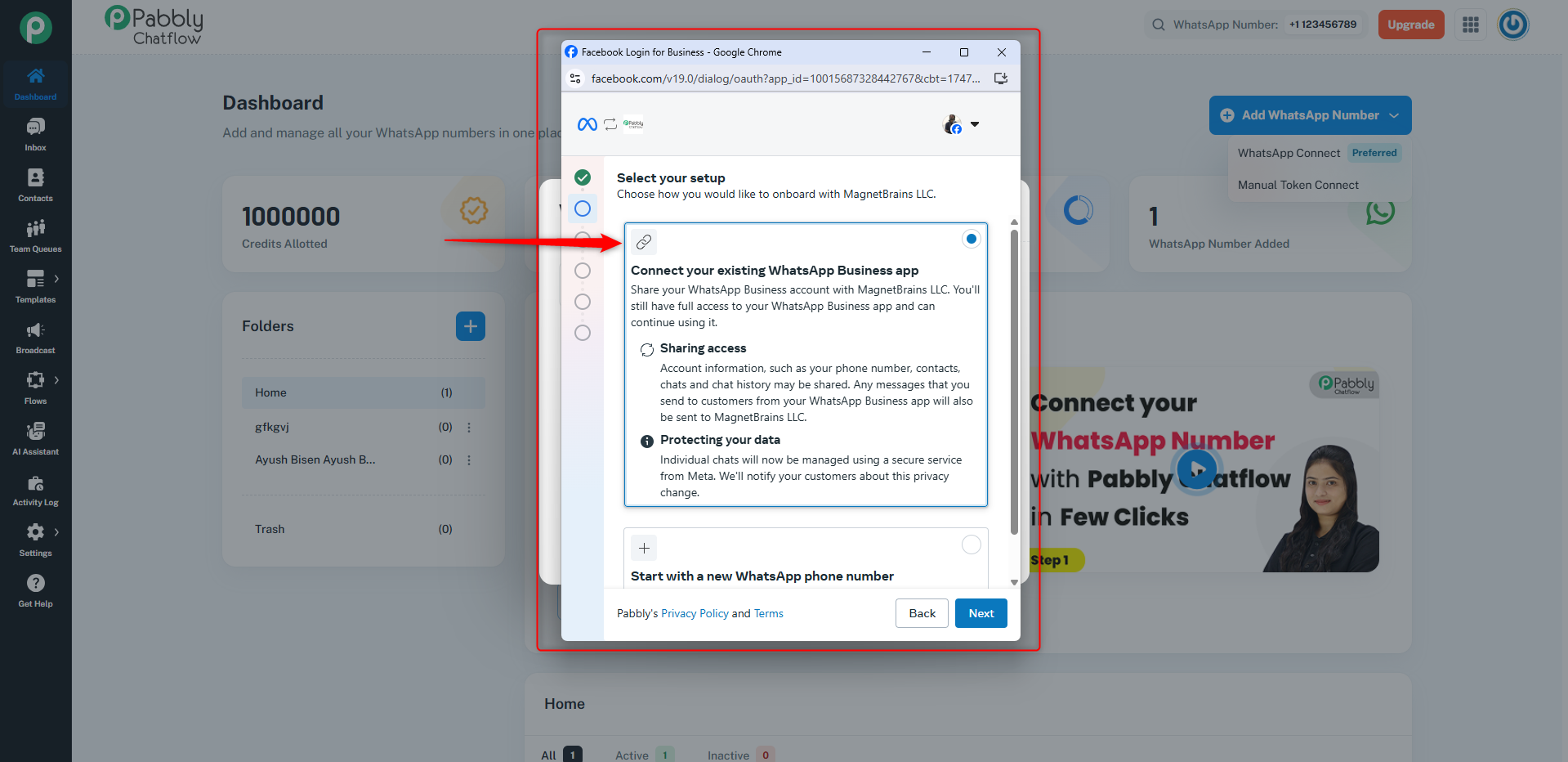
Step 8: Select Setup Option
- Choose Connect your existing WhatsApp Business App.
- Click Next.
Step 9: Enter WhatsApp Business Number
- Enter your WhatsApp Business phone number.
- Click Next.
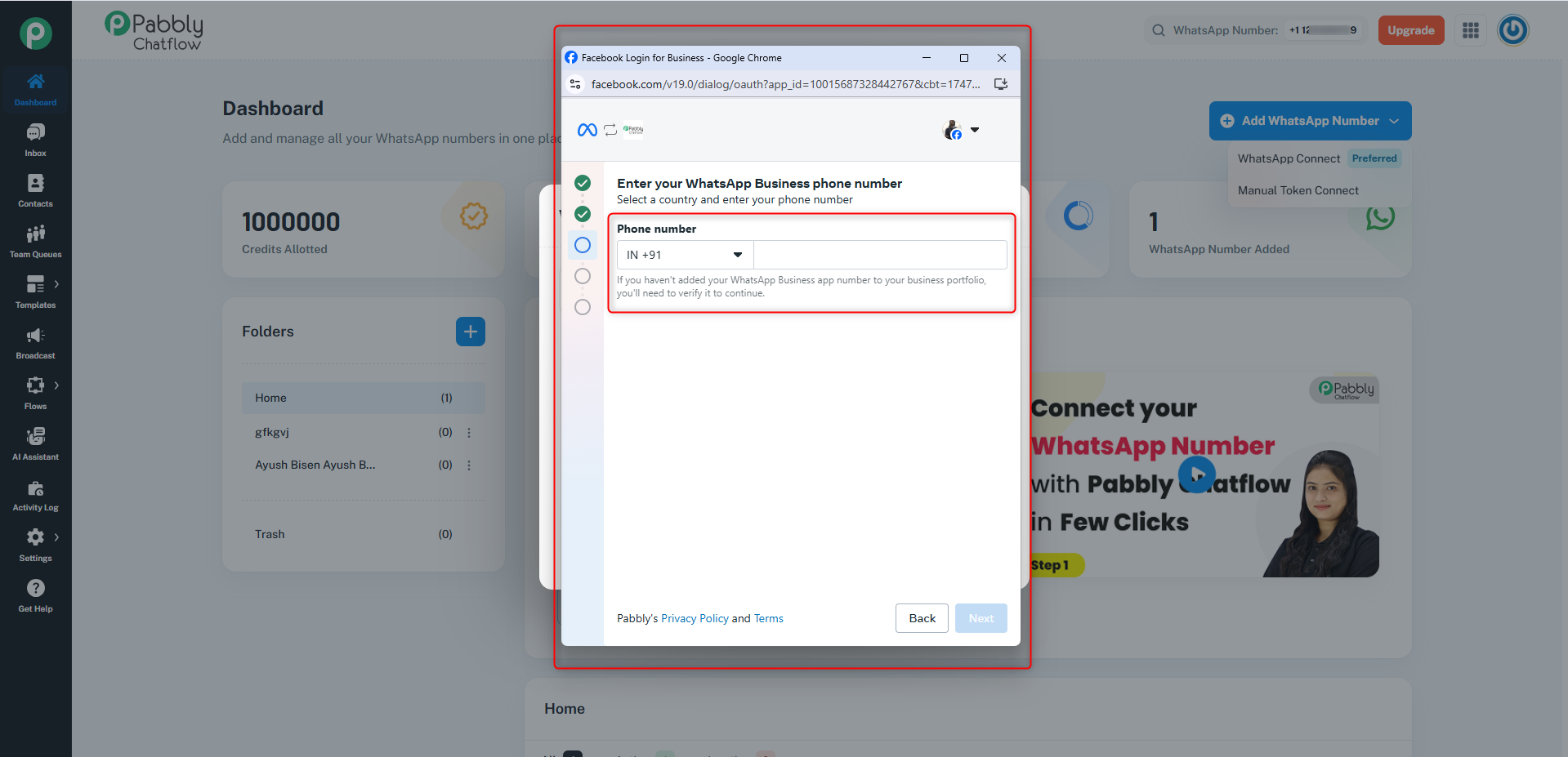
Step 10: Scan QR Code and Authorize in WhatsApp App
- Businesses who choose this option and enter their WhatsApp Business app phone number will see a QR code on screen.
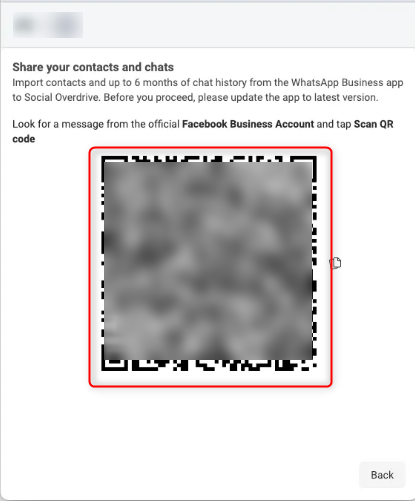
Step 11: WhatsApp Message Instructions and QR Code Scan
- A message is sent to their WhatsApp Business app with instructions.
- In the app:
- Tap the message and choose "Scan QR code".
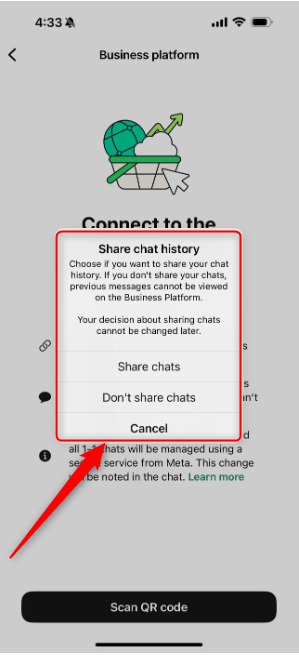
- They’ll be prompted to share their chat history (optional).
- After scanning, they can continue the signup flow.
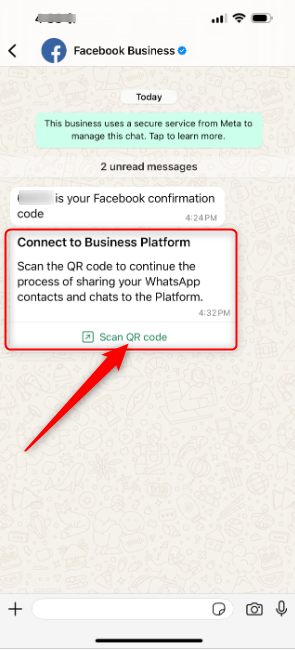
Step 12: Option to Share WhatsApp Business Messaging History
- Tapping the button in the WhatsApp message informs the business that they will be given the option to share their WhatsApp Business app messaging history with you.
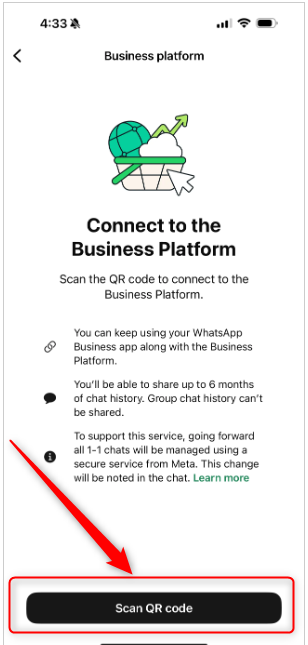
Step 13: Scan QR Code to Share Chat History
- Tapping the Scan QR code button in the WhatsApp app:
- Gives the business the option to share their chat history with you.
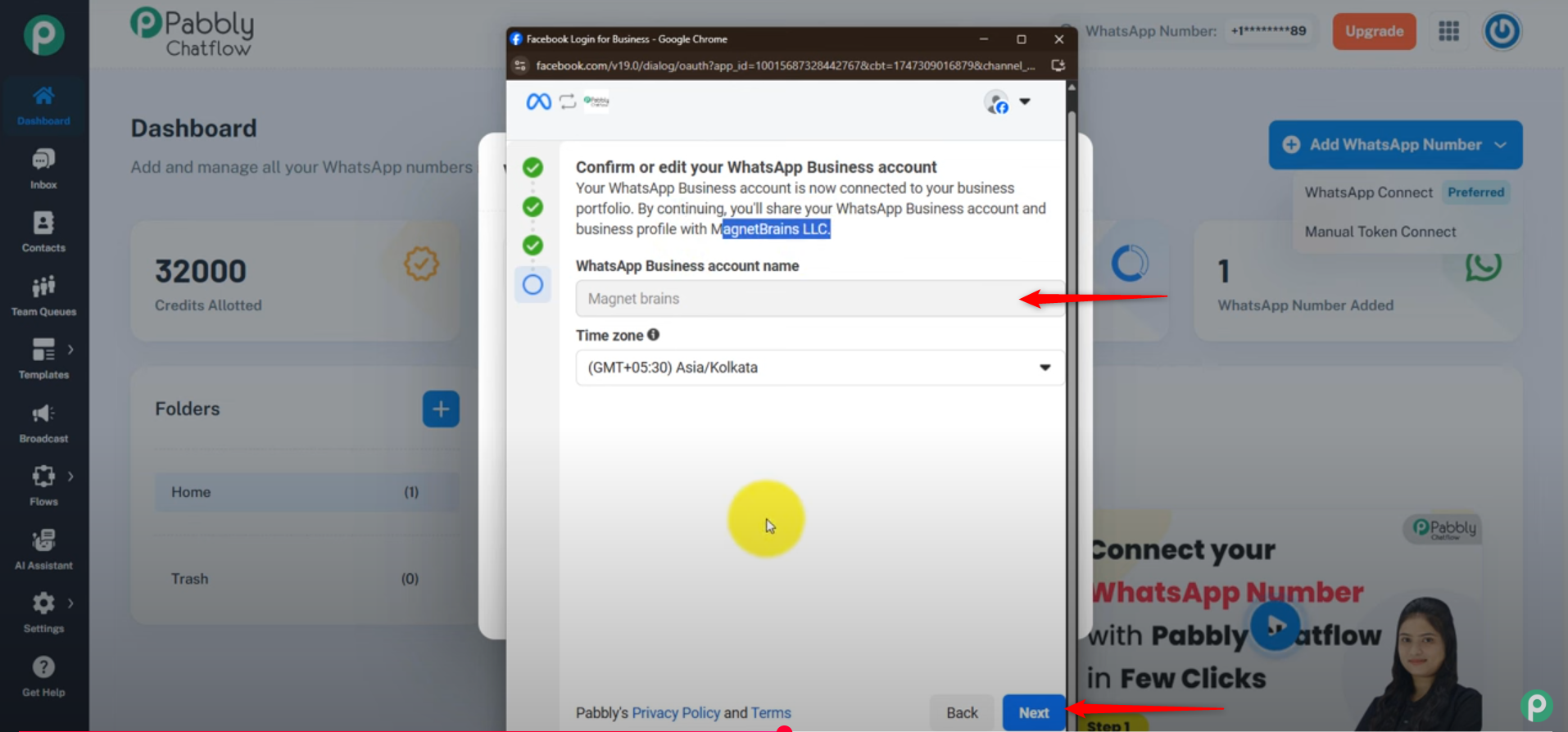
- Review the WhatsApp Business account information.
- Edit if necessary.
- Click Next.
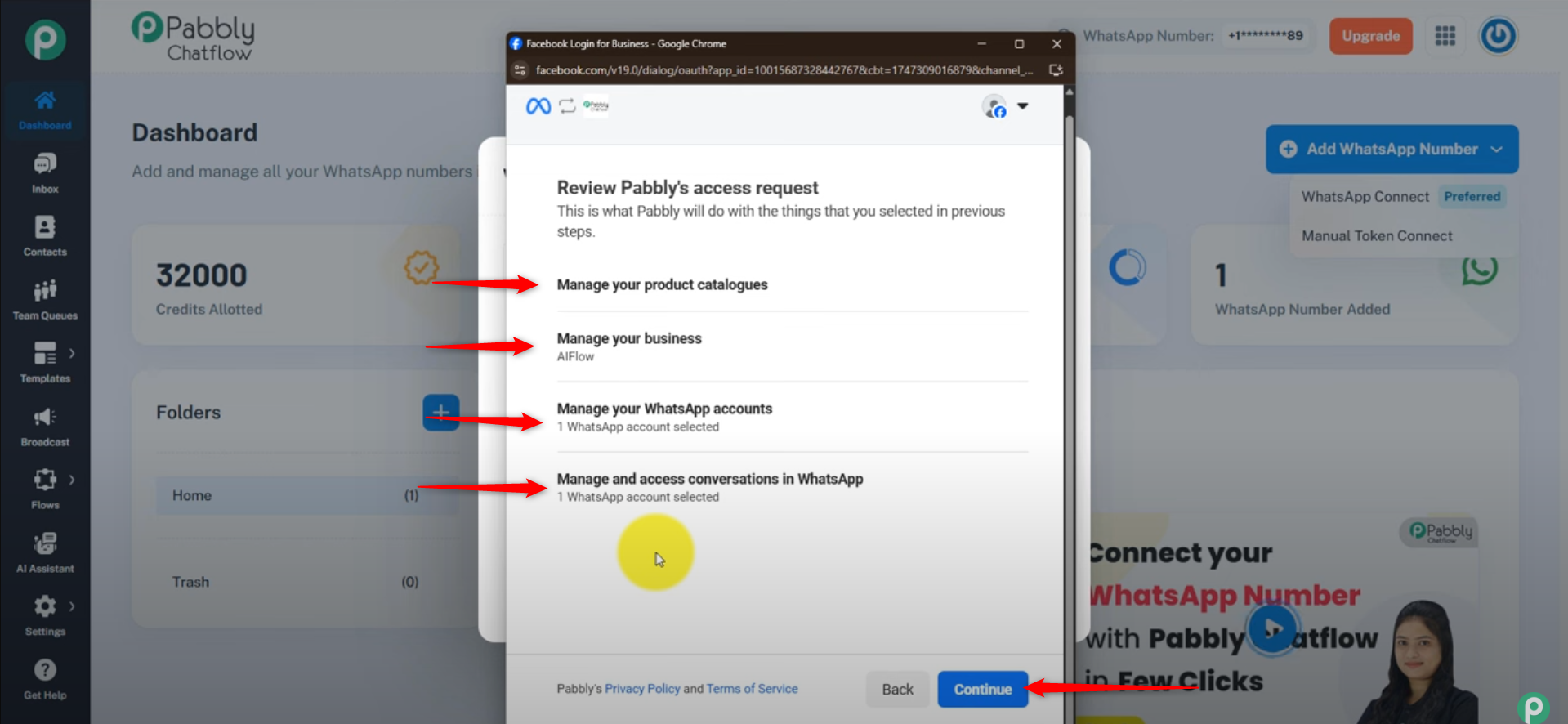
Step 11: Review and Grant Pabbly Access Permissions
- Review the permissions Pabbly Chatflow requests, which you have previously granted, allowing Pabbly to:
- Access and manage your product catalog
- Access and manage your business
- Access and manage your WhatsApp Business account
- Access and manage conversations on WhatsApp
- Click Continue to confirm these permissions.
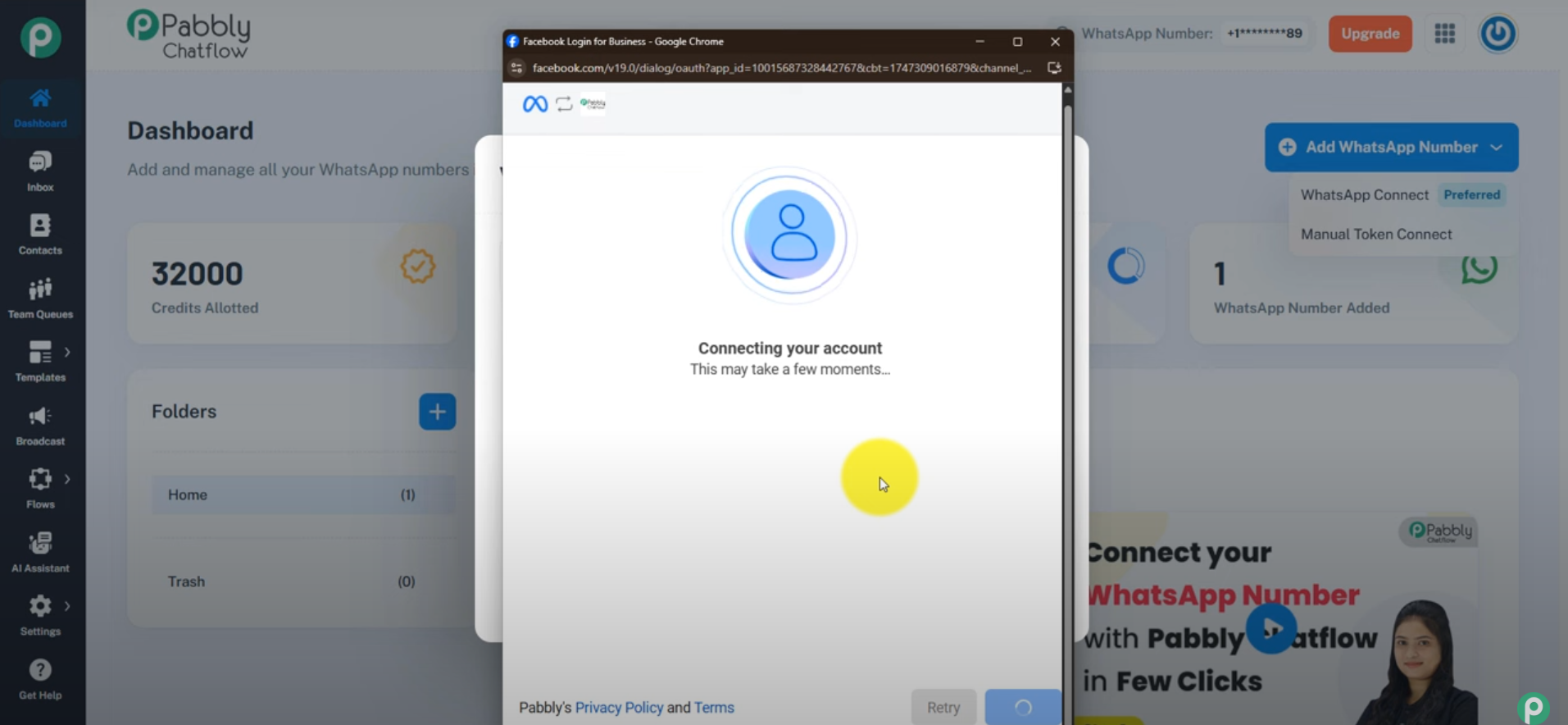
- The connection process may take a few moments.
Step 12: Finish Setup
- After granting permissions, you will see a confirmation screen showing that your account is connected.
- Click the Finish button to complete the setup process.
- Once finished, your WhatsApp Business number will be successfully connected and ready to use in Pabbly Chatflow.
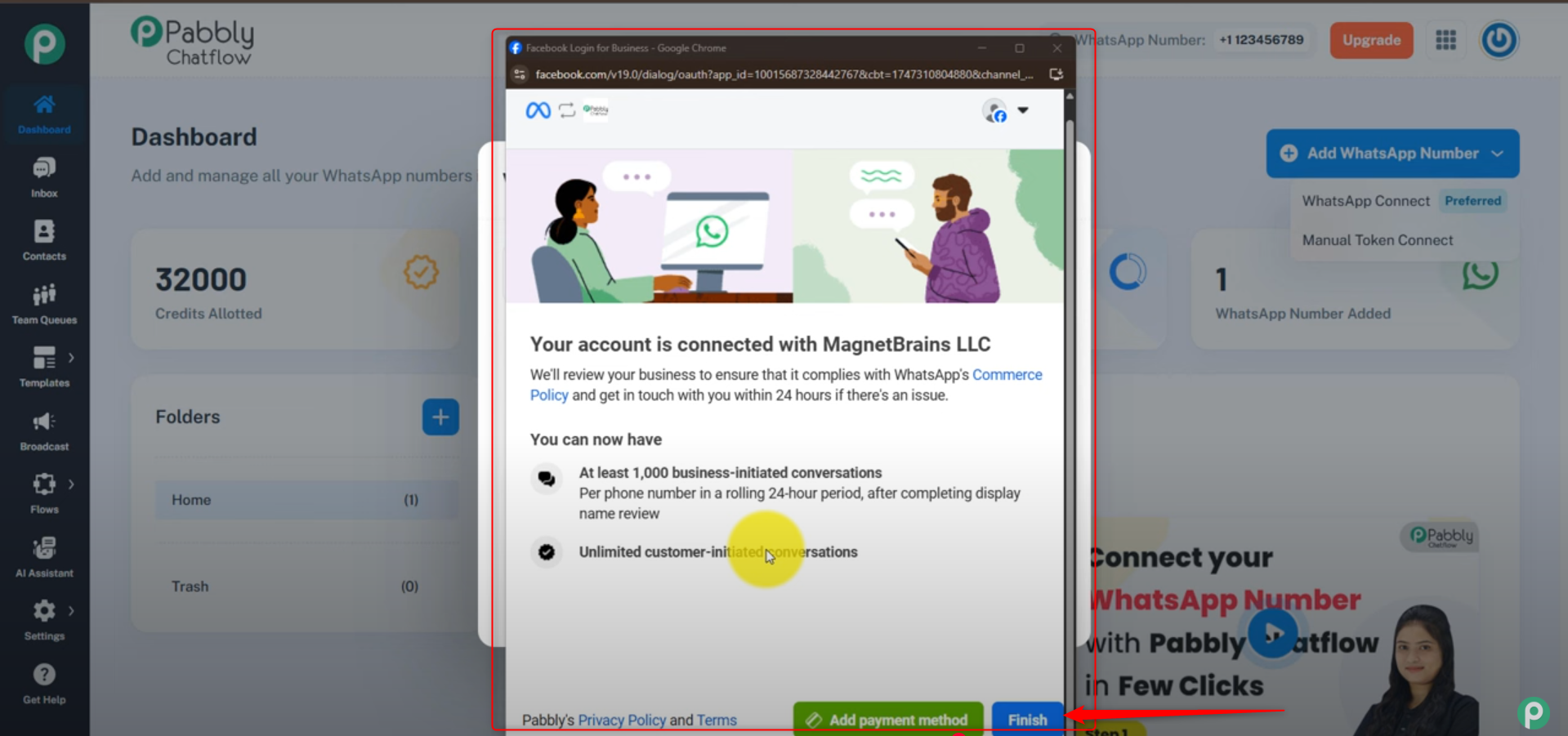
WhatsApp will review your business to ensure compliance with their Commerce Policy and may contact you within 24 hours if there are any issues.
After approval, you can send:
- At least 1,000 business-initiated conversations per phone number in a rolling 24-hour period.
- Unlimited customer-initiated conversations without restriction.
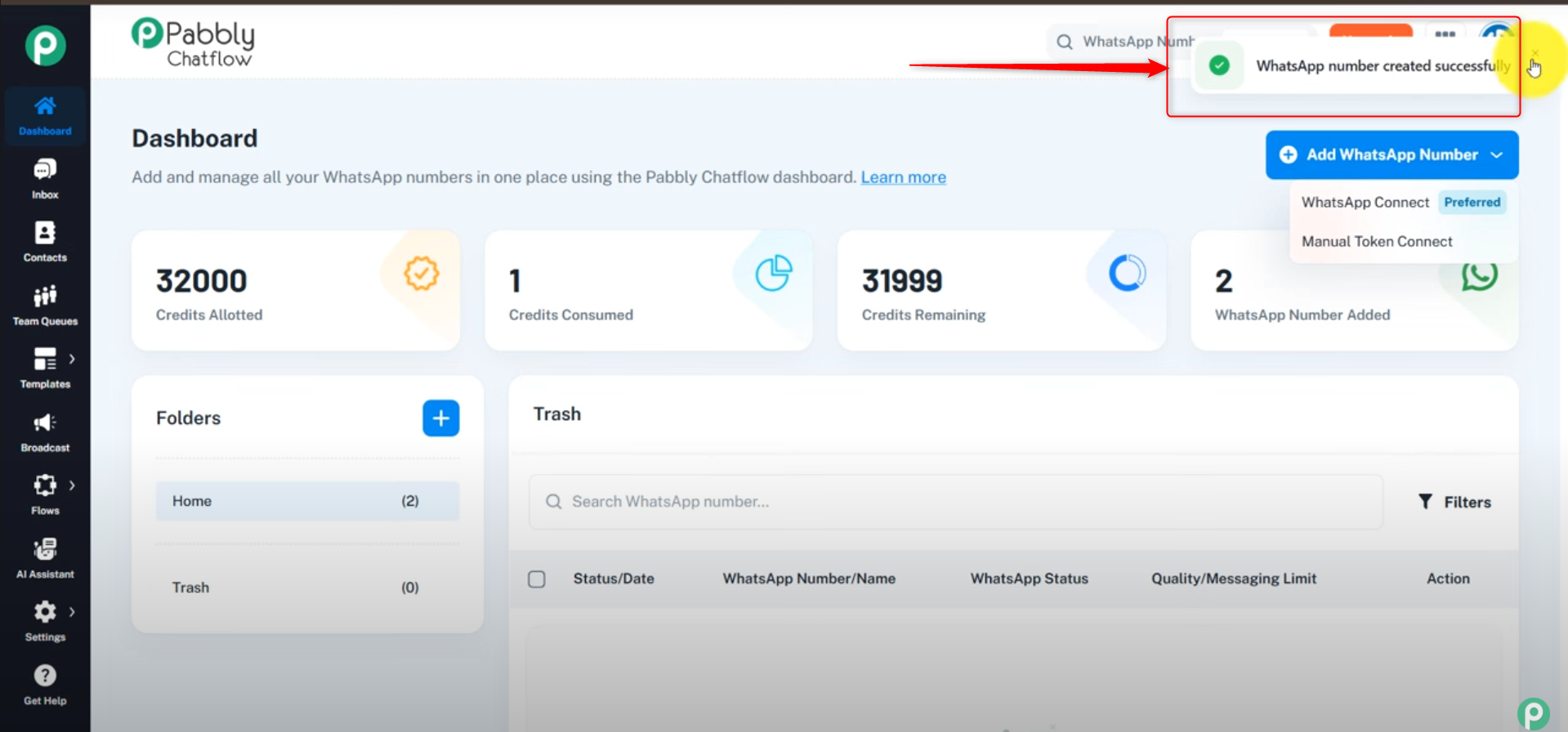
Step 13: Return to Dashboard
- After clicking Finish, you will be redirected back to the Pabbly Chatflow dashboard.
- Your WhatsApp Business number will now be listed and ready for use.
- You can start managing your WhatsApp messages and automations from the dashboard.
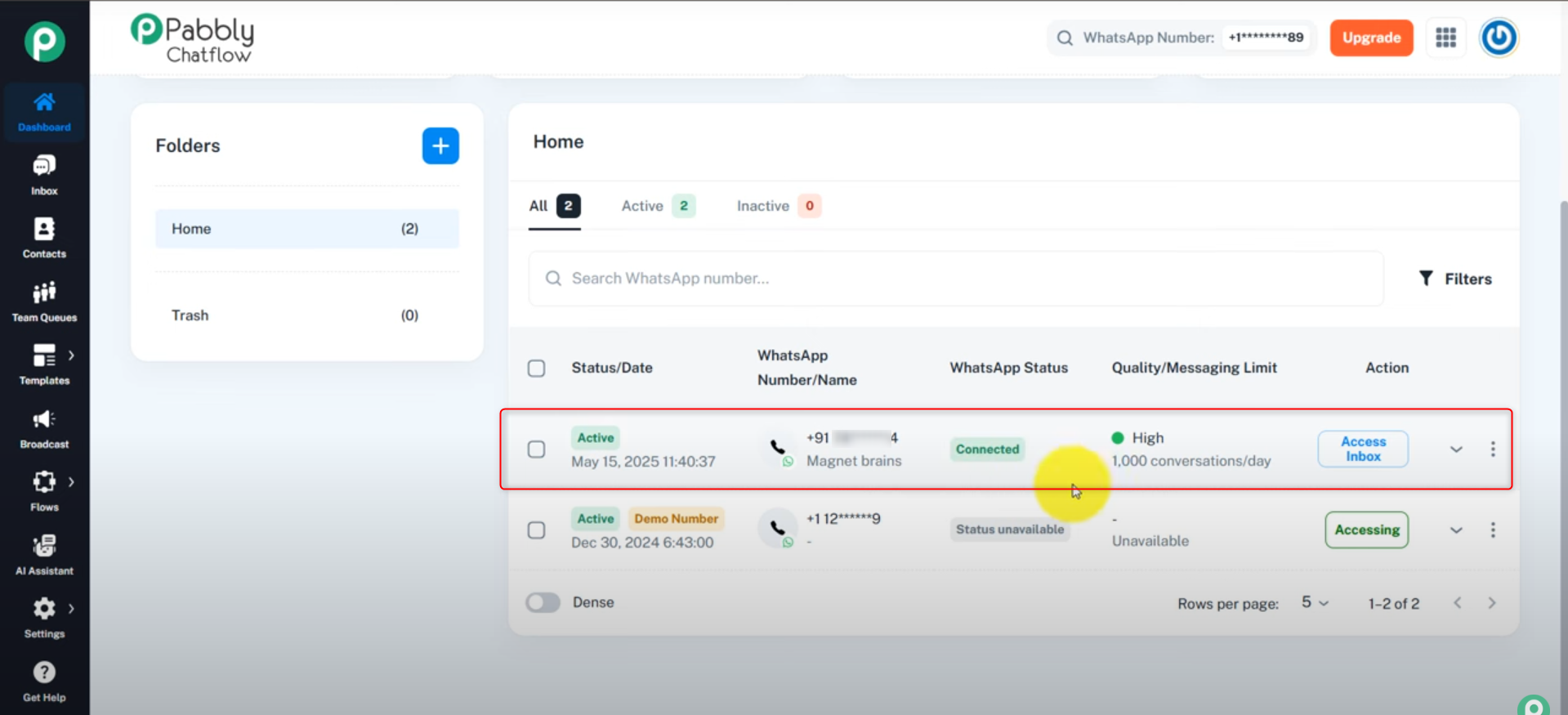
Step 14: Manage Your Connected WhatsApp Number
- On the Pabbly Chatflow dashboard, locate the table listing your connected WhatsApp Business numbers.
- Here, you can:
- See your connected WhatsApp Business number(s) clearly listed.
- Click Access Inbox to open and manage conversations for that specific number.
- Manage contacts and chats linked to your WhatsApp Business number directly from the dashboard
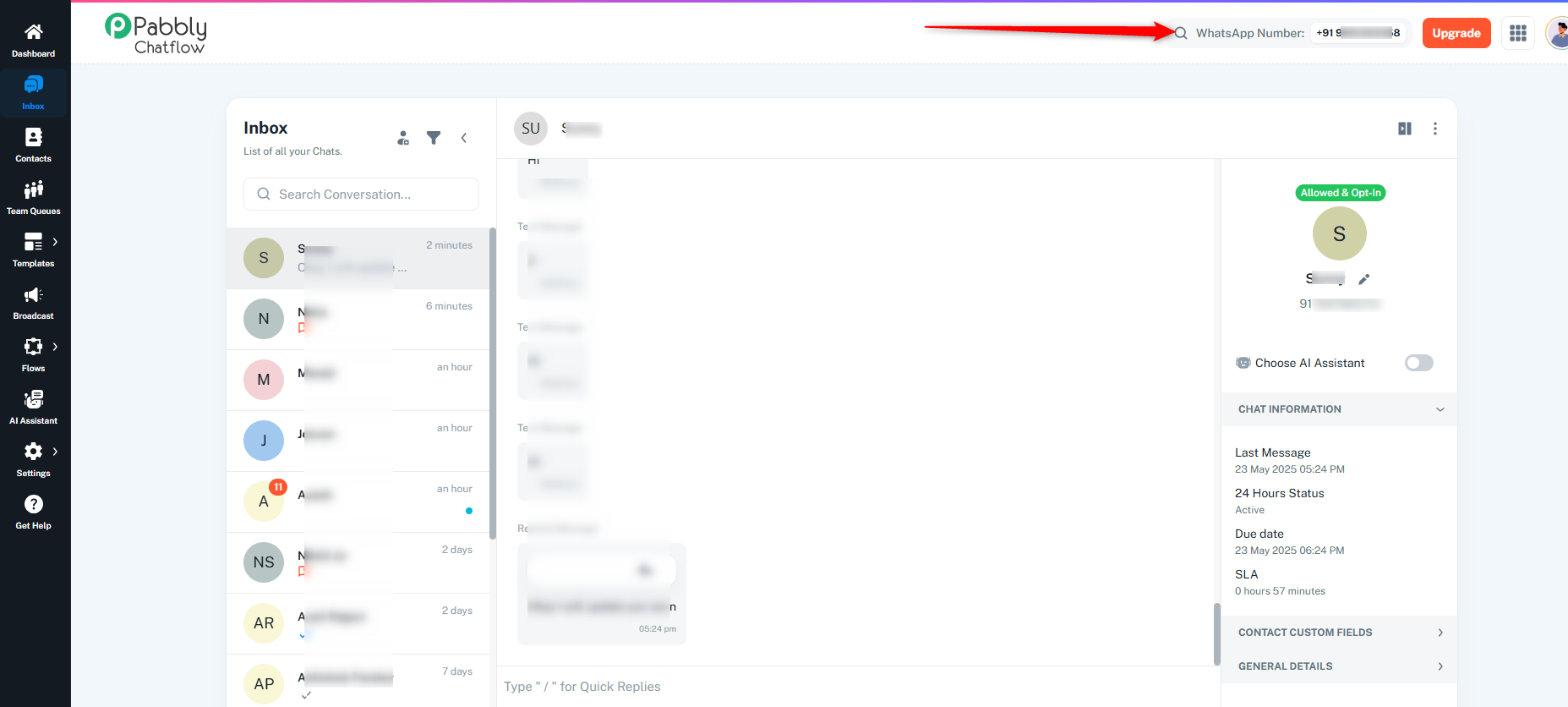
Step 15: Start Using Inbox and Messaging Features
Now that your WhatsApp Business number is connected, you can use the Inbox to chat directly with your customers.
The Inbox supports:
- Regular messages, pre-approved templates, AI assistant, quick replies, etc.
- Automated replies and scheduled messages
- Managing multiple customer conversations efficiently
This empowers your business to engage customers professionally and efficiently through WhatsApp using Pabbly Chatflow.
These are our initial findings till now, if there is a way to sync the messages sent from WhatsApp Business App inside Cloud API as well.
Key Findings
-
If you are sending a message from Pabbly Chatflow to the customer: The message is visible in your WhatsApp Business App as well as it is visible to the customer on his WhatsApp Number.
-
If the customer responds by sending any message to the WhatsApp Business App/Cloud API number: The message is visible inside Pabbly Chatflow and also in your WhatsApp Business App.
-
If you are sending a message to the customer using WhatsApp Business App: The message is visible to the customer However, the message is also visible inside Pabbly Chatflow.
Conclusion:
Messages sent directly from the WhatsApp Business App are now visible in Pabbly Chatflow, making message synchronization seamless across all platforms.
In all cases, messages are visible in Pabbly Chatflow, WhatsApp Business App, and to the customers.
Summary Table
| Action |
Visible in Pabbly Chatflow |
Visible in WhatsApp Business App |
Visible to Customer |
| Message sent from Pabbly Chatflow to Customer |
✅ Yes |
✅ Yes |
✅ Yes |
| Customer responds |
✅ Yes |
✅ Yes |
✅ Yes |
| Message sent from WhatsApp Business App to Customer |
✅ Yes |
✅ Yes |
✅ Yes |
WhatsApp Business App Message Visibility
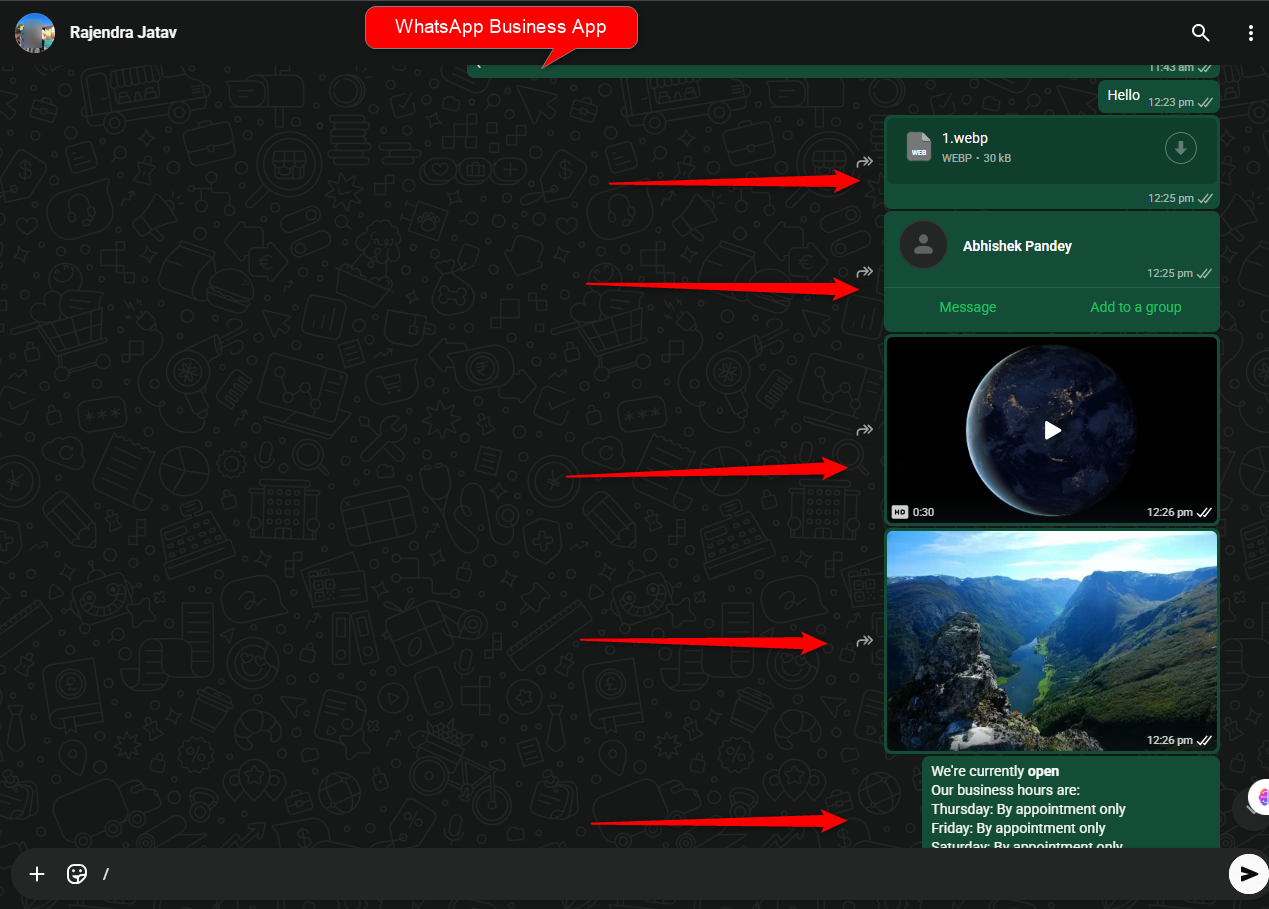
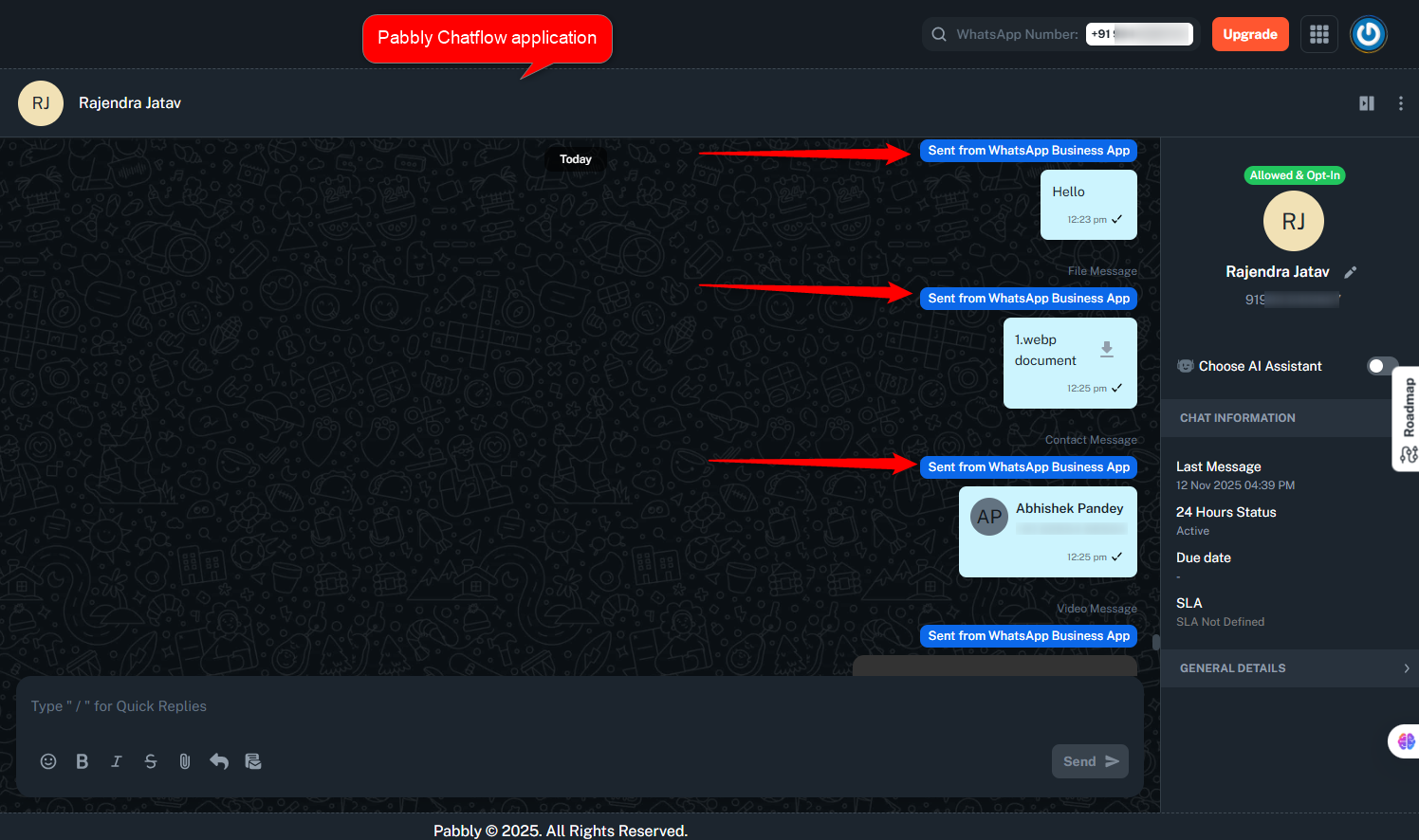
You can view all messages sent from the WhatsApp Business App to customers directly within our Chatflow application.
Messages received from the WhatsApp Business App will now display a clear label — “Sent from WhatsApp Business App” — inside your Pabbly Chatflow inbox, making it easy to identify the source of each message
Supported message types:
Documents, Photos, Videos, Camera, Audio, Contact, Sticker, and Quick Replies.
Currently unsupported message types:
Catalog, Event and Poll.
If you send a message directly through the WhatsApp Business app (outside of Chatflow), Chatflow credits will not be consumed.
Some regions may not support integration with the WhatsApp Business app for direct messaging through Pabbly Chatflow.
Unsupported Countries:
WhatsApp Business account phone numbers with country codes from the following countries are not supported:
- Nigeria(+234)
- South Africa(+27)
For more details, refer to Meta's official documentation on onboarding WhatsApp Business app users:
Meta Developers - Embedded Signup Custom Flows
