Using Pabbly Affiliate Management Without Pabbly Checkout Pages
Pabbly Subscription Billing Team•Updated Jul 25, 2026•1 min read
On this page
Using Pabbly Affiliate Management Without Pabbly Checkout Pages
This document provides a structured guideline to leverage the Pabbly Affiliate Management system without the necessity of using Pabbly checkout pages. By implementing the steps mentioned, users can apply an affiliate referral to a customer's subscription via Pabbly Subscription Billing API.
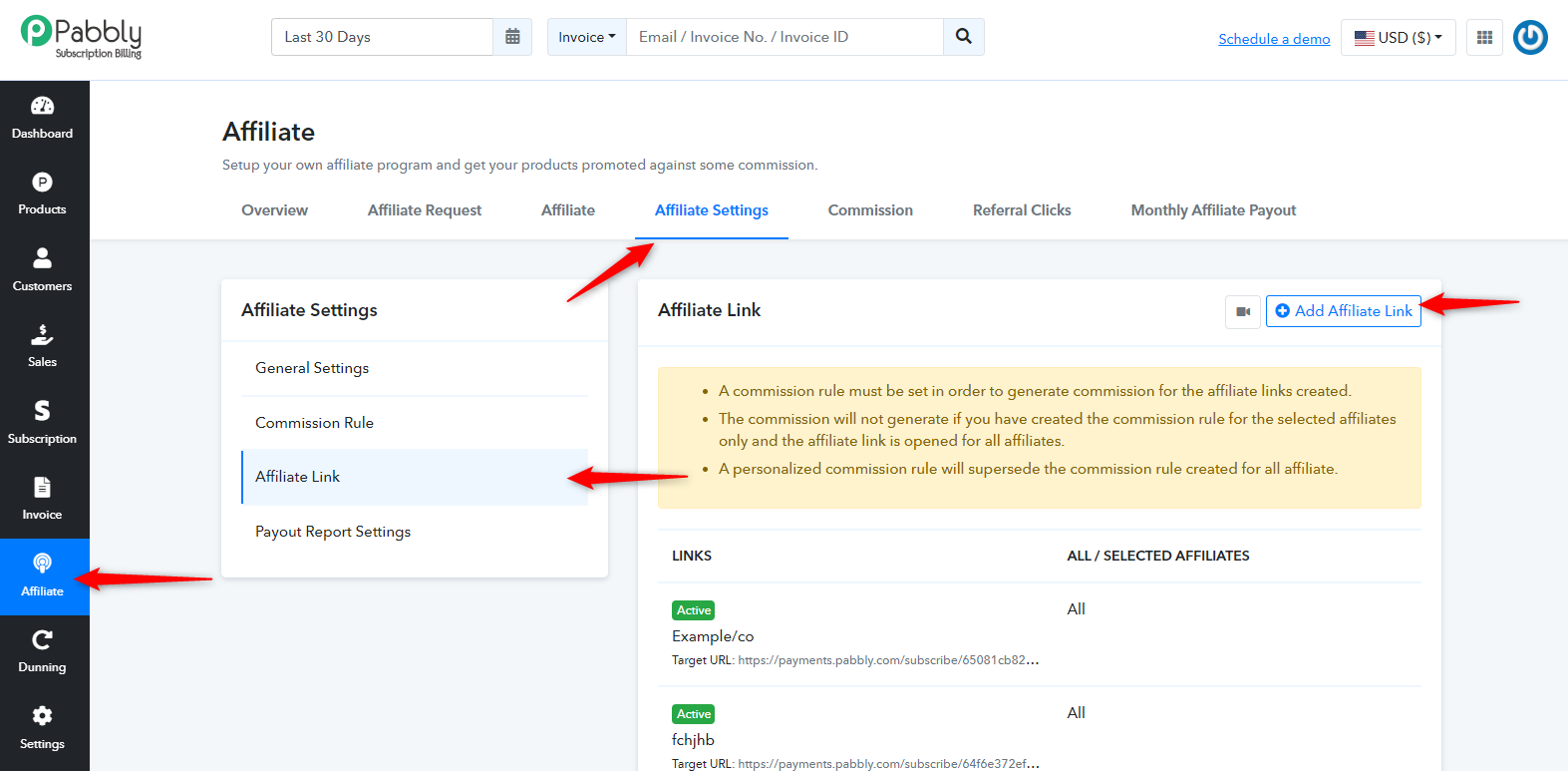
1. Setting Up an Affiliate Link Navigate to Pabbly Subscription. > Choose 'Affiliate' from the menu. > Go to 'Affiliate Settings' > Go to 'Affiliate Link'. > Add Affiliate Link (Use this option to create an affiliate link directed to your website.)
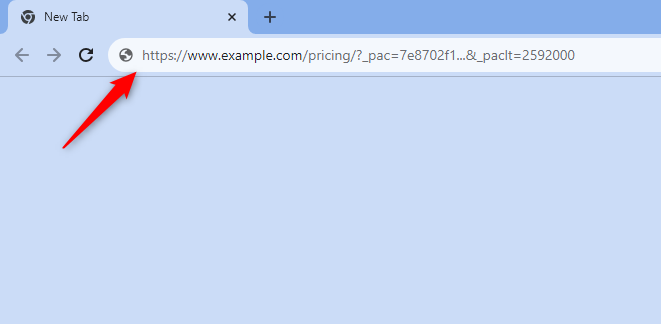
2. When a customer clicks on the referral link provided by an affiliate, they will be redirected to your website. On this redirection, two crucial cookies will be set: "_pac " and "_paclt ". For clarity, your URL might look something like:
3. Ensure you store the "_pac" cookie from the URL on your website. This will be essential for linking the customer's purchase to the affiliate.
4. When a customer decides to purchase your product, you will need to call the "Create Customer With Subscription" API. Please refer to the Pabbly Subscription Billing : https://apidocs.pabbly.com/.
5. While making this API call, include the "_pac" value you stored earlier. Use the key "pabbly_affiliate" when you send the "_pac " value. This action ensures that the commission related to this sale is automatically credited under your Pabbly account. Sample Request: curl_setopt($curl, CURLOPT_HTTPHEADER, array(
"Content-Type: application/json",
"Cookie: pabbly_affiliate=".$pac )); And that's it! By following these steps, you can successfully link a customer's purchase to an affiliate without relying on Pabbly's checkout pages. If you have any further questions, always refer to Pabbly's official documentation or support channels.
 Pabbly Subscription Billing Team•Updated Jul 25, 2026•1 min read