👉 Refer to the below detailed video showing steps for creating a permanent access token:
Or you can follow this guide too :
https://developers.facebook.com/docs/marketing-api/get-started/authentication#authentication
👉 Here are the steps to generate a permanent access token for Facebook Ads Insights:
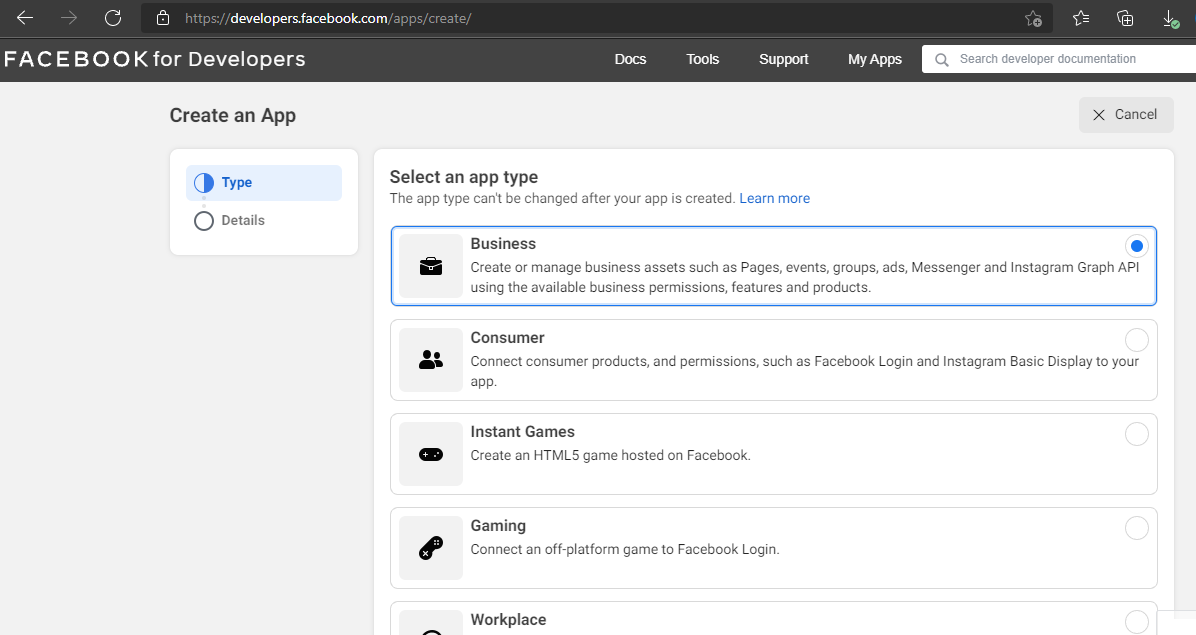
1. You need to create a Facebook developer app under the developers area of Facebook. Read the step by step guide for creating an app from here:
https://developers.facebook.com/docs/development/create-an-app
2. Select your app type for E.g. Business
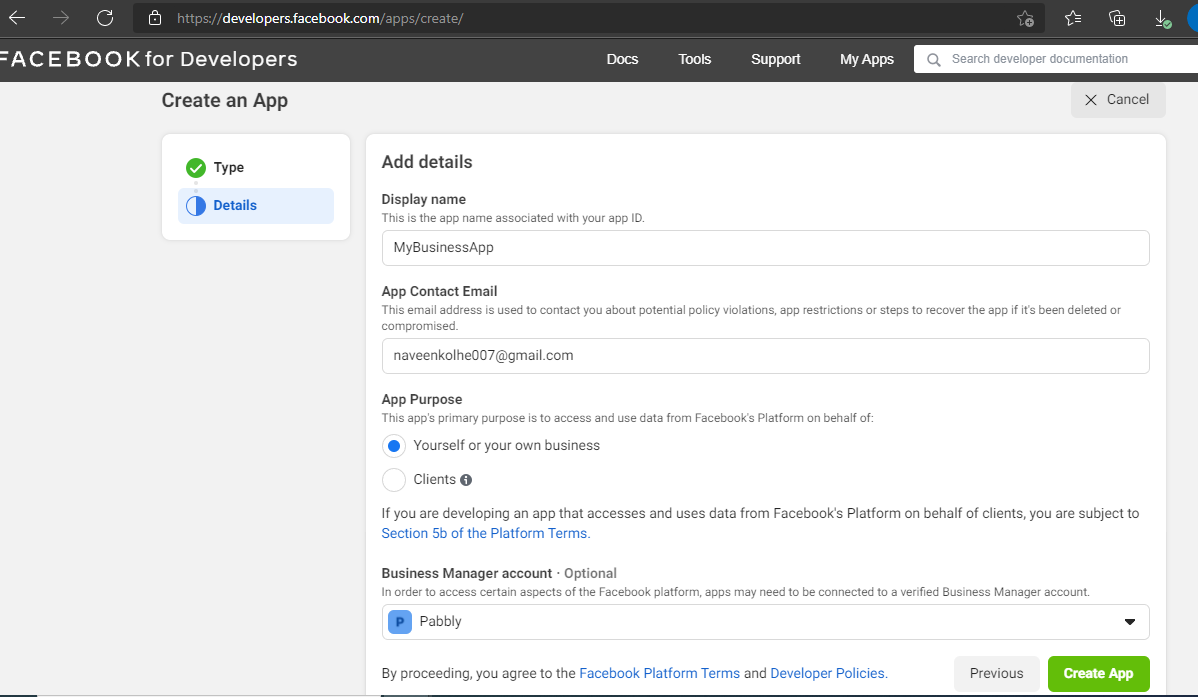
3. Configure the details and create your app.
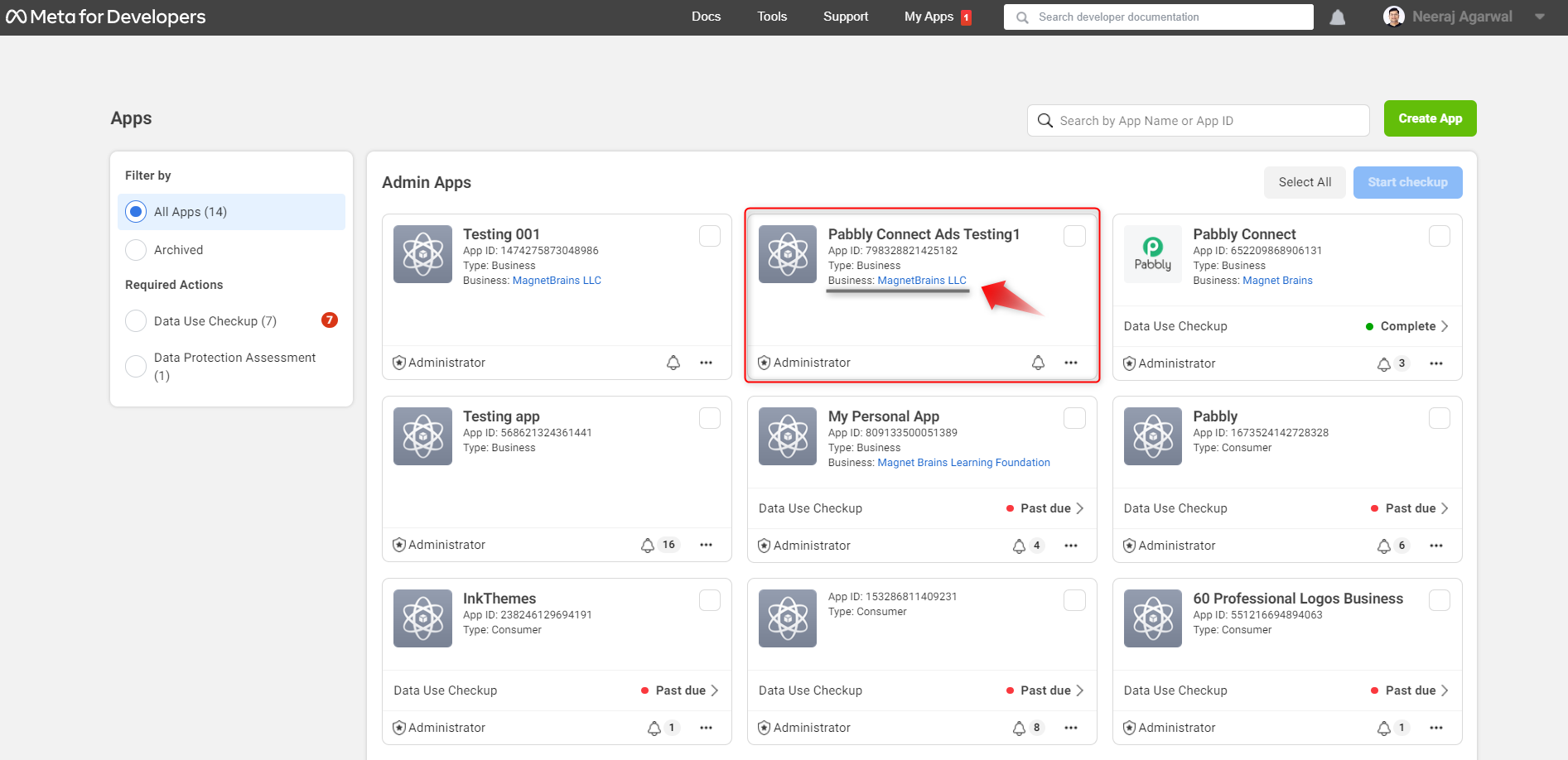
4. Once your app is created, then you need to go back to
https://developers.facebook.com/apps/ where you will see the app which you have created. To generate the access token click on the business link below the app you have created as shown below -
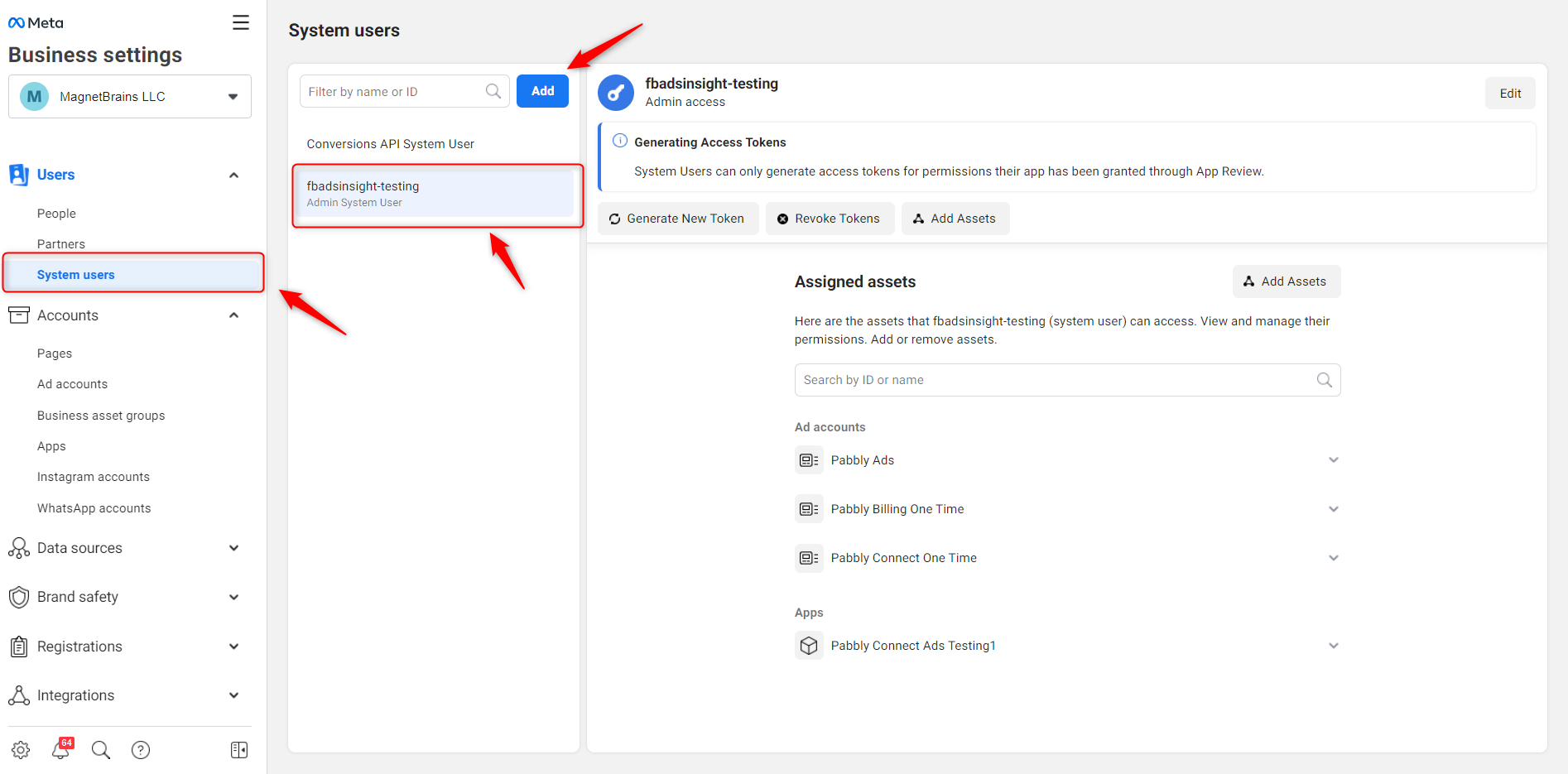
5. Navigate to the
System users page from the left sidebar and add the system user if not added earlier.
Note: You can only add a single System user to your account.
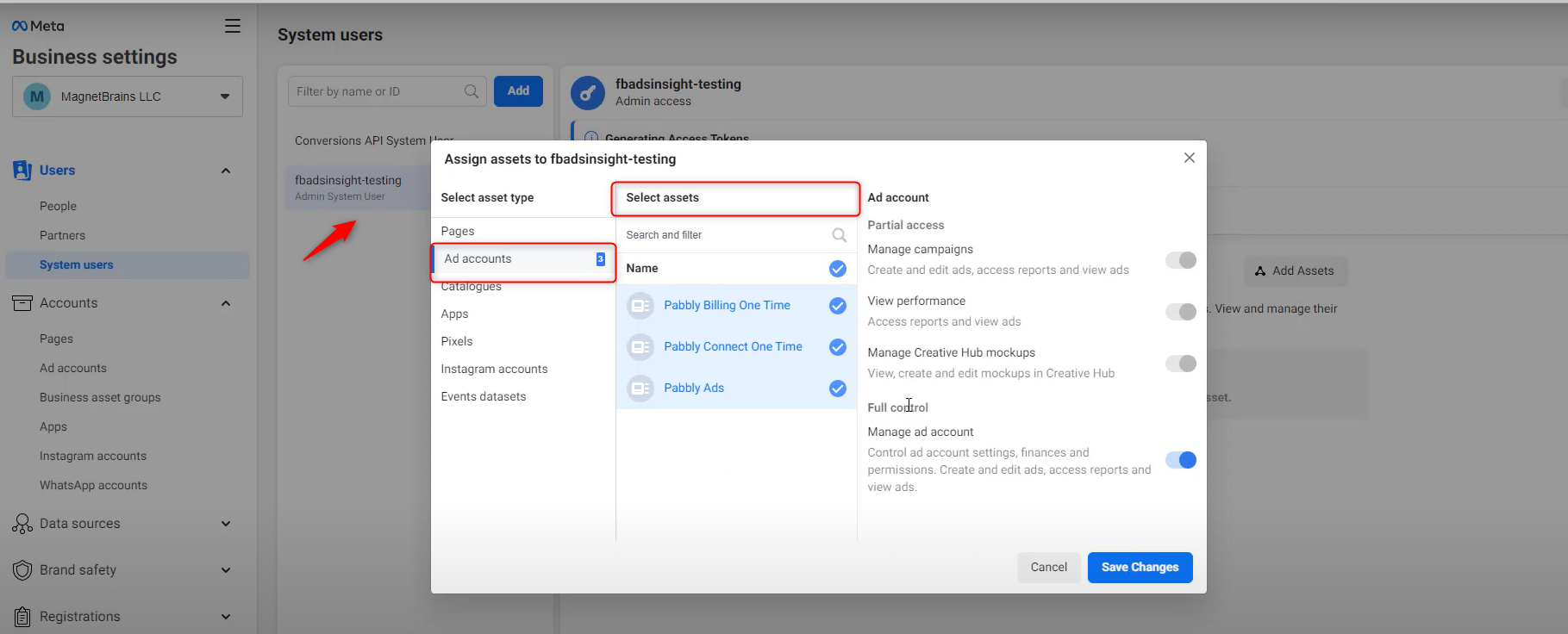
After adding the "System user", you need to assign all the permission i.e. token permissions
ads_management, ads_read, and read_insights.
- Select the Ad account you want to give permission.
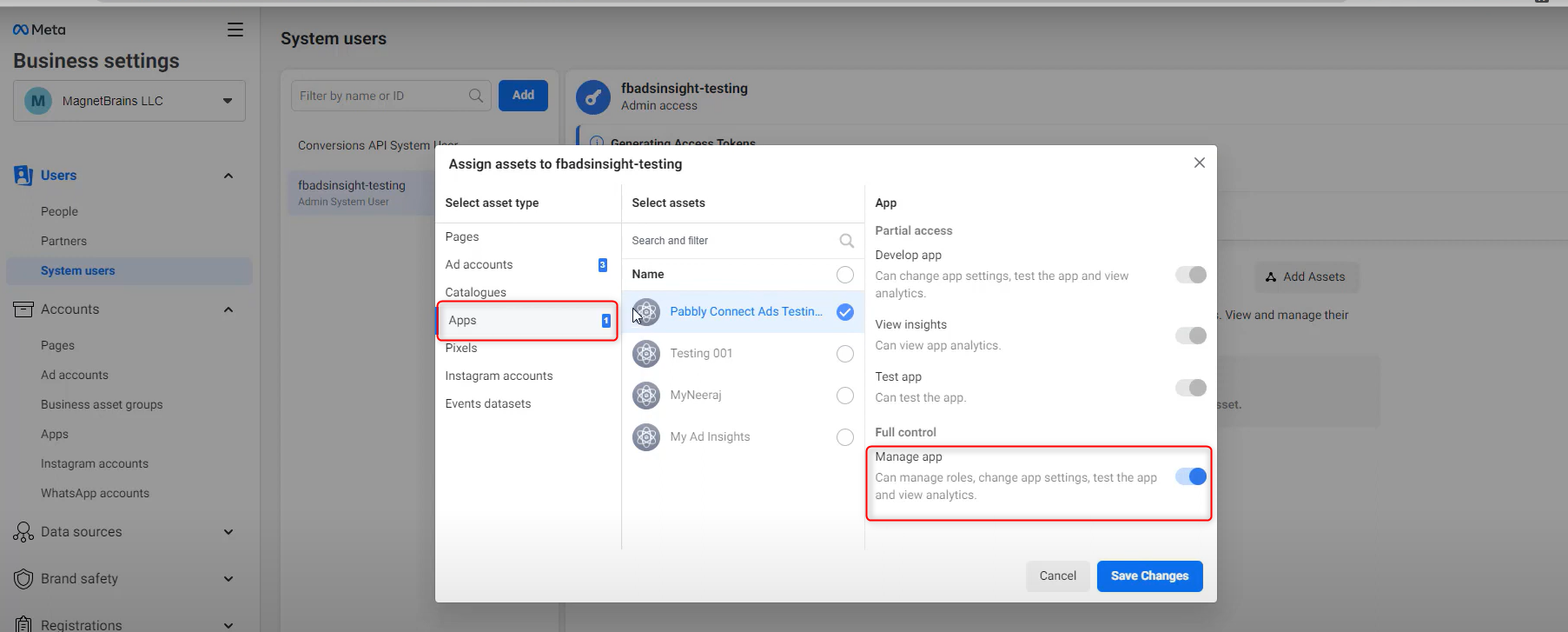
- Now select the app you have created and allow complete permission for the "system user" to manage the ad account.
- Enable the Manage app button then click on Save Changes.
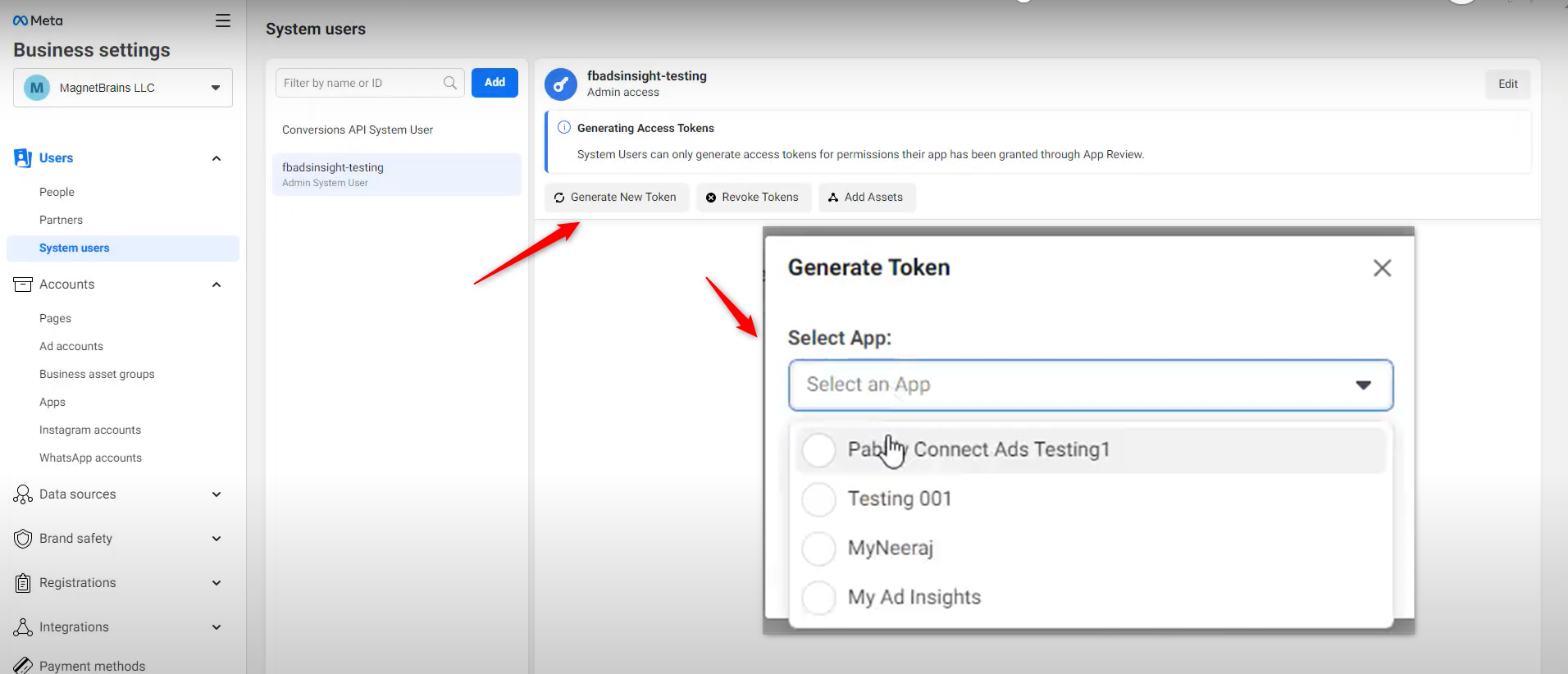
6. Click on
Generate New Token button and select the app which you have already created.
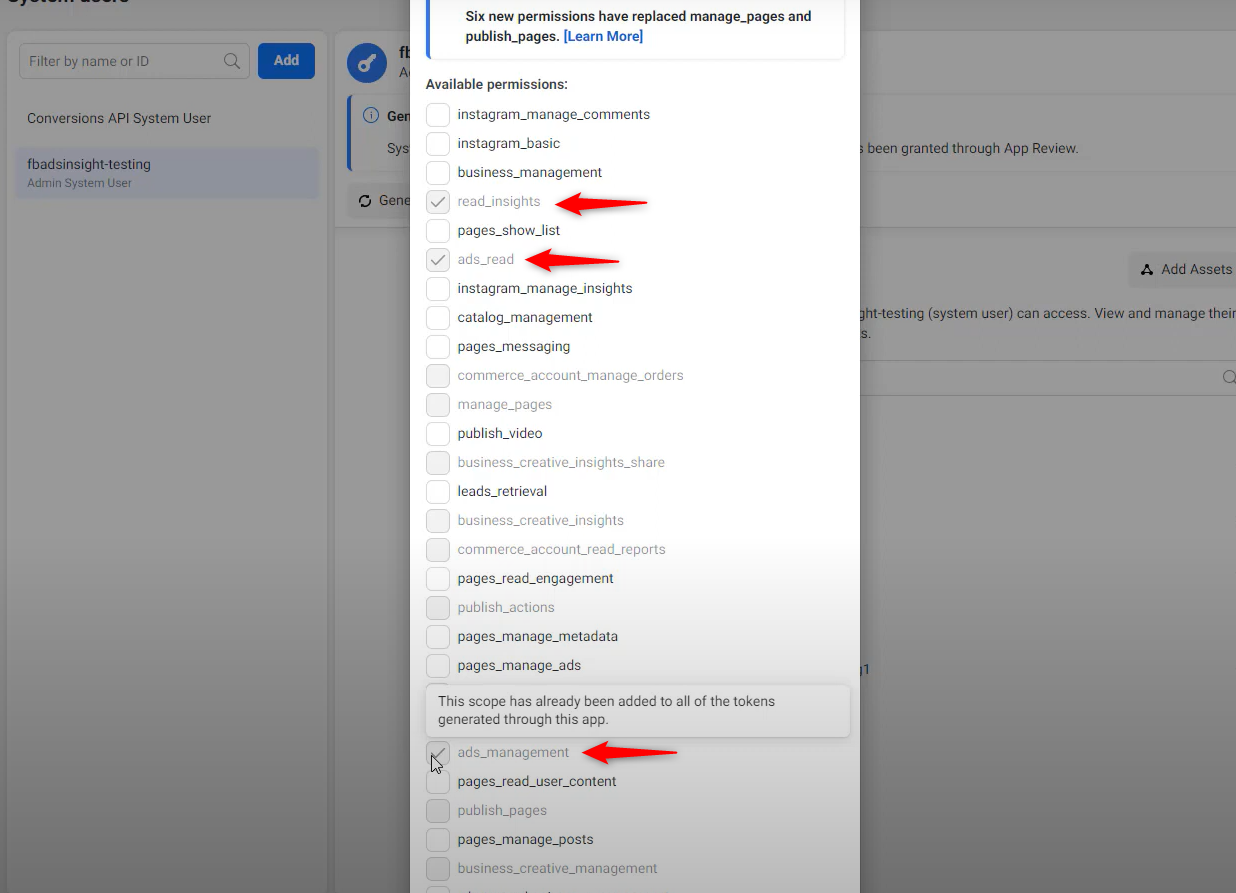
7. Now, select
ads_management, ads_read, and read_insights permission that are required for your System User.
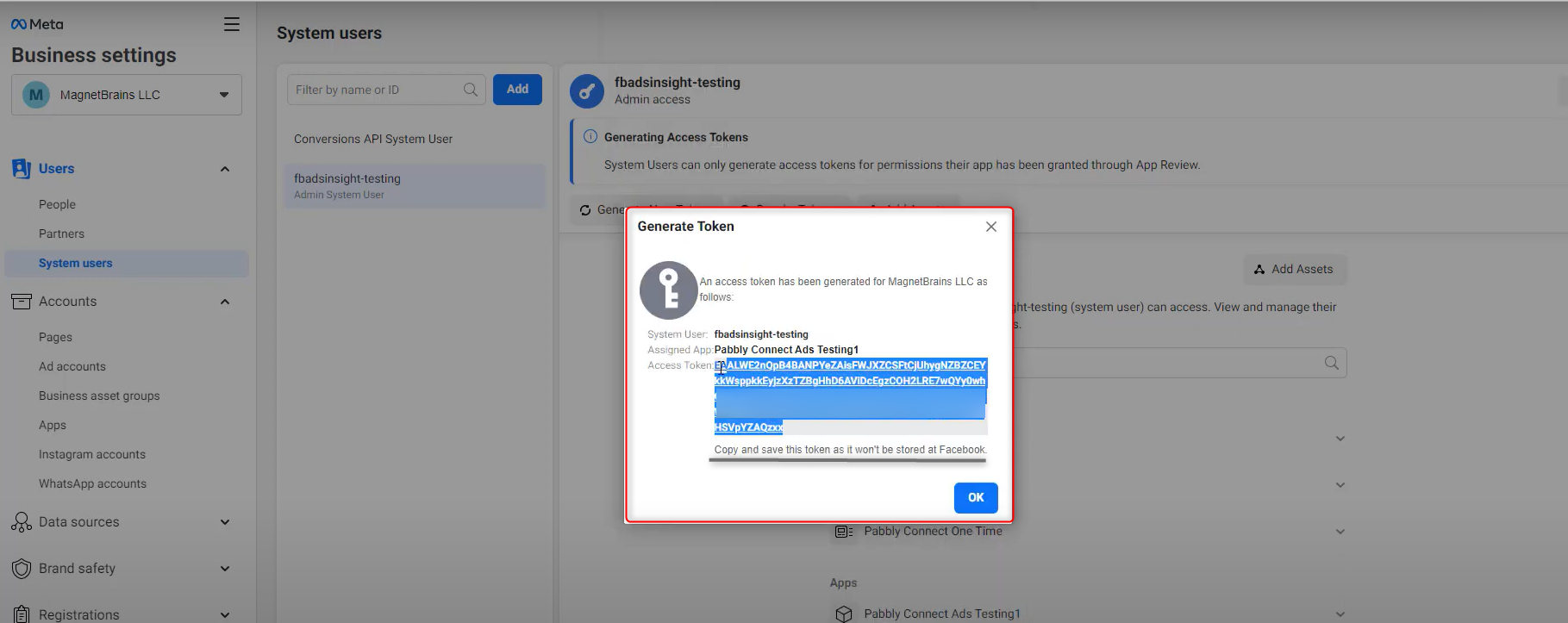
8. Click on
Generate Token button. Then you will get the access token in the popup window.
Note: You need to copy and save this token as it won't be stored at Facebook.  Pabbly Connect Team•Updated Jul 25, 2026•1 min read