It is automatic. Once GST e-invoicing is on, the customer's payment email shows a GST e-Invoice block with the IRN, Ack No, Ack Date and QR code. You don't need to change your email templates.
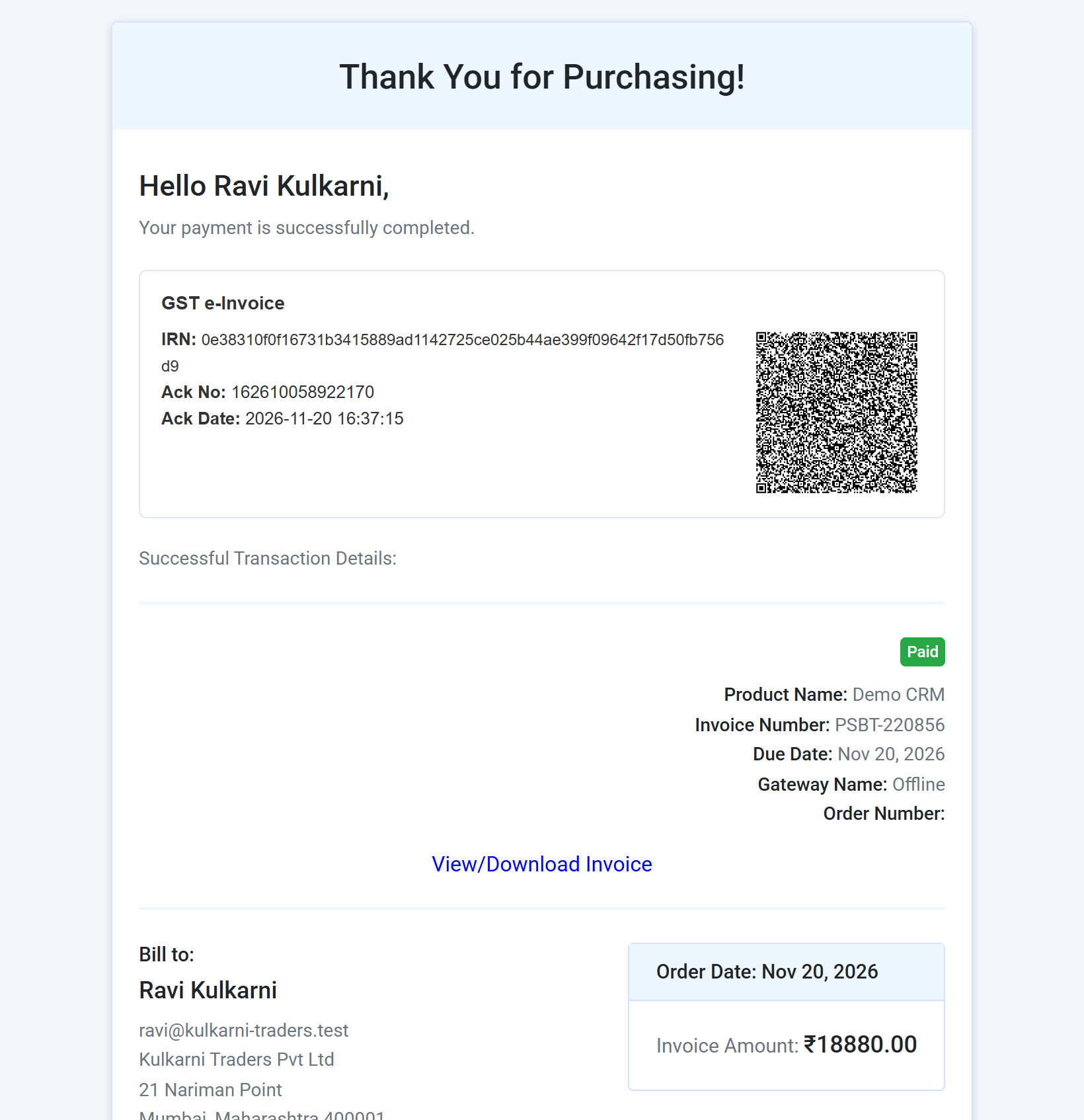
Which emails show it
- Payment Successful Email To Customer (first payment).
- Payment Renewal Email To Customer (renewals).
If an invoice has no e-invoice (for example the customer has no GSTIN), nothing extra is shown.
The email waits for the e-invoice
- When an invoice should get an e-invoice, the customer's payment email waits until it is ready. This usually takes a few seconds.
- It waits for at most 10 minutes. If the e-invoice isn't ready by then (for example GSTZen is down), the email is sent without it. Your customer always gets the payment email, and the e-invoice still appears on the invoice once it is created.
- Emails for Skipped or Untaxed invoices are sent right away.
- Your own (merchant) emails and webhooks are never delayed. Webhooks are sent at payment time, so they don't include the IRN.
Where the block appears
- Default templates: right under the first line ("Your payment is successfully completed"), above the transaction details.
- Templates you customized before: at the end of the email. To move it, add the placeholder as described below.
Choose where it appears
- Go to Settings → Email Notification and edit Payment Successful Email To Customer or Payment Renewal Email To Customer.
- Click in the email where you want the block.
- Insert GST e-Invoice Details:
- in the payment email, from the Payment menu;
- in the renewal email, from the Subscription menu.
If you don't see the menu, click ⋯ at the end of the editor's toolbar.
- Click Save.
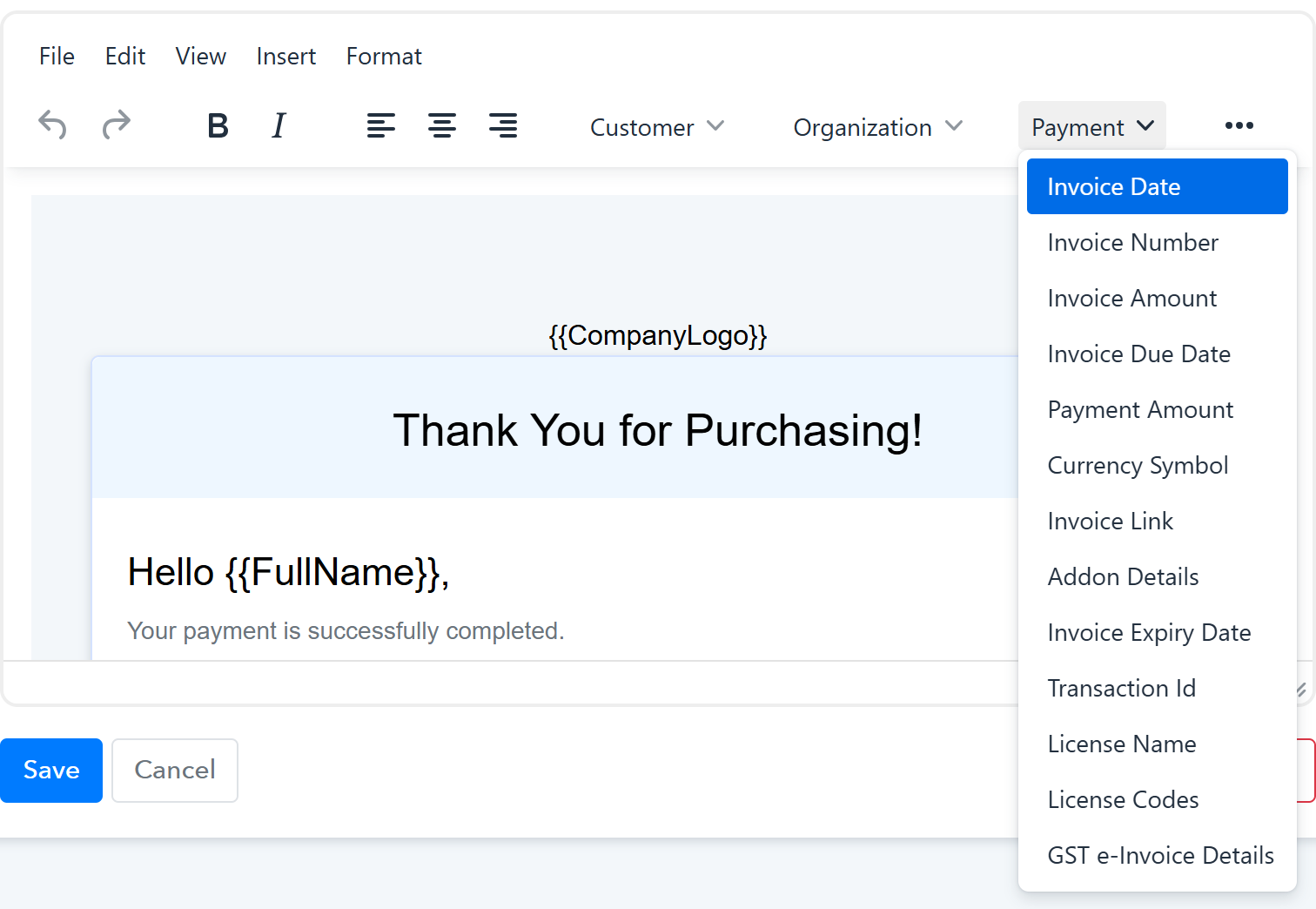
This inserts the placeholder {{EInvoiceDetails}}. You can also type it yourself. When the email is sent, it is replaced with the GST e-Invoice block, or with nothing if the invoice has no e-invoice. The menu item is shown only after e-invoicing is turned on.
 Pabbly Subscription Billing Team•Updated Nov 21, 2026•2 min read
