Campaign
 Pabbly Email Marketing Team•Updated Oct 24, 2026•4 min read
Purpose / Scope
Complete end-to-end workflow:
Campaign Page → Create Email → Template Selection → Builder → Send → Confirmation
Campaign Page → Create Email dialog → Template select/create → Choose builder → Edit & Save → Send page → Final confirmation → Send
Location: Campaign Page (/app/campaign)
Trigger: "Create Email" button (top-right, primary)
Action: Opens Create Email dialog
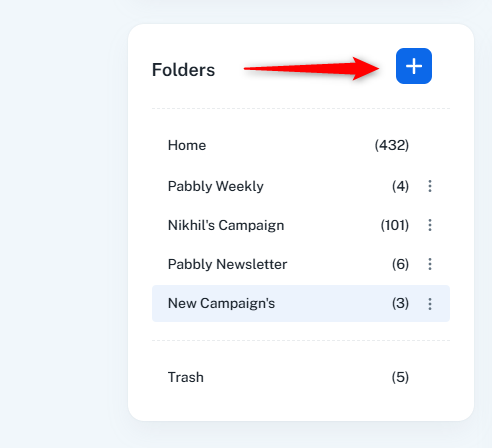
A sticky sidebar card on the Campaign page for organizing campaigns into folders.
Header: "Folders" title with a "+" button to create new folders
Home Folder (top): Default folder, always visible
Custom Folders (middle): User-created folders in a scrollable list
Trash Folder (bottom): Deleted campaigns, always visible
Each folder shows its name and campaign count (e.g., "Marketing (5)")
Clicking a folder filters the campaign table to show that folder's campaigns
Custom folders have an options menu (three dots) for Rename and Delete.
Enables folder-based organization and quick navigation to filter campaigns by folder.
The Campaign Page displays a table listing all campaigns with the following columns and data: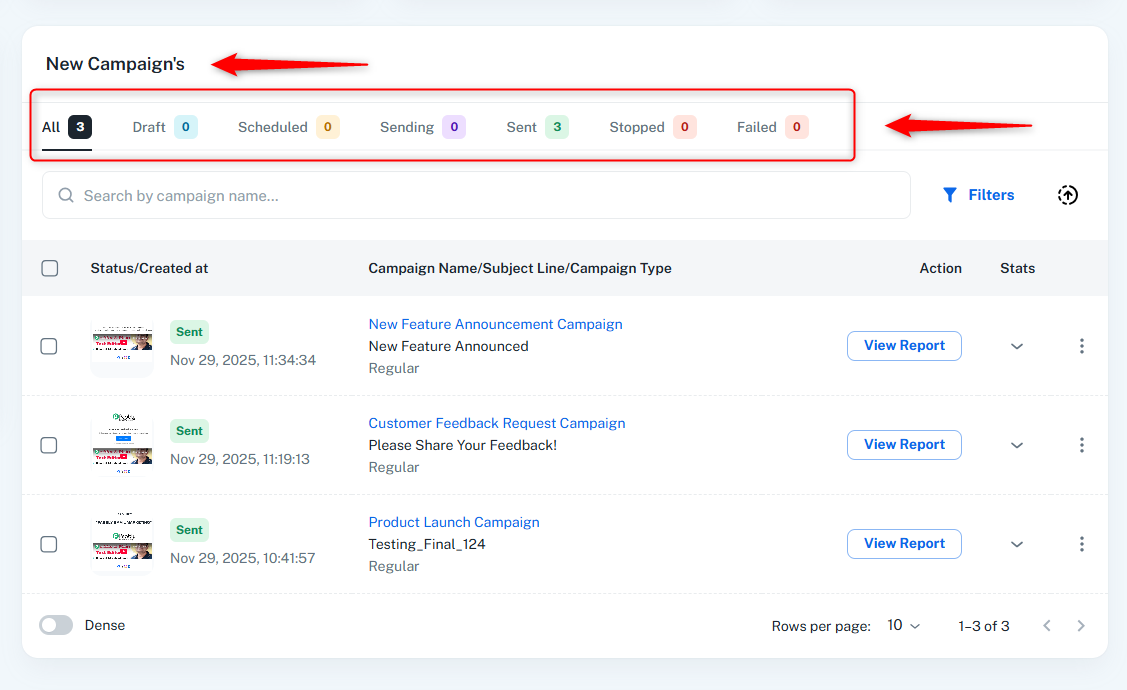
Select individual campaigns for bulk actions (move, delete).
Shows campaign status badge (Sent, Scheduled, Draft, Sending, Stopped, Failed) with color coding.
Shows creation date/time.
Clicking thumbnail previews email design.
Displays campaign name (clickable, navigates to campaign report for sent campaigns),
Subject line,
Campaign type (Regular or API / Workflow Campaign).
Shows appropriate action button depending on status:
Draft: “Edit” — Opens email builder to edit campaign
Sent: “View Report” — Opens campaign performance report
Scheduled: “Cancel” — Cancels scheduled send
Sending: “Stop Sending” — Stops active send
Failed: “Retry” — Retries failed send
Stopped: “Resume” — Resumes stopped send
Expandable arrow icon → Clicking expands row to show detailed stats:
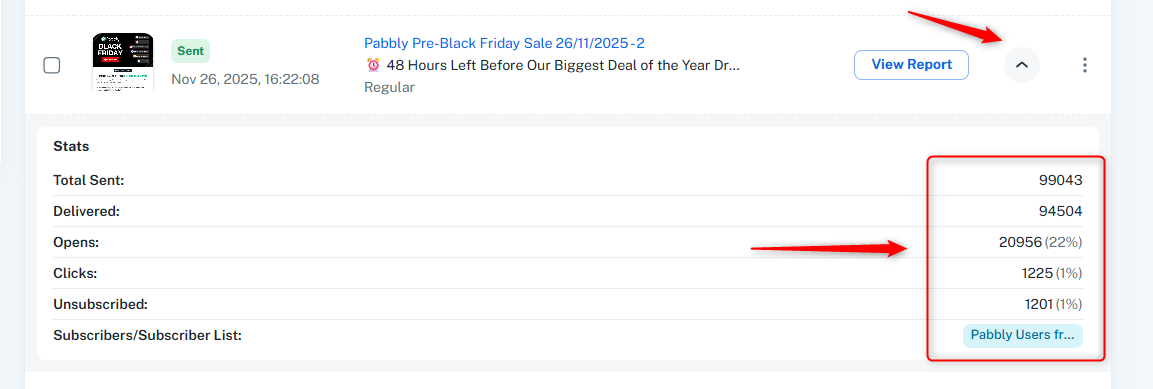
Total Sent — Total emails sent
Delivered — Number of successfully delivered emails
Opens — Count + percentage of delivered
Clicks — Count + percentage of delivered
Unsubscribed — Count + percentage of delivered
Subscribers / Subscriber List — Shows lists and individual email addresses
First 3 shown
“X More” button for additional
Action menu includes: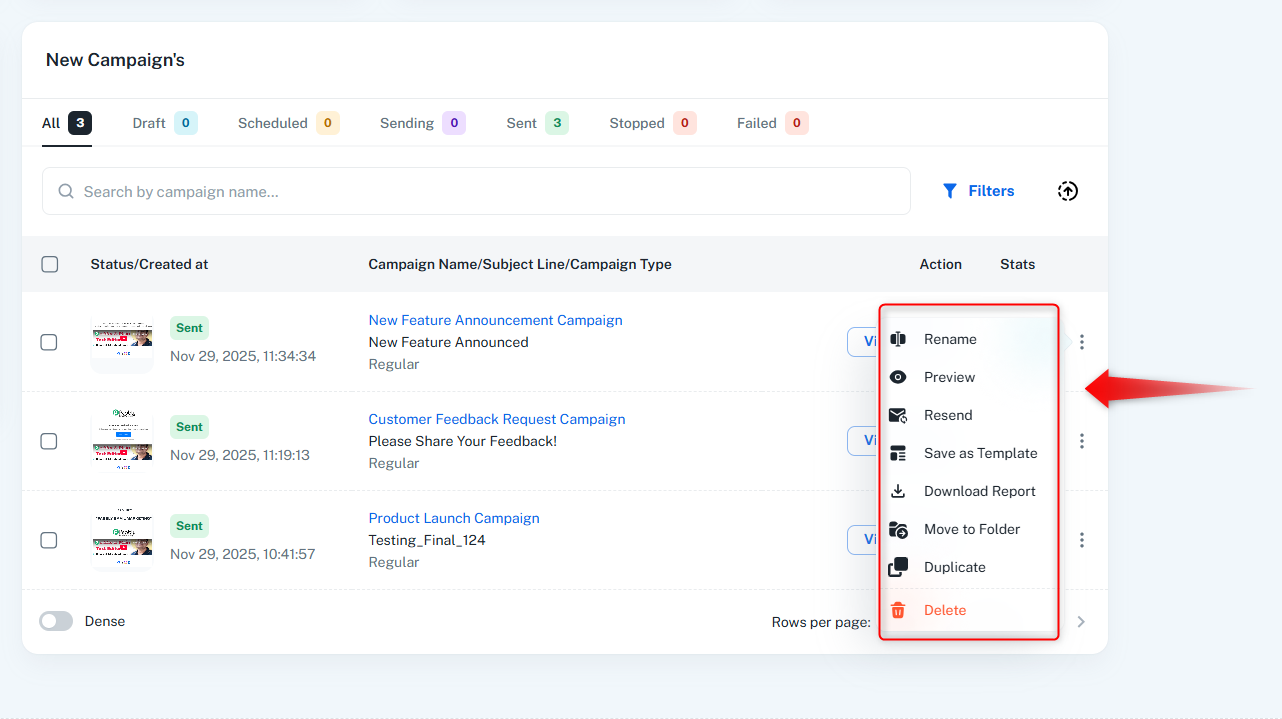
Rename — Opens rename dialog
Preview — Opens email preview in new tab
Resend — Only for sent campaigns; resend to non-openers or new subscribers
Save as Template — Saves current campaign design as template
Download Report — Only for sent campaigns; exports analytics
Move to Folder — Opens folder selection dialog
Duplicate — Creates complete duplicate of campaign
Delete — Moves campaign to trash (disabled if currently sending)
Status Tabs: Filter by All, Sent, Scheduled, Draft, Sending, Stopped, Failed (with count badges)
Search / Filter:
Search by name
Date range filter
Status filter
Bulk Actions:
Move
Delete (disabled if any selected campaign is sending)
Trash View:
Deleted campaigns shown separately
Restore or permanently delete
Opened via Send button from Campaign Page or Email Builder.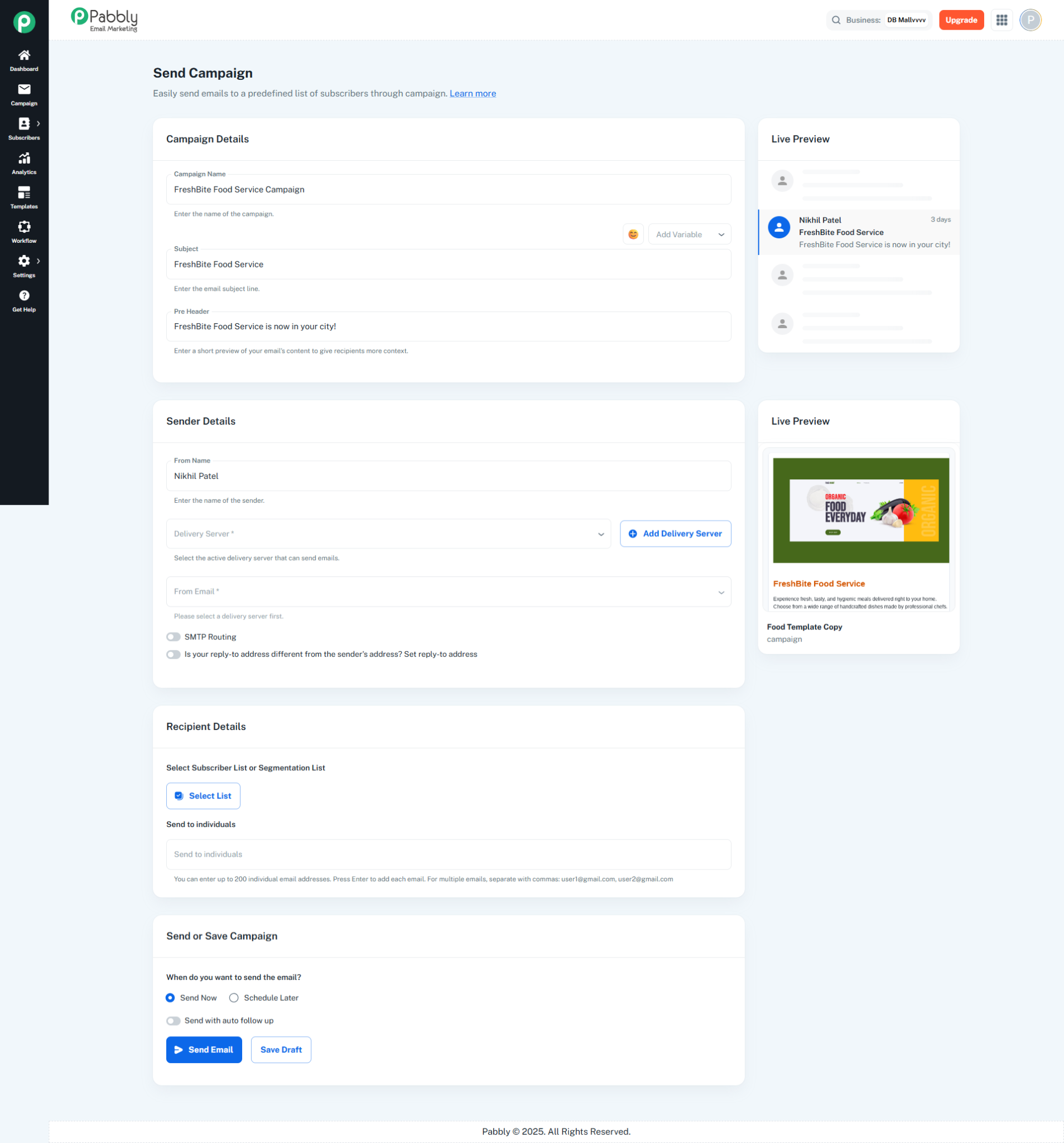
Page for configuring and sending email campaigns. Configure recipients, sender details, and scheduling before sending.
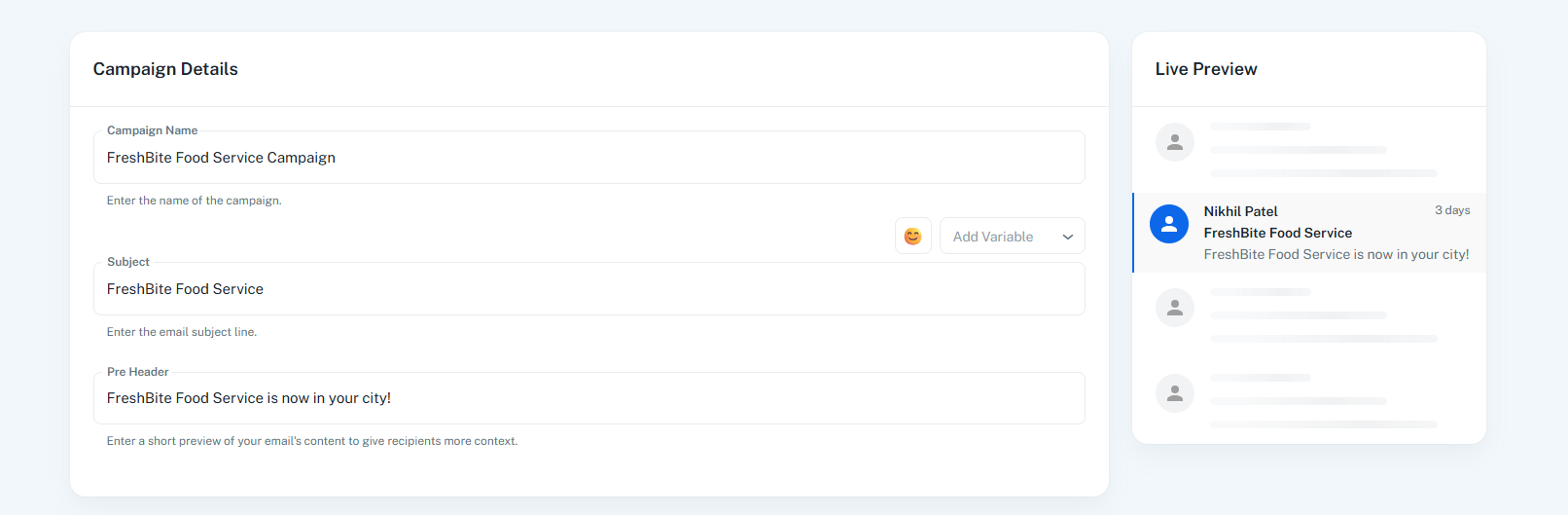
Campaign Name: Name of the campaign
Subject Line: Email subject with emoji picker and variable insertion (custom fields)
Pre Header: Short preview text shown in email clients
Preview Card (Right Side):
Live preview showing sender name, subject, and pre-header as they appear in an inbox
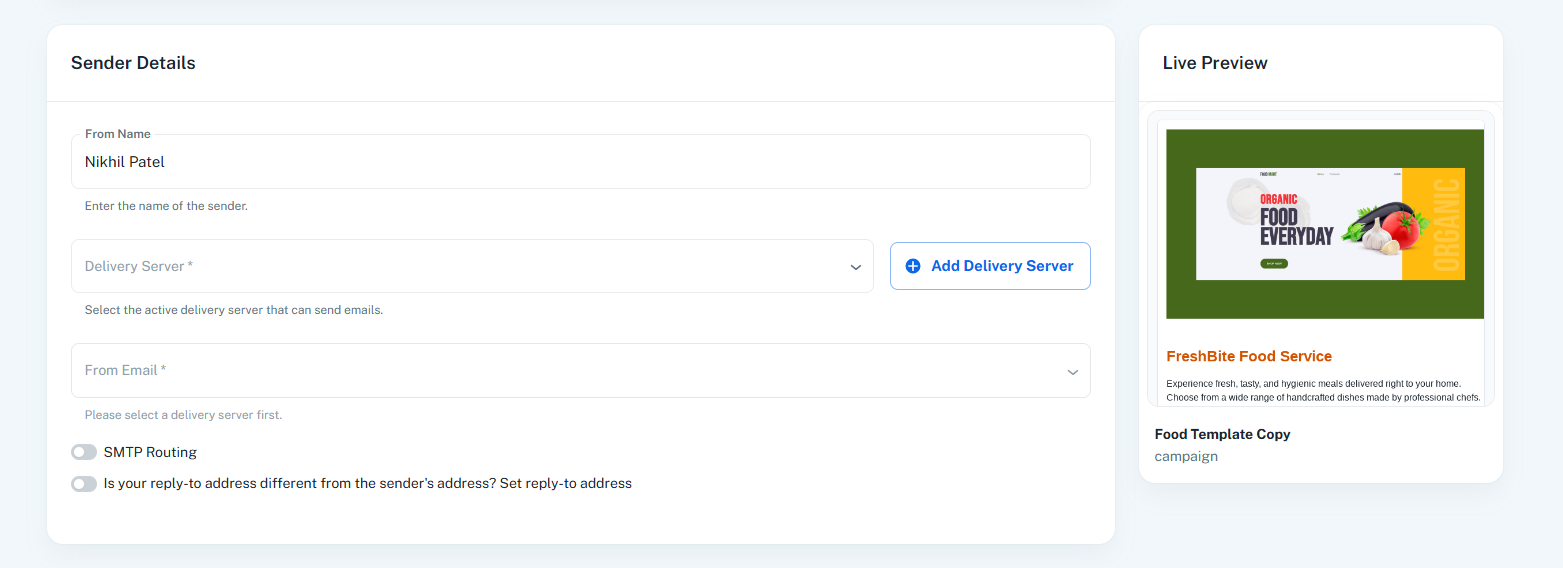
From Name: Sender display name
Delivery Server: Select SMTP server (Send With Us or custom servers)
From Email: Select sender email based on chosen delivery server
SMTP Routing: Toggle to distribute emails across multiple servers by percentage
Reply-To Email: Optional toggle to set a different reply-to address
Live Preview Card (Right Side):
Shows email template thumbnail with campaign name
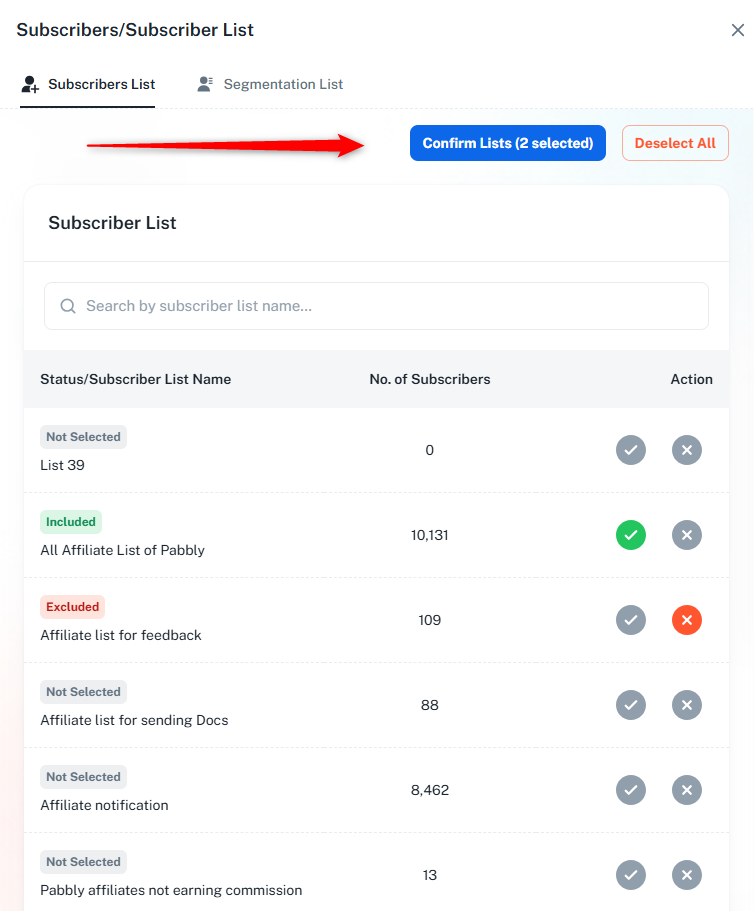
Included Lists: Select subscriber lists or segmentation lists to include
Excluded Lists: Select lists to exclude from sending
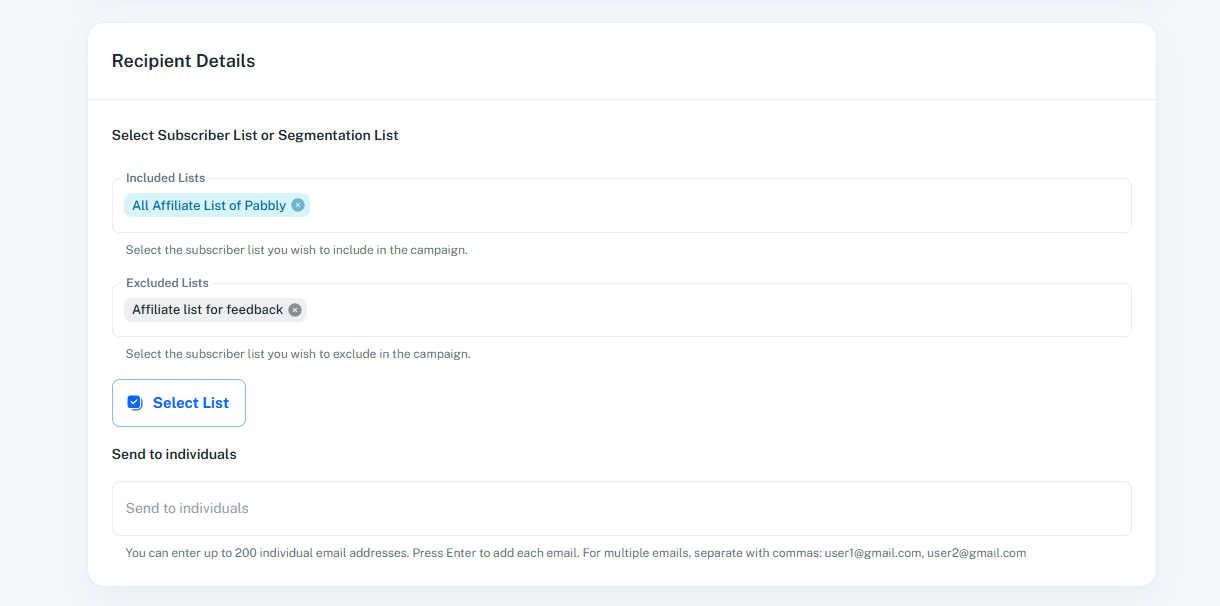
Individual Emails: Add up to 200 individual email addresses (comma-separated)
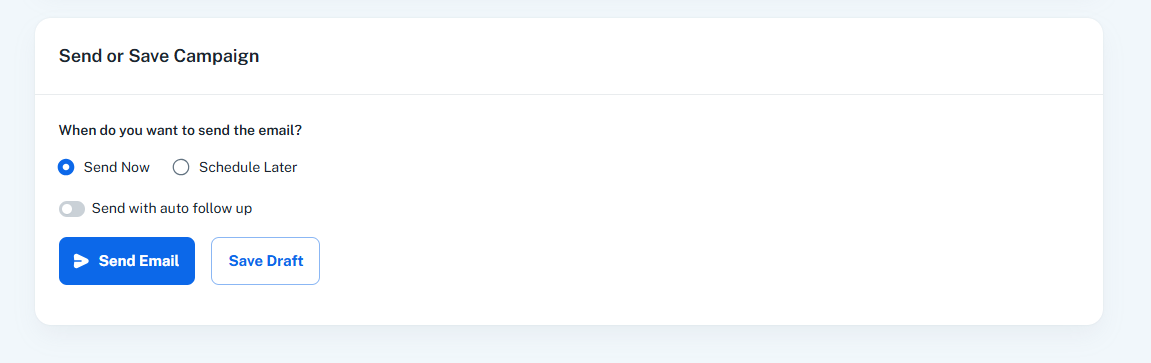
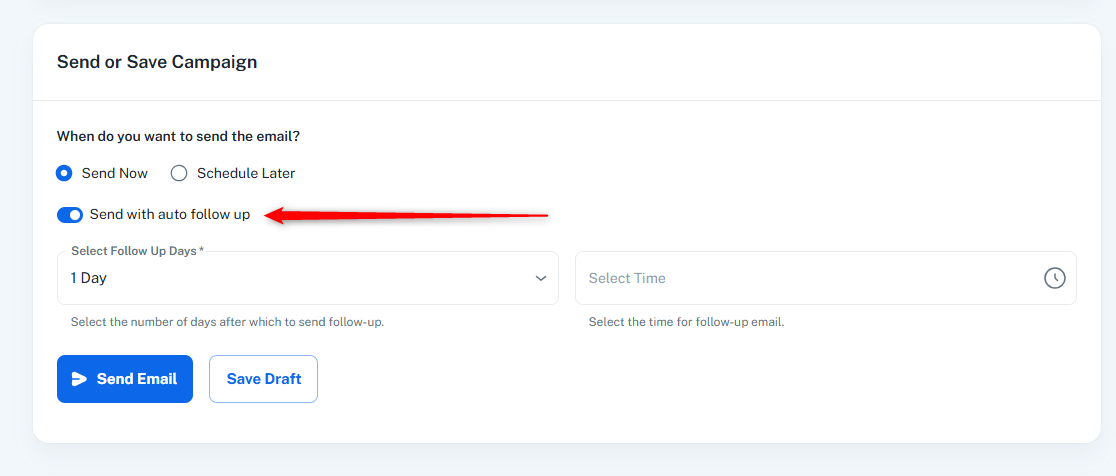
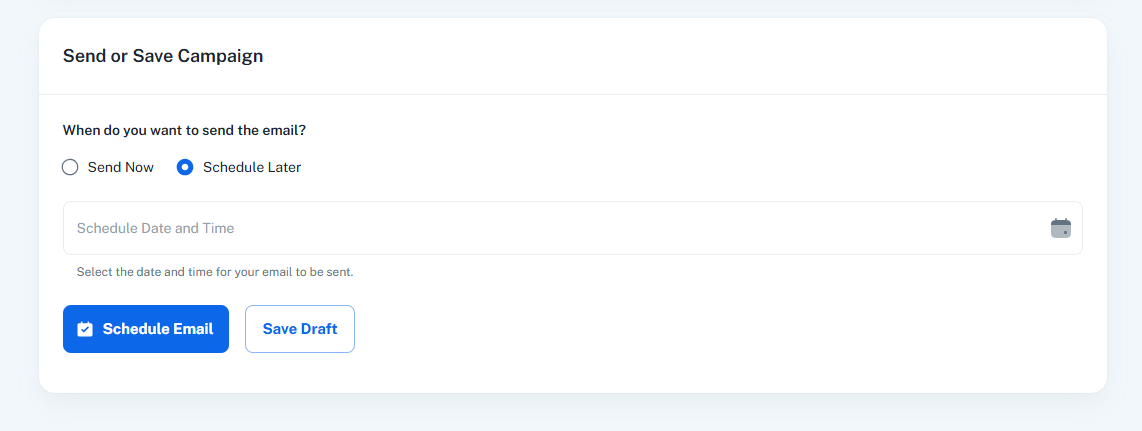
Send Now: Send immediately
Schedule Later: Set date and time for future sending
Follow Up: Enable automatic follow-up email after specified days
Save Draft: Save without sending
Variable Insertion: Add custom fields to subject line (e.g., {{first_name}}, {{email}})
Emoji Support: Insert emojis into subject line
SMTP Routing: Distribute emails across multiple delivery servers with percentage allocation
List Management: Include/exclude subscriber lists and segmentation lists
Validation: Validates all required fields before sending
Confirmation Dialog: Shows recipient count before final send
Final step to configure and send email campaigns with recipient selection, sender configuration, and scheduling options.
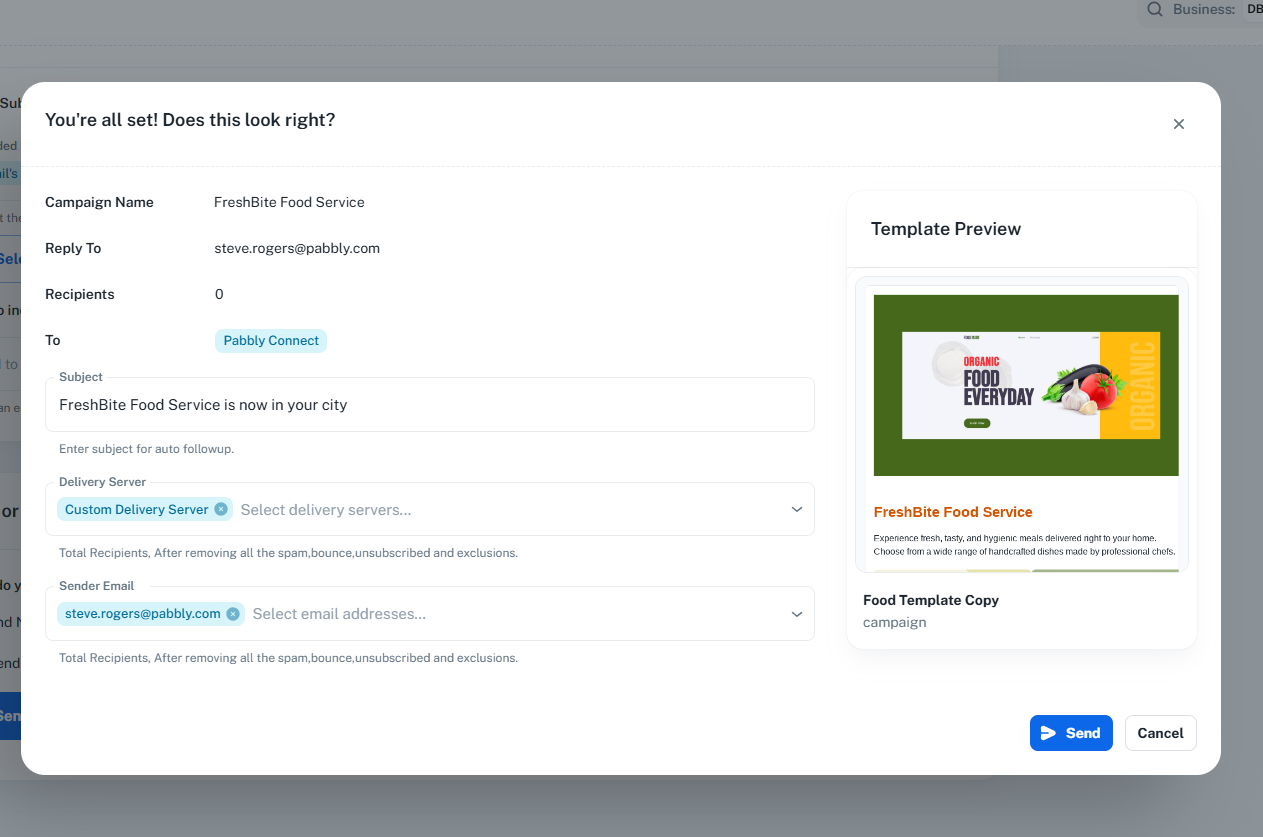
Confirmation dialog shown before sending or scheduling a campaign. Displays a summary of campaign settings for final review.
Campaign Summary (Left):
From, Reply To, Recipients count, Spam Score
To: Chips showing included lists and individual emails
Subject: Editable subject line
Delivery Server: Selected servers and email addresses
Template Preview (Right):
Email template thumbnail with name and category
Final review of all campaign settings
Editable subject line before sending
Shows total recipient count
Template preview for visual confirmation
Action buttons: Send/Schedule (with loading state) and Cancel
