This is the complete process of deleting an existing Order Message in Pabbly Chatflow. By following these steps, you can delete the order messages.
Step 1: Log in to Pabbly Chatflow and Open Order Message Section
- Log in to your Pabbly Chatflow account.
- From the left sidebar, click on WhatsApp Payment.
- On the top navigation bar, click on the Order Message tab (3rd Tab).
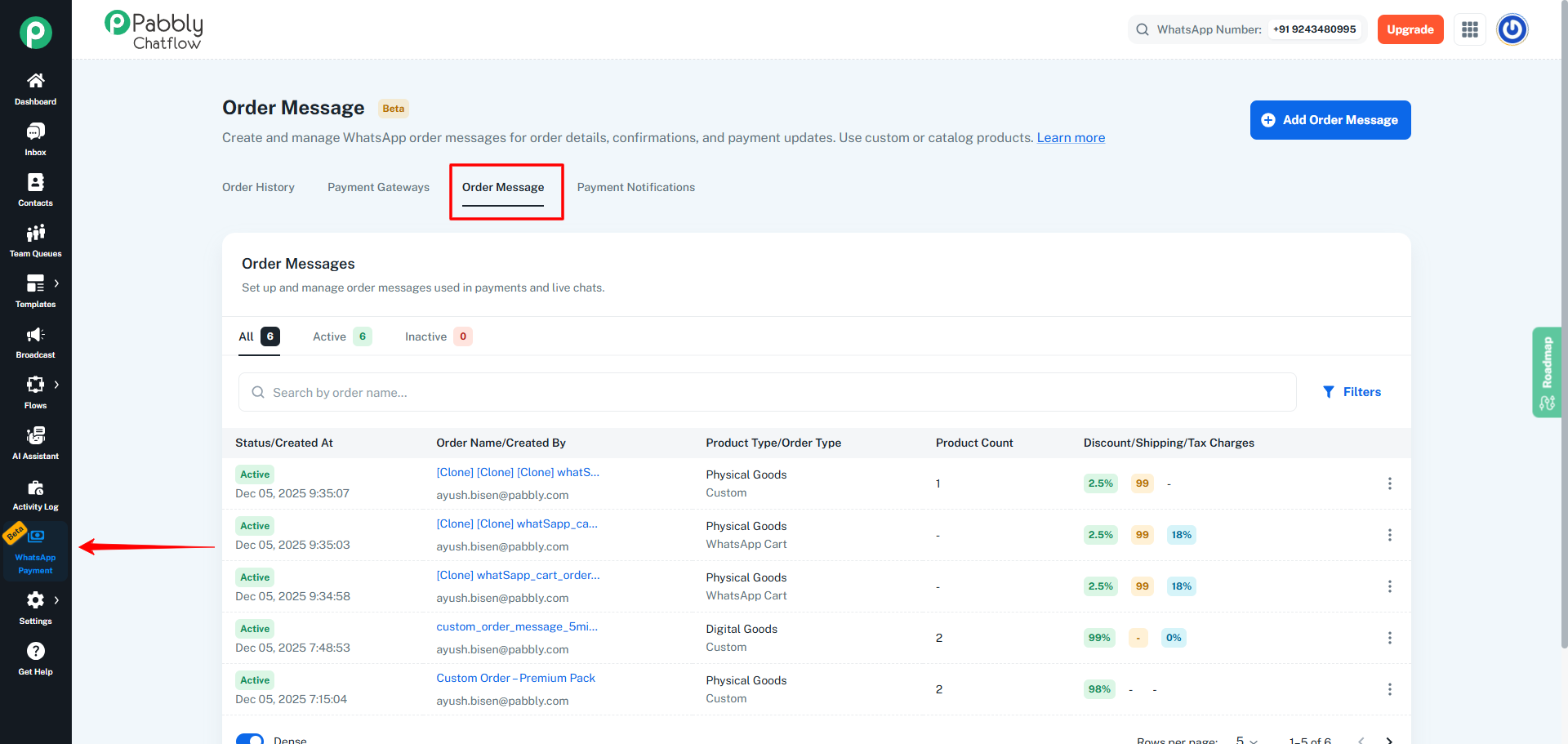
Step 2: Locate the Order Message You Want to Delete
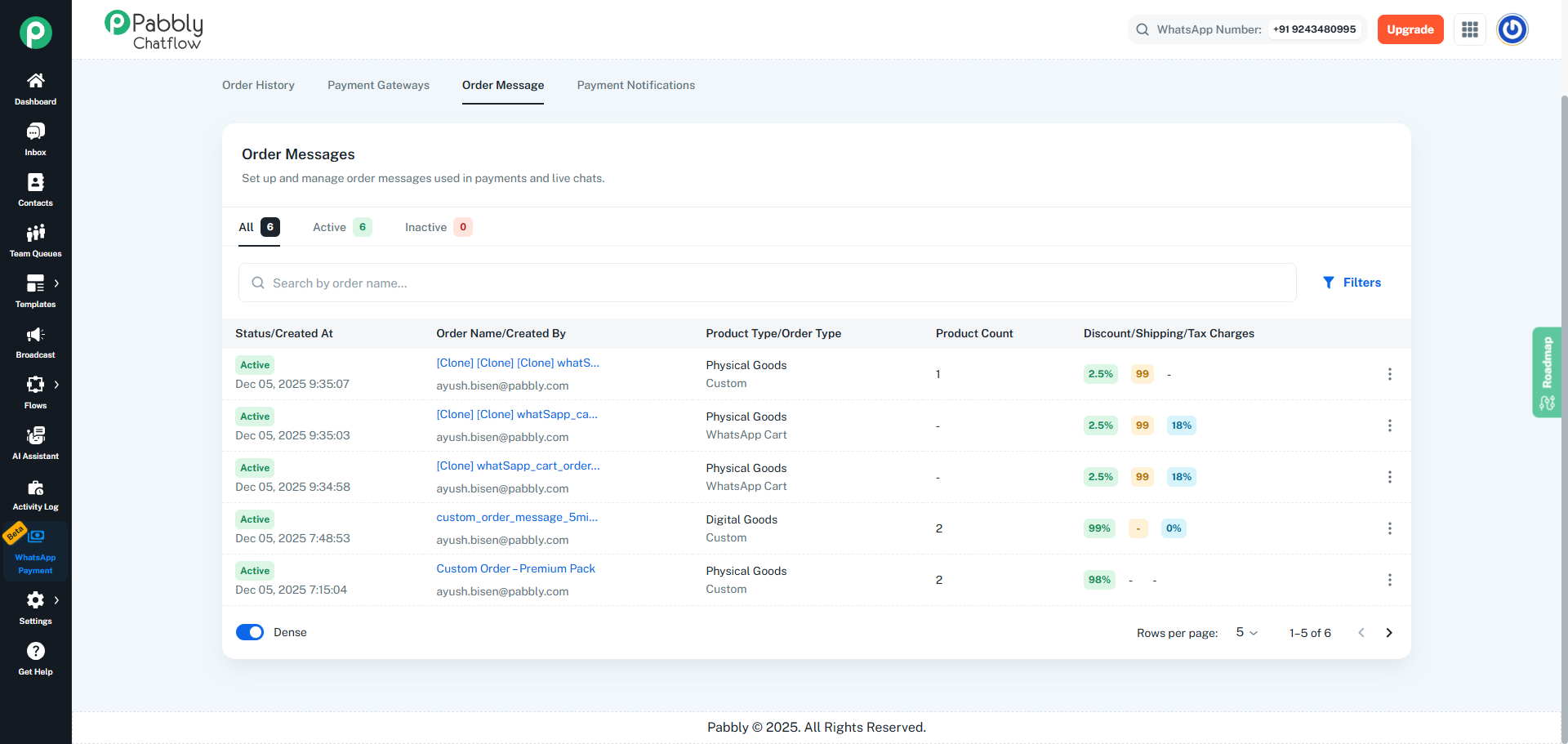
- On the Order Messages listing page, browse the list of available order messages.
- You can also use the Search bar or Filters to quickly find a specific order message.
- Identify the order message that you want to delete.
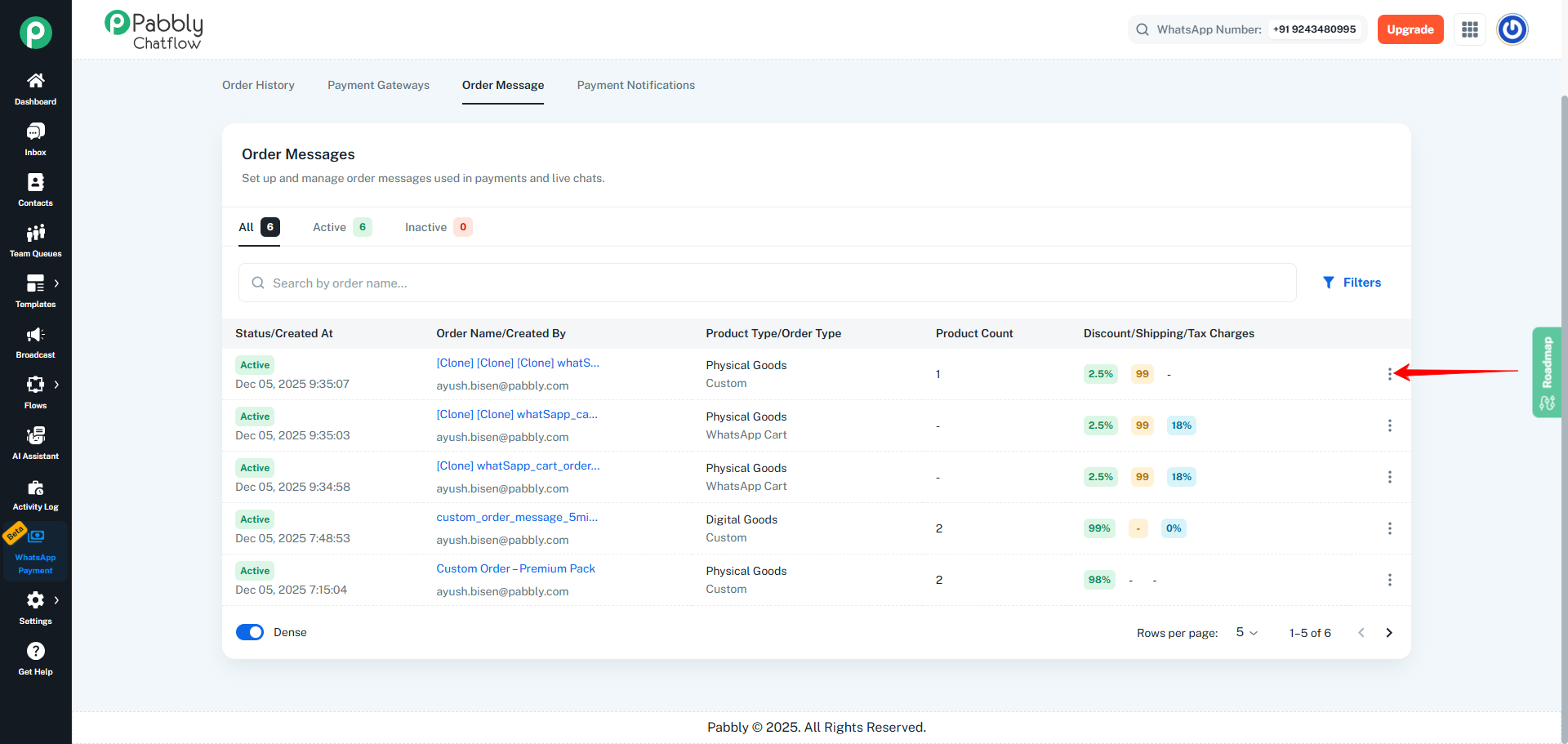
- On the right side of the selected order message, click on the three-dot (⋮) menu.
- A dropdown menu will appear with multiple options.
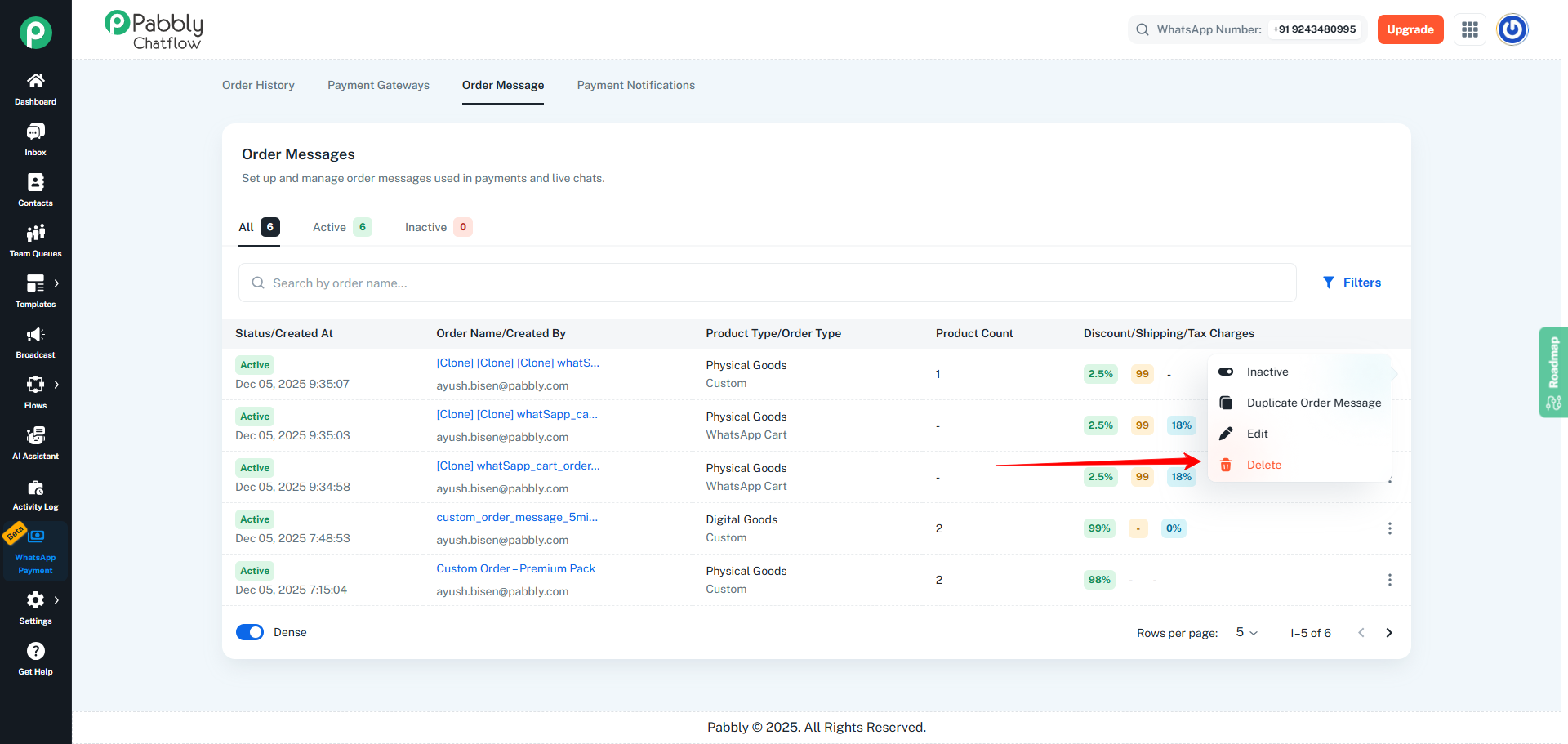
Step 4: Click on the Delete Option
- From the dropdown menu, click on the Delete option.
- This action will open a confirmation pop-up.
Step 5: Confirm the Deletion
-
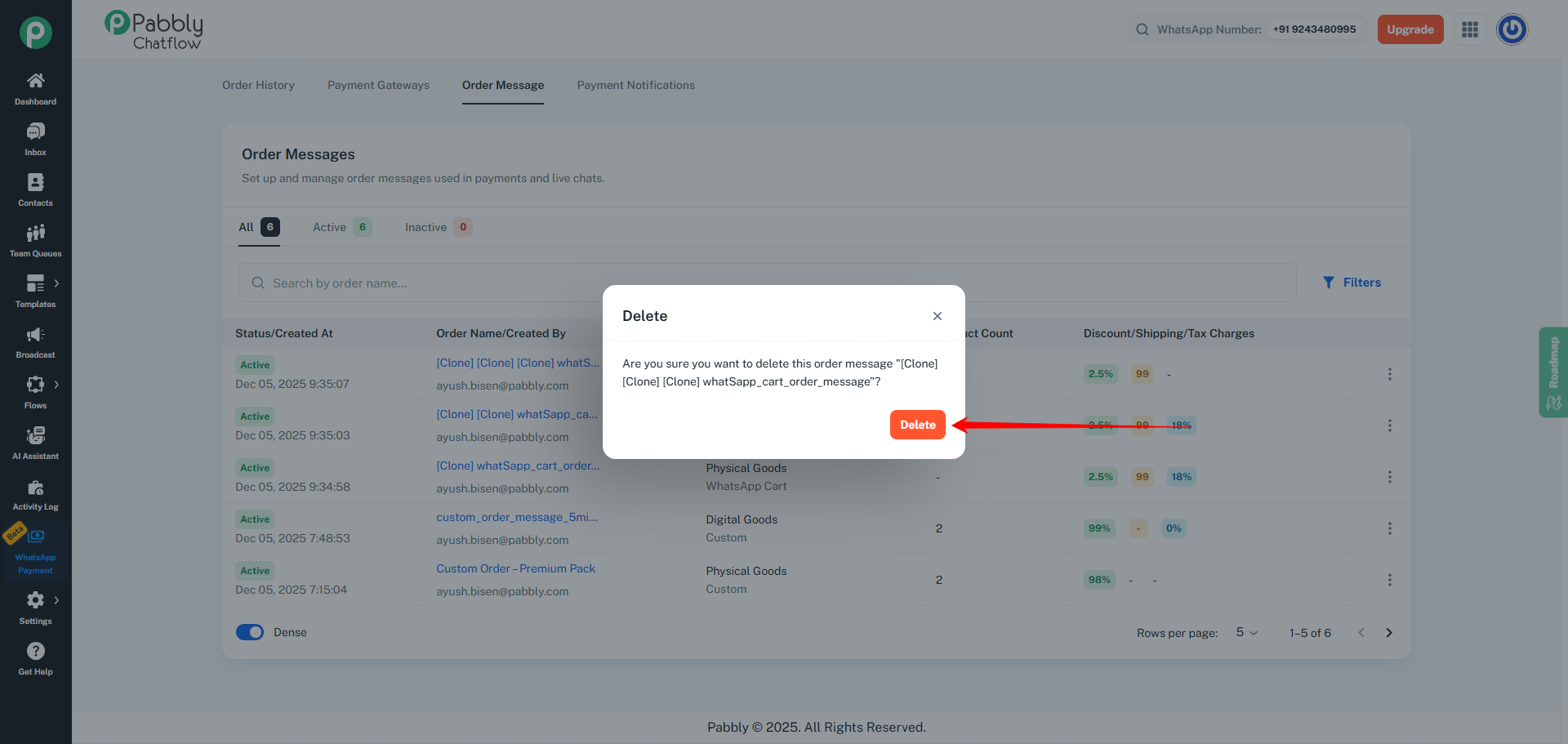
A confirmation popup will appear with the message:
Are you sure you want to delete this order message?
-
Click on the Delete button to permanently remove the order message.
Result
- The selected Order Message will be permanently removed from the list.
- It will no longer be available for use in order processing or payments.
 Pabbly Chatflow Team•Updated Oct 24, 2026•1 min read