Features & Capabilities
 Pabbly Chatflow Team•Updated Oct 24, 2026•1 min read
Follow the steps below to change the status of an existing Order Message in Pabbly Chatflow.
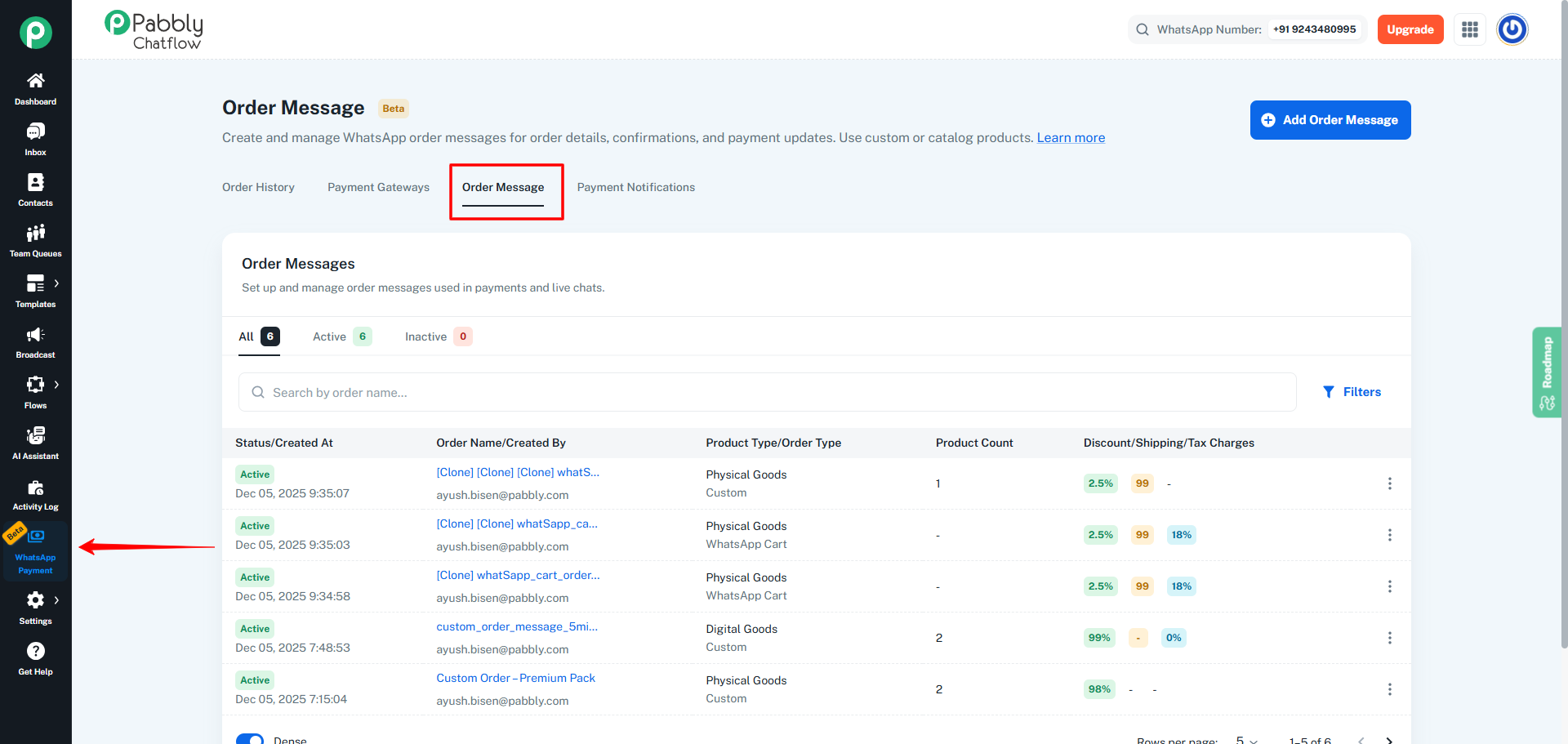
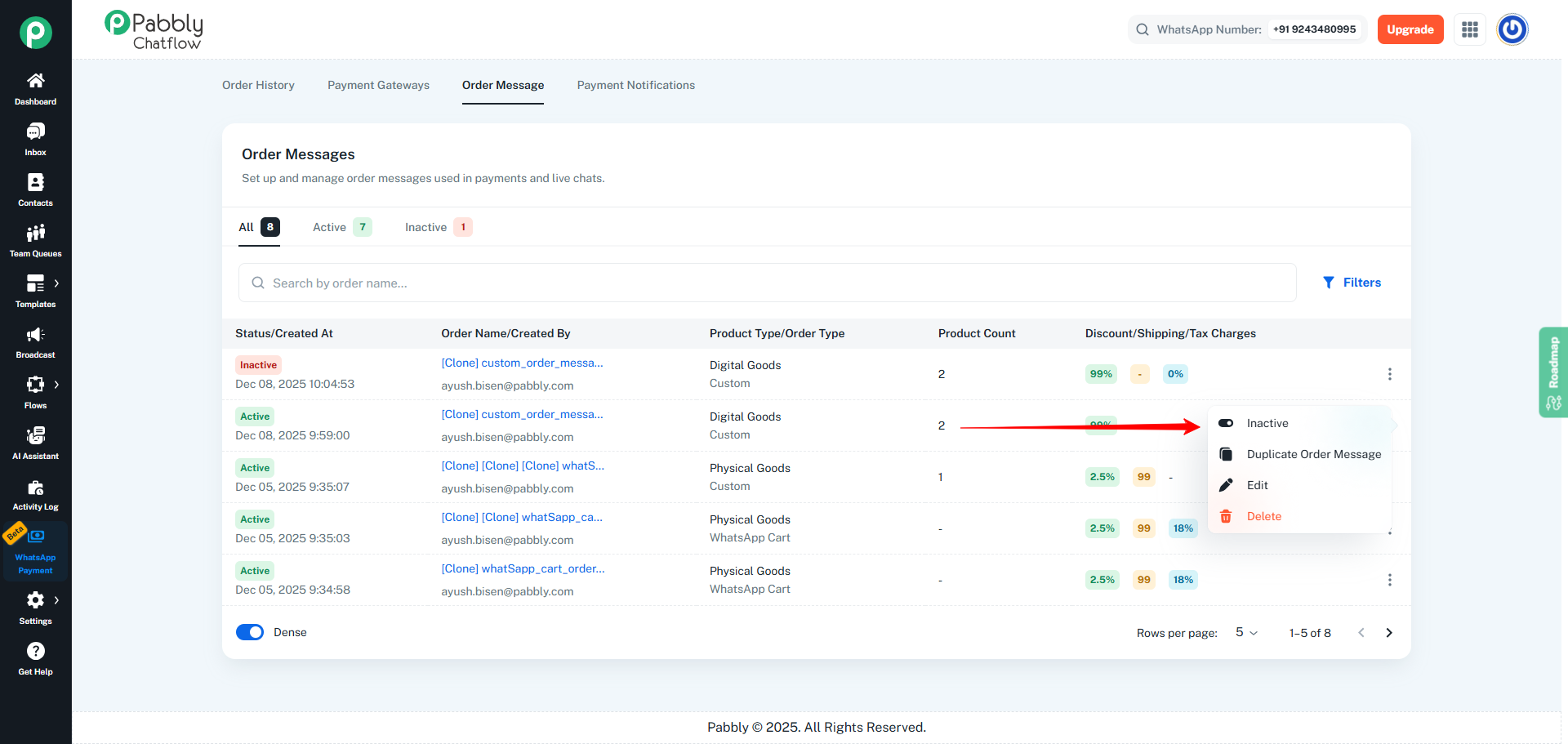
In the Order Messages list, find the order message whose status you want to change
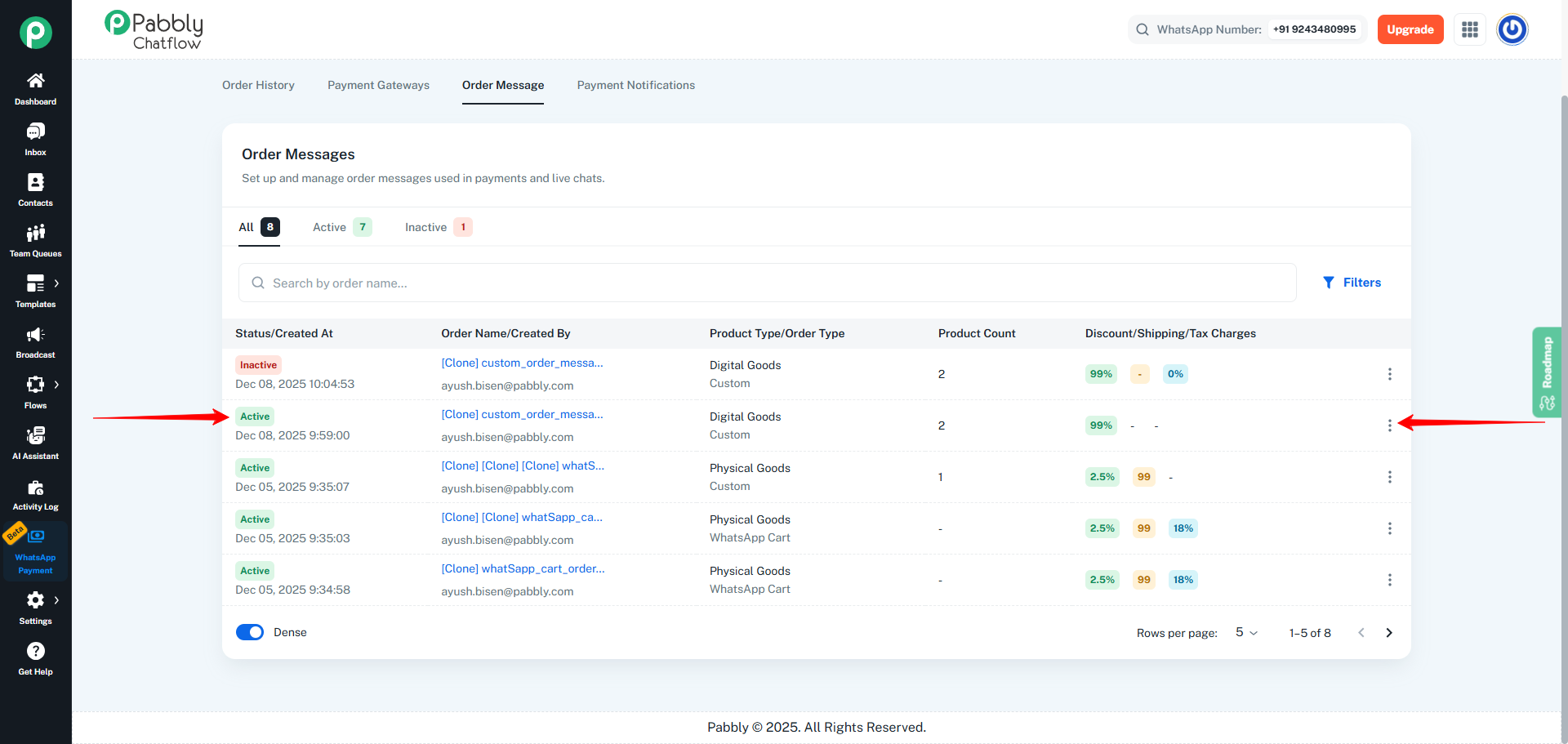
On the right side of that order message row, click the three-dot (⋮) menu to view more actions.
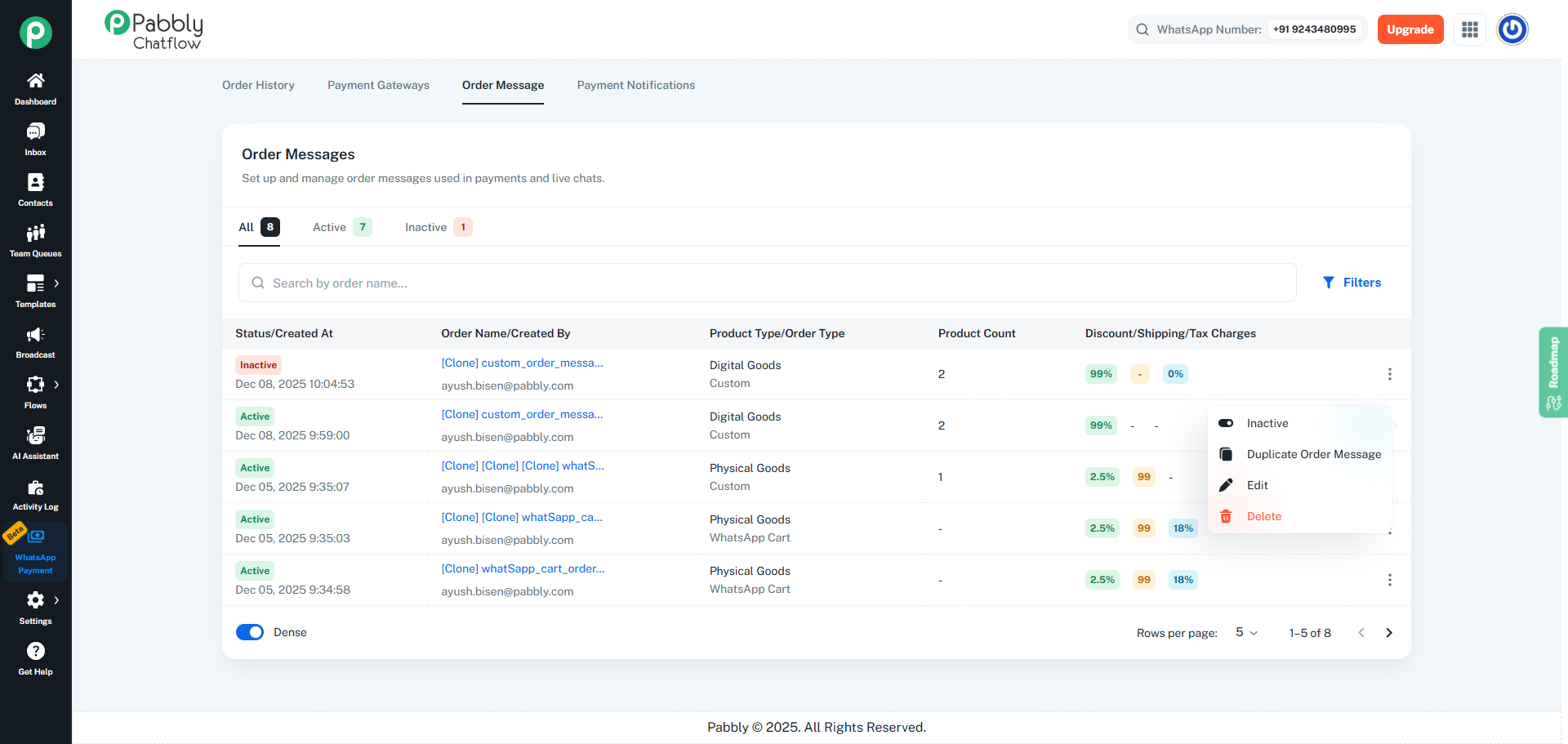
From the menu items, click Inactive.
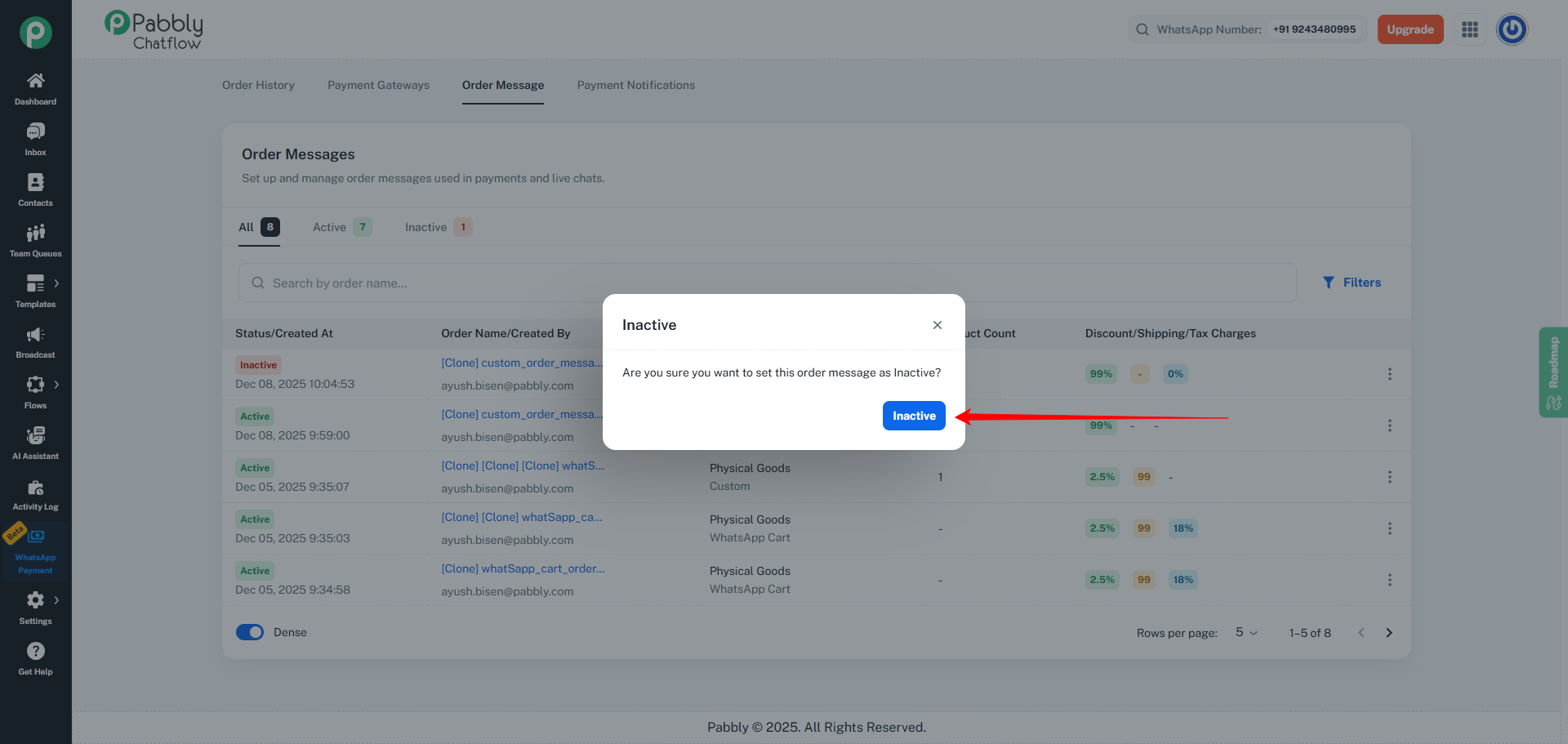
A confirmation popup titled Inactive will appear, asking:
“Are you sure you want to set this order message as Inactive?”
Click the Inactive button to confirm.
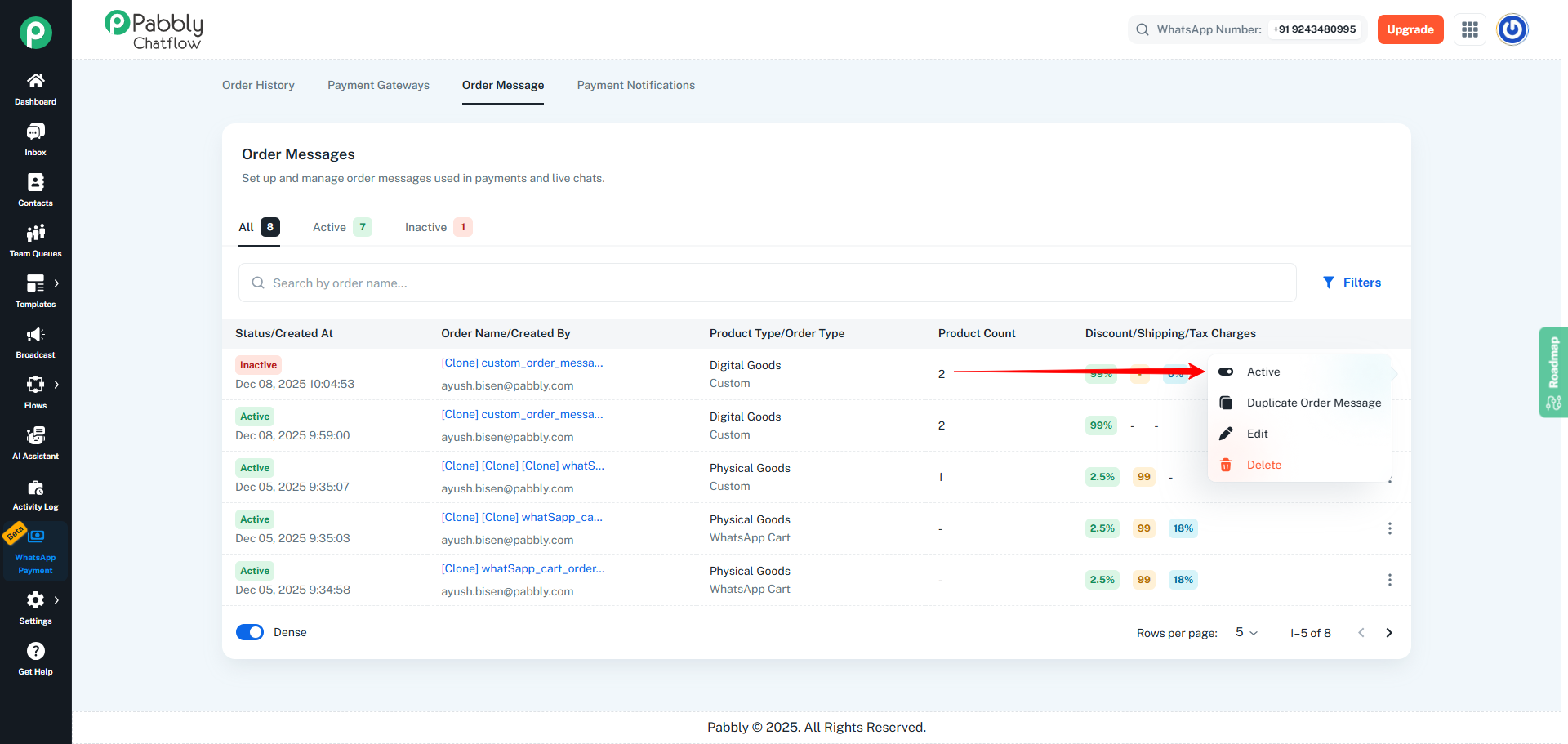
In the Order Messages list, find the order message that is currently marked as Inactive.
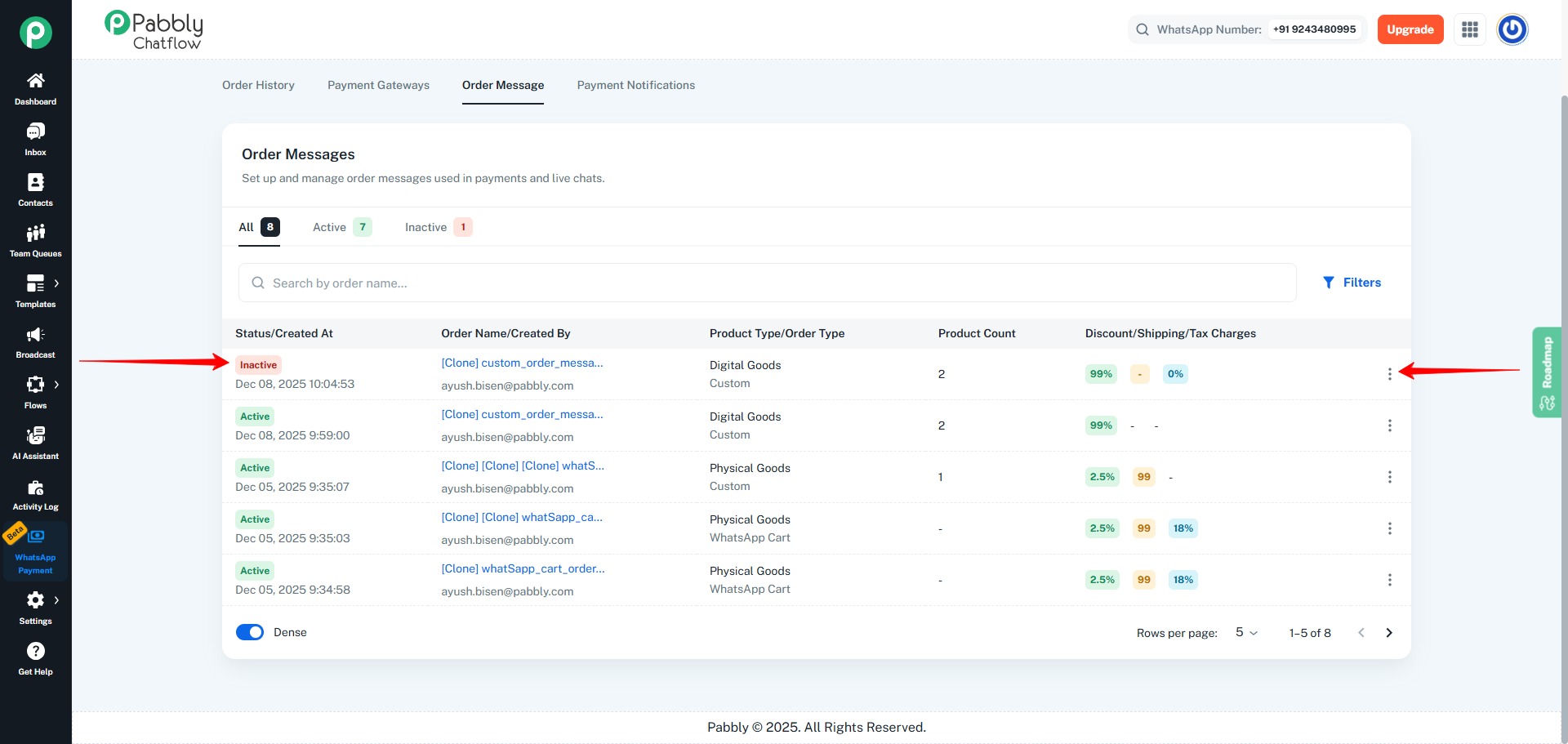
On the right side of that Inactive order message row, click the three-dot (⋮) menu.
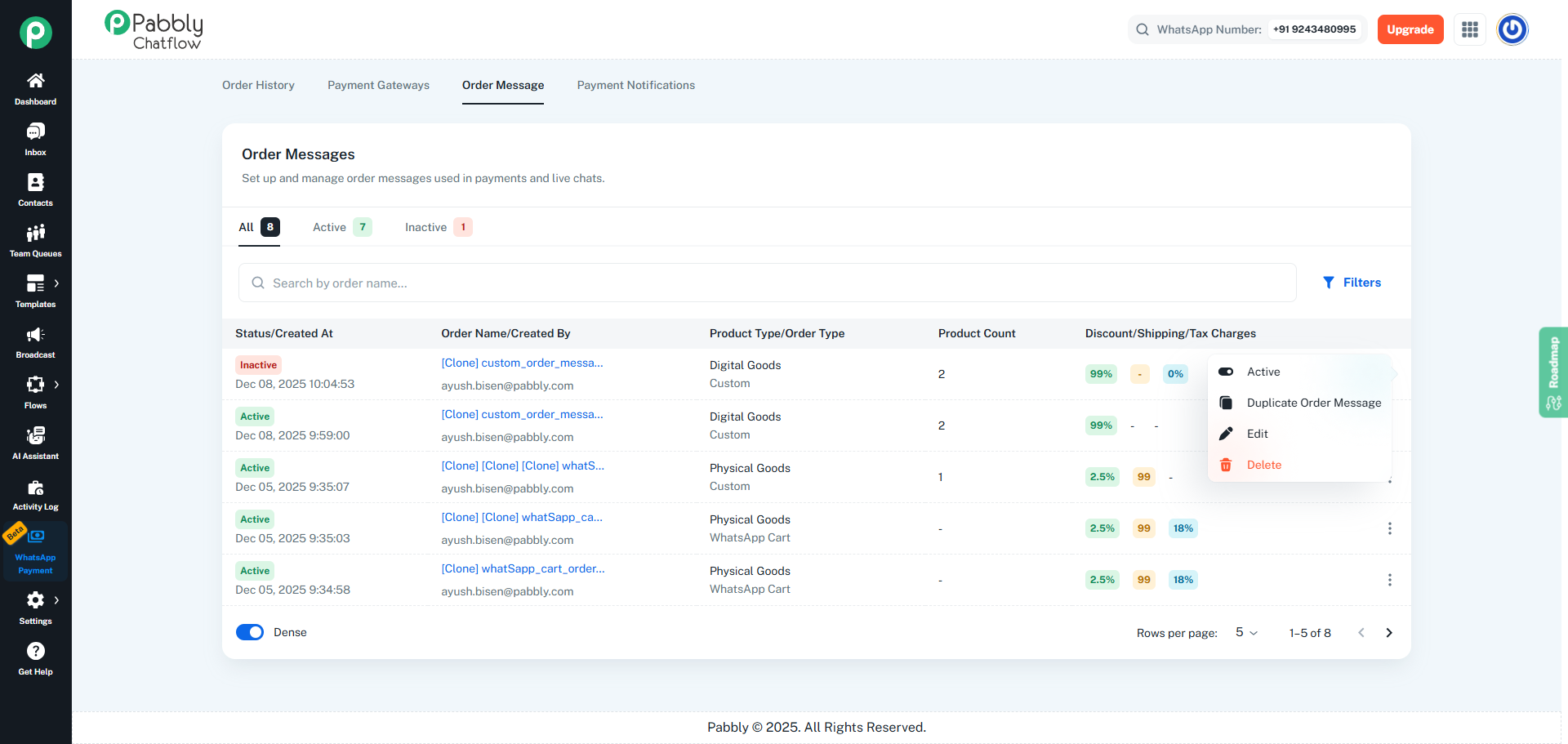
From the dropdown menu, click Active.
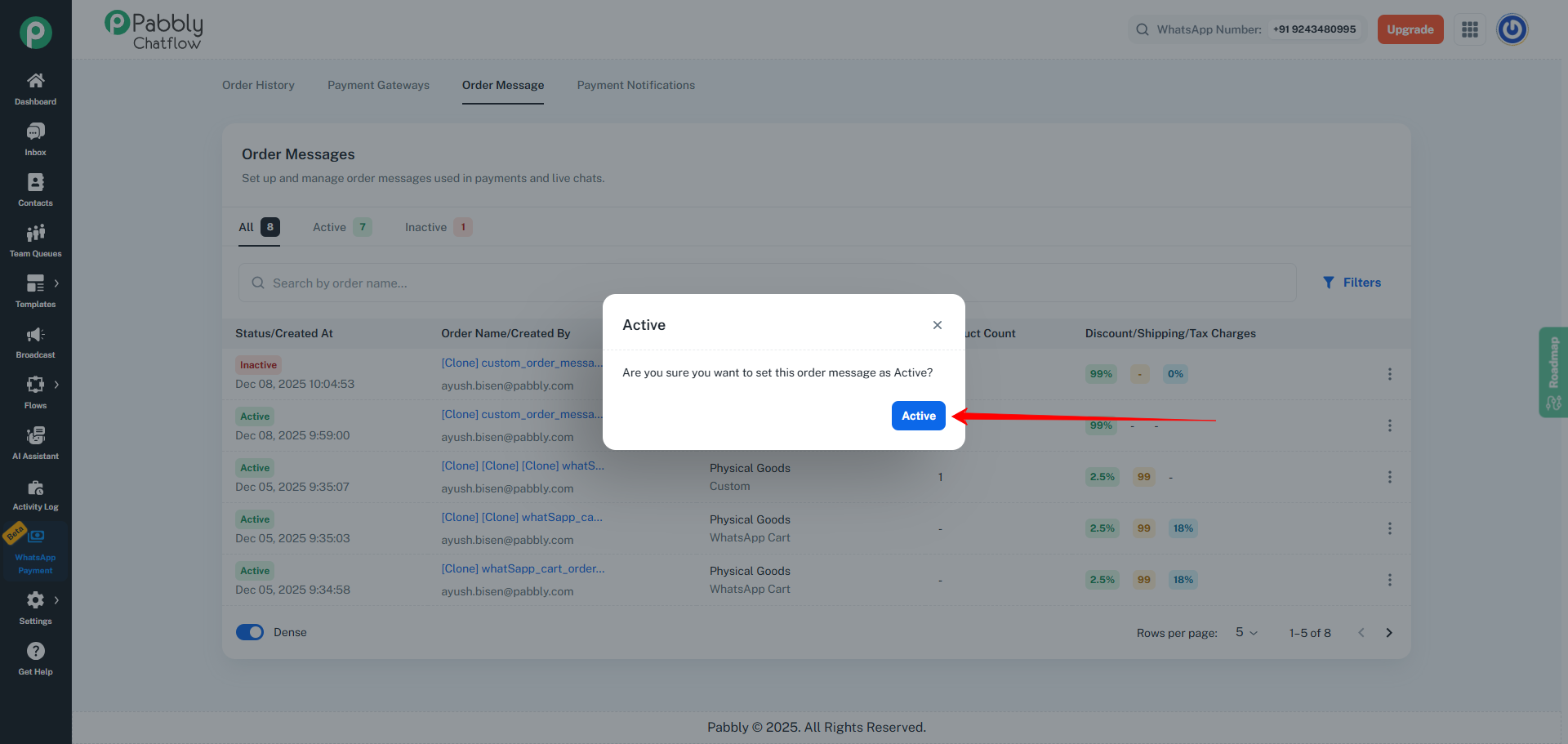
A confirmation popup titled Active will appear, asking:
“Are you sure you want to set this order message as active?”
Click the Active button to confirm.