Follow the steps below to create a duplicate (clone) of an existing Order Message in Pabbly Chatflow.
Step 1: Log in to Pabbly Chatflow and Open Order Message Section
- Log in to your Pabbly Chatflow account.
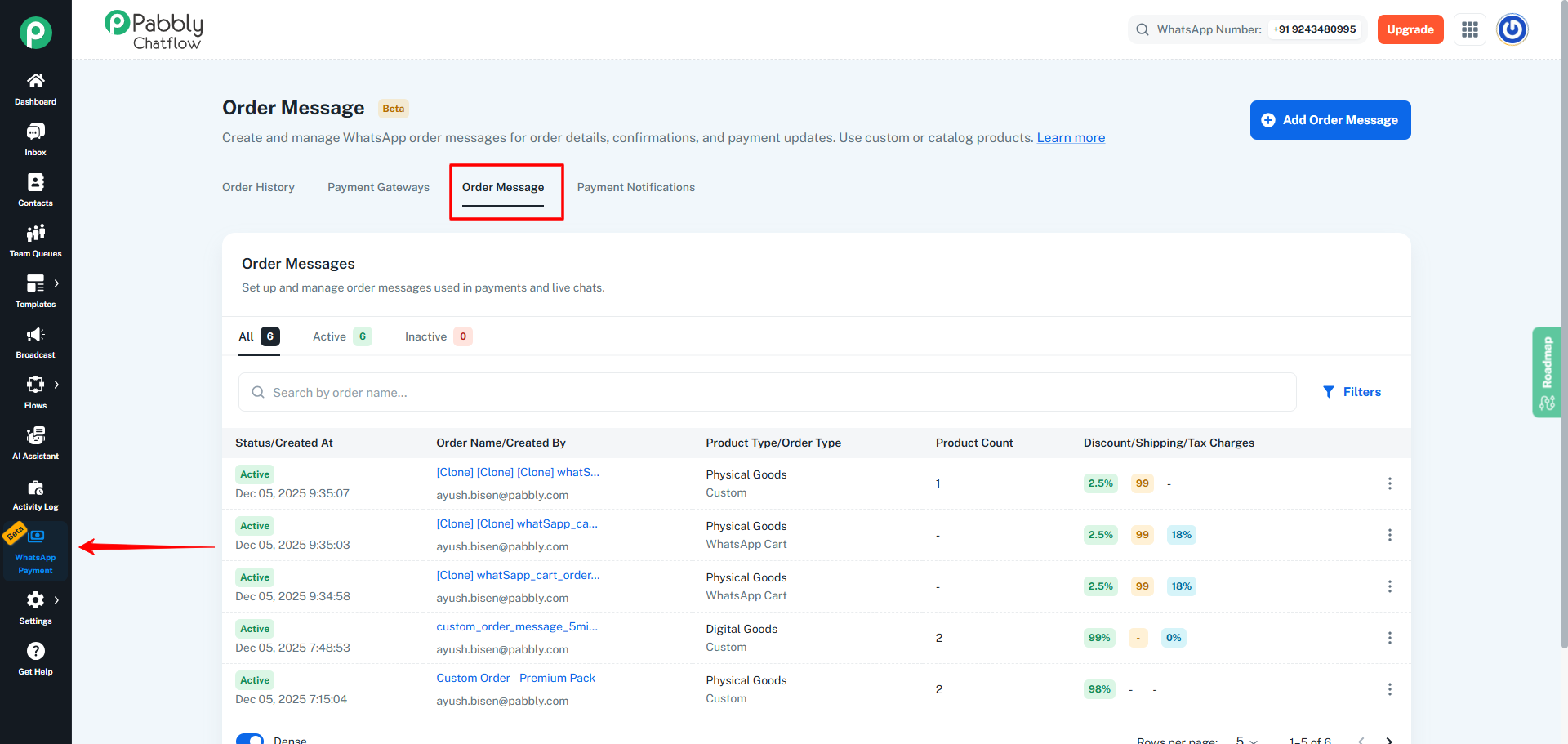
- From the left sidebar, click on WhatsApp Payment.
- On the top navigation bar, click on the Order Message tab (3rd Tab).
Step 2: Select the Order Message You Want to Clone
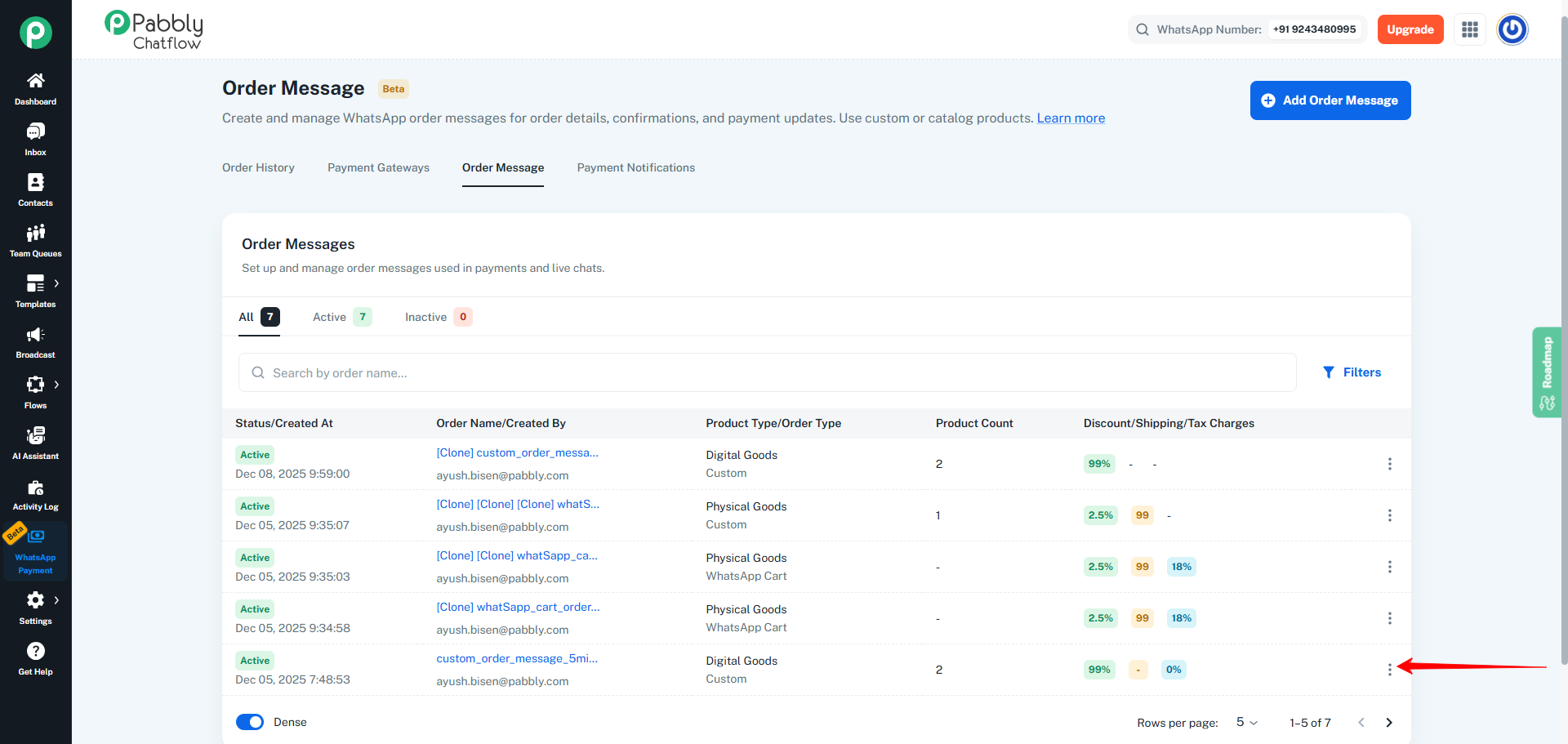
- In the Order Messages list, locate the order message you want to duplicate.
- On the right side of that row, click on the three vertical dots (⋮) to open the actions menu.
Step 3: Click on “Duplicate Order Message”
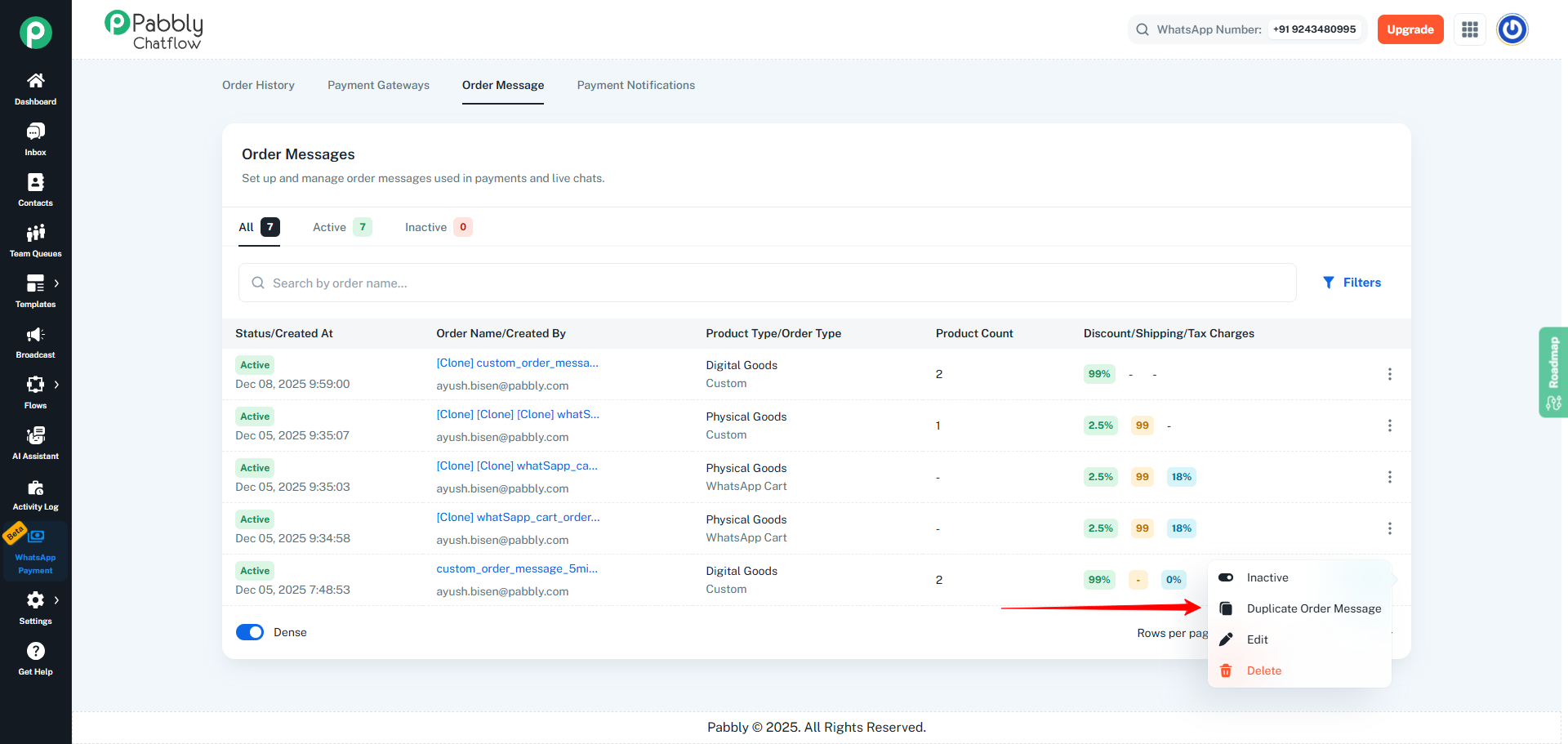
- In the actions menu, click on Duplicate Order Message.
- This will create a cloned copy of the selected order message.
Step 4: Confirm the Cloned Order Message
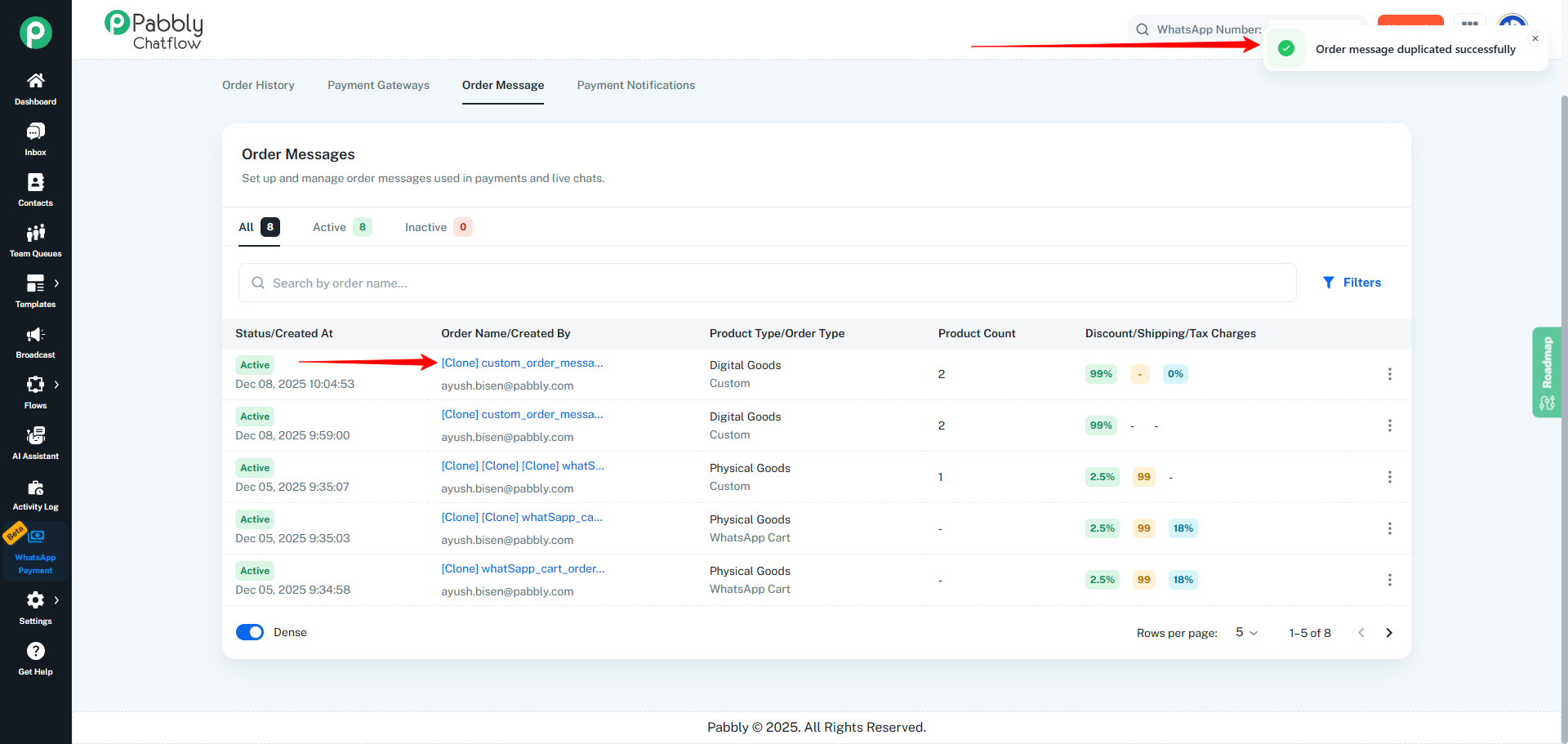
- After clicking Duplicate Order Message, a success notification will appear at the top-right corner saying that the order message has been duplicated successfully.
- A new row will be added to the Order Messages list with the cloned entry.
- The cloned order message name will have
\[Clone\] added as a prefix before the original order message name.
- If you clone an order message that is already a clone, the name will appear as
\[Clone\] \[Clone\] followed by the order message name.
Step 5: Edit the Cloned Order Message (Optional)
- To modify the cloned order message, click on the three vertical dots (⋮) in the cloned row.
- Select Edit to update the name, settings, or any other details as needed.
- Save your changes.
You have now successfully cloned an order message and can reuse or customize it without changing the original one.
 Pabbly Chatflow Team•Updated Oct 24, 2026•1 min read