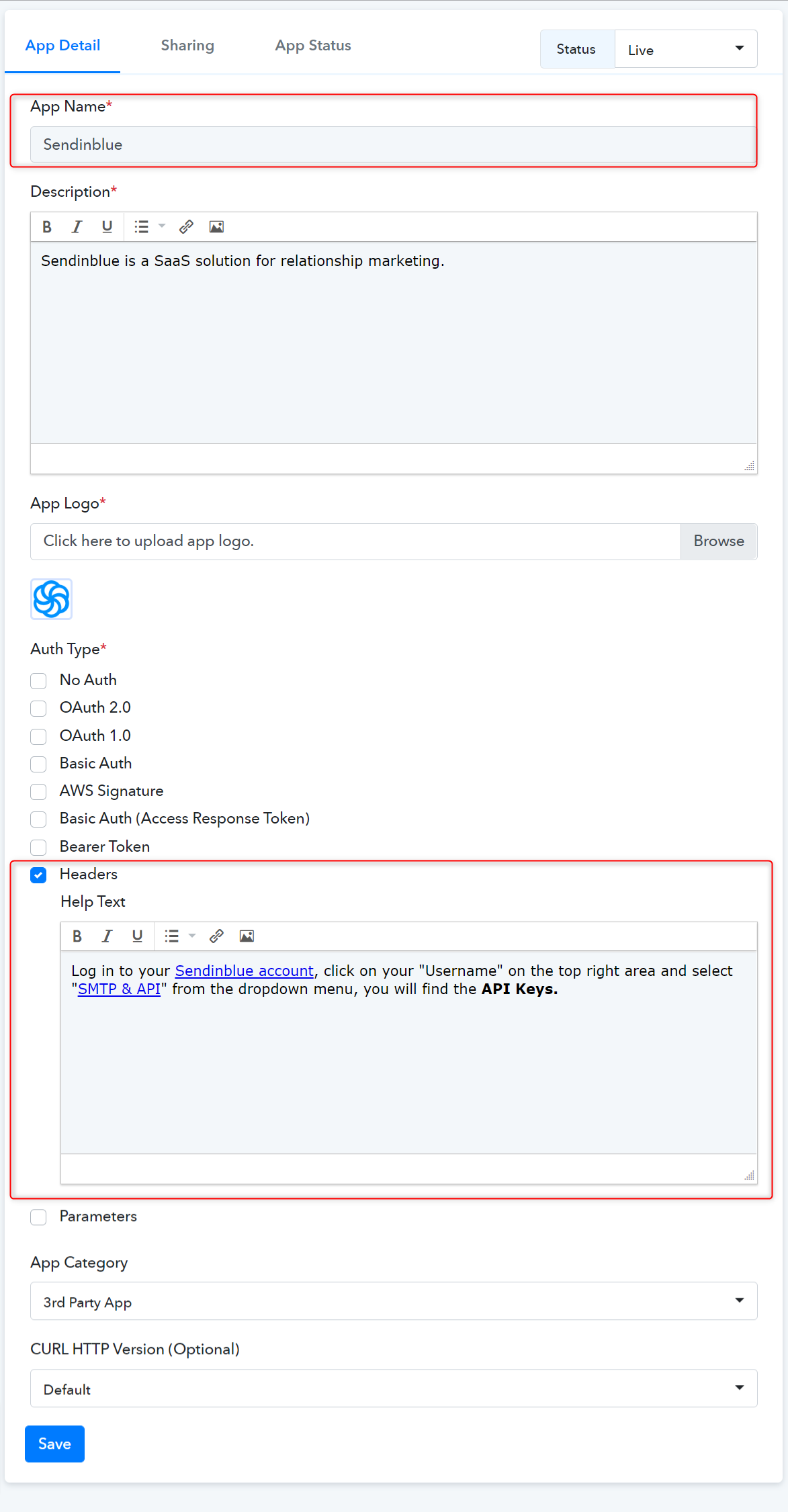
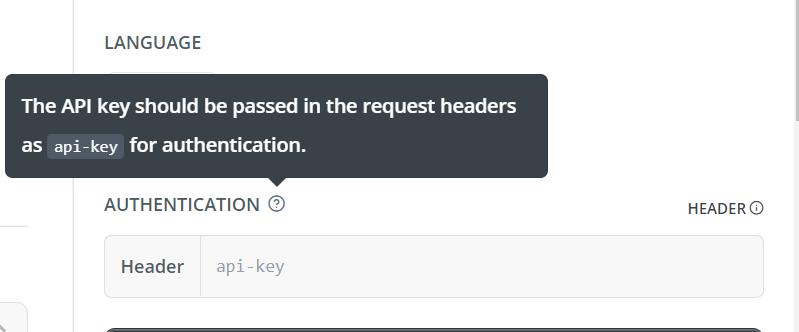
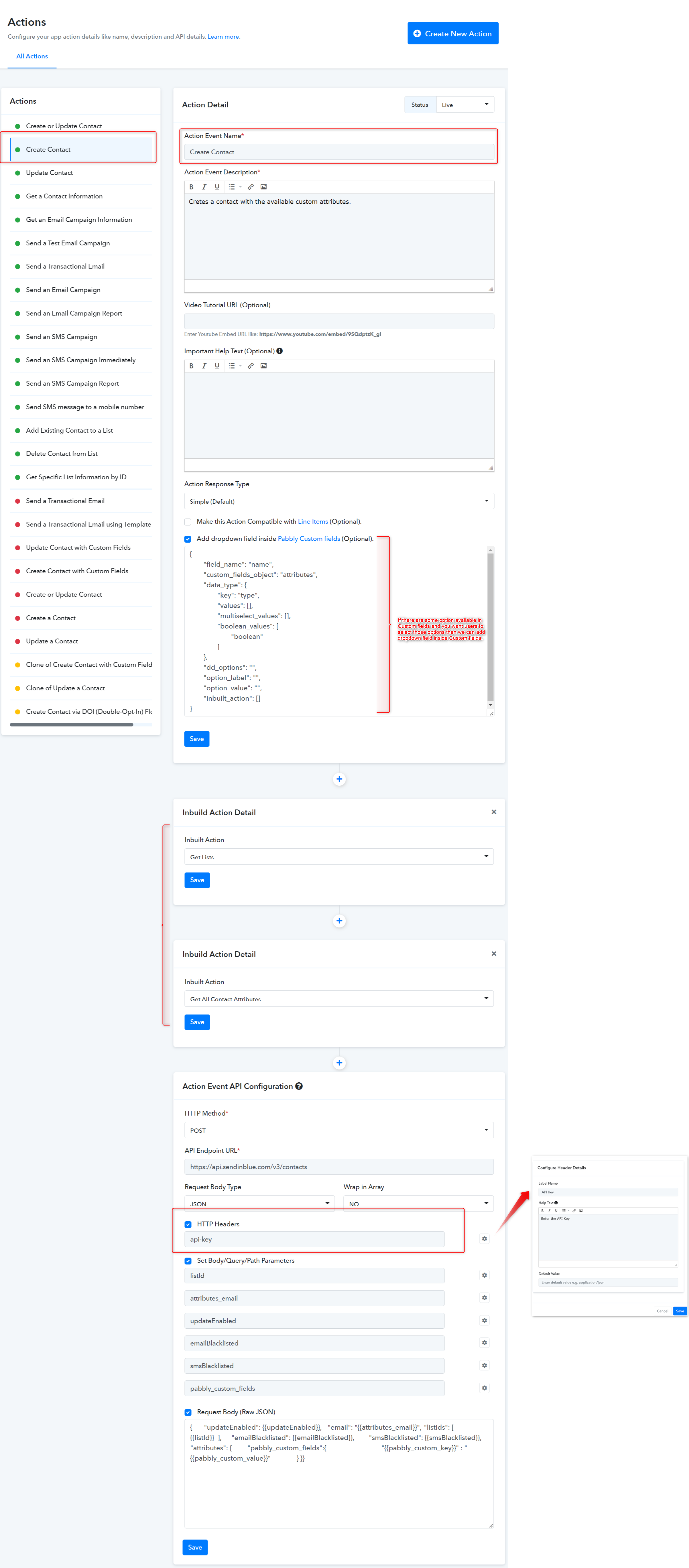
Note: If the API request authenticates using a key-value pair in the request headers. In this option, you need to specify the header key while creating each and every action event of your app. 👉 We followed the Sendinblue API docs for selecting the Auth type as Header.
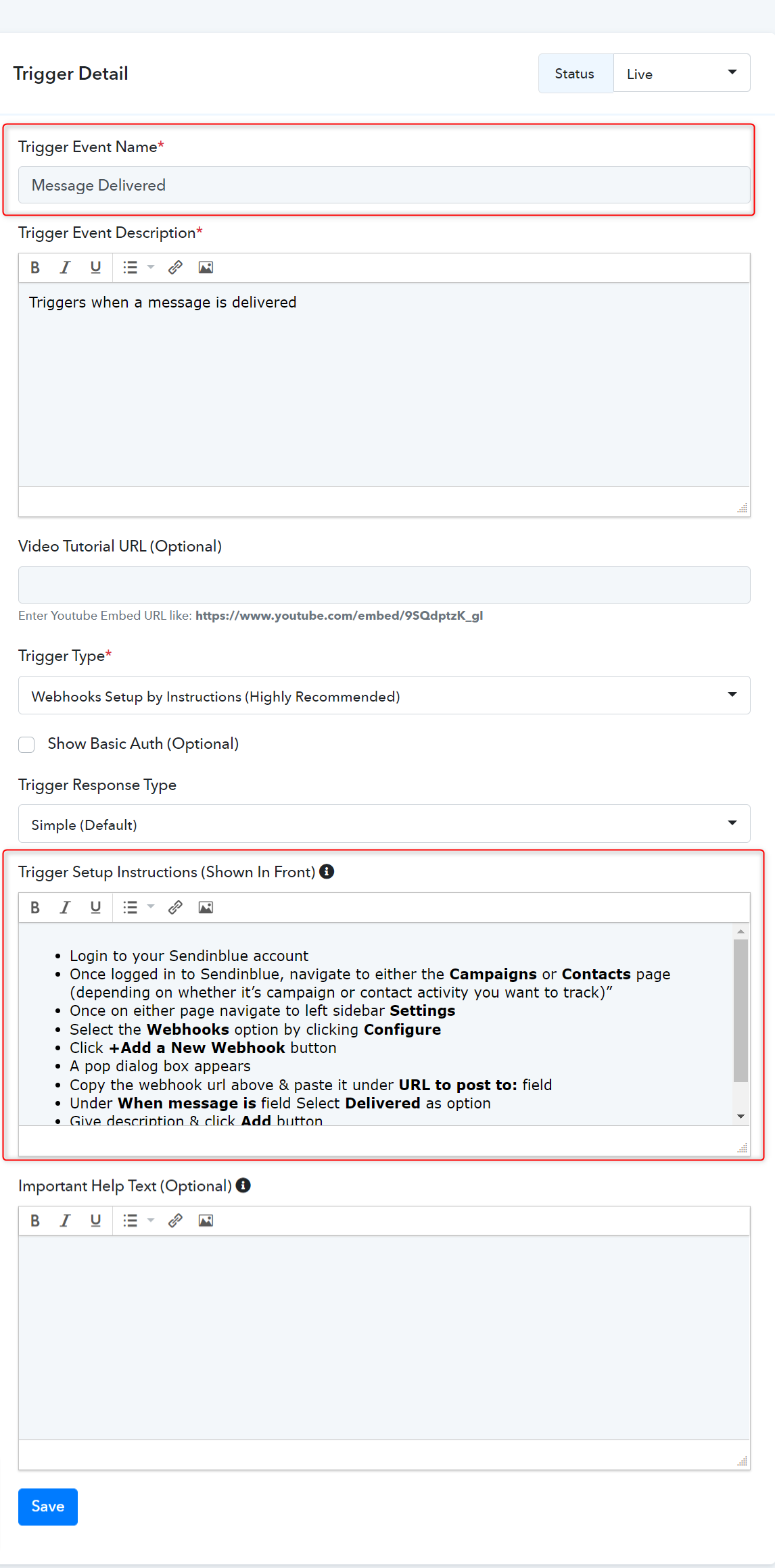
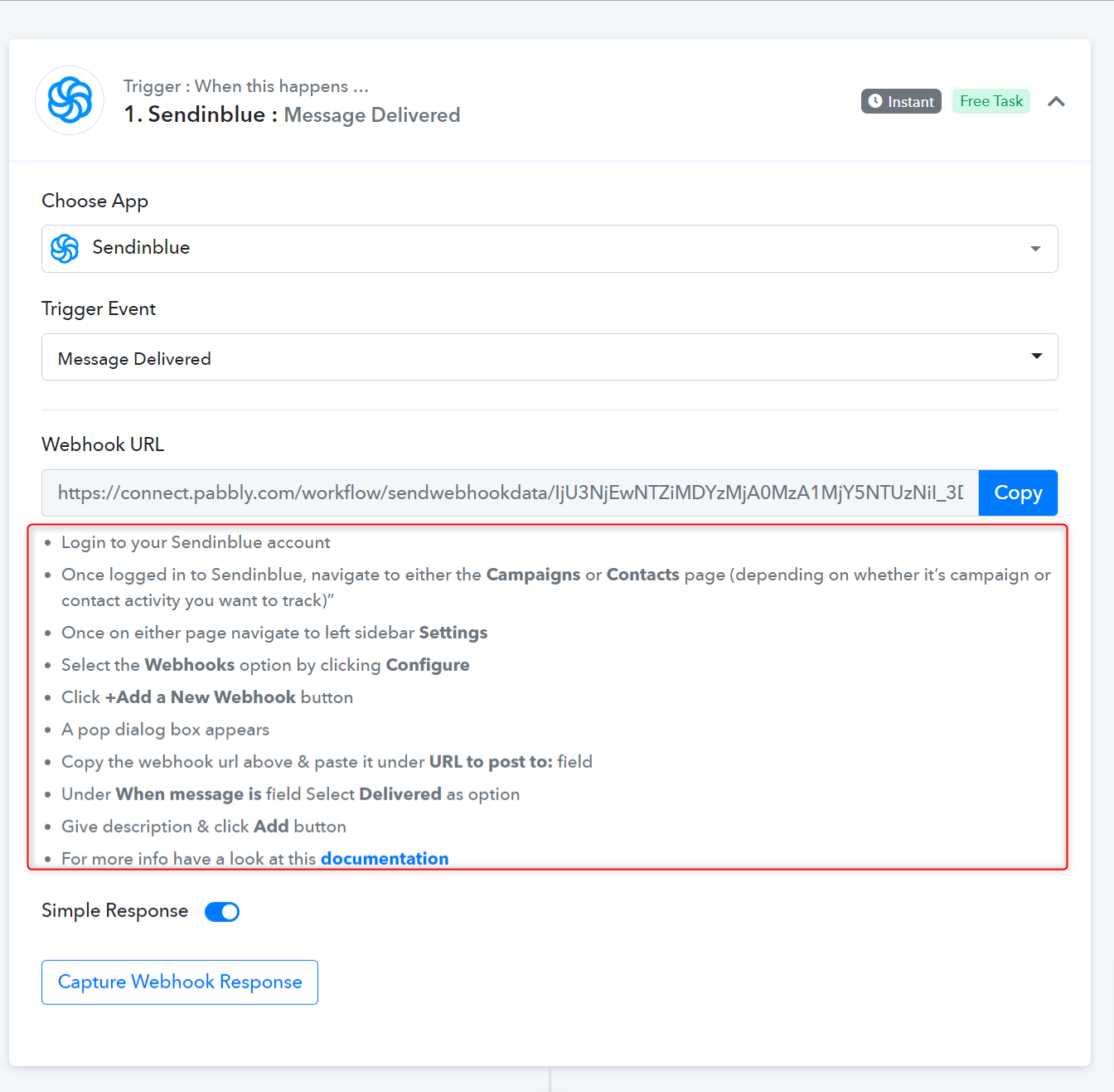
Trigger name - Message Delivered
Type - Setup by Instruction. Webhooks Setup by Instructions (Highly Recommended) - If your app provides an option to add a webhook URL in the app dashboard itself, you can configure this type of Triggers for your app. It is a description-based trigger event. It triggers an instant notification to the Pabbly Connect workflow’s webhook URL when a trigger event occurs in the app.
Request Body Type - Specify a request body type to request this action event. By default, it is JSON.
Wrap in Array - Specify if your request raw JSON needs to be wrapped in an array or not.
Set Body/Query Parameters - Set parameters if this action event requires to pass the query/URL parameters or map in request raw JSON e.g. listId
Request Body (Raw JSON) - Select this if this action event requires to pass the raw JSON data. If used in endpoints, all variables defined under the Set parameters option should have the required option opted. (Some API accepts blank values for JSON keys).
Now, select the available inbuilt action events from the dropdown field as shown below:
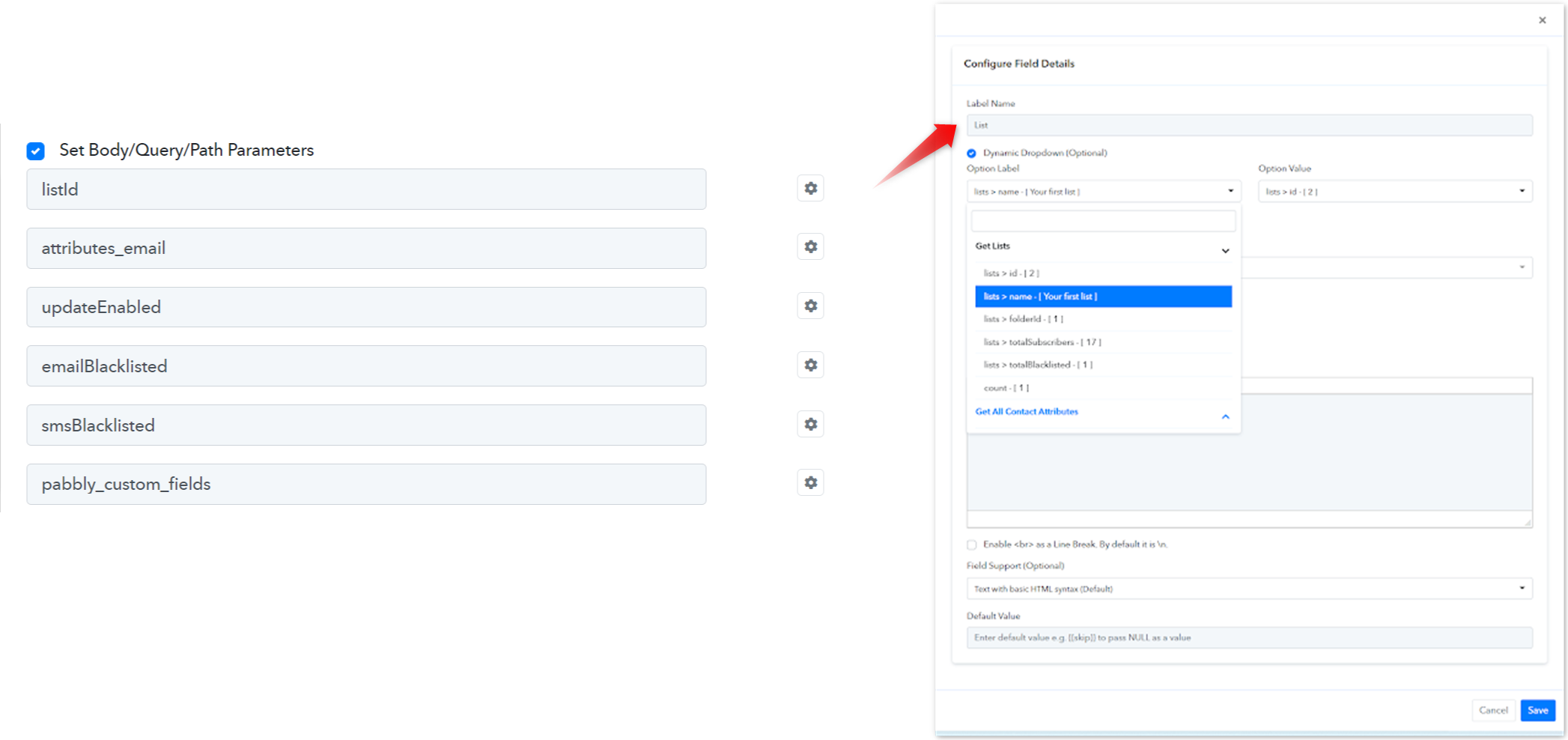
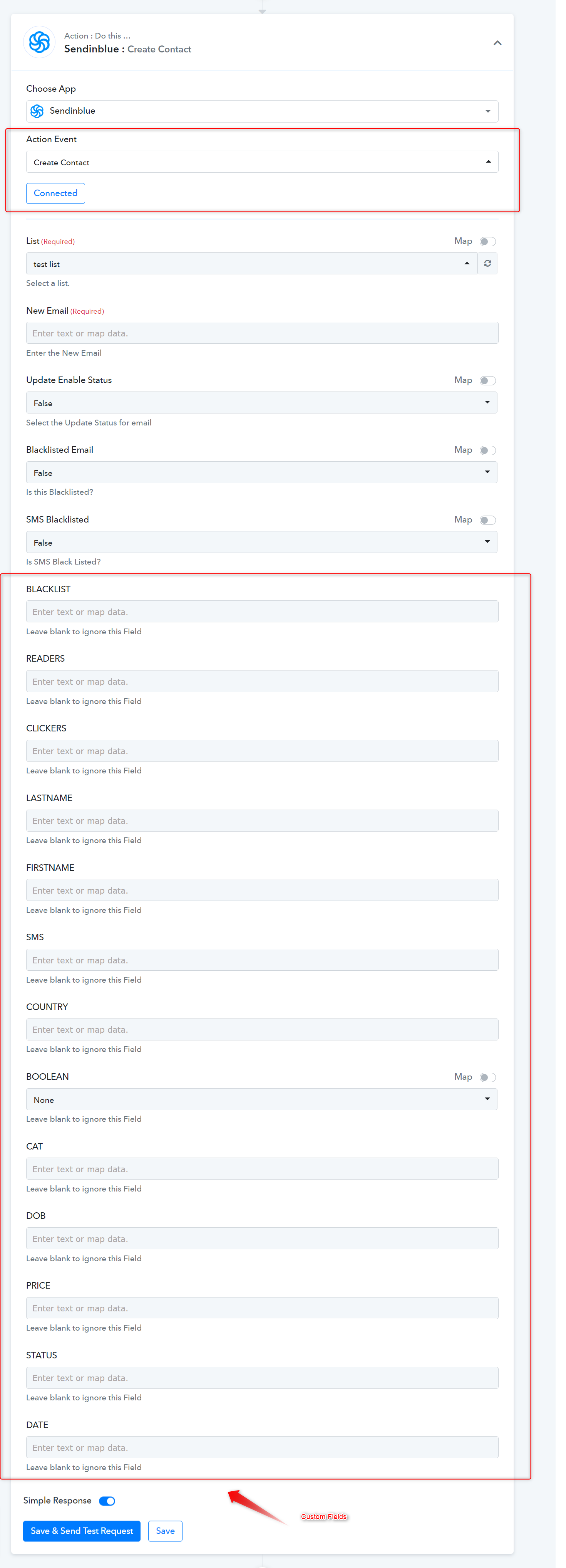
👉listId parameter is set as a Dynamic dropdown field.
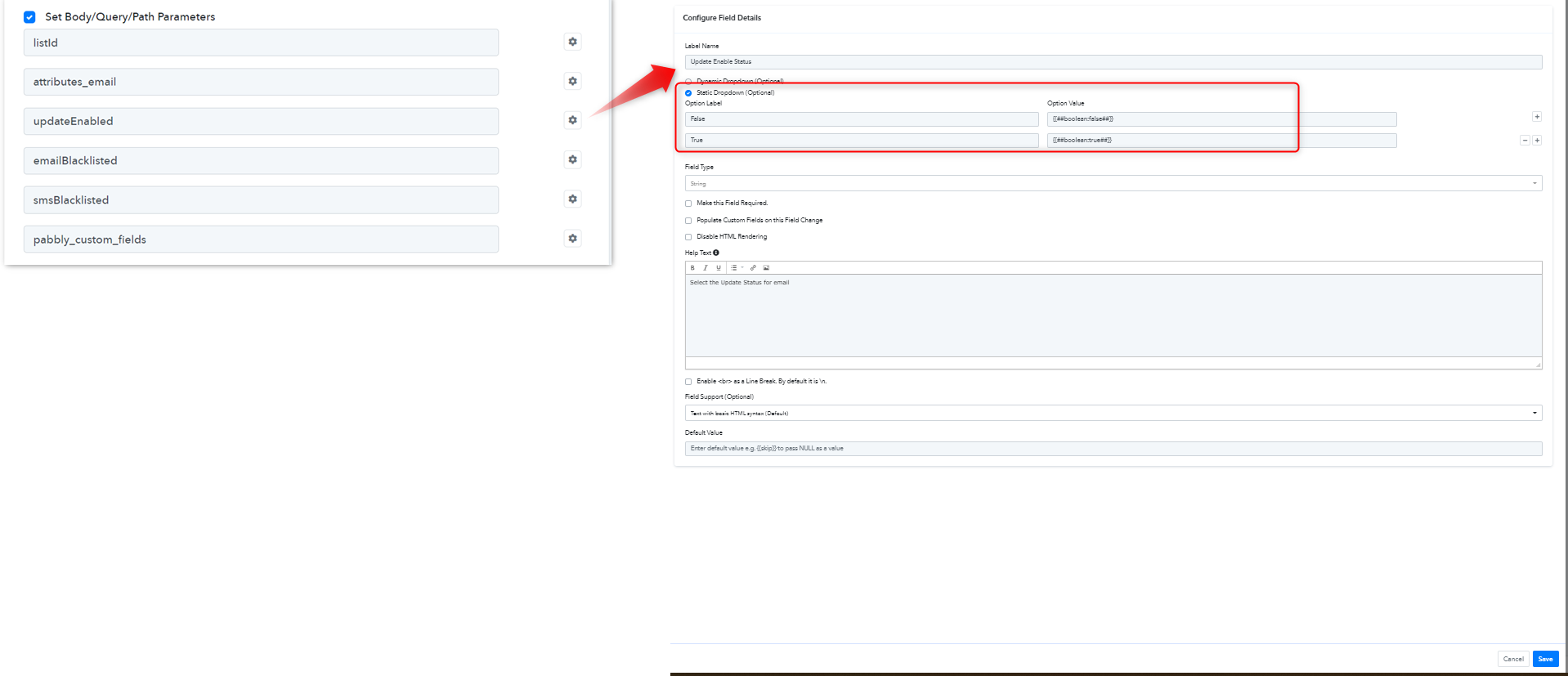
👉UpdateEnabled parameter is set as a boolean Static dropdown field.
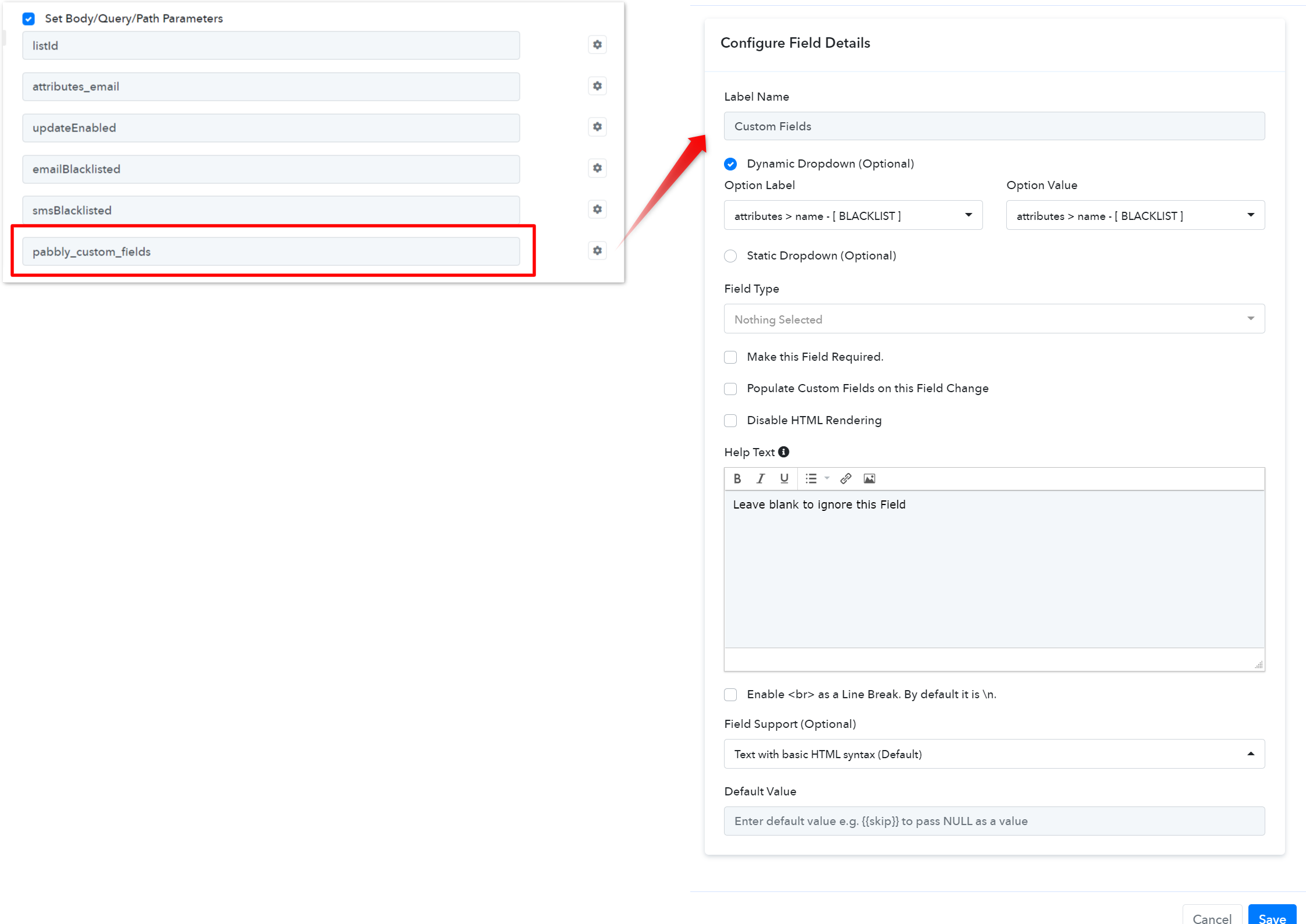
👉 Configured Custom Fields with Dropdown Support (mapped response from inbuilt action)
 Pabbly Connect Team•Updated Jul 25, 2026•2 min read