Features & Capabilities
 Pabbly Chatflow Team•Updated Oct 24, 2026•8 min read
In addition to using Flows, Pabbly Chatflow also allows you to create an order manually for any WhatsApp number directly from the Inbox.
This feature is helpful when you want to send an order message instantly to a customer during a live conversation.
To create an order manually from the Inbox, two conditions must be met:
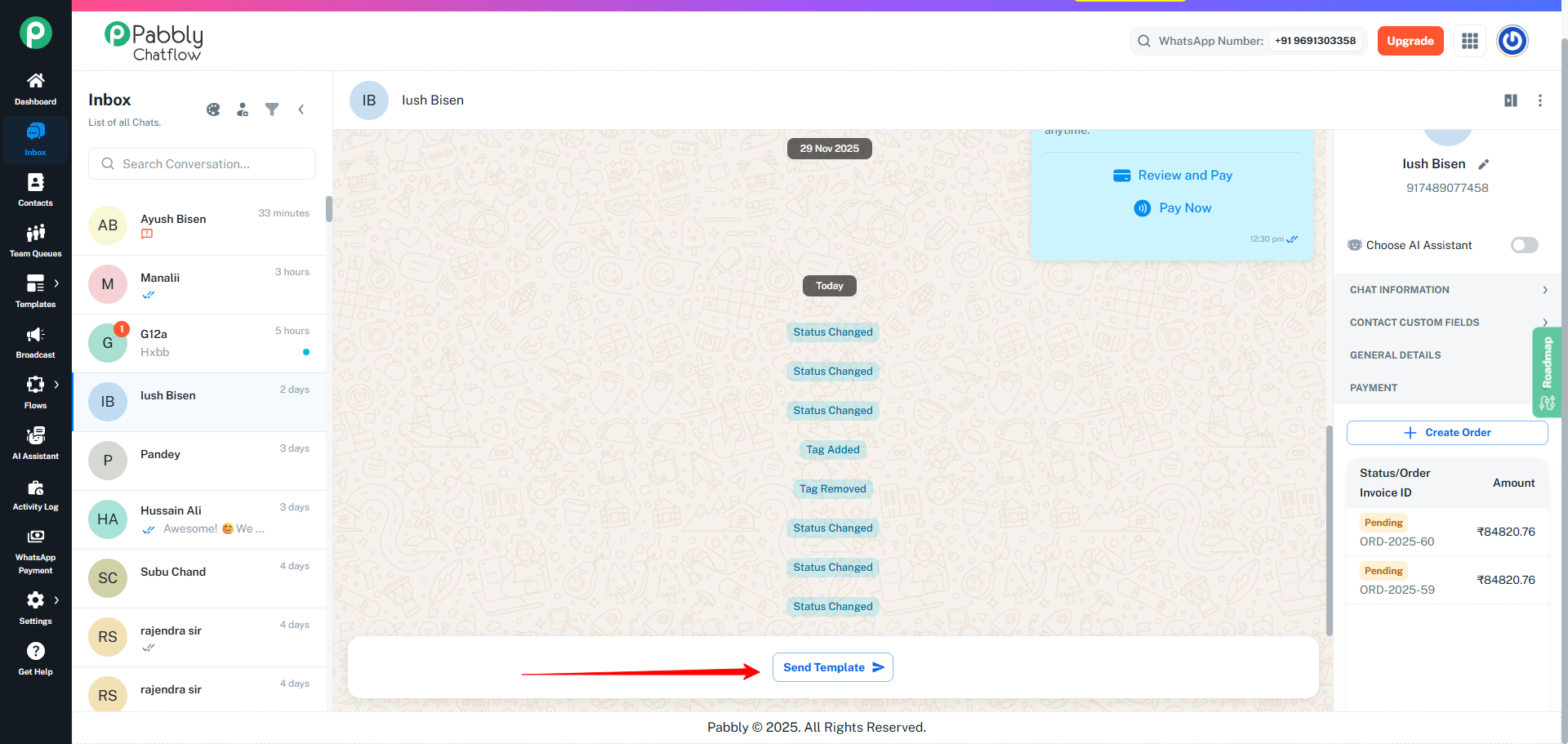
If the customer has not messaged you in the last 24 hours, WhatsApp’s business rules will prevent sending an order message.
If you see “Send Template” button that means the user haven’t message you in last 24 hour that mean you will not able to send the order message
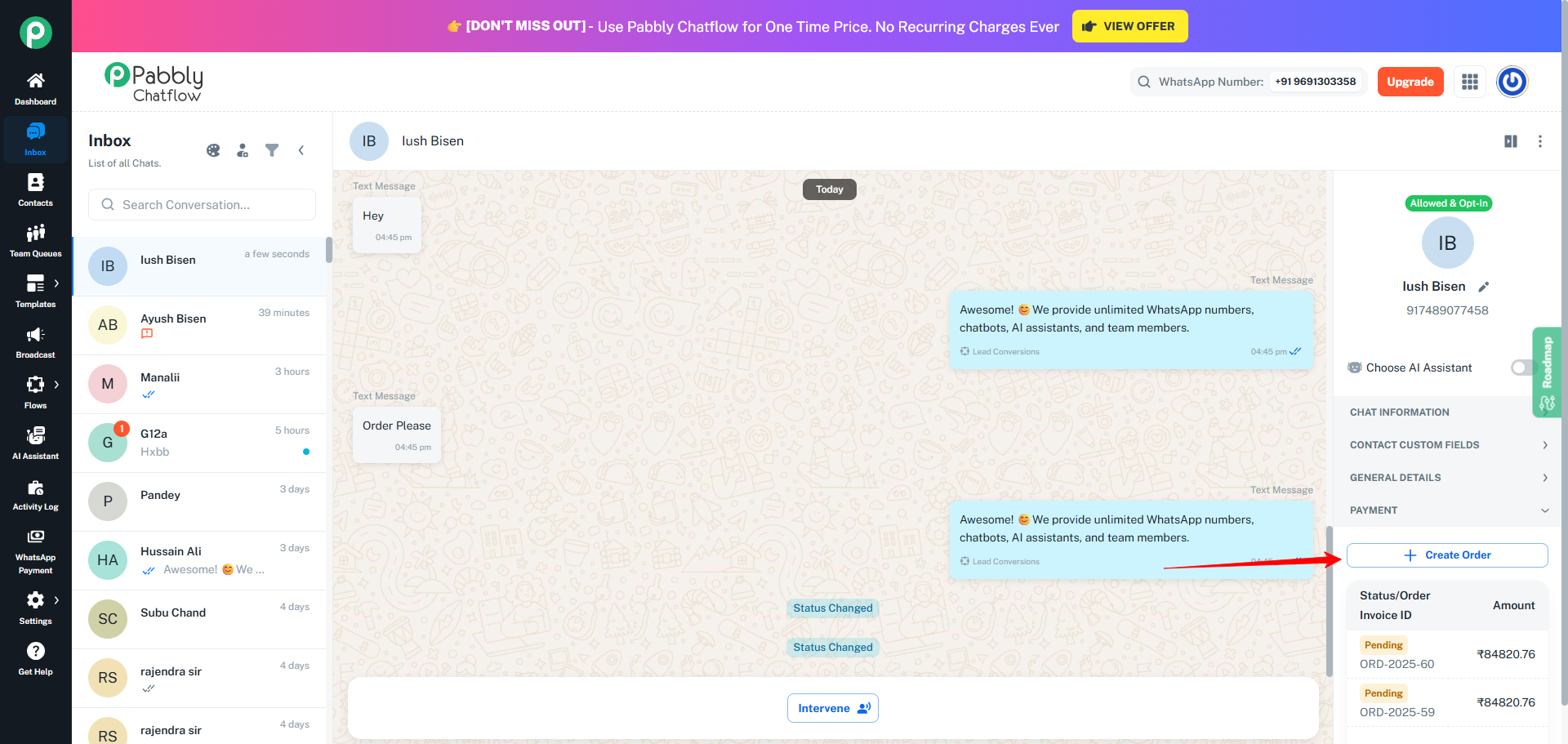
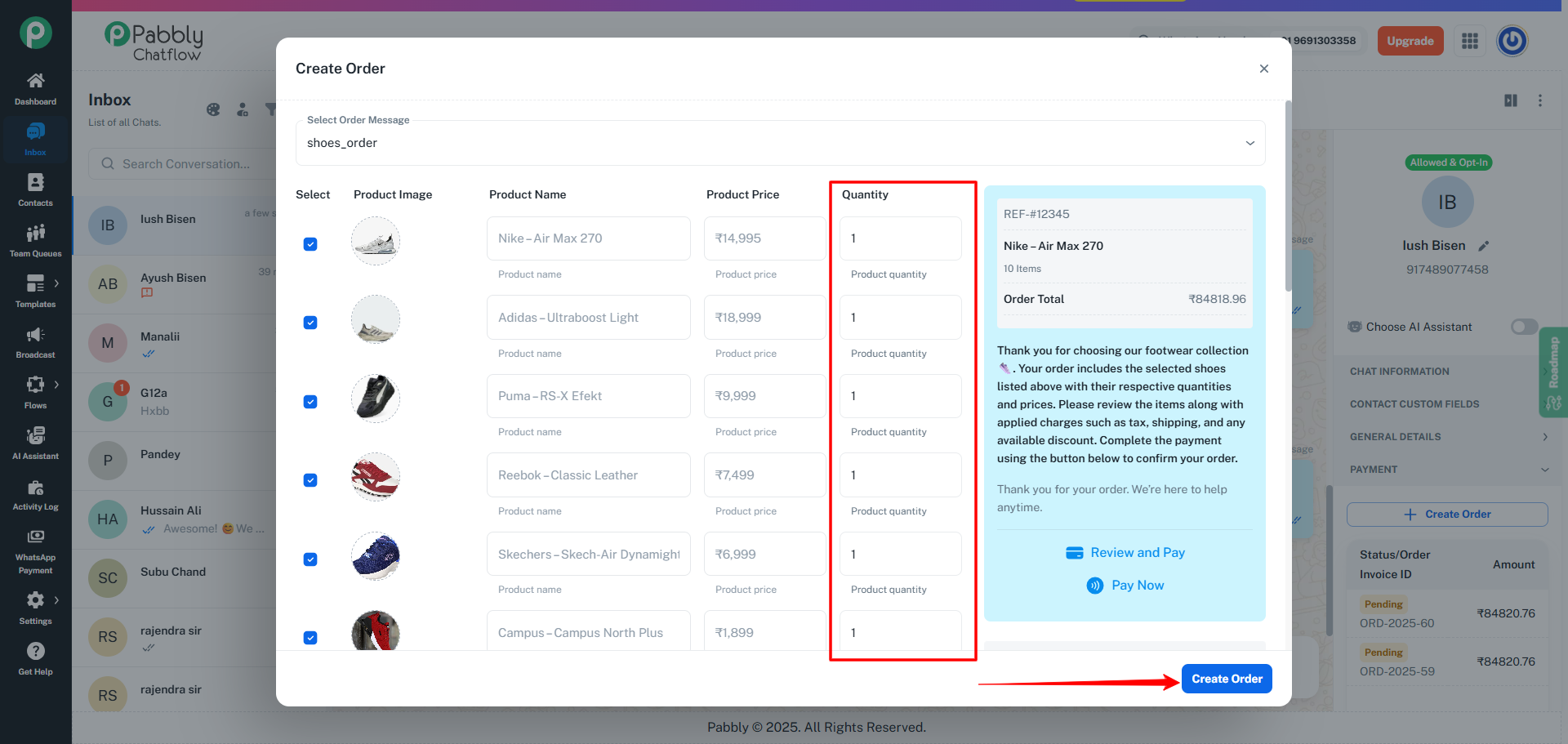
When you click the Create Order button, a dialog opens.
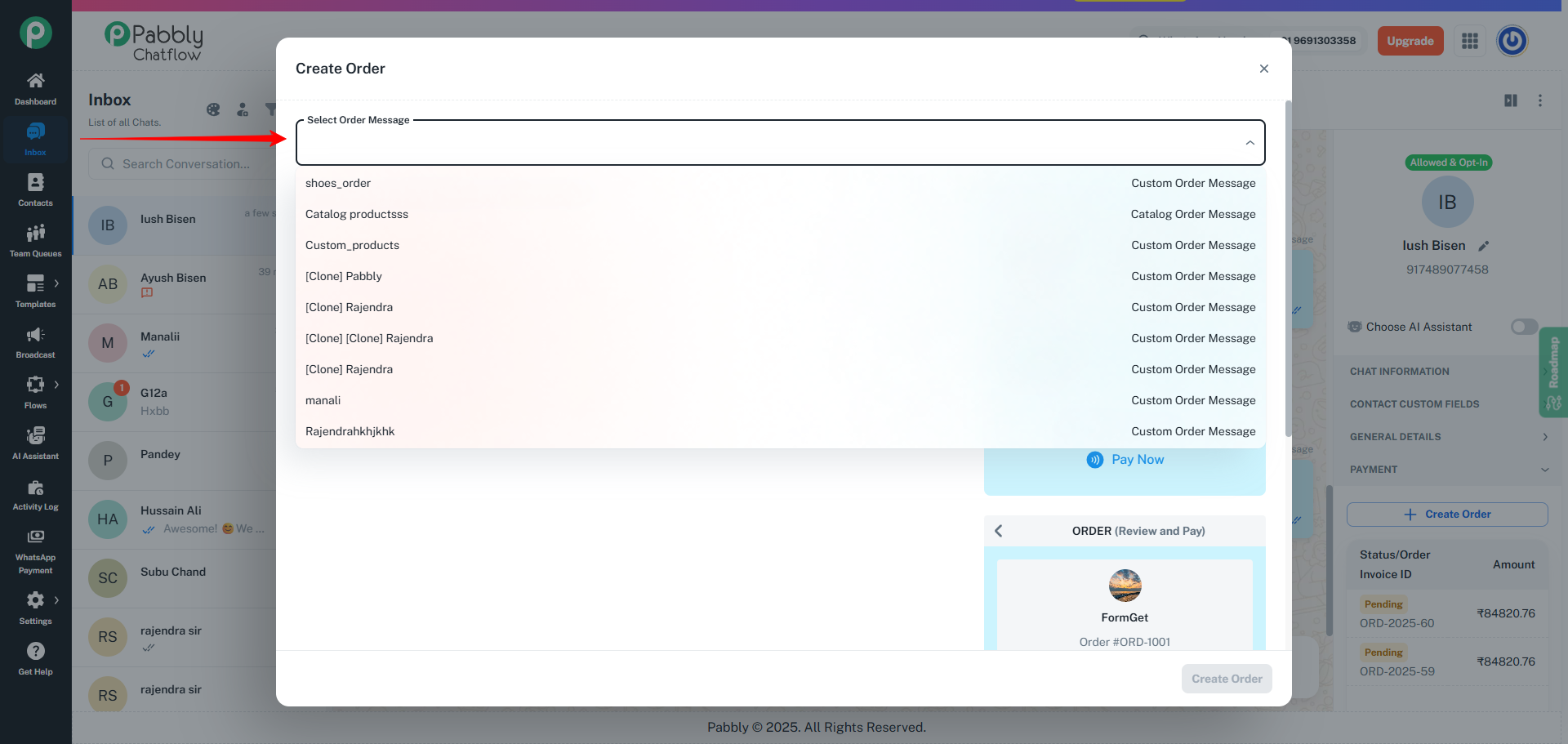
This dialog contains a dropdown where you can select an Order Message.
Only these two types appear in the dropdown:
The WhatsApp Cart Order Message type does NOT appear here because WhatsApp Cart works only with the Order Received Trigger Event inside Flows, not with manual order creation.
When you select a Custom Product Order Message:
On the right side, you will see the Order Message Preview, which is exactly what the customer will receive when you send the order.
Once you finalize quantities, click Create Order.
The Order Message is immediately sent to the customer’s WhatsApp number.
When you create an order from the Inbox, the pricing rules that you configured inside the Order Message settings are automatically applied to the final amount.
This ensures consistency between Flows, Catalog, Custom products, and Inbox-created orders.
The final order amount is calculated exactly based on:
If a tax rate was set in the Order Message:
If shipping charges were enabled:
If a discount was configured:
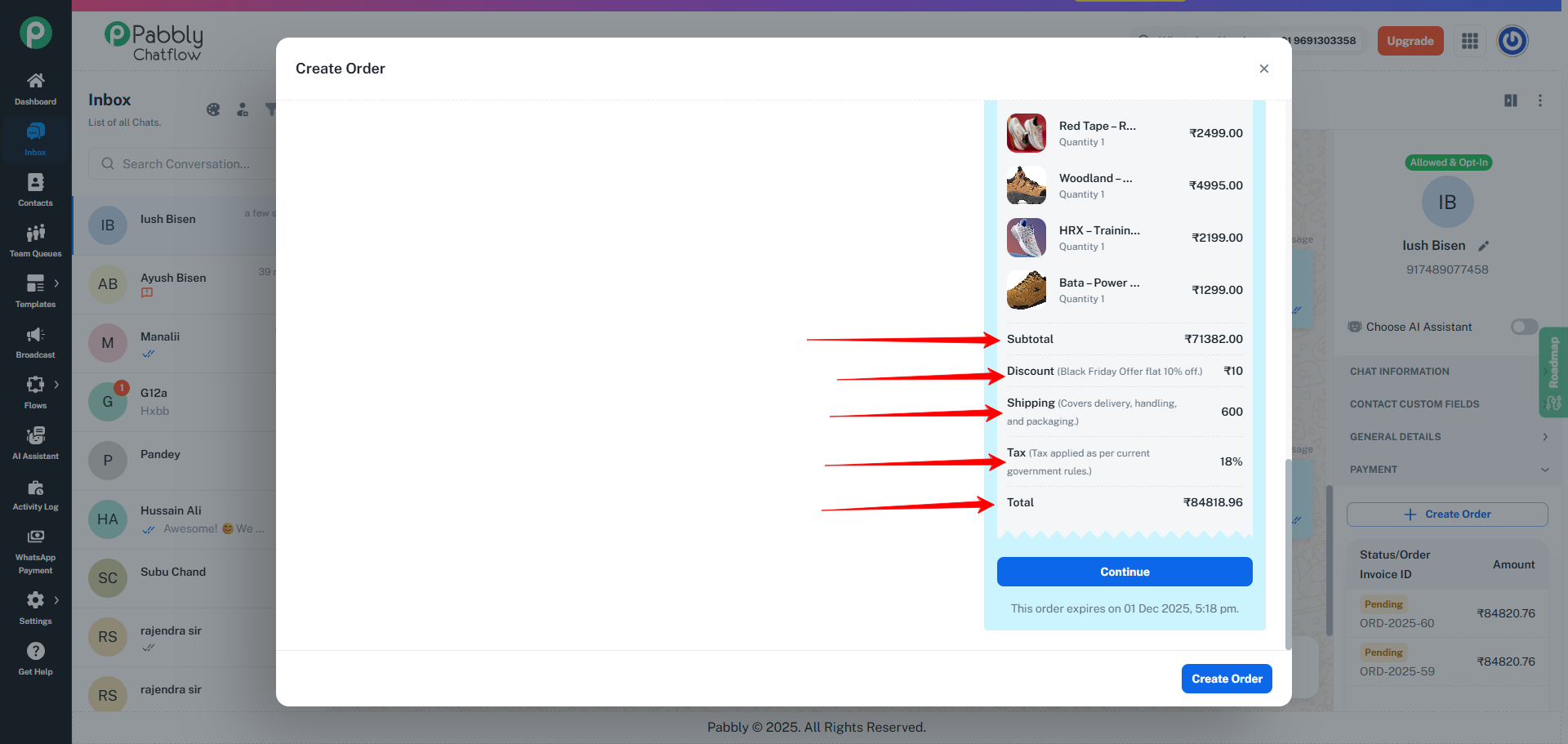
Just like in Flows:
When an order is created from the Inbox using the Create Order button, the system immediately generates an Order Message and sends it to the customer.
This message also appears inside the Inbox conversation so that you can view exactly what was delivered.
The order message contains all the details configured in the selected Order Message. It includes the following structured components:
The top section of the message provides a clear summary of the order:
Below the header, the message displays the Order Total, which is automatically calculated based on the pricing rules defined in the Order Message:
These values are computed using the exact settings applied when the Order Message was created, ensuring consistent billing across all order creation methods.
The central body of the message includes the descriptive text defined in the Order Format and Order Footer field of the Order Message.
At the bottom of the order message preview inside Inbox, two buttons are displayed:
These buttons shown in the Inbox interface are only visual placeholders that represent how the message will appear to the customer on WhatsApp.
In the actual WhatsApp message that the customer receives, these buttons contain the real payment link generated through the configured payment gateway.
When the customer taps the button inside WhatsApp, they are redirected to the secure payment page.
The payment link follows the expiration time defined in the Order Message (for example, 300 seconds). Once the link expires, the customer cannot use it anymore. A new Order Message must be created to generate a fresh link.
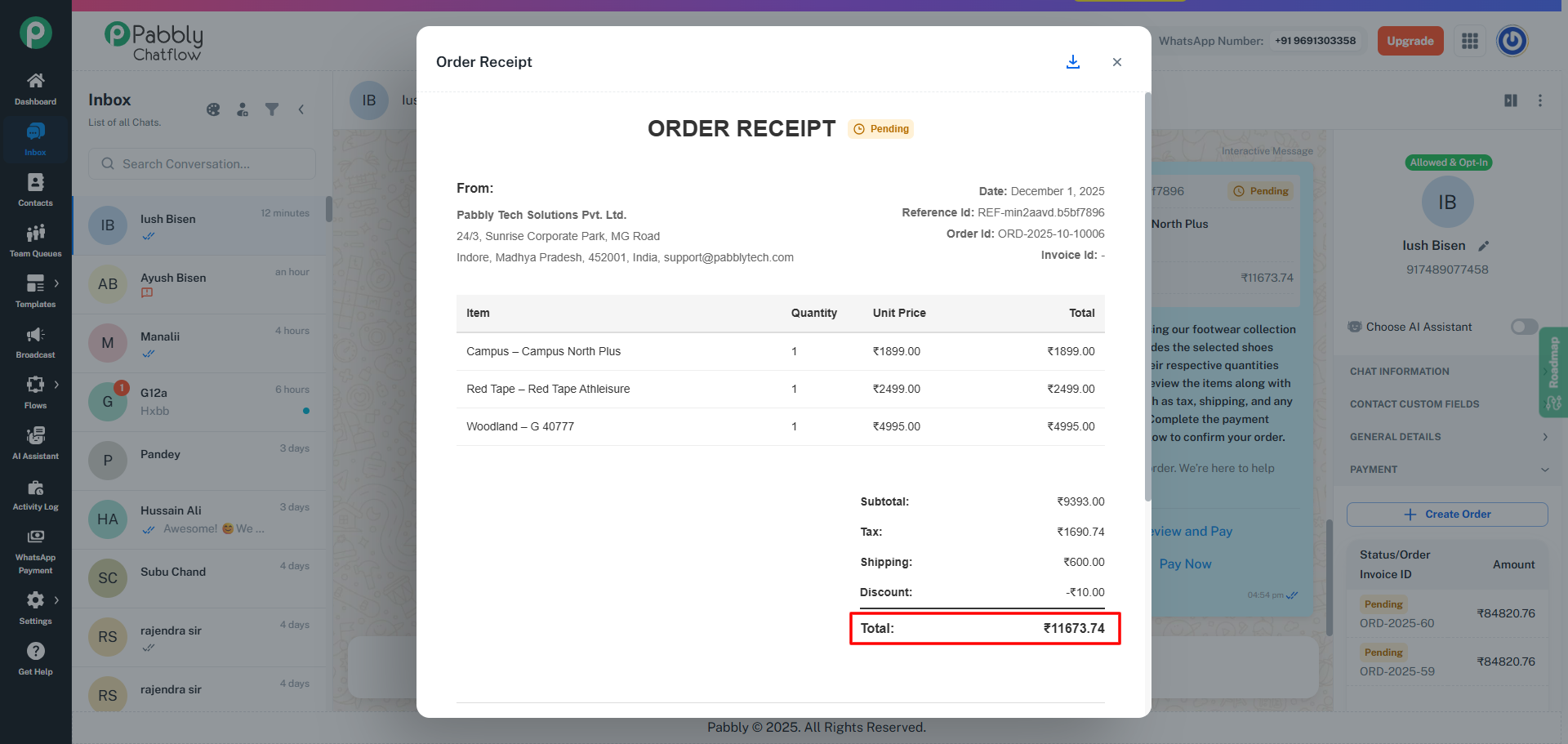
To view the complete Order Receipt for any order, click on the Order Message delivered inside the Inbox conversation. This opens a detailed modal showing the full breakdown of the order, pricing, charges, and product details.
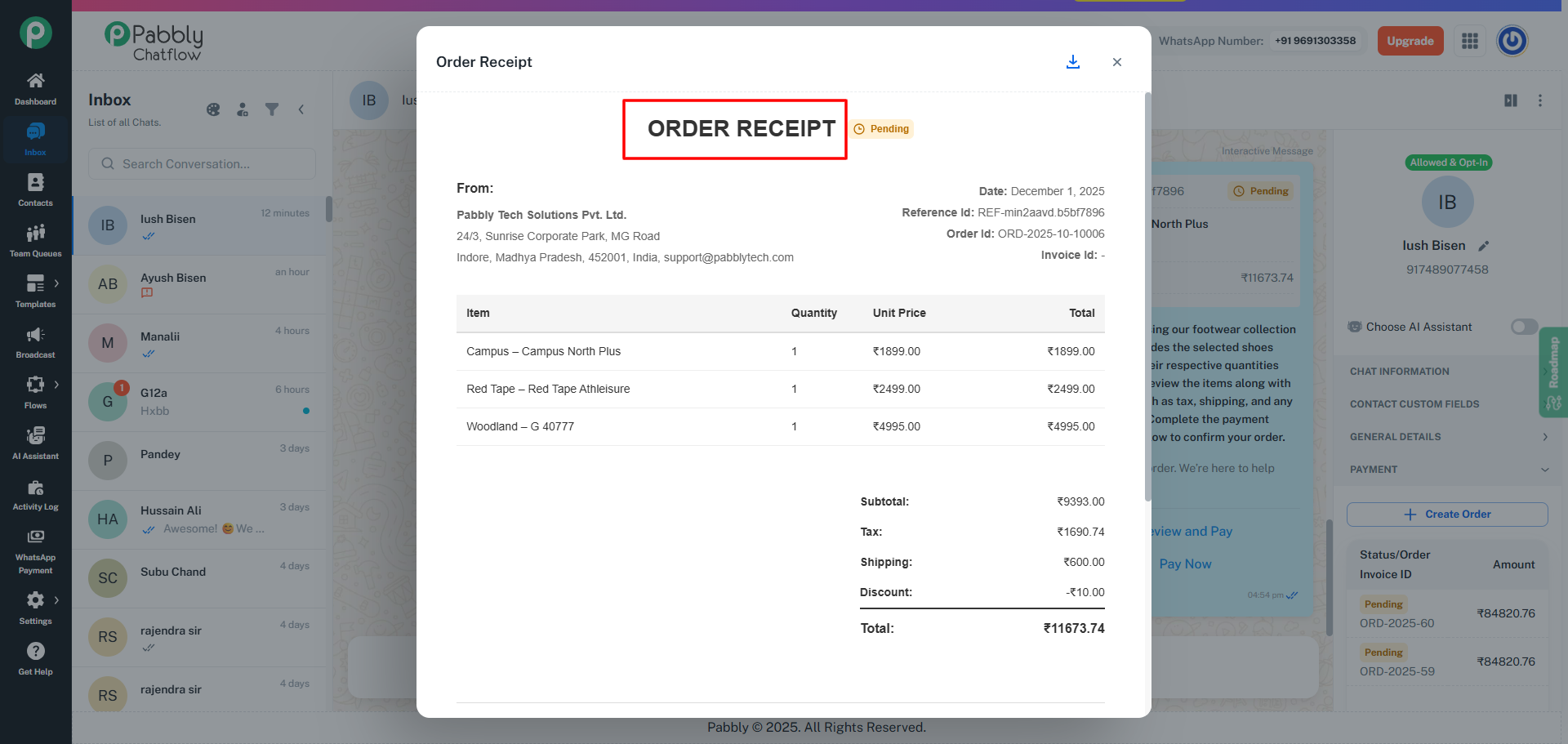
The heading displayed at the top of the document depends on the current payment status of the order:
In summary, the document is shown as a Receipt for Pending and Failed payments, and as an Invoice only when the payment is successfully received.
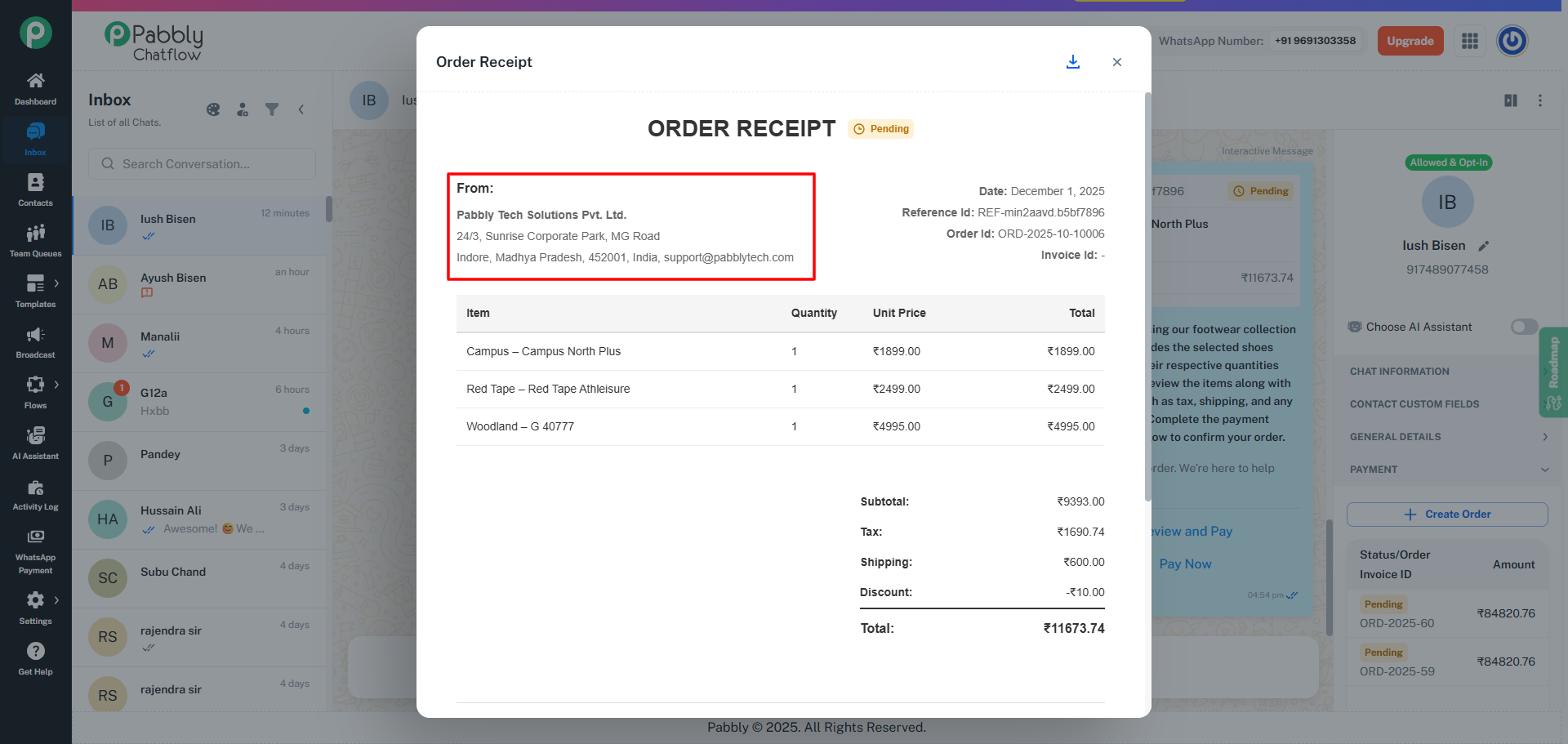
The “From” section displays the merchant or business details configured in the Order Message:
This information helps the customer identify the seller and provides necessary details for invoicing and support.
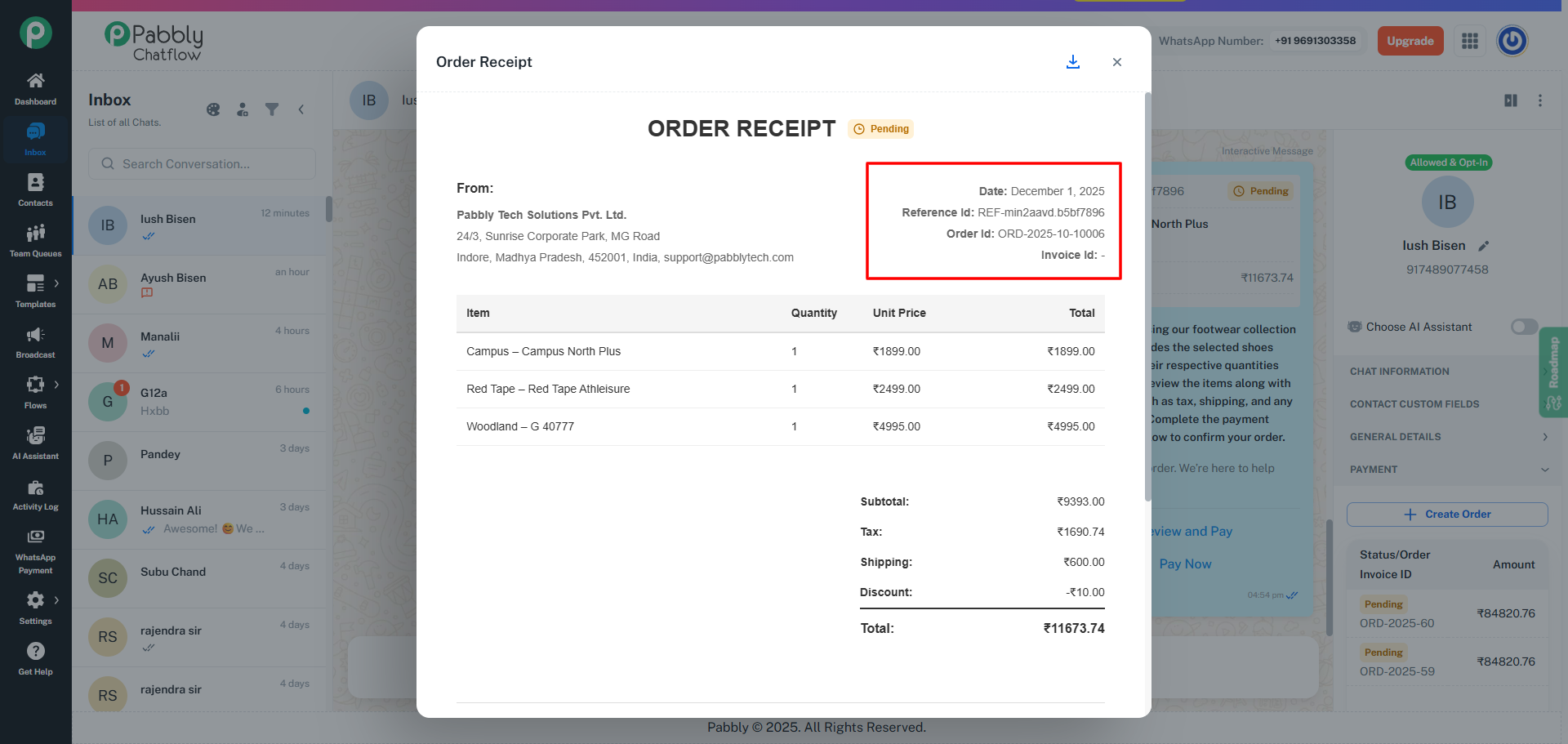
On the right side of the header section, the receipt displays important system-generated identifiers and timestamps related to the order:
The date and time when the order was created.
A unique reference number assigned to every order.
This ID is used for tracking, identifying orders across the system, verifying payment status, and resolving customer queries.
A unique identifier generated for each order using the Order Prefix and Order Number Sequence that you configured while setting up the Payment Gateway.
Displayed only when the payment is successfully completed.
The Invoice ID is automatically generated using the Invoice Prefix and Invoice Number Sequence you configured in the Payment Gateway settings.
Before payment is received, this field appears as “–”, because invoices are not generated for pending or failed orders.
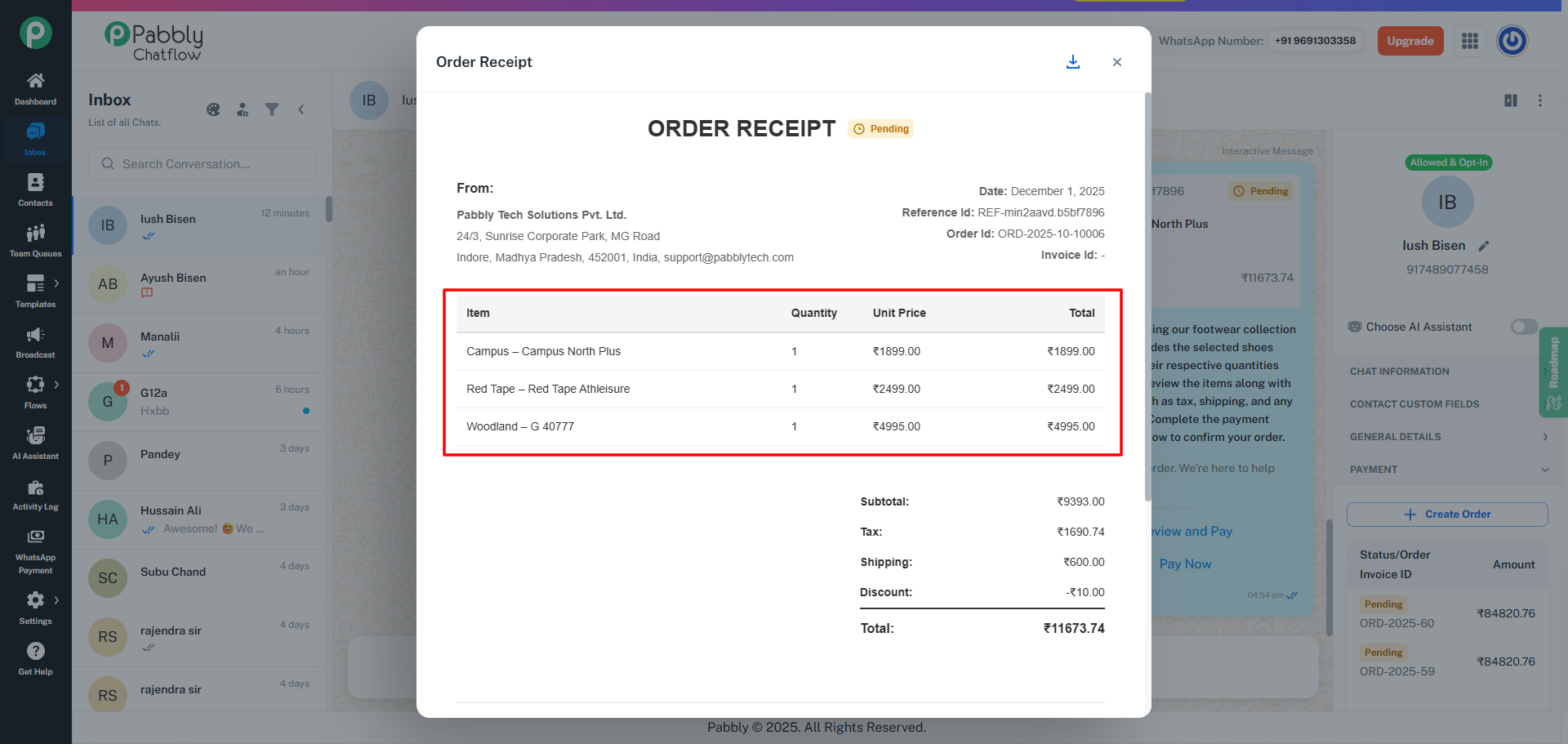
The receipt includes a structured table listing every product included in the order. Each row shows:
This section allows both the business and the customer to clearly verify the products included in the order.
Below the itemized table, the receipt displays a detailed breakdown of all charges that apply to the order:
This breakdown ensures full pricing transparency for both the business and the customer.
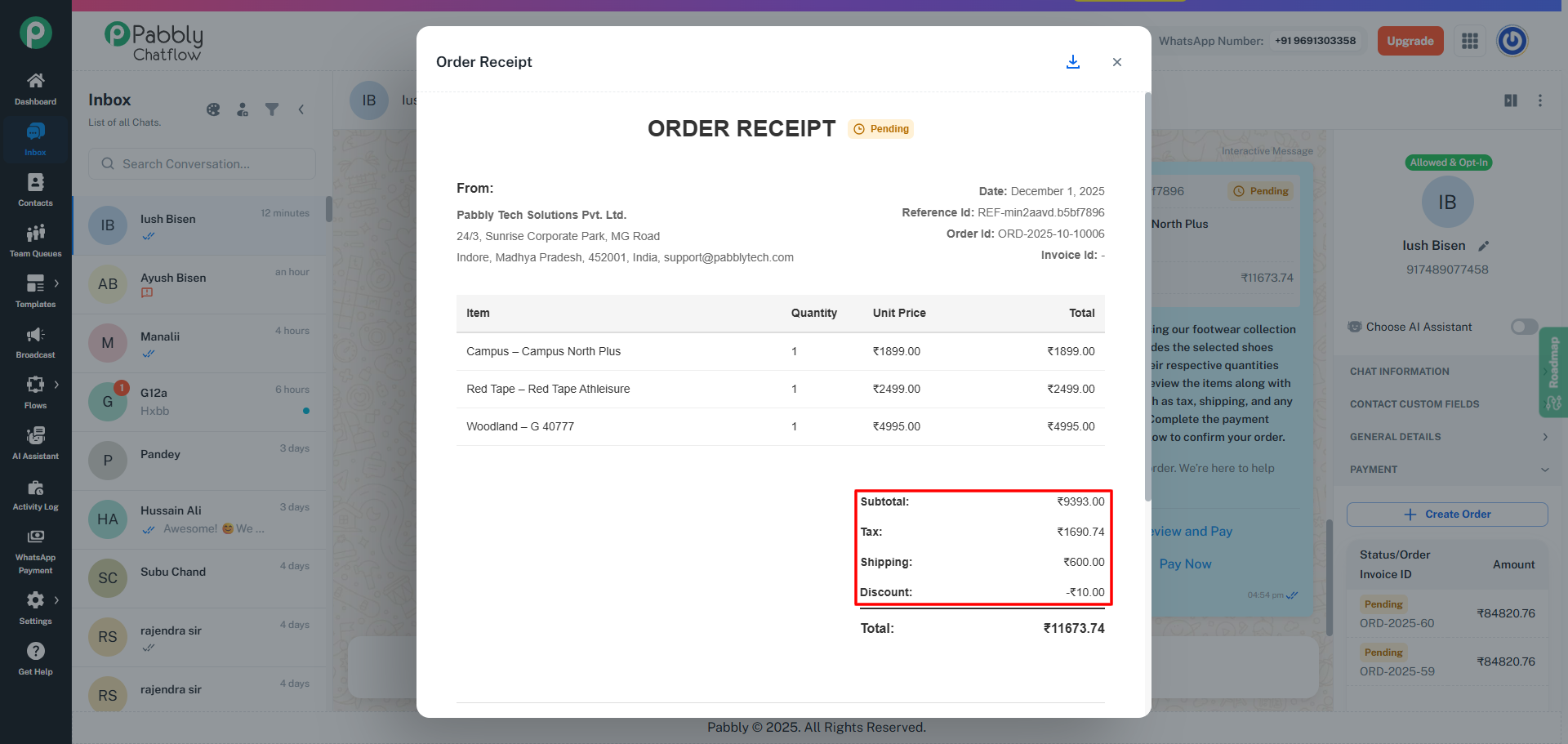
At the bottom of the receipt, the system displays the final total amount payable, after applying all charges:
Final Amount = Subtotal + Tax + Shipping – Discount
This total matches the amount included in the payment link sent to the customer.