Help Guide
 Pabbly Connect Team•Updated Nov 2, 2026•4 min read
Connect Claude, ChatGPT, Claude Code or any other AI agent to Pabbly Connect, and build integrations just by chatting. You say what you want; the agent reads your app, plans it with you, and builds and tests each action, trigger and dropdown list for you. Nothing is published until you choose to.
Your agent uses its own AI. Pabbly Connect does the building, the testing and the safety checks.
Add the connector to your AI agent using this address:
https://connect.pabbly.com/backend/mcp/integration-builder
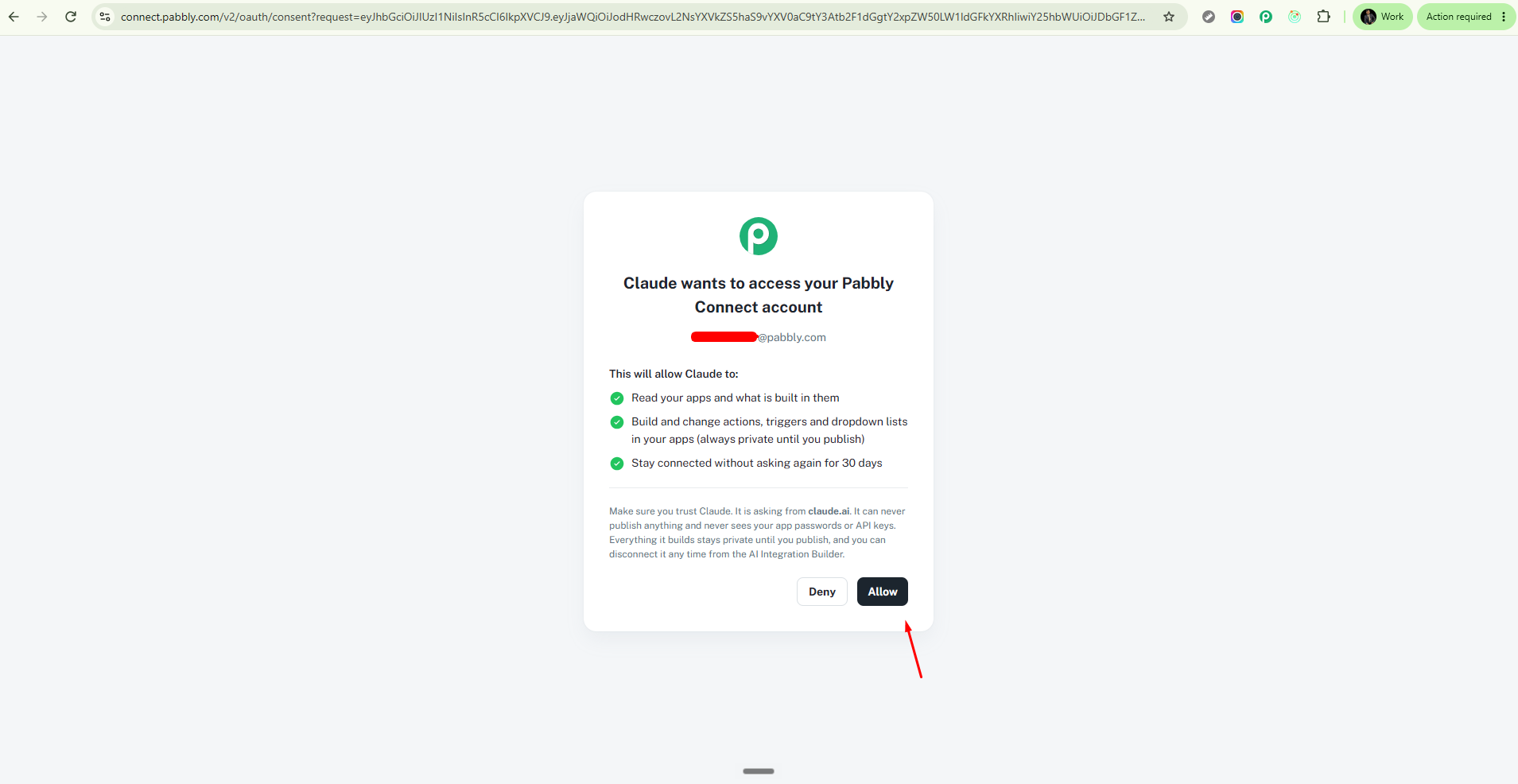
Sign in. A Pabbly Connect page opens — log in and click Allow.
Ask it to build. In the chat, type:
List my Pabbly Connect apps.
then
Build a "Create Contact" action for my Zoho POS app.
That's it. Step-by-step instructions for each agent are below.
Before you start: you need a Pabbly Connect account — the connector signs you in with it. Don't have one yet? Create a Pabbly Connect account.
Open Settings → Connectors.
Click Add custom connector.
Paste the server URL and save.
Click Connect, sign in on the Pabbly page, and click Allow.
In a terminal, run this once:
claude mcp add --transport http pabbly-connect https://connect.pabbly.com/backend/mcp/integration-builder
Start Claude Code, type /mcp, pick pabbly-connect, choose Authenticate.
Your browser opens the Pabbly page — sign in and click Allow.
Settings → Connectors, open Advanced, turn on Developer mode.
Add a custom connector, paste the server URL, choose OAuth, connect, and click Allow on the Pabbly page.
Start a chat, switch the connector on for that chat, then ask it to build. (In ChatGPT a connector's tools are only available in a chat once you enable it there.)
Add a new MCP server of type HTTP (sometimes "Streamable HTTP") with the server URL, and click Allow on the Pabbly page when asked.
Talk to it in plain words. Good first messages:
"List my apps."
"Open my Zoho POS app and tell me what's already built."
"Build all the Create actions this app should have."
"Add the triggers this app is missing — prefer instant ones."
"Set up the login for this app."
The agent will show you the plan, wait for your yes, then build and test each piece and tell you how each one did. You review and publish from the Pabbly Connect portal when you're happy.
It can
See the apps you're allowed to edit, and what's built in them.
Build and change actions, triggers and dropdown lists, then test each one against the real service.
It never
Publishes anything — publishing is always your click in the portal.
Sees your app passwords or API keys — you enter those on a secure Pabbly page, never in the chat.
Touches an app your account can't already edit.
When you connect, you grant three things: Read (see your apps), Build (create and change items, kept private until you publish), and Stay connected (so it doesn't ask again each time).
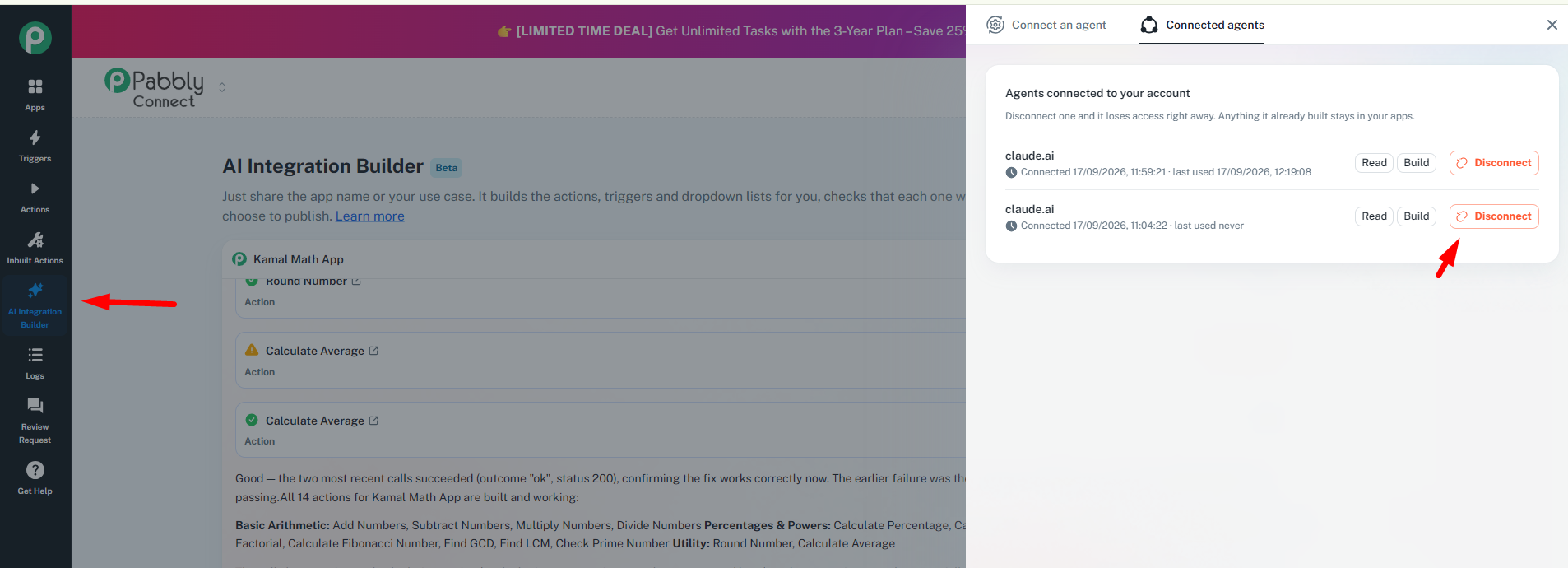
Open the AI Integration Builder in Pabbly Connect and click Connectors. There you see every agent you've connected, and a Disconnect button. Disconnecting cuts the agent off immediately; anything it already built stays in your apps.
"It says it can't find any tools / my apps." In ChatGPT, make sure Developer mode is on and the connector is switched on for that specific chat. In any agent, ask it to "list my apps" first.
"The sign-in page didn't let me in." You need a Pabbly Connect account, and the connector only shows apps that account can edit. Log in with the account that owns the apps.
"It won't create an action or trigger." The agent has to agree a plan with you first — tell it which actions and triggers you want, and confirm. It only builds what you approved.
"It asked me for a password or API key in the chat." It shouldn't, and you should never paste secrets into the chat. Those are entered on a secure Pabbly page the agent links you to.
Do I need to know how to code? No. You describe what you want in plain language.
Does it cost Pabbly AI credits? No. Your agent uses its own AI model.
Will it change my live integrations without asking? No. It builds privately and never publishes; you publish from the portal.
Which agents work? Any that support remote MCP connectors over HTTP with sign-in: Claude, Claude Code, ChatGPT (developer mode), Cursor, and others.
Support: [email protected]
Privacy policy: https://www.pabbly.com/privacy-policy/
