Help Guide
 Pabbly Connect Team•Updated Oct 12, 2026•13 min read
Use Google Ads in Pabbly Connect to read campaign performance, manage campaigns, and send audience and conversion data back to Google Ads. All actions use one connection. No coding is needed.
Words you'll see
Customer ID: your Google Ads account number, e.g. 586-721-0608.
Manager account (MCC): one login that manages several Google Ads accounts. Agencies often use one.
Micros: Google's way of writing money. 1,000,000 micros = 1 unit of your currency.
GCLID: a code Google adds to your page link when someone clicks your ad.
Click Create Workflow and name it, e.g. "Daily Ads spend".
Trigger: Schedule by Pabbly, every day at 8:00 AM.
Action: Google Ads → Get Google Ads Insights. Click Connect and sign in with Google.
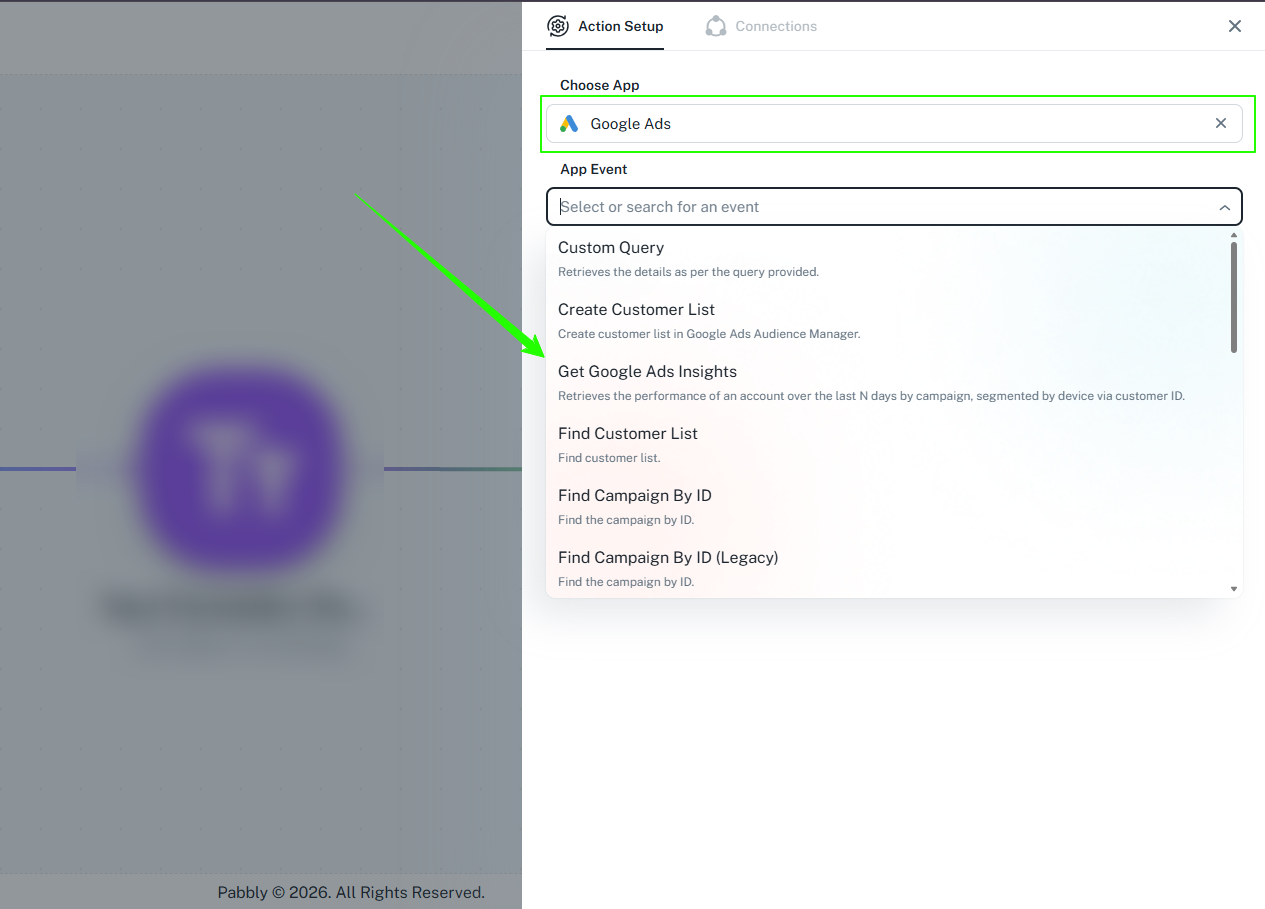
Choose your Manager ID and Customer ID, and set Duration to YESTERDAY.
Click Save & Send Test Request. The response shows total_cost and your campaigns.
Action: Gmail → Send Email (or Slack, WhatsApp). Map total_cost into the message.
Test, then turn the workflow On.
Google Ads connects with Google sign-in (OAuth). No API key is needed.
You need
A Google account with access to the Google Ads account. Read-only access is enough for reports.
At least one campaign in the account. Otherwise reports come back empty.
Steps
Add a Google Ads action step and click Connect. Keep Add New Connection selected. You can rename the connection in New Connection Name, e.g. "Google Ads #1".
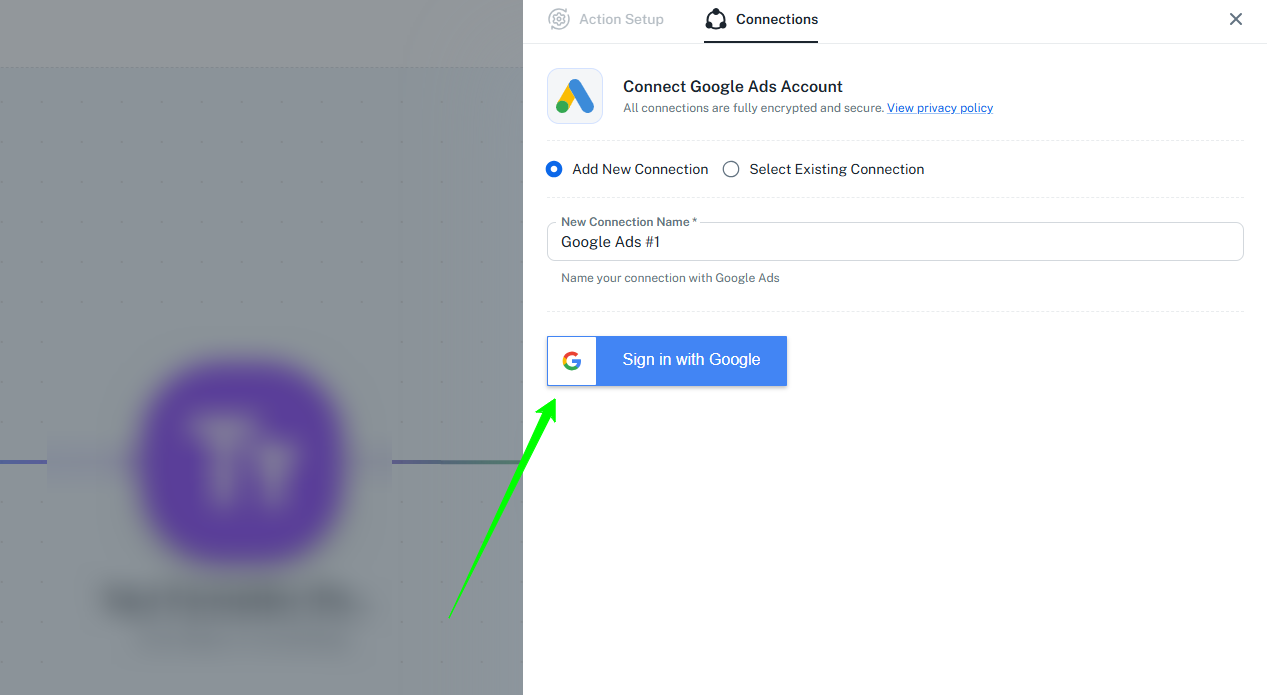
Click Sign in with Google, choose your Google account, and allow access. If Google asks you to confirm it's you (password, phone, or passkey), complete that first.
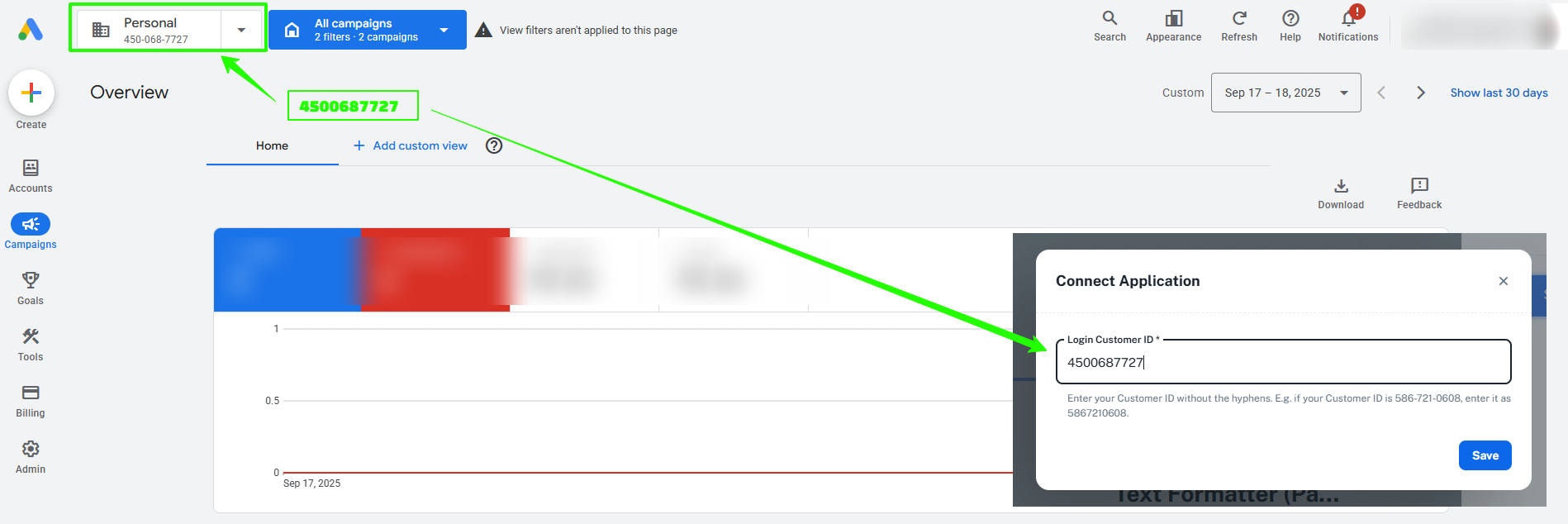
A Connect Application popup asks for Login Customer ID. It's required. Enter your 10-digit Google Ads ID without hyphens, e.g. 5867210608 for 586-721-0608, then click Save.
If you use a Manager account (MCC), one login that manages several ad accounts, enter the manager's ID.
Otherwise, enter your own account's ID.
To find it, open ads.google.com and note the number under the account name at the top left. Typing it is easiest, because copying includes the hyphens.
Your setup | Login Customer ID |
|---|---|
One standalone account | That account's ID |
Accounts under an MCC | The MCC's ID |
Access to several MCCs | The MCC that owns the account. Use one connection per MCC |
Group | Action | What it does |
|---|---|---|
Reporting | Get Google Ads Insights | Impressions, clicks, CTR, average CPC, cost, and conversions per campaign for a preset date range |
Reporting | Custom Query | Runs a report you write yourself in GAQL, Google's report query language |
Campaigns | Find Campaign By Name | Returns one campaign's full details |
Campaigns | Find Campaign By ID | Same, using a campaign ID |
Campaigns | Set Campaign Status | Enables, pauses, or removes a campaign |
Customer lists | Create Customer List | Creates a Customer Match list |
Customer lists | Find Customer List | Returns a list's ID and size |
Customer lists | Add a Contact To Customer List With Email | Adds a person by email |
Customer lists | Add Contact to Customer List | Adds a person by phone, name, and address |
Customer lists | Remove a Contact From Customer List with Email | Removes a person from a list |
Conversions | Send Offline Conversion with GCLID | Records a sale or lead against the ad click that caused it |
Conversions | Send Offline Conversion with Email | Records a conversion matched by email |
Conversions | Send Offline Conversion with Phone Number | Records a conversion matched by phone |
Trigger | Type | Fires when |
|---|---|---|
New Lead Form Entry | Instant (webhook) | Someone submits a Google Ads lead form |
New Campaign | Checks every 10 minutes | A new campaign is created |
No connection is needed. Google sends each lead to your Pabbly webhook URL.
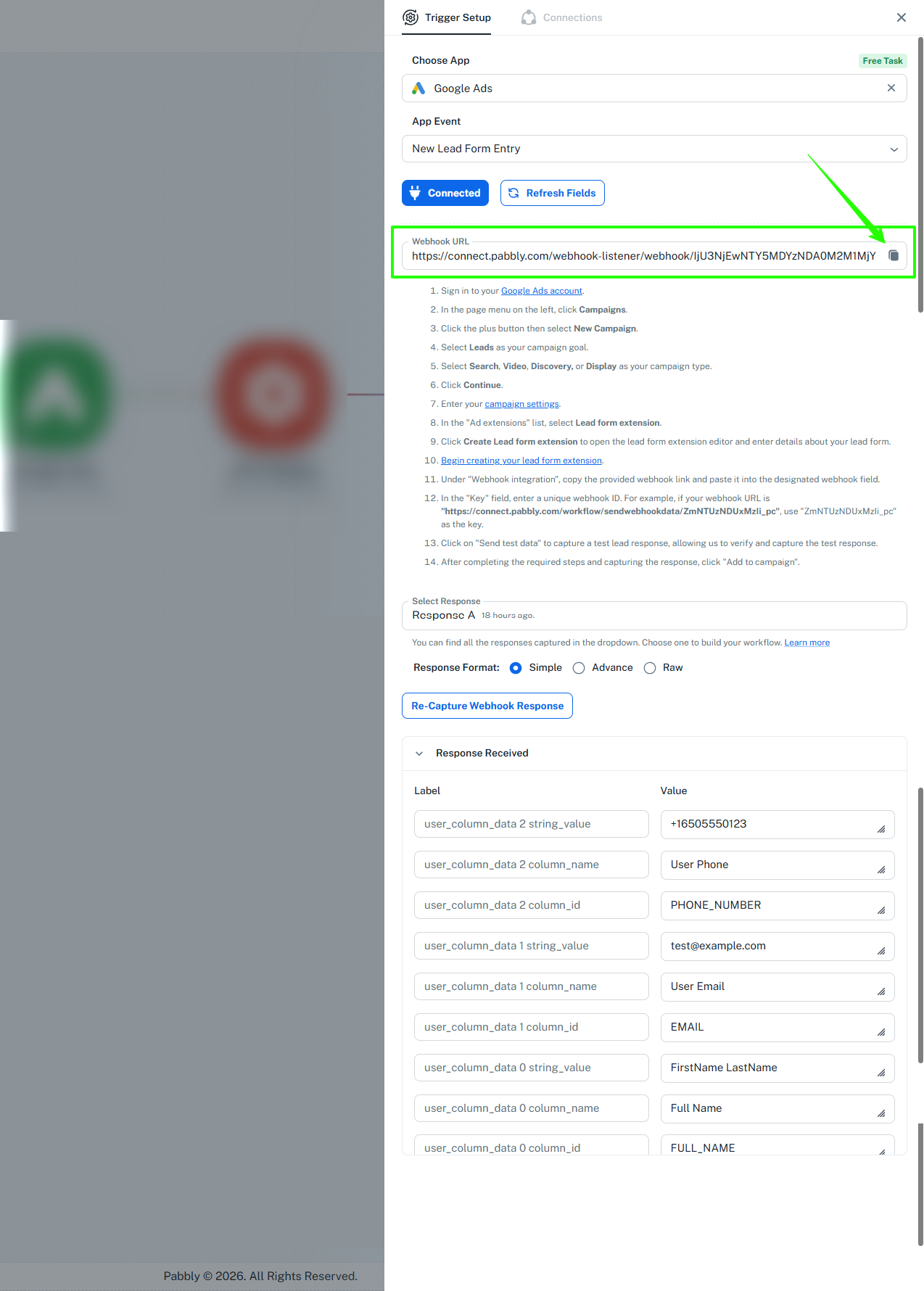
In the trigger step, choose Google Ads as the app and New Lead Form Entry as the event. Copy the webhook URL shown, e.g. https://connect.pabbly.com/webhook-listener/webhook/....
In Google Ads, open Campaigns and click the Search or Performance Max campaign you want leads from. Lead forms work only with these two types. To create one: click +, New campaign, objective Leads, type Search or Performance Max, then Continue.
Add the form. In a Search campaign, under the Ads section click + Lead forms. In a Performance Max campaign, scroll to Assets, click More asset types, then Lead forms. Click New lead form and fill in the headline, business name, description, the contact questions you want, your privacy policy URL, and the thank-you message.
Under Lead delivery option, open Webhook integration (optional). Paste the Pabbly URL in Webhook URL.
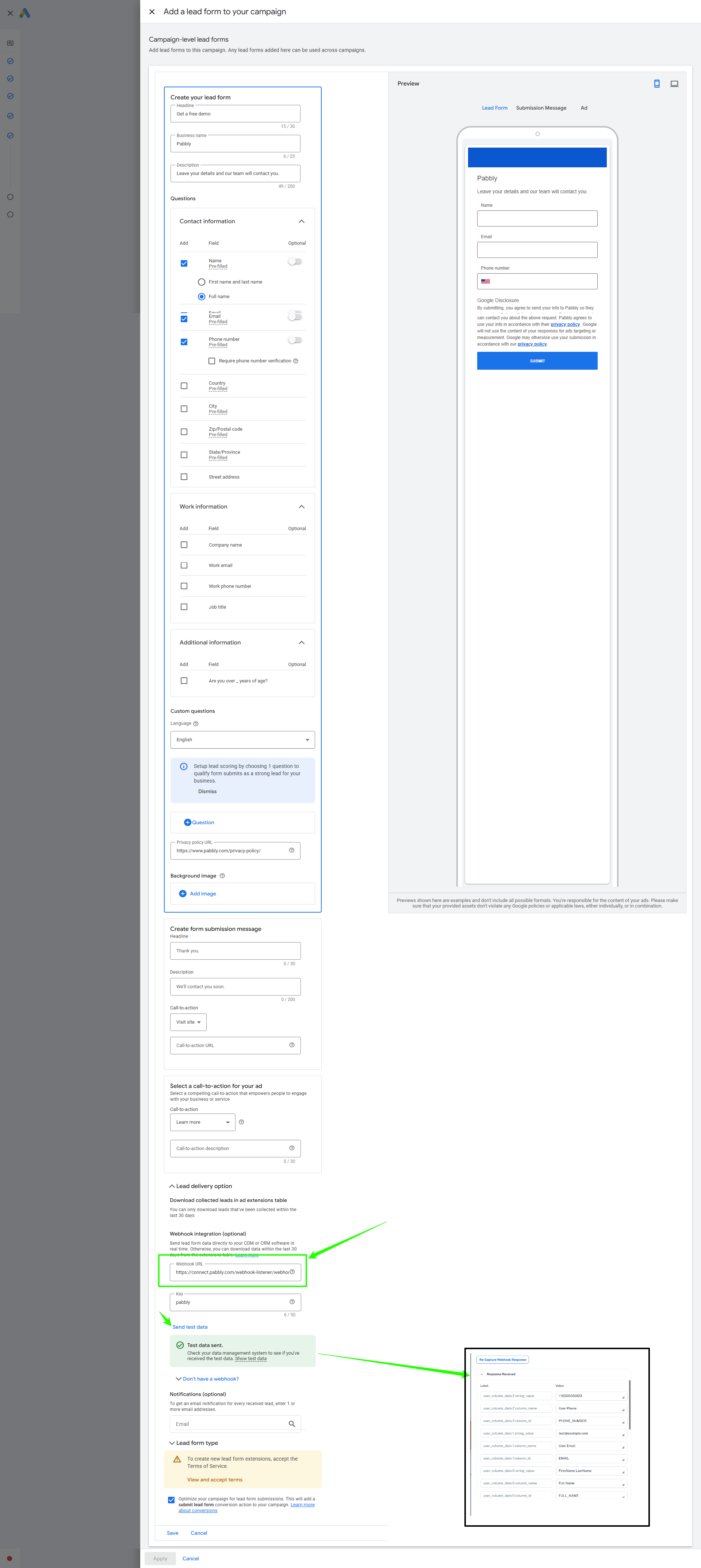
In Key, enter any word you like, e.g. pabbly. Google sends it back as google_key with each lead.
Click Send test data. Google shows a success state and Pabbly captures the sample lead.
Accept the terms if asked, then click Save.
Sample output
{
  "lead_id": "TeSter-123-ABCDEFGHIJKLMNOPQRSTUVWXYZ",
  "api_version": "1.0",
  "form_id": 123456789,
  "campaign_id": 328213000,
  "adgroup_id": 0,
  "creative_id": 0,
  "asset_group_id": 0,
  "gcl_id": "TeSter-123-ABCDEFGHIJKLMNOPQRSTUVWXYZ",
  "google_key": "ZmNTUzNDUxMzIi_pc",
  "is_test": true,
  "lead_stage": "QUALIFIED",
  "lead_submit_time": "2026-09-26T09:30:00Z",
  "lead_source": "LEAD_FORM",
  "user_column_data": [
    { "column_id": "FULL_NAME", "column_name": "Full Name", "string_value": "Jane Doe" },
    { "column_id": "EMAIL", "column_name": "User Email", "string_value": "[email protected]" },
    { "column_id": "PHONE_NUMBER", "column_name": "User Phone", "string_value": "+919988776655" }
  ]
}
In the mapping window, each form answer appears under user_column_data, in the same order as your form questions. For example, if email is your 2nd question, pick the 2nd item (numbered 1, because counting starts at 0).
Map gcl_id into Send Offline Conversion with GCLID.
Test leads have is_test = true. Add a Filter step to skip them.
Choose the Manager account and the Google Ads account to watch. Each new campaign fires once, with its full details (id, name, status, channel type, bidding strategy, budget, start and end dates).
Most actions start with two dropdowns. Labels vary, but they mean the same thing:
Label | Choose |
|---|---|
Manager ID / Use Google Ads as... | Your Manager (MCC) account. Without an MCC, pick the only account shown |
Customer ID / Managed Account(s) | The Google Ads account to work on. Pick the account that holds your campaigns or conversion actions |
You can also map an ID from an earlier step, without hyphens. The tables below list only the other fields.
Field | Required | Enter |
|---|---|---|
Duration | Yes | A preset range. Default TODAY |
Duration options
Duration | Covers |
|---|---|
TODAY | Today so far, in the account's time zone |
YESTERDAY | Yesterday |
LAST 7 DAYS | The 7 days before today |
THIS WEEK MON-TODAY | Monday to today |
THIS WEEK SUN-TODAY | Sunday to today |
LAST WEEK MON-SUN | Last Monday to Sunday |
LAST WEEK SUN-SAT | Last Sunday to Saturday |
LAST BUSINESS WEEK | Last Monday to Friday |
THIS MONTH | 1st of this month to today |
LAST MONTH | All of last month |
For any other range, use Custom Query.
Empty dropdowns: click Refresh Fields, then check Login Customer ID in the connection.
Response Format: keep Simple (default). Each value then shows as its own field you can map, labelled like 1 results 0 metrics clicks.
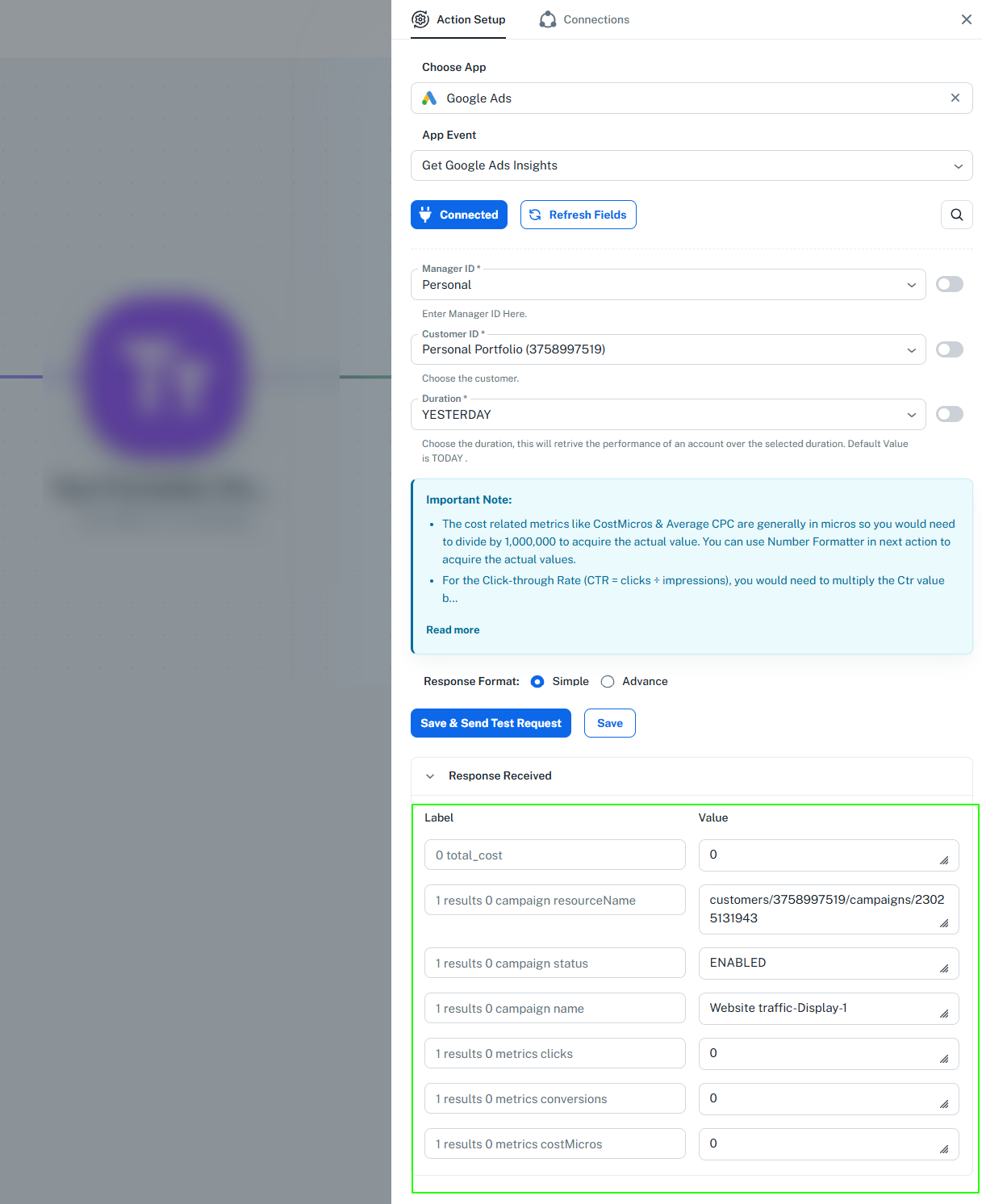
Sample output (trimmed, one row per campaign)
[
  { "total_cost": 152.37 },
  {
    "results": [
      {
        "campaign": { "name": "Brand Search", "status": "ENABLED" },
        "metrics": { "impressions": "12450", "clicks": "830", "ctr": 0.0667, "averageCpc": "91000", "costMicros": "75530000", "conversions": 41 }
      }
    ]
  }
]
Field | Meaning | Convert |
|---|---|---|
total_cost | Total spend, in account currency | None |
costMicros | Spend per campaign, in micros | ÷ 1,000,000 (75530000 = 75.53) |
averageCpc | Cost per click, in micros | ÷ 1,000,000 (91000 = 0.091) |
ctr | Click-through rate as a fraction | × 100 for % (0.0667 = 6.67%) |
impressions, clicks, conversions | Counts | None |
To divide or multiply, add a Number Formatter → Perform Math Operation step after this action.
Field | Required | Enter |
|---|---|---|
Custom Query | Yes | A GAQL query, e.g. |
Returns a results array, one item per row. Google reports money in micros (millionths), so divide cost fields by 1,000,000.
Field | Required | Enter |
|---|---|---|
Campaign Name (By Name) | Yes | Choose from the dropdown |
Campaign ID (By ID) | Yes | Choose or map, e.g. |
Returns results[0].campaign with id, name, status, budget, bidding strategy, channel type, and dates.
Field | Required | Enter |
|---|---|---|
Customer List | No | Leave blank. Not used |
Campaign ID | Yes | Choose or map. Use Find Campaign By Name if you only know the name |
Status | Yes | ENABLED, PAUSED, or REMOVED. REMOVED is permanent |
Returns the campaign path, e.g. customers/1234567890/campaigns/328213XXX.
Field | Required | Enter |
|---|---|---|
Name | Yes | A unique name, e.g. |
Description | No | Free text |
Returns results[0].resourceName, e.g. customers/1234567890/userLists/987654321. The number at the end is the list ID.
Field | Required | Enter |
|---|---|---|
Name | Yes | Choose from the dropdown |
Returns the list's id, name, description, status, size, and match rate.
Pabbly hashes contact details before sending, so enter them as plain text.
Field | Add With Email | Add Contact | Remove with Email |
|---|---|---|---|
Customer List | Required | Required | Required |
Required | Optional | Required | |
Phone (with country code, e.g. | – | Required | Required |
First Name, Last Name | – | Required | Required |
Country Code (e.g. | – | Required | Required |
Zip Code | – | Required | Required |
Google can take up to 48 hours to process the change.
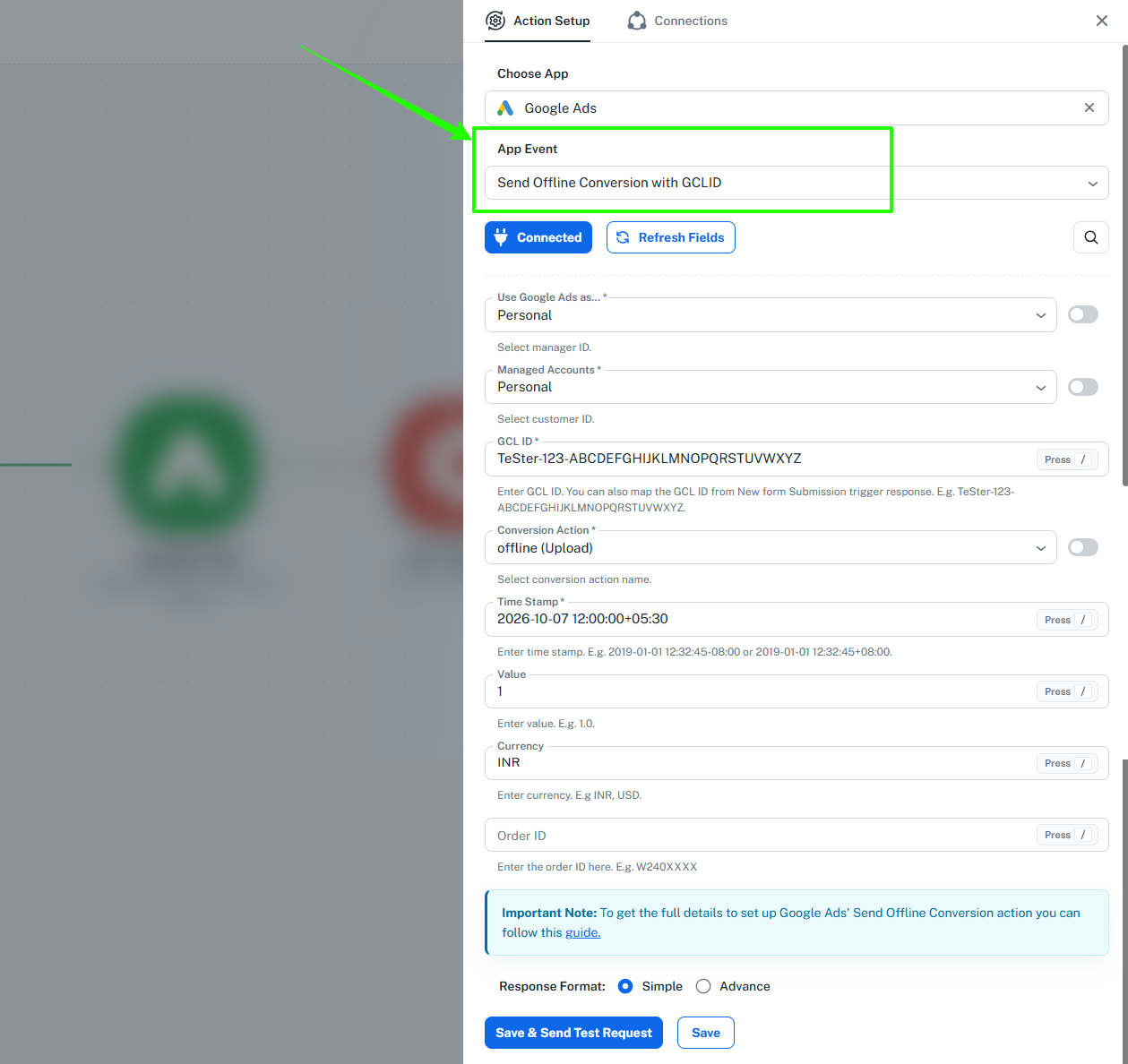
Tells Google Ads that a specific ad click led to a sale or lead. The GCLID (Google Click ID) is a code Google adds to your landing page URL when someone clicks your ad. This is the most accurate way to report conversions.
Field | Required | Enter |
|---|---|---|
GCL ID | Yes | Map the GCLID field from your form or trigger. It is case-sensitive, so map it as is. Sample values like TeSter-123-... are rejected |
Conversion Action | Yes | An "Import from clicks" conversion action, e.g. offline (Upload). The list shows all your conversion actions, so pick the offline one |
Time Stamp | Yes |
|
Value | No | e.g. |
Currency | No | e.g. |
Order ID | No | e.g. |
Before you start
Create a conversion action in Google Ads. Do it in the same account you'll choose under Managed Accounts in Pabbly, otherwise it won't appear in the Conversion Action dropdown.
Go to Goals → Summary and click + Create conversion action.
Tick Conversions offline. Choose Skip this step and set up a data source later, and leave Enhanced conversions for leads unticked.
Pick a category, e.g. Purchase, click + Create conversion, then Connect data source later.
Click Save and continue, then finish. Google names it like "offline (Upload)".
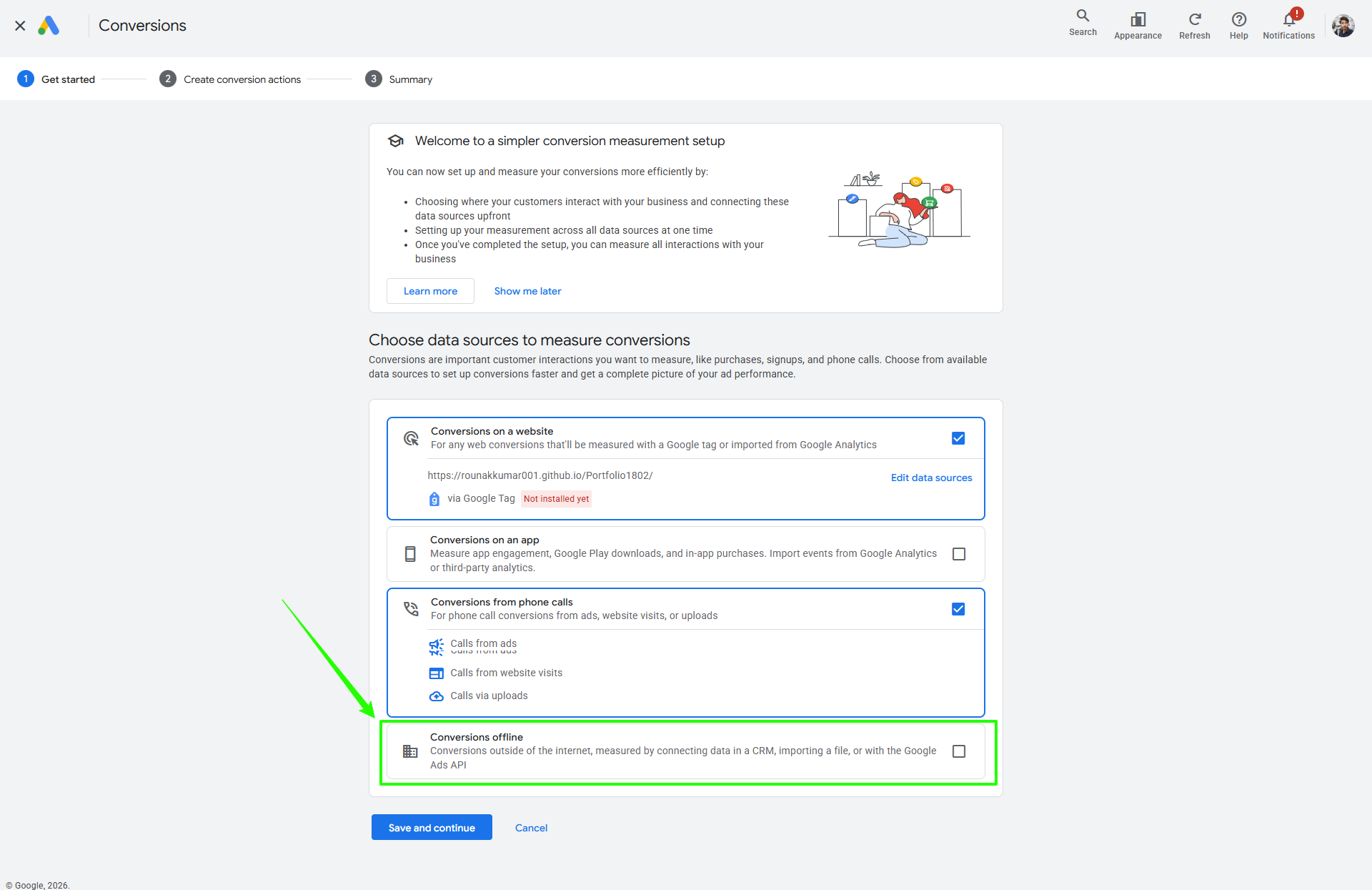
Wait 4 to 6 hours after creating it before sending conversions.
Make sure your form saves the gclid value from the landing page URL in a hidden field. Most form tools have a setting for this.
Tips
Add a Filter so the action runs only when GCLID is not empty.
Google may not record a conversion sent within a day of the click. If needed, add a 24-hour Delay step first.
Conversions show in Google Ads reports in about 3 hours, sometimes up to 48 hours.
Some rows can fail while the step succeeds. Check partialFailureError in the output.
Use these when you have no GCLID.
Field | Required | Enter |
|---|---|---|
Customer List | Yes | Choose from the dropdown |
Email or Phone Number | Yes | e.g. |
Conversion Action | Yes | Choose from the dropdown |
Time Stamp | Yes | Same format as above |
Value, Currency, Order ID | No | Same as above |
Goal | Trigger | Steps |
|---|---|---|
Daily spend in Google Sheets | Schedule, daily | Get Google Ads Insights → Iterator on |
Weekly summary to Slack or email | Schedule, Monday | Get Google Ads Insights (LAST WEEK MON-SUN) → Text Formatter → Slack or Gmail |
Budget alert | Schedule, hourly | Get Google Ads Insights (THIS MONTH) → Filter |
Pause low-CTR campaigns | Schedule, daily | Get Google Ads Insights (LAST 7 DAYS) → Iterator → Filter ctr < 0.01 → Set Campaign Status = PAUSED |
Client dashboard | Schedule, daily | Get Google Ads Insights → Iterator → Notion or Airtable |
Leads into a Customer Match list | Facebook Lead Ads, Typeform | Add a Contact To Customer List With Email |
Report CRM sales to Google Ads | HubSpot, Pipedrive: Deal Won | Send Offline Conversion with GCLID, or with Email if no GCLID |
Pause ads when stock runs out | Shopify: Out of Stock | Find Campaign By Name → Set Campaign Status = PAUSED |
Find out what went wrong
In Pabbly Connect, open Task History and click the run that failed.
Open the step with the red mark. The response shows the error message from Google.
Find that message in the table below and apply the fix.
Open the step again and click Save & Send Test Request to check it works.
Problem | Cause | Fix |
|---|---|---|
Empty Manager or Customer dropdown | No Ads access, or wrong Login Customer ID | Reconnect with the right account. MCC users: set the MCC ID without hyphens |
| Login Customer ID missing, wrong, or a different MCC | Fix the MCC ID, or use one connection per MCC |
| Account cancelled or not activated | Activate it in Google Ads |
Empty | No activity in the period | Pick a longer Duration |
Cost 1,000,000× too high | Values in micros | Divide by 1,000,000 |
CTR 0.05 instead of 5% | Fraction | Multiply by 100 |
Numbers differ from Google Ads | Time zone, or today's data still updating | Compare the same range. Prefer YESTERDAY or earlier |
UNPARSEABLE_GCLID in partialFailureError | The GCLID is invalid, edited, or a sample value | Map the real gclid captured from an ad click, exactly as is |
Your conversion action is missing from the dropdown | It was created in a different account, or not finished | Choose that account under Managed Accounts, or finish creating it there. Then click the refresh icon in the field |
Step worked before, now fails with 401 or invalid_grant | Google sign-in expired, the password changed, or access was removed | Add a new connection with the same Google account and Login Customer ID, and choose it in the step |
FAQs
Tasks: each run is one task, however many campaigns return. Iterator steps count separately.
Ad group or keyword data: use Custom Query.
One campaign only: filter on campaign.name after an Iterator, or use Find Campaign By Name.
Currency: total_cost uses the Google Ads account's currency.
Field names match the Pabbly Connect builder as of 12 October 2026. Google behaviour is from Google's documentation:
