Pabbly Connect
 Pabbly Connect Team•Updated Nov 21, 2026•7 min read
Workflow Templates are ready-made workflows you can copy into your account in one click. Each template already has its trigger, actions and steps set up. You only connect your own app accounts, check the steps and turn the workflow on.
You can also save your own workflows as templates, so you can reuse them later or share them with all Pabbly Connect users.
Open Templates from the left sidebar to see the gallery.
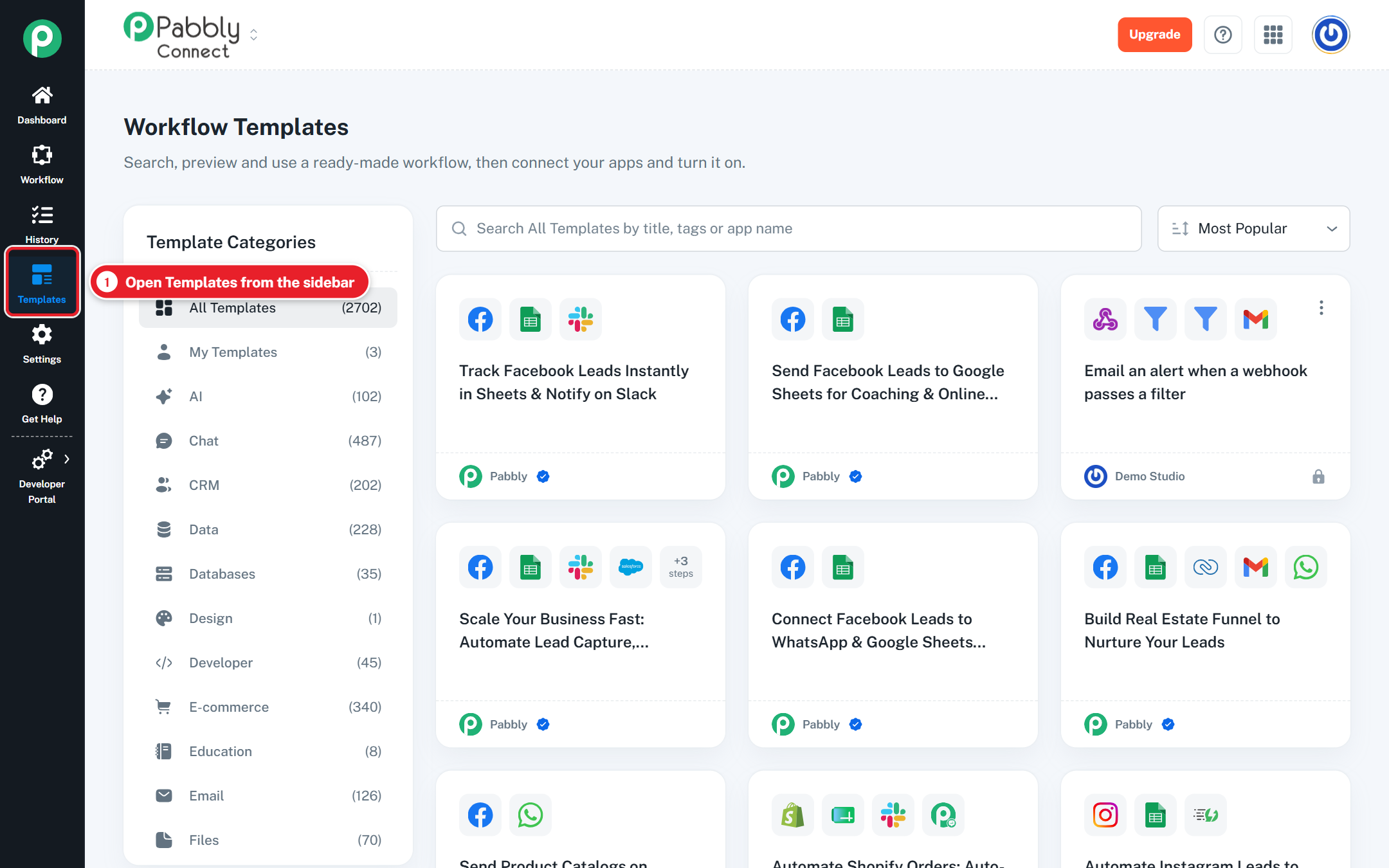
The list on the left groups the templates:
Section | What it shows |
|---|---|
All Templates | Every template you can use. |
My Templates | Only the templates you created. |
Categories | Templates for one topic, such as CRM, E-commerce, Email, Marketing or AI. The number next to each one is how many templates it holds. |
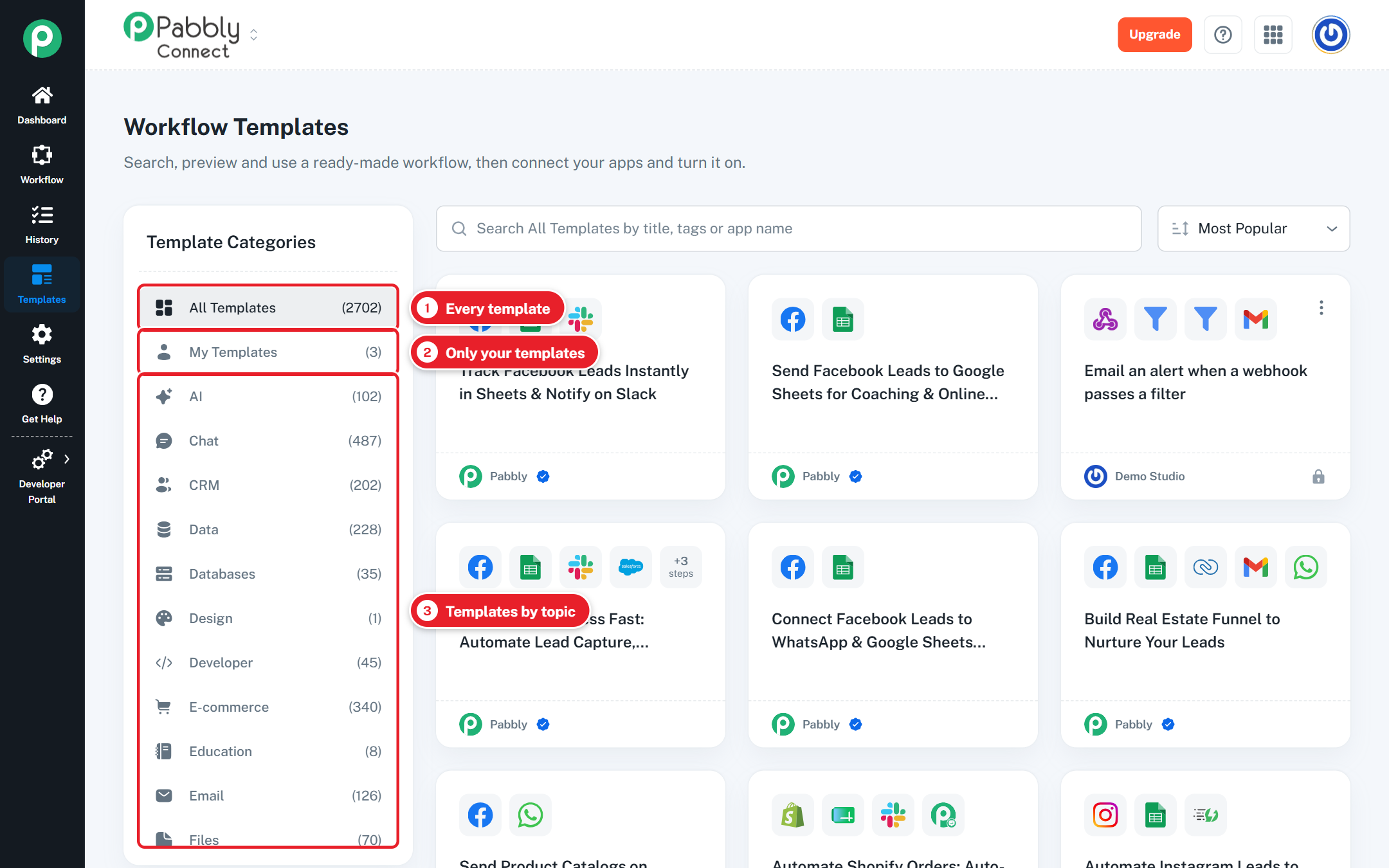
Type in the search box to find templates by title, tag or app name. For example, search "Google Sheets" or "shopify orders". The search looks only inside the section you have selected on the left.
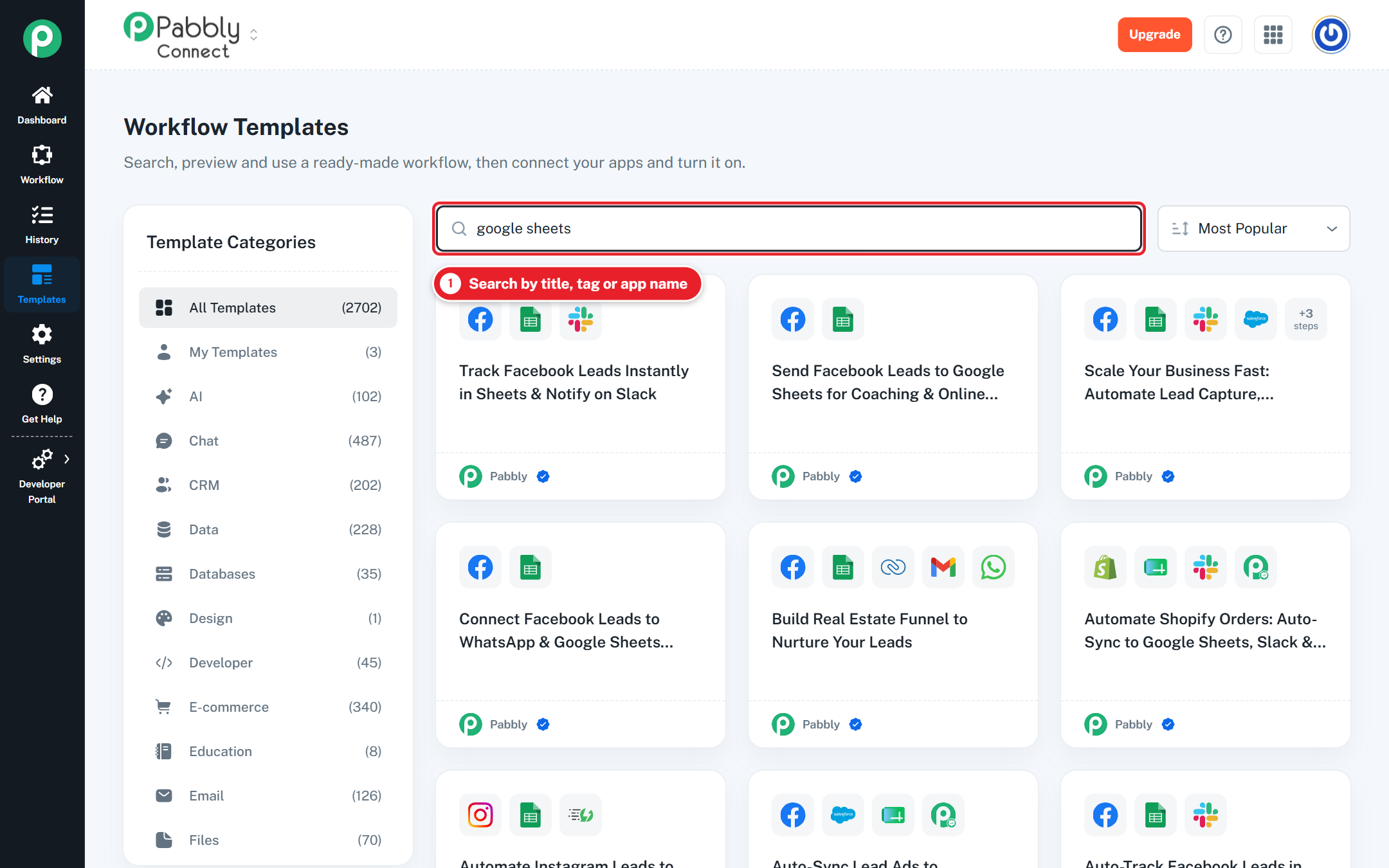
Use the sort menu next to the search box:
Most Popular shows the most used templates first.
Latest shows the newest templates first.
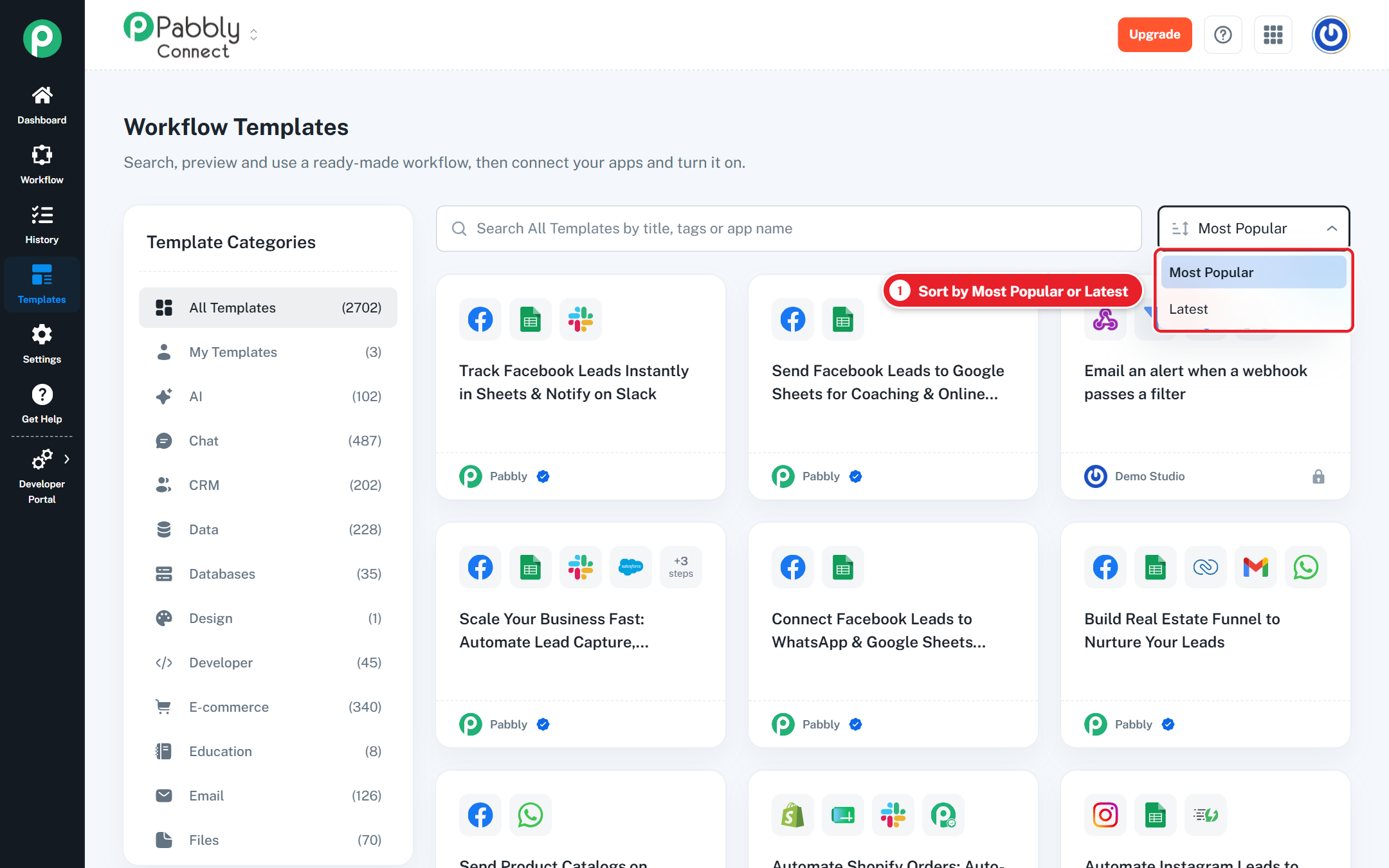
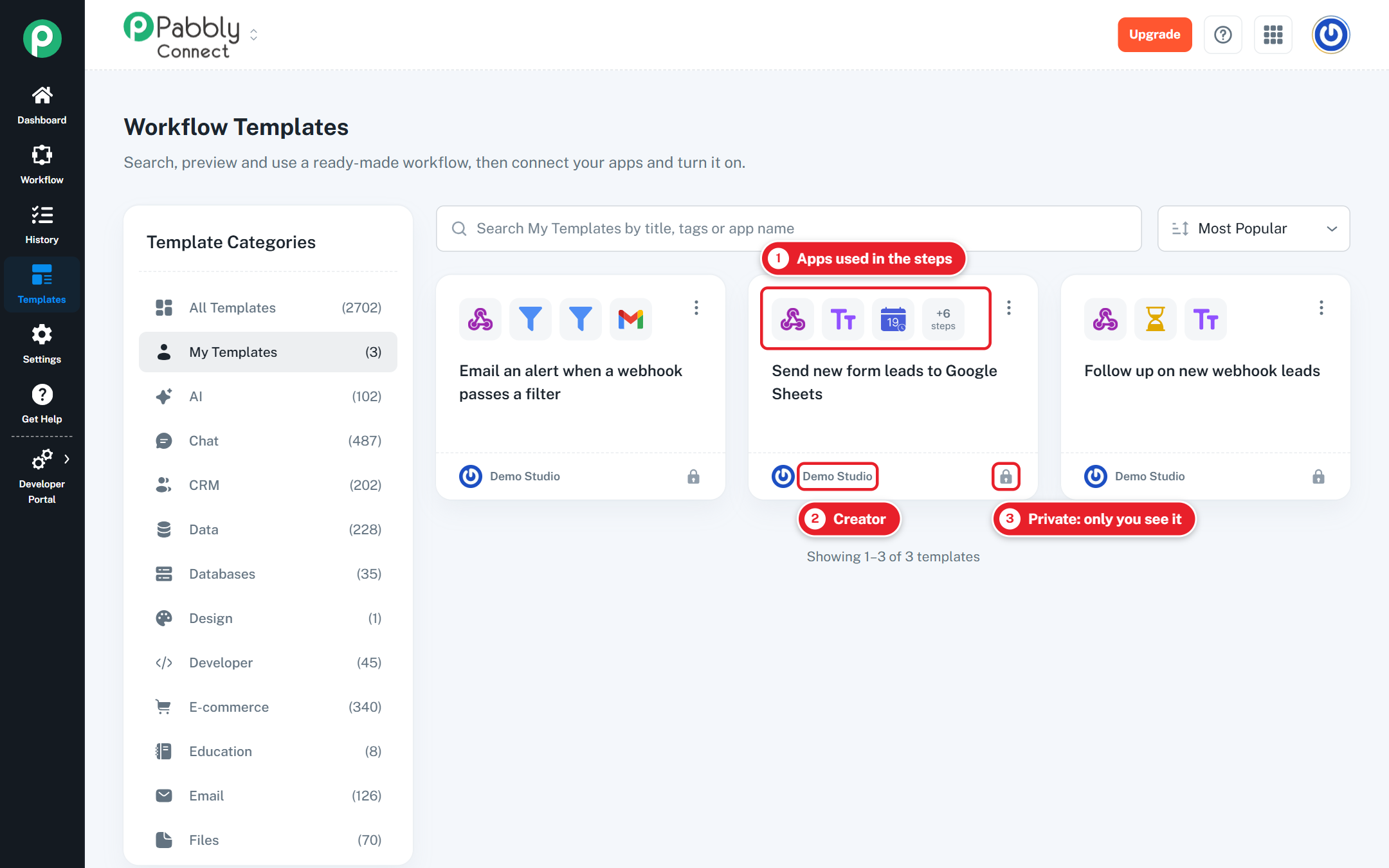
Hover the card to read its description:
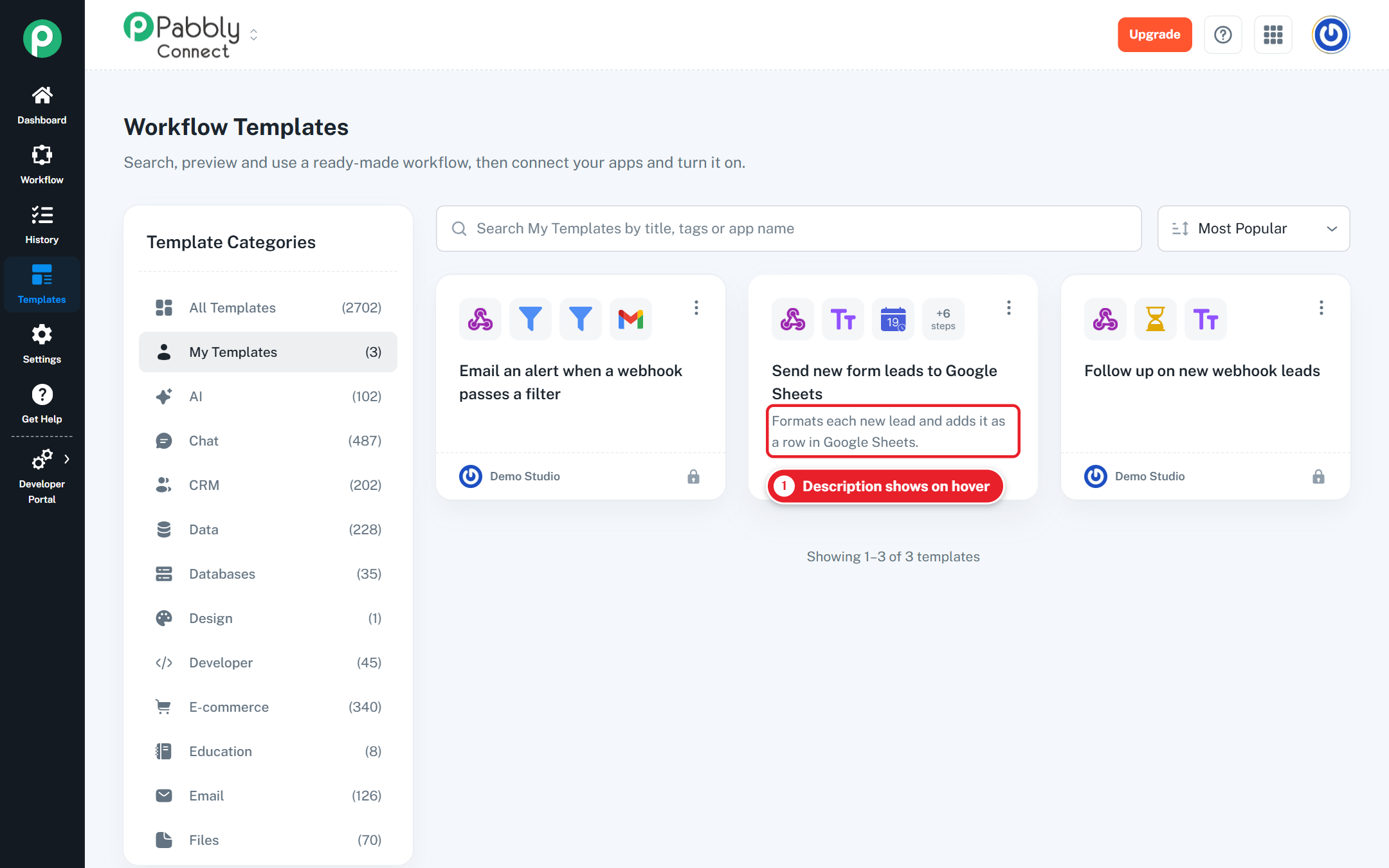
Each card shows:
App icons for the steps in the workflow. Hover an icon to see the app name.
Title and, when you hover the card, a short description.
Creator. A blue check mark means the template was made by the Pabbly team.
Used N times, how many times the template has been copied.
On your own templates, a lock icon (Private) or a globe icon (Public).
Click any card to open its preview.
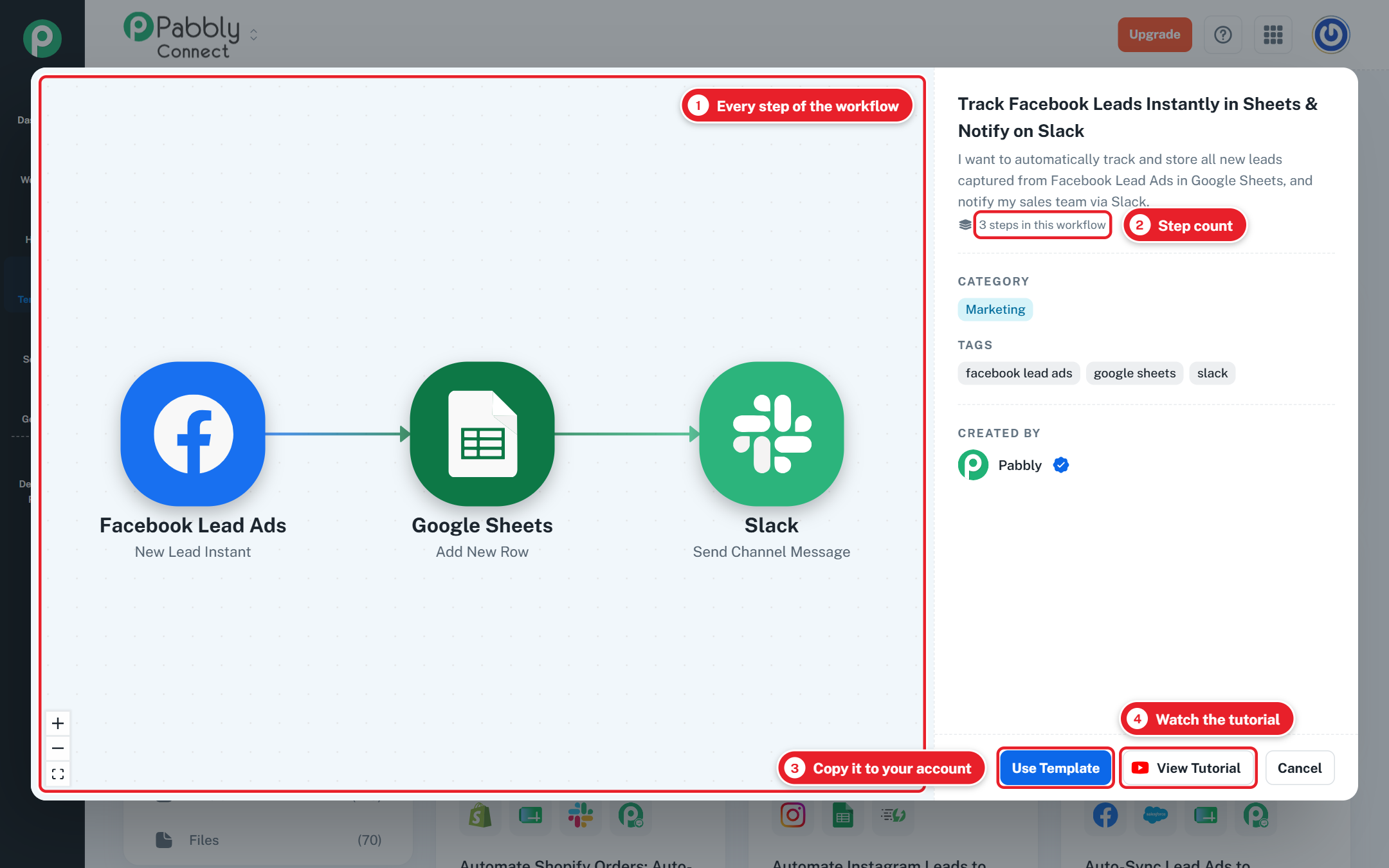
The preview shows:
The full workflow on a canvas, step by step, the same way it looks in the workflow builder.
How many steps the workflow has.
Its categories and tags.
Who created it.
If the template has a tutorial, a View Tutorial button opens the video on YouTube.
Tip: the page address changes to the template you opened. Copy it from the browser to send that template to someone else.
Open the template's preview.
Click Use Template.
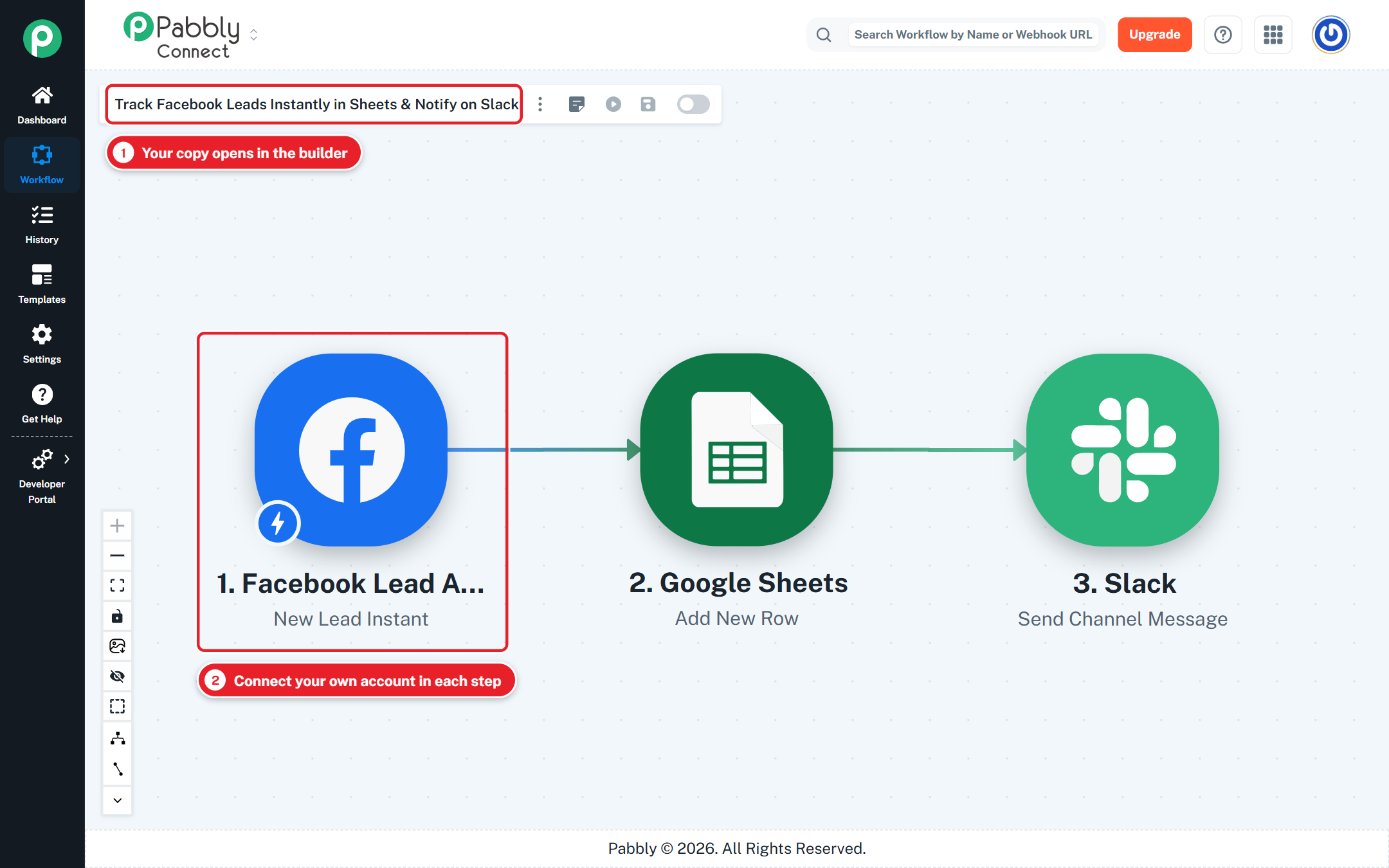
A copy of the workflow is created in your account and opens in the workflow builder.
Open each step and connect your own app accounts.
Check the field mapping, run a test and turn the workflow on.
Things to know:
The copy is yours. Changes you make do not affect the template or anyone else.
The template's creator does not see your copy or your data.
A template that uses an app which is no longer supported cannot be used. You will see a message saying so.
Some templates have an AI Agent step that uses other workflows as tools. When you click Use Template, you may be asked:
Copy the AI Agent tool workflows too?
Copy Them Too also copies the tool workflows into your account. Turn them on after the copy, so the AI Agent can call them.
Skip copies only the main workflow. You can add your own tools to the AI Agent step later.
If a tool uses an app account, connect your own account in that tool before you run the workflow.
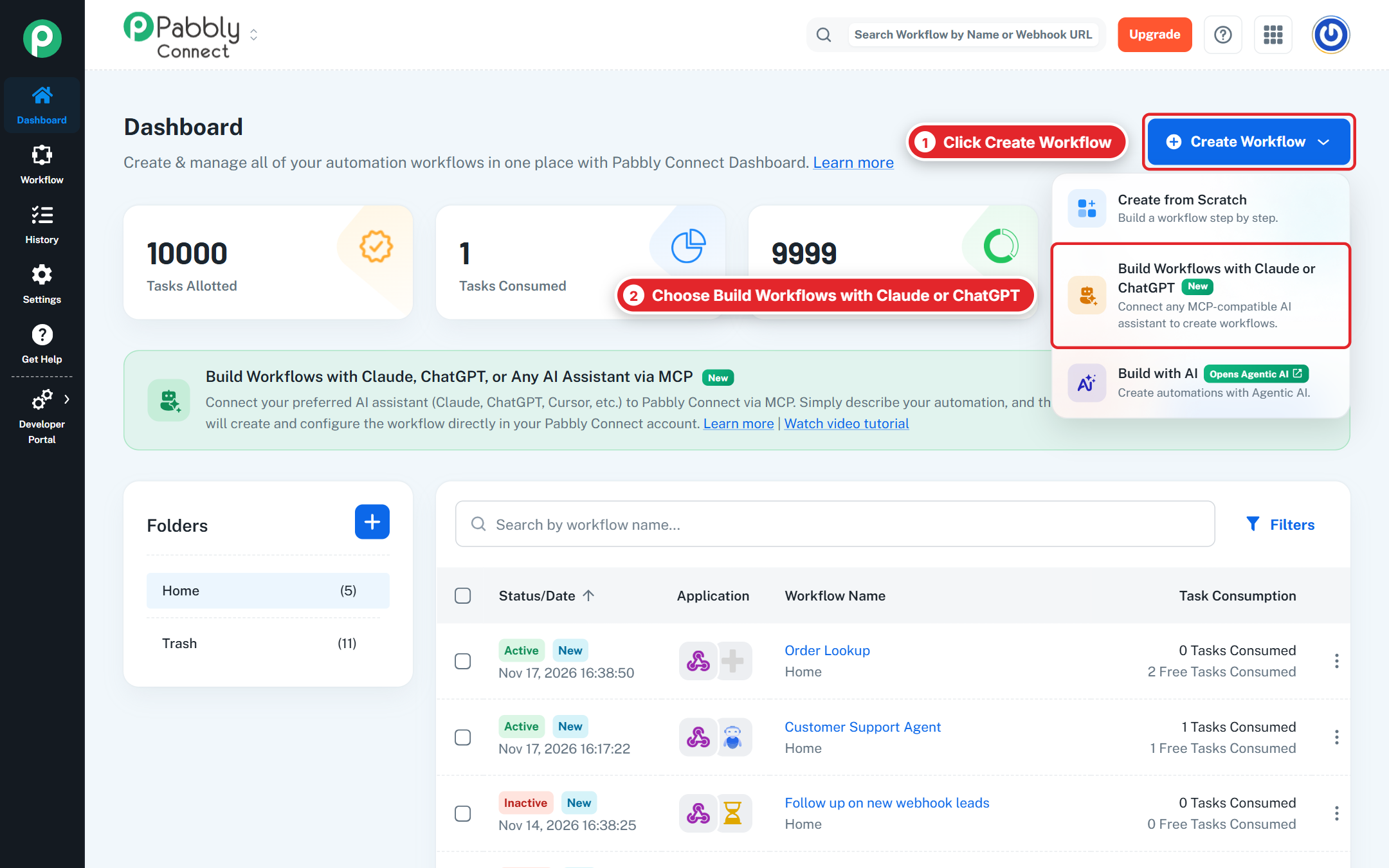
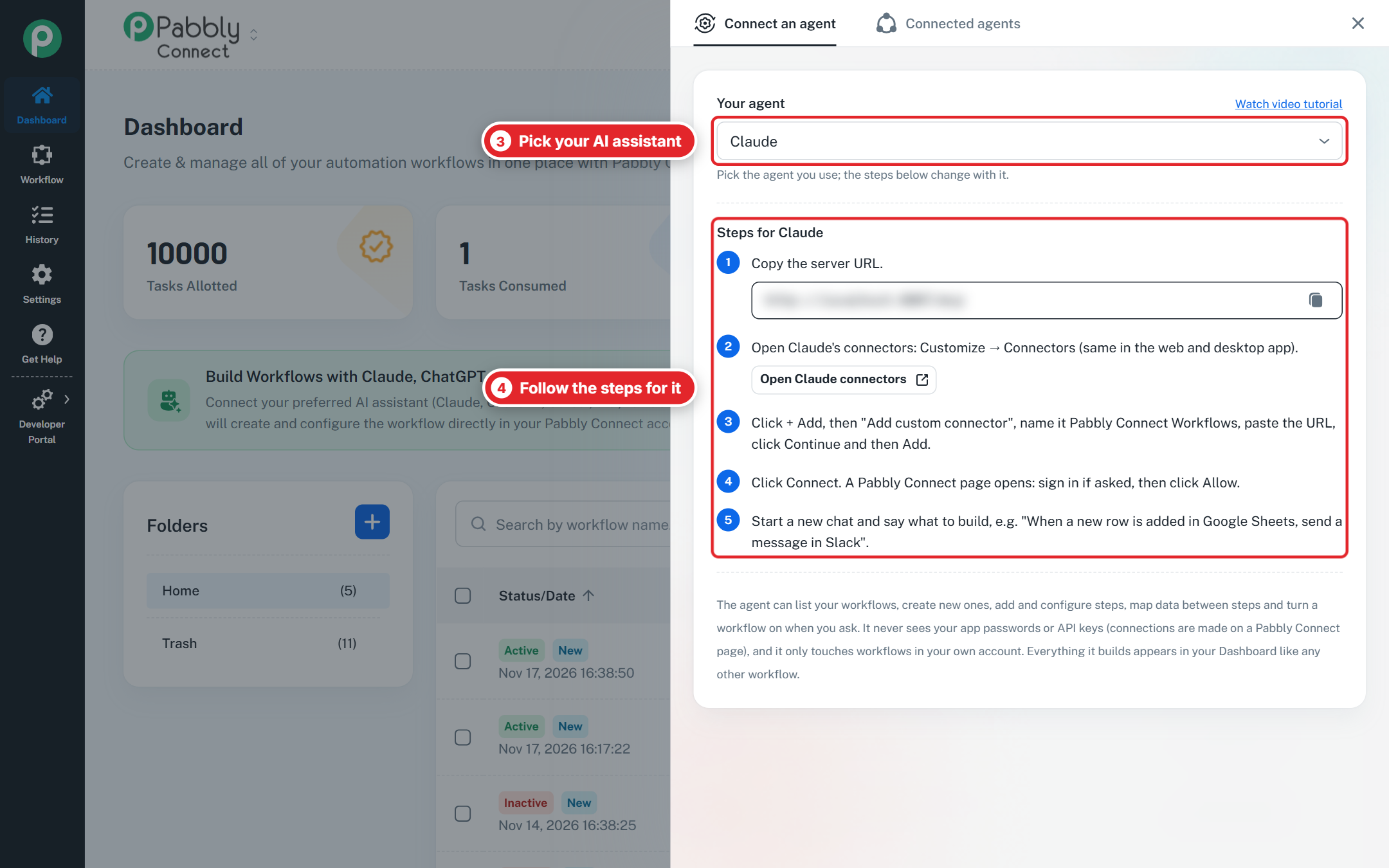
After you use a template, you don't have to edit every step by hand. You can ask your AI assistant to change the copy for you. This works with Claude, ChatGPT, Cursor or any AI assistant connected to Pabbly Connect through MCP.
On the Dashboard, click Connect an Agent on the MCP banner and connect your AI assistant. You only do this once.
In your AI assistant, name the workflow and say what to change.
The assistant shows you the change first, then applies it to your workflow.
Open the workflow in the builder, check the change and send a test.
Things you can ask:
"In my workflow Track Facebook Leads Instantly in Sheets & Notify on Slack, also send the lead's phone number to Slack."
"Add a filter so only leads from India continue."
"Remove the Slack step and email me the lead instead."
"Rename the workflow to New Facebook leads."
Things to know:
The assistant changes only your copy. The template and other users' copies stay the same.
If a step needs an app account, the assistant gives you a link to connect your own account in Pabbly Connect. Never paste passwords or API keys into the chat.
A workflow that is on stays on after a change, so test it after every change.
You can turn any of your workflows into a template.
The workflow must have a saved trigger and at least one action.
Save the workflow first. The template copies the last saved version.
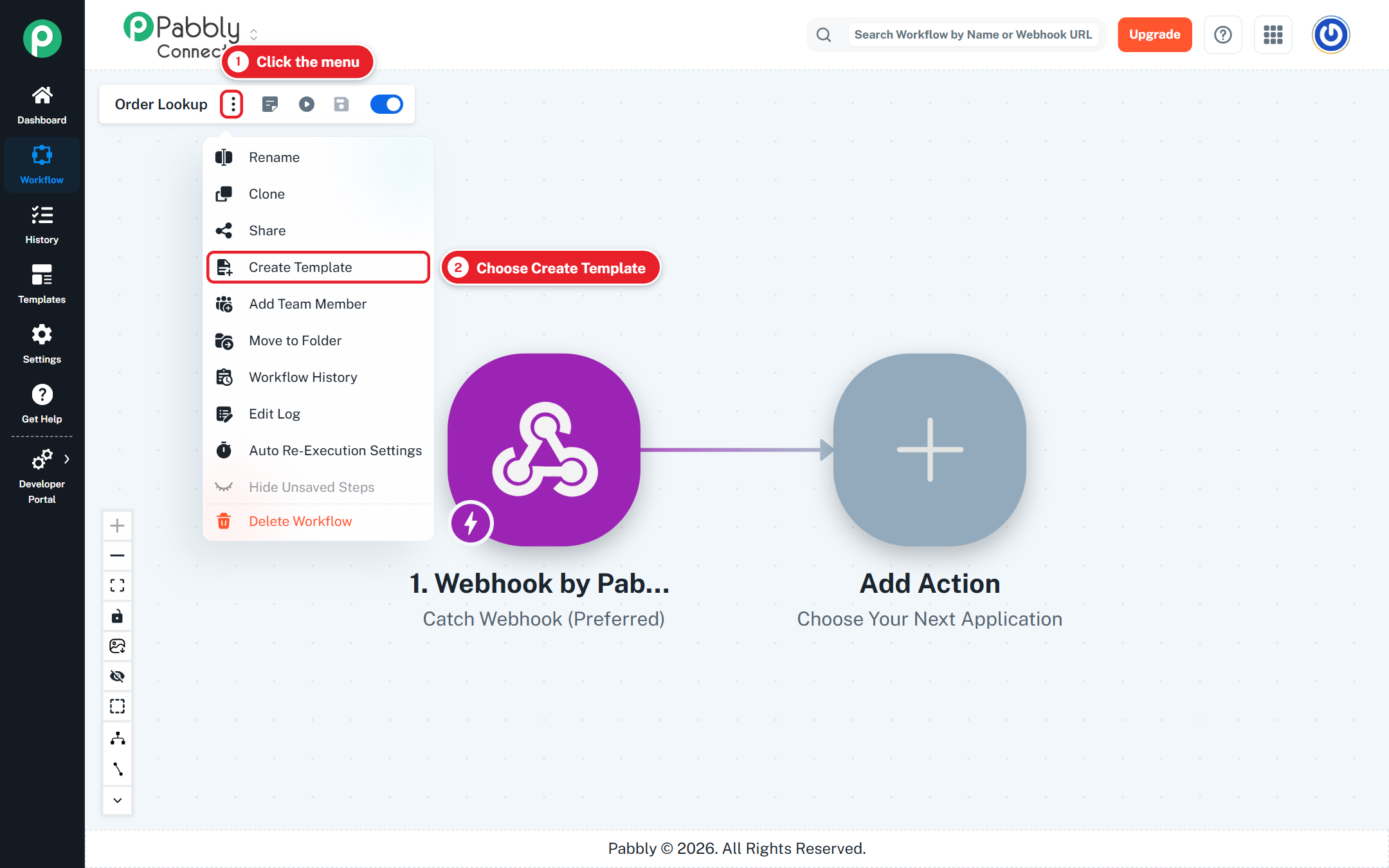
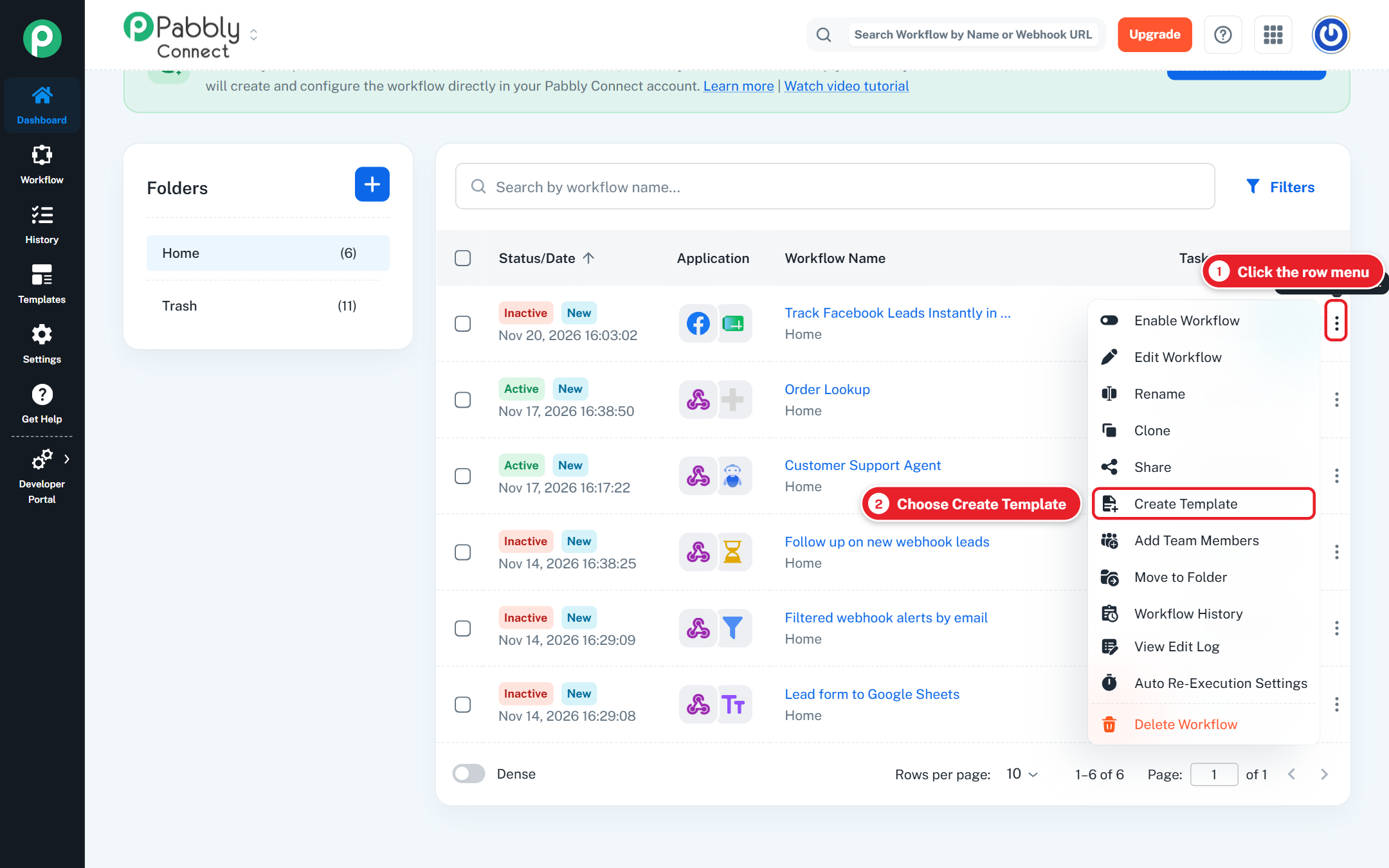
Open the template menu in one of two places:
In the workflow builder, click the ⋮ menu next to the workflow name and choose Create Template.
On the Dashboard, click the ⋮ menu on the workflow's row and choose Create Template.
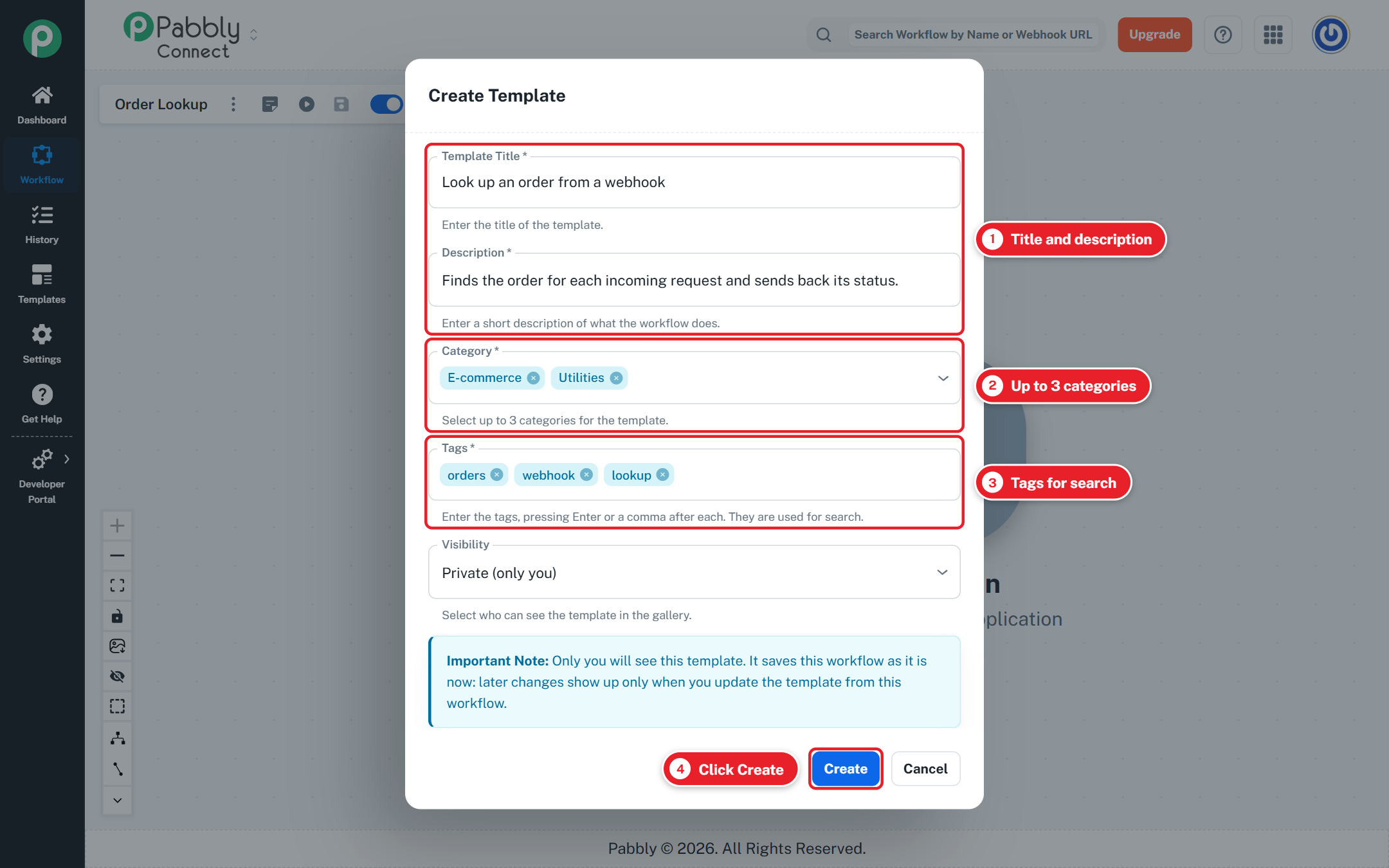
Fill in the form:
Field | What to enter |
|---|---|
Template Title | A clear name, such as "Add new Shopify orders to a Google Sheet". |
Description | What the workflow does, in one or two sentences. |
Category | Up to 3 categories, picked from the list. |
Tags | Words people may search for, such as shopify, google sheets, orders. Press Enter or type a comma after each tag. |
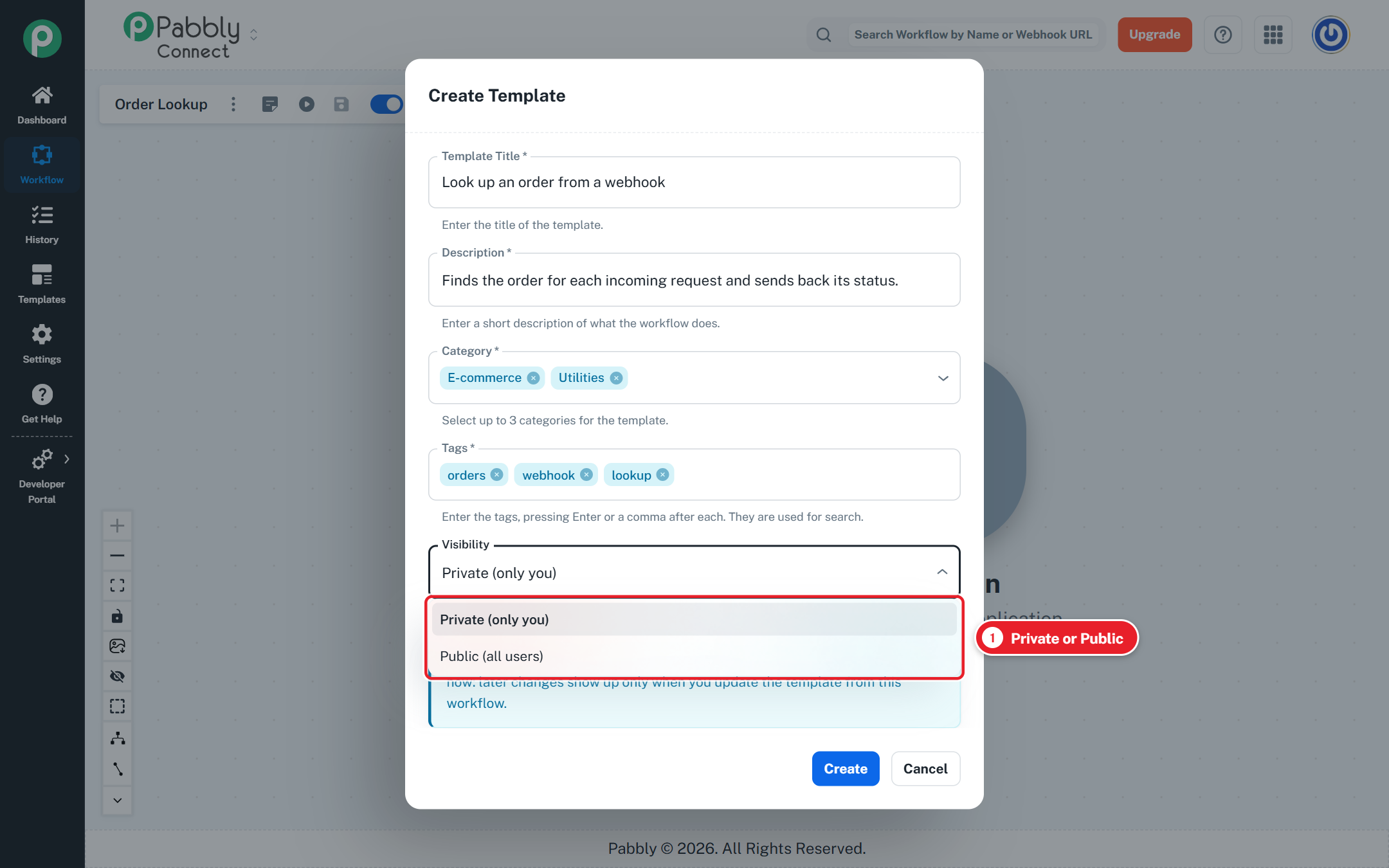
Visibility | Private (only you) or Public (all users). |
Click Create.
Your template now appears under My Templates.
Visibility | Who can see and use it |
|---|---|
Private | Only you. Good for saving a setup you want to reuse. |
Public | All Pabbly Connect users. Your name and account photo are shown as the creator. |
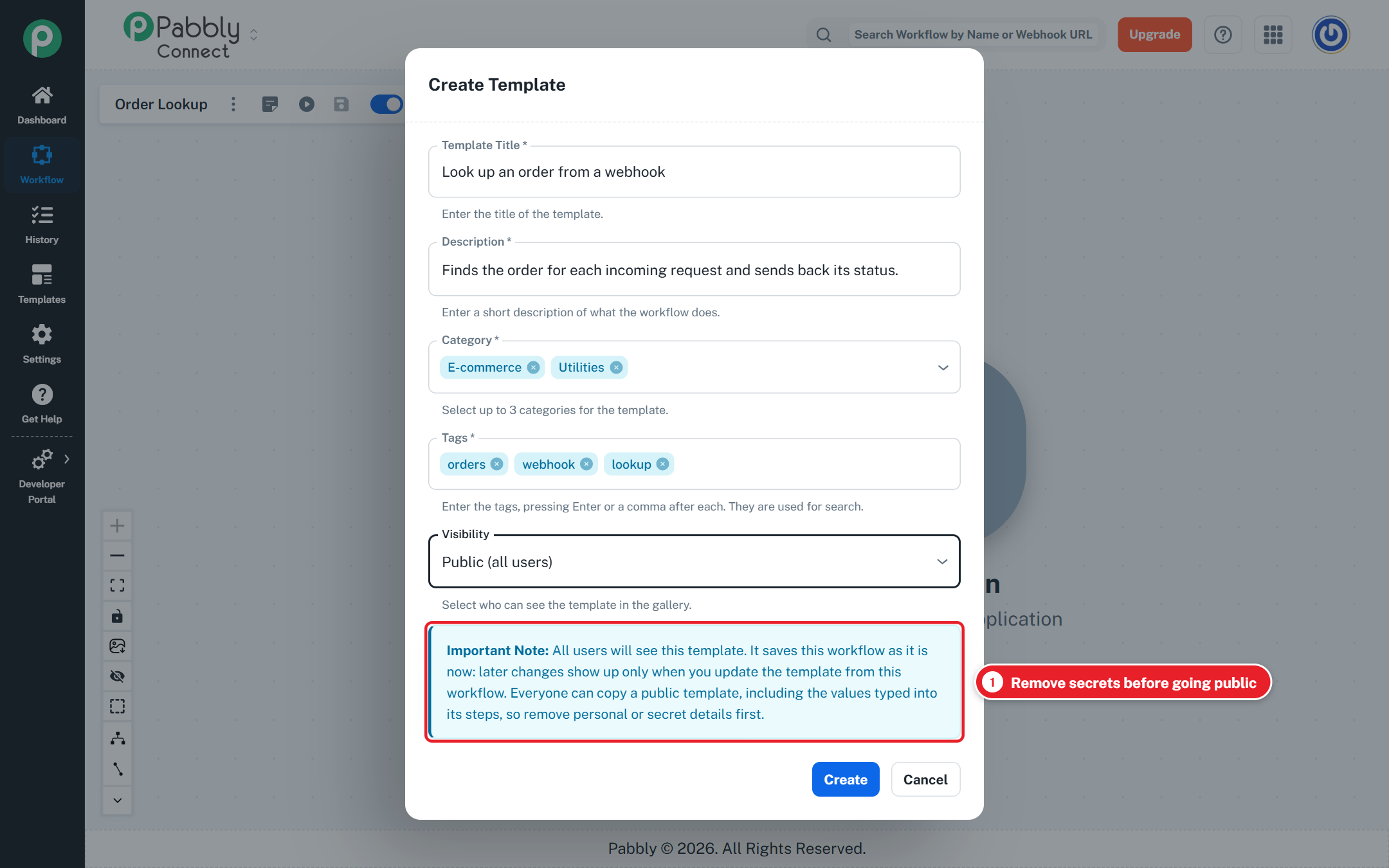
Important: anyone can copy a public template, including any values you typed into its steps. Remove personal details, API keys, passwords and other secrets from the steps before you make a template public.
A workflow that uses a private app (one only you can use) can only be a private template.
A template is a snapshot. It saves the workflow as it is when you create it. Changes you make to the workflow later do not reach the template on their own.
To send your latest changes to the template:
Save the workflow.
Open the same ⋮ menu (in the builder or on the Dashboard).
Choose Update Template (it replaces Create Template once a template exists).
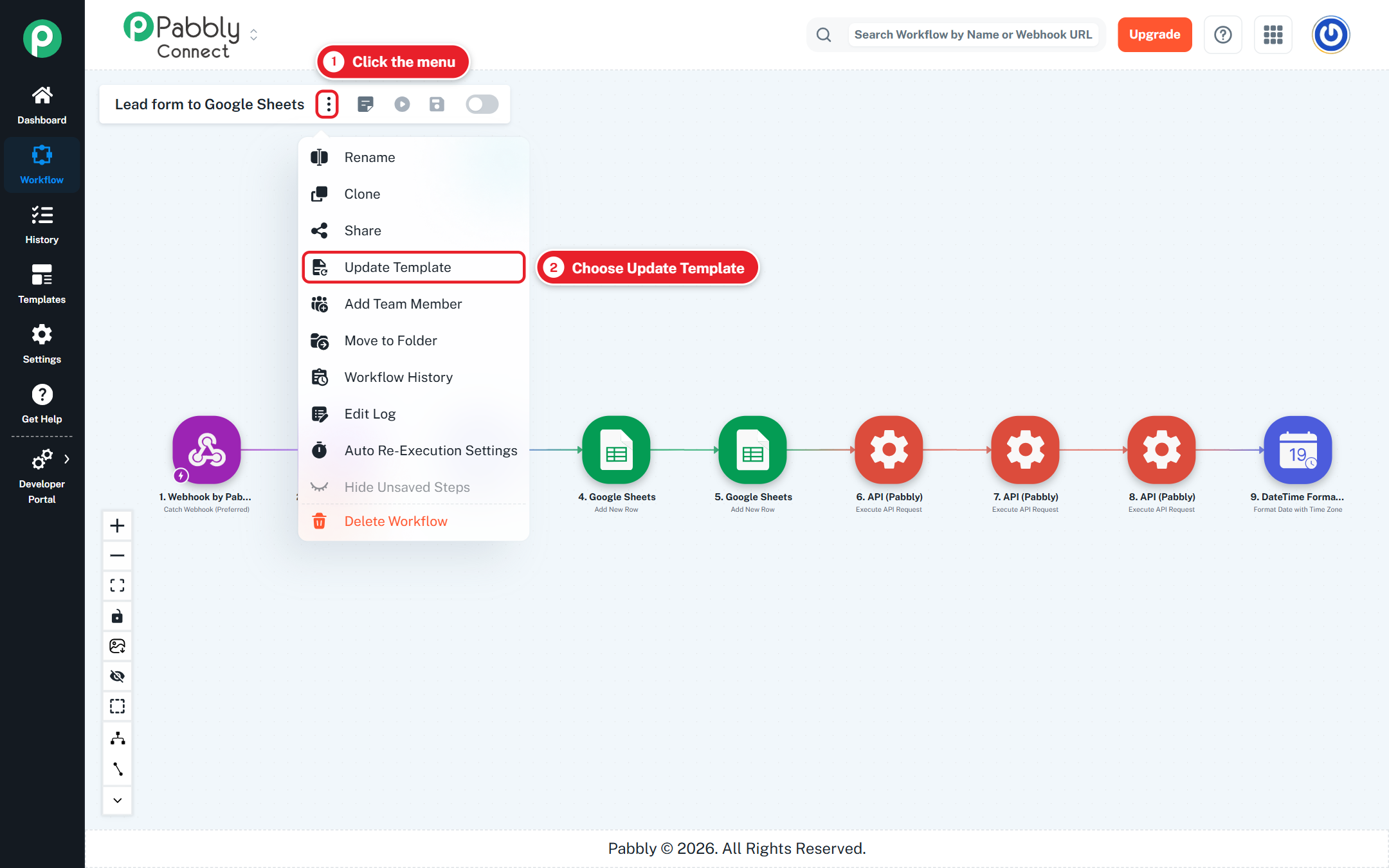
Click Update.
One workflow has one template. Updating it replaces the old copy.
On the Templates page, click the ⋮ on your template's card.
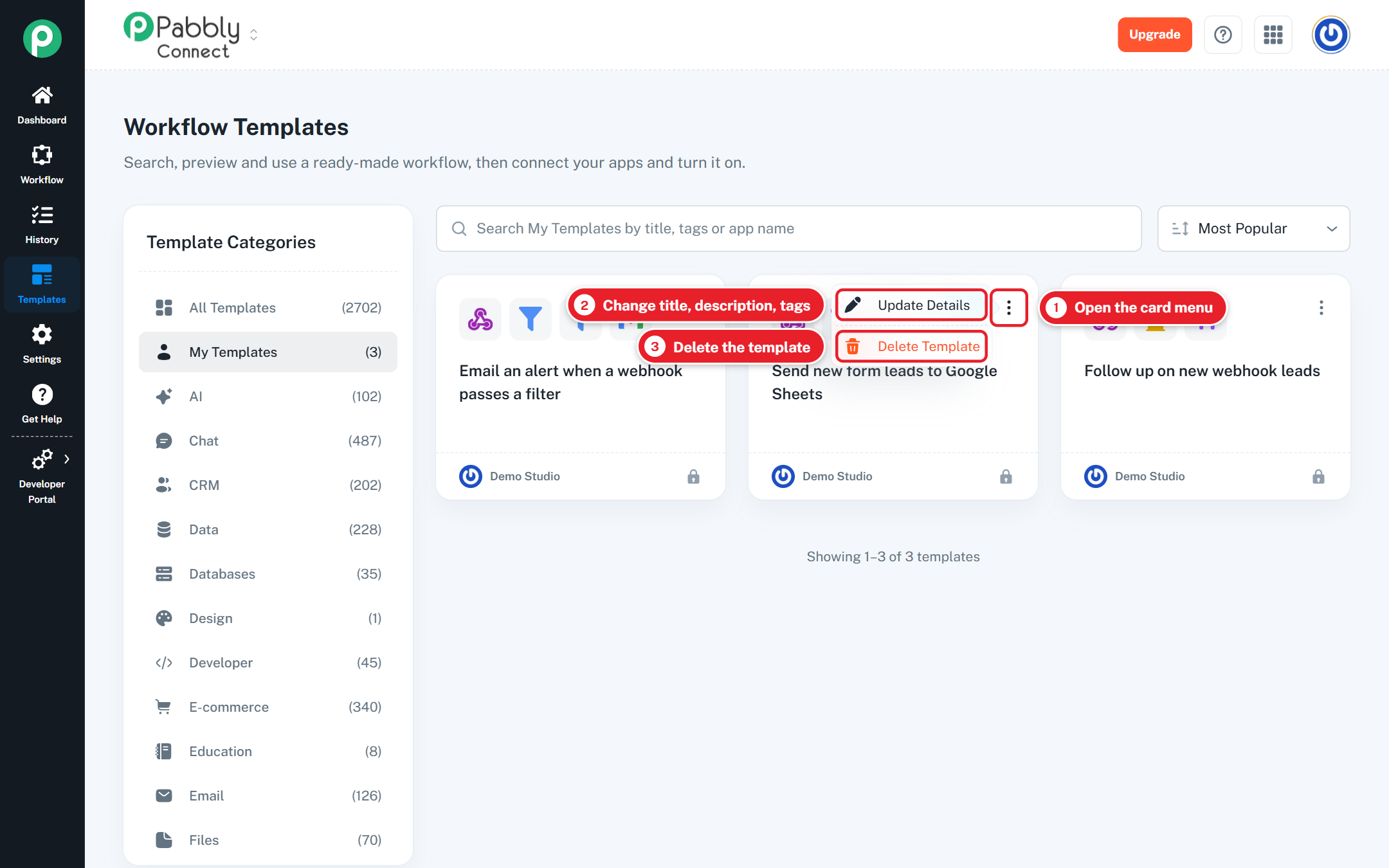
Update Details opens this form:
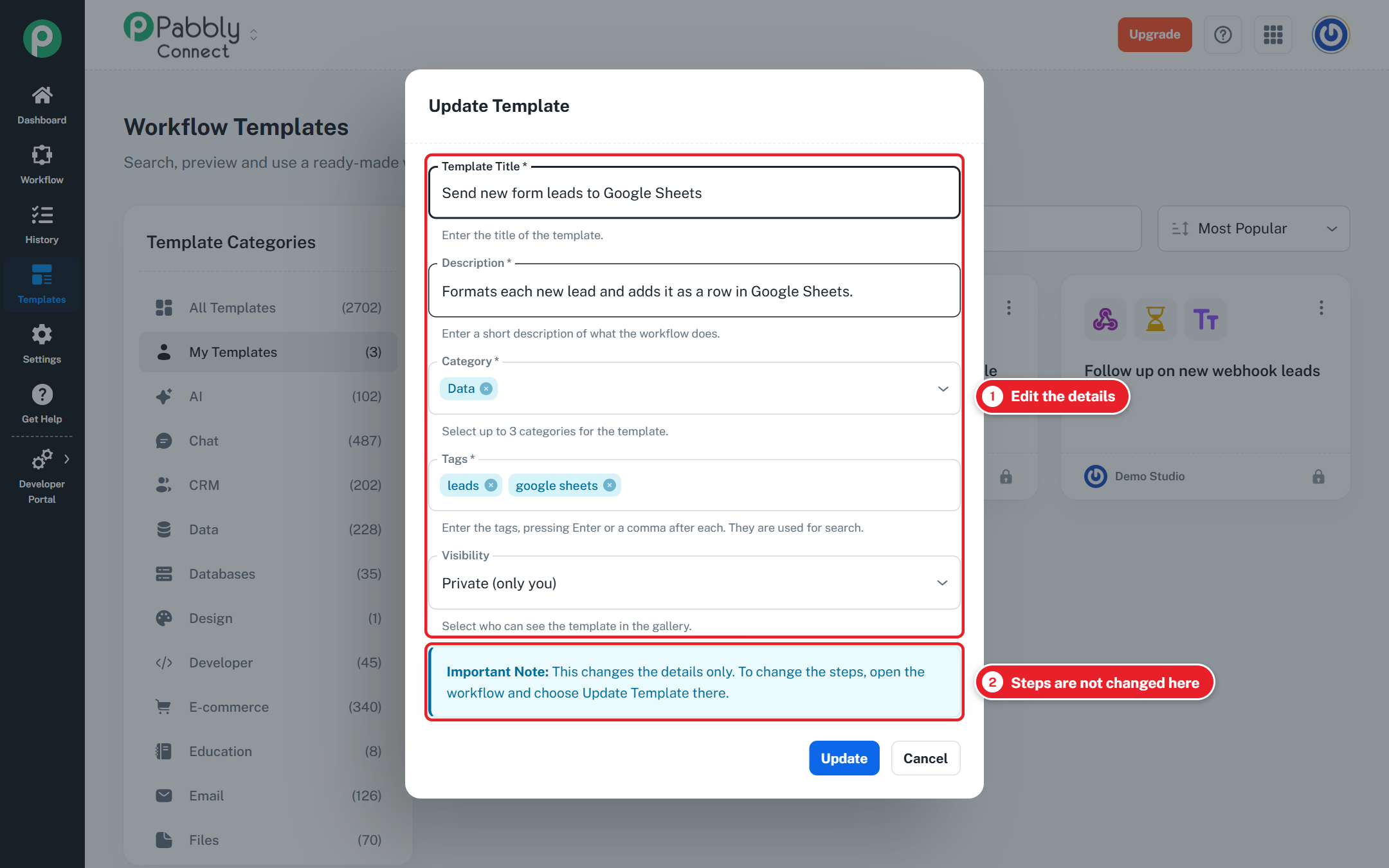
Update Details changes the title, description, categories, tags and visibility. It does not change the steps. To change the steps, use Update Template from the workflow (see section 6).
Delete Template removes the template for good. It cannot be restored. Your original workflow is not affected, and copies other people already made stay in their accounts.
I can't find Create Template in the menu. Team members cannot create templates. Ask the account owner.
I see "Save the workflow first". You have unsaved changes. Click Save in the builder, then open the menu again.
I see "Add and save a trigger and at least one action". The workflow is not complete yet. Add and save a trigger and an action, then try again.
My changes are not in the template. Templates do not update by themselves. Use Update Template from the workflow (section 6).
I can't make my template public. The workflow uses an app that other users cannot use. Keep the template private, or replace that step with a public app.
Do I need to connect my apps after using a template? Yes. The template copies the steps, not the creator's app connections. Connect your own account in each step.
