Pabbly Connect
 Pabbly Connect Team•Updated Nov 2, 2026•4 min read
Can't find an app in Pabbly Connect? Build it from Claude or ChatGPT. Tell the AI which app you need, and it creates the actions and triggers, then tests each one against the real service. You don't need to write code.
What you need: a Pabbly Connect account, and a Claude or ChatGPT account that allows custom connectors.
Server URL:
https://connect.pabbly.com/backend/mcp/integration-builder
You can also find this URL in Pabbly Connect. Go to Developer Portal → AI Integration Builder and click Connect with MCP.
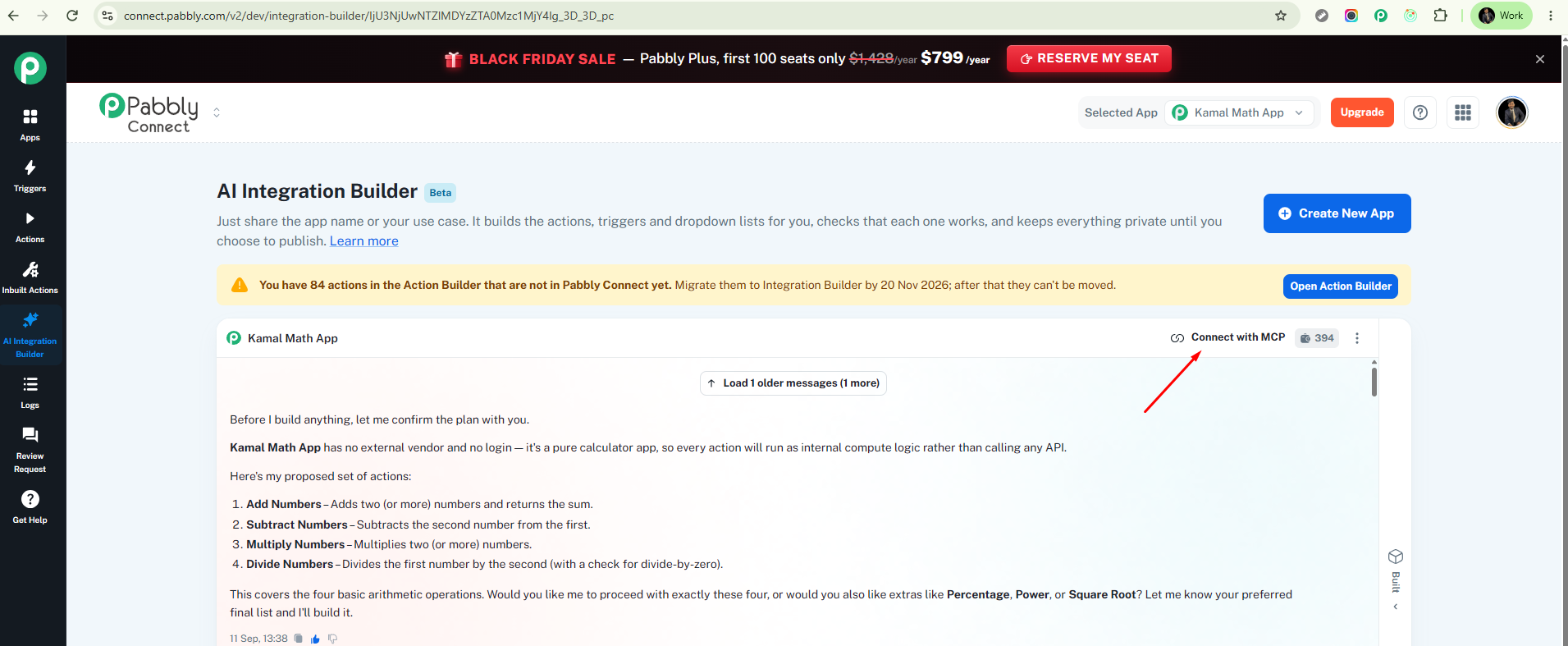
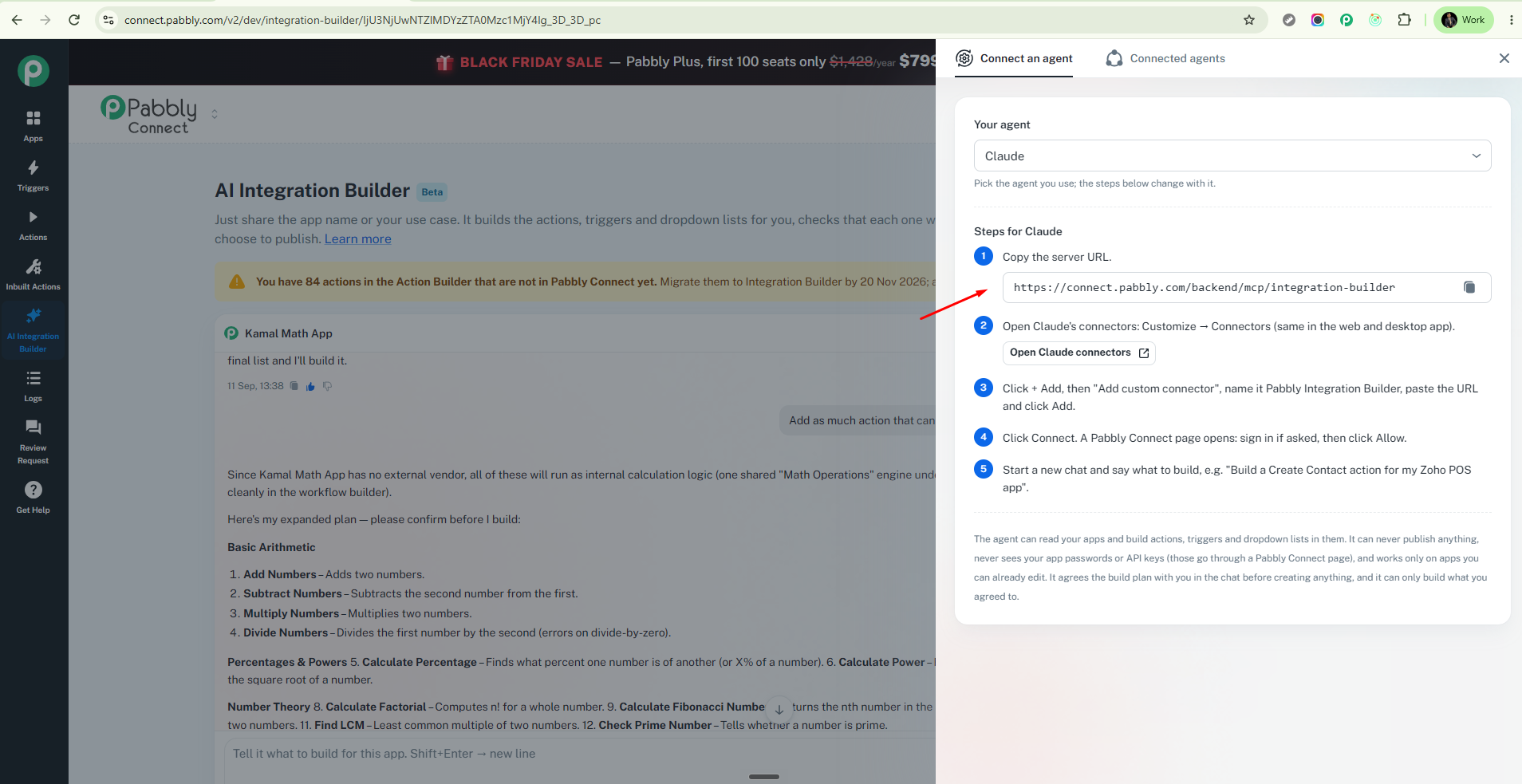
Copy the server URL above.
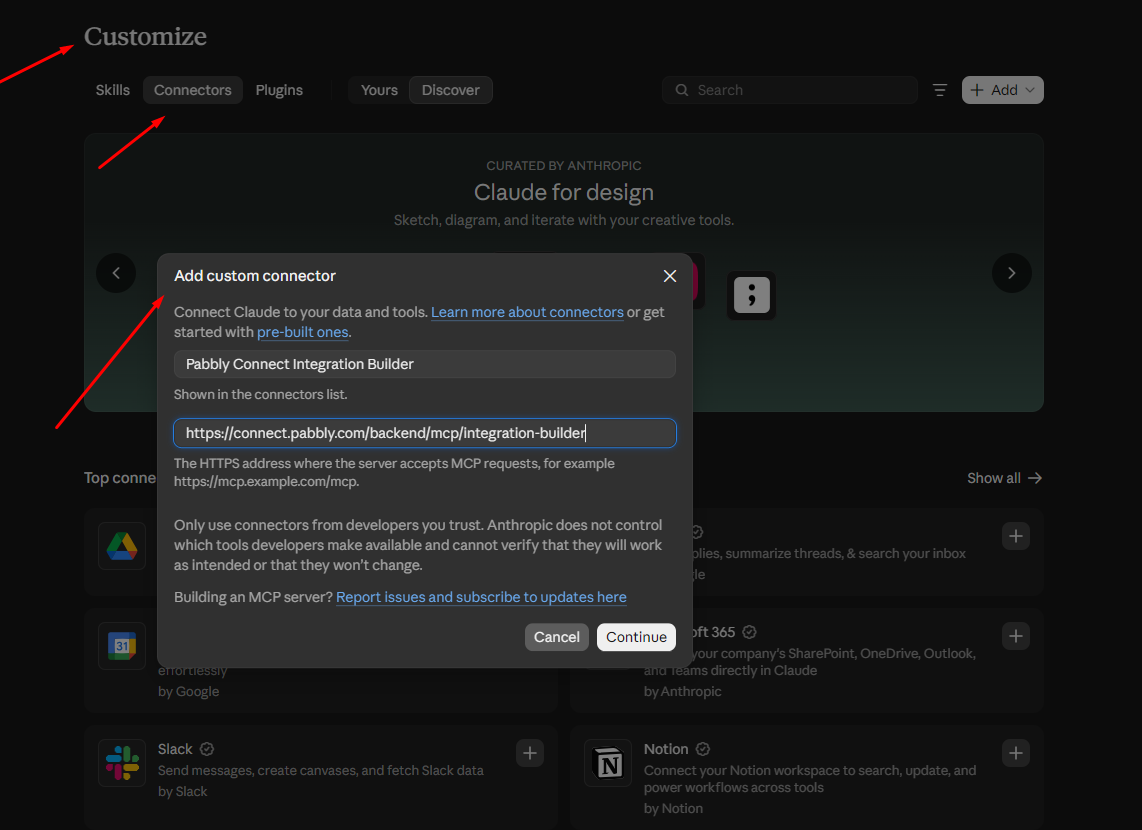
In Claude, open Customize → Connectors, or use this direct link.
Click + Add, then Add custom connector.
Name it Pabbly Integration Builder, paste the URL, and click Add.
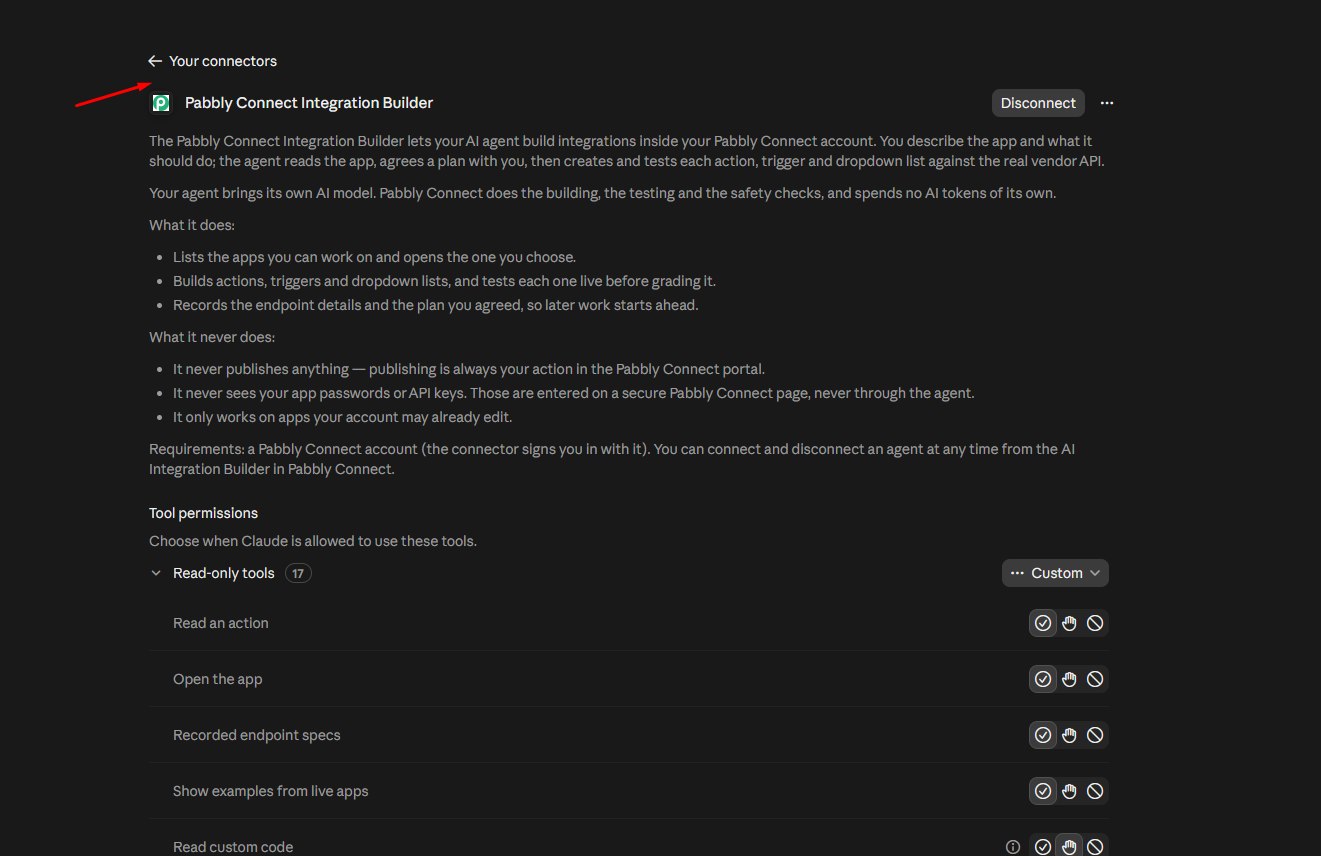
Click Connect. A Pabbly Connect page opens.
Sign in if asked, then click Allow.
Note: The Claude Free plan allows only one custom connector. To use this guide and the Workflow Builder guide together, you need a paid plan. On Team and Enterprise plans, an owner adds the connector first.
Use ChatGPT in your browser. The desktop app may show only some of the builder's tools.
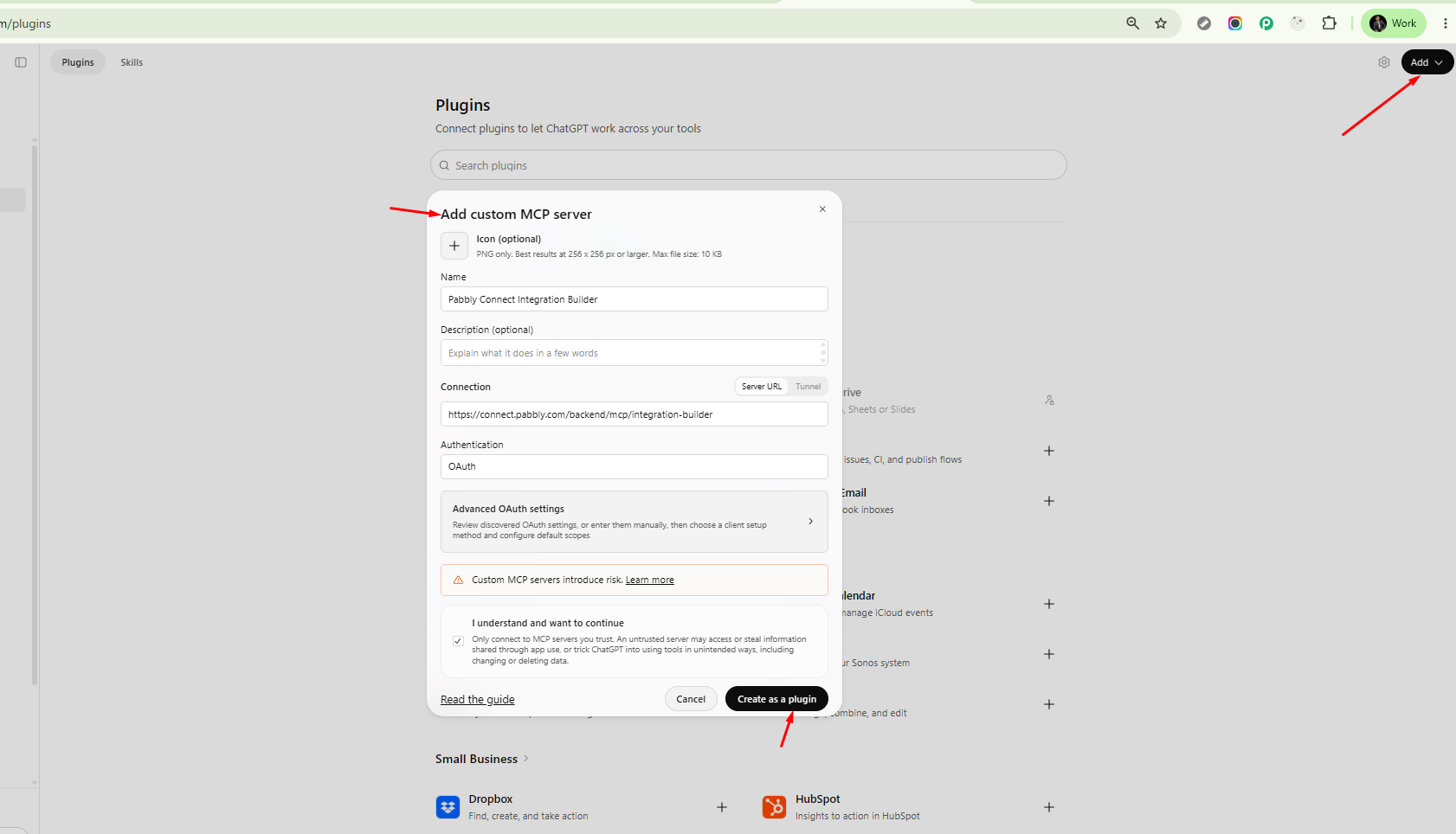
Copy the server URL above.
Open Settings → Security and login and turn on Developer mode.
Open Settings → Plugins and click Create.
Name it Pabbly Integration Builder, paste the URL, choose OAuth, and save.
Click Connect. A Pabbly Connect page opens.
Sign in if asked, then click Allow.
Start a new chat and turn on the Pabbly Connect Integration Builder plugin for that chat.
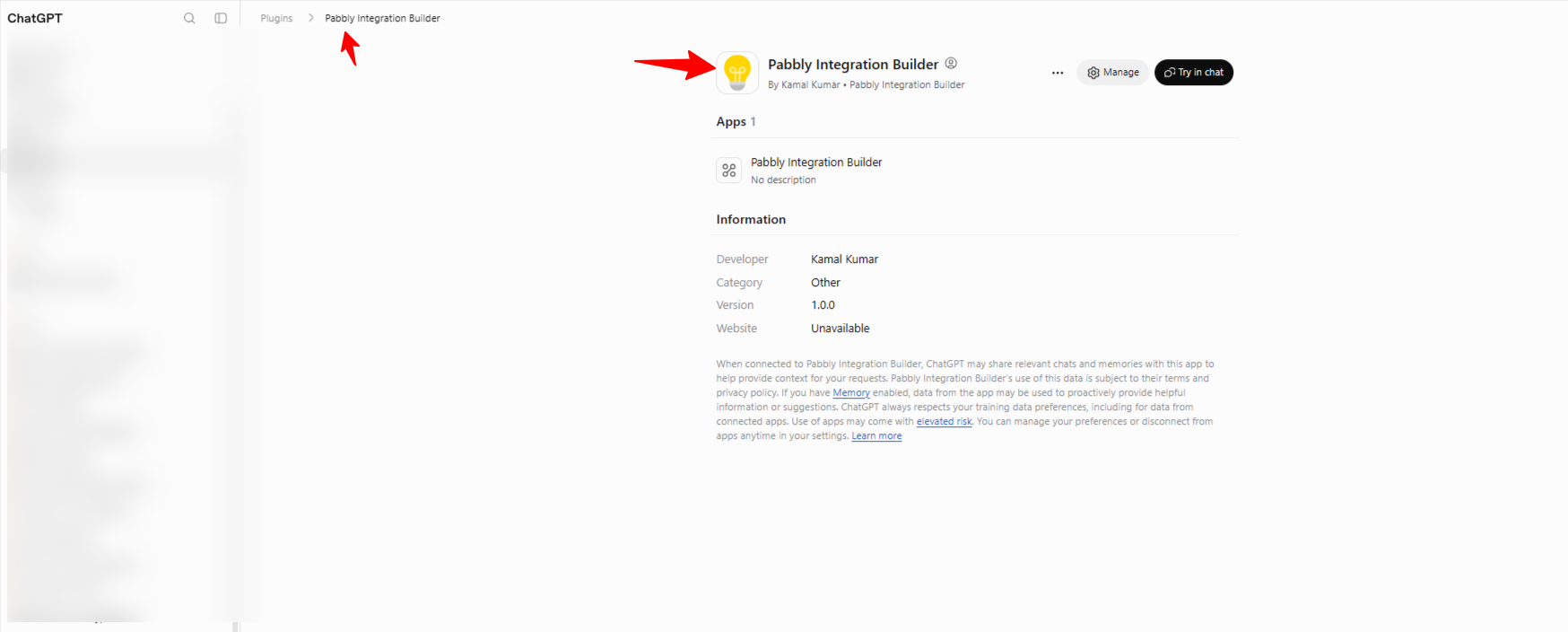
Note: You must turn on the plugin in each new chat. If you don't, ChatGPT can't see your Pabbly Connect account.
Start a new chat and name the app and what it should do. A link to the app's API documentation helps, but you don't have to share one.
Example prompts:
Create a new app for Acme CRM. I need a Create Contact action and a New Lead trigger.
List my apps.
Open my Zoho POS app and tell me what's already built.
Build a Create Contact action for my Zoho POS app.
Add the triggers this app is missing. Prefer instant ones.
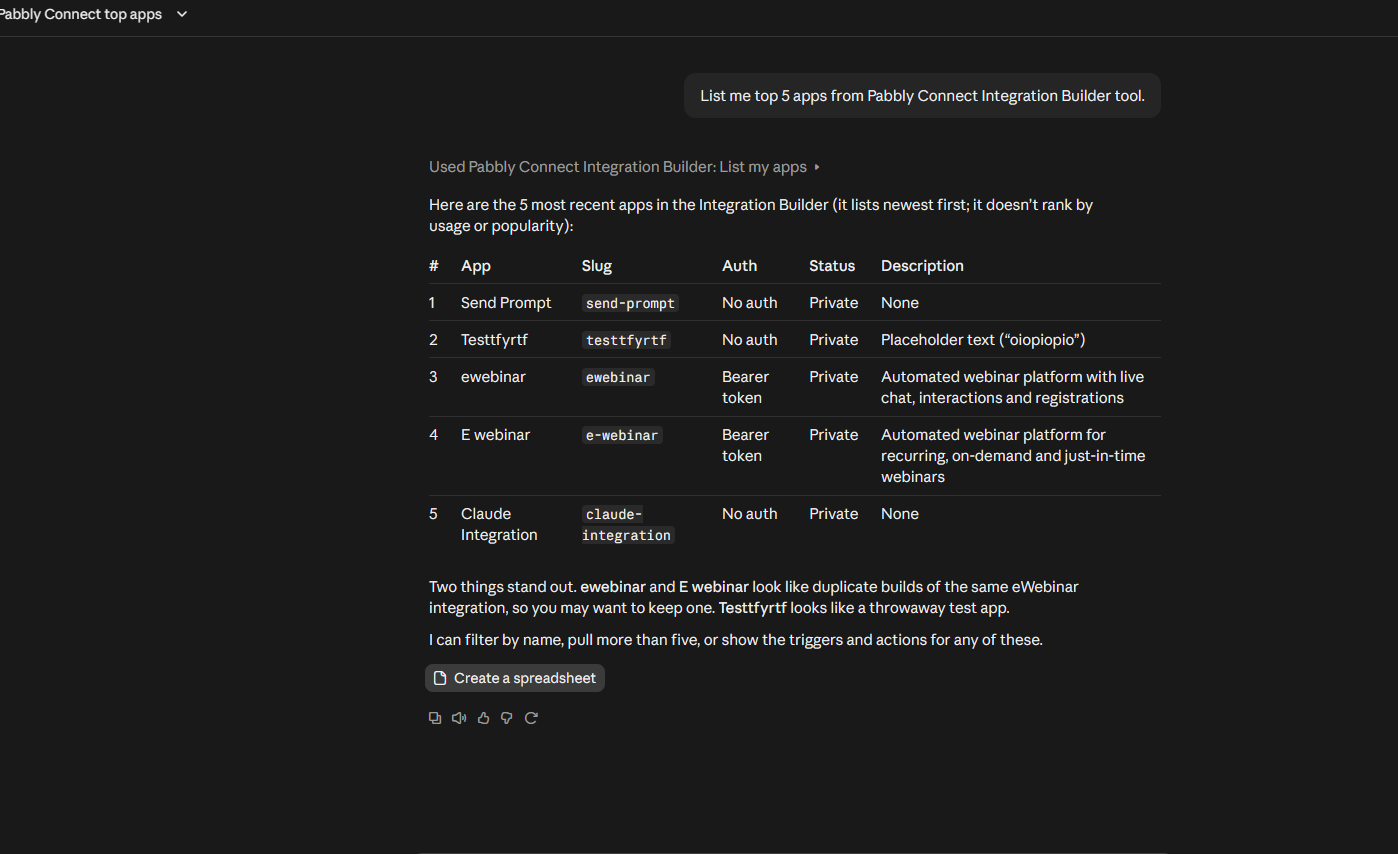
The AI lists the actions and triggers it plans to build, then waits for your answer. It builds only what you agree to.
Read the list, ask for any changes, then reply: Yes, go ahead.
Add your login. The AI gives you a link to a secure Pabbly Connect page. Enter your API key or sign in there. Never paste a password or API key into the chat.
Let the AI build and test. It tests each action and trigger against the real service, and tells you how each one did.
Give it real values if it asks. Some tests need something from your account, such as a real record ID.
Note: Tests run against your real account for that service. A Create Contact test can create a real contact, so use a test account if you have one.
Your new app is private, and the AI can't publish it. Only you and people you share it with can use it.
Open Developer Portal → Apps and open your app to check what was built.
Choose how to use the app:
I want to... | What to do |
|---|---|
Add it to a workflow by hand | In the workflow editor, add a step and pick your app from the Private Apps tab. |
Have the Workflow Builder AI use it | Set the actions and triggers you need to Live. Then open the app's App Status tab and click Submit for Review. |
The Workflow Builder AI can find your app only after the Pabbly team approves it and it goes Live. Then follow the Pabbly MCP Workflow Builder guide and name your app in the prompt:
When a new row is added in Google Sheets, create a contact in Google Contact.
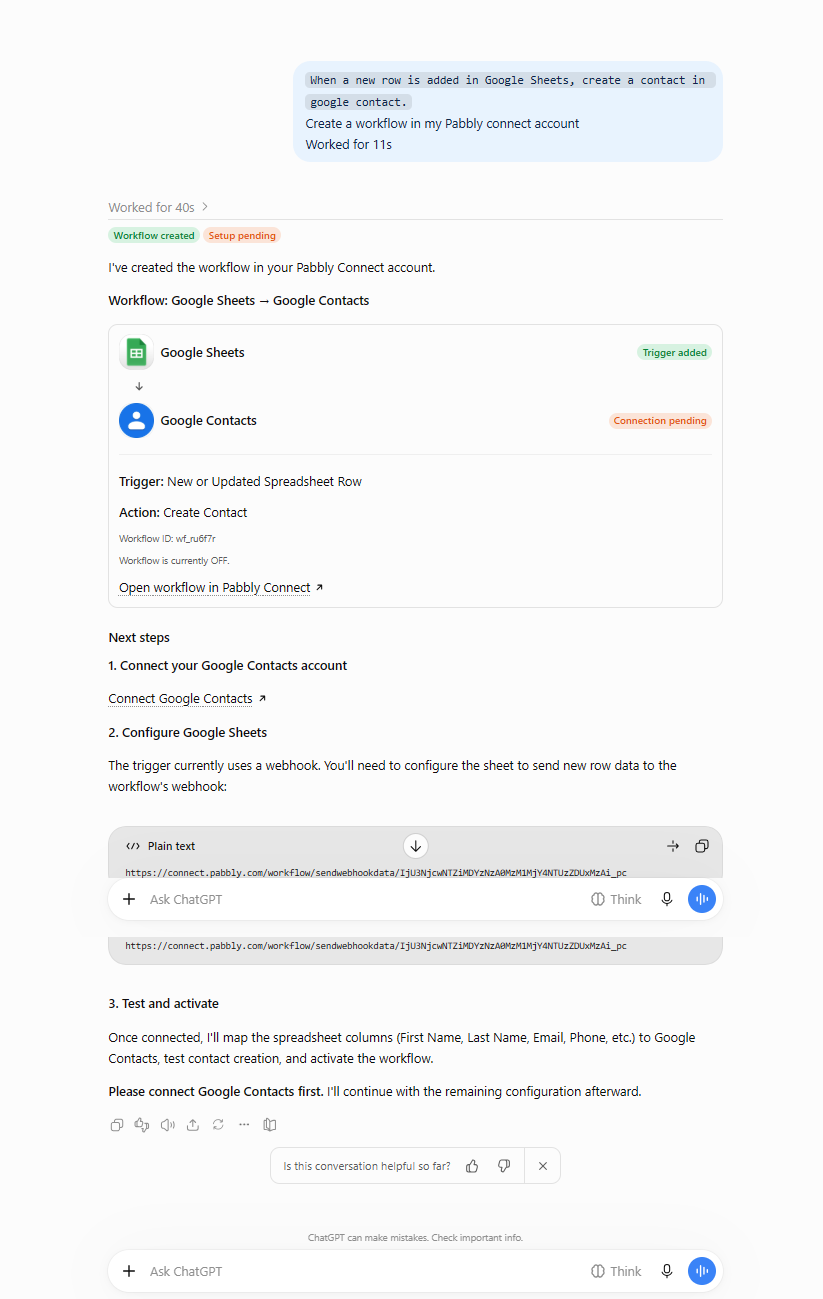
Your AI plan: The assistant uses your Claude or ChatGPT plan, so it doesn't use Pabbly AI credits.
Your apps only: The AI can work only on apps you're allowed to edit.
Your logins: The AI never sees your app passwords or API keys.
Publishing: The AI never publishes anything. Going Live is always your decision.
To disconnect the assistant: Go to Developer Portal → AI Integration Builder, click Connect with MCP, open the Connected agents tab, and click Disconnect. Anything it already built stays in your apps.
