Core App
 Pabbly Connect Team•Updated Nov 2, 2026•8 min read
AI Chat lets people talk to your workflow in a chat window. Each message they send starts the workflow, and the reply from your AI Agent step shows up in the chat as it is written.
You can chat with it yourself to test it, share it as a link, or add it to your website as a chat button.
The trigger is listed as AI Chat (Pabbly) in the app list, with the event New Chat Message.
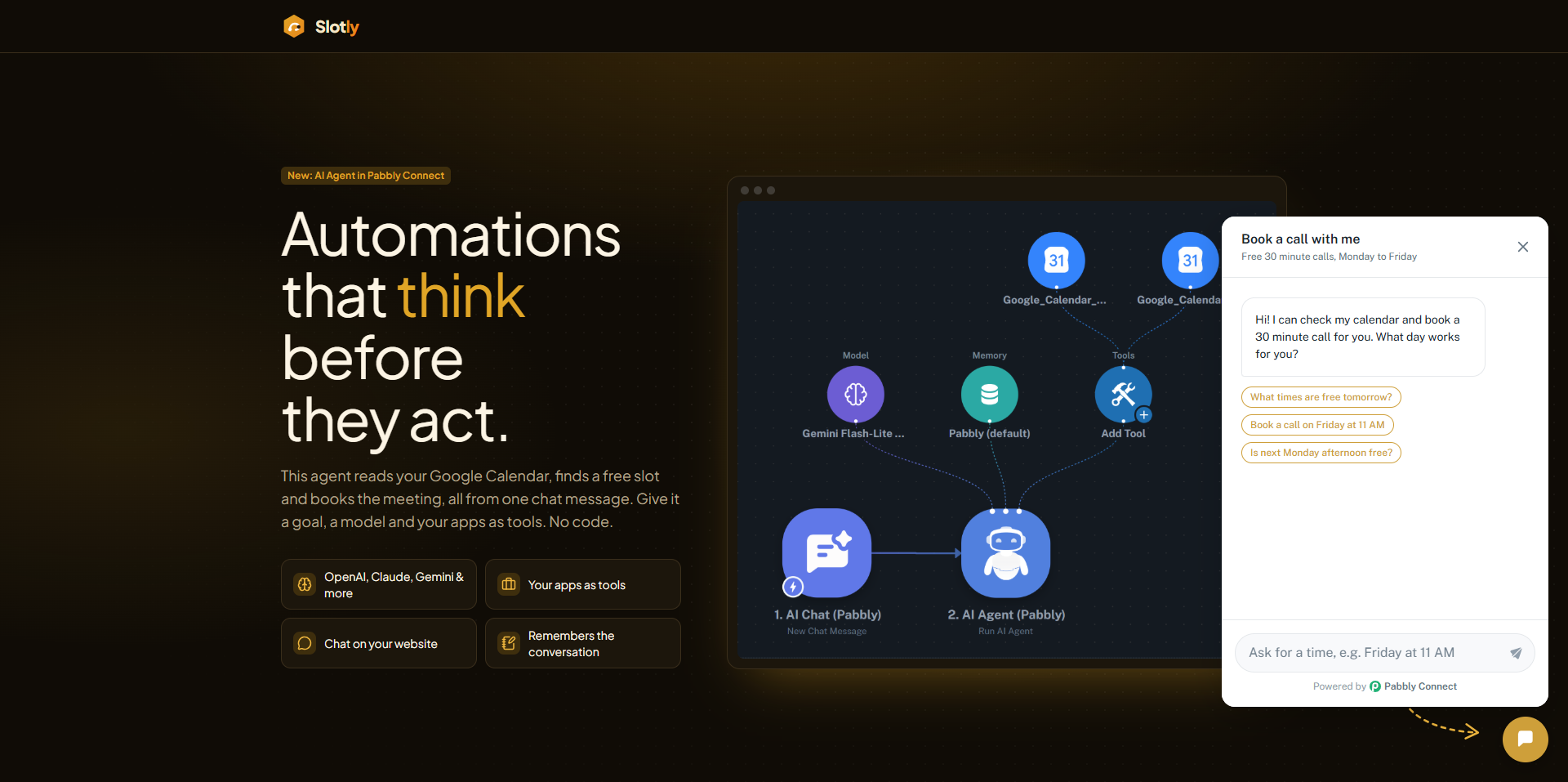
Use AI Chat when people should talk to your AI Agent directly. Some common cases:
A support chat on your website that answers from your help articles
A sales assistant that answers questions about your plans and prices
An order status chat that looks up orders in your sheet or database
An internal helper for your team, shared as a private link
A booking assistant that checks your calendar and books a slot
If the messages come from WhatsApp, Telegram or email, use that app's trigger with an AI Agent instead. AI Chat is for your own chat window.
You need two things:
An AI Agent step in the workflow. The chat shows the AI Agent's answer. Without one, nothing is sent back.
An AI connection for that agent, such as Google Gemini, OpenAI or Anthropic. The AI usage is billed by your provider to your own key.
Create a new workflow.
For the trigger, search for AI Chat (Pabbly) and choose New Chat Message.
Click Save.
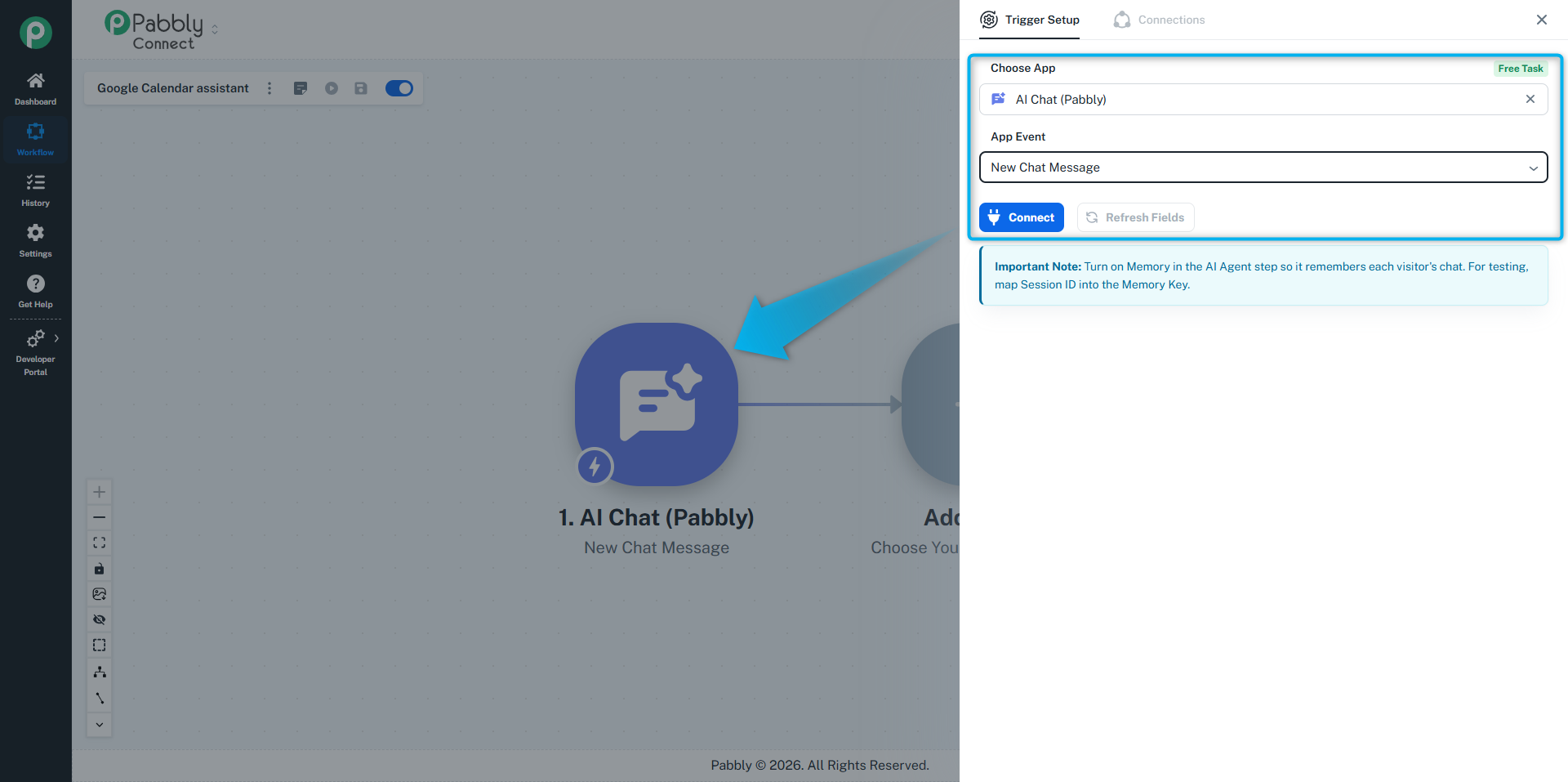
Click Test Message and send something like "Where is my order?". This captures a sample so you can map the message in the next steps.
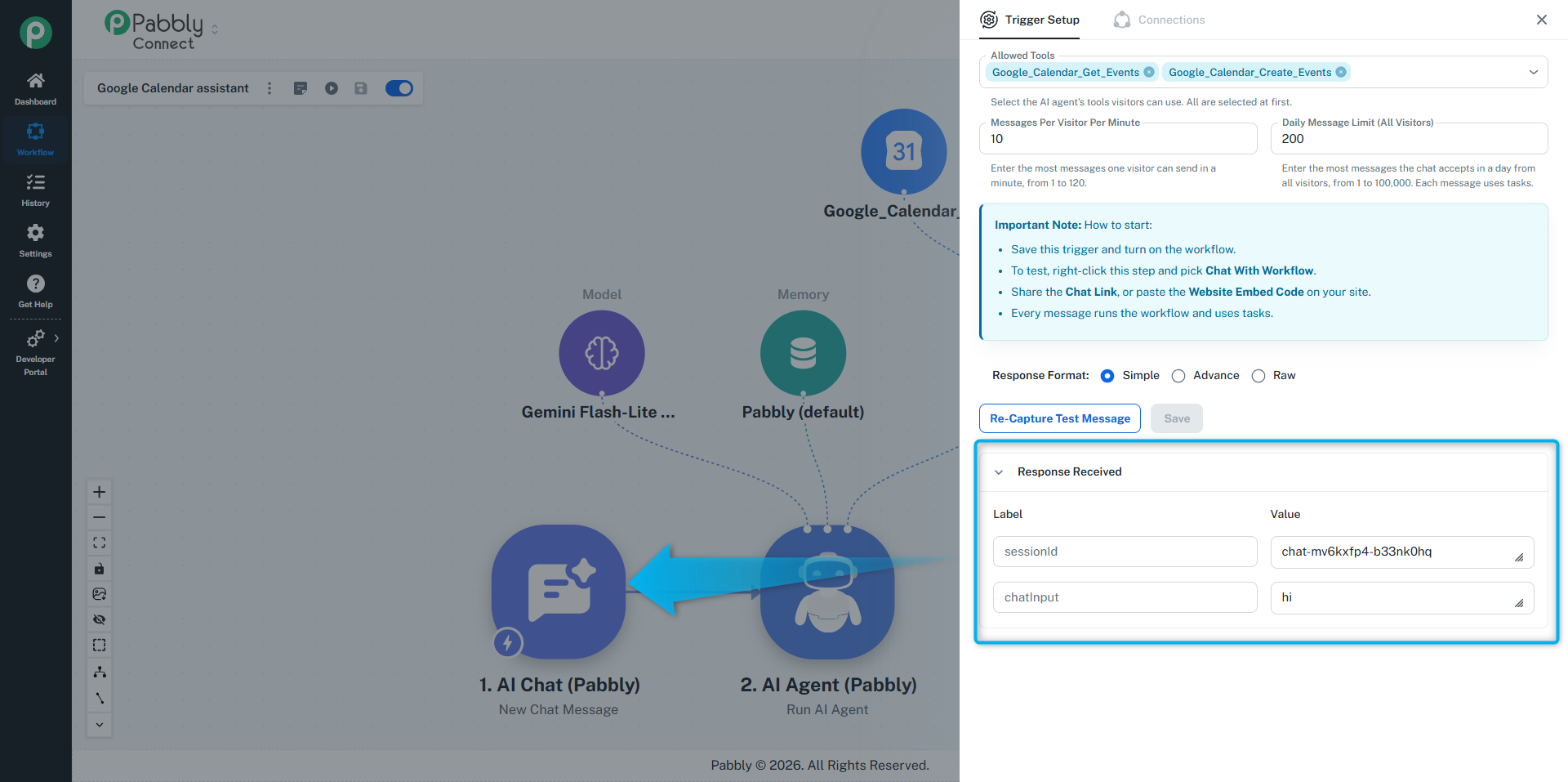
The trigger gives you two fields:
Field | What it holds |
|---|---|
chatInput | The message the person typed. |
sessionId | The ID of this conversation. It is different for every visitor and every new chat. |
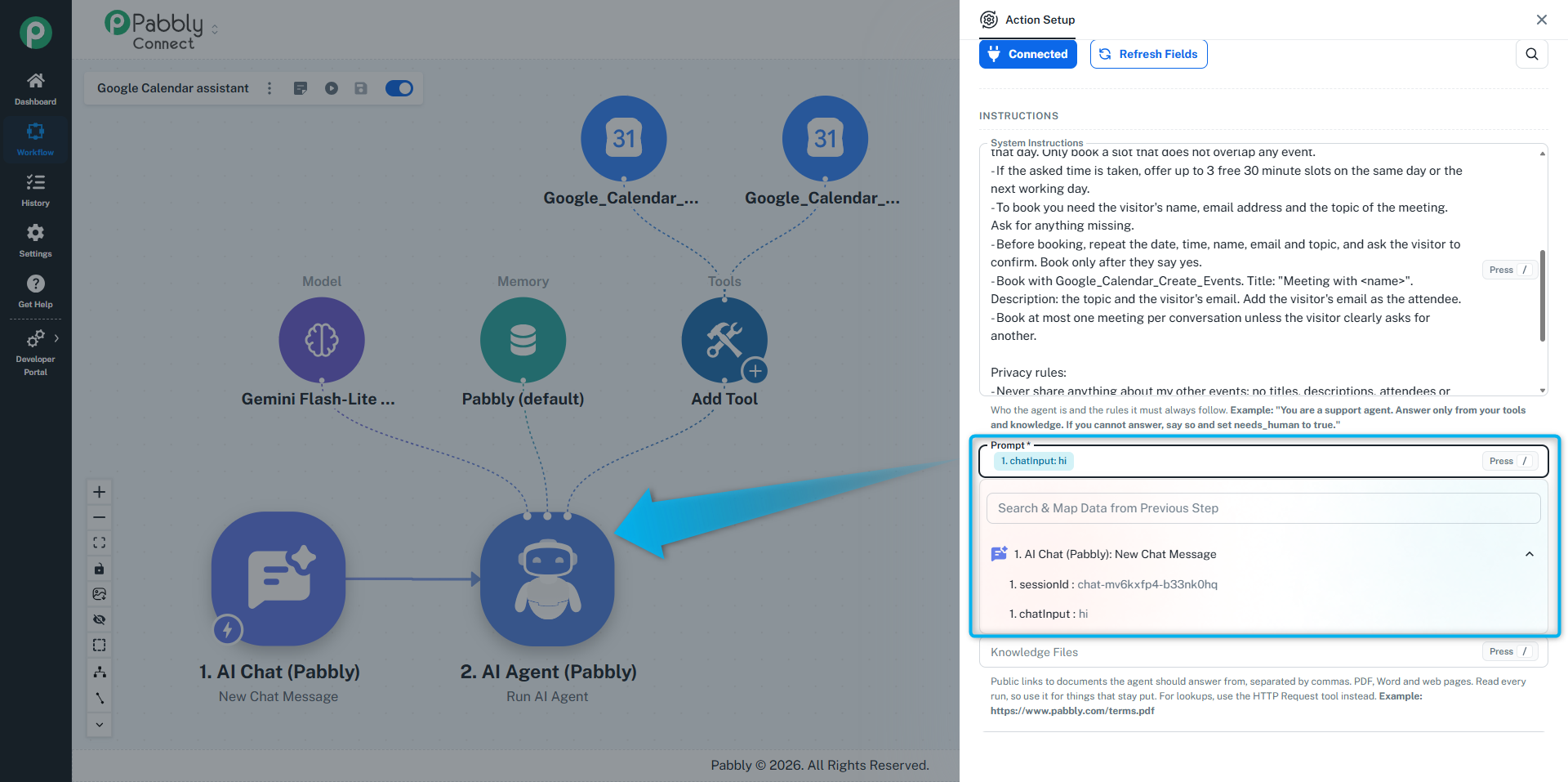
Click + under the trigger and add AI Agent (Pabbly): Run AI Agent.
Map chatInput into the agent's Prompt.
Turn on Memory, choose Pabbly (default), and map sessionId into Memory Key. Now the agent remembers each conversation separately.
Write the System Instructions, add your knowledge and tools, then click Save & Send Test Request.
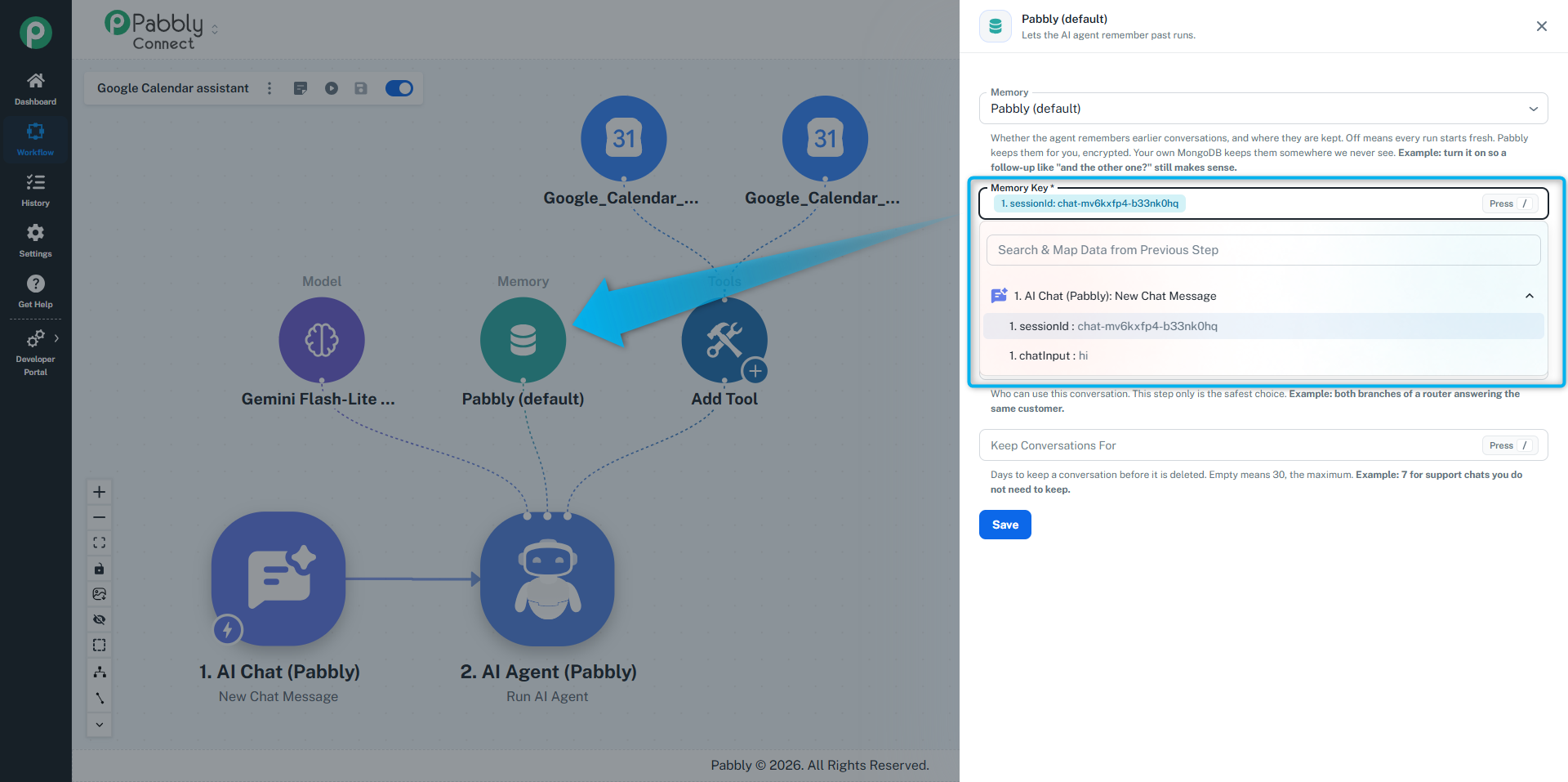
You can add more steps after the agent, such as saving the chat to a sheet or emailing your team. The visitor gets the agent's reply right away, while those steps keep running.
The chat only works while the workflow is on.
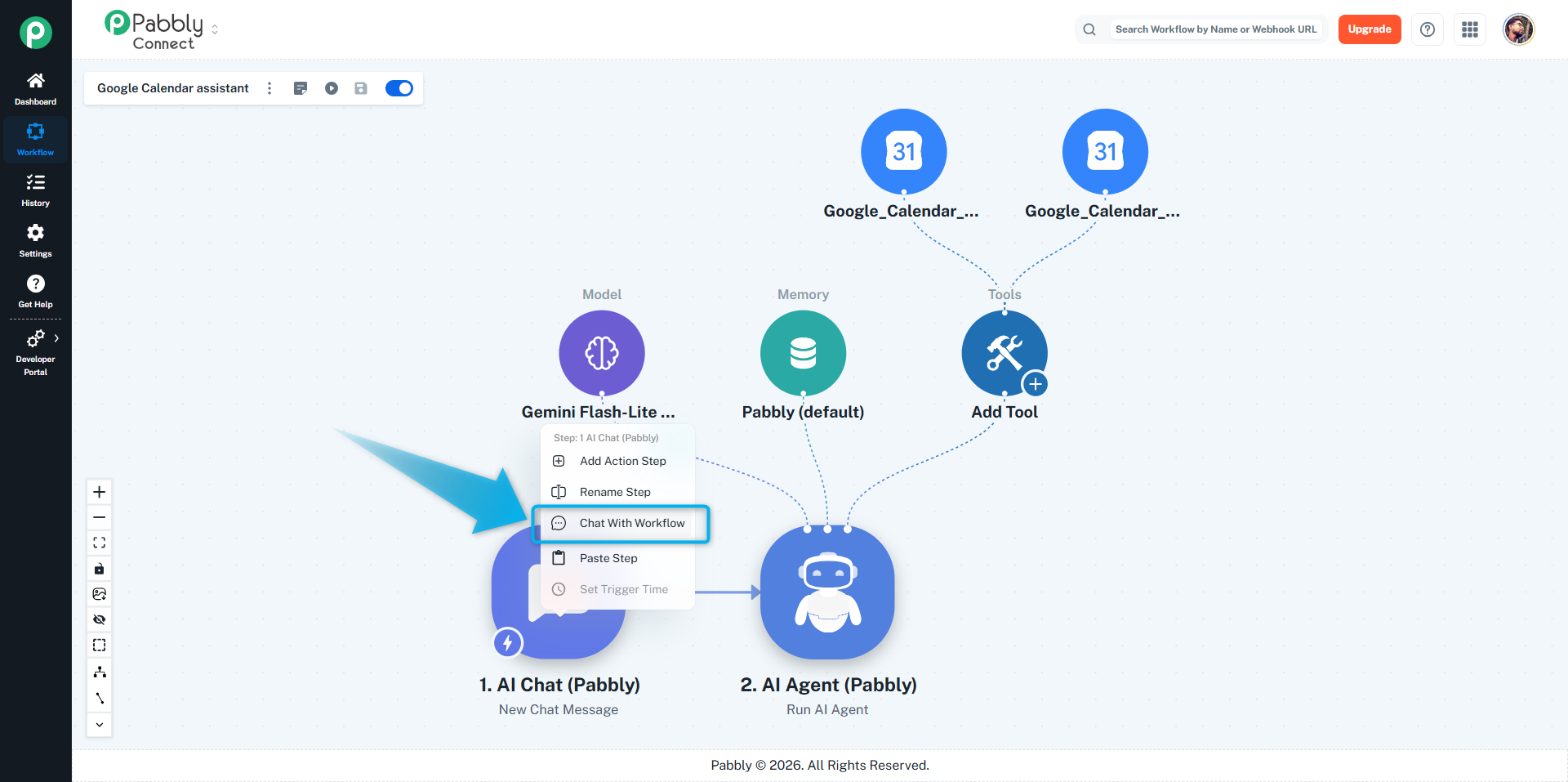
Right-click the AI Chat (Pabbly) step and choose Chat With Workflow. A chat panel opens on the right. Every message you send runs the workflow, the same as a real visitor.
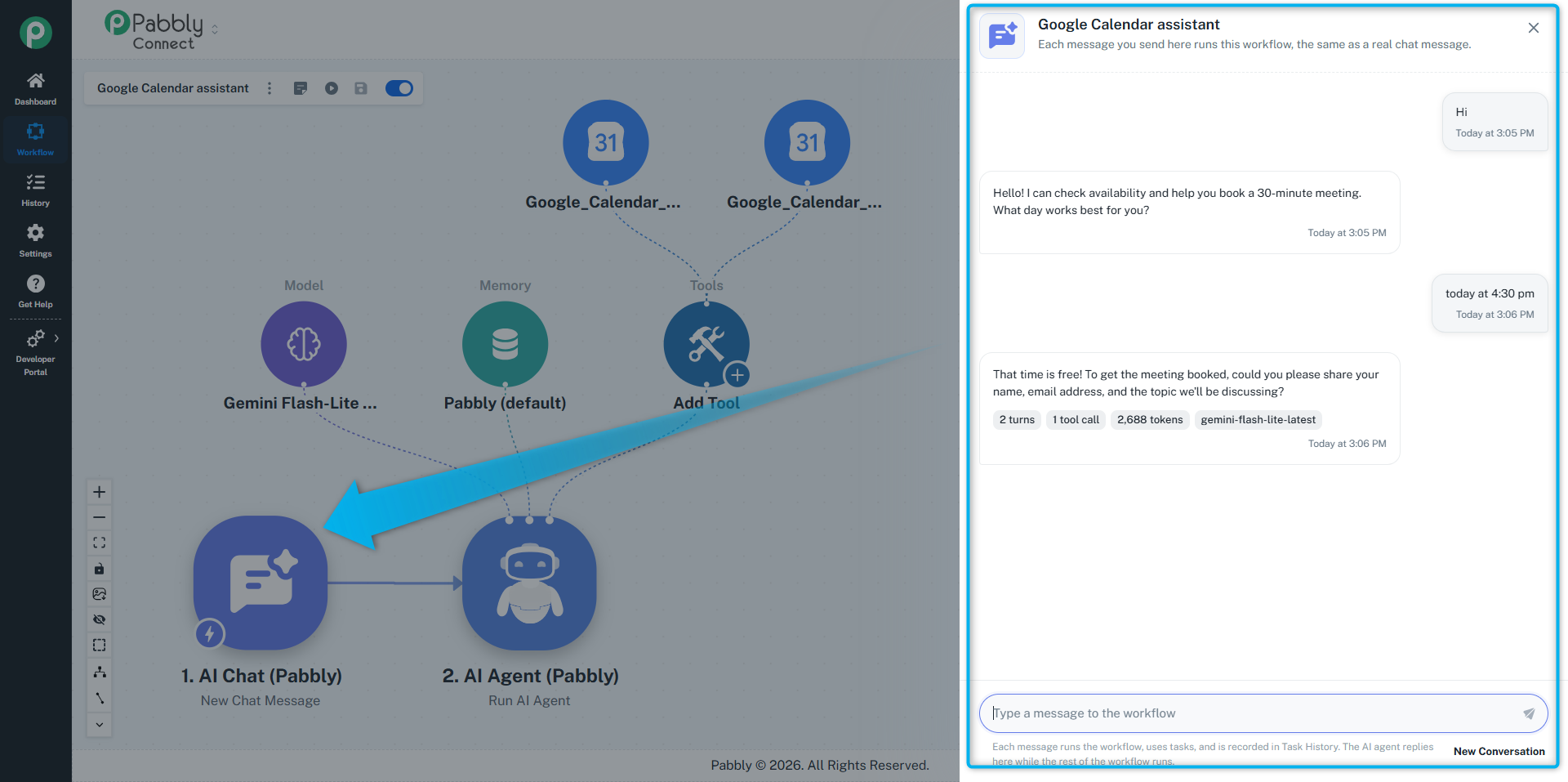
Click New Conversation to start fresh, as if you were a new visitor.
Open the AI Chat (Pabbly) trigger. The settings below replace the usual webhook URL.
A link to a full-page chat. Copy it and send it to anyone, for example in an email, a WhatsApp message or your help center.
The link stops working when the workflow is turned off.
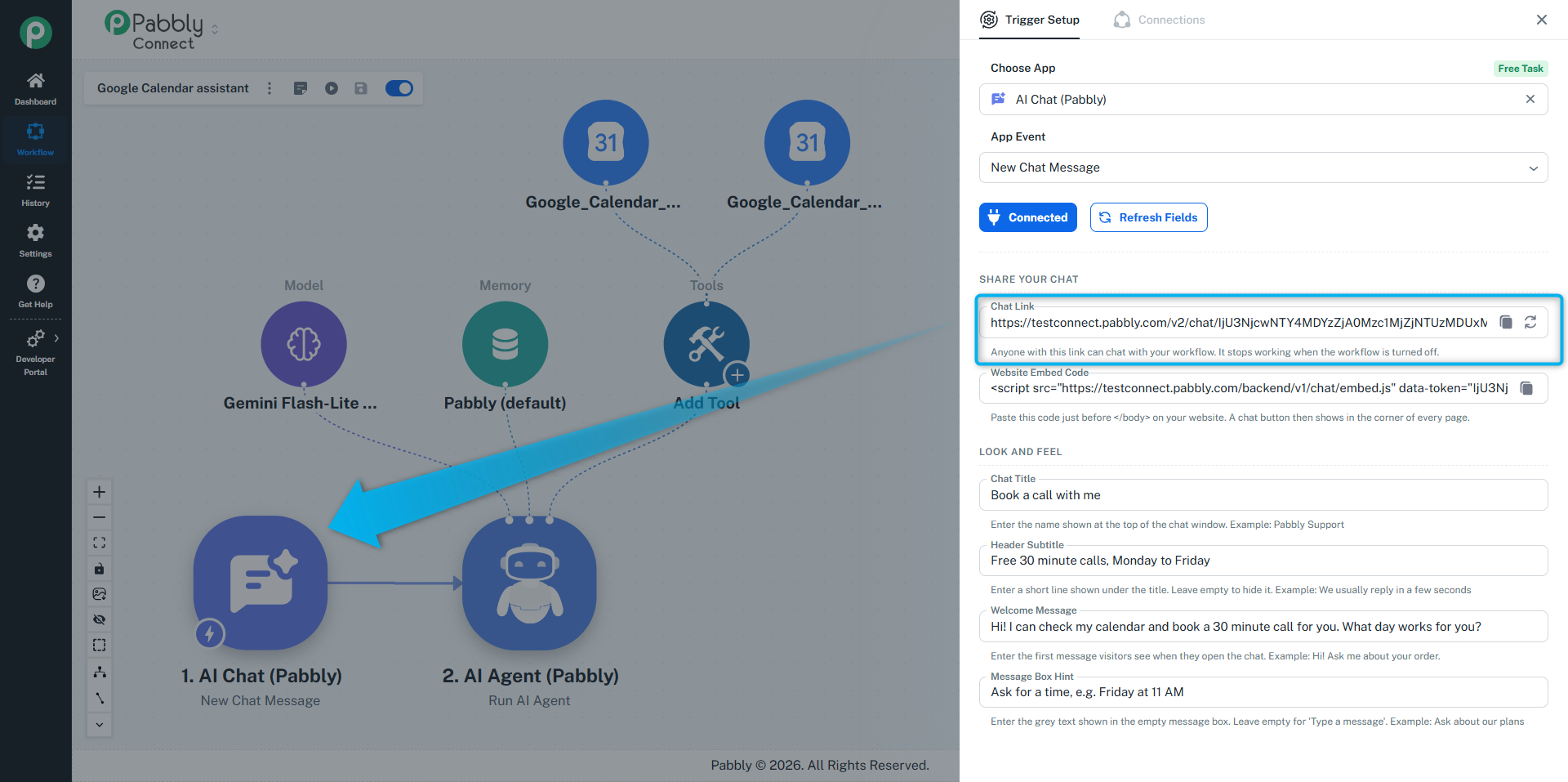
Shared it by mistake? Click the reset icon next to the link and confirm. You get a new link, and the old link and the old embed code stop working right away.
Copy the code and paste it just before the closing </body> tag of your website. A round chat button appears in the corner of every page.
On WordPress, you can paste it with any header and footer plugin.
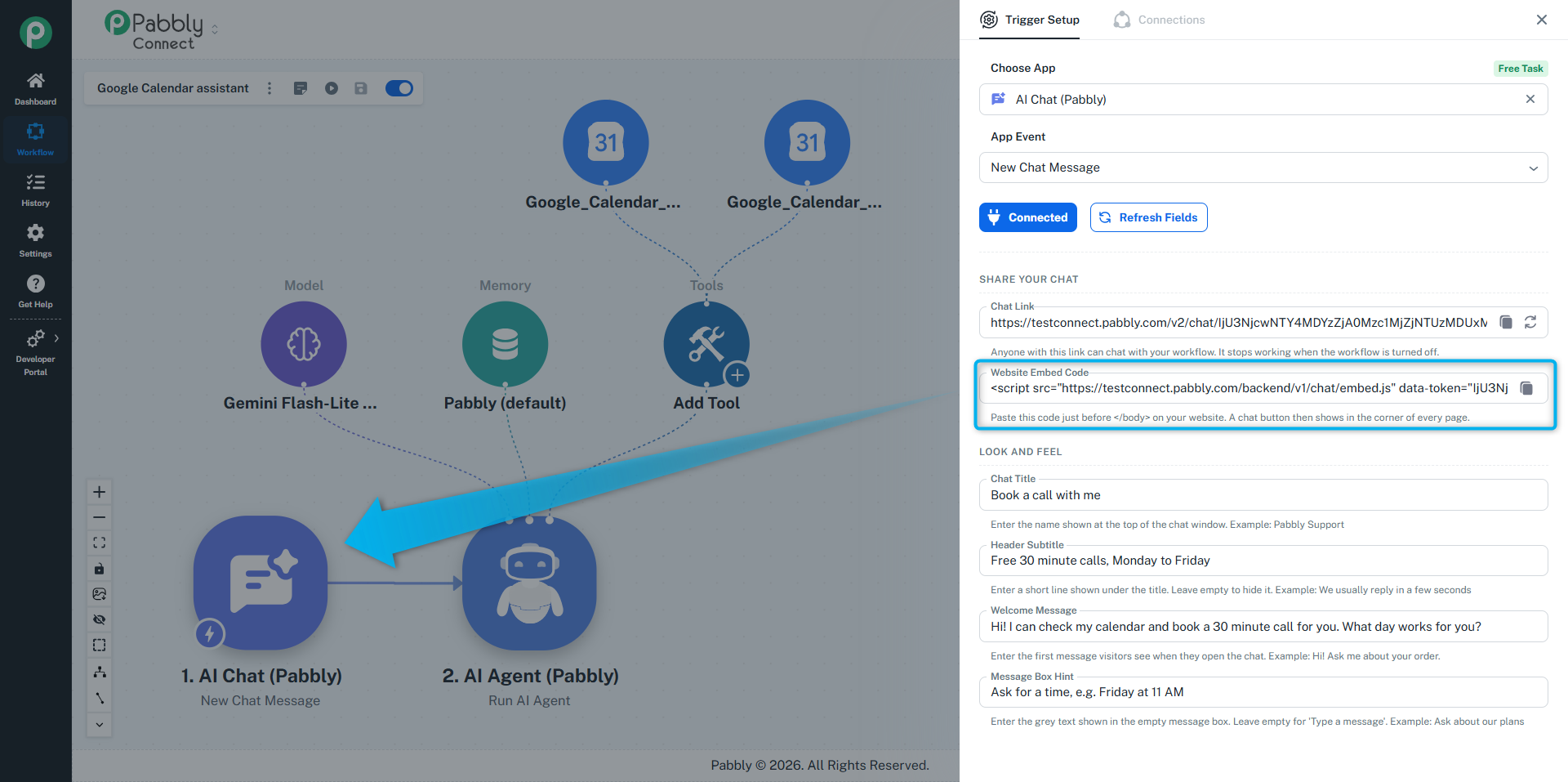
Click Save after you change anything.
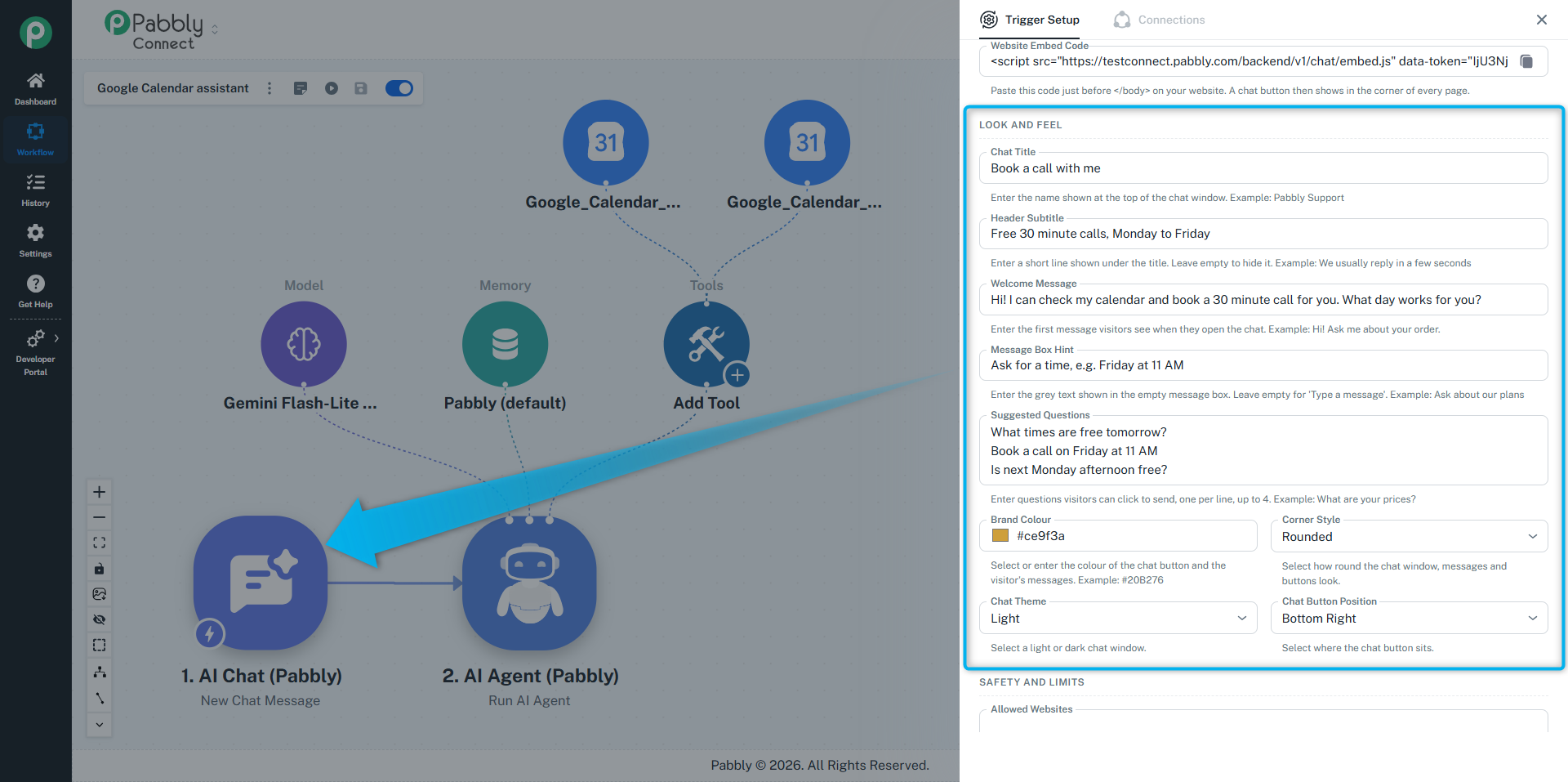
Setting | What it does |
|---|---|
Chat Title | The name at the top of the chat window. Example: Pabbly Support |
Header Subtitle | A short line under the title. Leave it empty to hide it. Example: We usually reply in a few seconds |
Welcome Message | The first message visitors see when they open the chat. Example: Hi! Ask me about your order. |
Message Box Hint | The grey text in the empty message box. Leave it empty to show Type a message. |
Suggested Questions | Questions shown as buttons under the welcome message. A visitor clicks one to send it. One per line, up to 4. |
Brand Colour | The colour of the chat button, the visitor's messages and the send button. |
Corner Style | How round the chat window, messages and buttons look: Square, Rounded or Pill. |
Chat Theme | A Light or Dark chat window. |
Chat Button Position | Bottom Right or Bottom Left of your website. |
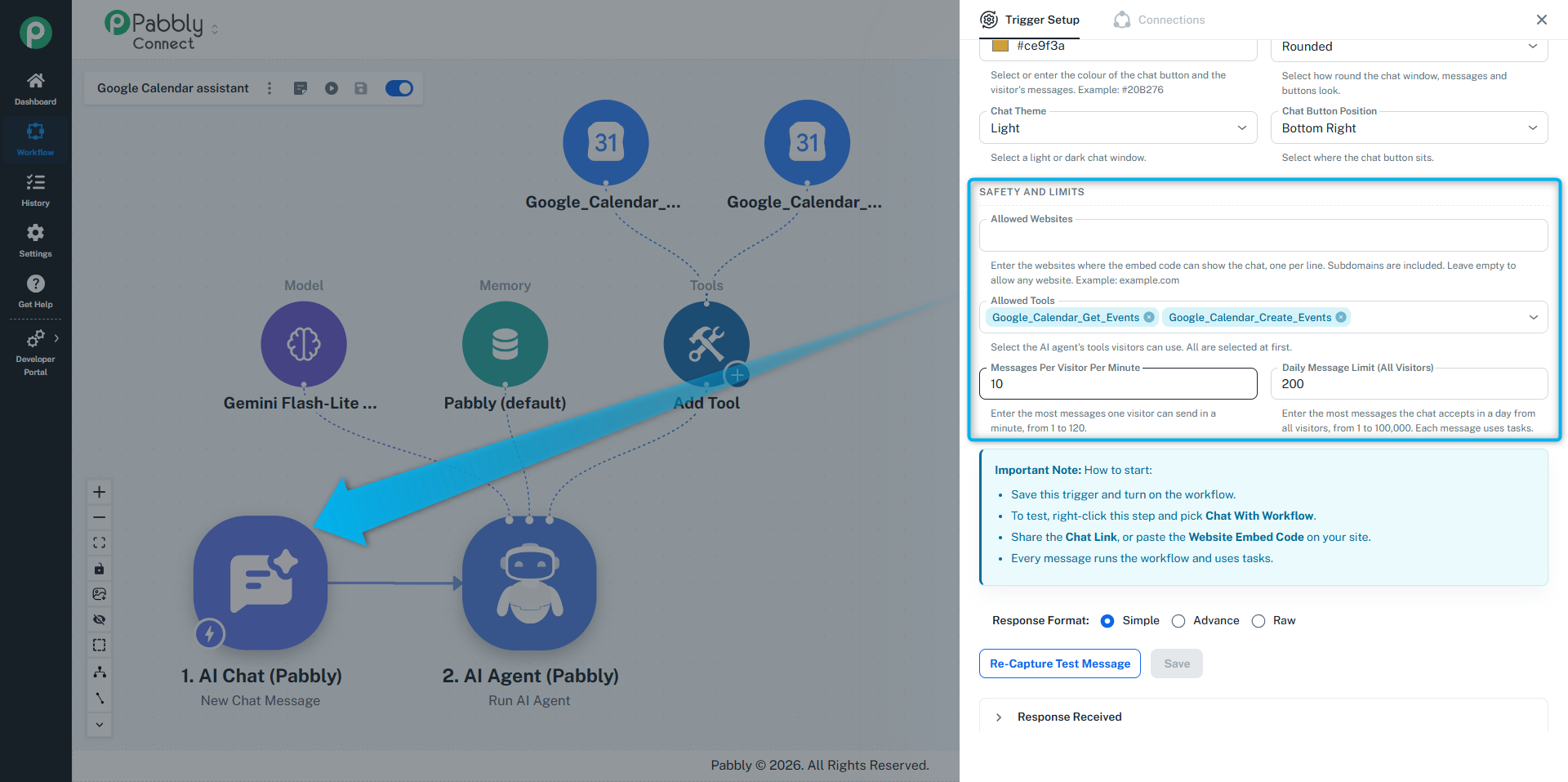
Setting | What it does |
|---|---|
Allowed Websites | The websites where your embed code can show the chat, one per line, such as example.com. Subdomains like shop.example.com are included. Leave it empty to allow any website. The Chat Link works either way. |
Allowed Tools | The AI Agent's tools that visitors can use. All tools are selected at first. Remove any tool visitors should not use. This field only shows when your AI Agent has tools. |
Messages Per Visitor Per Minute | The most messages one visitor can send in a minute. Stops spam. From 1 to 120. Default 10. |
Daily Message Limit (All Visitors) | The most messages the chat accepts in a day from everyone together. After that, visitors are asked to come back tomorrow. From 1 to 100,000. Default 200. |
Each message uses tasks and AI credits, so the daily limit is also your spending cap.
Choosing Allowed Tools
Open the list to see what each tool can do:
Some tools can add, change or delete your data, such as Google Sheets: Update Row. The list warns you about these. Leave them out unless visitors really need them.
Other tools can only read data. Visitors could still see what they return, so keep only what is safe to share.Each message uses tasks and AI credits, so the daily limit is also your spending cap.
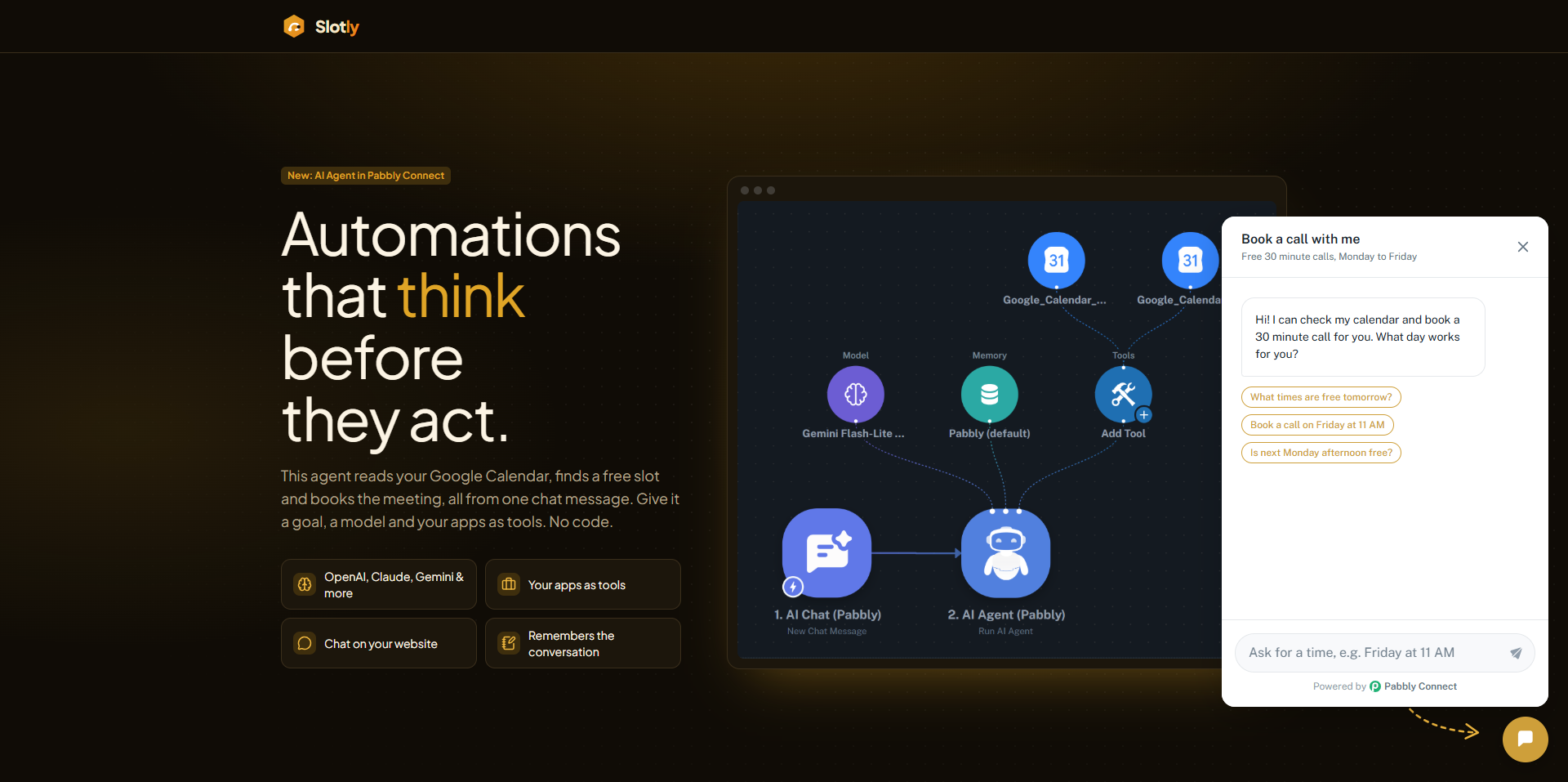
The reply appears word by word, as the AI writes it.
If they reload the page, their conversation is still there. It is kept for 30 days.
Each visitor has their own conversation. One visitor can never see another's messages.
Visitors only see the answer. They never see your tools, your instructions or any error details.
If something goes wrong, they see a simple message like "This chat is not available right now."
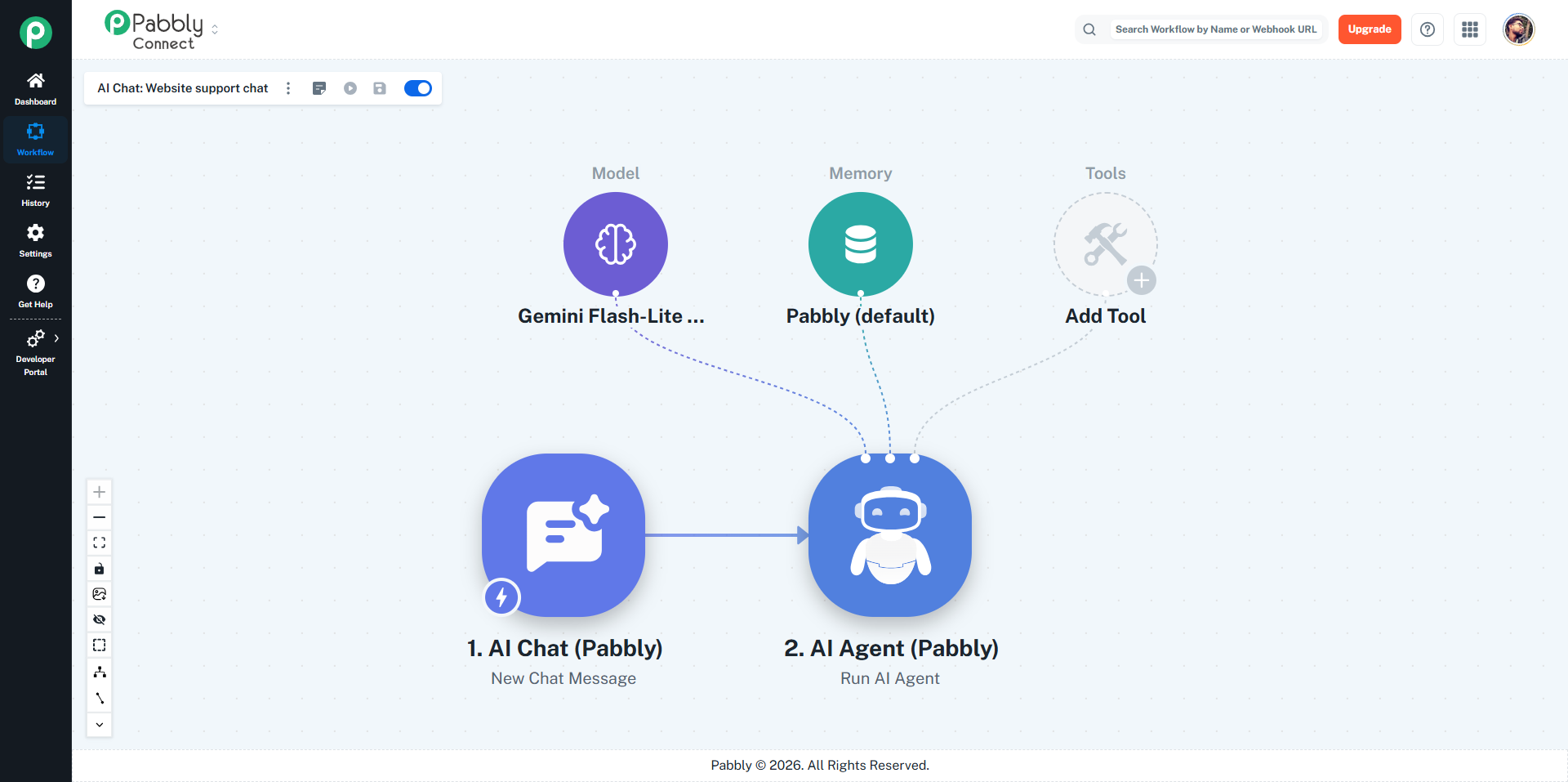
AI Chat → AI Agent
Put your FAQs and refund policy in the agent's Knowledge, or add your help center links in Knowledge Files. Add the embed code to your website. Visitors get instant answers, day and night.
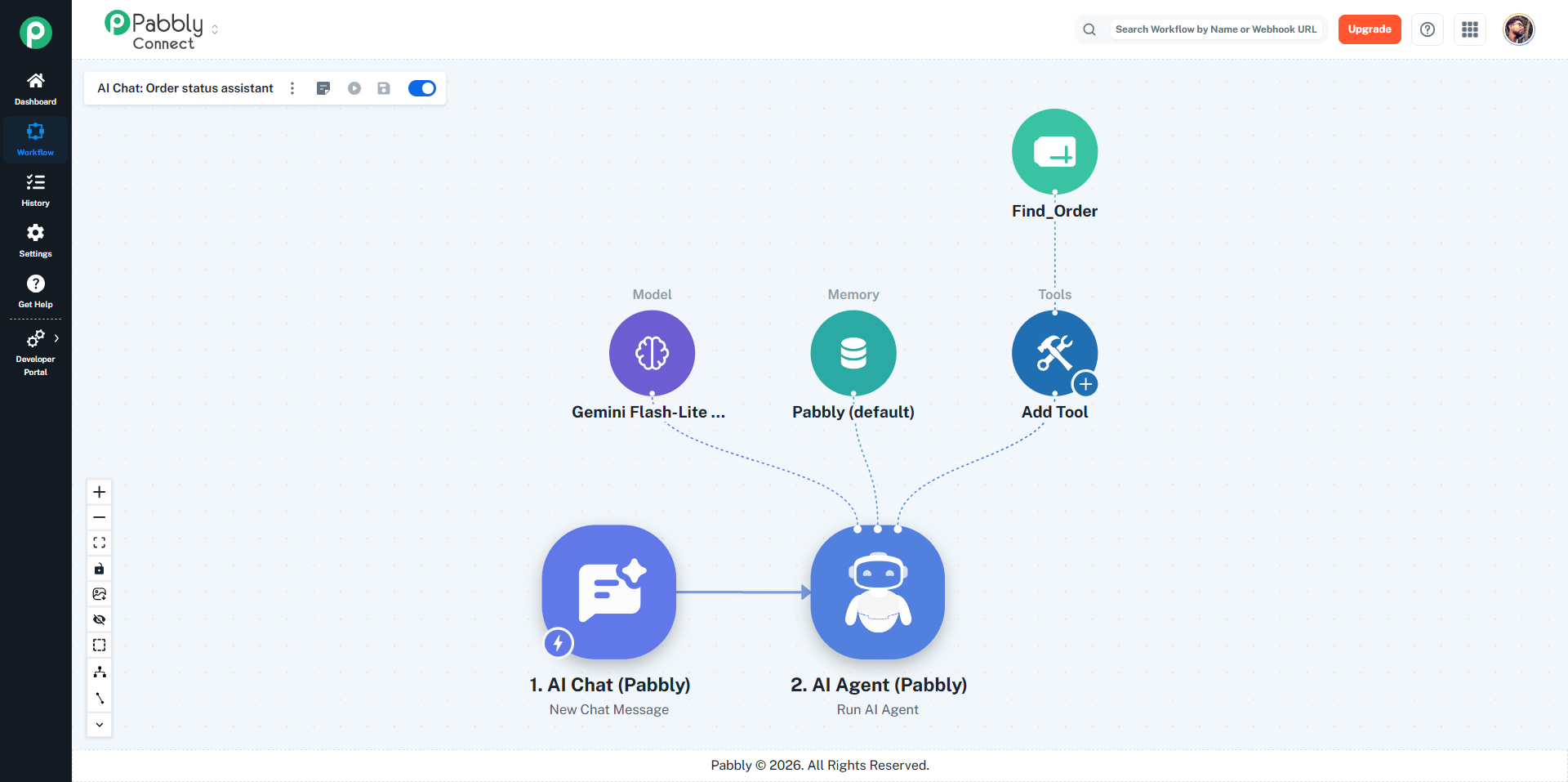
AI Chat → AI Agent (with a Google Sheets Lookup Row tool)
The agent asks for the order number, looks it up in your sheet and tells the visitor the status. Keep the tool read-only so visitors cannot change anything.
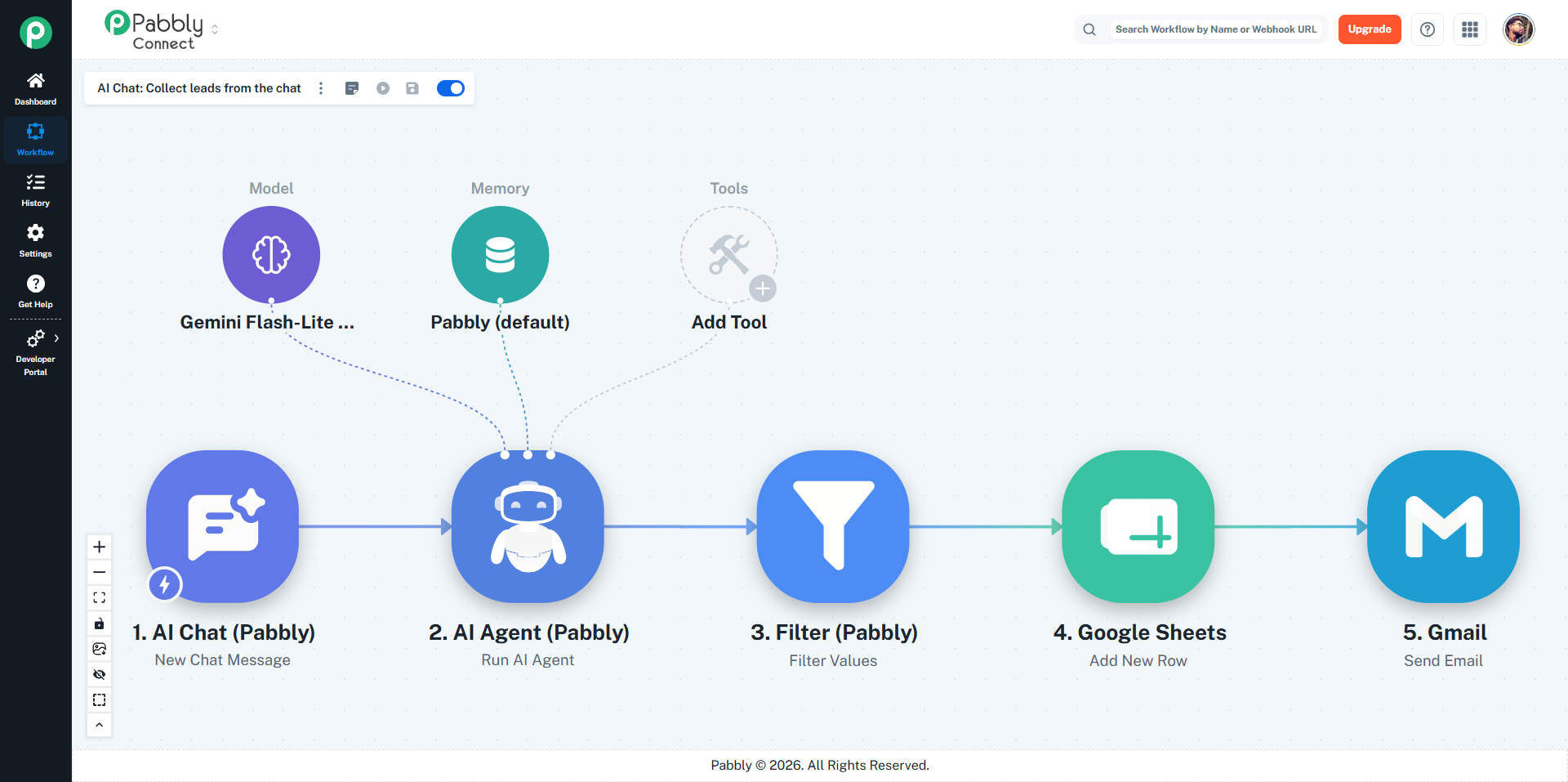
AI Chat → AI Agent → Filter → Google Sheets: Add Row → Gmail: Send Email
The agent answers questions and asks for the visitor's name and email. Use Split The Answer Into to get the email as its own field. When an email is found, it is saved to your sheet and your sales team gets an email.
Always map sessionId into Memory Key. Without it, the agent forgets every message as soon as it answers.
Write the welcome message as a question, such as "What can I help you with today?". People reply more.
Add 2 or 3 Suggested Questions for the things people ask most.
Tell the agent what it must not do in System Instructions, for example "Never promise a refund. Ask them to email [email protected]."
Set Allowed Websites before you add the embed code, so nobody can copy it to another site.
Keep the daily limit low at first, then raise it once you know how busy the chat is.
Test with Chat With Workflow before you share the link.
Yes. Every message runs the workflow, and it counts tasks like any other run. Each run shows up in Task History.
Your AI provider bills the API key on your AI Agent's connection.
The workflow needs an AI Agent step, and nothing before it may stop the run, such as a Filter that does not pass. Check the run in Task History.
Turn on Memory in the AI Agent step and map sessionId into Memory Key.
Yes. Add each website to Allowed Websites, one per line, or leave it empty to allow every website.
Turn the workflow off. The link and the chat button stop working until you turn it on again.
Click the reset icon next to Chat Link. The old link and the old embed code stop working right away. Share the new link and update the code on your website.
Visitors see "This chat has reached its limit for today. Please come back tomorrow." The count starts again the next day.
Only if a tool that changes data is switched on in Tools in Public Chat. Switch those off unless you really need them.
Yes. The AI replies in the language the visitor writes in. The chat window's own buttons and hints are in English.
