Core App
 Pabbly Connect Team•Updated Nov 2, 2026•12 min read
The AI Agent is a step you add to a workflow. You tell it what to do in plain words, give it some tools, and it works out the rest by itself.
A normal AI step answers once and stops. An AI Agent can think, use a tool, look at the result, use another tool, and keep going until the job is done. For example, it can look up an order, check the stock, and then write a reply to the customer.
The AI Agent step is listed as AI Agent (Pabbly) in the app list.
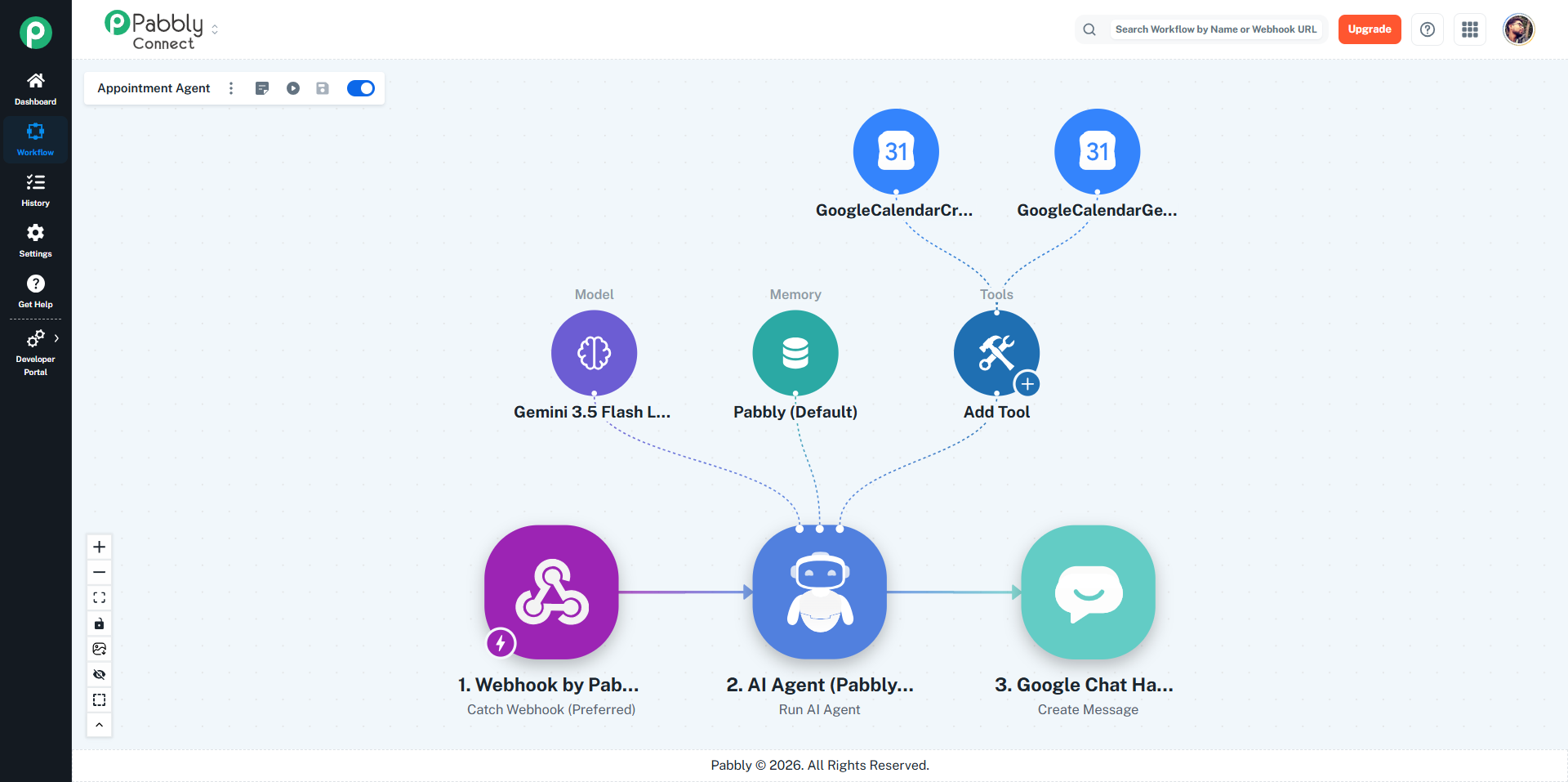
Use the AI Agent when the next step depends on what the AI finds out. Some common cases:
Answering customer questions using your own data
Reading an email or message and deciding what to do with it
Researching a company or a website and filling in a sheet
Sorting requests by type, urgency or mood
Talking with someone over WhatsApp or Telegram and remembering the conversation
If you only need one piece of text from the AI, such as a summary or a translation, a normal AI step is enough.
The AI Agent runs on your own AI account. You need an API key from one of these providers:
Provider | Where to get the key |
|---|---|
Anthropic (Claude) | console.anthropic.com |
OpenAI | platform.openai.com |
Google (Gemini) | aistudio.google.com |
xAI (Grok) | console.x.ai |
DeepSeek | platform.deepseek.com |
Groq | console.groq.com |
OpenRouter (any model) | openrouter.ai |
Google AI Studio, Groq and OpenRouter all give free keys with no card, which is handy for testing.
To connect it:
Add an AI Agent step and click the Model circle under it.
Click Add New Connection and pick AI Provider (Agent Model).
Choose your provider, paste your API key and save.
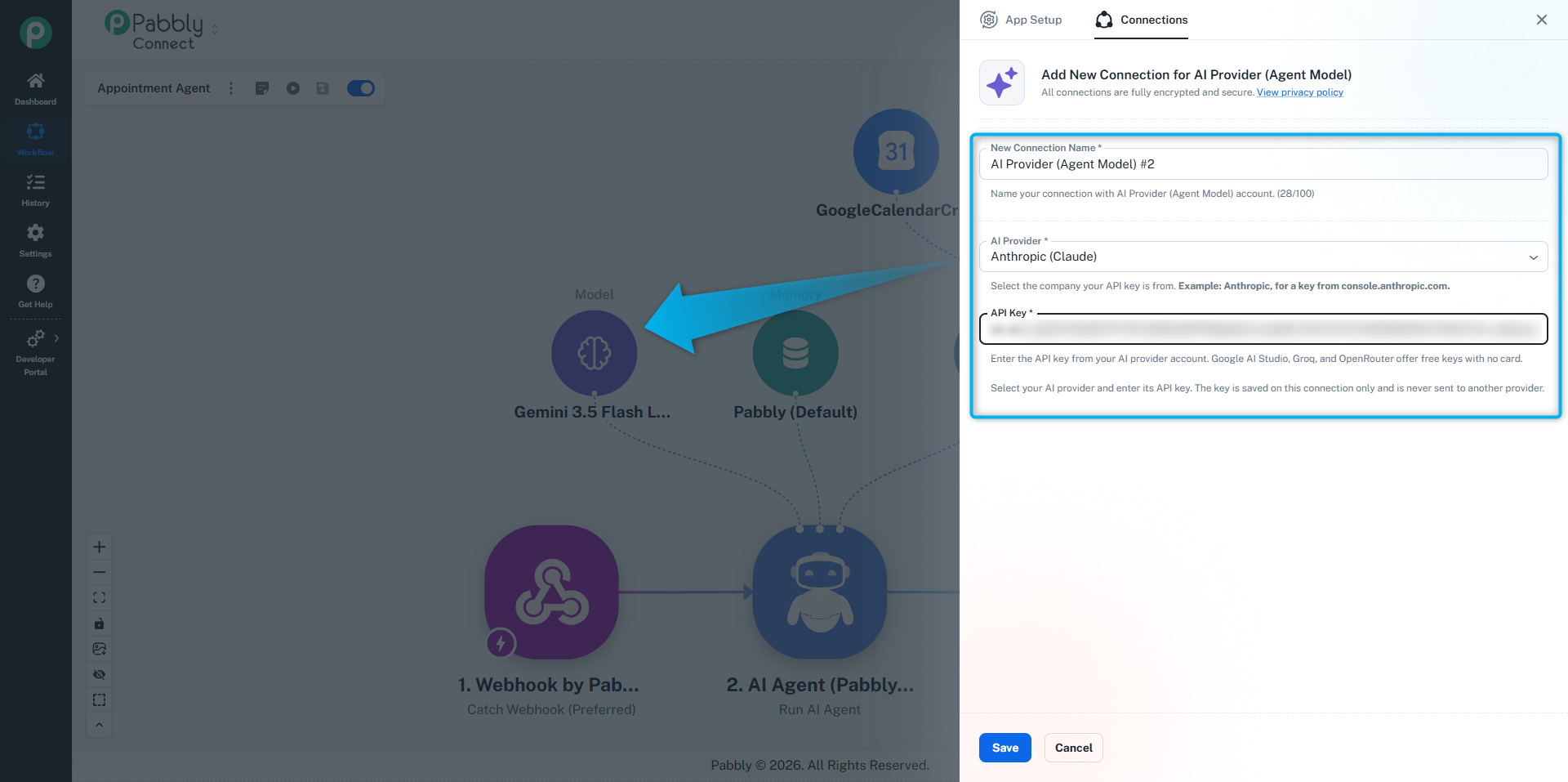
Pabbly checks the key when you save it. The key is stored on that connection only and is never sent to any other provider.
Open your workflow and click + where you want the agent.
Search for AI Agent (Pabbly) and choose Run AI Agent.
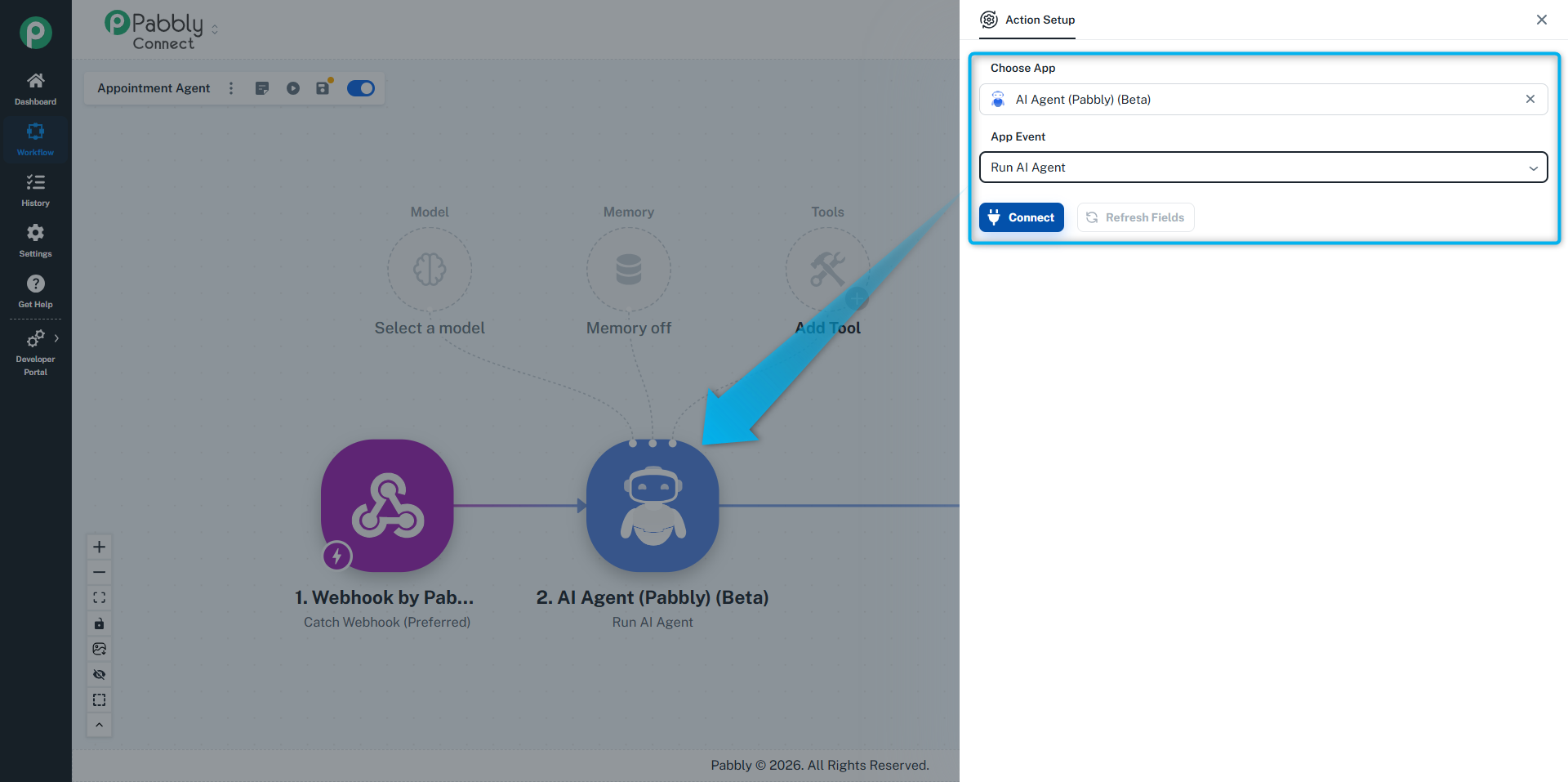
The step appears on the canvas with three small circles under it: Model, Memory and Tools. You set each one by clicking it.
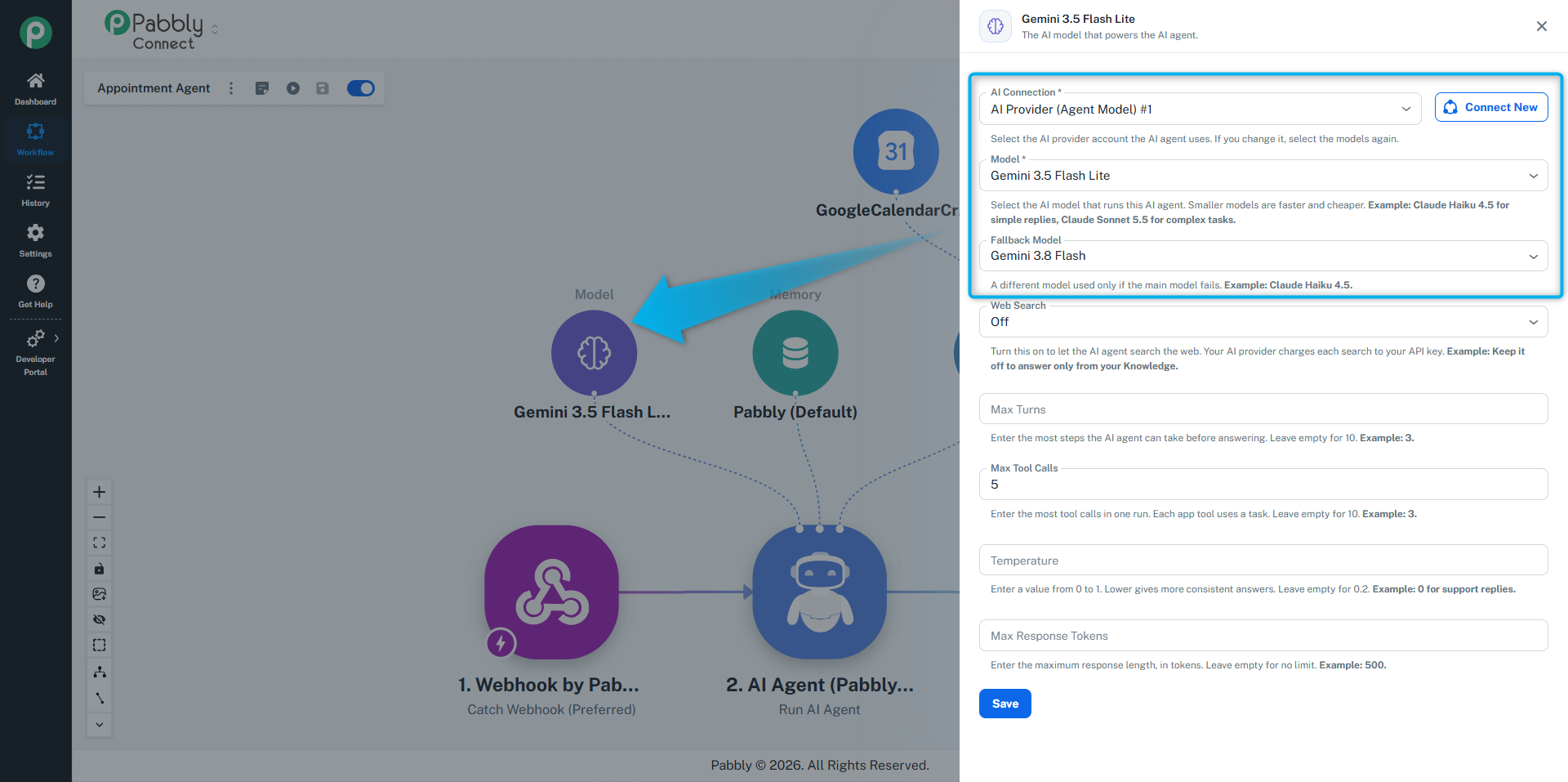
Click the Model circle, choose your AI connection and pick a model from the list. You can also pick a Fallback Model. It is only used if the main model fails, so choose a different one.
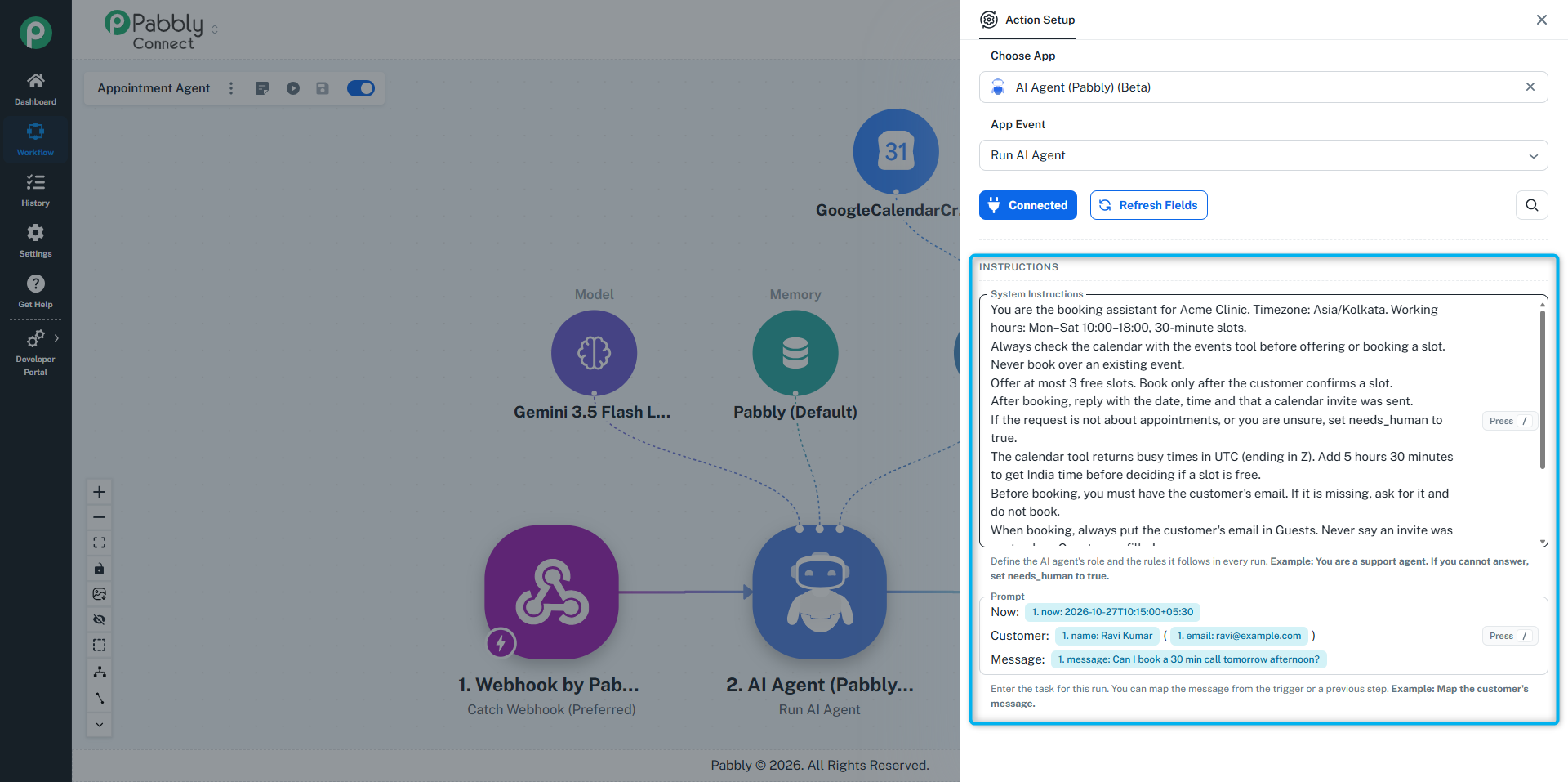
System Instructions: who the agent is and the rules it must always follow. Example: "You are a support agent. Answer only from your tools and knowledge. If you cannot answer, say so."
Prompt: the task for this run. Usually you map it from the trigger, such as the customer's message.
Click the Tools circle, or right-click the agent step and choose Add Tool, to give the agent things it can do. See Tools below.
Click Save & Send Test Request. The agent runs once with your sample data and shows you its answer and each tool it used.
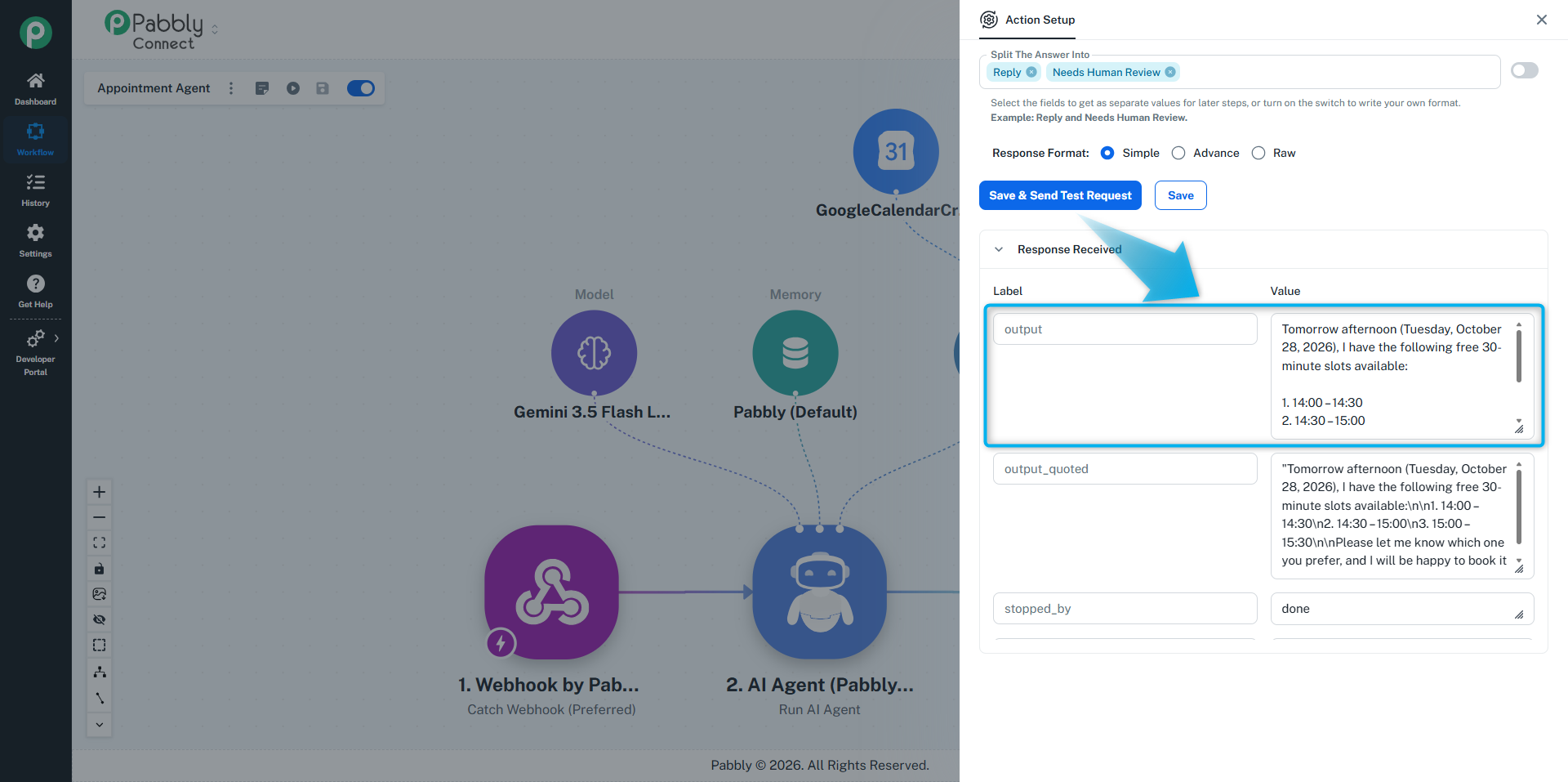
When the test looks right, switch the workflow on.
The settings are grouped into sections.
Setting | What it does |
|---|---|
Model | The AI model that runs the agent. Smaller models are faster and cheaper. Bigger ones handle harder tasks better. |
Fallback Model | A backup model, used only if the main one fails. |
Web Search | Lets the agent search the web for current information. Off by default. Works with OpenAI, Anthropic, OpenRouter and Google connections. |
Max Turns | The most steps the agent can take before it answers. Empty means 10. Highest is 25. |
Max Tool Calls | The most times the agent can use a tool in one run. Empty means 10. Highest is 25. |
Temperature | How varied the wording is, from 0 to 1. Lower is more consistent. Empty means 0.2. |
Max Response Tokens | Limits how long the answer can be. Leave empty for no limit. |
Setting | What it does |
|---|---|
System Instructions | Who the agent is and the rules it always follows. |
Prompt | The task for this run, usually mapped from an earlier step. |
Setting | What it does |
|---|---|
Knowledge | Facts the agent should answer from, such as your refund policy or price list. For several topics, start each with a heading like |
Knowledge Files | Public links to PDFs, Word files or web pages, separated by commas. The agent reads them on every run. |
Images | Public links to images the agent should look at. The model must support images. |
Audio and Video | Links to audio or video files, up to 20 MB each. Gemini models can read both. |
Media Connection | Leave on None for public links. Pick your Telegram or WhatsApp connection when the files come from those apps, because they need a login to download. |
Setting | What it does |
|---|---|
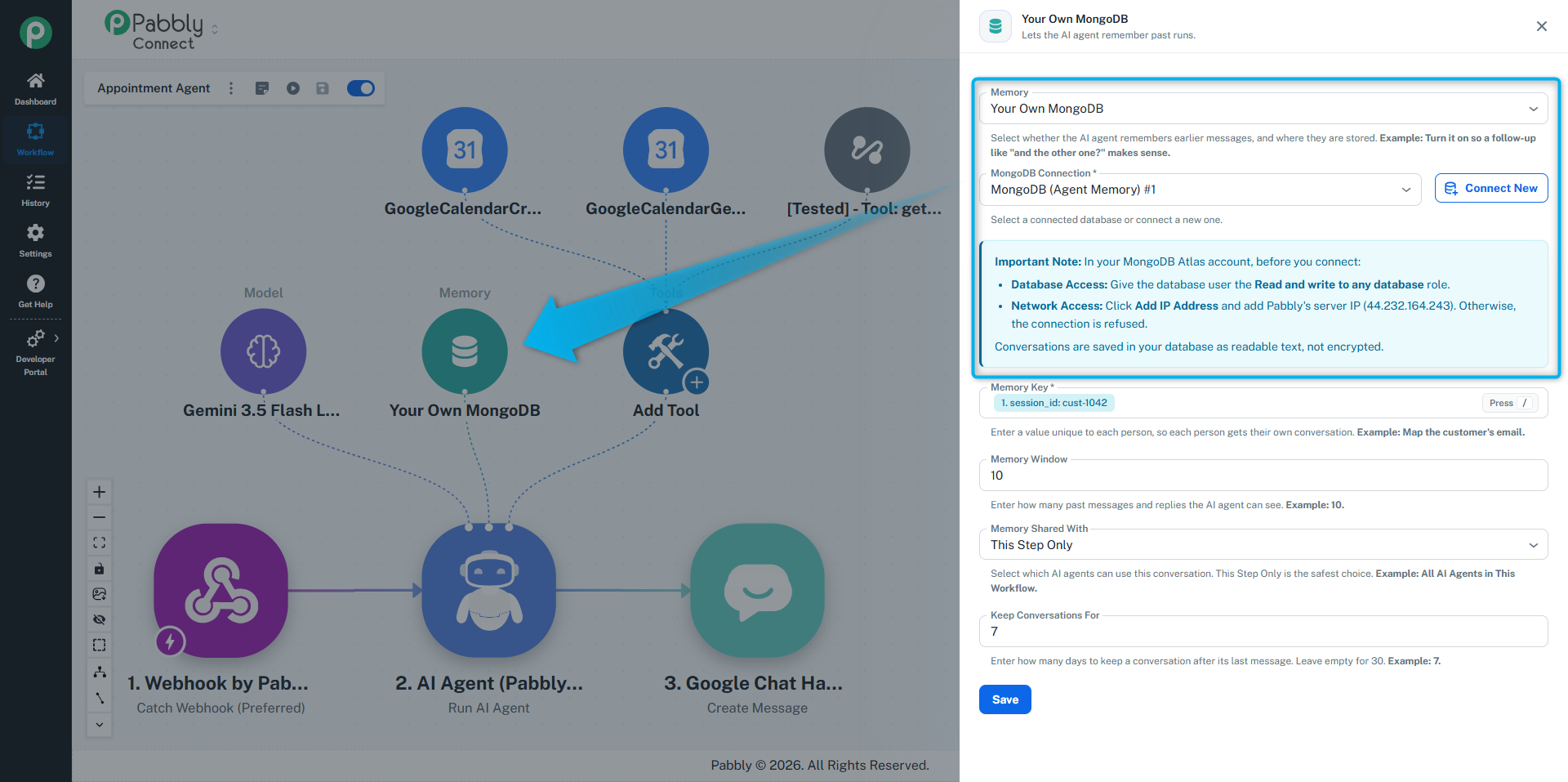
Memory | Off: every run starts fresh. Pabbly (default): Pabbly keeps the conversation for you, encrypted. Use your own MongoDB: the conversation is kept in your own database. |
Memory Key | Tells the agent which conversation this is. Map something unique to each person, such as their email or phone number. If it is empty, nothing is remembered. |
Memory Window | How many past questions and answers the agent can see. Empty means 10. |
Memory Shared With | This step only (safest), Every agent in this workflow, or Every agent in my account. |
Keep Conversations For | How many days to keep a conversation. Leave it empty to keep it for 30 days. |
Setting | What it does |
|---|---|
Tools | App actions and built-in tools the agent can use. |
Workflows as Tools | Your other workflows the agent can run. |
HTTP Allowlist | The websites the built-in http_request tool may open, such as |
Setting | What it does |
|---|---|
Split The Answer Into | Tick what the answer should contain, such as the reply, whether a human needs to see it, a category, a summary or the customer's mood. Each one comes back as its own field. |
Your Own Format | Write an example of the answer you want, such as |
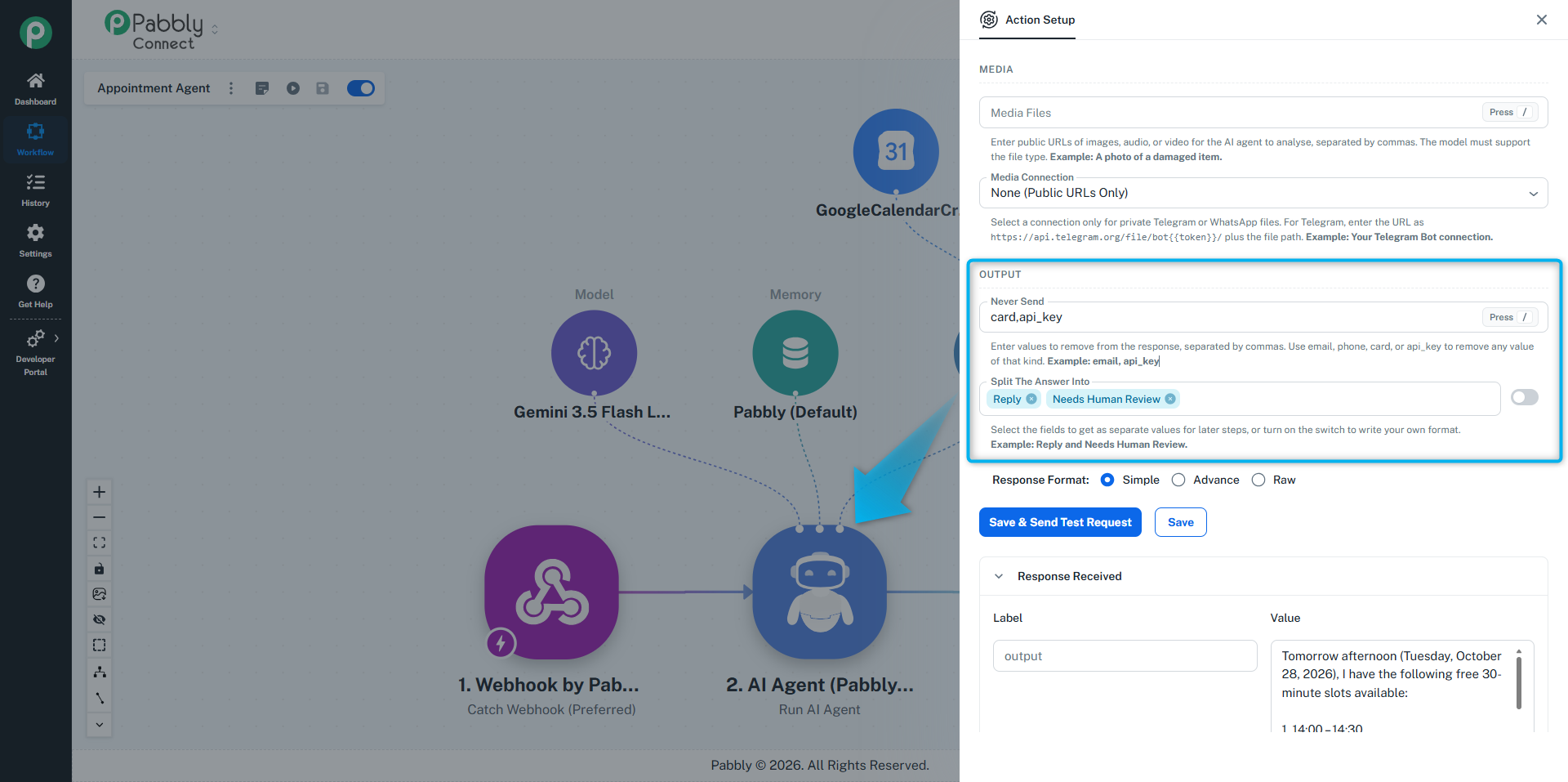
Never Send | Anything listed here is removed from the answer before it is sent on. Write |
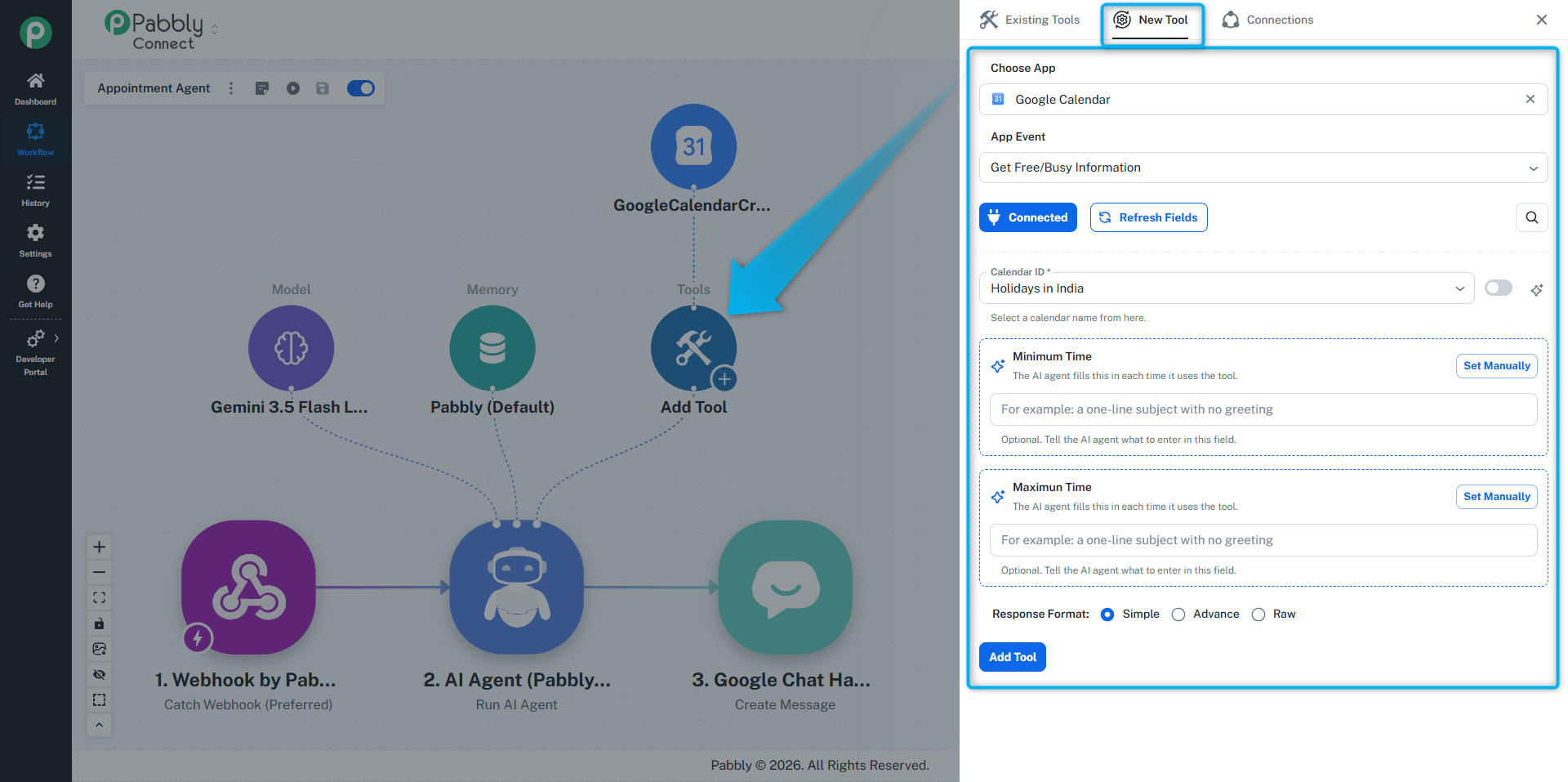
Tools are what make an agent useful. The agent reads each tool's description and decides by itself when to use it.
Any action from any app can become a tool, for example Google Sheets: Lookup Row or Google Calendar: Get Events.
Click the Tools circle on the agent.
Pick the app, the action and your connection.
Fill in the fields you want fixed. For a field you want the agent to fill, click the small AI icon next to it. Click Set Manually to change it back.
Give the tool a clear name and description, then save.
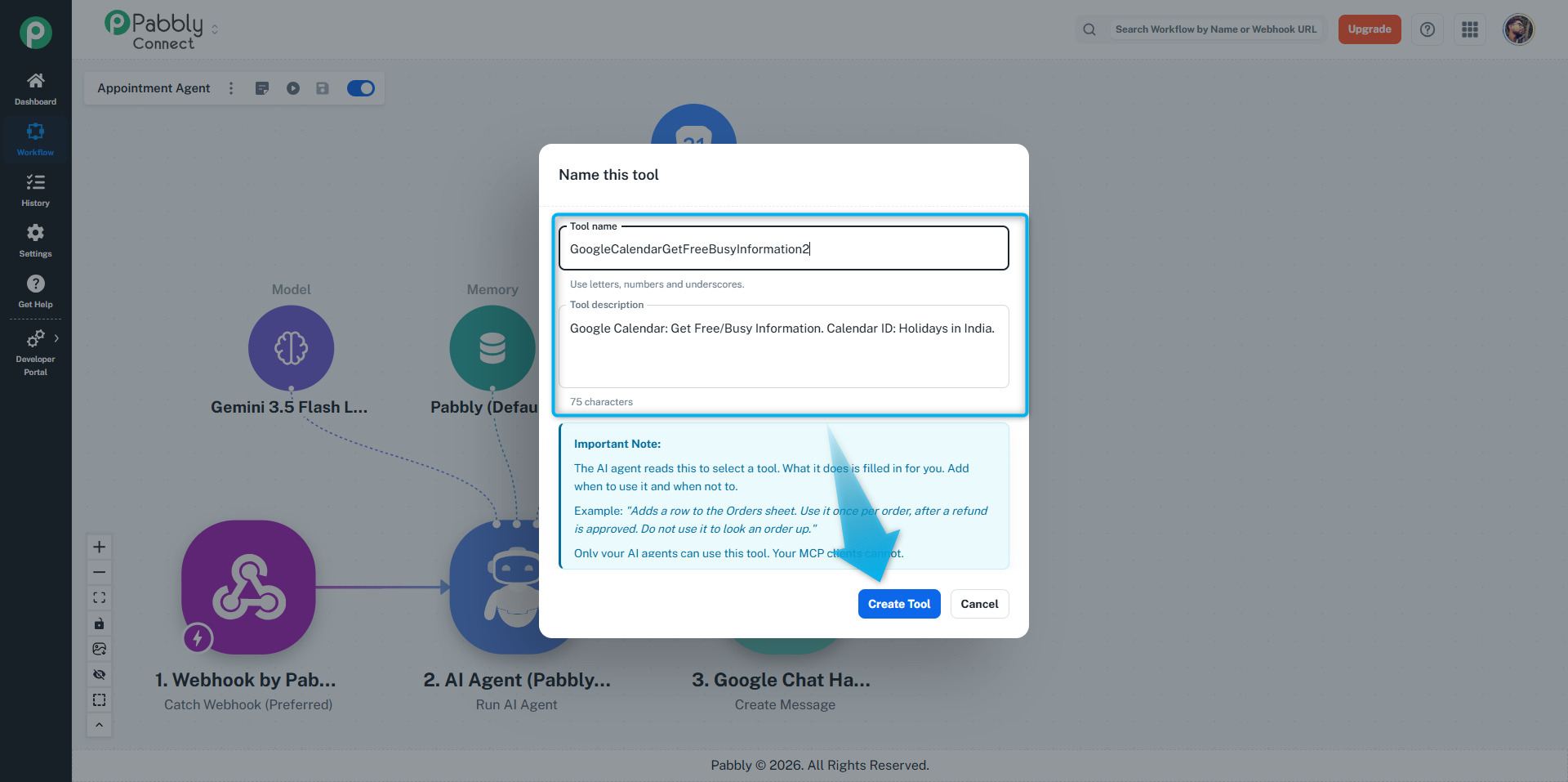
Tools you already made are in the Existing Tools tab, so you can reuse them in other agents.
You find these in the Existing Tools tab.
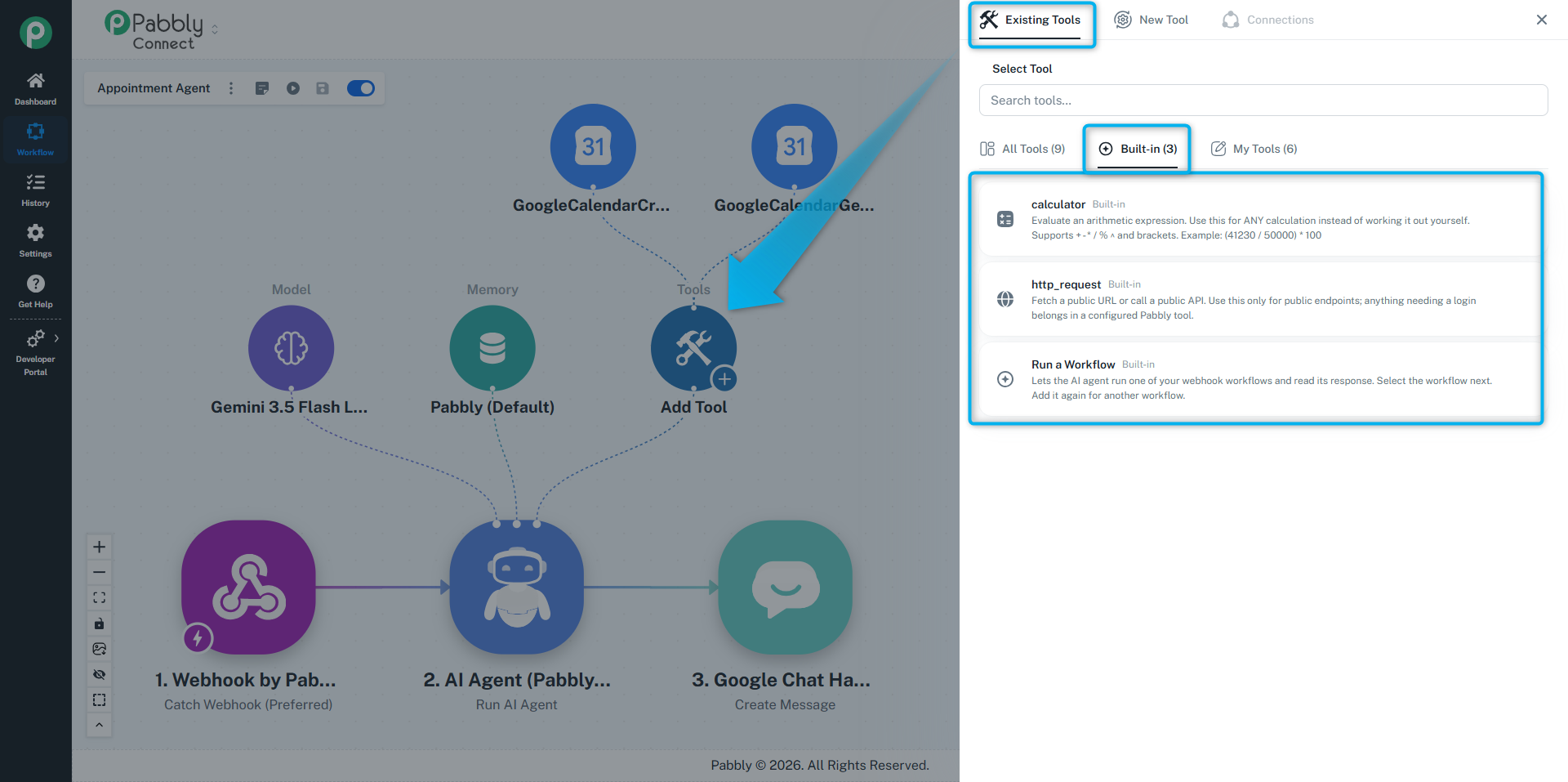
Tool | What it does |
|---|---|
calculator | Does maths exactly, instead of the AI guessing. |
http_request | Opens a public web page or API and reads it. Only works for sites in your HTTP Allowlist. |
The agent can run another of your workflows and use what it sends back. This is great for steps you have already built, such as "look up an order".
The workflow must start with Webhook by Pabbly.
To send a result back, end it with Data Forwarder (Pabbly): Return Custom Response to the Source.
Open the Existing Tools tab on the agent, choose Run a Workflow and pick the workflow.
Optionally set Input Fields (what the agent should send) and Fixed Values (what is always sent).
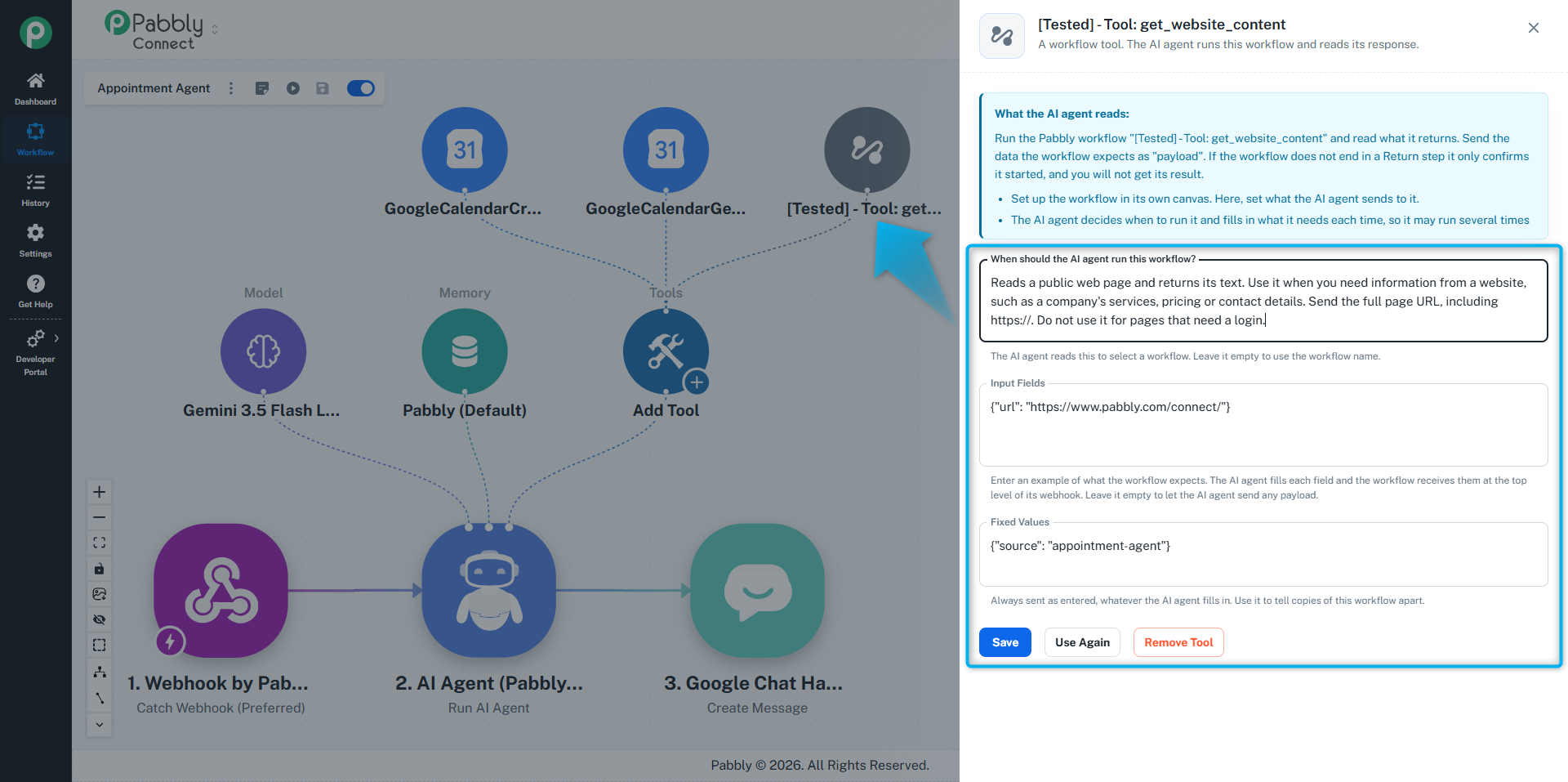
The workflow you pick must be switched on.
The description is how the agent decides which tool to use. Say what the tool does, when to use it and when not to.
"Adds a row to the Orders sheet. Use it once per order, after a refund is approved. Do not use it to look an order up."
Each agent keeps its own description for built-in and workflow tools, so the same tool can be described differently in two agents.
Memory lets the agent remember earlier messages, so a follow-up like "and the other one?" still makes sense.
To turn it on:
Click the Memory circle and choose Pabbly (default).
Set Memory Key to something unique for each person, such as their phone number or email.
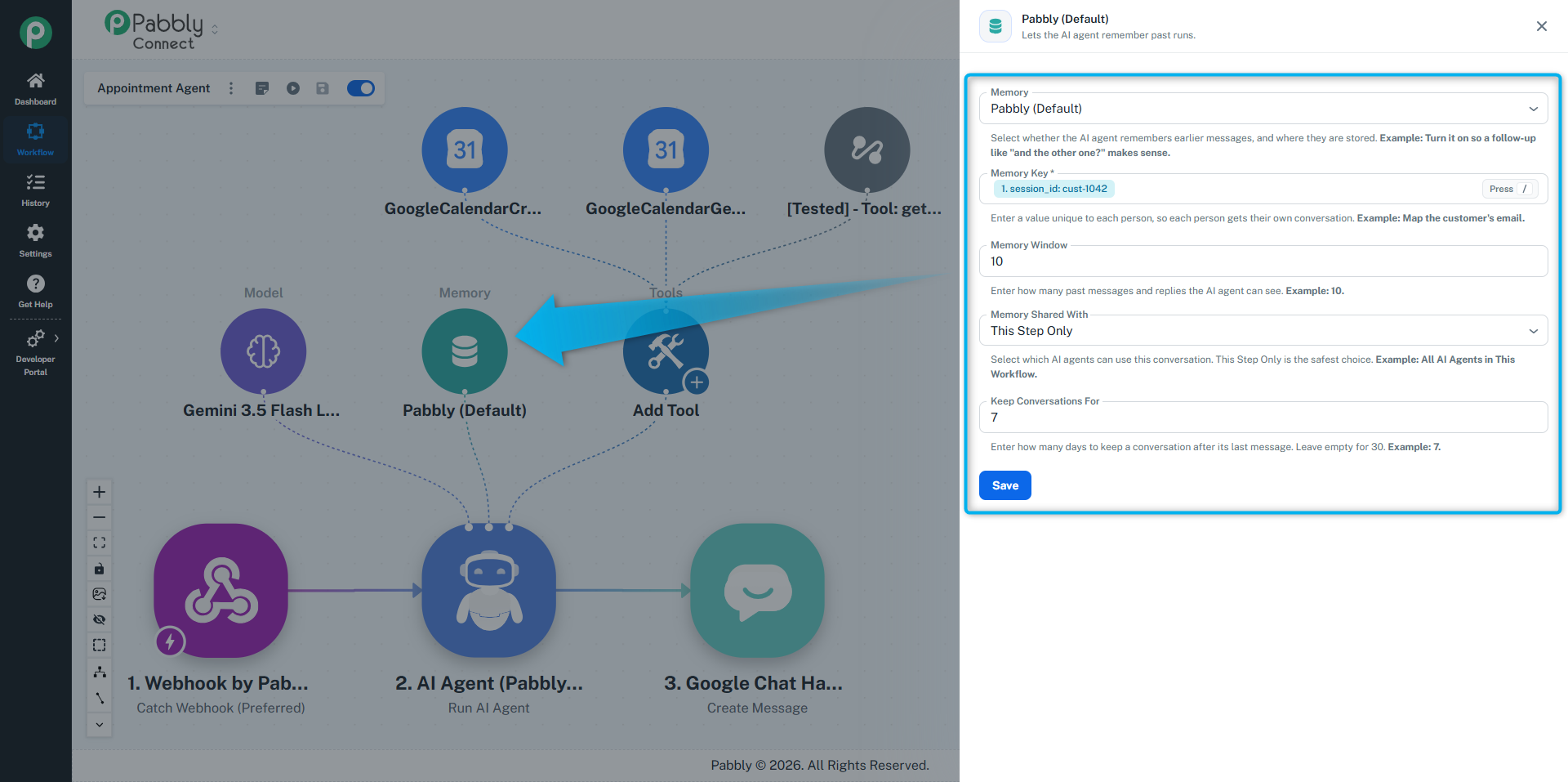
Choose Use your own MongoDB, then add a MongoDB (Agent Memory) connection with your connection string. Allow 44.232.164.243 in your cluster's Network Access list, or the connection will be refused.
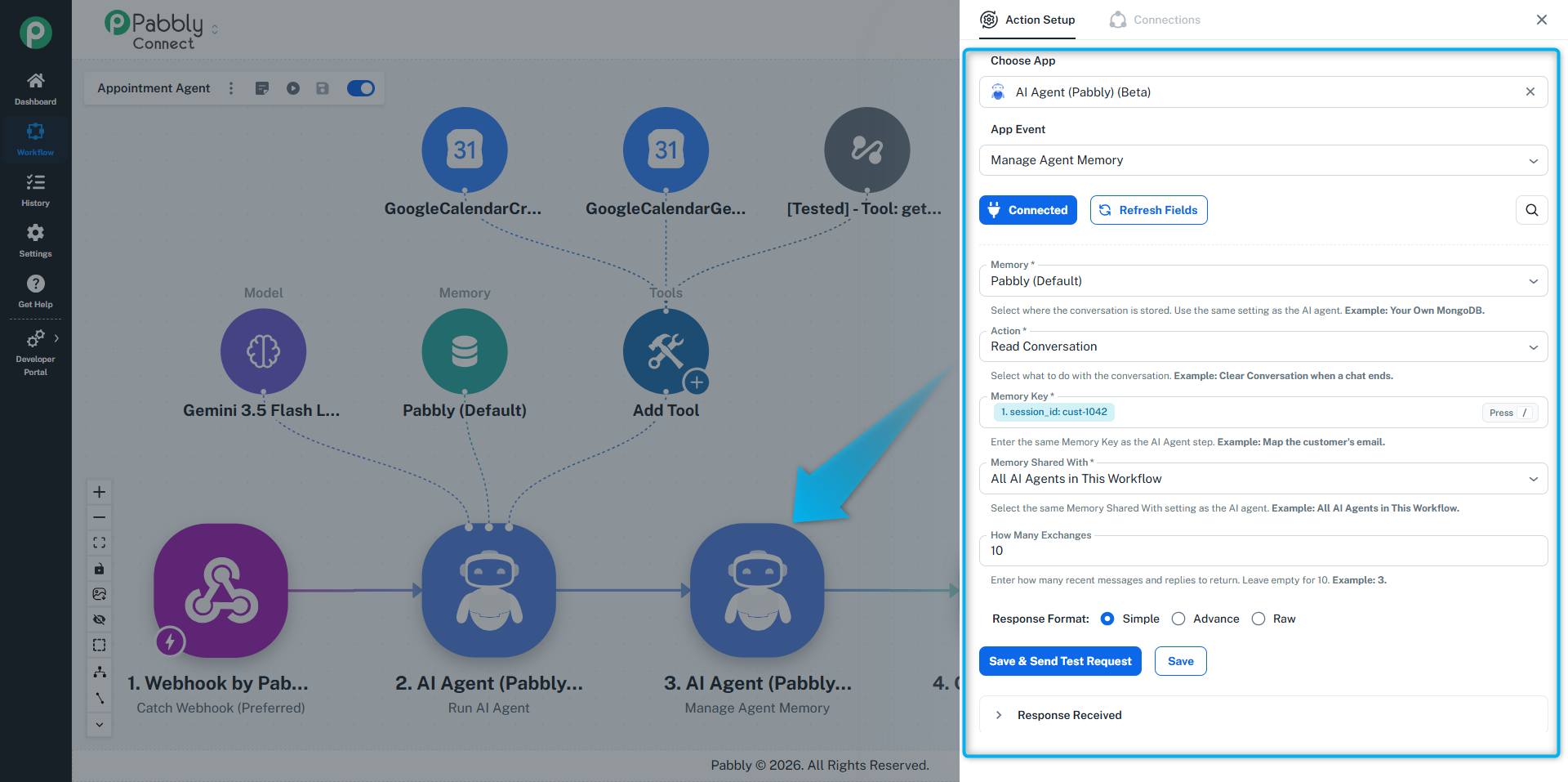
AI Agent (Pabbly): Manage Agent Memory lets you work with a conversation from any step:
Read the conversation
Add to the conversation
Clear the conversation, for example when a support chat ends
It works for conversations shared with the workflow or the account. Use the same Memory Key as the agent.
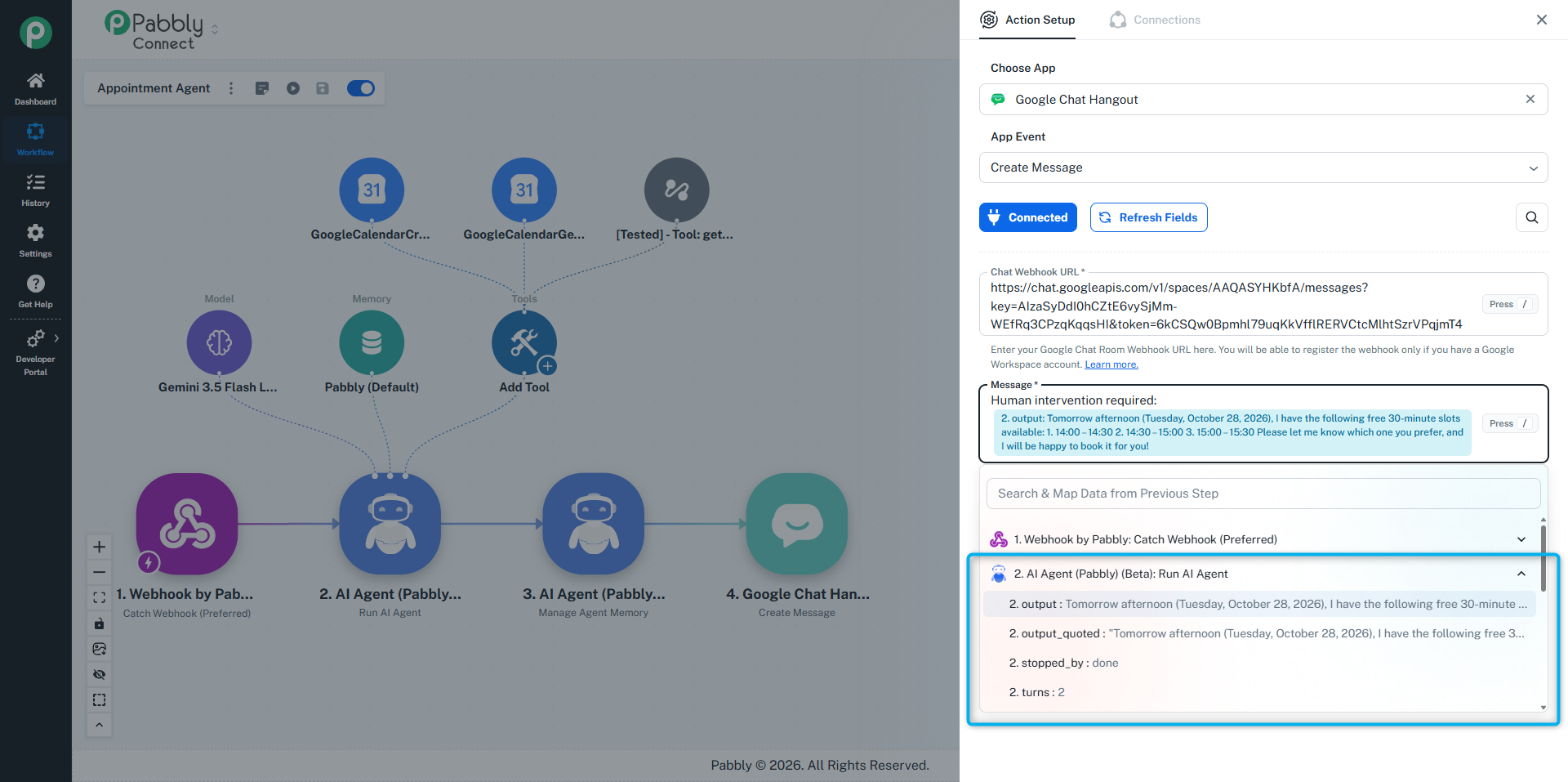
After the agent runs, you can map these in later steps:
Field | What it holds |
|---|---|
output | The agent's answer as text. |
output_json | Each part of the answer as its own field, when you used Split The Answer Into or Your Own Format. |
turns | How many steps the agent took. |
tool_calls | How many times it used a tool. |
stopped_by | Why it stopped, for example |
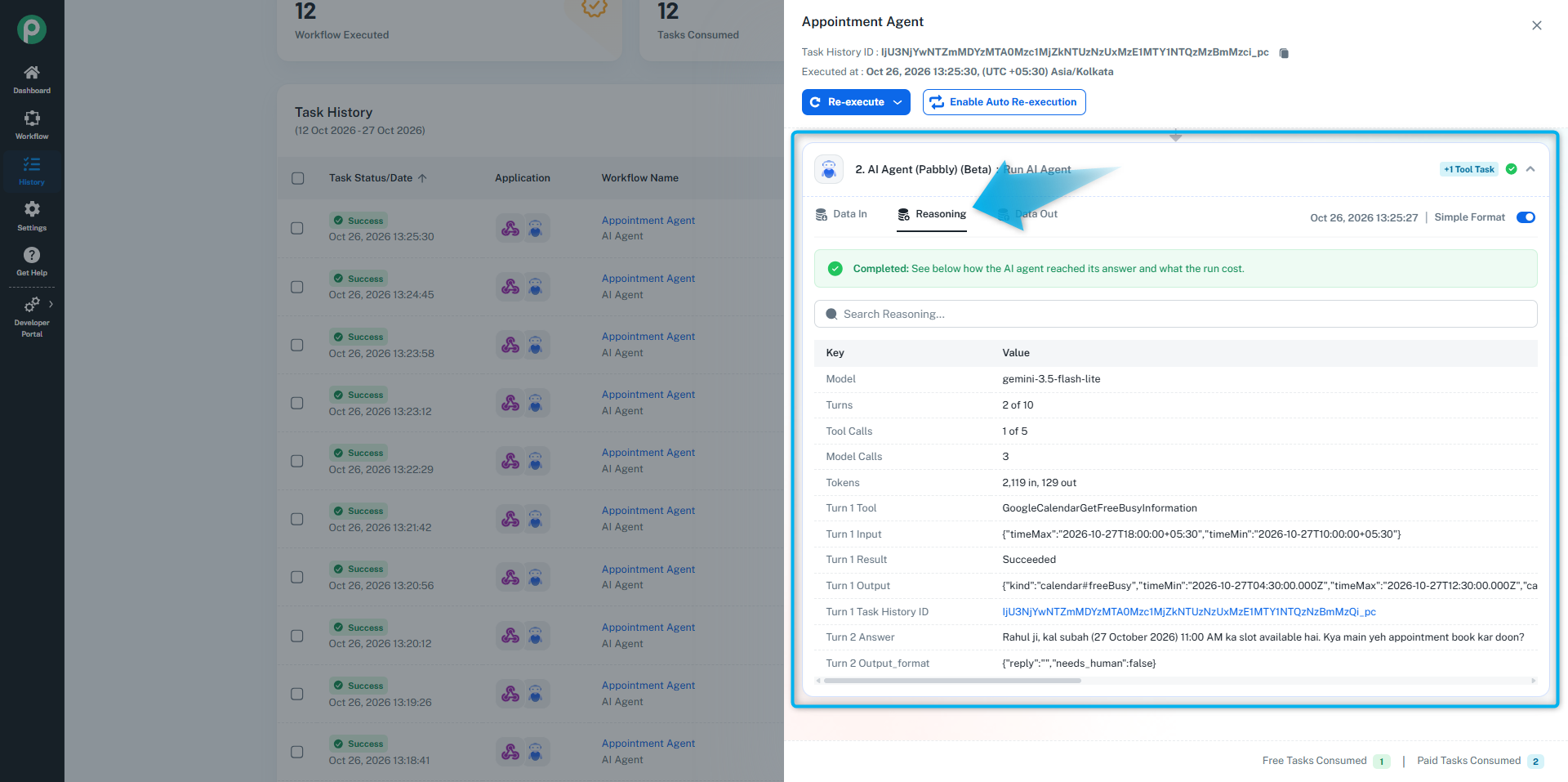
Every tool call also shows up in Task History, so you can see exactly what the agent did.
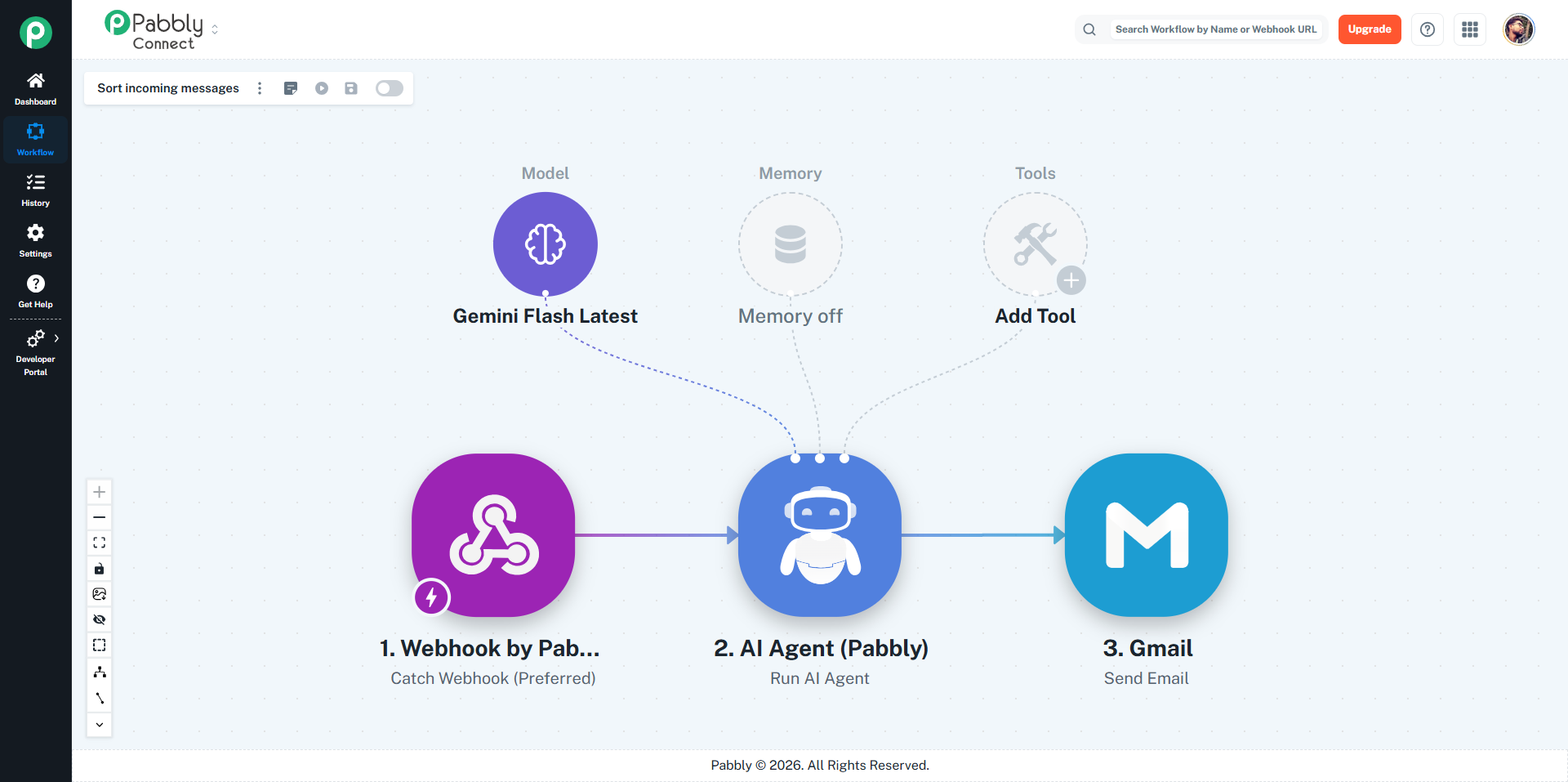
Webhook → AI Agent → Gmail: Send Email
The agent reads each message, decides if it is a question or a complaint, gives it a priority from 1 to 5 and writes a short summary. Tick Split The Answer Into so category, priority and summary come back as separate fields you can use in a Router.
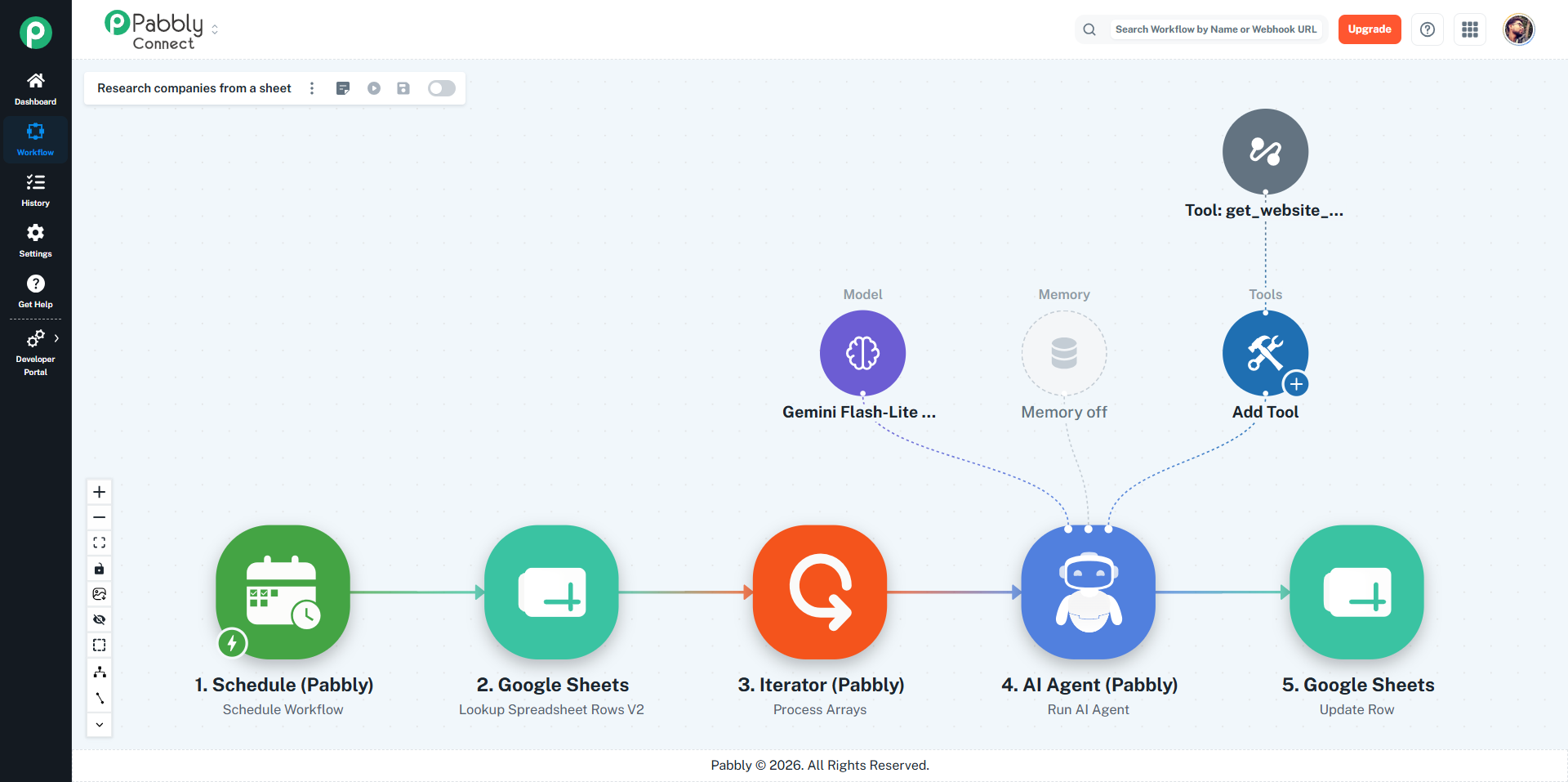
Schedule → Google Sheets: Lookup Rows → Iterator → AI Agent → Google Sheets: Update Row
For each company website in your sheet, the agent visits the site with a workflow tool and finds the domain, LinkedIn page, market and cheapest plan. The results go back into the same row.
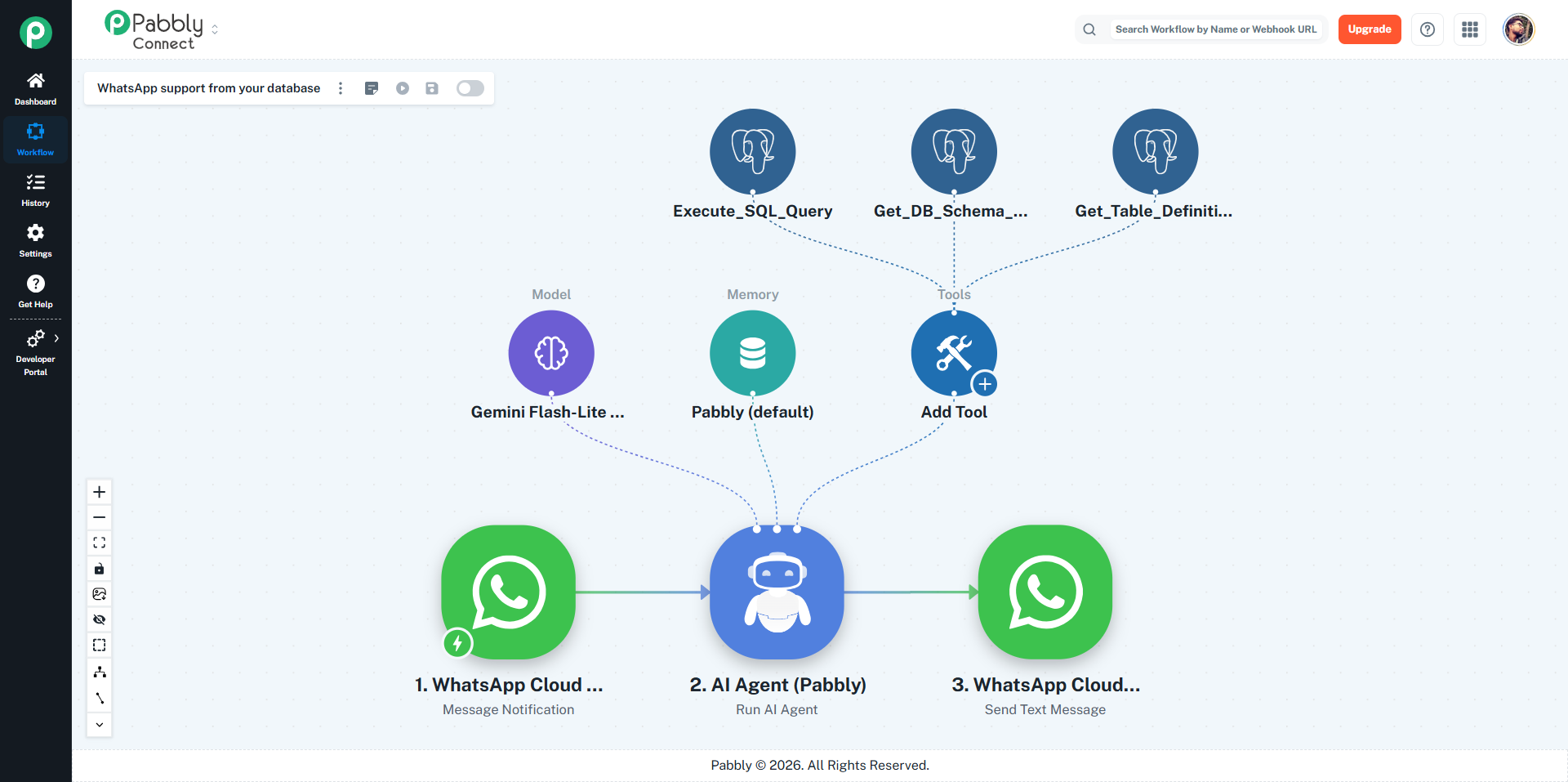
WhatsApp Cloud API: Message Notification → AI Agent → WhatsApp Cloud API: Send Message
The agent has PostgreSQL tools, so it can look up the customer's orders and products by itself. Memory is on with the customer's phone number as the key, so it remembers the conversation.
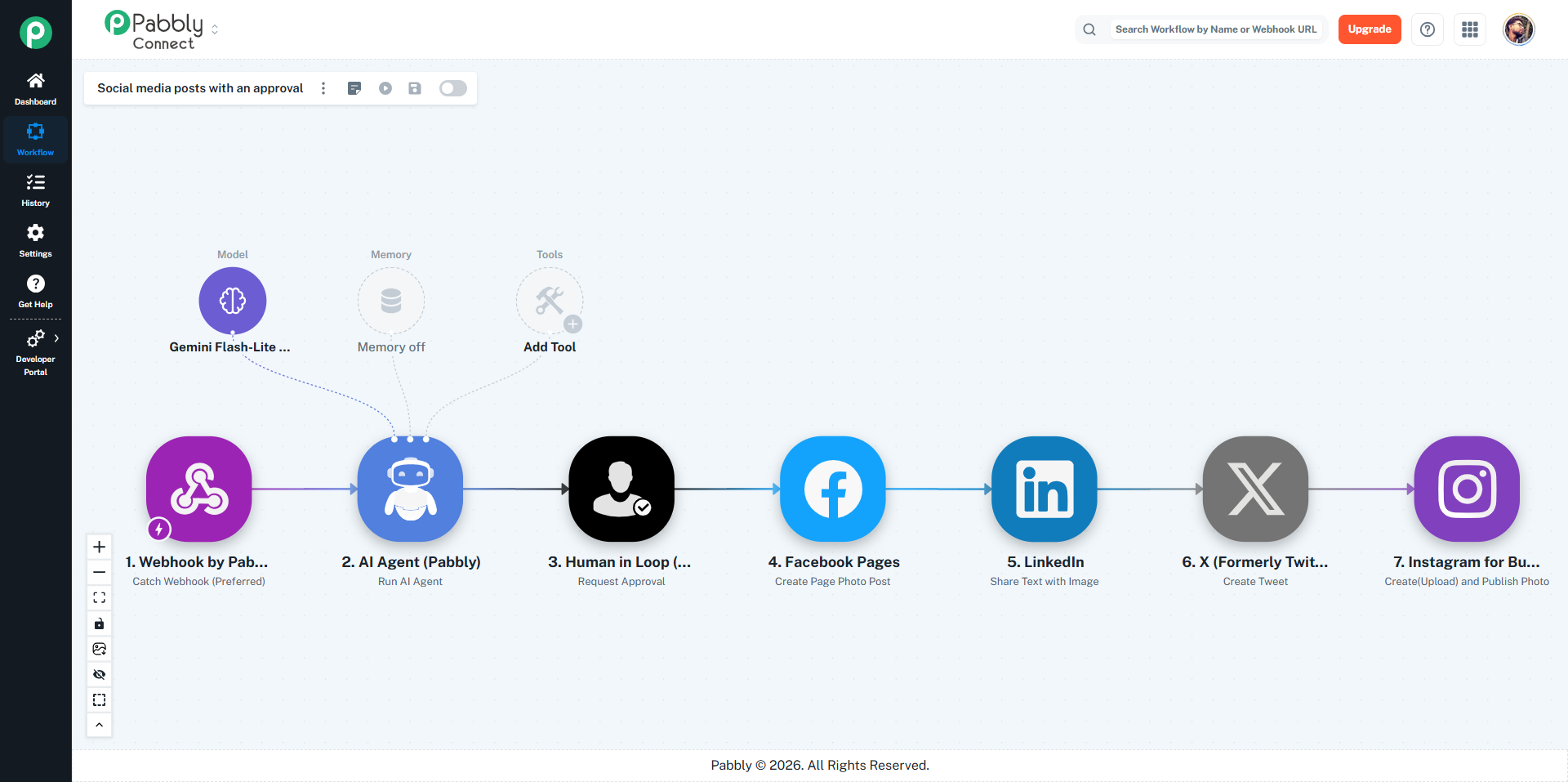
Webhook → AI Agent → Human in Loop → Facebook, LinkedIn, X, Instagram
The agent writes a post for each platform, a person approves it, and then it is published.
Be specific in System Instructions. Tell the agent what it must never do, not only what to do.
Give it only the tools it needs. Fewer tools means better choices.
Write clear tool descriptions. This matters more than anything else.
Use Knowledge for facts that rarely change, and tools for live data.
Start with a small Max Tool Calls, such as 3 for a simple lookup, then raise it if needed.
Use Temperature 0 for support replies and data work, and around 0.7 for creative writing.
Test with real examples from your trigger before switching the workflow on.
Any model your provider offers that can use tools. Pick it from the Model list after you connect your AI account.
The AI usage is billed by your AI provider to the API key you connected.
Yes. The AI Agent step is a normal step, each app tool it uses counts as a task, and a workflow used as a tool counts its own tasks.
Yes. Turn on Memory and set a Memory Key that is unique to each person.
Yes. Open the run in Task History to see the answer and every tool call.
The agent decides from the tool description. Make it clearer about when to use the tool, and mention the tool in the System Instructions if needed.
Yes, if your model supports it. Map the file link into Images or Audio and Video. For Telegram or WhatsApp files, also pick your connection in Media Connection.
Add card, email, phone, api_key or exact values to Never Send. They are removed from the answer before it goes anywhere.
Yes. For example, one agent writes a draft and a second one edits it. You can map the first agent's output into the second agent's Prompt.
Yes. It runs once for each item.
