Team Members
 Pabbly Studio Team•Updated Oct 12, 2026•2 min read
When someone adds you as a team member, you can open their app from your own Pabbly Studio account. What you can do in the app depends on the role they gave you: Viewer or Editor.
You do not need a paid plan to be a team member. A Free plan account can open apps shared with it.
1. Check your notification. When someone shares an app with you, you get a notification. Click the bell icon at the top right to see it. It shows who shared the app and your role.
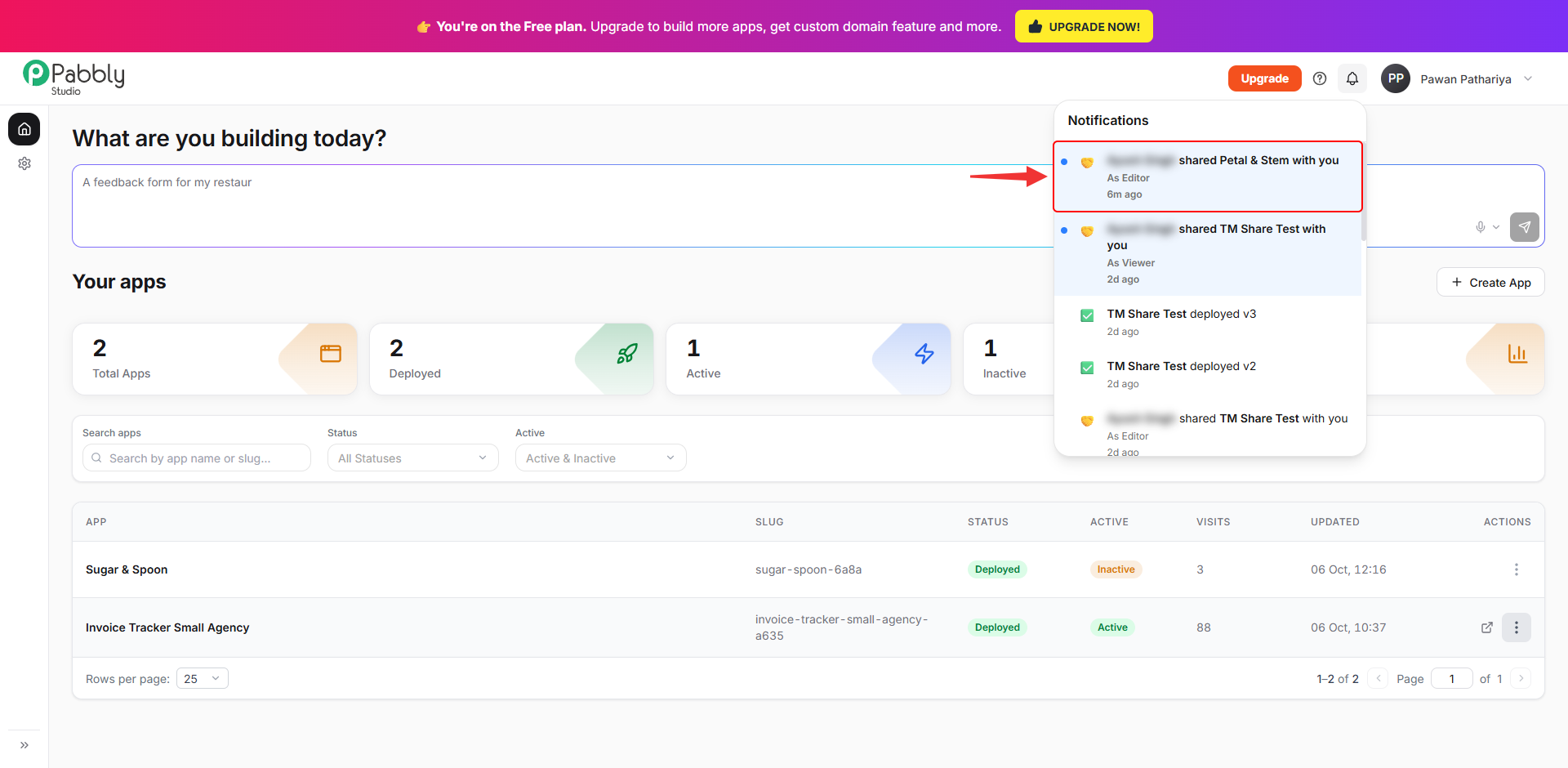
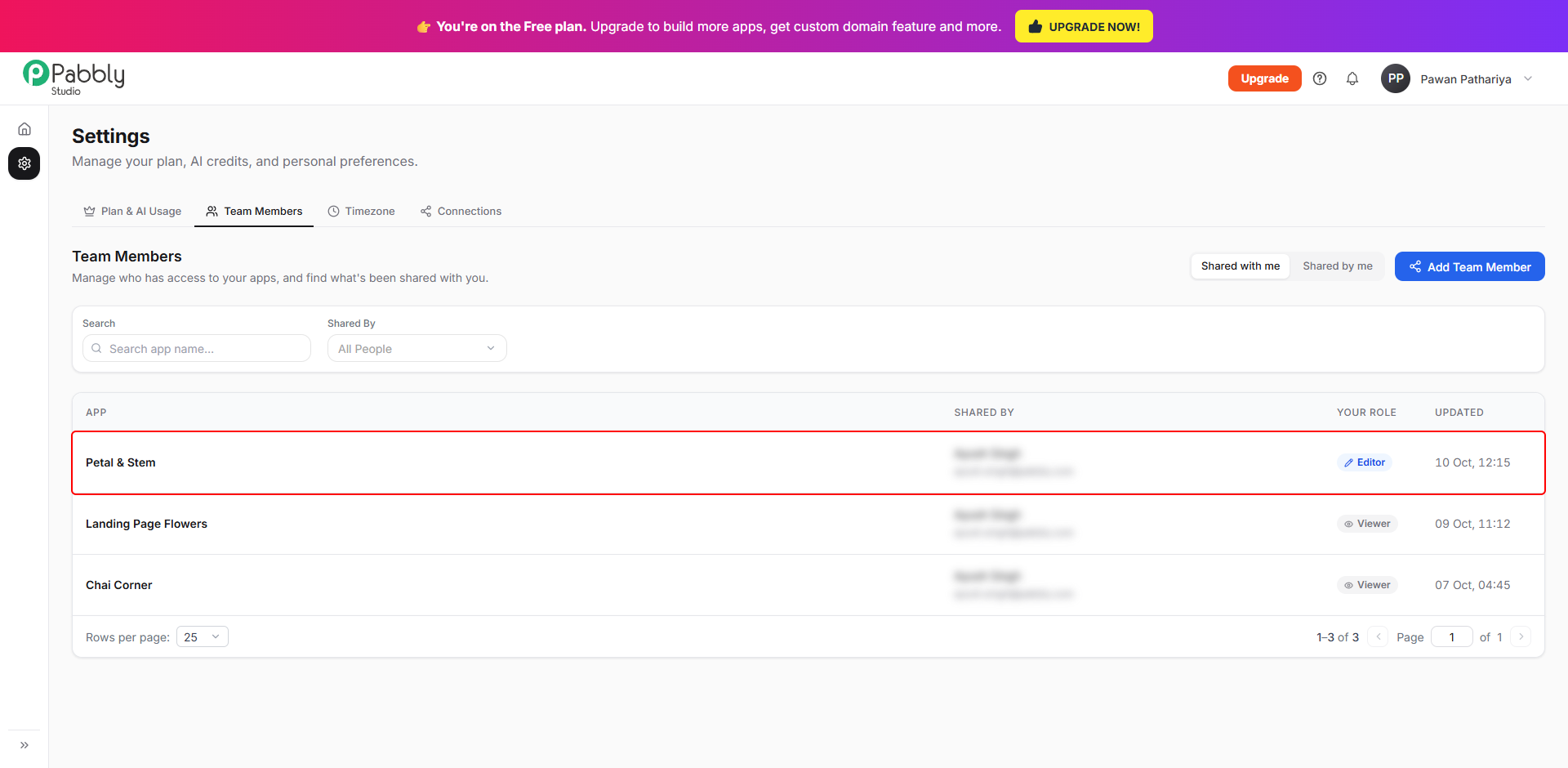
2. Open Shared with me. Click the Settings (gear) icon in the left sidebar, then click the Team Members tab. The Shared with me list opens first. It shows every app shared with you, who shared it, and your role. Click an app's name to open it.
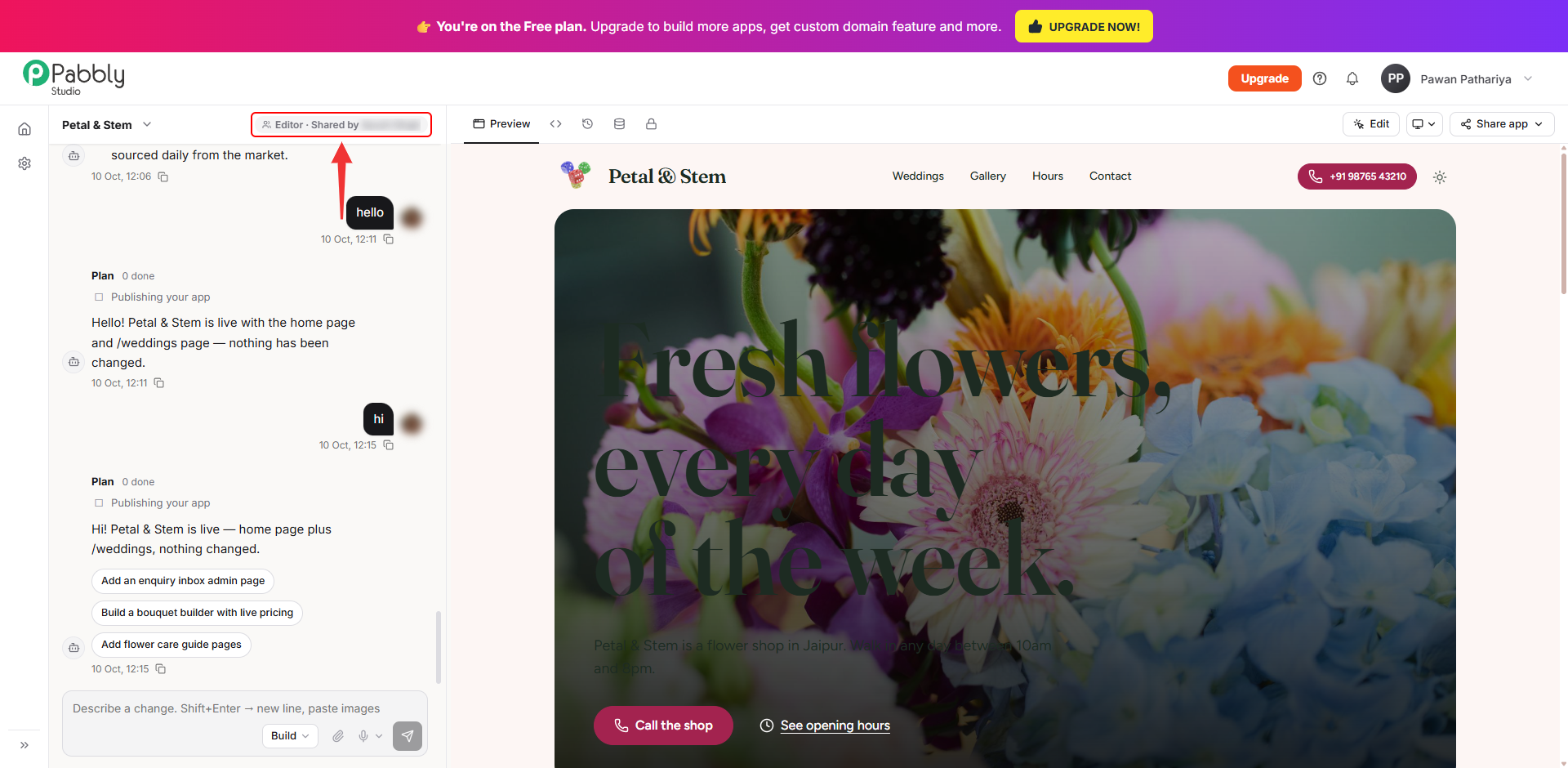
3. Work on the app as an Editor. The app opens in the builder. At the top of the chat, a label shows your role and who shared the app with you. As an Editor, you can send messages to change the app, just like the owner.
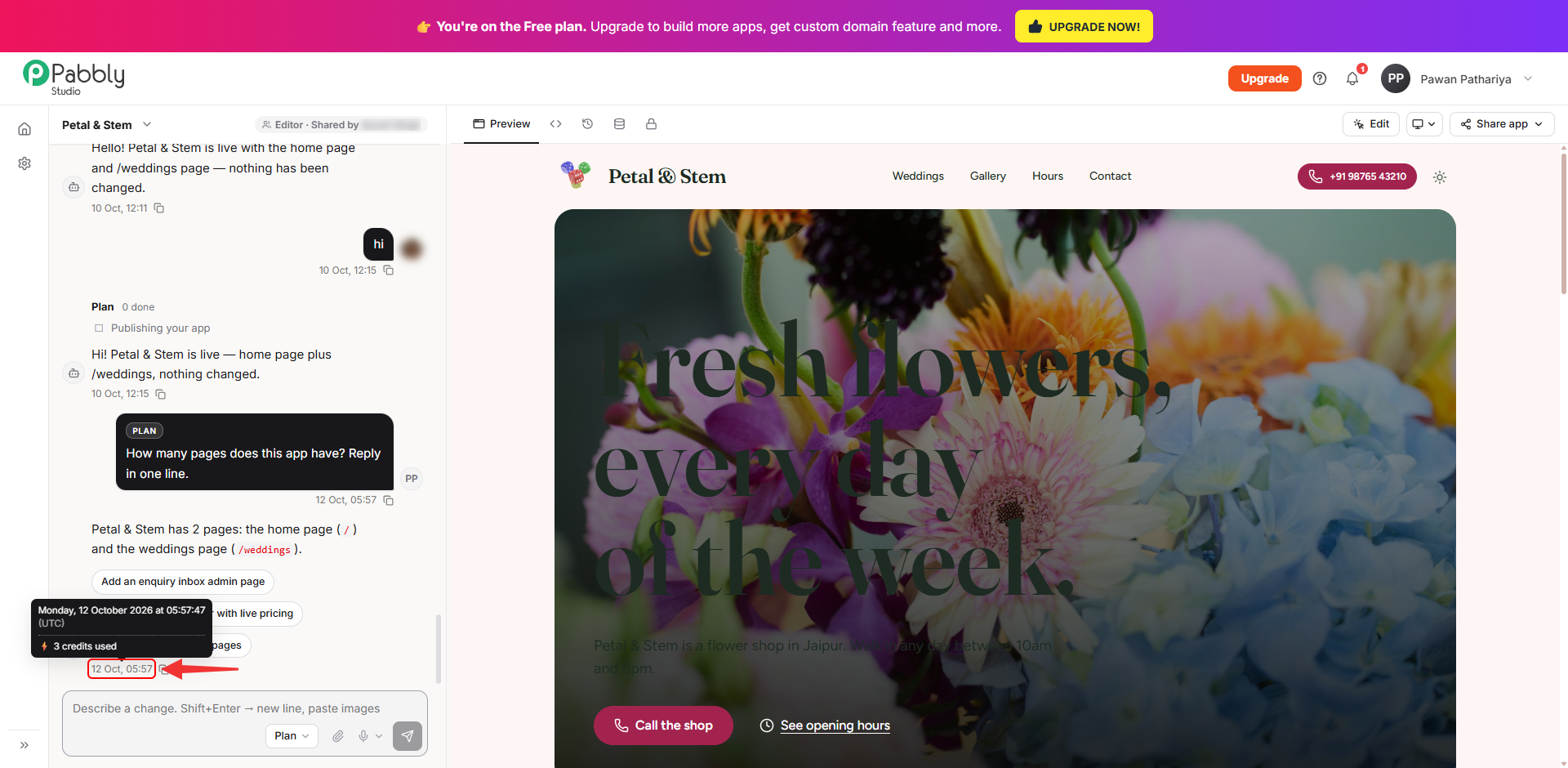
4. See the credits a message used. Hover over the time under a reply to see how many AI credits it used. These credits are taken from the owner's account, not yours. Even a question asked in Plan mode uses a few credits.
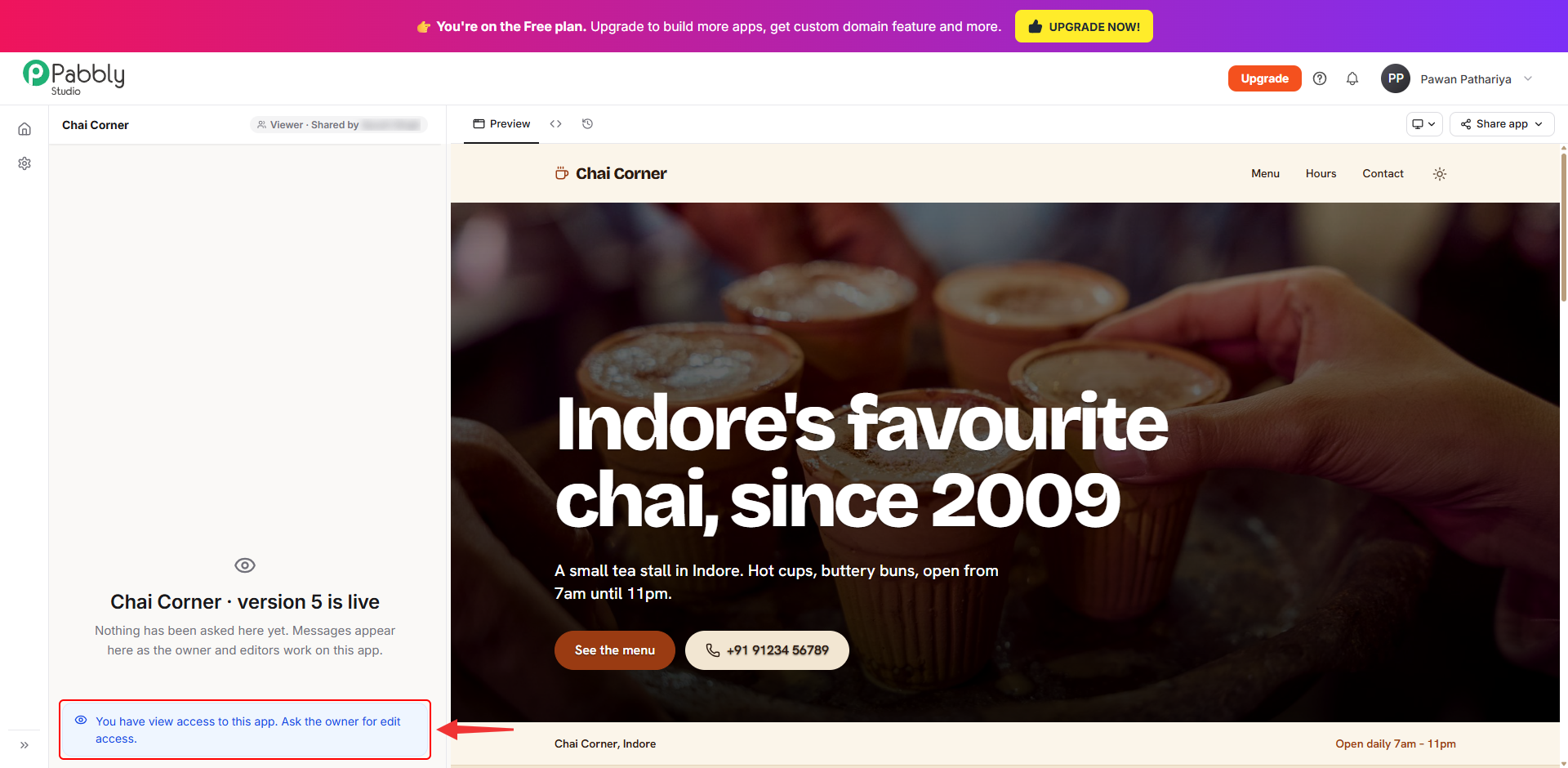
5. View the app as a Viewer. If your role is Viewer, you can see the preview, the files and the versions. You cannot send messages or make changes. A note at the bottom of the chat tells you that you have view access.
Things to know about shared apps
This is how you can open an app shared with you in Pabbly Studio. If you still have any questions, feel free to reach out to us.
