Team Members
 Pabbly Studio Team•Updated Oct 12, 2026•4 min read
You can give other people access to your apps, so they can see them or work on them from their own Pabbly account. These people are called team members. You choose which apps each person can open and what they can do there.
There are two roles:
| Role | What they can do |
|---|---|
| Viewer | Open the app in the builder and look at the preview, the files and the versions. They cannot change anything. |
| Editor | Everything a Viewer can do. They can also send messages to change the app, roll back to an earlier version, and use the Data and Environment tabs. They cannot delete the app or add team members. |
Team members are available on the Standard plan (up to 5 people) and the Unlimited plan (up to 20 people). The Free plan does not include team members.
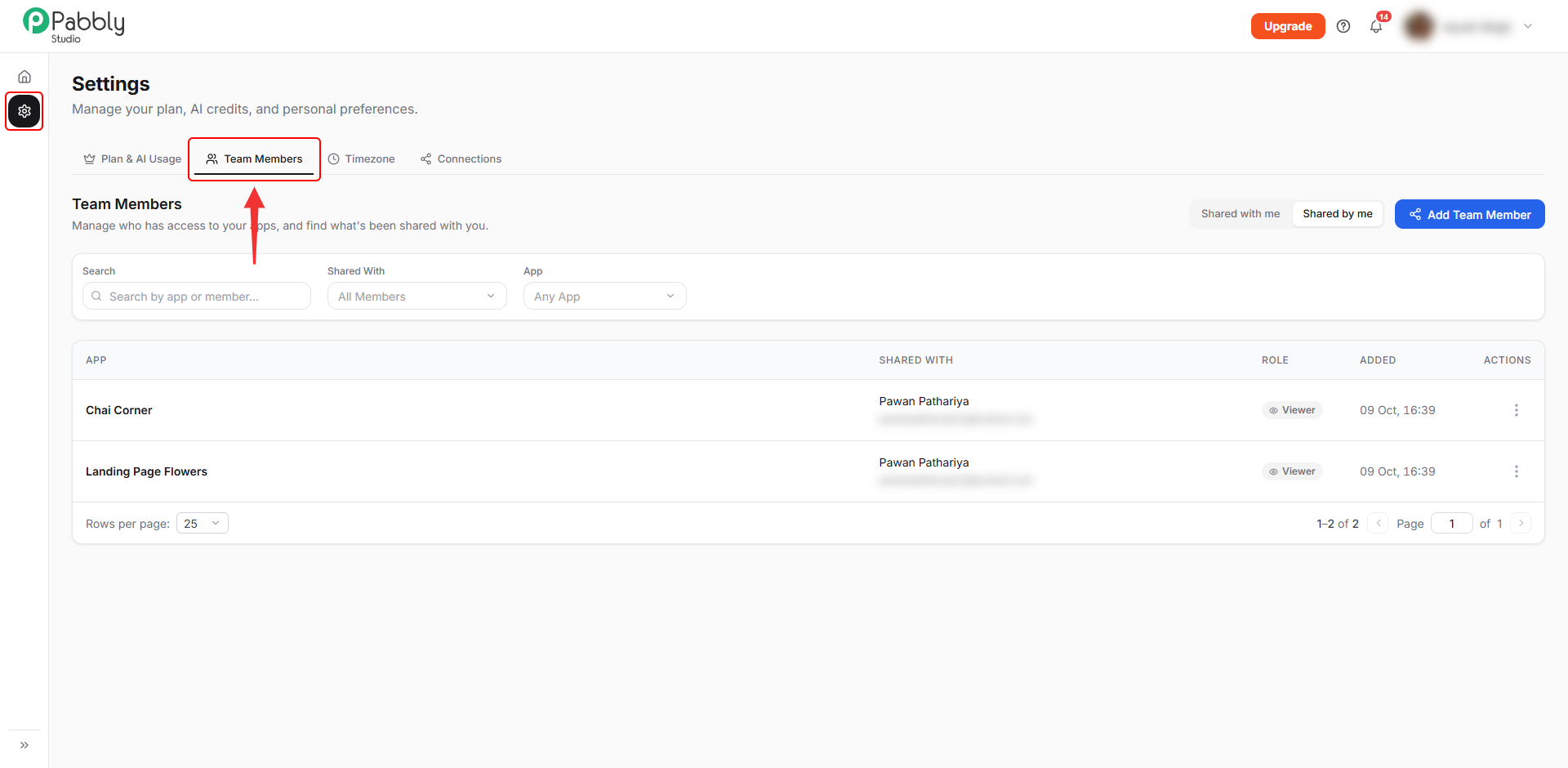
1. Open Team Members. Click the Settings (gear) icon in the left sidebar. Then click the Team Members tab.
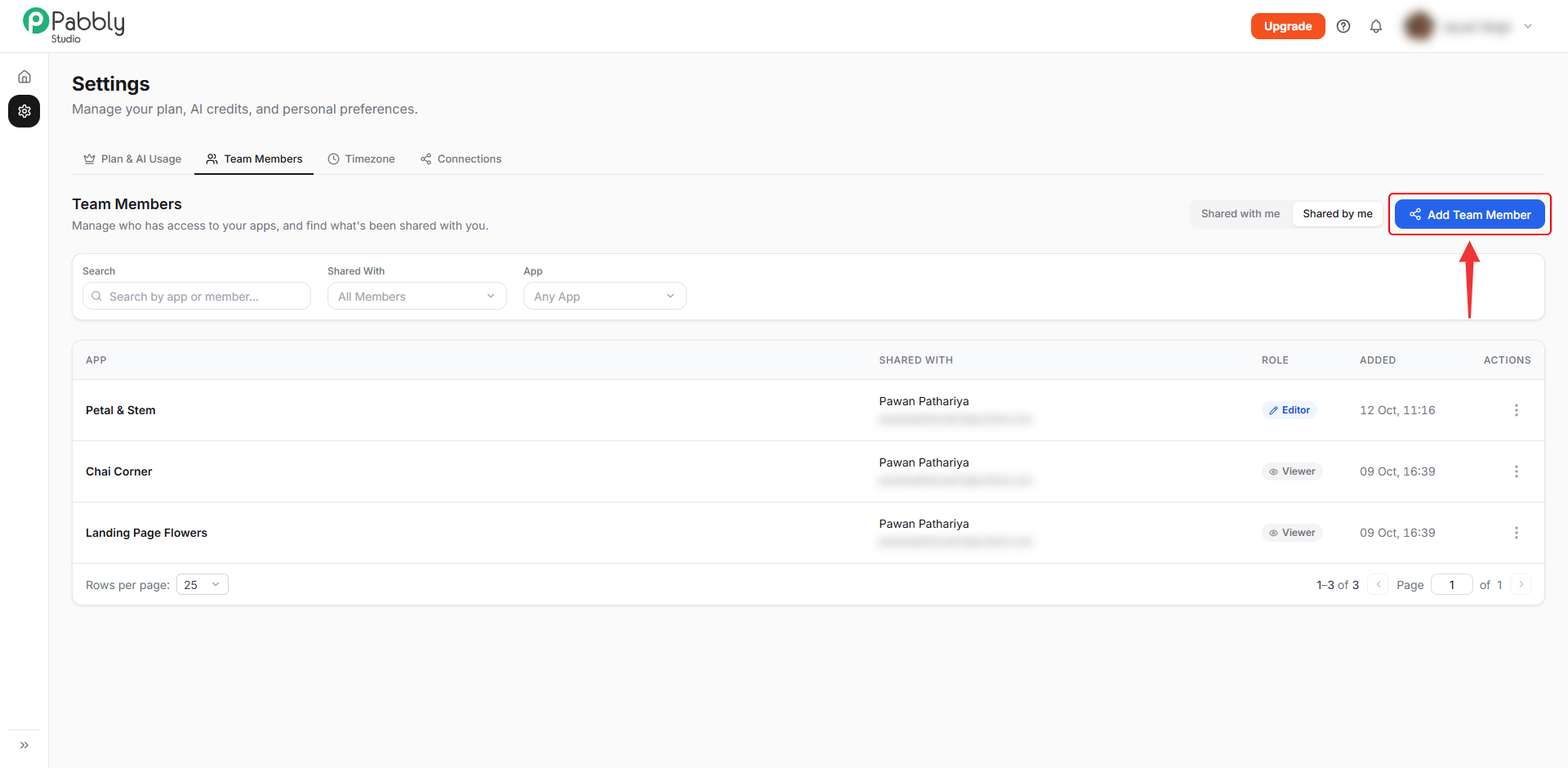
2. Click Add Team Member. Click the Add Team Member button at the top right.
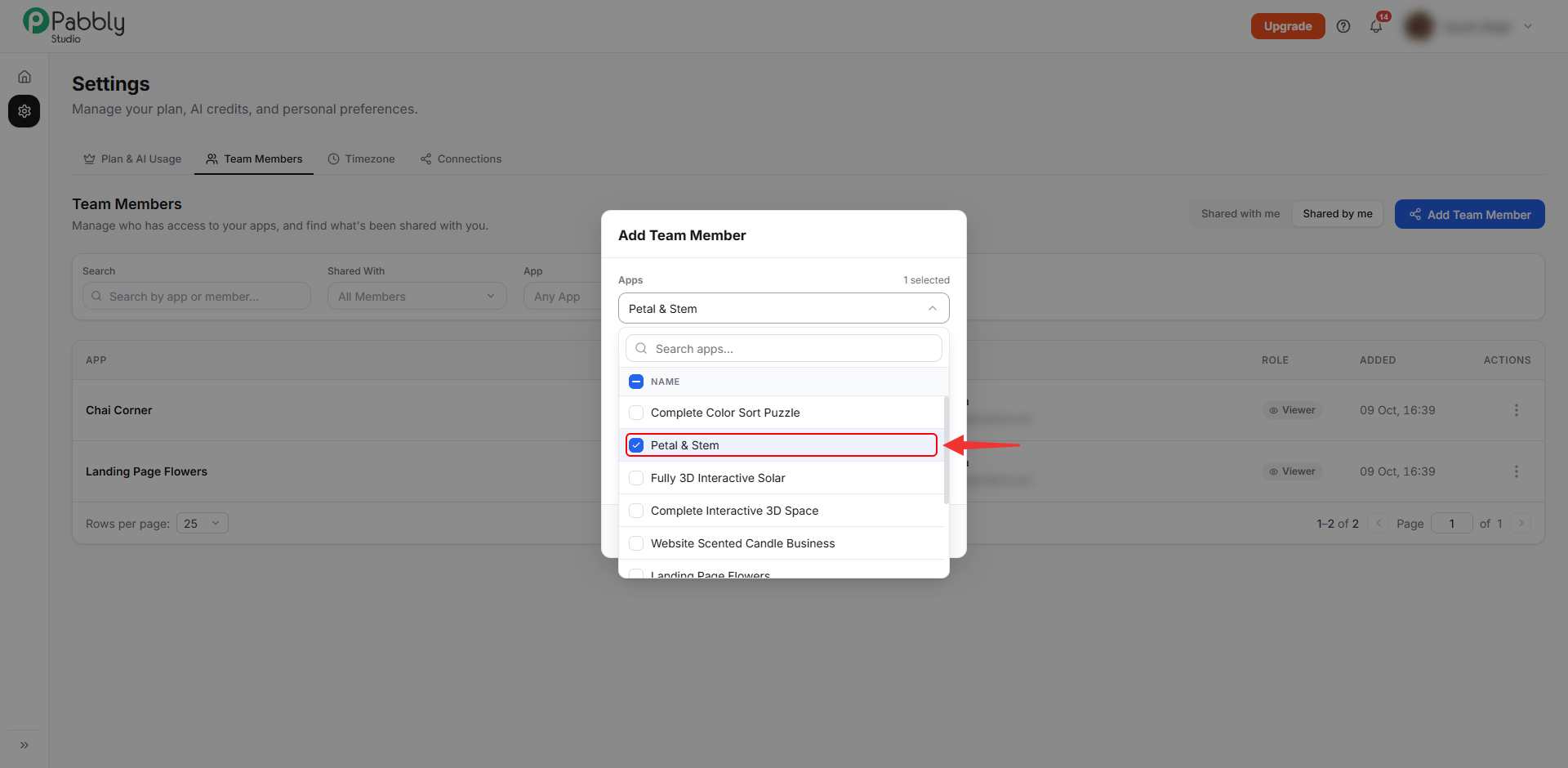
3. Choose the apps. Click the Apps box and tick each app you want to share. You can search for an app by its name. Only the apps you tick are shared.
4. Enter the email address. In the Invite by Email box, type the email address of the person you want to add. To add several people at once, separate their email addresses with commas or new lines.
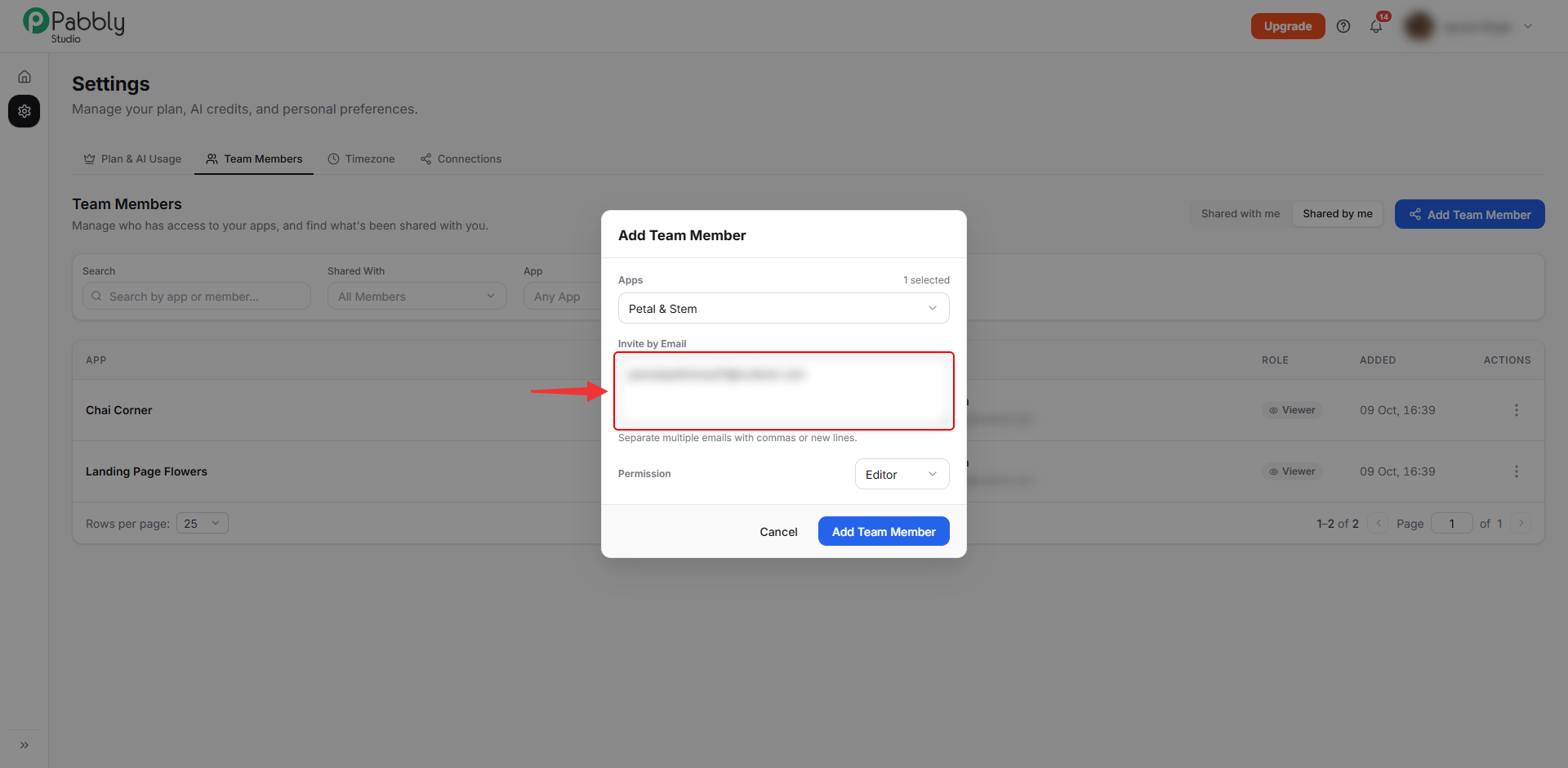
5. Choose the permission. Click the Permission box and choose Editor or Viewer.
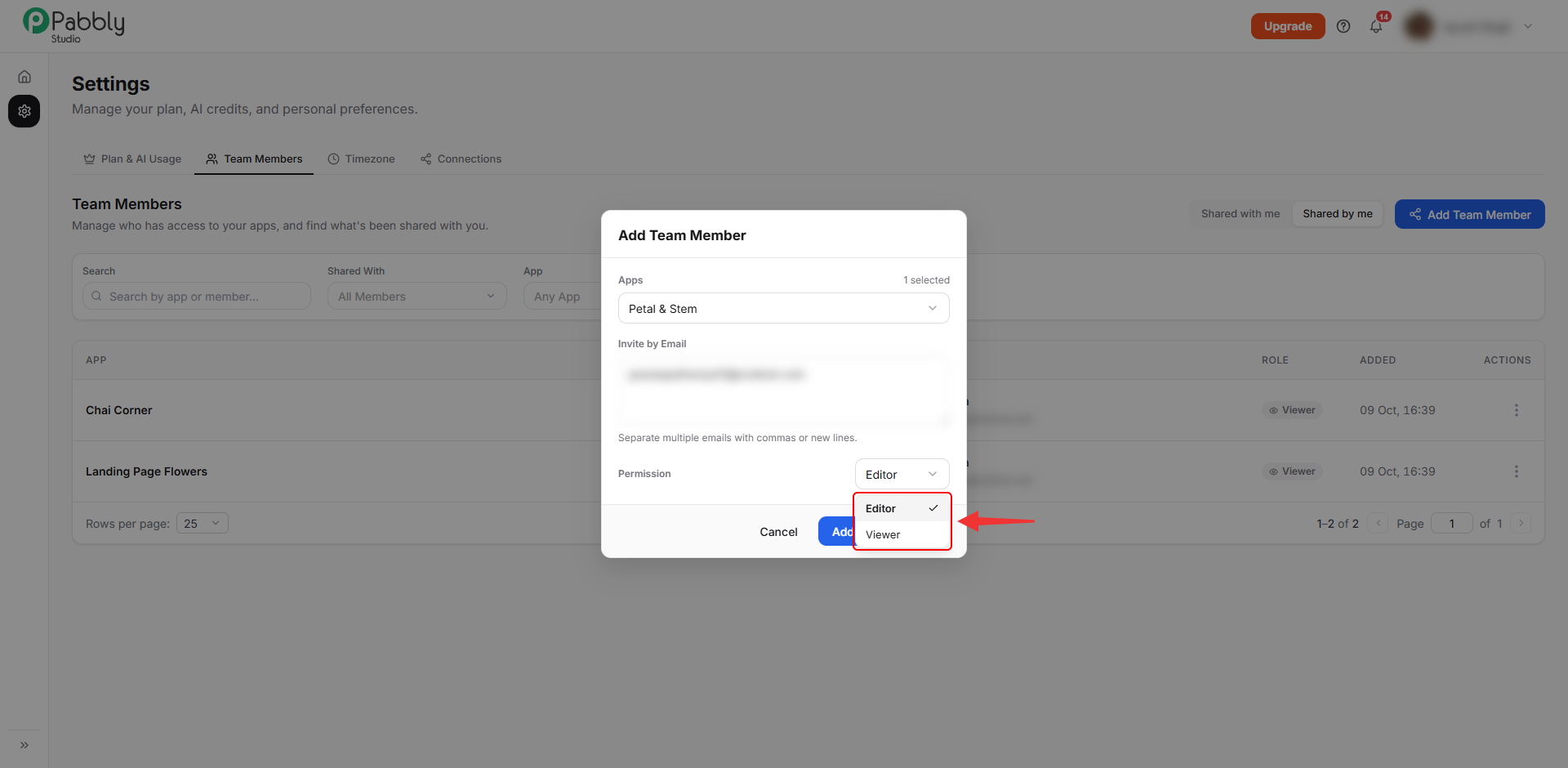
6. Click Add Team Member. Click the Add Team Member button at the bottom of the window.
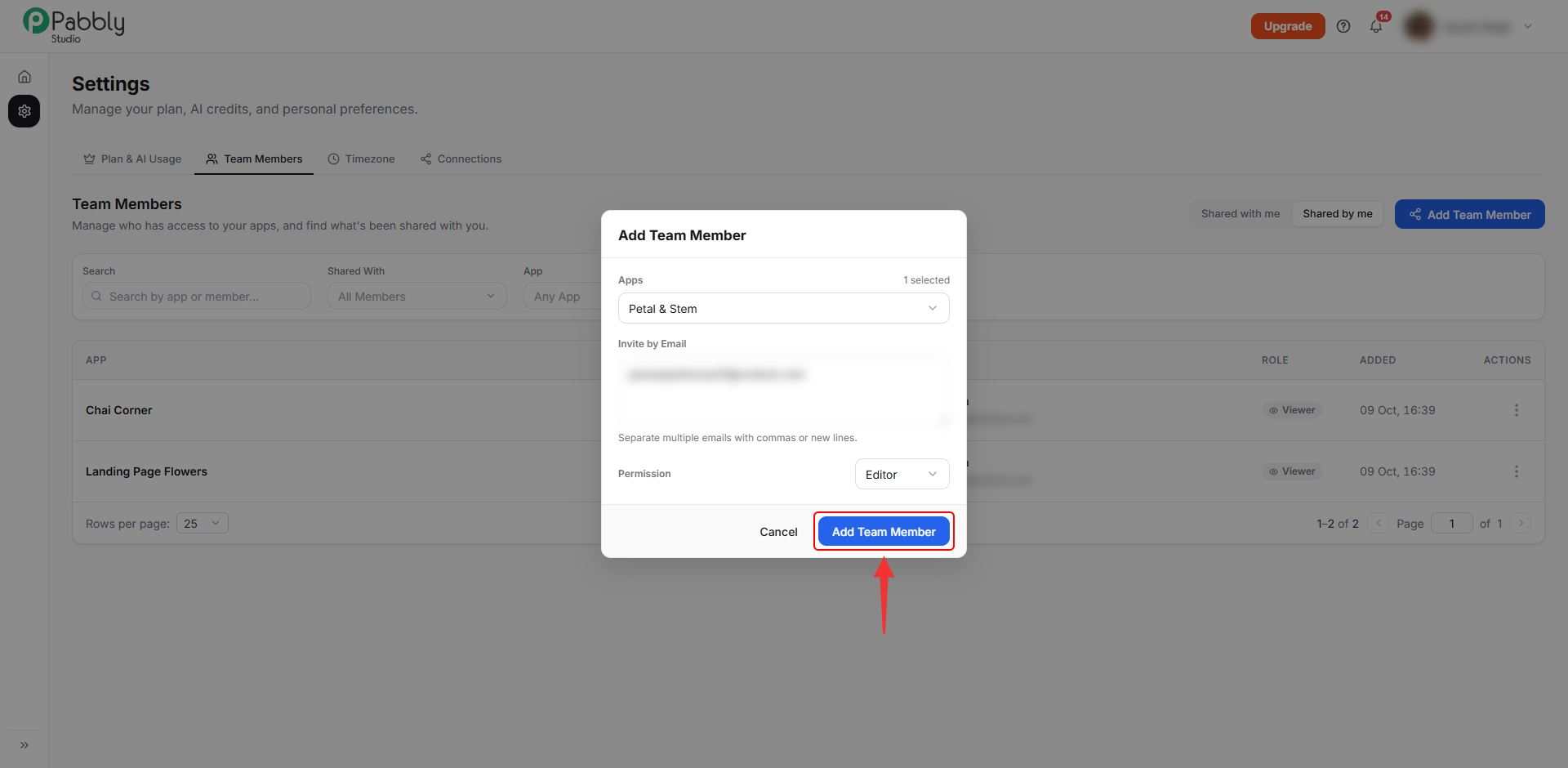
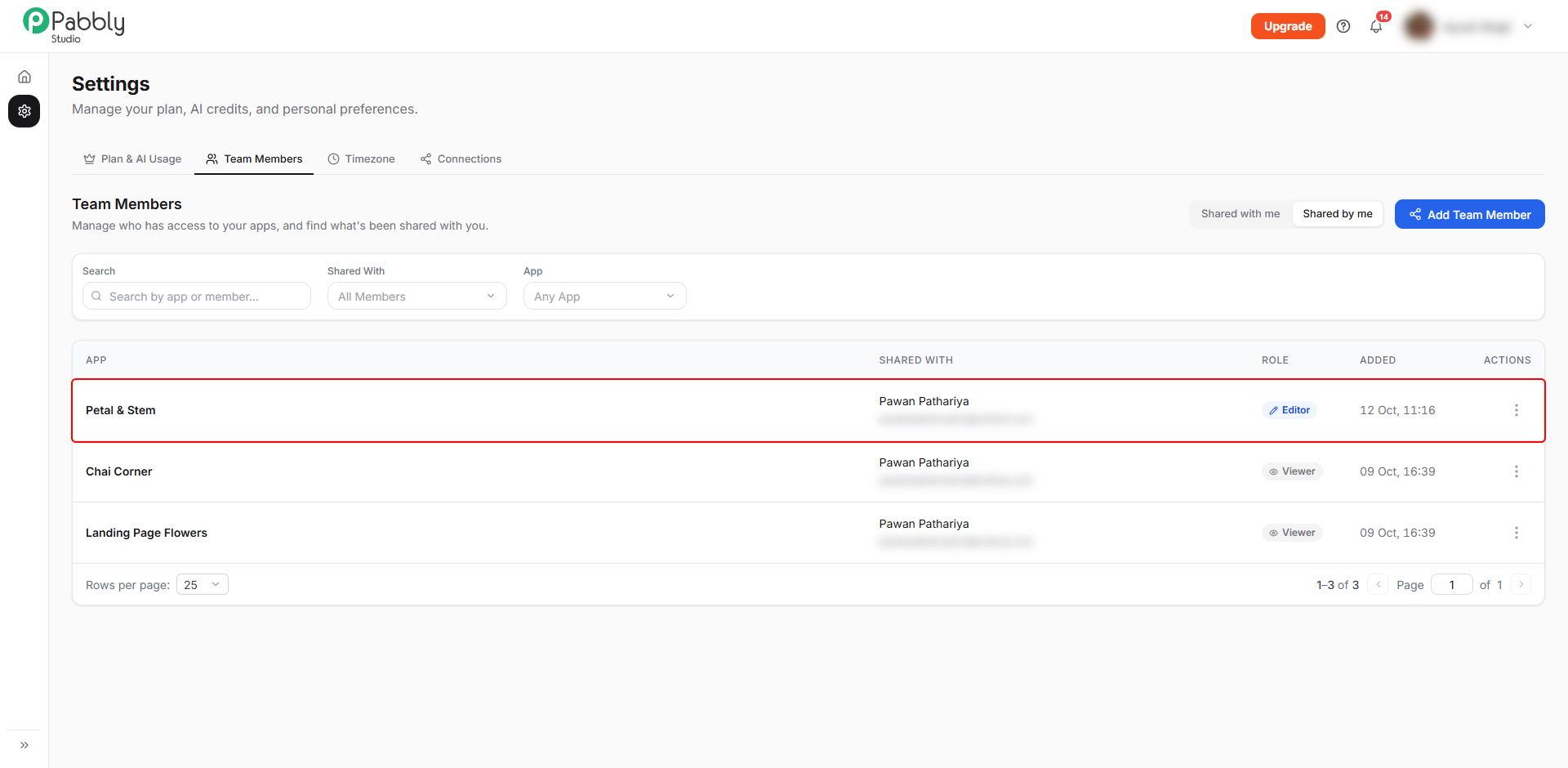
7. Check the list. You will see the message Invited 1 person. Click Shared by me to see every app you have shared, who you shared it with, and their role.
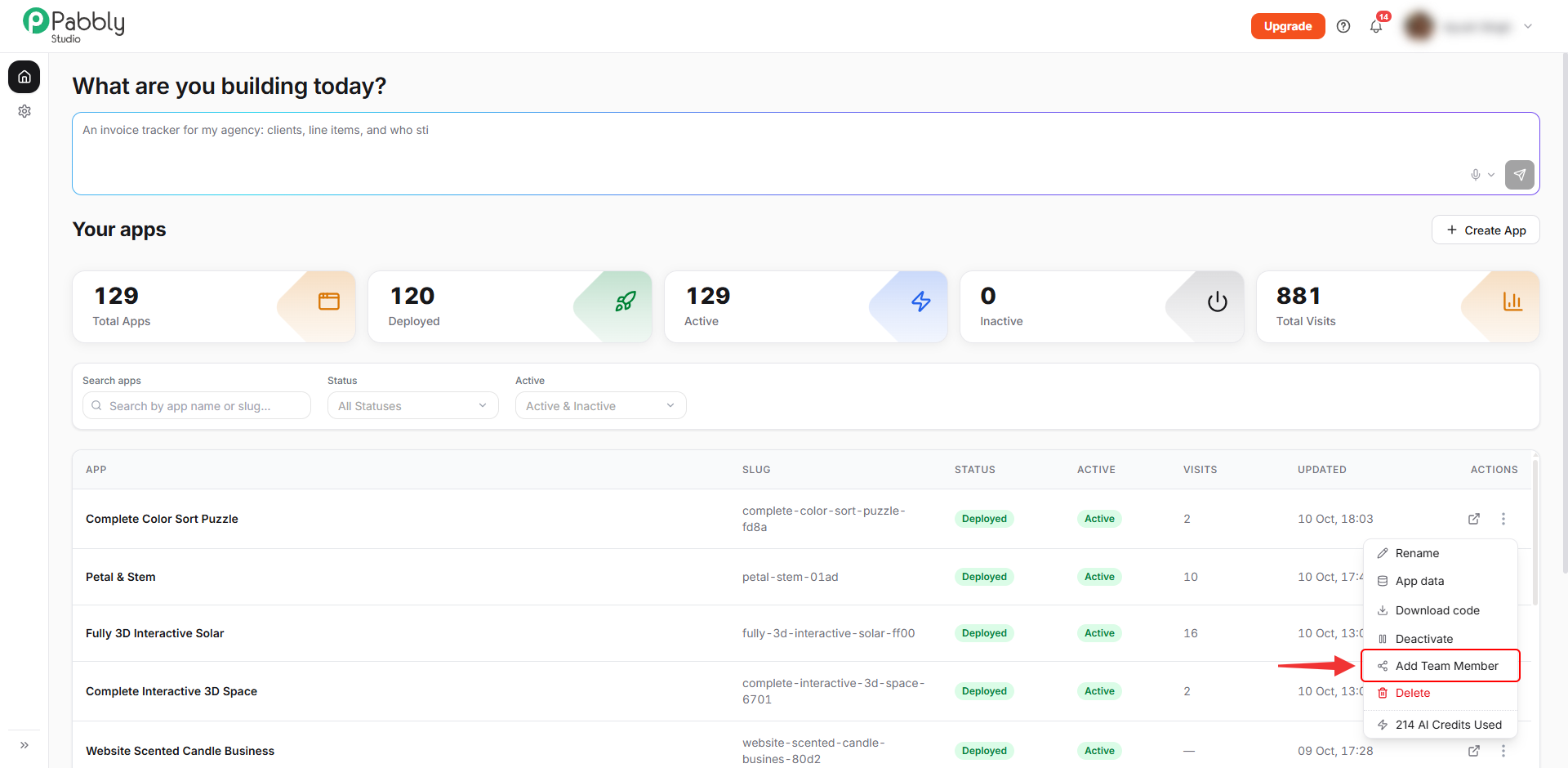
On the dashboard, click the ⋮ button on an app's row and choose Add Team Member. The same window opens with that app already ticked. Then follow steps 4 to 6 above.
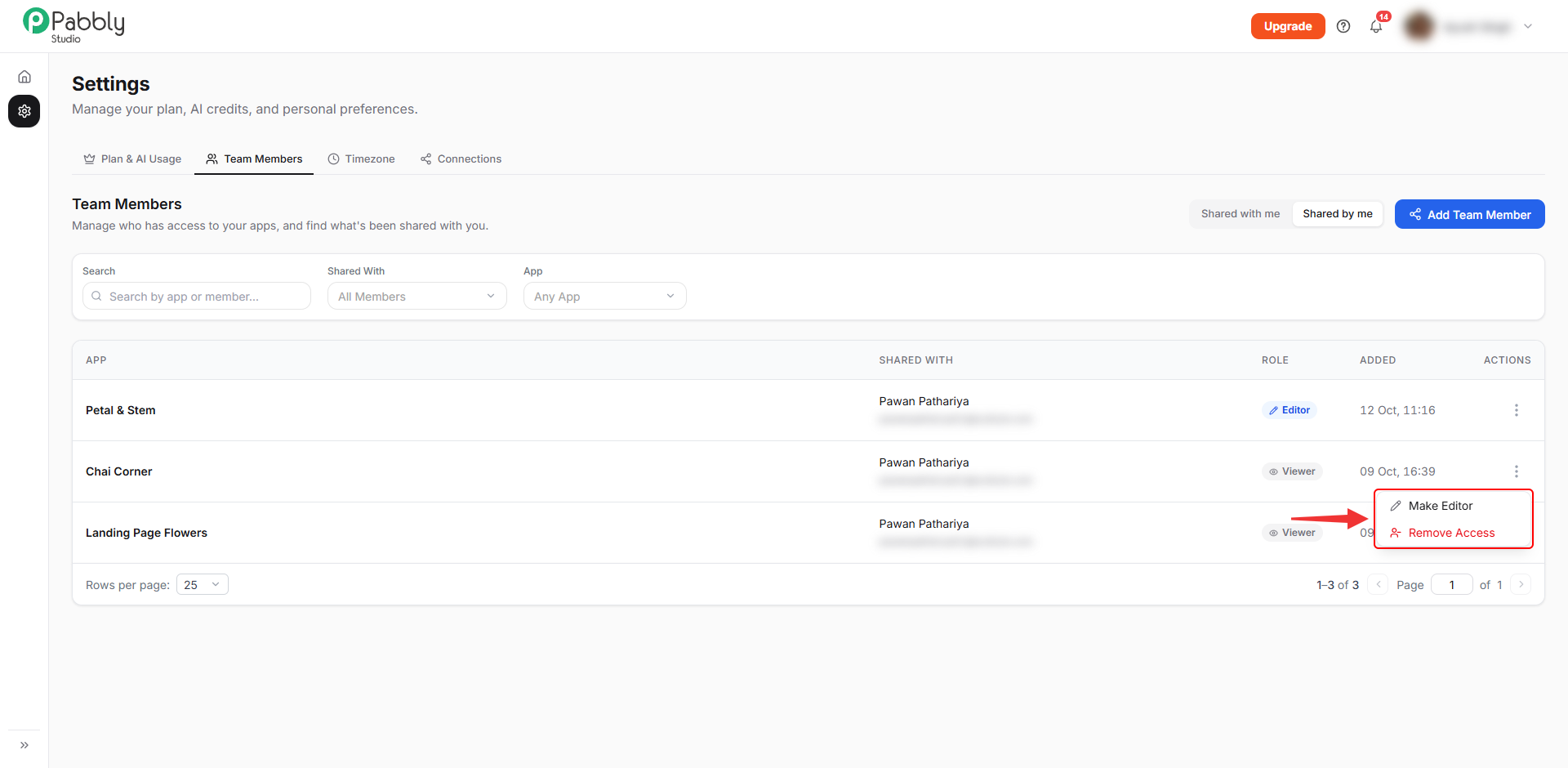
1. Open the row menu. In Settings › Team Members, click Shared by me. Then click the ⋮ button on the row you want to change.
2. Choose an option. Click Make Editor or Make Viewer to change the person's role for that app. Click Remove Access to remove the person from that app.
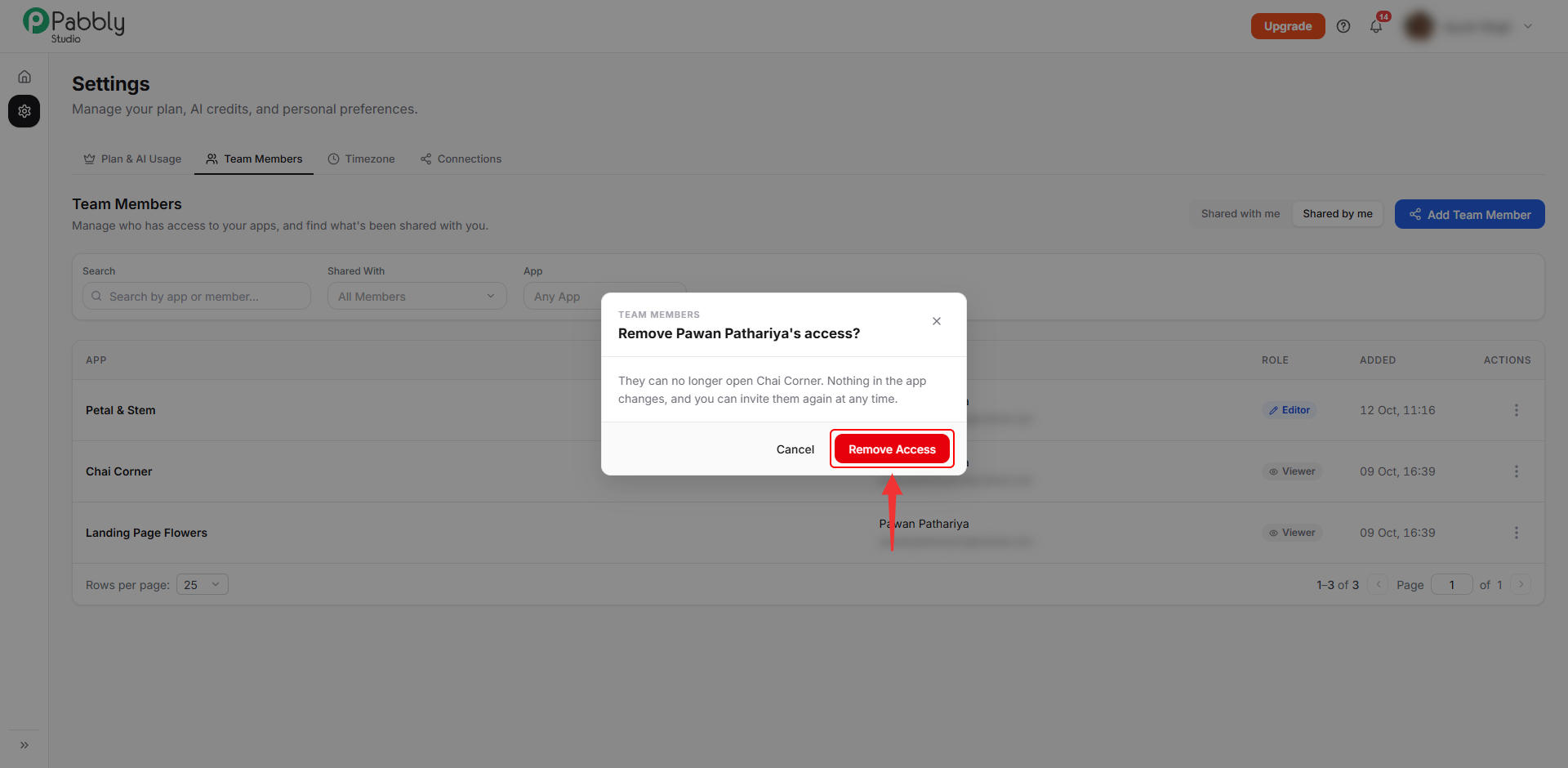
3. Confirm the removal. If you chose Remove Access, click Remove Access in the window that opens. The person can no longer open that app. Nothing in the app changes, and you can invite them again at any time.
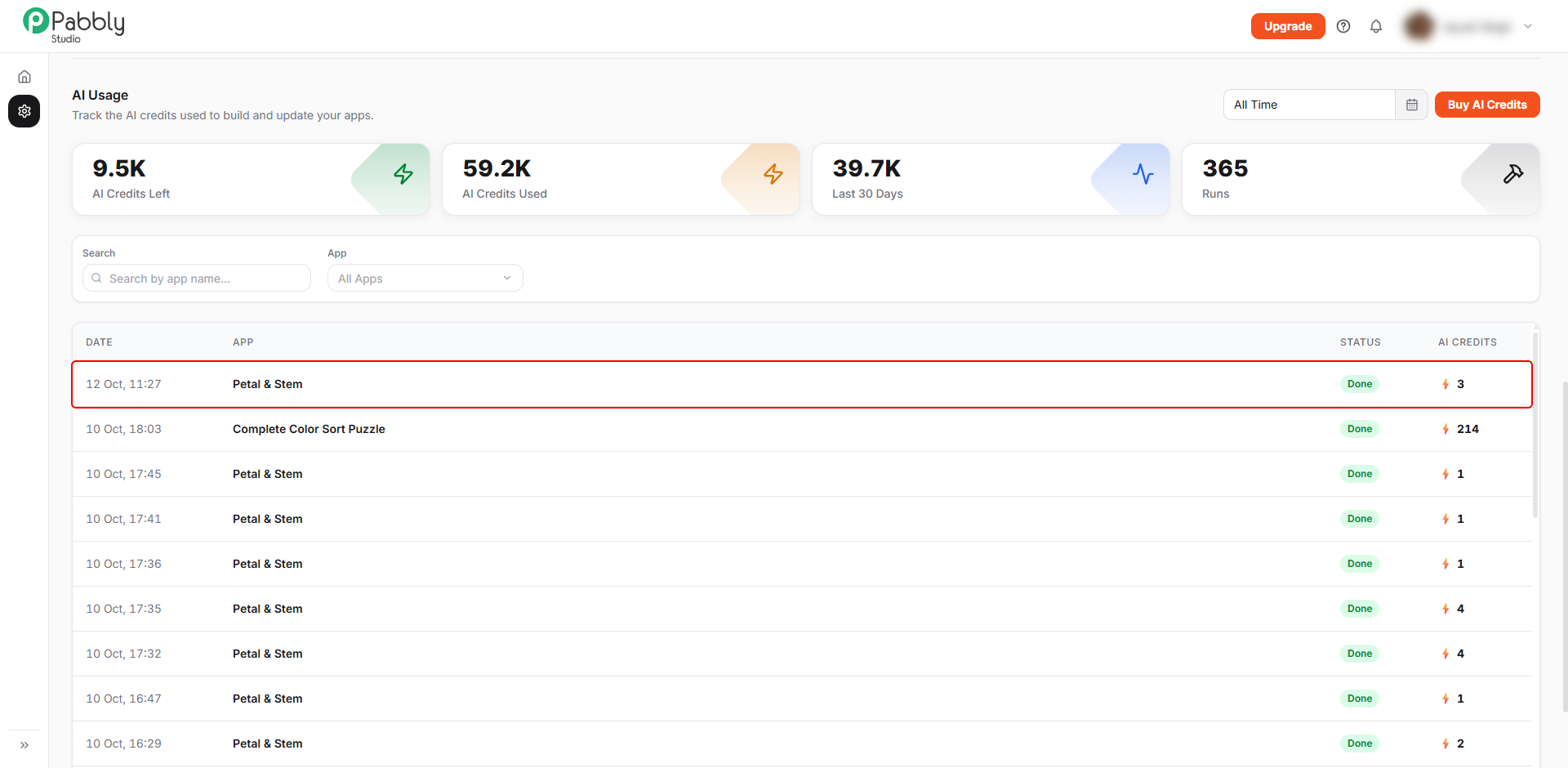
1. Open Plan & AI Usage. Click the Settings (gear) icon in the left sidebar. The Plan & AI Usage tab opens first.
2. Check the AI Usage list. Scroll down to AI Usage. Every message your team members send on your apps is listed here with your own runs, along with the AI credits it used. These credits are taken from your balance.
Things to know about team members
This is how you can add team members to your apps in Pabbly Studio. If you still have any questions, feel free to reach out to us.
