Connections
 Pabbly Studio Team•Updated Oct 1, 2026•4 min read
You can add Pabbly Studio to the AI assistant you already use, such as Claude or ChatGPT. Then you can manage your apps just by chatting with your assistant.
Once connected, your assistant can list your apps, read them, make changes, deploy them and roll them back. It does all of this only with your permission.
Coming soon: Pabbly Studio will be listed in the Claude and ChatGPT connector directories. You will then be able to find it by searching for Pabbly Studio, instead of entering the address yourself. Until then, add it using the connection address, as shown below.
You need only one thing from Pabbly Studio: your connection address. To add a custom connector, you need a paid plan in Claude (Pro, Max, Team or Enterprise) or in ChatGPT.
1. Open the Connections tab. In Pabbly Studio, click the Settings (gear) icon in the left sidebar. Then click the Connections tab.
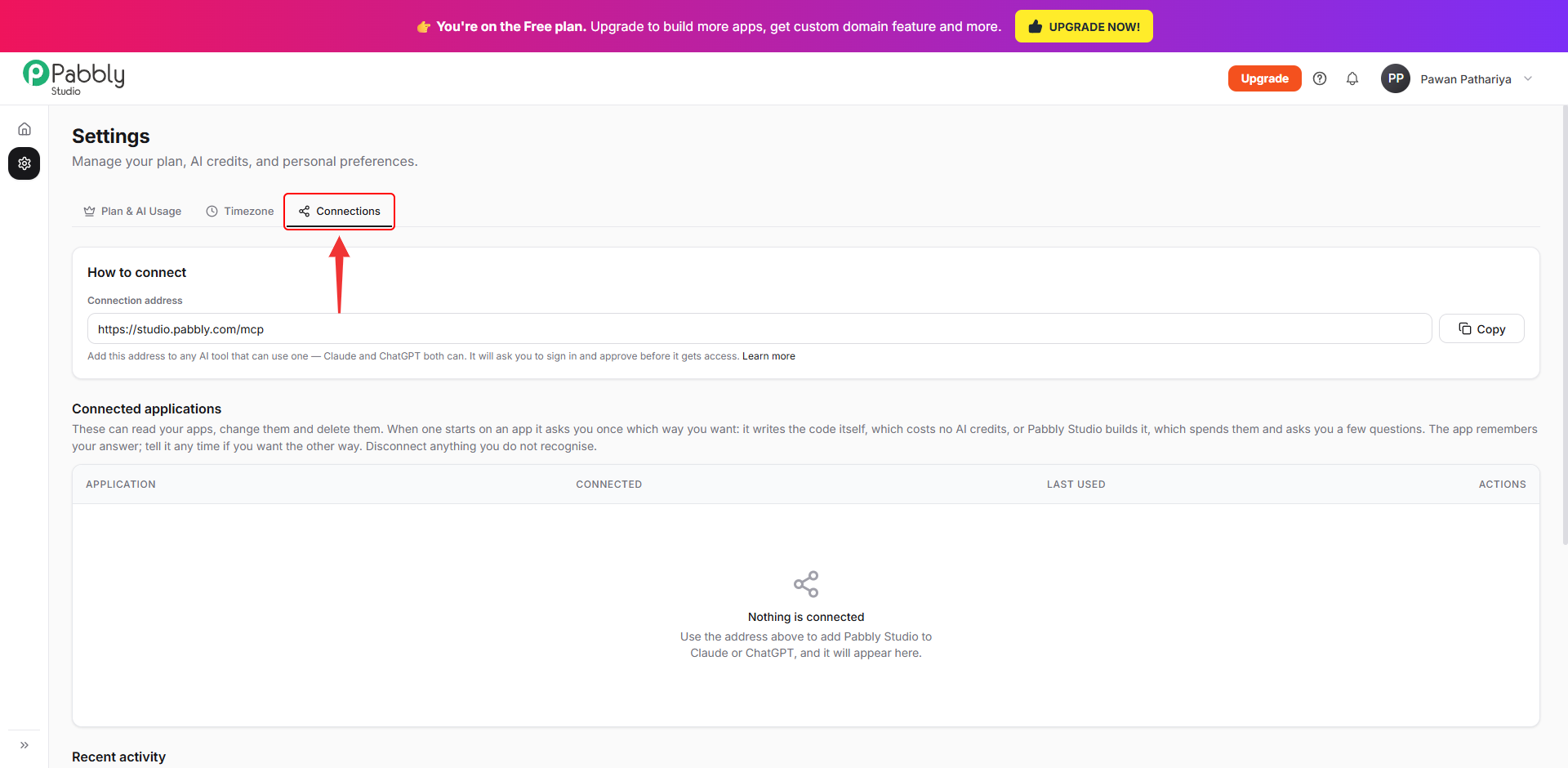
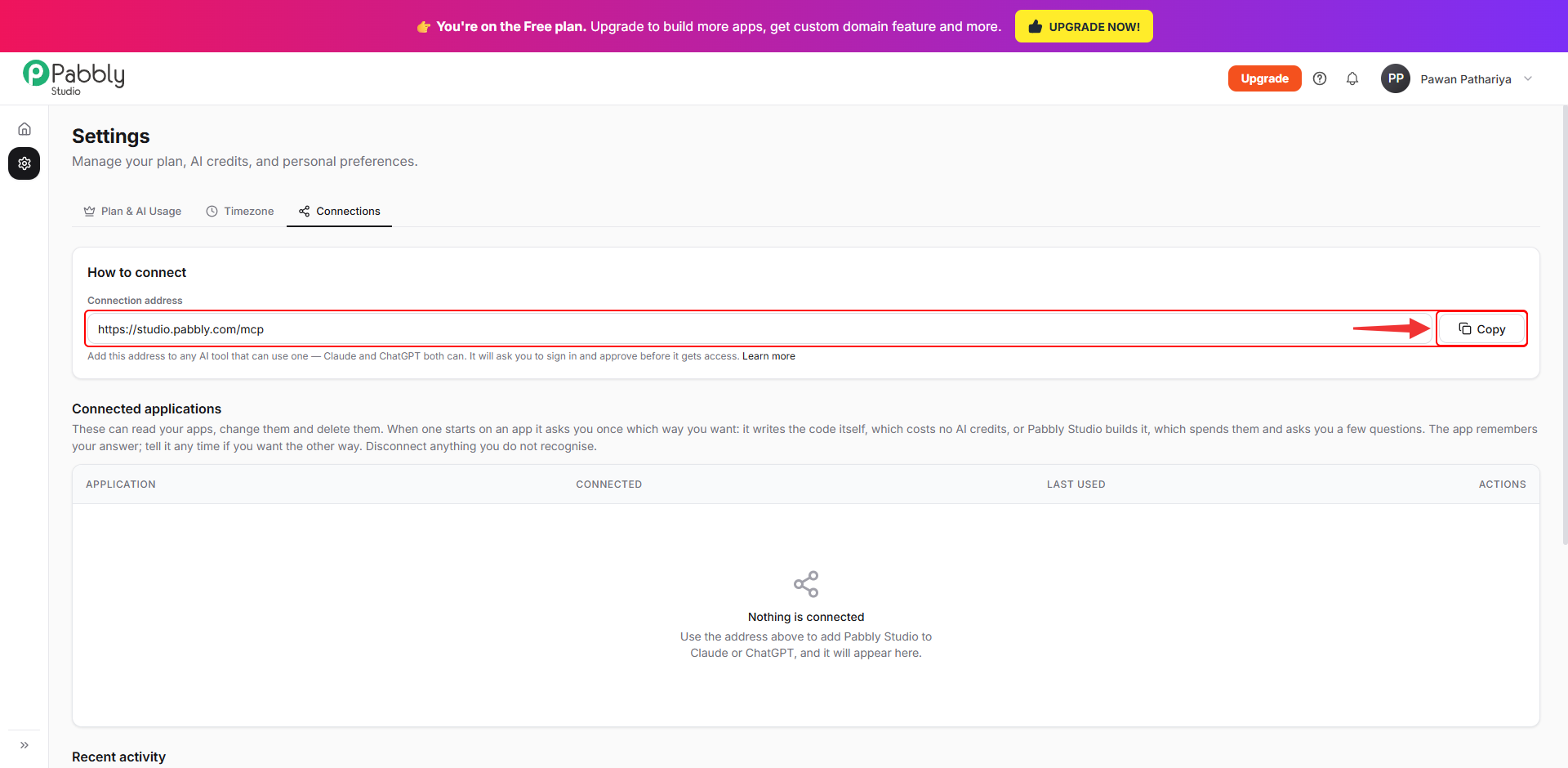
2. Copy the address. Under How to connect, click Copy next to the Connection address (https://studio.pabbly.com/mcp).
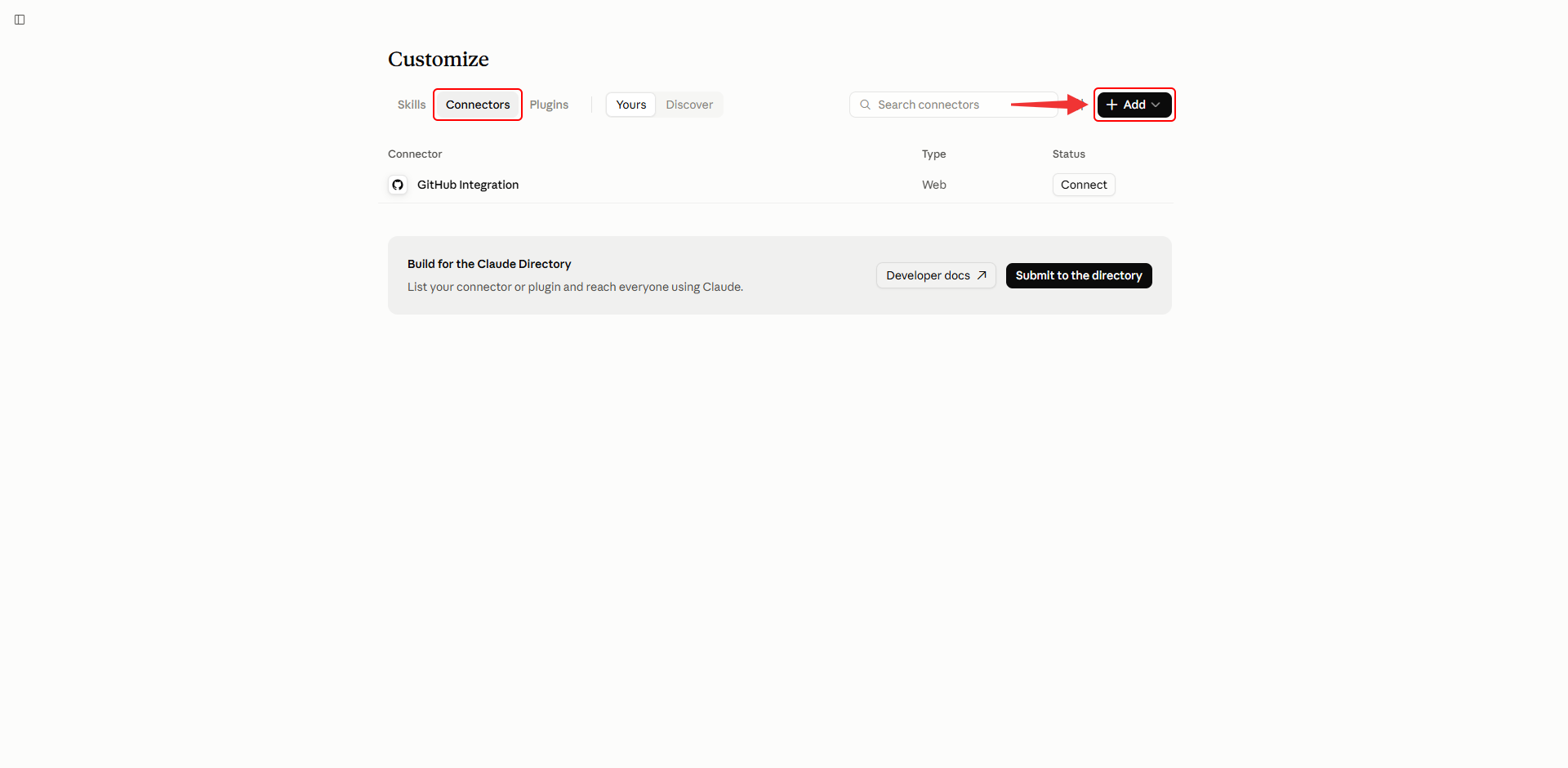
1. Open Connectors in Claude. Go to claude.ai and click Customize in the left sidebar. Then open Connectors and click Add.
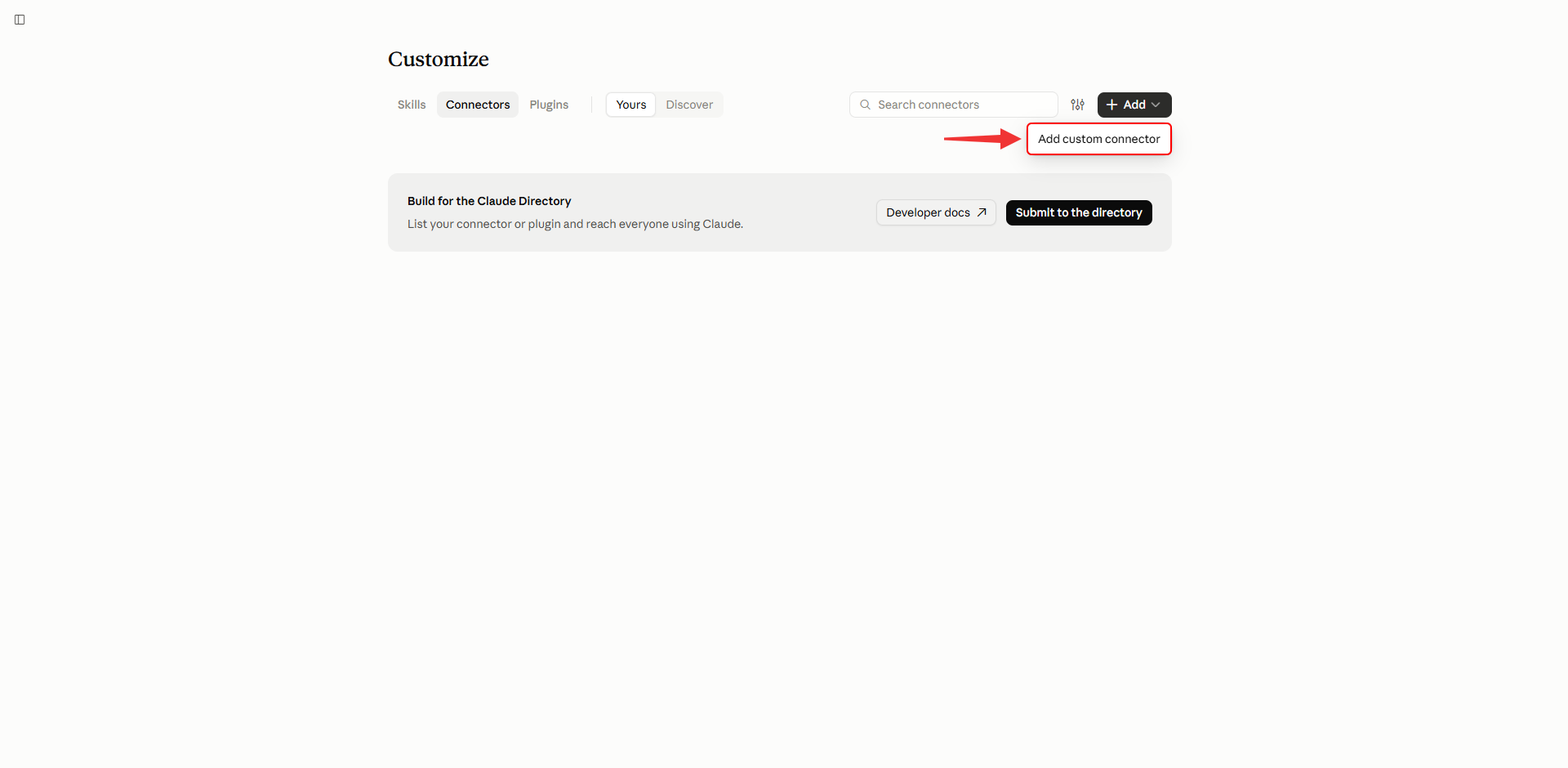
2. Choose Add custom connector.
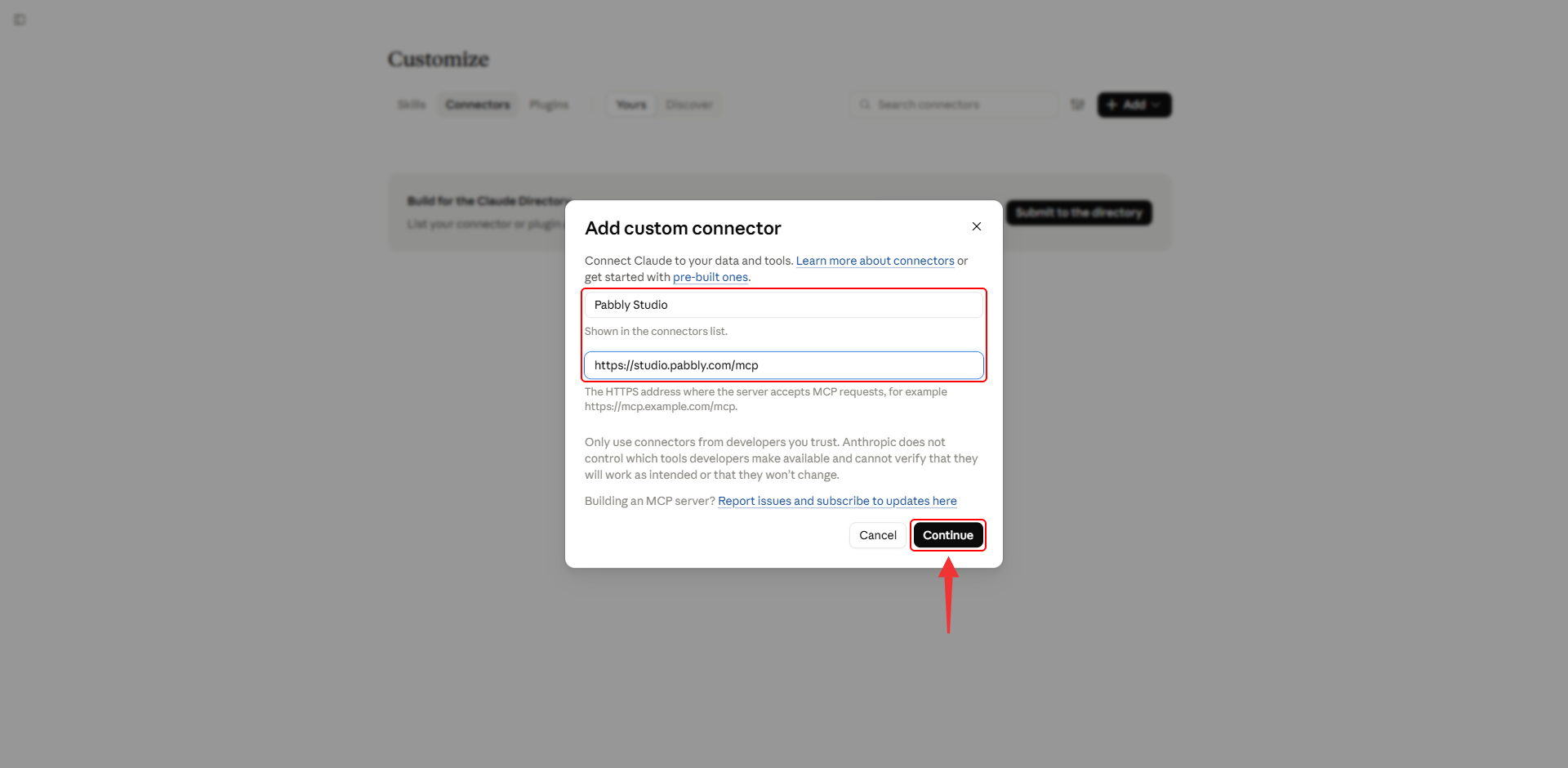
3. Enter a name and the address. Type Pabbly Studio as the name. Paste the connection address in the MCP server URL box, then click Continue.
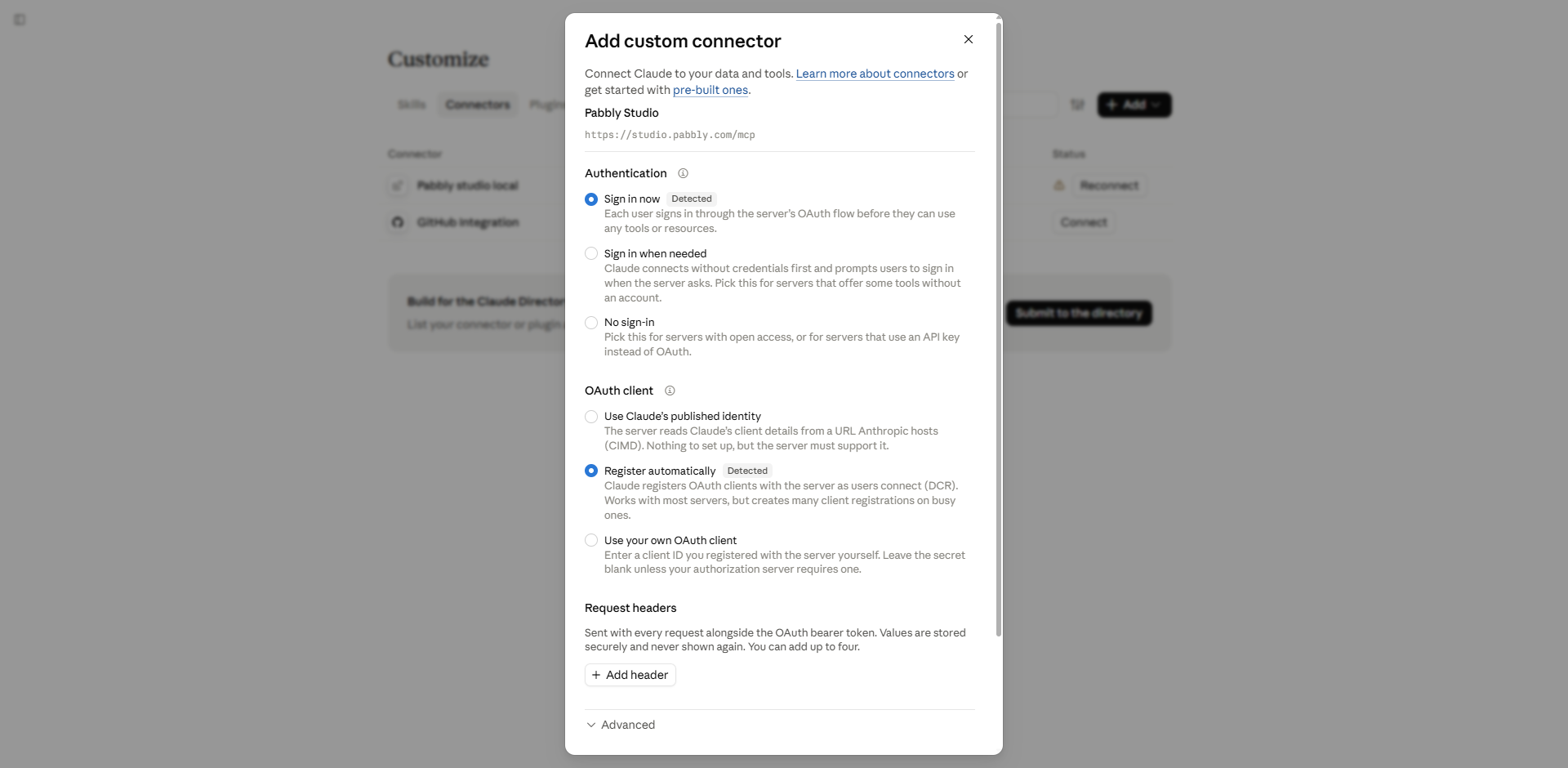
4. Keep the detected settings and click Add. Claude checks the address and fills in the settings for you. Sign in now and Register automatically are marked as Detected. Leave them as they are, scroll to the bottom of the box and click Add.
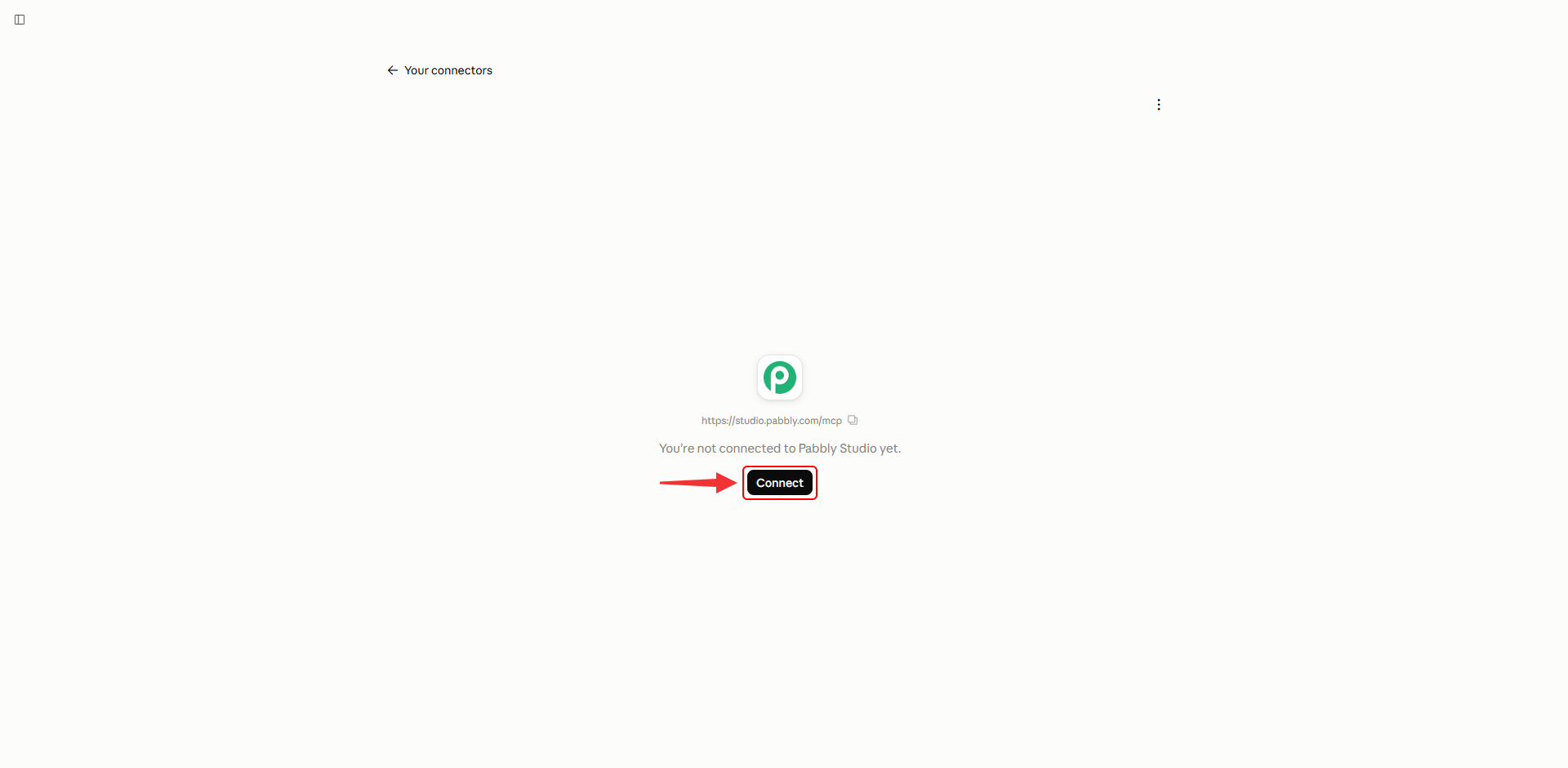
5. Click Connect. Pabbly Studio now appears in your list of connectors. Click Connect.
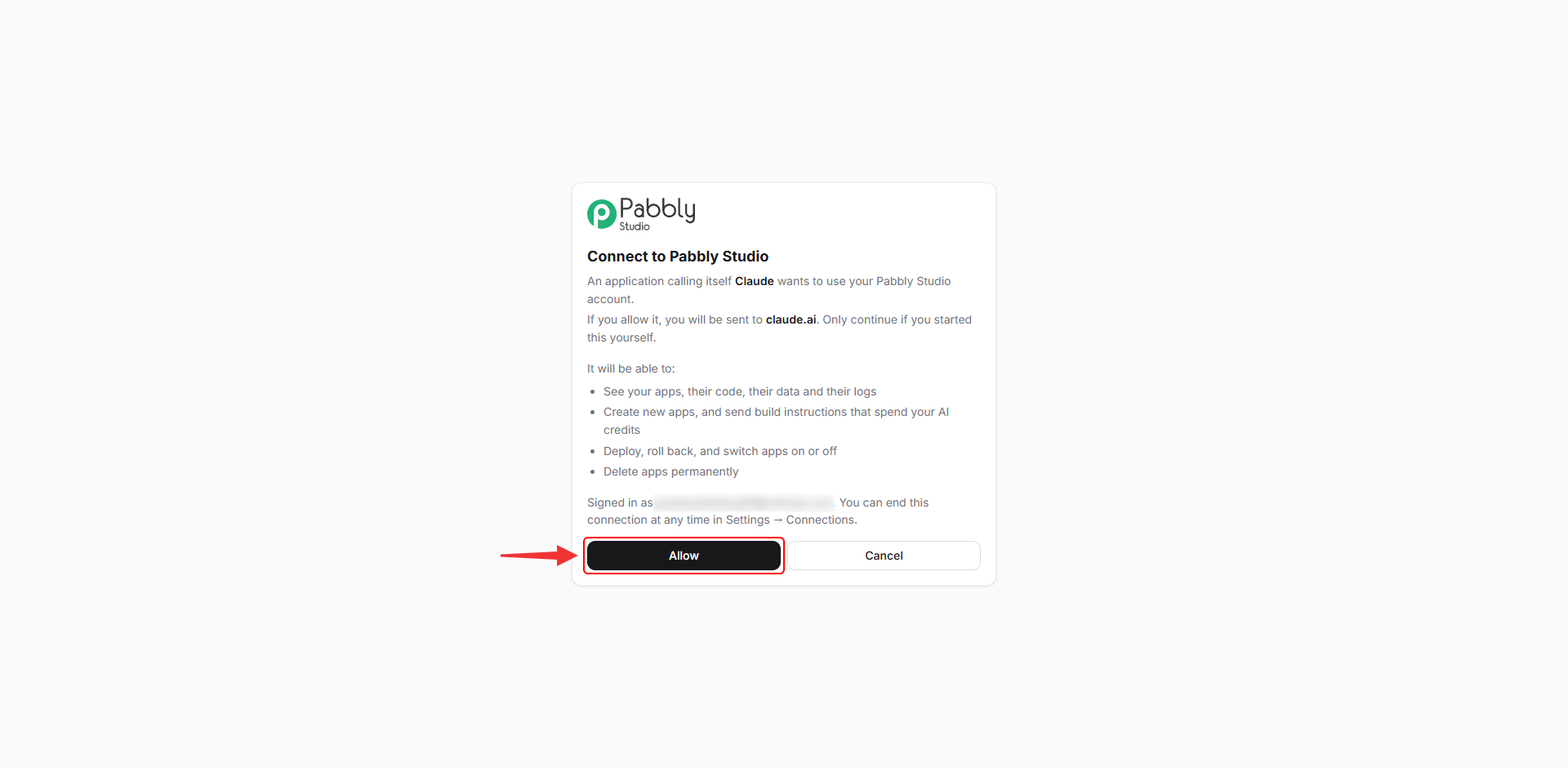
6. Allow access in Pabbly Studio. Pabbly Studio opens and shows what Claude will be able to do with your account. Sign in if you are asked to. Check that the correct Pabbly account is shown, then click Allow. You will be taken back to Claude.
7. You are connected. Claude now shows Pabbly Studio as connected, along with the list of actions it can use. You can choose which actions Claude can use on its own and which ones need your approval each time.
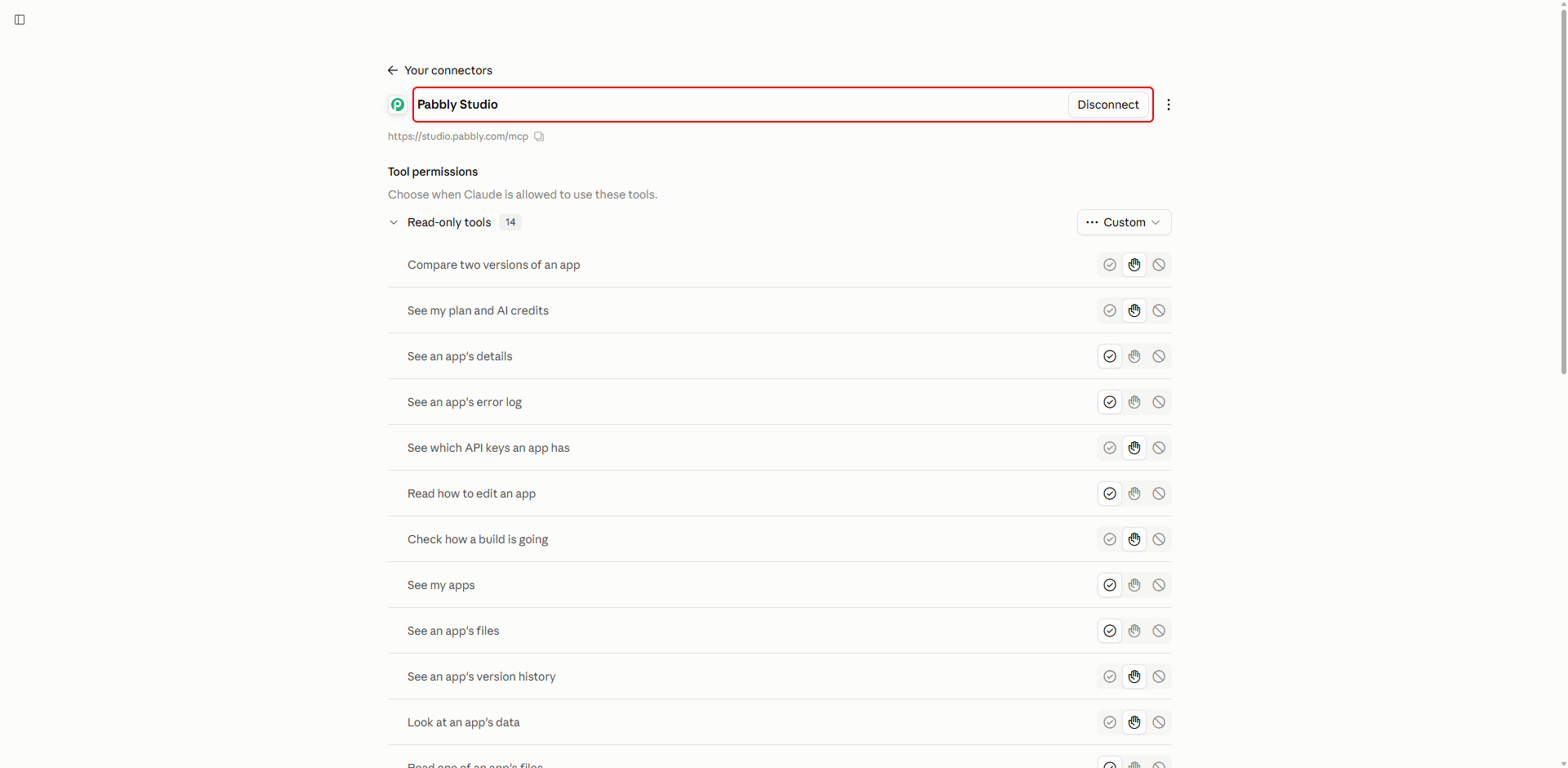
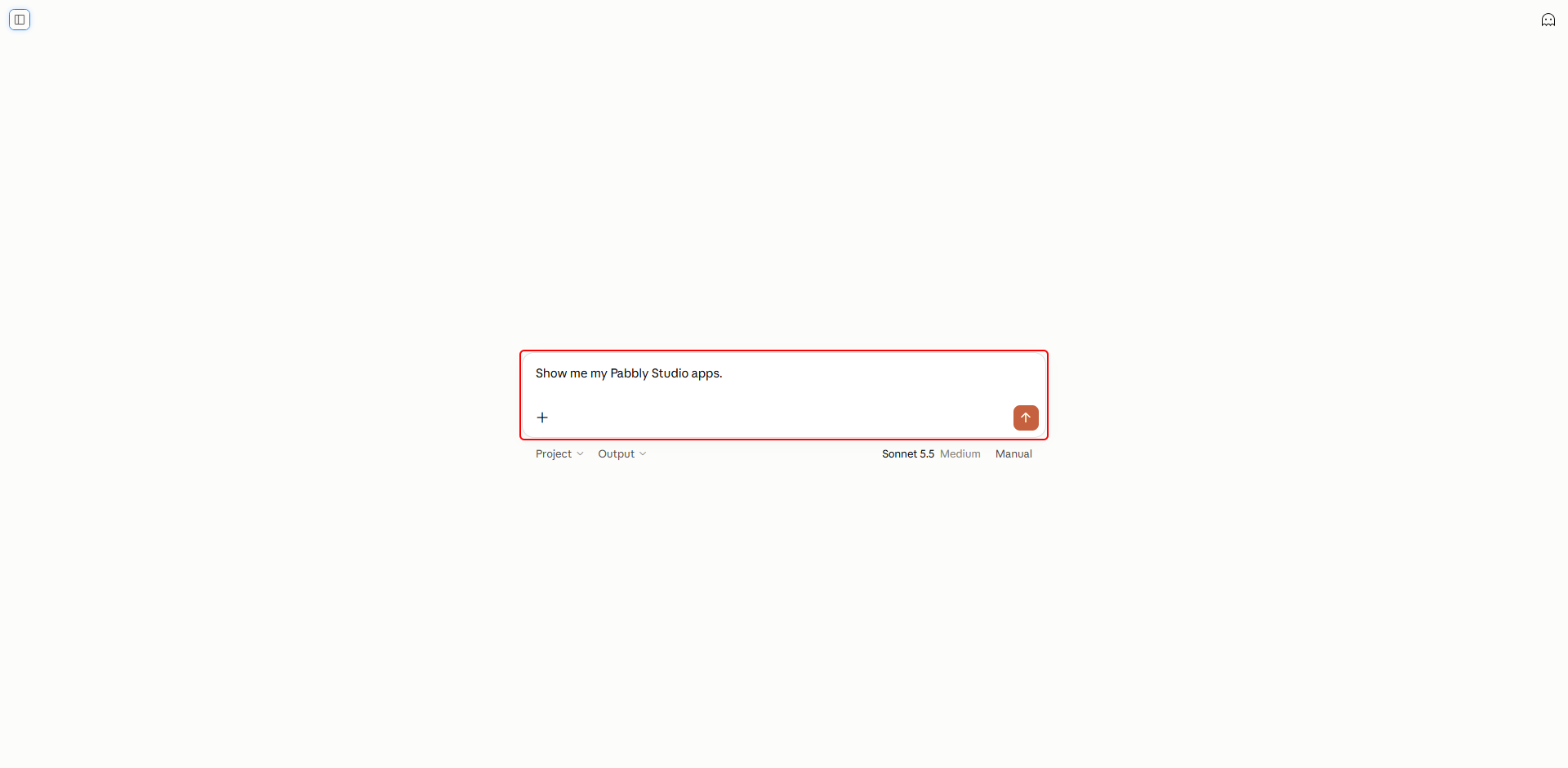
Start a new chat in Claude and ask about your apps. For example: "Show me my Pabbly Studio apps."
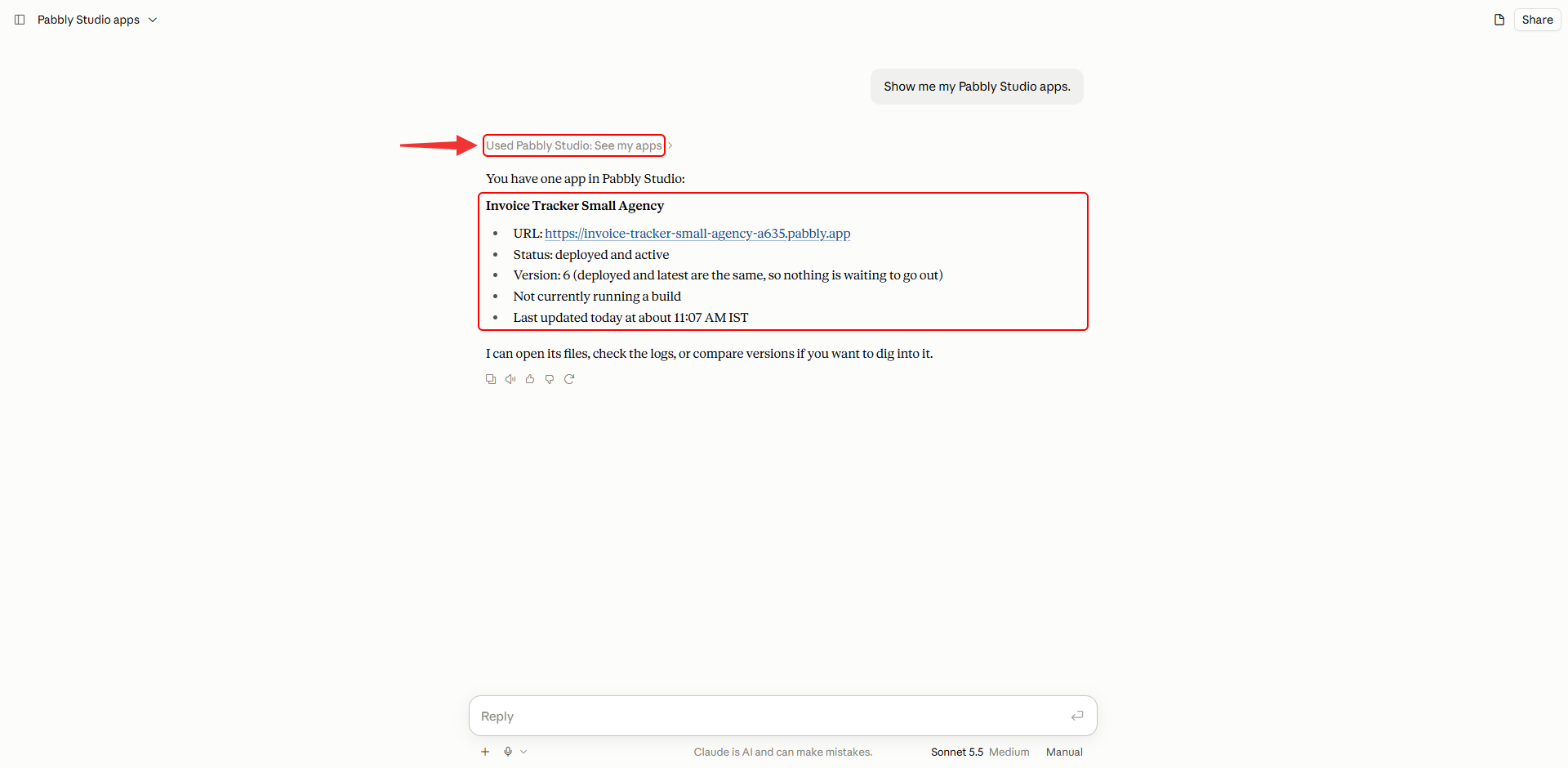
Claude uses Pabbly Studio and replies with a list of your apps, along with their links, status and latest version. You can then ask it to change an app, check its logs, compare versions or create a new app.
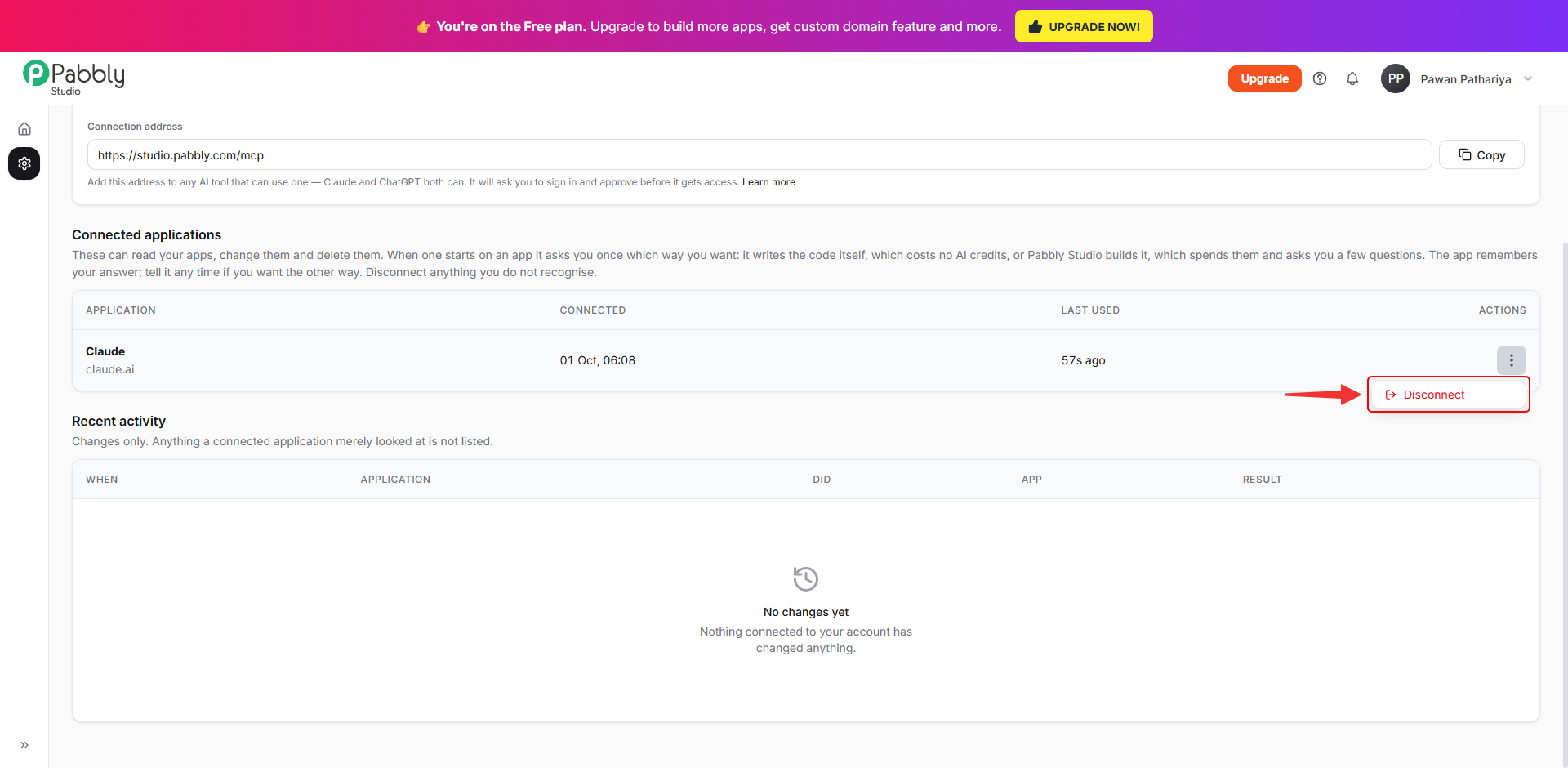
Go back to Pabbly Studio and open Settings › Connections. You will now see Claude listed under Connected applications, along with when it was connected and when it was last used. The Recent activity section lists every change a connected assistant makes to your apps.
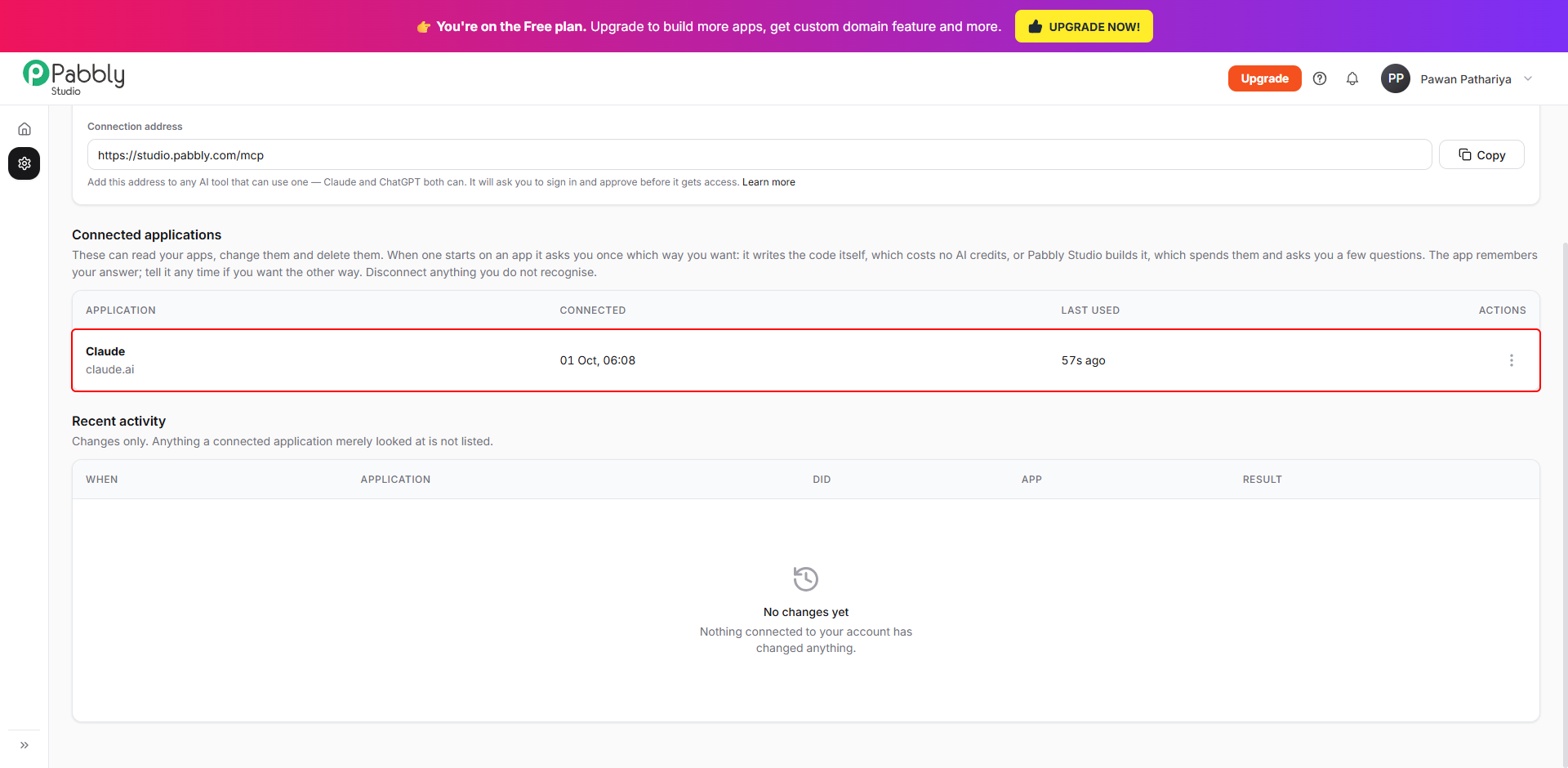
You can remove access at any time. Click the ⋮ button on the row and choose Disconnect. Claude loses access right away. Nothing is deleted, and you can connect again whenever you like.
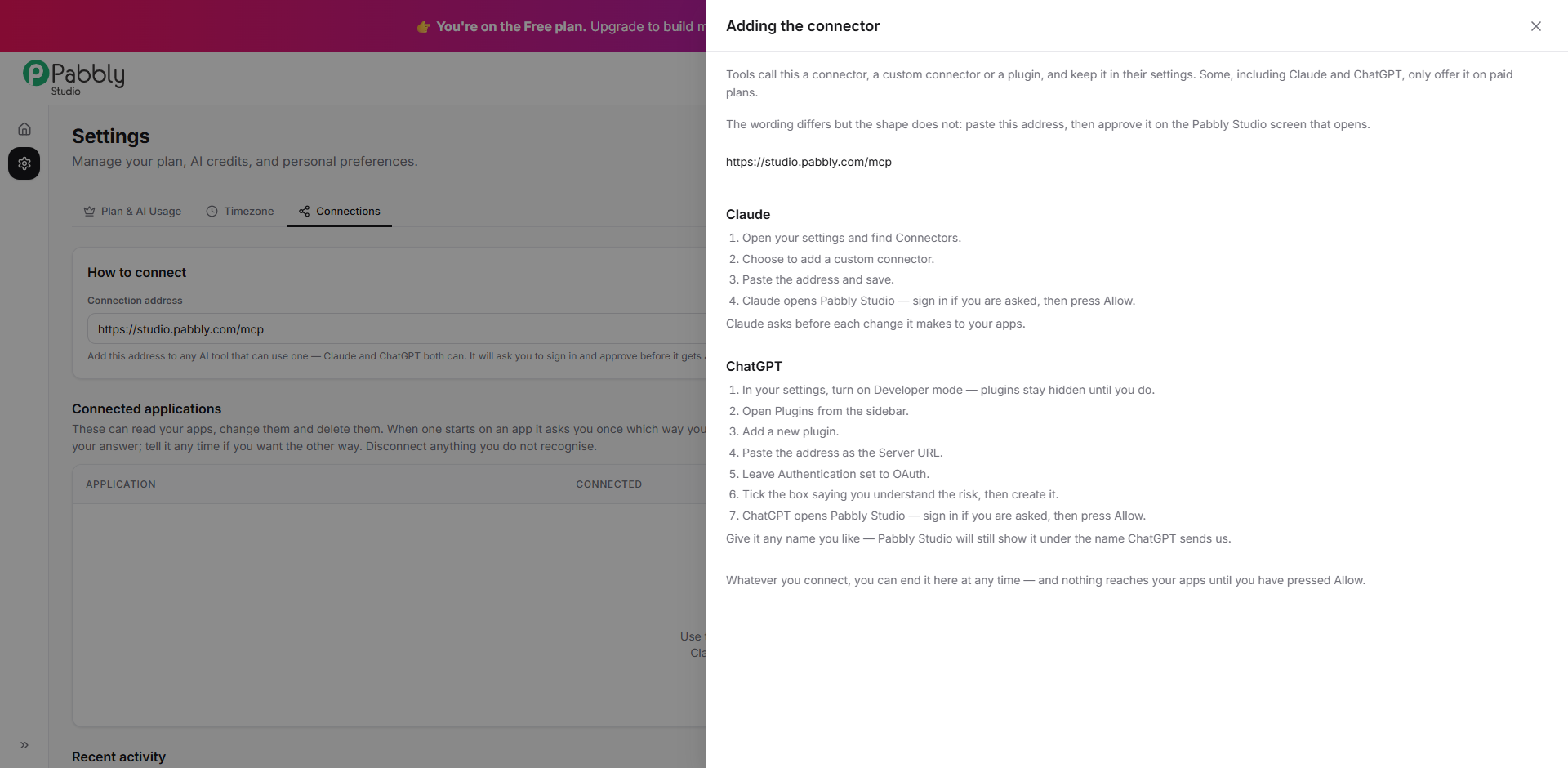
The steps in ChatGPT are similar. In Pabbly Studio, click Learn more under the connection address to see them:
The first time your assistant works on an app, it asks you once which option you prefer:
The app remembers your choice. If you want to switch later, just tell your assistant at any time.
Tip: After an update, your assistant may say that a Pabbly Studio action is missing. If this happens, disconnect and connect again in your assistant's settings. This makes it load the latest list of actions.
This is how you can connect Pabbly Studio to Claude or ChatGPT. If you still have any questions, feel free to reach out to us.
