Connect Claude to your Pabbly Subscription Billing account and ask about your billing in plain words: customers, subscriptions, invoices, payments and revenue. Claude can also make everyday changes for you, such as pausing a subscription or recording a payment. It always asks for your approval first.
New to this? Read MCP: Claude and ChatGPT first to see what Claude can and can't do.
What you can ask
- "How many live subscriptions do I have?"
- "Which subscriptions renew in the next 7 days?"
- "Find the customer [email protected] and show their unpaid invoices."
- "What was my revenue last month?"
- "Which plans sold the most this month?"
- "Pause the subscription of [email protected] until next month."
- "Create a $29 per month plan called Pro on my Email Marketing product."
- "Move [email protected] to the Pro plan from her next renewal."
Before you start
- You need a Claude account (claude.ai or the Claude desktop app) that can add custom connectors. If you don't see Add custom connector, your Claude plan or your workspace admin may not allow it.
- You sign in with your Pabbly account.
Step 1: Copy the server URL
Go to Settings › MCP and copy the Server URL:
https://payments.pabbly.com/api/mcp
Step 2: Add the connector in Claude
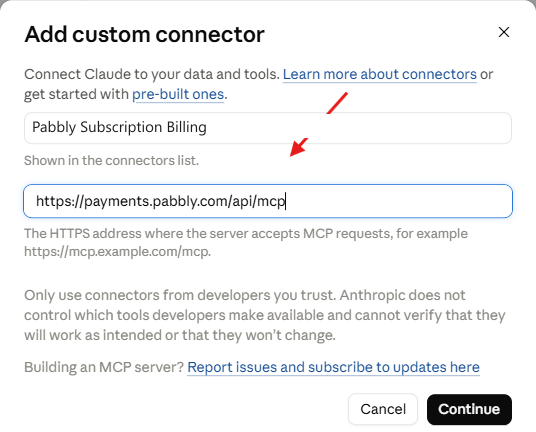
- In Claude, open Settings › Connectors.
- Click Add, then Add custom connector.
- Name: enter any name you like, for example
Pabbly Subscription Billing. - URL: paste
https://payments.pabbly.com/api/mcp. - Click Continue.
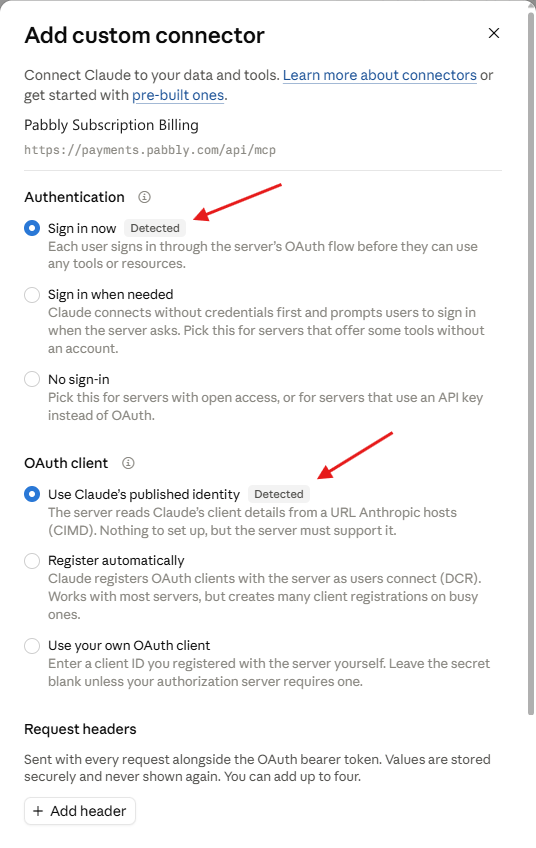
Claude now shows the sign-in options and marks the right ones as Detected. Keep them:
- Authentication: Sign in now
- OAuth client: Use Claude's published identity
- Request headers: leave empty
Then click Add.
Step 3: Connect and allow access
- On the connector page, click Connect.
- Sign in with your Pabbly account if asked.
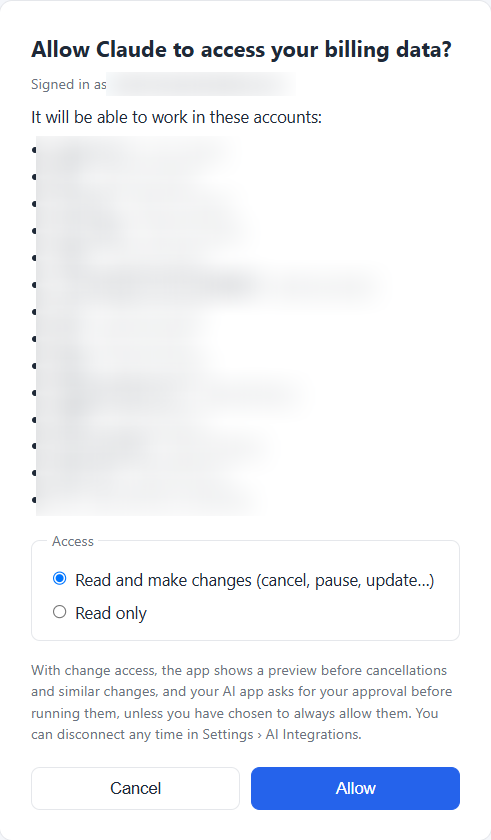
- A page titled Allow Claude to access your billing data? opens. It shows the email you are signed in with, and every account Claude will be able to work in: your own account, your currency accounts, and accounts that others have shared with you.
- Choose the access:
- Read and make changes (cancel, pause, update…): Claude can read your data and, with your approval, make changes.
- Read only: Claude can only read. It can't change anything.
- Click Allow. You return to Claude, and the connector shows as connected.
Step 4: Ask your first question
Start a new chat and ask, for example, "How many live subscriptions do I have?"
The first time Claude uses a tool, it asks for permission. Choose Allow once, or Always allow if you don't want to be asked again for that tool. Claude then answers with the figures from your account.

Before Claude makes a change
- Claude asks you first. Every change, such as cancelling or pausing a subscription, needs your approval in Claude, unless you chose Always allow for that tool.
- Pabbly shows a preview. Before anything changes, you see what will happen: which customer, which subscription and when.
- Some actions stay in the dashboard: refunds, creating subscriptions, charging cards, resuming paused subscriptions, immediate plan changes and deleting records.
Work in another account
If you have currency accounts or accounts shared with you, name the account in your question, for example "In the ABC Store account, how many customers joined this week?" You can also ask "Which accounts can you use?"
Disconnect
- In your Pabbly account: go to Settings › MCP › Connected apps and click Disconnect.
- In Claude: go to Settings › Connectors, open the connector, and choose Disconnect from its menu.
Troubleshooting
- The sign-in page keeps opening. Sign in to Pabbly in the same browser, then click Connect again.
- Claude says it has no access to an account. Ask "Which accounts can you use?" The account must be your own, a currency account, or shared with you.
- Claude can't make a change. You may have chosen Read only when connecting, or the account is shared with you as read-only. To change the access, disconnect and connect again.
- "Too many requests." Wait a few minutes and try again.
Claude Code (for developers)
Run this in your terminal, then type /mcp in Claude Code to sign in:
claude mcp add --transport http pabbly-subscriptions https://payments.pabbly.com/api/mcp
 Pabbly Subscription Billing Team•Updated Oct 14, 2026•3 min read