Features & Capabilities
 Pabbly Chatflow Team•Updated Oct 24, 2026•6 min read
You can initiate a conversation with users on WhatsApp using template messages. Templates help you scale your business by enabling seamless communication with contacts. You can send predefined messages to engage your audience effectively and automate interactions.
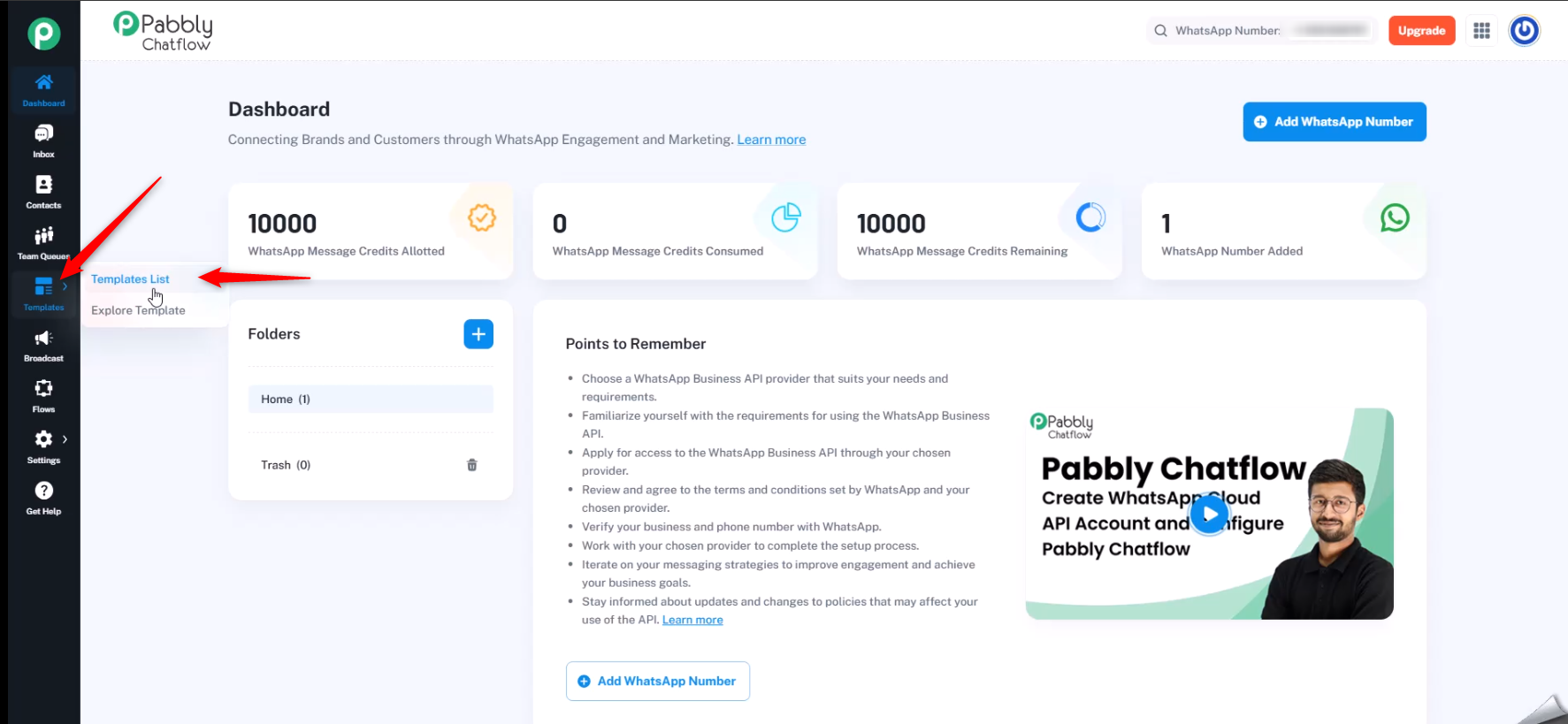
On the left sidebar, click on the Templates section.
Select the Template List option to manage and create new templates.
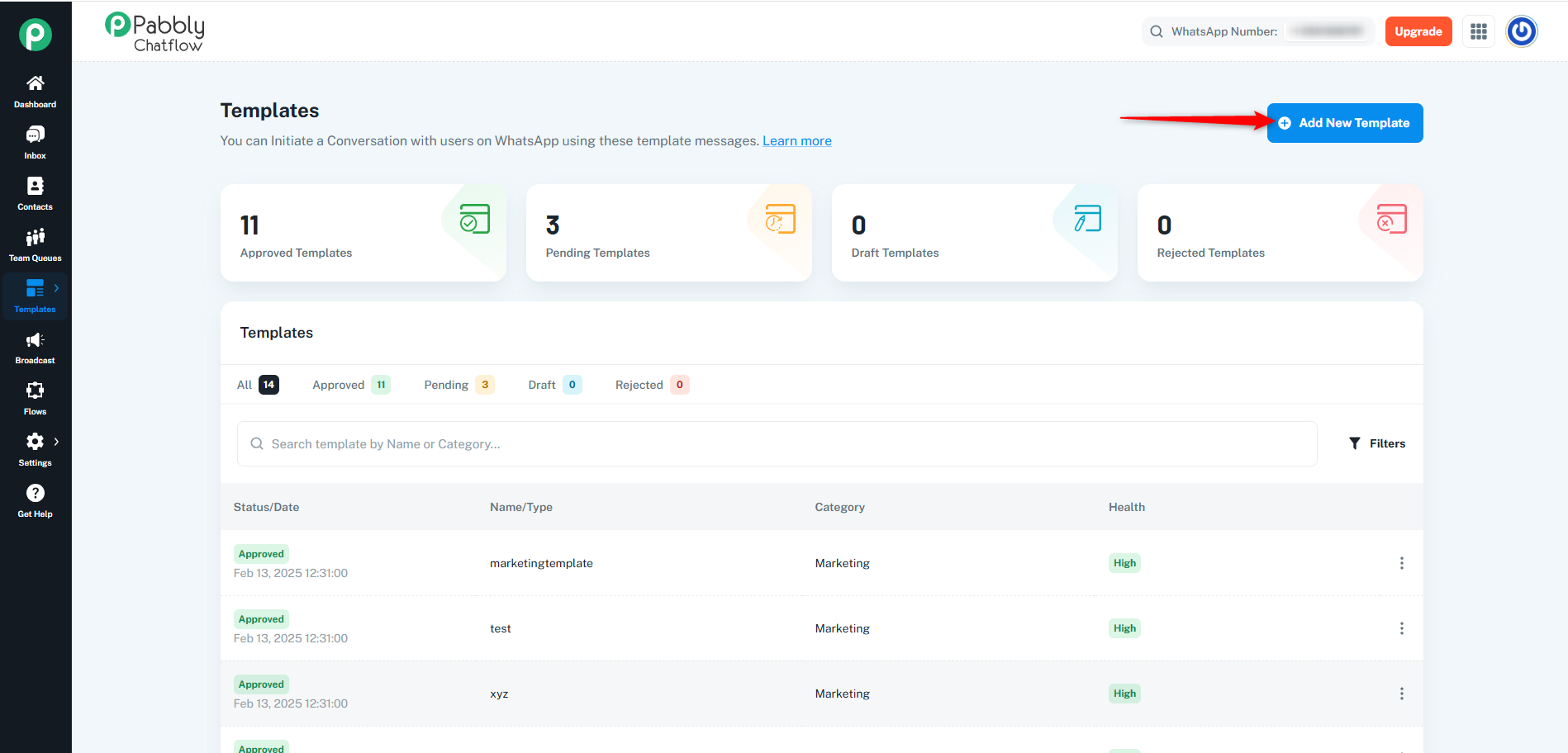
Click on the Add New Template button.
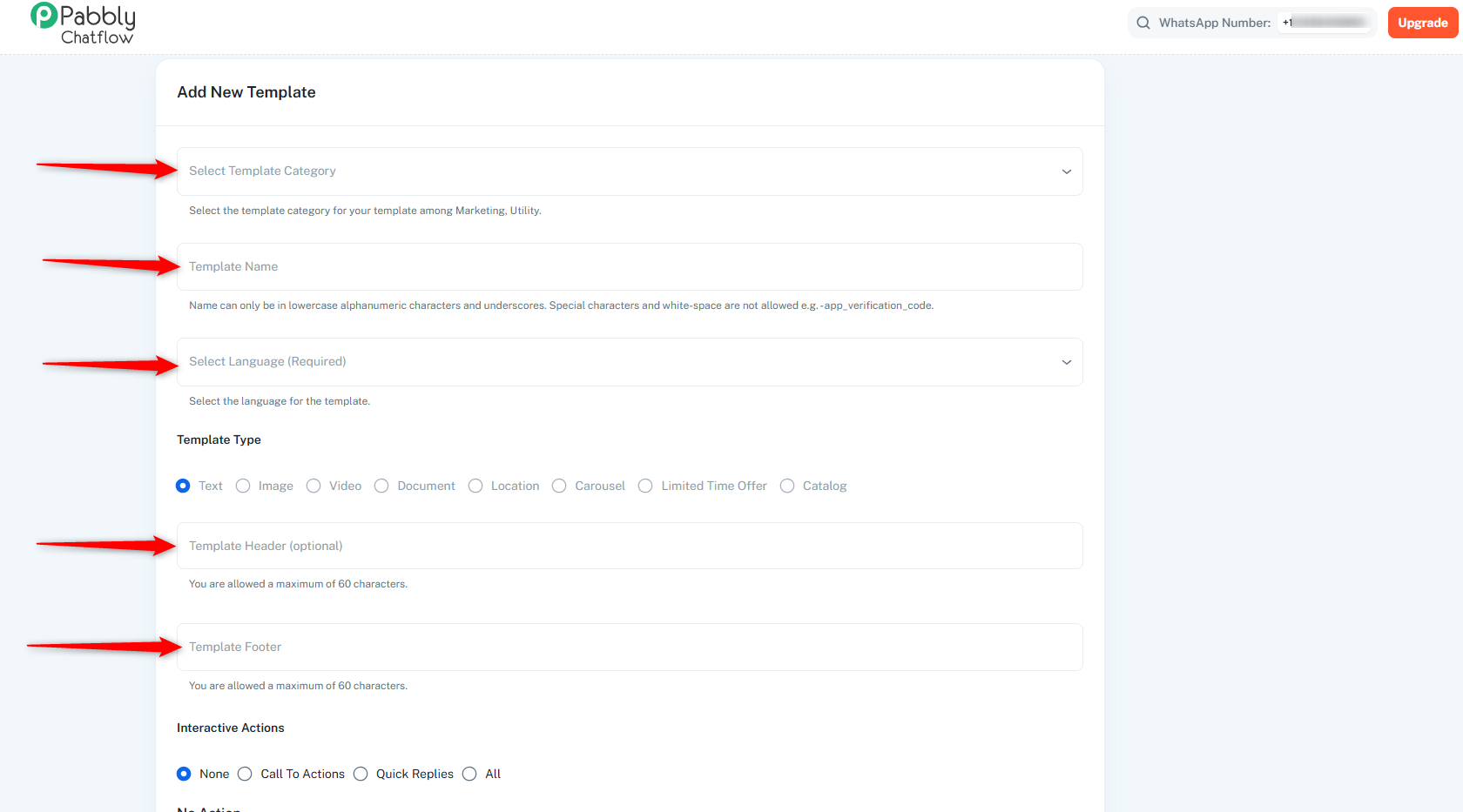
A new page will appear, displaying all the required fields to create a template.
For a detailed view of template creation and management, please refer to the this documentation:
👉 Template Creation & Management
None: No action will be performed.
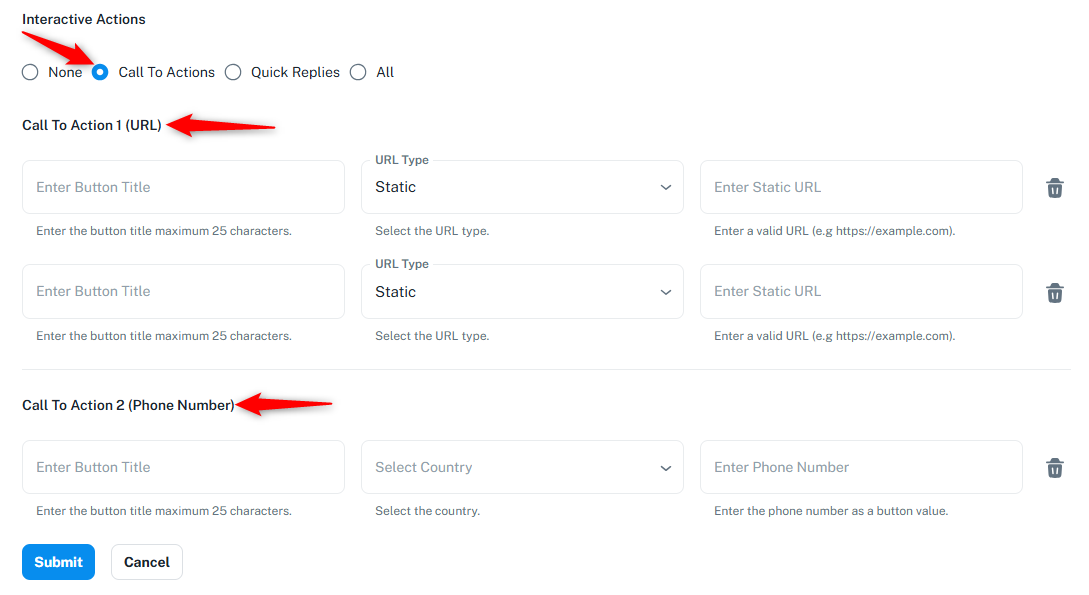
Call To Action: You can add two CTA(URL) and one CTA(Phone Number).
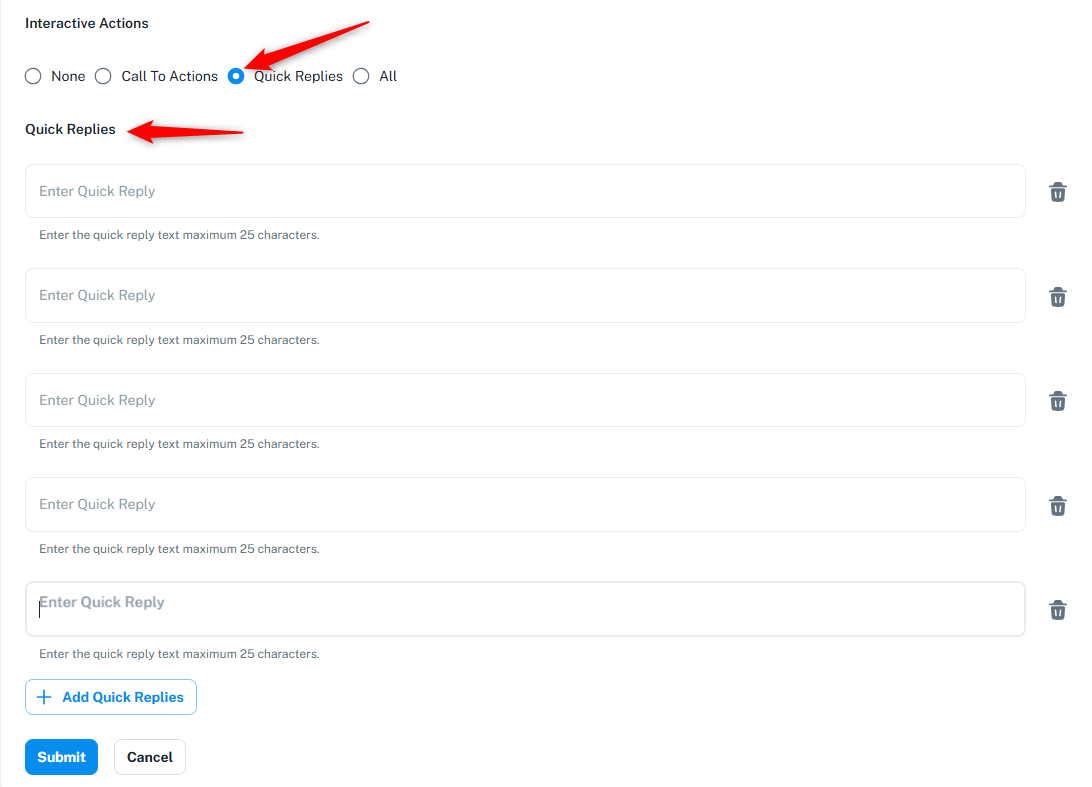
Quick Replies: You can add up to 10 quick replies for user interaction.
Note: In Meta’s (WhatsApp Business API) interactive message guidelines: Learn More
Quick reply button titles cannot contain formatting characters like * (for bold), _ (for italics), ~ (for strikethrough), or ` (for monospace).
Those markdown-style formatting characters are allowed in the message body text, but not inside button titles or reply button values.
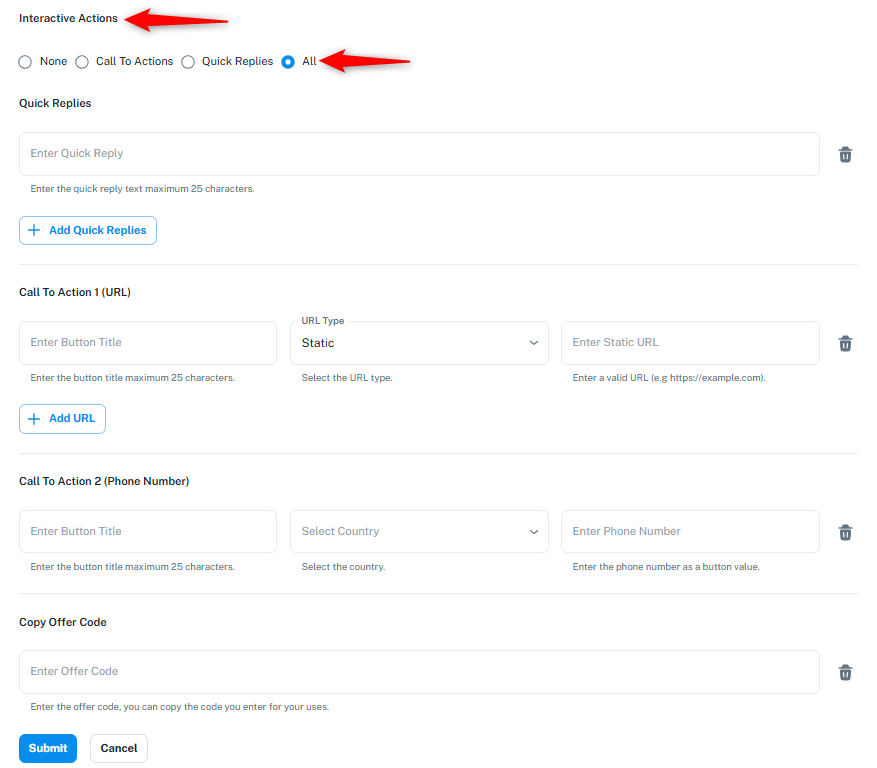
All: Enables all the interactive actions, 10 quick replies, 2 CTA(URL), 1 CTA(Phone Number), and 1 coupon code option.
Preview Your Template: While creating the template, you can also preview it in the Preview section to see how it will appear to users.
CTA buttons make your WhatsApp templates interactive by allowing users to perform specific actions directly from the message — such as visiting a webpage or calling a phone number.
You can configure up to two CTA URL buttons and one CTA Phone Number button per template.
| Field Name | Description |
|---|---|
| CTA Type | Select Call To Action under Interactive Actions. This enables URL and Phone Number button options. |
| CTA URL Buttons | Add up to two buttons that redirect users to web pages. Each button supports either a Static or Dynamic URL. |
| CTA Phone Number Button | Add one button that allows users to make a call directly from WhatsApp. |
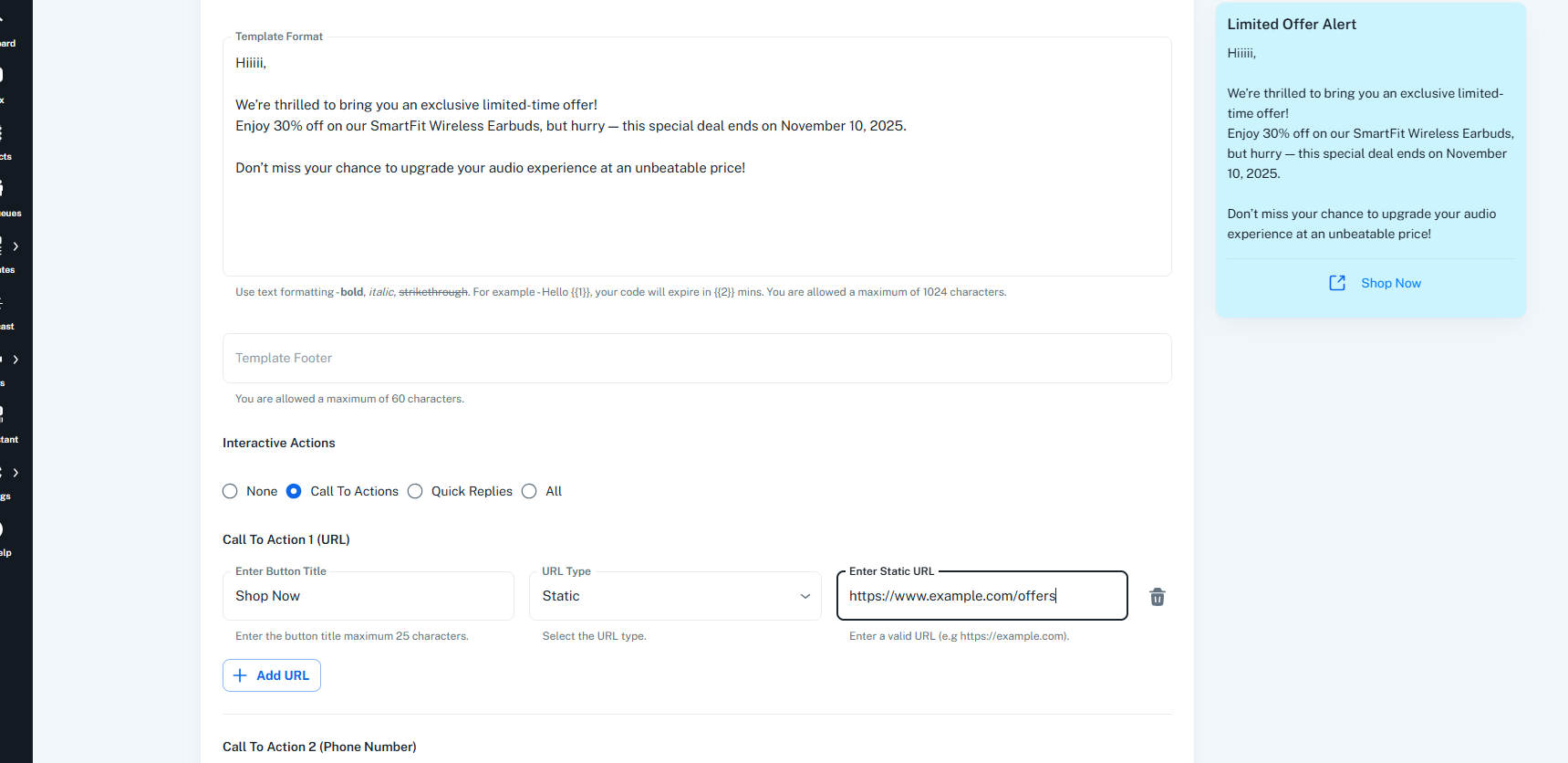
You can add Static or Dynamic URLs depending on whether the link should be the same for all users or personalized.
Example Configuration:
https://www.example.com/offersResult:
All users will open → https://www.example.com/offers
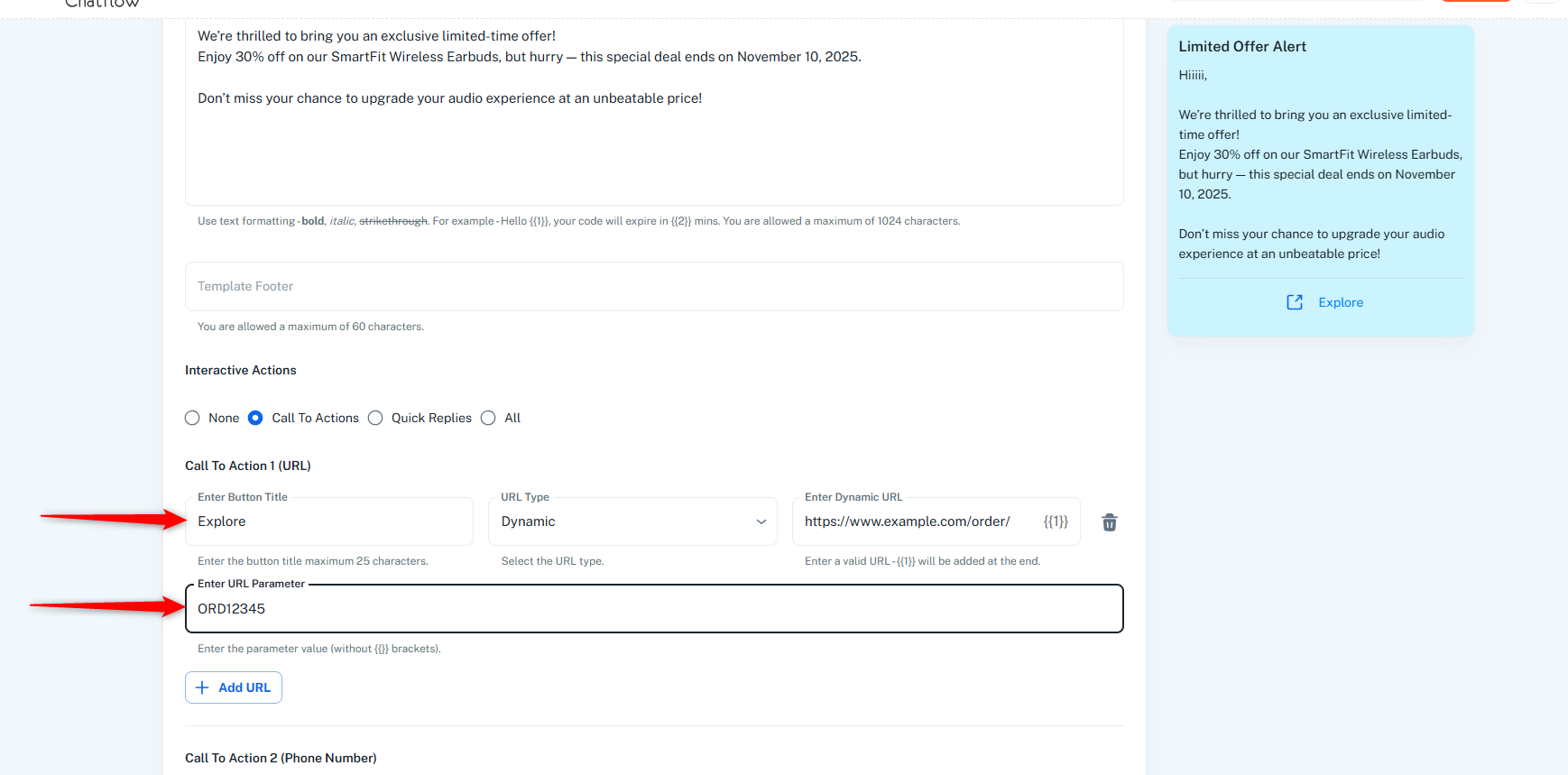
Example Configuration:
https://www.example.com/order/{{1}}ORD12345Result:
The placeholder {{1}} is replaced dynamically.
Final URL → https://www.example.com/order/ORD12345
Best Used For:
Example Configuration:
Result:
When the user clicks the button, WhatsApp opens the dialer with the number → +1 1234567890
Best Used For:
| Button Type | Example | Description |
|---|---|---|
| Static URL | https://www.example.com/offers |
Opens a fixed webpage for all users. |
| Dynamic URL | https://www.example.com/order/{{1}} |
Creates a personalized link per user. |
| Phone Number | +1 1234567890 |
Opens the dialer for direct calling. |
By adding CTA buttons, your WhatsApp messages become more engaging, action-driven, and user-friendly, helping you connect with customers instantly.
Once you've created and approved a WhatsApp template with CTA buttons, you can send it.
Sending via Broadcast
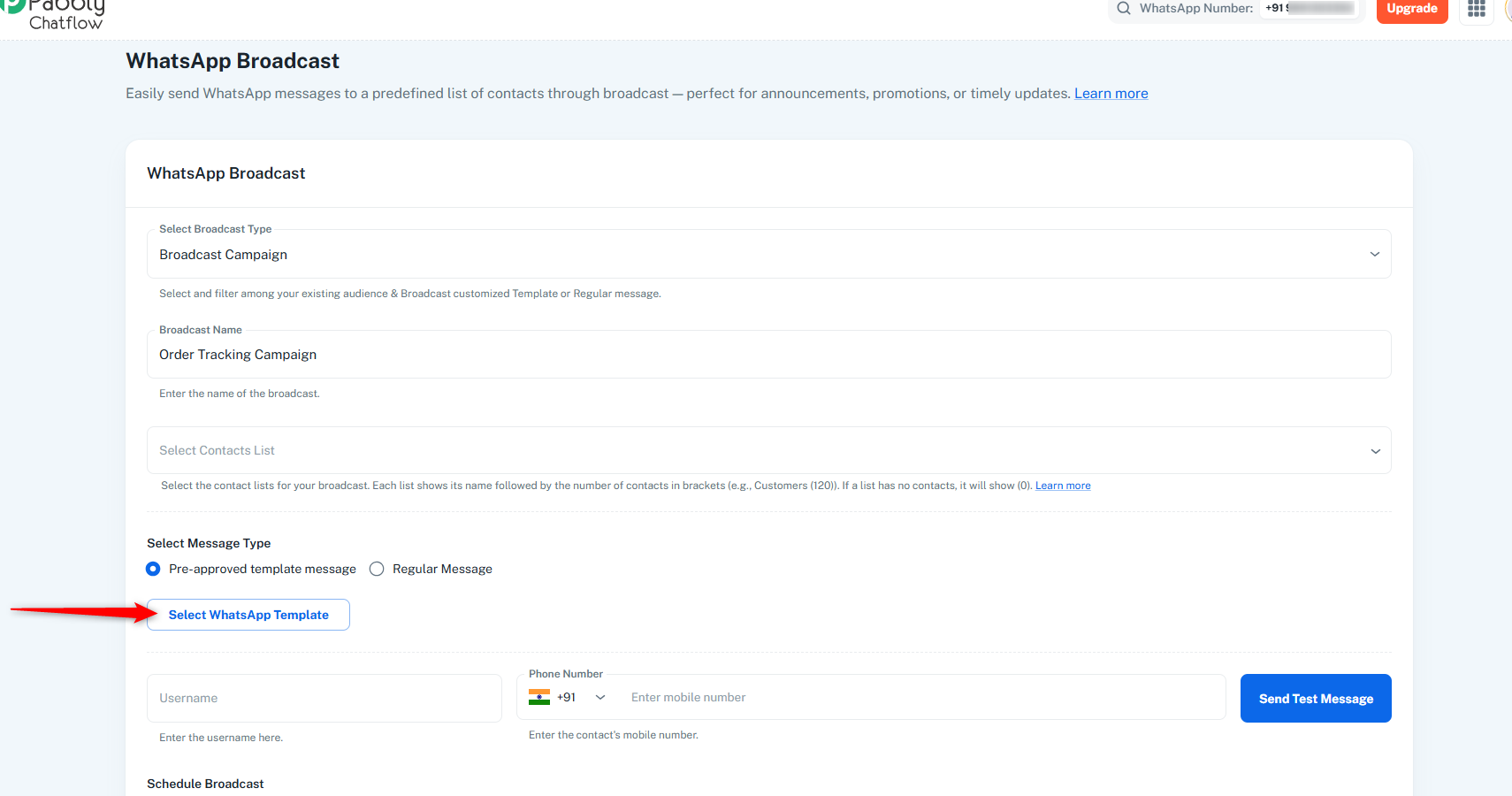
Steps to Send via Broadcast:
Go to Broadcast section in Pabbly Chatflow
Select Broadcast Type: Choose "Broadcast Campaign"
Enter Broadcast Name: Give your campaign a name (e.g., "Order Tracking Campaign")
Select Contacts List: Choose your contact list
Select Message Type: Choose "Pre-approved template"
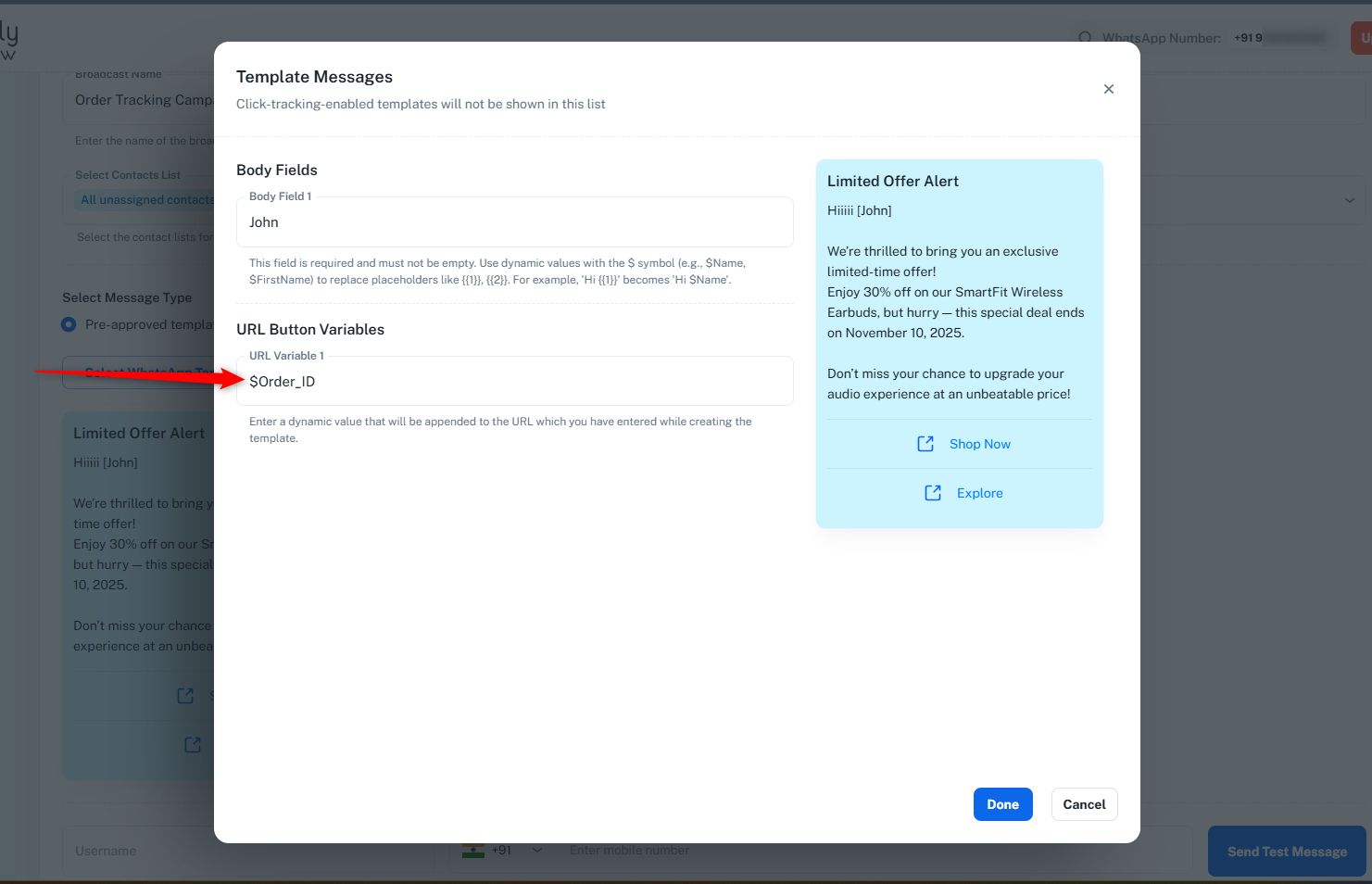
Select Your Template: Pick the template with CTA button
Add URL Parameter:
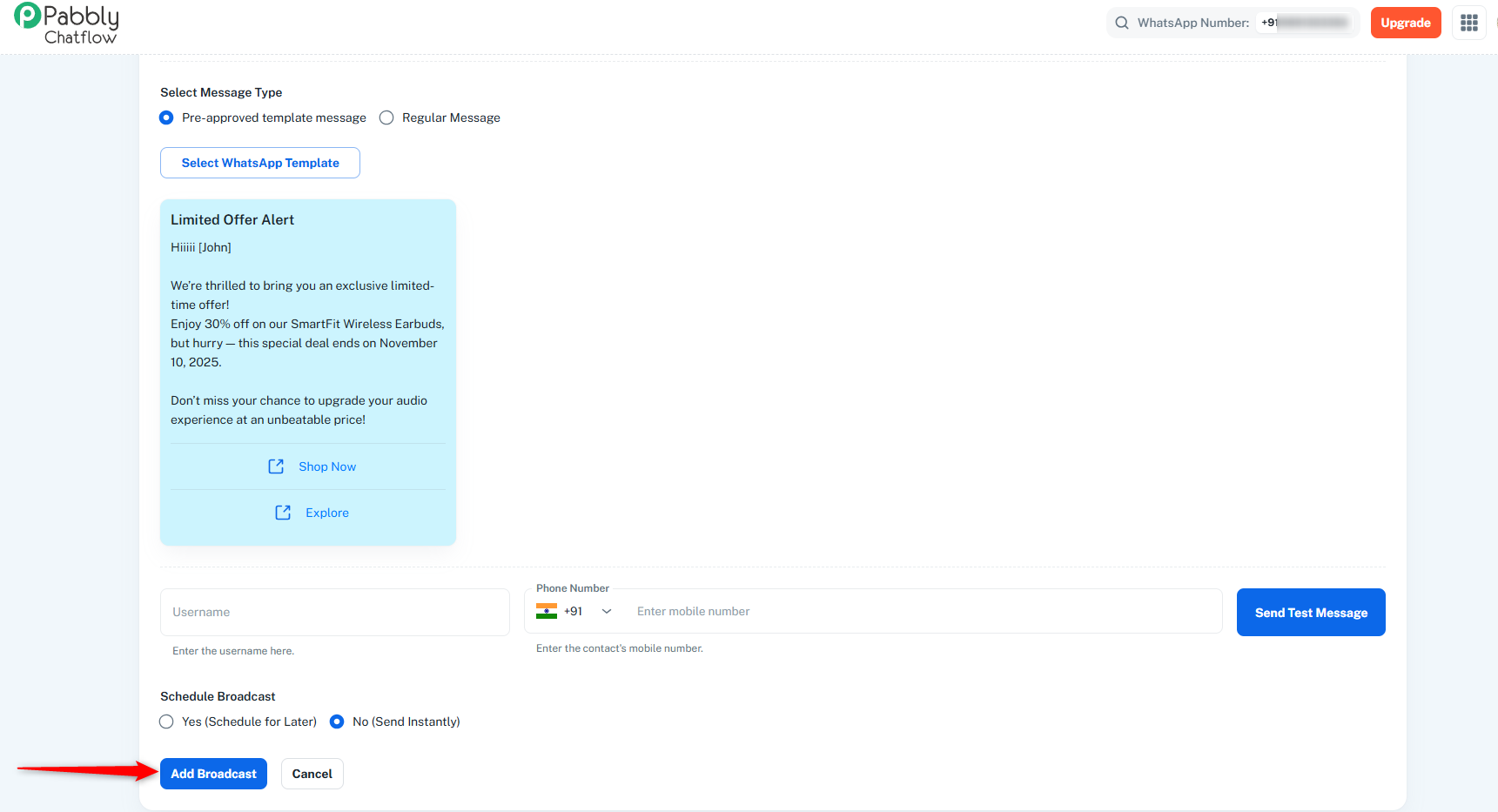
Preview the message on the right side
Click "Done" and then send or schedule your broadcast
Your Contacts with Custom Fields:
| WhatsApp Number | Name | Order_ID | Tracking_Code |
|---|---|---|---|
| 911234567890 | John | ORD2025001 | TRK123XYZ |
| 911234567890 | Sarah | ORD2025002 | TRK456ABC |
Template Button: "Track Order"
Template URL: https://www.myshop.com/tracking/{{1}}
Enter in URL Variable 1: $Tracking_Code
Results:
https://www.myshop.com/tracking/TRK123XYZhttps://www.myshop.com/tracking/TRK456ABCThe Inbox method allows you to send personalized template messages to individual contacts during your conversations.
Steps to Send:
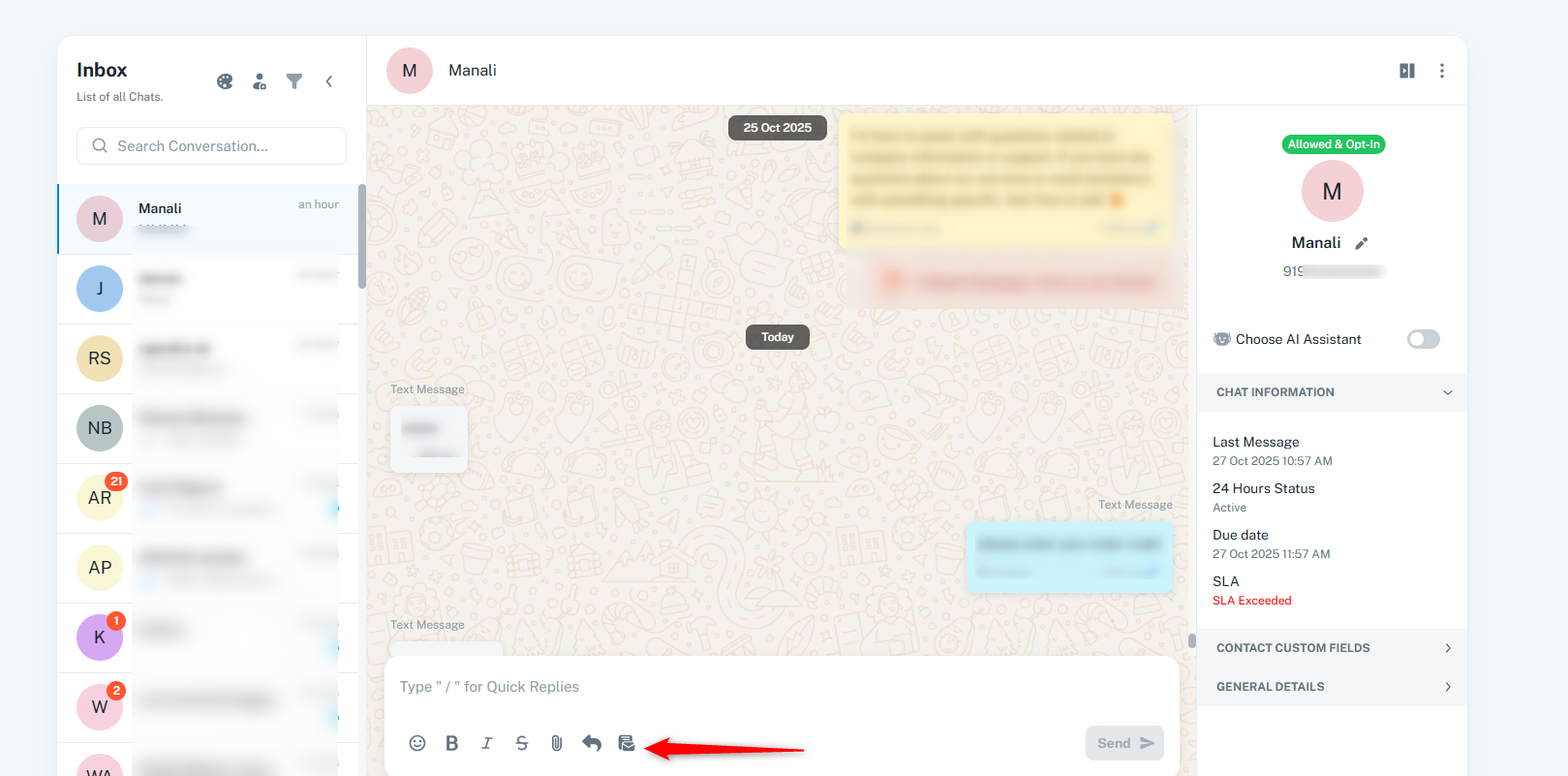
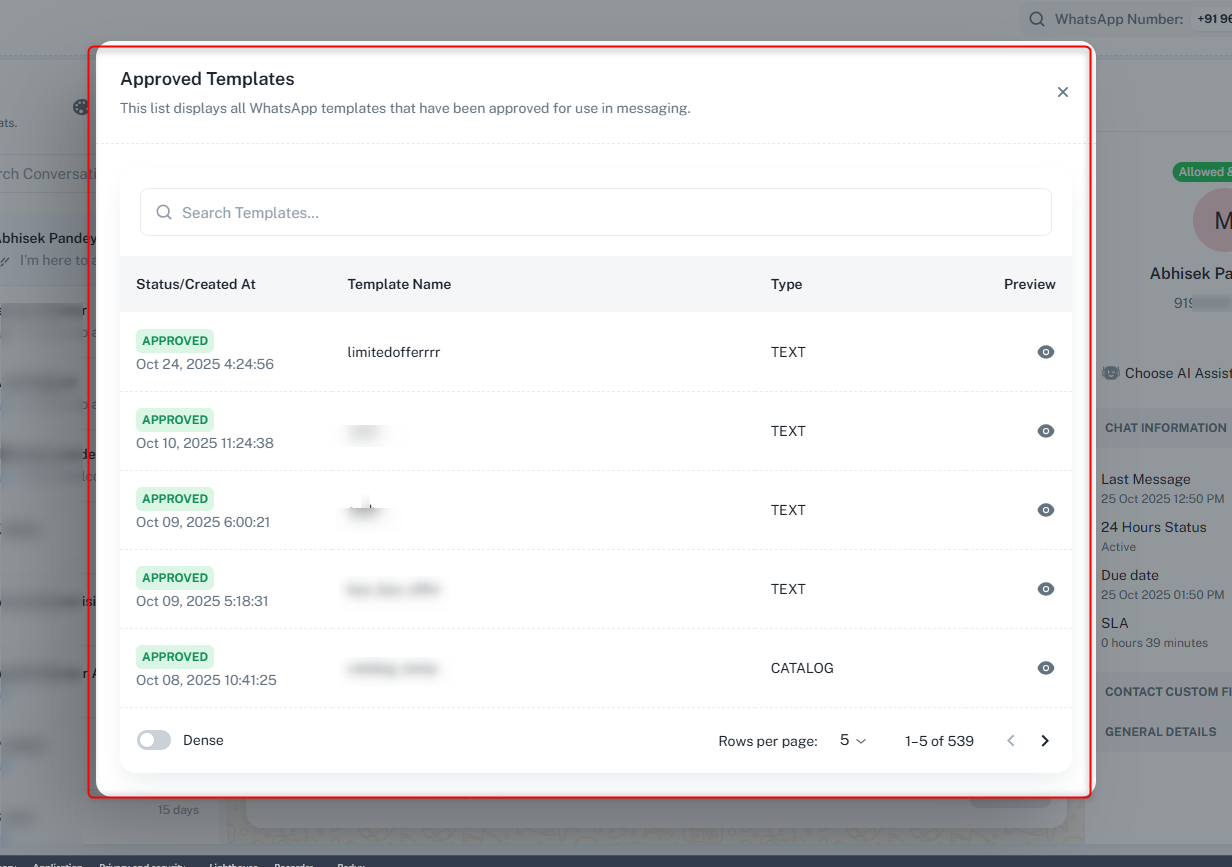
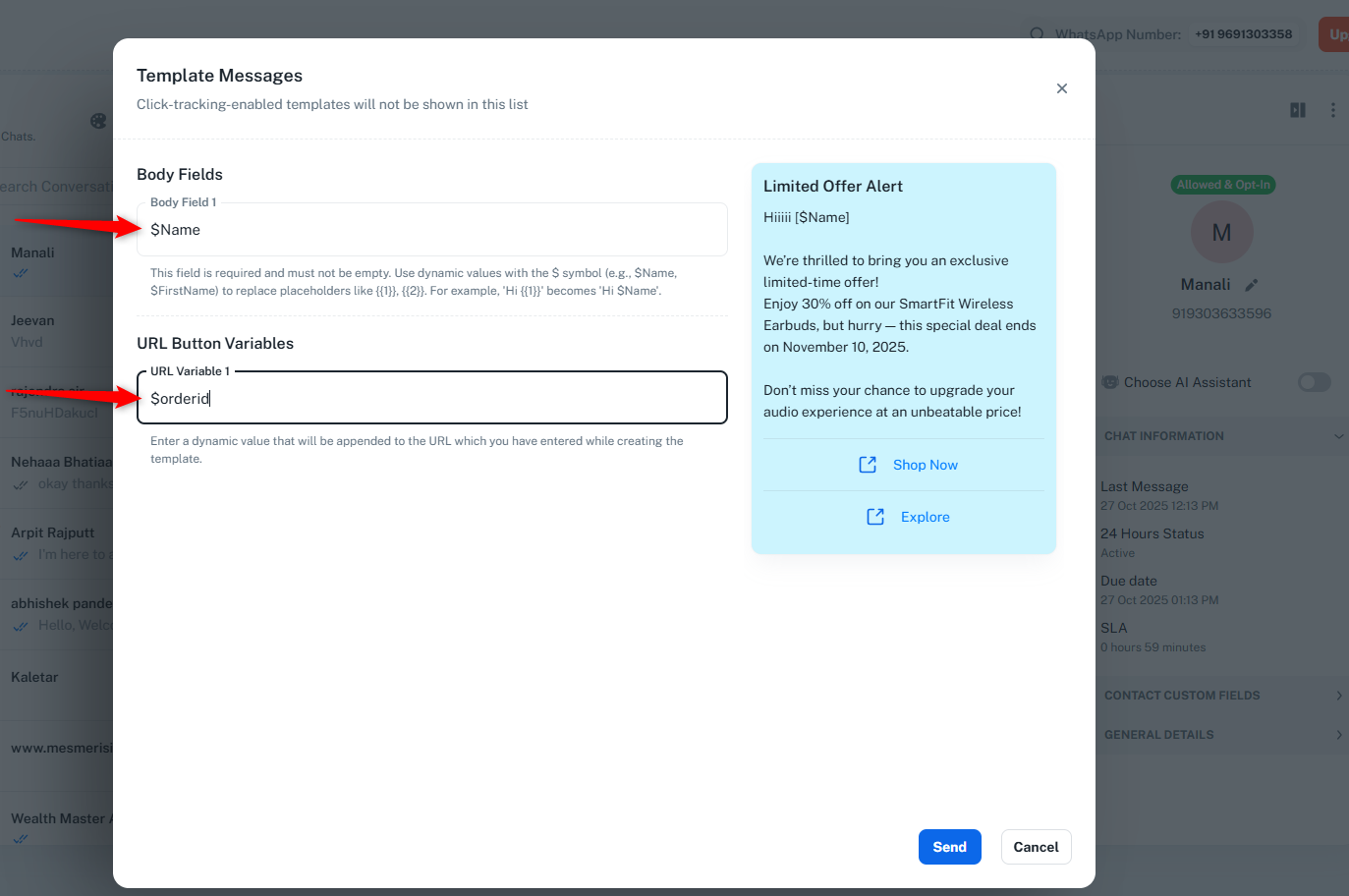
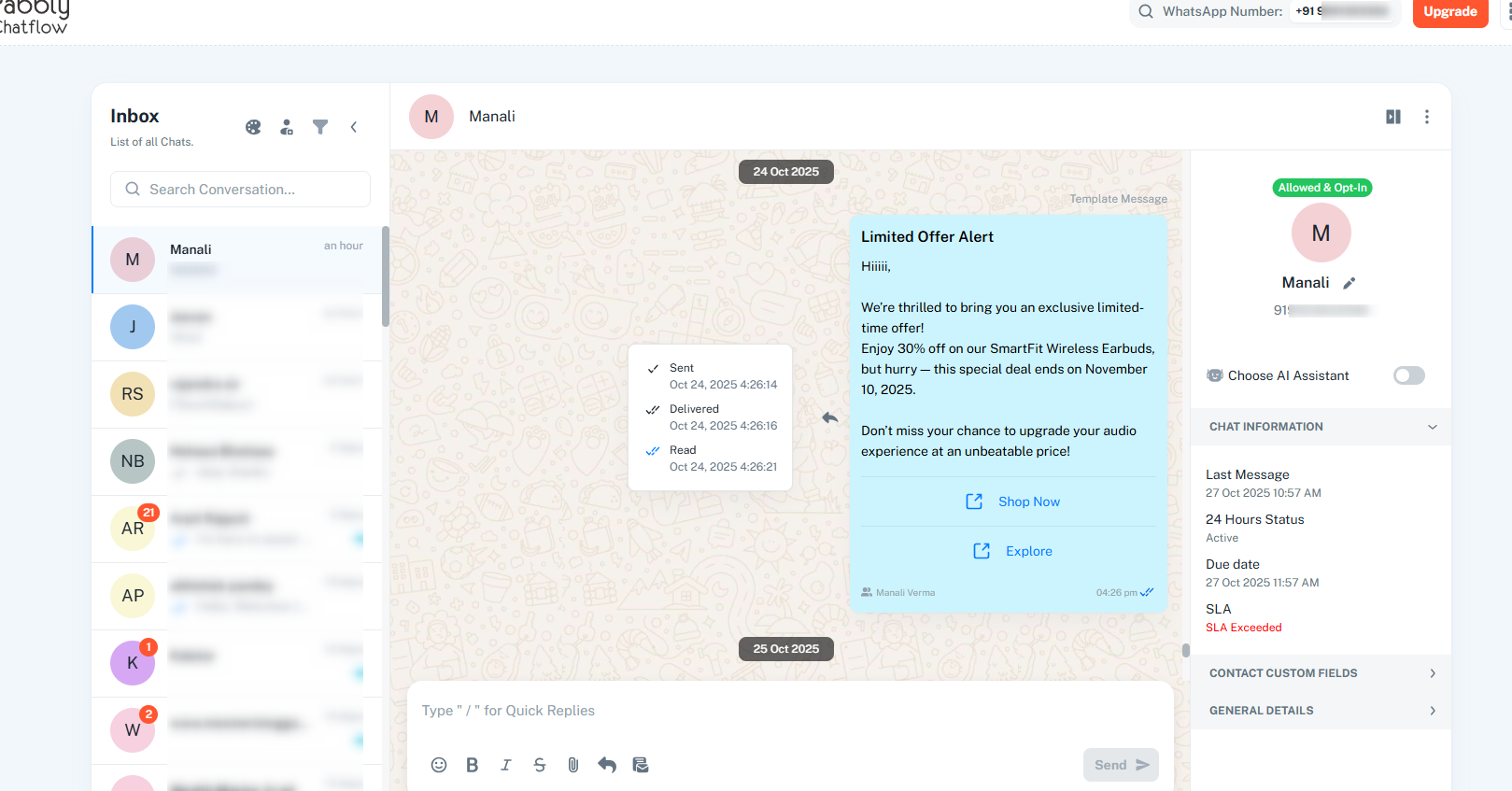
Scenario: Sending an order tracking template to a customer
Template Configuration:
order_trackinghttps://example.com/track/{{1}}When Sending:
JohnORD12345Customer Receives:
https://example.com/track/ORD12345Templates with dynamic CTA buttons can also be used in Automated Messages and Flows.
Inbox Settings: Settings → Inbox Settings
Use Cases:
Opt-In Management: Settings → Opt-In Management
Use Cases:
Flows: You can also use templates with dynamic CTA buttons in your automation flows to create personalized user journeys.
