Template Management Guide
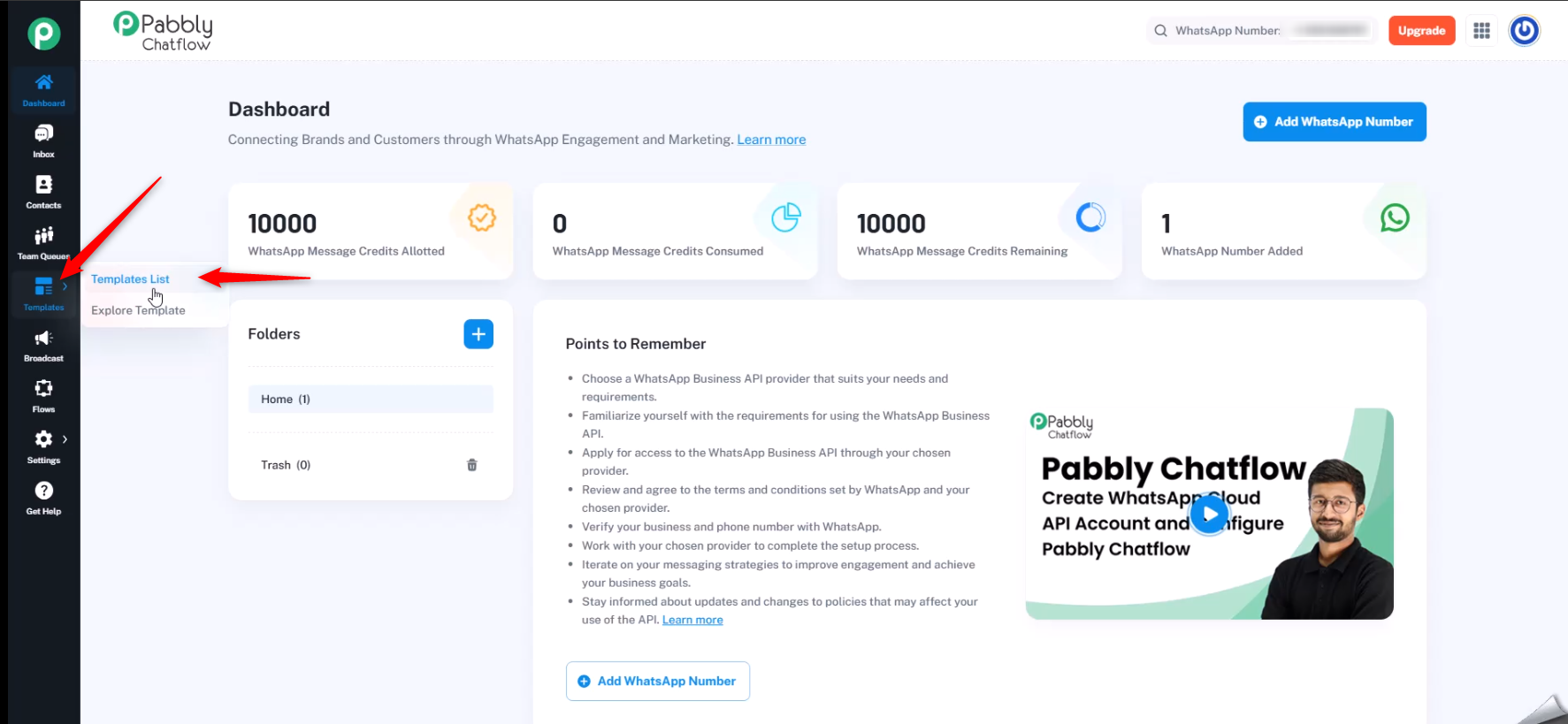
You can initiate a conversation with users on WhatsApp using template messages. Templates help you scale your business by enabling seamless communication with contacts. You can send predefined messages to engage your audience effectively and automate interactions.
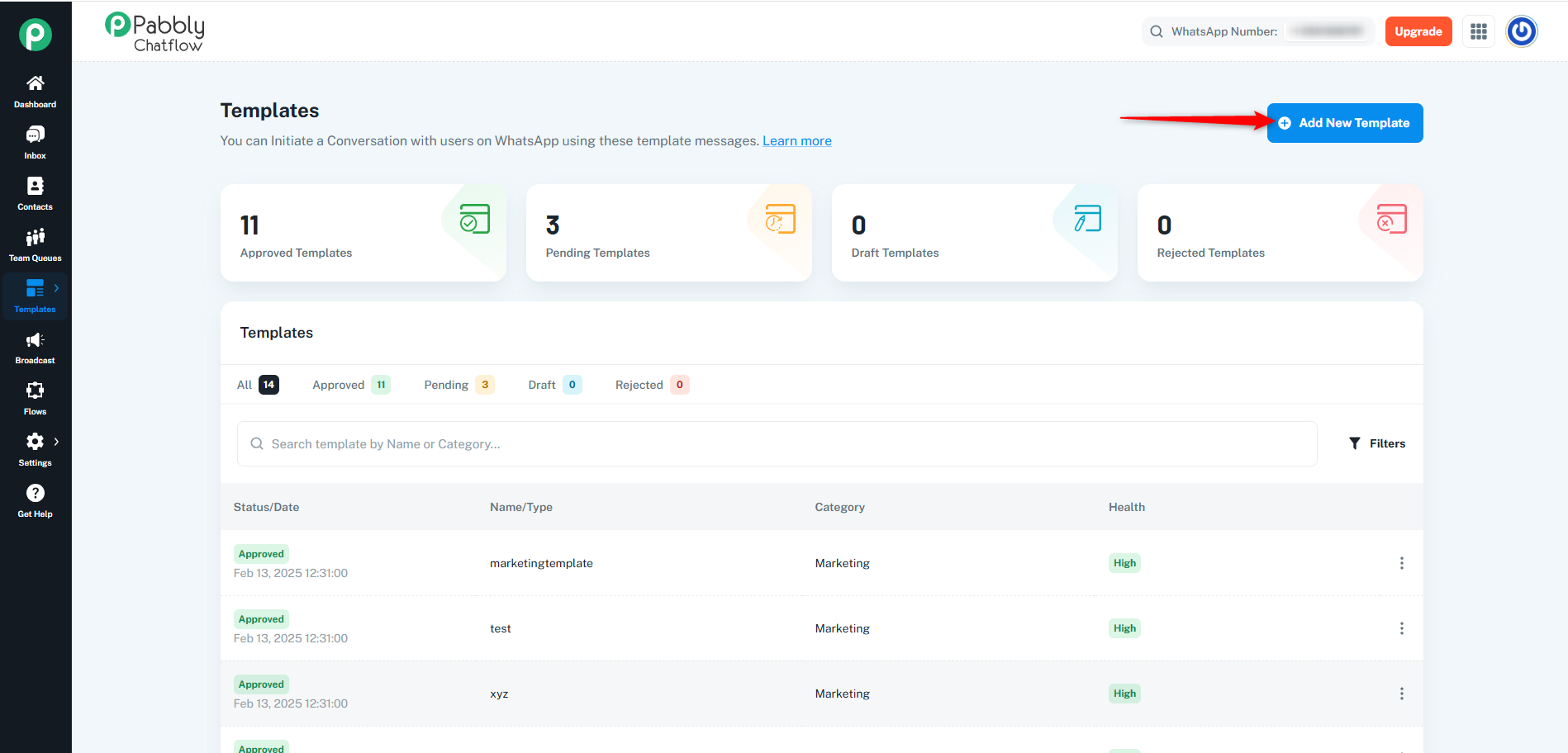
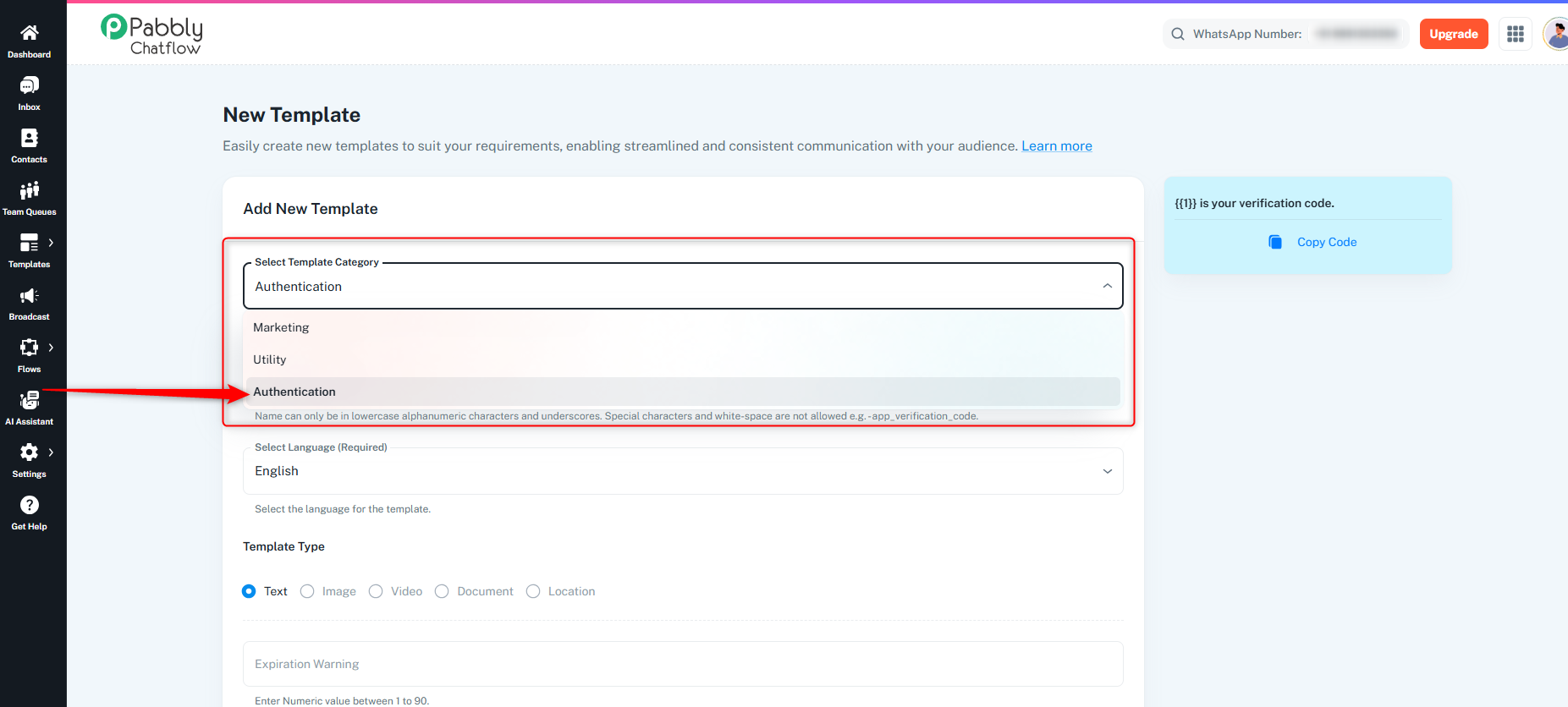
Select Template Category: Pabbly Chatflow offers three categories:
Marketing Templates:
Used for engaging and converting users through promotional content.
Select the Language: Choose the preferred language for the template.
Select Variable Type
While creating a WhatsApp template, you must choose a Variable Type to define how dynamic values are inserted into the template content.
Pabbly Chatflow supports two types of variables:
Use Name when you want to create custom, named variables that are easier to identify and manage.
These variables use meaningful names instead of numbers.
Example variables:
{name}{order_id}{product_name}Use cases:
Example message format:
Hello
{name}, your order{order_id}has been confirmed.
Use Number when you want to create sequential variables that are automatically numbered.
These variables follow a numeric format.
Example variables:
{{1}}, {{2}}, {{3}}Use cases:
Example message format:
Hello
{{1}}, your order{{2}}has been confirmed.
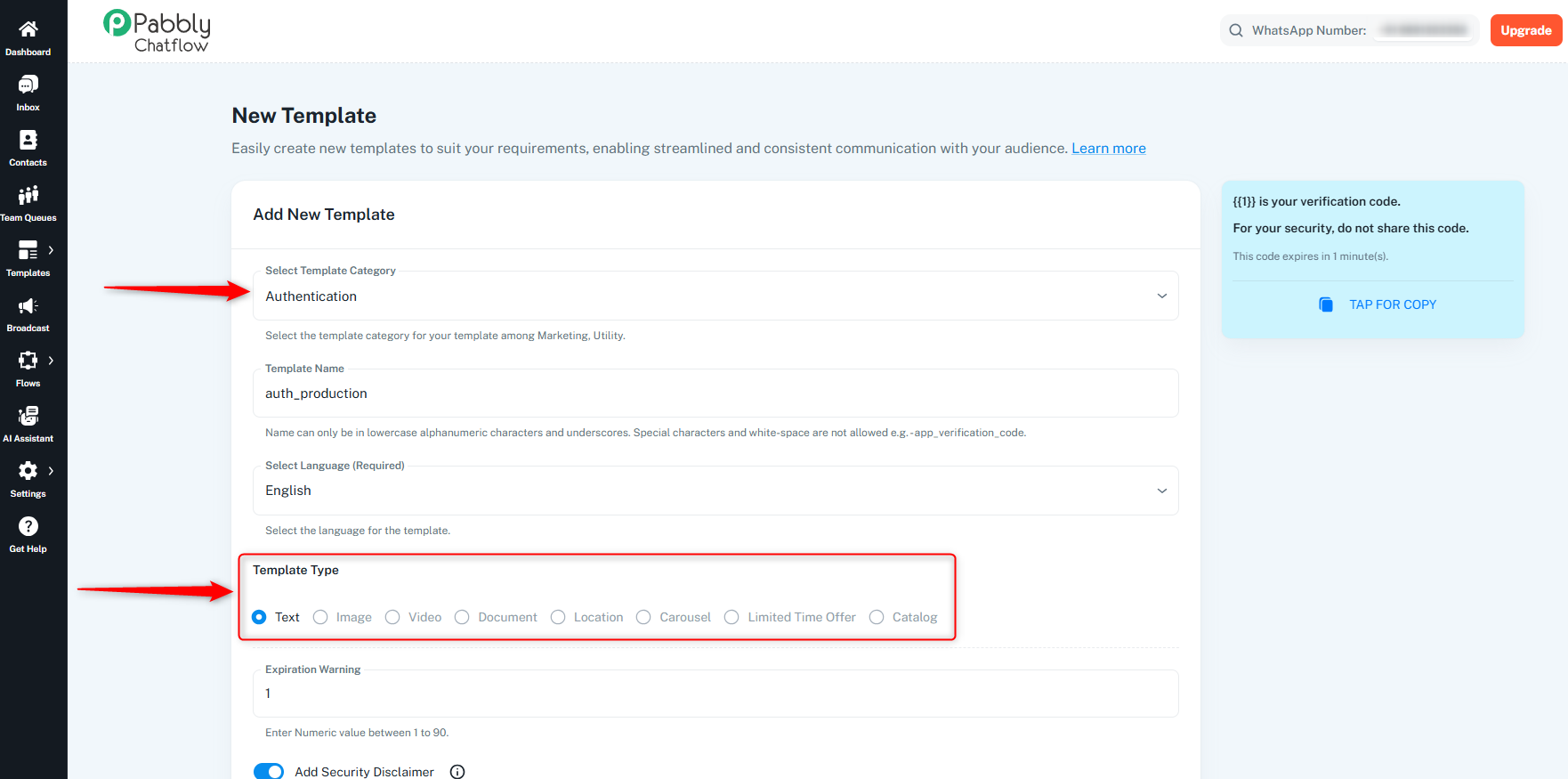
Text
Image
Video
Document
Carousel [ Supports per-card button values (each card can have unique button actions) ]
Limited Time Offer
Catalog
Location
Carousel templates support per-card button values, allowing each card within the carousel to have its own unique button values instead of sharing the same values across all cards.
This enables more flexible, dynamic, and personalized user interactions.
### 🧩 How It Works
* Each card in the carousel can have its own **individual button values**, including **button title, URL, phone number, and quick reply text**, making the carousel more dynamic and personalized.
* CTA buttons (**URL, Phone Number, Quick Reply**) can be configured **separately for each carousel card**.
* The **button structure** (number and type of buttons) must remain the same across all cards, as required by Meta’s WhatsApp API. Only the **values** can differ per card.
* For **dynamic URL buttons**, each card can have its own **unique URL variable value**.
### ⚙️ How to Use

While creating a **Carousel Template**:


1. Select **Carousel** as the Template Type.
2. Add multiple cards to the carousel.
3. For each card:
   * Define **content** (image, title, description, etc.).
   * Configure **buttons individually**:
     * Set unique **CTA URLs**
     * Set different **Phone Numbers**
     * Assign different **Quick Reply values**
4. Ensure the **button structure (type and count)** is consistent across all cards.
5. Preview each card to verify button behavior.
6. Submit the template for approval.
### 💡 Example Use Case

**E-commerce Product Carousel**
| Card | Product | Button Action |
|---|---|---|
| Card 1 | Shoes | "Buy Now" → URL (Product A) |
| Card 2 | Watch | "Buy Now" → URL (Product B) |
| Card 3 | Bag | "Buy Now" → URL (Product C) |
Each card directs the user to its respective product page.
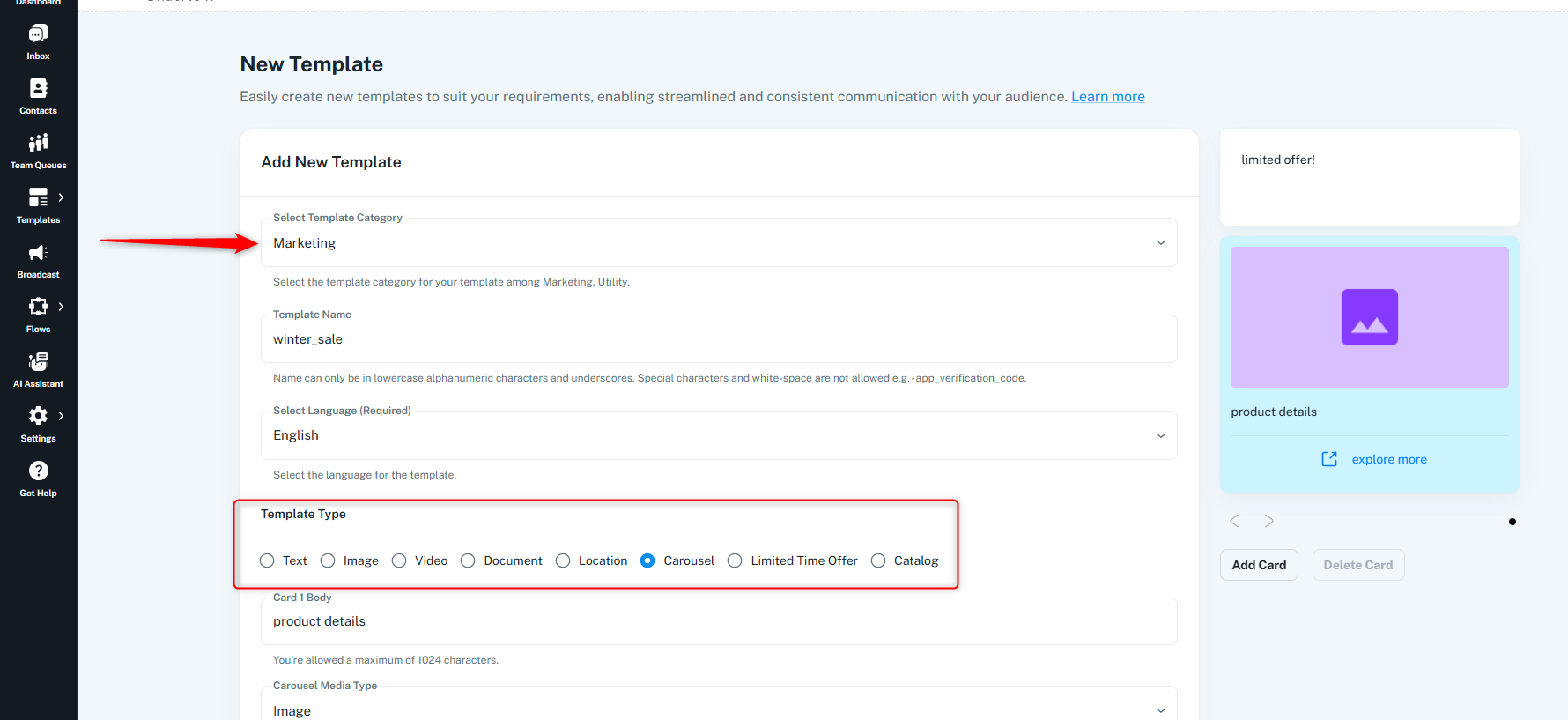
When selecting a template type (e.g., Image, Video, Document, Location, etc.) during the template creation process:
Note: At the time of creating the template, you cannot upload or attach any image, video, or document file.
These media files are only added later, after the template is approved by Meta. Once approved, you will be able to:
Upload the media while sending the template via Broadcast,
Insert the file while using it in Flows, or
Attach it directly from the Inbox.
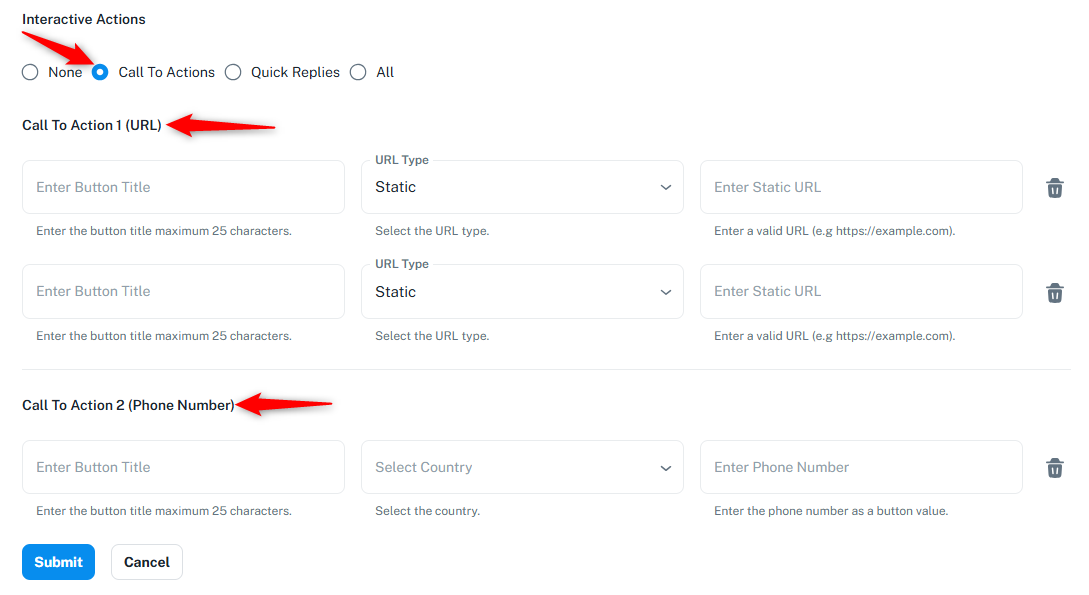
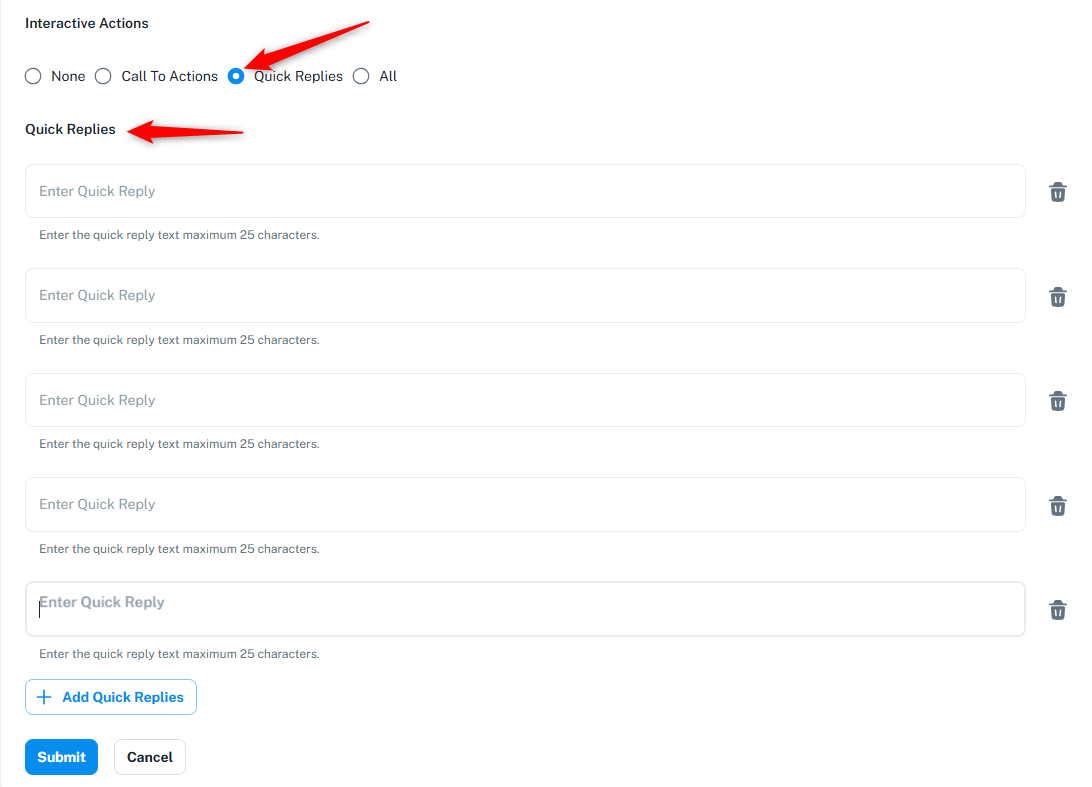
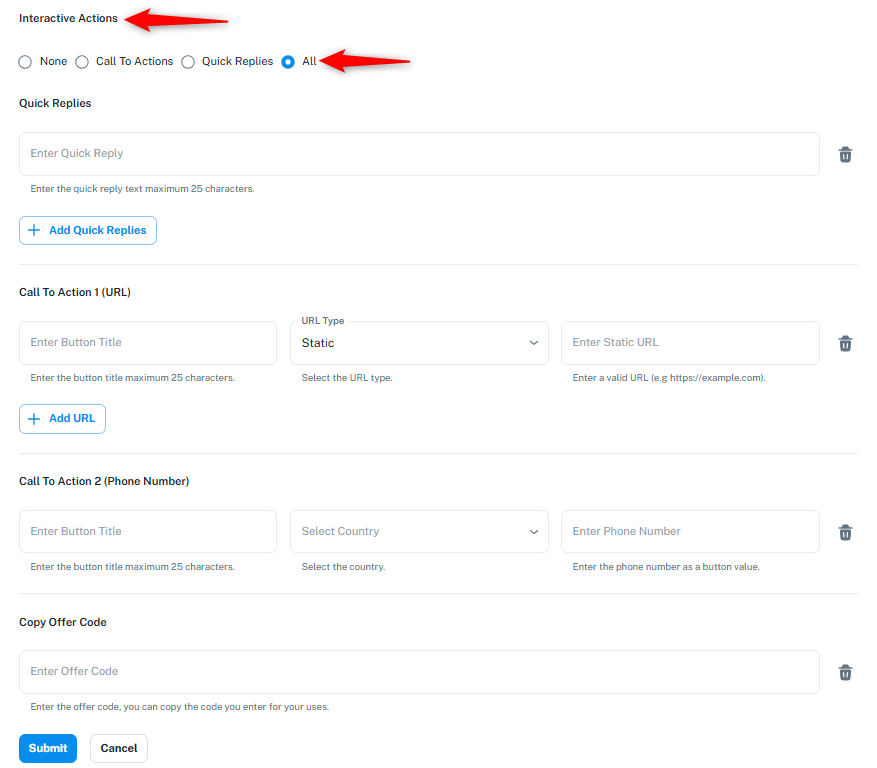
Select Interactive Actions:
Used for updates, confirmations, and transactional alerts.
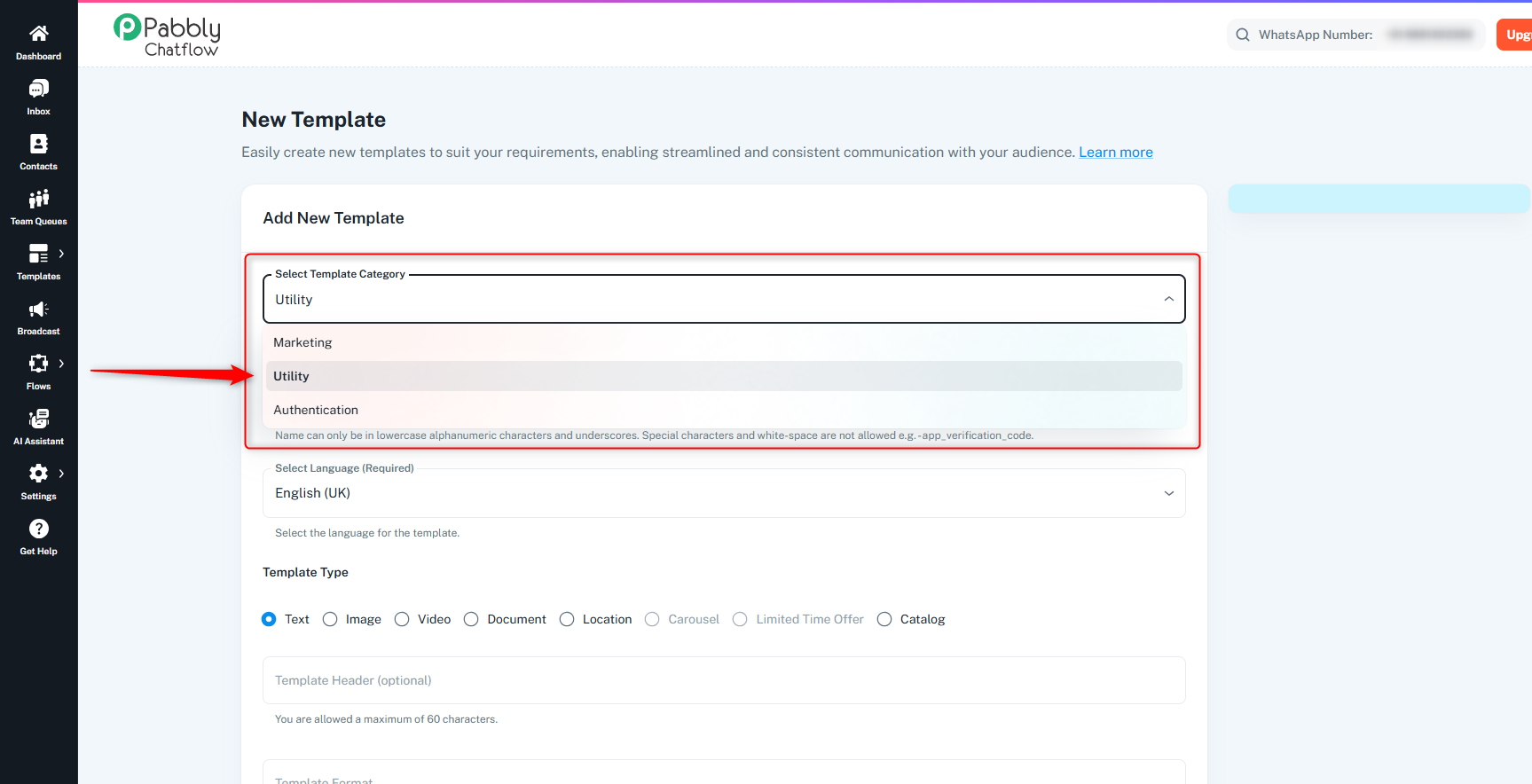
Template Name: Use lowercase, underscores only (e.g., order_status_update)
Select the Language: Choose the preferred language for the template.
Template Types
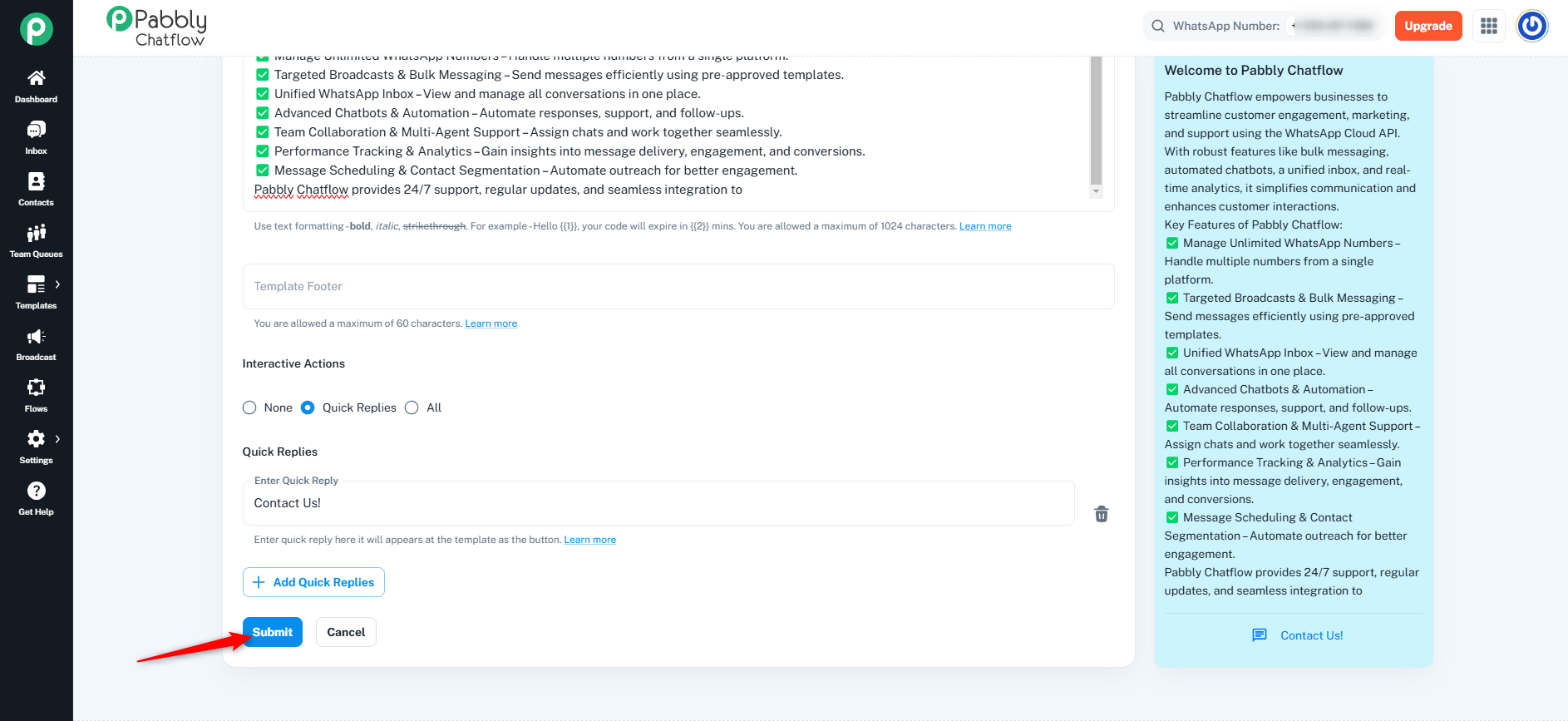
Select Interactive Actions:
None: No action will be performed.
Call To Action: You can add two CTA(URL) and one CTA(Phone Number).
Quick Replies: You can add up to 10 quick replies for user interaction.
Note: In Meta’s (WhatsApp Business API) interactive message guidelines: Learn More
Quick reply button titles cannot contain formatting characters like * (for bold), _ (for italics), ~ (for strikethrough), or ` (for monospace).
Those markdown-style formatting characters are allowed in the message body text, but not inside button titles or reply button values.
All: Enables all the interactive actions, 10 quick replies, 2 CTA(URL), 1 CTA(Phone Number).
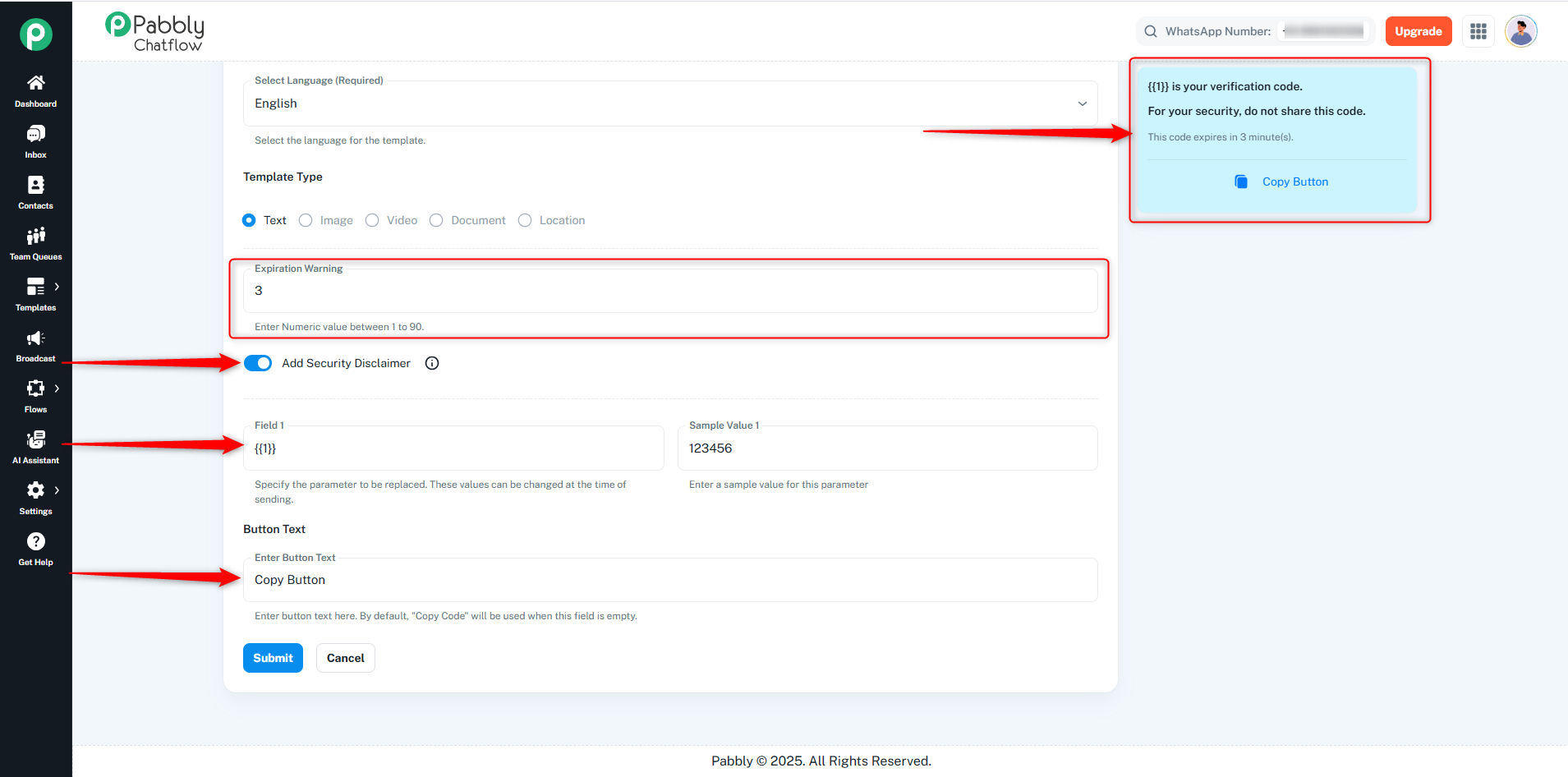
Preview Your Template: While creating the template, you can also preview it in the Preview section to see how it will appear to users.
Templates created in Pabbly Chatflow require approval from Meta. The approval process typically takes a few minutes but may take up to 24 hours.
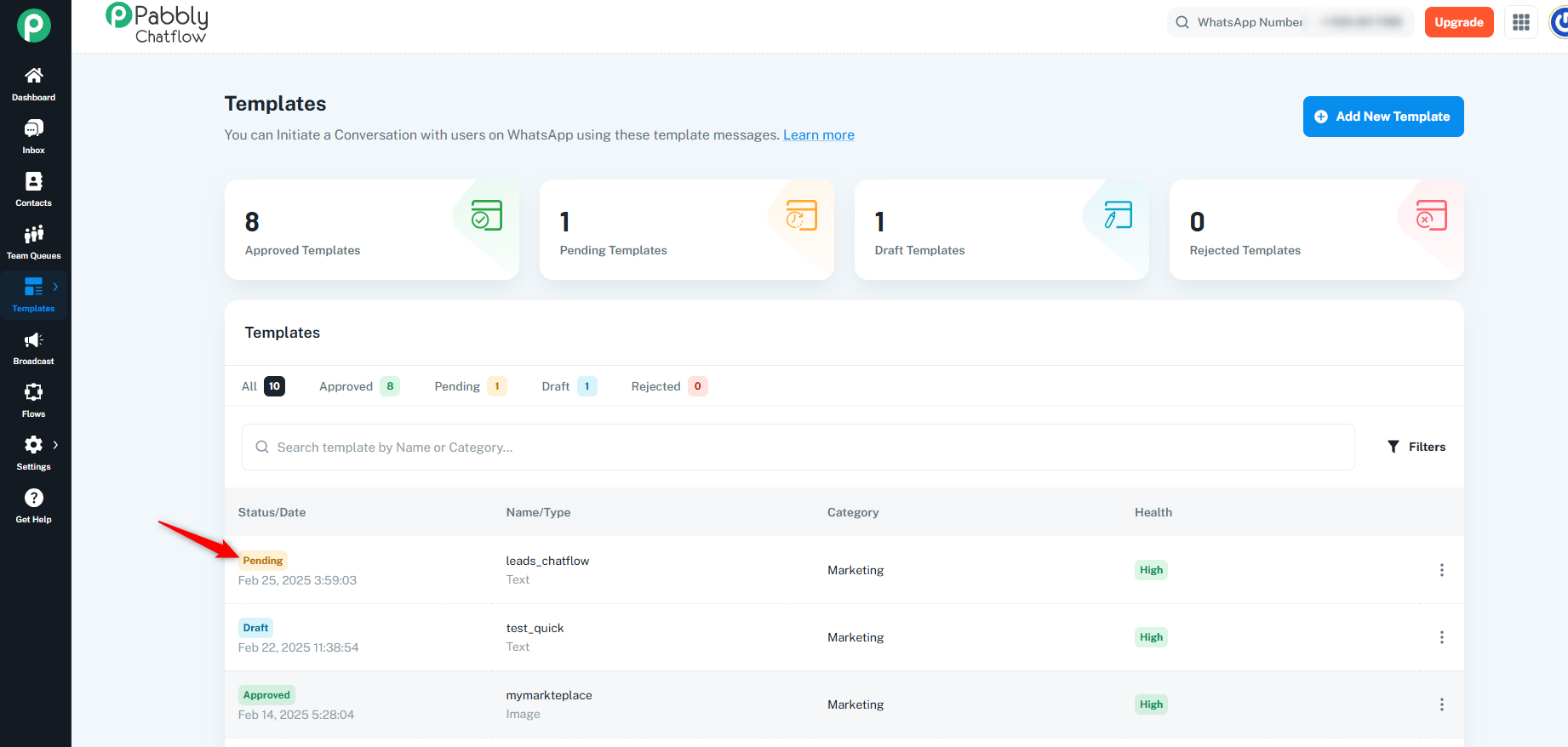
Templates can have one of the following statuses:
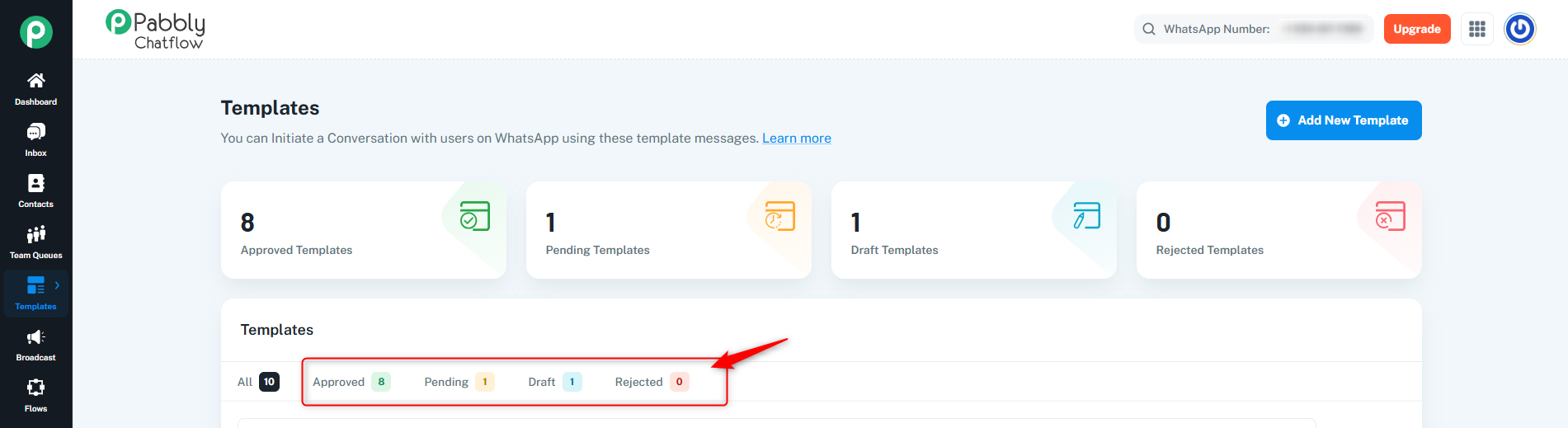
Once a template is created, it remains in Pending status until approved or rejected by Meta.
By following these steps, you can effectively create and manage WhatsApp templates in Pabbly Chatflow to enhance customer communication and engagement.
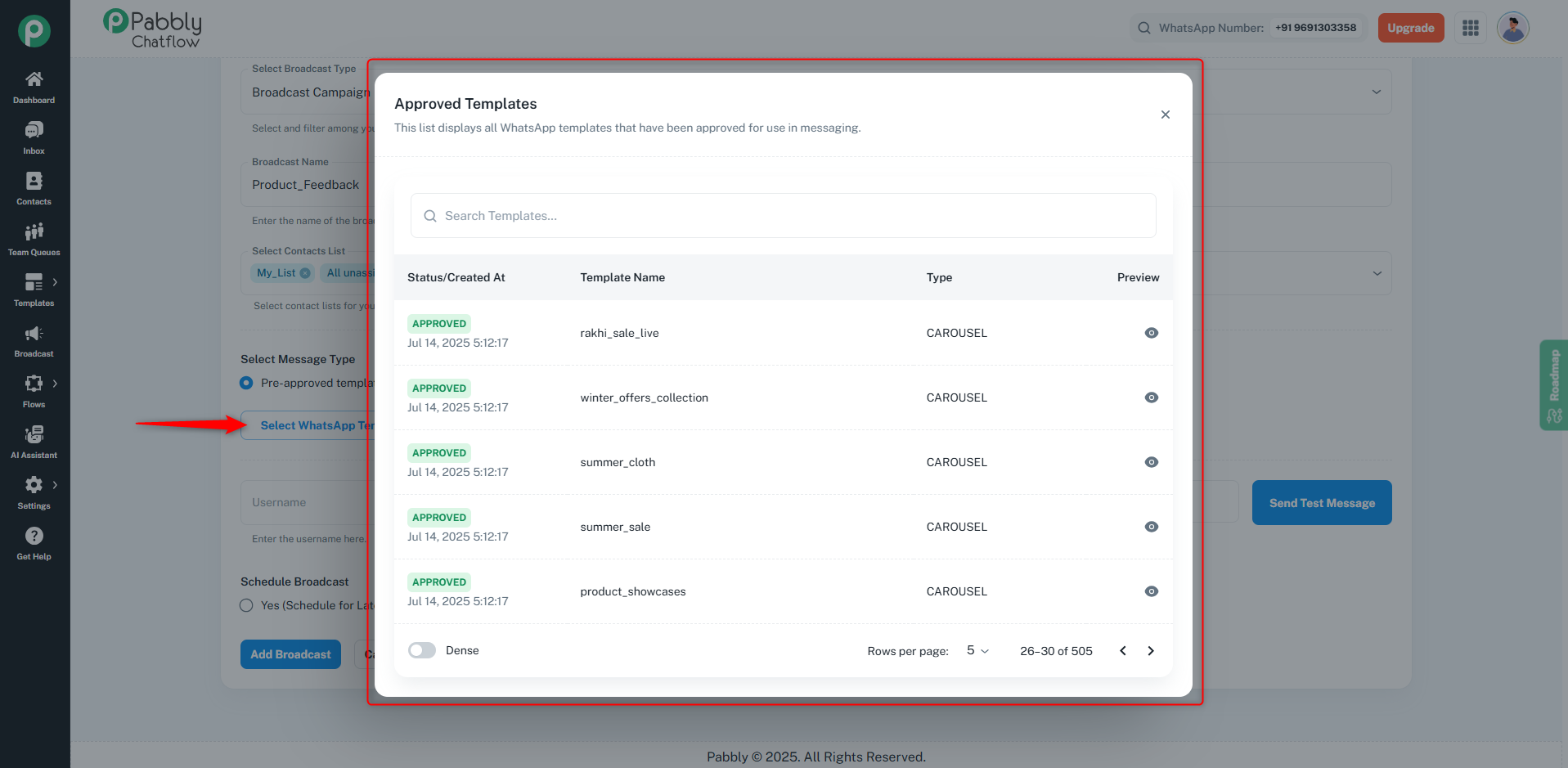
Once your WhatsApp template is successfully created and approved by Meta, you can use it to send messages in automation flows or initiate direct communication with users.
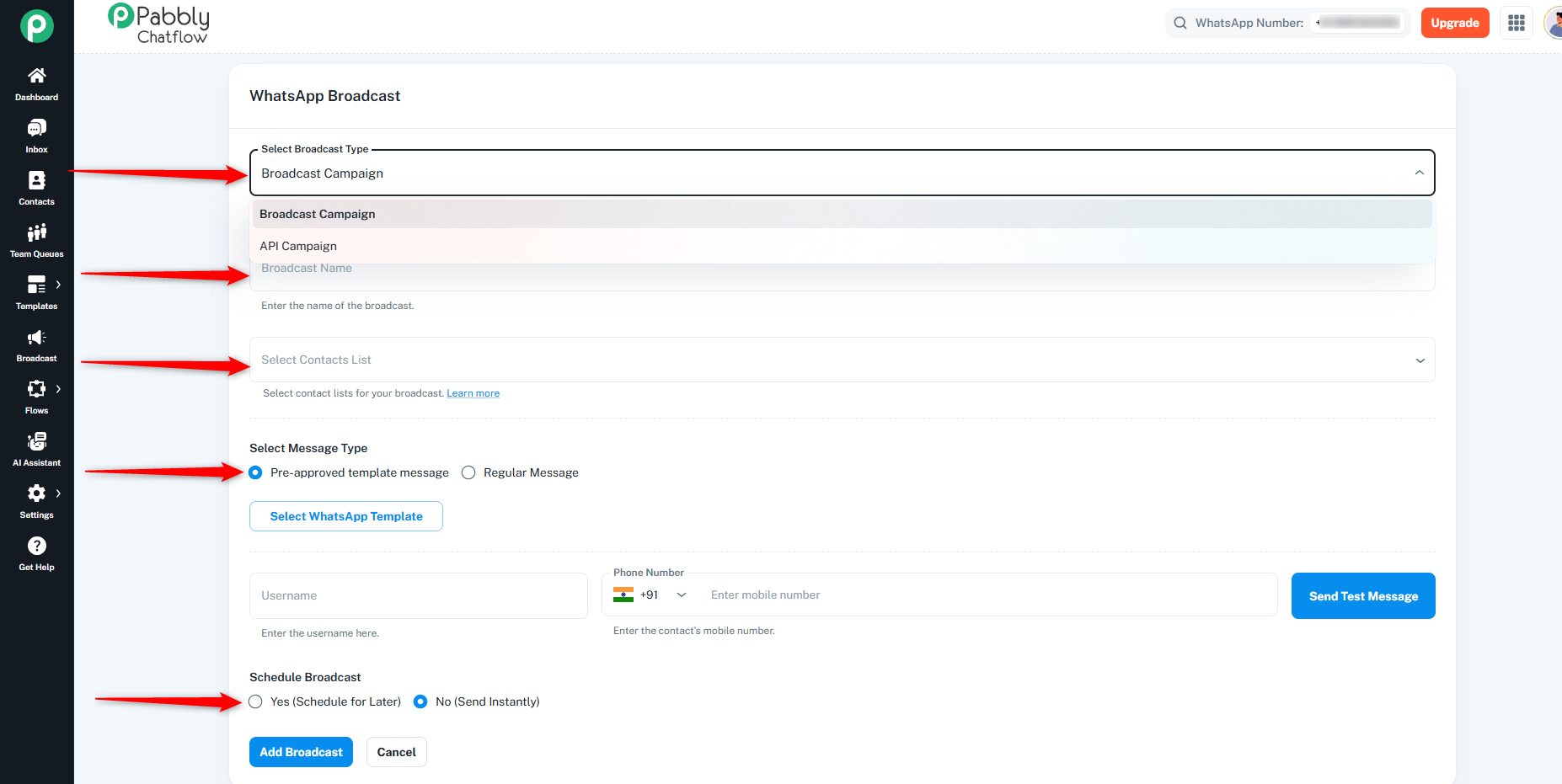
1. Via Broadcast
Use this option to send approved templates to a large audience at once.
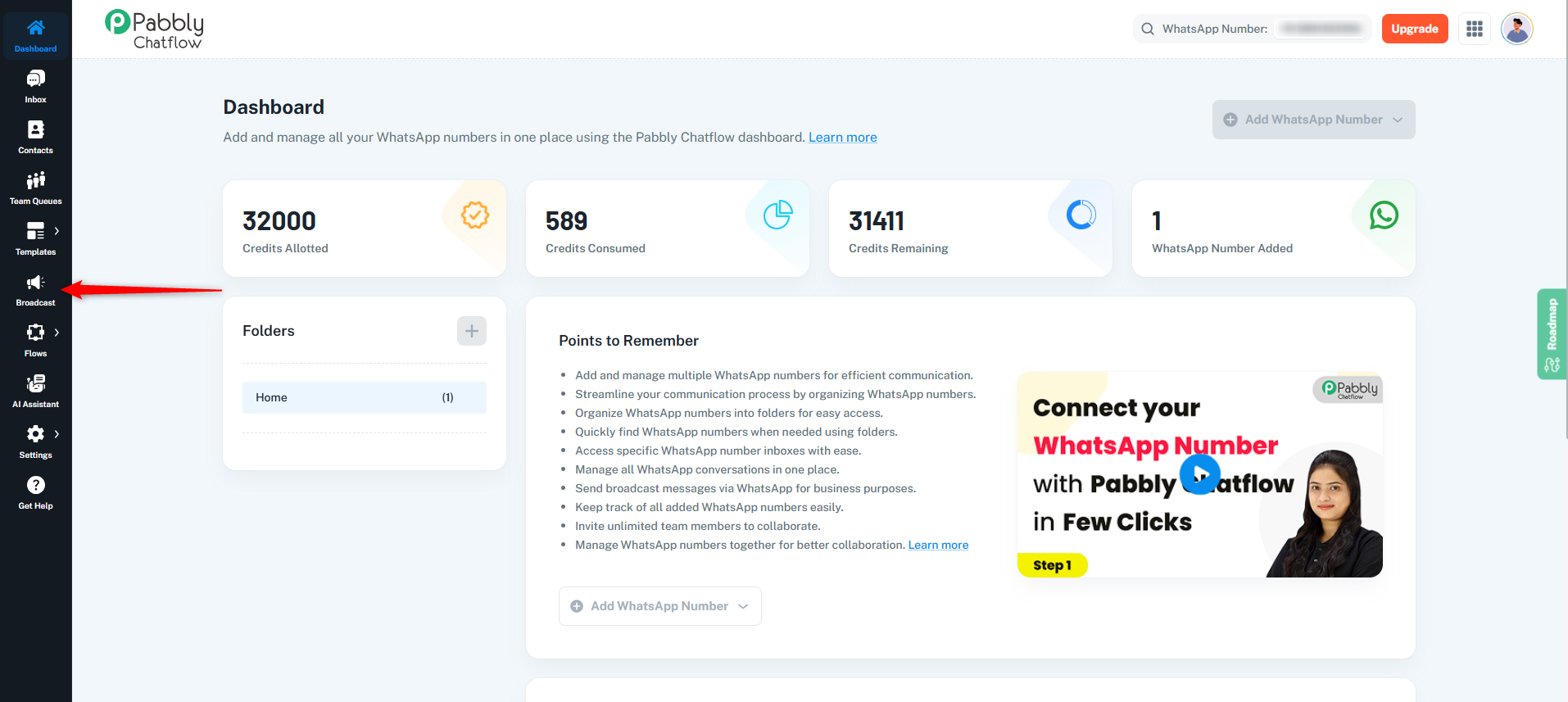
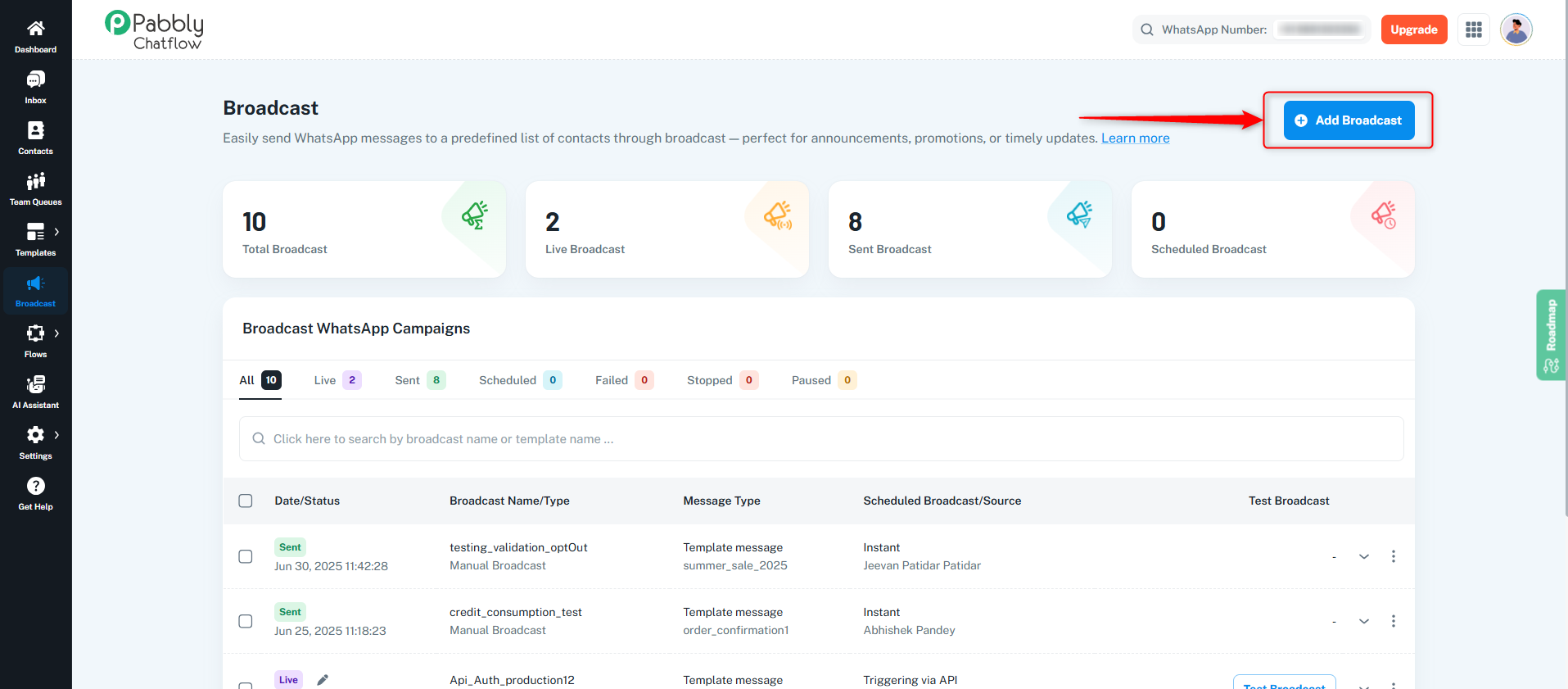
Select Broadcast Type: Choose between Broadcast Campaign or API Campaign.
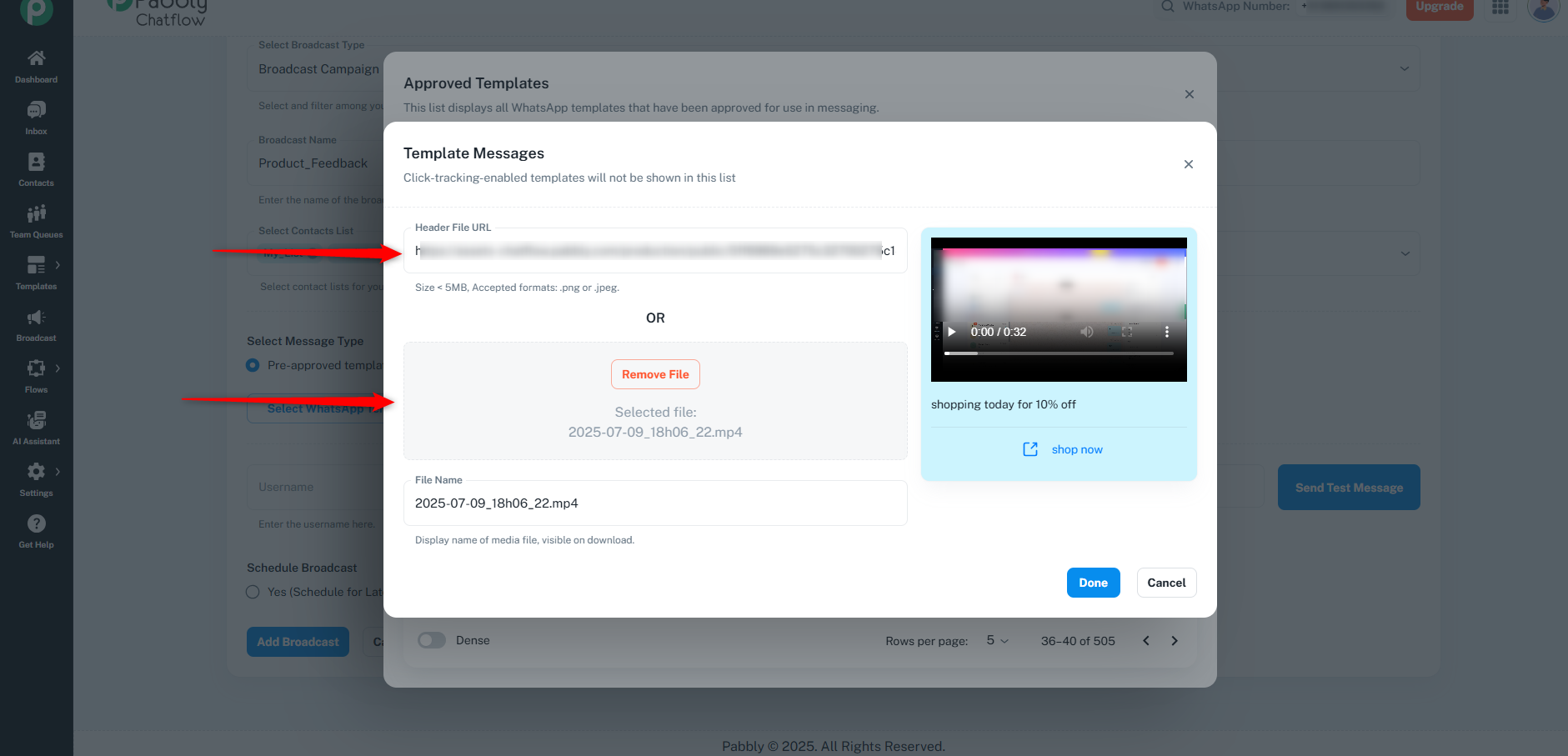
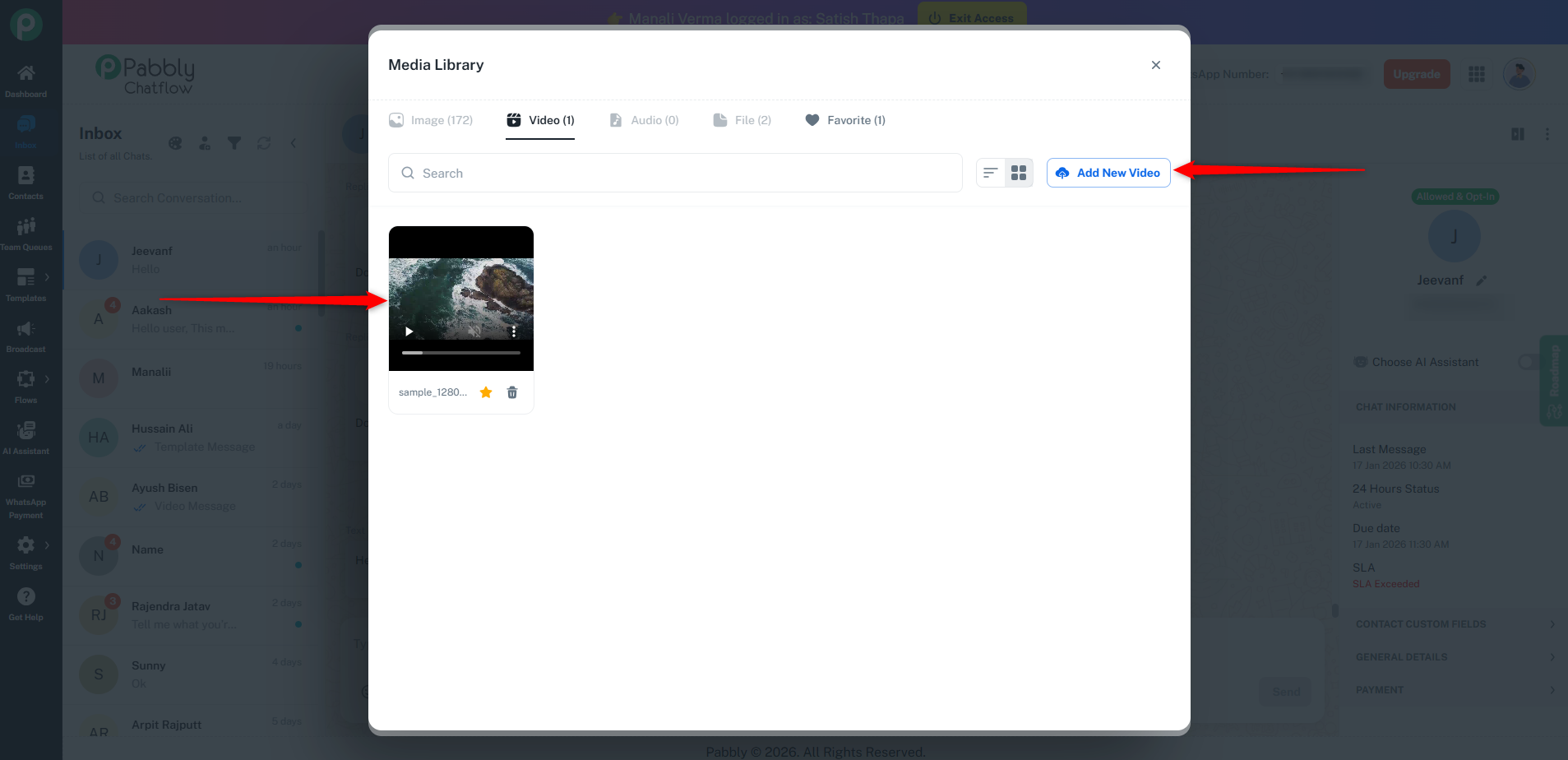
Add your video using either:
A direct Video URL (PNG or JPEG, under 5MB), or
Upload a video from the Media Library or directly from your device.
Preview the template on the right.
Click Send.
For a more comprehensive guide, refer to the full Broadcast Documentation.
2. Within Automation Flows
Use templates to automate message delivery based on specific triggers.
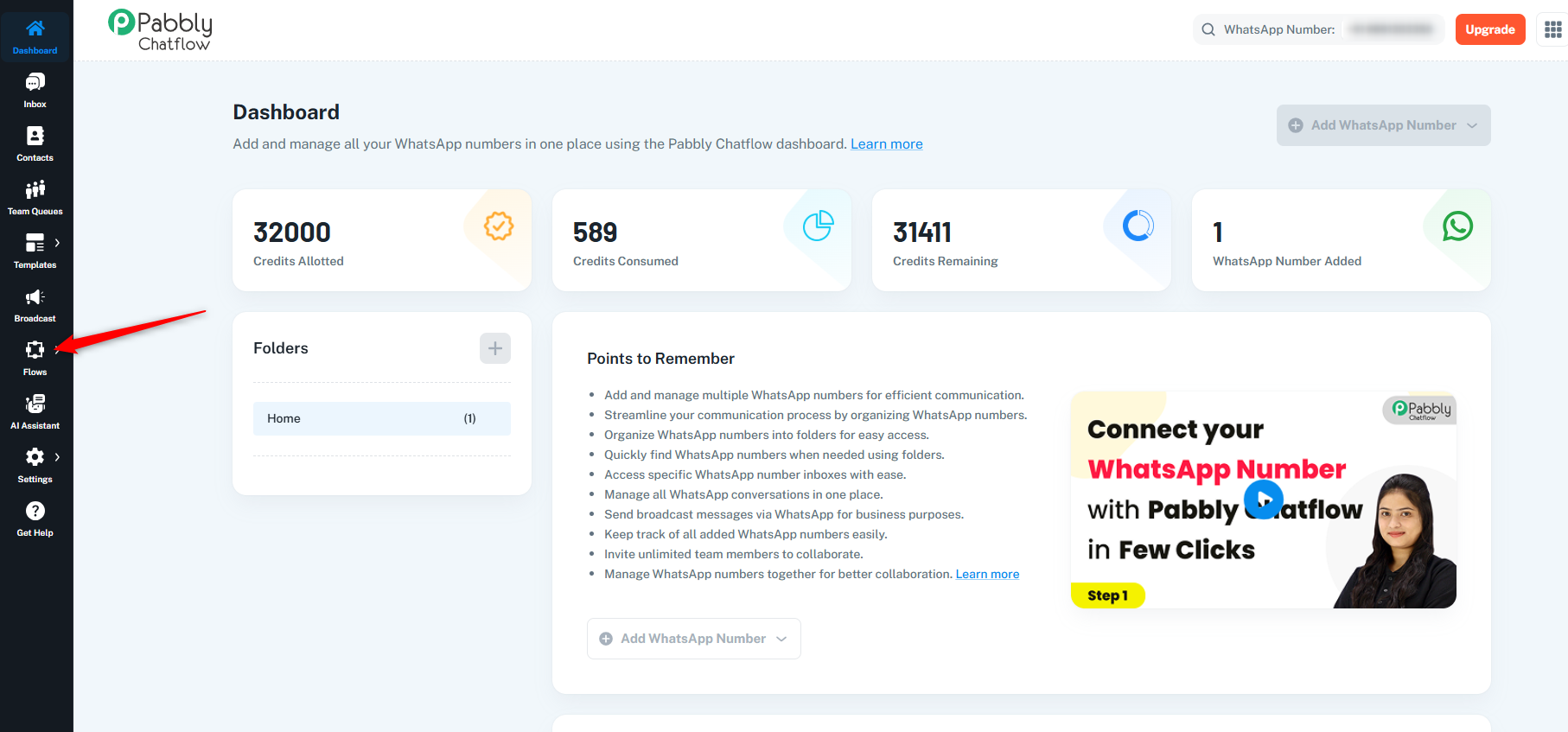
Navigate to the Flows section.
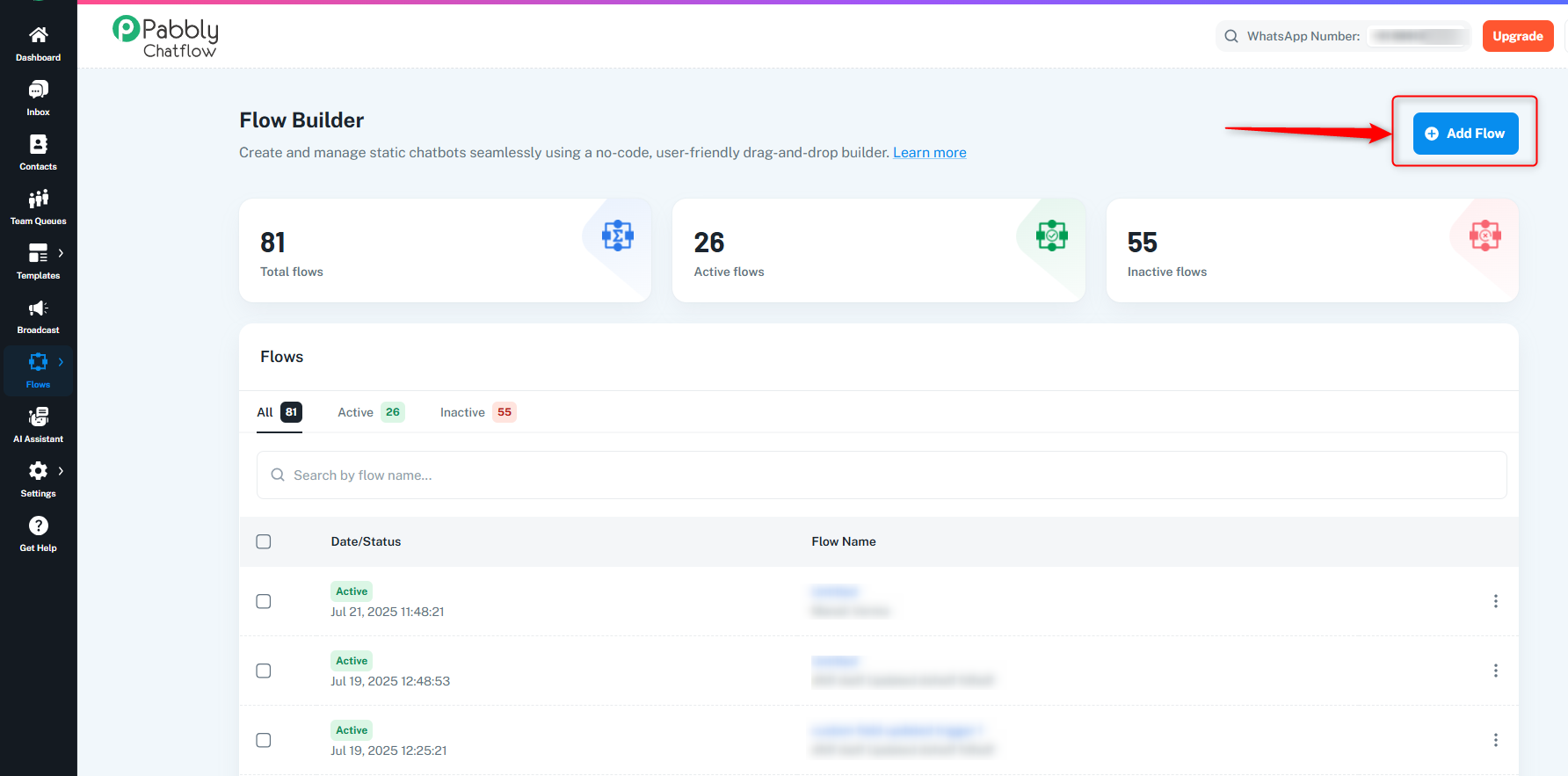
Click on Add Flow.
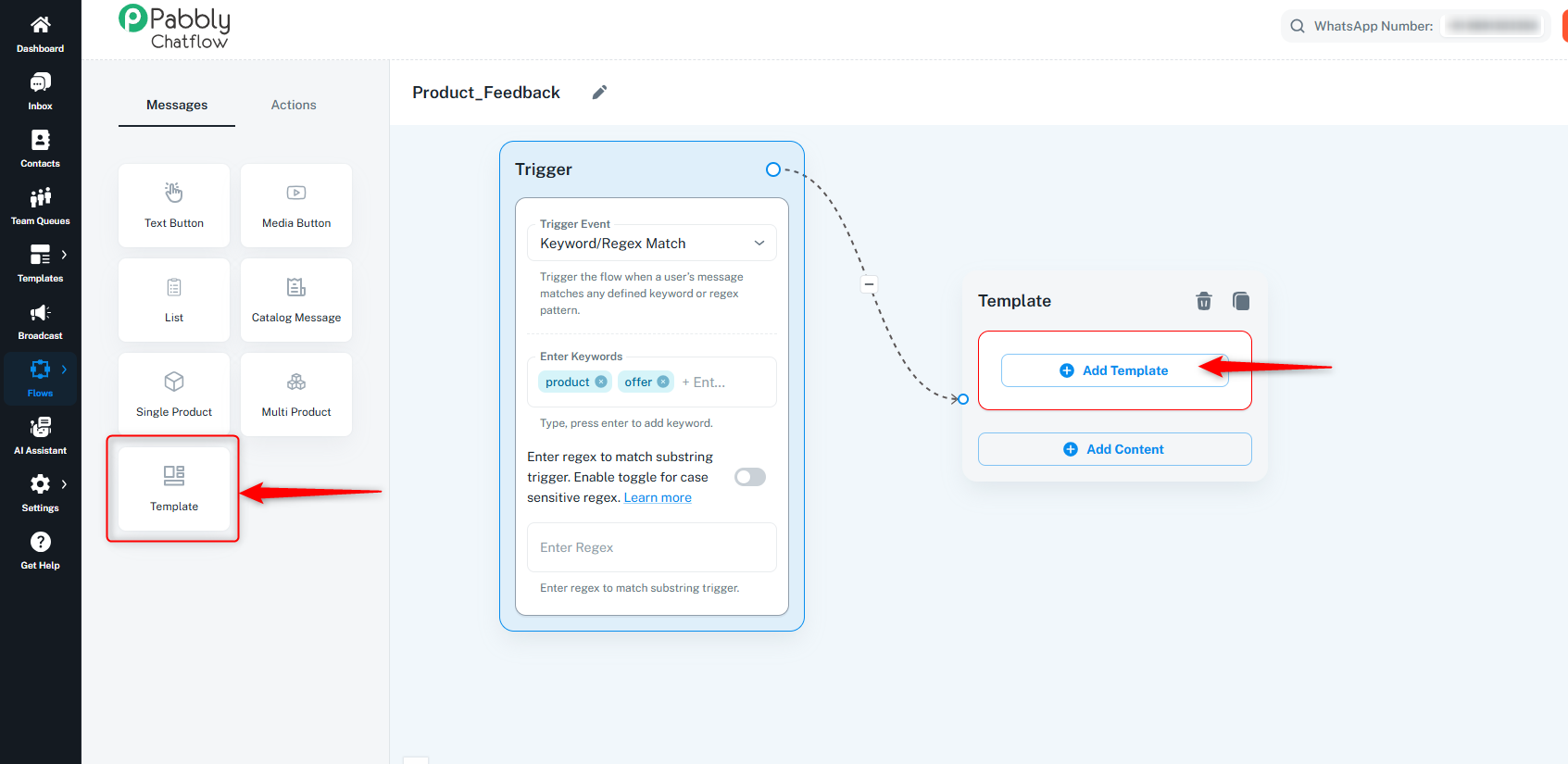
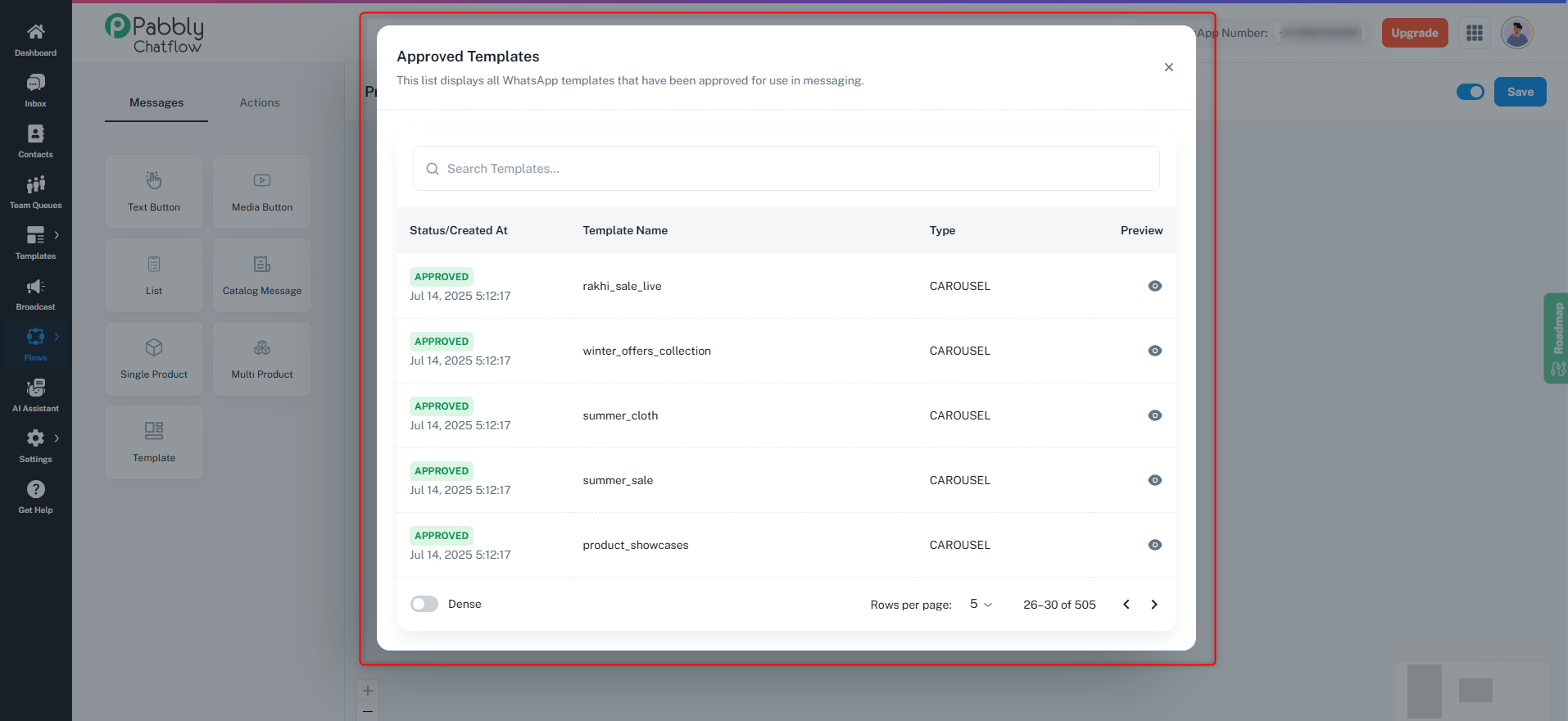
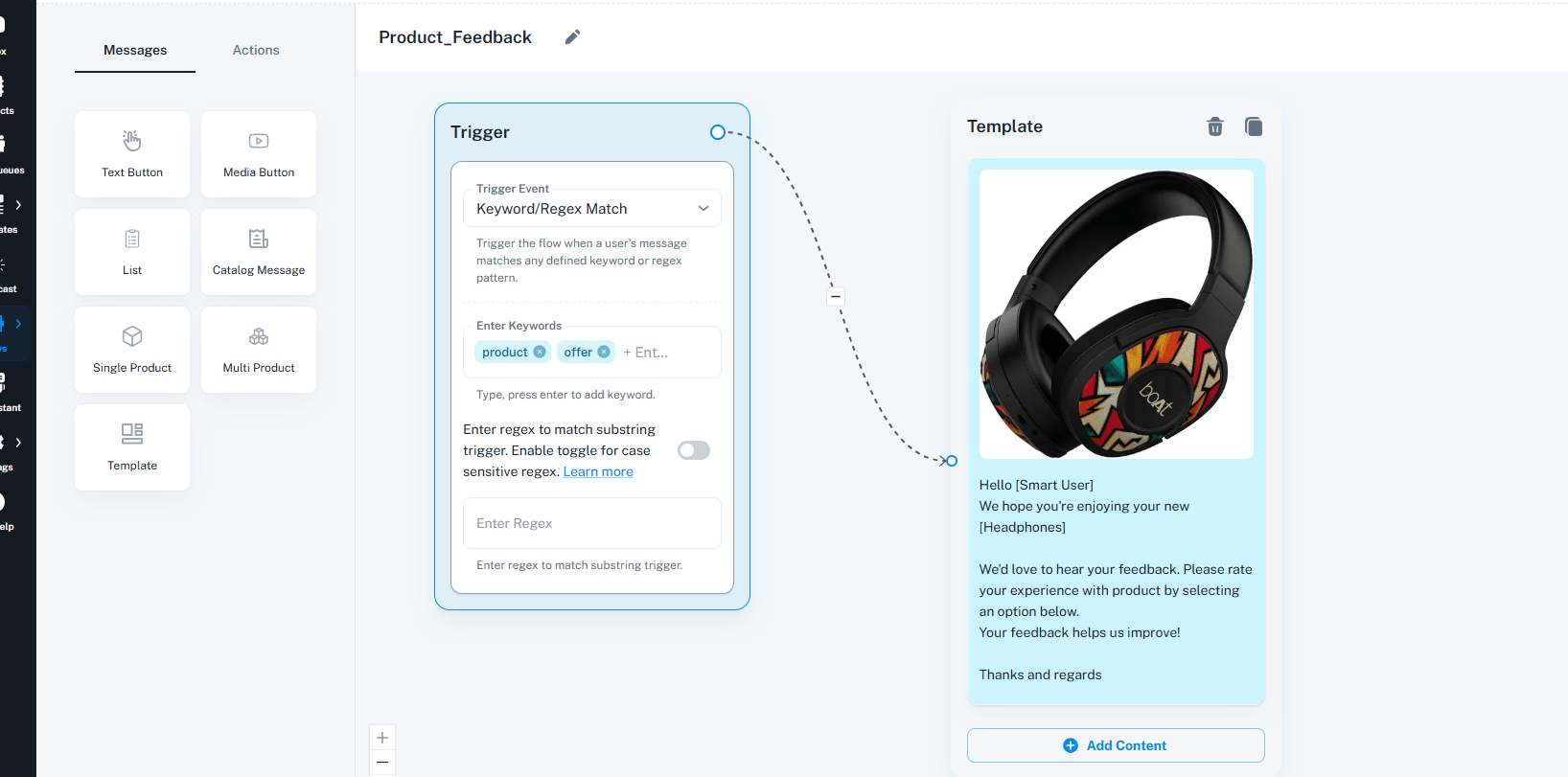
For a more comprehensive guide, refer to the full Flow Builder Documentation
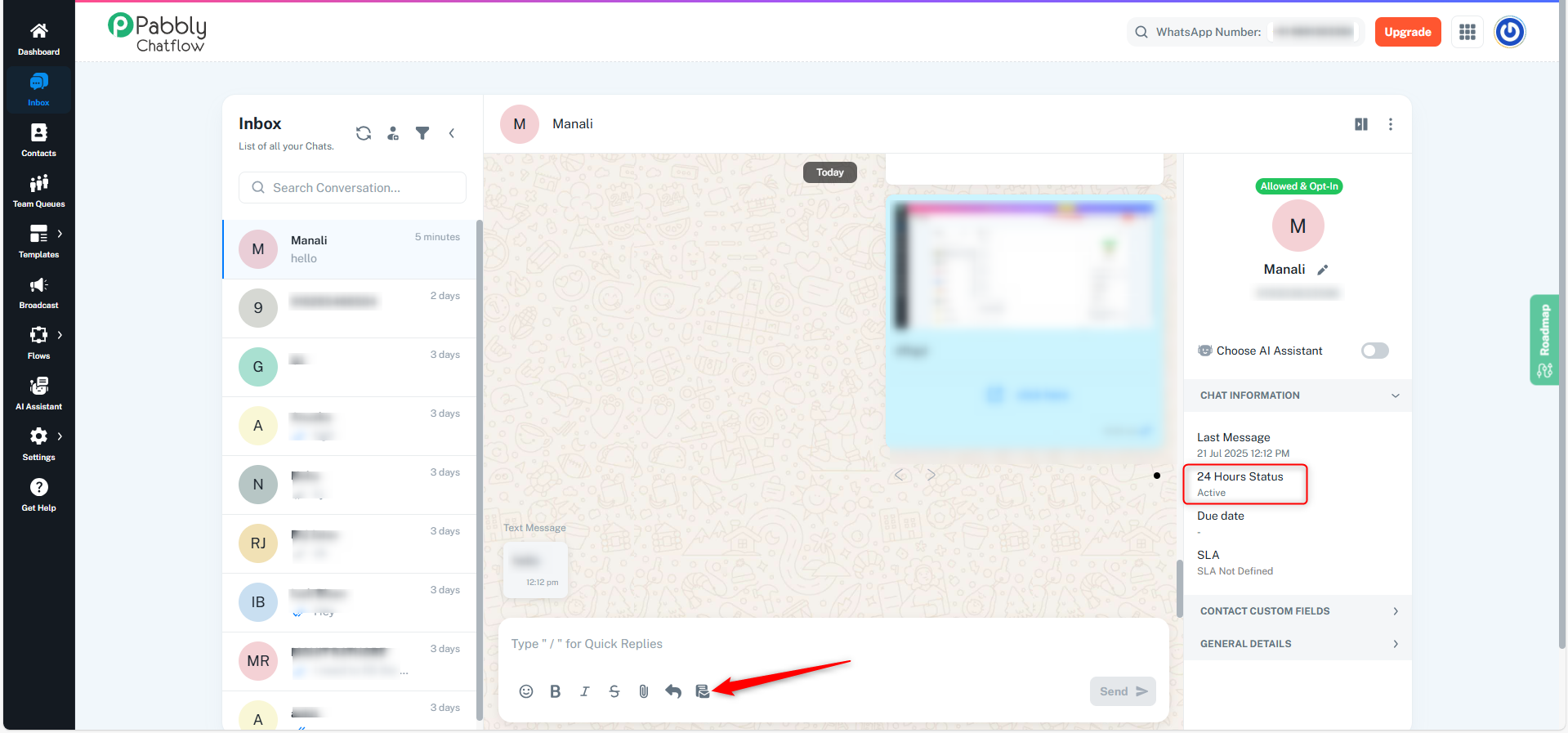
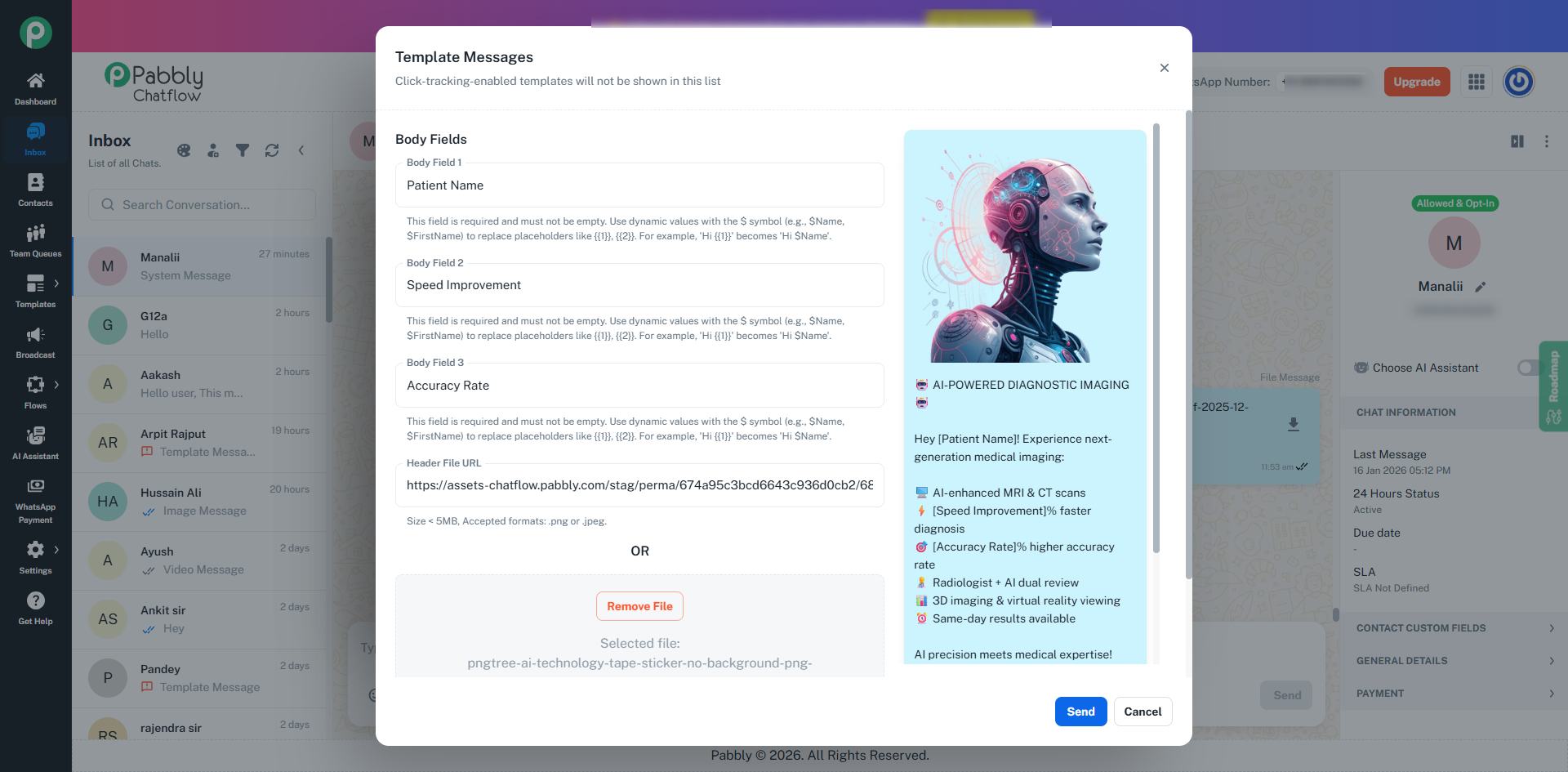
Approved templates can also be sent directly to individual users through the Inbox—especially helpful when the 24-hour session window has expired.
Navigate to the Inbox from the sidebar.
Select the contact you want to message.
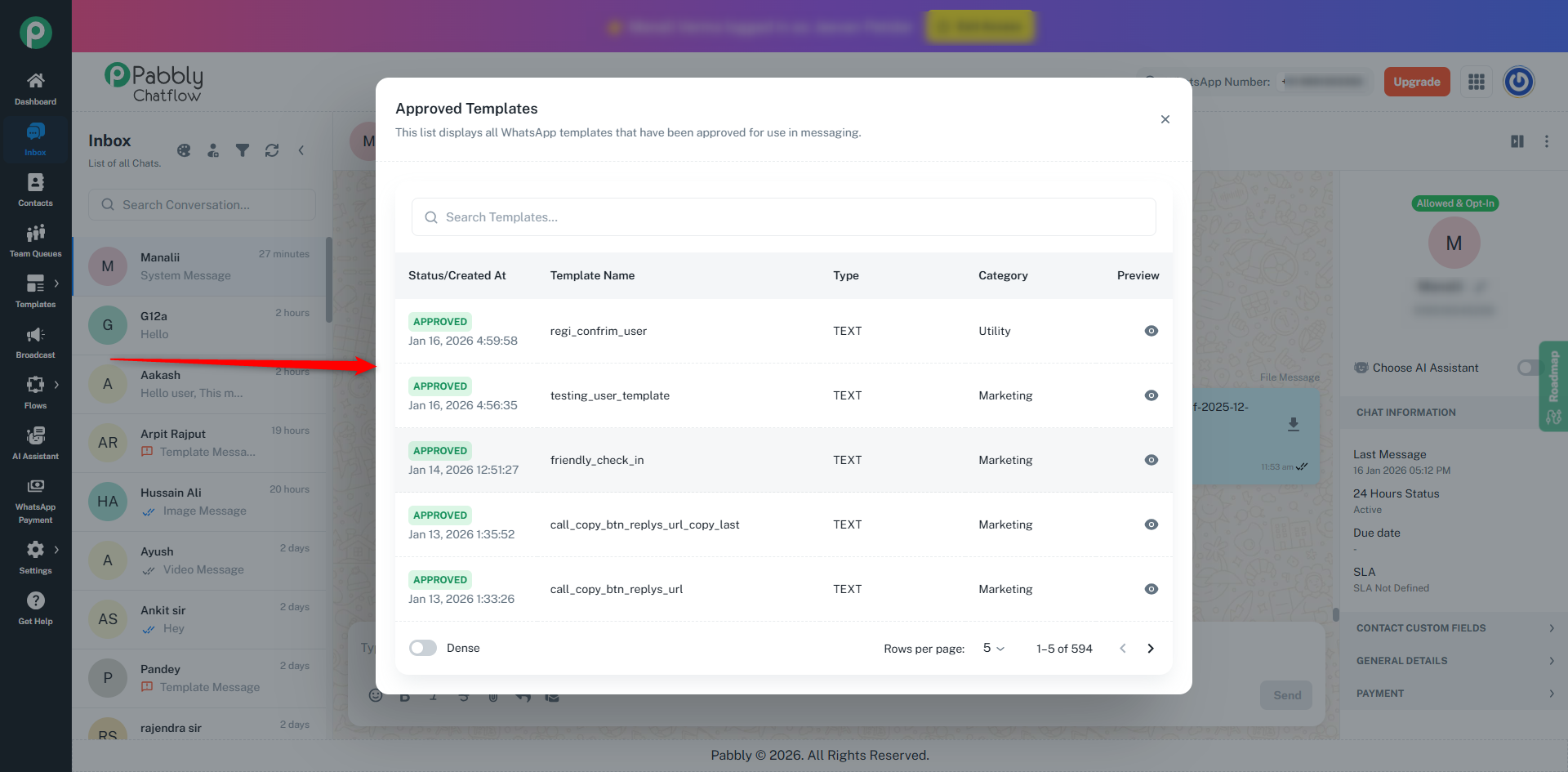
Use the template icon (📄) in the message bar to open the list of approved templates.
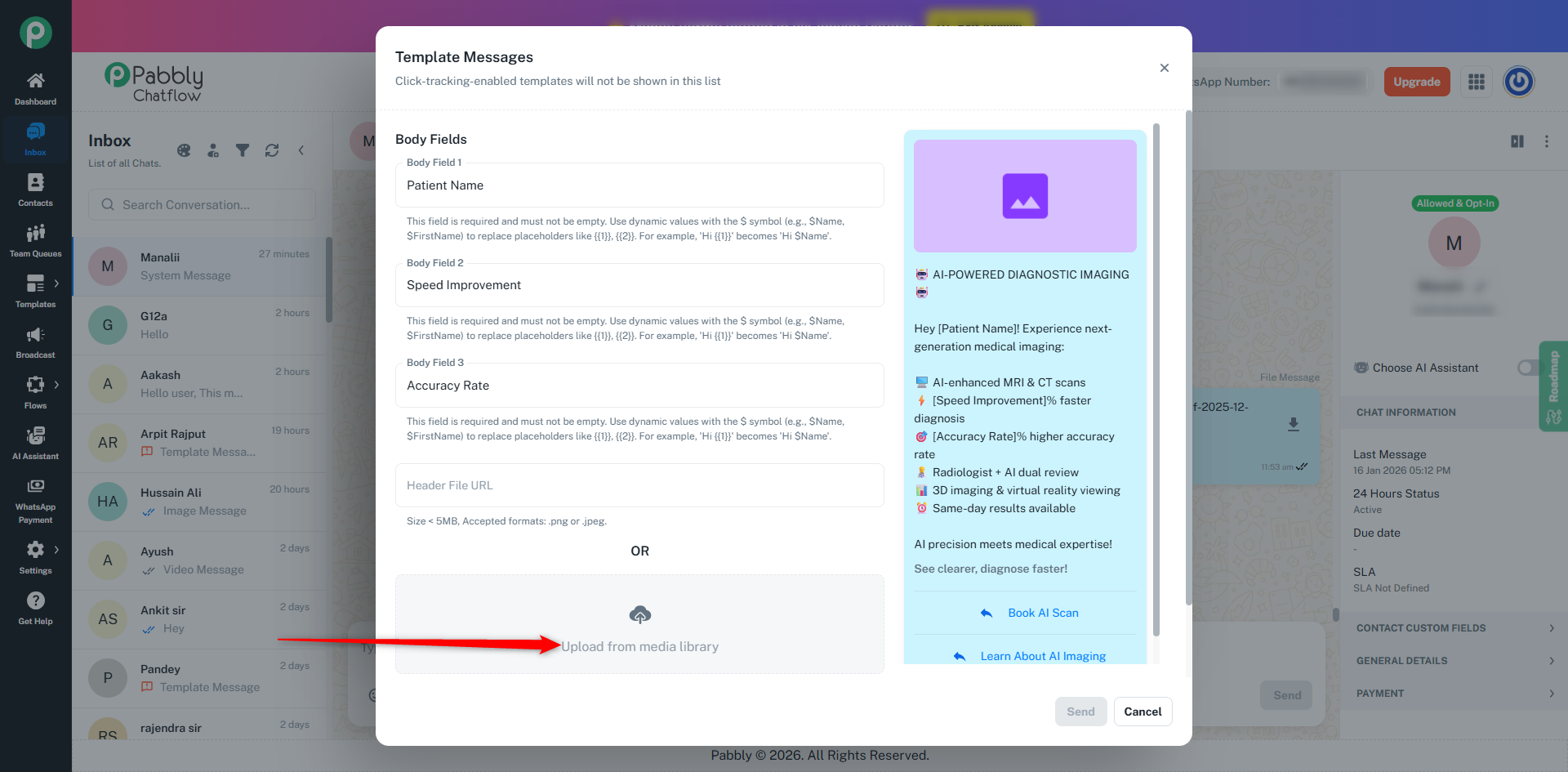
After Selecting Template
For example, if you select an Image Template:
Add your image using either:
A direct image URL (PNG or JPEG, under 5MB), or
Upload a video from the Media Library or directly from your system.
Preview the template on the right.
Click Send.
For a more comprehensive guide, refer to the full Inbox Documentation
