Features & Capabilities
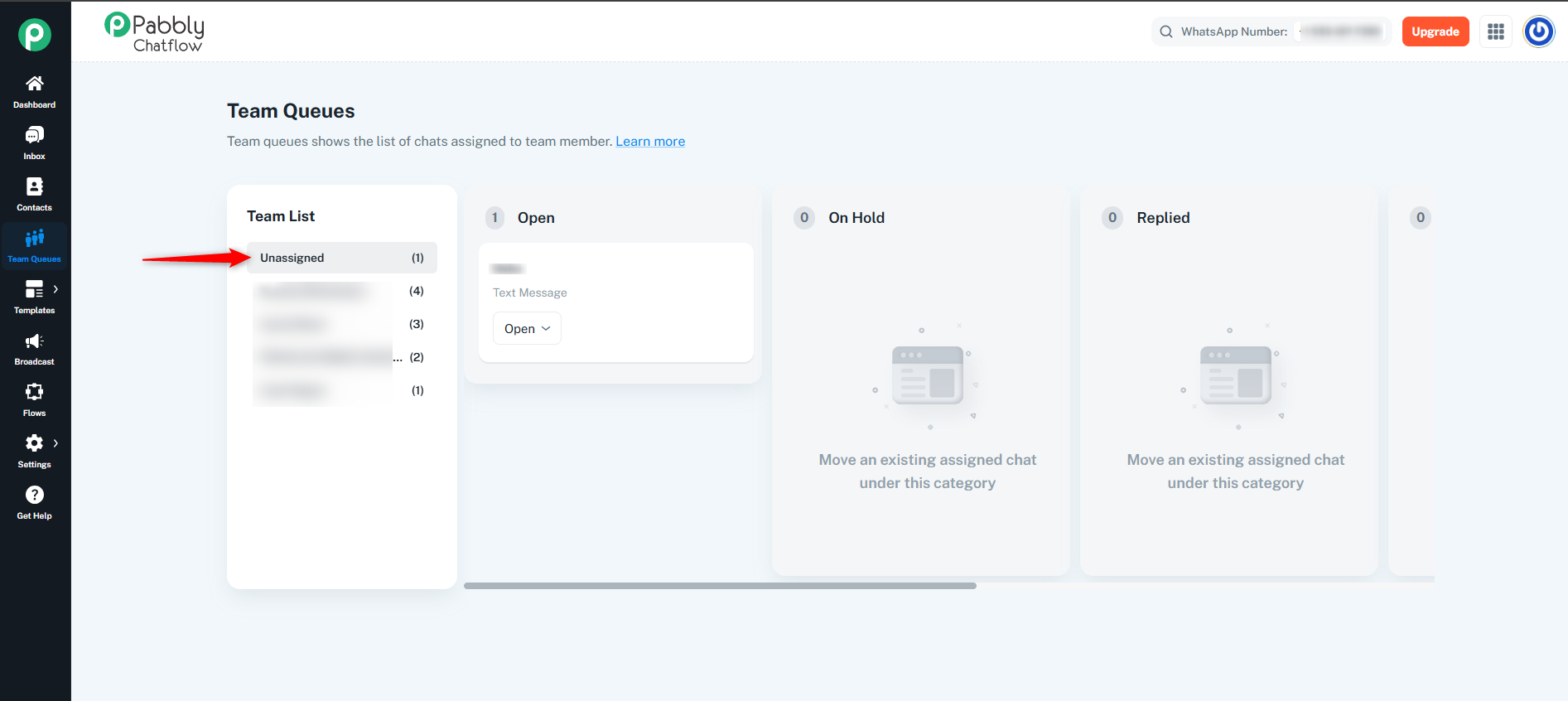
The Team Queues module in Pabbly Chatflow provides an organized way to manage chats assigned to team members. It displays a list of chats assigned to each team member and automatically categorizes unassigned chats in a separate list.
Before assigning chats, you must add a team member to your account. Follow this guide to add a team member: Team Members Guide
Once the team member has been added, you can assign chats using the following :
Select the chat(s) you want to assign.
Assign them to the relevant team member.
From General Settings:
Navigate to General Settings.
Under Chat Owner, select the team member you wish to assign the chat to.
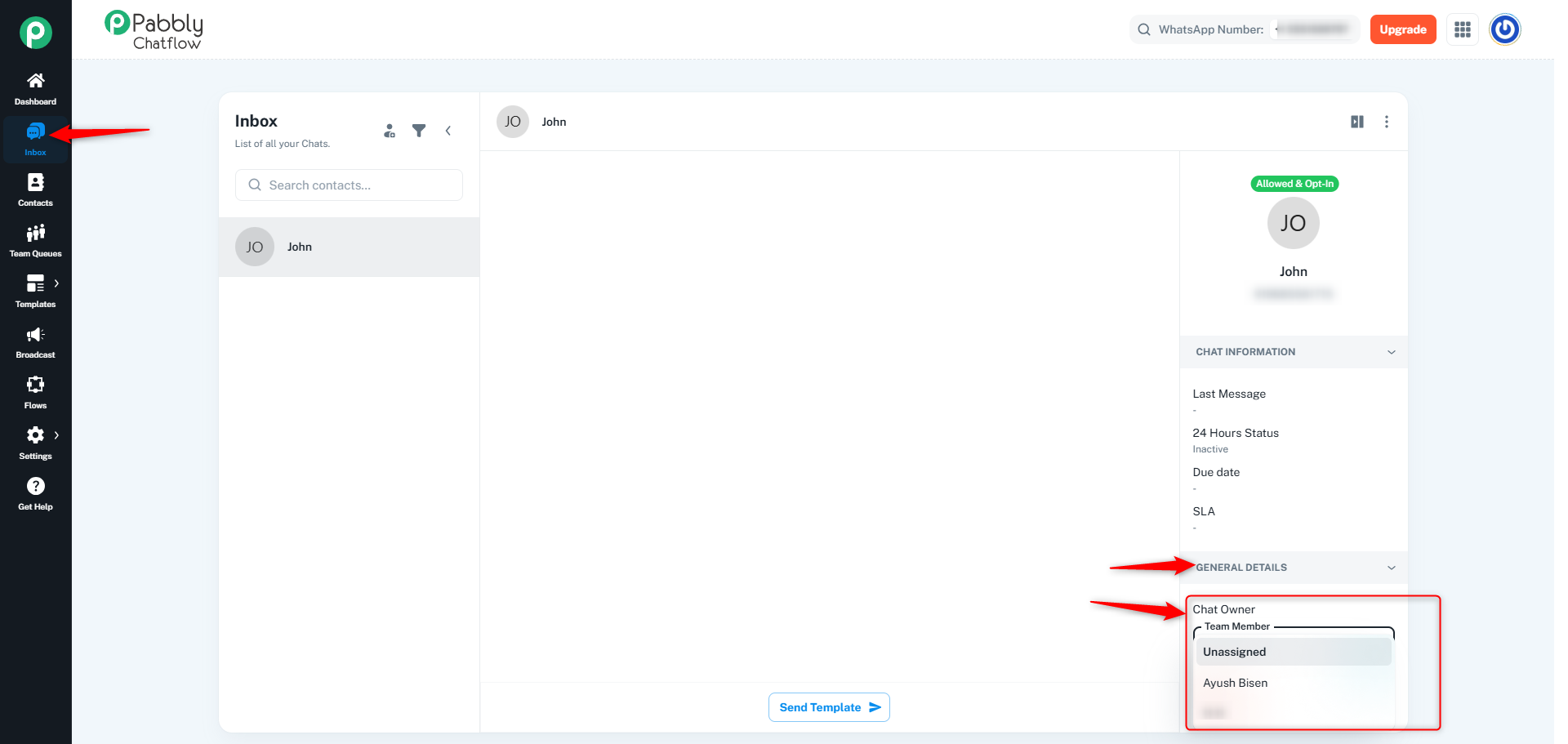
After assigning the chats, follow these steps to access the Team Queue:
1. Navigate to the Team Queues section from the left sidebar of the Chatflow application.
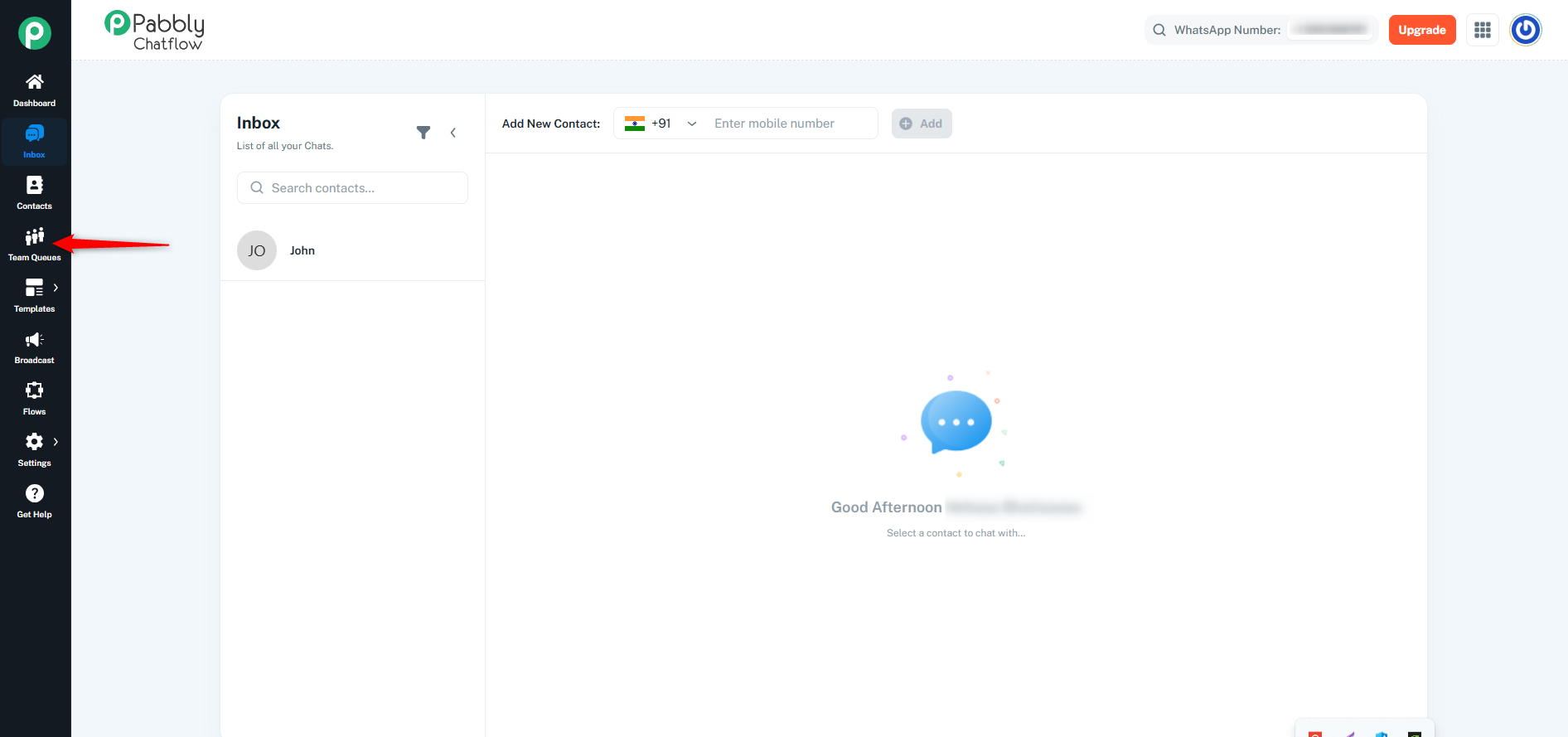
2. In the Team Queues, you will see all the chats assigned to a specific team member under the team list.
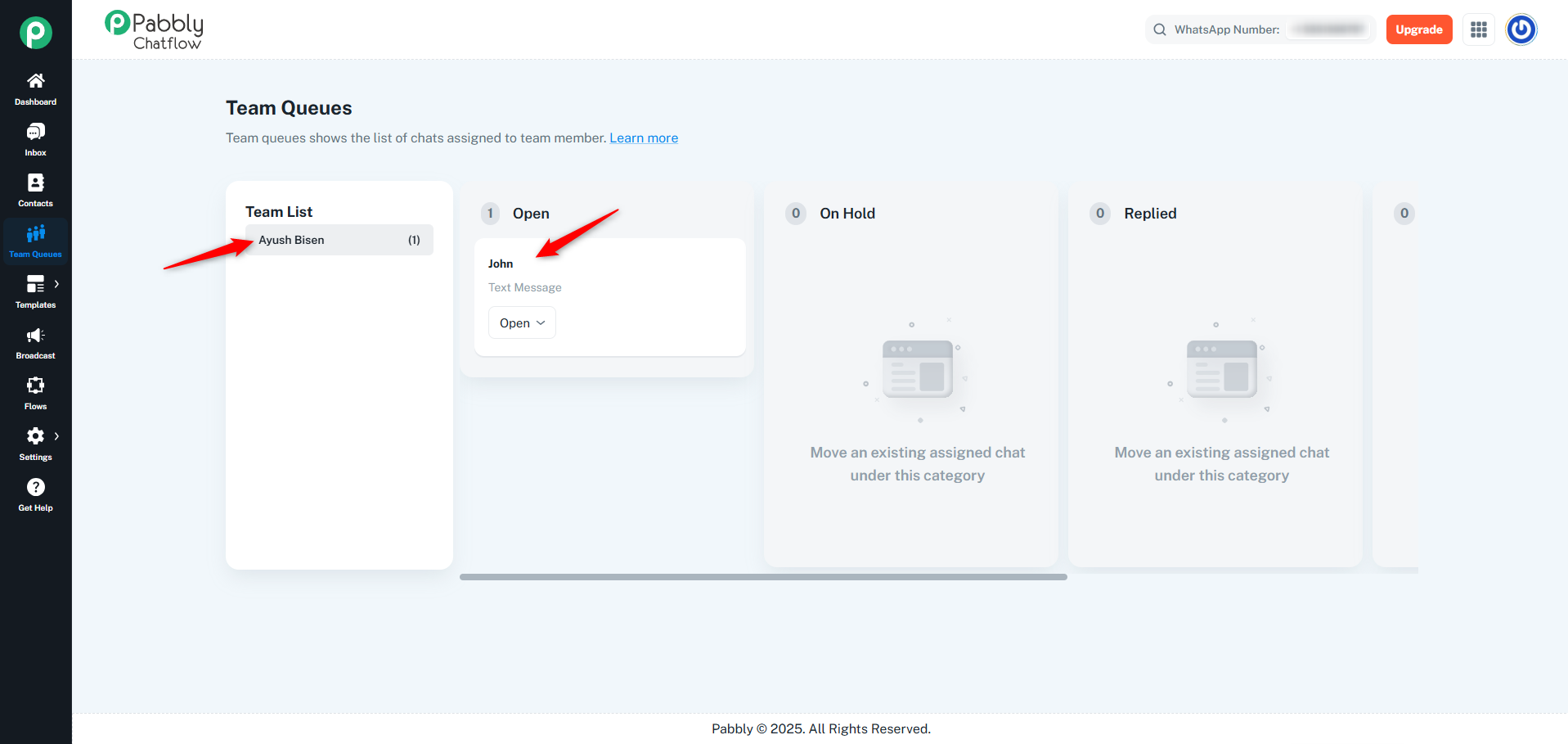
3. Chats will be categorized based on their status: Opened, AI Assistant, On Hold, Replied, Pending, Resolved, or Closed.
When AI Assistant Stops: If the AI Assistant is stopped, the chat status will automatically switch to Intervened.
When Chat Status is Intervened: Once the chat status is set to Intervened, the AI Assistant will not start, and no flows will be triggered.
The status must be manually changed to another status to allow the AI Assistant and flows to restart for the next interaction or keyword trigger.
Chat Status Information:
This feature ensures better chat distribution among team members and provides a streamlined way to handle customer interactions efficiently.
