Features & Capabilities
Pabbly Chatflow allows you to add team members, share WhatsApp Numbers, and control exactly what each team member can access using Custom Roles. You can create reusable roles with module-level permissions, restrict users to only their assigned conversations, and ensure sensitive actions remain protected.
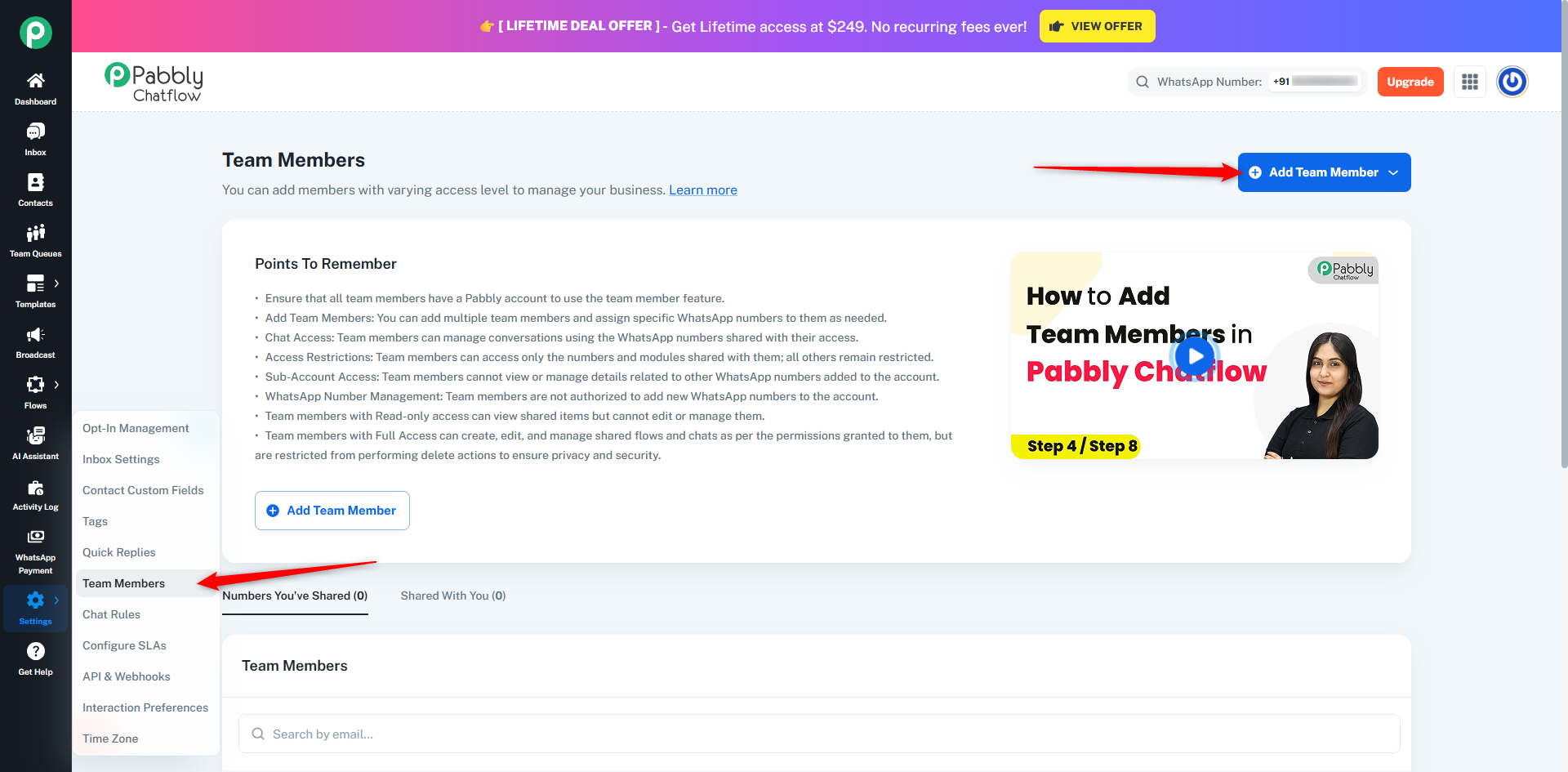
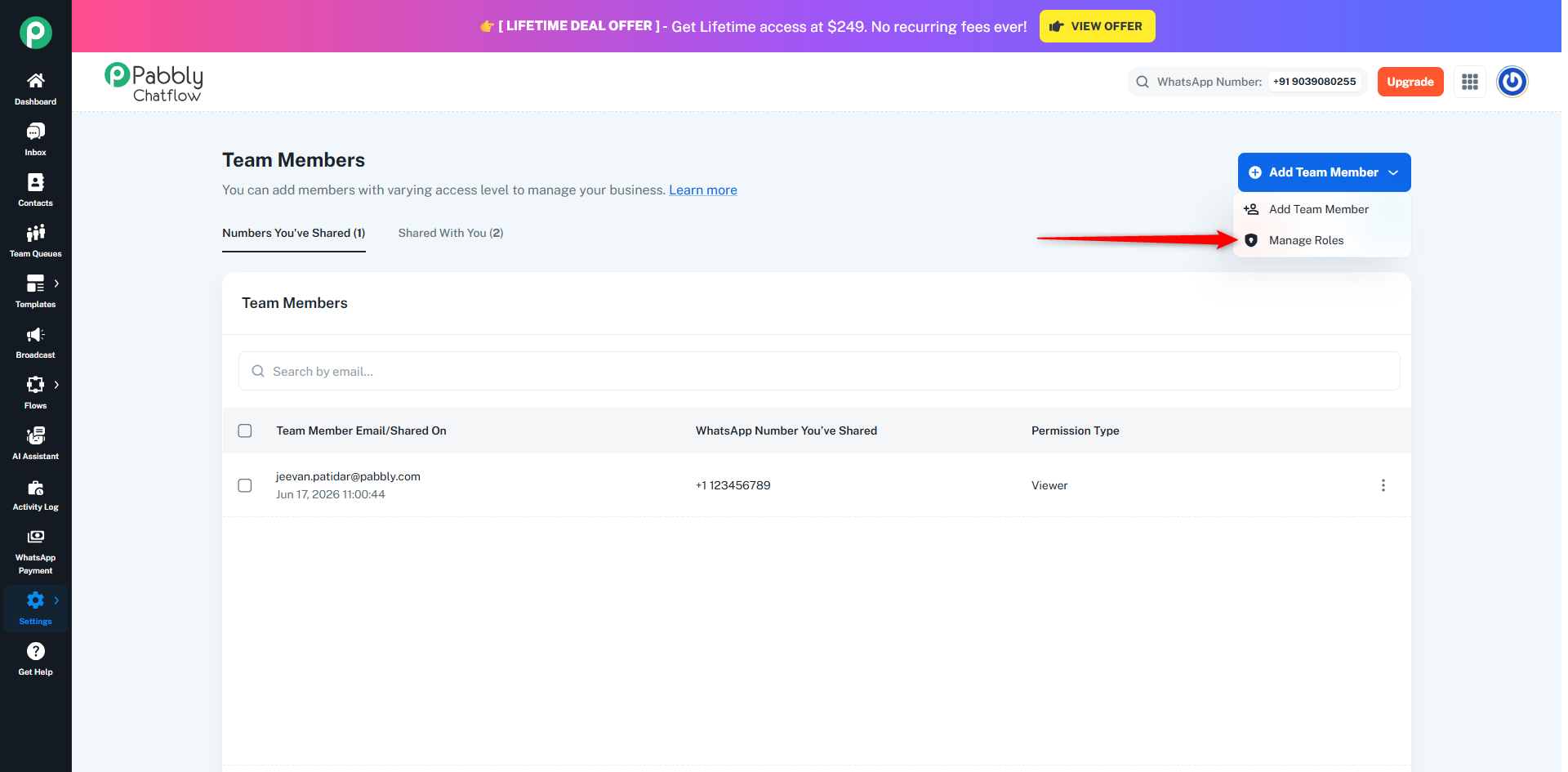
Click on the "Add Team Member" button.
From the dropdown menu, you will see two options:
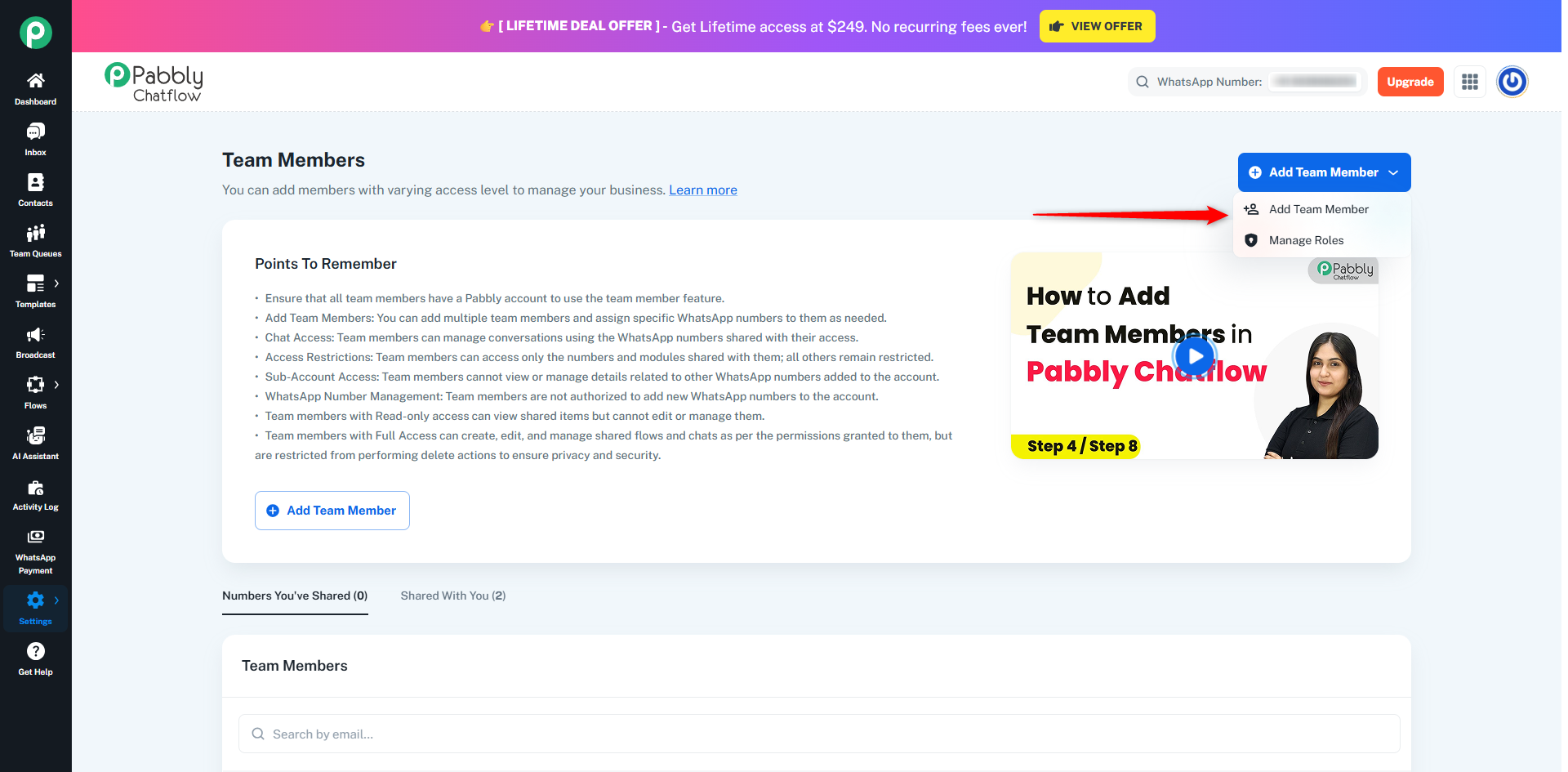
Click on "Add Team Member".
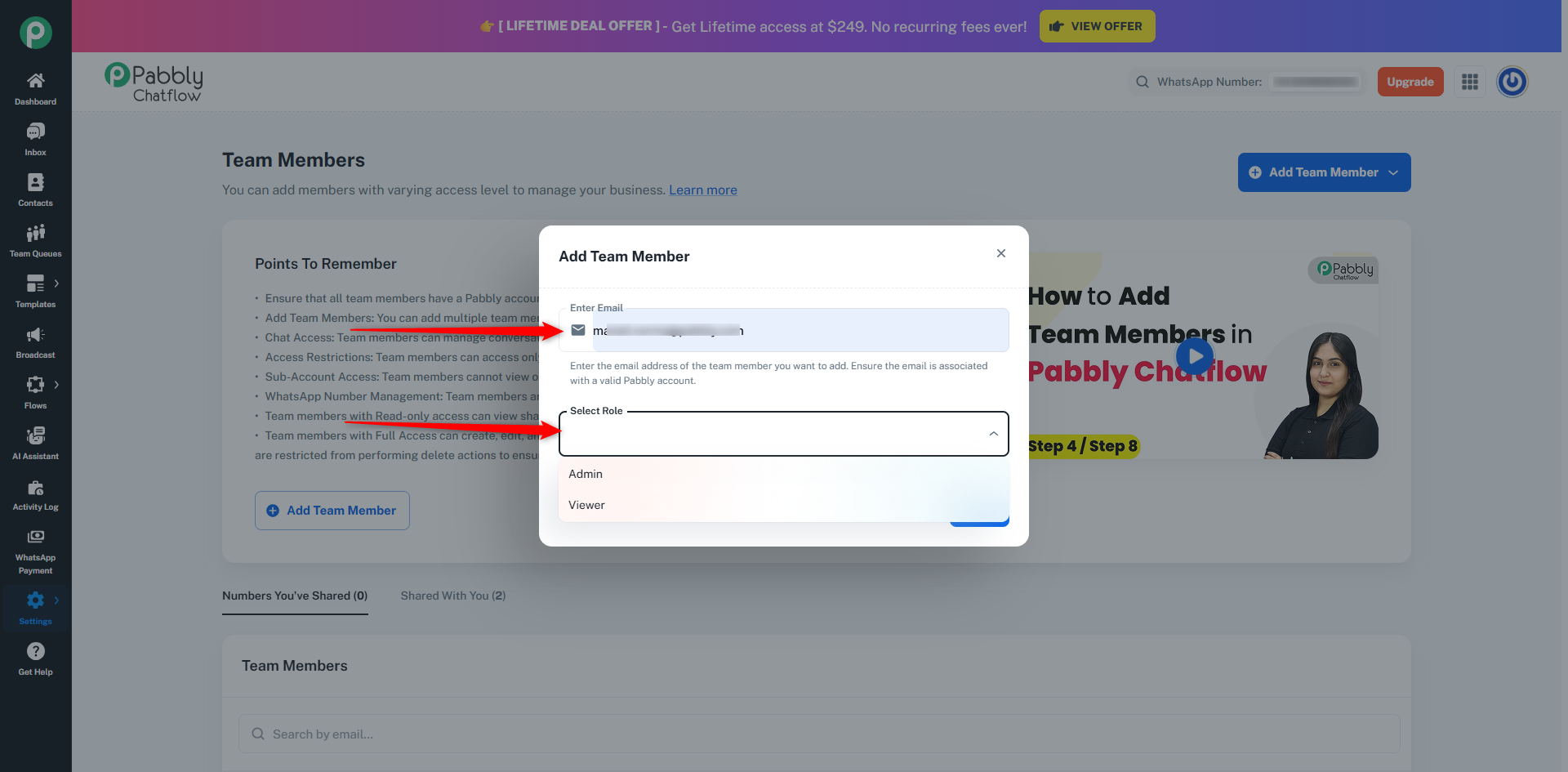
A dialog box will appear where you need to provide the following information:
Enter the email address of the team member.
Choose the role you want to assign.
By default, the following system roles are available:
You can also select any custom role that you have created.
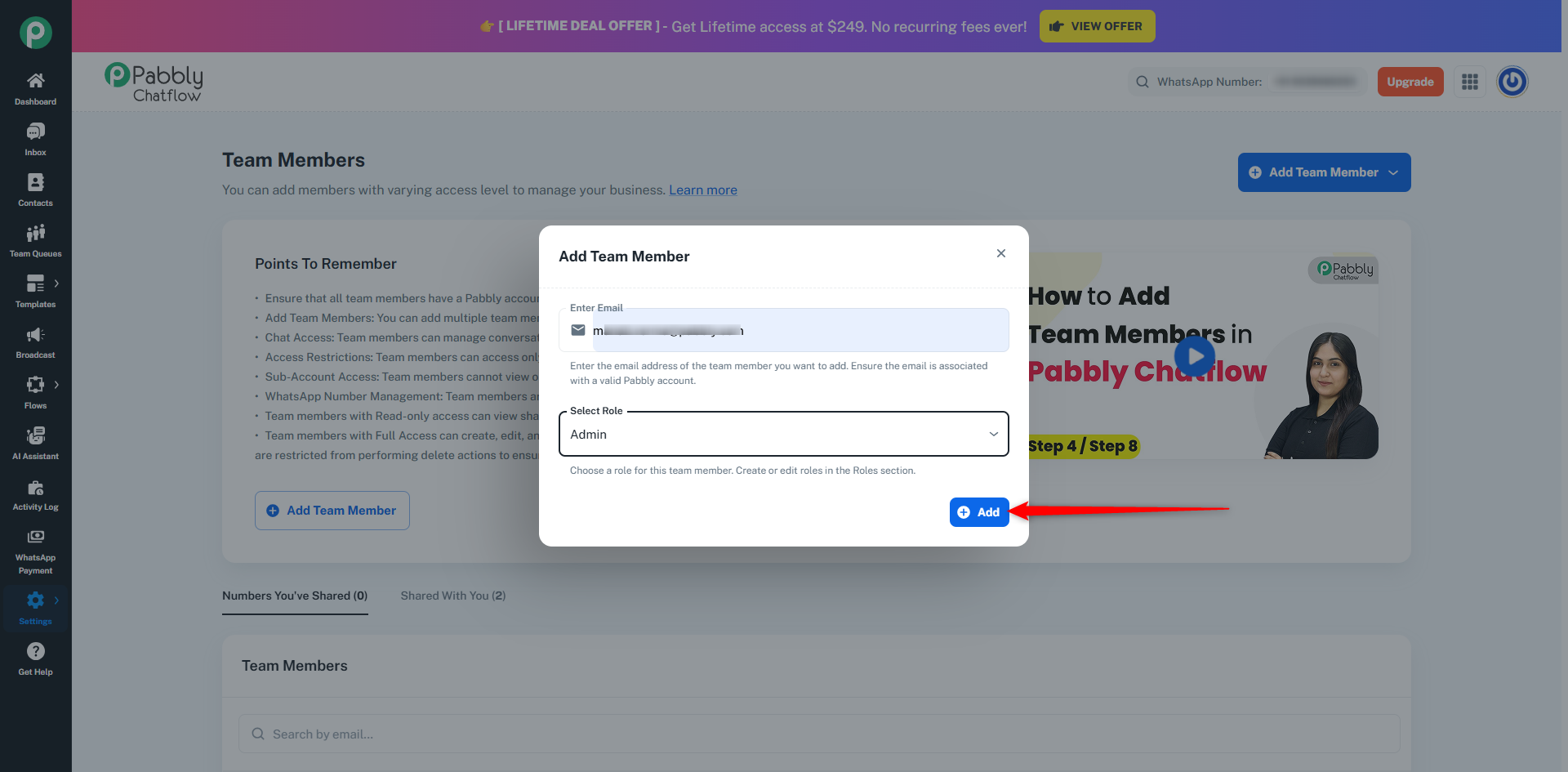
Click on "Add Team Member" to complete the process.
The team member will immediately be added to your account with the selected role and permissions.
If you need more control over permissions, click "Manage Roles" from the Add Team Member dropdown.
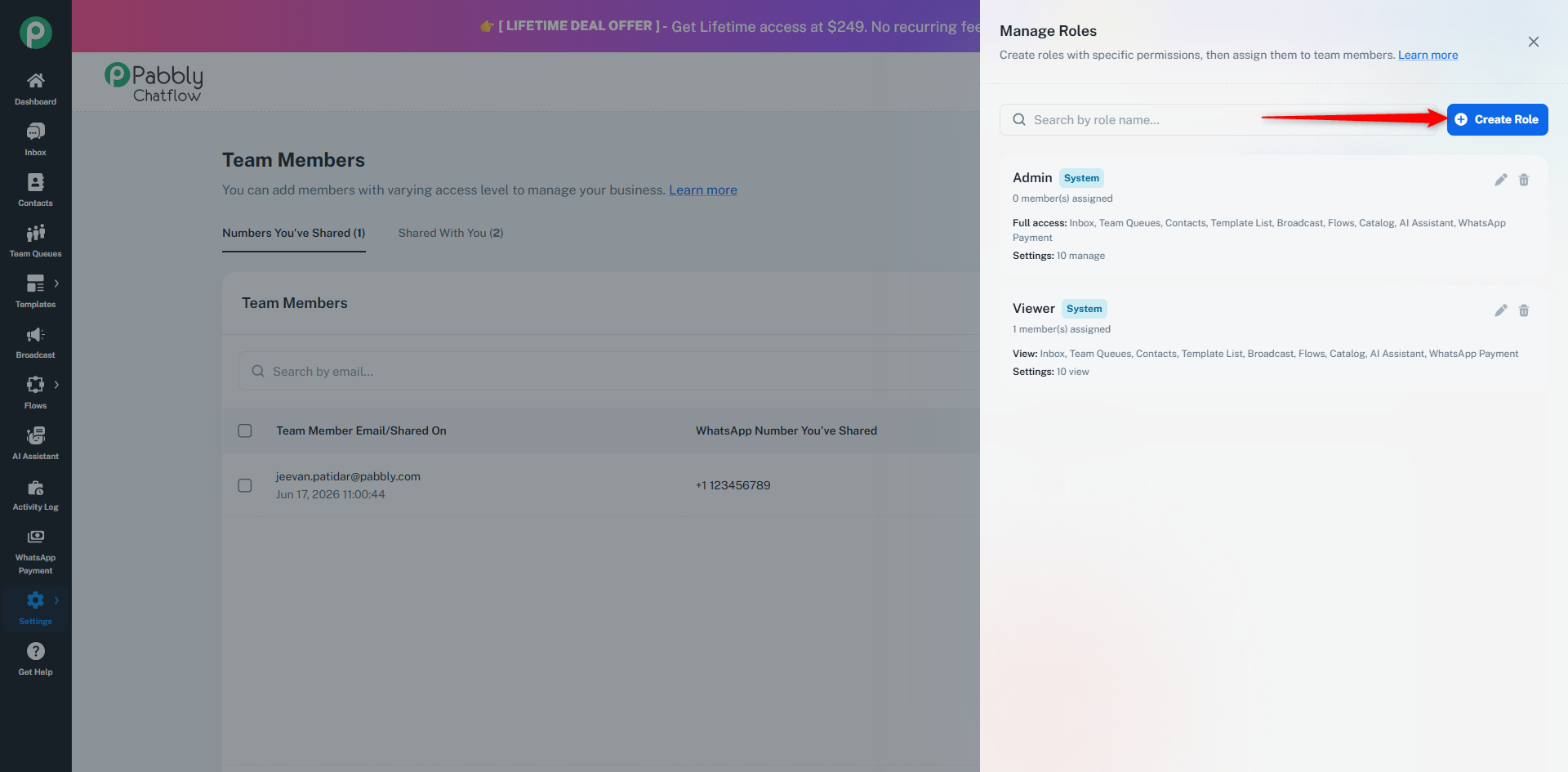
The Manage Roles panel displays:
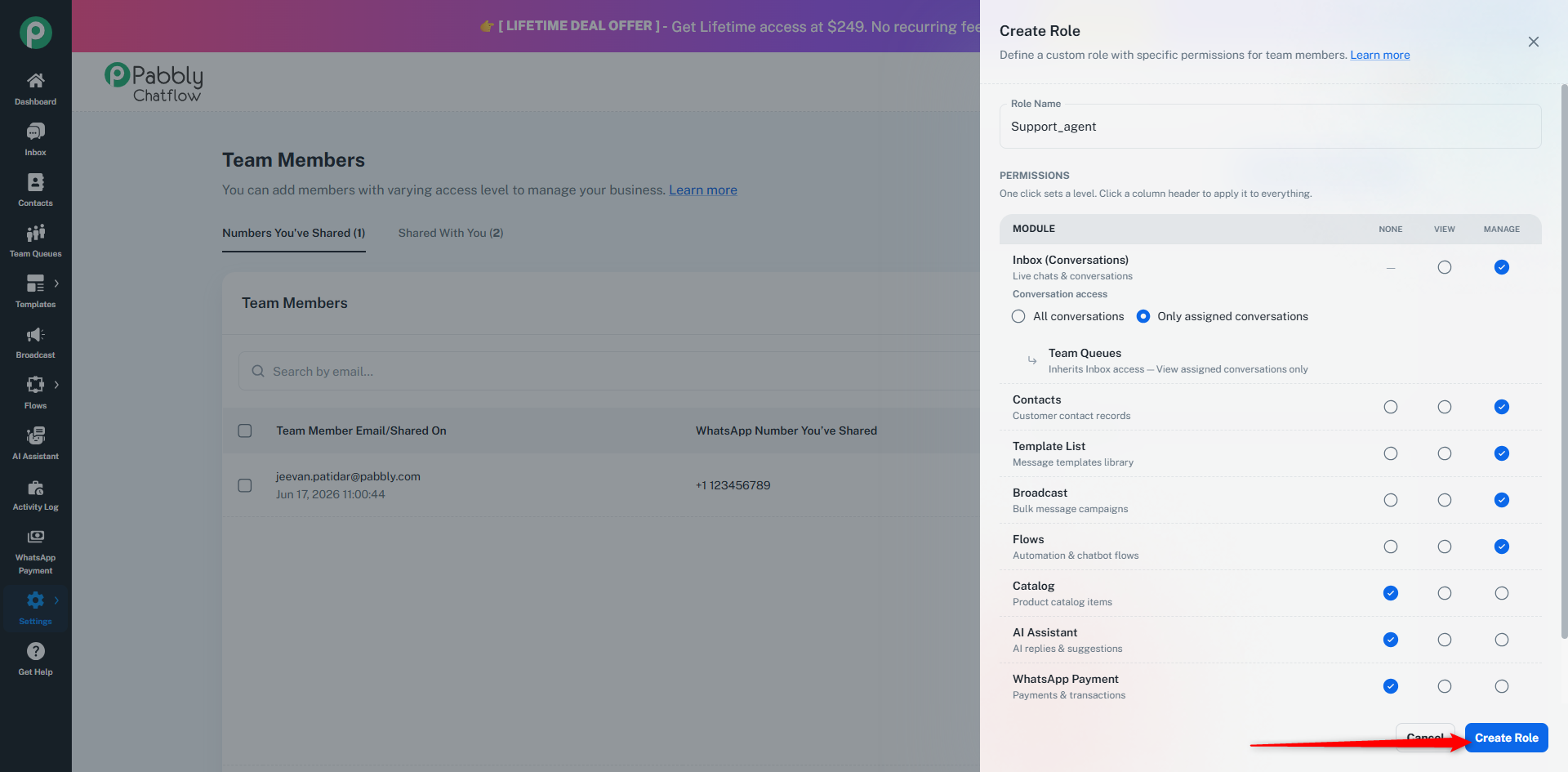
Click the "Create Role" button.
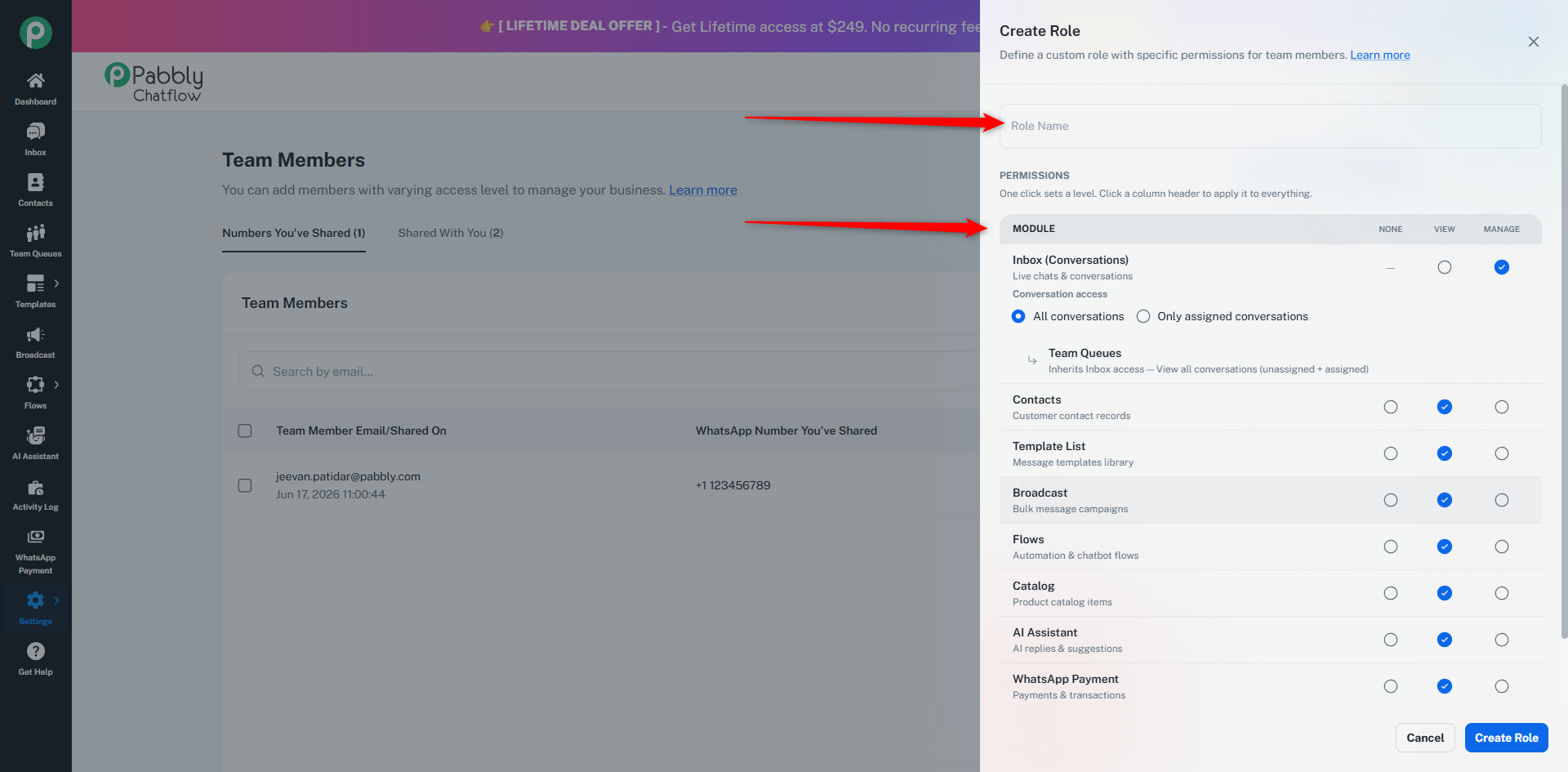
Enter a Role Name such as:
Next, configure permissions for each module.
Each module can be assigned one of the following permission levels:
Permissions can be configured for:
For the Inbox module, you can also define:
This is useful for support teams where agents should only handle their assigned chats.
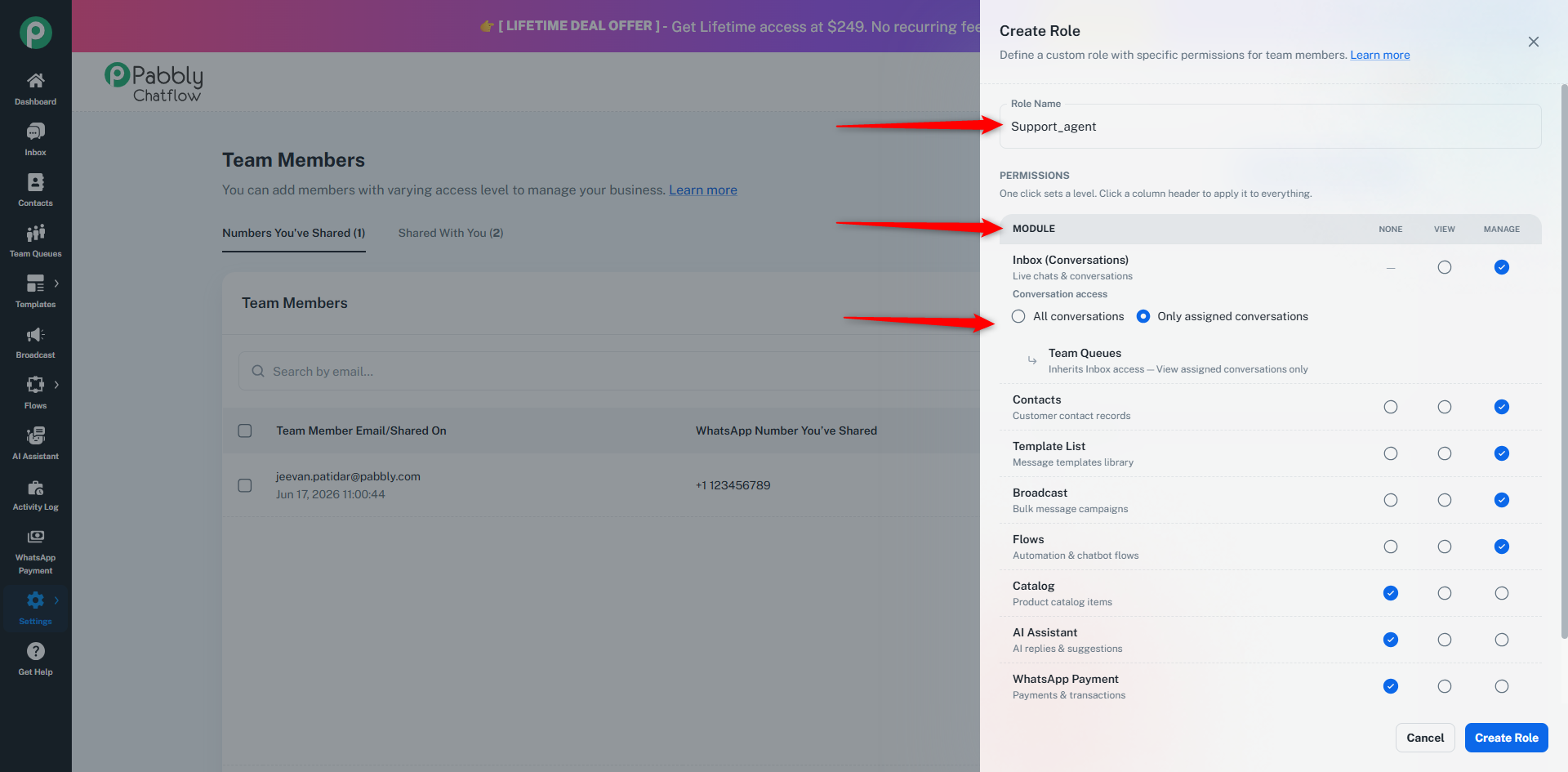
After configuring all permissions, click "Create Role".
The role will now be available when adding or updating team members.
Once a role is assigned, Pabbly Chatflow automatically applies those permissions throughout the application.
Pabbly Chatflow includes two built-in system roles:
Provides broad access across available modules and management capabilities.
Provides read-only access across permitted modules without editing rights.
System roles are always available and cannot be removed.
Note: You can create up to 10 custom roles in your Pabbly Chatflow account.
Once a WhatsApp Number is shared with a team member, they can access it by following these steps:
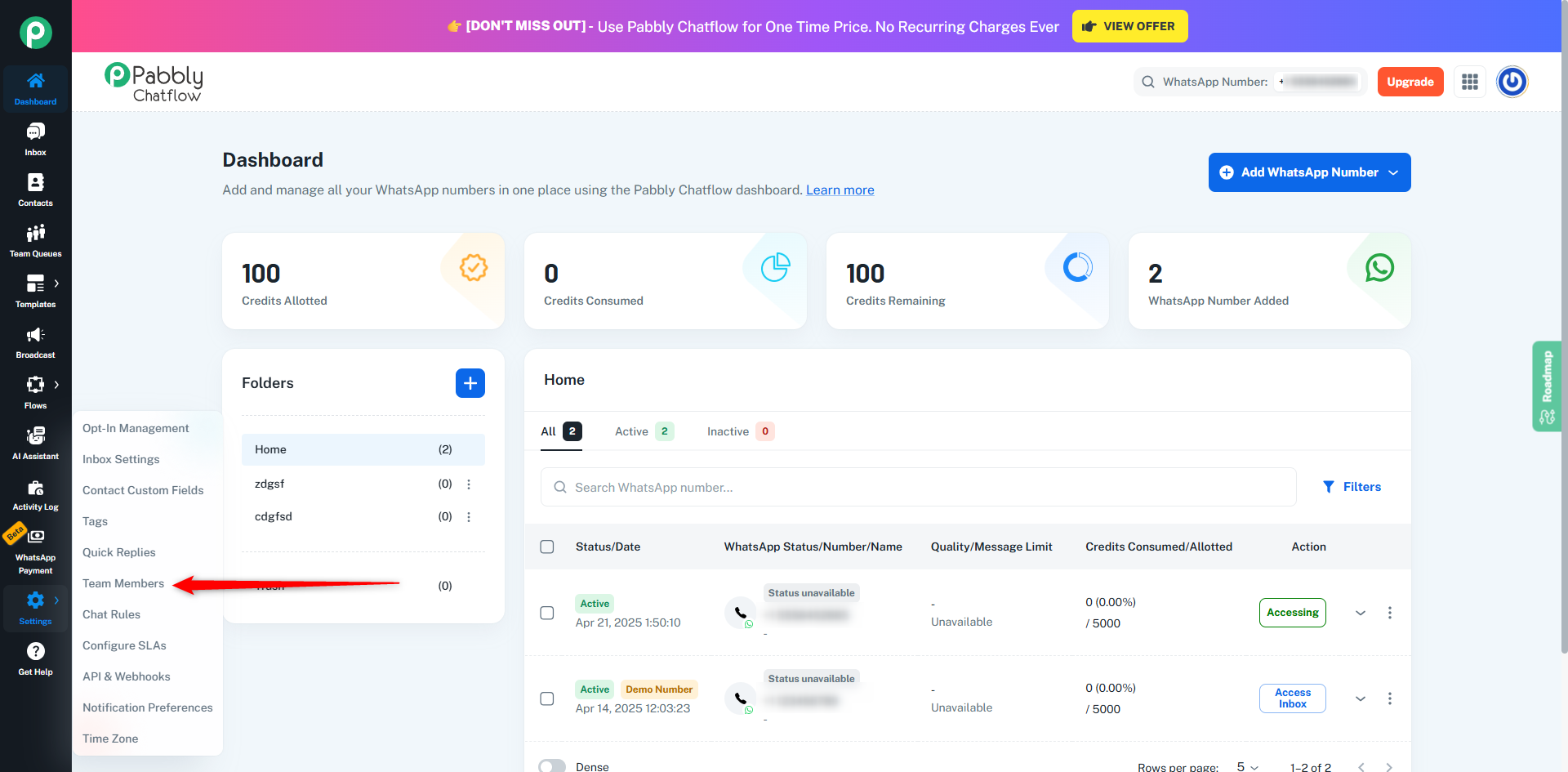
1. Go to the “Team Members” Section
Log in to your Pabbly Chatflow account and navigate to:
Settings → Team Members
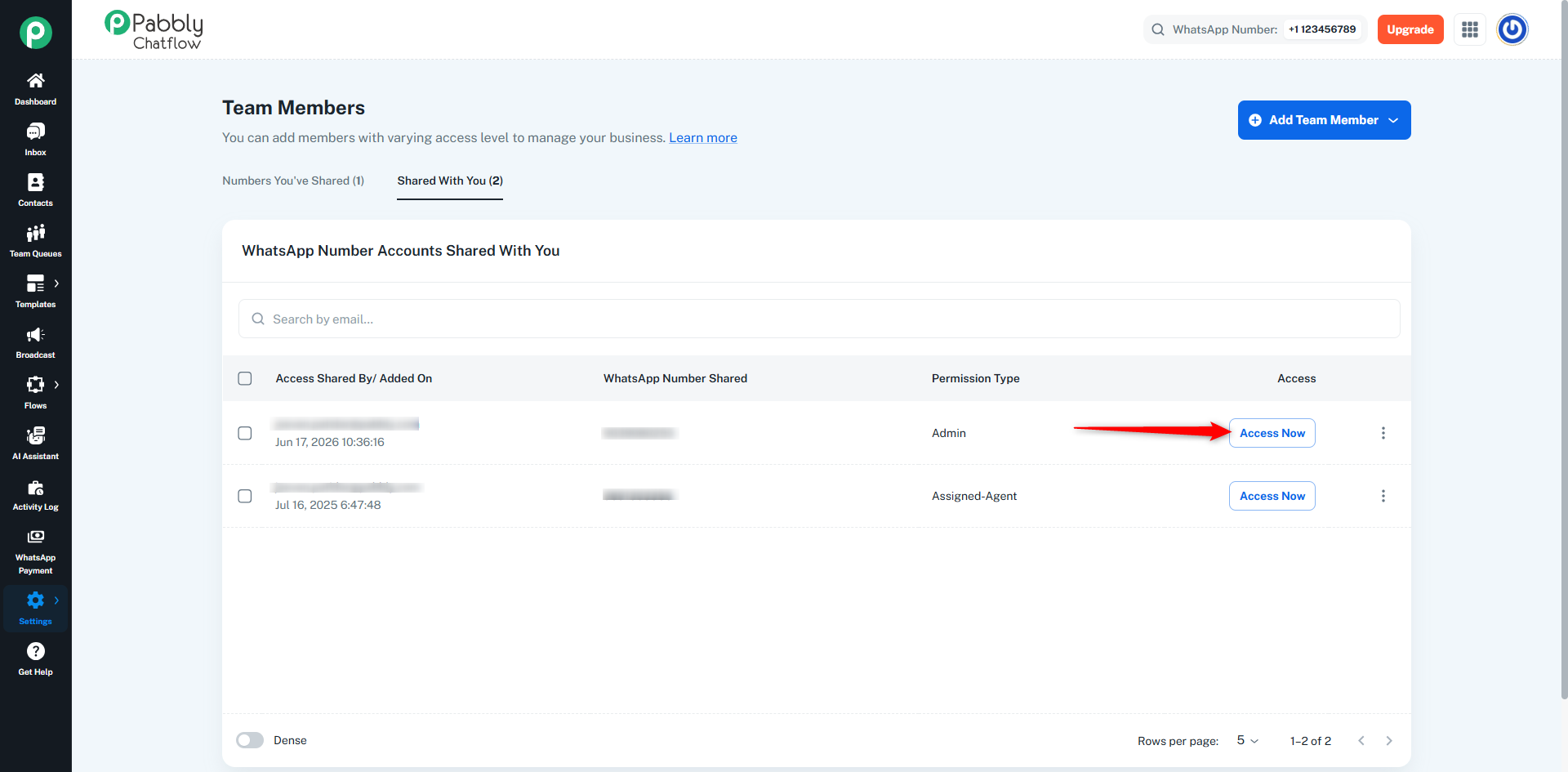
Then click on the "Shared With You" tab.
This tab displays all WhatsApp Numbers that other users have shared with you.
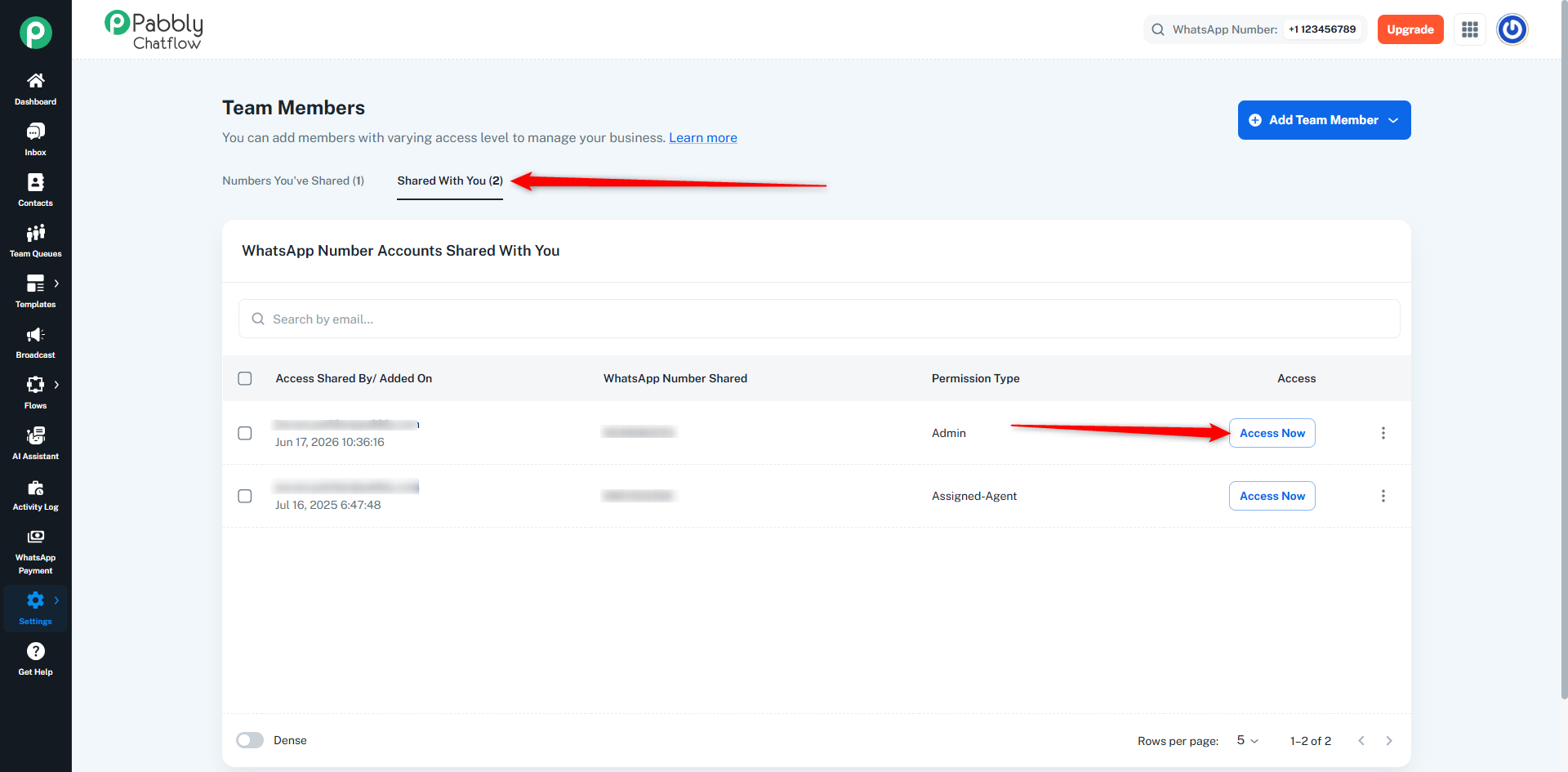
Inside the WhatsApp Number Accounts Shared With You section, you will see:
The permissions displayed depend on the role assigned by the account owner, such as:
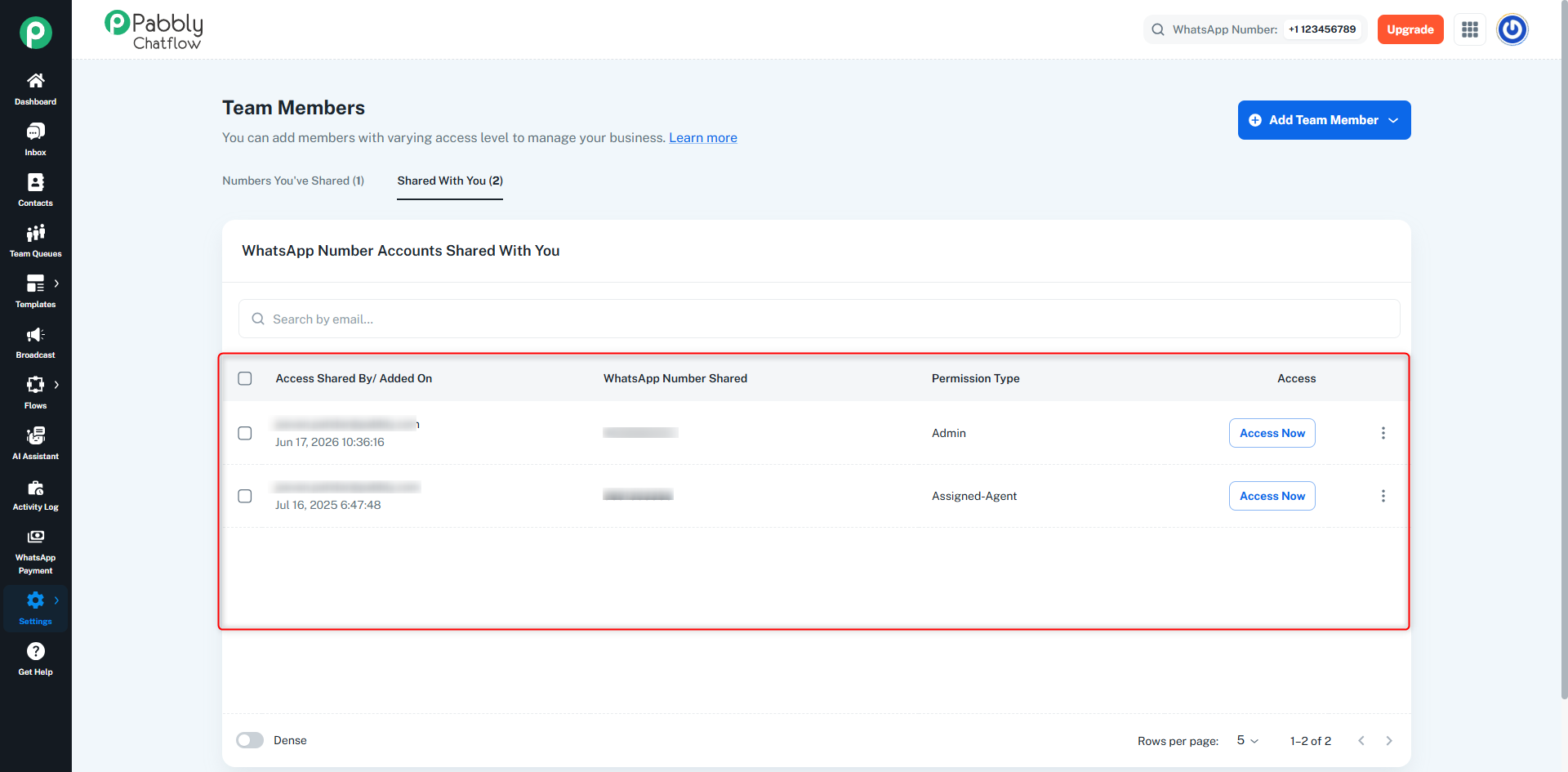
Find the WhatsApp number you want to use and click Access Now.
This action will switch the team member into the account that shared the number.
After entering the shared account:
Pabbly Chatflow automatically applies all role permissions throughout the account to ensure secure access control.
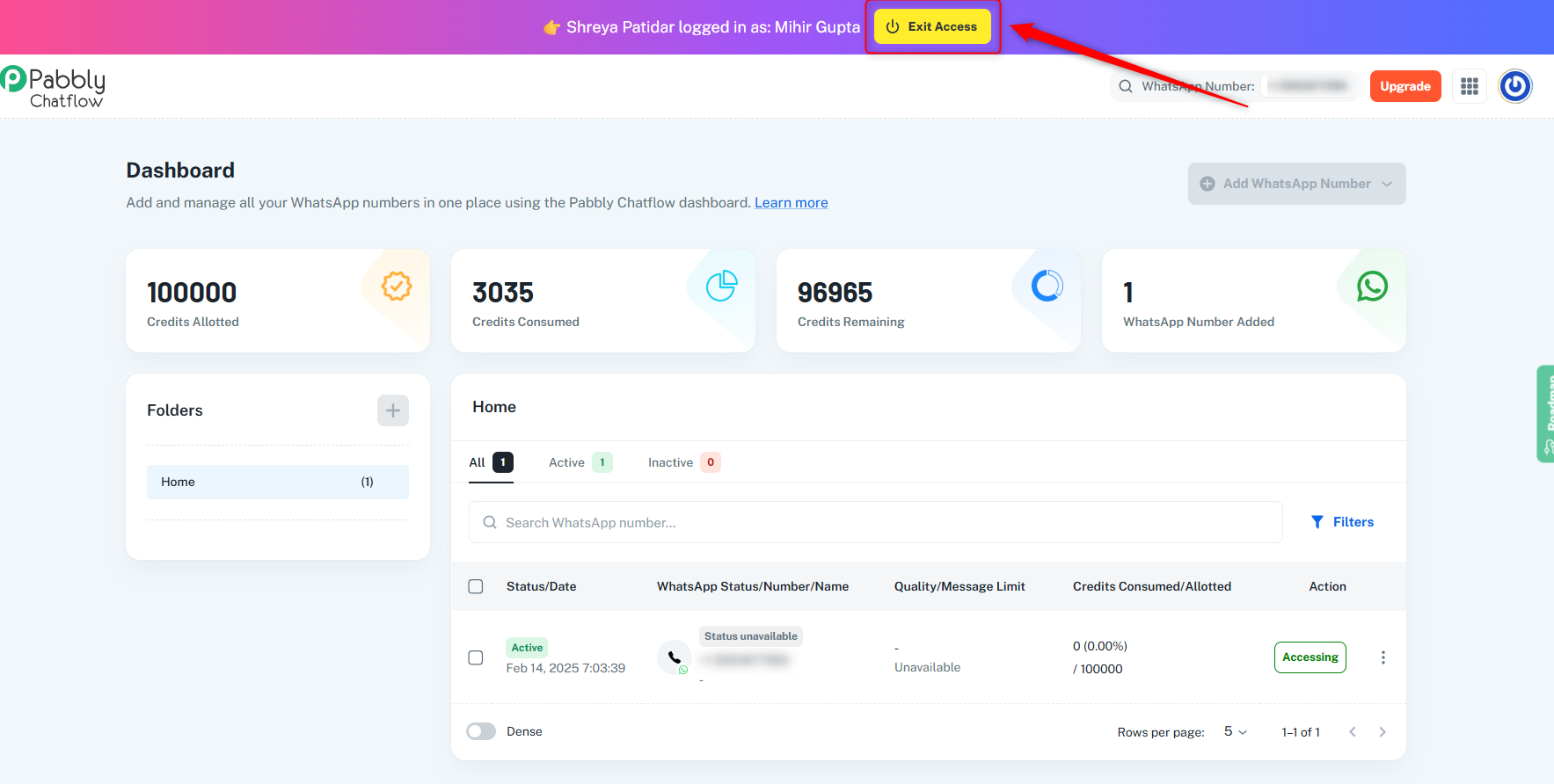
When you have finished working in the shared account, click the Exit Access button from the top navigation bar.
This will return you to your own Pabbly Chatflow account.
The Shared Access feature allows team members to securely access WhatsApp Numbers shared with them while ensuring they only see the modules, conversations, and actions permitted by their assigned role. With Custom Roles and permission-based access control, businesses can safely collaborate across teams while maintaining complete control over account security and operations.
By following the steps above, team members can quickly access shared WhatsApp Numbers, work within their assigned permissions, and switch back to their own account whenever needed.
