Template Management Guide
The AI Template Generation feature allows you to quickly create WhatsApp templates using AI by providing a simple prompt. Instead of manually filling all template fields, AI helps generate a structured template that you can review, edit if needed, and submit for approval.
This feature is especially useful when you want to save time and create templates faster with accurate formatting.
Log in to your Pabbly Chatflow account using your credentials.
From the left sidebar, click on Templates.
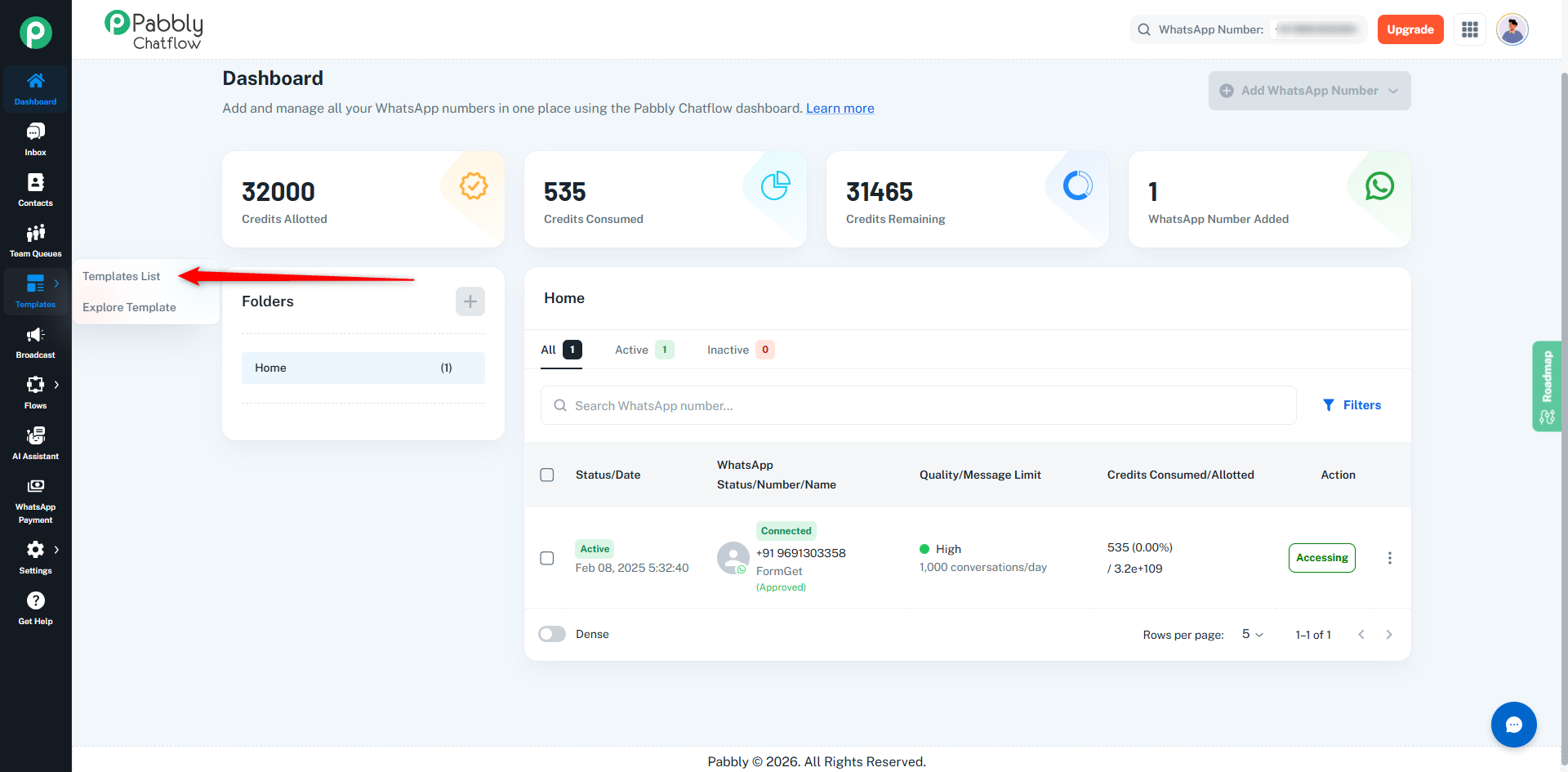
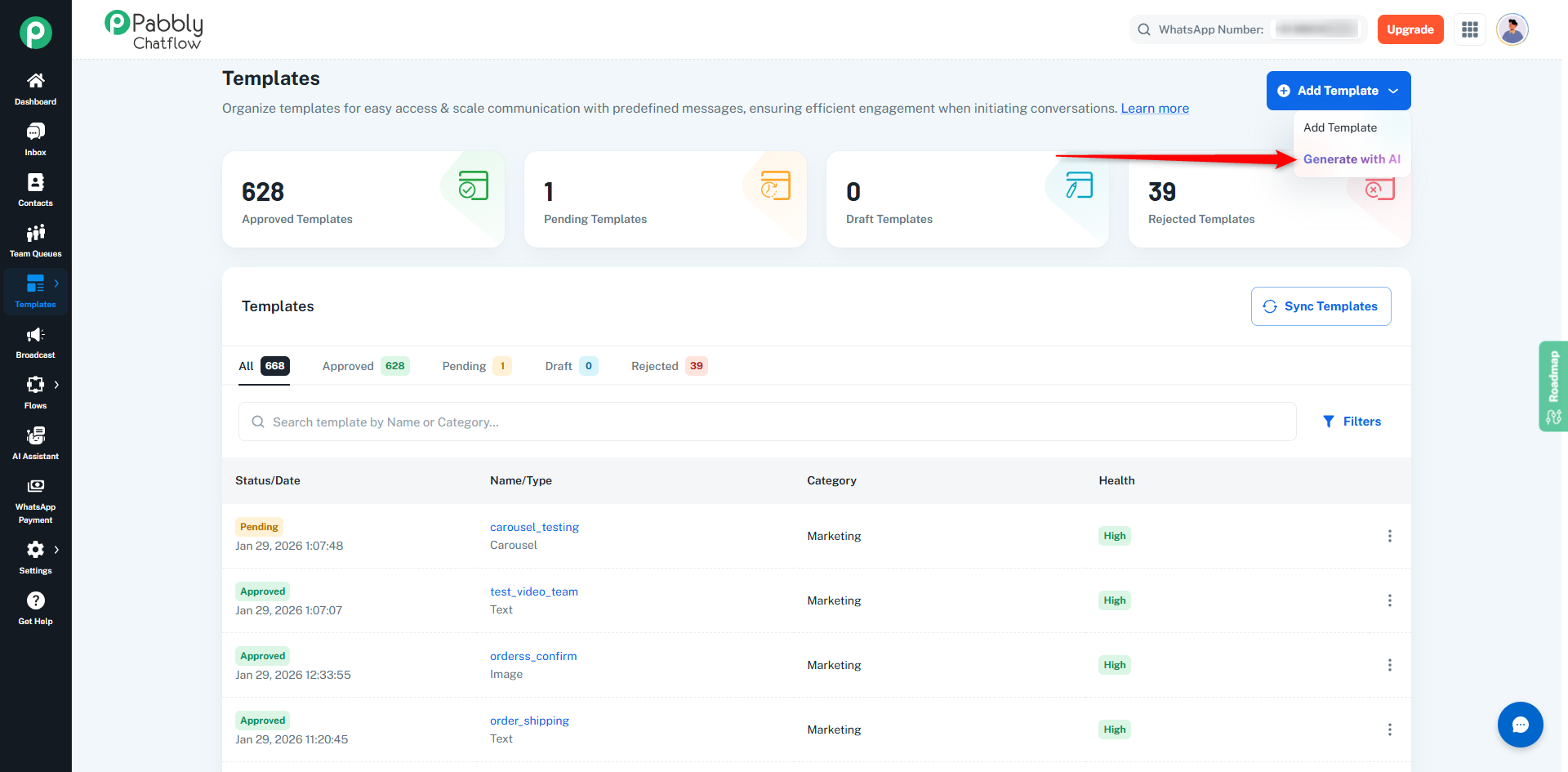
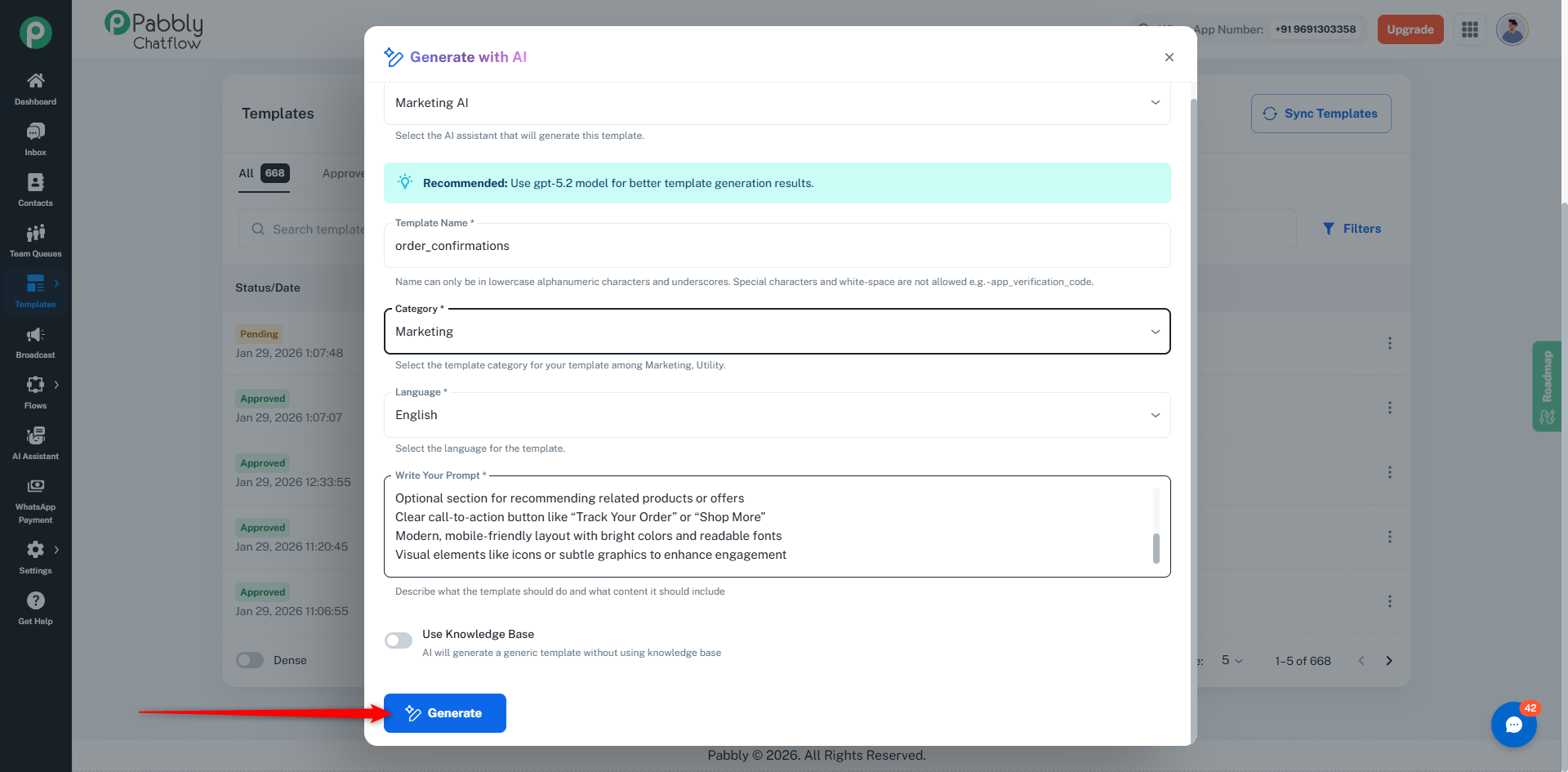
This will open the Generate with AI window.
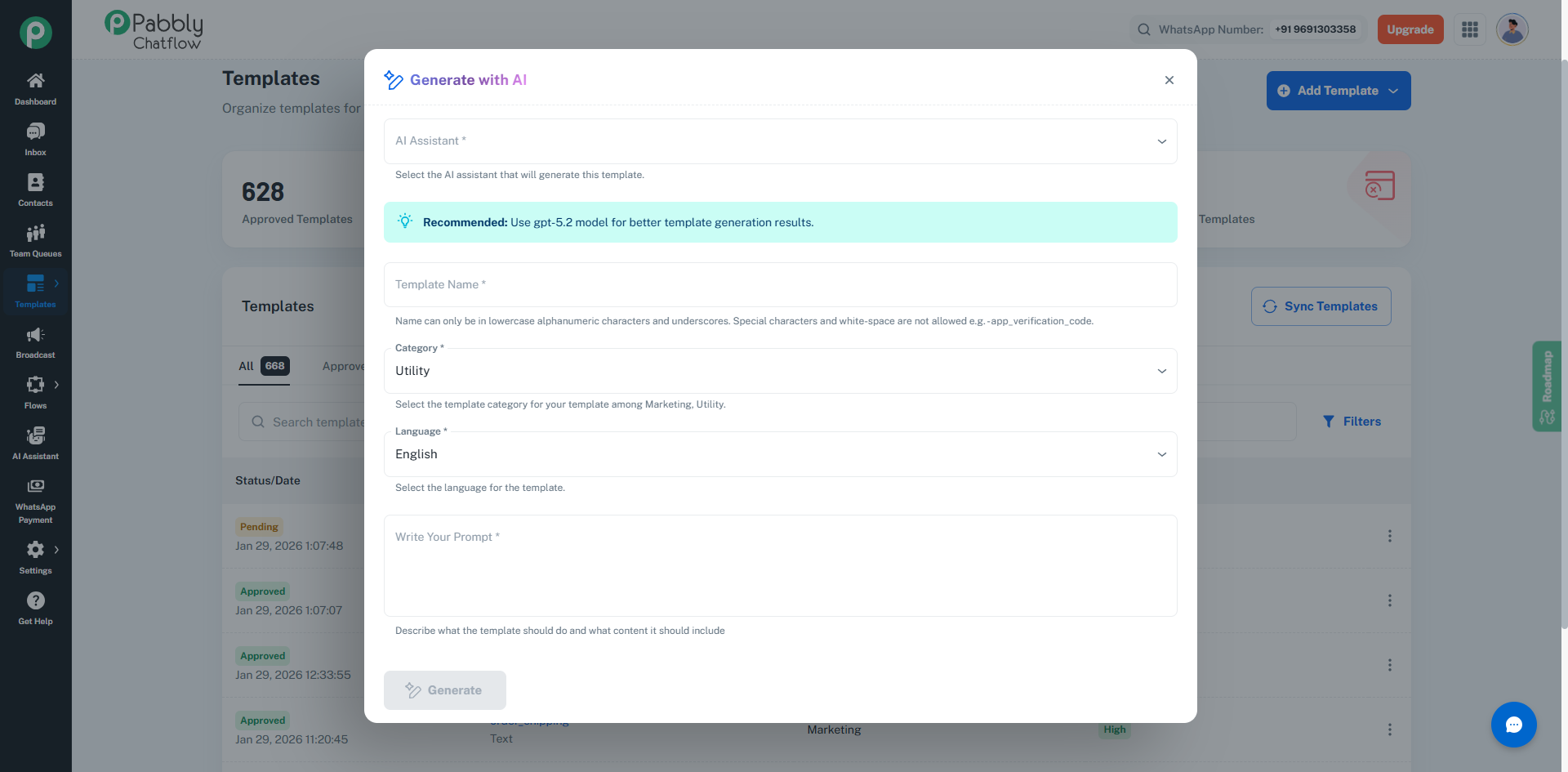
In the Generate with AI window, configure the following options:
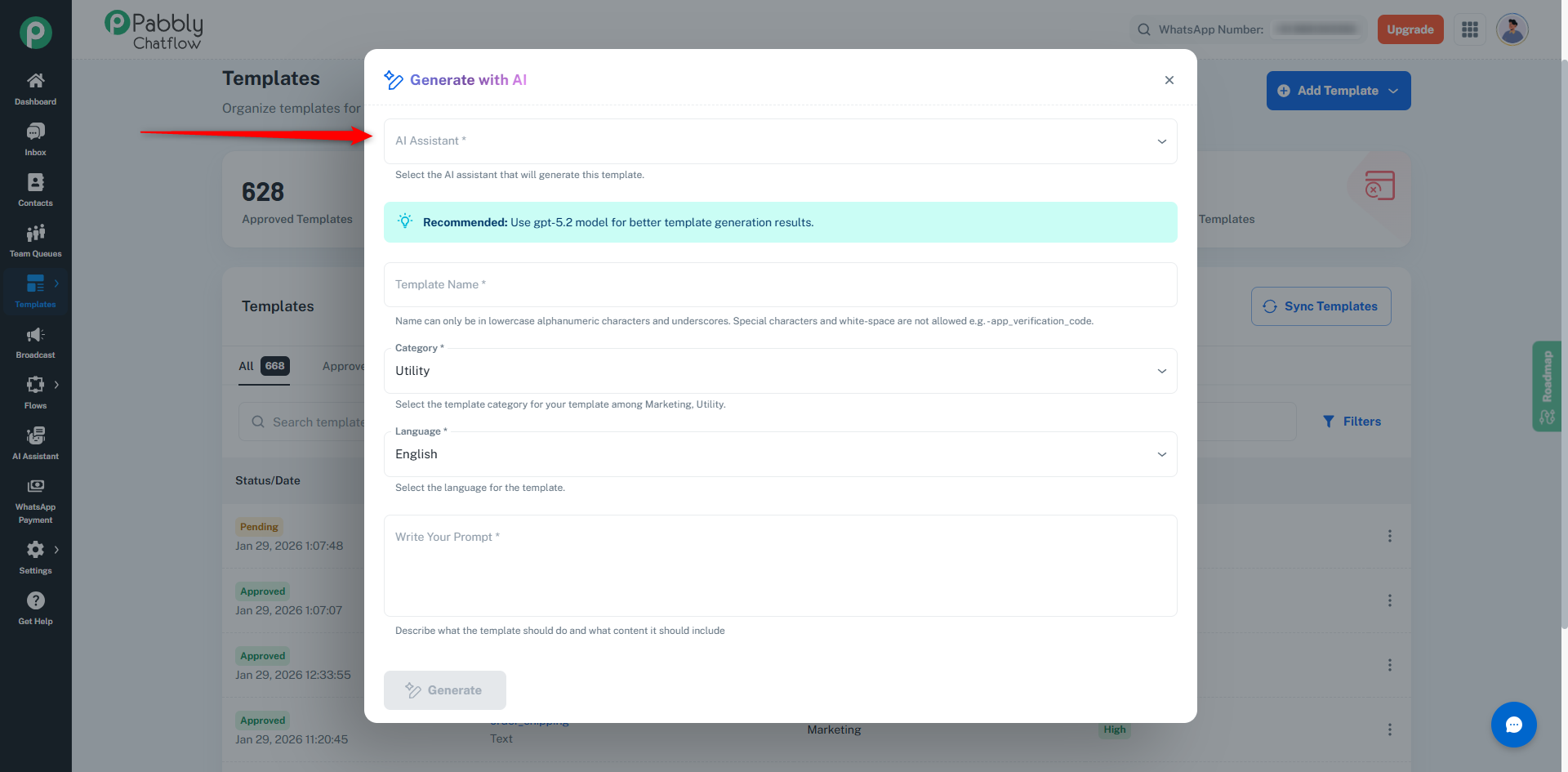
Choose the AI assistant that will generate the WhatsApp template.
Note: It is recommended to use the GPT-5.2 model for better template generation results.
Before using the Generate with AI option, you must have at least one active AI Assistant configured with valid API keys.
If no active AI Assistant is found, you will see the following message while generating a template:
“No active AI assistants with configured API keys found. Please configure an AI assistant first.”
Provide a template name following Meta’s naming rules:
Example:
order_confirmation
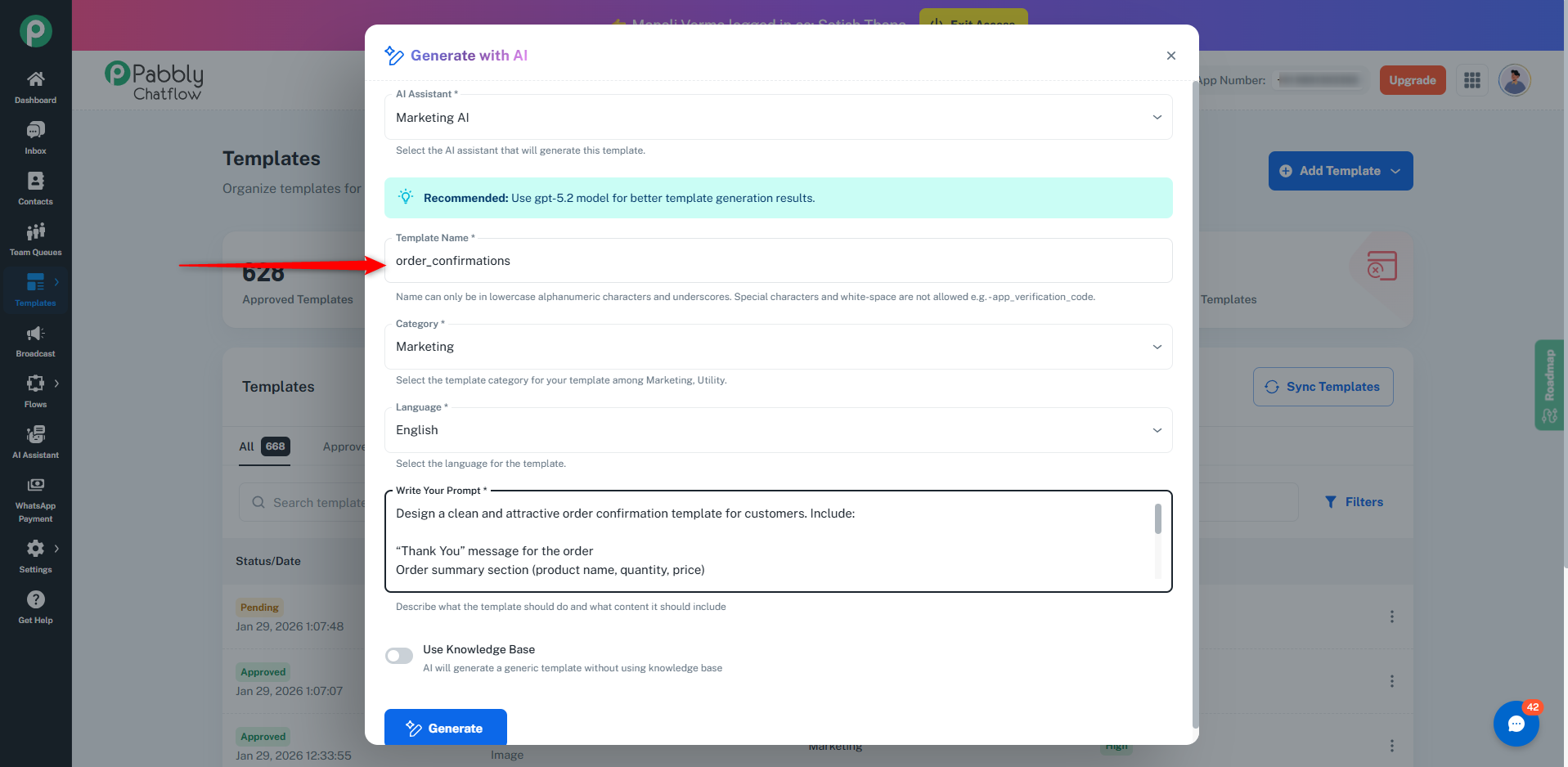
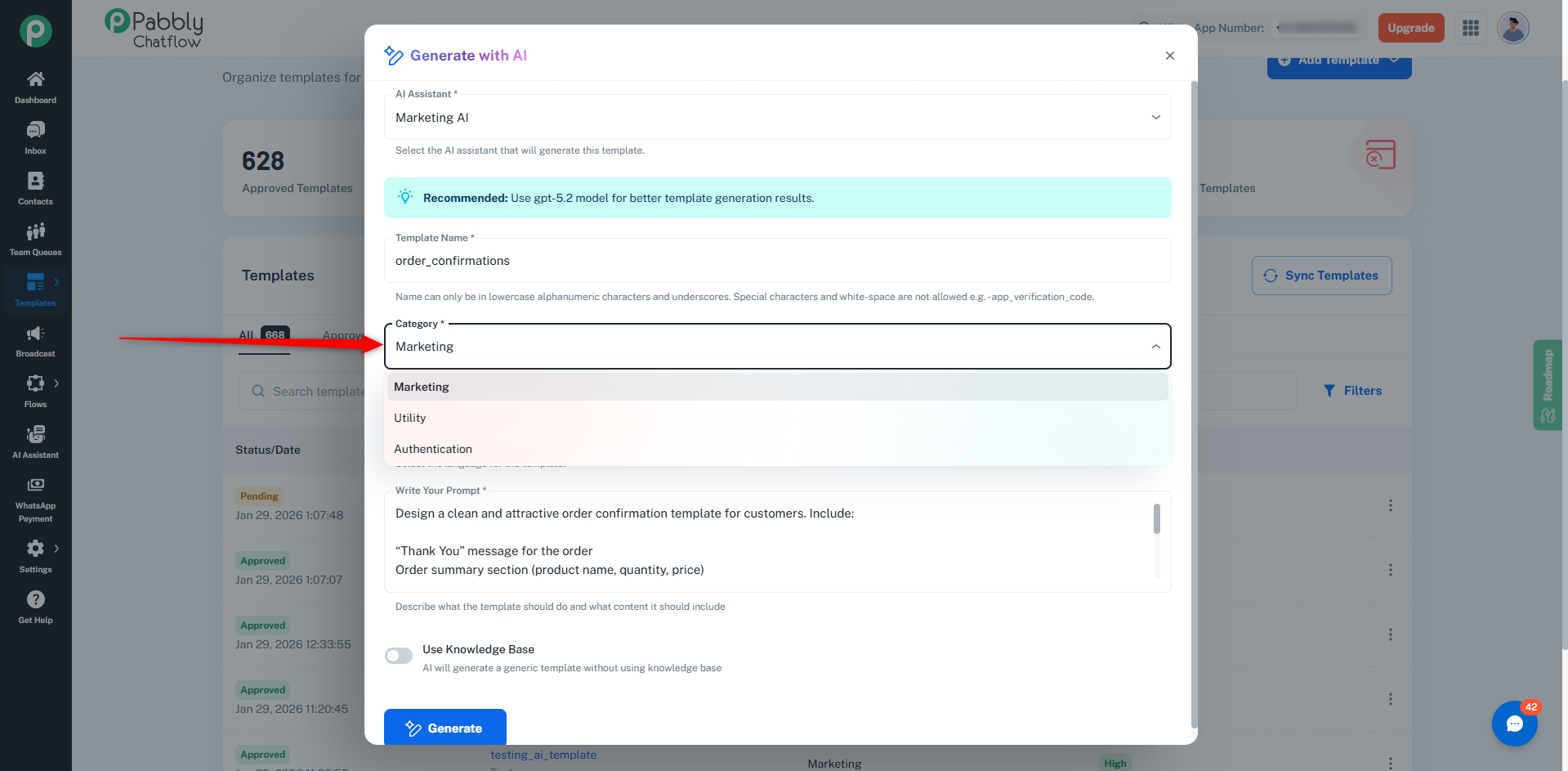
Choose the appropriate template category:
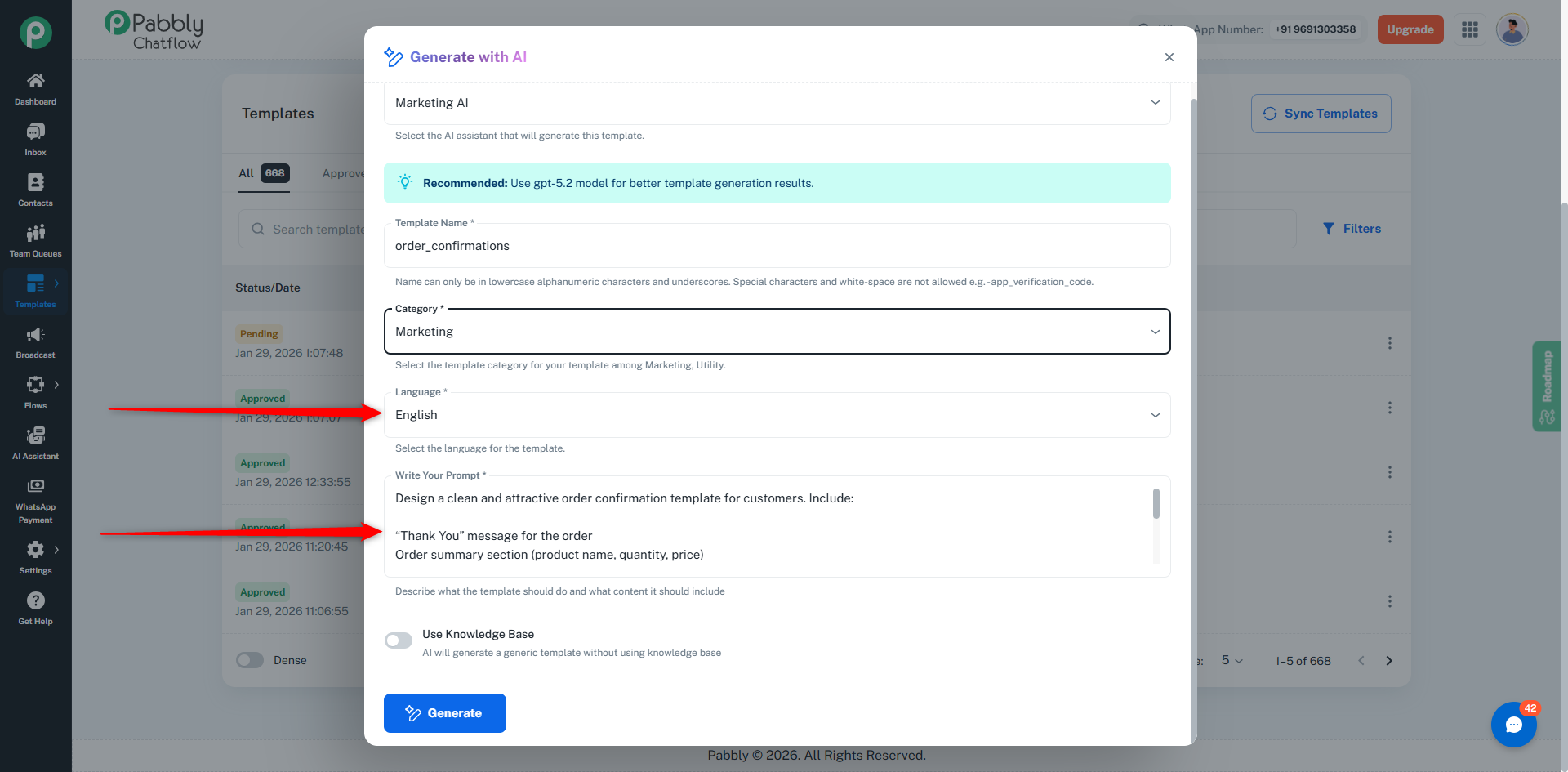
Choose the language in which the template should be created.
In the Write Your Prompt field, describe what kind of WhatsApp template you want to generate.
The prompt should clearly explain:
Example Prompt:
Create a WhatsApp template to confirm an order, including order details and a clear call-to-action button for tracking the order.
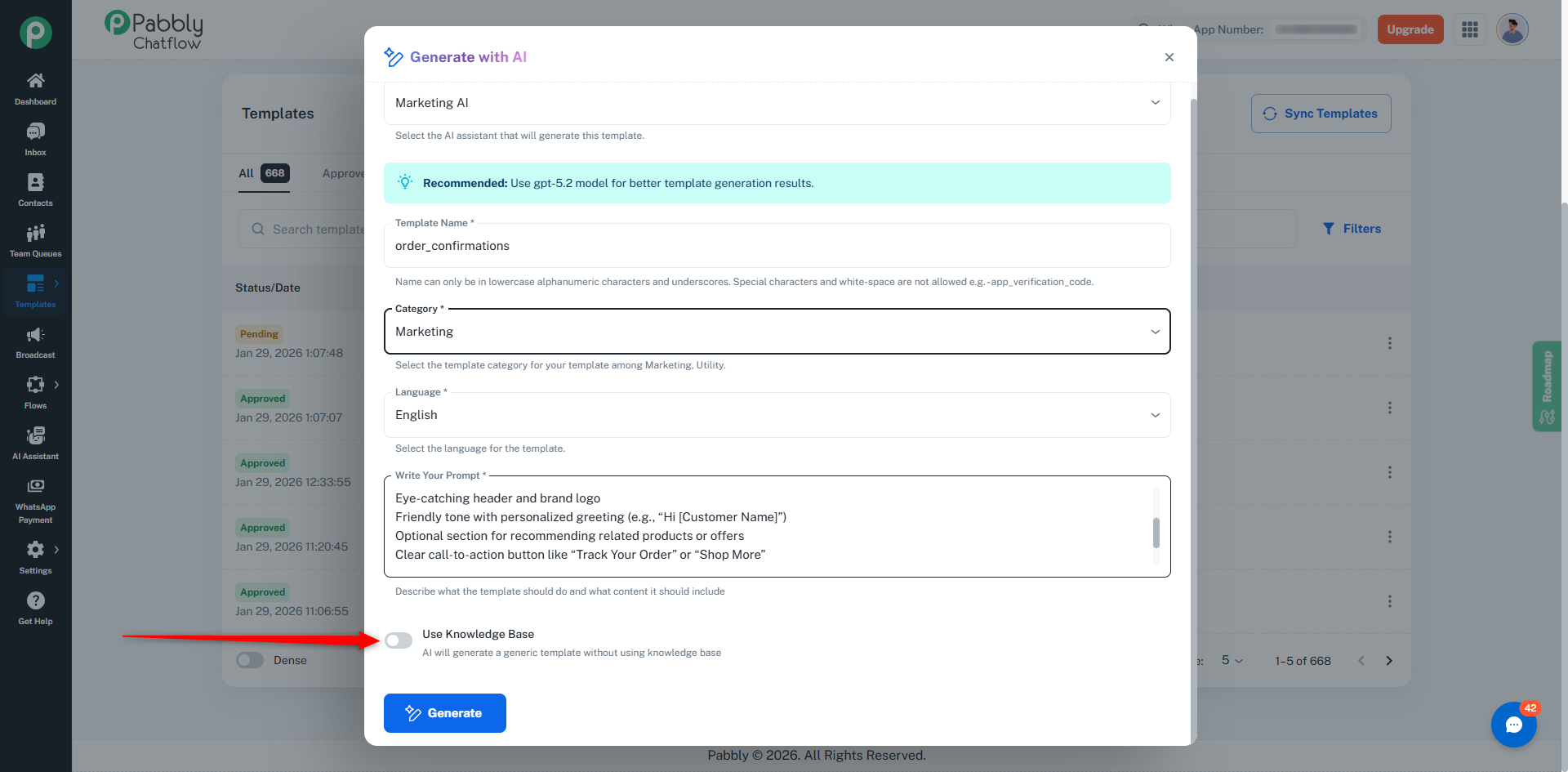
You can enable Use Knowledge Base if you want AI to use uploaded documents to personalize the template.
If disabled, AI will generate a generic template based only on your prompt.
Click on the Generate button.
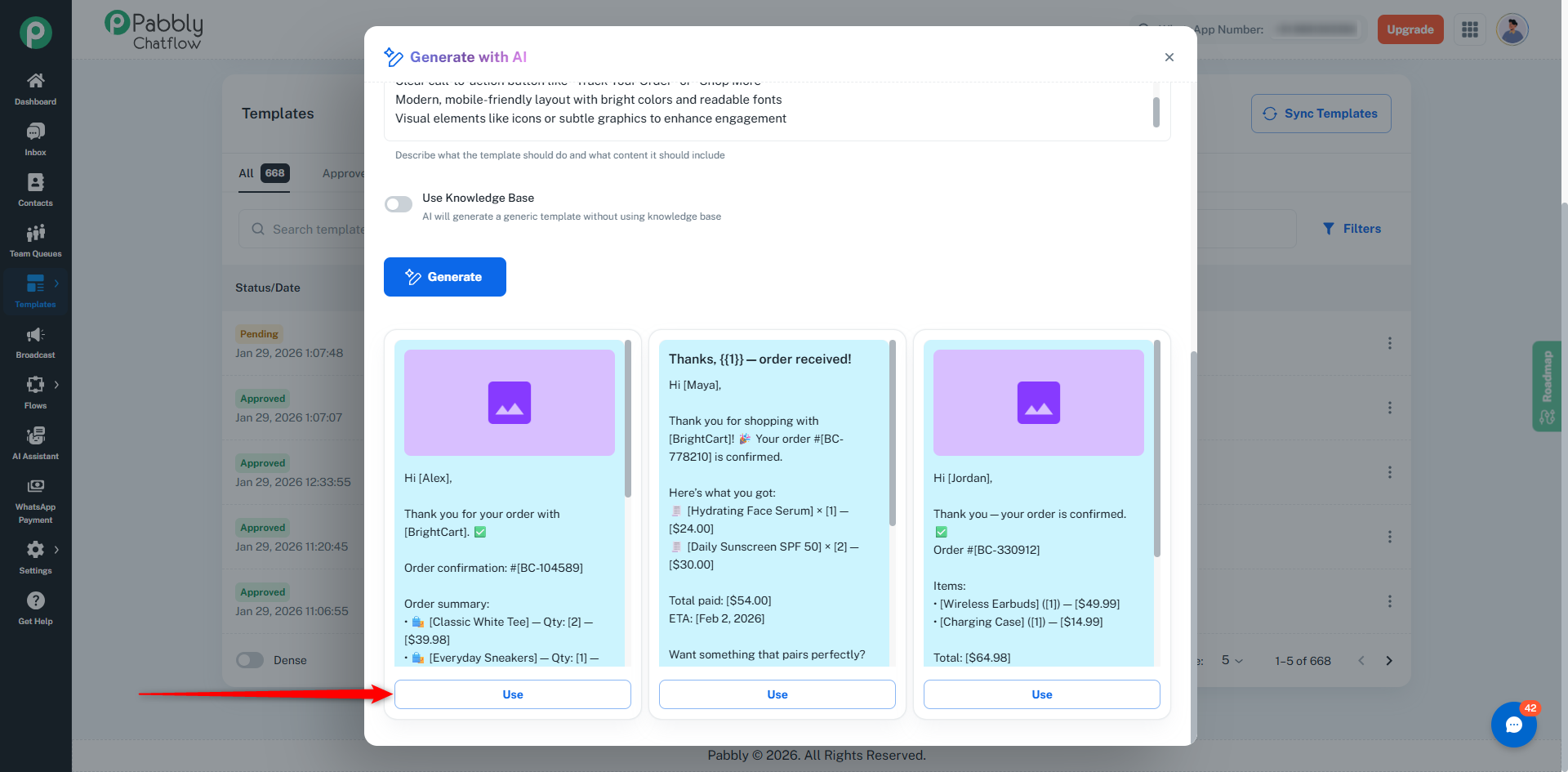
AI will generate one or more template layouts based on your prompt. These templates will be displayed in a preview format.
👉 Once you click Use, all template fields will be automatically prefilled, similar to manually created templates.
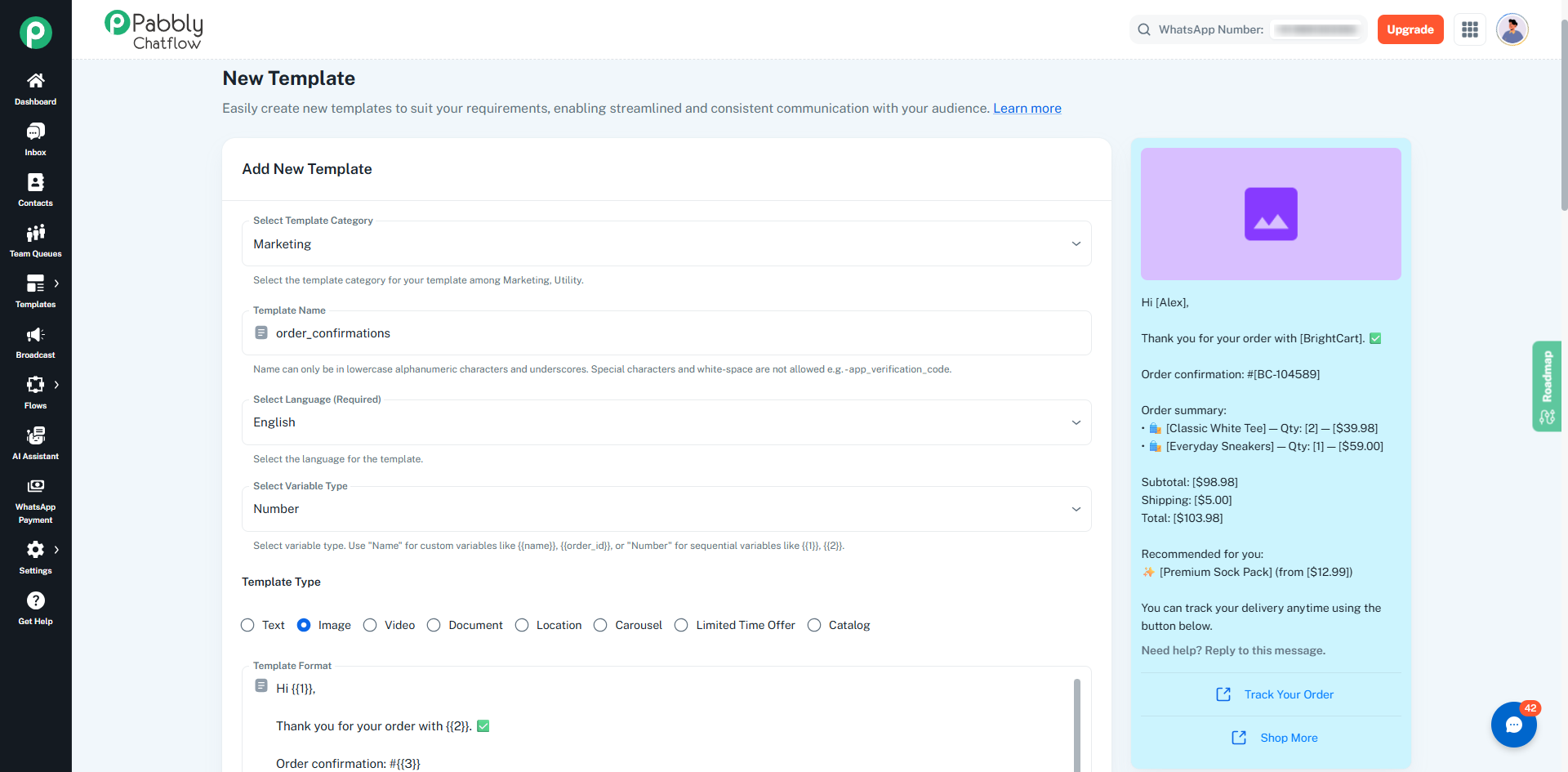
After selecting Use, you will be redirected to the template creation screen where:
If no changes are needed, you can directly proceed.
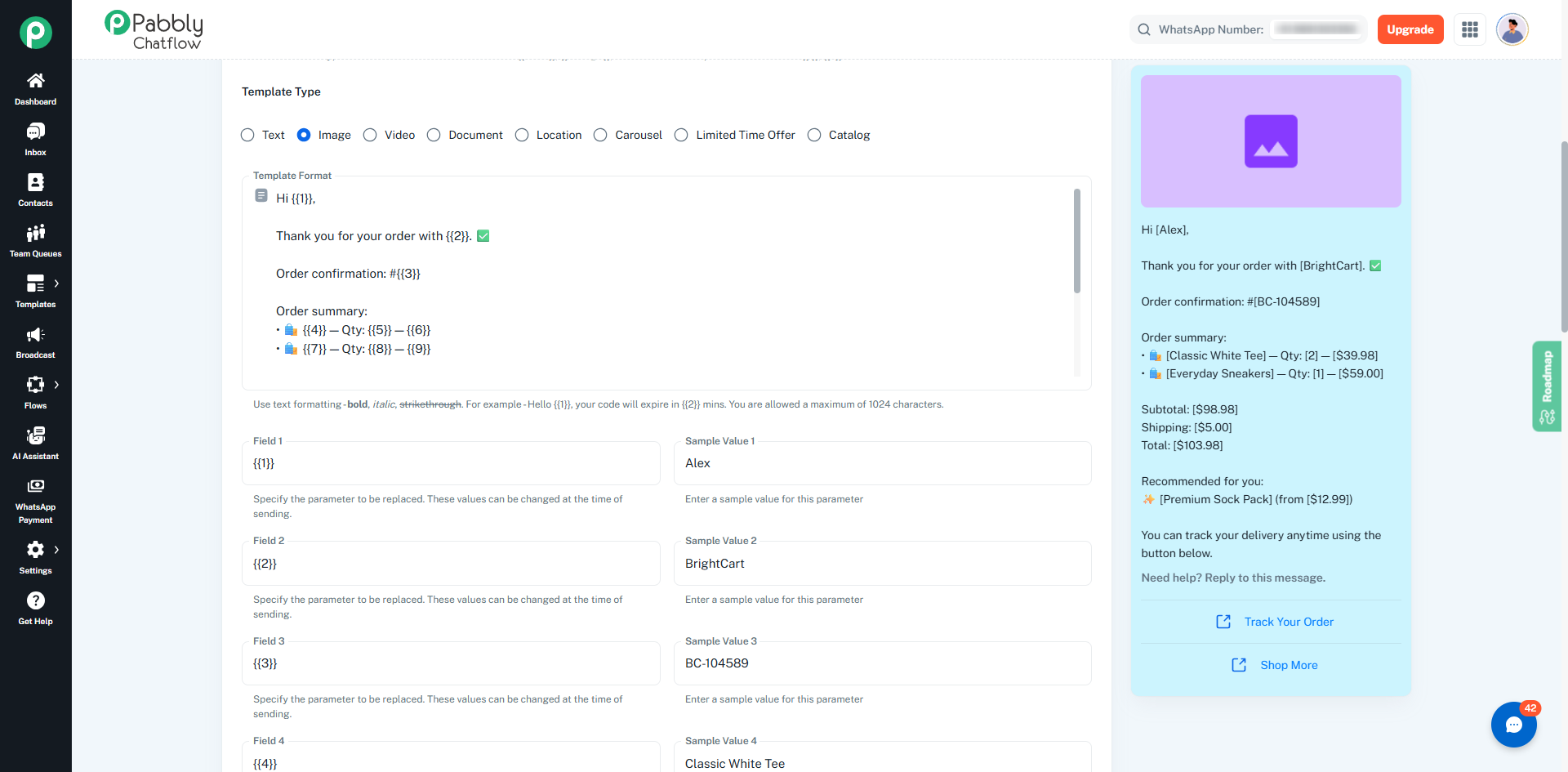
Click on the Submit button to send the template for Meta approval.
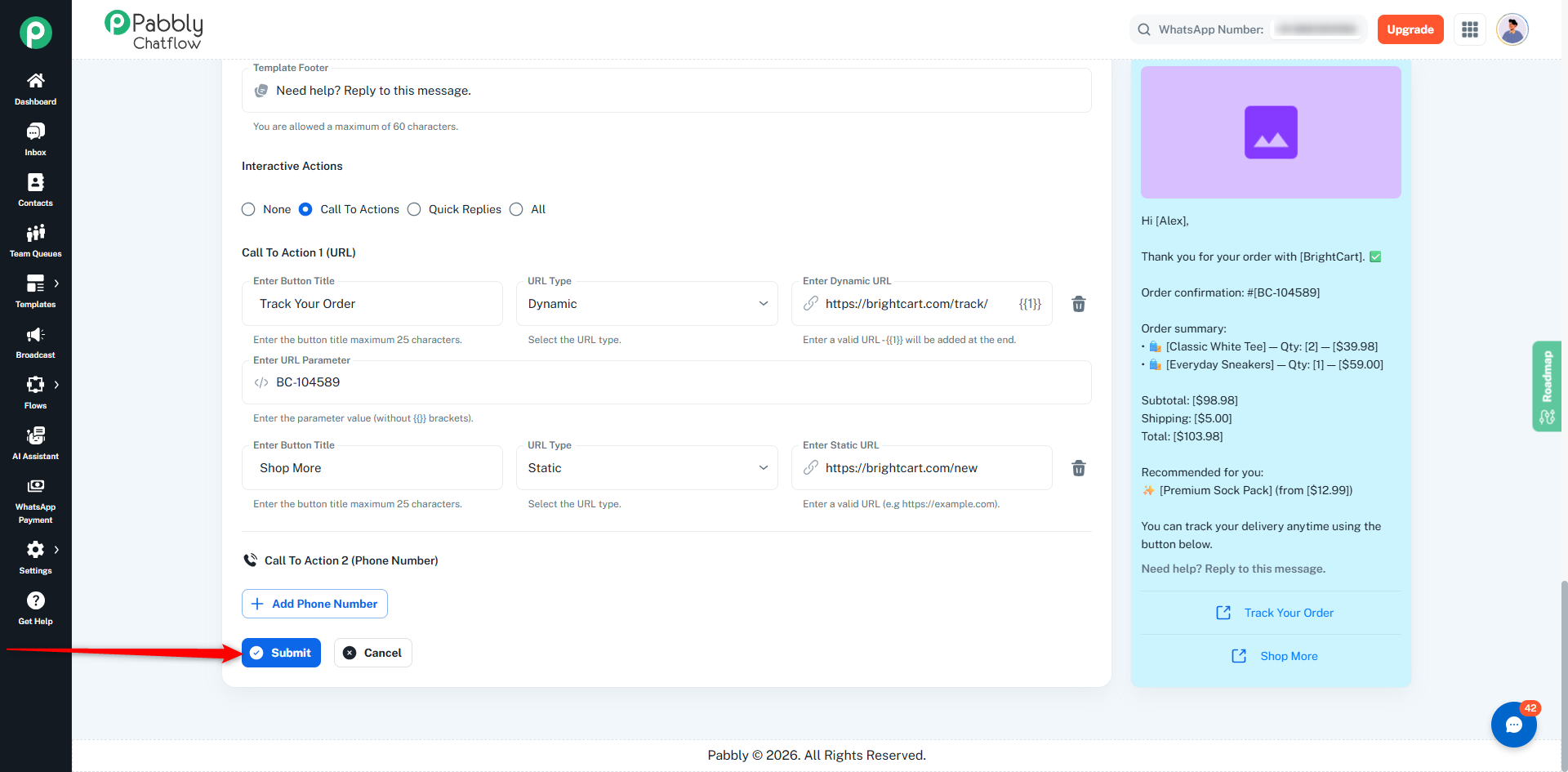
Once submitted, templates are reviewed by Meta and may have one of the following statuses:
This AI-powered approach helps you create WhatsApp templates faster, reduces manual effort, and ensures consistent formatting - while still giving you full control before submission.
