Getting Started with Wix
Wix is a cloud-based landing page solution that helps users create and manage websites. Wix lets you offer services online, amplify your brand, run all operations, and generate more revenue-all from one place.
Prerequisites
Connecting Wix to Pabbly Connect
To connect your
Wix account to
Pabbly Connect you need to create an app in the Wix Developers Center to obtain the
App ID and
Secret ID (App Secret Key).
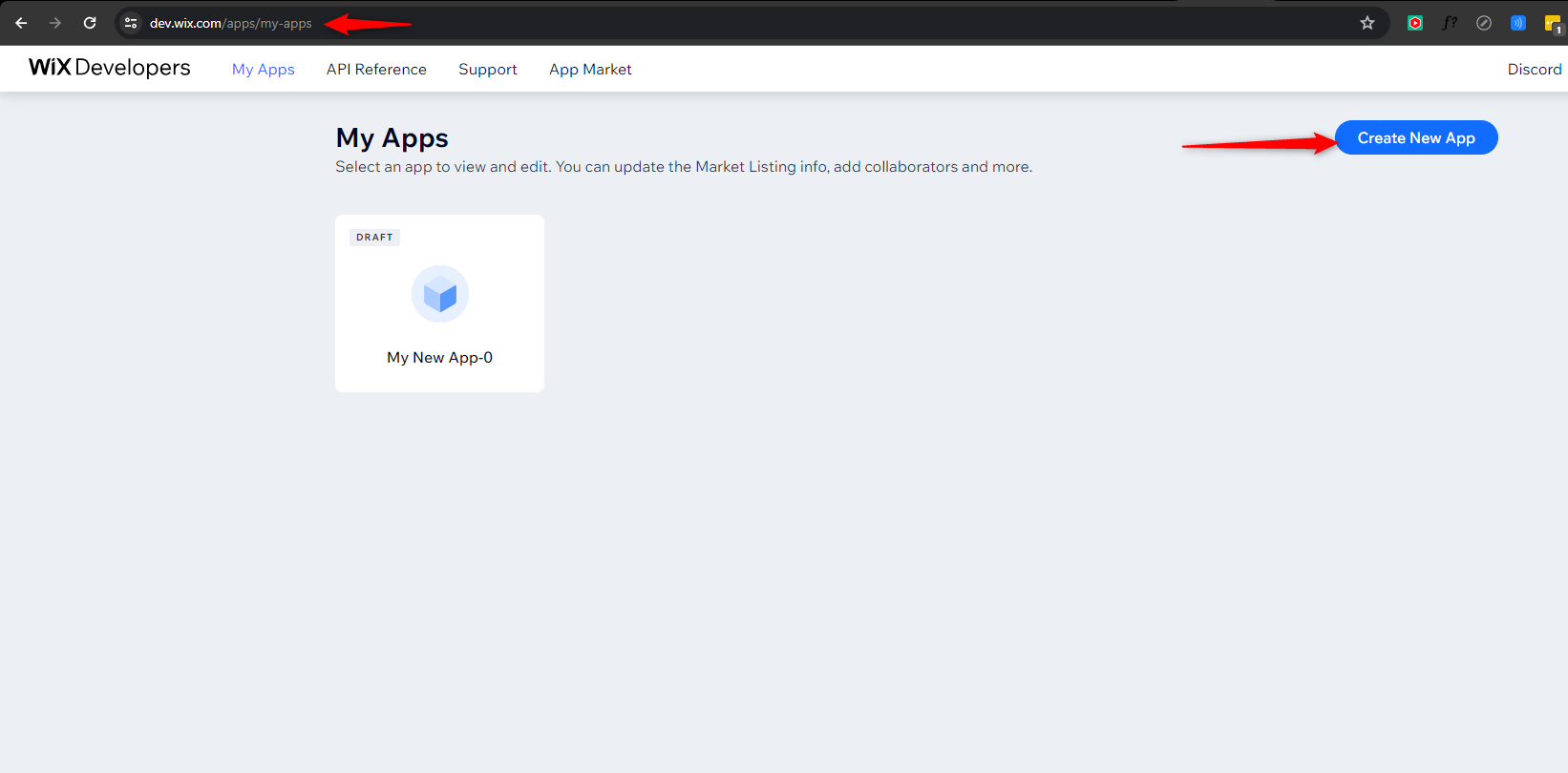
1. Log in to the
Wix Developer Center at
https://dev.wix.com/apps/ using your Wix credentials.
2. Click the
Create New App button.
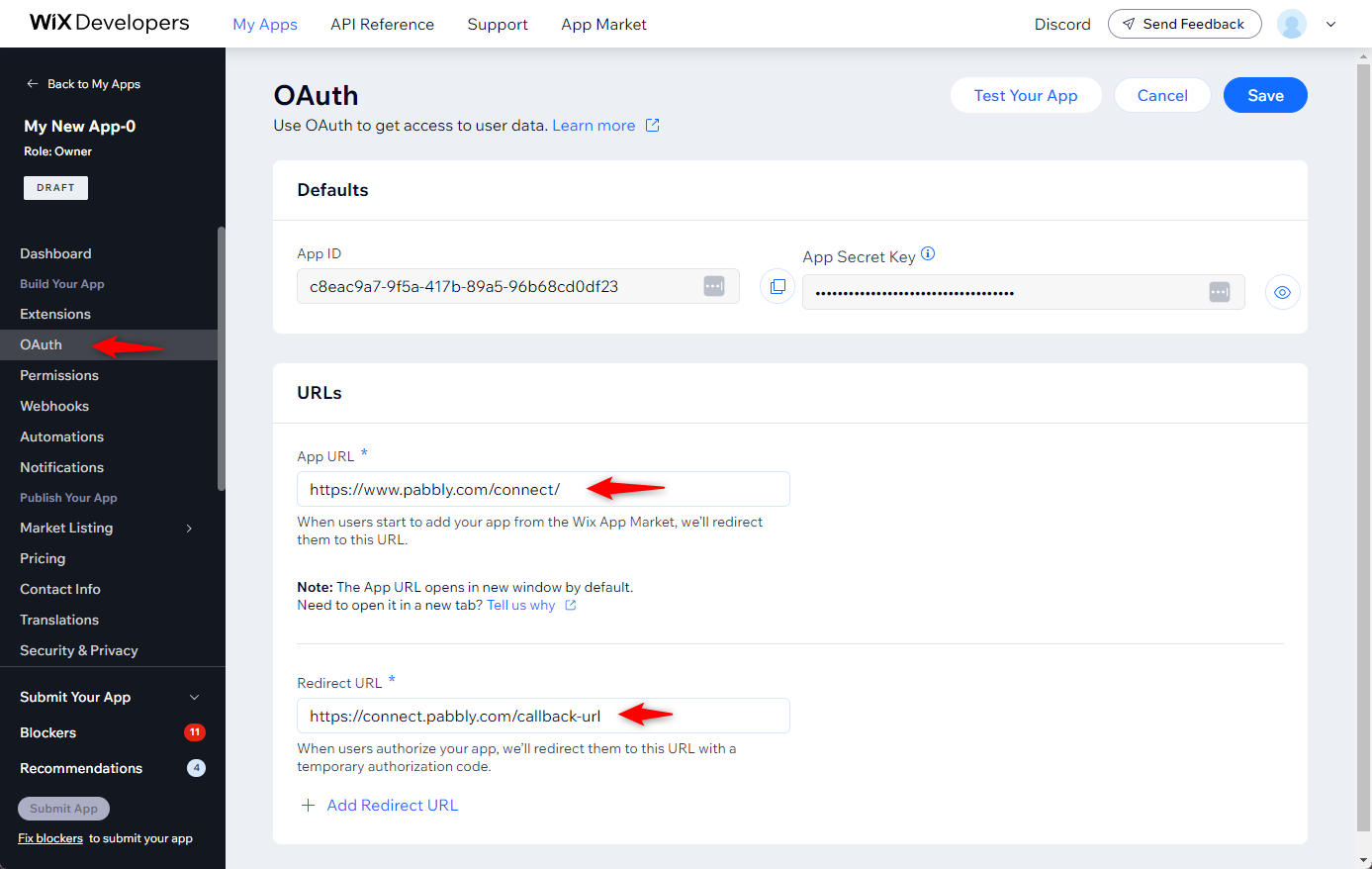
3. After clicking "Create New App". Go to
OAuth in the left menu. Here you can find the
App ID and
App Secret Key.
4. Enter "
Pabbly Connect

www.pabbly.com
" in the
App URL field and Enter "
https://connect.pabbly.com/callback-url" in the
Redirect URL field.
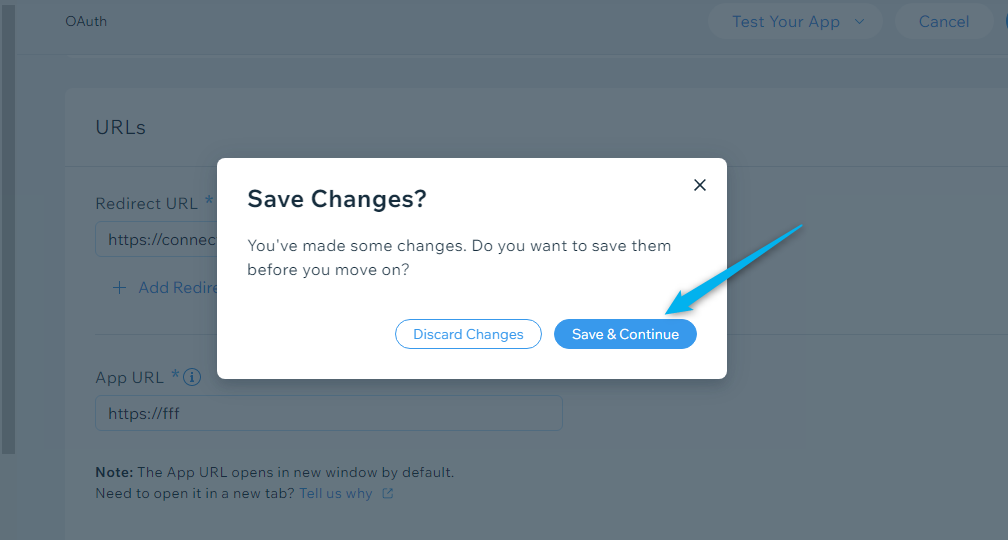
5. Click on
Save & Continue button to save the changes.
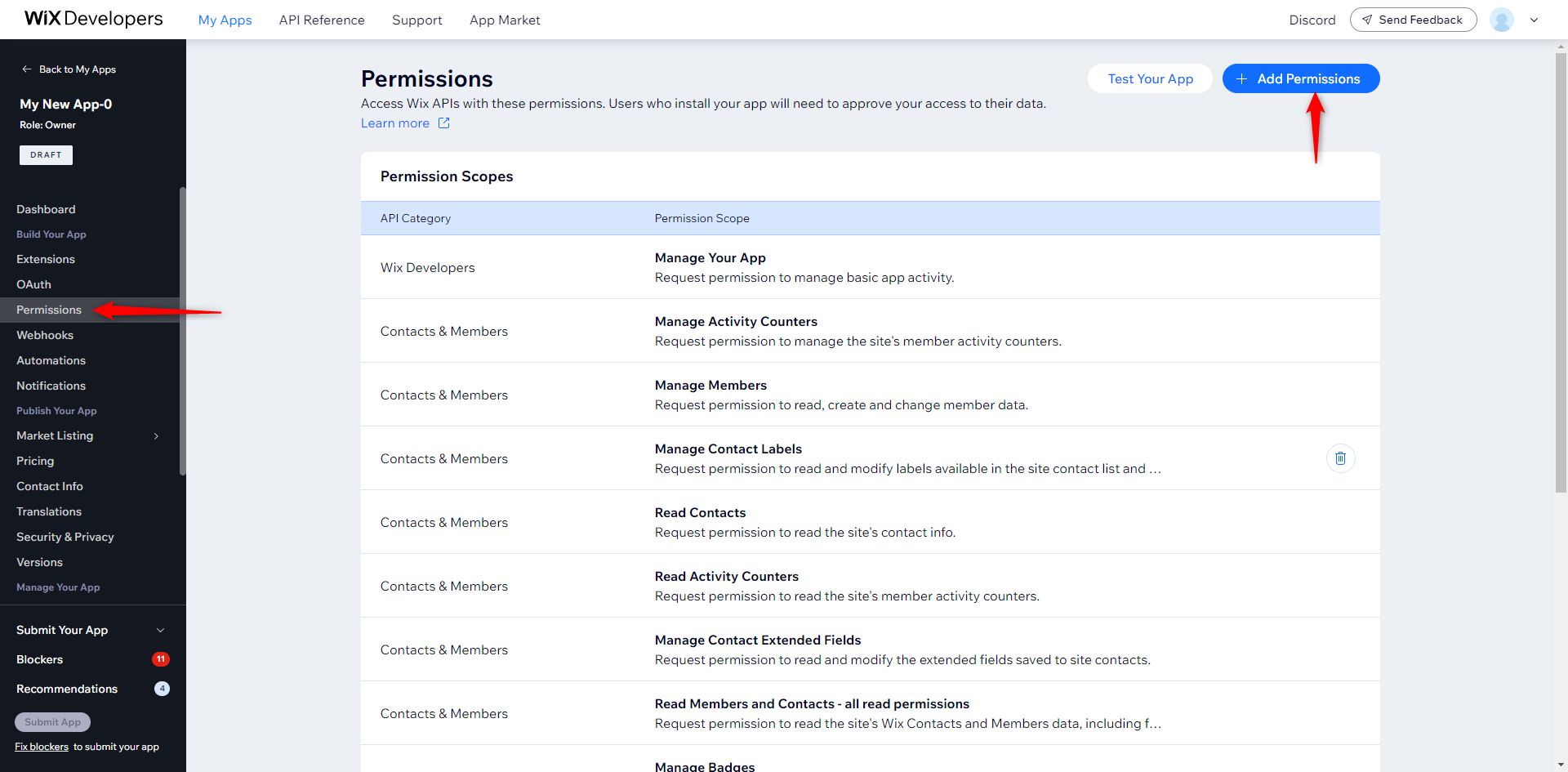
6. Navigate to
Permissions menu.
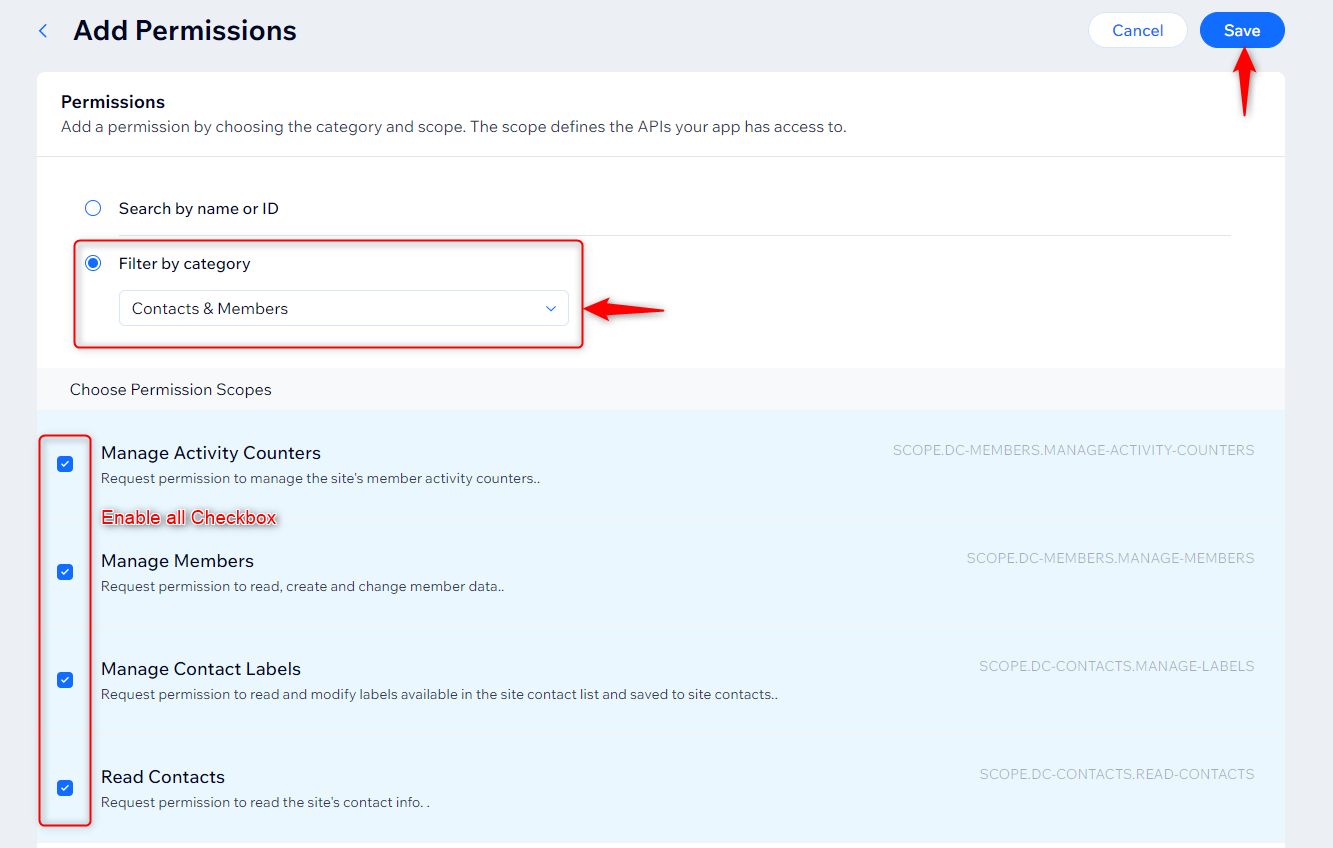
7. Navigate to
Permissions and click
+ Add Permissions (
).
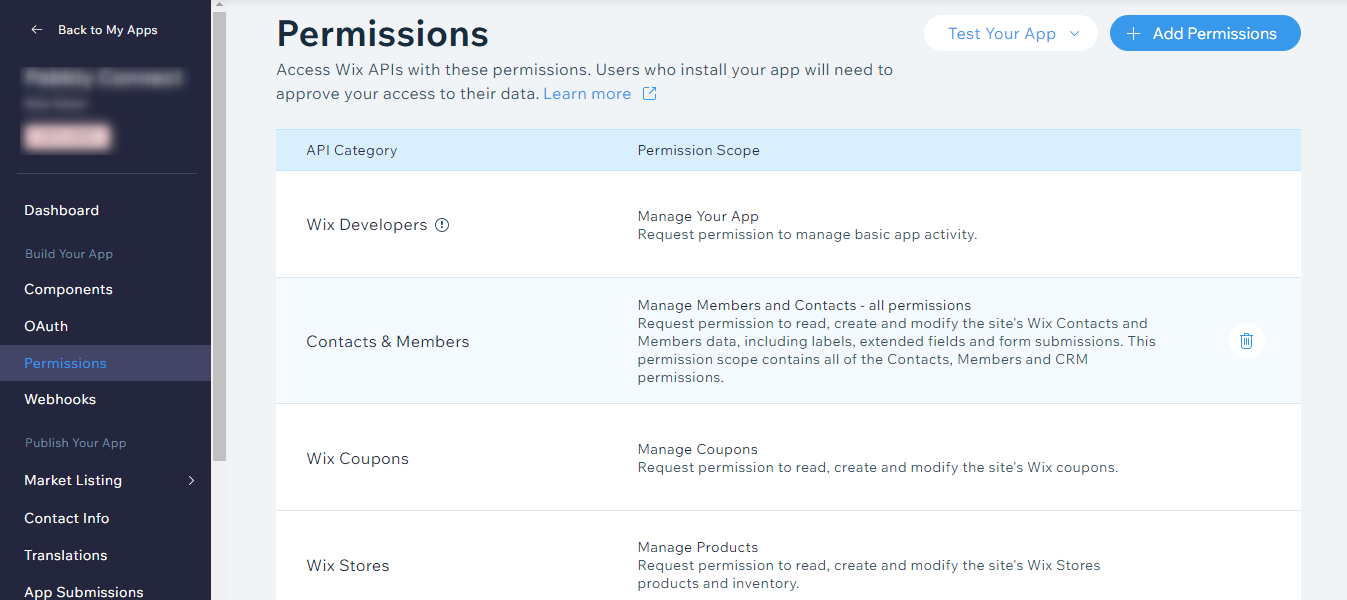
| Wix Developers | Manage Your AppRequest permission to manage basic app activity. | |
| Contacts & Members | Manage Members and Contacts - all permissionsRequest permission to read, create and modify the site's Wix Contacts and Members data, including labels, extended fields and form submissions. This permission scope contains all of the Contacts, Members and CRM permissions. | |
| Wix Coupons | Manage CouponsRequest permission to read, create and modify the site's Wix coupons. | |
| Wix Stores | Manage ProductsRequest permission to read, create and modify the site's Wix Stores products and inventory. | |
8. Click Save button.
9.
How to Configure Webhooks?
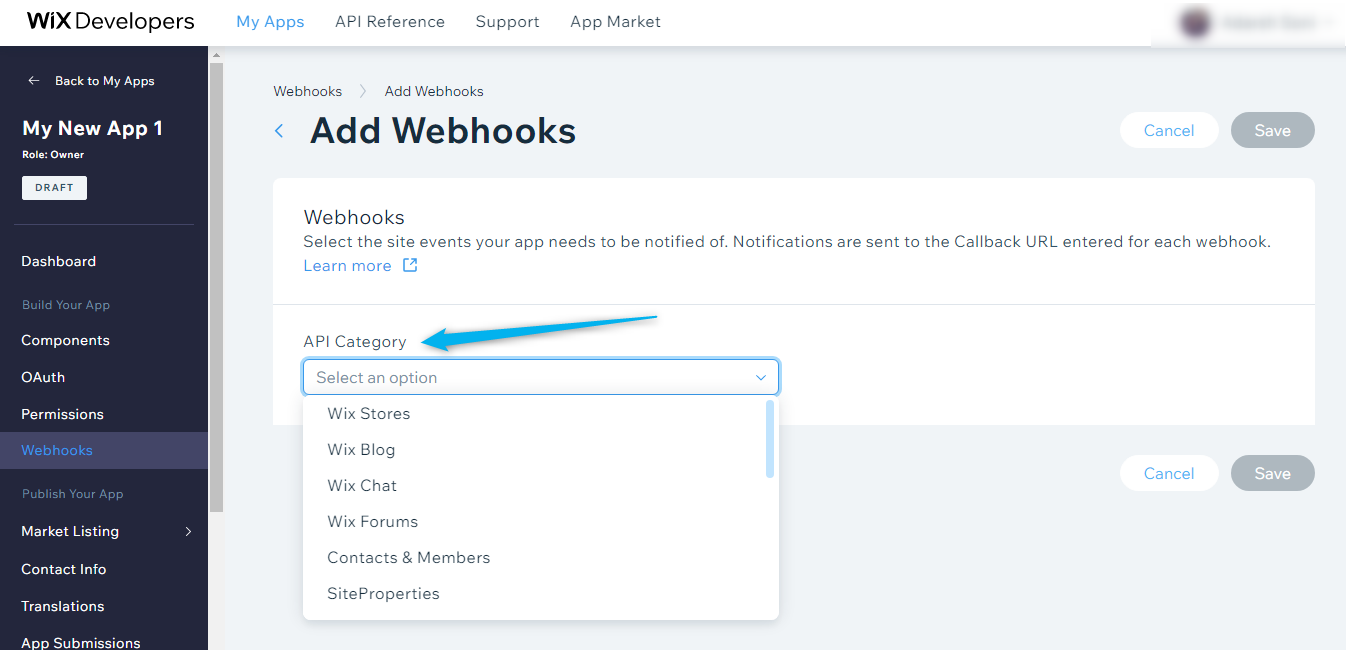
9.1. Navigate to webhooks section in developer portal.
9.2. Click
Add Webhook button.
View attachment 9958
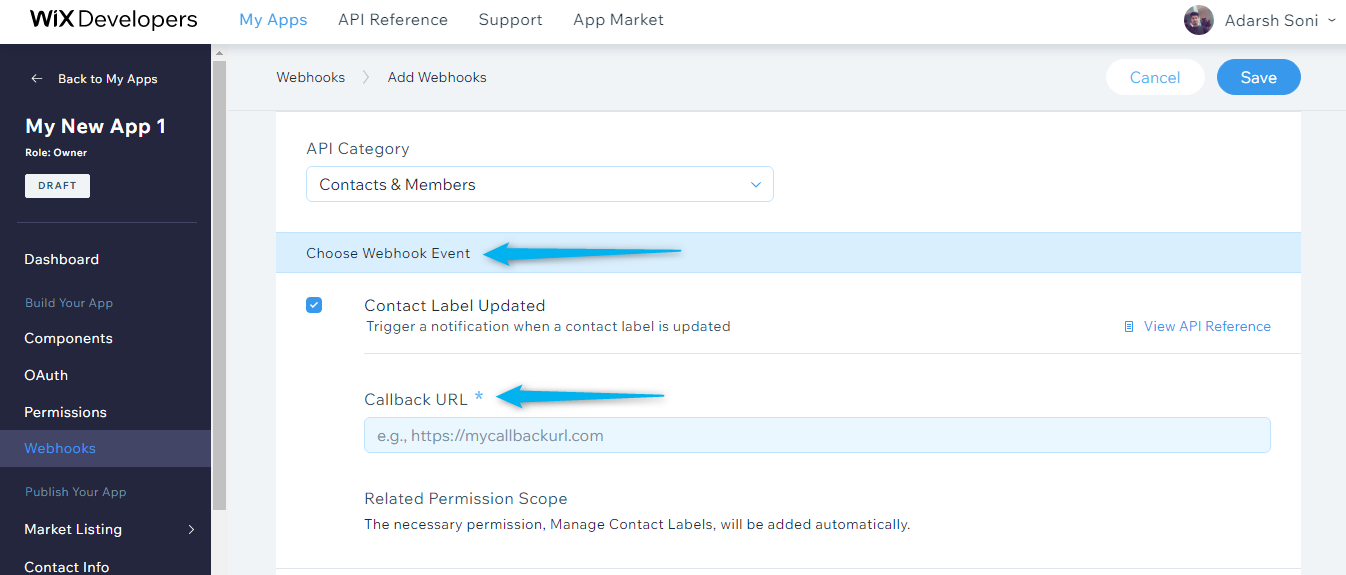
9.3. Select
API category from dropdown.
9.4. Choose
webhook event & provide Pabbly Connect Webhook URL under
Callback URL field.
9.5. Click
Save button.
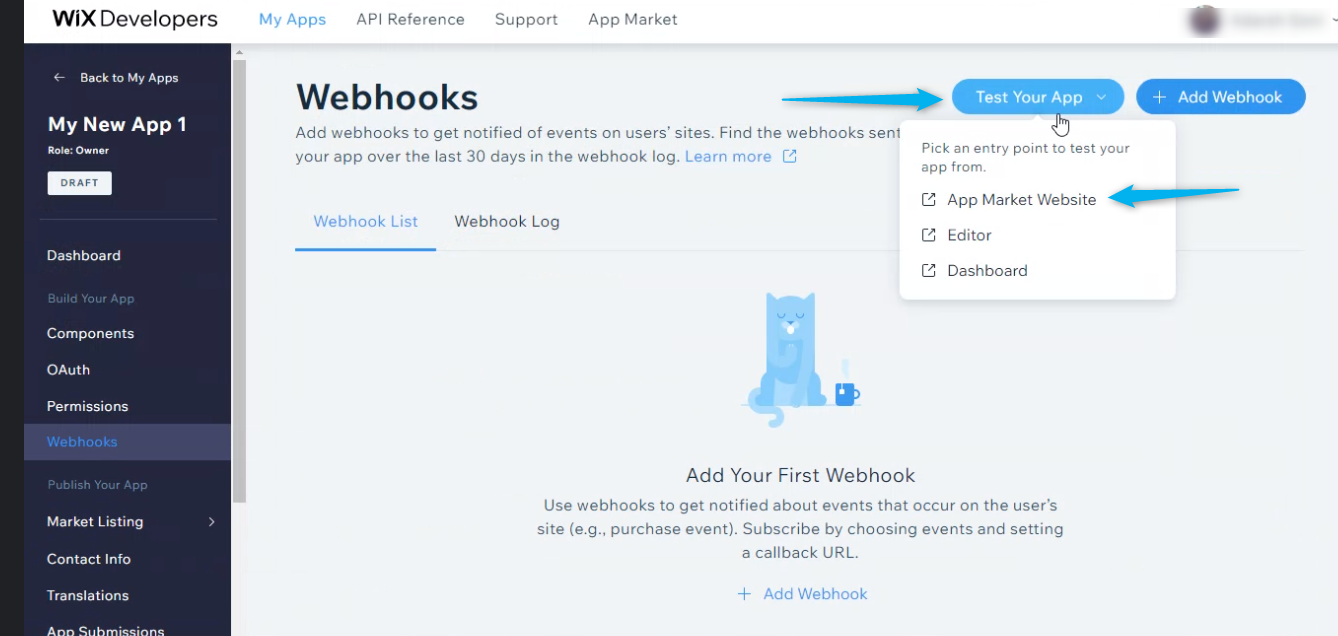
10. Click the
Test Your App button in the top-right corner & then click
App Market Website &
Test App button.
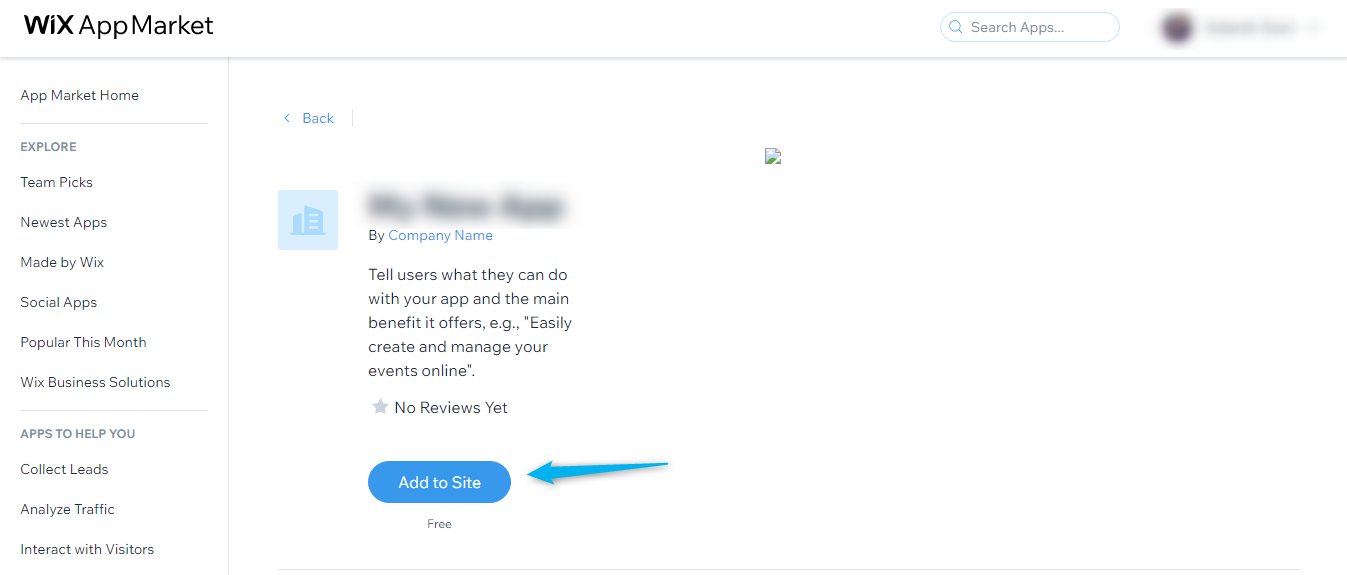
11. Click
Add to Site button.
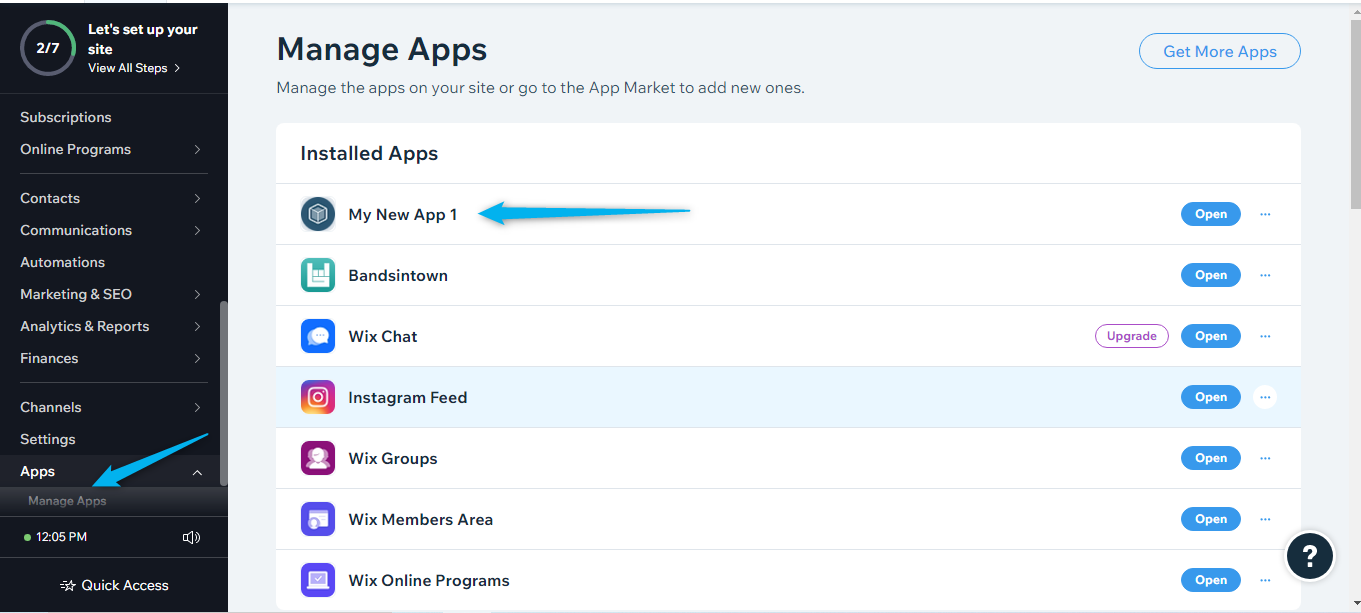
12. Navigate to your site admin
dashboard > Apps > Manage Apps to confirm whether app is installed successfully.
13.
How to Configure Actions?
13.1. Go to Pabbly Connect and select
Wix from Choose App action.
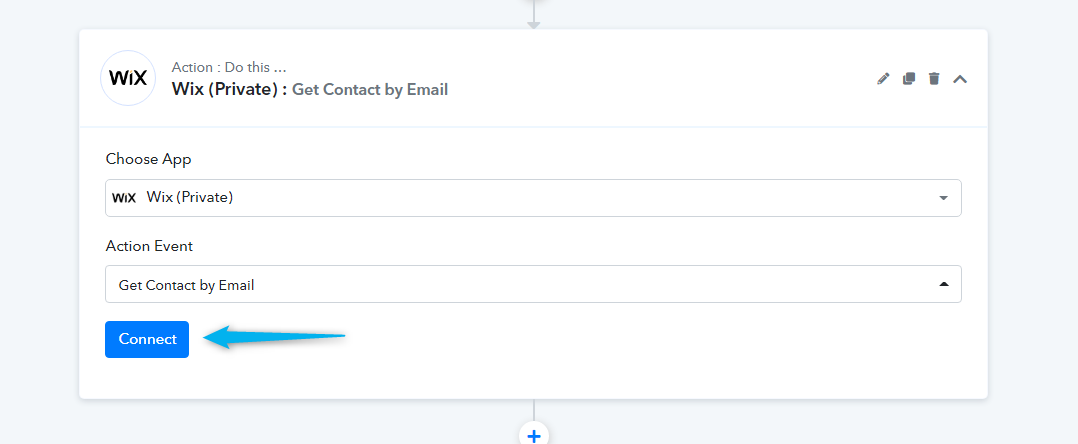
13.2. Select the
Wix action to be integrated and click the
Connect button.
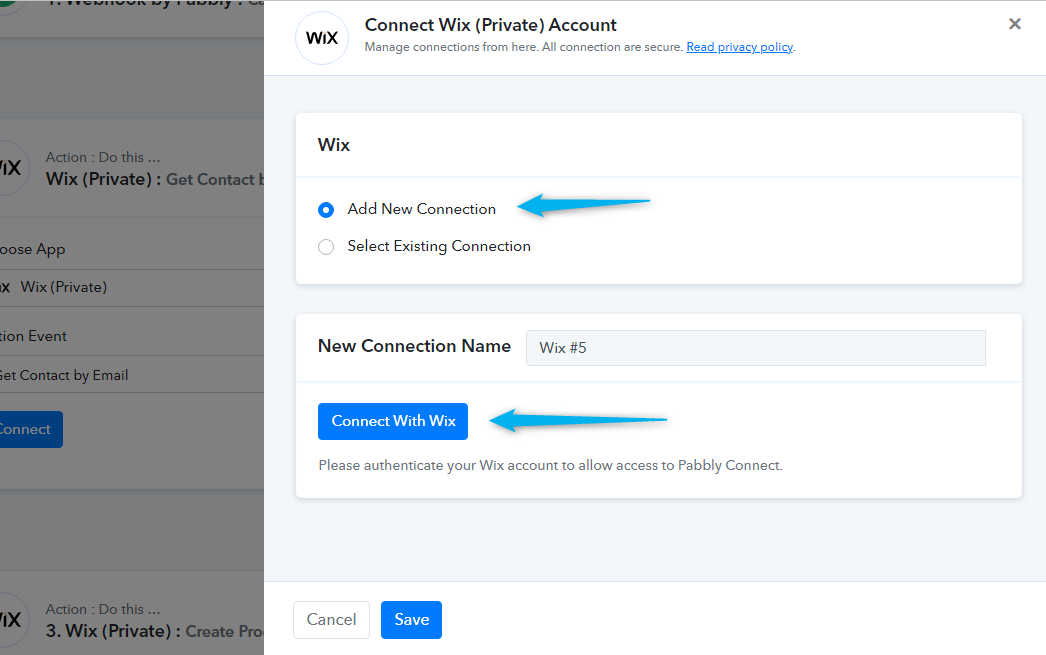
13.3. Choose
Add New Connection and Click
Connect with Wix button.
13.4. Enter the
App ID and
Secret ID from step 1 (above) to the respective fields and click the
Save button.
View attachment 9999
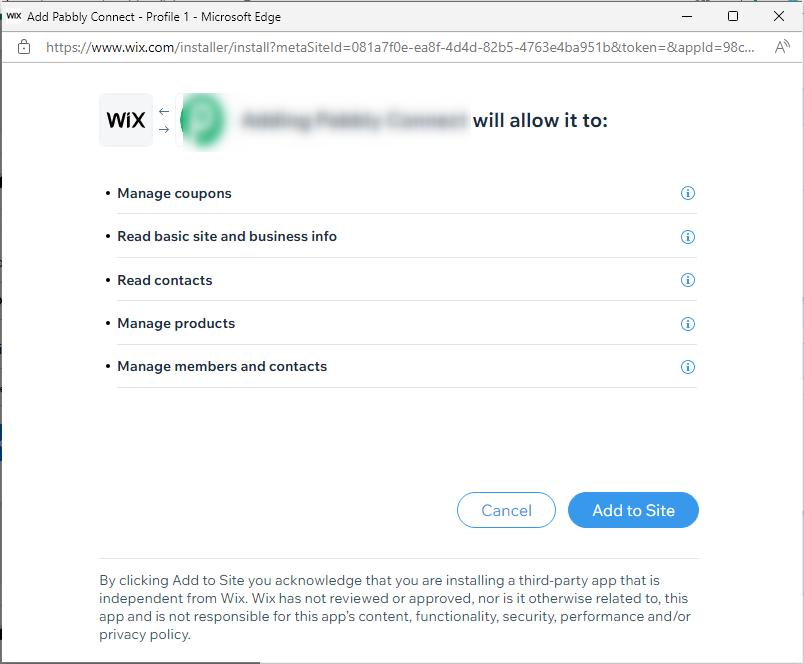
After you click the
Save button, Pabbly Connect will redirect you to the Wix website where you will be prompted to grant access to your account.
13.5. Click the
Add to Site button to establish a connection.
 Pabbly Connect Team•Updated Jul 25, 2026•2 min read