Subscribers
The Segment feature helps you filter and group specific subscribers from a large list based on selected conditions.
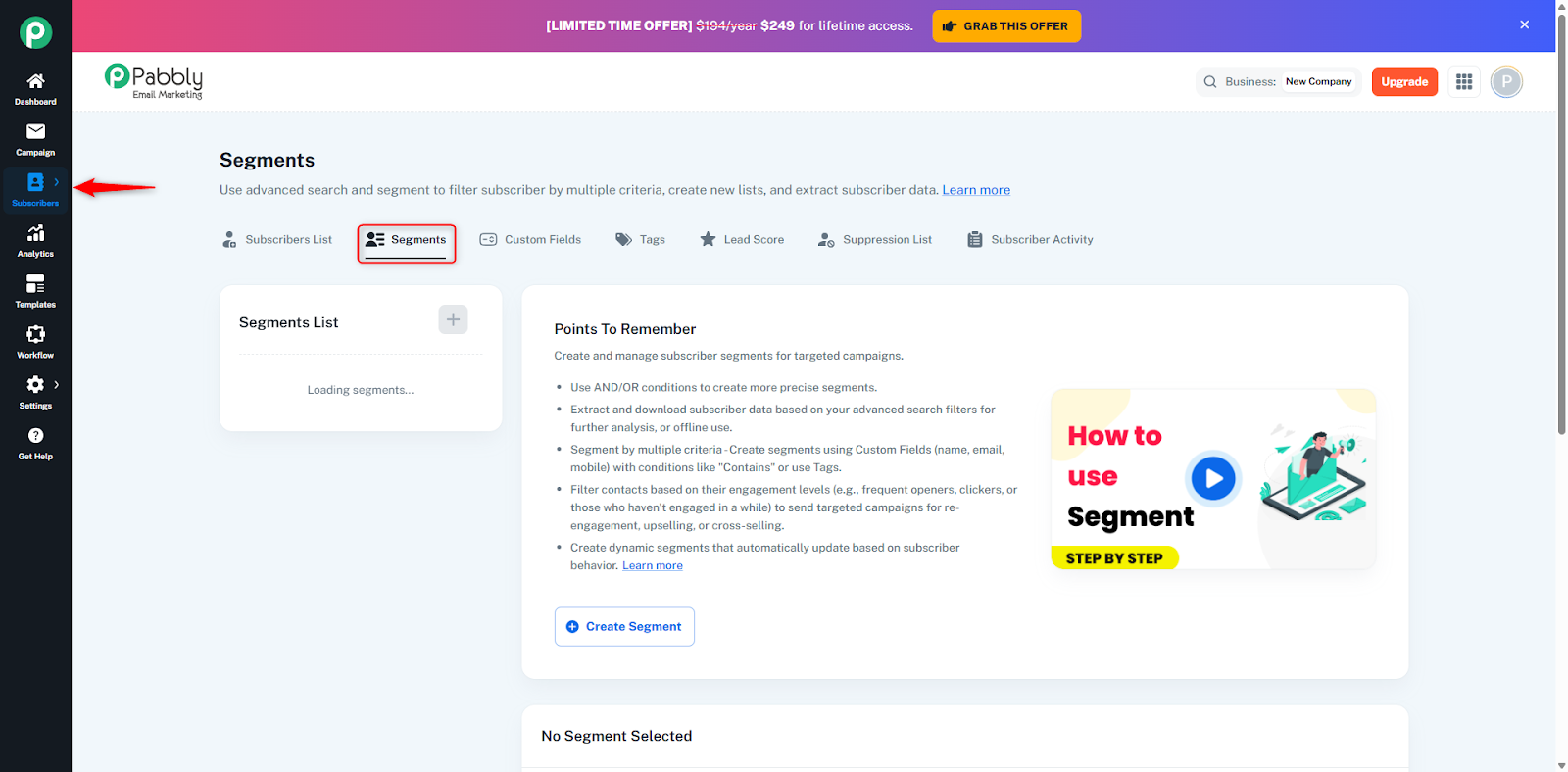
To create a new segment list, follow these steps:
Go to the Segment List folder.
Click on the + (Plus) icon.
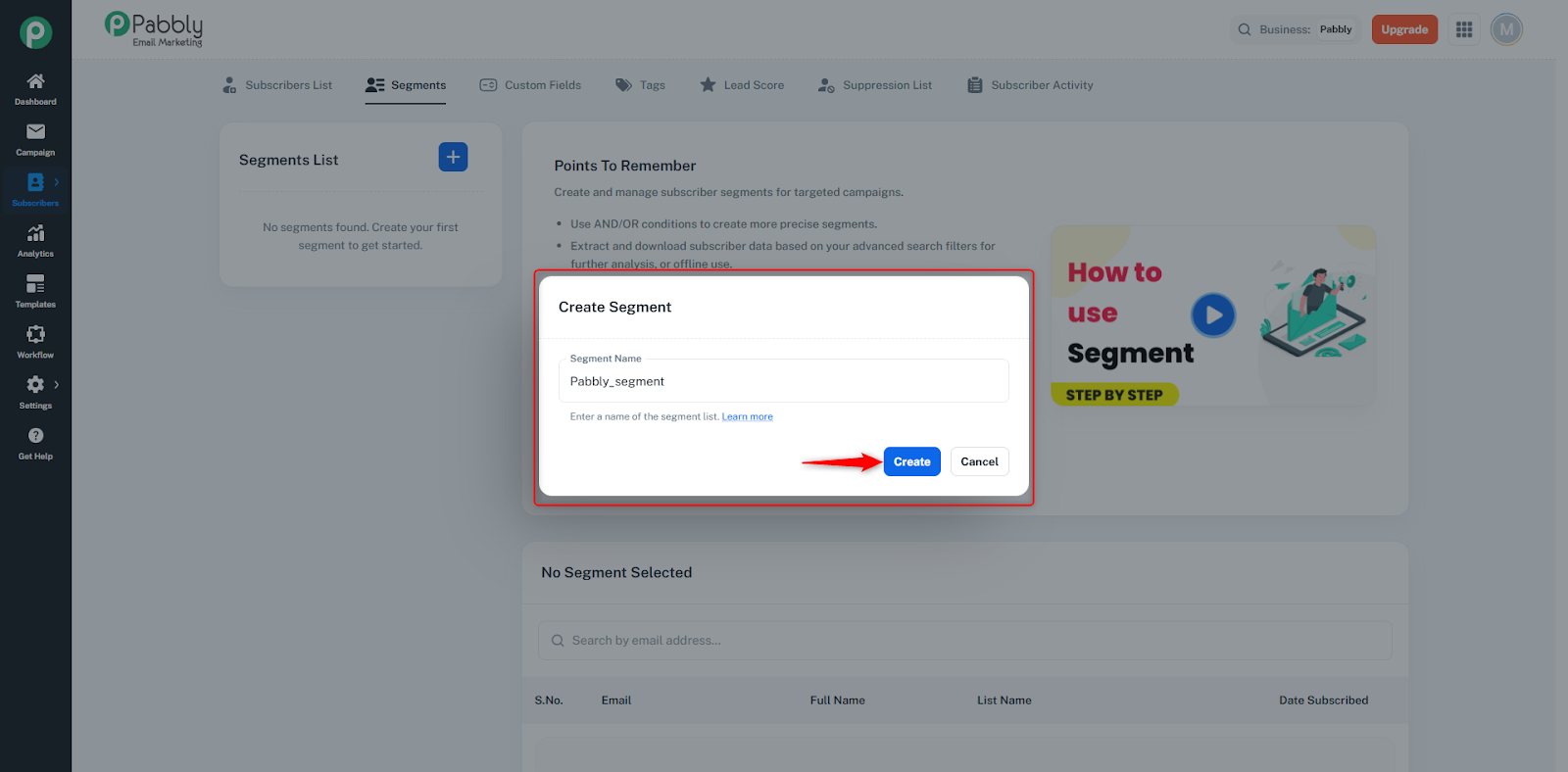
A dialog box titled Create Segment will open.
Enter the name of your segment list.
Click on the Create button.
Once created, your new segment list will appear inside the Segment List folder, and at the same time, the drawer for creating a new segment will also open automatically.
Note: The subscriber list name and the segment list name can never be the same.
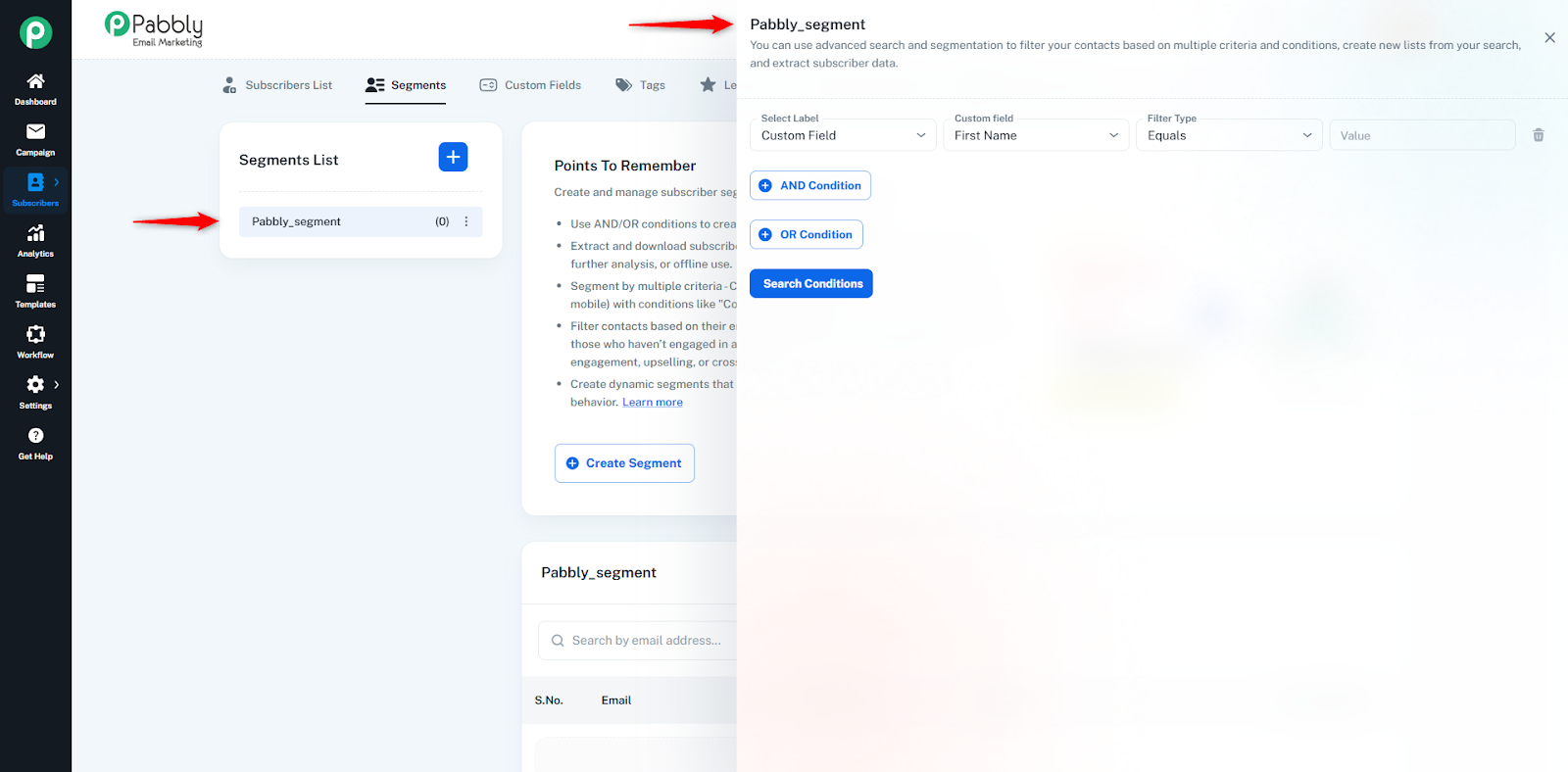
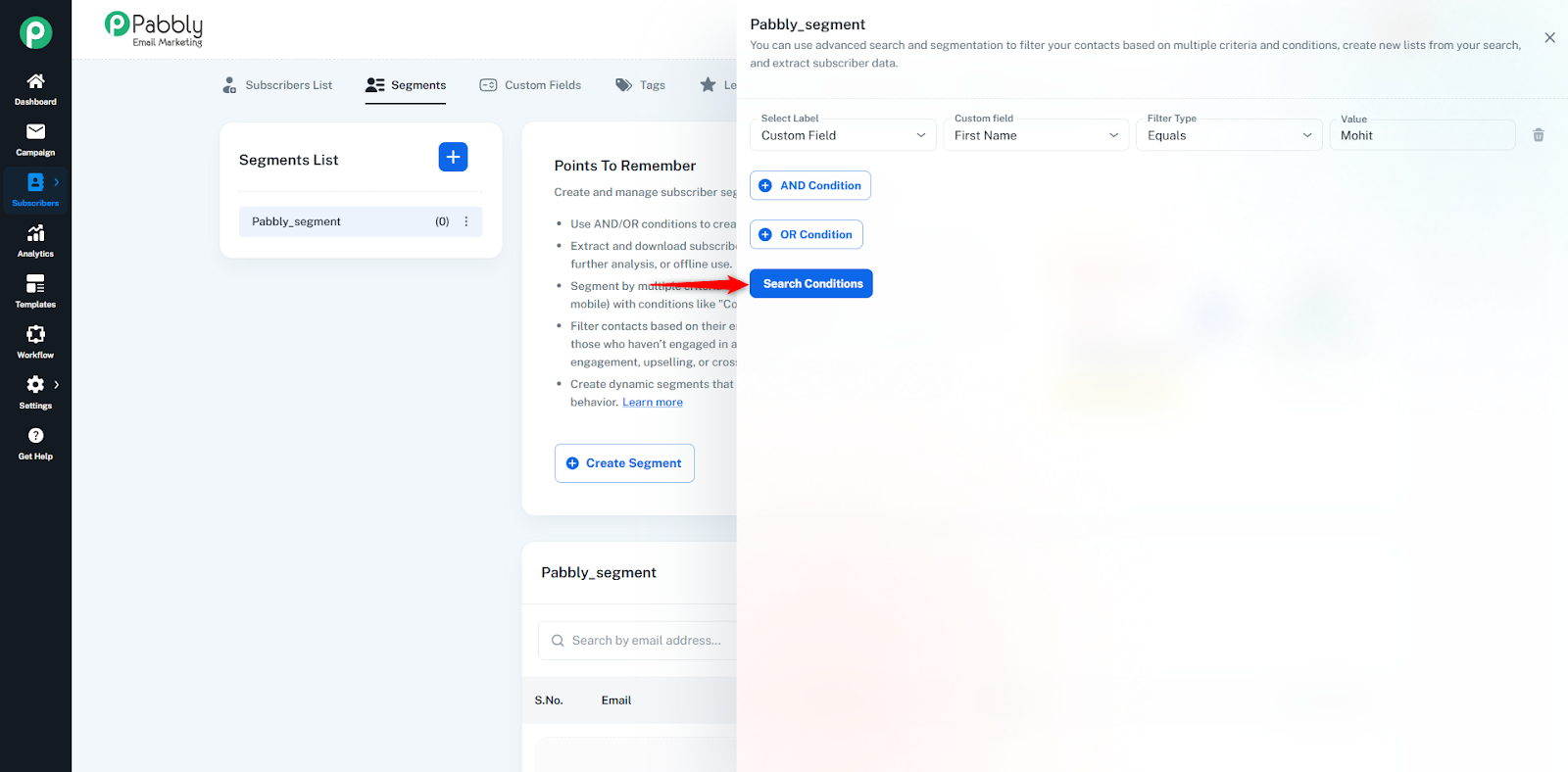
Here, you can filter your subscribers based on different labels.
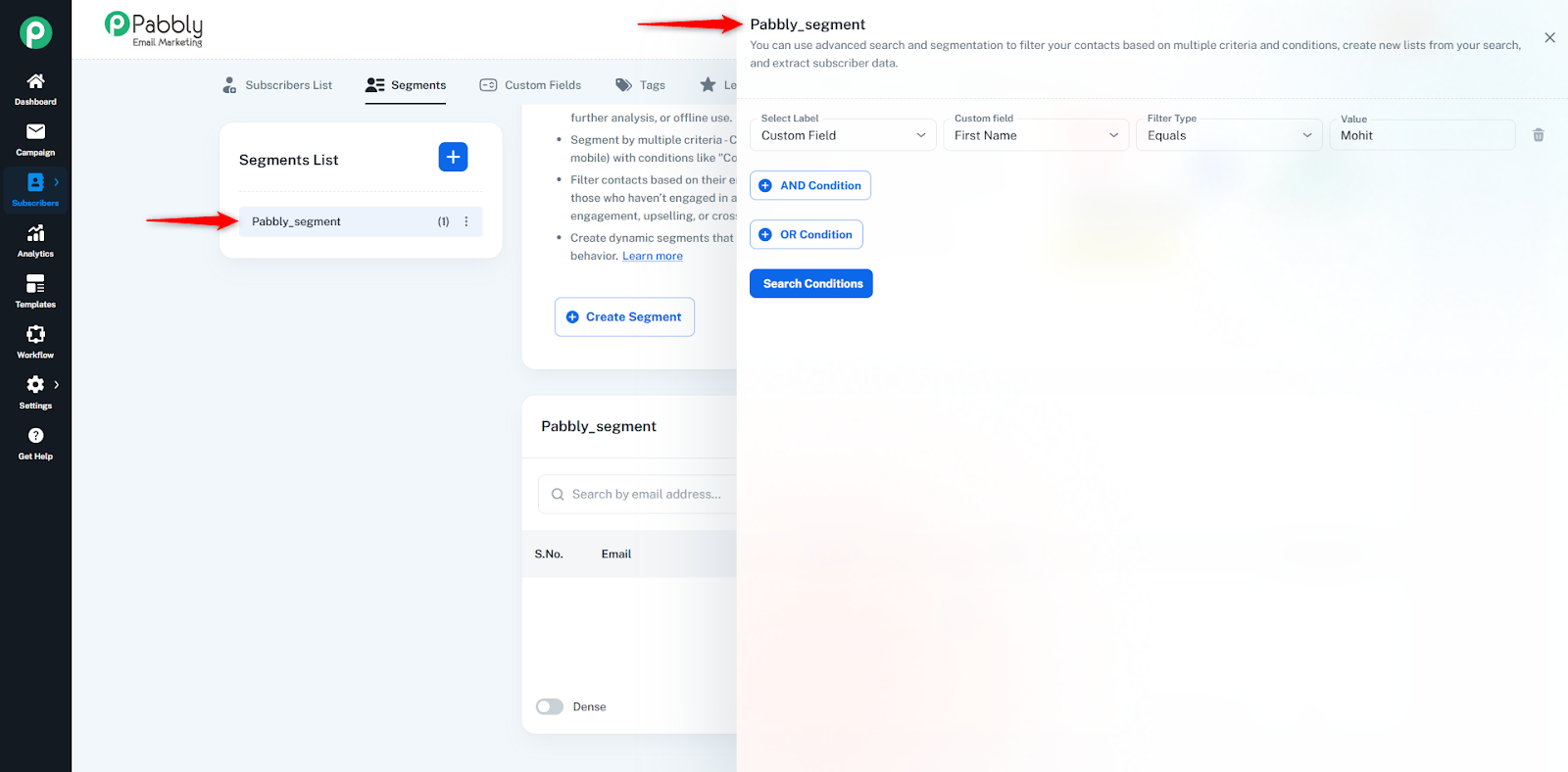
First, select the Label (such as Custom Field, Tags, Campaigns, or Stats) on which you want to apply the filter. After choosing the label, select the field, filter type, and enter the value.
You can also apply AND conditions and OR conditions to create more advanced and precise filtering rules.
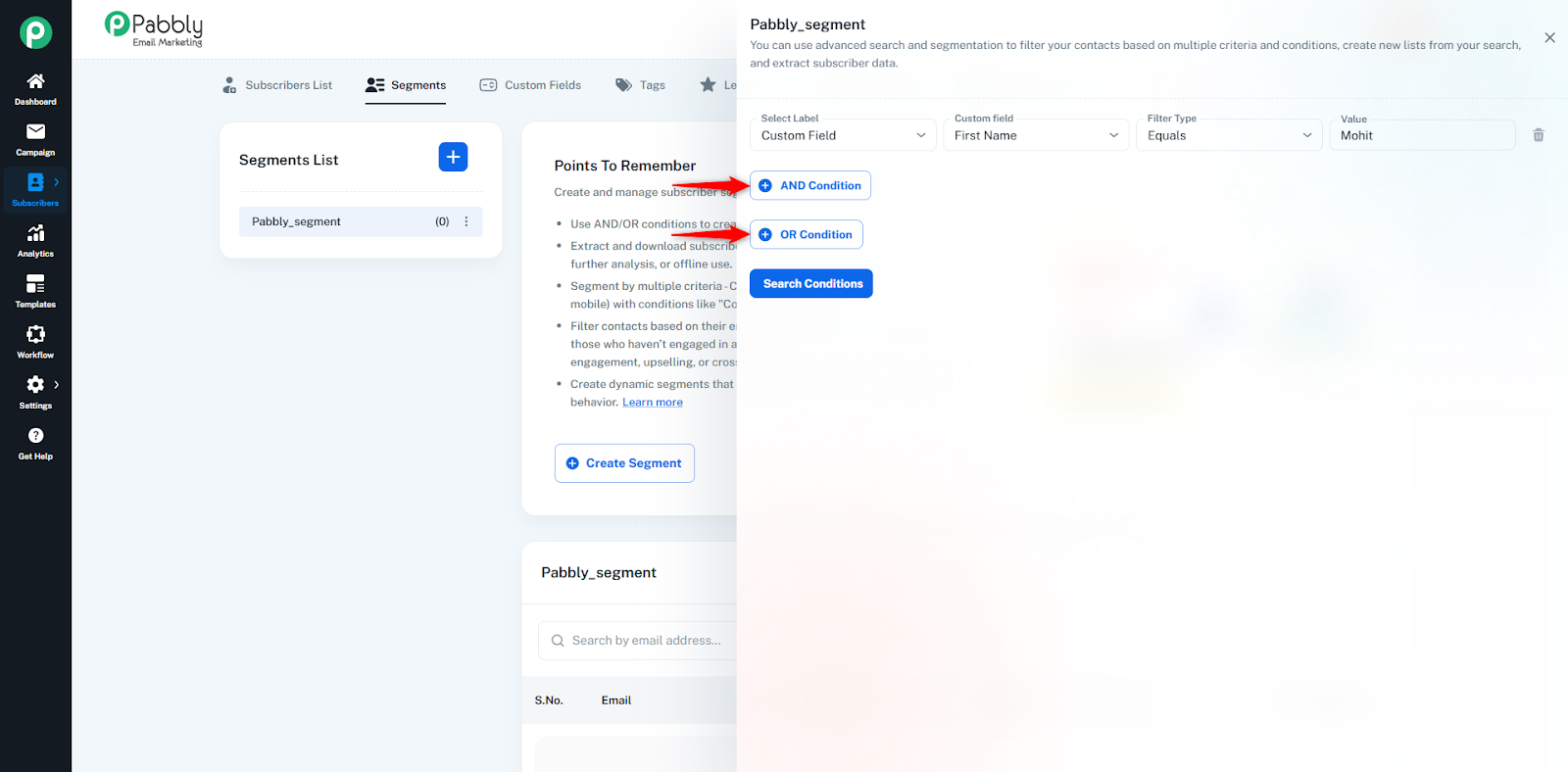
Once your conditions are set, click the Search Conditions button.
Based on your selected labels and conditions, all matching subscribers will be displayed in a table inside the drawer.
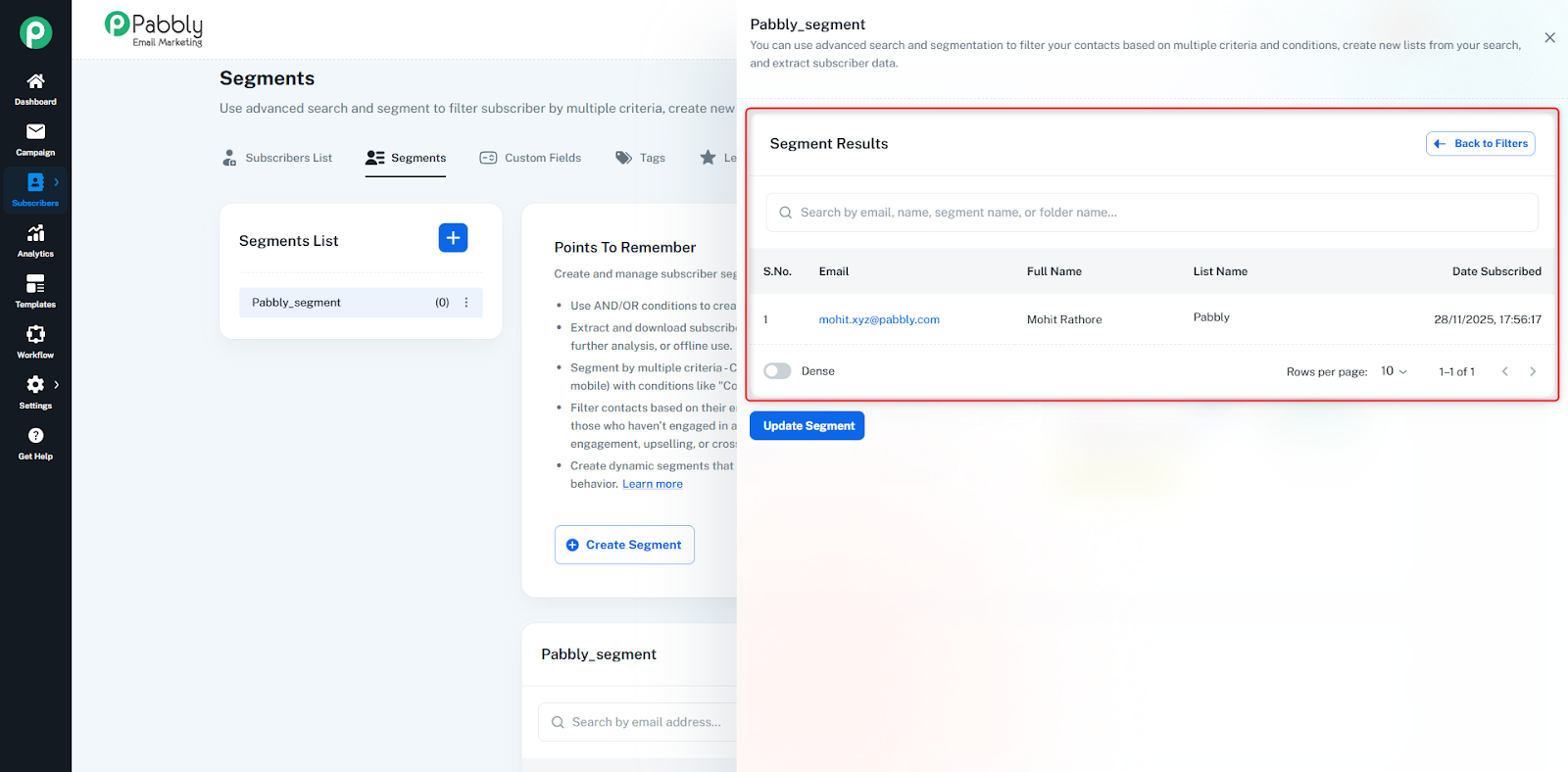
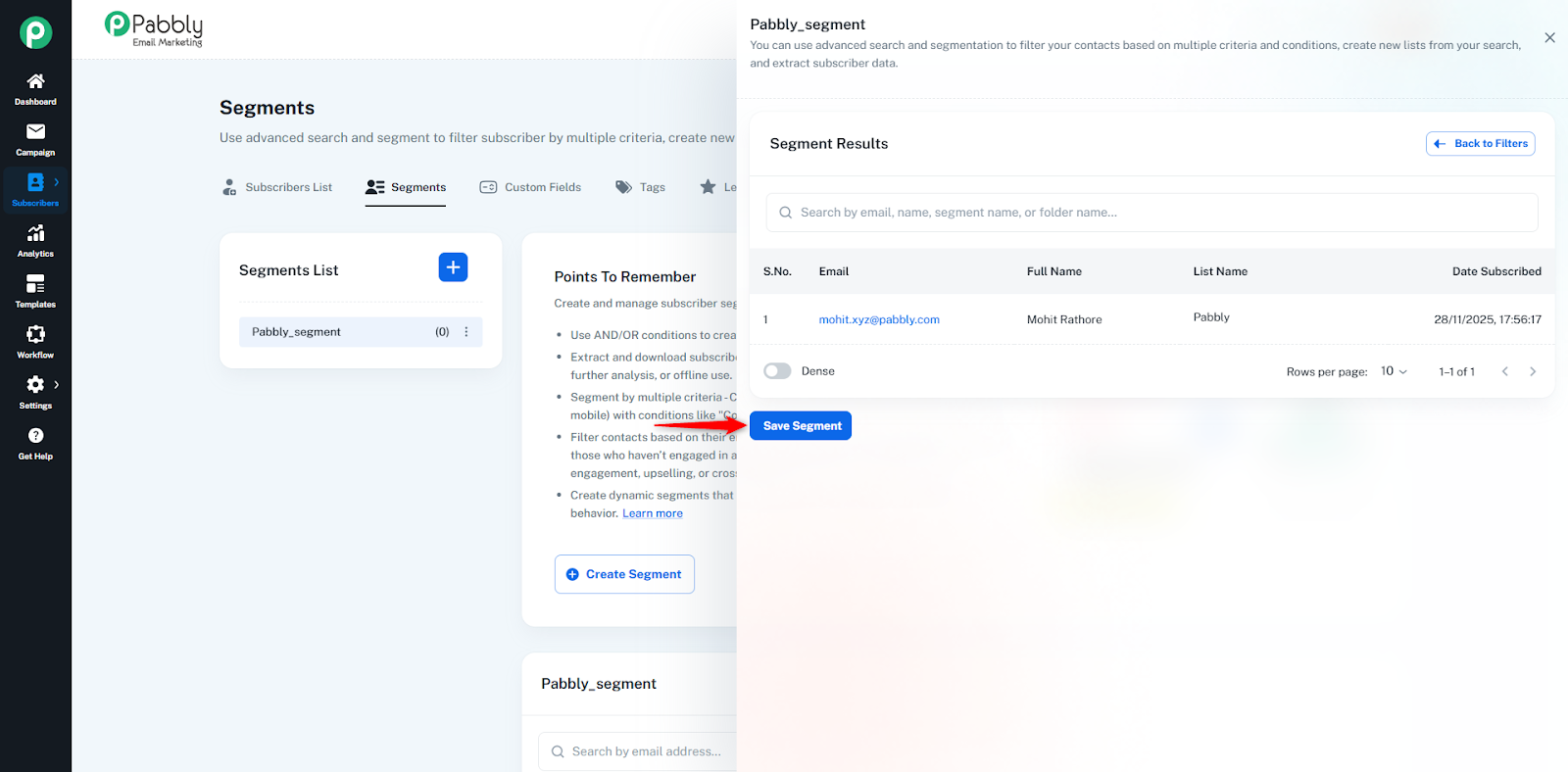
If your filtered result is correct and you want to save this segment, click Save Segment.
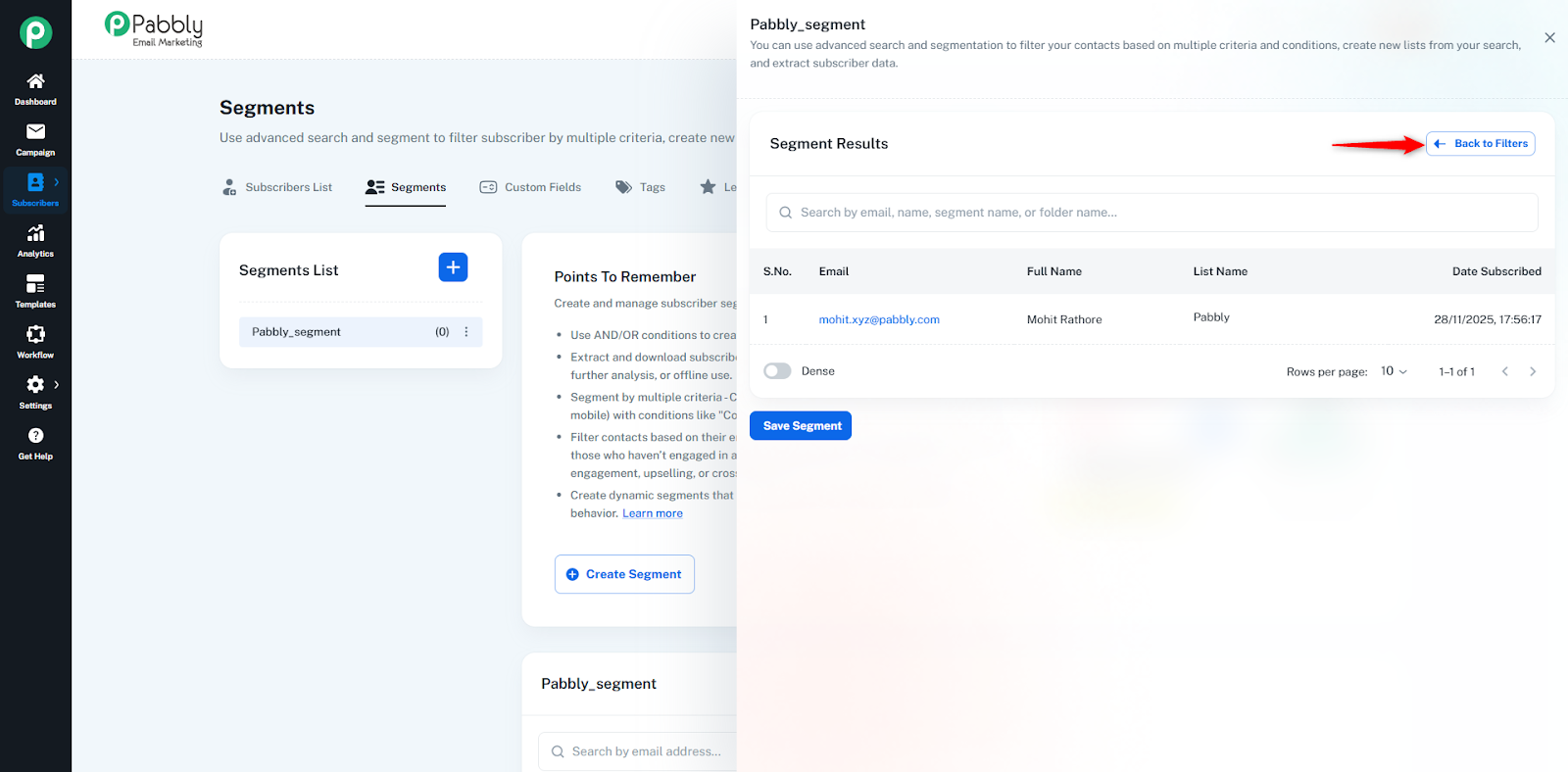
If you want to adjust or change the conditions, click Back to Filters, update your filters, and then save the segment.
After saving, all the filtered subscribers will appear inside your Segment List table for that specific segment.
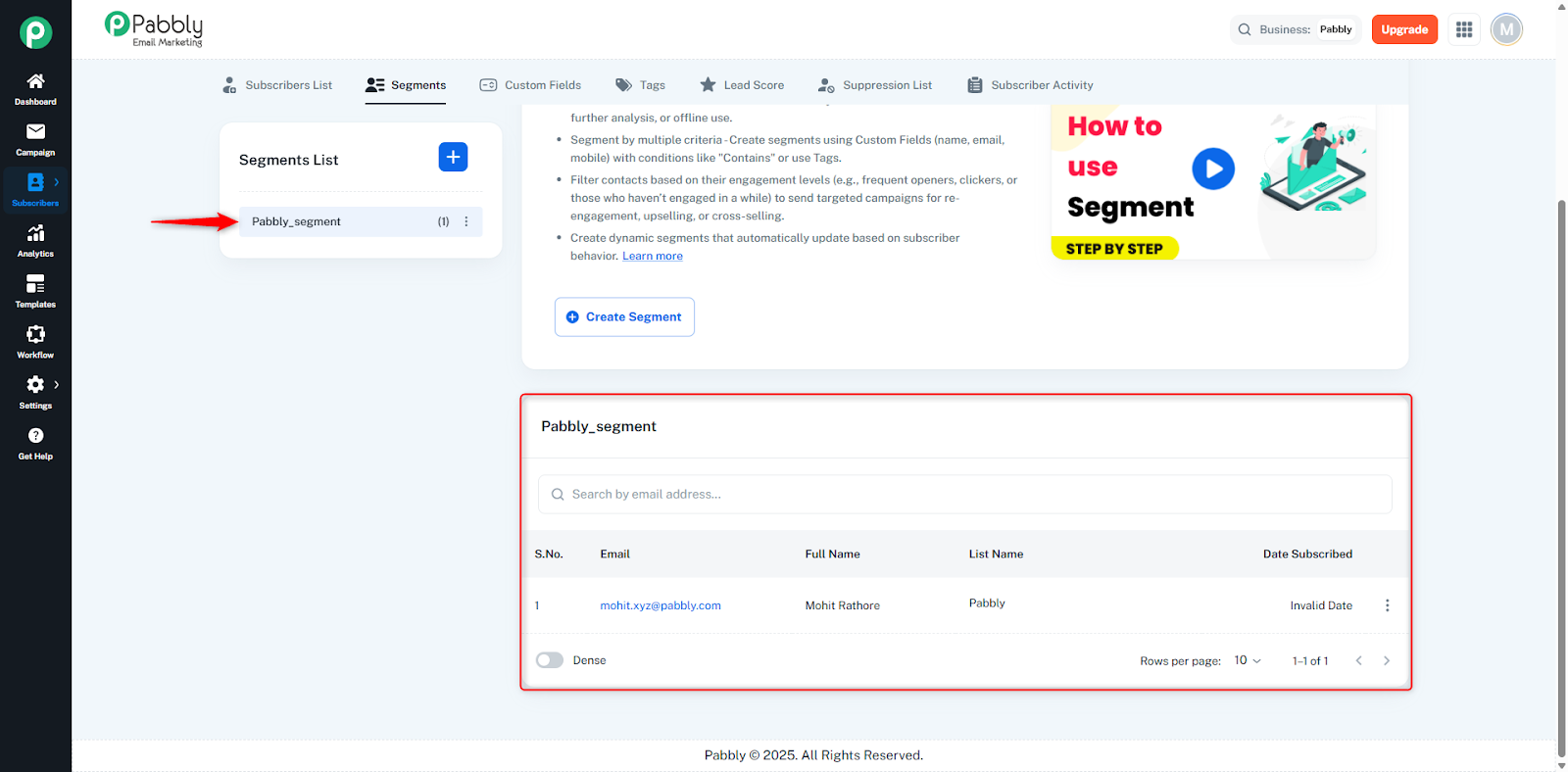
To edit, rename, move, or delete a segment list, click on the three-dot menu next to the segment name.
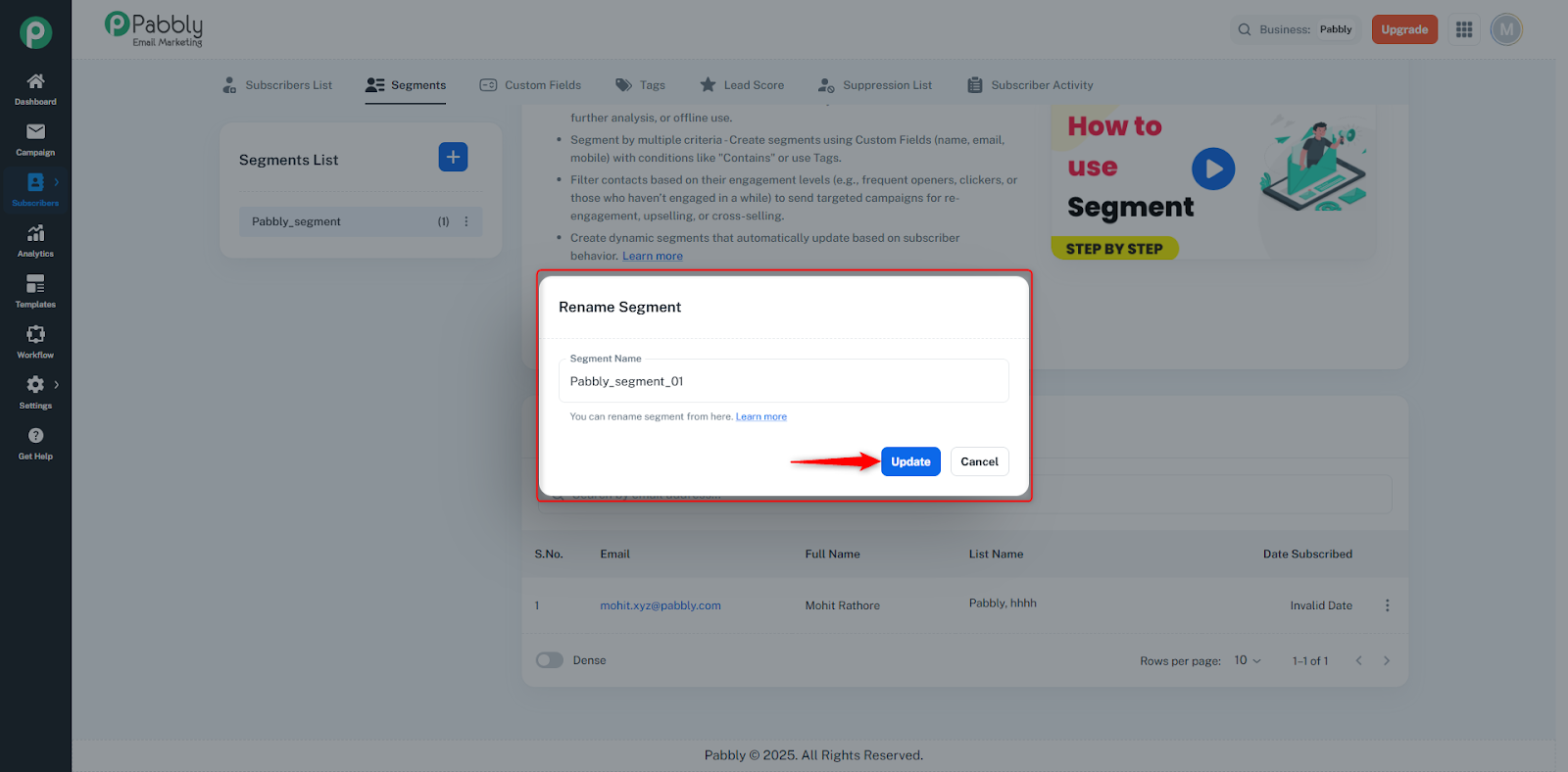
When you select Rename Segment, you can change the segment’s name anytime.
When you click Edit Segment, the previously created conditions will appear again. You can modify those conditions and re-filter subscribers based on the updated criteria.
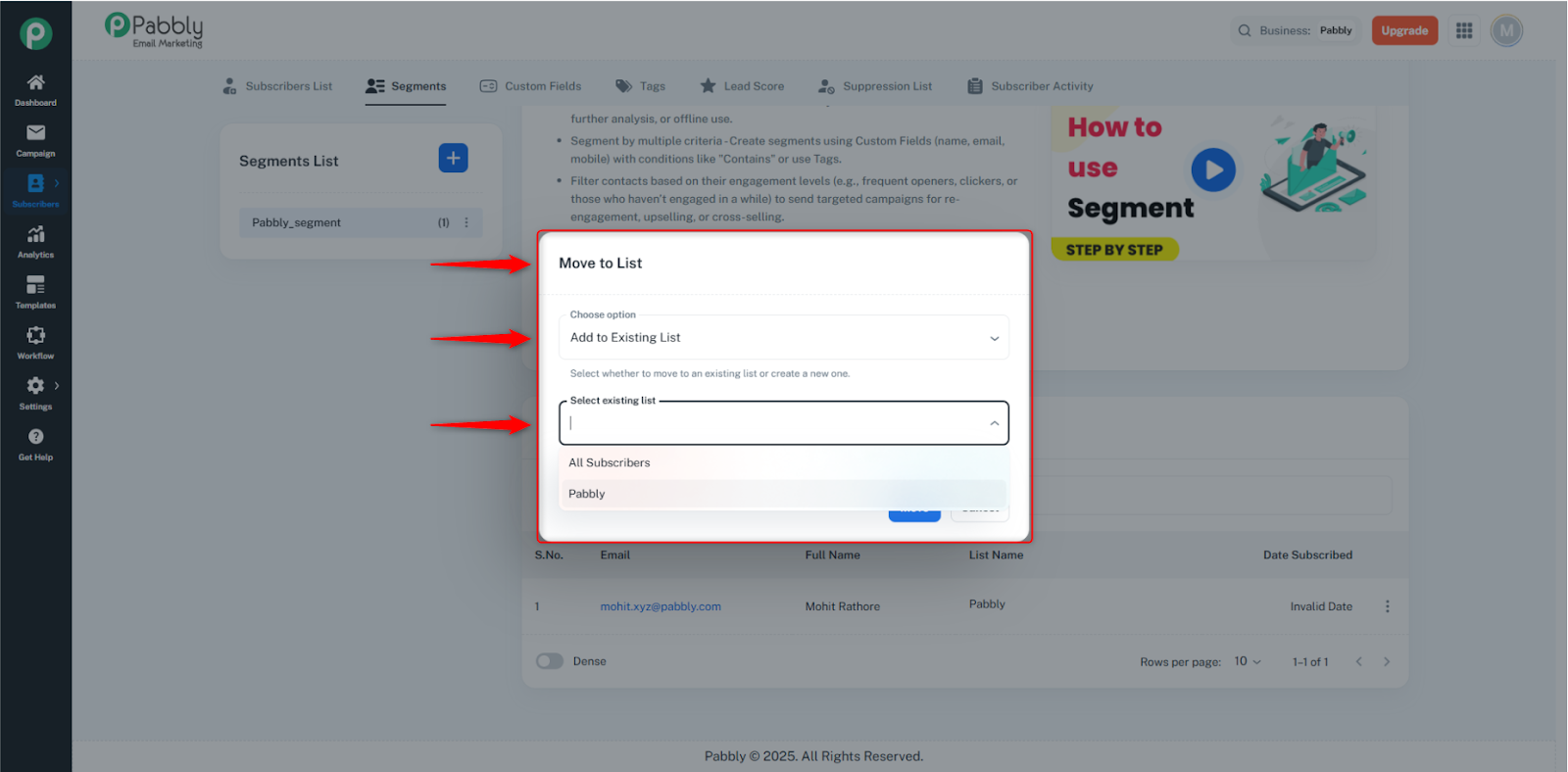
When you choose Move to List, you can move the subscribers of that segment into your existing Subscriber List or create a new list.
If you select Move to Existing List, a dropdown will display all the lists that already exist in your Subscriber List section. Select any list where you want to move the subscribers.
If you choose Add New List, a field will appear to enter a new list name. After saving, this new list will be created inside the Subscriber List section, and all subscribers from the segment will be added to this newly created list.
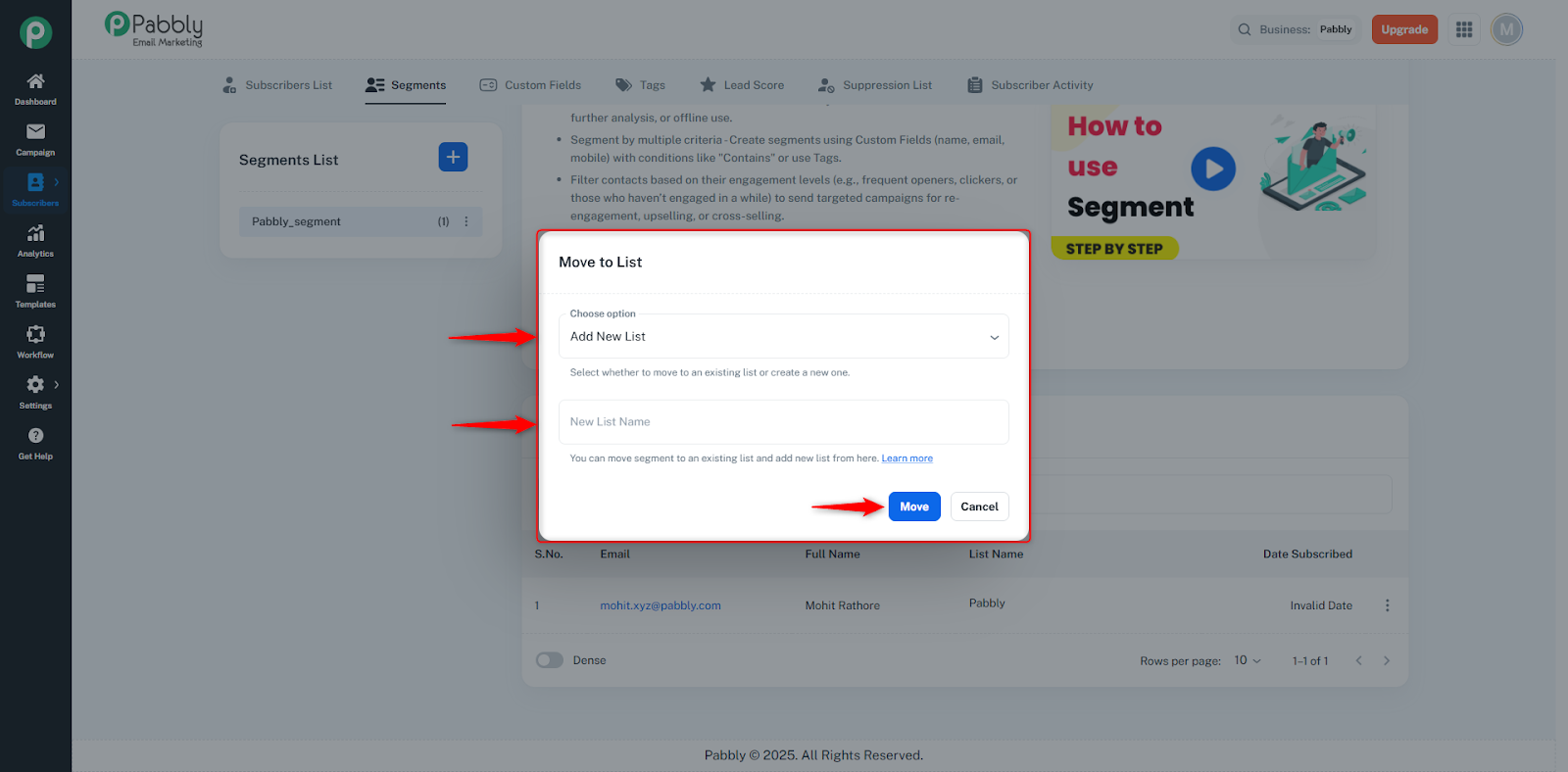
The subscribers will still remain in the segment list, meaning moving them does not remove them from their original segment.
