Pabbly
Docs
Search...
Ctrl
+
K
API Reference
How to Edit Access Token in Pabbly Chatflow · Pabbly Chatflow · Pabbly Docs
Pabbly Chatflow
Help and Guide
How to Edit Access Token in Pabbly Chatflow
Help and Guide
How to Edit Access Token in Pabbly Chatflow
Updated Jul 25, 2026
On this page
Step 1: Get Your New Access Token
Step 2: Access the WhatsApp Number Settings
Step 3: Edit the Access Token
Step 4: Save the Changes
Step 1: Get Your New Access Token
Log in to your
Meta Developer Account
at
Meta for Developers
.
Navigate to the app you’ve set up for WhatsApp Cloud API.
Go to the
WhatsApp > API Setup
section in your app dashboard.
Copy the new
Access Token
(you might need to generate a long-term token if your previous one has expired).
Step 2: Access the WhatsApp Number Settings
Open your
Pabbly Chatflow
dashboard.
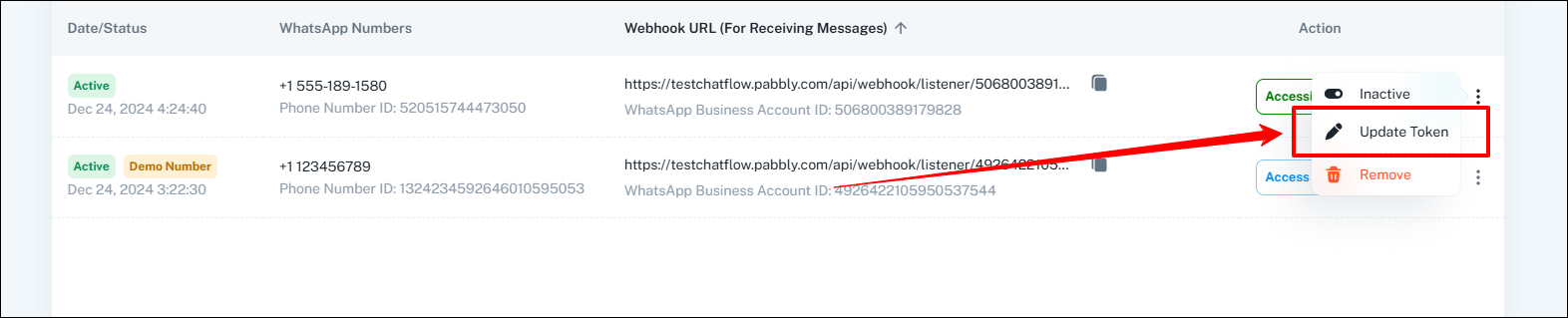
Locate the WhatsApp number for which you want to update the access token.
In the
Actions
column, click the
three-dot menu (ellipsis)
.
From the dropdown menu, select
Update Token
.
Step 3: Edit the Access Token
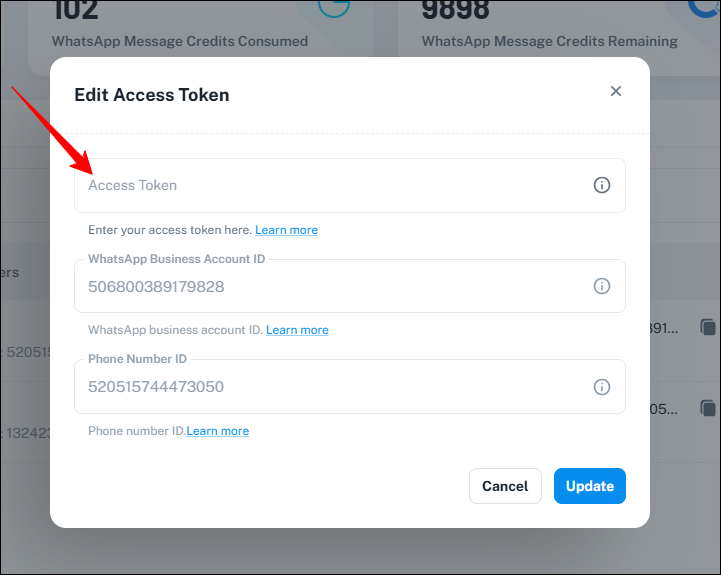
A dialog box titled
Edit Access Token
will open.
In the
Access Token
field, paste the new token you copied from your Meta Developer account.
Verify that the
WhatsApp Business Account ID
and
Phone Number ID
fields are correct (these are pre-filled and should match the details of your setup).
Step 4: Save the Changes
After entering the new Access Token, click the
Update
button at the bottom of the dialog box.
Once updated, the system will validate the new token, and your WhatsApp number will be reconnected with the updated token.
Originally posted by
ayush.bisen
on 2024-12-26 (forum thread #26147).
Previous
How to Add a WhatsApp Number in Pabbly Chatflow
Next
How to Set a WhatsApp Number to Inactive in Pabbly Chatflow