Pabbly
Docs
Search...
Ctrl
+
K
API Reference
How to set Default Payment Configuration · Pabbly Chatflow · Pabbly Docs
Pabbly Chatflow
Features & Capabilities
How to manage WhatsApp Payment
Payment Gateway
How to set Default Payment Configuration
Payment Gateway
How to set Default Payment Configuration
Updated Oct 23, 2026
On this page
Step 1: Open the Payment Gateways Section
Step 2: Select the Payment Configuration
Step 3: Click on “Set as Default”
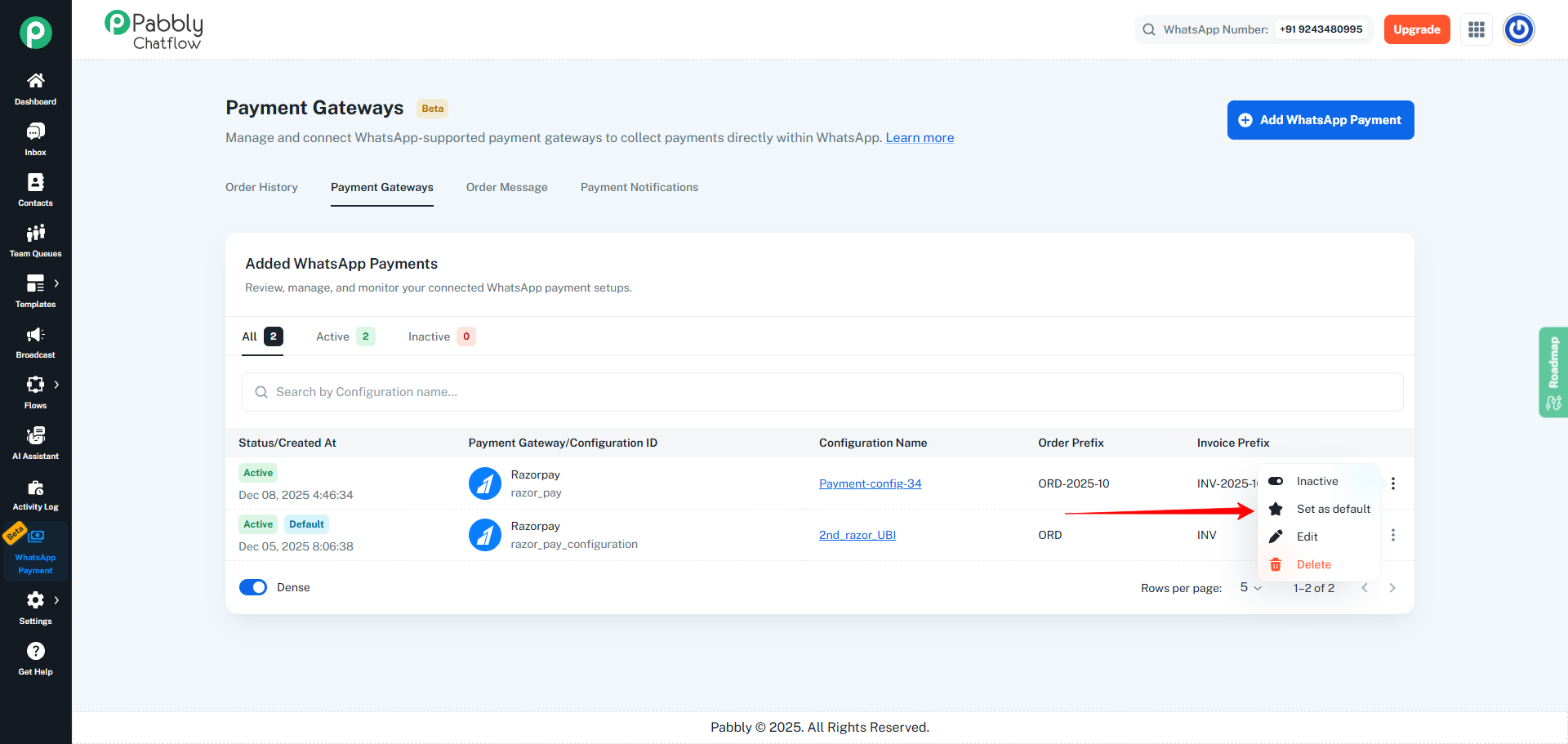
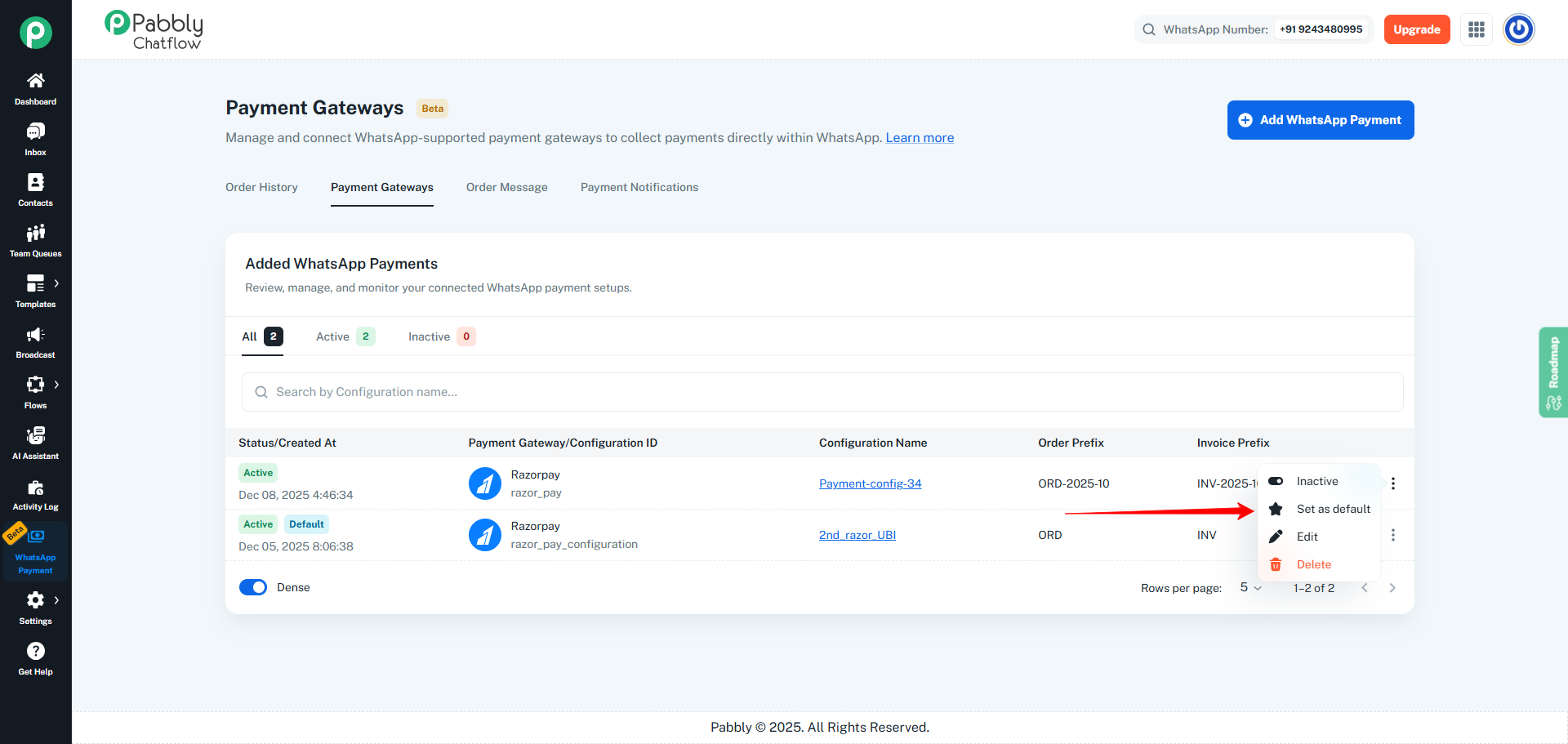
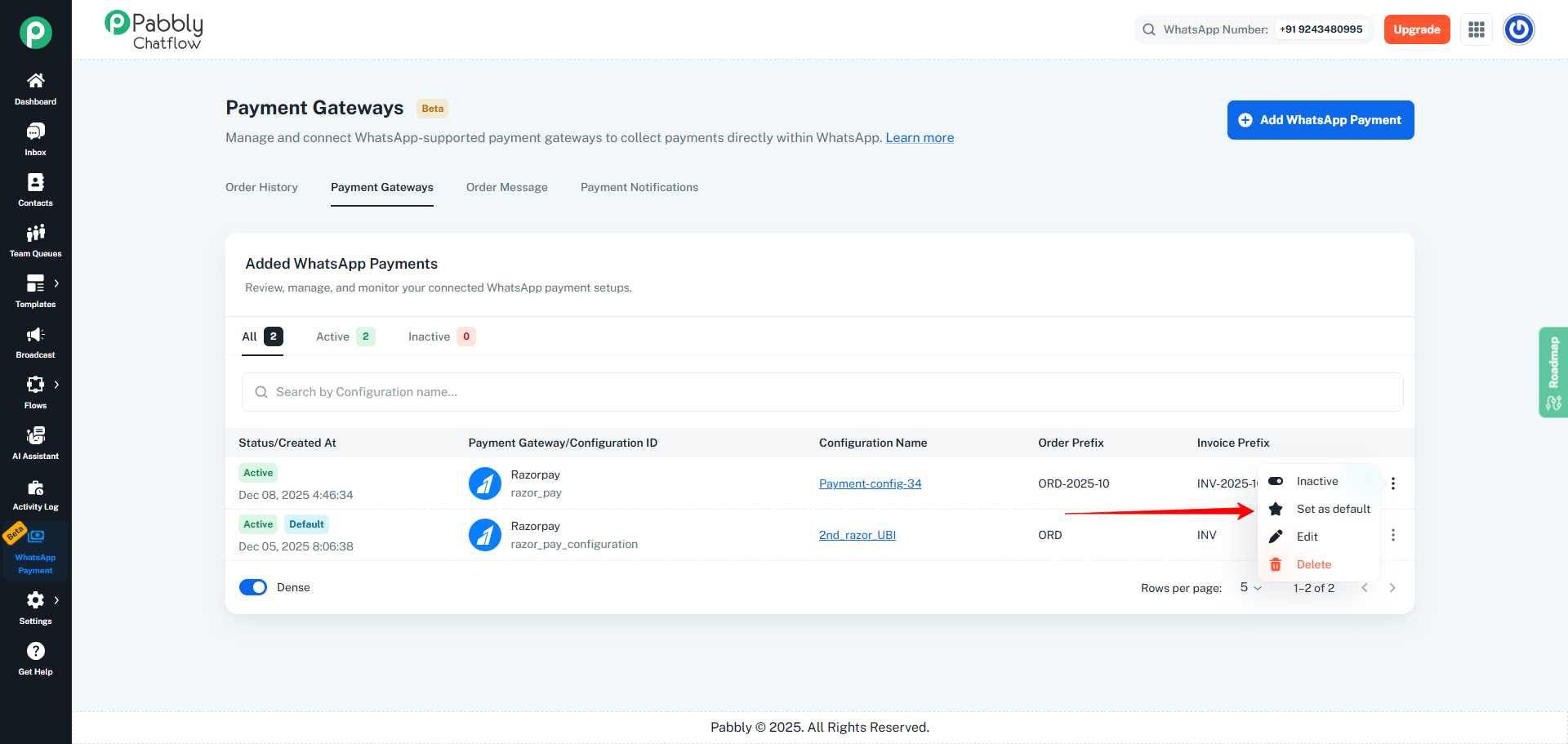
From the dropdown menu, click on Set as default.
Step 4: Confirm the Default Configuration
Final Outcome
Important Notes
Step 1: Open the Payment Gateways Section
Log in to your
Pabbly Chatflow
account.
From the left sidebar, click on
WhatsApp Payment
.
Click on the
Payment Gateways
tab (2nd tab at the top).
Step 2: Select the Payment Configuration
In the
Added WhatsApp Payments
list, locate the payment configuration you want to set as default.
Ensure the configuration status is
Active
.
Click on the
three-dot (⋮) menu
at the right side of that configuration row.
Step 3: Click on “Set as Default”
From the dropdown menu, click on
Set as default
.
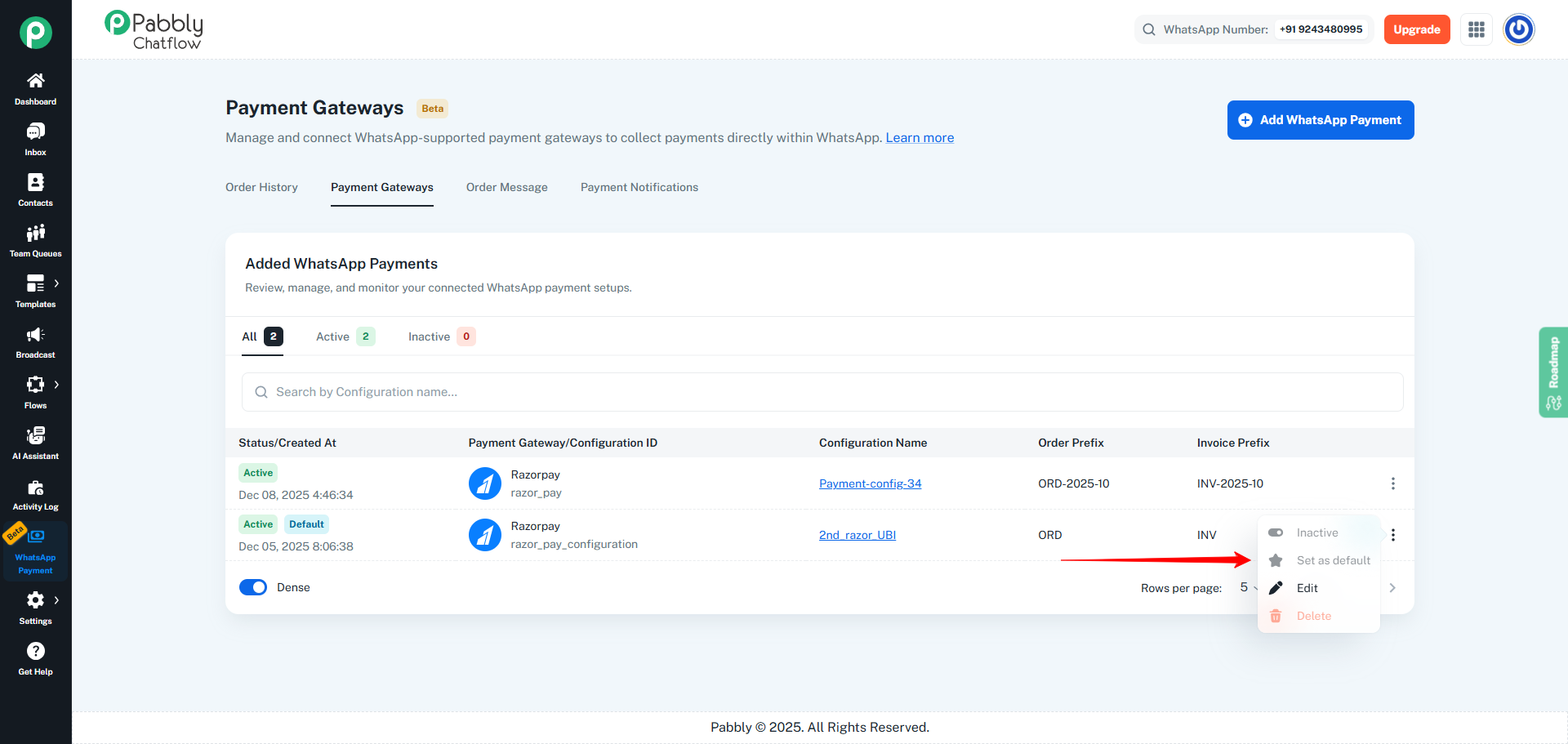
If a configuration is
already set as Default
, the
Set as default
option will appear
disabled
and cannot be clicked.
Enabled
Set as default
option for a non-default configuration
Disabled
Set as default
option for an already default configuration
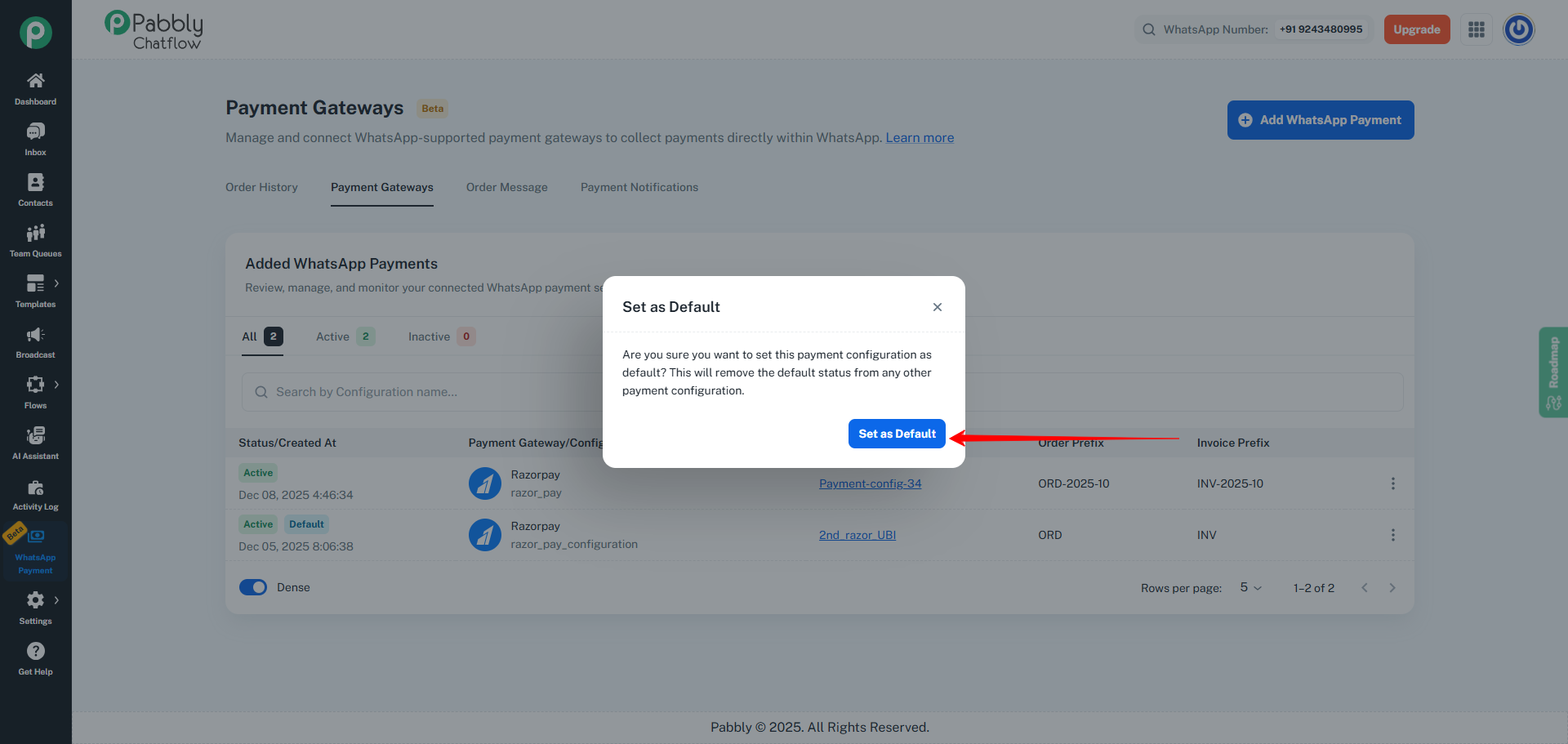
Step 4: Confirm the Default Configuration
A confirmation popup will appear.
Click on the
Set as Default
button to confirm your action.
After confirmation:
The selected configuration becomes the new
Default
The previously default configuration is automatically removed from default
Final Outcome
The selected payment configuration will now display the
Default
badge.
This default configuration will be used automatically for WhatsApp payments.
Important Notes
Only
one
payment configuration can be set as
Default
at a time.
Only
Active
configurations can be made default.
A configuration that is
already Default
will have the
Set as default option disabled
.
Previous
How to Change the status of Payment Configuration(Active and Inactive)
Next
How to delete Payment Configuration.