This the complete step-by-step process to change the status(Active and Inactive) of an existing WhatsApp Payment Configuration in Pabbly Chatflow.
Step 1: Access the Payment Gateway Section
- Log in to your Pabbly Chatflow account.
- From the left sidebar, click on WhatsApp Payment.
- Navigate to the Payment Gateways tab (second tab at the top).
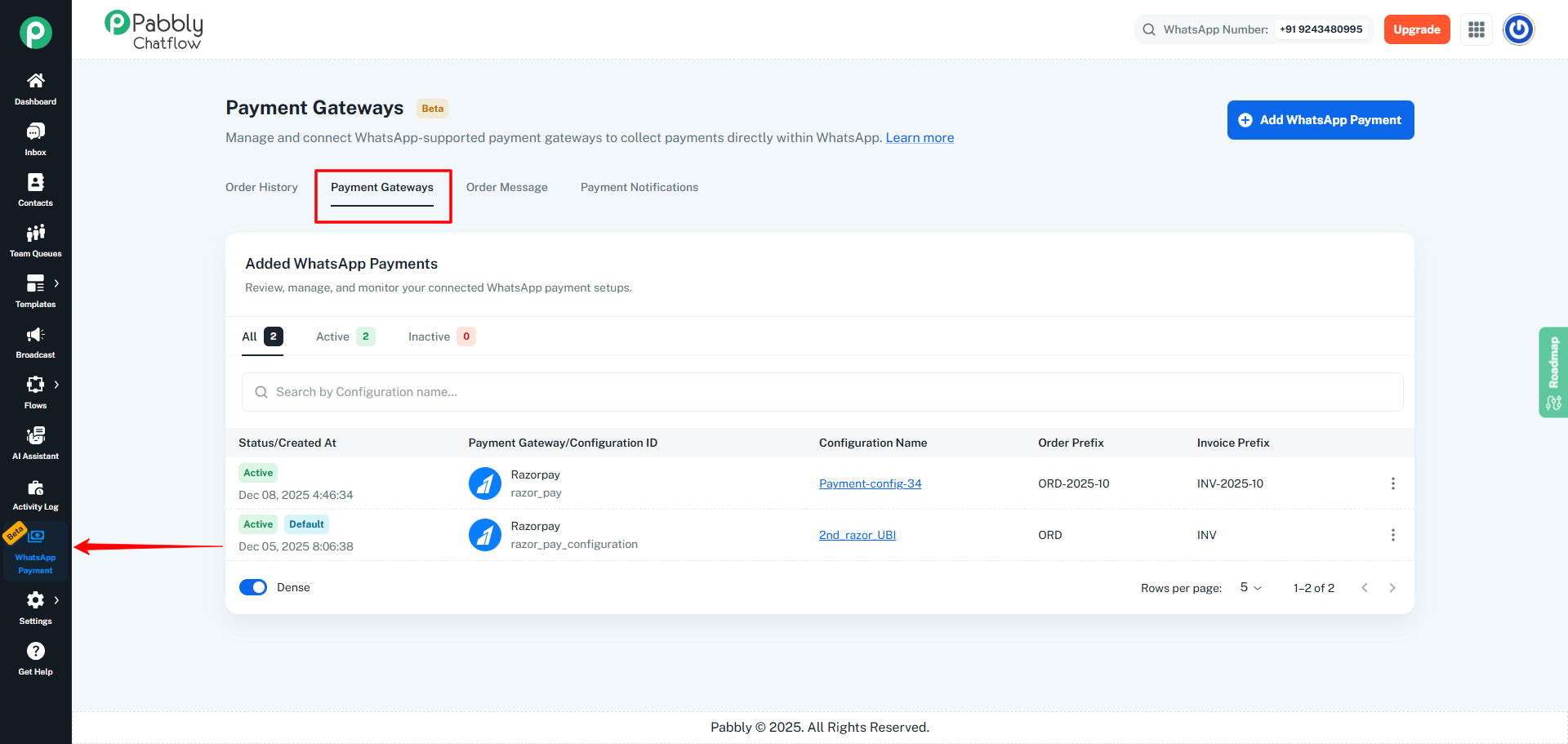
Step 2: Locate the Payment Configuration
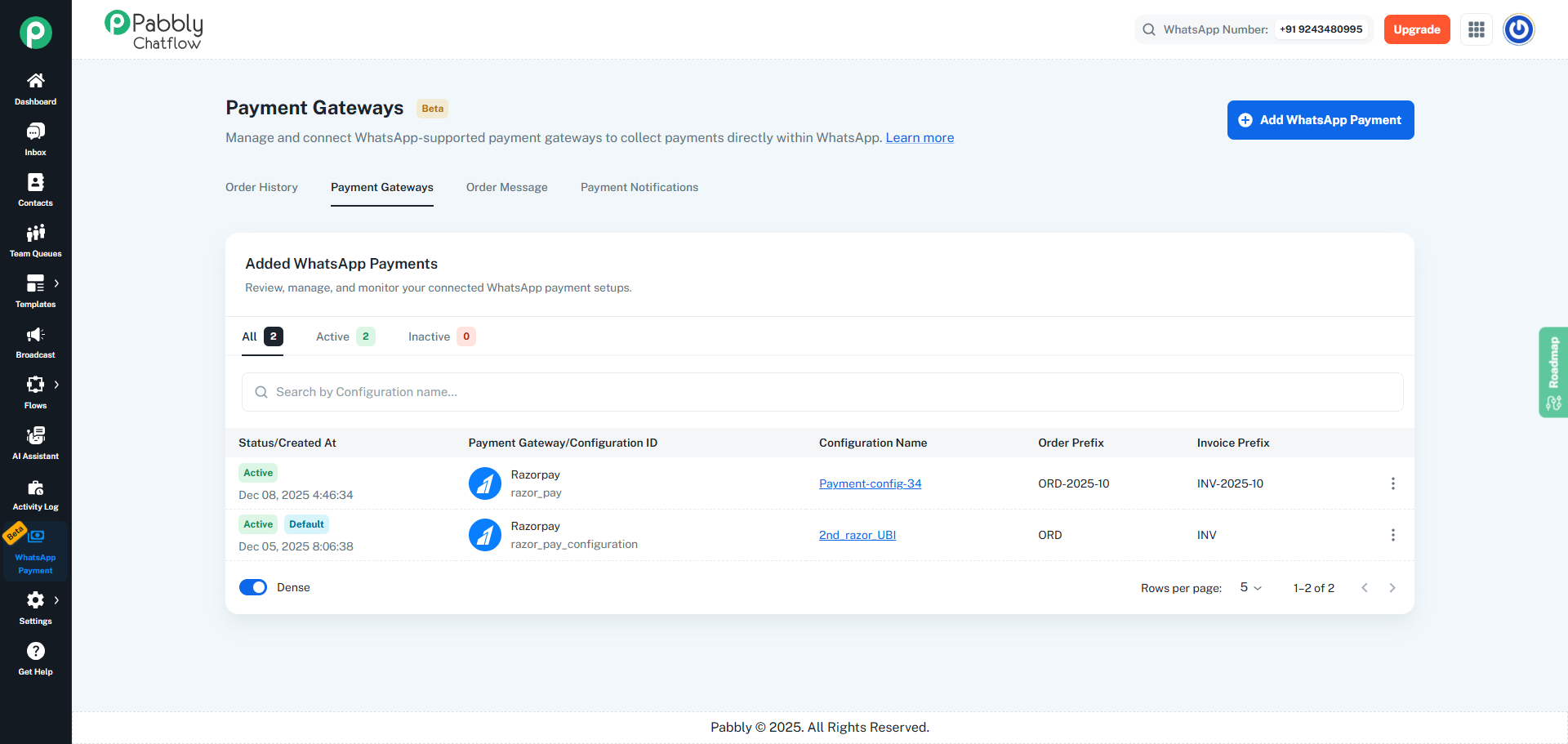
- Under the Added WhatsApp Payments section, view the list of all configurations.
- Identify the configuration whose status you want to change.
- You can also use the search bar to find it quickly.
- Click on the three-dot menu (⋮) at the right side of the selected payment configuration.
- A popover menu will appear with multiple actions.
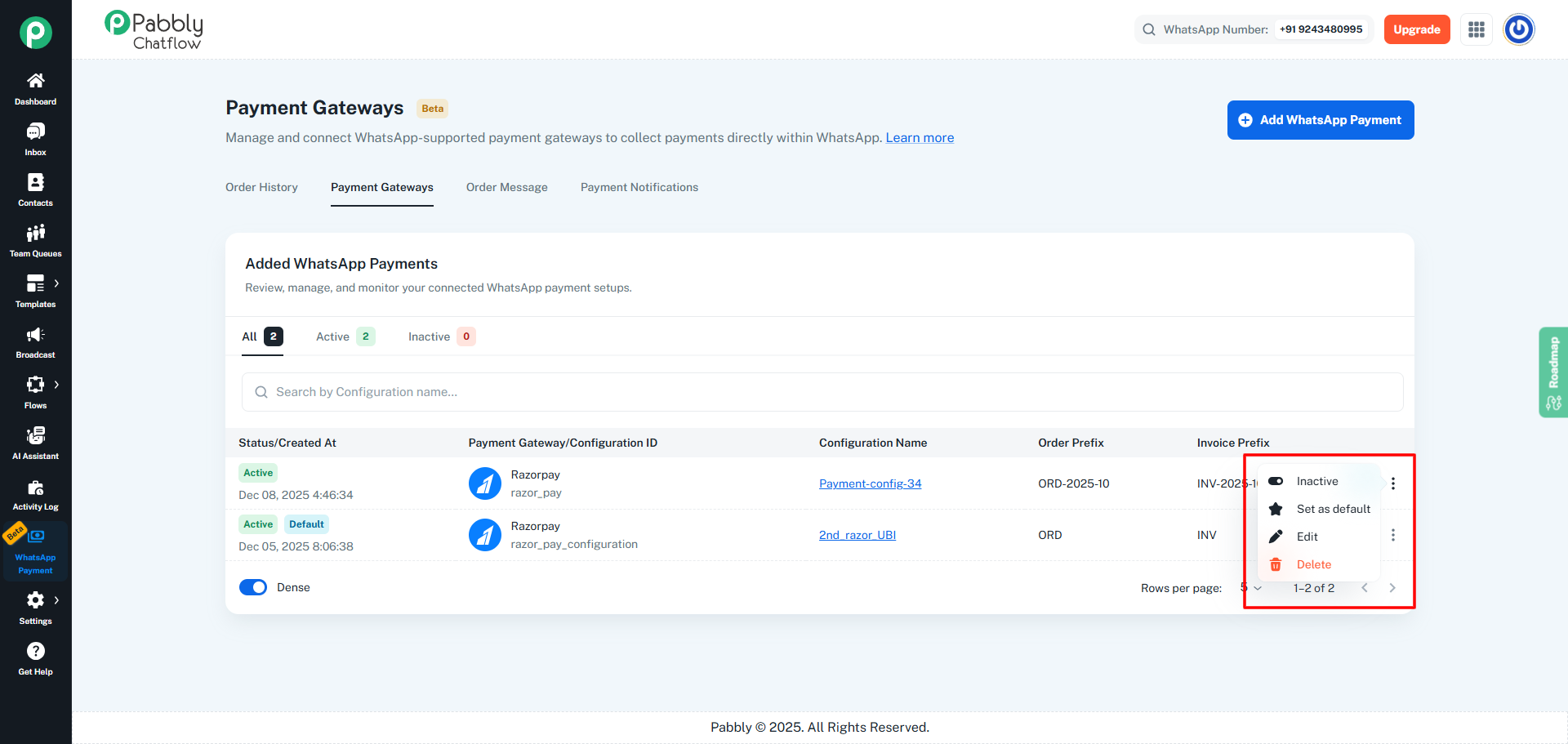
Step 4: Set the Status to Inactive
- From the menu items, click on Inactive.
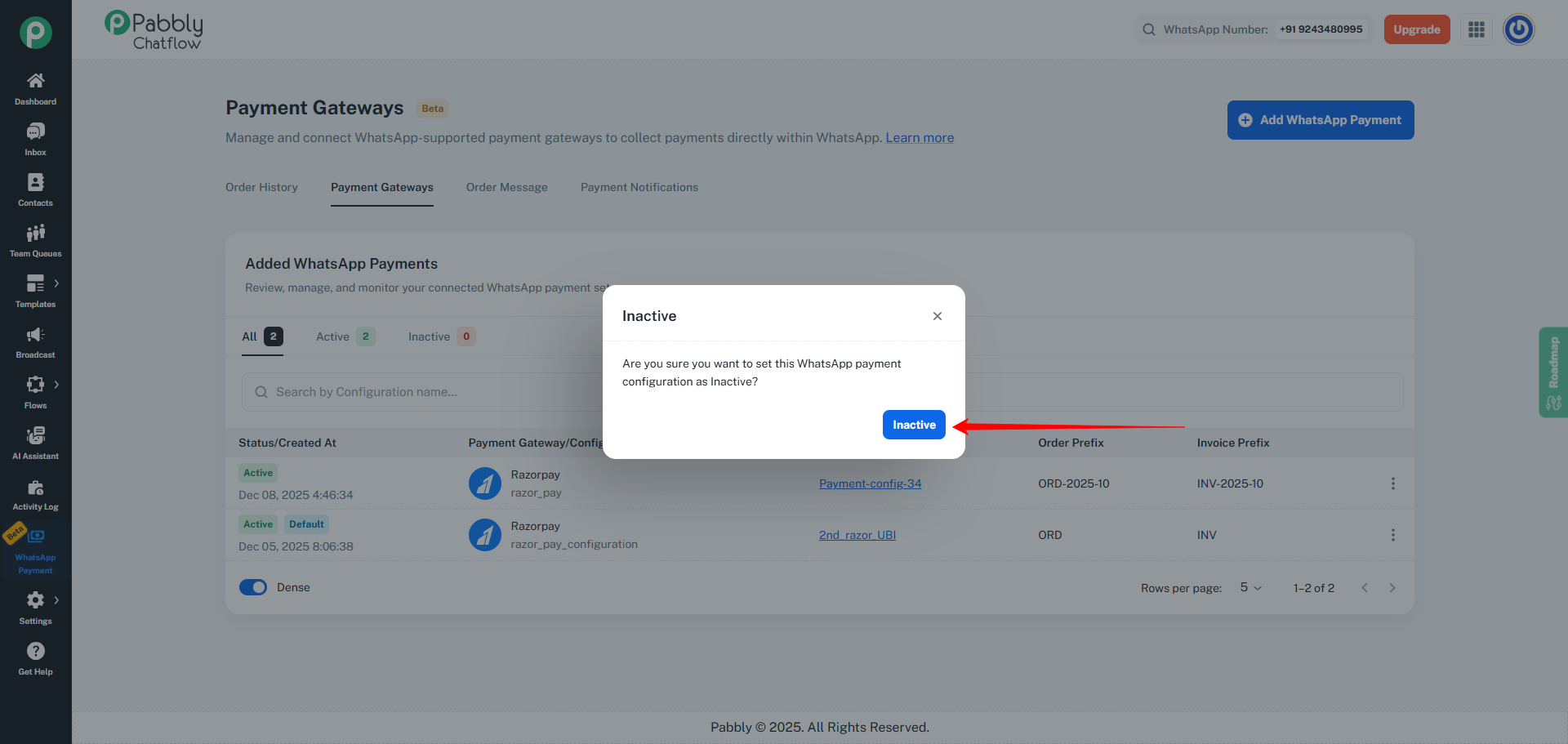
- A confirmation popup will appear.
- Click the Inactive button to confirm.
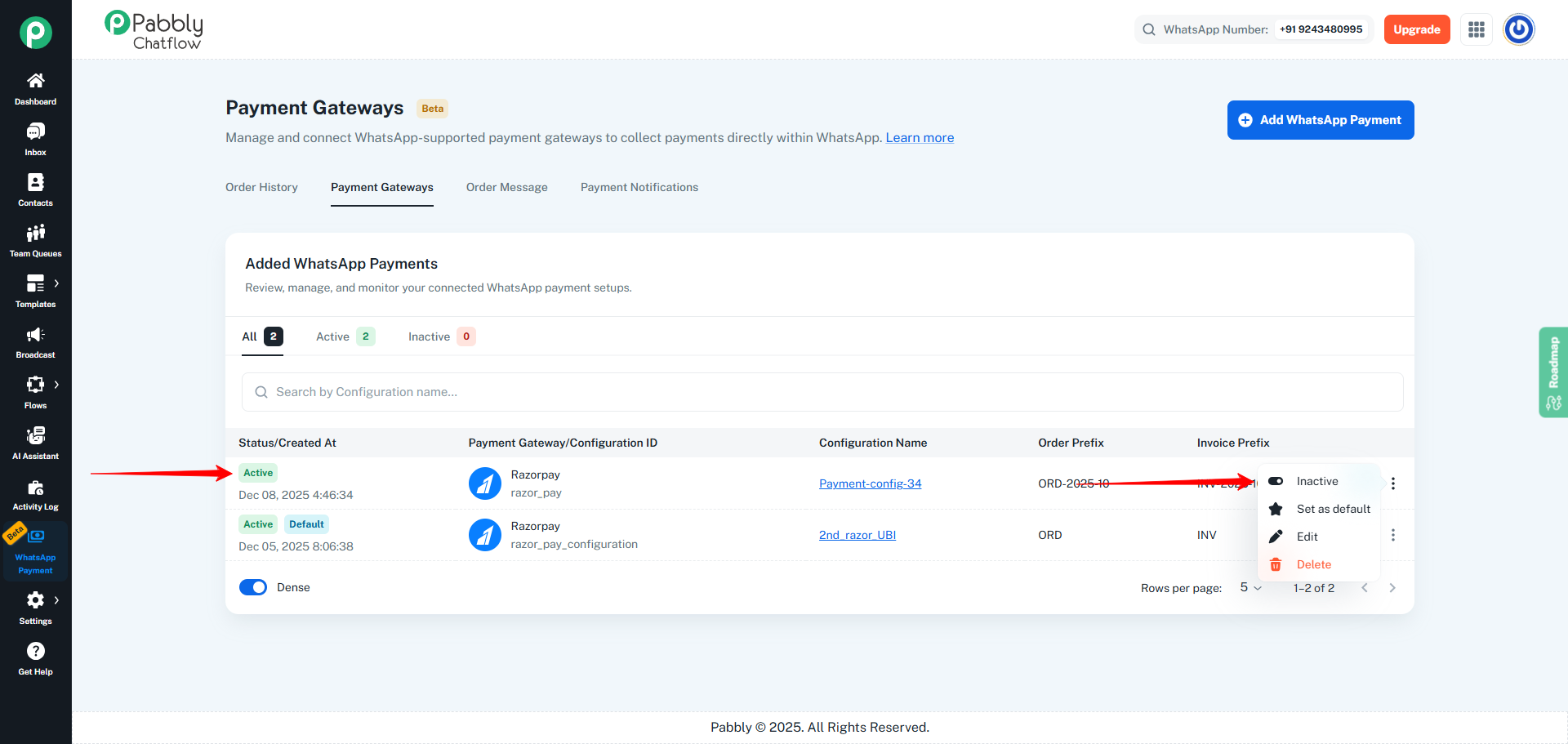
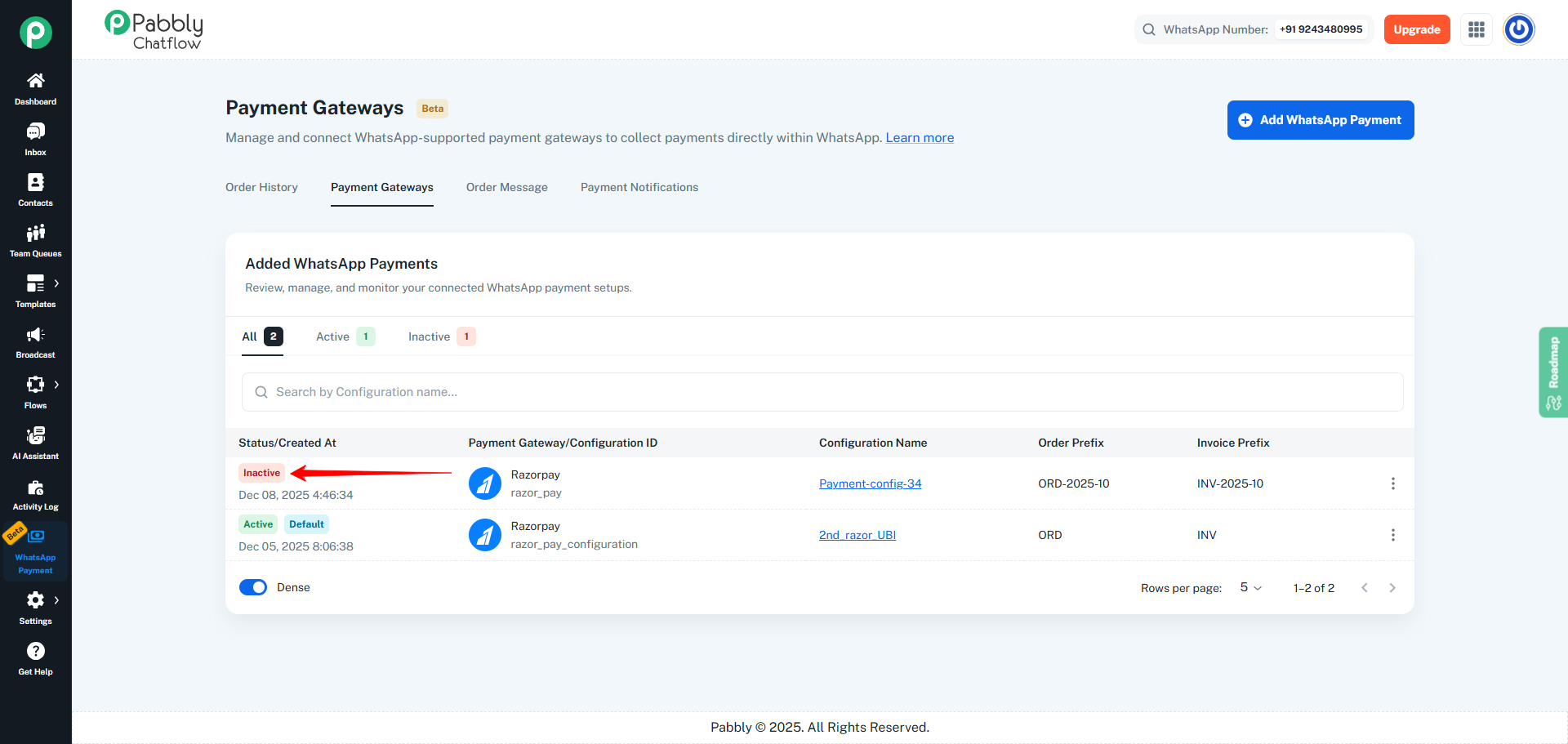
After confirmation, the status badge will change to Inactive.
Step 5: Set the Status Back to Active (If Required)
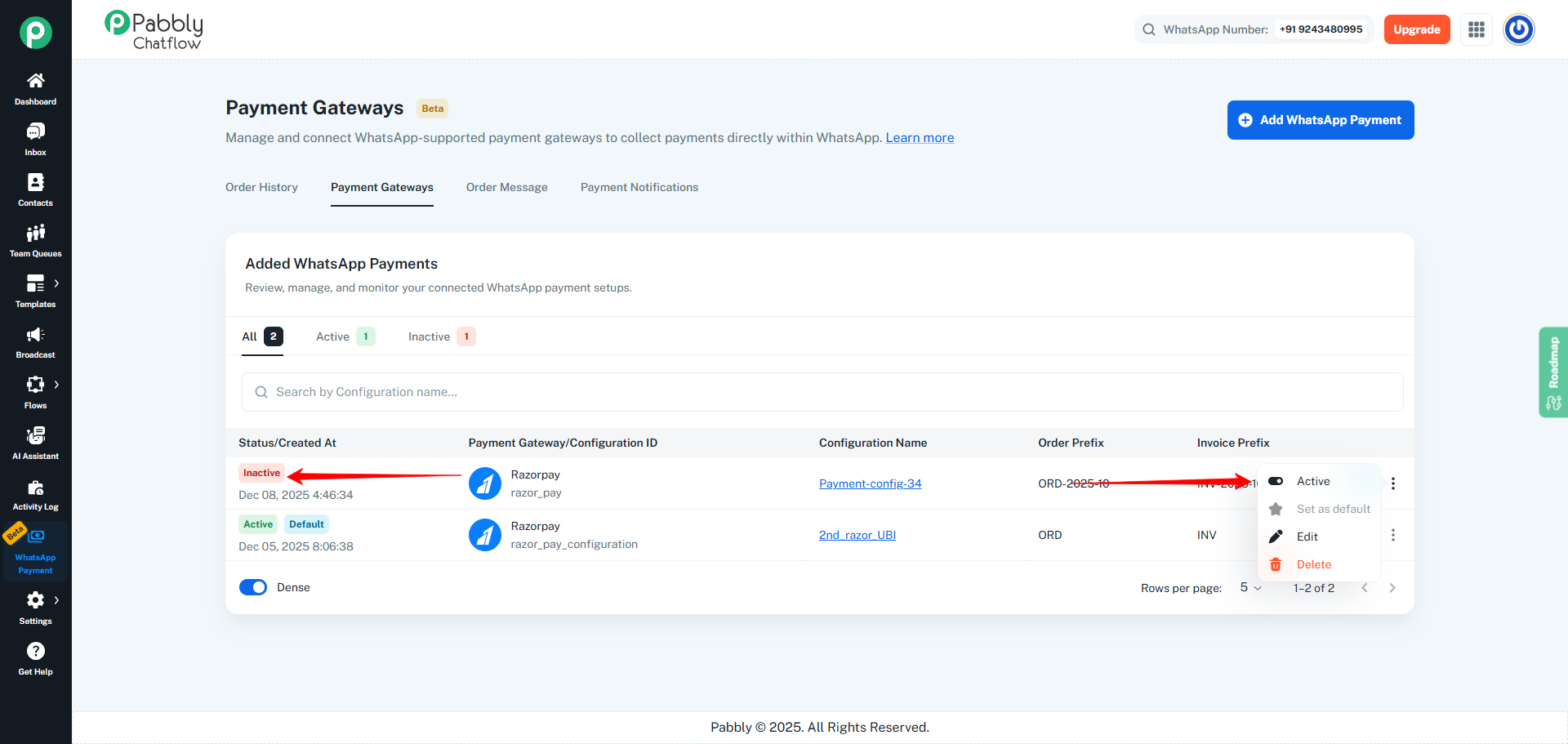
- Open the three-dot menu (⋮) again for the same configuration.
- Click on Active.
- The configuration will instantly return to Active status.
System Restrictions
- Only Active configurations can be used for WhatsApp payments.
- You can switch between Active and Inactive anytime.
- A Default configuration cannot be set to Inactive.
- To deactivate a Default configuration, you must first set another configuration as Default.
