Disclaimer: The majority of these errors occur due to your violation of Meta's policies. Kindly follow these rules for a seamless experience with Pabbly Chatflow
Types of Messaging errors you might face in Pabbly Chatflow
1) Temporarily blocked for policy violations
If your account has been temporarily blocked or restricted, there are chances you might have violated a platform policy.
See the Policy Enforcement document to learn about policy violations and how to resolve them.
Solution:
- Review Meta’s Policy Enforcement guidelines to identify the violation.
- Adjust messaging to comply with Meta’s rules (no spam or prohibited content).
- Pause all campaigns or messages that might have caused the violation.
2)Required parameter is missing
If you encounter the issue "Required parameter is missing," you might have misspelt the parameter or used it wrong.
Solution:
To prevent this issue, check whether you've correctly enclosed the parameter or not!
3) Error Code 131026: Message Undeliverable
This error occurs when a message cannot be delivered to the recipient. Common reasons include:
- The recipient’s phone number is not registered as a WhatsApp number.
- The recipient has not accepted WhatsApp’s new Terms of Service and Privacy Policy.
- The recipient is using an outdated WhatsApp version. The minimum required versions are:
- Android: 2.21.15.15
- SMB Android (SMBA): 2.21.15.15
- iOS: 2.21.170.4
- SMB iOS (SMBI): 2.21.170.4
- KaiOS: 2.2130.10
- Web: 2.2132.6
- WhatsApp Anti-Spam measures may restrict messages if the user has never interacted with the business or doesn’t usually engage with messages from Business APIs. This restriction can last 24 to 48 hours to maintain high-quality user experience.
- The message was blocked to maintain per-user marketing template message limits.
Solution:
Ask the WhatsApp user (via non-WhatsApp communication) to:
- Confirm they can send messages to your WhatsApp Business number.
- Check that your WhatsApp Business API number is not blocked in their settings (Settings > Privacy > Blocked Contacts).
- Ensure they have accepted the latest WhatsApp Terms of Service (found under Settings > Help or Application Information).
- Update their WhatsApp app to the latest version.
If none of these resolve the issue, try messaging the user again after 24 hours.
4) Error Code 131009: Parameter value is not valid
This error occurs when one or more parameter values sent in your API request are invalid or unsupported. This often happens if:
- Parameters are misspelled or formatted incorrectly.
- The value type does not match the expected data type.
- Required parameters are missing or incorrectly provided.
- Phone numbers are not correctly linked to your WhatsApp Business Account.
Solution:
- Review the API endpoint documentation to confirm all parameters and values match the requirements.
- Verify phone numbers are properly added to your WhatsApp Business Account as explained in the Phone Numbers guide.
- Correct any invalid or unsupported parameter values in your request and retry.
5) Error Code 132001: Template Does Not Exist
This error indicates that the specified message template could not be found. Common causes include:
- The template is not available in the specified language.
- The template has not yet been approved by WhatsApp.
- Incorrect template name or language locale was provided.
- The template does not adhere to WhatsApp’s message template guidelines.
If you encounter this error while sending a broadcast, it may be due to the template being unavailable in the chosen language or pending approval.
Solution:
- Confirm that the template has been approved in your WhatsApp Business Account.
- Verify that the template name and language locale used in your request are accurate.
- Ensure compliance with WhatsApp’s template messaging guidelines.
- If the template is unapproved, submit it for approval through your WhatsApp Business Manager.
6) Error Code 131047: Re-engagement Message
This error happens when you try to send a regular message to someone more than 24 hours after they last replied to you on WhatsApp. WhatsApp only allows free messages within 24 hours of their last reply to protect users from spam.
Solution:
- To message them after 24 hours, use a pre-approved message template designed for business-initiated messages.
- Make sure the message template is approved and follows WhatsApp’s rules.
- Check WhatsApp’s guide on message templates for more help.
7) Error Code 190: Access Token Expired
This error means your access token (which lets Pabbly Chatflow connect to Meta/WhatsApp) has expired.
Solution:
- You need to get a new access token to restore the connection.
- Generate a fresh access token from your Meta Developer account.
- Update your system with the new token to continue sending messages.
8) Error Code 131051: Unsupported Message Type
This error occurs when you try to send a message type that the WhatsApp Cloud API does not support.
The WhatsApp Cloud API supports only specific message formats. Using unsupported types will result in this error.
Solution:
- Check the official WhatsApp Cloud API documentation for supported message types:
Supported Message Types
- Ensure the message you are sending is one of the supported formats.
- If your message type is unsupported, change it to a supported message format as per the documentation.
9) Error Code 131049: Message Not Delivered to Maintain Healthy Ecosystem Engagement
This error comes from Meta when you try to send the same message template to a user who didn’t reply to your last message. WhatsApp blocks it to stop spam and keep conversations meaningful.
Sending the same message repeatedly without user response can lower your message template’s quality score, which can cause more restrictions.
Why This Error Happens
WhatsApp limits how many marketing messages a user can receive within a short time. These limits apply even across multiple businesses contacting the same user.
Important additional reason:
If a user receives marketing messages from too many different businesses in a short period (e.g., 6 businesses), WhatsApp may block the next business’s message. This triggers error 131049, even if it’s the first time that business is messaging the user.
This behavior has been tested: after six different businesses send marketing templates to a user, any new business attempting to send a template is blocked with this error.
Solution:
- Avoid retrying immediately after the error.
- Retry sending after waiting longer each time (e.g., minutes, then hours).
- Do not repeatedly send messages without user engagement.
- For details, check WhatsApp Message Limits.
- Keep template quality high and avoid over-sending.
Also, note that message frequency, rate limits, or policy violations may also cause delivery failures.
10) Error Code 200: You do not have the necessary permissions required to send messages on behalf of this WhatsApp Business Account.
This error indicates that your WhatsApp Business Account (WABA) does not have the required permissions to send messages. It usually occurs when:
- Your WABA was previously partnered with another business.
- That partner or associated credit line has been removed.
- Your WhatsApp Manager is not linked to any valid payment method or credit line.
Solution:
- Ask the previous Meta Business Manager to revoke the existing credit line linked to your WABA.
- Follow Meta’s guide to revoke or update the credit line:
🔗 Revoke a Shared Credit Line
- Once revoked, add a valid payment method or credit line in WhatsApp Manager.
- Retry sending the message after confirming permission is restored.
This error occurs when there is an issue with your payment method or account settings, preventing messages from being sent. It may happen due to the following reasons:
- Your payment account is not attached to the WhatsApp Business Account (WABA).
- The credit line has been exceeded or is inactive.
- The WhatsApp Business Account has been deleted or suspended.
- Timezone or currency is not set in your account settings.
- Tax information (GST ID) is missing from your account.
IMPORTANT: A GST ID is mandatory to use the WhatsApp Business Platform. There are no exemptions to this requirement.
Solution:
-
Ensure the payment account is properly attached to your WhatsApp Business Account.
-
Check the credit line balance to ensure it is active and within limits.
-
If the account was deleted or suspended, reactivate it or contact Meta support for assistance.
-
Set the correct timezone and currency in your account settings.
-
Add tax information (GST ID) to your account. This is a mandatory requirement with no exemptions - the WhatsApp Business Platform cannot be used without proper tax information.
-
If you are using MessagingFor (On Behalf Of), ensure the request has been approved.
(This means that if your business is sending messages on behalf of another business or entity, the request to send messages on their behalf must be approved by WhatsApp. This involves ensuring that the proper permissions, roles, and requirements are met, and the request is not pending or declined in the WhatsApp Manager system.)
12) Error Code 131048: Spam rate limit hit
Message failed to send because there are restrictions on how many messages can be sent from this phone number. This may be because too many previous messages were blocked or flagged as spam.
Causes:
- The phone number has reached the spam rate limit due to too many blocked or flagged messages.
- A low quality rating (due to spam complaints) can trigger these restrictions.
Solution:
-
Check your quality status in WhatsApp Manager. If it's Low (Red), your number has been flagged for spam. To check your quality status in WhatsApp Manager:
- Go to WhatsApp Manager on Meta Business Suite.
- Select Account Tools → Phone Numbers.
- Choose your number and check the Quality Rating under the Overview section:
- Green (High): Good quality.
- Yellow (Medium): Needs attention.
- Red (Low): Flagged for spam, restrictions may apply.
-
Review Quality-Based Rate Limits documentation for recovery info.
-
Avoid spammy behavior by only sending messages to opted-in users.
-
Wait for restrictions to lift after improving your quality rating.
13) Error Code 131031: Account has been locked
The WhatsApp Business Account associated with the app has been restricted or disabled for violating a platform policy, or we were unable to verify data in the request (e.g., the two-step pin is incorrect).
Causes:
- Policy Violation: The account has been flagged for violating WhatsApp's platform policies.
- Incorrect Data: Data in the request (like the two-step pin) does not match the data set in the WhatsApp Business Account.
Solutions:
- Review Policy Violations: Refer to the Policy Enforcement document to identify violations and understand how to resolve them.
- Verify Account Data: Double-check and correct any discrepancies in your account data (like the two-step pin).
14) Error Code 130472: Message was not sent as part of an experiment.
Causes:
- This error occurs when a marketing template message sent via the WhatsApp Cloud API is not delivered because the recipient's phone number is part of a Meta experiment.
- About 1% of WhatsApp users cannot receive marketing messages unless they initiate the conversation first.
Solutions:
- Check if the User is Part of the Experiment:
The recipient may need to message you first before you can send marketing messages.
- Contact the User Through Another Channel:
If the user hasn’t initiated the conversation, reach out through another channel and ask them to message you. Once they do, you can send the marketing template within the 24-hour window.
- Review Marketing Message Experiment Guidelines:
Refer to the Marketing Message Experiment documentation for more details.
(#10) You do not have WhatsApp granular permission for sending messages on behalf of this WhatsApp Business Account
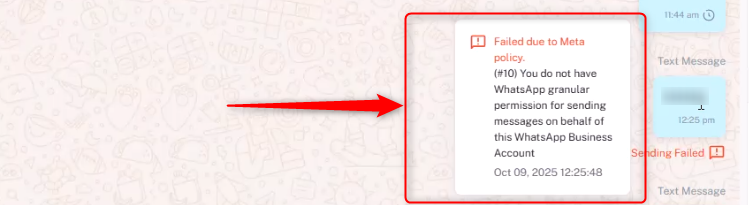
This error occurs due to Meta's granular permission system for WhatsApp APIs. Apps must explicitly request and be granted specific permissions for each connected WhatsApp Business Account (WABA)
Causes:
- The app is not granted the
whatsapp_business_messaging or whatsapp_business_messagingpermission for that WABA.
- The WABA was not added correctly to the app's permission list under System Users → Assets → Add Assets → WhatsApp Accounts.
- The access token being used doesn't have the required scopes (
whatsapp_business_messaging and whatsapp_business_management).
Solution:
Method 1: Reconnect the WABA (Recommended)
- Navigate to your Pabbly Chatflow dashboard.
- Reconnect the WhatsApp Business Account using the same method you used during initial setup.
- Important: You do NOT need to delete the phone number.
- Simply proceed by clicking Next → Next in the connection pop-up to refresh permissions.
- This will automatically grant the required granular permissions.
- Refresh the application once and then check if the error is resolved.
Method 2: Delete and Re-add (If Method 1 Fails)
- Go to your Pabbly Chatflow dashboard.
- Delete the phone number from your connected accounts.
- Add the phone number again following the standard setup process.
- During setup, ensure the following permissions are selected:
whatsapp_business_managementwhatsapp_business_messaging
- Complete the connection process to restore full functionality.
- Refresh the application once and then check if the error is resolved.
How to Debug Permissions:
- Go to Access Token Debugger.
- Paste your access token and click Debug.
- Verify that the following permissions are listed:
whatsapp_business_managementwhatsapp_business_messaging
- If these permissions are missing, you need to generate a new access token with the correct permissions selected.
16) Error: Error validating application. Application has been deleted
This error occurs when the Meta (Facebook) application connected to your WhatsApp integration has been deleted from the Meta Developer Dashboard. Since the app no longer exists, Meta is unable to validate or authorize any API requests coming from it.
Causes:
- The Meta app linked to your Pabbly Chatflow account was manually deleted from the Meta Developer Dashboard.
- The app was removed or disabled by Meta due to policy, compliance, or security reasons.
- Your system is using an App ID or App Secret that points to an app that no longer exists.
- The integration is still referencing old credentials after an app change or migration.
Impact:
- All WhatsApp messaging operations will fail.
- Authentication and API requests related to this app will not work.
- Your WhatsApp Business integration will remain disconnected until a valid Meta app is configured.
Solution:
1) Verify App Status
- Log in to developers.facebook.com using the account that owns the app.
- Check whether the app still exists and is not deleted or disabled.
Follow the steps below to recreate your Meta (Facebook) application after it has been deleted.
Step 1: App Details
- Go to developers.facebook.com.
- Click on Create App.
- Enter the following details:
- App Name (e.g., your business or project name)
- App Contact Email (make sure this email is active)
- Click Next.
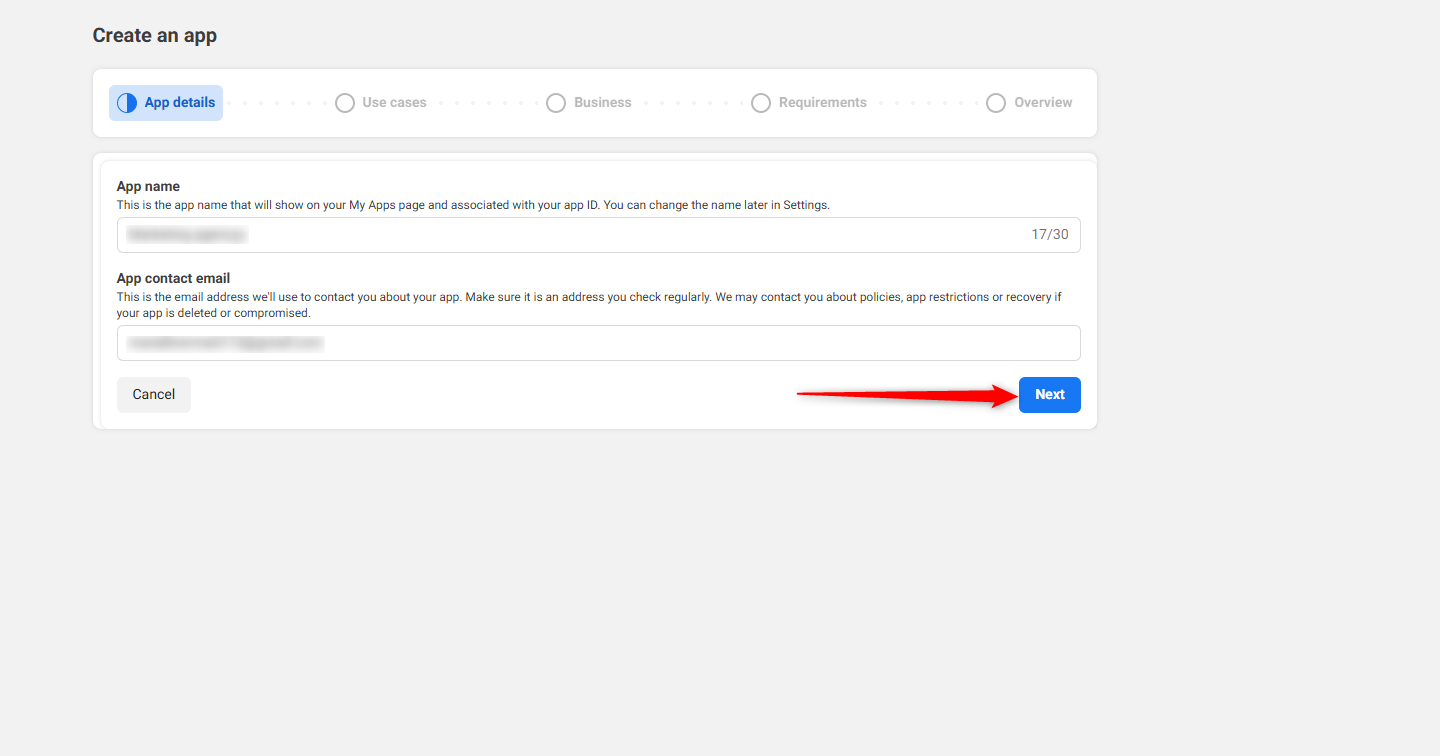
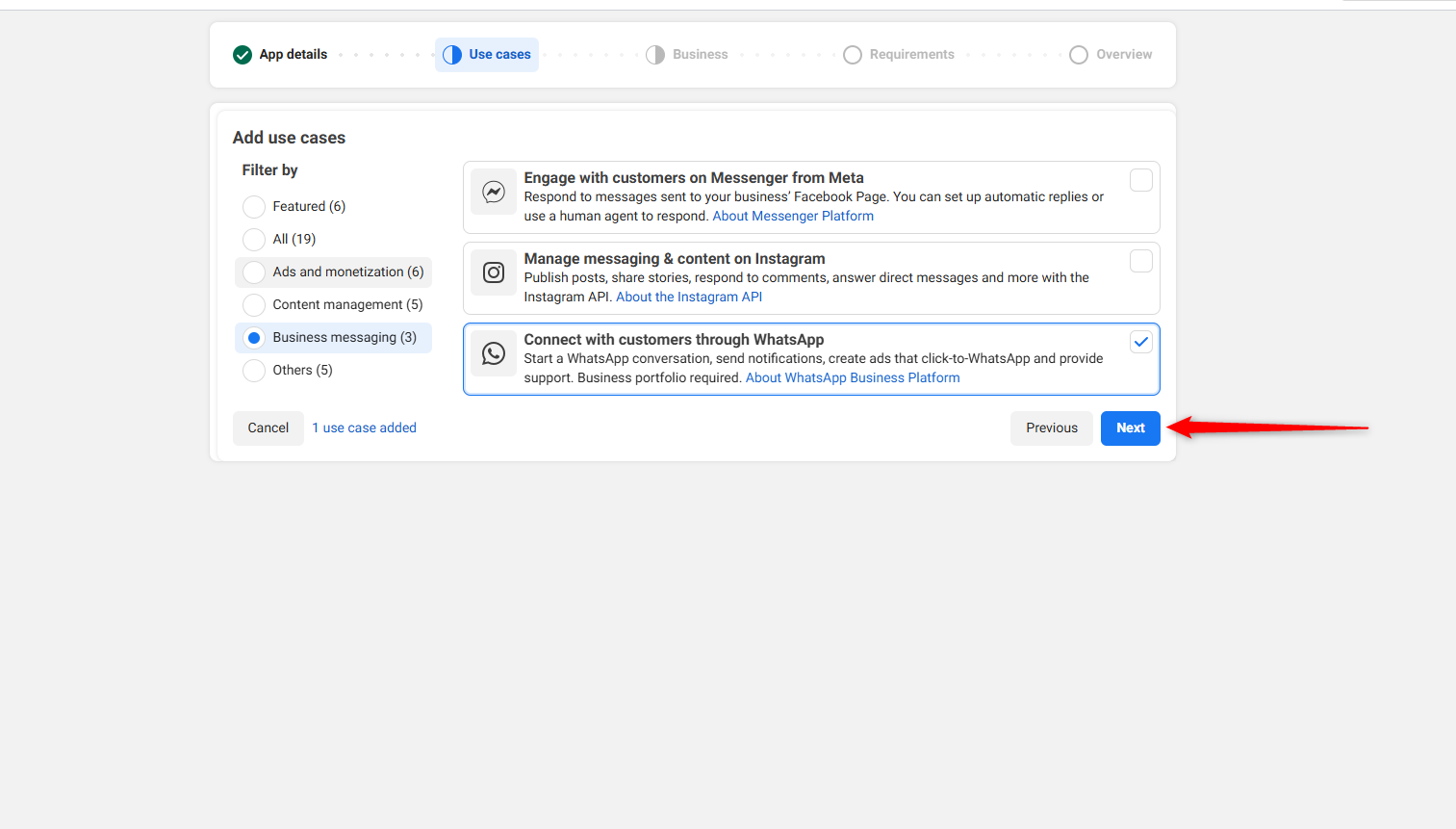
Step 2: Select Use Case
- On the Use cases screen, select:
- Choose:
- Connect with customers through WhatsApp
- Click Next.
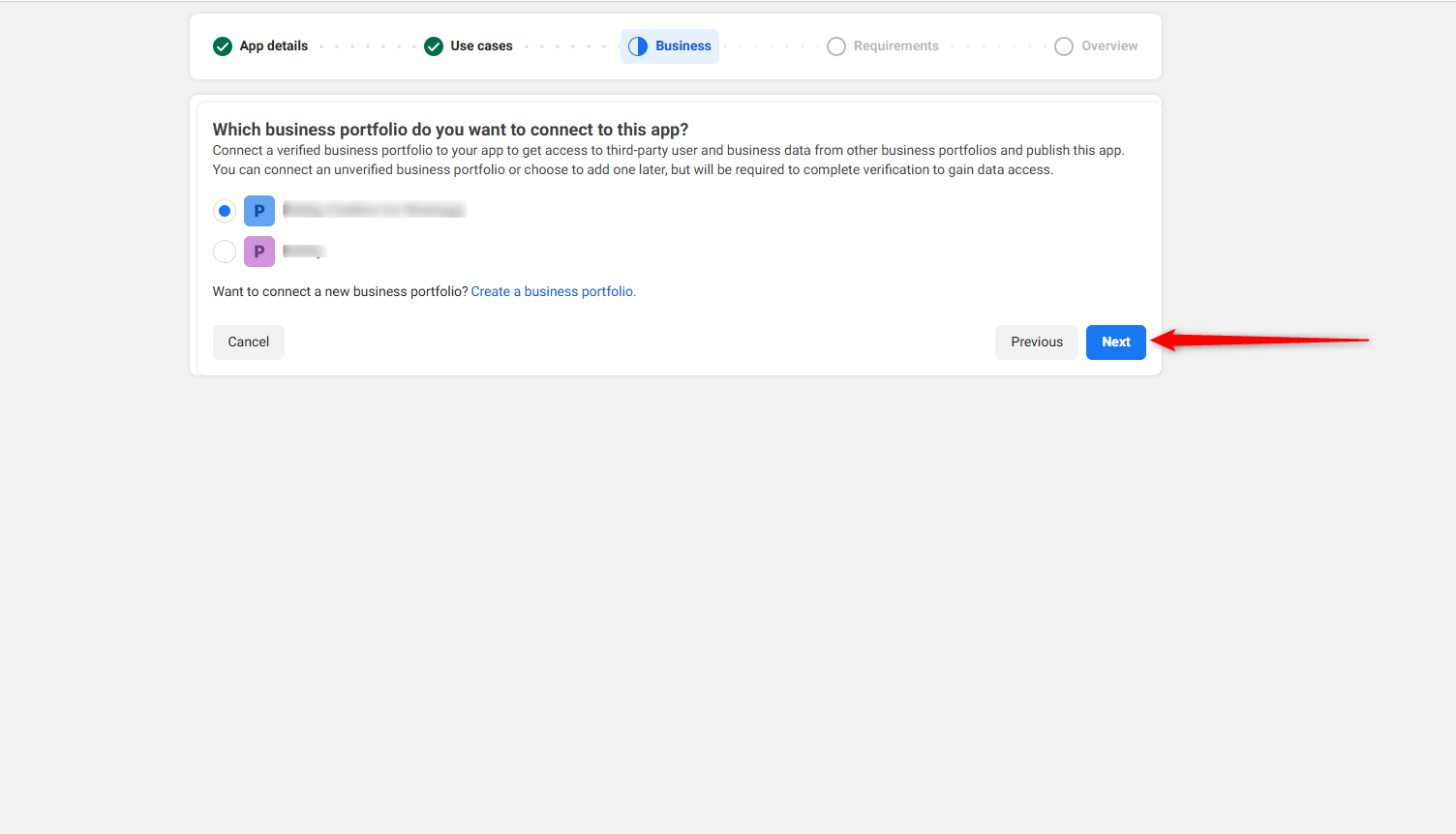
Step 3: Connect Business Portfolio
- Select the Business Portfolio you want to connect with this app.
- Choose your existing business.
- If you don’t have one, you can create a new business portfolio.
- Click Next.
Step 4: Review Requirements
- On the Requirements screen, Meta will show publishing requirements (if any).
- If no requirements are listed, proceed.
- Click Next.
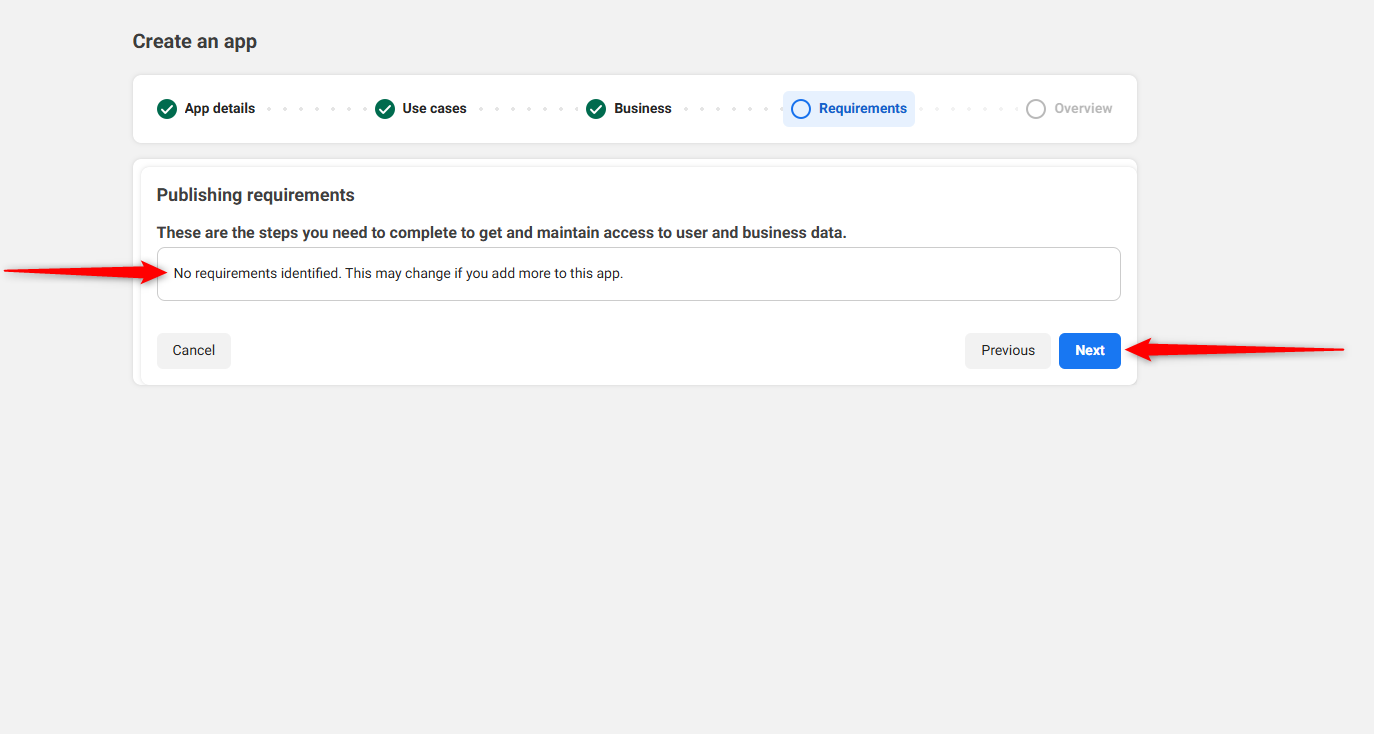
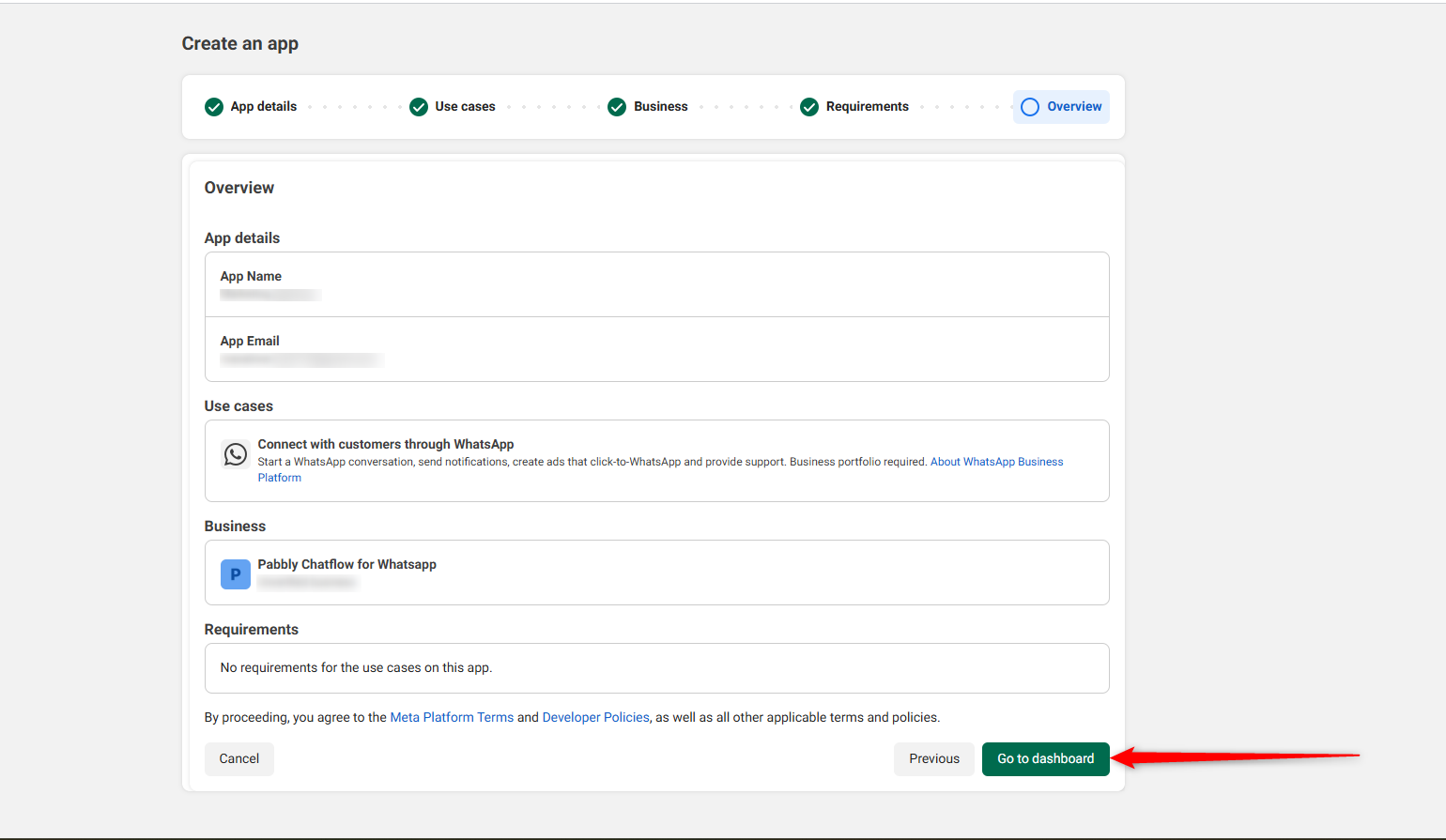
Step 5: Overview & App Creation
- Review the app details:
- App Name
- App Email
- Use Case (WhatsApp)
- Connected Business
- Accept Meta’s Platform Terms and Developer Policies.
- Click Go to dashboard.
Your new Meta application is now successfully created.
Post-Creation Configuration (Mandatory for WhatsApp Messaging)
Creating the app alone is NOT enough.
WhatsApp messaging will not work until the steps below are completed.
Important: What to Do After Creating the App
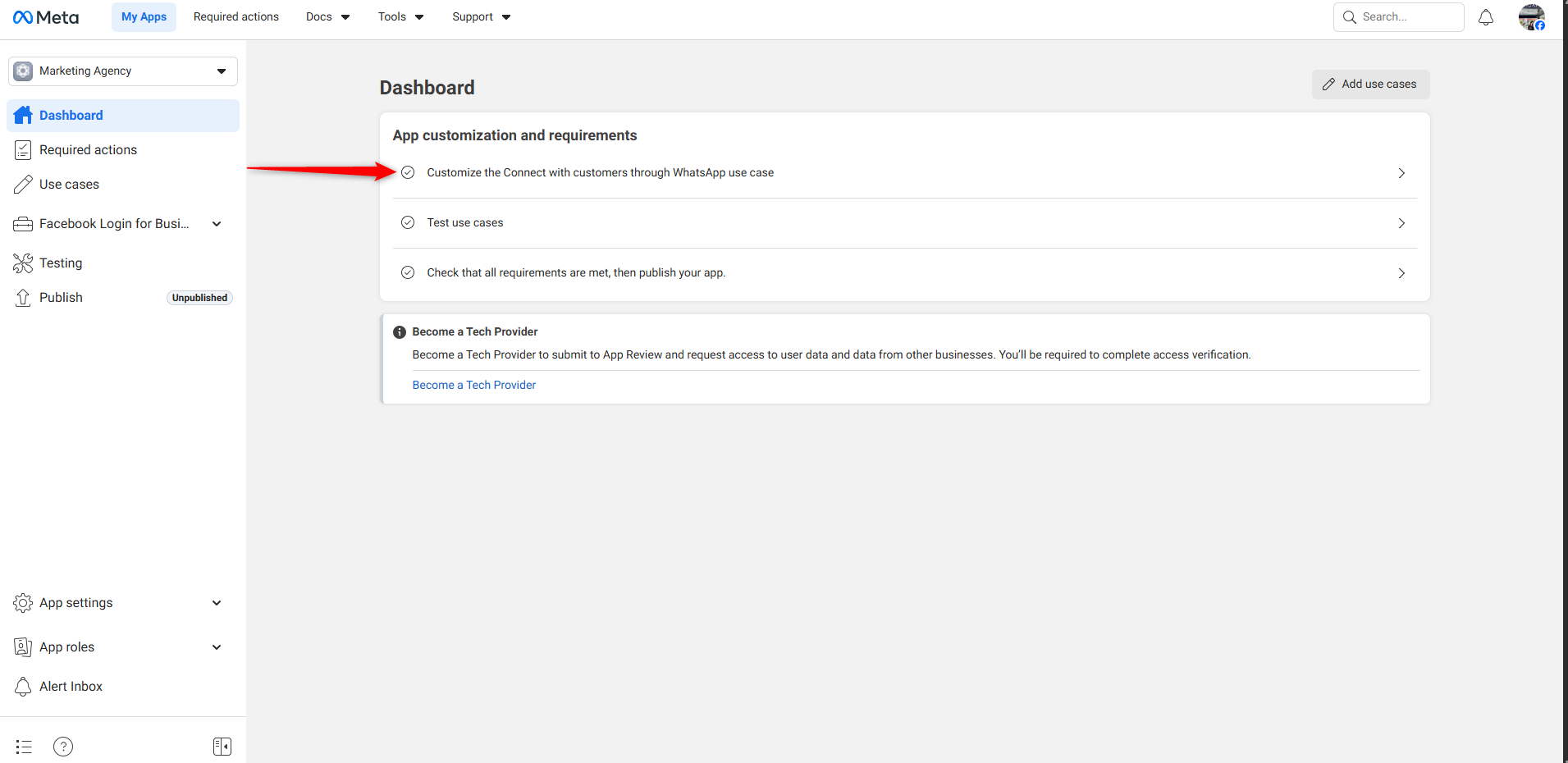
Step 6: Customize WhatsApp Use Case (Mandatory)
- On the dashboard, locate App customization and requirements.
- Click Customize the Connect with customers through WhatsApp use case.
- From the left menu, select Connect on WhatsApp.
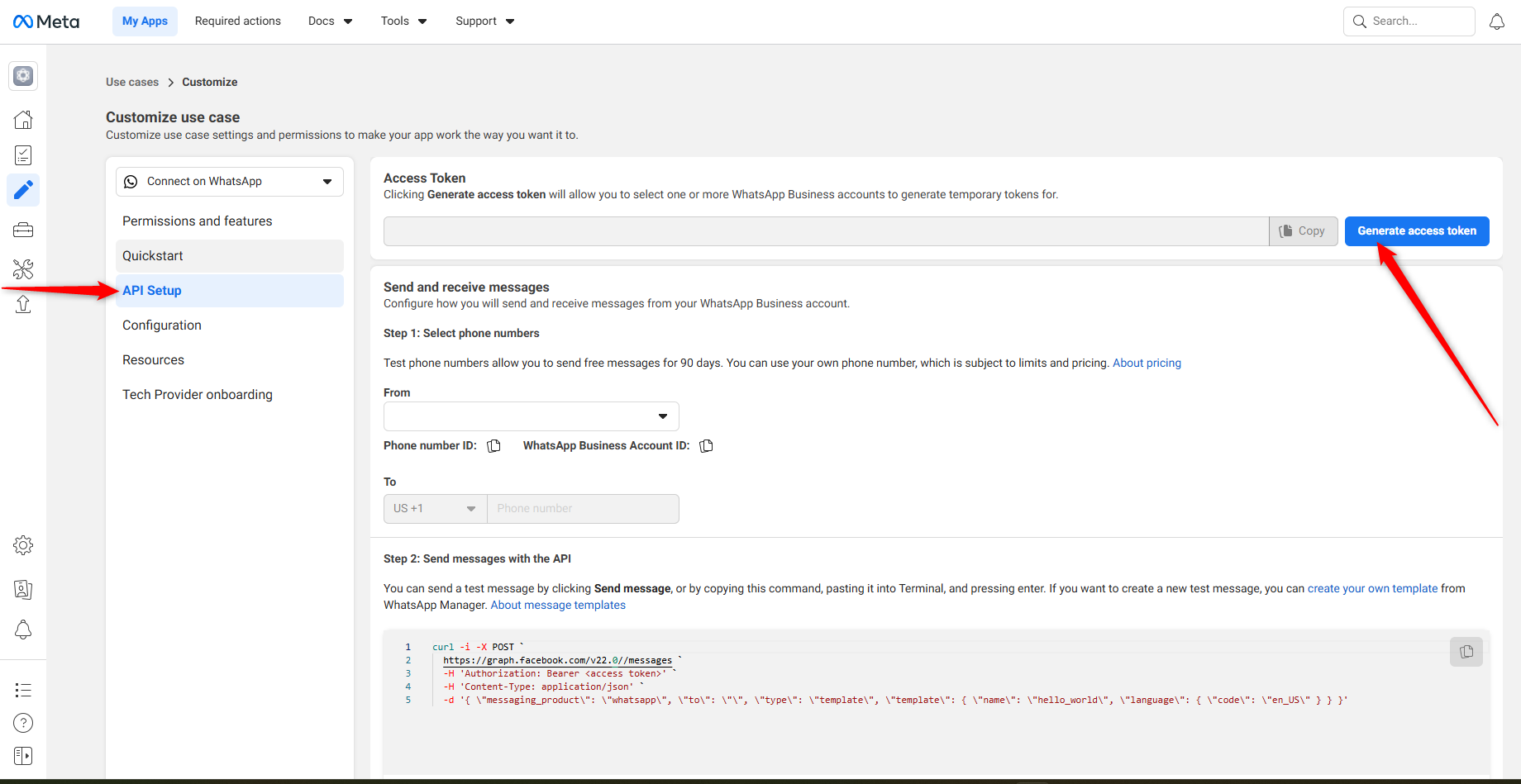
Step 7: API Setup – Connect WhatsApp Business Account (Mandatory)
- Go to API Setup from the left sidebar.
- Click Generate access token.
- Select the correct WhatsApp Business Account (WABA).
- Complete setup to obtain:
- Meta Access Token
- Phone Number ID
- WhatsApp Business Account ID
📌 These values are required to connect WhatsApp with Pabbly Chatflow.
Step 8: Permissions & Features (Mandatory Check)
- Open Permissions and features.
- Ensure the following permissions are present and show Ready for testing:
whatsapp_business_messagingwhatsapp_business_management
These permissions are required to send and manage WhatsApp messages.
They are usually enabled automatically when the WhatsApp use case is selected.
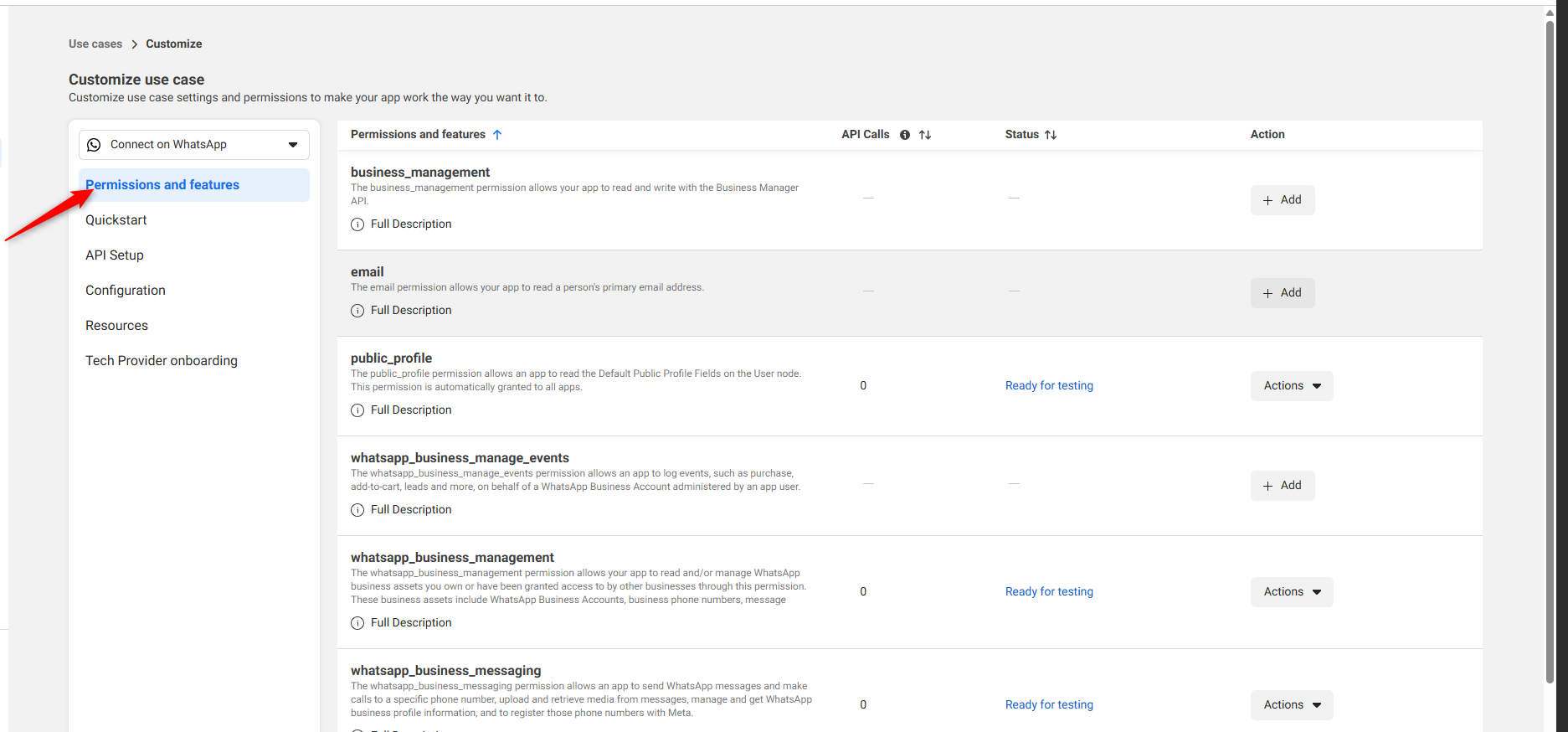
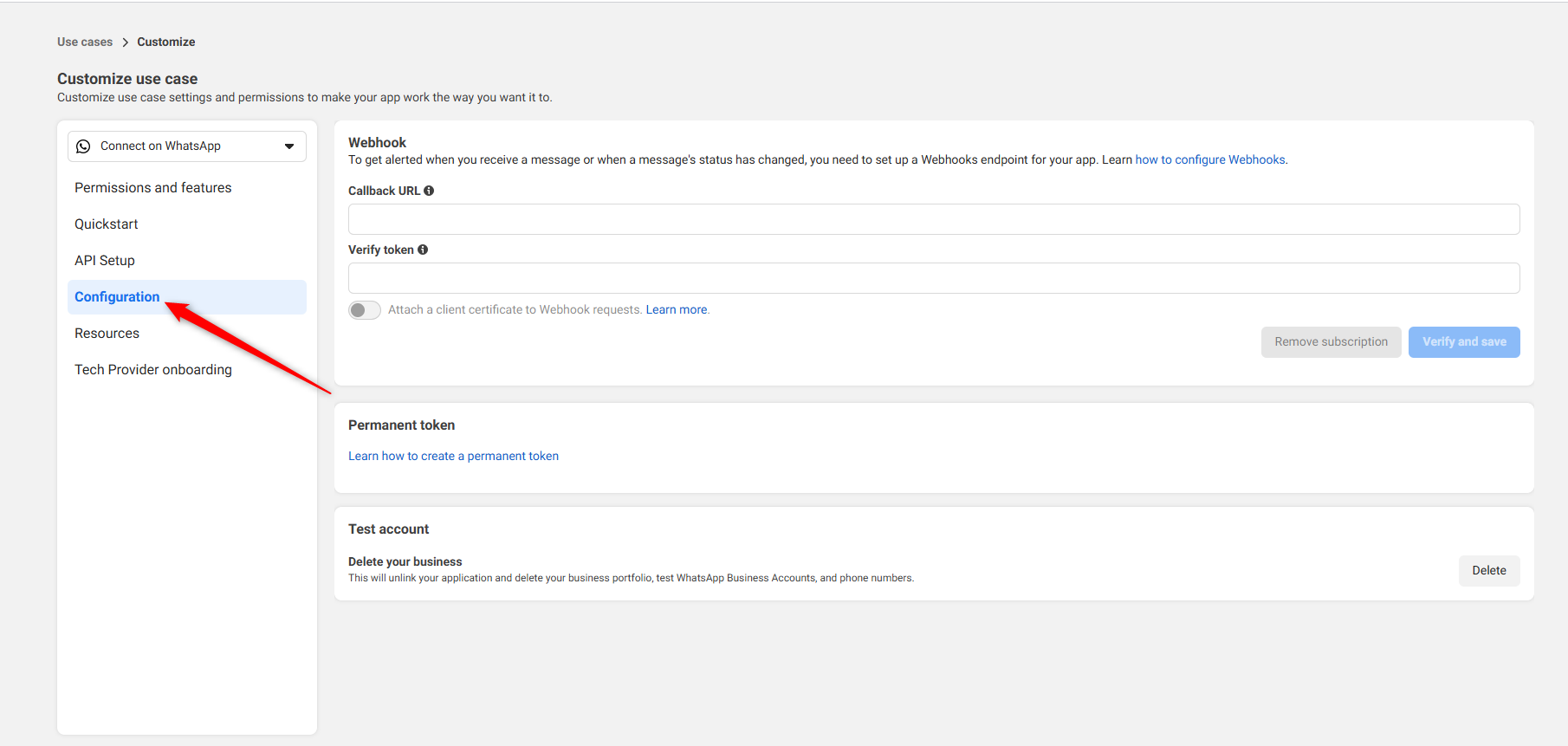
Step 9: Configuration – Webhooks (Optional)
Configure this step only if needed:
- For receiving incoming messages
- For message delivery status updates
Steps:
- Go to Configuration.
- Add:
- Callback URL
- Verify Token
- Click Verify and save.
Webhooks are optional for outbound WhatsApp marketing.
Step 10: Update Details in Pabbly Chatflow (Mandatory)
After completing Meta setup, update the following in Pabbly Chatflow:
- Meta Access Token
- WhatsApp Business Account ID
- Phone Number ID
Reconnect the WhatsApp integration to complete setup.
4) Reconnect the Integration
- Reauthorize your WhatsApp Business Account using the newly created Meta app.
- Ensure all required permissions and scopes are granted during reconnection.
- Refresh the application after successful connection.
5) Check for Policy or Compliance Issues
- Review any warnings or notices in the Meta Developer Dashboard.
- Resolve compliance issues before reconnecting the app to prevent future disruptions.
This error specifically indicates a deleted or invalid Meta application. It is not caused by access token expiry, permission scope issues, or message content issues.
17) Error Code 131000: Something went wrong
Message failed to send due to an unknown error.
This error is returned by Meta when the request cannot be processed successfully and no specific failure reason is provided.
Causes:
- Meta was unable to process the request due to an unknown internal error.
- The request failed without a specific error reason being returned.
- For WhatsApp Flows with Endpoint:
- Meta failed to calculate the business public key signature, or
- The request to the GraphQL endpoint failed, or
- The GraphQL endpoint returned an error.
Solutions:
- Retry the Request
Try sending the message again. This error may occur due to a temporary internal failure.
- Avoid Repeated Retries
If the error continues after multiple attempts, stop retrying the same request.
- Open a Meta Direct Support Ticket
If the issue persists:
- Contact Meta Direct Support.
- Provide request details such as:
- Request ID
- Timestamp
- WhatsApp Business Account ID (WABA)
- Phone Number ID
- WhatsApp Flows (If Applicable)
- Verify the business public key configuration.
- Ensure the GraphQL endpoint is reachable and returning valid responses.
18) Error Code 133010: Phone number registration failed
This error occurs when a WhatsApp Business phone number cannot be registered or used because one or more mandatory account prerequisites required by Meta are missing or incomplete.
Meta enforces these checks strictly during phone number registration, migration, or activation.
Causes
This error occurs when a WhatsApp Business phone number cannot be registered or used because one or more mandatory prerequisites required by Meta are missing or incomplete, including:
- Business verification is not completed
- Display name is not added or not approved
- Payment method is not added or not active
- Time zone is not configured
- Currency is not configured
- Two-factor authentication (2FA) is not enabled on the WhatsApp Business Account
- Required business or billing information is incomplete
Meta enforces these checks during phone number registration.
Solutions
Before registering or using the WhatsApp Business phone number, ensure the following steps are completed in WhatsApp Manager:
- Complete Business Verification
- Add a Display Name and wait for approval
- Configure the correct Time Zone and Currency
- Add and verify a valid Payment Method
- Enable Two-Factor Authentication (2FA)
- Ensure all required business and billing details are filled in
After completing the above steps, retry the phone number registration.
