This guide helps you resolve issues when your WhatsApp Business Account (WABA) shows a "Pending" status or "Message Limit Unavailable" in Meta Business Manager and Pabbly Chatflow.
If your phone number shows "Pending" status, it means the number is not registered yet.
Why Do You Need to Register?
You must register your business phone number when:
- Creating a new account: When you start using WhatsApp Business API
- Changing display name: When you want to change your business name
- Migrating your number: Moving from old API to Cloud API
Without registration, your number will stay "Pending" and cannot send or receive messages.
📖 For complete details, visit: Meta's Official Registration Guide
How to Register Your Phone Number
Using Pabbly Chatflow Dashboard
- Open Pabbly Chatflow Dashboard
- Go to Dashboard page where your WhatsApp numbers are listed
- Find your WhatsApp number in the table
- Click on the three dots (⋮) next to your number
- Select "Register" option
- Click on it and wait for the process to complete
- Refresh the page and check the status
If your WhatsApp Business Account shows "Pending" status on both platforms, you need to complete the following requirements:
Required Actions:
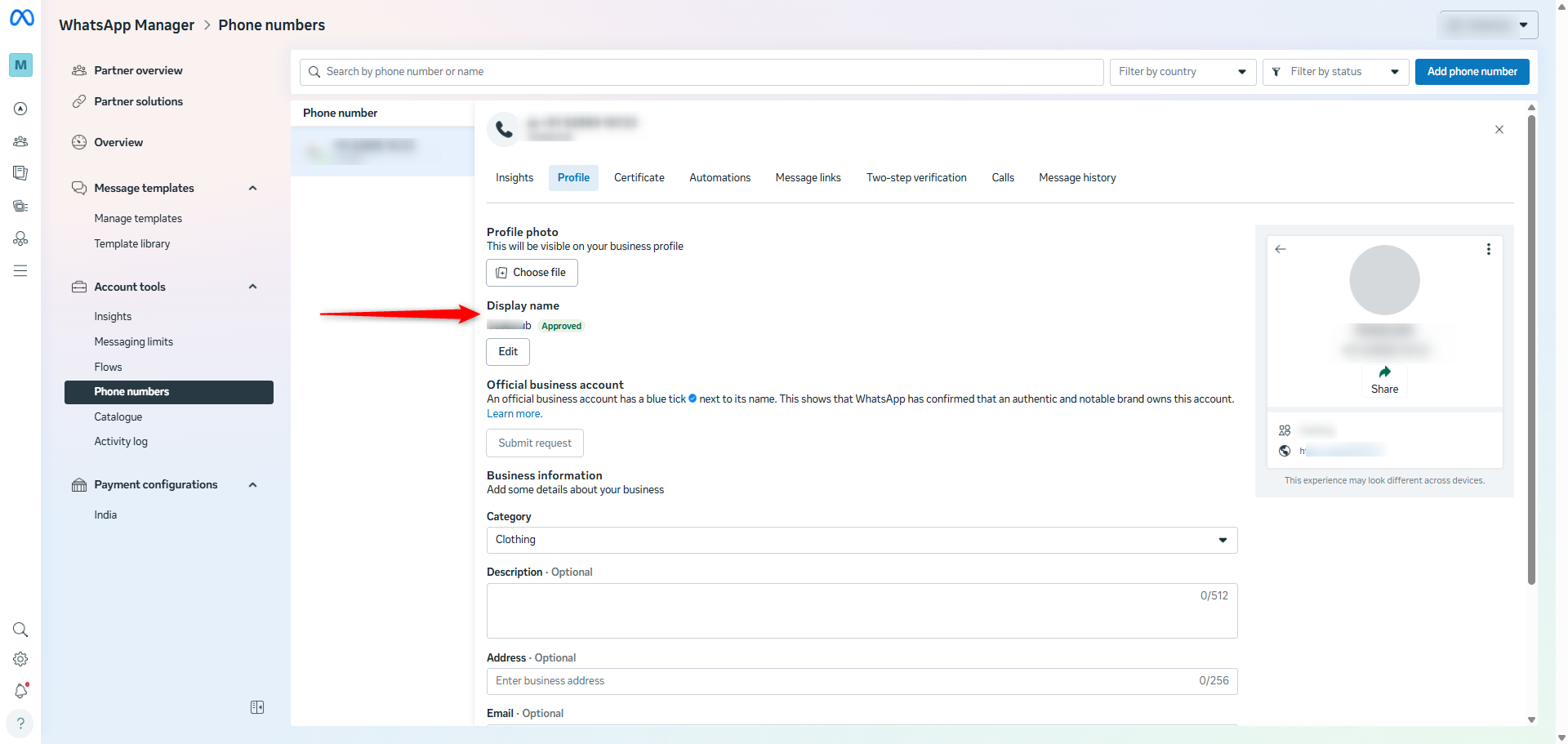
- Add a Proper Display Name
- Navigate to your Meta Business Manager
- Go to WhatsApp Business Account settings
- Ensure you have added and submitted a display name for approval
- The display name should comply with Meta's naming policies
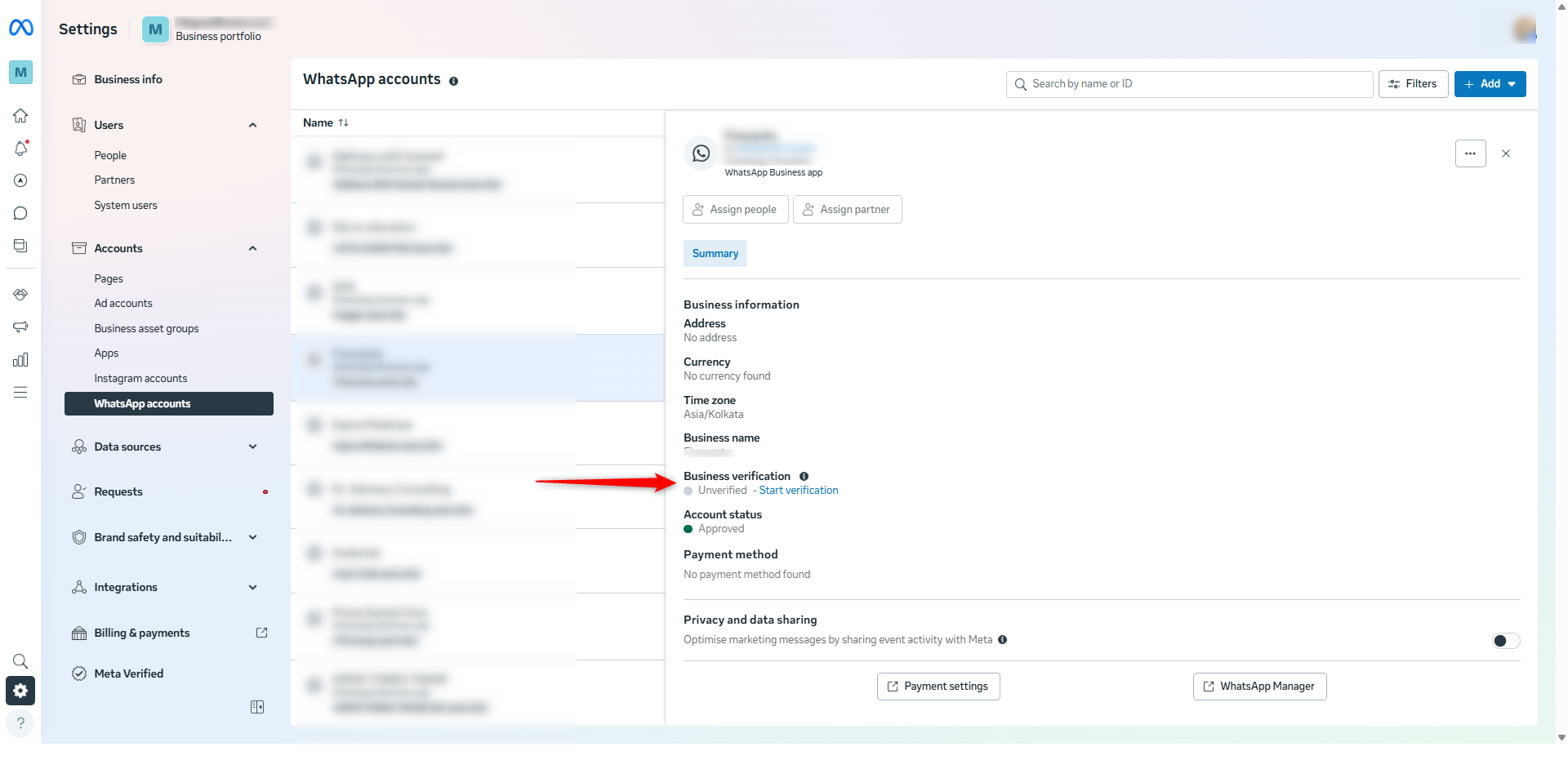
- Verify Your Business
- Complete the business verification process in Meta Business Manager
- Submit all required documentation (business registration, tax documents, etc.)
- Wait for Meta's verification approval (this may take several days)
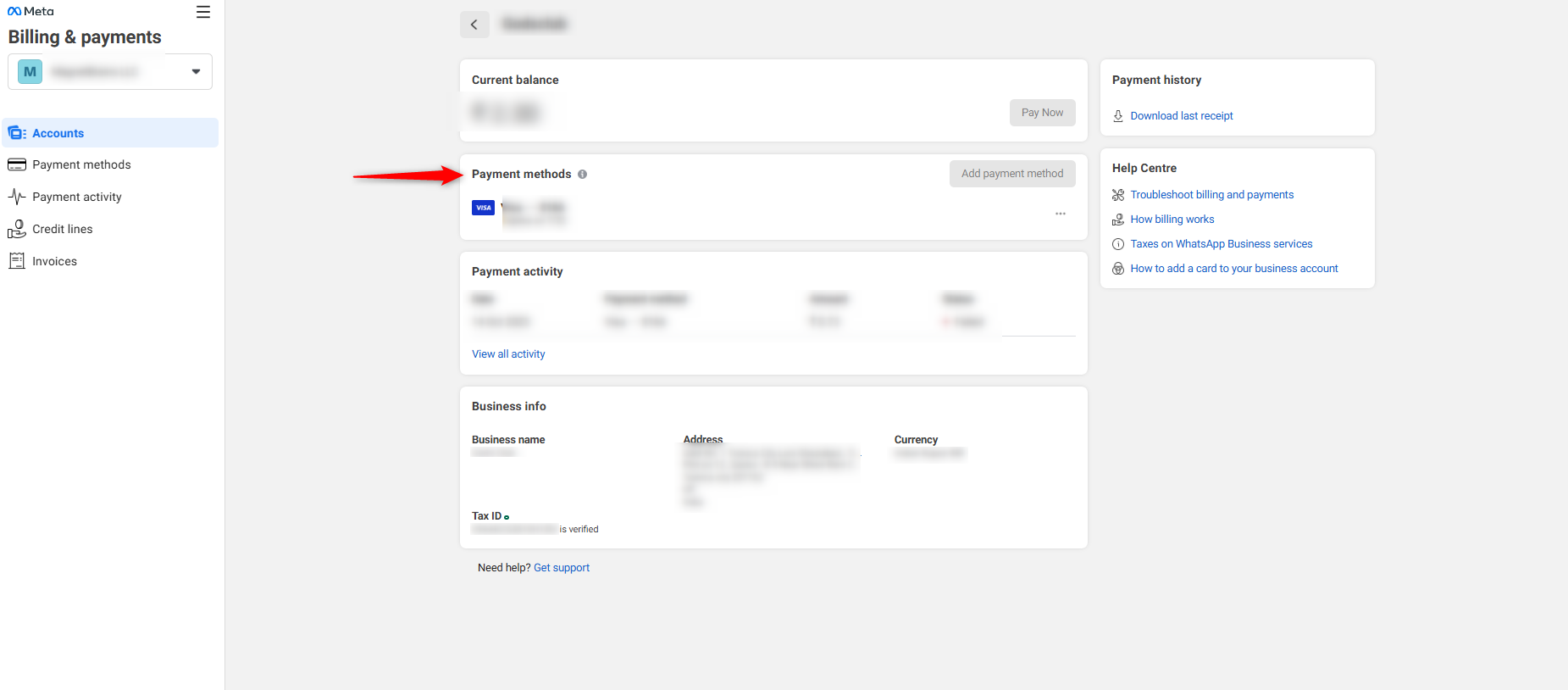
 3. Add a Payment Method
- Go to Payment Settings in Meta Business Manager
- Add a valid payment method (credit/debit card or other accepted methods)
- Ensure the payment method is active and verified
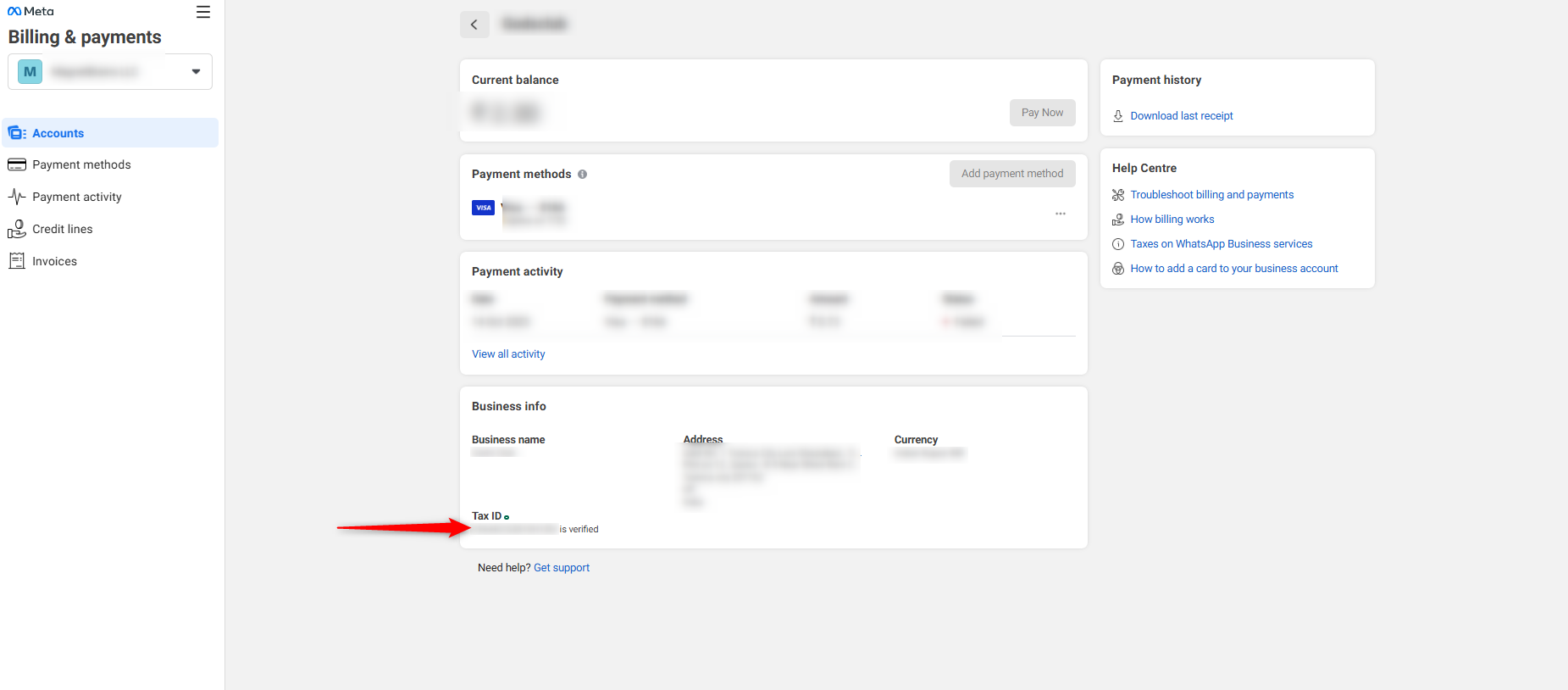
- Add GST Information (If applicable in your region)
- Navigate to billing or tax settings
- Enter your GST registration number
- Submit any required tax documentation
Expected Result:
Once all four requirements are completed and approved by Meta, the status should change from "Pending" to "Approved" on both platforms.
If there's a mismatch where Meta shows "Approved" but Pabbly Chatflow shows "Pending", follow these steps:
Step 1: Sync the Number
- Open Pabbly Chatflow dashboard
- Go to the Dashboard page where your WhatsApp numbers are listed in a table
- Locate your WhatsApp number in the table
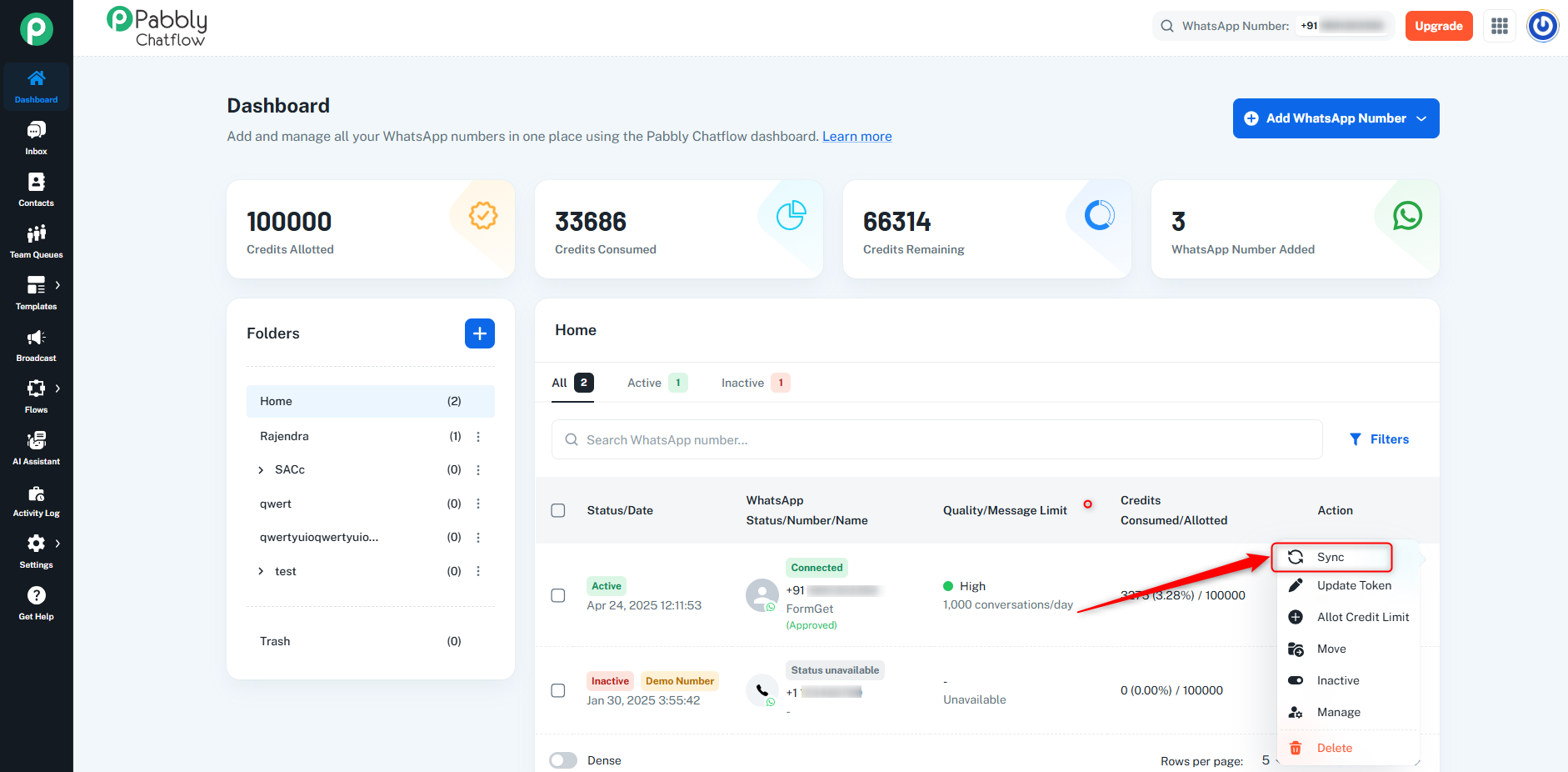
- Click on the three dots (⋮) icon next to your number
- Select the "Sync" option.
- Wait for the synchronization to complete
- Refresh the page and check if the status updates
Step 2: Reconnect the WABA (If Sync Doesn't Work)
- Open Pabbly Chatflow dashboard
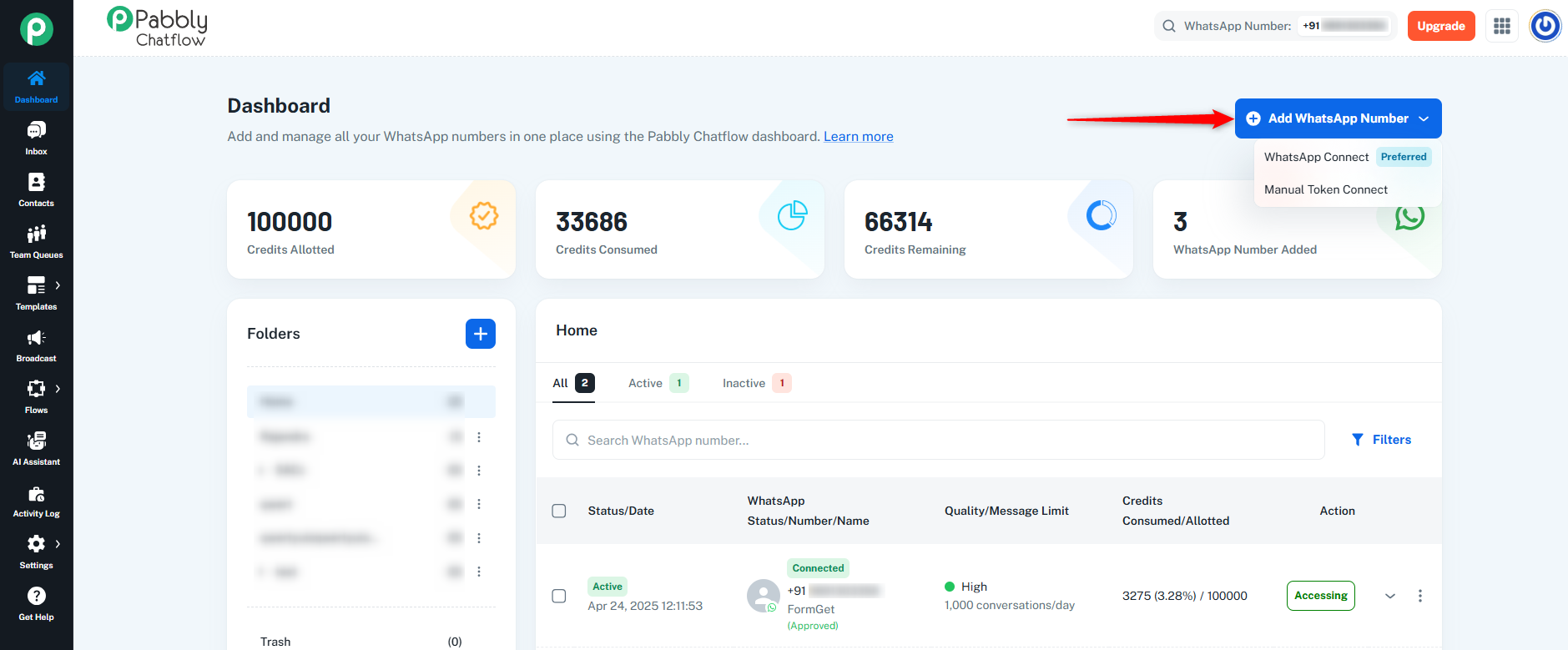
- Click on the "Add WhatsApp Number" button
- Select the same connection method you used originally
- Important: Do NOT delete the number
- Proceed with the reconnection steps as before:
- Click “Next”
- Click “Next” again
- Complete the authorization process
- This will refresh the permissions without losing your existing setup
Step 3: Delete and Re-add (Last Resort)
If reconnection doesn't resolve the issue:
- Backup your settings (take screenshots of important configurations)
- Delete the WhatsApp number from Pabbly Chatflow dashboard
- Add the number again from scratch
- This will request all necessary permissions fresh from Meta
Scenario 3: Message Limit Shows "Unavailable" Despite Everything Being Approved
If your dashboard shows:
- ✅ WABA Status: Connected
- ✅ Display Name: Approved
- ✅ Business: Verified
- ✅ Payment Method: Added
- ✅ GST: Added
- ❌ Message Limit: Unavailable
Resolution Steps:
- Hit the Register API
- Go to the Dashboard page where your WhatsApp numbers are listed in a table
- Click on the three dots (⋮) icon next to your number
- Select the "Register" option.
- Click on it to trigger the registration
- Wait for the process to complete
- Refresh the Page
- After the API registration completes, refresh your browser page
- Send a Test Message
- Send one test message to your WABA number
- This helps activate the messaging tier
- Check if the message limit now appears
- Verify Message Limit Display
- Return to the dashboard and check if the message limit is now visible
Important Notes
- Processing Time: Some changes may take several hours to reflect across both Meta and Pabbly Chatflow
- Business Verification: Meta's business verification can take 1-5 business days
- Display Name Approval: Display name approval typically takes 24-48 hours
- Tier Progression: Message limits increase automatically based on message quality and volume
Still Having Issues?
If you've followed all the steps above and still experience issues:
- Wait 24 hours and check again (some updates take time to propagate)
- Check Meta Business Manager for any pending notifications or required actions
- Verify that your Meta Business Manager admin has granted all necessary permissions
-
- Open a ticket with Meta Support through Business Support Home
- Provide the following information:
- WABA ID
- Business Manager ID
- Screenshot of the unavailable limit from the dashboard.
Quick Checklist
Before reaching out for support, ensure you've completed:
- [ ] Display name added and approved
- [ ] Business verification completed
- [ ] Payment method added and verified
- [ ] GST information added (if applicable)
- [ ] Number synced in Pabbly Chatflow
- [ ] Attempted reconnection without deletion
- [ ] Register API hit (for message limit issues)
- [ ] Test message sent
- [ ] Waited at least 24 hours after making changes
