Overview
Migrating from a WhatsApp Business Solution Provider (BSP) to the WhatsApp Cloud API while keeping the same phone number involves several critical steps. This document outlines the complete migration process to ensure a seamless transition.
Step 1: Check BSP Contract
Before initiating the migration, review your contract with the BSP to verify if they allow number migration. Some BSPs may have restrictions that could impact the transition process.
Step 2: Prepare for Migration
2.1 Request Number Release from BSP
Contact your current BSP and formally request them to release your WhatsApp Business number from their application.
OR
If permitted, you can attempt to remove the Business Portfolio permission yourself by following these steps:
- Log in to your Meta Business Manager: https://business.facebook.com/
- From the left-side menu, go to Business Settings.
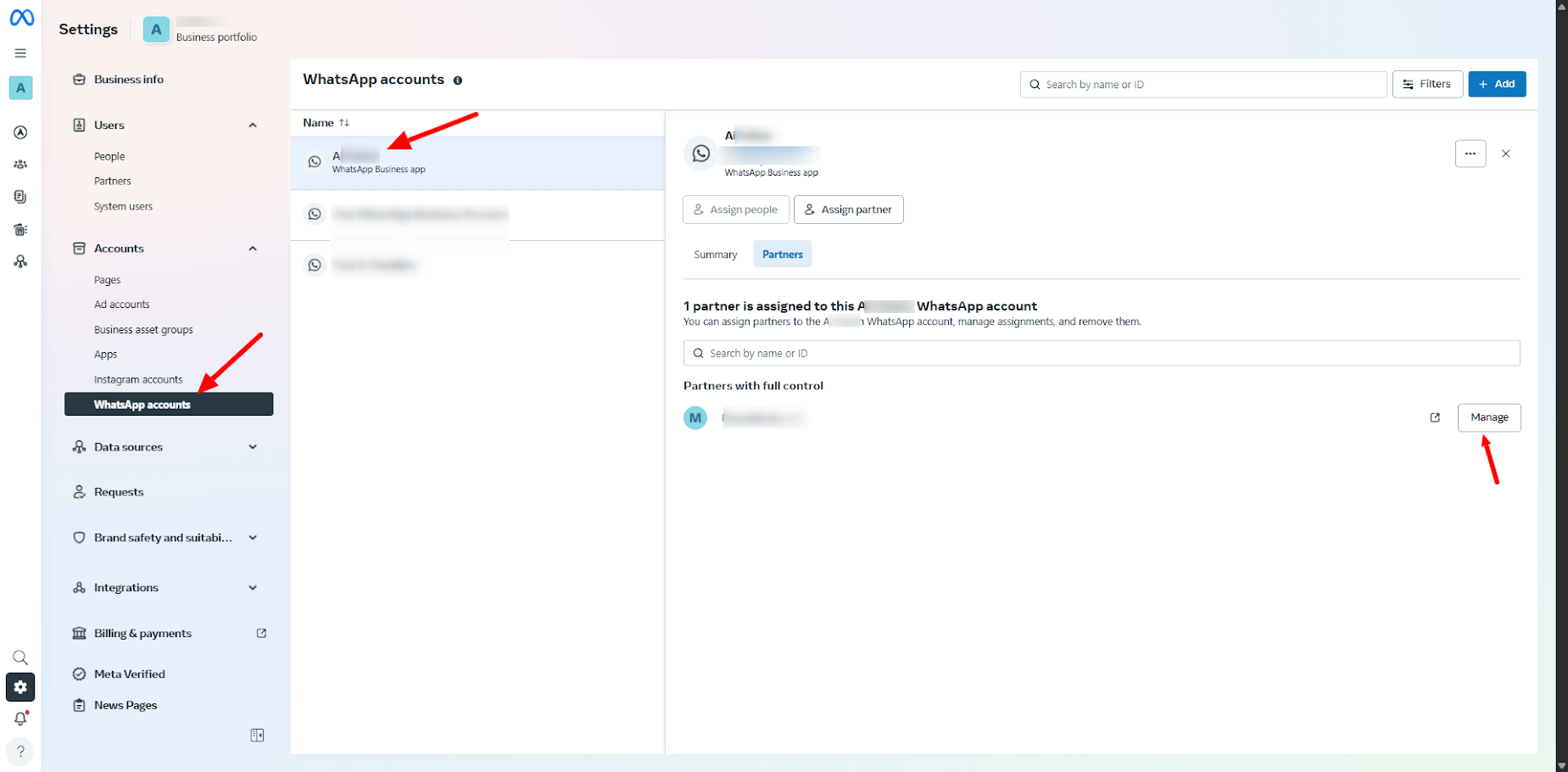
- Under Accounts, select WhatsApp Accounts.
- Click on your WhatsApp account name — a panel will open on the left side.
- In this panel, under Partner with Control, you will see the BSP’s Business Portfolio name.
- Click Manage next to the portfolio name.
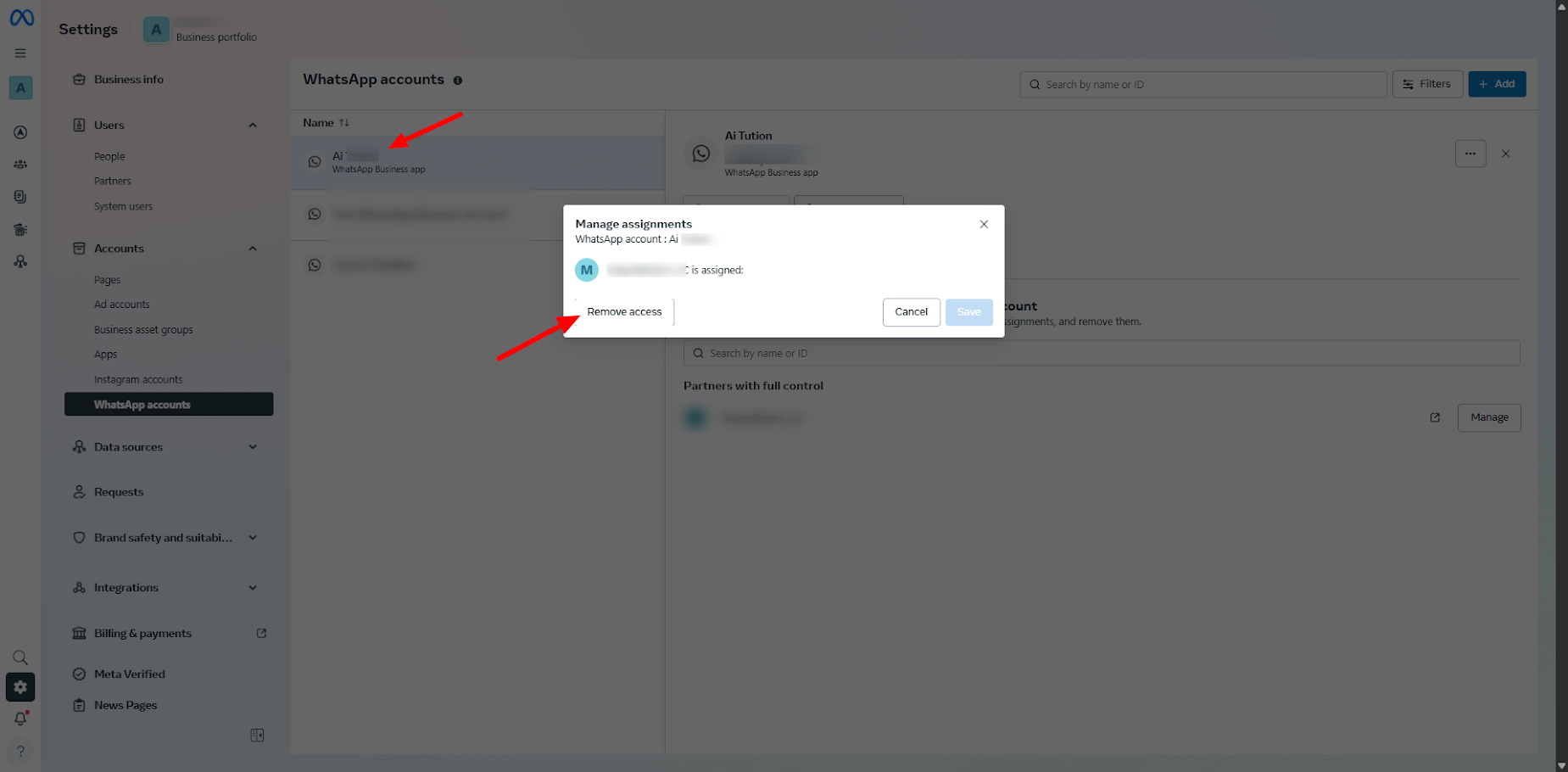
- In the dialog box that appears, select Remove Access.
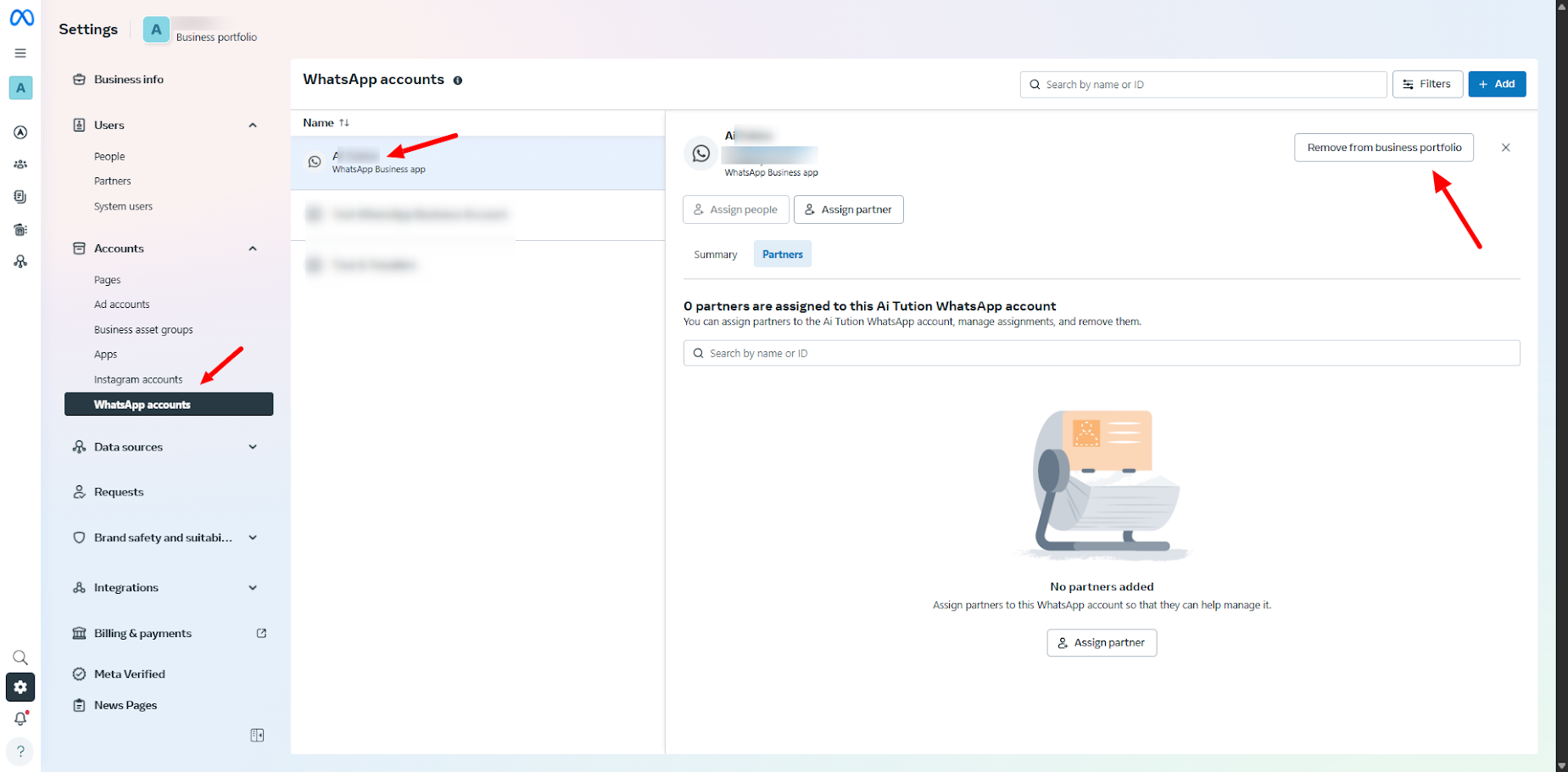
- Once you have removed the access, you also need to remove the business portfolio:
- Under Accounts, select WhatsApp Accounts again.
- Click your WhatsApp Account name — a side panel will open on the left.
- Locate the option Remove from Business Portfolio and click it to completely remove your WhatsApp account from the BSP’s business portfolio.
2.3 Disable Two-Step Verification (2FA)
It’s mandatory to disable Two-Step Verification (2FA) on your WhatsApp Business Account (WABA) number before migration. If this step is missed, the migration will fail.
- Request your BSP to disable 2FA for your number.
- Alternatively, you can check and manage this yourself via Meta WhatsApp Manager (if you have access).
Step 3: Verify Two-Step Verification Status
Once your BSP confirms the 2FA has been disabled, you should verify this status via your Meta Business Manager:
How to Check:
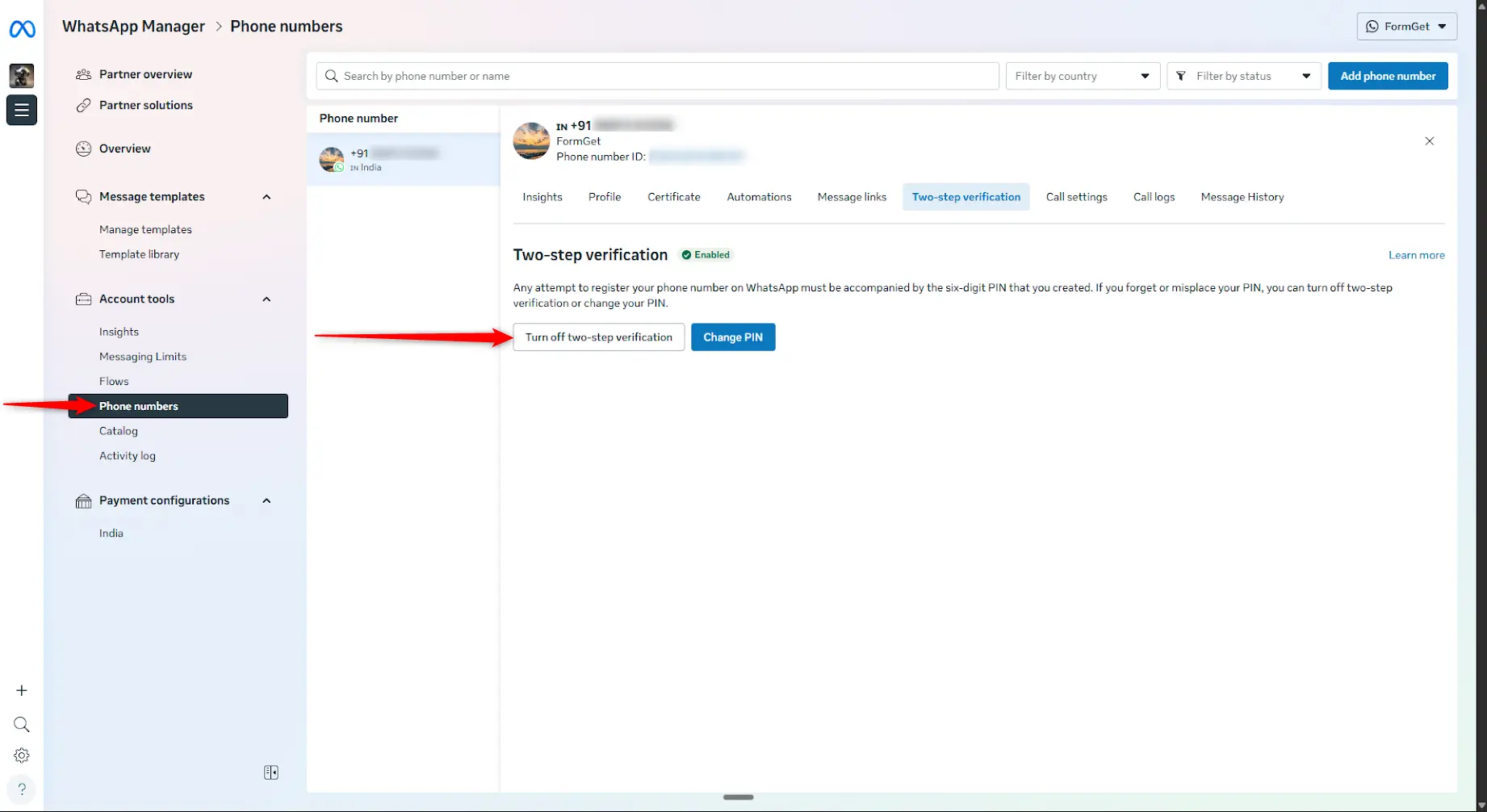
- Log in to Meta Business Suite.
- Navigate to WhatsApp Manager.
- Click on Phone Numbers from the left-side menu.
- Select your WhatsApp Business Account associated with the number.
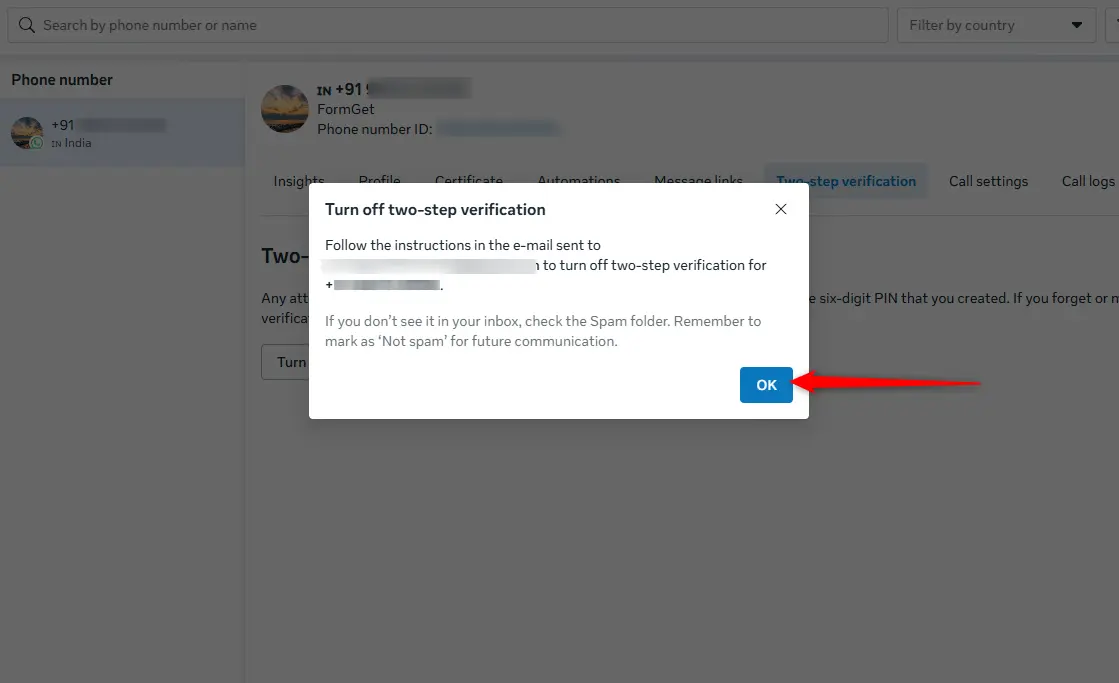
- Go to the Two-Step Verification tab.
- If 2FA is disabled, the option to turn it off will no longer appear.
- If still visible:
- Try refreshing the page.
- Contact your BSP for confirmation.
- Or, temporarily change the PIN to
111111. This will revoke access from the current BSP, allowing you to proceed with the Pabbly Chatflow connection process in the next step.
Step 4: Credit Line (Billing Lock) – Important Notice
If your WhatsApp Business Account (WABA) is locked at Meta’s billing level due to an existing credit line attached by your previous BSP, please note the following:
- Pabbly Chatflow cannot remove, modify, or override any third-party BSP credit line
- Credit line control lies entirely with Meta
- Since your WABA is not yet linked with Pabbly Chatflow, we are unable to raise or escalate a Meta support ticket on your behalf
- Only Meta has the authority to unlock the account or detach the existing credit line
Recommended action:
Contact your previous BSP or reach out to Meta Support directly to request removal of the existing credit line before proceeding.
Step 5: Integrate with Pabbly Chatflow
Once the migration is complete, you can integrate Meta with your Pabbly Chatflow account.
Watch this video tutorial: YouTube - Integrating Meta with Pabbly Chatflow for reference.
