Help and Guide
Managing Team Members in Pabbly Chatflow
You can add multiple team members to your Pabbly Chatflow account and share WhatsApp Numbers with them. Team members will be able to chat within your account and access only the shared WhatsApp Numbers. However, they will not have permission to delete campaigns, contacts, or templates. Additionally, they can access the Inbox but will not have access to any sub-account details.
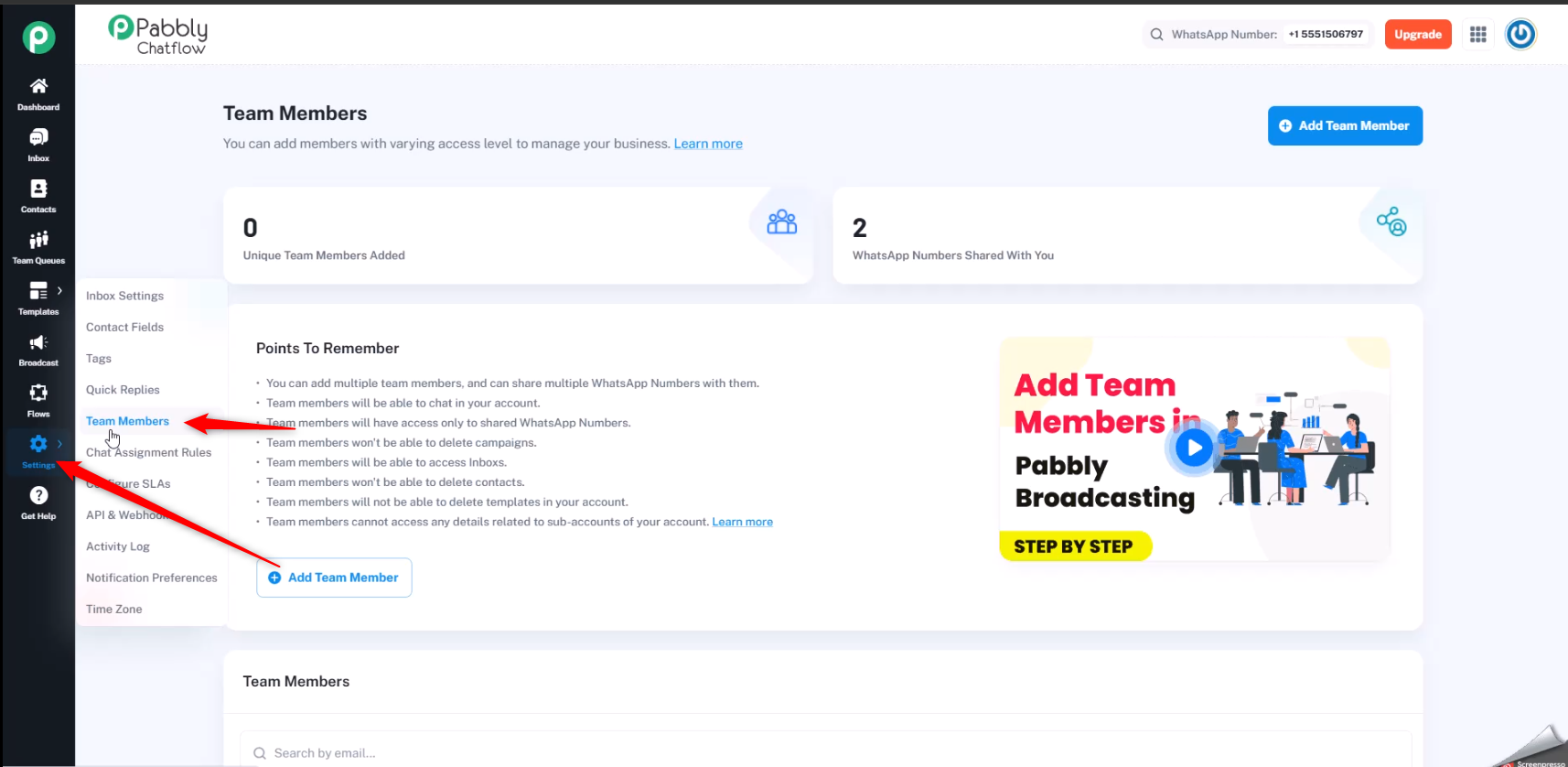
Navigate to the Settings section in the Pabbly Chatflow application and select the Team Member option.
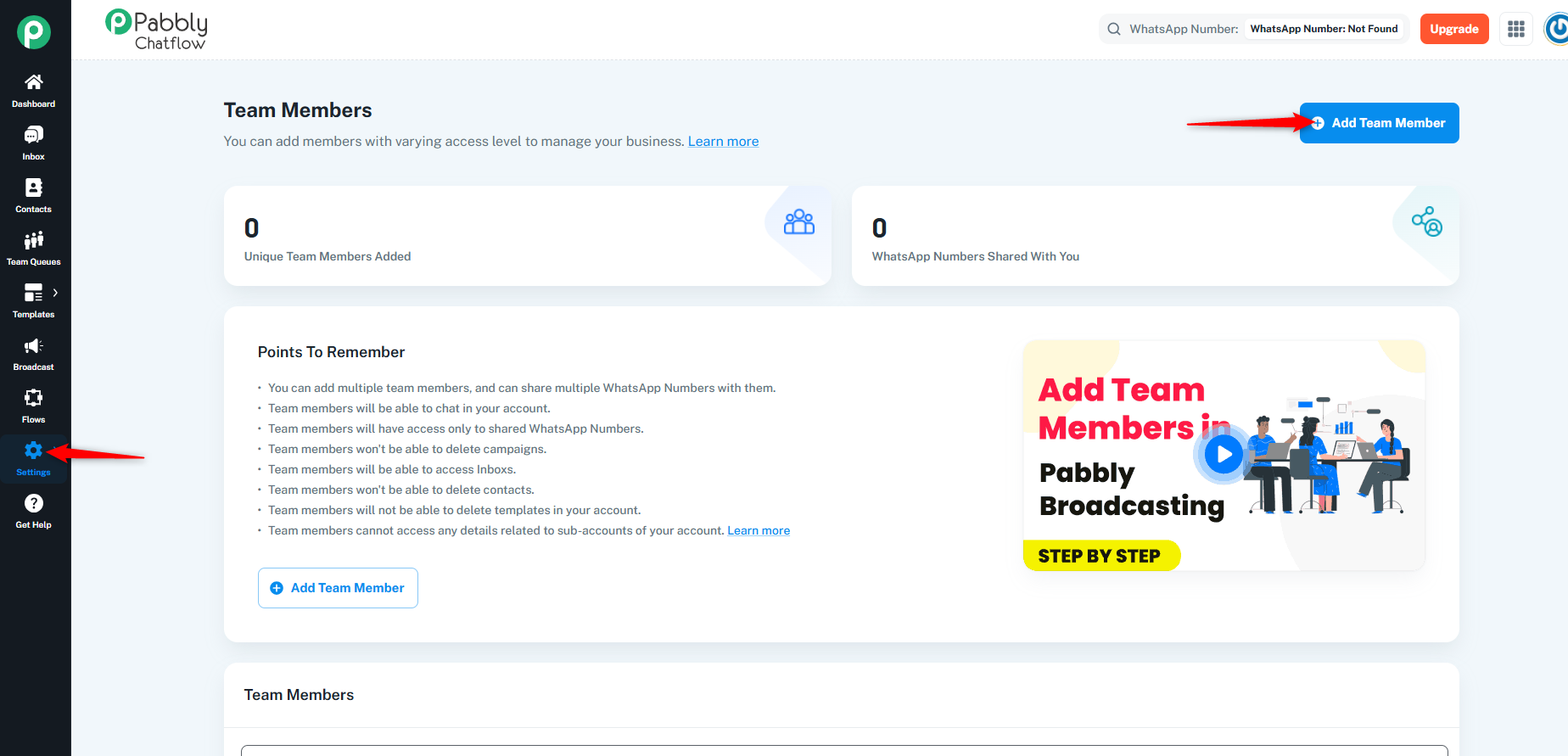
Click on the “Add Team Member” button to begin adding a new team member.
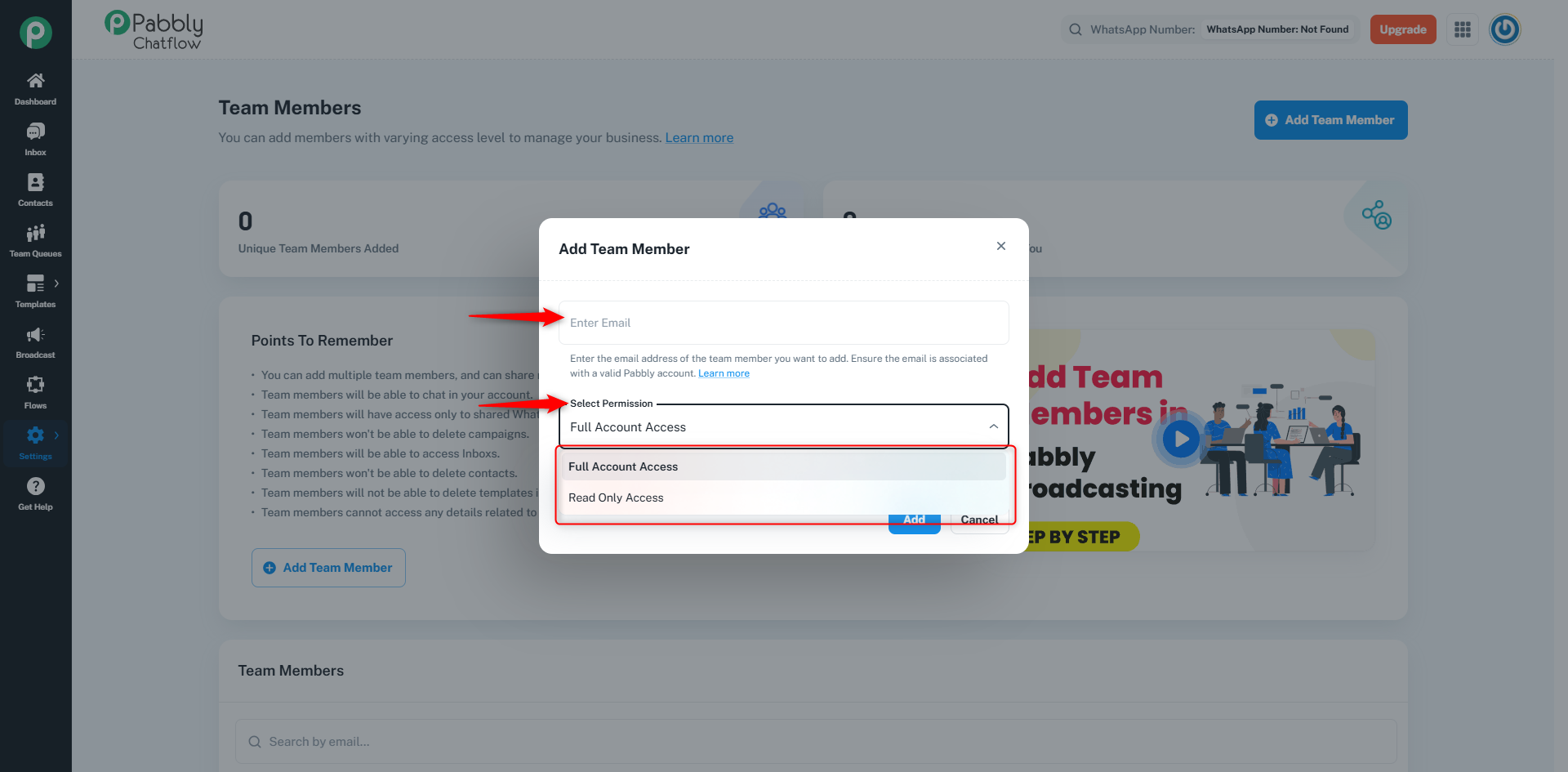
A dialog box will appear where you need to provide the following information:
1. Email Address – Enter the email address of the team member. Ensure it is linked to a valid Pabbly account.
2. Permissions – Select the appropriate access level:
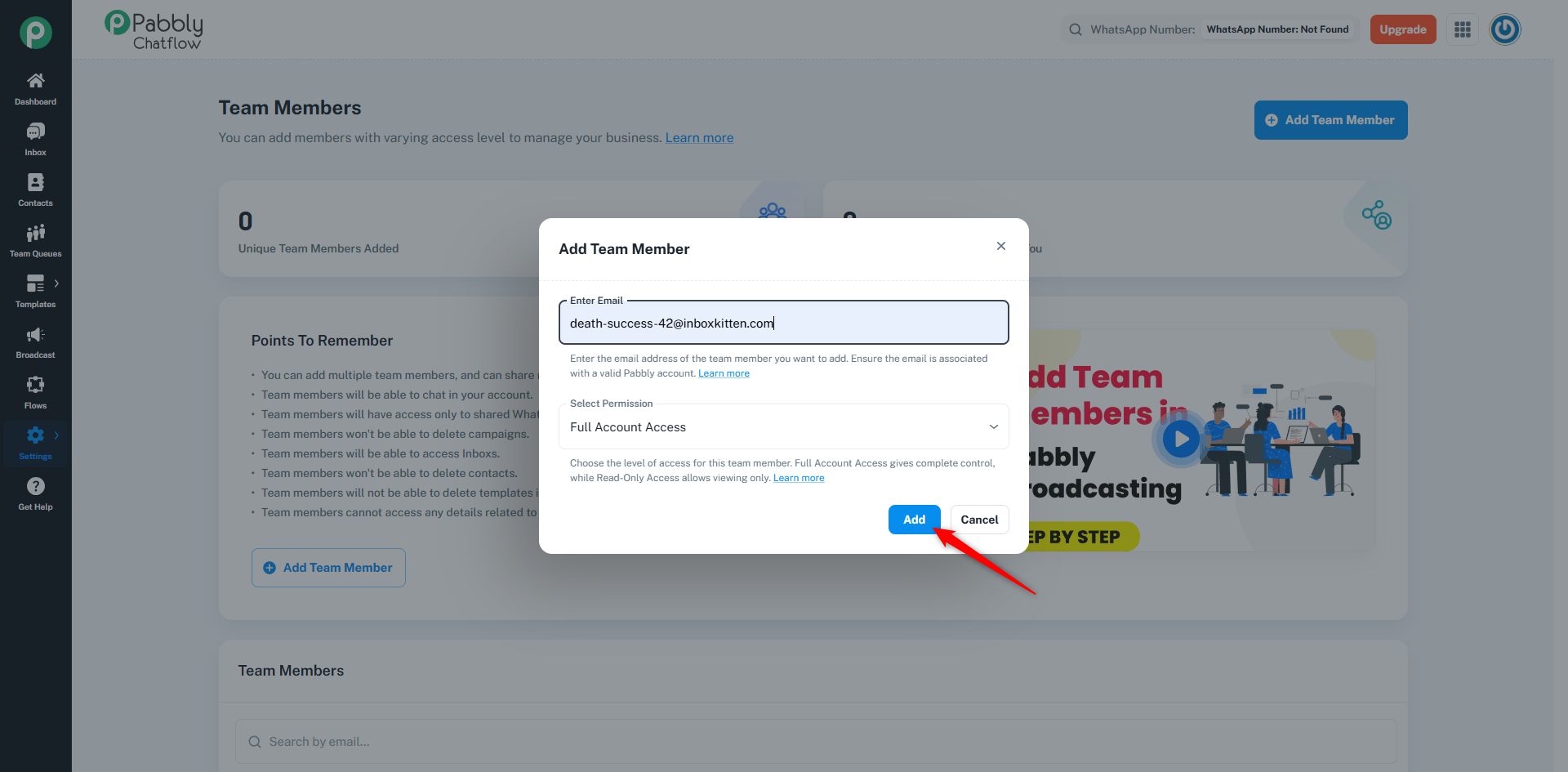
Click on “Add” to finalize the process. The team member will now be added to your account with the designated access permissions.
Adding team members to your Pabbly Chatflow account allows for efficient collaboration while maintaining control over access levels. By assigning appropriate permissions, you can ensure security and seamless communication within your team. Follow these steps to manage your team effectively and enhance your workflow.
Originally posted by Neha Bhatia on 2025-02-11 (forum thread #26928).
