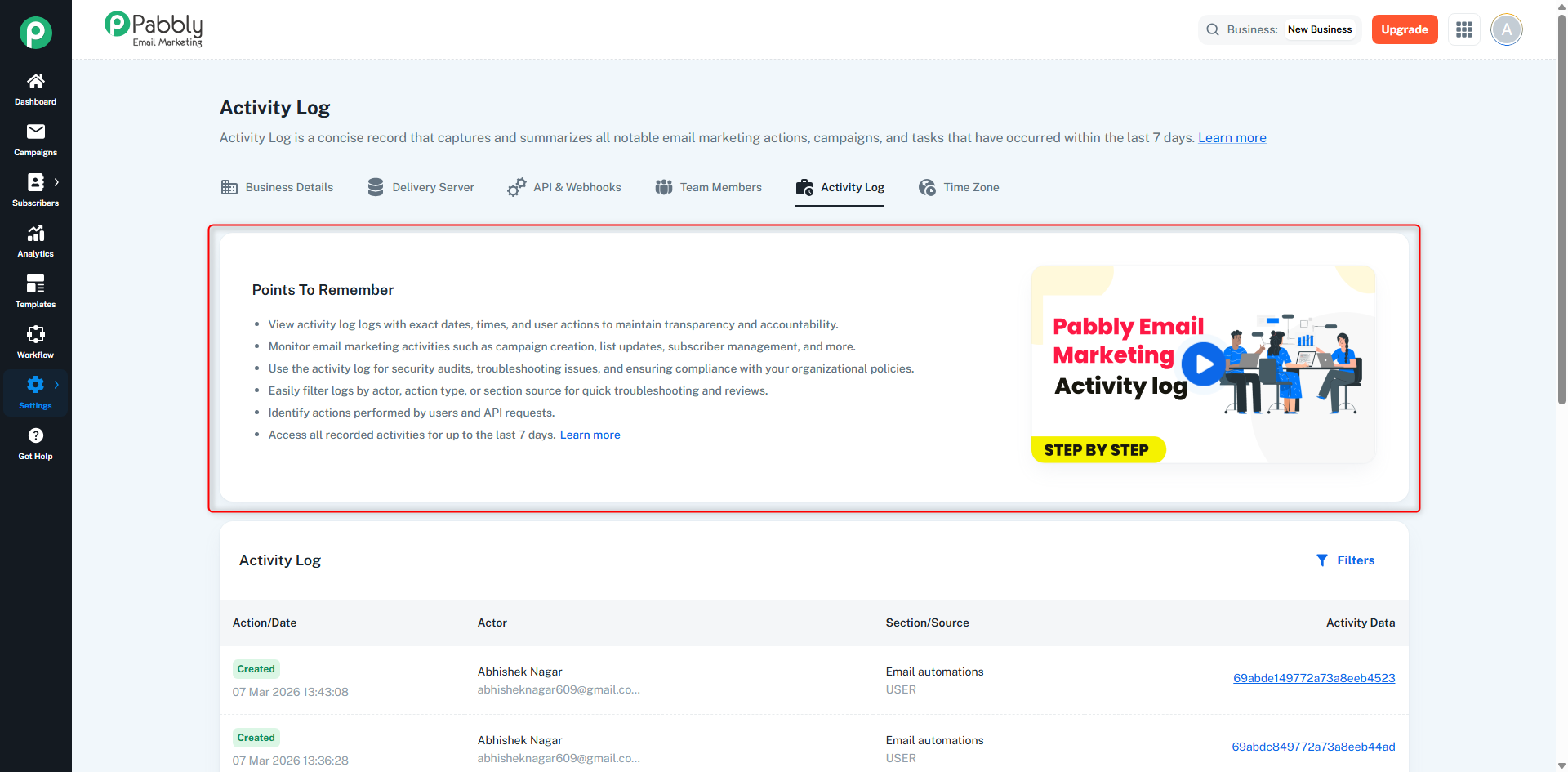
Settings
 Pabbly Email Marketing Team•Updated Oct 24, 2026•1 min read
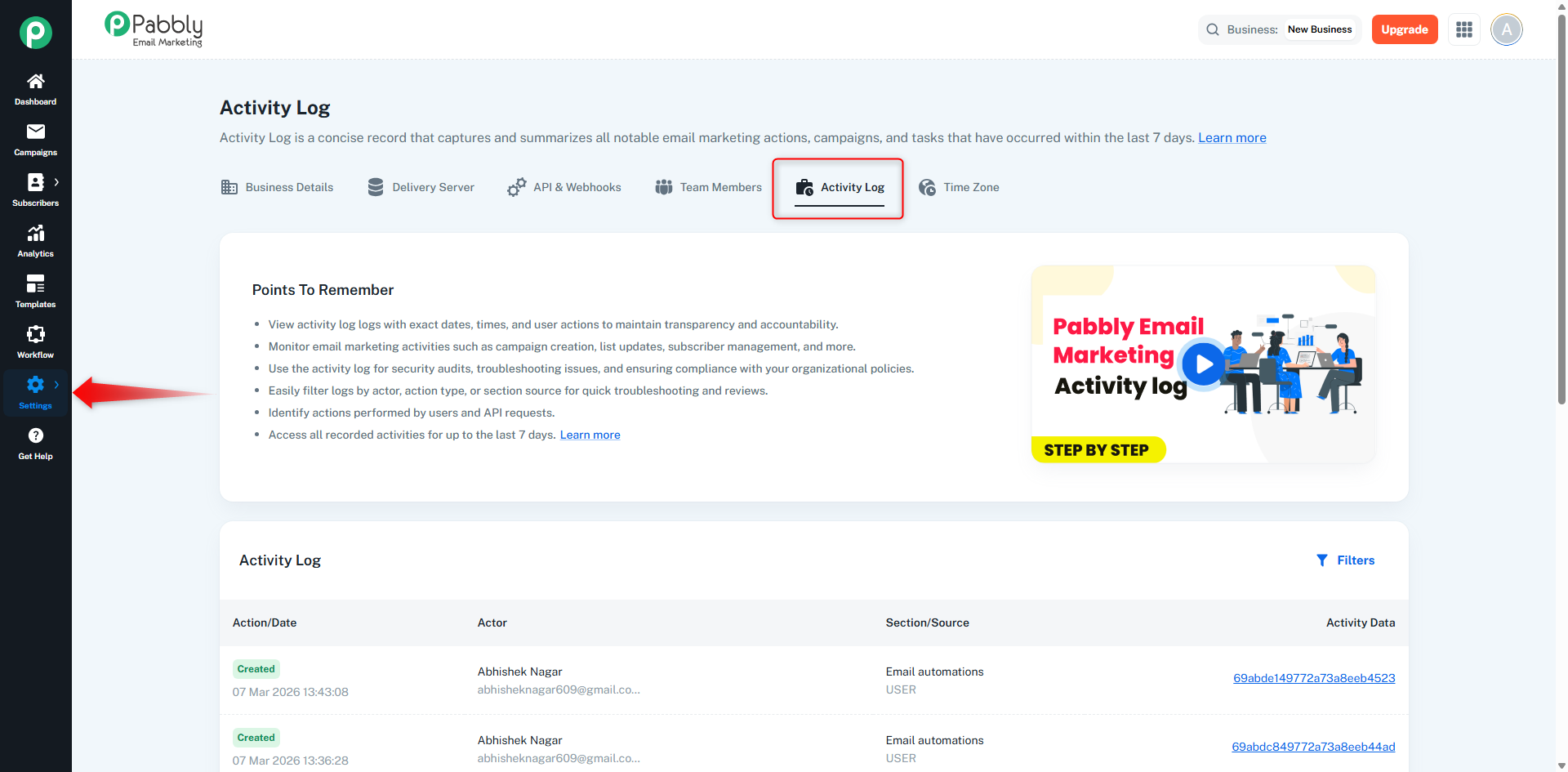
The Activity Log records every action performed inside your business.
Any changes made by you, your team members, or API will automatically appear here.
This helps in tracking updates, maintaining transparency, and troubleshooting issues.
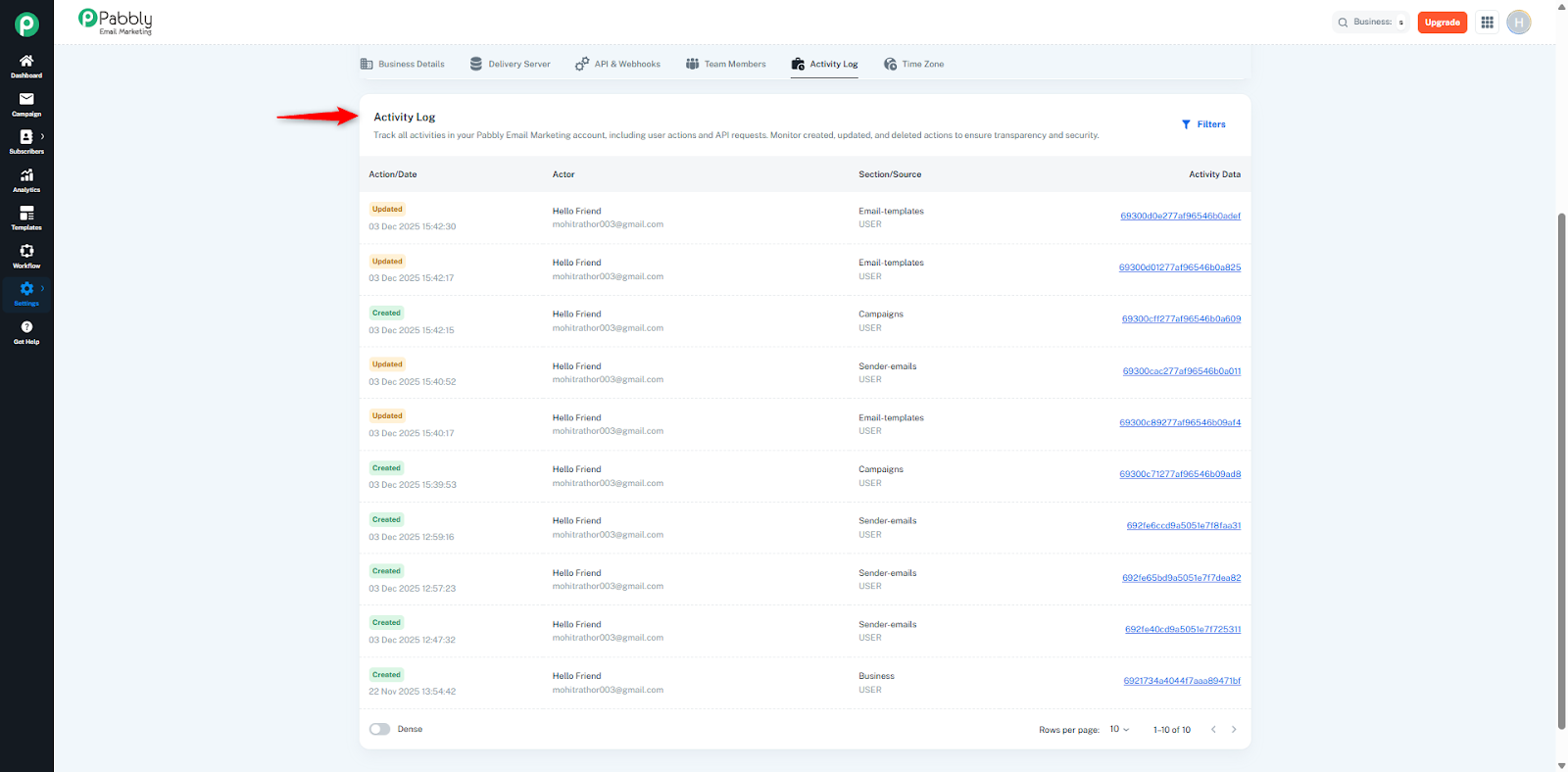
1. Action/Date
Shows what action happened (Created, Updated, Deleted) and the exact date & time it was performed.
2. Actor
Shows which user performed the action.
Example:
Logged-in user
Team member
API
3. Section/Source
Shows where the action happened.
Examples:
Email Template
Sender Emails
Campaigns
Subscribers
Lists
Delivery Server
API & Webhooks
Business Settings
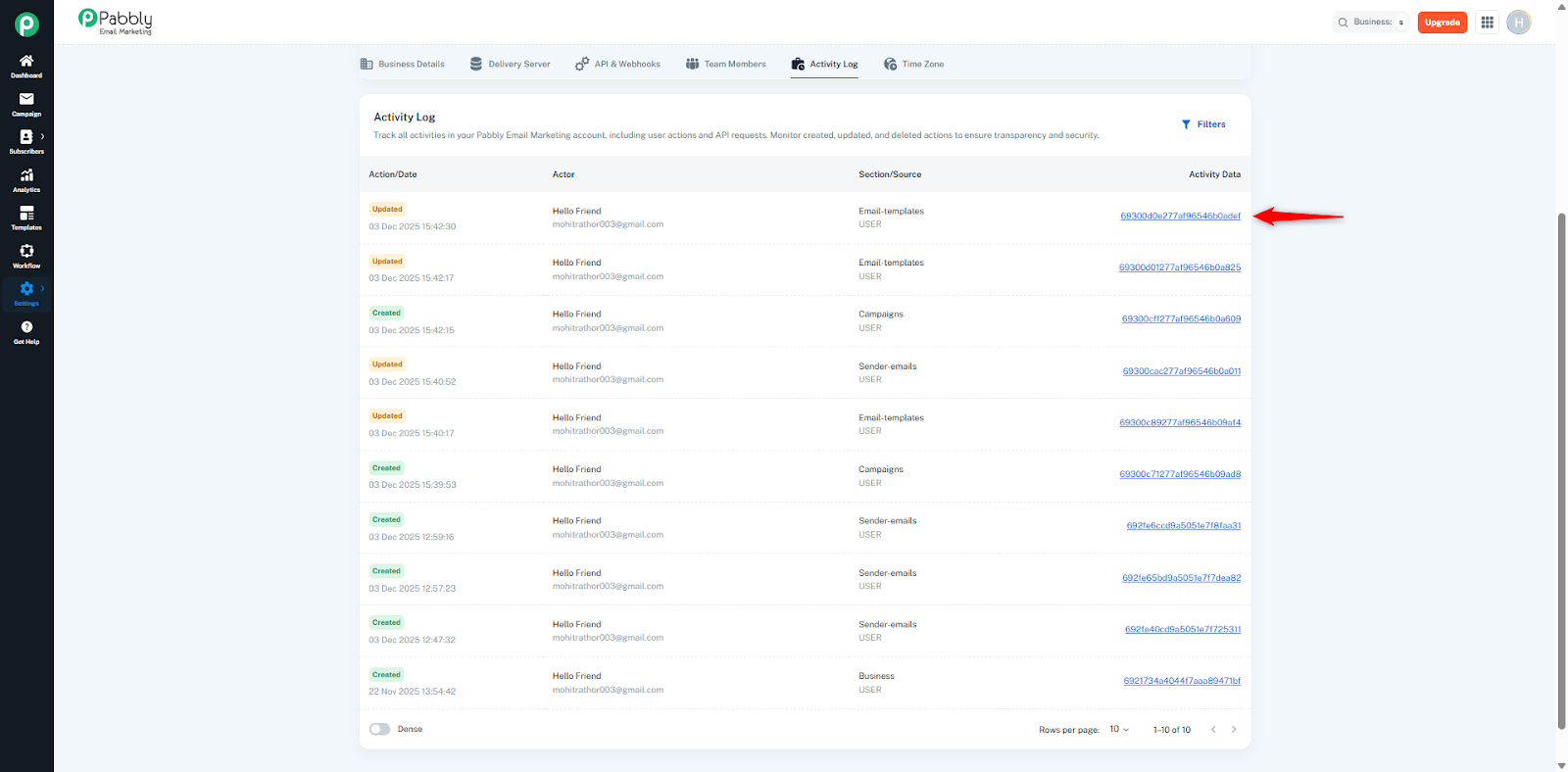
4. Activity Data
A reference ID is shown for each activity.
Clicking this ID opens detailed information about the activity.
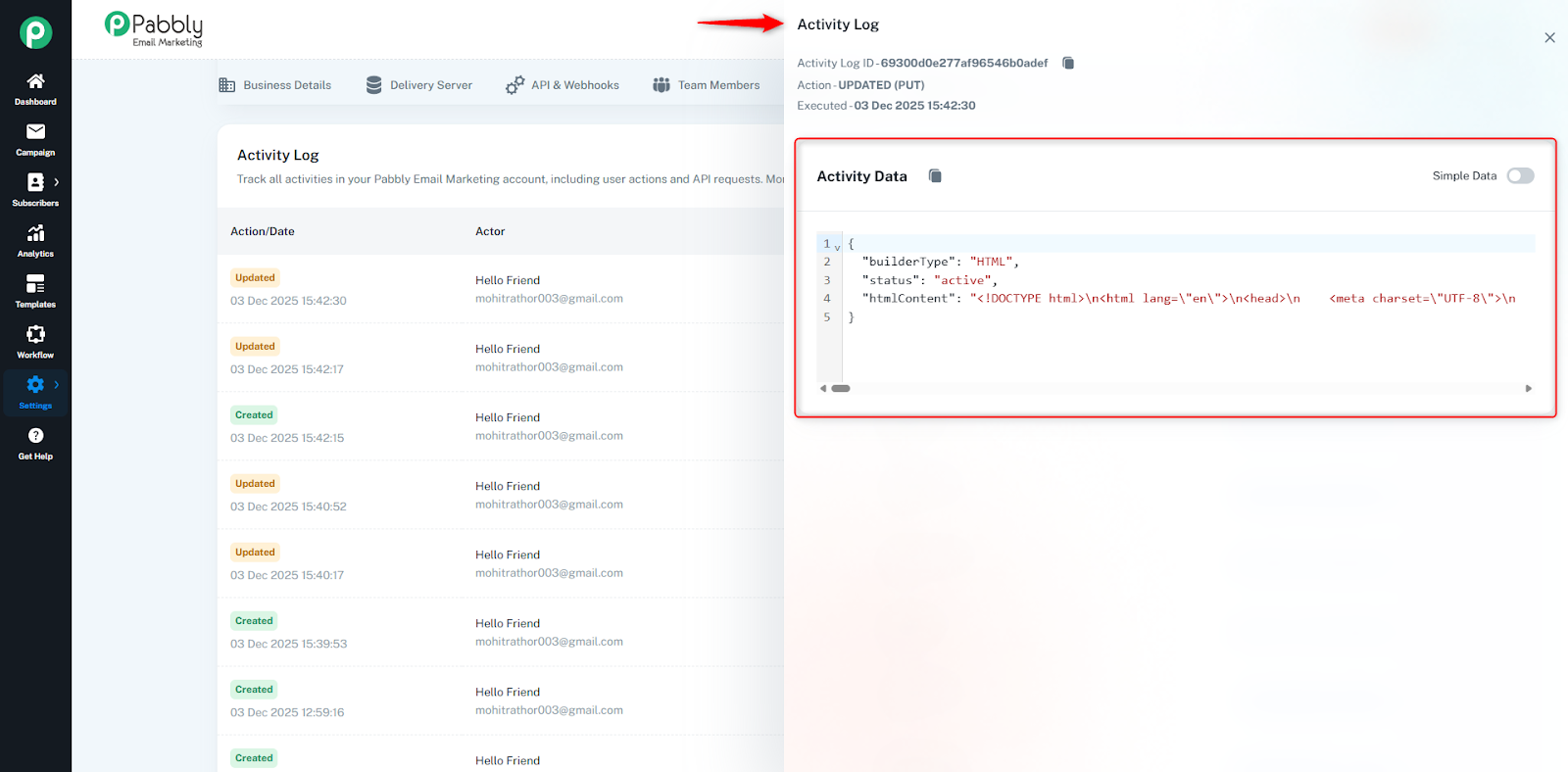
When you click on the Activity Data link, a drawer opens on the right side.
Inside this drawer, you can see:
Detailed JSON Data
It displays complete technical information in JSON format.
Example:
Builder type
Status
Updated content
API request data
Template HTML
Subscriber information, etc.
This helps in debugging or checking exactly what changed.
Simple Data Mode
At the top right, there is a Simple Data toggle.
When enabled, it shows a simplified version of the data for easy viewing.
Execution Details
Activity Log ID
Action type (Created / Updated / Deleted)
Executed date & time
All activities for the last 7 days are recorded.
You can filter logs by Actor, Section, or Action Type.
Both user actions and API actions are logged.
Helpful for:
Security audits
Finding who changed what
Debugging errors
Tracking email operations