Settings
 Pabbly Email Marketing Team•Updated Oct 24, 2026•8 min read
We use team members to maintain and manage our business.
To add a team member to your business, the team member must first create an account on accounts.pabbly using their email.
If they don’t have an account yet, an error toast will appear: “Failed to add team member.”
So, first make sure your team member creates their account on accounts.pabbly using the same email.
Once their account is created, we will give team-member access to that same email.
To add a team member, we will click on Add Team Member in the Team Members table.
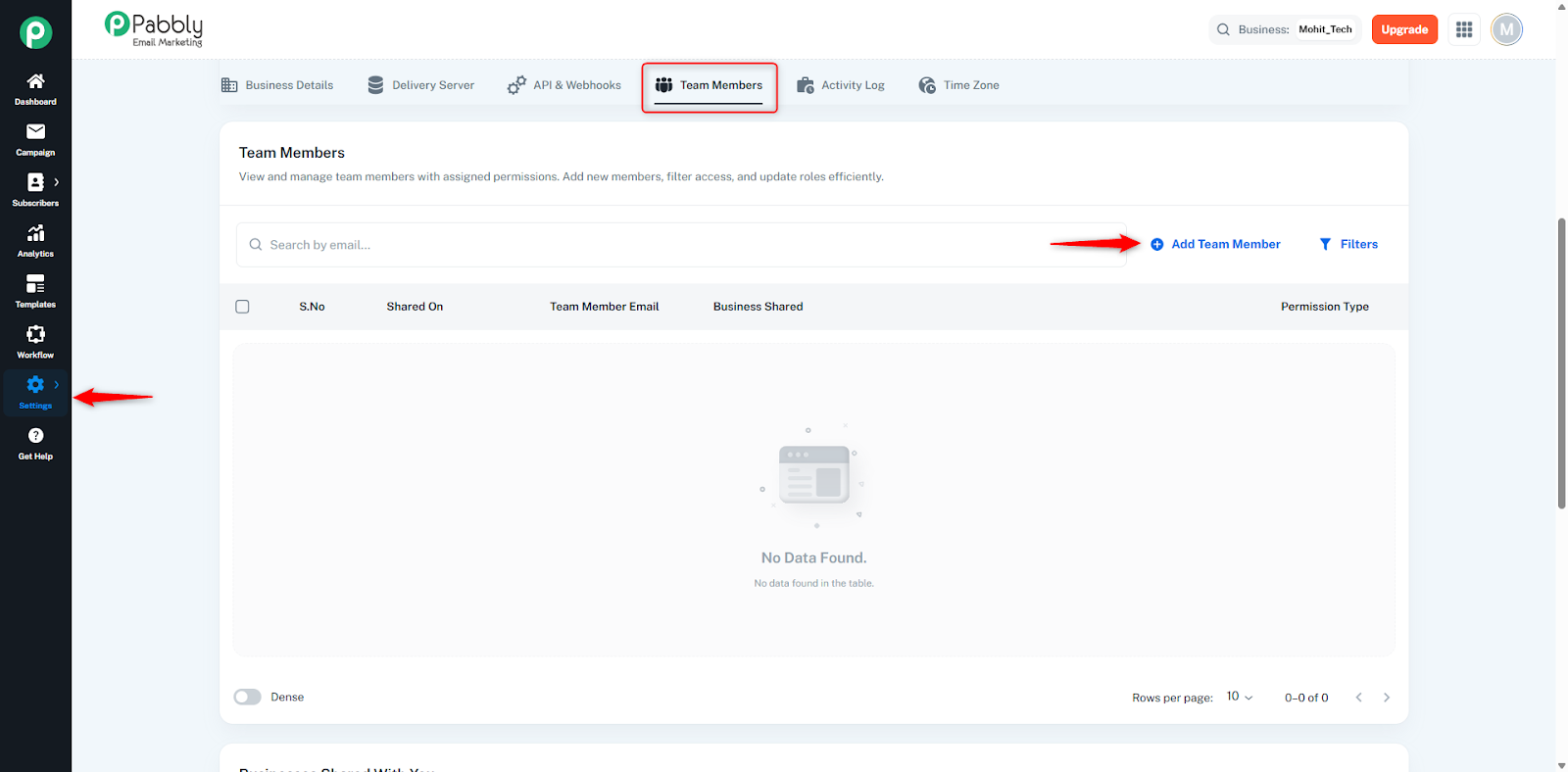
When we click on Add Team Member, a dialog will open.
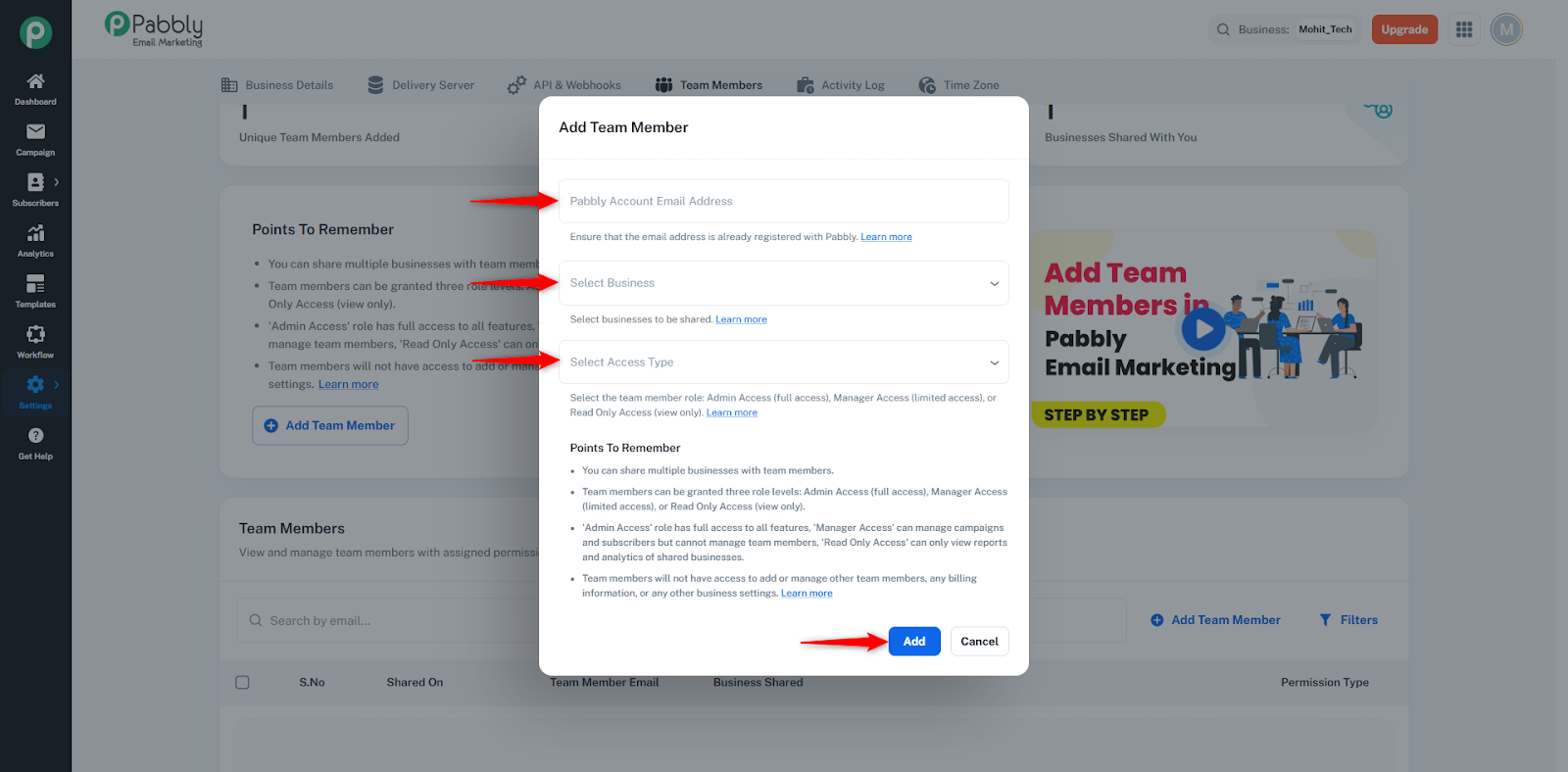
In this dialog:
First, enter the email address of the person you want to give access to.
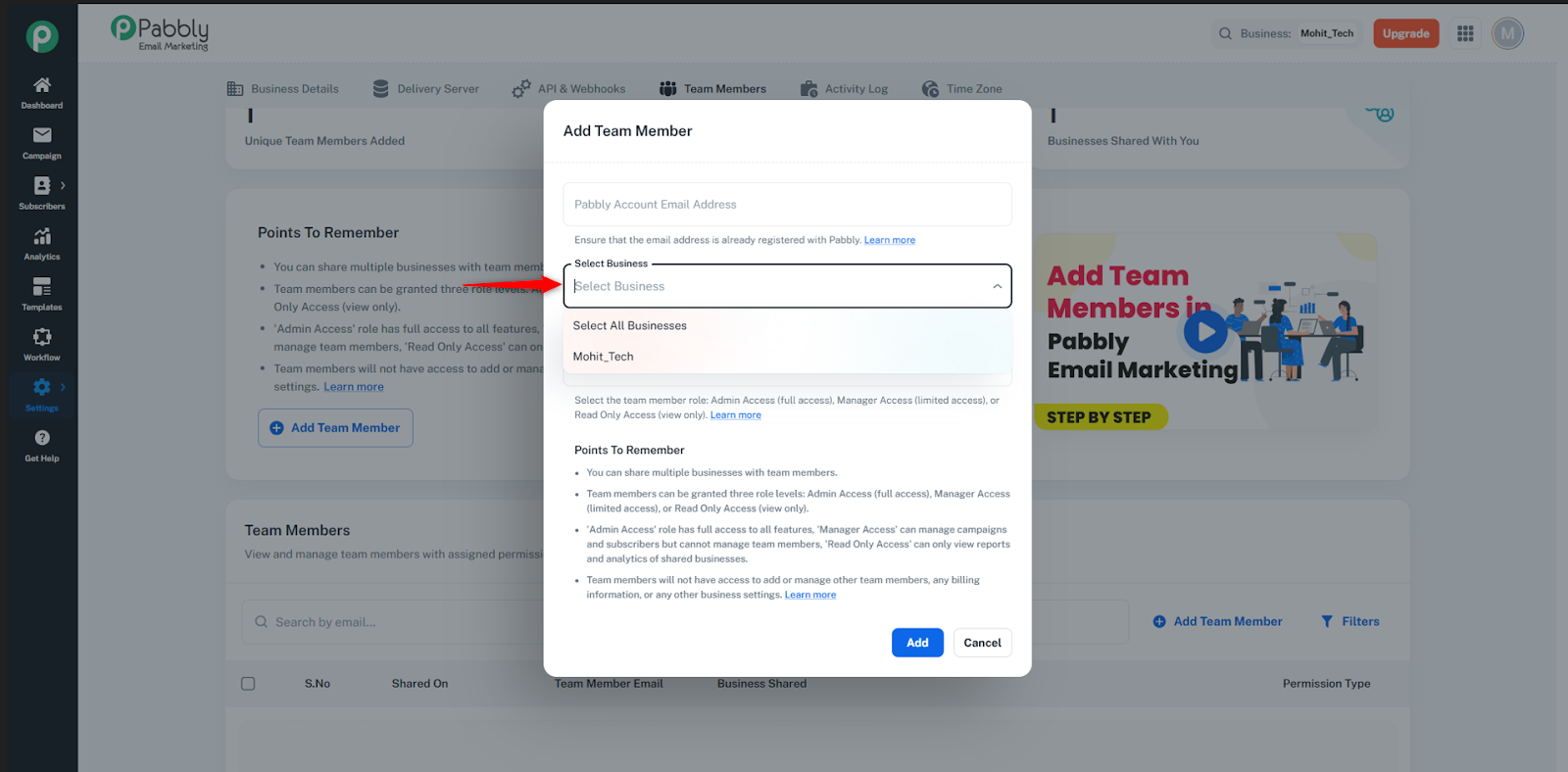
Next, under the Select Business dropdown, choose the business you want to share.
You can select a single business or share access to all your businesses.
Then, under Select Access Type, choose the permission level you want to give:
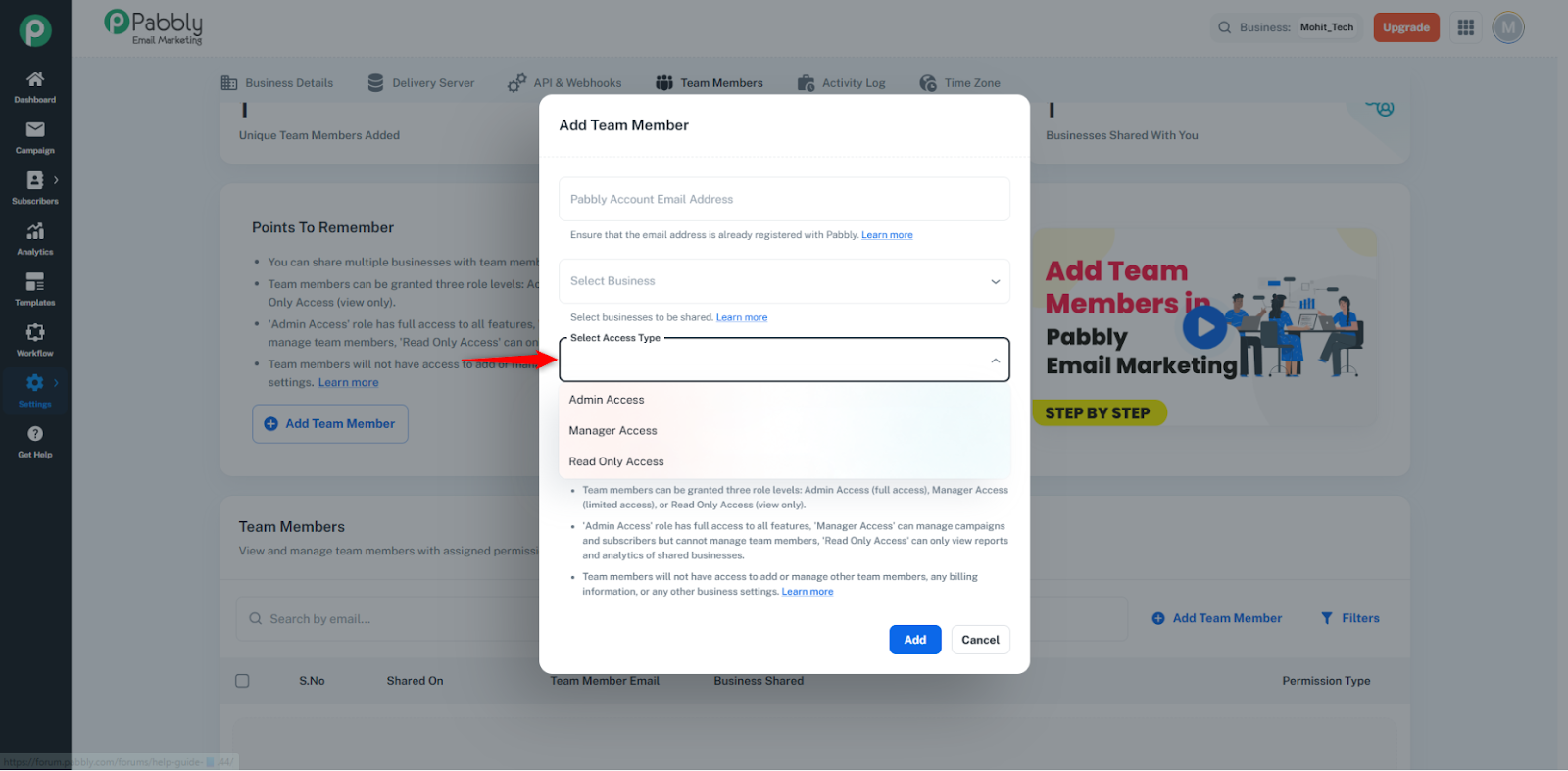
Admin Access
Manager Access
Read Only Access
After selecting the access type, simply click the Add button to complete the process.
Then the user’s details will appear in the Team Members table.
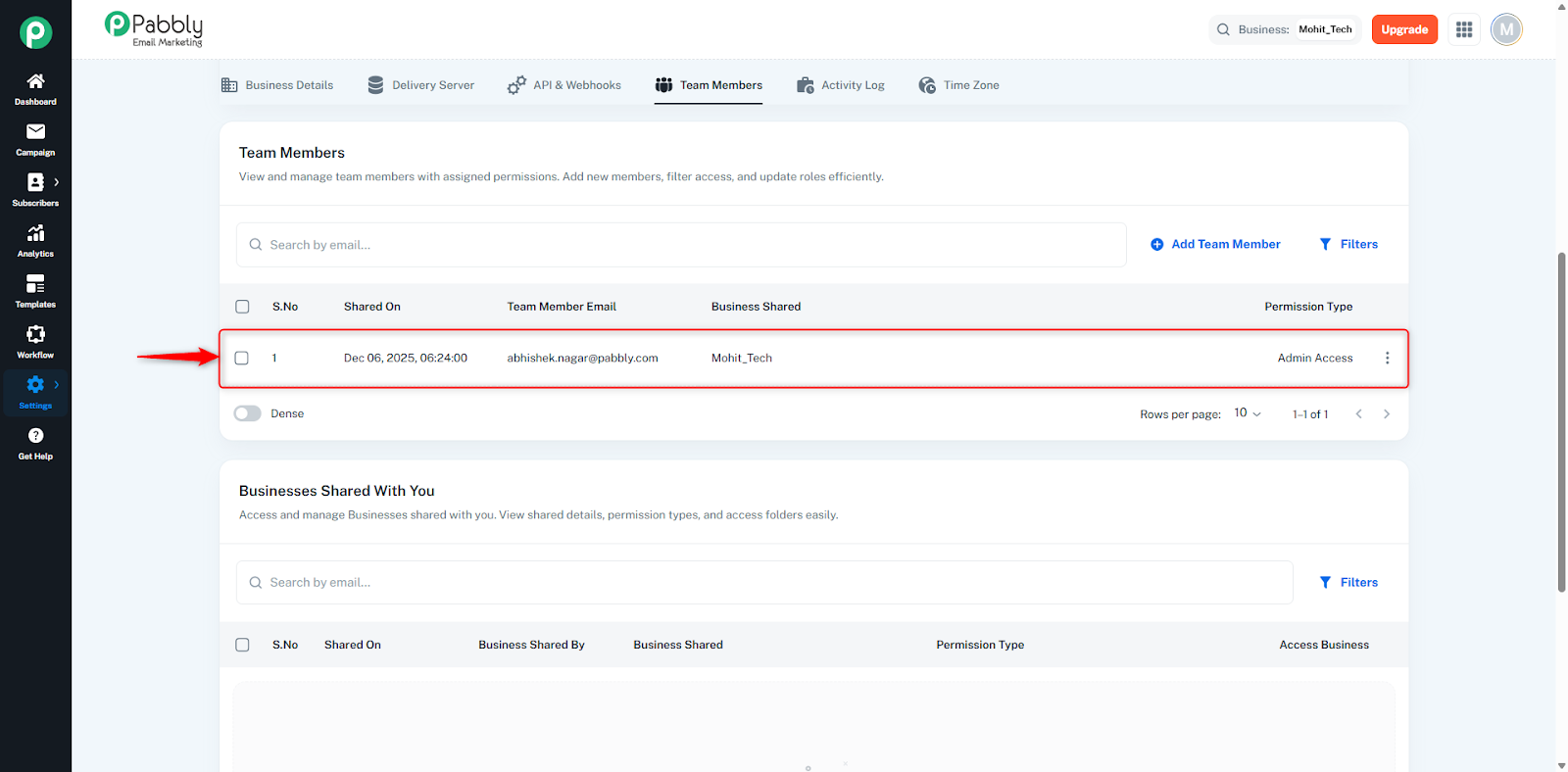
With this access, the team member can fully manage the business.
They will have both edit and delete rights.
They can do everything inside the business — add/delete subscribers, create/delete campaigns, and perform all actions without restrictions.
Now let’s understand what can be edited, updated, or deleted with Admin access.
On the Dashboard page:
The Add Business button will be visible but disabled for team members.
Four statistics cards are displayed:
Subscriber Quota
Subscribers Added
Available Subscribers
Businesses Added
A Folder Card is visible where the folder name is displayed.
The business exists inside that folder.
❌ Admin team members cannot create new folders on the dashboard.
In the business table:
Admin can apply filters.
From the three-dot menu, Admin can click Edit Business.
Business Name
Business Address
Time Zone
Business Website
Subscriber Allocation (cannot increase or decrease allocated subscribers)
This covers the complete Dashboard page Admin access permissions.
Admin has full access to the Campaign Page.
Create a Folder
Create an Email Campaign
Create and send email campaigns.
Select any subscriber list.
Apply filters before sending.
Admin can:
Export campaign reports (table format)
View campaign reports directly
Check campaign status
From the three-dot menu, Admin can:
Rename
Preview
Resend
Save as Template
Download Report
View Report
Move to Folder
Duplicate
Delete
Deleted campaigns move to the Trash Folder.
Admin can permanently delete campaigns from Trash.
Admin has full control over subscriber management.
Create and manage subscriber folders.
Add subscribers to:
A selected folder
Default list
Admin can:
Edit
View Subscriber Activity
Move to List
Remove from List
Delete
Admin can also:
Export subscriber lists
Admin can:
Create segments
Create lists
View subscriber activity after segmentation
Admin can:
Add new custom fields
Delete custom fields
Admin can:
Add a tag
Rename a tag
Delete a tag
Admin can:
Fully manage Lead Scores
Admin can manage:
Unsubscriber List
Bounce List
Spam Complaint List
Add unsubscribers
Move subscribers back to active lists
Export:
Unsubscriber list
Bounce list
Spam complaint list
Admin can:
Apply filters
Export subscriber activity
View subscriber details
View complete activity logs
Admin has full access to Analytics, including:
Statistics Cards
Top Five Subscriber List
Campaign Chart
Campaign Analytics Table
Admin can:
Apply filters
Export campaign analytics reports
View individual campaign reports
For more details about campaign reports:
https://docs.pabbly.com/doc/campaign-report-bkTx7oCQAU#h-statistics-cards-grid
Admin can:
Create templates
Delete templates
Admin can:
Create workflows
Create folders
Rename folders
Delete folders
View workflow reports (Complete, Delay, Failed)
From the three-dot menu, Admin can:
Disable
Rename
Edit
Clone
View Workflow History
Move to Folder
Delete Workflow
Admin can:
Edit business details
Save and update business information
Admin has full access and can:
Create server
Rename server
Inactivate server
Regenerate API Token (creates a new token)
Admin can:
Add webhook
View webhook URL
Test webhook
View webhook events
From the three-dot menu, Admin can:
Deactivate
Edit
Permanently Delete
Admin can change the Business Time Zone.
A Manager can edit items but cannot delete anything.
Manager access is limited compared to Admin access.
Now let’s understand what actions are restricted for Managers across the business.
Add a Business
Add a Folder in the Folder Card
Search for a Business using the search bar
Apply filters
Export the business list
Managers can only view the dashboard data but cannot perform management-level actions.
Manager access in the Campaign section is almost similar to Admin — except for deletion rights.
Create a Folder
Create an Email Campaign
Send Campaigns
Manager can:
Edit campaigns (if in draft)
Send draft campaigns
View campaign reports
Check campaign statistics
From the three-dot menu, Manager can:
Rename
Preview
Resend
Save as Template
Download Report
View Report
Move to Folder
Duplicate Campaign
Delete a campaign
Manager access is highly restricted in the Subscribers module.
Manager:
❌ Cannot view subscribers
❌ Cannot add subscribers
❌ Cannot create subscriber lists
The Subscriber List section is completely restricted for Manager access.
Manager:
❌ Cannot create segments
❌ Cannot manage segments
Add a new custom field
Save custom fields
Delete custom fields
Add a tag
Update (rename) a tag
Delete a tag
Modify lead score rules
Manager:
❌ Cannot view subscribers
❌ Cannot view unsubscribers
❌ Cannot view bounce list
❌ Cannot view spam complaints
❌ Cannot access suppression lists
Manager:
❌ Cannot view subscriber activity
Manager has limited access to Analytics.
View Campaign Analytics table
View particular campaign reports
Apply filters
View:
OS Status
Devices
Click Visitor Location
Export Campaign Analytics report
View Subscriber Activity in reports
View Campaign Link Click Report
View Countries data
Create templates
Delete templates
Manager has strong editing rights but no deletion rights.
Create folders
Create workflows inside folders
View workflow history
View workflow reports
From the three-dot menu, Manager can:
Disable
Rename
Edit
Clone
View Workflow History
Move to Folder
Delete workflows
Manager:
❌ Cannot make any changes to Business Details
Add Delivery Server
Rename Delivery Server
Delete Delivery Server
Generate (Regenerate) API Token
Add a Webhook
Edit a Webhook
Deactivate a Webhook
Test a Webhook
Permanently Delete a Webhook
Change Business Time Zone
A user with read-only access can only view data.
They cannot edit or delete anything.
Now we will see where the team member can view the access after the business has been shared with them.
If someone gives you access to their business, it will appear in the “Businesses Shared With You” table under the Settings → Team Members page.
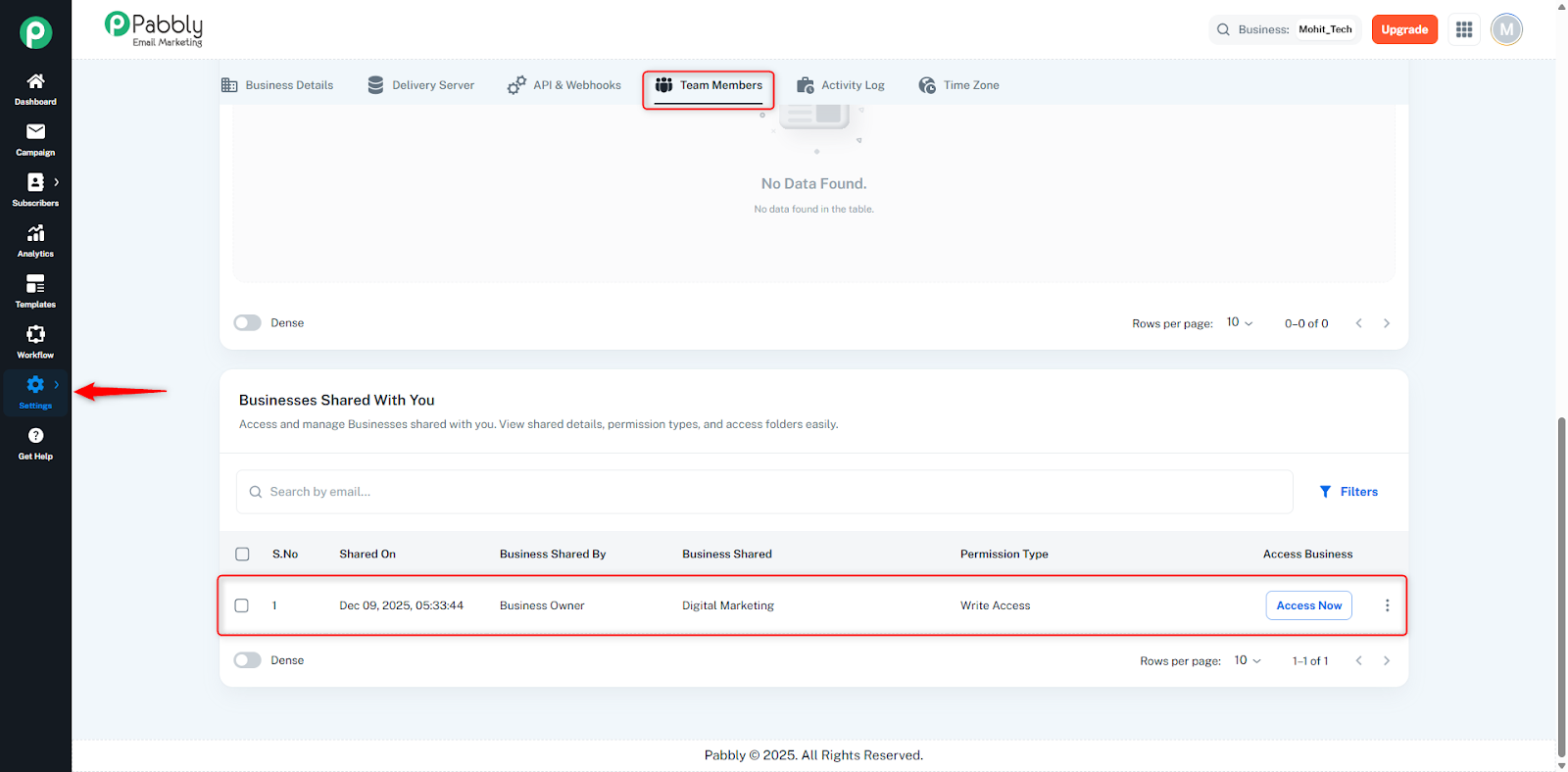
In this table, you can see:
Shared On: The date and time when the business was shared with you.
Business Shared By: The owner who gave you access.
Business Shared: The name of the business you received access to.
Permission Type: The type of access you were granted (Admin, Manager/Write, or Read Only).
Access Business Button: You can click Access Now to open and manage the shared business based on your permission level.
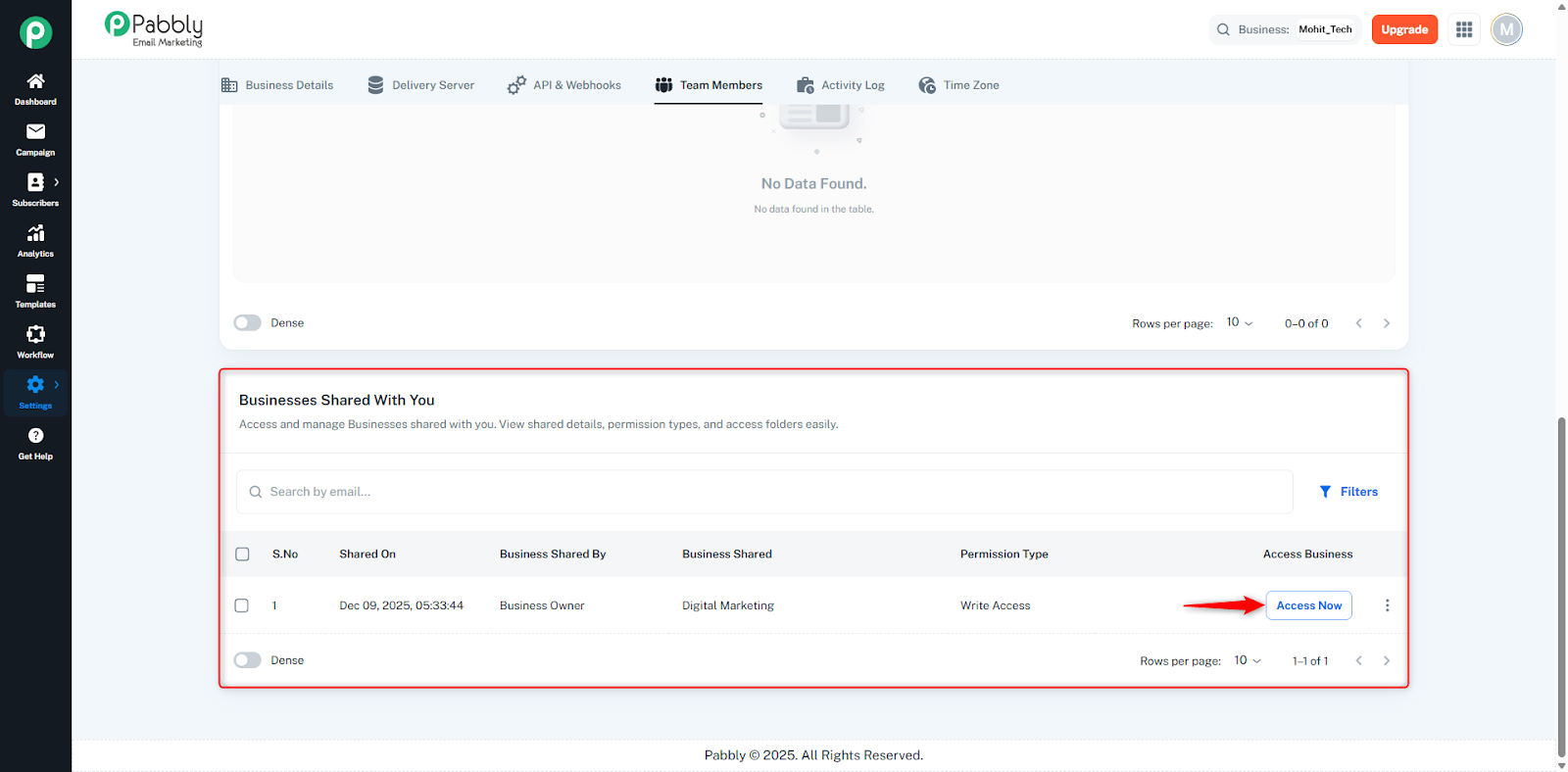
Once you click the Access Now button, you will be redirected to that business account.
At the top, a hello bar will appear showing something like:
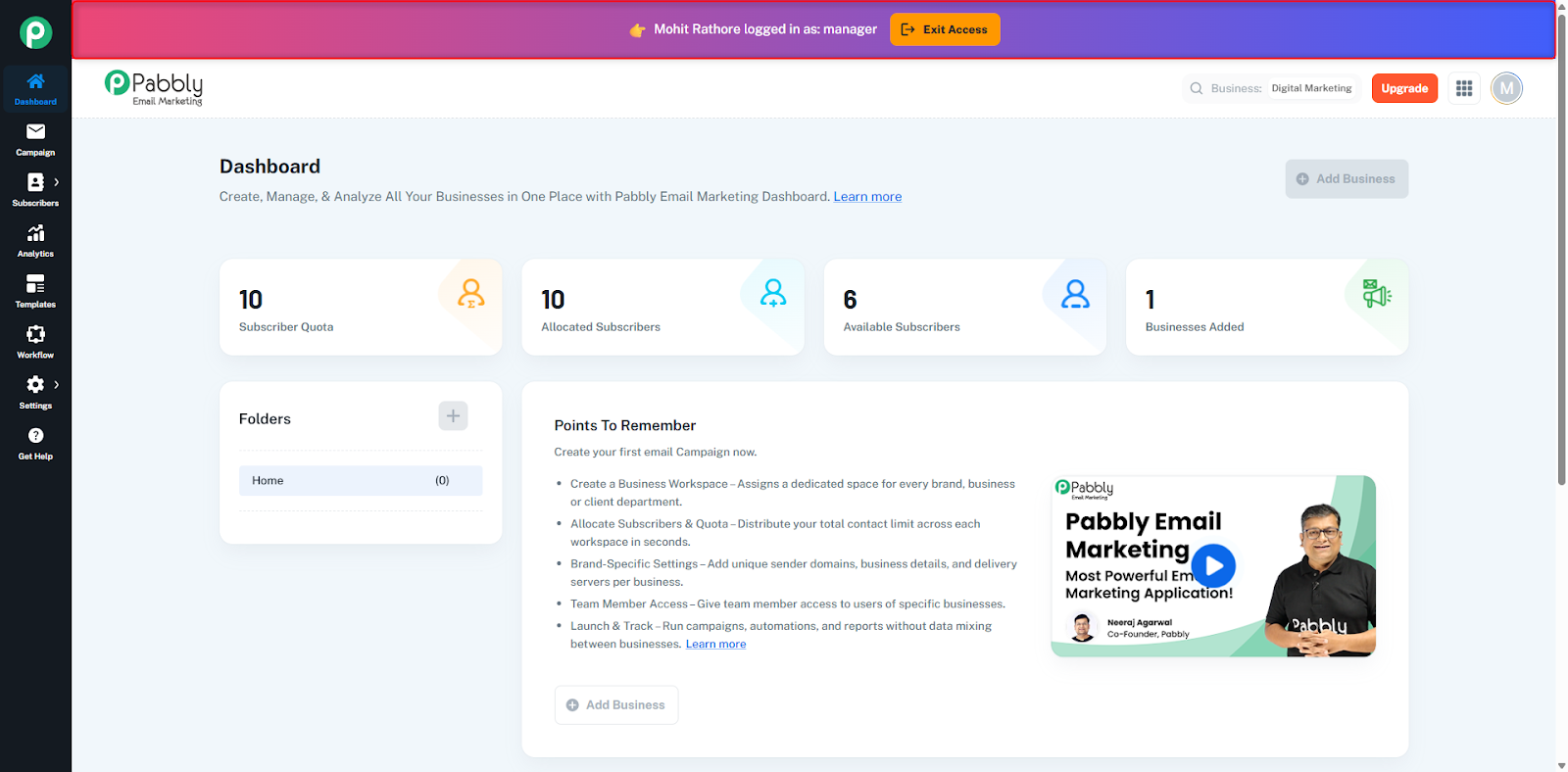
👉 Mohit Rathore logged in as: Admin / Manager / Read Only | Exit Access
You can manage the business according to the access level granted to you.
Only the pages and actions allowed by your permission type will be enabled, and restricted actions will remain disabled.
If you want to leave that business access, simply click the Exit Access button.
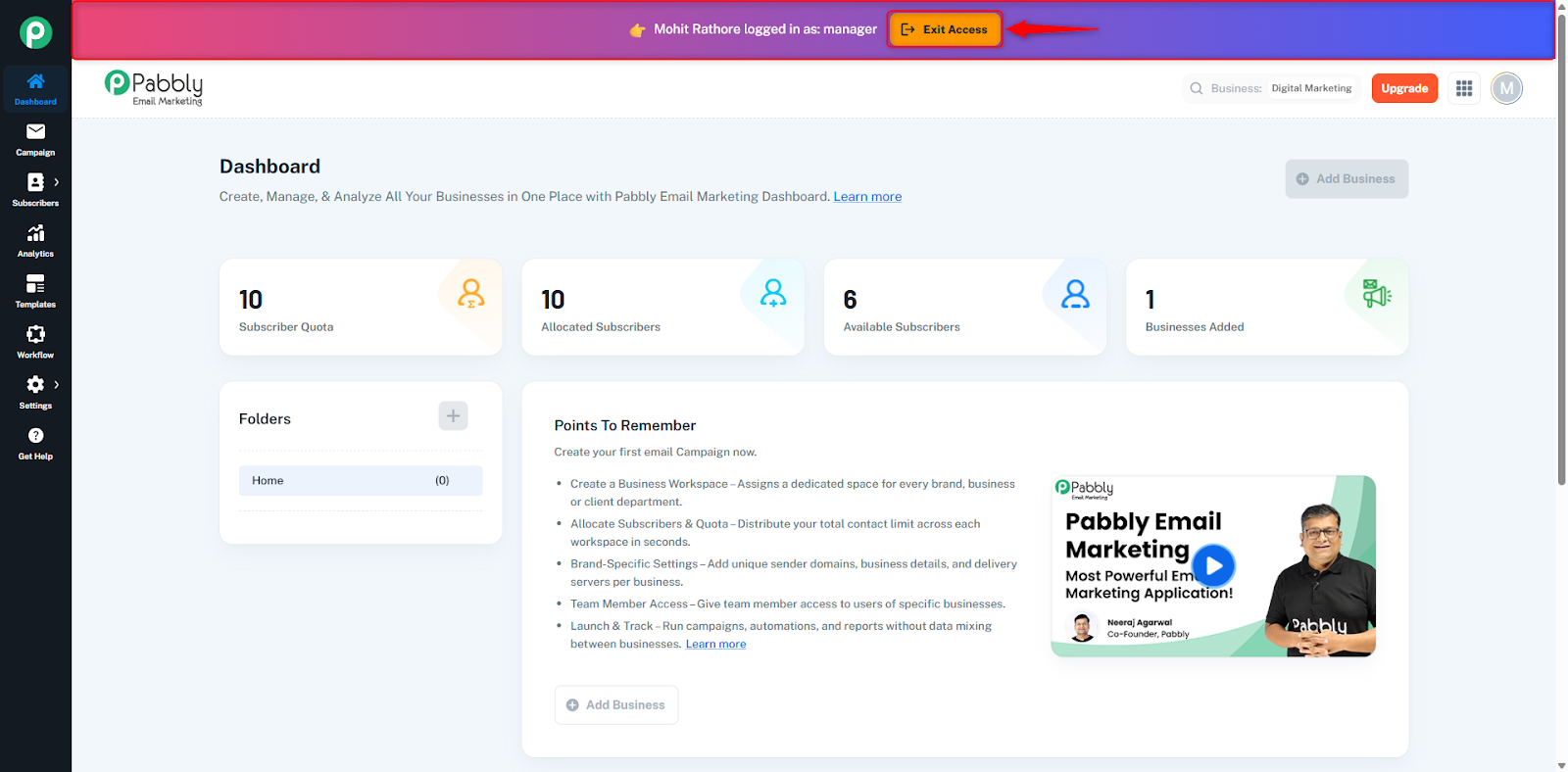
After that, you will exit the shared business and return to your own account.
